BI Account Security and Login Settings
As digitalization continues to deepen, Guandata BI connects to more and more business data from users, and data security faces significant challenges. To prevent important information leaks and protect enterprise data security, Guandata provides multiple ways to protect user data. The most basic and important protection is user account and login security. A few simple settings can greatly improve account security.
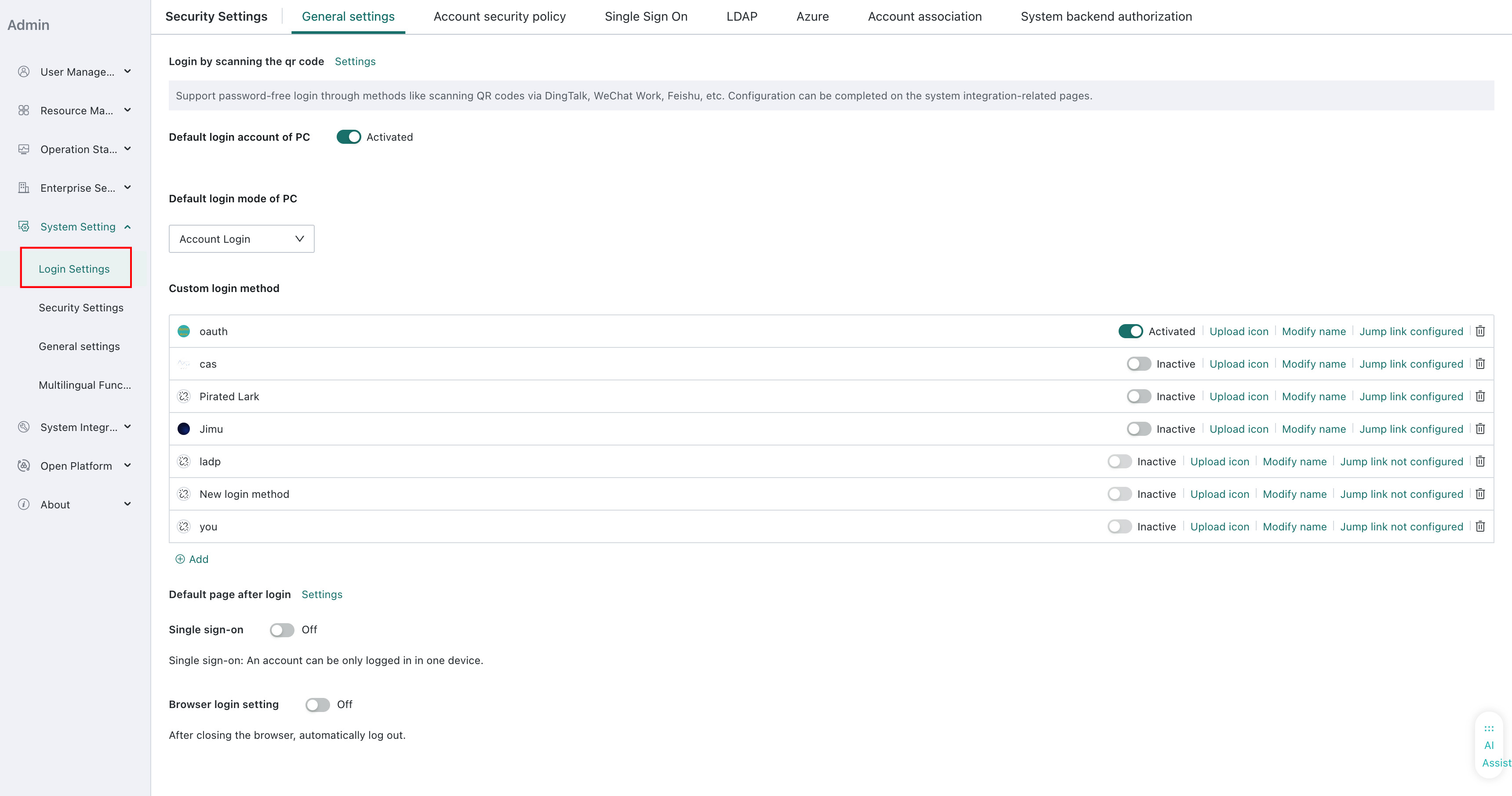
Path: Admin --> System Setting --> Login Settings.
Scenario 1: Use Account and Password Login
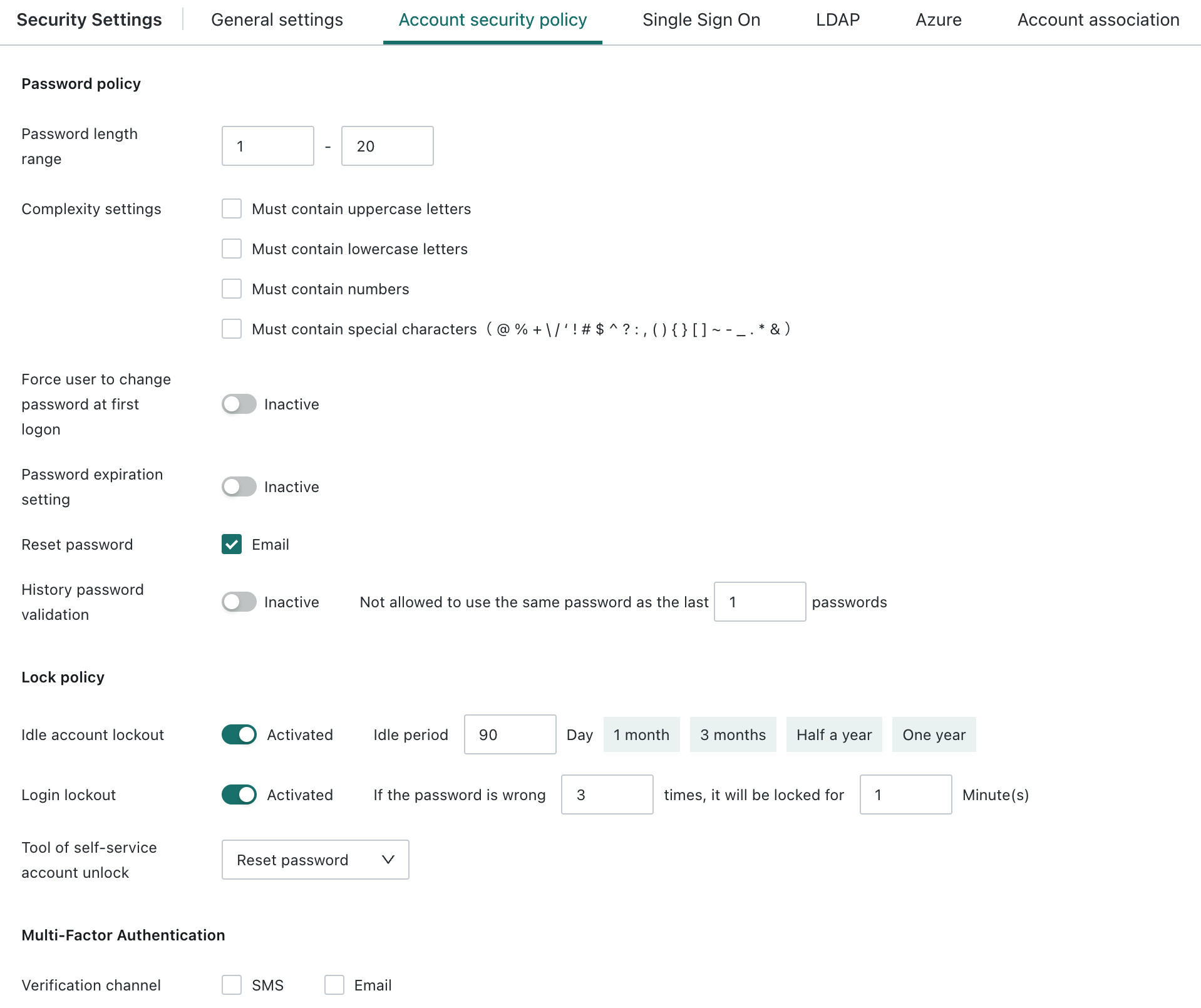
Default settings: High-strength passwords are not mandatory. By default, after 3 failed login attempts, an image captcha appears for secondary verification. After 10 consecutive failed login attempts, the account is locked and must be unlocked by an administrator. Forgotten passwords can only be reset by an administrator.
For user convenience, Guandata does not force users to set high-strength passwords. When administrators or group administrators create accounts for users, especially when creating users in batches, they usually tend to use a unified and simple initial password for all new users. Users can also freely set or modify passwords. This usage alone introduces security risks, so administrators are strongly advised to enable login security settings.
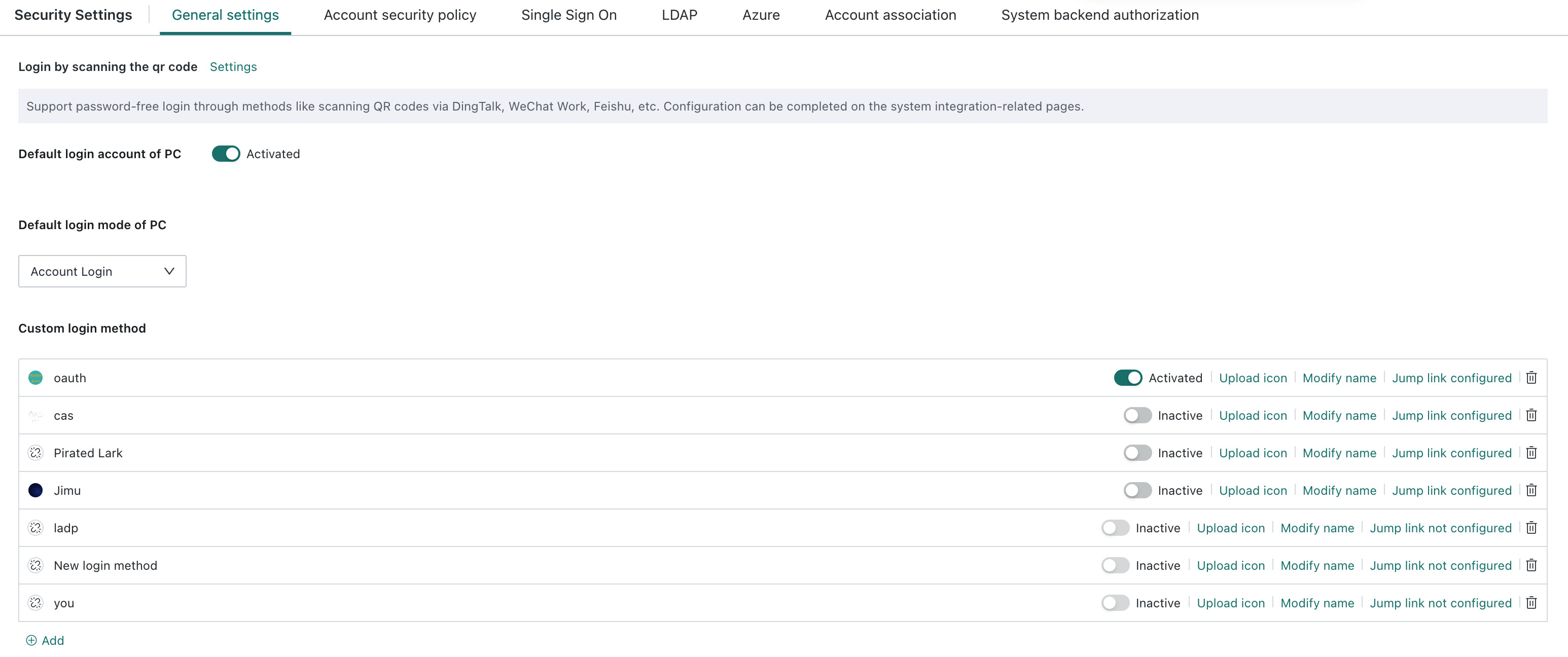
In this case, enable the following switches to prompt users to change passwords regularly and set high-strength secure passwords. Passwords must meet the following standards: length from 8 to 32 characters, and at least two of letters, numbers, and symbols. After an account that has not been used for a certain period is locked, the user must enter the old password and set a new password to unlock it when logging in again. The minimum supported password validity period and unused period is 7 days.
This setting is not required when using SSO single sign-on or LDAP account login. However, when using BI accounts bound to WeChat, DingTalk, or similar scan-code login methods, enabling this setting is still recommended.
Scenario 2: Computers Are in Public Places and May Be Shared, Such as Sales Stores
Default settings: When logged in, a BI account is automatically logged out after 24 hours of inactivity.
In public places, computers cannot always be dedicated to one person. In scenarios where users lock the computer screen when leaving, enable Browser Login Settings. When the browser is closed, or when all Guandata pages in the browser are closed, the Guandata account is automatically logged out. Users only need to close the browser when leaving the computer. Mobile login is not affected by this logout restriction. When logging in to BI from DingTalk or WeCom, the account is verified every time.
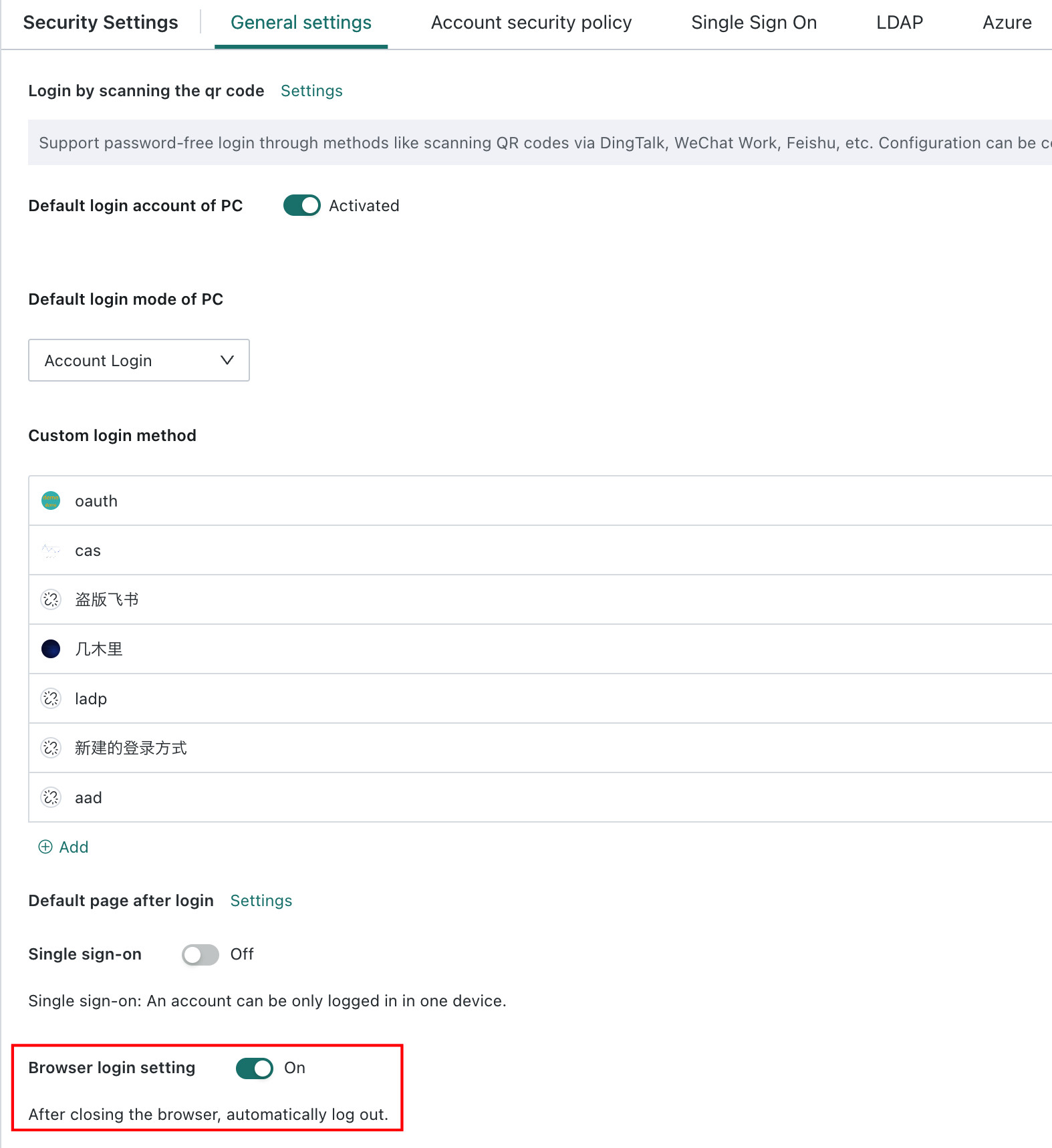
Note: The 24-hour automatic logout setting cannot be modified from the frontend. Contact Guandata staff to modify backend configuration if needed.
Other security recommendations:
-
When a user leaves the company, disable or delete the account promptly.
-
At all times and in all places, users must properly protect their account and password information and must not disclose it to others.
Scenario 3: The Company Uses SSO or Scan-Code Login Uniformly
Default settings: Even if a single sign-on link or scan-code login methods such as WeCom and DingTalk are uniformly configured, BI's built-in login entry still defaults to account and password login. When SSO protocol login and scan-code login are used at the same time, the SSO protocol method redirects directly, making scan-code login unavailable.
Many enterprises use account synchronization to automatically create BI accounts and maintain user attributes. Guandata account passwords may use a unified and simple initial password, which can create account leakage risks. Therefore, enterprises may want to hide Guandata account login on the login page and allow only SSO or scan-code login. The desired login method can now be configured in General Settings.