Account Sync Practice
Setting path: Admin Settings — User Management — Account Sync. If this feature is not enabled, contact Guandata staff to enable it.
Update methods: Manual trigger and scheduled task.
User Group Sync
Prepare the User Group Dataset
The dataset must contain the following three fields:1) User Group ID: STRING type. This ID is only the unique identifier of an external user group, not the user group ID inside BI. It cannot be empty or duplicated (*records with empty values are ignored, and duplicate records use the last record as the final value).
2) Name: STRING type. It cannot be empty (*records with empty values are ignored).
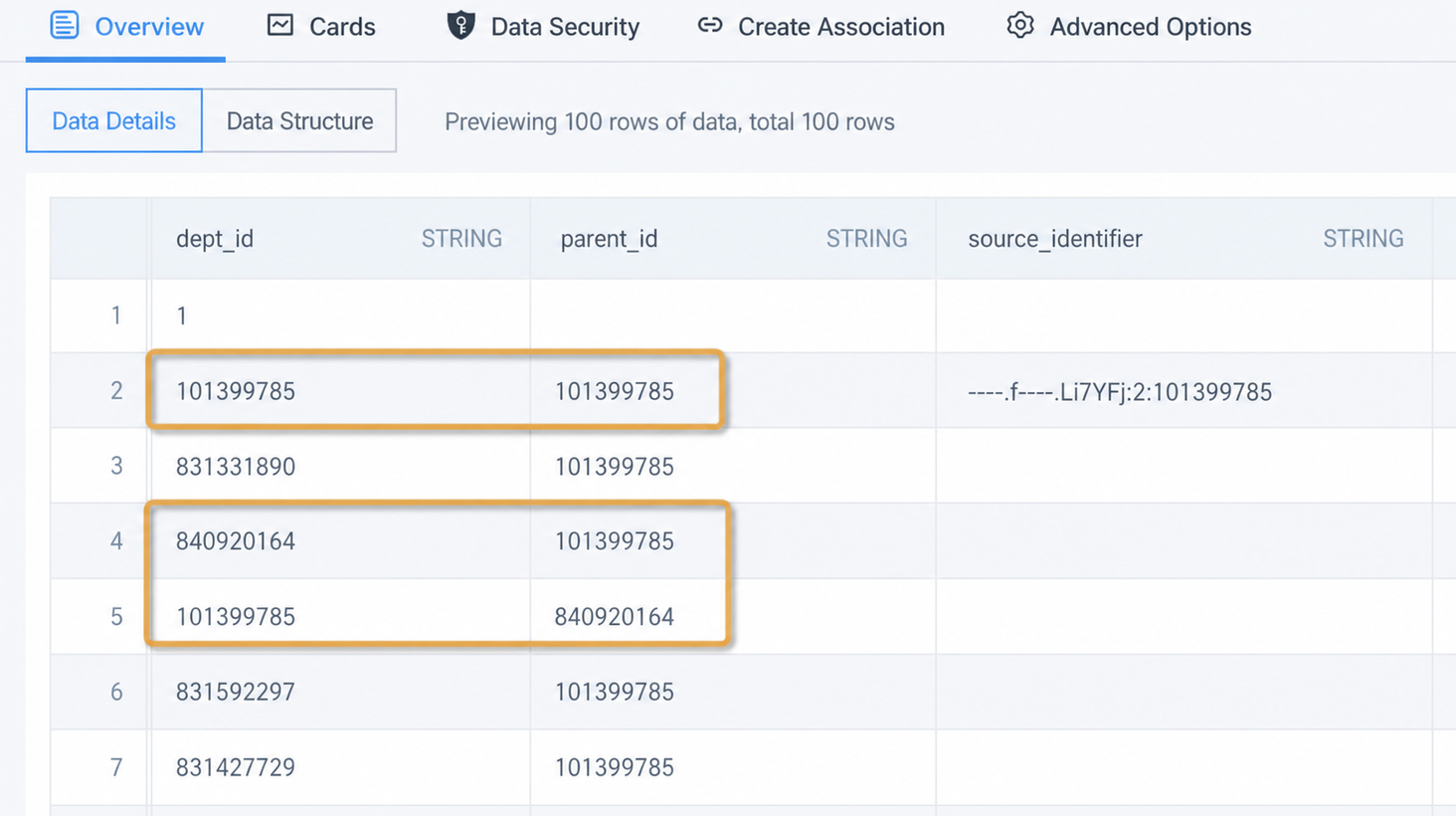
3) Parent User Group ID: STRING type. A correct example is shown below:

Avoid mutual dependencies between parent user group IDs. For example, if the parent user group of A is B and the parent user group of B is A, the configuration is invalid. The figure below shows an incorrect example that must be avoided.
Configure User Group Sync and Map Fields
The effect after synchronization is as follows.

- If the user group and its descendant user groups still own resources, they cannot be deleted.
- If user A synchronized by the system belongs to user group a, which was manually created and added in BI, and user group b, which comes from system sync, user group a remains the next time user A is synchronized by the system.
Account Sync
Dataset Preparation
Make sure all user attributes to be synchronized are included in the dataset and stored as string text. If multiple user attributes are distributed across different datasets, or if the format is incorrect, we recommend using ETL to process the data into a dedicated dataset for account sync. Existing account information can be queried in the builtin_user dataset in the Built-in-Dataset folder of Data Center. User group information is stored in the user_and_user_group_relation_record table.
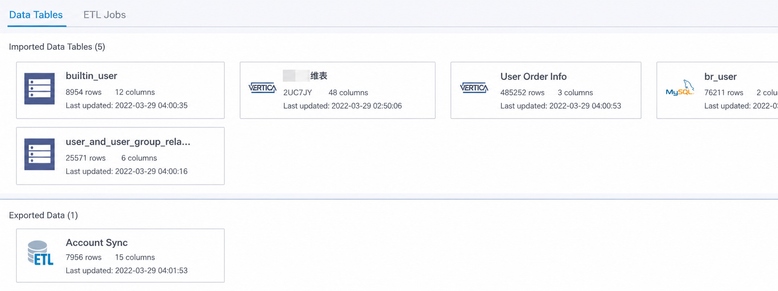
Configure Dataset Sync and Map Fields
Enter the Account Sync editing page. On the User Sync tab, click Select Dataset and select the prepared dataset.
Synchronizable fields are divided into four categories: Basic Information, Permission Information, Third-Party Account Association, and Other Information. Except for password and user status, all other attributes can only be mapped one by one to corresponding fields in the dataset selected in the previous step. For fields that do not need to be synchronized, leave the matched field blank and save.

Field Descriptions
A. Account: cannot be empty and must be unique. Records with empty values are ignored.
B. Password: takes effect only when a user is created for the first time. It is not updated later as the dataset changes. If you need to change it, modify it manually in Admin Settings. If you choose to match a dataset field, a password field is required and must be encoded with Base64. If a unified initial password is used, all new users created through Account Sync have the same password. This may create a data security risk. We recommend setting a complex password and configuring a password policy. Path: System Management > Login Settings. See Account Security Policies. Guandata BI does not support batch password modification, but a corresponding API is available for secondary development: batch modify user attributes, POST /public-api/users/modify.
C. User status: statuses are enabled and disabled. If a unified initial value is selected, it takes effect only when a user is created for the first time. Later changes must be made manually in Admin Settings. If Match Dataset Field is selected and a field is selected, status follows the dataset during subsequent sync. Use lowercase English disable for disabled, and lowercase English enabled or an empty value for enabled.
D. Account type: the role must be in English: admin, editor, or participant. If the field value is empty, newly added users are read-only accounts by default. This takes effect only when a user is created for the first time and is not updated later as the dataset changes. If you need to change it, modify it manually in Admin Settings.
E. User Group ID: optional and can be empty. If it is empty, the user is not added to any user group. If there are multiple user groups, separate them with an English comma ,. User group names cannot be used; only user group IDs can be used. This means the external user group ID in the user group sync dataset, not the user group ID inside BI.
F. Third-party account association: after matching a dataset field, the system supports automatic synchronization of SSO login accounts and LDAP login accounts. Null checks and duplicate checks are performed. Note that this feature fully supports Guandata's standard built-in SSO integration method, but does not apply to other methods or custom-developed SSO methods. For example, if the SSO login account is an email address but the BI login account is an employee ID, first ensure the user email attribute has a value, and then map the SSO login account to the email field in the dataset.

Main Sync Process
● Sync user groups first, and then sync users, because users depend on user groups.
● In general, the process obtains new user or user group information, compares it with old user or user group information, and then handles data to delete, add, or update. See the flowchart below.

Task management:
1. When a task is submitted, the system checks whether an account sync task is already running. If one is running, a new task cannot be submitted.
2. After synchronization, you can view the running status on the current page and view update history in the upper-right corner. The history indicates whether all records failed or only some records failed. Click Details for the failed field to view the failure reason and list. The most common failure reason is that a user still has untransferred resources, which causes user deletion to fail.

Notes
-
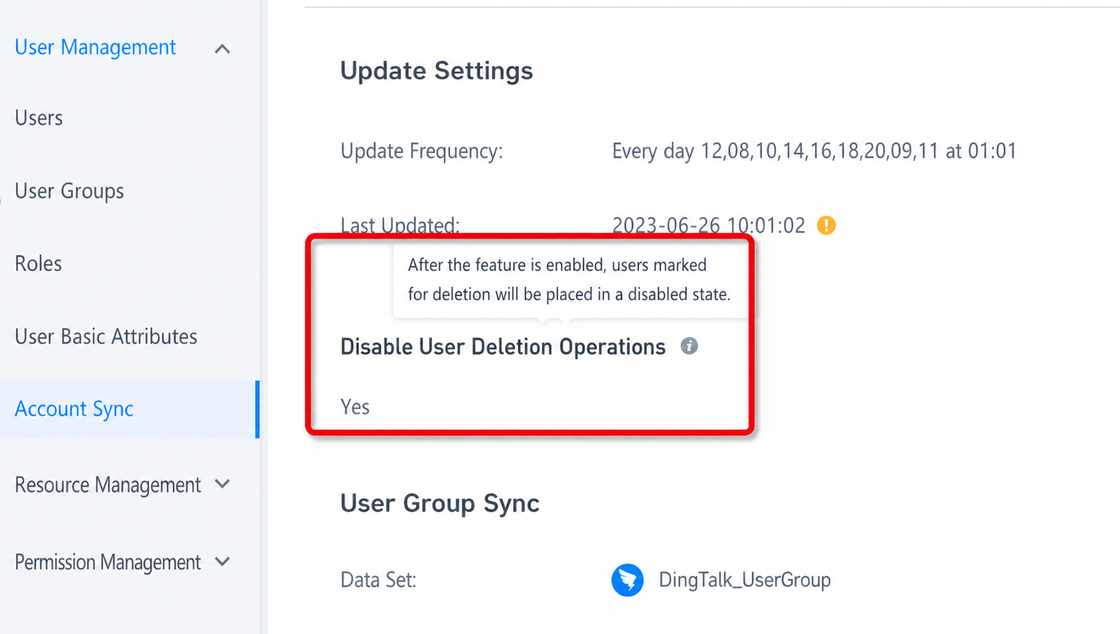
We recommend setting Disable User Deletion Operation to Yes. After it is enabled, users are only disabled instead of directly deleted. They can be batch re-enabled or cleaned up later. This reduces the impact of accidental user deletion.
-
The user group cache is refreshed only after all user groups finish synchronizing. Otherwise, performance issues may occur.
-
User and user group sync updates are compared with the data from the previous sync. The system only adds, updates, deletes, or disables users and user groups in the dataset, including users that were manually added but later appeared in Account Sync.
-
If the configured dataset is reset, synchronization deletes all previously synchronized users and user groups.
-
Users in the user sync dataset are tagged as System Sync after synchronization. When an account in the dataset is the same as a manually created BI user account, the user sync dataset overwrites and updates the manually created user and tags it as System Sync.
-
If the user sync dataset contains rows with the same account, updates for those accounts fail. If the user sync dataset contains rows with the same email address or phone number, additions for those accounts fail.
-
If the user sync dataset contains an account that is different from a manually created BI user account but has the same phone number or email address, the account in the user sync dataset is added as a new account. This takes effect in version 6.5.
- In versions earlier than 6.5, an exception and error are reported when the phone number or email address is the same.
Accounts created through API are not tagged as System Sync and are not affected by Account Sync if they are not included in the sync dataset. After these accounts are added to the sync dataset through ETL, they are affected by Account Sync.
Q&A
-
If manually created accounts are non-standard, how can Account Sync be used to batch update and delete them automatically?
Answer: When creating a user sync dataset with ETL, fully join or append the built-in dataset builtin_user with an external user dataset, such as a DingTalk user dataset, so that all manually created accounts exist in the sync dataset. After synchronization is complete, all accounts are tagged as System Sync, and user attributes are batch updated based on the dataset. Then modify the ETL again and set filter conditions to filter out non-standard accounts or resigned accounts. After synchronizing again, the non-standard accounts or resigned accounts are batch deleted or disabled.