Super App Quick Start
Super App Overview
What Is a Super App
A Super App is a frontend application hosted in Guandata BI. It can reuse BI login status and data capabilities, and combine data analysis, business workflows, and AI capabilities into applications that better fit real business scenarios.
Use Cases
Common Super Apps include:
| Scenario | Example |
|---|---|
| Data cockpit | Business overview, thematic analysis, management cockpit |
| Business workspace | Data query, business entry, approval or handling entry |
| AI app | Intelligent Q&A, analysis Agent, business decision assistant |
| Decision app | Metric monitoring, anomaly diagnosis, action suggestions and result tracking |
| Integration app | Connect Guandata BI data with enterprise internal services |
Core Capabilities
Super Apps are supported by these capabilities:
- Super App project template: Provides React, TypeScript, Vite, development configuration, dynamic configuration, and publishing pages.
- GuanCLI + Skill: Helps Coding Agents create projects, query and understand BI resources, and publish apps to BI.
- App hosting: Manages app files, versions, access URLs, and permissions in BI.
- Request Forwarding: Provides controlled server-side forwarding for Super Apps to access third-party services.
Capability Boundaries
The Super App project template is a pure frontend single-page application (SPA). It does not include an independently deployable backend service.
- After publication, Guandata BI hosts
index.htmland static assets. - Backend code that requires an independent server process, such as Node.js, Java, or Python, is not supported.
- Multi-page applications may not handle refresh and routing correctly. Use the built-in React Router in the template to build an SPA.
- External system secrets, tokens, accounts, and passwords must not be written into frontend code or
settings.json. To call third-party services securely, use Request Forwarding.
Before You Start
Commercial License
Starting September 1, 2026, creating or updating Super Apps and creating or editing request forwarding configurations require a Super App commercial license. To obtain or expand a license, contact your Guandata sales representative or Customer Success Manager.
| License status | Create apps | Update existing app files | Create or edit request forwarding | Existing apps and request forwarding |
|---|---|---|---|---|
| Not licensed | Not supported | Not supported | Not supported | Existing apps remain accessible and usable. You can edit their names, descriptions, and configuration, and view operational information. Existing request forwarding configurations remain viewable and continue to run. |
| Licensed; app count below the limit | Supported | Supported | Supported | Unaffected. |
| Licensed; app count at the limit | Not supported | Supported | Supported | Unaffected. |
With a commercial license, the app-count limit only affects creation of new apps. It does not affect access, use, configuration, or updates of existing apps, or request forwarding. An unlimited allowance permits new apps. The app list displays a reminder when three or fewer slots remain or the limit has been reached.
Disclaimer
Code flexibility may introduce security risks. Before saving or enabling related code, administrators should invite internal technical and security experts to review and evaluate the code. Guandata is not liable for asset loss, data loss, information leakage, or other issues caused by incorrect or improper use of Super Apps by the customer.
Do not directly copy or use third-party code and packages from unknown sources, and do not run code with unclear intent. After generating code with AI, complete code review and security checks before publishing.
Prerequisites
Before starting, confirm:
| Item | Requirement |
|---|---|
| Guandata BI environment | V8.2.0 or later, with a Super App commercial license. The publish page shows that the target environment supports publishing. |
| Local runtime | Node.js V22 or later, with npm installed. |
| Coding Agent | Codex, Cursor, Claude Code, Trae, or another coding agent that can read and modify local projects. |
| BI account | Can log in to the target environment and has the required feature and app resource permissions. |
| Business requirements | Clear app goal, target users, BI data to use, and acceptance criteria. |
For full GuanCLI installation, login, environment switching, and command instructions, see GuanCLI User Guide. This article only covers the shortest flow for building a Super App.
Workflow Overview
- Install GuanCLI and Skill.
- Use a Coding Agent to create and start a Super App project.
- Configure the BI environment and development authentication on the
/devpage. - Let the Coding Agent query BI resources and develop the app.
- Complete checks, build, and preview.
- Publish the app with a Coding Agent, GuanCLI, the
/publishpage, or the Super App page in BI. - Maintain the app and permissions under Data Application > Super App.
Create and Develop an App
Install GuanCLI and Skill
Run these commands in a terminal:
# First installation
npm install -g @guandata/guancli

# Update to the latest version if already installed
npm update -g @guandata/guancli

# Verify installation
guancli version

# Install or update the Skill for Coding Agents
guancli install-skill
You can also tell the Coding Agent:
Please install the latest GuanCLI and GuanCLI Skill, and verify that guancli version works.
If you need GuanCLI to query BI resources or publish apps, log in to the target environment first:
guancli auth login
guancli auth login saves the GuanCLI environment configuration for GuanCLI commands. The project /dev page saves the current project's .env development configuration for the local app and /publish page. They do not replace each other.
Create and Start a Project
Option 1 (Recommended): Create with a Coding Agent
Enter this in the Coding Agent:
Use GuanCLI to create a Super App project named sales-cockpit in the parent directory of the current directory.
After creation, install dependencies and start the development service, then tell me the local access URL.
After the GuanCLI Skill is installed, the Agent recognizes the intent to create a Super App and calls guancli app create.
Option 2: Create with GuanCLI
You can also run:
guancli app create --name <project_name> --path <parent_dir>
--nameis the new project directory name.--pathis the parent directory of the project, not the final project directory.- The command downloads the latest project template, creates the project, prepares dependencies, and then tries to start the local development service.
If the project does not start automatically, enter the project directory that contains package.json and run:
npm install
npm run dev
If there is no .env in the root directory, copy .env.template to .env, then restart the development service.
After startup, open the local URL shown in the terminal to view the template home page:
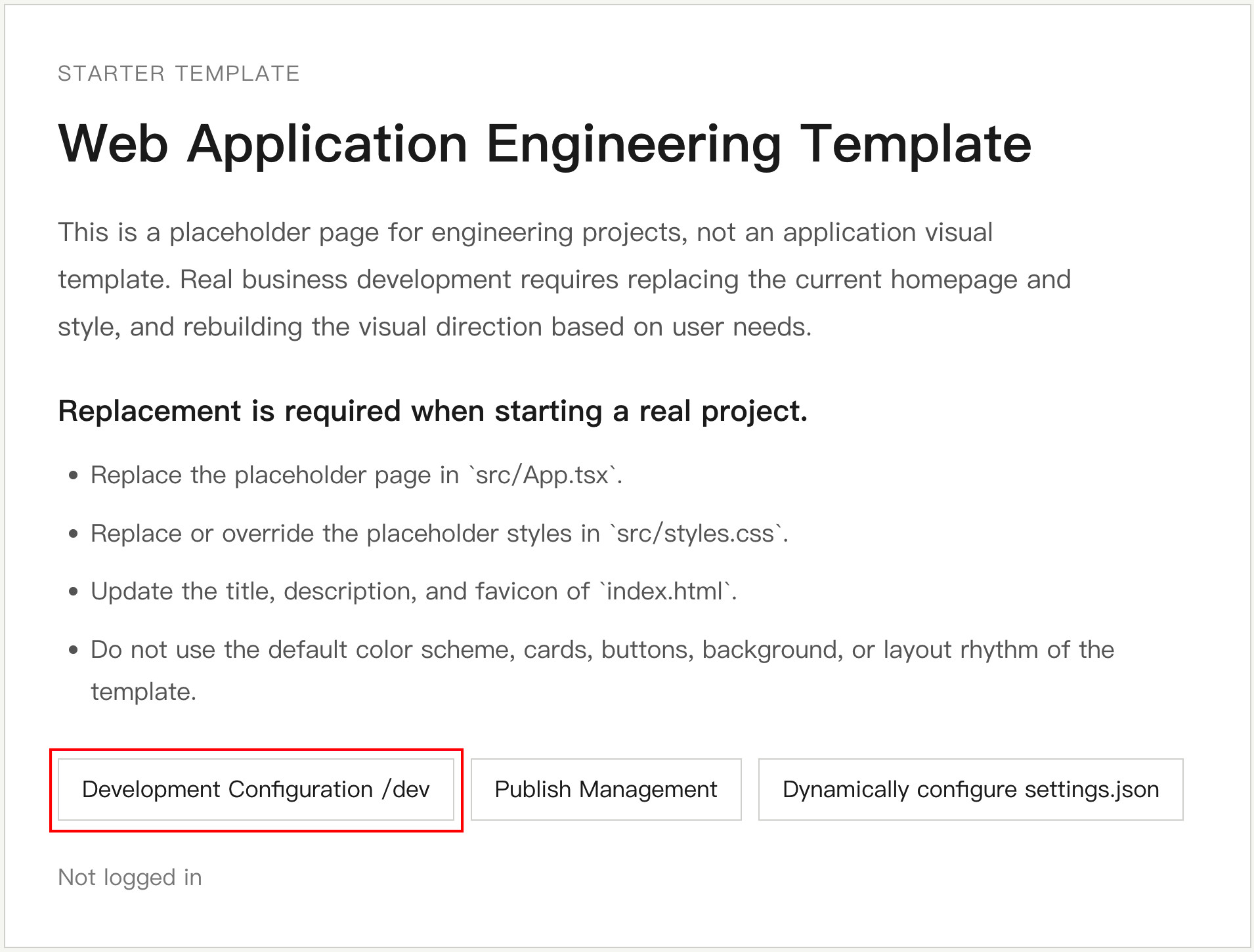
The template home page is a placeholder. During real development, replace page content, styles, title, and icons according to business requirements.
Configure BI Environment and Development Authentication
Open /dev from the template home page, fill in the configuration, then click Save and Apply Now.
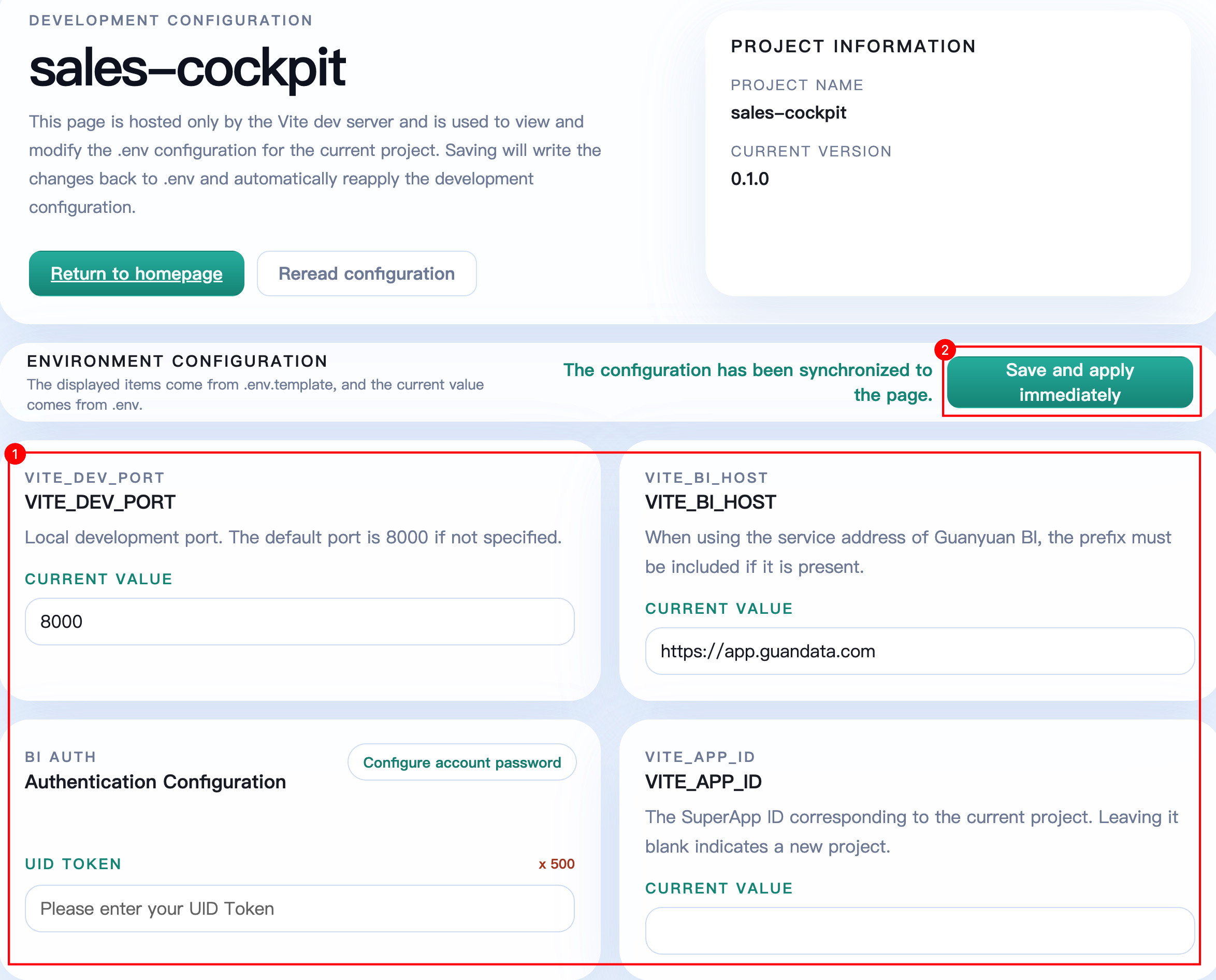
| Configuration | Description |
|---|---|
VITE_DEV_PORT | Local development service port. Default is 8000; change it if there is a port conflict. |
VITE_BI_HOST | Target Guandata BI environment URL, including http:// or https://. |
| Authentication | Use a UID Token, or configure the login domain, account, and password for the target environment. See Login Methods for how to obtain a UID Token or account credentials. |
VITE_APP_ID | SuperApp ID bound to the current project. Leave empty for first publication; fill it in when updating an existing app. |
When using account/password authentication, click Configure Account, then enter login domain, account, and password:
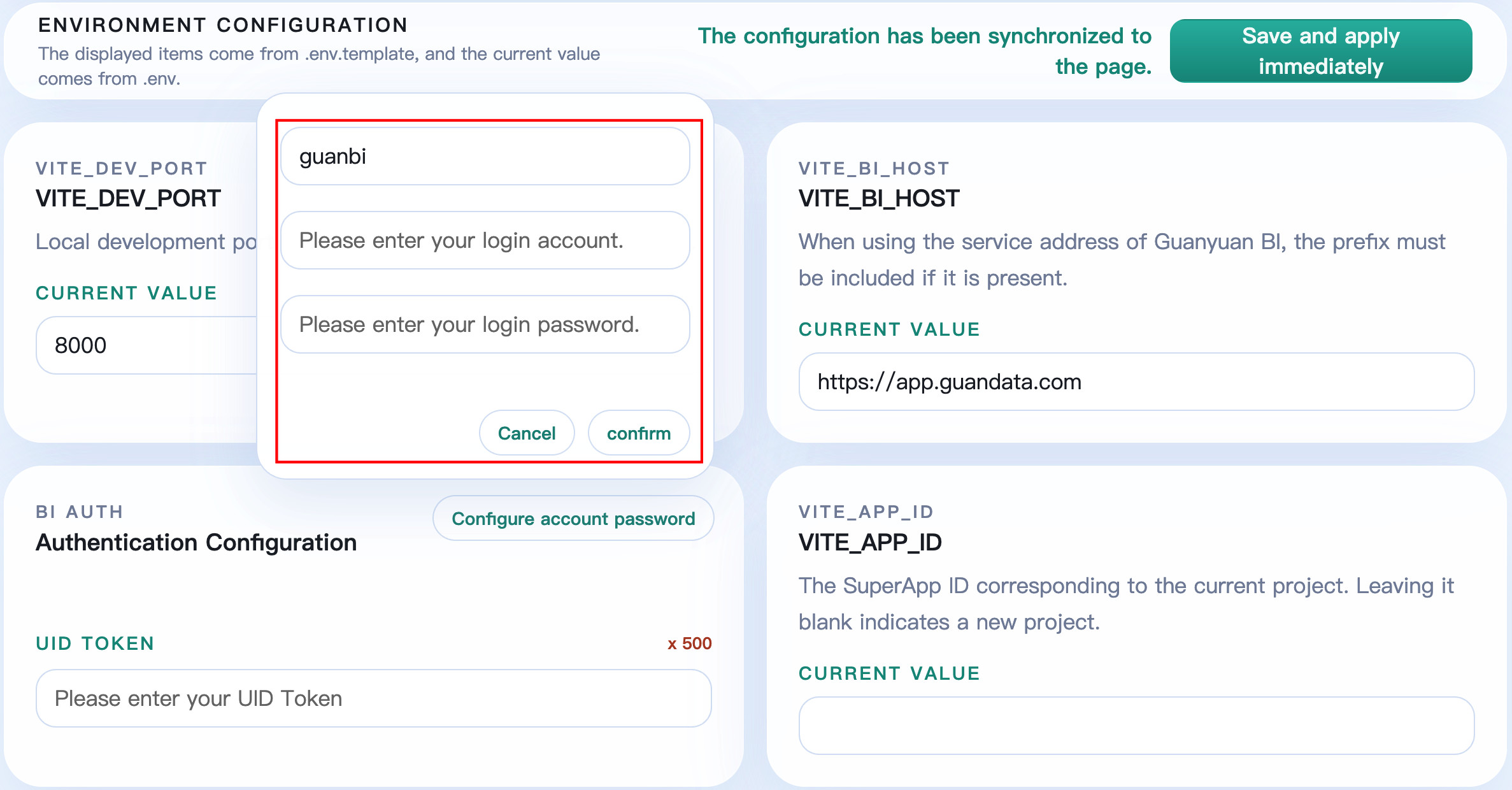
After saving, the page writes the configuration to project .env and reloads the development configuration. You can also click Reload Configuration to reload values from disk.
.envmay contain UID Token or account credentials. Do not commit it to Git, send it to unrelated people, or include it in screenshots.- UID Token is only for local development authentication. If the token is leaked, invalidate it immediately and obtain a new one.
- Do not copy credentials from
.envinto business code,settings.json, or published artifacts.
Develop with a Coding Agent
Provide Complete Development Requirements
Describe the business goal, target users, metric definitions, and interaction requirements clearly. Example:
Turn the current project into a Regional Sales Operations Cockpit:
1. Use GuanCLI to find the Sales Orders dataset in the current BI environment, and confirm fields and metric definitions first.
2. Show sales amount, order count, average order value, and year-over-year change, with filters by region and month.
3. The page should fit 1440px desktop screens and common laptop resolutions.
4. Put configurable titles and help links in settings.json.
5. After completion, run checks and build, and explain which BI resources were used.
GuanCLI queries and analyzes existing BI resources. The Coding Agent writes frontend code based on the query results. For resource query, data preview, and multi-environment configuration, see GuanCLI User Guide.
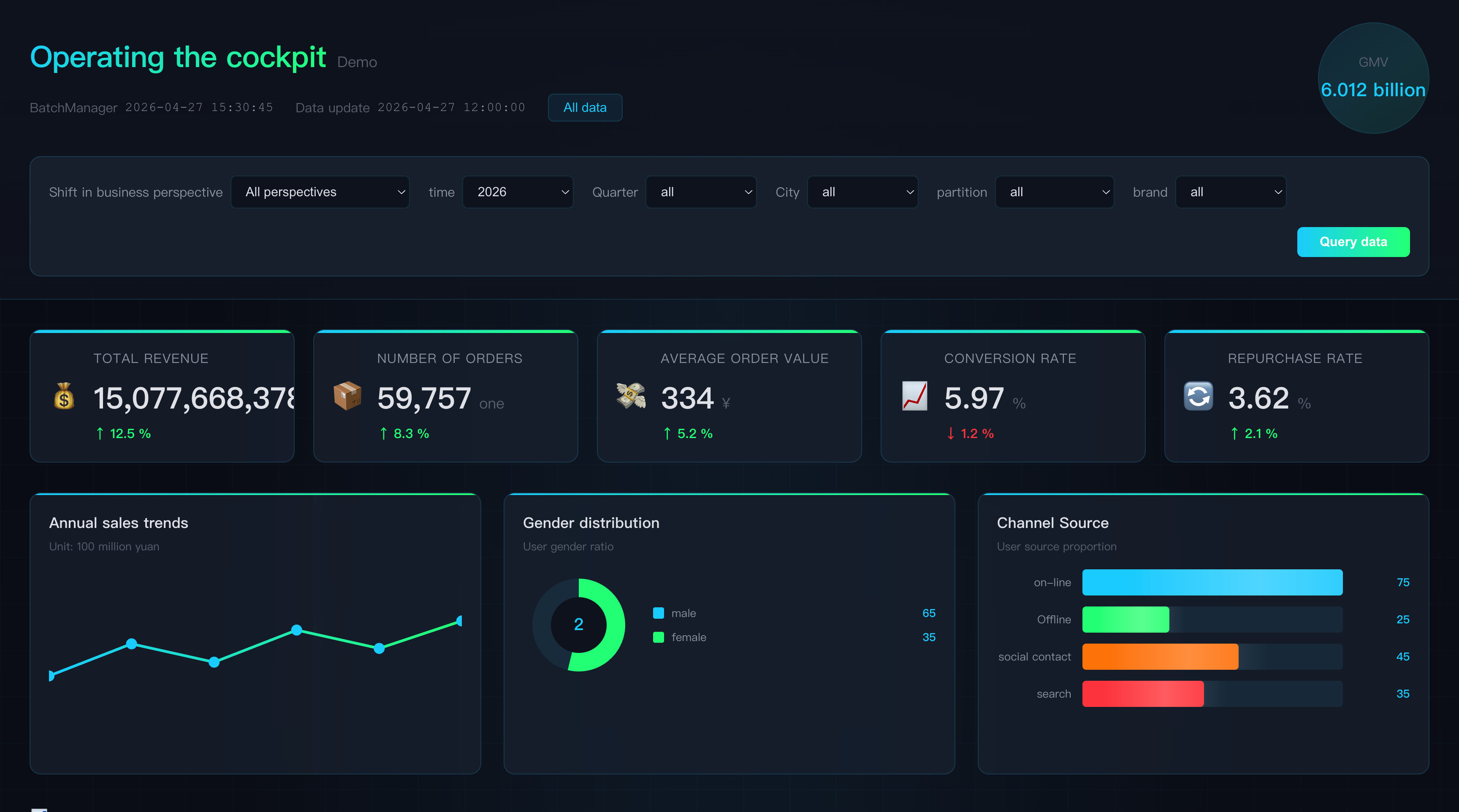
Example generated app:
Development Guidelines
- Keep the template's single-page application structure, publish page, and relative path configuration.
- Do not treat the local
/dev,/publish, or placeholder home page as the final business page. - When calling BI data, use the current logged-in user's BI permissions as the boundary.
- Text, links, and non-sensitive parameters that need online adjustment should be placed in
settings.json. - To access external APIs with secrets, use Request Forwarding. Do not put secrets in browser-side code.
- Before publishing, check responsive layout, empty data, loading, API failure, and no-permission states.
Publish the App
Review, Build, and Preview
The project template includes check and build instructions for Coding Agents. Before publishing, tell the Agent:
Use the project's review skill to run a production-readiness check and fix any issues found.
Then build and preview the artifact, confirming that the home page, routing, BI data requests, and settings.json all work.
Do not publish yet; report the check results first.
At minimum, confirm:
npm run buildsucceeds and has no blocking errors.- The build artifact root contains
index.html. - Direct home page access, internal route refresh, and returning to home all work.
- The published artifact does not contain
.env, tokens, account passwords, or other secrets. settings.jsonis valid JSON and can be read by the page.- The target BI version and current account permissions meet publishing requirements.
Choose a Publishing Method
You can let the Coding Agent publish automatically, use GuanCLI commands, use the template /publish page, or publish manually in BI.
Option 1 Recommended: Publish with a Coding Agent
Before first publication, enter:
Use the project's publish flow to publish the current Super App to the logged-in BI environment.
Before publishing, complete review, build, and artifact checks. If app name, description, or version need my confirmation, stop and ask me.
After publication succeeds, return the access URL and SuperApp ID.
When updating an existing app, provide the SuperApp ID and explicitly ask to update the original app to avoid creating a new one.
Option 2: Publish with GuanCLI
For first publication, leave --app-id empty. GuanCLI creates the app:
guancli app publish --path . --app-name "Regional Sales Operations Cockpit" --description "A sales operations analysis app for regional managers"
To update an existing app, pass the original SuperApp ID:
guancli app publish --path . --app-id <SuperApp_ID>
To publish to another logged-in environment, add the global parameter --profile <profile_name>.
After GuanCLI creates an app for the first time, it returns the SuperApp ID, but does not automatically write it to project VITE_APP_ID. Save this ID and specify it with --app-id for later publishing. If you also want to use the template /publish page to update the same app, write this ID into VITE_APP_ID on the /dev page.
Option 3: Publish from /publish
-
Open
/publishfrom the template home page, click Build and Publish, and complete the build.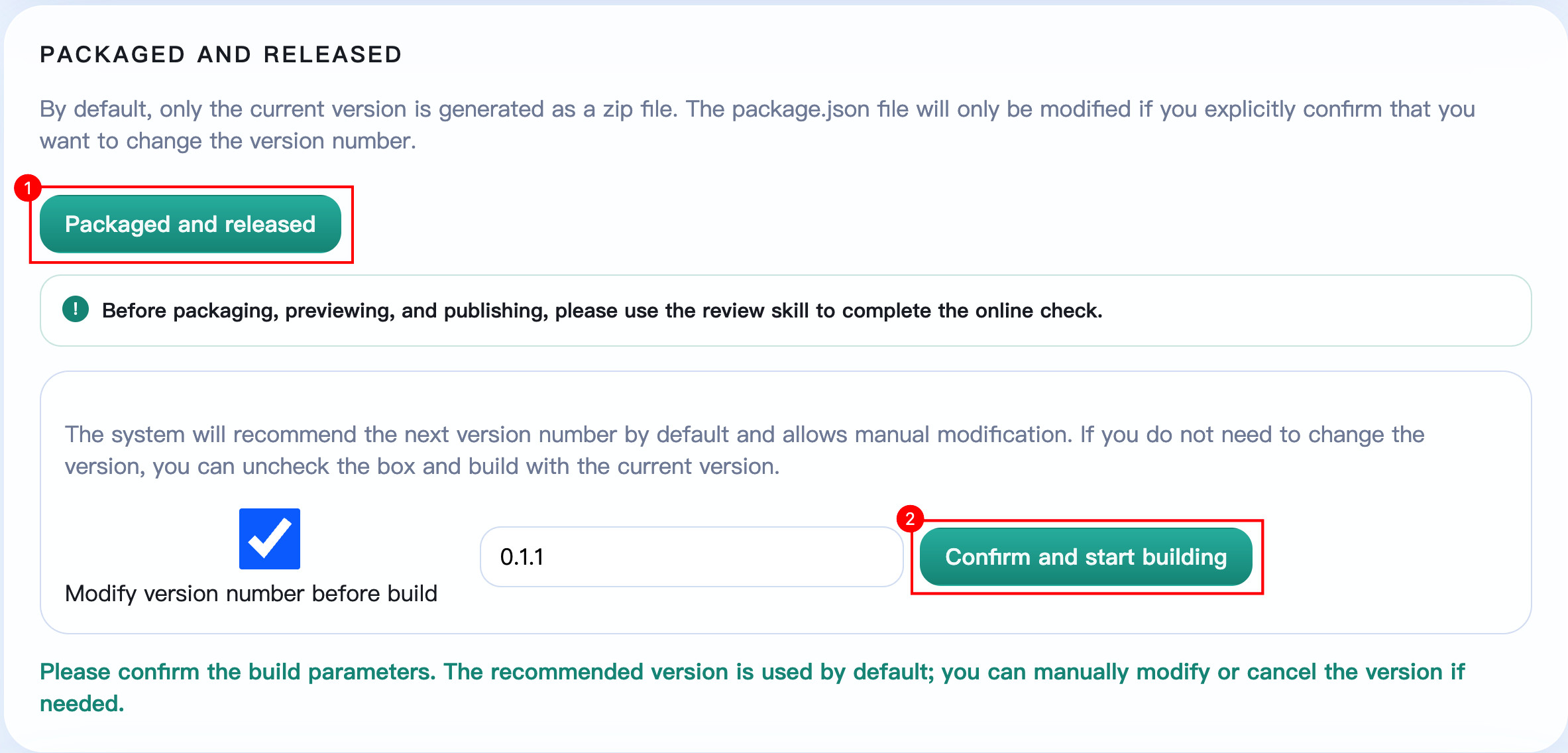
-
In the artifact list, check file name, version, size, and target BI status, then click Upload and Publish.
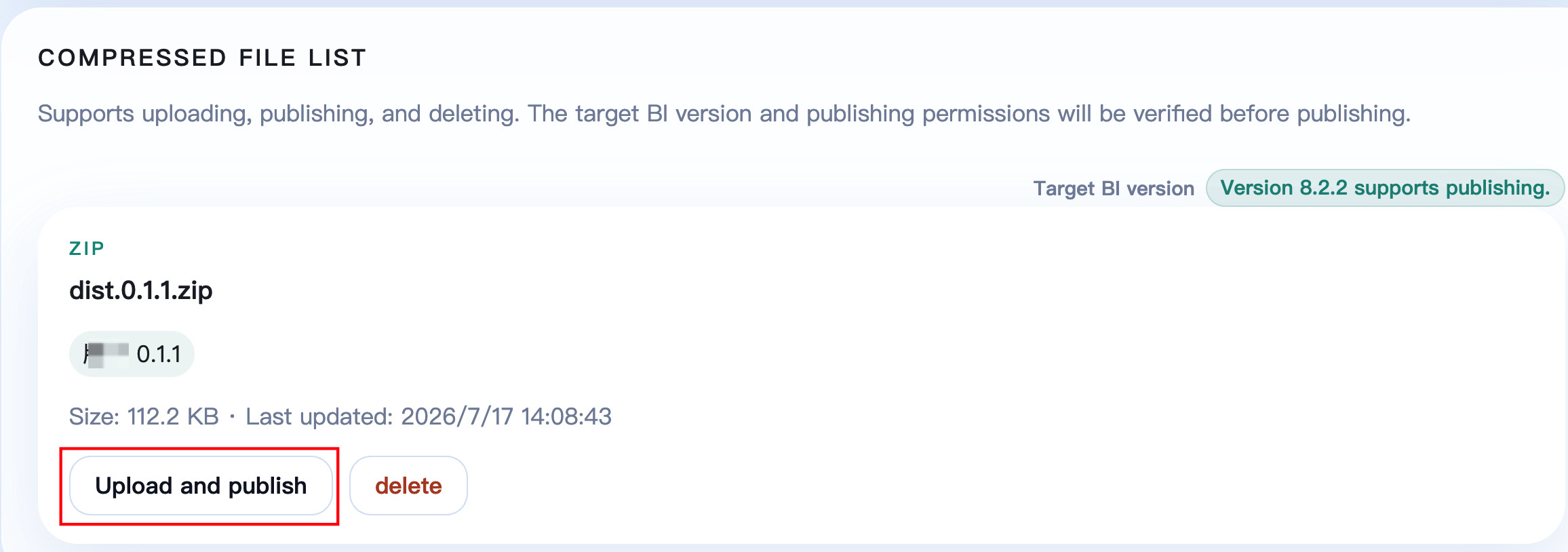
-
For first publication, enter app name and description, confirm the version, then click Confirm and Upload.
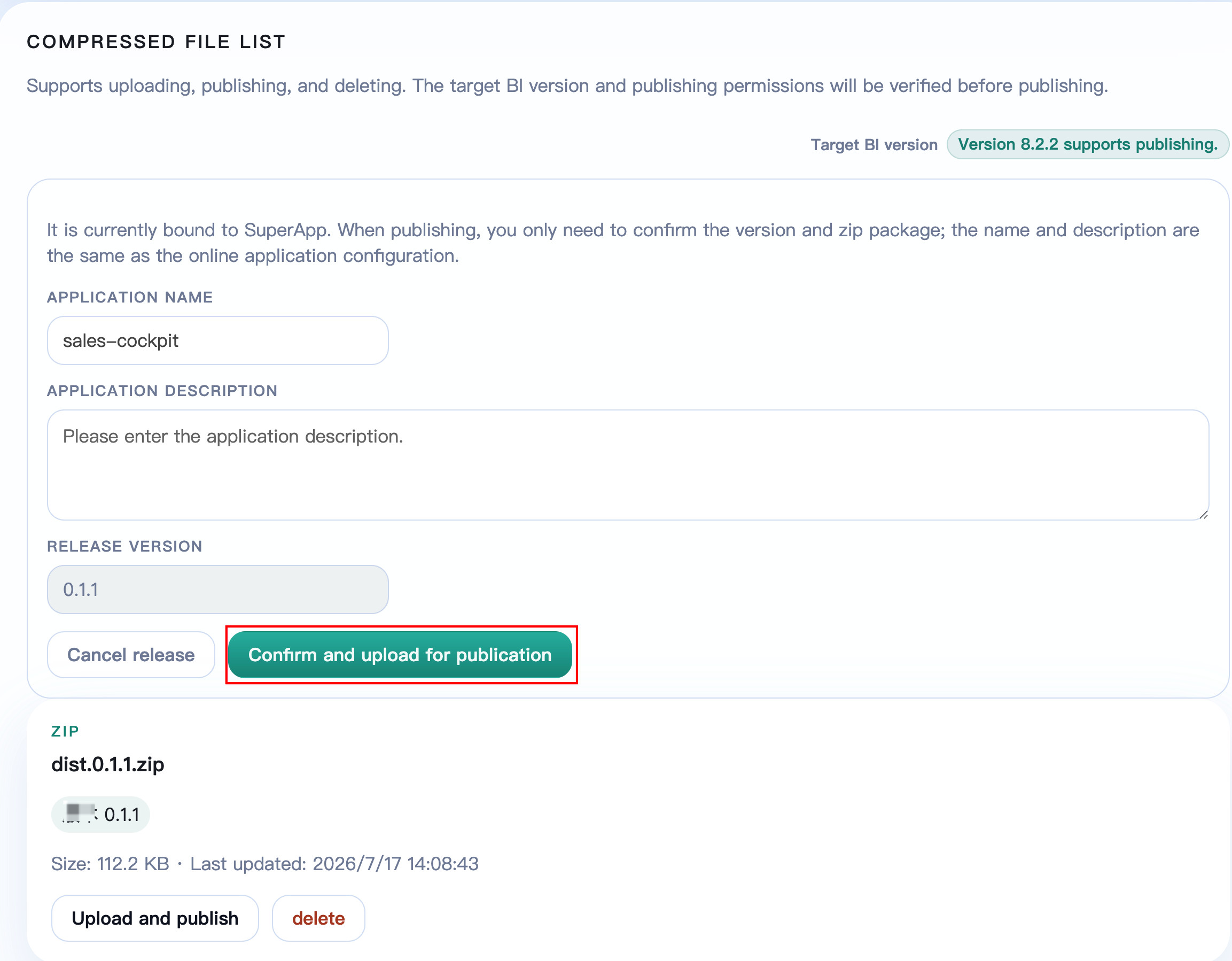
-
After publishing succeeds, the page returns and binds the correct SuperApp ID. Later publications from the same project update the bound app.
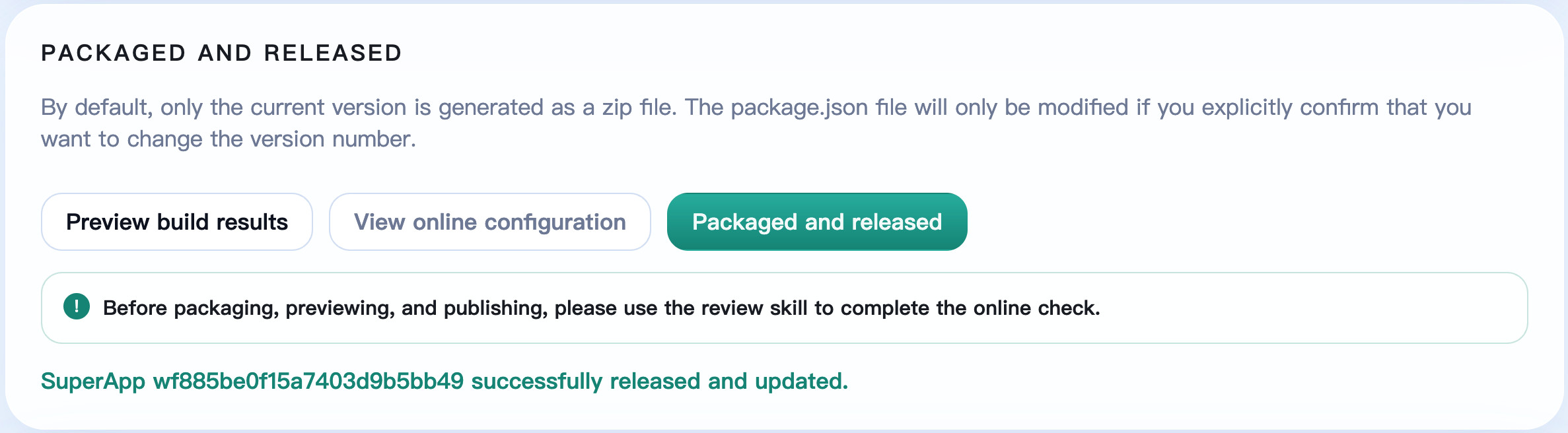
- If
VITE_APP_IDis empty, the/publishpage treats it as first publication: it creates an app and writes the returned SuperApp ID back to project configuration. - If
VITE_APP_IDhas a value, the/publishpage updates the corresponding app. Before publishing, verify the target app ID in the BI Application List. Entering another valid editable ID will overwrite that app; entering a nonexistent or unauthorized ID causes the update to fail.
Option 4: Publish Manually in BI
You can also compress the build artifact into a ZIP file, then go to Data Application > Super App > Extension Apps to publish.
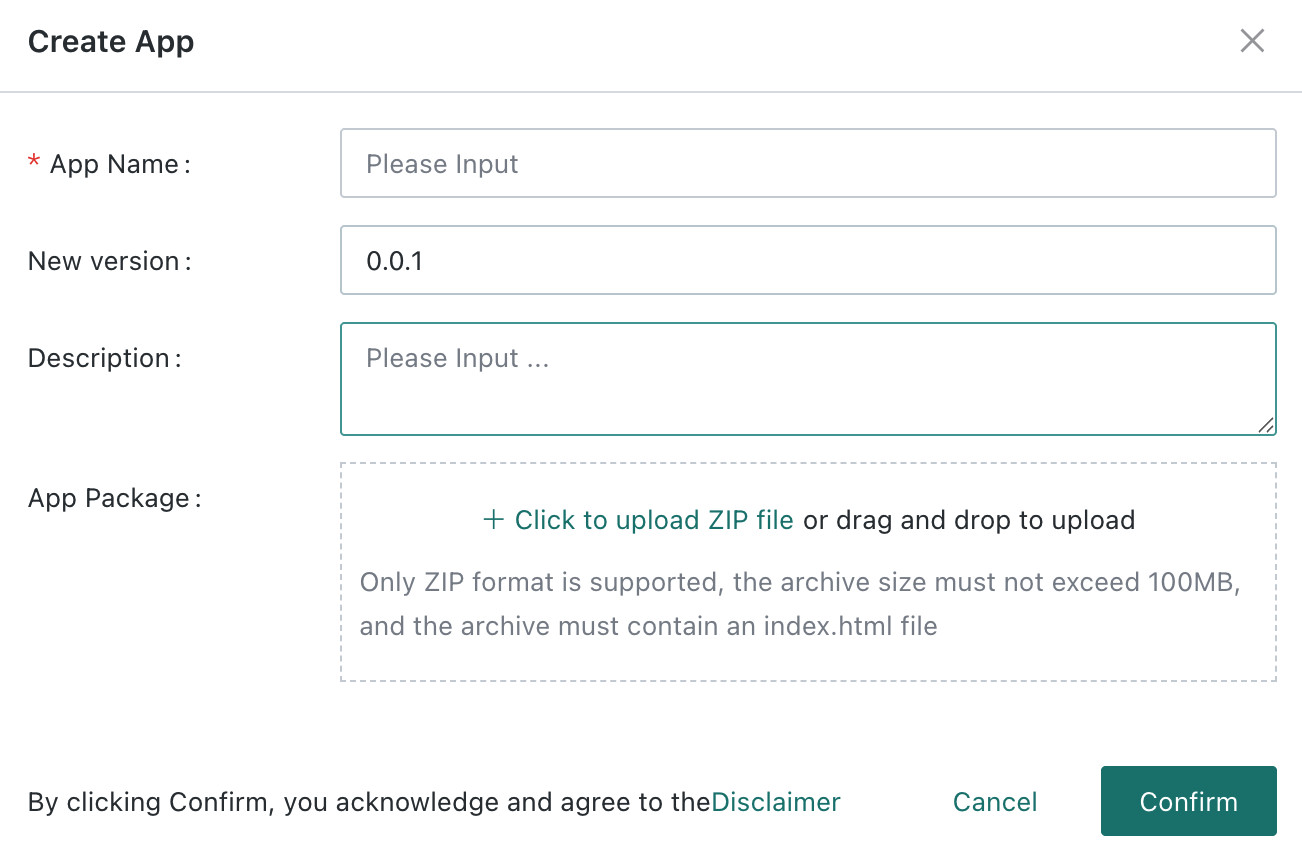
-
First publication: click Create App, enter name, description, and version, then upload the ZIP.
-
Update an app: find the target app, click Update App File, and upload the new ZIP.
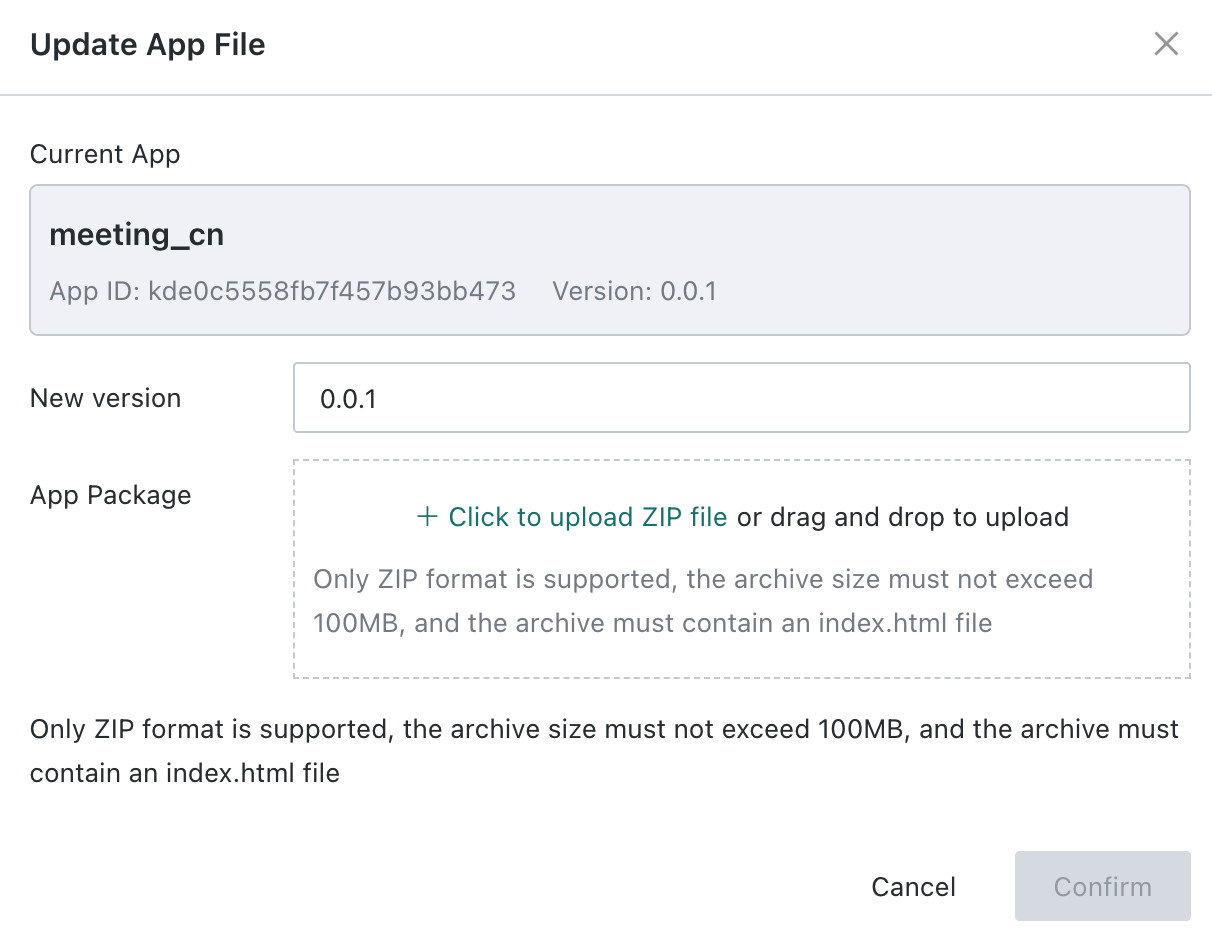
Upload requirements:
- File format must be ZIP.
- The extracted root directory should directly contain
index.html. The server also supports one wrapper directory, but not multiple nested levels or multiple candidate app directories. - File size must not exceed 100 MB.
- Version number, app name, and description should follow your team's publishing standards.
After manually creating an app, copy and save the SuperApp ID from the Application List. If you later update with GuanCLI, specify this ID with --app-id; if you update with the template /publish page, first enter and save this ID in VITE_APP_ID on the /dev page.
Manage Published Apps
View App List and Details
Go to Data Application > Super App > Extension Apps to search and manage apps that the current account can view.
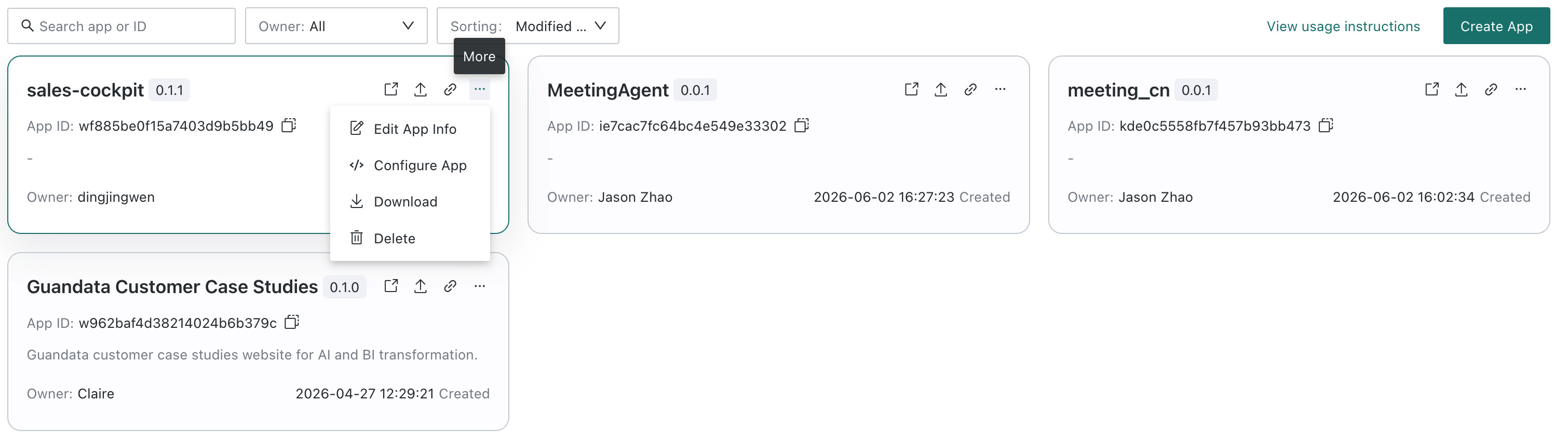
| Feature | Description |
|---|---|
| Search, filter, and sort | Search by app name or ID, filter by owner, and sort by modification time. |
| Preview details | View app preview, basic information, creation information, and permission information. |
| View | Open the app in a new page. |
| Update app file | Upload a new ZIP version to update app code and version. |
| Copy URL | Copy the app access URL and share it with users who have access. |
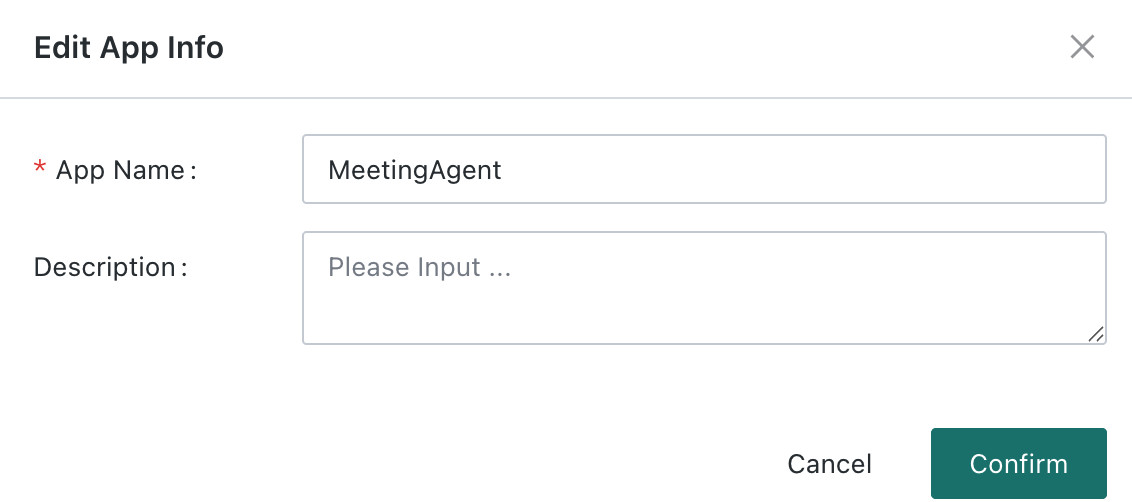
| Edit app information | Modify app name and description. |
| Configure app | Edit settings.json online. |
| Permission management | Manage app owners, collaborators, and visitors. |
| Download | Download the current app package. |
| Delete | Permanently delete the app, permission relationships, and hosted files. There is no recycle bin; back up before deleting. |
Click an app card or View Details to view app preview and basic information:

Edit App Name and Description
Click Edit App Information in the app menu to modify app name and description:
Configure Runtime Parameters (settings.json)
settings.json is suitable for app titles, descriptions, links, feature switches, and non-sensitive API addresses. Online changes do not require rebuilding the app.
Click Configure App in the app menu to view and edit settings.json online:
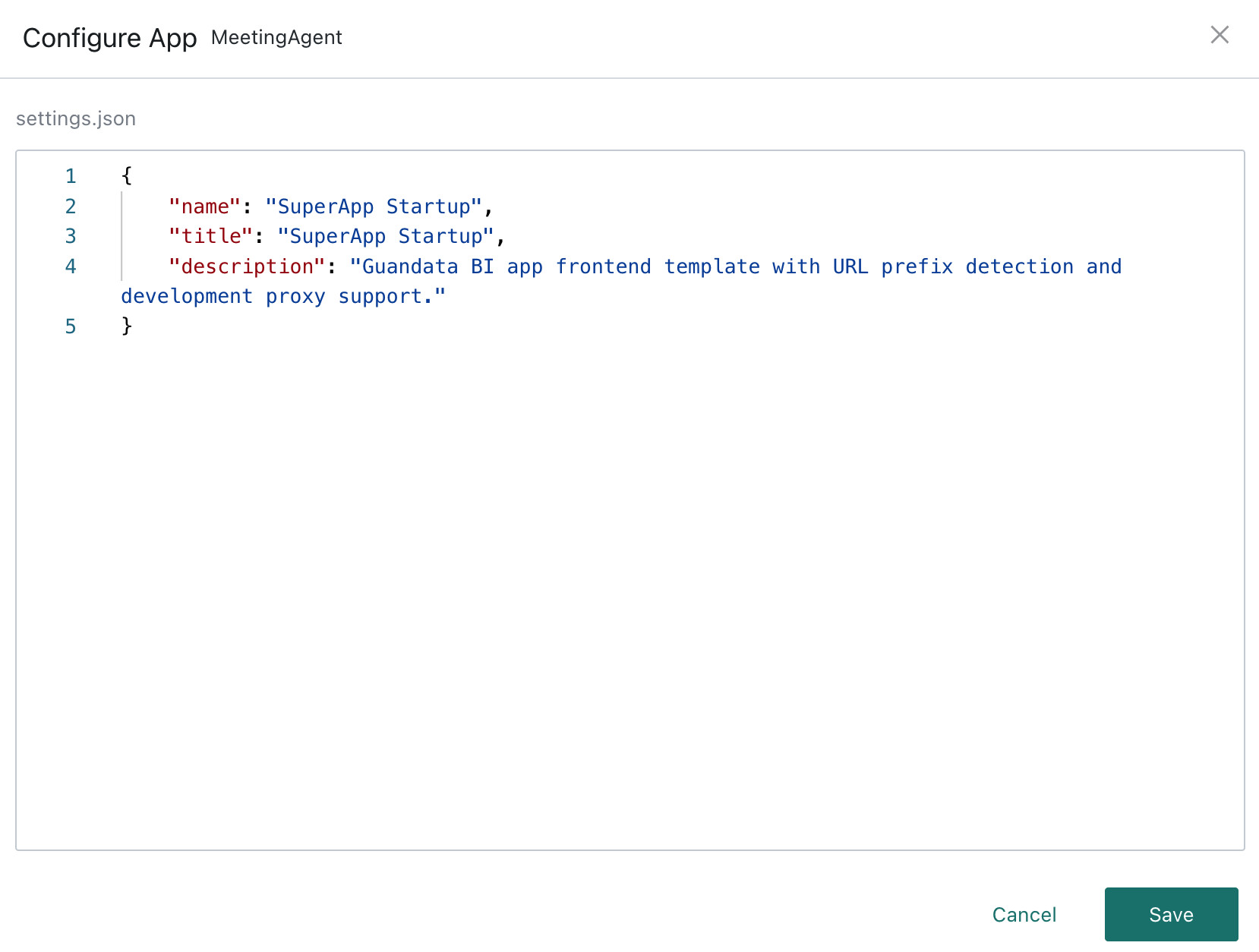
Notes:
- The file content must be valid JSON. After adding custom fields, business code must read those fields.
settings.jsoncan be accessed by the browser, so it must not contain passwords, tokens, API keys, or other sensitive information.- Updating app files replaces the entire hosted directory and may overwrite online
settings.json. Before publishing, compare the local file with online configuration and sync values that must be kept into the package.
You can ask the Coding Agent to help:
Read app title, help link, and feature switches from public/settings.json.
Provide defaults and fallback handling when reading fails, and make sure the file contains no secrets.
Permissions and Access Control
Super Apps are controlled by both feature permissions and app resource permissions:
- Users need corresponding Application List feature permissions to enter the management page or create, edit, or authorize apps.
- App owners and collaborators can maintain the app when they also have Edit feature permission. Visitors can only access the app.
- Users opening the app access URL must have access permission for the app. Owners and collaborators also have access permission.
- BI resources used inside the app, such as datasets, cards, and pages, are still checked according to the current logged-in user's original BI data permissions. App access permission does not automatically grant all data permissions.
For role configuration and owner/collaborator/visitor details, see Super App Permission Management.
FAQ
What if the guancli command cannot be found?
Run npm list -g @guandata/guancli to confirm whether it is installed, then check whether the npm global command directory has been added to system PATH. For details, see GuanCLI User Guide.
What if the Coding Agent does not call GuanCLI?
Run guancli install-skill to update the Skill, then reopen the Coding Agent. You can also explicitly ask: "Use GuanCLI to query BI resources first, then modify the code."
What if the local app cannot connect to BI?
Check in order:
- Whether
VITE_BI_HOSTcontains the correct protocol, domain, and port. - Whether UID Token or account credentials are still valid, and whether the account can log in to the environment.
- Whether
.envwas saved and configuration was reloaded after changes. - Whether browser developer tools show CORS, 401, 403, or API URL errors.
What if publishing is unavailable or fails?
Check the target BI version and Supports Publishing status shown on /publish, and confirm:
- The current environment has a Super App commercial license.
- When creating a new app, the current app count has not reached the licensed quota. After reaching the quota, you cannot create new apps, but can still update existing apps.
- The current account has required feature permissions for creation or editing.
- When a regular user updates an app, the account is the app owner or collaborator. Administrators can update according to management permissions.
- The ZIP root directly contains
index.html, or has only one wrapper directory that containsindex.html; the file is no larger than 100 MB.
Why was a new app created during update?
Usually because the original SuperApp ID was not specified:
- With GuanCLI, update commands must include
--app-id <SuperApp_ID>. - With
/publish, confirm thatVITE_APP_IDin/devhas been entered and saved.
Why did online configuration disappear after update?
Updating app files replaces the hosted directory. The settings.json in the new package may overwrite online configuration. Before publishing, copy or record the online JSON from Configure App, sync values that must be kept into local public/settings.json, then build. The app Download feature downloads the original published package and may not include later online configuration changes.
What if the app shows a blank screen or sub-route refresh fails after publishing?
Confirm the app still uses the template's single-page routing and relative asset paths, not a multi-page build. Then check whether the artifact root contains index.html, whether static asset paths are correct, and whether the browser console reports loading errors.
Why can other users not see the app or data after I share the link?
- Cannot see the app: confirm the user has been added as a visitor, owner, or collaborator.
- Can open the app but cannot see data: check whether the user has permission for datasets, cards, and other BI resources used by the page.
How can I call third-party APIs securely?
Do not store third-party service secrets in frontend code. Configure Request Forwarding in BI so the BI server handles credential injection, permission checks, request forwarding, and audit.