Privilege Rule
Overview
Permission Rules in Permission Management include five modules: Export Permission Control, Group Permission Control, Group Administrator Settings, Resource Authorization Scope Control, and Business Administrator Settings. Users can choose whether to enable or modify these settings in Permission Rules.
Scope of Authorization Targets for Resource Permissions
In Permission Rules, you can configure the scope of authorization targets for Resource Permissions.
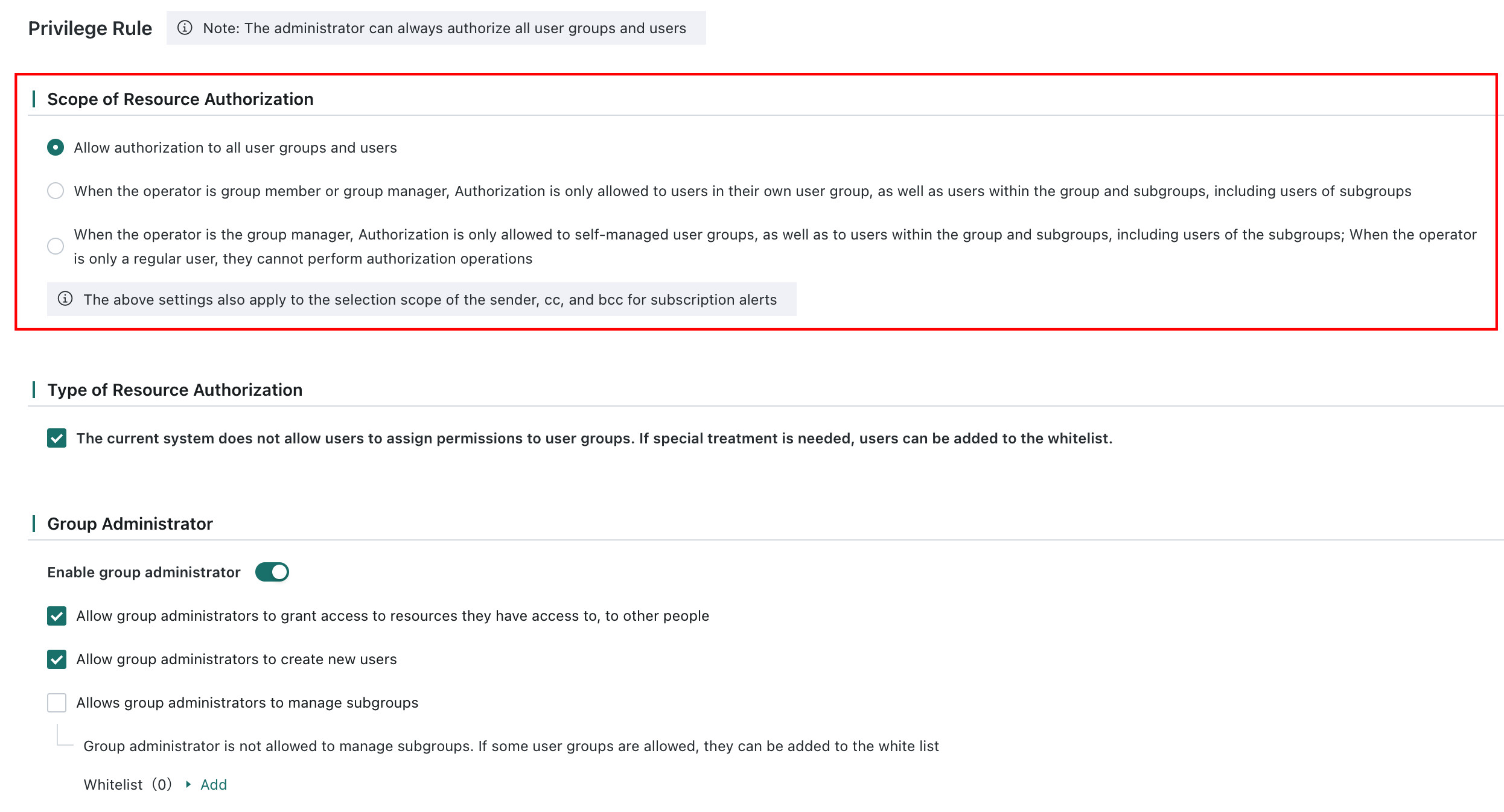
Three options are available:
- Allow authorization for all users and user groups.
- Allow authorization only for the current user's own user group, users in that group, and child user groups, including users in child user groups. This applies when the current user is a regular member or a group administrator.
Visible range in the Permission Management list: the current user's own group, its users, and child user groups. - Allow authorization only for the user groups managed by the current user, along with users in those groups and their child user groups, including users in child user groups. This applies when the current user is a group administrator.
Visible range in the Permission Management list: the user groups managed by the current user and their users and child user groups.
Administrators can always authorize all users and user groups.
Target Types for Resource Permission Authorization
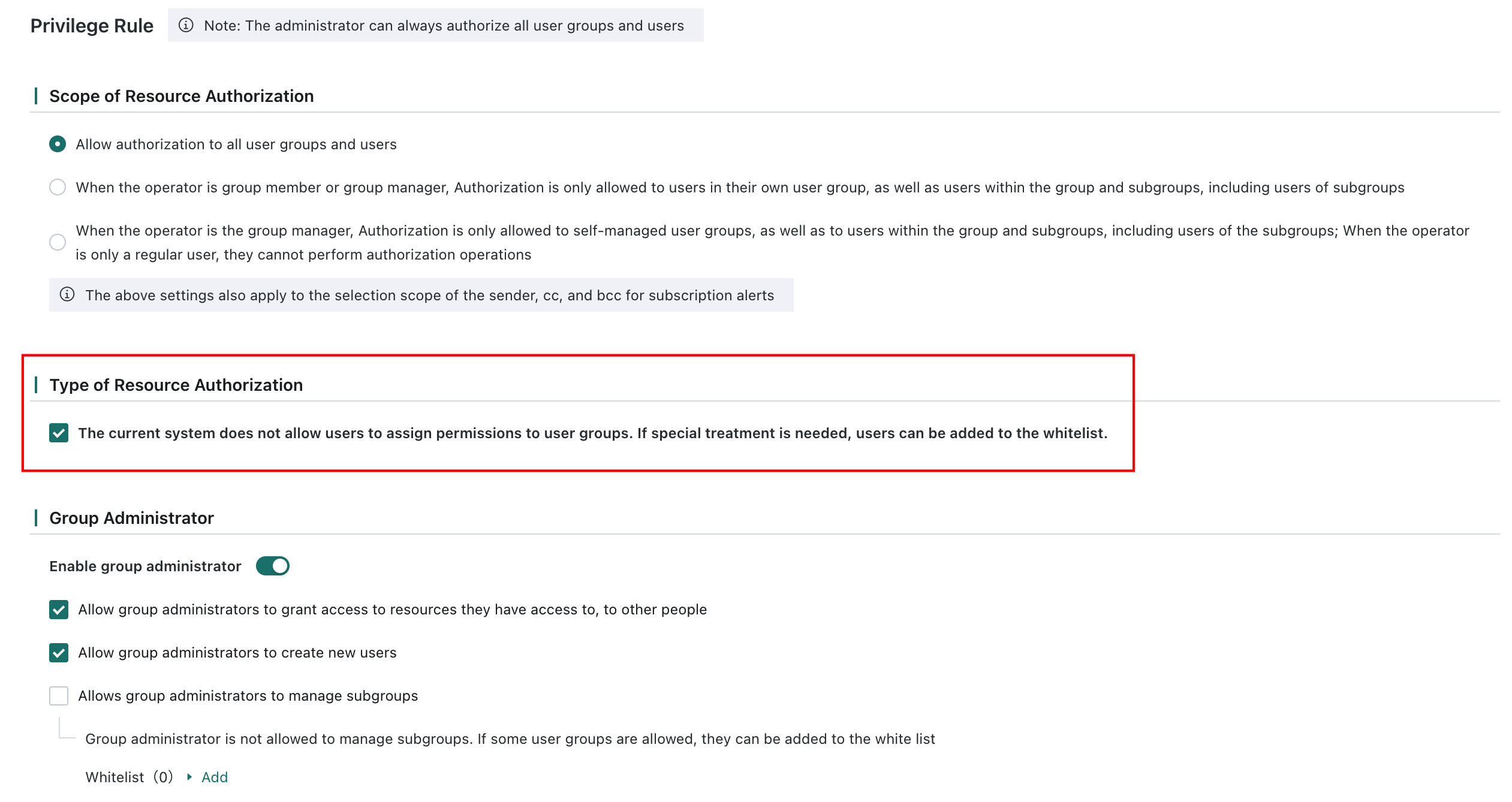
In Permission Rules > Target Types for Resource Permission Authorization, you can choose whether users are allowed to assign permissions to user groups. If this is not allowed, you can add specific users to a whitelist. Users in the whitelist are allowed to assign permissions to user groups.
Resource Batch Authorization
In Permission Rules, you can configure whether to enable the Folder batch authorization inherits parent switch to uniformly control the batch authorization inheritance behavior of folders. For specific inheritance rules, see Batch Authorization Based on Folders.
When the switch is enabled for the first time, all folders previously set to Inherit parent will be uniformly changed to Follow global (inherit parent), and the differentiated permissions previously set through Batch Authorization will be merged as a union.

Group Administrator Settings
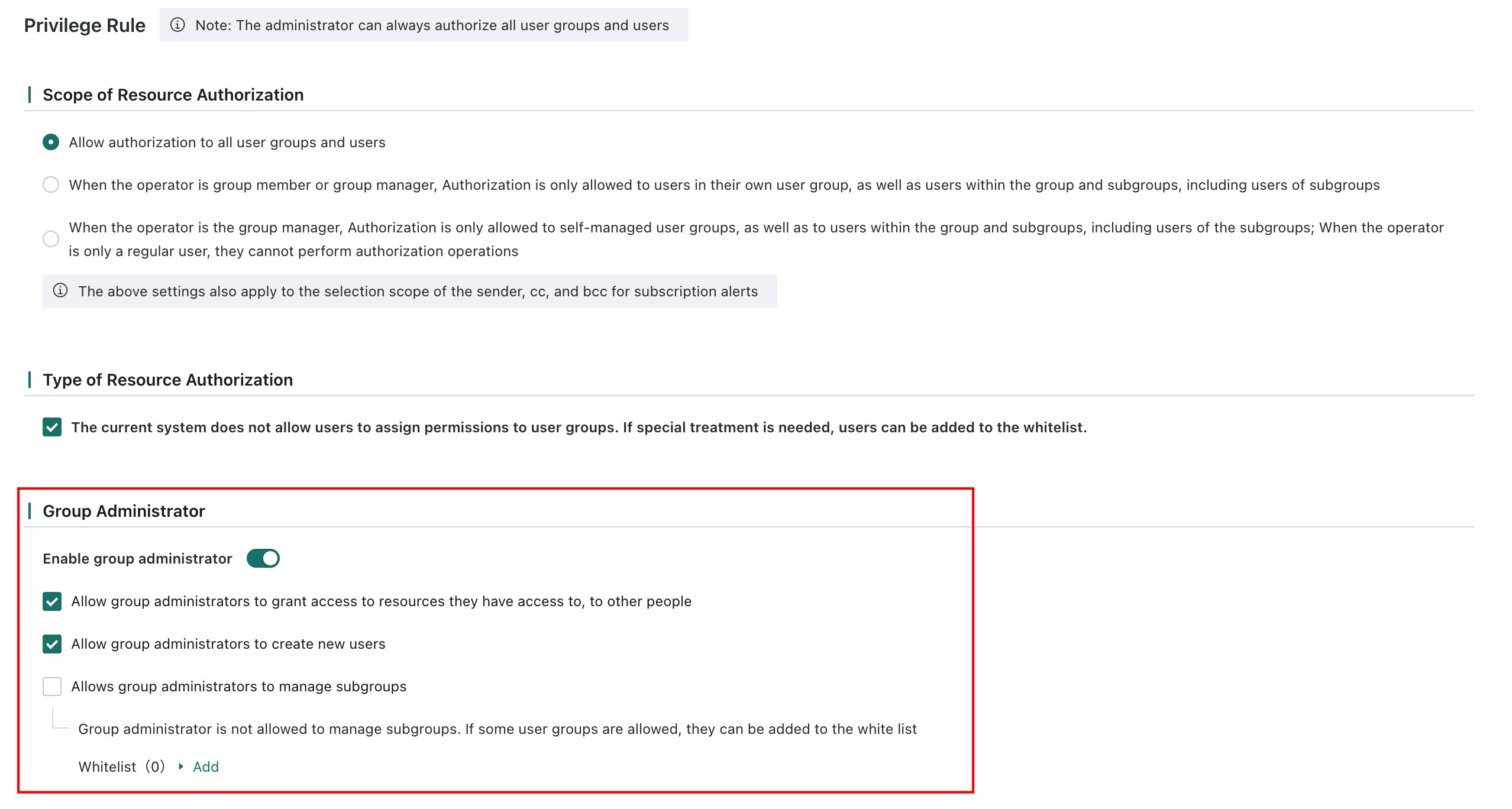
In Permission Rules, administrators can choose whether to enable the group administrator feature. If enabled, the following settings are available:
Allow Group Administrators to Create New Users: enabled by default. If you want to disable it, go toAdmin Center > Permission Management > Permission Rules > Group Administrator Settings. When enabled, group administrators can create new users and bulk-create users in the user management interface.Allow Group Administrators to Manage Child User Groups: if group administrators are not allowed to manage child user groups, you can add user groups to the whitelist for special handling. You can add or remove whitelisted user groups here. For details, see Group Administrator.
Business Administrator Settings
You must enable the Business Administrator switch in the management backend before the Business Administrator Settings section appears on the Admin Center > User Management > Permission Rules page. For how to enter the management backend, see Admin Backend Authorization.
-
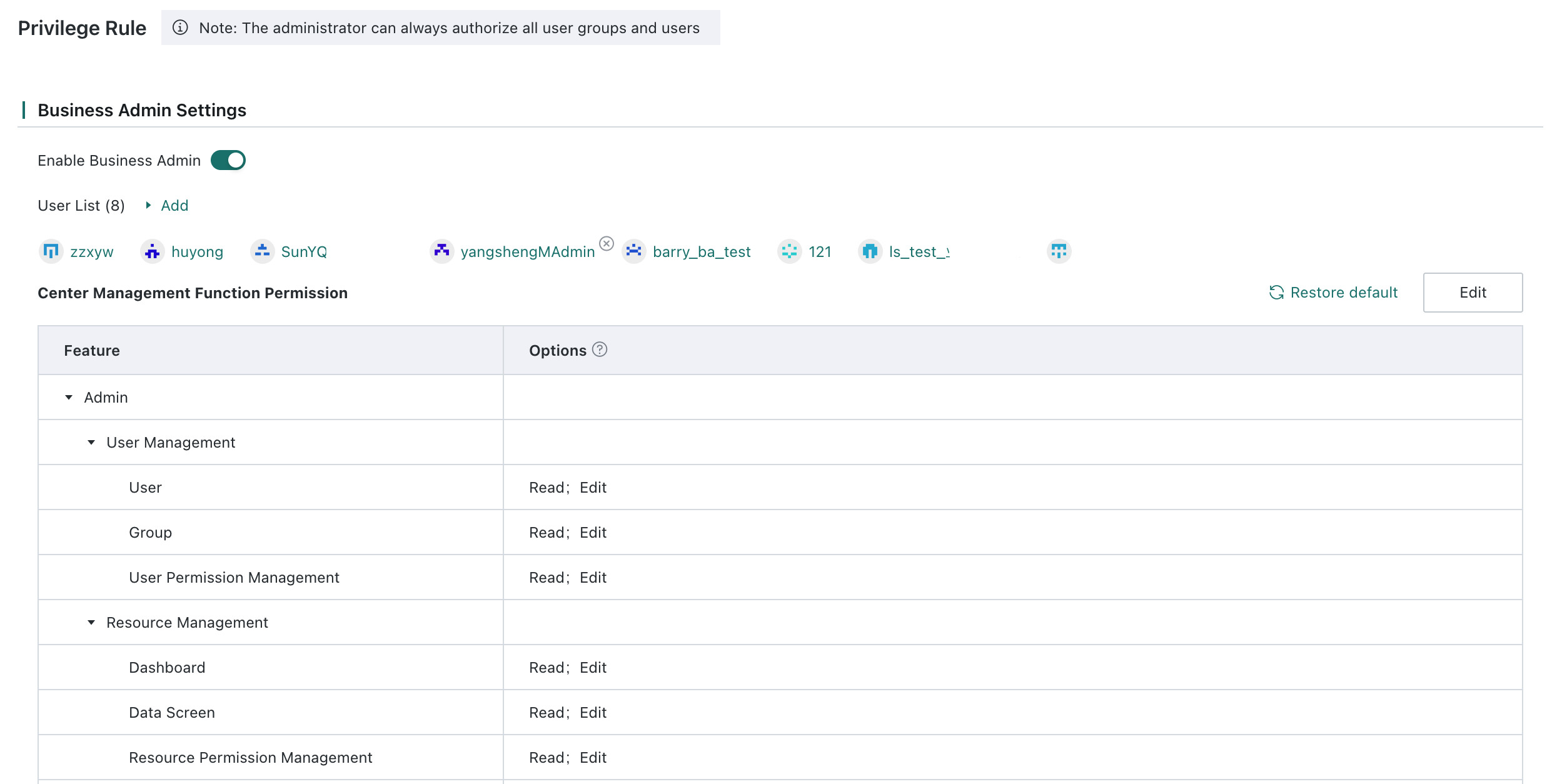
In Permission Rules, administrators can choose whether to enable business administrators. Business administrators can manage users and all resources, while their feature permissions remain flexibly configurable.
NoteBusiness administrators cannot set a member as an administrator and cannot configure custom roles.
-
After enabling business administrators, click
Addto batch-select the users who should be configured as business administrators. The available users come from the administrator member list.
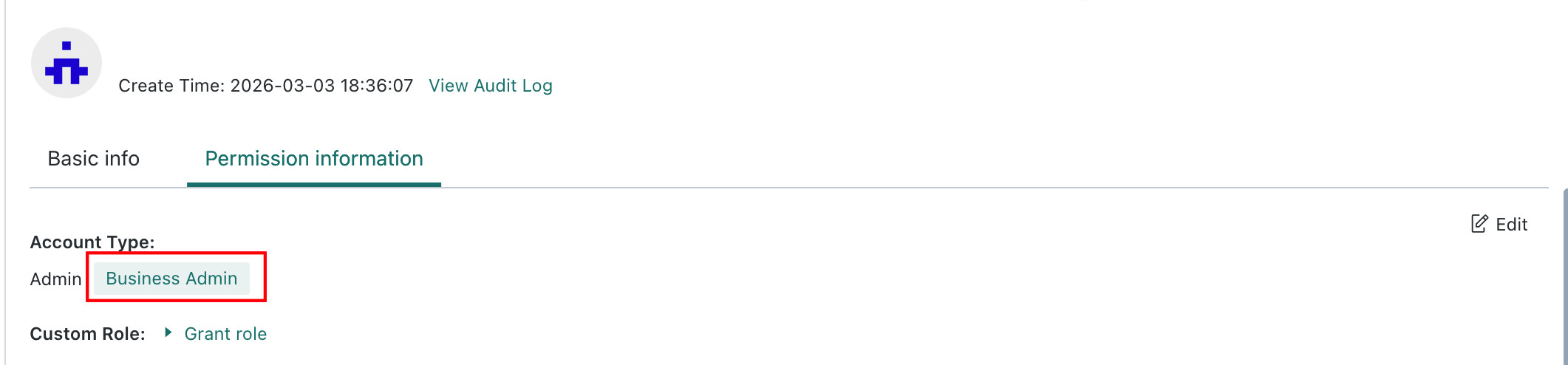
You can also go toAdmin Center > User Management > Users > Permission Informationand set an administrator user as a business administrator individually. For detailed steps, see Users.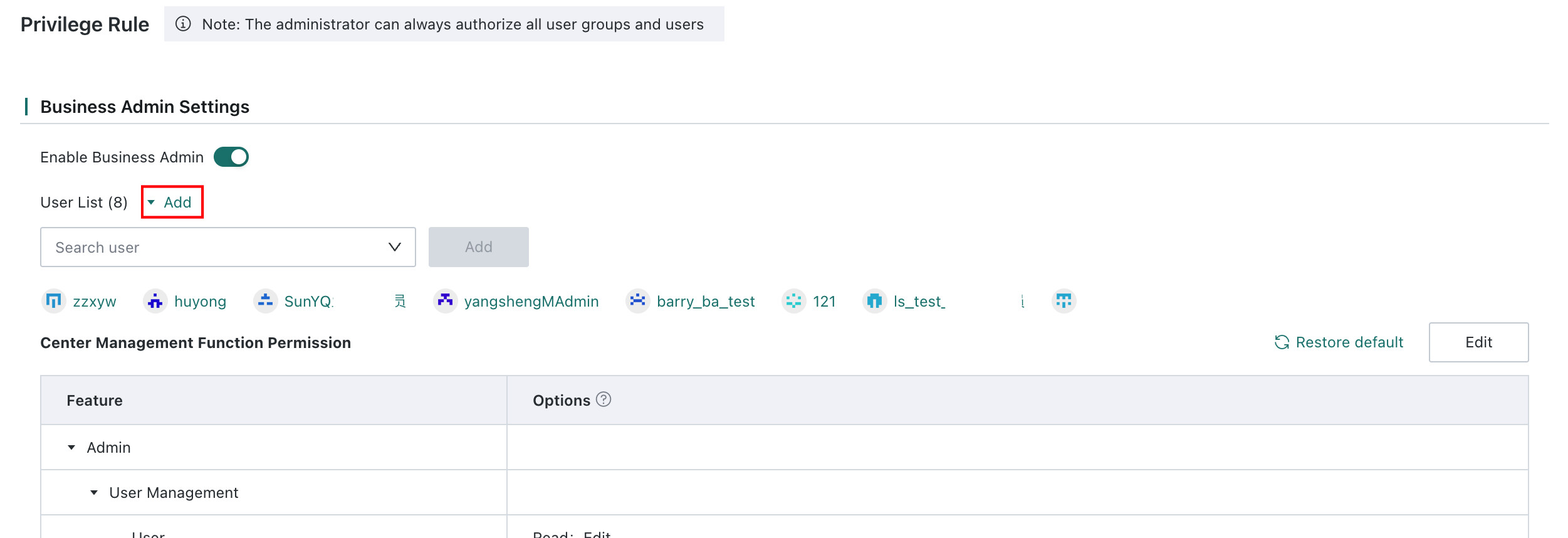
-
Click
Editto configure Admin Center feature permissions for business administrators. The actual configurable permissions depend on the system page.
One-click restore to default settings is supported.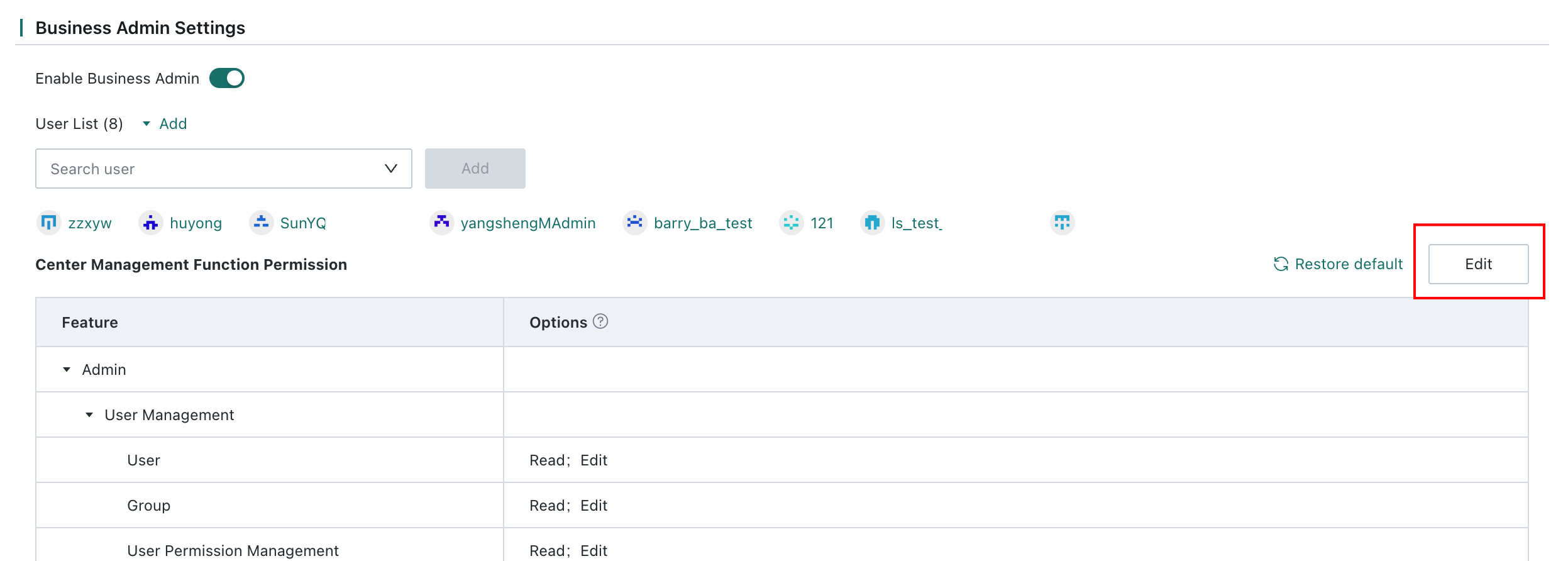
-
After configuration is complete, for members set as business administrators, go to
Admin Center > User Management > Roles > Administrator > Membersand you can see theBusiness Administratortag displayed next to the member.