Task Management
Overview
Task Management consists of Workbench and Task Details:
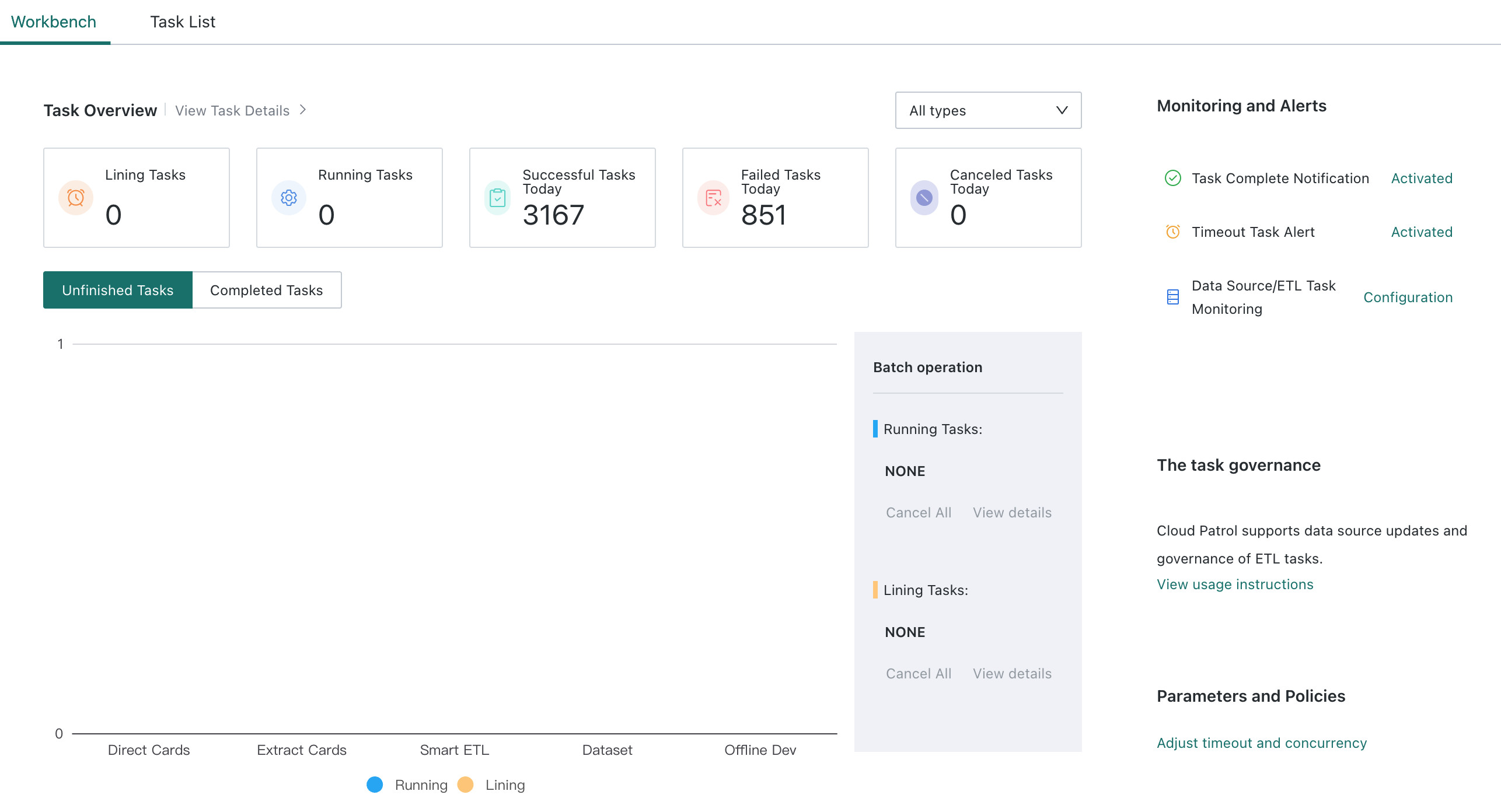
- Workbench: supports real-time viewing of queued, running, successful, failed, and canceled tasks, and supports batch cancellation of core tasks such as Smart ETL and Datasets.
- Task Details: lets you view the current tasks in the domain and manually cancel or stop tasks that cause abnormalities. Its Gantt chart module visually displays task status and execution duration across daily time periods along a timeline, helping operations personnel quickly identify peak periods and long-running tasks.
In addition, the new component includes CPU resource consumption data for successfully completed ETL tasks, helping users identify ETL tasks that consume excessive computing resources and optimize them in time.
Procedure
-
Click
Admin Center > Operations Management > Task Managementin the upper-right corner of the page to open theTask Managementpage. -
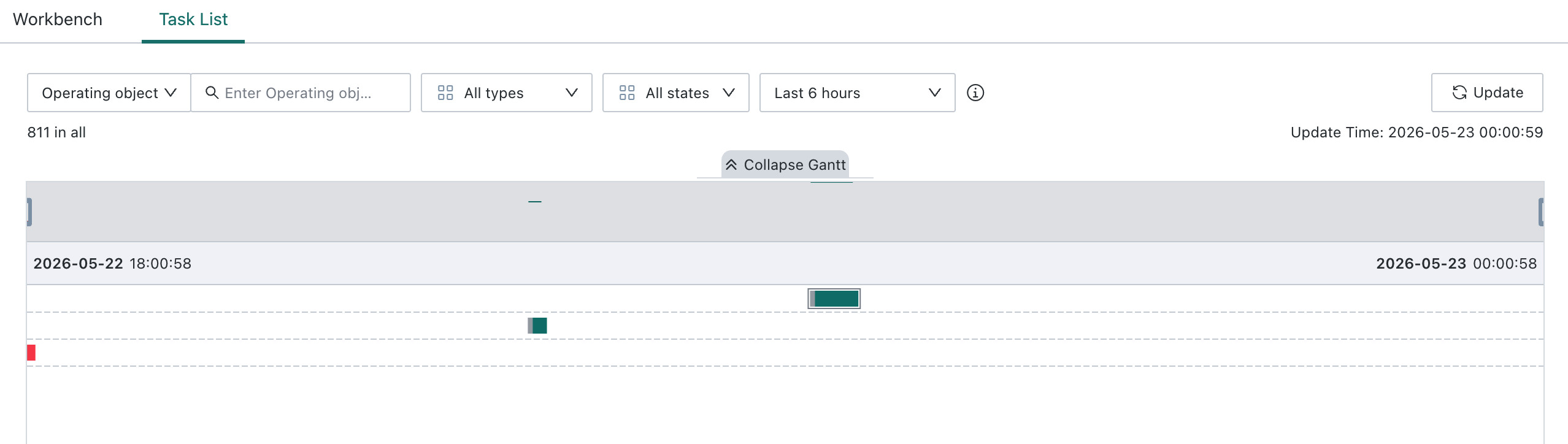
View the Gantt chart of task status, where the horizontal axis represents time and the vertical axis represents projects. You can select a time range at the top of the page or drag the timeline to narrow or expand the displayed range.
DescriptionWhen viewing task details through `Custom Time Range`:- The Gantt chart includes only tasks whose runtime is greater than or equal to 1 minute. To view tasks under 1 minute, use the list search.
- The time range is limited to 24 hours, and the format must follow
YYYY-MM-DD HH:mm:ss.
-
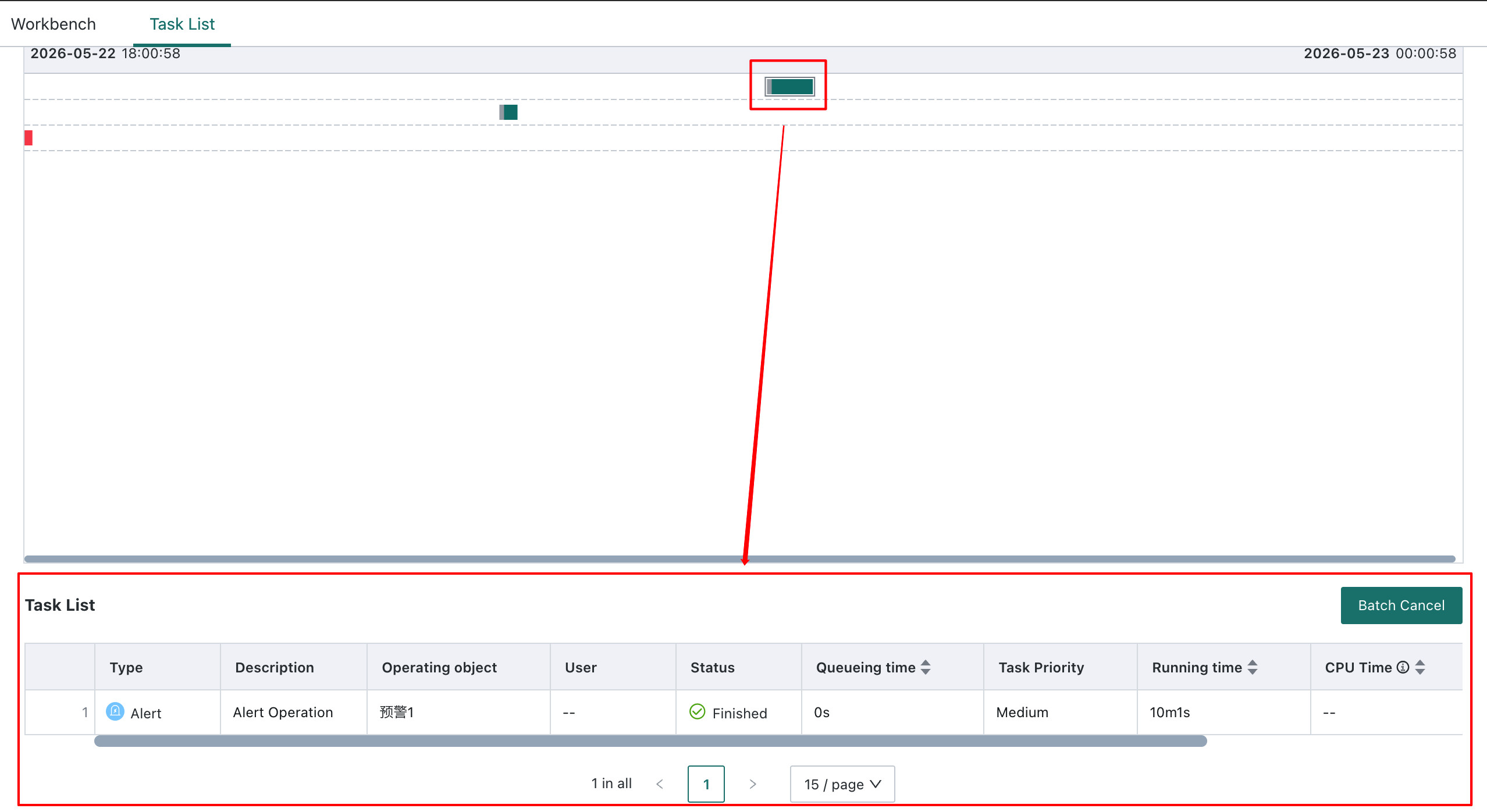
Click a bar in the chart to display detailed task information in the task list.
-
In the task list, you can view information such as task status, queue time, and execution duration.
-
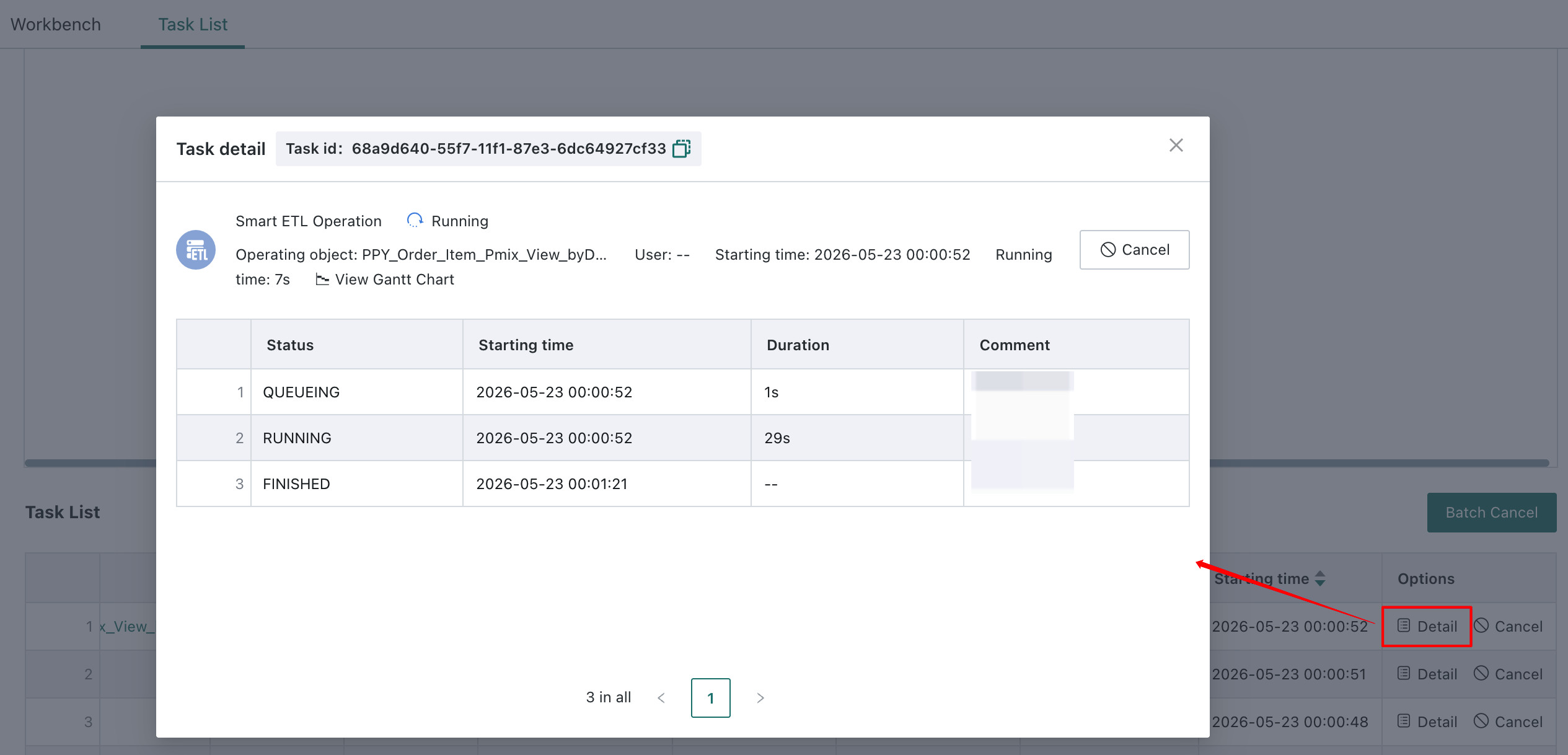
For ETL files and Dataset updates, task details can be viewed from the operations column. For files with runtime errors, you can view more information.
-
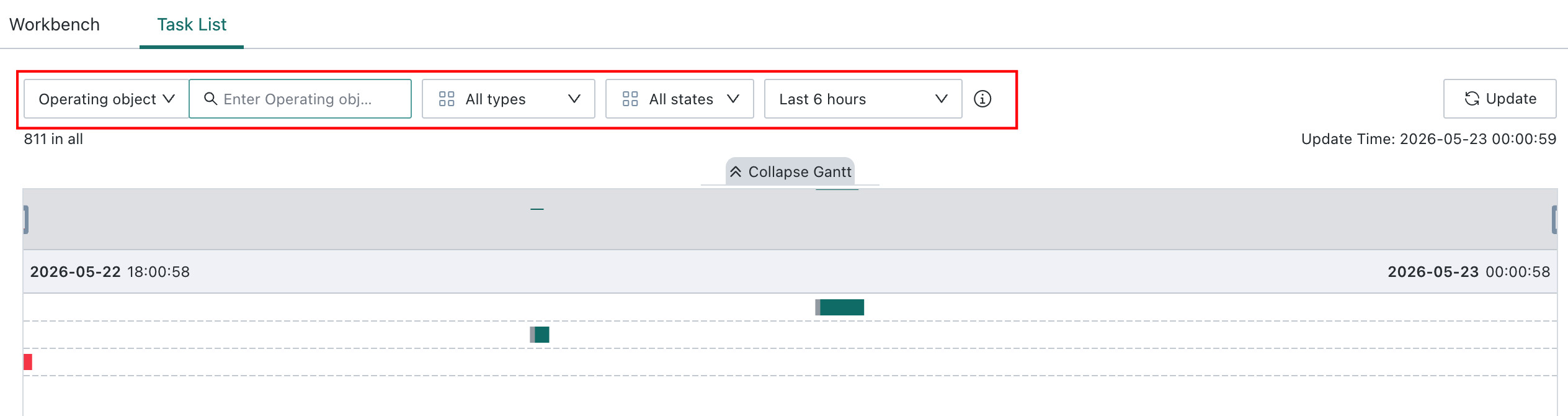
At the top of the page, you can select the operation target, type, and status. Click Refresh to view task objects that match the search criteria in the task list.
DescriptionThe Gantt chart includes only tasks with a runtime of at least 1 minute. To view tasks under 1 minute, search through the list instead.
-
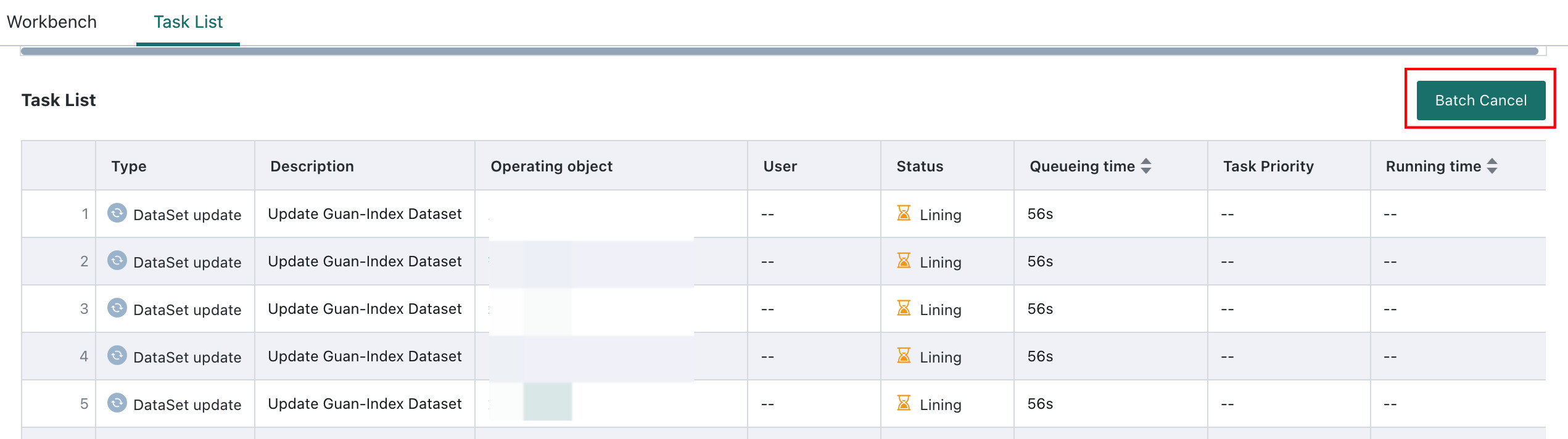
Click Batch Cancel to cancel multiple running tasks at once.