Resource Permissions Overview
Overview
What Is a Resource?
In Guandata BI, a resource refers to the various types of analytical content created or uploaded by users, as well as the organizational structures used to manage that content. Examples include Dashboards, Data Screens, Datasets, Dashboard folders, and Dataset folders.
What Are Resource Permissions?
Resource Permissions are used to control which resources a user can view and what operations the user can perform on those visible resources.
By configuring resource permissions properly, administrators can finely control how users access and operate on different resources, improving both data security and collaboration efficiency.
Resource Permission Types
For each resource such as a Dashboard or Dataset, as well as resource folders such as Dashboard folders, the system supports different resource permission types. These permission types determine what operations users can perform on the resource. For detailed behavior, see Resource Permission Details.
| Permission Type | Definition | Notes |
|---|---|---|
| Owner | Has full permissions on the resource, for example modifying dashboard or Dataset content, creating or deleting cards, adjusting card layout, and editing fields in cards | If the user is an administrator, they always have full permissions on the resource, regardless of whether they are the owner or only a viewer |
| Viewer / User |
| If the user is an administrator, they always have full permissions on the resource, regardless of whether they are the owner or only a viewer |
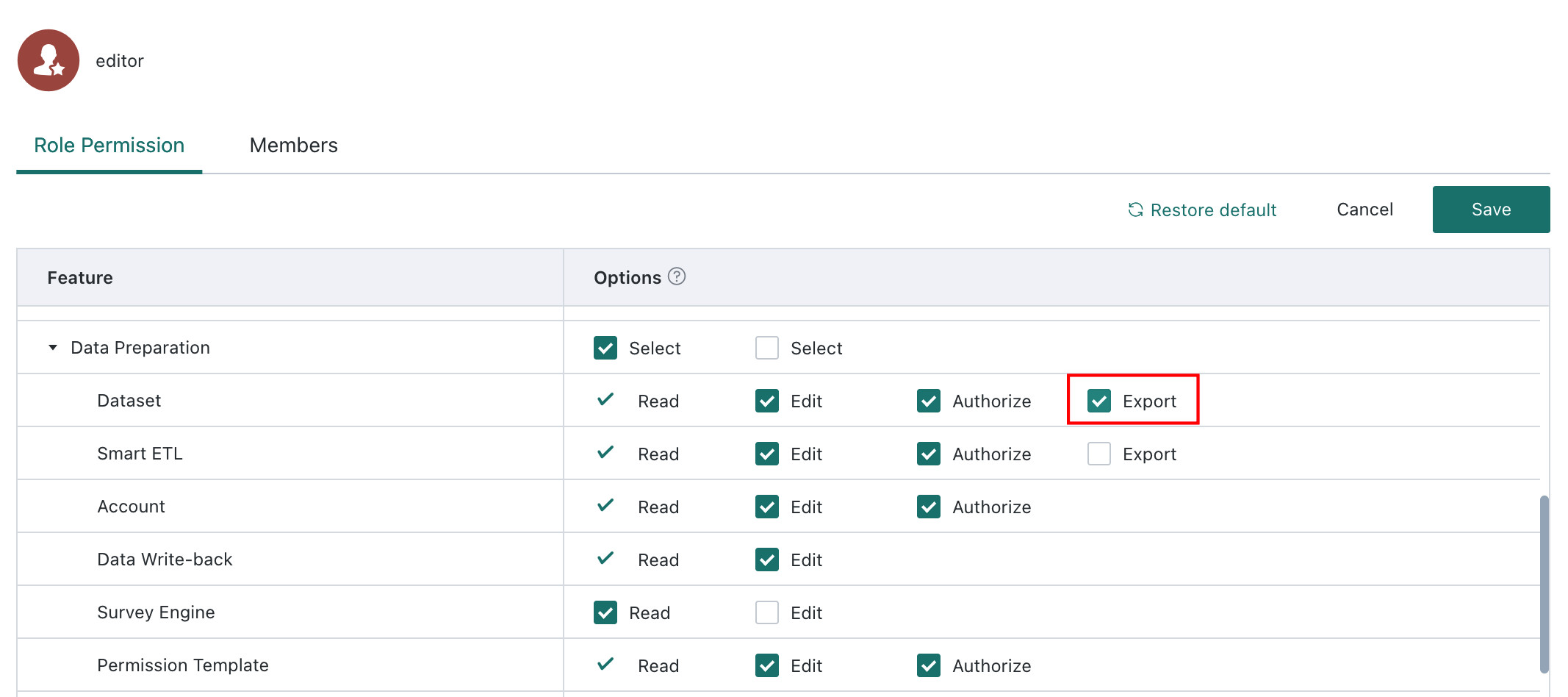
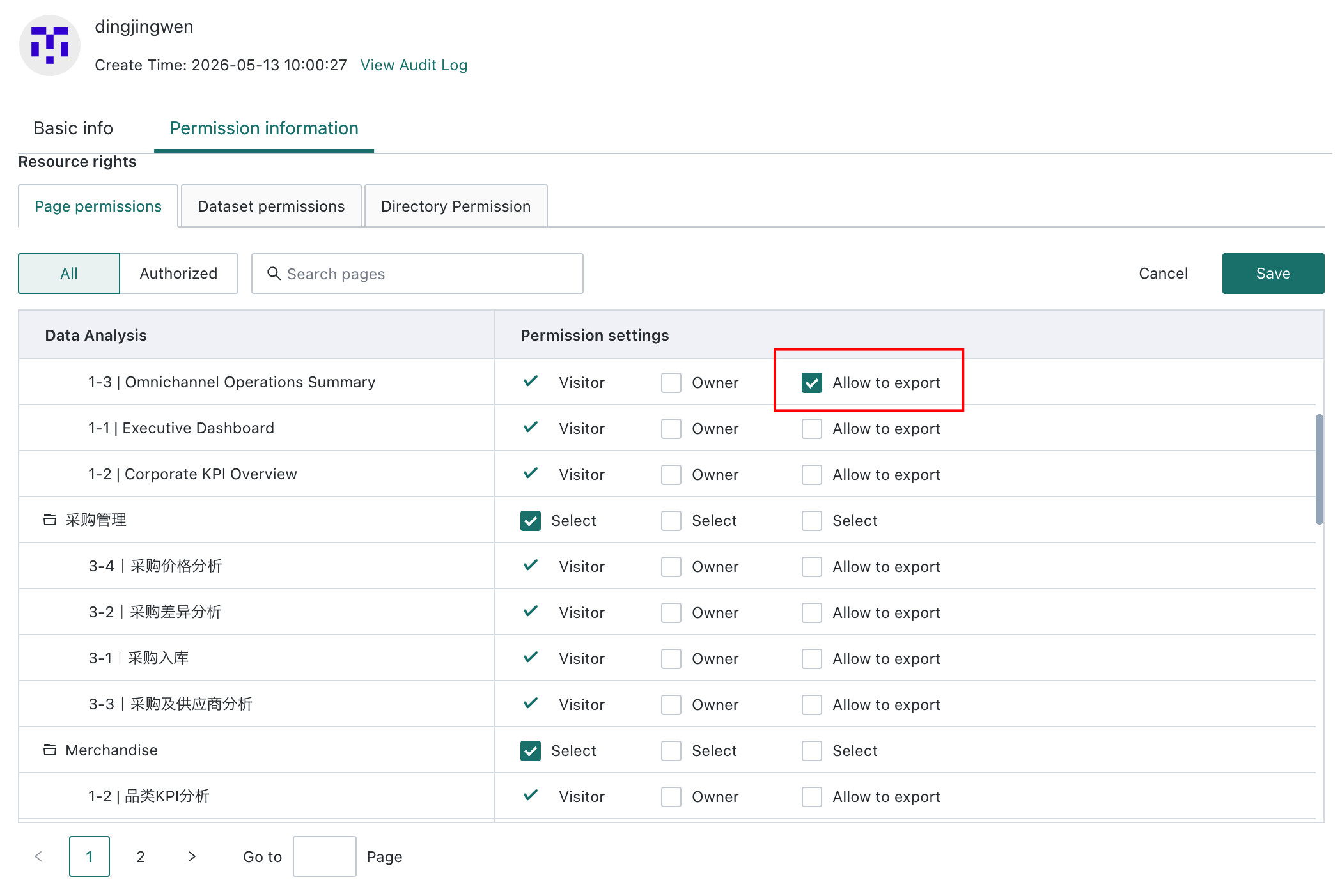
| Exporter (not available for folders) | Export permissions can be globally controlled in Admin Center > System Settings > General Settings > Export.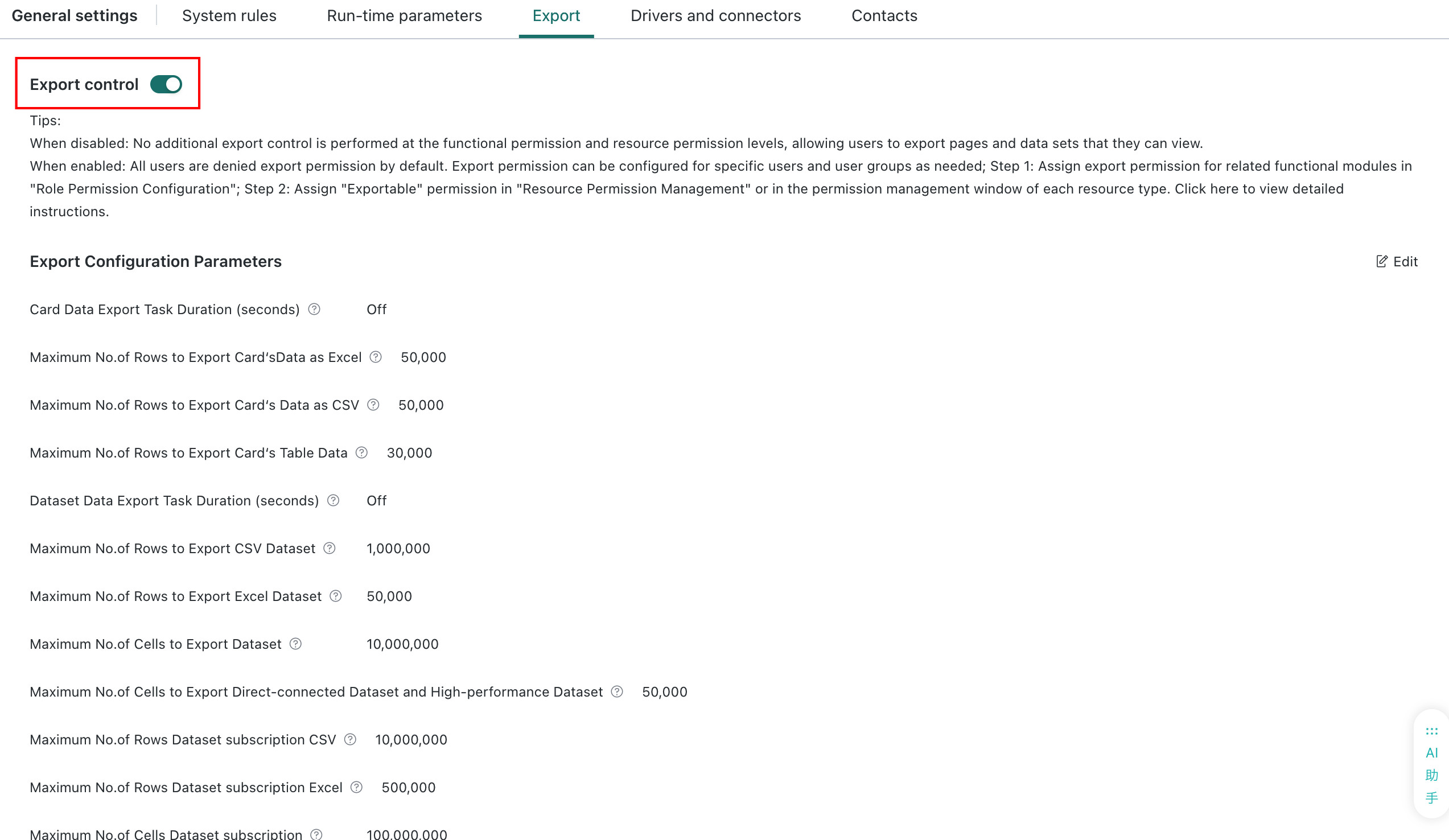
|
Resource Permission Authorization Methods
This section introduces authorization methods only. For step-by-step operations, see Resource Permission Details.
Single-Resource Authorization
Configure permissions directly for users or user groups on a specific resource. This is suitable for personalized and precise permission assignment.
Configuration entry points
Admin Center > Resource Management > Resource Permission Management, then select a resource for authorizationAdmin Center > Users / User Groups > Permission Information > Resource Permissions- Click the
Permission Managementbutton on a page, Dataset, or folder
Batch Authorization Based on Folders
Batch authorization is an operation for centralized management of scattered data resources. A large number of datasets or dashboard pages are categorized and placed in different folders. Resources within the same folder typically share the same group of authorized users. To make permission management more convenient, we provide folder-based batch authorization.
- For pages/datasets in the same folder, after a batch authorization list is set on the folder, it takes effect for all resources in the folder.
- If some pages/datasets have special requirements and need separate control, they can also choose not to inherit the batch authorization list from the parent folder.
- The current version only supports batch authorization for dashboards, data screens, and datasets. If you have more related needs, please contact your counterpart for feedback.
- If you are unsure whether to inherit from the parent, you can choose
Follow global, which is controlled by the globalFolder batch authorization inherits parentswitch.- When the switch is enabled: the
Follow globaloption on the page displays asFollow global (inherit parent); if multiple parent folders have inconsistent batch authorizations, the final permissions are merged as a union. - When the switch is disabled: the
Follow globaloption on the page displays asFollow global (do not inherit parent).
- When the switch is enabled: the
Folder permission inheritance rules
- Permissions are revoked from the same source they were granted. Therefore, if a user A obtained permissions for the dashboard/data screen/dataset through batch authorization, the corresponding permissions must also be revoked at the batch authorization location, not directly on the page/dataset.
- When batch authorizing folders and their resources, you can choose one of three inheritance methods:
Follow global,Inherit parent, orDo not inherit parent. - Which permissions a resource such as a page/dataset has is determined jointly by: whether the folder has batch authorization, whether the folder inherits from the parent, and whether the resource itself inherits from the parent. For example: folder
F1 Sales Departmenthas a subfolderF2 East China Sales Team, and the subfolderF2 East China Sales Teamhas a dashboardP3 East China Target Achievement.
| Scenario | F1 Setting | F2 Setting | F2 Inheritance Setting | Resource P3 Inheritance Setting | Resource P3 Permission |
|---|---|---|---|---|---|
| Scenario 1 | Batch authorization set | Batch authorization not set | / | Inherit parent enabled | Has permission, inherited from F1 |
| Scenario 2 | Batch authorization set | Batch authorization not set | / | Inherit parent not enabled | No permission |
| Scenario 3 | Batch authorization set | Batch authorization set | Inherit parent enabled | Inherit parent enabled | Has permission, inherited from F2 and F1 |
| Scenario 4 | Batch authorization set | Batch authorization set | Inherit parent enabled | Inherit parent not enabled | No permission |
| Scenario 5 | Batch authorization set | Batch authorization set | Inherit parent not enabled | Inherit parent enabled | Has permission, inherited from F2 |
| Scenario 6 | Batch authorization not set | Batch authorization set | Inherit parent enabled | Inherit parent enabled | Has permission, inherited from F2 |
Configuration entry points
Admin Center > Resource Management > Resource Permission Management, then select a folder for batch authorization- Click the
Batch Authorizationbutton on a folder
Resource Permission Authorization Rules
To standardize resource permission management, the system also provides resource permission authorization rules that control which users can grant permissions and the scope of recipients.
Entry: Admin Center > User Management > Permission Rules
Scope of Authorization Recipients
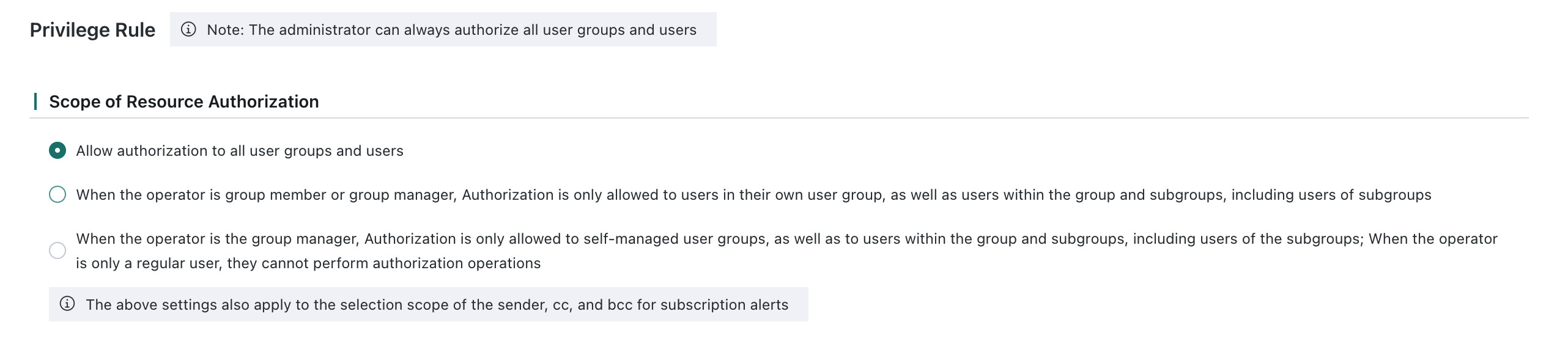
There are three recipient scope options:
- Allow authorization to all user groups and users. Regardless of whether this option is selected, administrators can always authorize all users and user groups.
- Allow authorization only to the current user's own user group, users in that group, child user groups, and users in those child groups. This applies when the current user is a normal member or a group administrator. The visible range in the permission list is limited to the current group, its users, and its child groups.
If the target exceeds the allowed scope, the platform shows an error. - Allow authorization only to the user groups managed by the current user, as well as their users and child groups. This applies when the current user is a group administrator. The visible range in the permission list is limited to the managed groups, their users, and their child groups.
If the operator is only a normal user, authorization is not allowed.
Types of Authorization Recipients
The system can also restrict whether resource permissions may be assigned to user groups. If assignment to user groups is disallowed, you can add exceptions in a whitelist. Users in the whitelist are still allowed to assign permissions to user groups.

- If assigning permissions to user groups is allowed, user groups can be searched directly on the permission configuration page.
- If assigning permissions to user groups is not allowed, only individual users can be searched on the permission configuration page.