Resource Permission Details
Overview
Since system permission verification is completed jointly by feature permissions and resource permissions, this document explains differentiated resource permissions from the perspective of different roles.
Page Permissions
Page Permission Details
Dashboard Operations
| Operation | Administrator | Standard User - Owner (with Exporter permission enabled) | Standard User - Viewer (with Exporter permission enabled) |
|---|---|---|---|
| Component Templates (Create / Manage) | ✅ | ❌ | ❌ |
| Component Templates (Apply) | ✅ | ✅ | ❌ |
| Desktop Layout | ✅ | ✅ | ❌ |
| Mobile Layout | ✅ | ✅ | ❌ |
| Publish Page | ✅ | ✅ | ❌ |
| Quick Query | ✅ | ✅ | ✅ |
| Edit Filter Bar | ✅ | ✅ | ❌ |
| Create Card | ✅ | ✅ | ❌ |
| Permission Management (Owner / Viewer) | ✅ | ❌ | ❌ |
| Favorite Page | ✅ | ✅ | ✅ |
| Page Information | ✅ | ✅ | ✅ |
| Datasets (source Datasets of all cards in the current dashboard) | ✅ | ❌ | ❌ |
| View Resource Lineage | ✅ | ✅ | ❌ |
| Auto Refresh | ✅ | ✅ | ✅ |
| Page Style | ✅ | ✅ | ❌ |
| Hidden Cards | ✅ | ✅ | ❌ |
| Batch Edit Cards | ✅ | ✅ | ❌ |
| Page Subscription | ✅ | ✅ | ❌ |
| Batch Export Excel | ✅ | ✅ (requires dashboard export feature permission for Standard Users) | ✅ (requires dashboard export feature permission for Standard Users) |
| Batch Export PDF | ✅ | ✅ (requires dashboard export feature permission for Standard Users) | ✅ (requires dashboard export feature permission for Standard Users) |
| Export as PDF | ✅ | ✅ (requires dashboard export feature permission for Standard Users) | ✅ (requires dashboard export feature permission for Standard Users) |
| Export Image | ✅ | ✅ (requires dashboard export feature permission for Standard Users) | ✅ (requires dashboard export feature permission for Standard Users) |
| Export View | ✅ | ✅ | ❌ |
| Create Page Template | ✅ | ❌ | ❌ |
| Cast to Screen | ✅ | ✅ | ✅ |
| Screen Casting Settings | ✅ | ✅ | ✅ |
| Performance Tracing | ✅ | ✅ | ✅ |
| Open in New Tab | ✅ | ✅ | ✅ |
| Rename | ✅ | ✅ | ❌ |
| Move To | ✅ | ✅ | ❌ |
| Save As | ✅ | ✅ | ❌ |
| Migrate | ✅ | ❌ | ❌ |
| Delete | ✅ | ✅ | ❌ |
Card Operations
A page is the container for cards. Cards do not have independent permissions and instead follow the permissions of the page.
| Operation | Administrator | Standard User - Owner (with Exporter permission enabled) | Standard User - Viewer (with Exporter permission enabled) |
|---|---|---|---|
| Enlarge Card | ✅ | ✅ | ✅ |
| Card Information | ✅ | ✅ | ✅ |
| Adjust Column Width (table charts only) | ✅ | ✅ | ❌ |
| View Card Data | ✅ | ✅ | ✅ |
| Format Painter | ✅ | ✅ | ❌ |
| Edit | ✅ | ✅ | ❌ |
| Go to Detail | ✅ | ✅ | ✅ |
| Move Position | ✅ | ✅ | ❌ |
| Drill Settings | ✅ | ✅ | ❌ |
| Linked Interaction Settings | ✅ | ✅ | ❌ |
| Navigation Settings | ✅ | ✅ | ❌ |
| Default Interaction Settings | ✅ | ✅ | ❌ |
| Edit Card Tooltip Information | ✅ | ✅ | ❌ |
| Save As | ✅ | ✅ | ✅ |
| Move | ✅ | ✅ | ❌ |
| Export | ✅ | ✅ (requires dashboard export feature permission for Standard Users) | ✅ (requires dashboard export feature permission for Standard Users) |
| Generate Card Dataset | ✅ | ❌ | ❌ |
| Alerts | ✅ | ✅ | ❌ |
| Create / Manage Subscriptions | ✅ | ✅ | ❌ |
| View Query Statement | ✅ | ✅ | ❌ |
| Set as Anchor | ✅ | ✅ | ❌ |
| Delete | ✅ | ✅ | ❌ |
How to Obtain Page Permissions
| Method | Operation | Who Can Perform It | Notes |
|---|---|---|---|
| Assign directly through user configuration | On the user's detail page, use Permission Information > Resource Permissions > Page Permissions to assign page permissions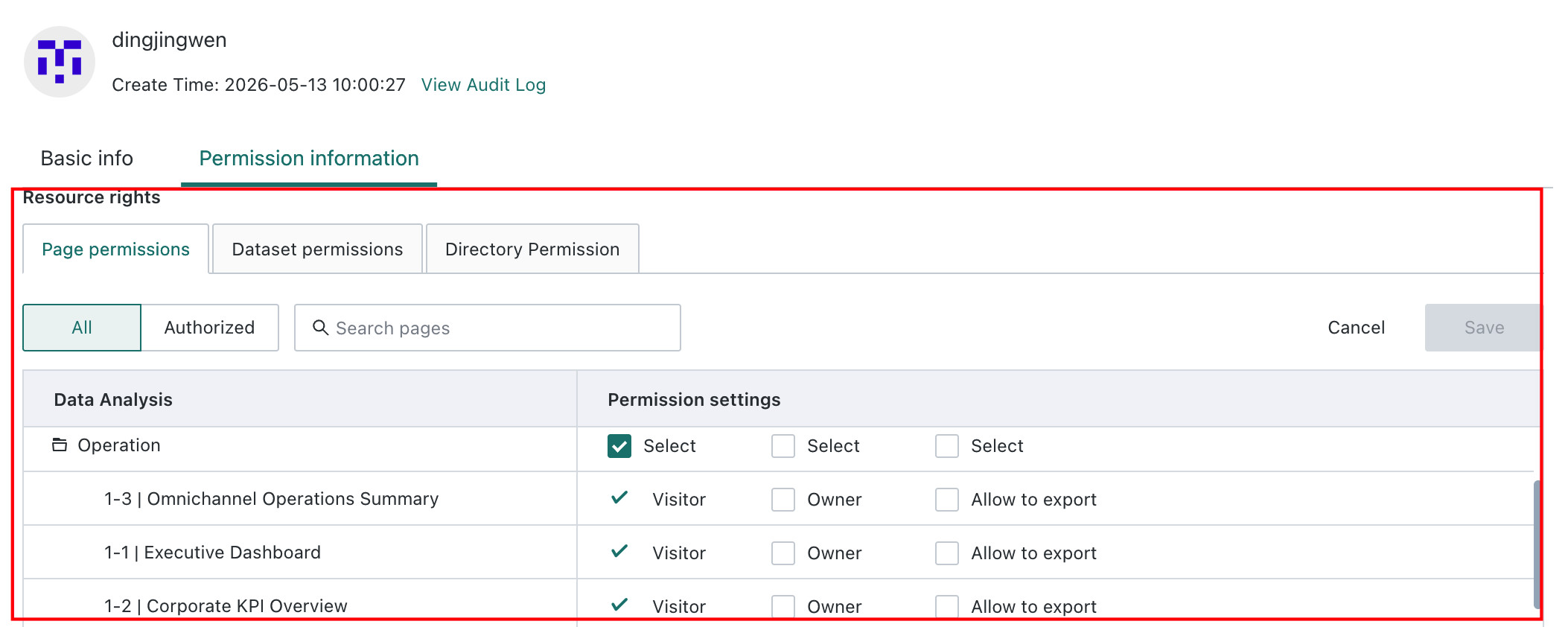 | Administrator | / |
| Grant through page-level authorization | The page owner or administrator clicks Permission Management on the page and adds owners or viewers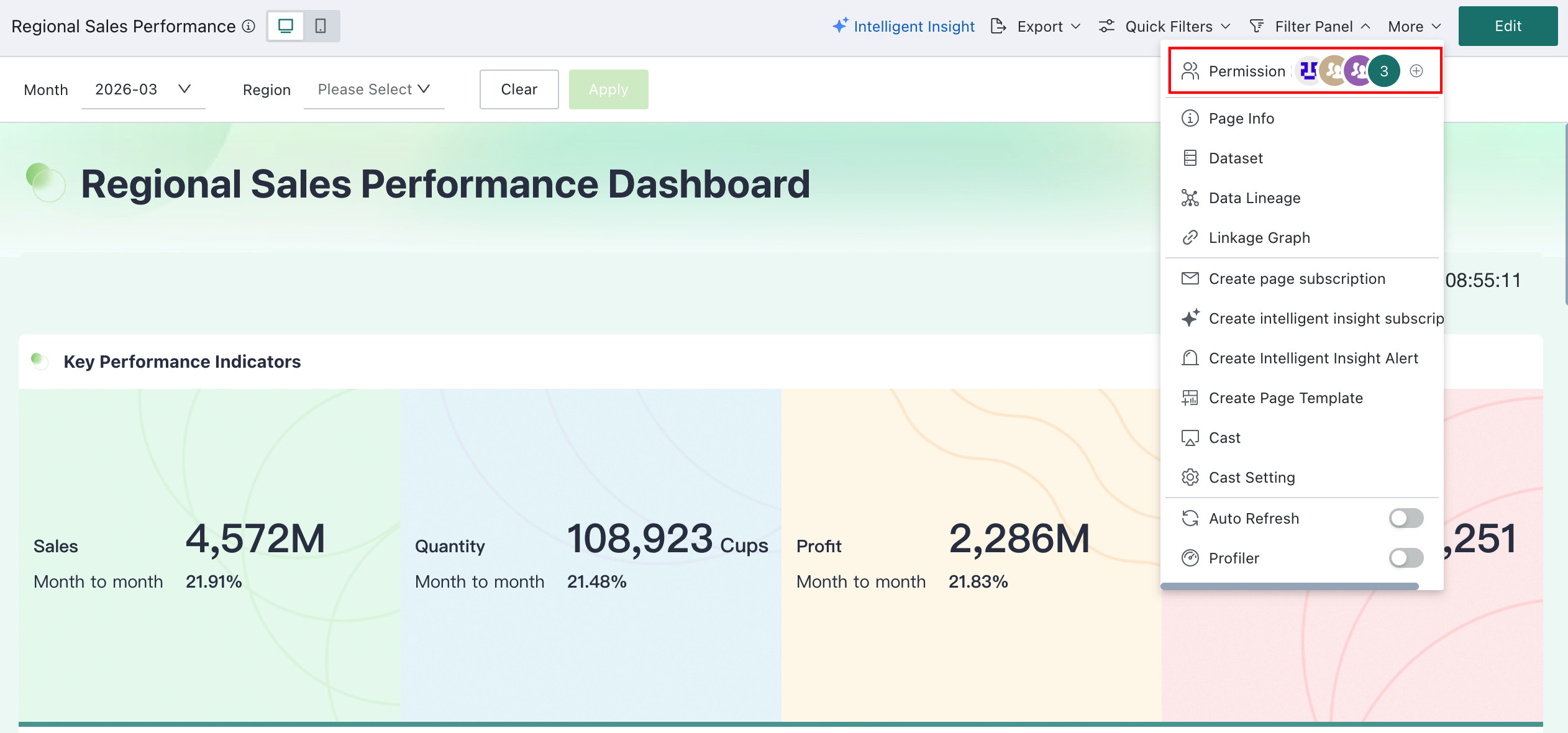 | Page Owner / Administrator | The account type of the page owner must first have page authorization permission enabled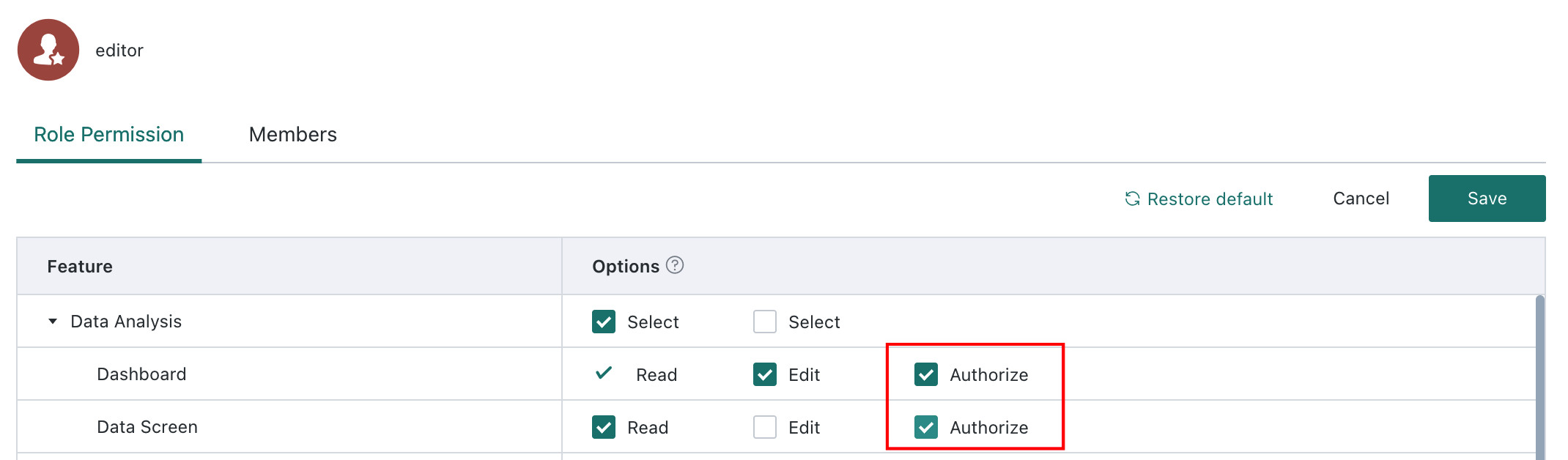 |
| Grant through the Resource Permission Management page | On the Resource Permission Management page, find the page to be authorized and add users | Administrator | / |
| Grant by adding the user to a user group | Add the user to a user group and assign page permissions to that user group on Permission Information > Resource Permissions > Page Permissions in the group detail page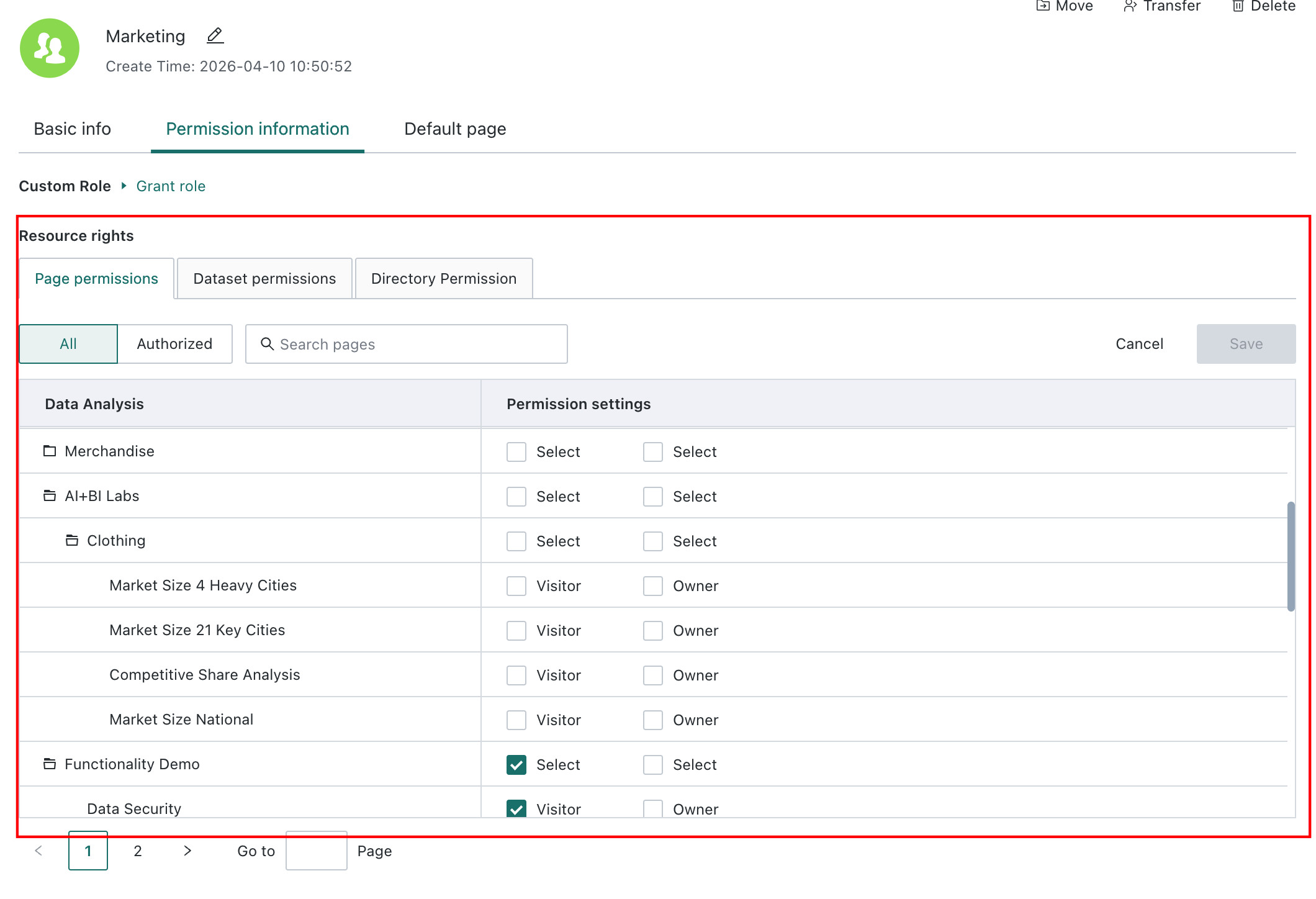 | Administrator | / |
| Grant through folder-based batch authorization | 1. Use one of the following two methods to configure folder batch authorizationBatch Authorization button on a folder in the Data Analysis page, so the user gets permissions for all pages in that folder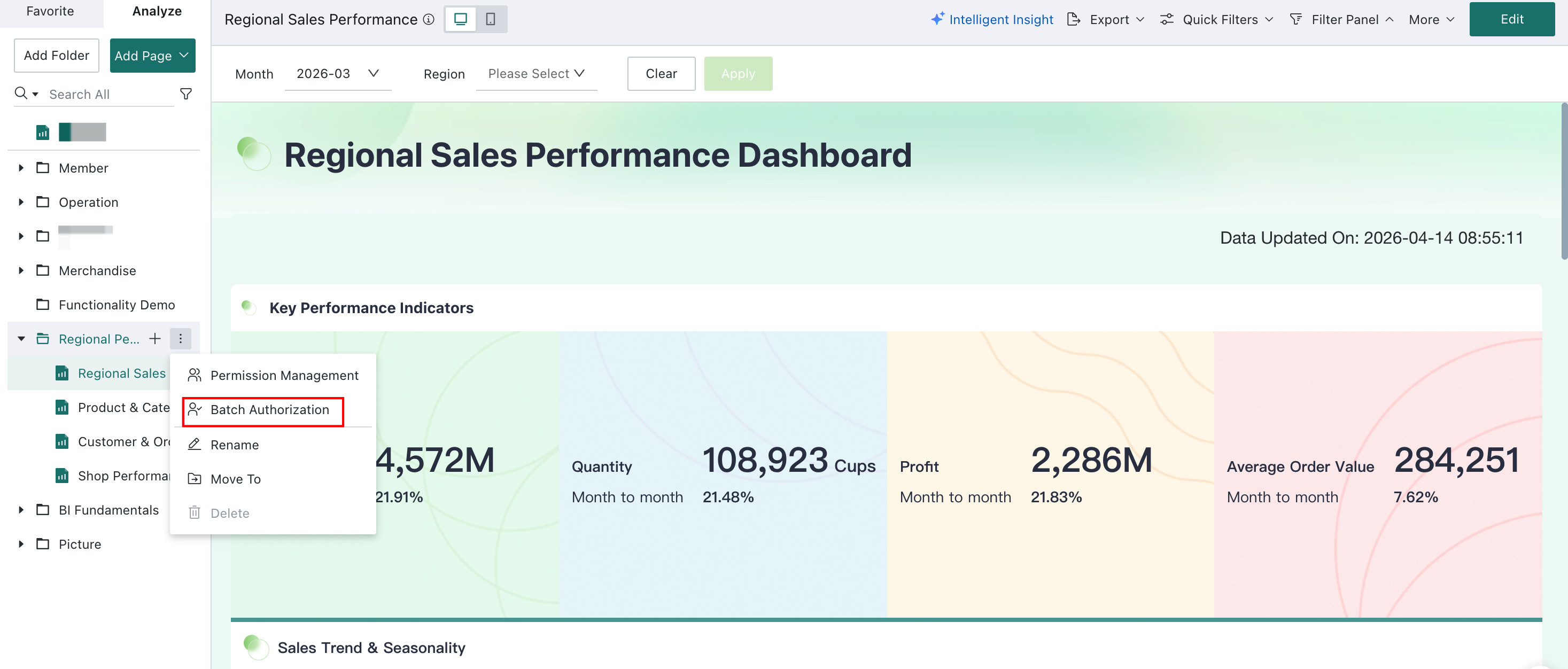 Admin Center > Resource Permission Management > Pages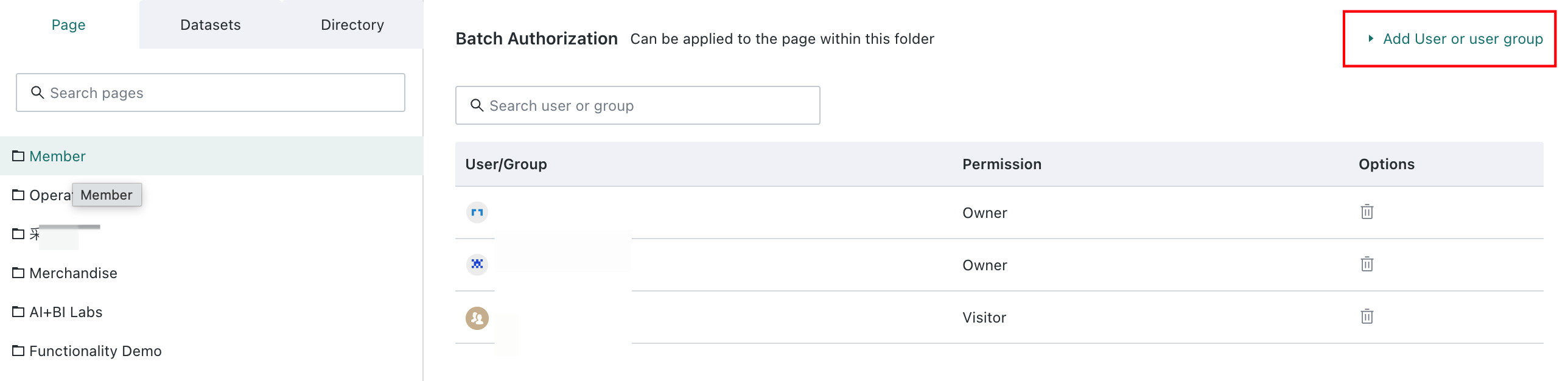 2. In Admin Center > Resource Permission Management > Pages, find the target page and set it to inherit folder permissions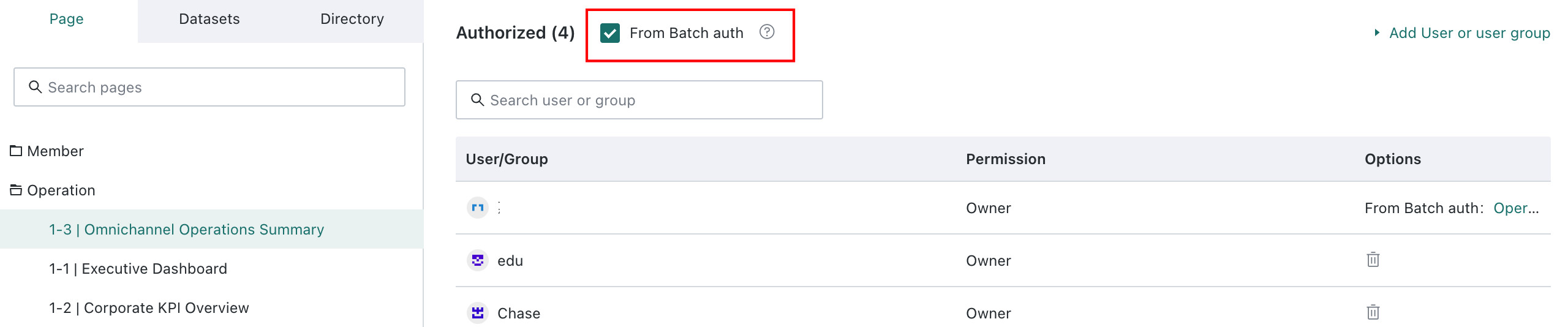 | Folder Owner / Administrator | / |
Dataset Permissions
Dataset Permission Details
| Operation | Administrator | Standard User - Owner (with Exporter permission enabled) | Standard User - Viewer (with Exporter permission enabled) |
|---|---|---|---|
| Create / Delete / Modify Dataset | ✅ | ✅ | ❌ |
| Create Cards Based on the Dataset | ✅ | ✅ | ✅ |
| View Resource Lineage | ✅ | ✅ | ❌ |
| Export Dataset | ✅ | ✅ (requires Dataset export feature permission for Standard Users) | ✅ (requires Dataset export feature permission for Standard Users) |
| Preview Dataset | ✅ | ✅ | ✅ |
| View Refresh History | ✅ | ✅ | ❌ |
| Permission Management | ✅ | ✅ | ❌ |
| Save As | ✅ | ✅ | ❌ |
| Move To | ✅ | ✅ | ❌ |
| Rename | ✅ | ✅ | ❌ |
How to Obtain Dataset Permissions
| Method | Operation | Who Can Perform It | Notes |
|---|---|---|---|
| Assign directly through user configuration | On the user's detail page, use Permission Information > Resource Permissions > Dataset Permissions to assign Dataset permissions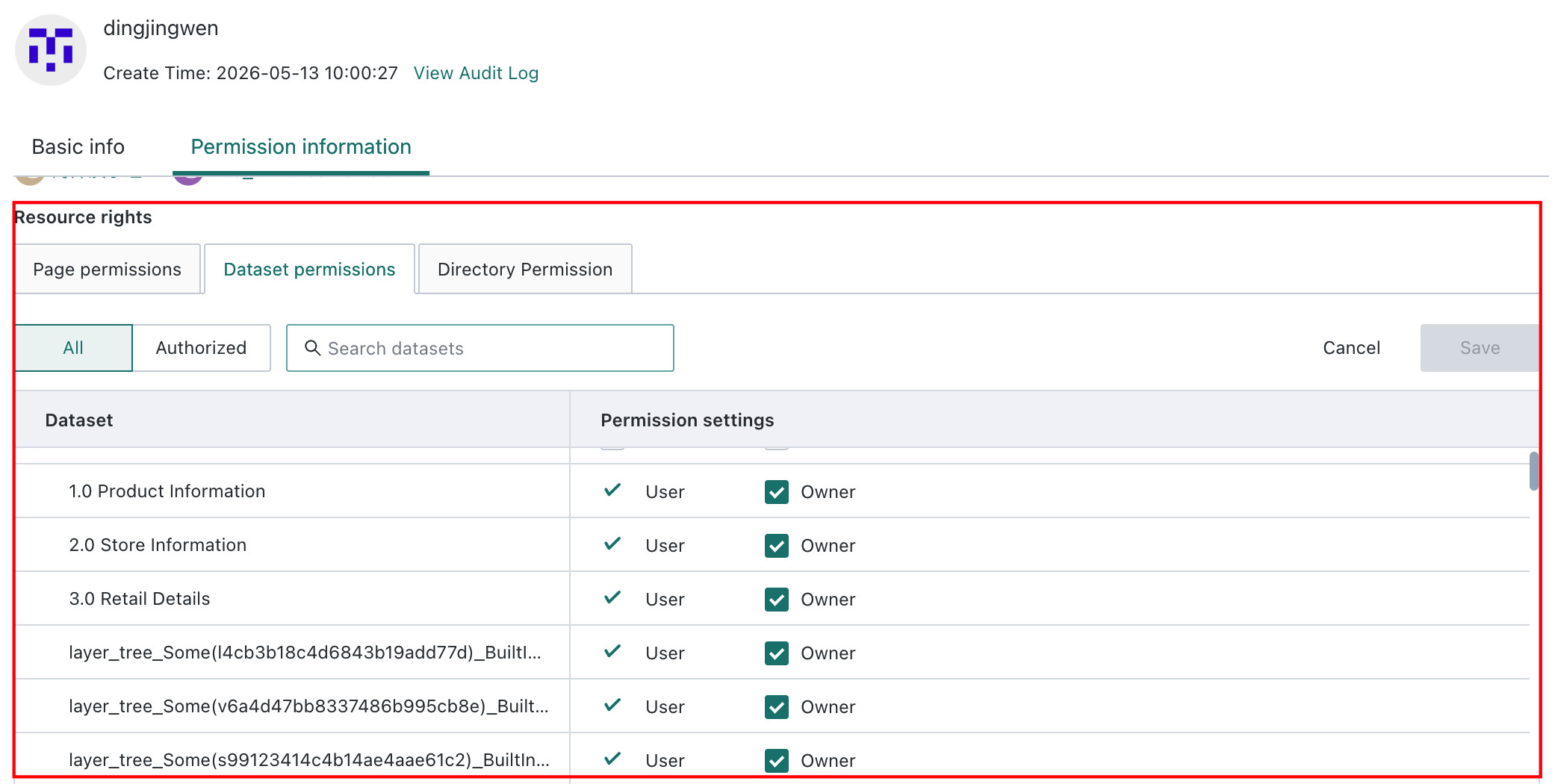 | Administrator | / |
| Grant through Dataset-level authorization | The Dataset owner or administrator clicks Permission Management on the Dataset and adds owners or users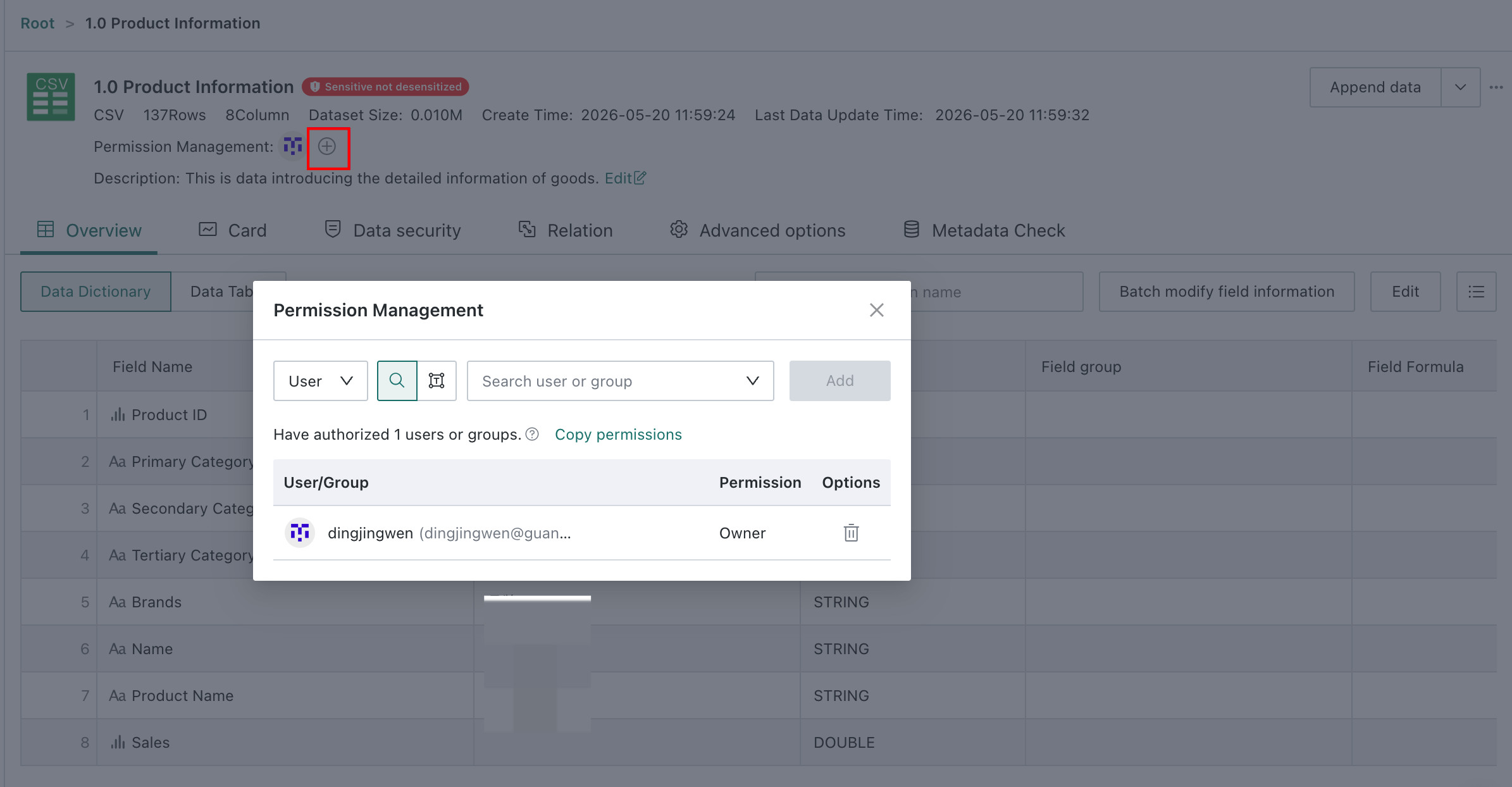 | Dataset Owner / Administrator | The account type of the Dataset owner must first have Dataset authorization permission enabled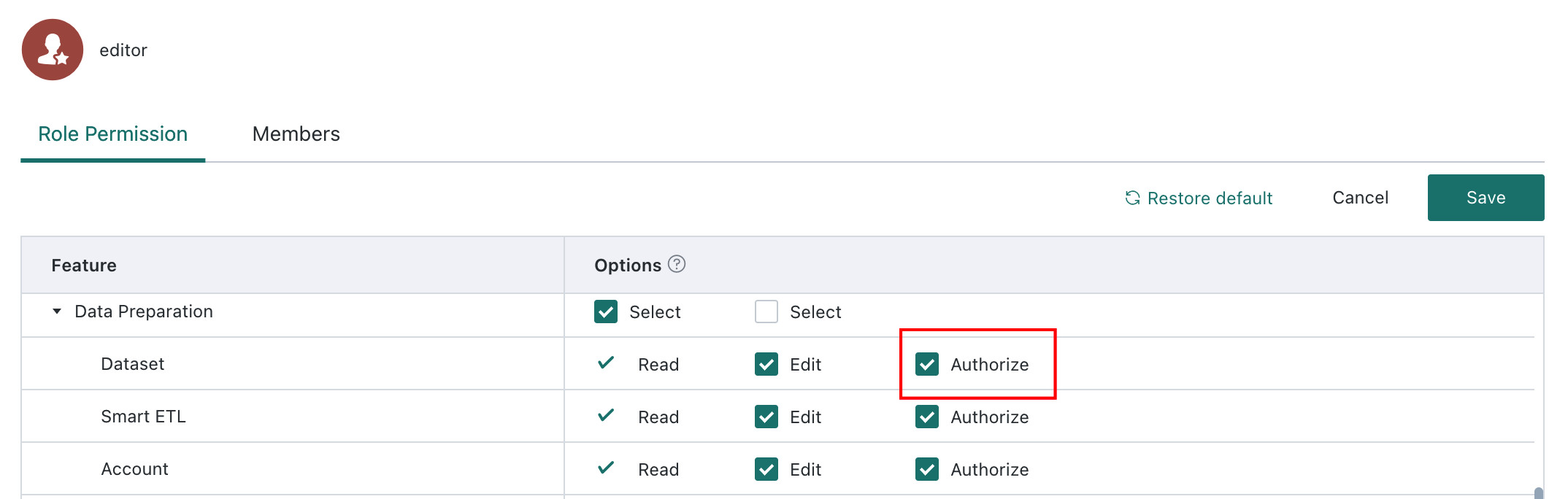 |
| Grant through the Resource Permission Management page | On the Resource Permission Management page, find the Dataset to be authorized and add owners or users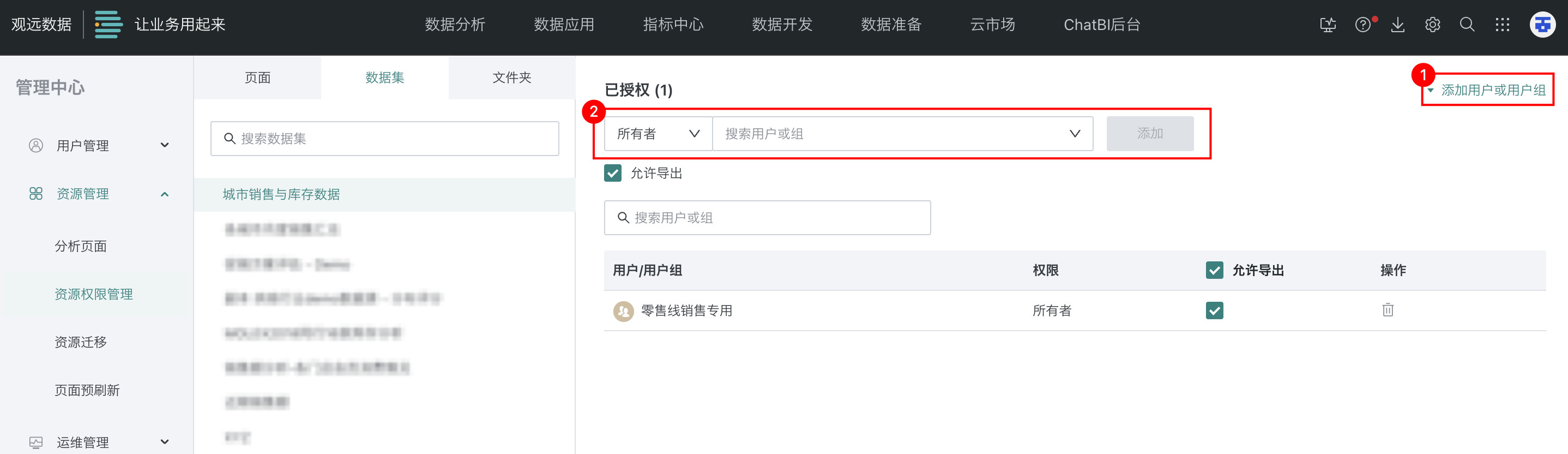 | Administrator | / |
| Grant by adding the user to a user group | Add the user to a user group and assign Dataset permissions to that user group on Permission Information > Resource Permissions > Dataset Permissions in the group detail page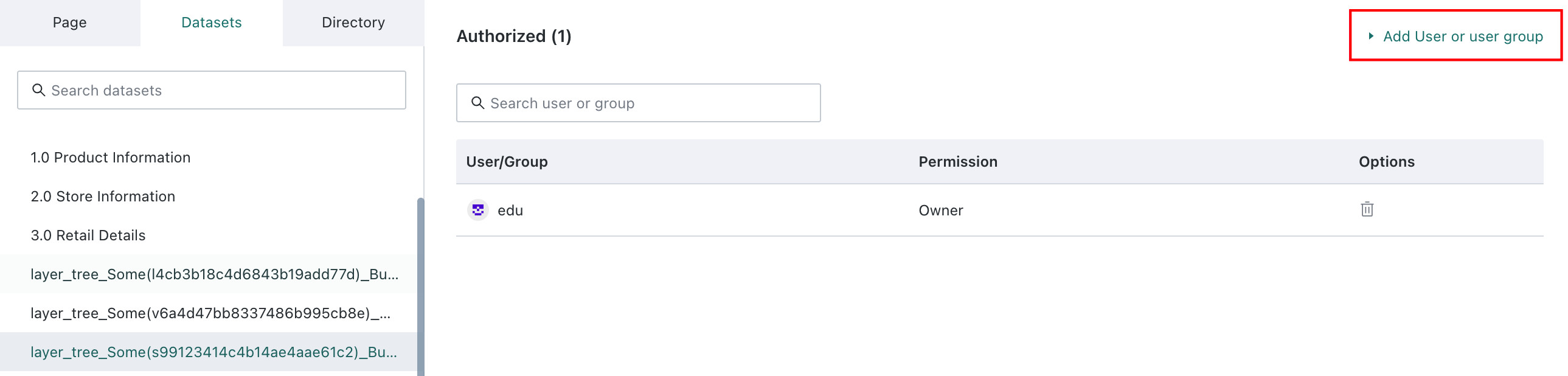 | Administrator | / |
| Grant through folder-based batch authorization | Use the Batch Authorization button on a folder in Data Preparation > Dataset so the user receives permissions for all Datasets in that folder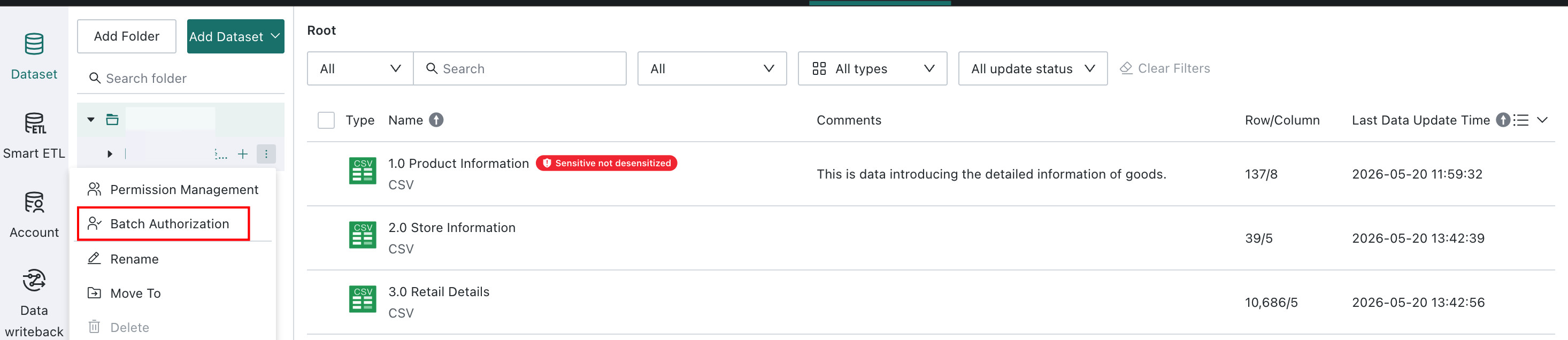 | Folder Owner / Administrator | / |
Folder Permissions
Folder Permission Details
Folders include Dashboard folders, Dataset folders, ETL folders, Desktop App folders, and other categories. They support both Owner and User permissions.
Folder operations include:
- Management operations: operations on the folder itself, including creating resources inside it, creating subfolders, permission management, rename, move, and delete
- Usage operations: using the folder as a target, including creating resources inside it and moving or saving other resources into it
The details are as follows:
| Folder Operation | Owner | User |
|---|---|---|
| Permission Management | ✅ | ❌ |
| Create Subfolder | ✅ | ❌ |
| Move To Another Folder | ✅ | ❌ |
| Move Other Resources into This Folder | ✅ | ❌ |
| Create Resources in the Folder (Dashboards, Datasets, and so on) | ✅ | ✅ |
| Move / Save As Other Resources into This Folder | ✅ | ✅ |
| Rename | ✅ | ❌ |
| Delete (when the folder is empty) | ✅ | ❌ |
From a resource perspective, parent folders and child folders are independent folders. Their permissions are configured separately and do not affect each other directly.
The folder itself does not inherit permissions, but resources inside the folder can inherit the folder's batch authorization settings through the Inherit from Parent feature.
A folder is visible if any of the following conditions is met:
- the user is an owner or viewer of the folder
- the user does not have direct permission on the folder itself, but has access permission to a resource inside the folder, such as a dashboard, file, or subfolder
When the Batch Authorization function is enabled, folder owners and users can see the Batch Authorization entry in the operation column:
- folder owners can configure it
- users can view the batch authorization list but cannot modify it
How to Obtain Folder Permissions
| Method | Operation | Who Can Perform It |
|---|---|---|
| Assign directly through user configuration | On the user's detail page, use Permission Information > Resource Permissions > Folder Permissions to assign folder permissions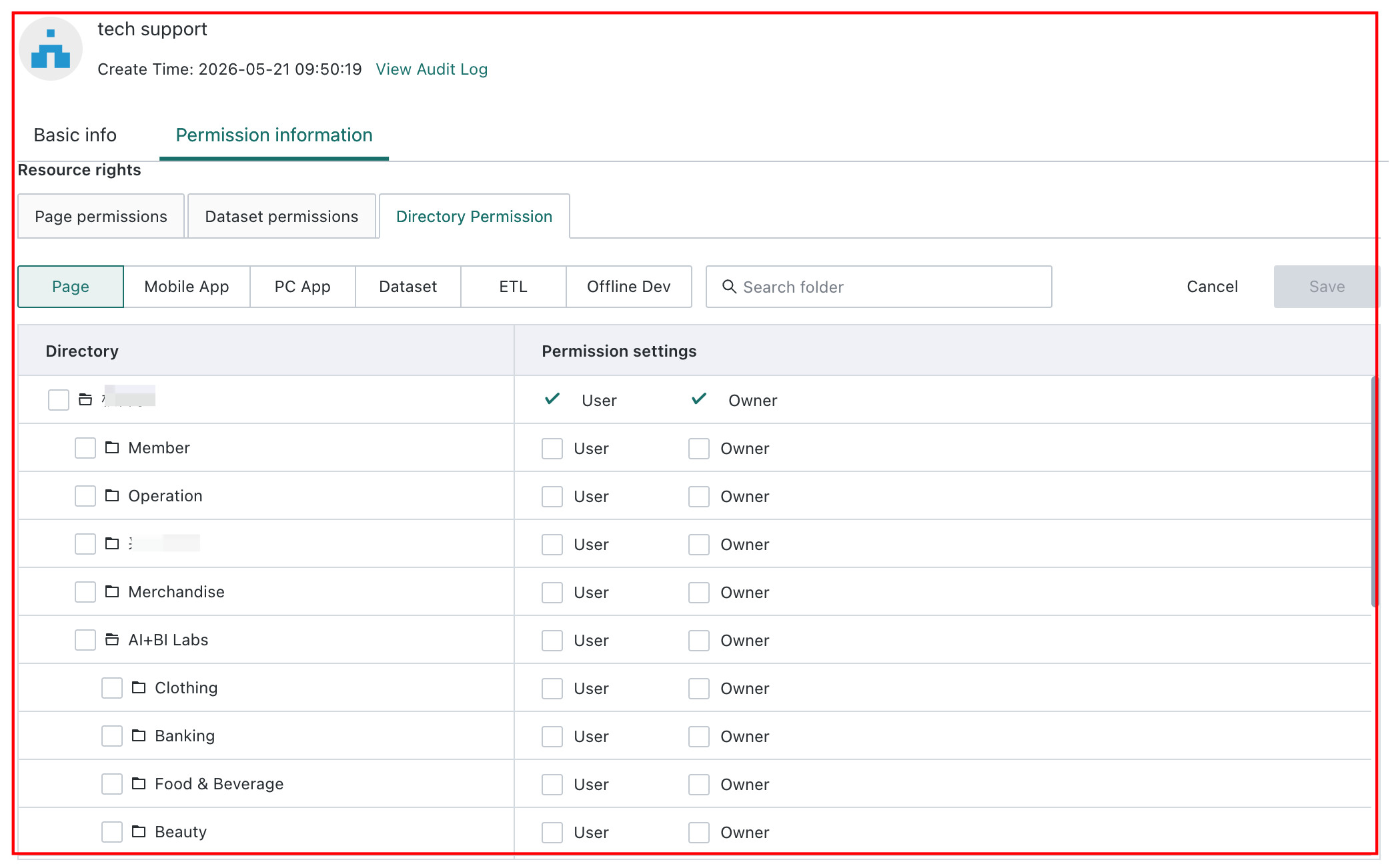 | Administrator |
| Grant through folder-level authorization | The folder owner or administrator clicks Permission Management on the folder and adds owners or users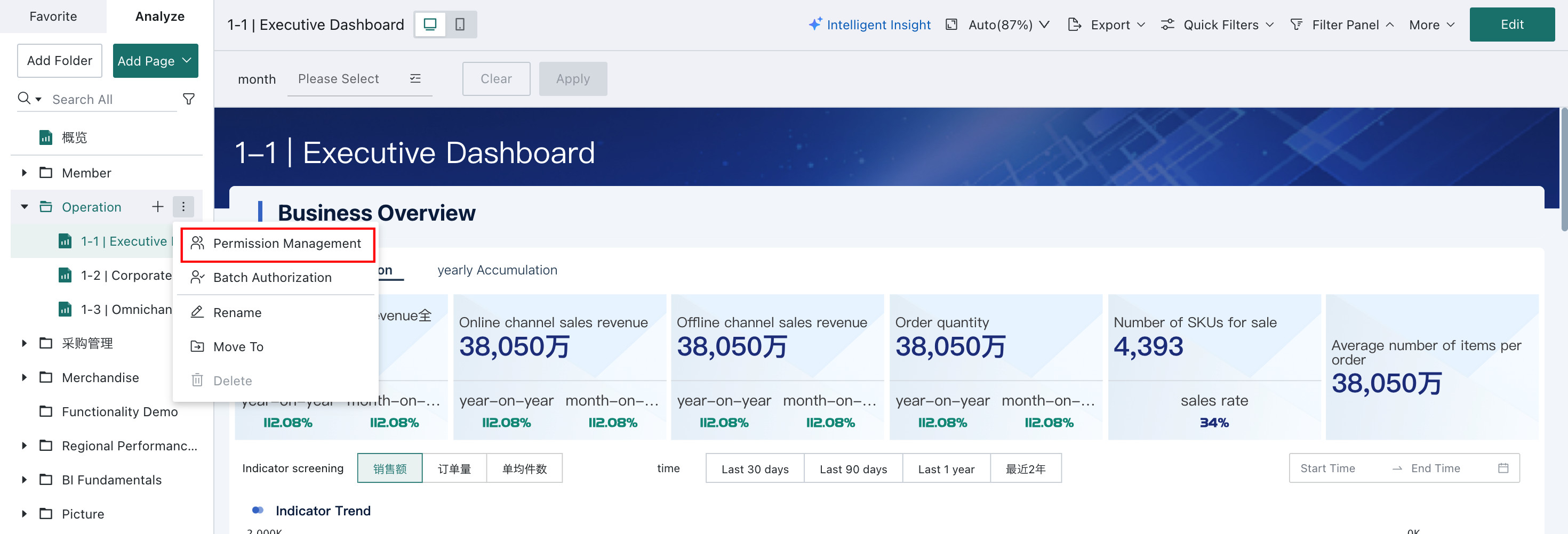 | Folder Owner / Administrator |
| Grant through the Resource Permission Management page | On the Resource Permission Management page, find the folder to be authorized and add owners or users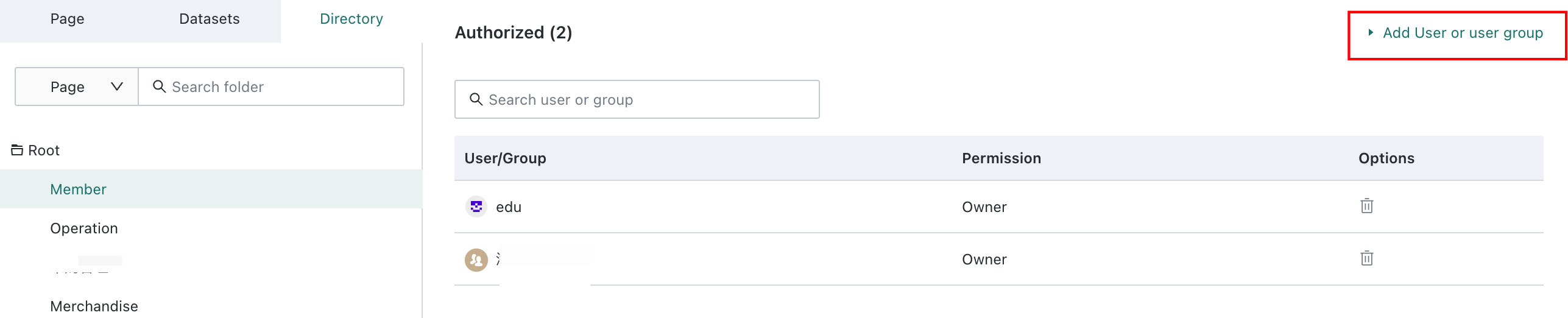 | Administrator |
| Grant by adding the user to a user group | Add the user to a user group and assign folder permissions to that user group on Permission Information > Resource Permissions > Folder Permissions in the group detail page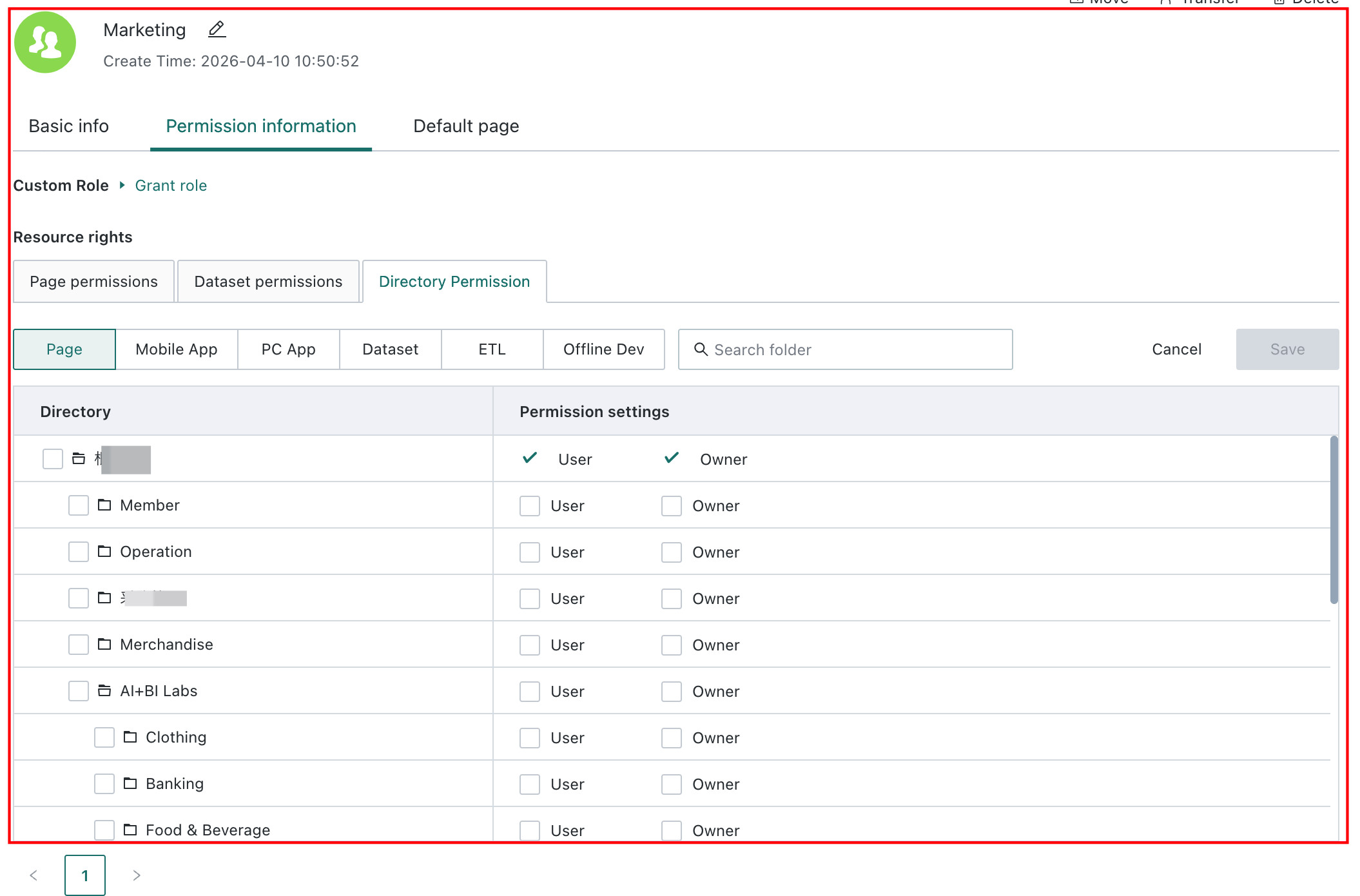 | Administrator |
FAQ
-
Q: A dashboard was granted owner permission, but exporting still does not work.
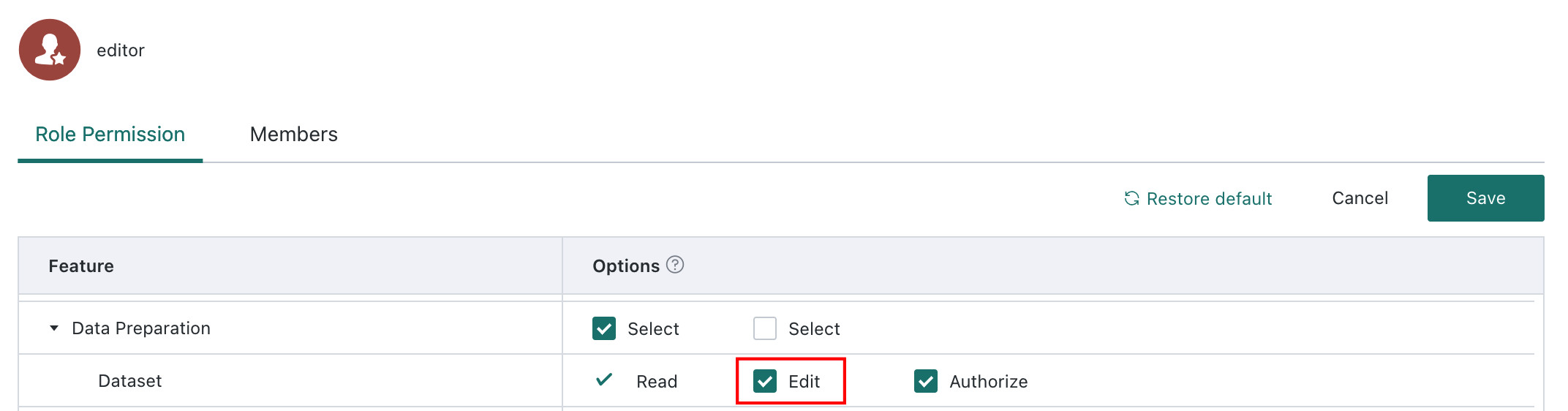
A: Export permission is controlled jointly by feature permissions and resource permissions. Resource permission alone is not enough. You also need to enable the export permission for the corresponding account type. See Permission Configuration for Resource Export.
-
Q: A Standard User was granted owner permission on a Dataset but still cannot edit it.
A: Check whether the Standard User role has Dataset edit permission enabled. Entry:
Admin Center > User Management > Roles > Standard User > Role Permissions > Dataset.