Feature Permissions
Feature Permissions Overview
Feature permissions control a user's ability to access and operate platform modules such as Dashboards, Data Screens, and Mobile Apps. Supported permission types include view, edit, authorize, and export.
In Guandata BI, feature permissions are carried by Roles. Users obtain feature permissions through a combination of Account Type and Custom Roles, and all effective feature permissions are constrained by the upper limit of the user's account type.
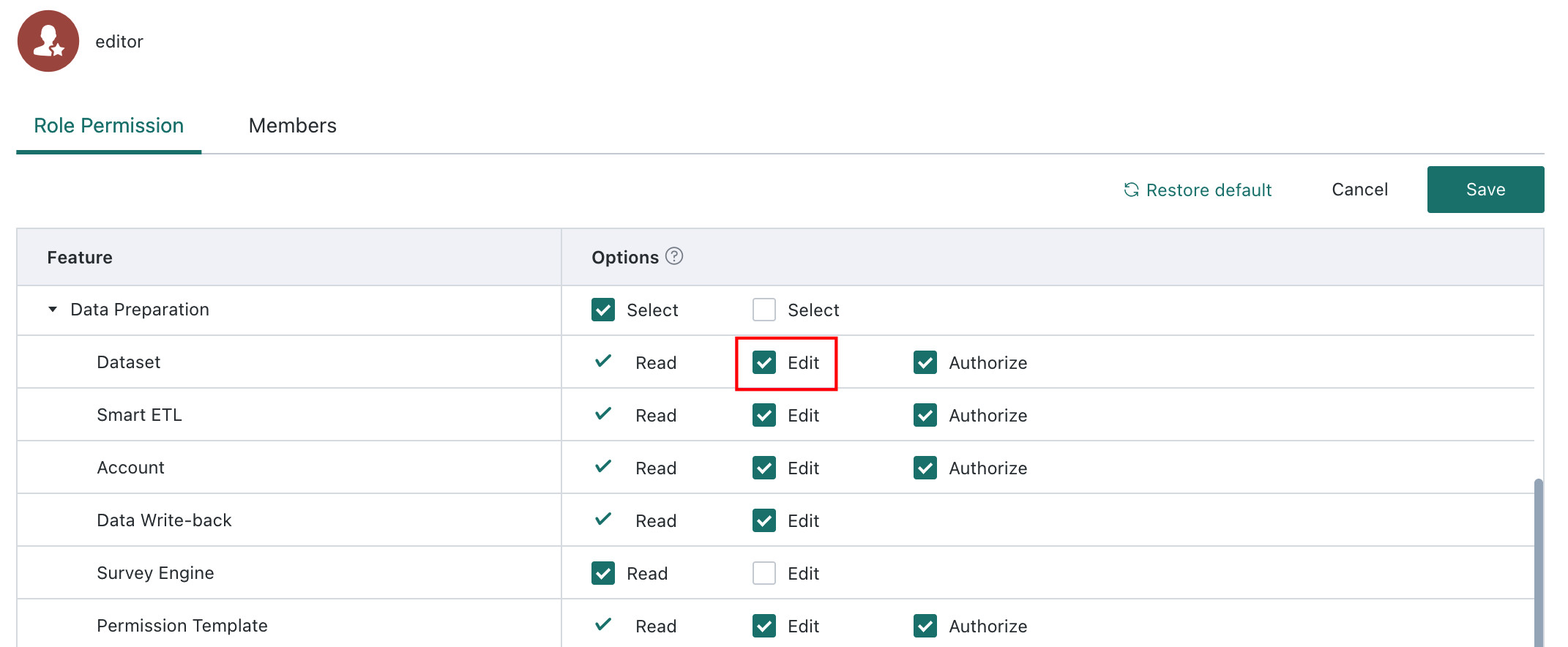
Administrators can enter the role permission configuration page through Admin Center > User Management > Roles. The Roles here are functional platform roles, such as data preparers or screen designers, rather than business job roles such as HR or Finance. If you need to manage permissions in bulk for a specific role, it is recommended to create a dedicated user group for that role.
Role Classification
Account Types
Account type is a required configuration item for every user. There are three account types, and each includes both default permissions and a permission ceiling that defines the maximum scope of permissions the user can obtain.
Administrator
Administrators have the highest level of permission. They can create users and user groups, and they have owner-level permissions on all pages, cards, Datasets, and other resources within the current environment. They can perform all operations.
Business Administrator
Business Administrator is a subtype of Administrator used to limit which Admin Center capabilities an administrator can access. By designating some administrators as business administrators and configuring which Admin Center modules they can use, enterprises can balance centralized governance at headquarters with delegated control in regional teams, while preventing business administrators from operating advanced modules such as Enterprise Configuration or O&M Management beyond their scope. For configuration details, see Business Administrator Settings.
Standard User
Standard Users can create pages, cards, and Datasets, and they have full permissions such as edit and delete on the pages, cards, and Datasets they own.
- For pages and cards they do not own but have been granted access to, Standard Users have the same permissions as Read-Only Users.
- For Datasets they do not own but have been granted access to use, Standard Users can create cards based on the Dataset, but cannot modify the Dataset itself.
Read-Only User
Read-Only Users can only browse and view authorized pages and cards. They do not have permissions for editing, deleting, or similar operations, and they also do not have Dataset-related operation entries.
Custom Roles
As a system administrator, you can also create custom roles based on your company's needs and assign feature permissions such as Report Designer or Page Designer.
Custom roles can configure the following permission types for each module:
View: users can see the feature entry and can see resources for which they have viewer or user accessEdit: based onView, users can create resources and edit resources for which they have owner permissionAuthorize: based onView, users can manage permissions for resources they own and share them with othersExport: based onView, users can export resources they are allowed to access
Note: a custom role can be configured with permissions beyond the ceiling of some account types, but whether those permissions actually take effect still depends on the account type limit.
Group Administrator
Group Administrators manage user groups, and their control logic is different from feature permissions. When Group Administrator is enabled in the system, the Members area shows the list of group administrators and the user groups each one manages. For more details, see Group Administrator Settings.
Permission Effectiveness Rules
Effectiveness Logic
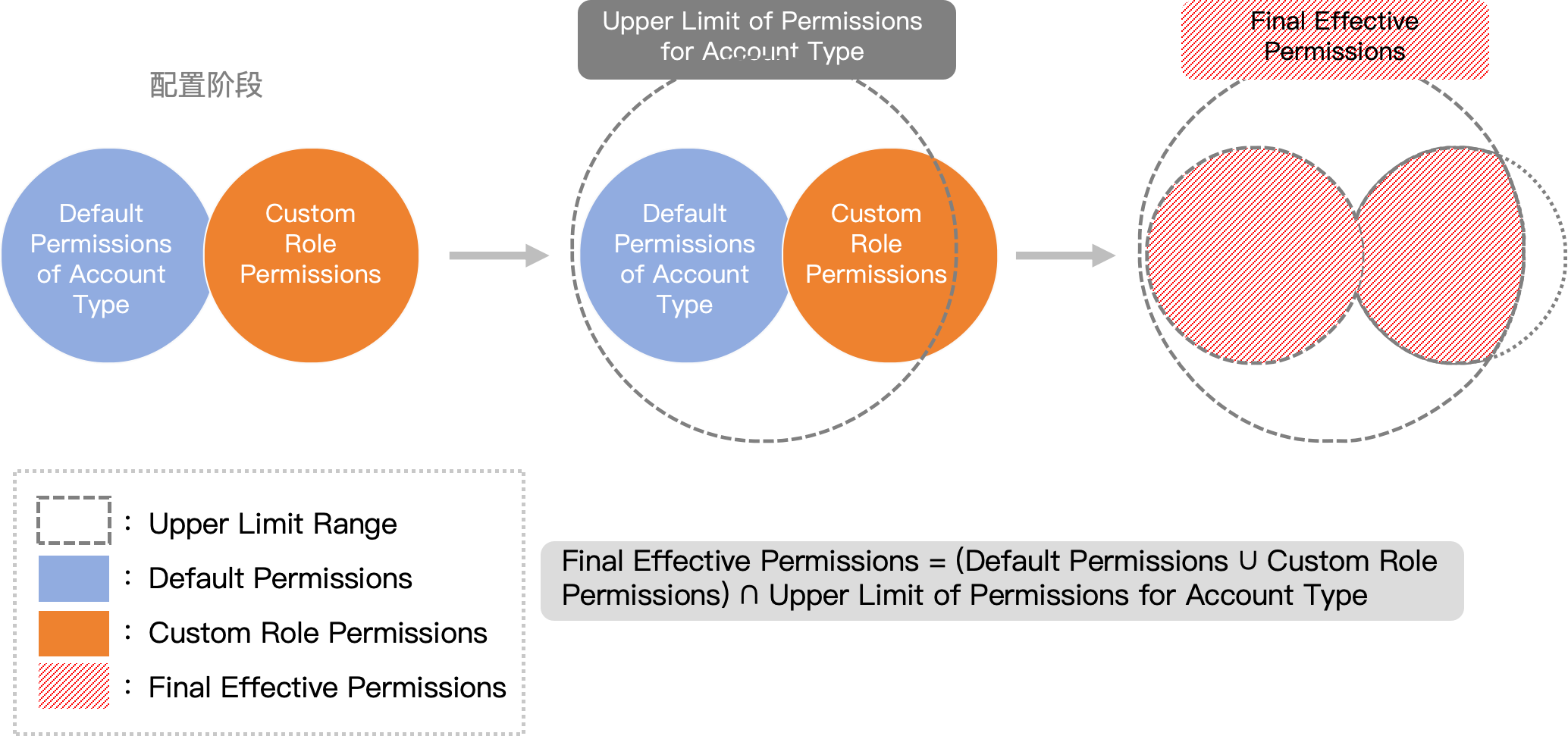
The final feature permissions available to a user are calculated according to the following rule:
Final Effective Permissions = (Default permissions from account role + permissions from custom roles), constrained by the permission ceiling of the account role
The system first merges all permissions from the user's roles and then limits the result according to the permission ceiling of the account type.
Simple interpretation
- Account Type determines the maximum permission range a user can ever have
- Account Type and Custom Roles together determine the actual permissions the user gets
- Even if a custom role grants high permissions, it cannot break through the ceiling of the account type
Configuration entry points
- View or modify account-type permissions:
Admin Center > User Management > Roles > Select Account Type (Administrator / Standard User / Read-Only User) > Role Permissions - View or modify custom roles:
Admin Center > User Management > Roles > Select Custom Role > Role Permissions - Assign roles to a user:
Admin Center > User Management > Users > Select User > Edit > Account Type / Custom Roles
Example
User Zhang San is a Read-Only User. By default, the user has view permissions for Dashboards, Data Screens, Slides, and Composite Reports. Through a custom role, the user also gets view permissions for Mobile Apps and Custom Maps, plus edit permission for Dashboards.
Because the permission ceiling for a Read-Only User is limited to view permissions for all functional modules except Admin Center, the dashboard edit permission granted through the custom role does not take effect. Zhang San ultimately has only view permissions for Dashboards, Data Screens, Slides, Composite Reports, Mobile Apps, and Custom Maps.
Permission effectiveness checklist
| Check Item | Where to Check | Expected Result |
|---|---|---|
| User Account Type | User detail page | Confirm whether the user is an Administrator, Standard User, or Read-Only User |
| Account Type Permission Ceiling | Roles > Account Type | View the maximum permission range of that account type |
| Custom Roles Bound to the User | User detail page | Confirm which custom roles are associated with the user |
| Custom Role Permissions | Roles > Custom Role | View the detailed role permission configuration |
| Final Effective Permissions | Actual usage verification | Test whether the user can perform the target operation |
FAQ
-
Q: Why does a editor still not have edit permission even though the Dataset was granted owner permission?
A: Go to
Admin Center > User Management > Roles > editor > Role Permissionsand check whether Dataset edit permission has been enabled for the Standard User account type.