Row and Column Permissions
Overview
Row and Column Permissions are a row-level and column-level permission control feature provided by Guandata BI. By configuring these permissions on a Dataset, you can define invisible fields or filtered records for different related users or user groups to meet personalized data security requirements.
Column permissions: control which fields users cannot view. This is vertical control that hides entire columns. For example, hide the cost field so ordinary employees cannot see it.
Row permissions: control which data records users can view. This is horizontal control that filters rows. For example, allow East China sales personnel to view only East China region data.
Business Value
Fine-grained permission control: implement field-level and record-level access controlData security assurance: prevent sensitive data leakage and ensure compliant data usageFlexible configuration: support multiple condition types and custom functions to fit complex business scenariosLower management cost: quickly apply permission strategies through templates and improve administrative efficiency
Applicable Scenarios
Hide sensitive fields: for example, hide cost or profit fields from ordinary employeesIsolate data scope: for example, allow sales personnel to view only the region they are responsible forHierarchical data control: for example, allow lower-level departments to view only their own department and sub-departmentsPersonalized data views: let different roles view different data dimensions
Prerequisites
- Have permission to configure row and column permissions for the Dataset, typically as a Dataset owner or administrator
- Understand the basic concepts of Datasets, see Terminology
Entry Points for Row and Column Permissions
Quick Reference
| Action | Path | Description |
|---|---|---|
| Configure row and column permissions | Data Preparation > Dataset > Select Dataset > Data Security > Row and Column Permissions | Configure column permission and row permission rules |
| Use permission templates | Admin Center > Resource Management > Data Security Templates > Create / Edit Template | Create reusable permission rules |
| Apply permission templates | Data Preparation > Dataset > Data Security > Row and Column Permissions > Select Template | Apply a template to a Dataset |
Detailed Steps
- On the
Data Preparation > Datasetpage, find the target Dataset and click its name to enter the detail page. - On the detail page, click the
Data Security > Row and Column Permissionstab to enter the configuration page.
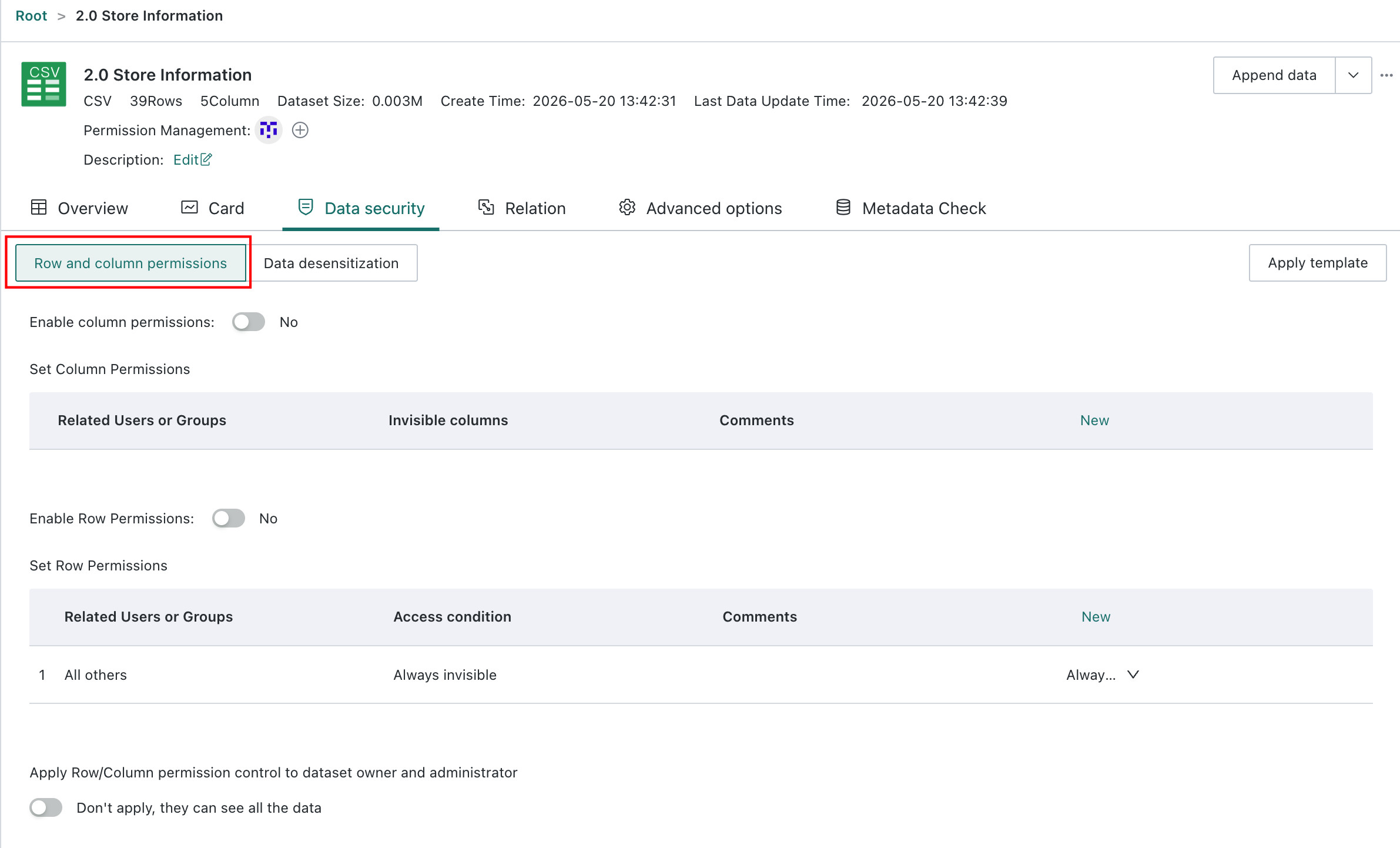
Row and Column Permissions for Administrators and Dataset Owners
The system provides separate switches that control whether Dataset owners and administrators are affected by row and column permissions.
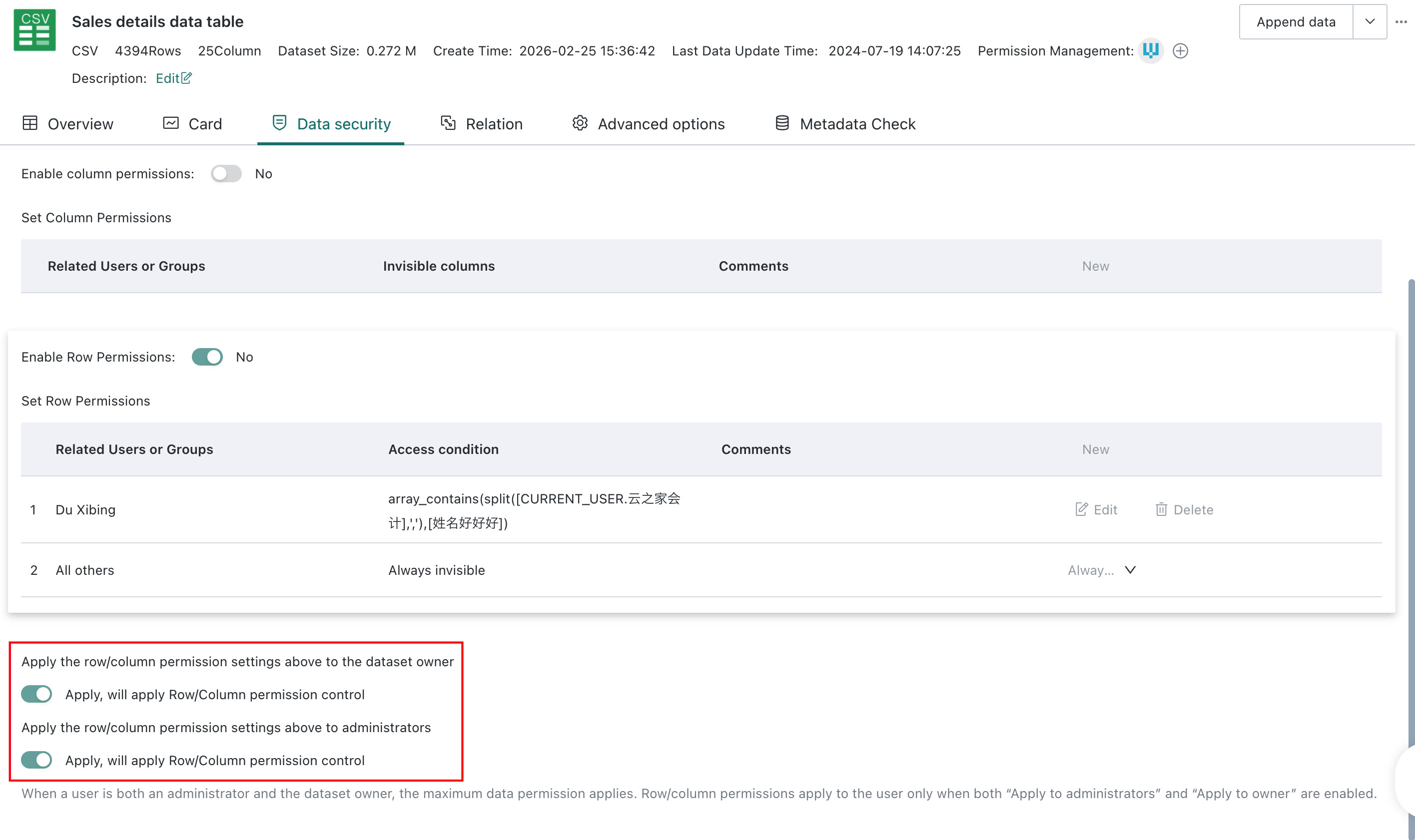
Switch location: at the bottom of the Row and Column Permissions page.
| Switch | Off | On |
|---|---|---|
| Apply to Dataset Owners | Dataset owners are not restricted by row and column permissions. | Dataset owners are restricted by row and column permissions. |
| Apply to Administrators | Administrators are not restricted by row and column permissions. | Administrators are restricted by row and column permissions. |
- A switch takes effect only when the user is included in the Applicable Objects of the rule.
- If a user is both an administrator and a Dataset owner, the system grants the broader data permission. Row and column permissions apply to that user only when both Apply to Administrators and Apply to Dataset Owners are enabled.
- After an upgrade, both new switches are enabled if the previous switch was enabled, and both are disabled if the previous switch was disabled.
Column Permission Settings
Column permissions are used to control which field information users cannot view, such as restricting ordinary users from viewing a cost field.
Add a Column Permission
-
On the
Row and Column Permissionspage, find theSet Column Permissionssection and clickAdd.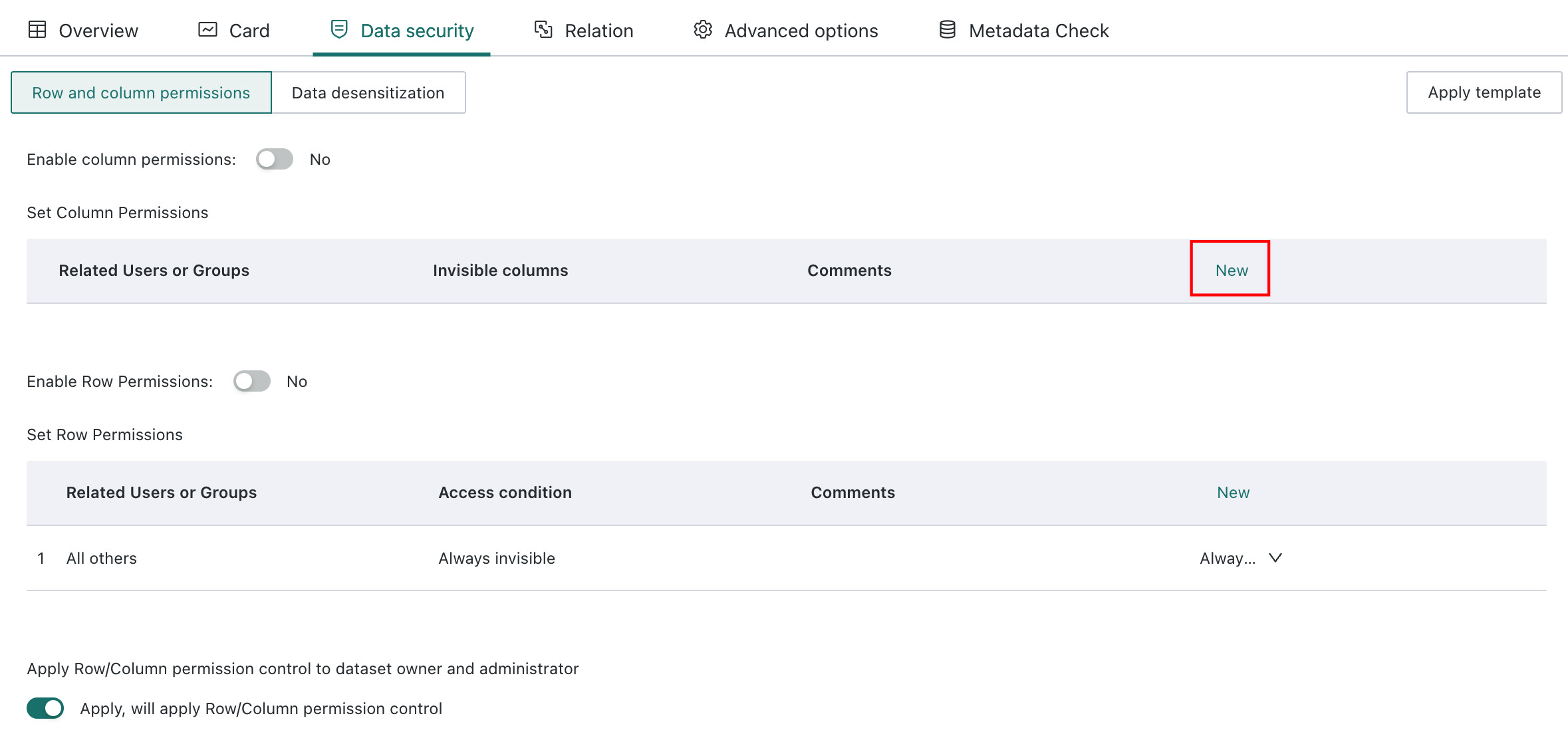
-
On the
Column Permission Editorpage, configure the column permission and clickConfirm.Object: choose the related users or user groupsContent: define which fields the selected objects are not allowed to viewRemark: add a note to make the permission easier to understand later
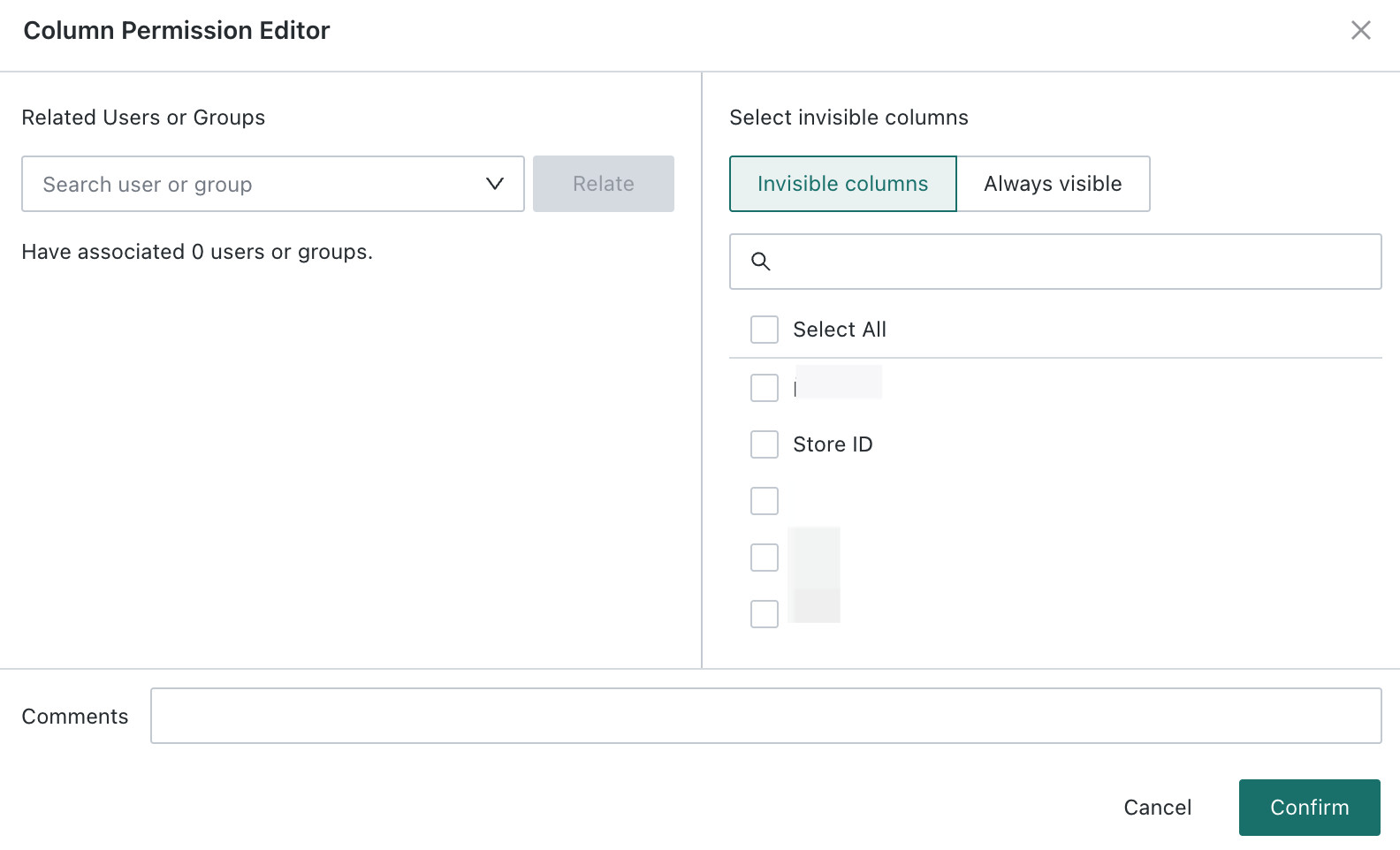
-
On the
Row and Column Permissionspage, turn on the enable switch for the column permission to make it take effect.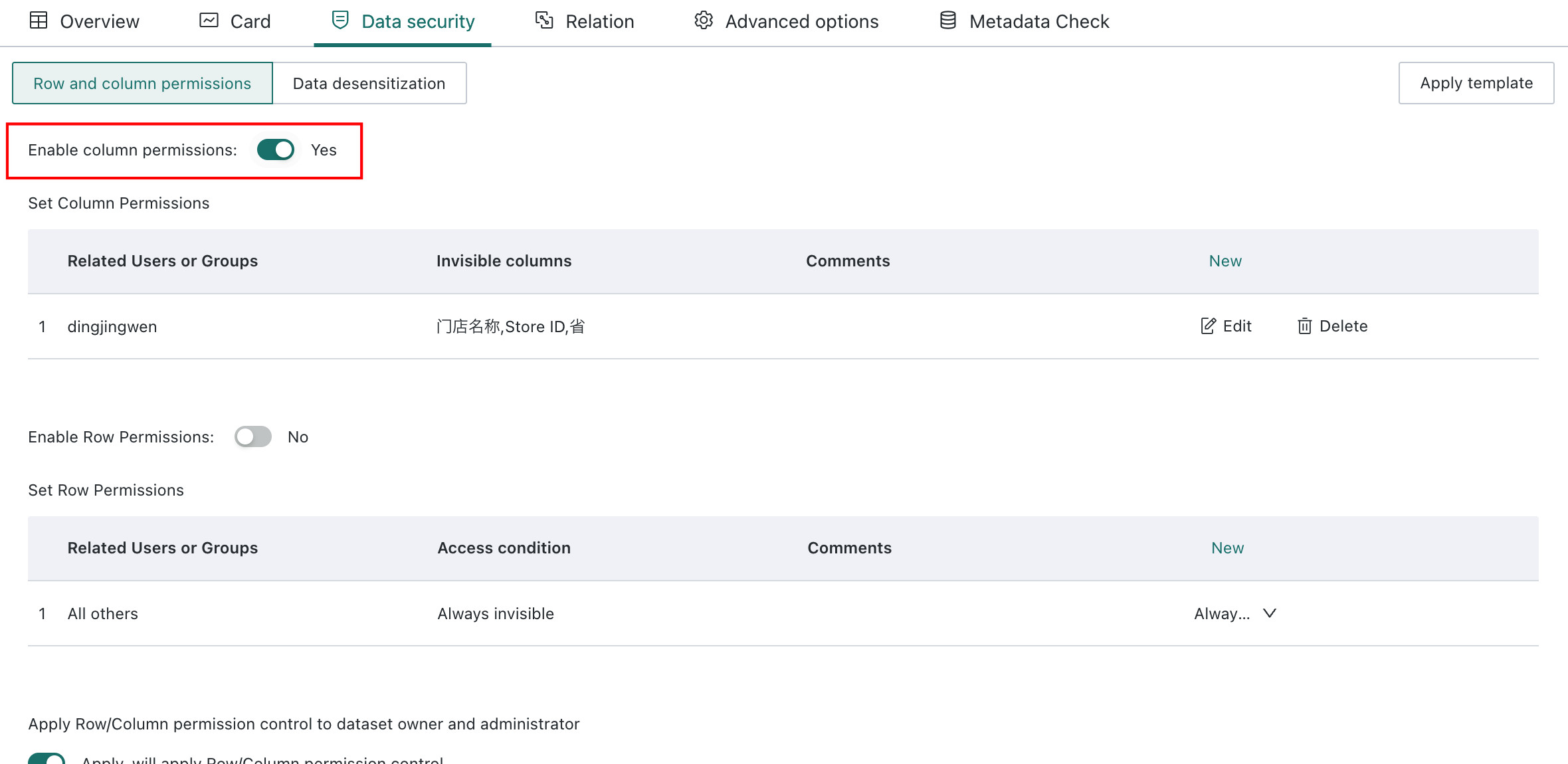
Multi-User-Group Rule for Column Permissions
When a user belongs to multiple user groups and those groups have different column permissions, the fields the user cannot view are the intersection of the restricted fields from all groups.
Example
- The Dataset has 5 fields: Product Name, Sales Quantity, Cost, Customer Phone, and Sales Region
- User Group A restricts: Cost, Customer Phone
- User Group B restricts: Customer Phone, Sales Region
Result: the user cannot view Customer Phone only, because it is the intersection of the restricted fields.
Row Permission Settings
Row permissions are used to control which records users can view, such as restricting East China sales personnel to view only East China region data.
Add a Row Permission
-
On the
Row and Column Permissionspage, find theSet Row Permissionssection and clickAdd.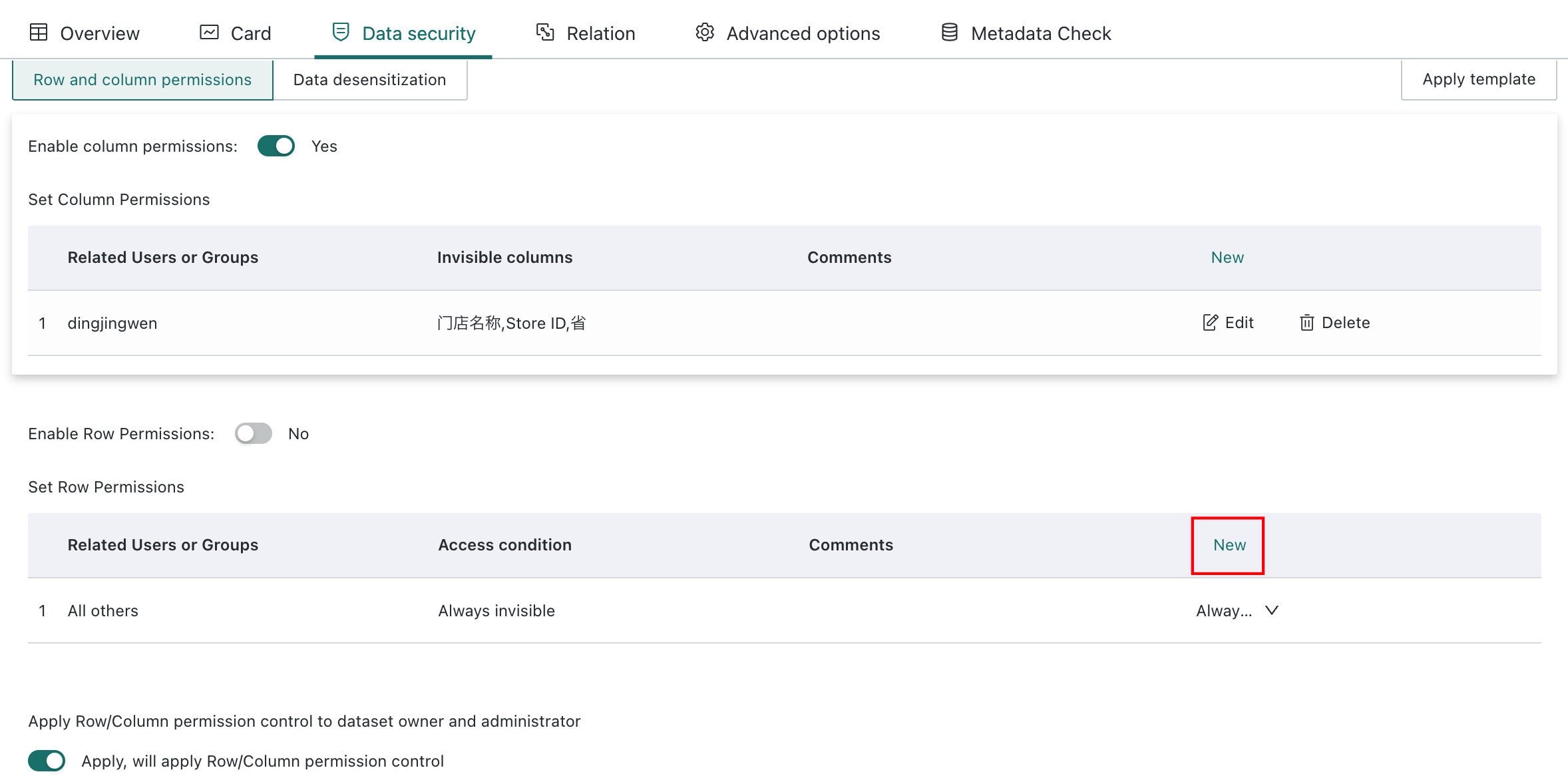
-
On the
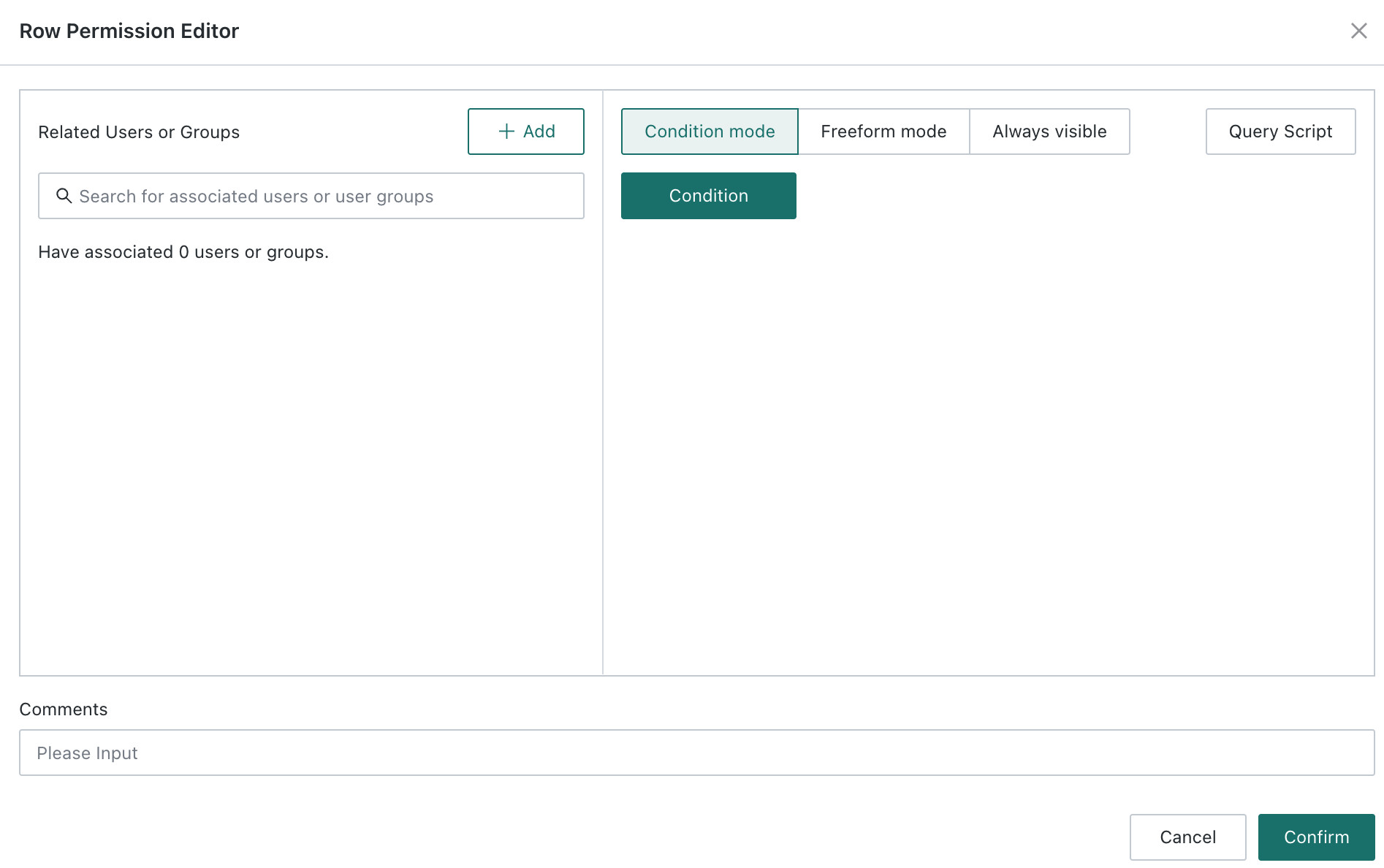
Row Permission Editorpage, configure the following information:Object: choose the related users or user groupsContent: define which row data the selected objects are allowed to viewRemark: add a note to help you understand or locate the permission rule later
Editing Modes for Row Permission Content
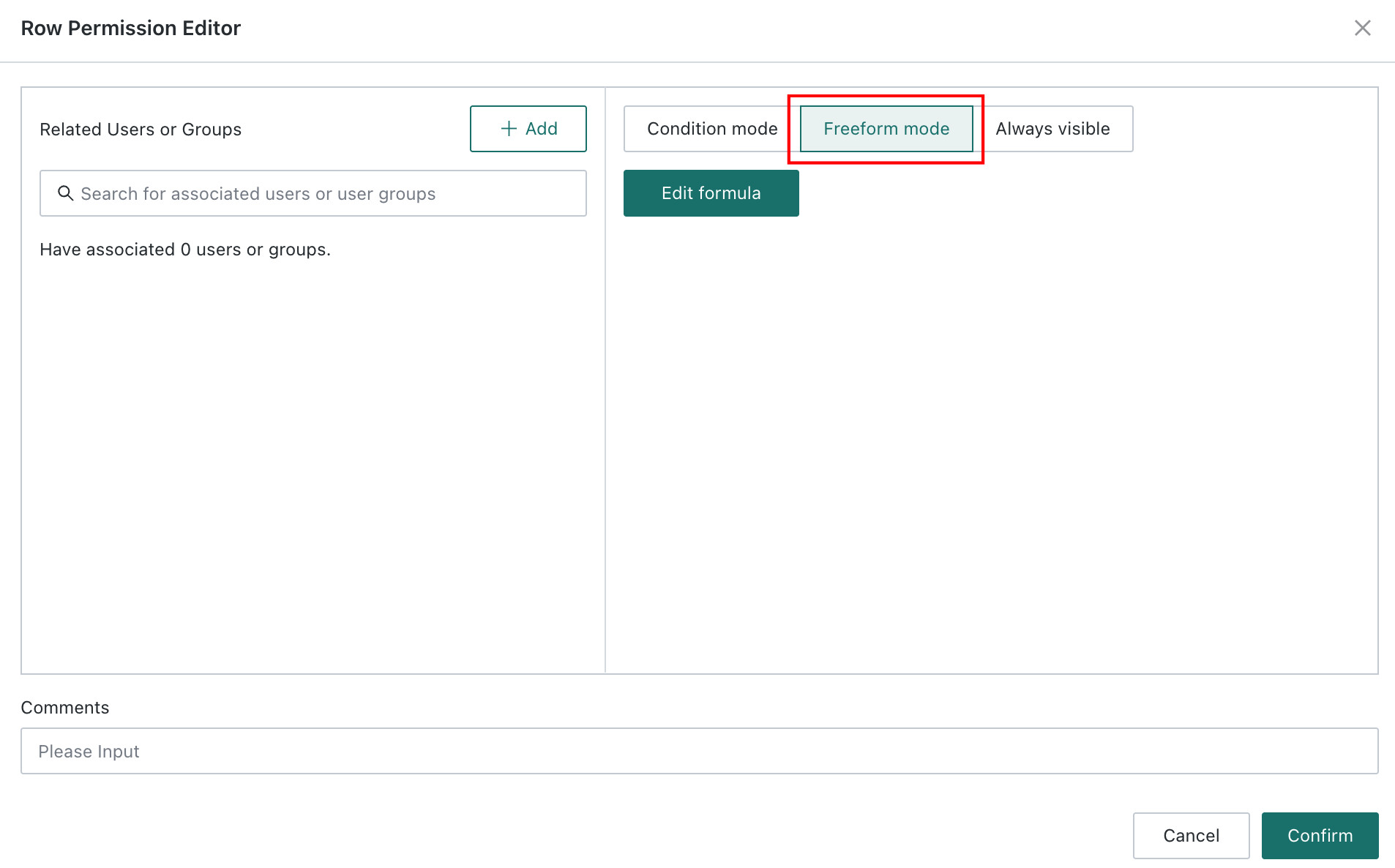
Row permission content supports two editing modes: Condition Mode and Free Mode.
Condition Mode (Recommended)
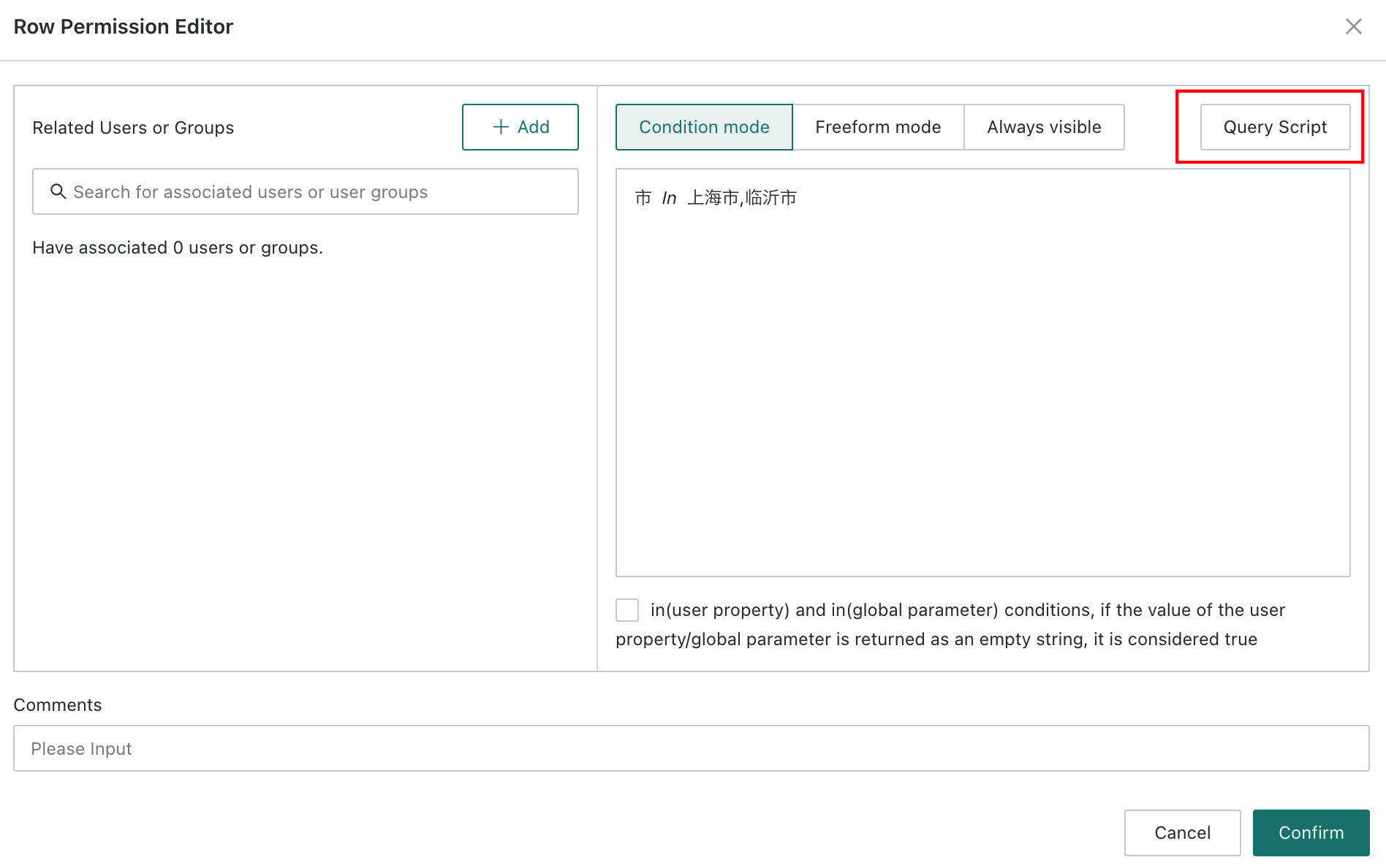
Use the visual interface to configure filter conditions without writing code. This is suitable for most scenarios.
Supported condition types
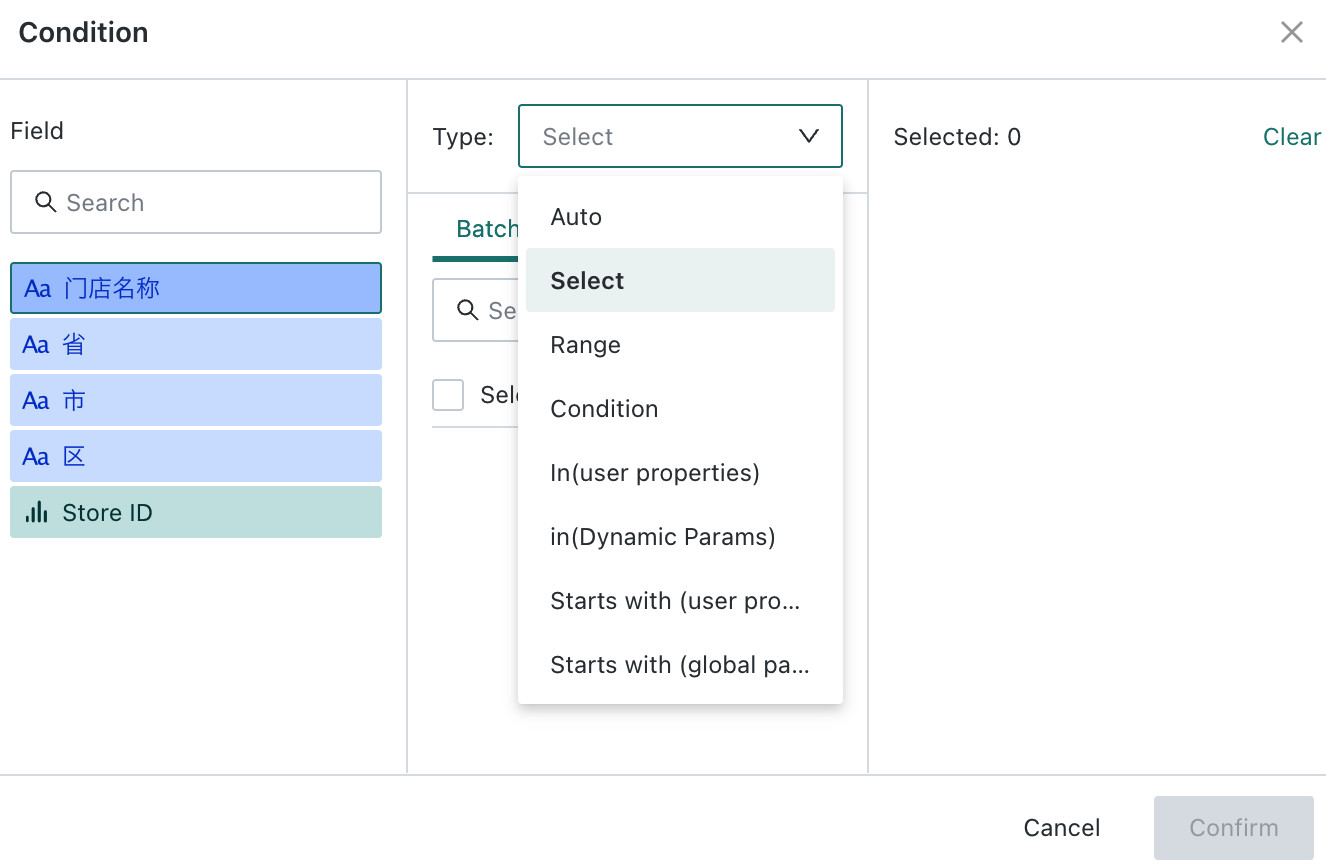
| Condition Type | Applicable Scenario | Description |
|---|---|---|
| Selection | Text fields | Directly select or paste condition values in bulk, such as province, category, or name |
| Range | Numeric or date fields | Set greater-than, less-than, empty, and similar conditions. Dates support values such as Today, Yesterday, and Last 7 Days |
| Condition | Text fields | Set conditions such as equals, contains, or starts with |
| in (User Attribute) | User-related fields | The field value must be included in a user attribute, such as name, employee ID, or department |
| in (Global Parameter) | Dynamic parameter scenarios | The field value must be included in a global parameter value |
| Starts With (User Attribute) | Hierarchical fields | The field value starts with a user attribute value, such as a department hierarchy |
| Starts With (Global Parameter) | Hierarchical fields | The field value starts with a global parameter value |
After configuration, click Query Statement to view the generated SQL.
Free Mode
Use custom SQL statements to define filter conditions. This is suitable for more complex scenarios.
*Example 1: allow only the East China sales group to view East China data.
[Region]="East China"
- Direct Query Dataset: use the SQL syntax of the corresponding database type, for example MySQL syntax for MySQL
- Guan-Index Extracted Dataset: use SparkSQL syntax
- If you are unsure of the Dataset type, check the
Connection Typefield on the Dataset detail page
Visibility Settings for Other Users' Data
After defining visible data for the selected objects, you can also configure what data other users can see:
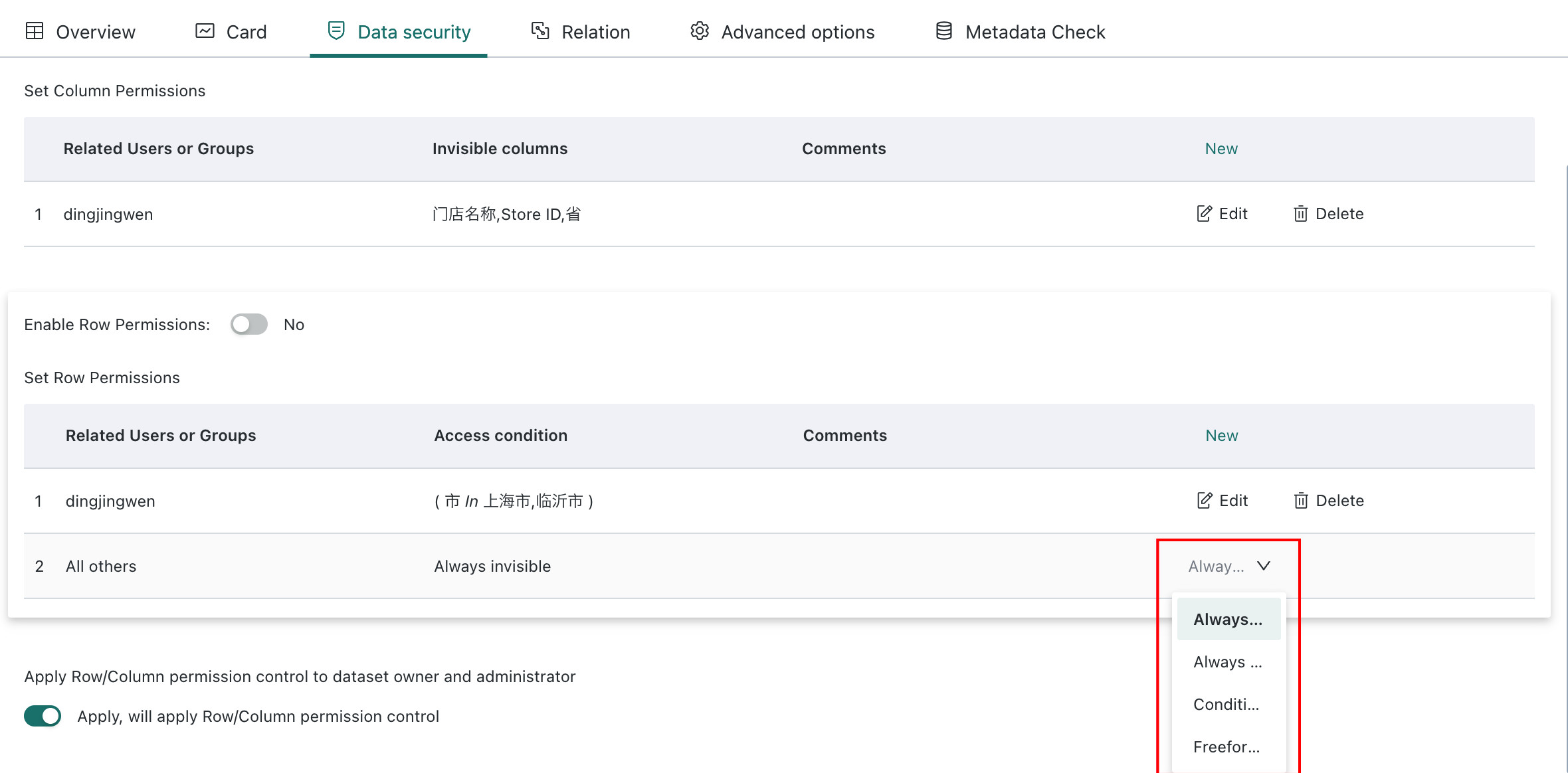
Available options
| Option | Description |
|---|---|
| No Access for All | Users not covered by the current row-permission rule cannot view any data |
| Full Access for All | Users not covered by the current row-permission rule can view all data |
| Condition Mode | Users not covered by the current row-permission rule can view only data that meets the specified conditions |
| Free Mode | Users not covered by the current row-permission rule can view only data that meets the SQL conditions |
- This setting controls what data users not covered by the current row-permission rule can see
- Configure it carefully according to business requirements to avoid data leakage
Enable Row Permissions
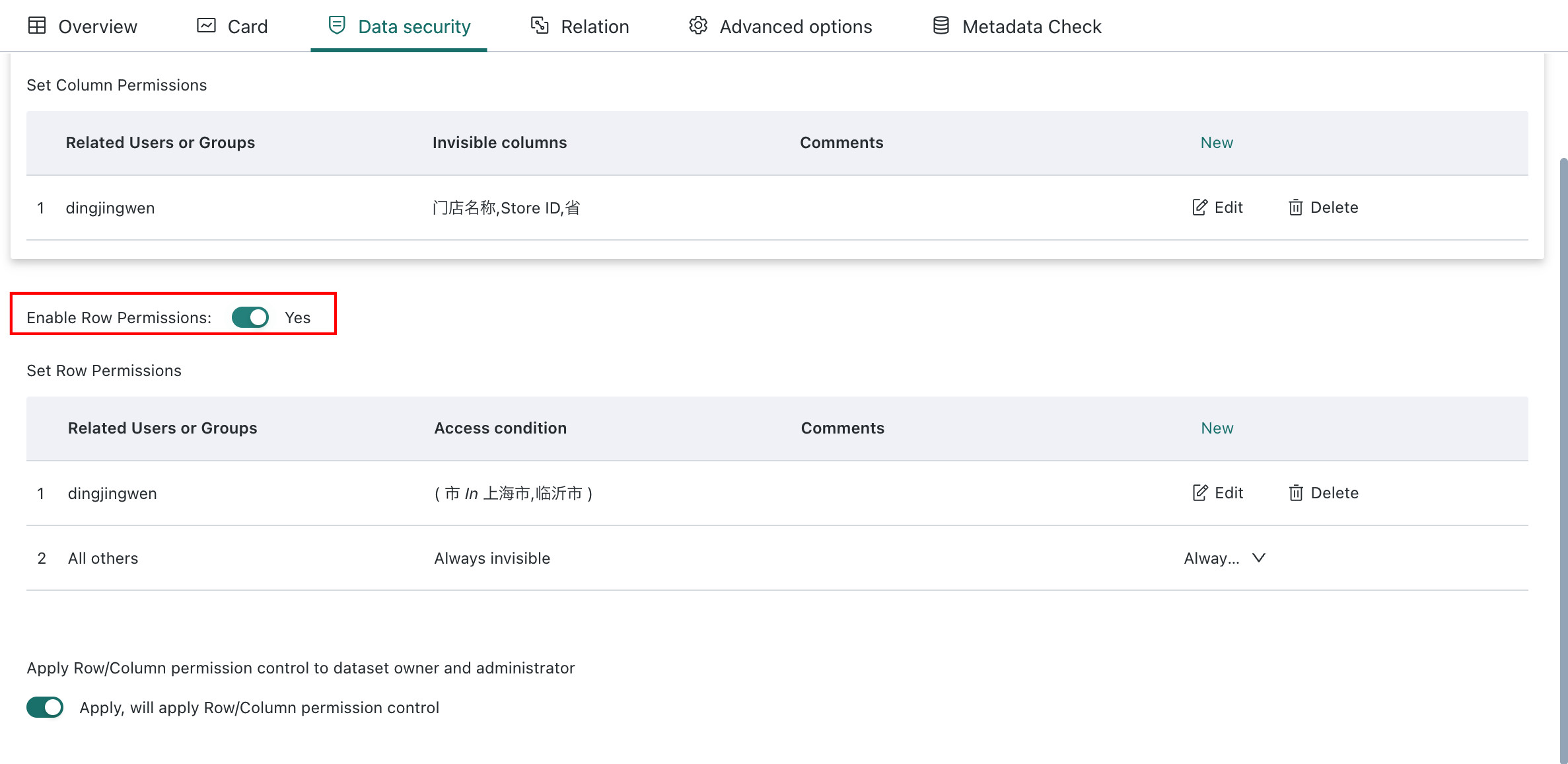
After creating a row permission, turn on the Enable switch to make it take effect.
Multi-User-Group Rule for Row Permissions
When a user belongs to multiple user groups and those groups have different row permissions, the data the user can view is the union of the data allowed by all groups.
Example
For the City field:
- User Group A allows: Shanghai, Hangzhou
- User Group B allows: Shanghai, Beijing
Result: the user can view data from Shanghai, Hangzhou, and Beijing.
Summary of Permission Calculation Rules
| Permission Type | Rule Across Multiple User Groups | Description |
|---|---|---|
| Column Permissions | Intersection | The fields a user cannot view are the common restricted fields across all user groups |
| Row Permissions | Union | The data a user can view is the combined data allowed by all user groups |
Visual Explanation
Column Permissions - Intersection (stricter and stricter)
User Group A restricts: [Cost, Customer Phone]
User Group B restricts: [Customer Phone, Sales Region]
Intersection result:     [Customer Phone]  <- Only mutually restricted fields are hidden
Row Permissions - Union (broader and broader)
User Group A allows: [Shanghai, Hangzhou]
User Group B allows: [Shanghai, Beijing]
Union result:        [Shanghai, Hangzhou, Beijing]  <- All allowed values are visible
Memory Tips
| Permission Type | Essence | Multiple Groups Stacked | Result |
|---|---|---|---|
Column Permissions | Restriction (what cannot be seen) | Multiple restrictions combined | Intersection (strictest) |
Row Permissions | Allowance (what can be seen) | Multiple allowances combined | Union (broadest) |
One-sentence memory tip
- Column permissions are about restriction, so multiple restrictions take the intersection and become stricter
- Row permissions are about allowance, so multiple allowances take the union and become broader
Notes
Permission priority: column permissions and row permissions are independent and take effect together in anANDrelationship- Administrator and owner permissions: Use Apply to Administrators and Apply to Dataset Owners separately to control whether administrators and Dataset owners are restricted by row and column permissions.
Data security templates: permission strategies can be applied quickly through Data Security TemplatesEffective time: permission changes usually take effect immediately. If caching occurs, try refreshing the pageInheritance: child Datasets or joined Datasets derived from the current Dataset do not automatically inherit row and column permissions and must be configured separately
FAQ
Permission Troubleshooting Checklist
When a user reports cannot see data or permissions do not take effect, check in the following order:
| Order | Check Item | Where to Check | Expected Result |
|---|---|---|---|
| 1 | Feature Permissions | Admin Center > User Management > Roles | The user's role has Dataset view permission |
| 2 | Resource Permissions | Dataset > Permission Management | The user has User or Owner permission on the Dataset |
| 3 | Row Permission Enable Status | Dataset > Data Security > Row and Column Permissions | The row-permission switch is enabled |
| 4 | Row Permission Applicable Objects | Row permission rule detail | The user appears in the Applicable Objects list |
| 5 | Row Permission Conditions | Row permission rule detail | The conditions are correct and not too strict |
| 6 | Column Permission Settings | Column permission rule detail | Required fields are not hidden |
| 7 | Administrator and owner switches | Bottom of the Row and Column Permissions page | Enable Apply to Administrators or Apply to Dataset Owners based on the user's role |
Troubleshooting tips
- First confirm that the user can open the Dataset. This usually means feature permissions and resource permissions are normal.
- Then confirm that the user can see data content. This means data permissions are working.
- If the Dataset opens but shows no data, the problem is usually with row permissions.
- If some fields are missing, the problem is usually with column permissions.
Row and Column Permissions Do Not Affect an Administrator or Dataset Owner
Cause: the corresponding Apply to Administrators or Apply to Dataset Owners switch is not enabled.
Solution
- Enter the Row and Column Permissions configuration page
- Find Apply to Dataset Owners and Apply to Administrators at the bottom of the page.
- Enable the switch that corresponds to the user's role. If the user is both an administrator and a Dataset owner, enable both switches.
For more details, see Dataset FAQ.
How Permissions Are Calculated When a User Belongs to Multiple User Groups
Rule
Column permissions: take the intersection of the restricted fields across groupsRow permissions: take the union of the allowed data across groups
See Summary of Permission Calculation Rules.
SQL Errors in Free Mode
Cause: the wrong syntax was used for the Dataset type.
Solution
- Confirm the Dataset type:
- Check
Connection Typeon the Dataset detail page Direct Querymeans a direct-query DatasetGuan-Indexmeans an extracted Dataset
- Check
- Use the correct SQL syntax:
- Direct-query Datasets: use the syntax of the corresponding database, such as MySQL or Oracle
- Guan-Index extracted Datasets: use SparkSQL syntax
Standard Users Cannot See Data After Permission Configuration
Check the following
- Confirm that the permission rule is enabled
- Confirm that the user is included in the rule's
Applicable Objects - Confirm that the row-permission conditions are correct and not overly restrictive
- Confirm that column permissions are not hiding fields required by the user
How to Apply the Same Permission to Multiple Datasets Quickly
Solution: use Data Security Templates.
- Create a data security template and define common permission rules
- Apply the template to multiple Datasets
- When the template is modified, all linked Dataset permissions are updated together
Terminology
Before using row and column permissions, it is recommended that you understand the following terms:
| Term | Definition |
|---|---|
Dataset | The basic unit for storing and managing data in Guandata BI, such as a database table or Excel file |
Direct Query Dataset | A Dataset that directly connects to an external database, queries data in real time, and uses the SQL syntax of that database |
Guan-Index Extracted Dataset | A Dataset that extracts data into Guandata BI internal storage and uses SparkSQL syntax |
User Group | A collection of users used to manage user permissions in bulk |
User Attribute | Predefined user information fields in the system, such as name, department, and employee ID |
Global Parameter | A parameter value that can be dynamically configured in the system and used to control permissions dynamically |
Intersection | The common part of multiple sets. For example, if Group A restricts fields 1 and 2, and Group B restricts fields 2 and 3, the intersection is field 2 |
Union | All parts across multiple sets. For example, if Group A allows Shanghai and Hangzhou, and Group B allows Shanghai and Beijing, the union is Shanghai, Hangzhou, and Beijing |