CLI User
Feature Overview
Administrators can use CLI User to uniformly manage the scope and permissions of users who programmatically access Guandata BI, including:
- Control which users can create Personal Access Tokens (PAT).
- Limit the scope of permissions that PATs can obtain.
- Control whether CLI only allows PAT login.
- Revoke user PATs.
- Audit operations from different sources such as Web, CLI, and MCP.
The actual permissions of a PAT will not exceed the user's own permissions, nor will it inherit administrator privileges.
Prerequisites
- The current environment has the CLI feature enabled. This feature is controlled by License. If not enabled, please contact the Guandata sales team.
- The current administrator has CLI user management permissions.
Configuration path: Management Center > User Management > CLI User.
Configure Login Method
The Only allow PAT (Personal Access Token) login toggle at the top of the page is used to control the authentication method for CLI.

| Toggle Status | Supported Login Methods | Description |
|---|---|---|
| Off | Supports uIdToken and PAT. | Default state, suitable for migration or compatibility with existing configurations. |
| On | Only supports PAT. | Requests using uIdToken will be rejected. It is recommended that the team complete the PAT migration before enabling this. |
This toggle controls the CLI login method and does not affect user login to the Guandata BI web page.
Configure User Permissions
The User Permissions tab defines the upper limit of permissions that PATs can obtain across the platform.
-
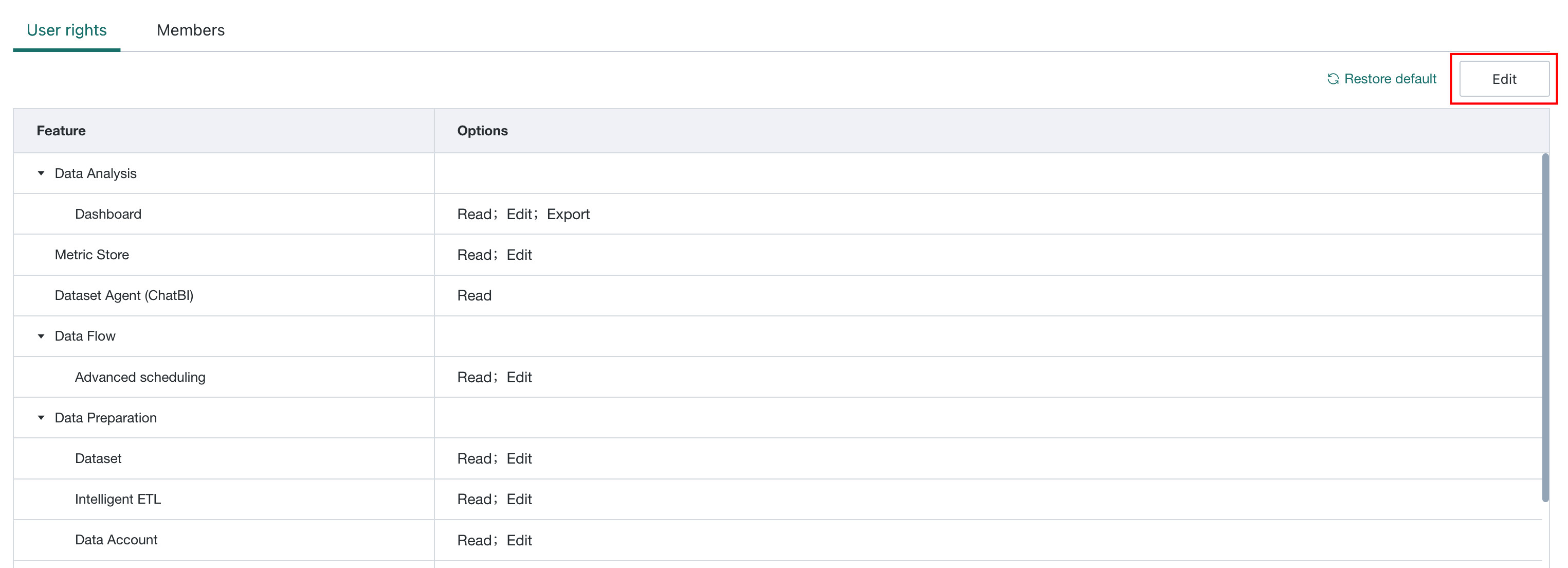
Go to the User Permissions tab and click Edit.
-
Check the permissions allowed to be granted to PATs item by item, or use quick authorization to batch select by command. After selection, click Save.
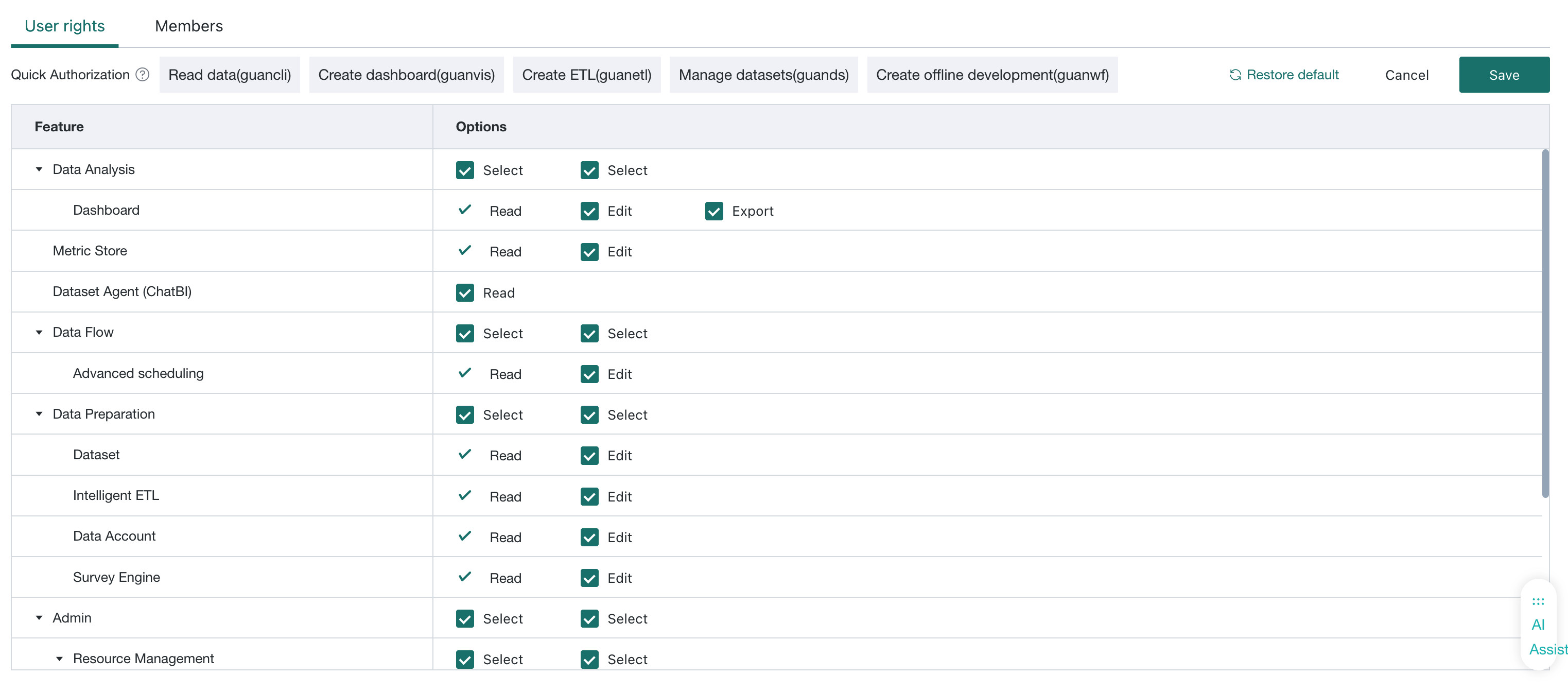
Click Restore System Default to restore the system preset permission range. The default system range includes common modules such as dashboards, datasets, smart ETL, data accounts, metric center, form entry, task management, resource migration, offline development, and application lists.
After the administrator tightens the permission policy, the already granted permissions that exceed the new policy will immediately expire; users do not need to recreate PATs; after permissions are re-opened, the corresponding permissions will automatically be restored.
The user permissions configured by the administrator are the global upper limit of permissions that PATs can obtain. For complete rules, see: Permission Rules.
Adjusting the global policy will affect all PATs already created by users. Before tightening permissions, please confirm that existing GuanCLI, GuanMCP, scripts, and automated tasks will not be interrupted due to permission changes.
Manage Members
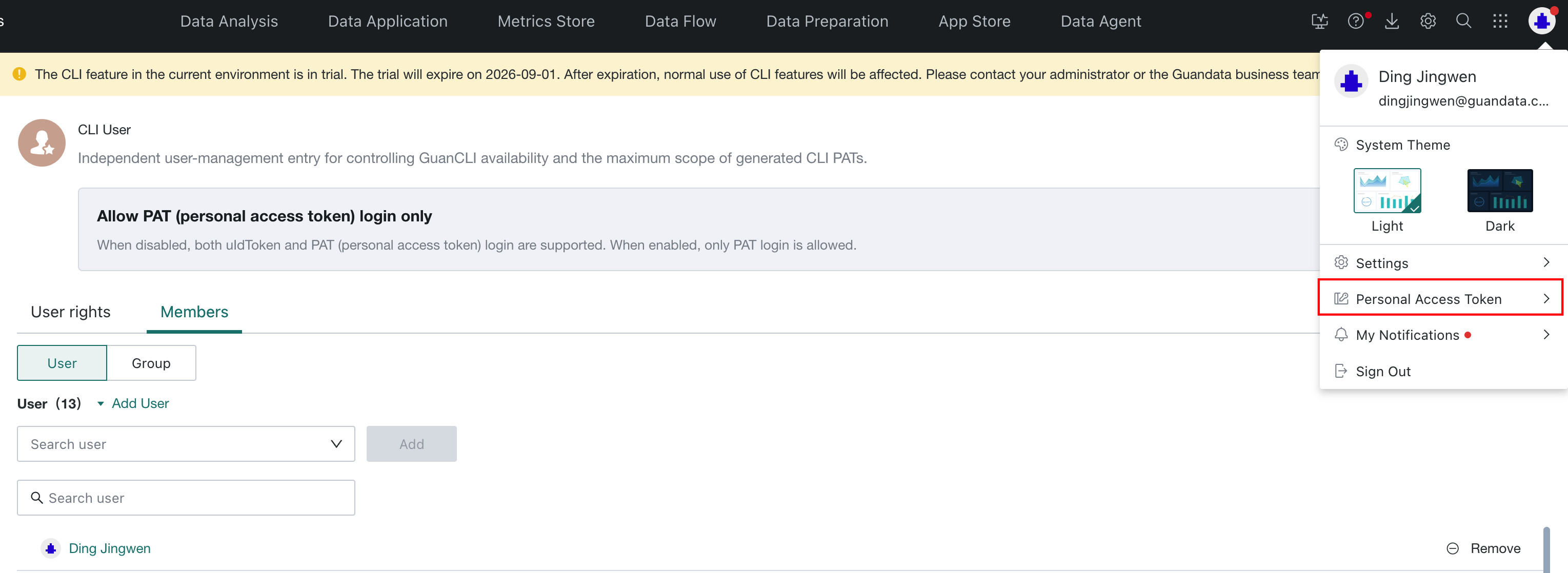
The Members tab is used to configure which users can create and use PATs.
Add Members
Supports adding members by user or user group.

Remove Members
- Remove user: All PATs created by that user will immediately become invalid. If the user is re-added later, historical PATs will not be restored.
- Remove user group: If users in the group no longer obtain qualifications through other user groups or individual authorizations, their PATs will be rejected on the next call.
Before removing members, please confirm whether the relevant users use PATs to execute scheduled tasks, CI/CD, GuanCLI, or GuanMCP calls.
View Audit Log
The creation, deletion, qualification granting, and qualification recovery of PATs are recorded in the audit log, making it convenient for administrators to track programmatic calls.

The Source field in the audit log is used to distinguish operation entries:
| Source | Description |
|---|---|
| Web | Users perform operations through the Guandata BI web page. |
| CLI | Operations performed by command-line tools such as GuanCLI, GuanVis, GuanETL. |
| MCP | Operations performed by GuanMCP or AI clients connected to GuanMCP. |
Management Recommendations
- Adopt the principle of least privilege by default, only open the PAT permissions required by the business.
- Regularly check CLI users and user groups, and promptly remove members who no longer need programmatic access.
- After the team completes the PAT migration, enable Only allow PAT login.
- Before adjusting the global permission policy, evaluate the impact on automated tasks first.
- Regularly check CLI and MCP sources in the audit log.
- When users leave, accounts are disabled, or PATs are leaked, promptly revoke the relevant PATs.
Frequently Asked Questions
User cannot see the Personal Access Token entry
Check the following:
- Whether the CLI feature has been enabled in the current environment.
- Whether the user or their user group has been added to CLI User.
- Whether the user account is in a normal state.
User has permissions on the web page, but PAT calls have no permissions
Check in order:
- Whether the user still has permission to the corresponding resource.
- Whether the corresponding permission was checked when creating the PAT.
- Whether the administrator's global policy allows granting that permission to the PAT.
Existing tasks fail after enabling "Only allow PAT login"
Check whether the failed tasks still use uIdToken. Create a PAT for the task, update the authentication configuration, and verify success before enabling this toggle.
Historical PAT still invalid after re-adding user
Removing CLI user qualifications will invalidate the user's historical PATs. Re-adding a user will not restore historical PATs, and the user needs to recreate them.
Page prompts that CLI feature is about to expire
The CLI feature is controlled by License. Please contact the Guandata sales team to complete the renewal before the trial expires, otherwise the CLI feature will be unavailable.