Personal Access Token (PAT) Usage Guide
Feature Overview
A Personal Access Token (PAT) is a key string starting with gdpat_, independent of account passwords and browser login states, used to allow programs to access Guandata BI on your behalf.
PAT is suitable for the following scenarios:
- Using GuanCLI command-line tools such as GuanCLI, GuanVis, GuanETL to read data, create dashboards, or create ETLs.
- Through GuanMCP, allowing AI clients supporting MCP such as WorkBuddy, Qoder, Codex, Cursor to query BI data using natural language.
- Calling BI interfaces in terminals, servers, CI/CD, or self-built scripts to avoid saving user passwords in scripts.
- Configuring independent credentials for different environments or tasks, facilitating separate authorization and revocation.
PAT only has the permissions explicitly checked during creation, can be deleted at any time, and can have an expiration date set. What operations a PAT can ultimately perform is jointly determined by the following conditions:
- Whether the current BI environment supports PAT.
- Which permissions were checked when the PAT was created.
- Whether the target feature has integrated PAT authentication.
A PAT represents your identity, and operations performed with it are recorded under your name. If it is exposed, someone else may read, export, or modify data within its permissions. Protect it like a password. If you suspect exposure, revoke it immediately and create a replacement.
Prerequisites
Before using PAT, please confirm the following conditions are met:
-
The current environment has the CLI feature enabled. This feature is controlled by License. If not enabled, please contact the Guandata sales team.
-
The administrator has added you or your user group in Management Center > User Management > CLI User. For details, see CLI User.
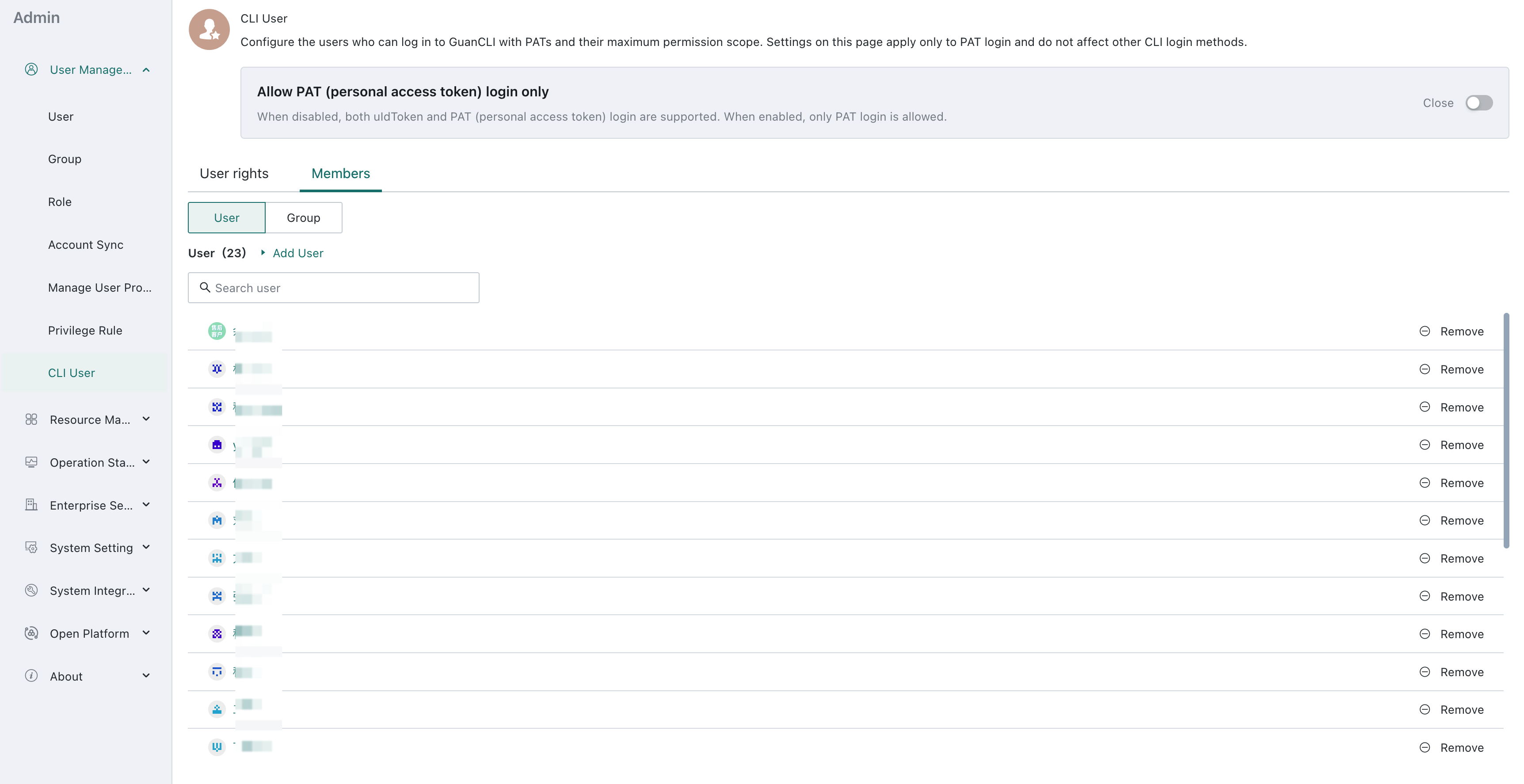
After meeting the conditions, click the avatar in the top right corner of the page, and the Personal Access Token entry will appear in the menu. If this entry does not appear, please contact your administrator.
If the current environment does not support PAT temporarily, GuanCLI and local-mode GuanMCP can still use account passwords or uIdToken authentication as a transitional solution. PAT is recommended for long-term use.
Create Token
-
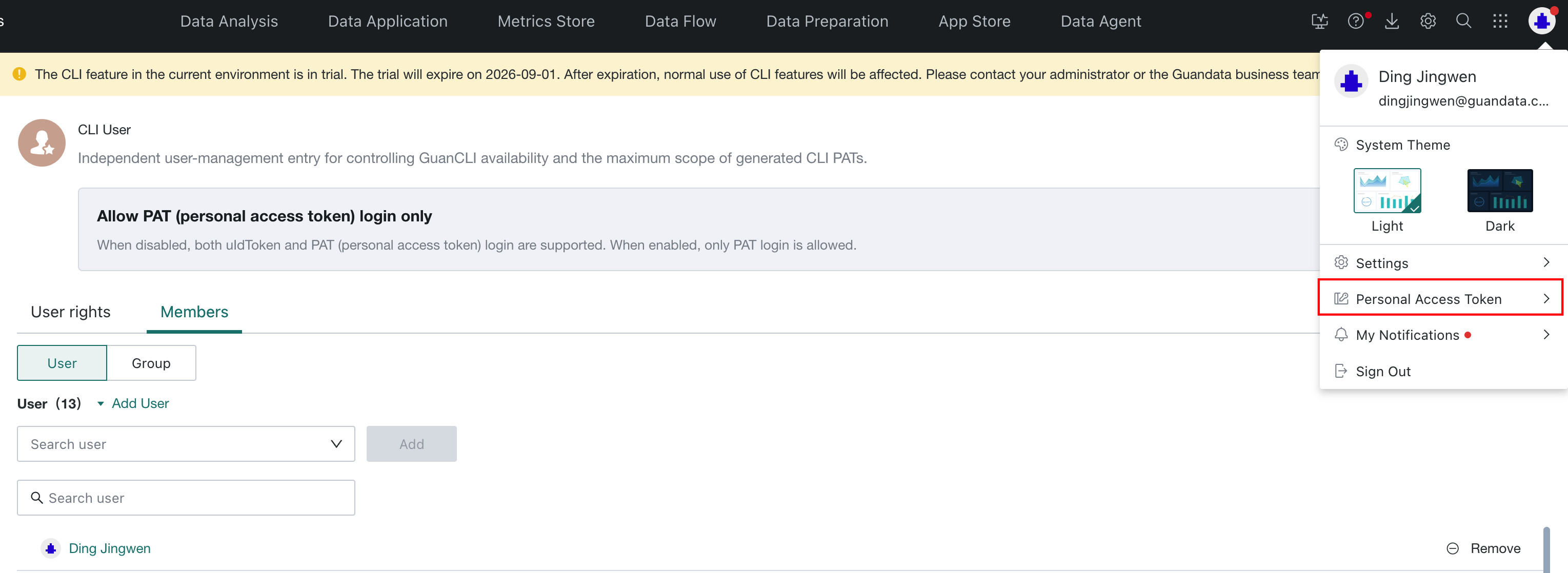
Click the avatar in the top right corner of the page and select Personal Access Token.
-
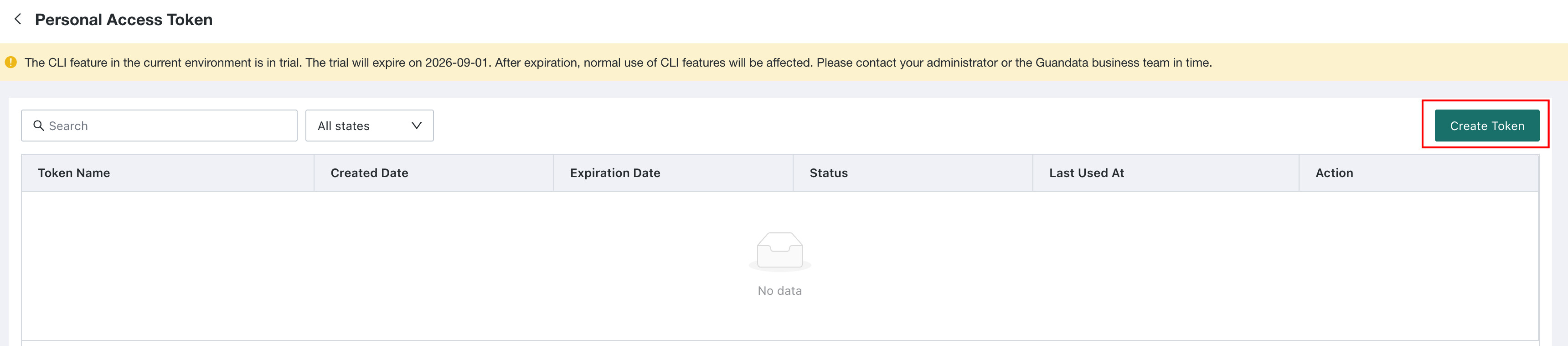
Click Create New Token.
-
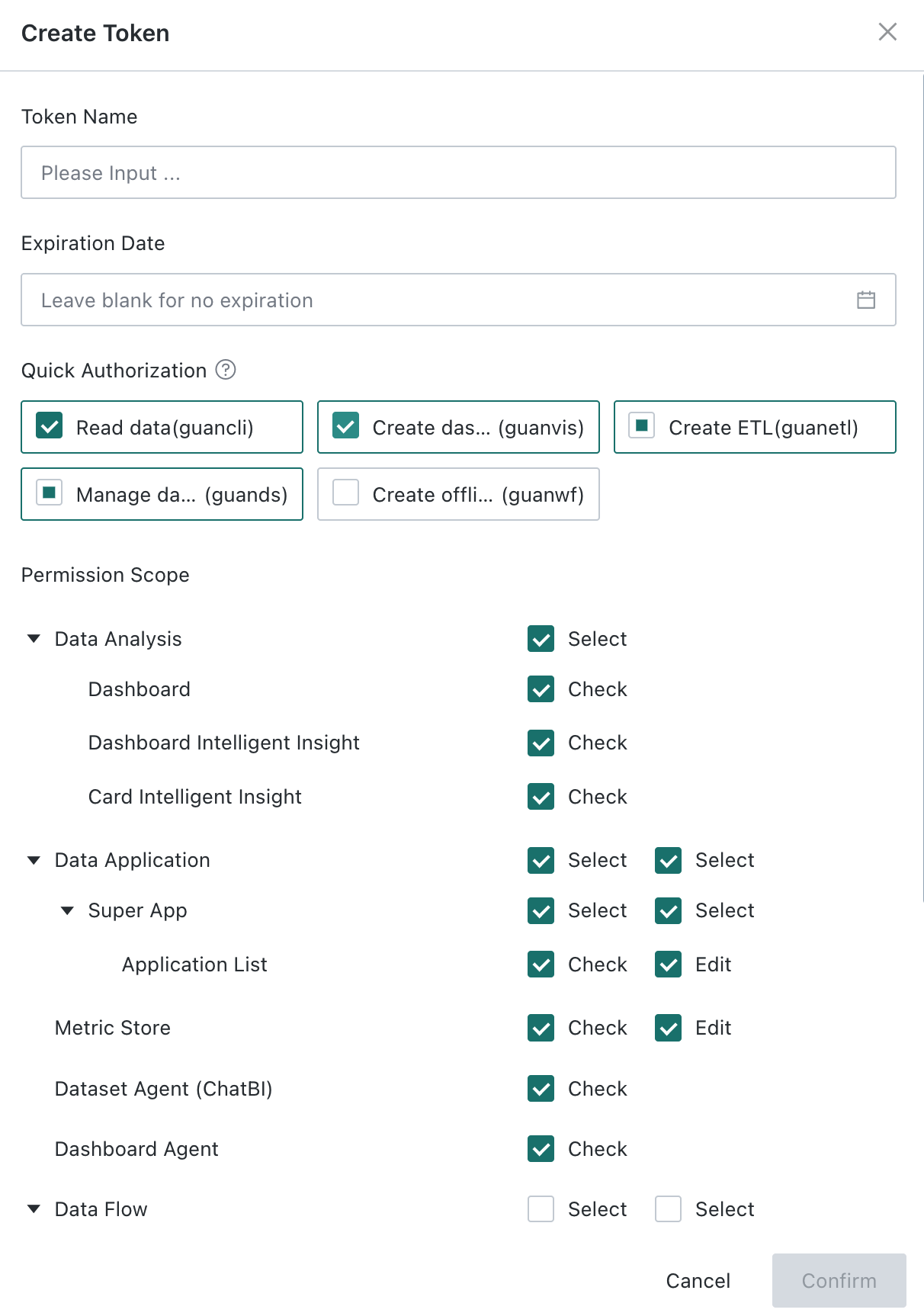
Configure token information.
| Configuration Item | Description |
|---|---|
| Token Name | Required, supports 1-20 characters. It is recommended to fill in the specific purpose, such as "Create Dashboards" or "Create Metrics". |
| Expiration Date | Optional. Leaving it blank means long-term validity; the token will automatically expire after the expiration date. |
| Quick Authorization | Bulk select permissions for common operations, without affecting other already selected permissions. |
| Permission Scope | Select the view, edit, or export operations that this token can execute item by item. The permissions here come from the intersection of the user's own permissions and the permissions enabled in CLI User. |
-
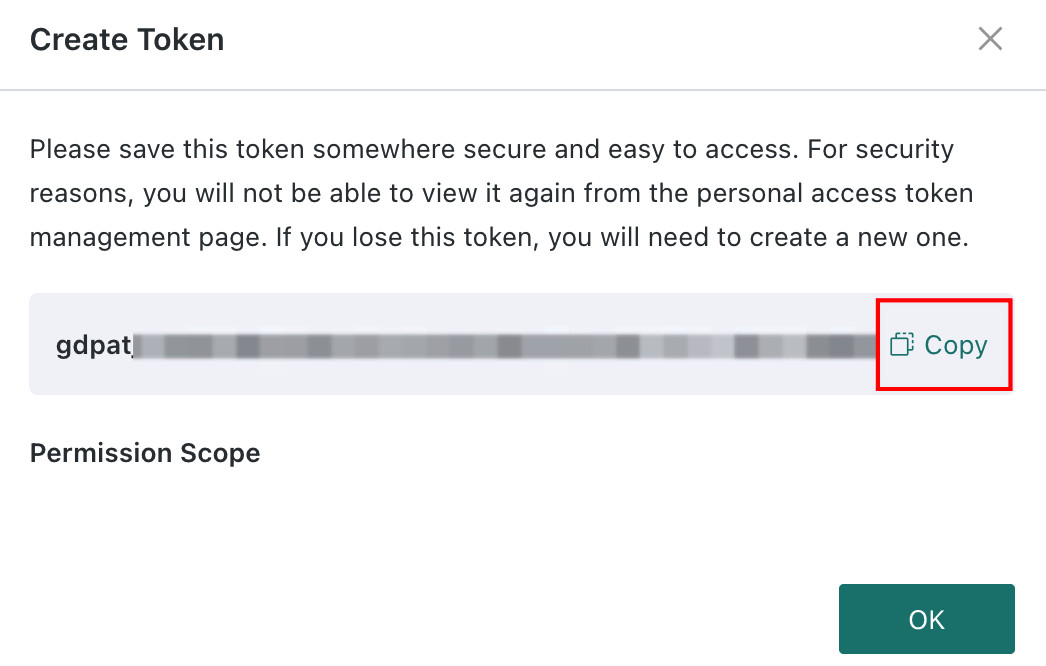
After configuration, click Confirm; after confirmation, click Copy and immediately save the token starting with
gdpat_.Risk- The token plaintext is only displayed once. After closing the dialog, no one (including administrators) can view it again. When the token is lost, please delete the original token and recreate it.
- After token creation, permissions and validity period cannot be modified. If adjustments are needed, create a new token and replace the original one.
Use in GuanCLI
Select Directly Enter Personal Access Token in GuanCLI to log in using PAT. For interactive login, non-interactive login, status verification, and frequently asked questions, see PAT login instructions.
Use in GuanMCP
GuanMCP is used to connect AI clients and Guandata BI. After integration, you can search BI resources, view metric calibers, and query authorized data using natural language in AI clients. GuanMCP focuses on read-only queries and does not create, modify, or publish BI resources.
For product capabilities, see the GuanMCP Integration and User Guide.
Select Connection Method
| Connection Method | Description | Applicable Scenario |
|---|---|---|
| Local stdio | AI client starts GuanMCP locally. Requires Node.js 20 or higher and can execute npx. | Personal use, PAT authentication recommended. |
| Remote Streamable HTTP | Connect to the GuanMCP service deployed by the administrator, typically ending with /mcp. | Client cannot start service locally, or enterprise unified access. |
Support status by client:
| Client | Local stdio | Remote Streamable HTTP | Description |
|---|---|---|---|
| WorkBuddy | Supported | Not supported | Uses local stdio. |
| Qoder | Supported | Supported | For personal use, prioritize "Local stdio + PAT". |
| Codex | Supported | Supported | For personal use, prioritize "Local stdio + PAT". |
| Cursor | Supported | Supported | For personal use, prioritize "Local stdio + PAT". |
Centralized enterprise AI integrations use enterprise identity mapping rather than personal PATs. See the GuanMCP Integration and User Guide.
Configure Local stdio
Local mode passes BI address and authentication information through environment variables:
{
  "BI_BASE_URL": "https://bi.example.com",
  "BI_PUBLIC_PATH": "",
  "BI_PAT": "<your token>"
}
BI_BASE_URL: BI site root address.BI_PUBLIC_PATH: Fill in the corresponding path when BI is deployed as a sub-path. For example, when the BI address ishttps://bi.example.com/guanbi, fill in/guanbi.BI_PAT: PAT plaintext.
If the current environment does not support PAT, you can use one of the following methods instead:
- Account Password:
BI_LOGIN_DOMAIN,BI_LOGIN_ID,BI_LOGIN_PASSWORD. uIdToken:BI_UID_TOKEN.
Only one authentication method should be configured per service. If multiple are configured simultaneously, the authentication priority is:
PAT >
uIdToken> Account Password
Taking Cursor as an example, edit ~/.cursor/mcp.json:
{
  "mcpServers": {
    "guanbi": {
      "command": "npx",
      "args": ["-y", "@guandata/guanbi-mcp-server@latest"],
      "env": {
        "BI_BASE_URL": "https://bi.example.com",
        "BI_PUBLIC_PATH": "",
        "BI_PAT": "<your token>"
      }
    }
  }
}
Configuration entry for each client:
| Client | Configuration Entry |
|---|---|
| WorkBuddy | Plugins > MCP Servers > Configure MCP. You can also edit ~/.workbuddy/mcp.json or project-level .workbuddy/mcp.json. |
| Qoder | Avatar > Personal Settings > MCP > My Servers > Add. Select STDIO for Type, enter npx for Command, and -y @guandata/guanbi-mcp-server@latest for Arguments. |
| Codex | Settings > MCP servers, or edit ~/.codex/config.toml. |
| Cursor | MCP settings, or edit ~/.cursor/mcp.json. |
Configure Remote Streamable HTTP
Obtain the complete MCP address from the administrator, fill in the address in the client, and add the following request header:
X-Personal-Token: <your token>
Taking Cursor as an example:
{
  "mcpServers": {
    "guanbi": {
      "url": "https://bi.example.com/mcp",
      "headers": {
        "X-Personal-Token": "<your token>"
      }
    }
  }
}
Remote PAT authentication must use the X-Personal-Token request header, not Authorization: Bearer <PAT>.
- When
401is returned, check the PAT and request header name. - When
404is returned, confirm whether the address is complete. Remote addresses typically end with/mcp.
Verify GuanMCP Configuration
After saving the configuration and reloading the client, it is recommended to ask the following questions in sequence:
- "What BI capabilities does the current GuanMCP support?" to confirm whether tools are available.
- "Help me find pages, cards, and datasets with 'sales' in their names." to confirm whether authorized resources can be searched.
- "Query this week's sales amount and explain the data range and source." to verify data permissions.
- Ask about a resource you explicitly do not have access to, confirming that GuanMCP will not return data.
PAT mode does not currently provide ChatBI tools. This is not an installation failure. To use ChatBI on an enterprise AI platform, use enterprise identity mapping.
Other tools may also not be displayed due to BI version, module availability, or permissions.
Use in Self-built Scripts or Programs
Carry the following two request headers in HTTP requests:
curl -H "X-Personal-Token: gdpat_your_token" \
     -H "X-Guandata-Client: guancli" \
     "https://your-guandata-bi-address/..."
| Request Header | Description |
|---|---|
| X-Personal-Token | PAT plaintext. |
| X-Guandata-Client | Call source. CLI tools use values starting with guan such as guancli, and AI assistants use mcp. |
Both request headers must be carried, otherwise the request will be rejected.
Usage Limitations
PAT does not support the following operations:
- Logging into the Guandata BI web page.
- Calling Public API that uses independent Public Token.
- Creating, deleting, or managing PAT itself.
- Executing "Administrator Settings" operations, even if the PAT owner is an administrator.
If an incorrect PAT is used multiple times in a short period, the system will temporarily rate limit and prompt "Too many authentication requests". Please wait and retry according to the prompt.
Manage Tokens
On the Personal Access Token page, you can perform the following operations:
- View List: View name, creation date, expiration date, status, and last usage time; supports searching by name and filtering by status.
- View Permissions: View currently effective and expired permissions of the PAT.
- Delete Token: After deletion, the PAT immediately becomes invalid and cannot be restored. If you suspect the PAT has been leaked, please delete it immediately.

Common reasons for permission expiration:
- Your user permissions have changed and you no longer have the corresponding permissions.
- The administrator has tightened the global policy and no longer allows the corresponding permissions to be granted to PAT.
Security Guidelines
- Each person can hold up to 5 valid PATs simultaneously. After reaching the limit, old tokens need to be deleted first.
- PAT and web login status are mutually independent. Changing passwords or logging out of the web page does not affect PAT.
- After an account is disabled, locked, or deleted, PAT immediately becomes invalid.
- Do not save PAT plaintext in Git repositories, tickets, chat records, screenshots, or CI logs.
- PAT is typically stored in local configuration files such as
~/.guancli/config.jsonand~/.cursor/mcp.json. Ensure files are only readable by yourself and do not submit configuration files to code repositories. - Remote GuanMCP addresses should use HTTPS.
- Prioritize using interactive methods to enter PAT on shared devices.
Permission Activation Rules
For each PAT call, the system calculates permissions in real-time according to the following rules:
PAT Actual Permissions = User's Current Permissions ∩ PAT Checked Permissions ∩ Administrator's Global Policy
This means:
- After user permissions are reduced, PAT permissions are simultaneously reduced. There will be no situation where a user has lost permissions but PAT still retains them.
- After the administrator tightens the global policy, all PATs are immediately constrained by the new policy.
- PAT does not amplify user permissions nor inherit administrator privileges.
- Whether through GuanCLI, GuanMCP, or script calls, when the same question is raised by different users' PATs, the returned results may vary. This is a normal manifestation of permission isolation.
Frequently Asked Questions
No Personal Access Token Entry
Confirm that the CLI feature has been enabled in the current environment, and contact the administrator to add you or your user group to Management Center > User Management > CLI User > Members.
When PAT is unavailable, GuanCLI and local-mode GuanMCP can use account passwords or uIdToken as transitional solutions according to administrator requirements.
Forgot to Save Token Plaintext
PAT plaintext cannot be retrieved. Delete the original token and recreate it.
Prompt PAT Invalid
Check in order:
- Whether the PAT is completely copied.
- Whether the PAT has expired or been deleted.
- Whether the administrator has cancelled your CLI usage qualification.
- Whether the account has been disabled, locked, or deleted.
You can also check the status on the Personal Access Token page, or run guancli auth status to verify.
Prompt Administrator Has Disabled CLI's uIdToken Authentication Channel
The administrator has enabled Allow PAT (personal access token) login only on the CLI User page. Please create a PAT and switch to PAT for calls.
Has Permissions on Web Page But PAT Call Shows No Permissions
PAT only has the permissions explicitly checked during creation. Check whether the corresponding permissions are included in View Permissions and whether the permissions have expired. To add permissions, create a new token.
Remote GuanMCP Returns 401 or 404
- Return
401: Check whether the PAT is valid and whether the request header is X-Personal-Token, notAuthorization: Bearer. - Return
404: Confirm using the complete address provided by the administrator. Remote addresses typically end with/mcp.
Prompt Current Domain Has Not Enabled CLI Capability
The current environment's License does not include the CLI feature. Please contact the administrator or Guandata sales team. If a trial expiration reminder appears on the page, please complete the renewal before the expiration, otherwise the CLI feature will be unavailable.