Group
Overview
User Groups are used to classify users and define their organizational affiliation. Through User Groups, enterprise administrators can manage user permissions and resource access more efficiently in bulk. User Groups support hierarchical structures, making it easier to build a permission management system aligned with enterprise organization structures.
Main functions include:
- creating and managing hierarchical user group structures
- adding or removing user group members in bulk
- configuring resource access permissions for user groups
- moving user groups to adjust organizational structure
- transferring resource permissions owned by user groups
User Group Information Management
View User Group Information
On the Admin Center > User Management > User Groups page, you can view the list of user groups in the current company domain. Select a group to view detailed information on the right, including the number of child groups, the number of users, and the member list.
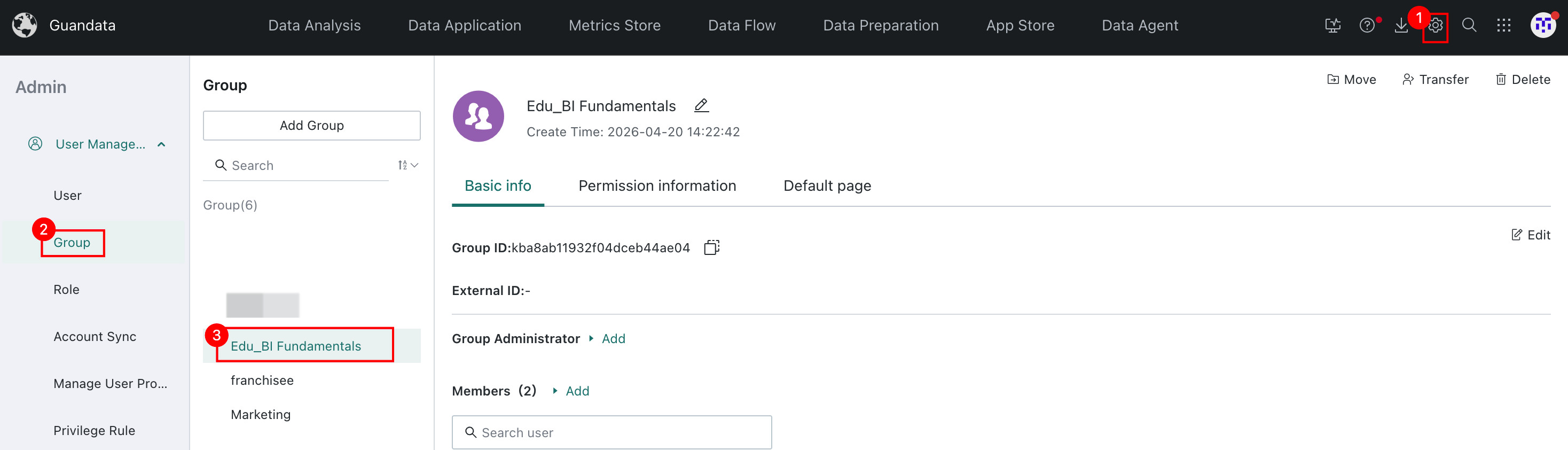
Search for User Groups
Enter the target group in the search area, and the system returns matching user groups.

Create User Groups
-
Two methods are supported for creating a new user group:
- click
Create User Groupabove the list - click
Add Child User Groupon the user group detail page

- click
-
Enter the user group name and the parent group, then click
Confirm.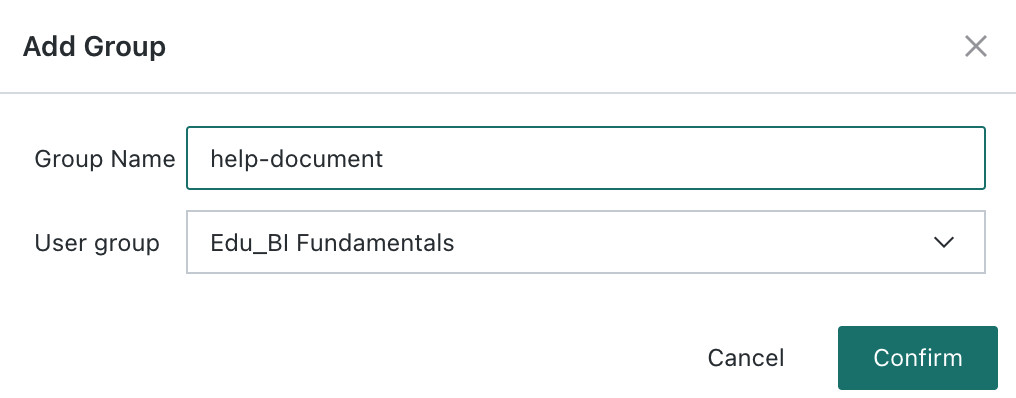
-
After creation, the user group is assigned a unique
User Group ID.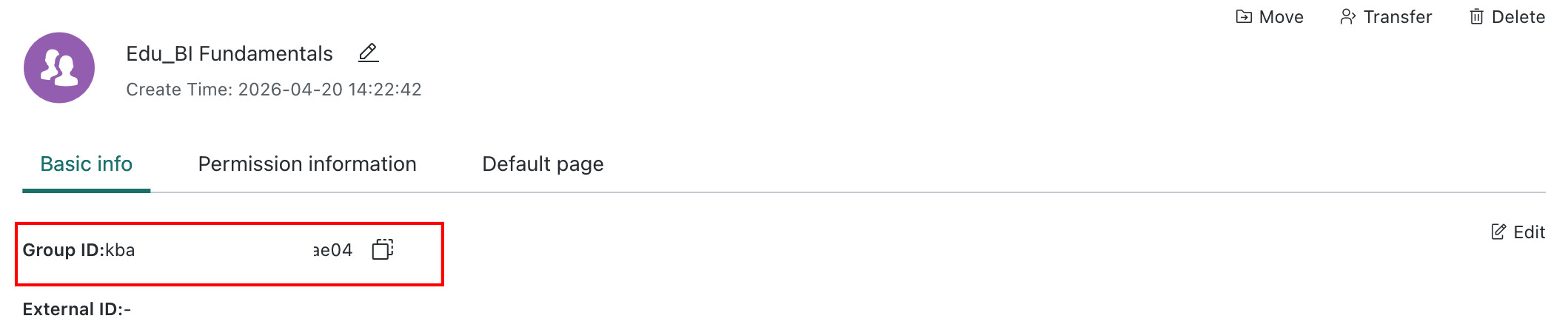
Modify Basic Information
Maintain External ID
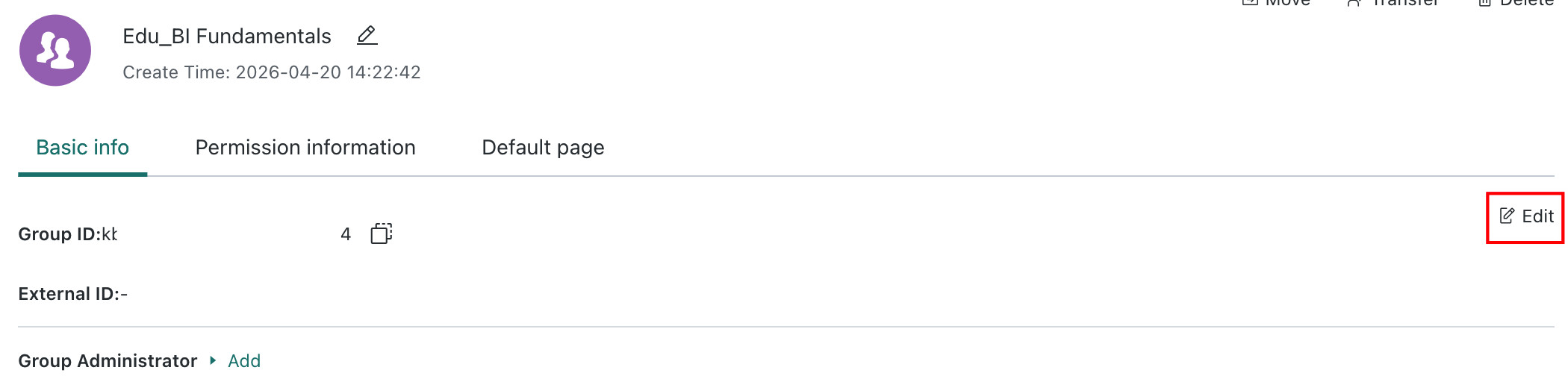
If many user groups were created manually early in the product lifecycle and account synchronization is enabled later, you can configure an account synchronization ID on those manually created user groups so they can be associated with synchronized records. Open the user group detail page, click the edit button in the Basic Information section, enter edit mode, maintain the external ID information, and save it.
- After maintaining an external ID, if account synchronization is also enabled, you must ensure that the user group dataset contains the same external ID. Otherwise, user groups may be deleted by mistake.
- The external ID of a user group created through the Public API is not the same concept as the external ID used for account synchronization. These two concepts need to be distinguished.
Add Members
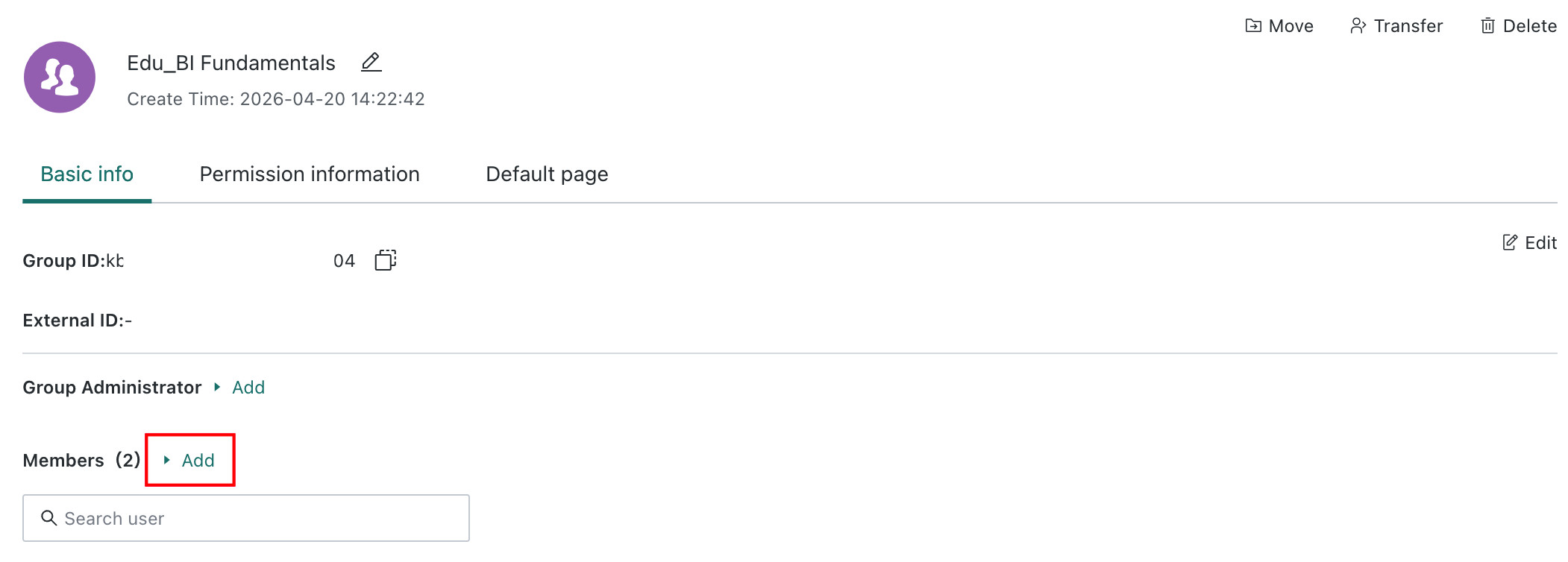
Click Add and search for users by name to add members individually or in bulk.
Add a Child Group
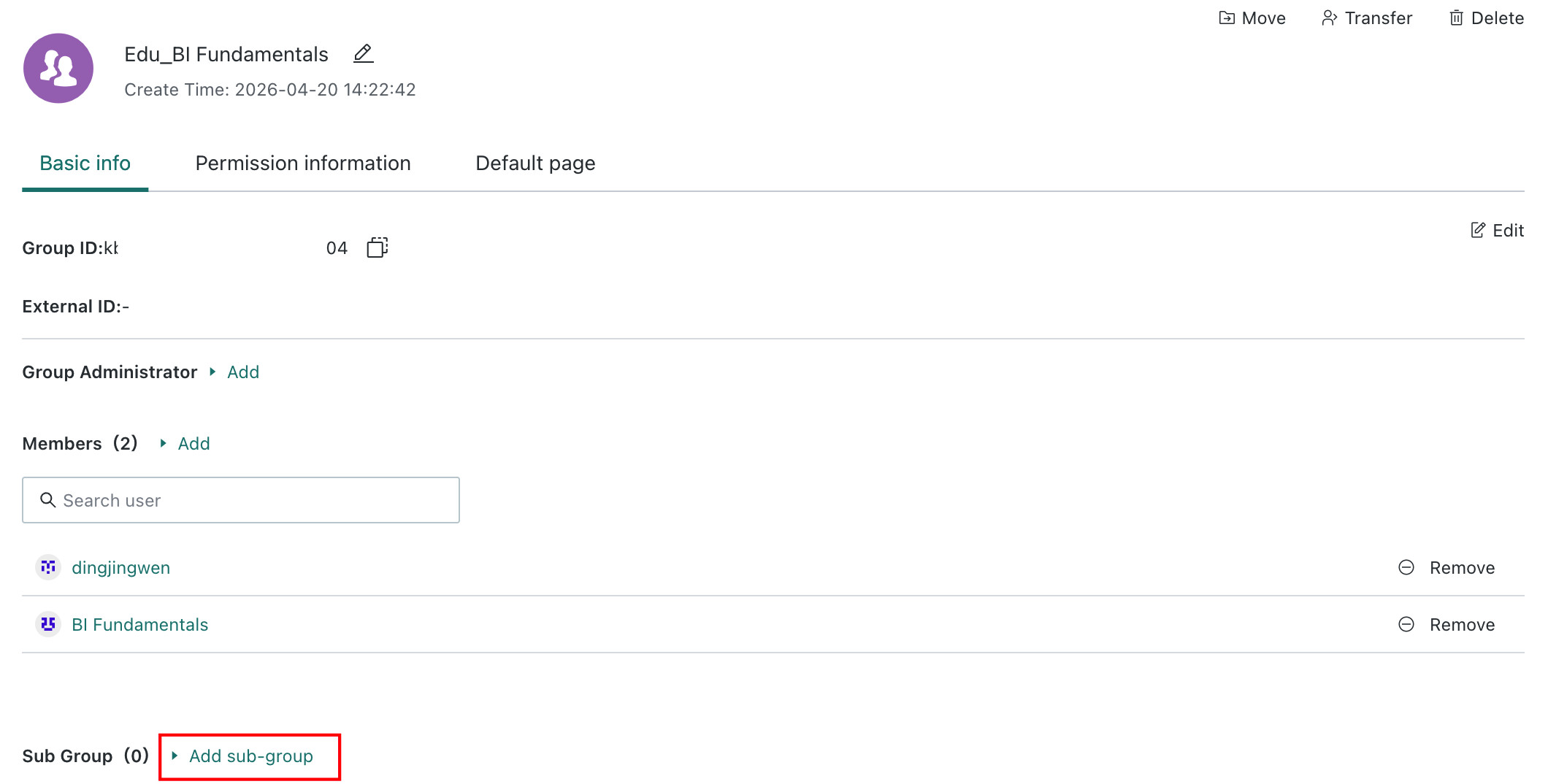
Click Add Child User Group to create the next-level group.
Move User Groups
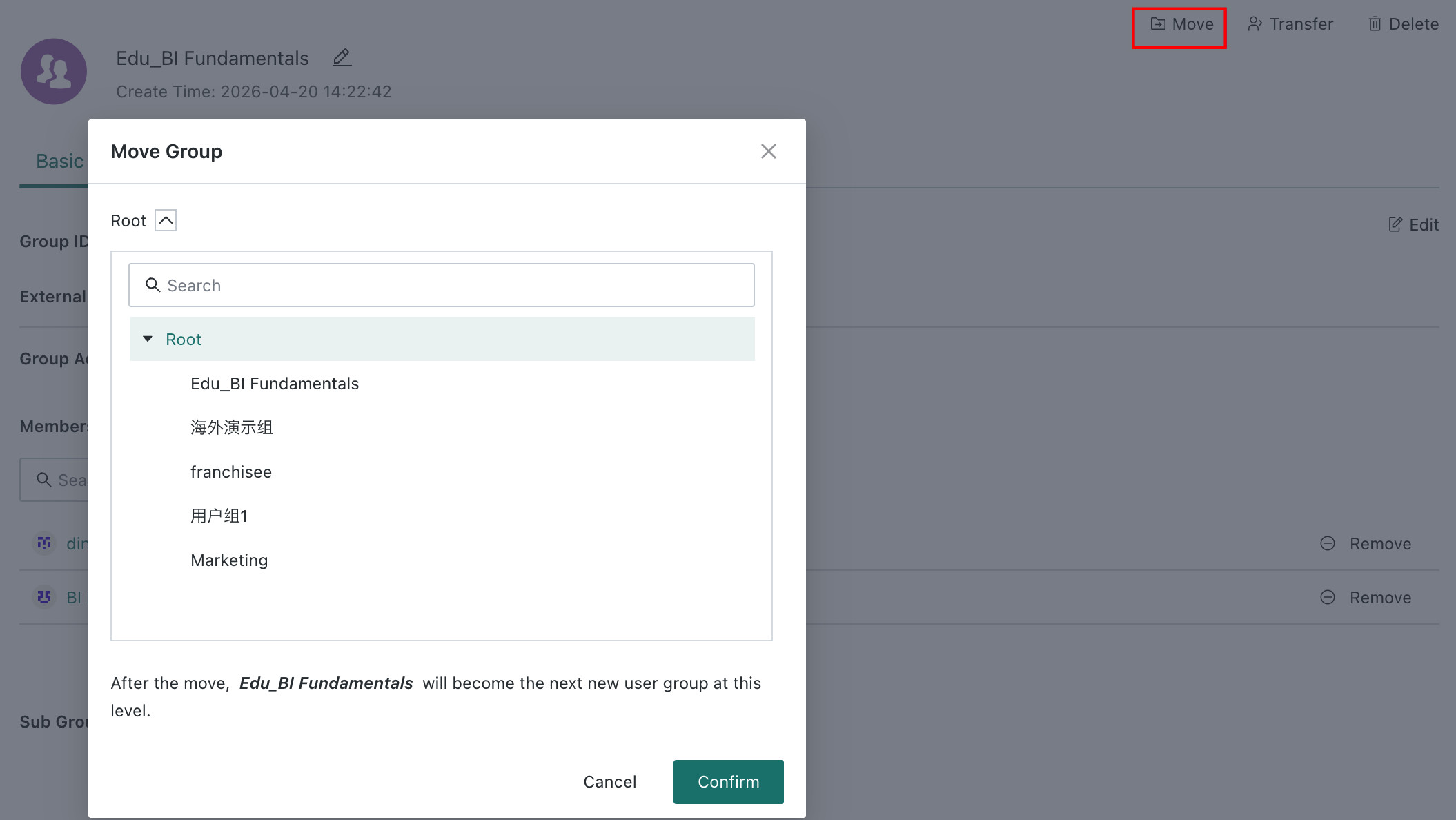
Click the Move button in the upper-right corner of the user group detail page to move the current group and adjust the organization hierarchy.
User Group Permission Management
Modify Permission Information
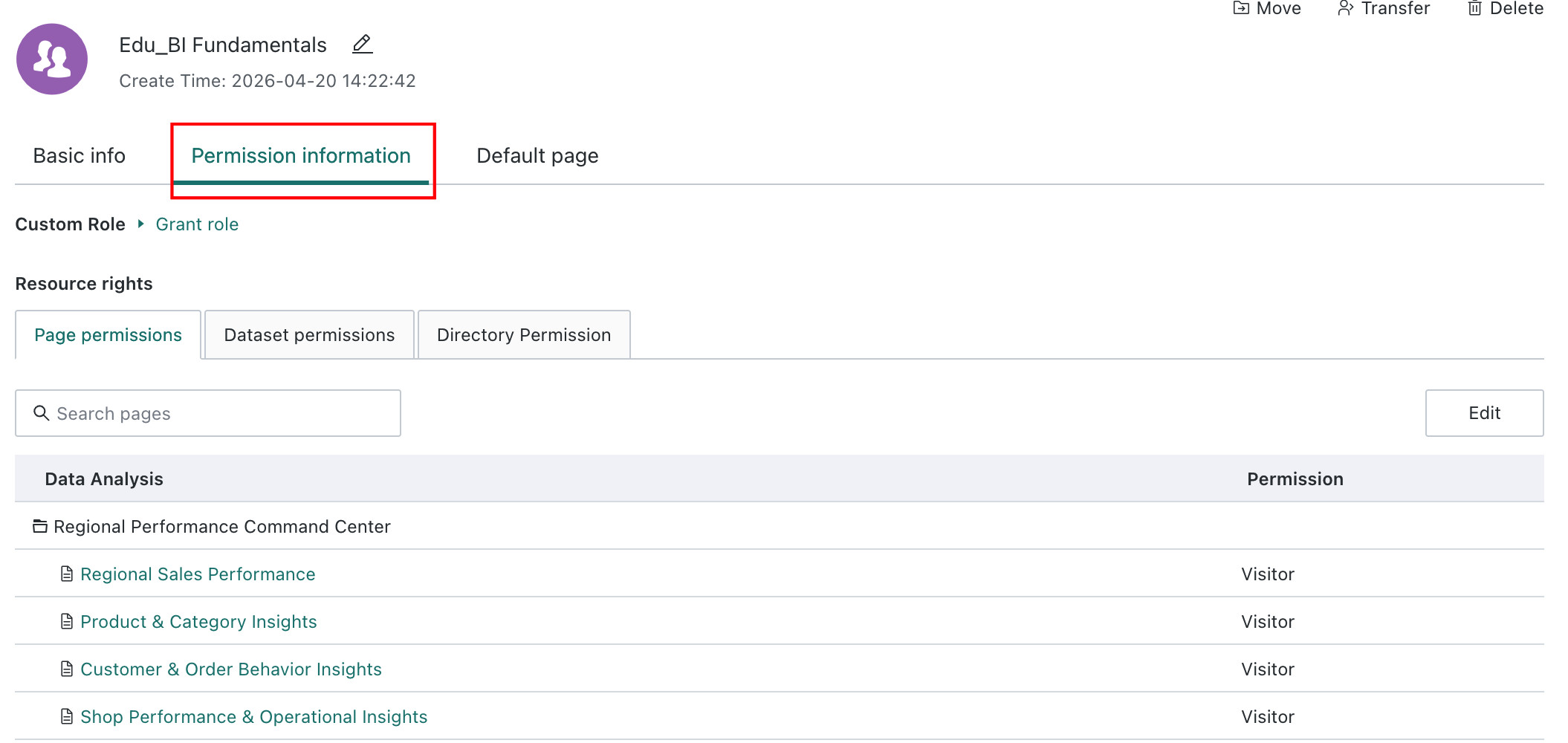
On the user group detail page, click the Permission Information tab to modify the permission settings of the user group. For detailed behavior, see Modify User Permissions.
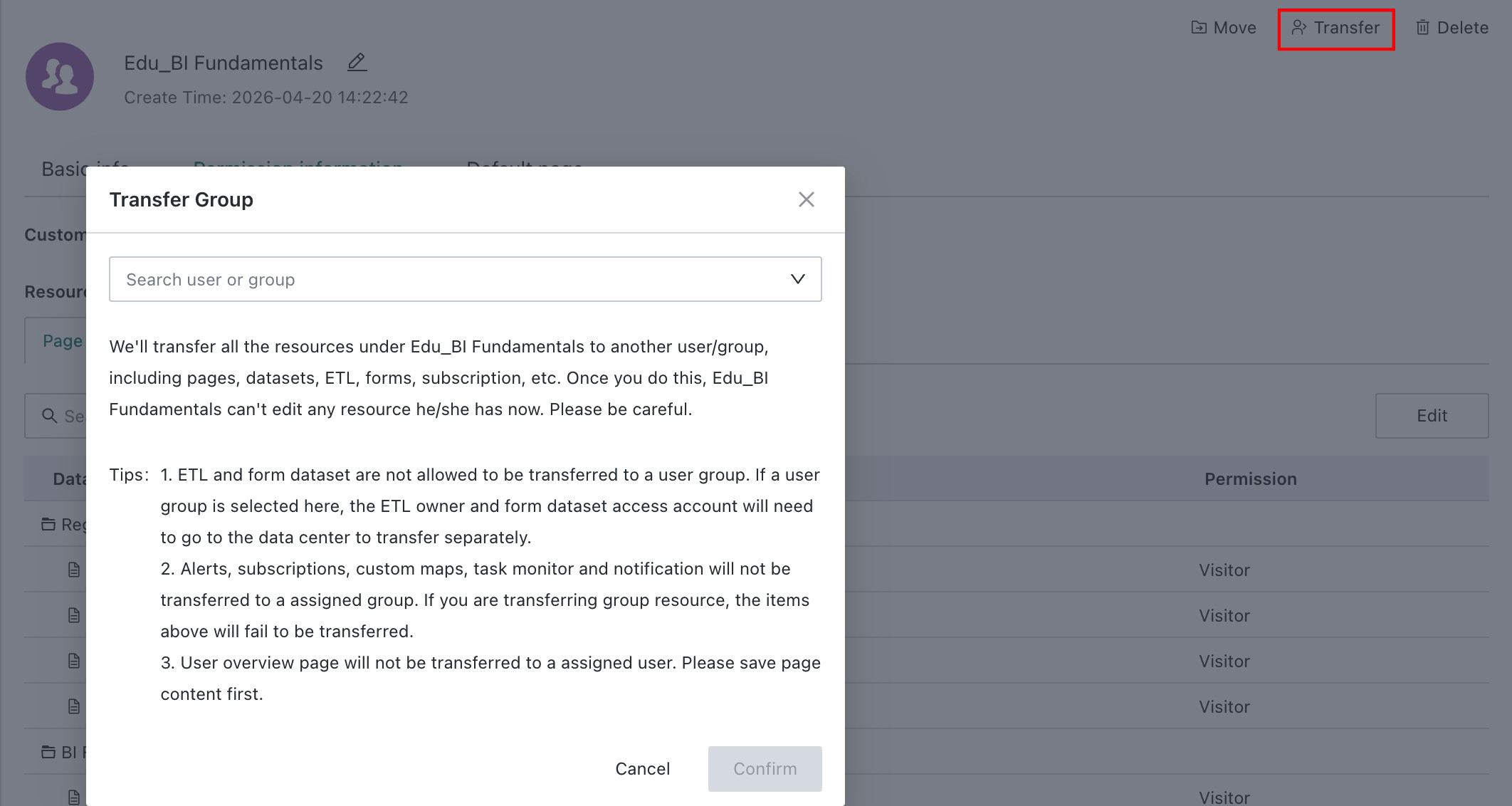
Transfer User Group Permissions
Click the Transfer button to transfer the resources owned by the current user group, such as cards, pages, Datasets, ETL jobs, and Data Accounts, to another user group. After transfer, the original user group can no longer edit the resources it originally owned.