Manage User Properties
Overview
User Basic Attribute Management allows administrators to configure and manage user basic attributes, including adding, editing, and deleting attributes. With this feature, administrators can define the structure of user basic information to enable more refined user management and permission control.
Main capabilities include:
- Viewing all system preset and custom user attributes
- Using preset attributes such as name, email, and mobile phone number
- Adding custom attributes based on enterprise requirements
View System Preset Attributes
On the Admin Center > User Management > User Basic Attribute Management page, administrators can view the list of system preset basic attributes, including name, email, mobile phone number, and others. These attributes are provided by the system by default and cannot be edited or deleted.
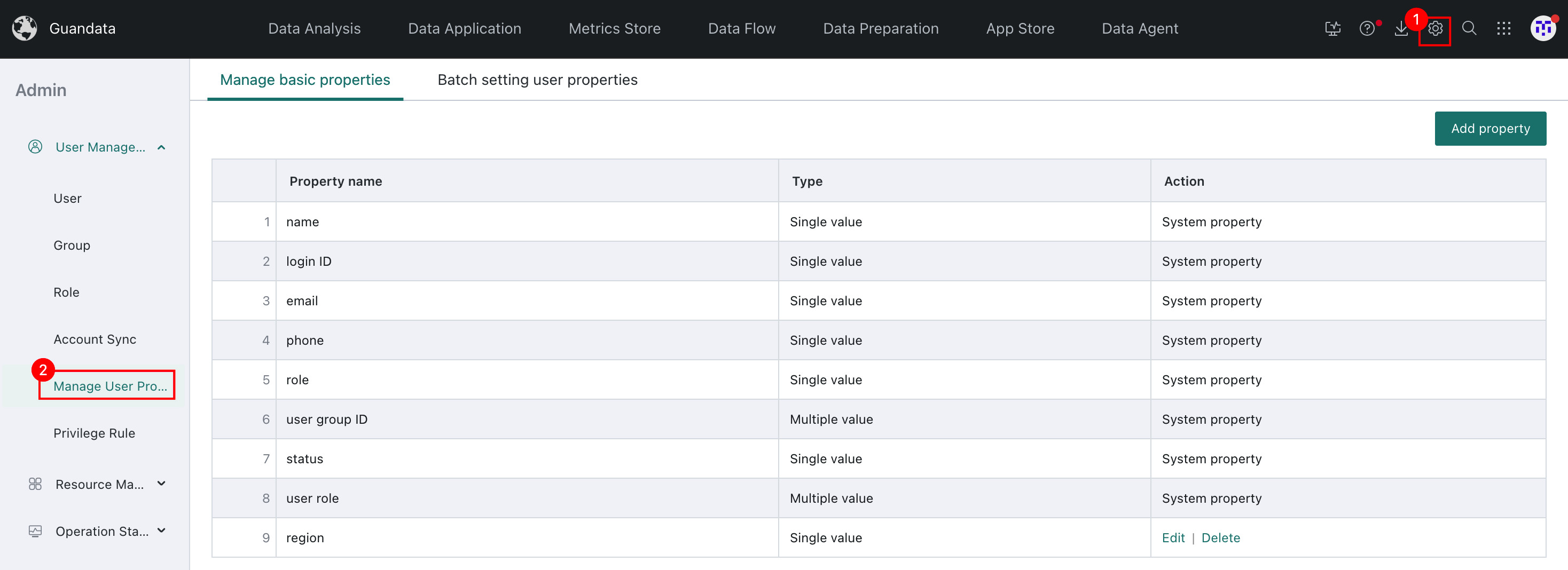
Add a Custom Attribute
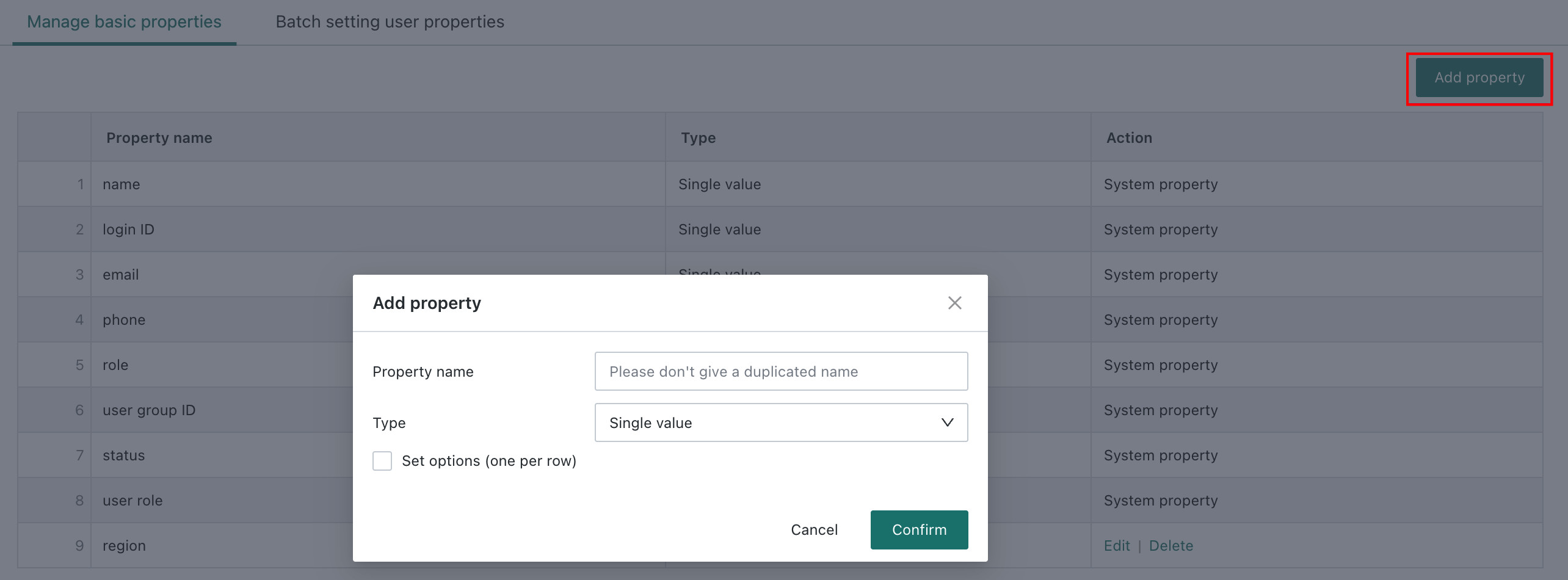
If the system preset attributes do not meet enterprise requirements, administrators can click Add Attribute to create a custom attribute. You need to fill in the attribute name, type, whether it is required, and related information.
Do not use a custom attribute name that duplicates an existing attribute name.
After a custom attribute is added, it will be displayed automatically when creating a new user or configuring row-level permissions.
Edit an Attribute
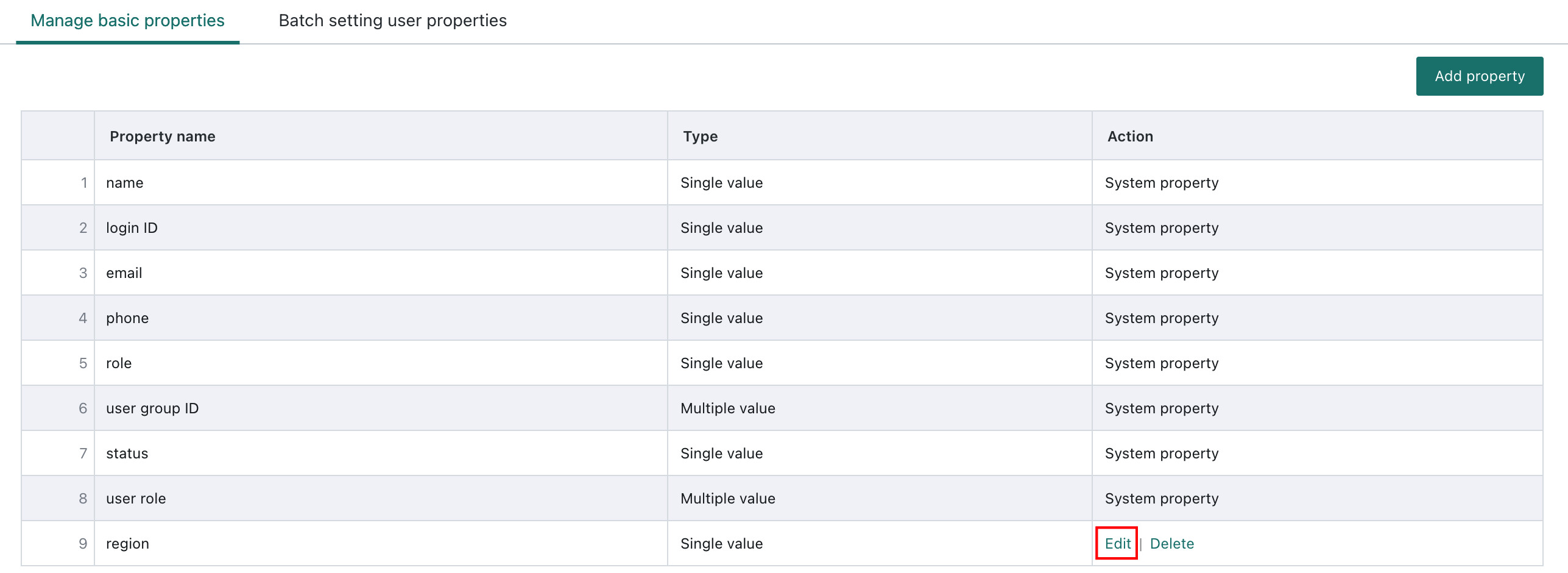
For custom attributes, administrators can click Edit on the right side of the attribute to modify the attribute name, type, whether it is required, and other settings.
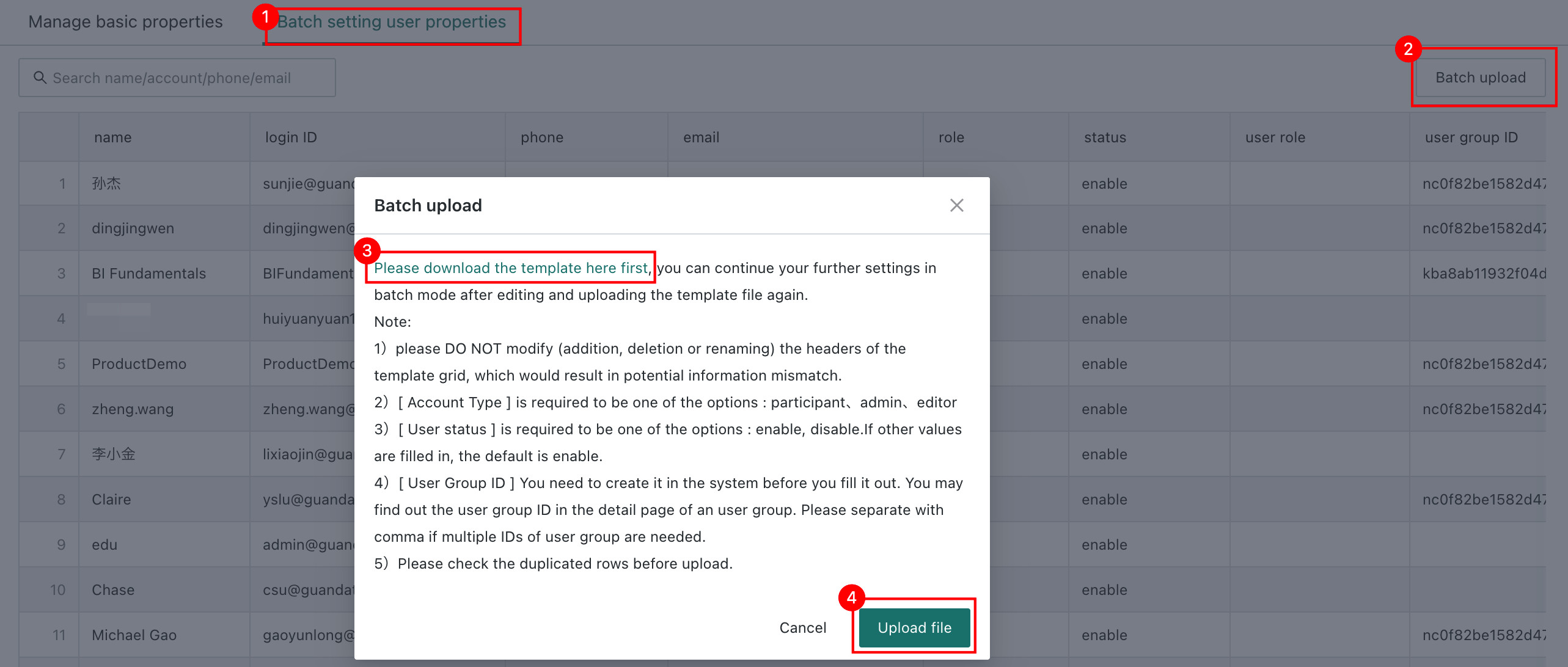
When you need to update user attribute information in bulk, you can click Bulk Upload on the Batch Settings page to save time. Download the template file, modify the information, and upload it again to quickly update user attribute information.
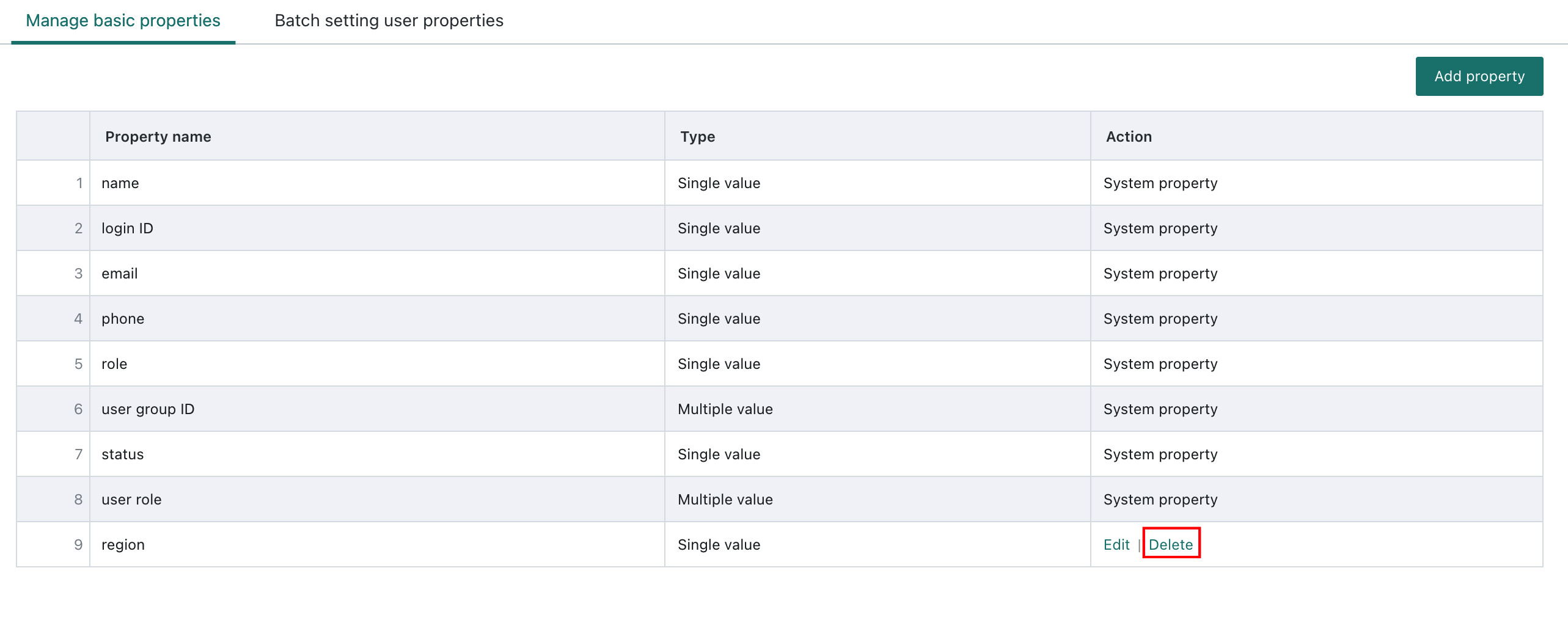
Delete a Custom Attribute
For custom attributes, administrators can click Delete on the right side of the attribute to remove it. After deletion, the attribute will no longer appear in user information.