Role
Overview
The Roles module is one of the core mechanisms used for permission management in Guandata BI. It allows administrators to assign grouped permissions to each account. Each role carries its own feature permission configuration. Through role management, administrators can flexibly control user access to system functions and resources and achieve fine-grained permission governance.
Main functions include:
- creating and managing custom roles
- assigning feature permissions to roles
- viewing and modifying role information
- managing Group Administrator permissions
Role Classification
The role system mainly includes the following three categories:
- Built-in account roles: Read-Only User, Standard User, and Administrator, covering the basic feature permission requirements
- System roles: mainly Group Administrators, used to manage users and permissions in specific user groups. For details, see Group Administrator
- Custom roles: roles created by administrators according to business needs, with feature permissions assigned as needed
View Role Information
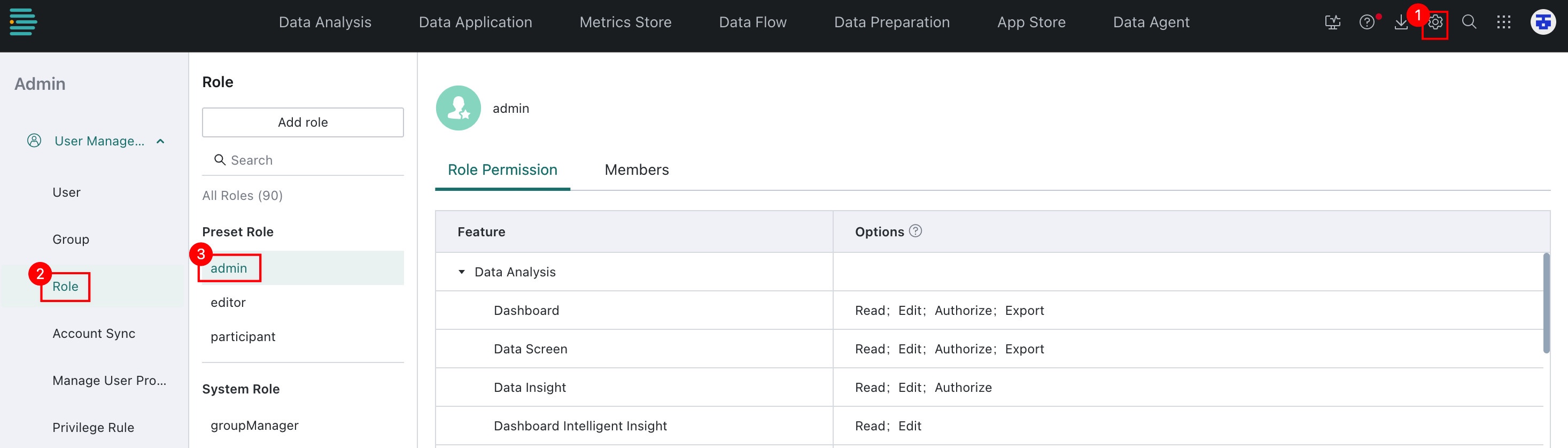
On the Admin Center > User Management > Roles page, you can see the user roles in the current company domain. Select a role to view its details in the right-side panel.
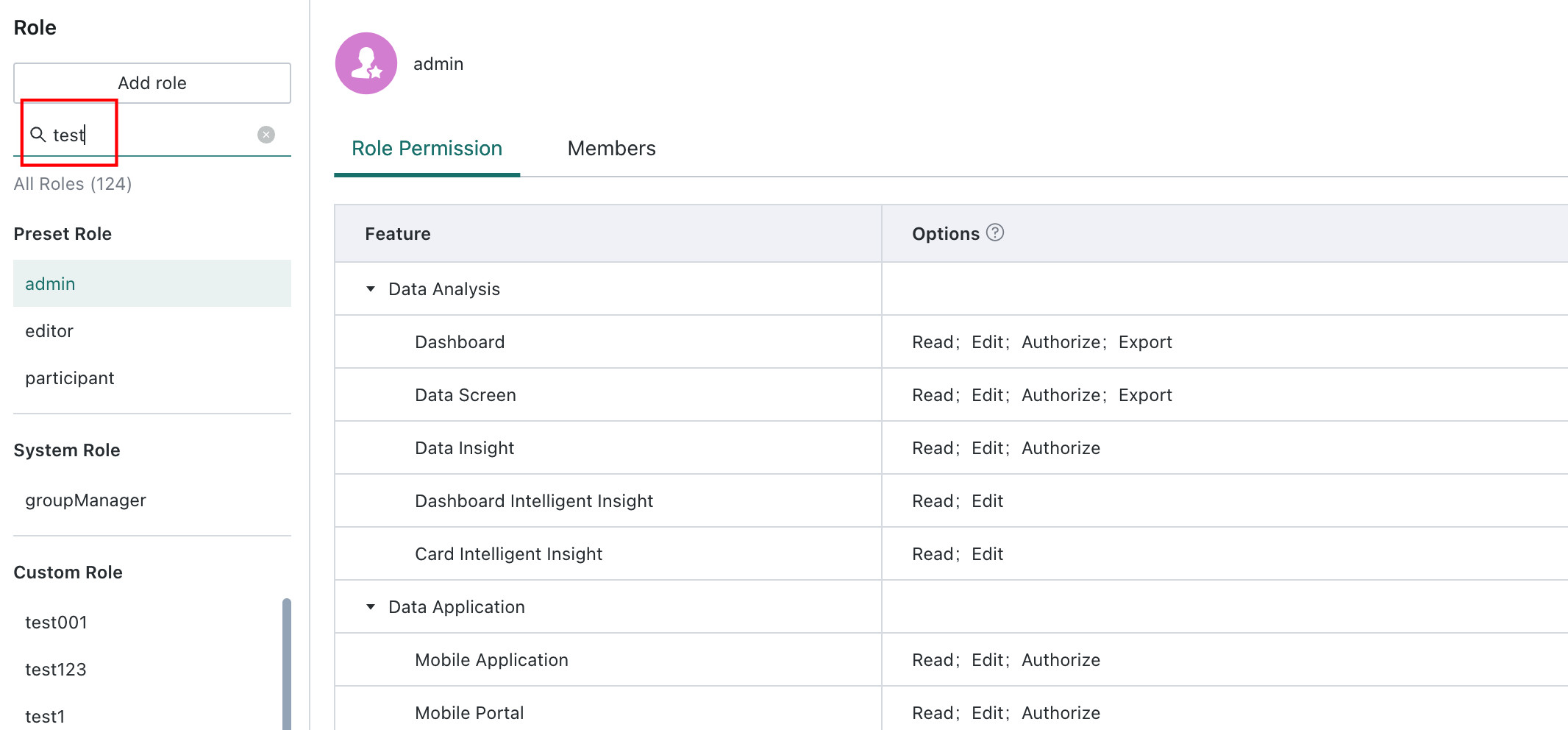
Search for Roles
Enter the target role in the search area, and the system returns matching roles in the Custom Roles section.
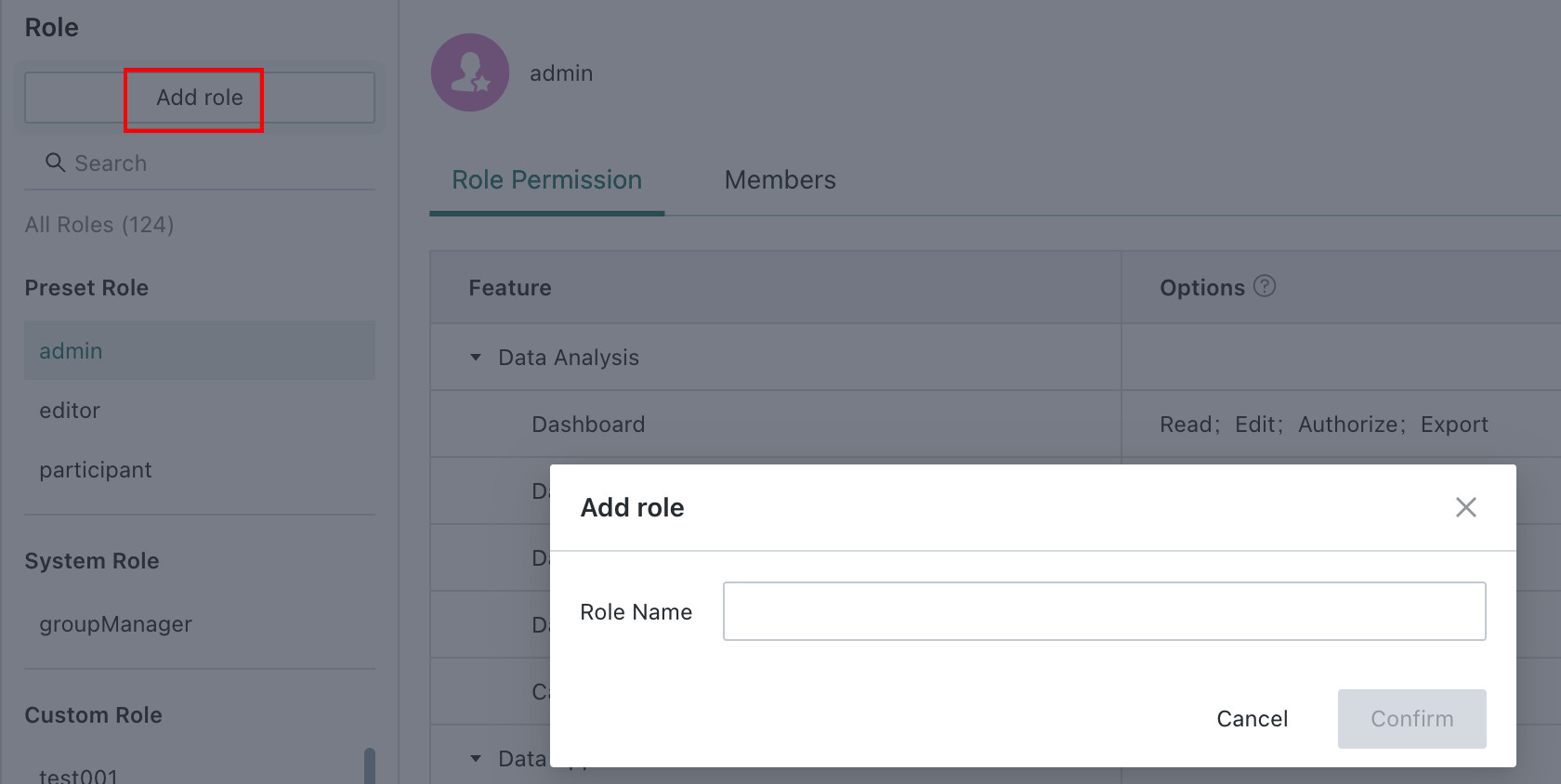
Create a Custom Role
Click Create Role, enter the role name, and then click Confirm to create a new custom role.
Modify Role Information
Rename a Role
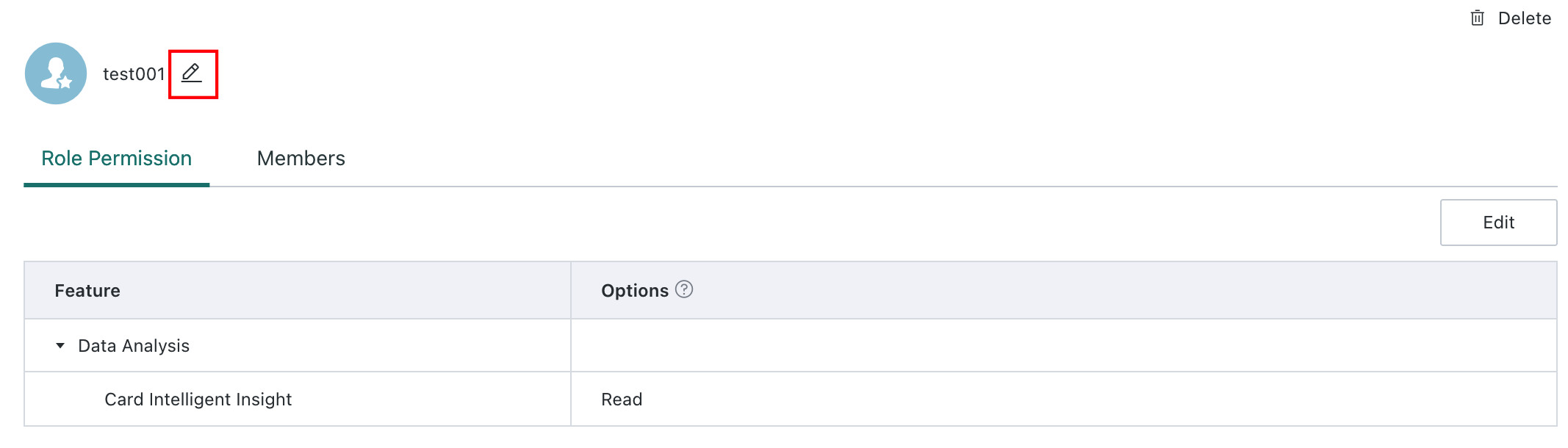
Click the edit button next to the role name to rename the current role.
Modify Role Permissions
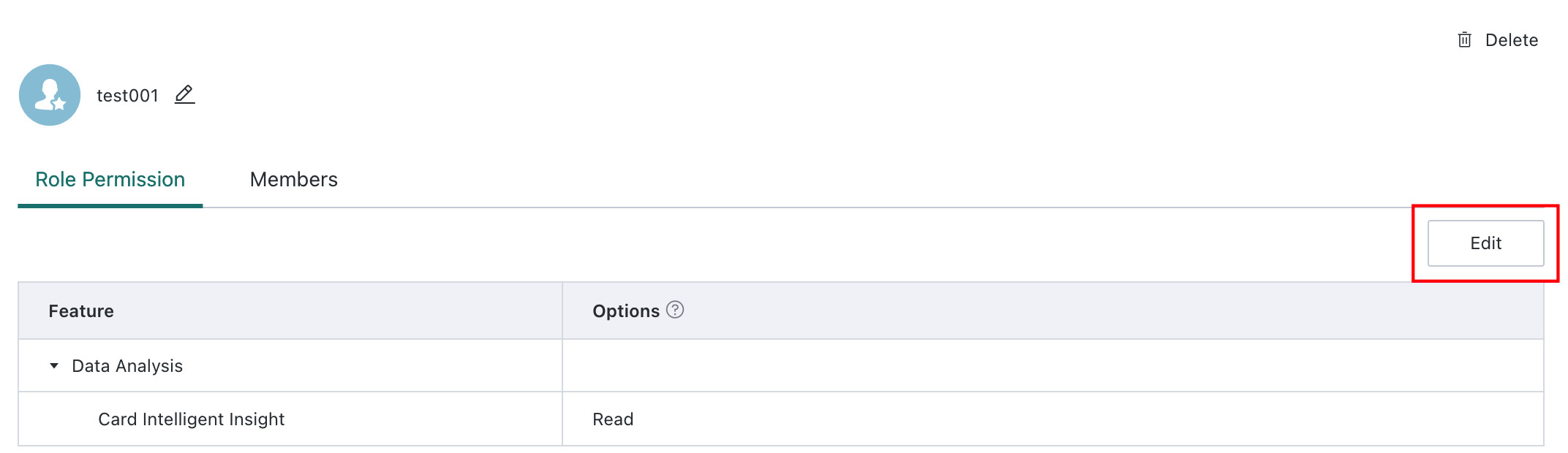
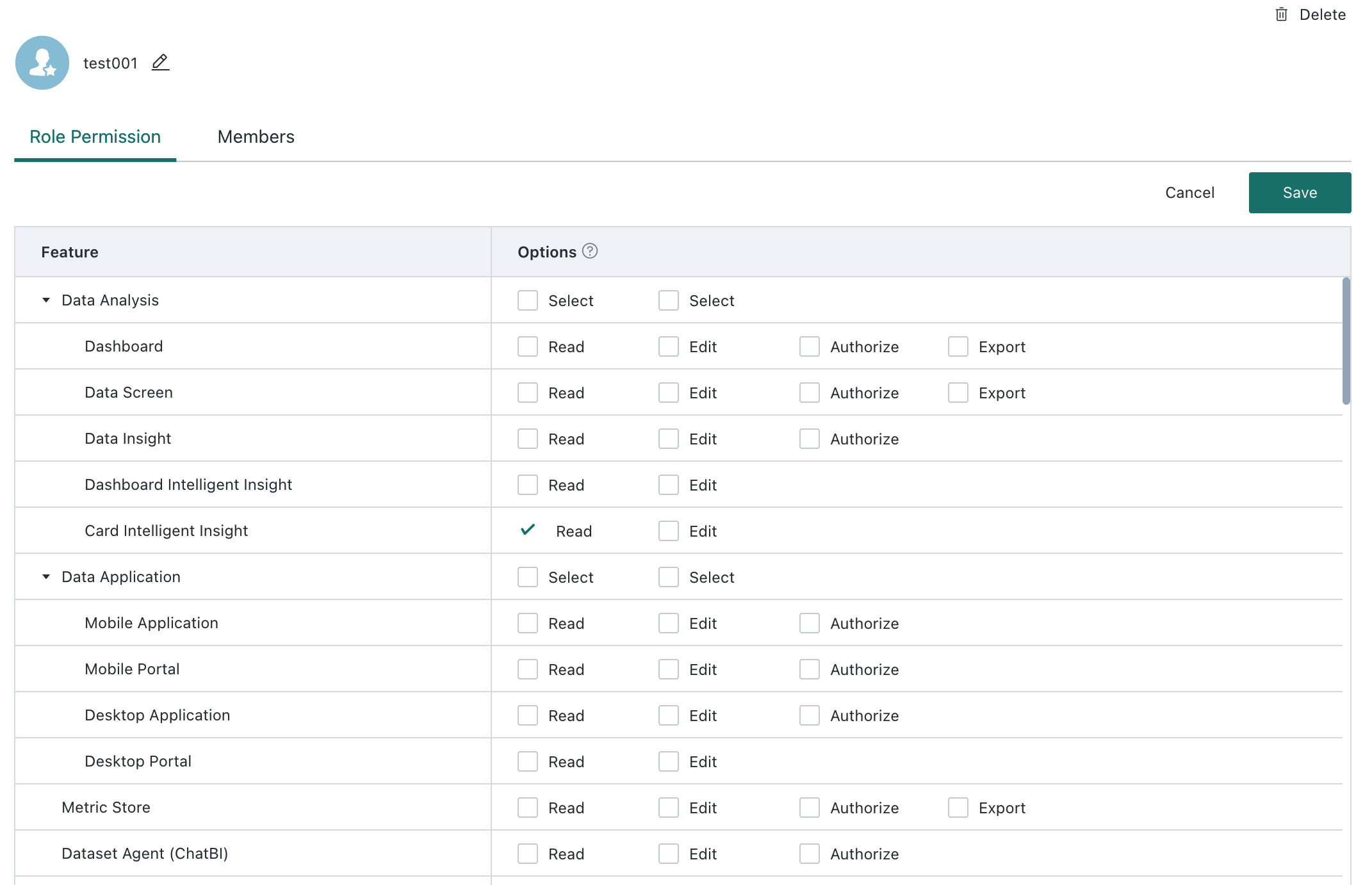
On the Role Permissions page, click Edit to select or clear the permissions assigned to the role.
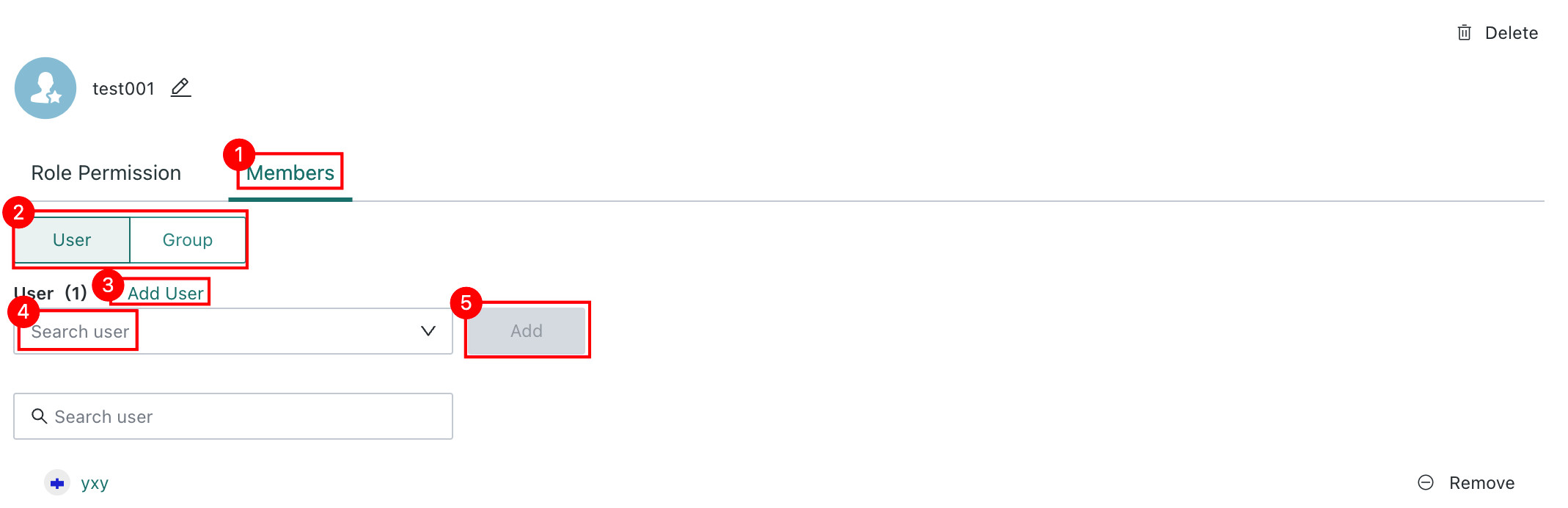
Add Members to a Role
Switch to the Members tab, choose whether to add users or user groups, click Add User or Add User Group, search for the target entries, and then click Add.