Create Composite Metrics
Concept
Composite metrics are calculated around multiple metrics (atomic metrics, composite metrics) through addition, subtraction, multiplication, and division operations. The calculation relationship between different metrics can be customized according to business needs. For example, Channel A Sales Proportion = Channel A Sales / (Channel A Sales + Channel B Sales) or Channel A Sales / Total Sales.
Create a Composite Metric
- Go to Metric Center > Metric Management, select a topic, click Add Metric, and select Composite metric.
- Configure Basic info, Business attributes, Calculate attributes, and Management config.
Configure Basic Info
Use the same settings as an atomic metric. See Configure Basic Info.
Configure Business Attributes
Use the same settings as an atomic metric. See Configure Business Attributes.
Configure Calculation Attributes
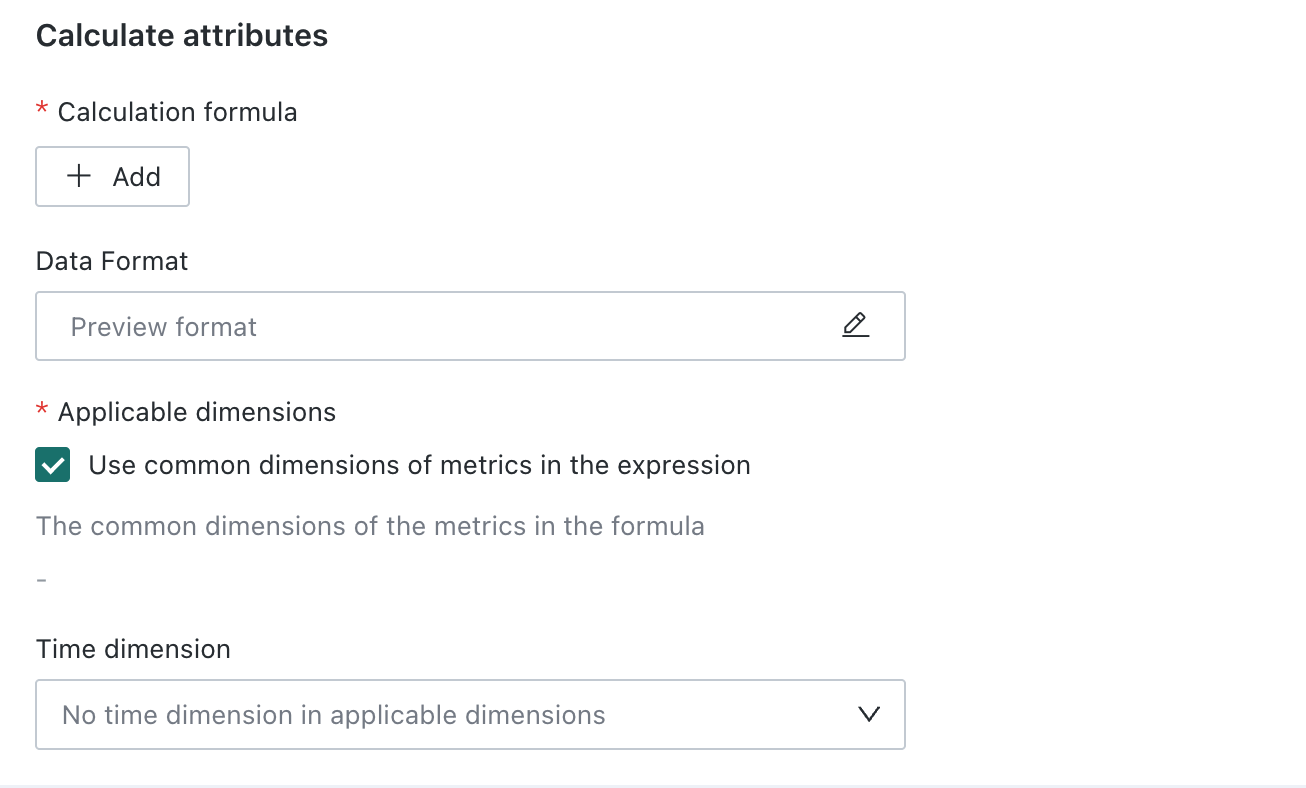
| Parameter | Description |
|---|---|
| Calculation formula | Click Add to open the formula editor. Select atomic or composite metrics in the current topic and combine them using addition, subtraction, multiplication, or division. Only numeric metrics can be referenced.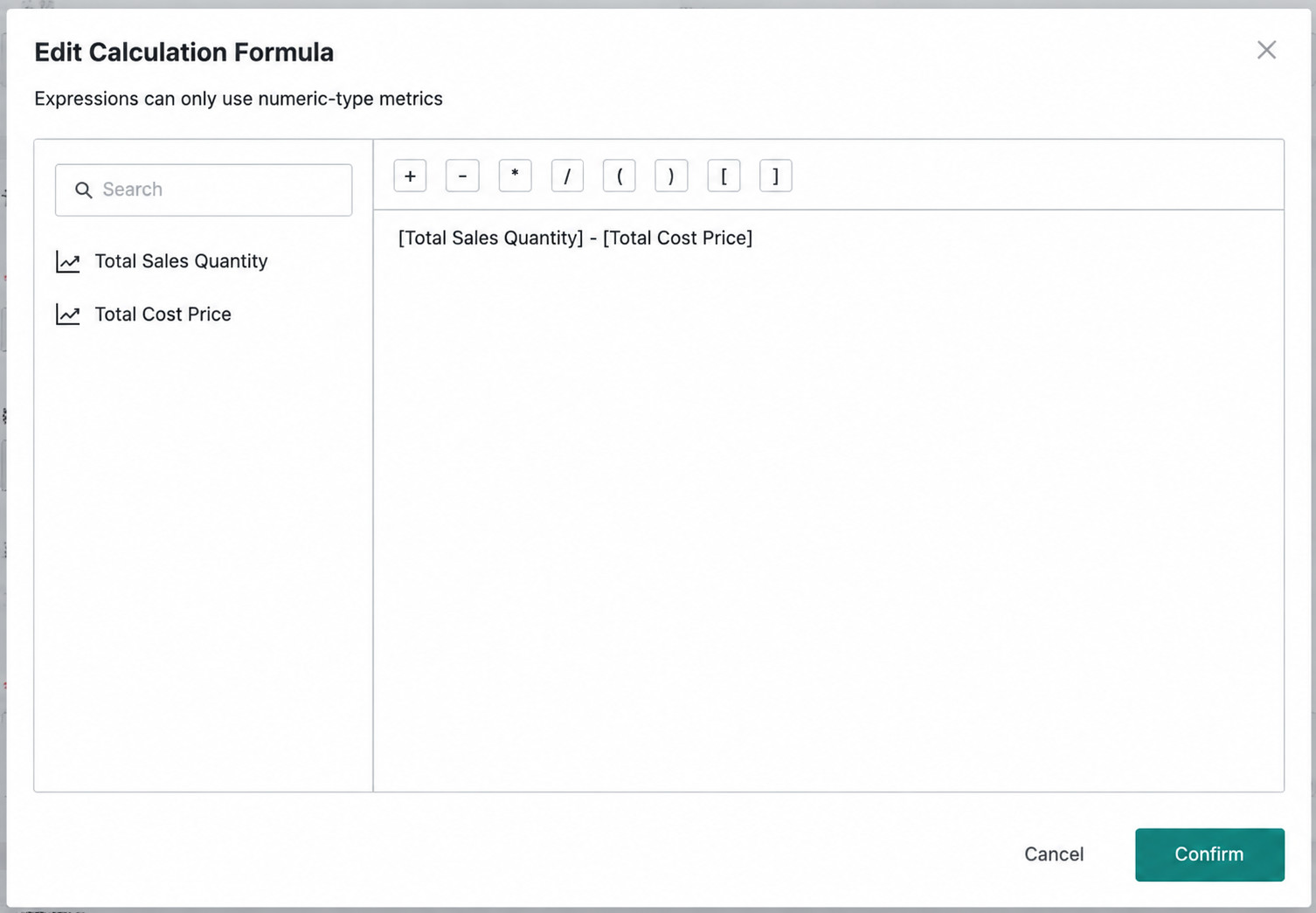 |
| Data Format | Click the edit icon to set and preview the result format. |
| Applicable dimensions | Select Use common dimensions of metrics in the expression to use the dimensions shared by every metric in the formula. Clear it to select dimensions manually from the union of the referenced metrics' dimensions; all candidates are selected by default. After a formula change, selected dimensions that remain available are retained, and those no longer available are removed. |
| Time dimension | Select a time field from the applicable dimensions for time-based analysis. If none is available, the page displays No time dimension in applicable dimensions and no configuration is needed. |
Configure Management Properties
Use the same settings as an atomic metric. See Configure Management Properties.
Save the Metric
Use the same save options as an atomic metric. See Save the Metric.