Metric Management
Overview
Guandata Metric Center lets you browse metrics in lists and diagrams. It also provides chart analysis, query acceleration, lineage analysis, batch import and export, online/offline status control, version management, and permission management.
View Metrics
Open a metric topic to view all its metrics. Click New Metric in the upper-right corner and select a metric type to create one. See Create Atomic Metrics, Create Composite Metrics, and Create Derived Metrics.
List Mode
List mode displays metrics in the current topic, including their names, types, business paths, last modification times, reference counts, and view counts. You can edit metrics or perform other management actions.
Metric Status and Draft Indicator
The online/offline status describes the published version. A draft indicator beside the name means saved changes have not yet been published. These indicators are independent.
| Display | Meaning |
|---|---|
| Online | An active published version is available to other features. |
| Offline | The metric was published but has been taken offline and is no longer available to other features. |
| Online + draft | The published version remains online while unpublished changes exist. Other features continue using the published version. |
| Offline + draft | No version is online, and unpublished content exists. This includes a new metric saved as a draft or an offline metric edited and saved as a draft. |
See Metric Online/Offline and Version Management.
Customize the List
To add custom business attributes or control whether an attribute is required, shown in the list, or available for filtering, configure Metric Attribute Management.

Metric Diagram
The metric diagram method provides instant rough preview capability of basic information such as metric values and data distribution, helping users quickly understand macro information related to metrics.
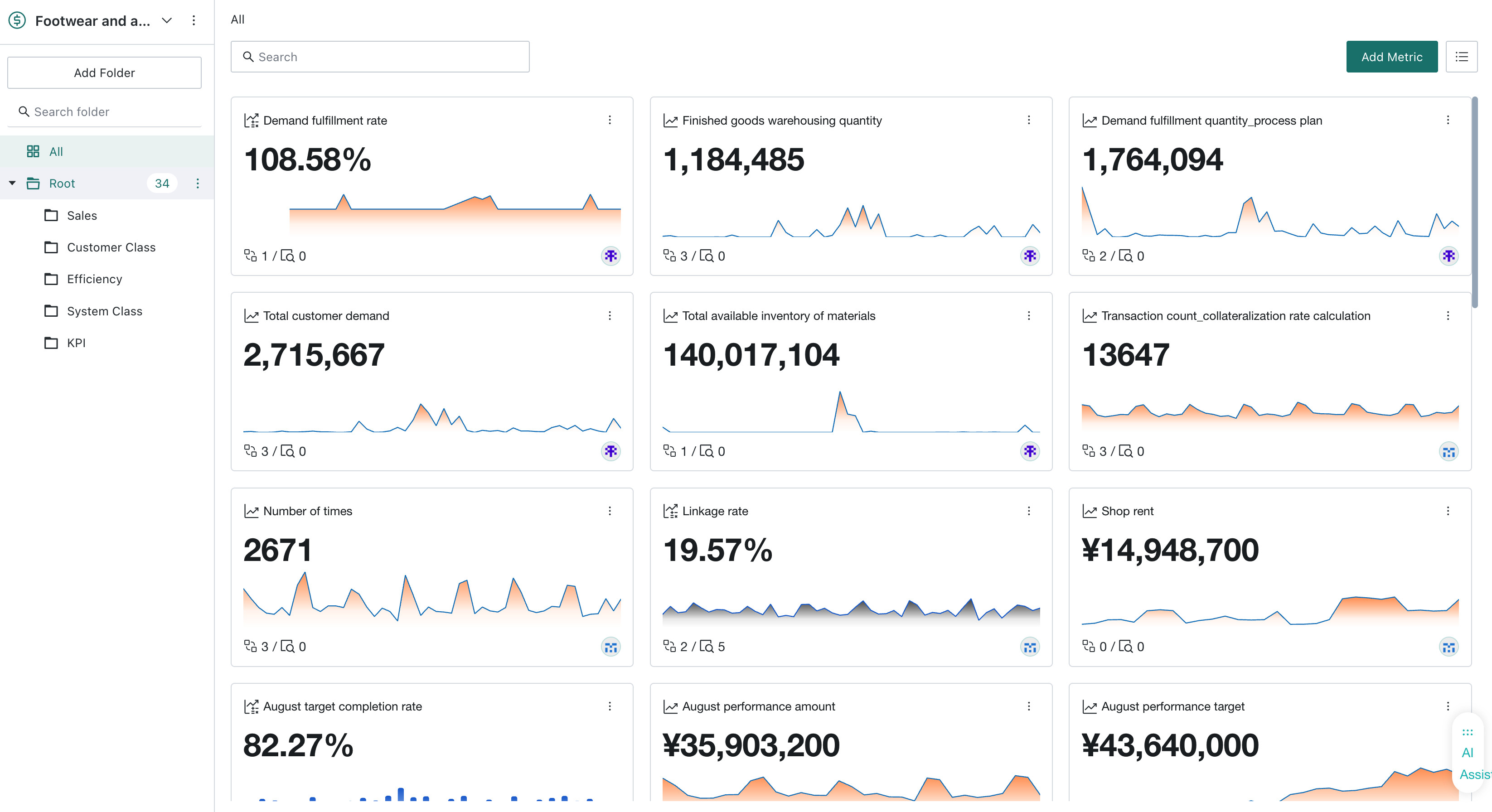
Metric Details
The metric details page displays charts, definitions, lineage, and versions. For atomic metrics, you can also view or configure query acceleration plans. Depending on your permissions, you can edit, copy, move, take metrics online or offline, delete metrics, and manage their permissions and responsible persons.
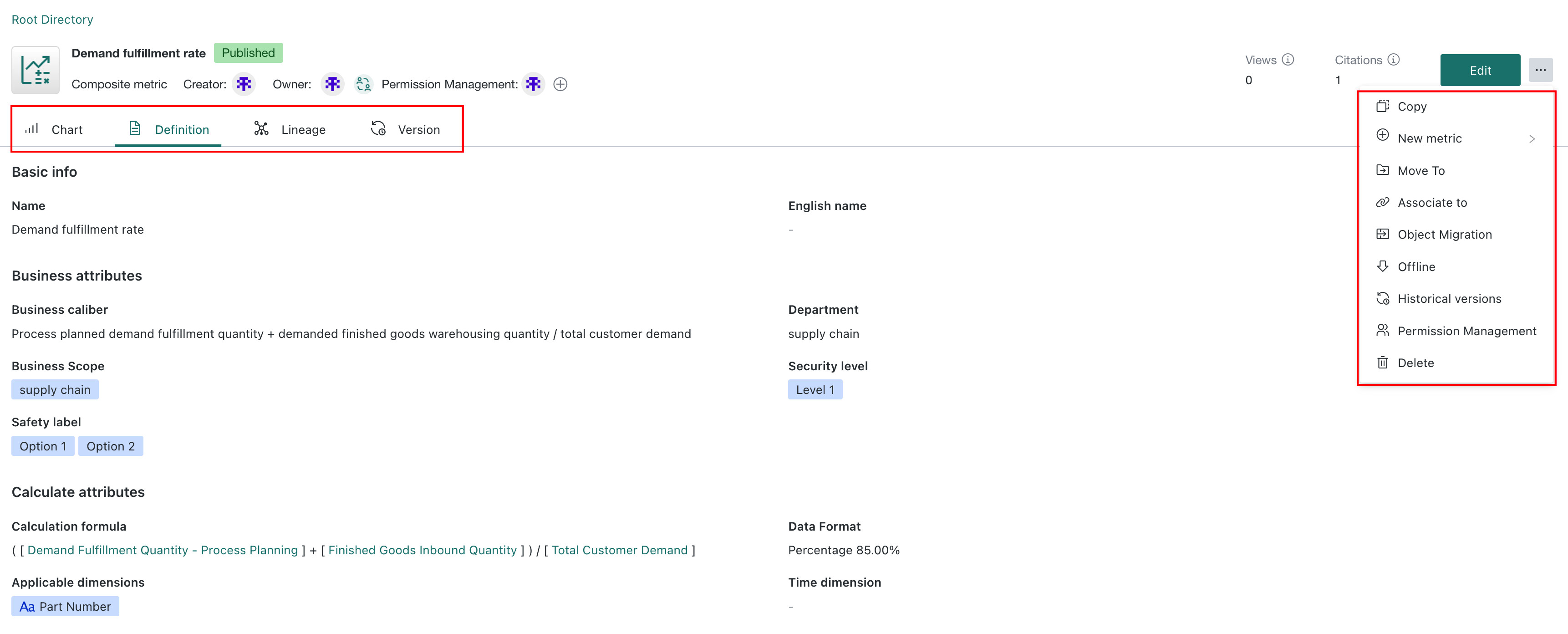
The main features of the metric details page are:
| Area | Description |
|---|---|
| Basic information | View the metric's name, type, status, permissions, visit count, and reference count. The creator is the user who created the metric. The responsible person explains its business definition and is accountable for its validity and accuracy. These can be different people. |
| Chart | Analyze metric data using chart types, dimensions, filters, and sorting. See Chart Analysis. |
| Definition | View the calculation definition, applicable dimensions, business definition, and management attributes. The information varies by metric type. |
| Lineage | View related upstream and downstream resources and field lineage. See View Lineage. |
| Version | View and manage current and historical versions. See Metric Version Description. |
| Query acceleration | View or configure acceleration plans for atomic metrics. See Query Acceleration. |
| Edit | Modify the metric's definition and attributes. |
| More operations | Copy, create, move, associate, or delete metrics. See Metric Online/Offline and Version Management and Metric Permission Management. |
Chart Analysis
On the metric details page, open the chart tab to view the current metric value and analyze its performance across dimensions using different charts and analysis conditions.
| Operation | Description |
|---|---|
| Query statement | View the query statement for the current chart configuration. |
| Reset | Clear changes and restore the default chart configuration. |
| Save as default chart | Save the current chart type and analysis conditions as the metric's default chart. |
| Create a metric analysis card | Create a card from the current metric for further analysis and dashboard display. See Metric Analysis. |
Query Acceleration
Atomic metrics usually calculate values from detailed datasets. For large datasets, scanning and aggregating the detailed data for every query can take a long time.
Query acceleration associates an atomic metric with a prepared summary dataset or a dataset with fewer dimensions. The system first tries an acceleration dataset that matches the current analysis conditions. If no plan matches, it uses the metric's original dataset. Reducing the data involved in calculation shortens query time without changing the metric's business definition or query results.
Scope and Permissions
- Only atomic metrics support acceleration plans. Composite and derived metrics do not.
- To view a plan, you must be an owner or user of the metric's topic, an owner or user of the metric, and have Metric Center View permission.
- To configure a plan, you must be an owner or user of the metric's topic, an owner of the metric, and have Metric Center Edit permission. See Permission Management.
Prerequisites
Prepare a summary dataset or a dataset with fewer dimensions based on the original metric's data and calculation definition. The source field, aggregation, dimensions, and filter scope must remain consistent with the original definition to avoid inconsistent results.
Create an Acceleration Plan
Users who meet the configuration permissions above can create a plan as follows:
- Open the atomic metric's details, go to the query acceleration tab, and create a new acceleration plan.
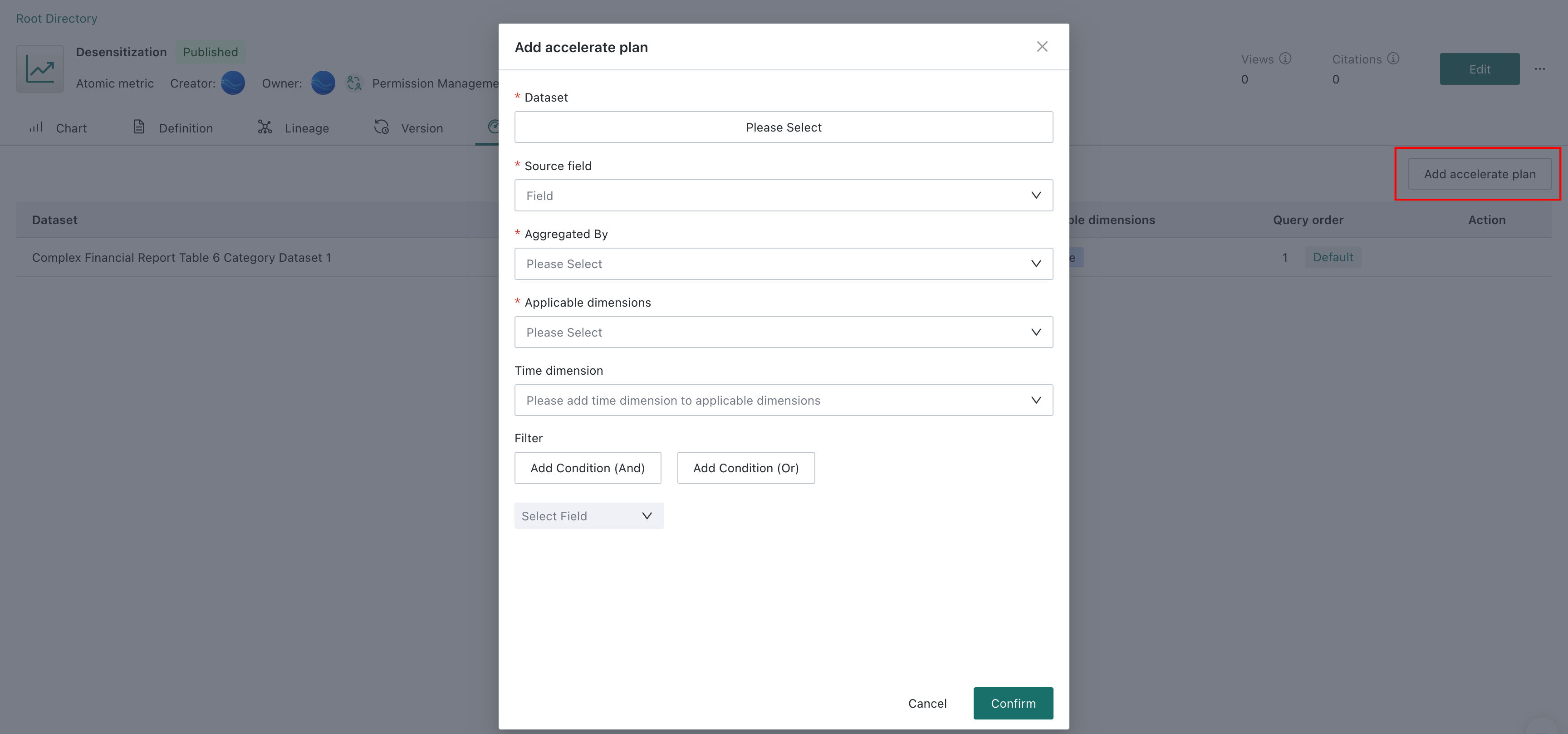
- Complete the following settings in the dialog.
| Setting | Required | Description |
|---|---|---|
| Dataset | Yes | Select the acceleration dataset, usually a summary dataset or a dataset with fewer dimensions prepared from the original detailed data. |
| Source field | Yes | Select the field used to calculate the metric. Its business meaning must match the original source field. |
| Aggregation | Yes | Select sum or count, consistent with the original metric's aggregation logic. |
| Applicable dimensions | Yes | Select the dimensions supported by the plan. A plan is eligible only when it includes every dimension used in the query. |
| Time dimension | No | Select the field for time analysis. Add it to the applicable dimensions first. |
| Filters | No | Restrict the data used to calculate the metric from the acceleration dataset. Combine conditions with AND or OR, consistent with the original business definition. These filters do not modify the dataset and are separate from temporary filters applied when querying a metric. For example, if the metric measures inventory market value only for direct-operated channels but the acceleration dataset includes other channels, filter for Channel Type = Direct-operated. The plan filters the data before calculating inventory market value. |
- Confirm to create the plan.
Acceleration Plan Matching Rules
You can configure multiple plans for an atomic metric and adjust their query order. The system identifies eligible plans using the query's dimensions, time dimension, and filter fields, then selects the first eligible plan in query order. If none matches, it queries the original dataset.
Example
The Inventory Market Value metric uses the Daily_Inventory_SKC_Store dataset. Four acceleration plans are configured; the original dataset is the default:
| Query order | Dataset | Representative dimensions |
|---|---|---|
| 1 | Store_Inventory_Market_Value_SKC | SKC, Product Brand Name, Store Name, Statistical Date |
| 2 | Store_Inventory_Market_Value_Season | Product Season, Product Brand Name, Statistical Year, Statistical Month, Statistical Quarter |
| 3 | Store_Inventory_Market_Value_Product_Line | Product Line, Batch, Product Season Code, Product Brand Name, Statistical Date |
| 4 | Store_Inventory_Market_Value_New_Existing | New/Existing Product, Gender, Level-1 Product Manager, Product Season, Store Name |
| 5 (default) | Daily_Inventory_SKC_Store | A more complete set, including Channel Type, Level-1 Distributor, Country, Store Name, Product Brand Name, and SKC |
| Query scenario | Dataset used | Reason |
|---|---|---|
| Inventory market value by SKC and Store Name | Store_Inventory_Market_Value_SKC | It includes the required dimensions and is first in query order. |
| By Product Season and Product Brand Name | Store_Inventory_Market_Value_Season | Plan 1 lacks Product Season; plan 2 satisfies the query. |
| By Product Line and Batch | Store_Inventory_Market_Value_Product_Line | Neither of the first two plans includes both dimensions; plan 3 satisfies the query. |
| By Gender and New/Existing Product | Store_Inventory_Market_Value_New_Existing | The first three plans lack some required dimensions; plan 4 satisfies the query. |
| By Channel Type | Daily_Inventory_SKC_Store | None of the four acceleration plans includes Channel Type, so the system falls back to the default dataset. |
View Lineage
Resource Lineage
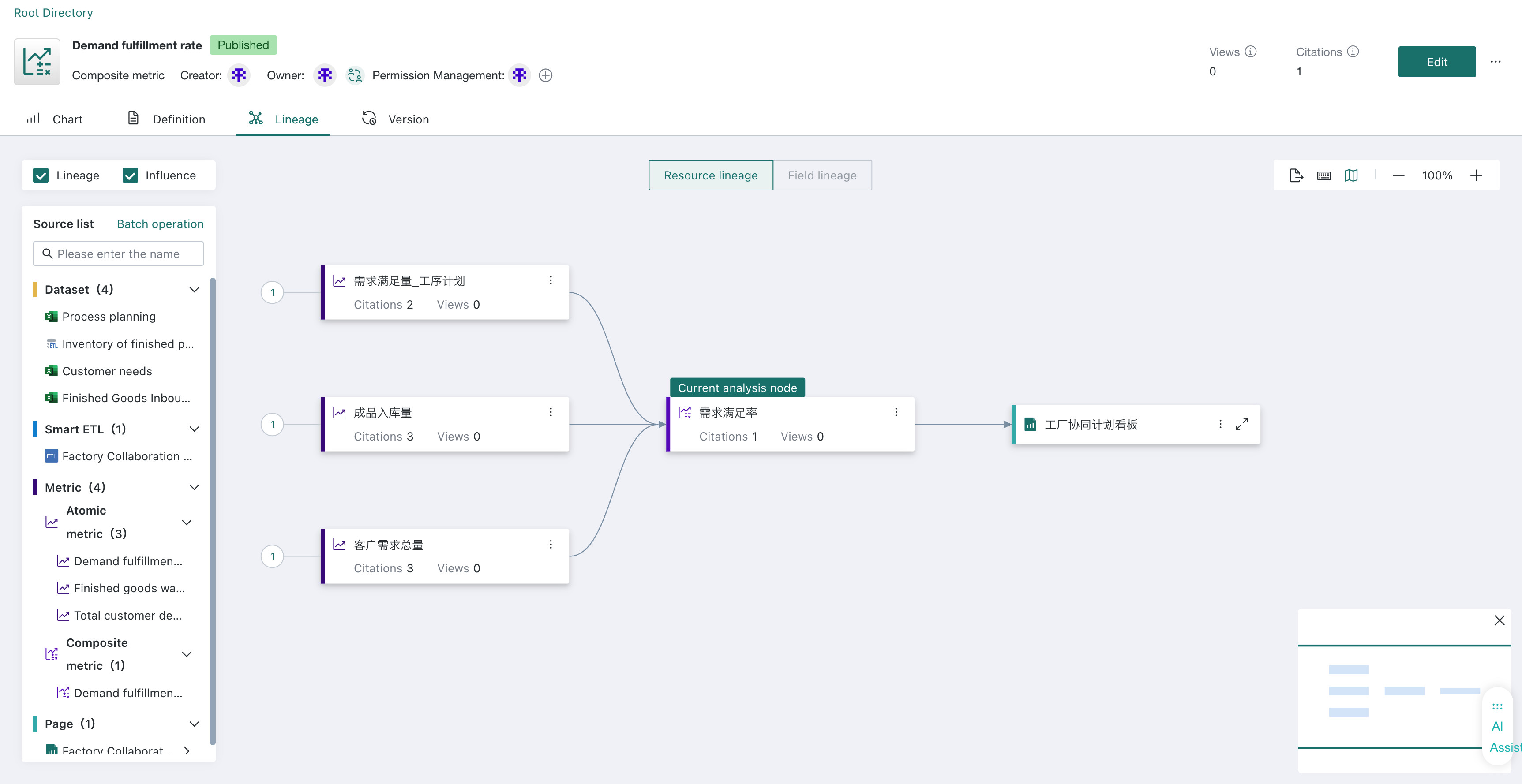
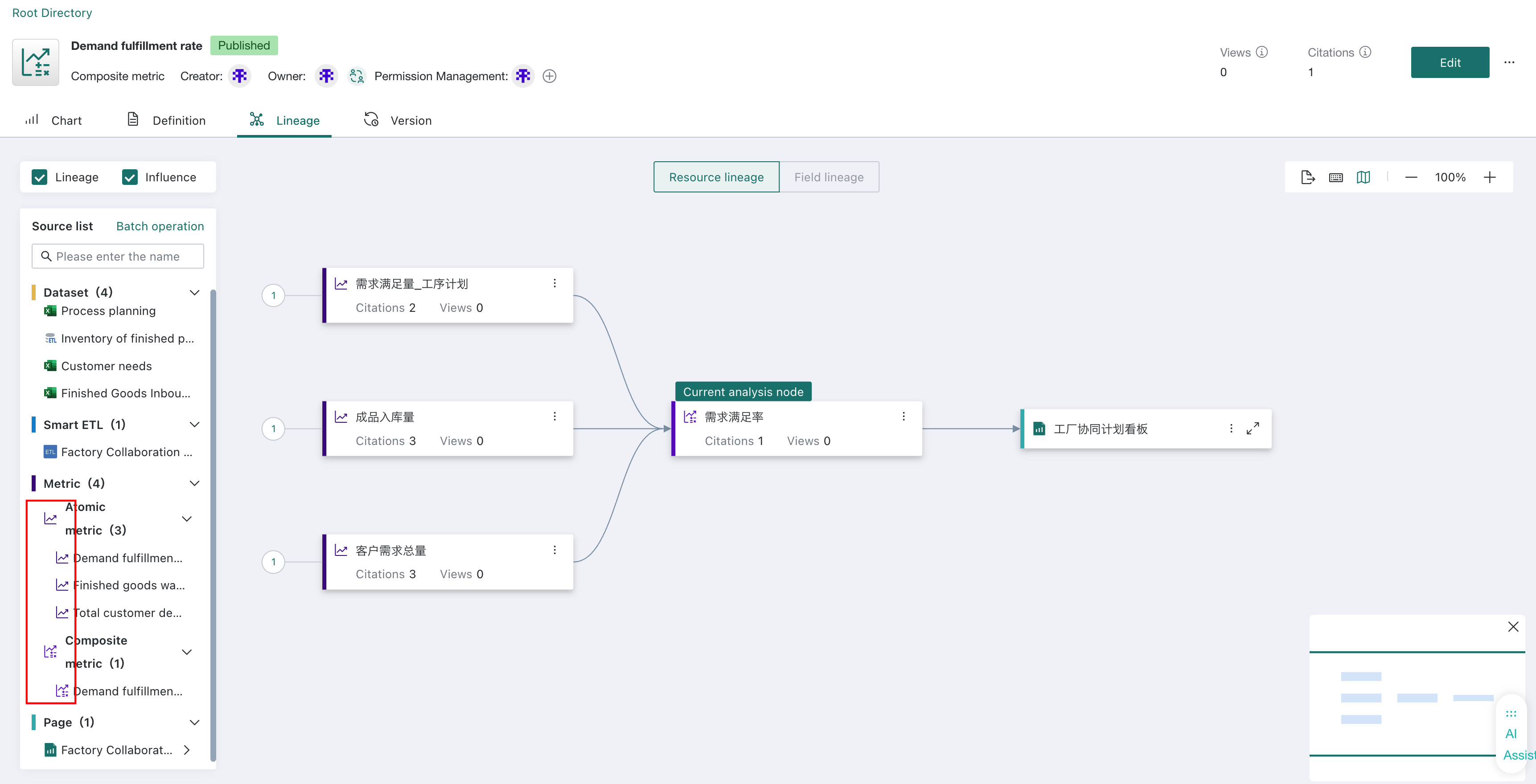
Metric resource lineage is integrated with the resource lineage of datasets, cards, and pages, using a set of resource lineage systems. On the metric detail page, click Lineage > Resource Lineage to view the upstream and downstream resource dependencies of metrics.
-
Metrics are divided into atomic metrics, derived metrics, and composite metrics, and different metric types are identified by different icons in the lineage diagram.
-
Click any resource in the lineage diagram to display the resource details on the right side.

Field Lineage
Metric field lineage is integrated with the field lineage of dataset BI resources, using a set of field lineage systems. On the metric detail page, click Lineage > Field Lineage, and check the fields that need lineage analysis in the Field List tab to display the upstream dataset field lineage of that metric, helping users trace the specific data fields on which the metric calculation depends, facilitating data governance and impact analysis.
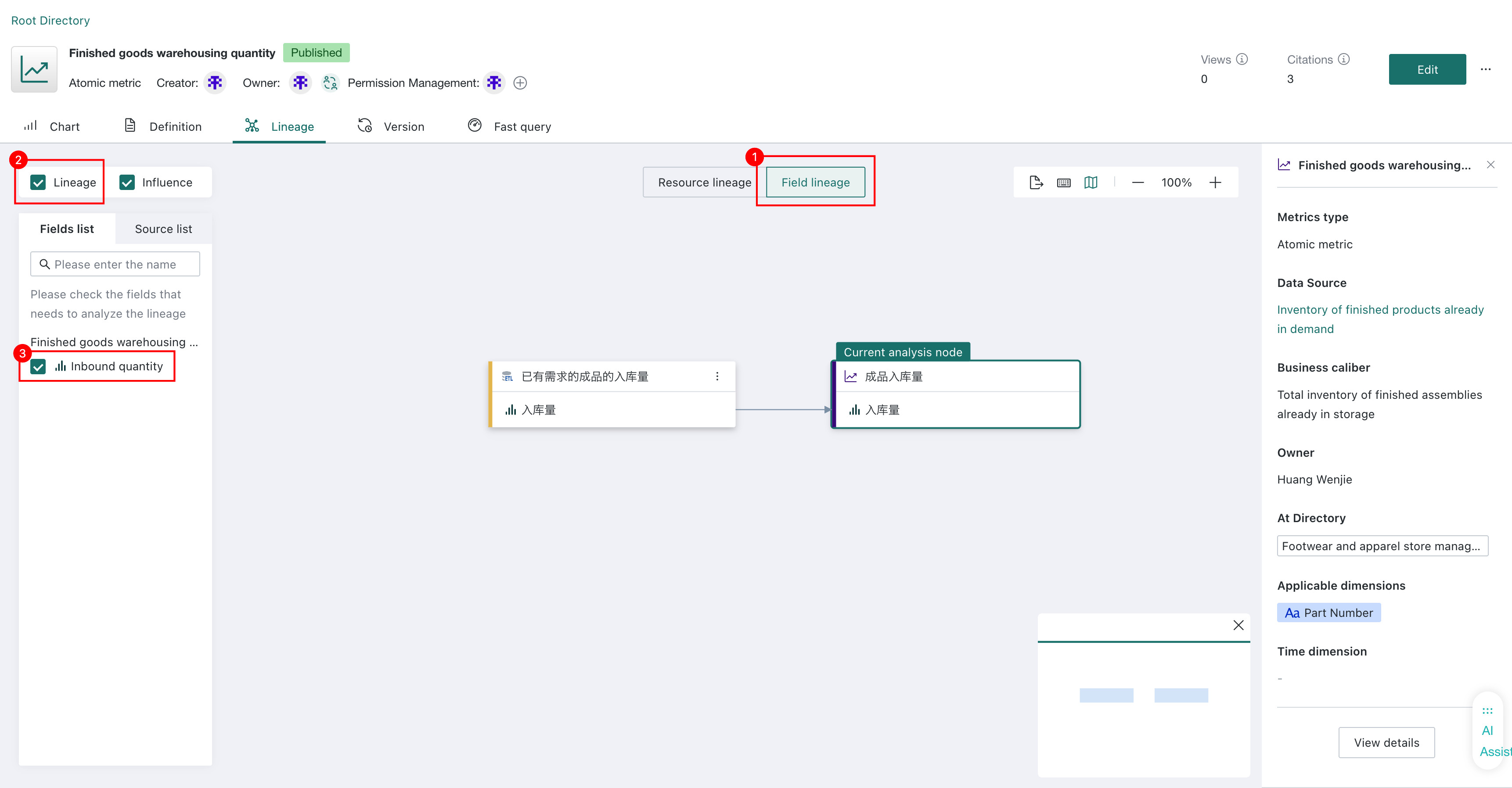
- Only when the analysis object is a dataset, ordinary card, or atomic metric, the upstream can directly point to the dataset field, and only the fields applied in the metric definition are displayed.
- Composite metrics and derived metrics do not support field lineage.
Batch Manage Metrics
Select one or more metrics in the list to display available batch operations at the bottom of the page.
| Operation | Description |
|---|---|
| Batch authorization | Assign owners or users to selected metrics. See Batch Authorization. |
| Batch move | Move metrics to a target folder. See Batch Move. |
| Batch delete | Delete selected metrics. See Batch Delete. |
| Batch export | Export selected atomic metrics to Excel. See Batch Export of Atomic Metrics. |
| Batch take offline | Take selected online metrics offline. See Batch Take Offline. |
Batch Authorization
Select the metrics and use the batch authorization action at the bottom of the list to assign owners or users. See Metric Batch Authorization for the procedure and permission rules.
Batch Move
Select the metrics and use the batch move action at the bottom of the list. Follow the prompts to select a target folder and confirm.
Batch Export of Atomic Metrics
Select the metrics to export. When the selection includes atomic metrics, Batch Export appears. Click it, check the number of atomic metrics to export, then click OK to export them to Excel.
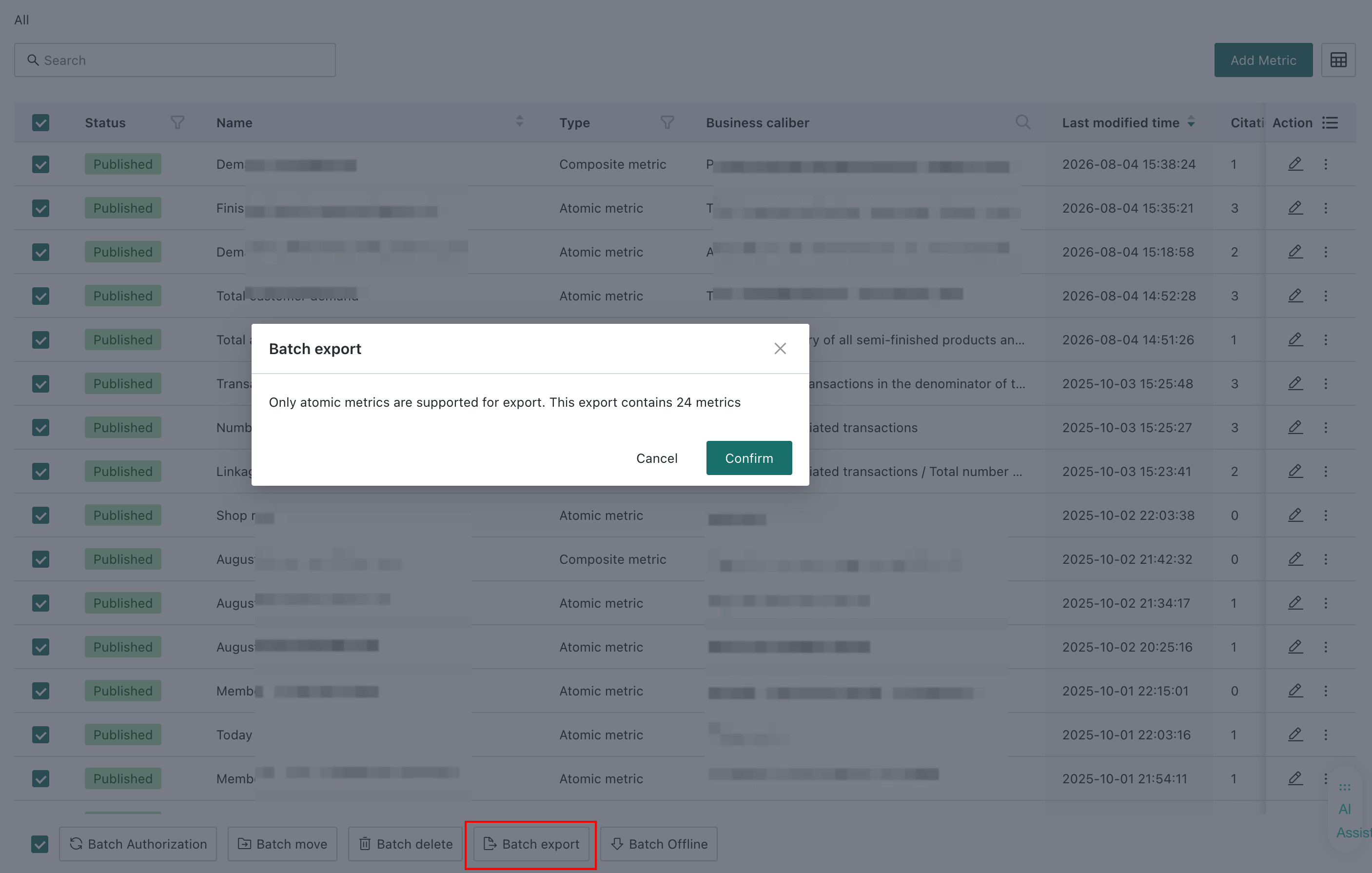
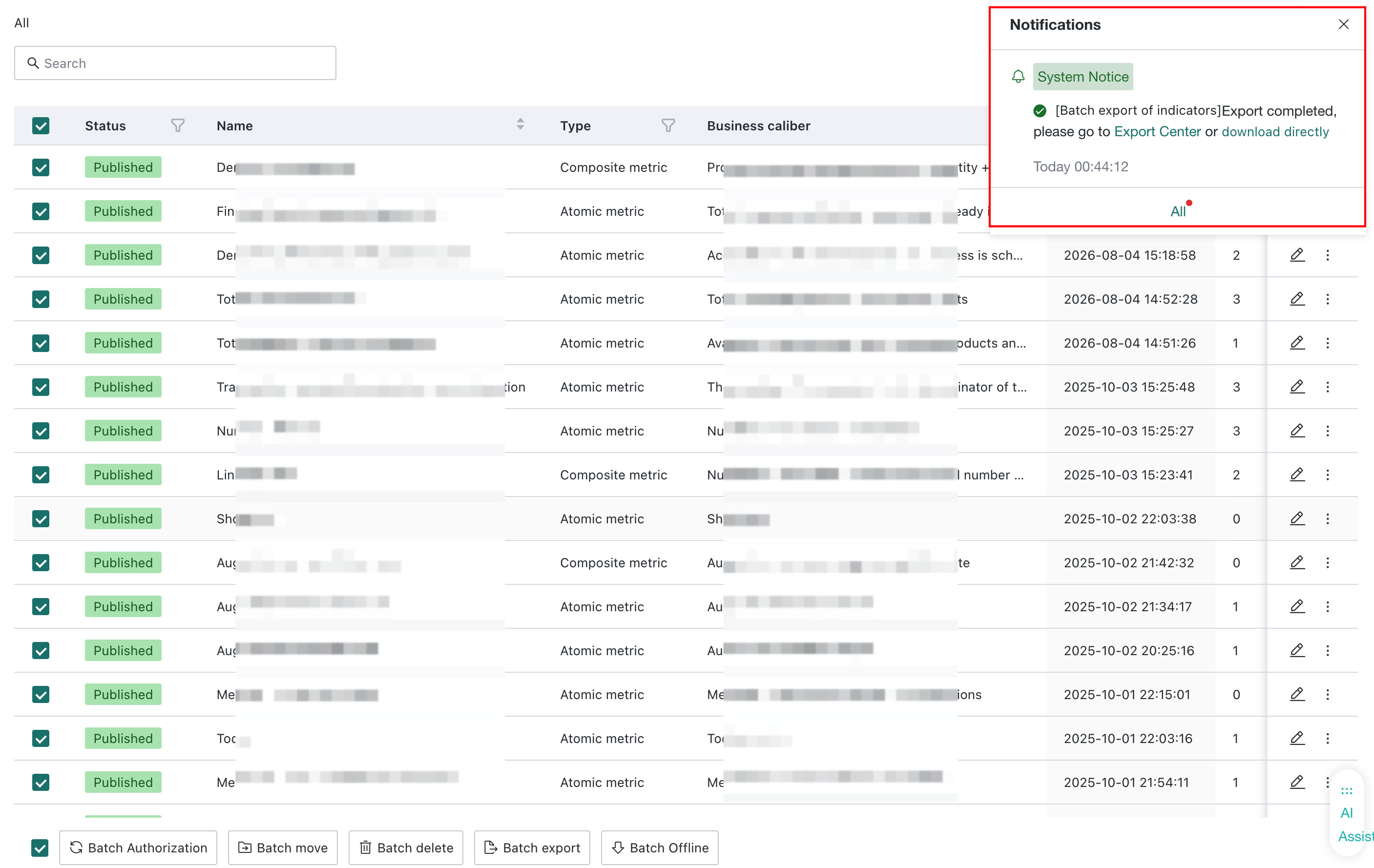
- Only atomic metrics for which you have edit permission can be exported.
- If Batch Export does not appear after selecting atomic metrics, go to Management Center > Role and check that your role has Metric Center's Export permission. Ordinary users have this permission by default.

Batch Import
- In the metric topic, open the target folder and click Batch Import above the metric list. The All view does not support batch import and does not display this button.
- Download the Batch Import Metric Template and fill in metric information according to its instructions.
- Upload the completed template and click Import.
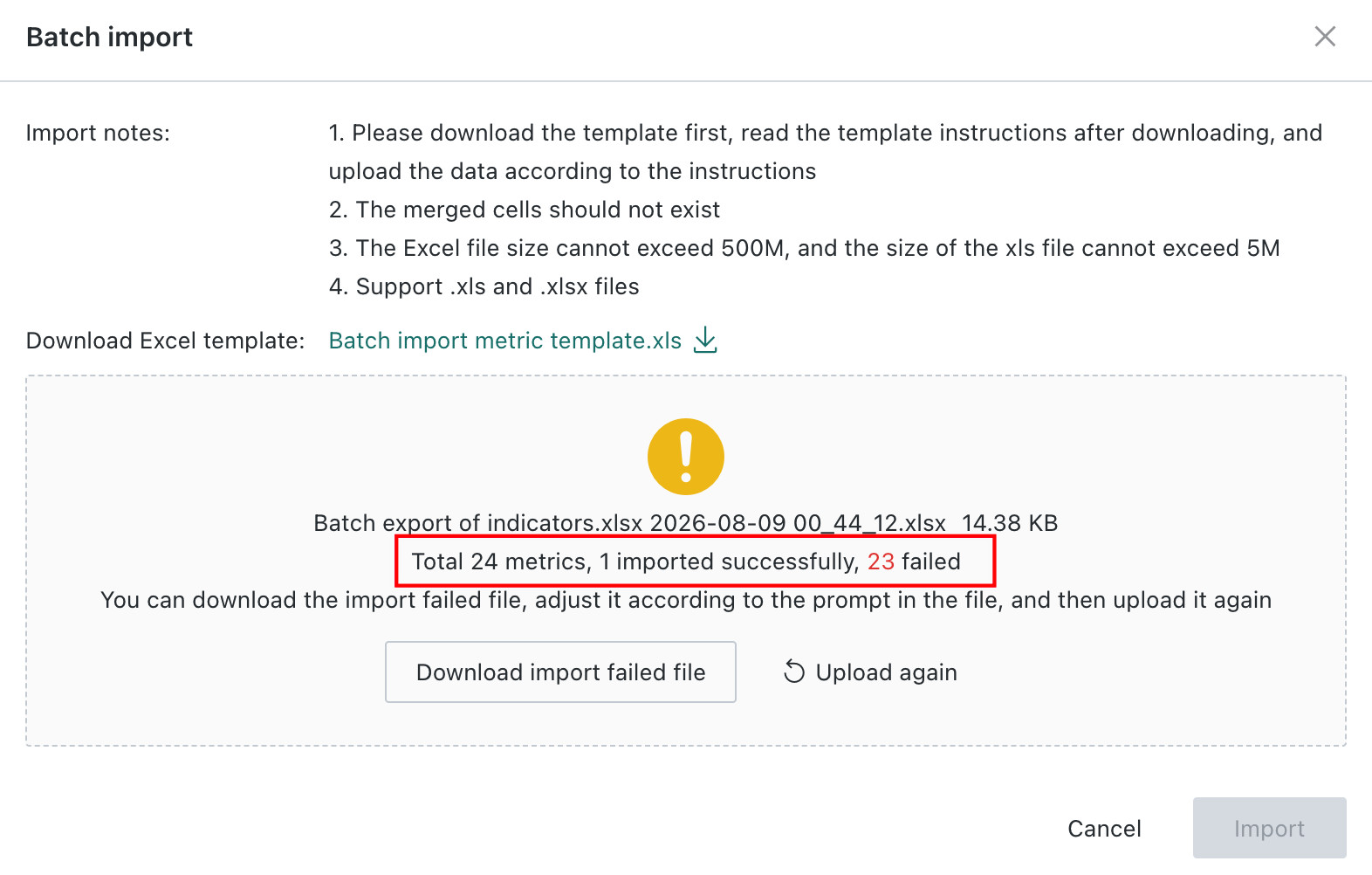
- Check the total, successful, and failed import counts. If any rows fail, download the failure file, correct it, and upload it again.
- Files must not contain merged cells. Both
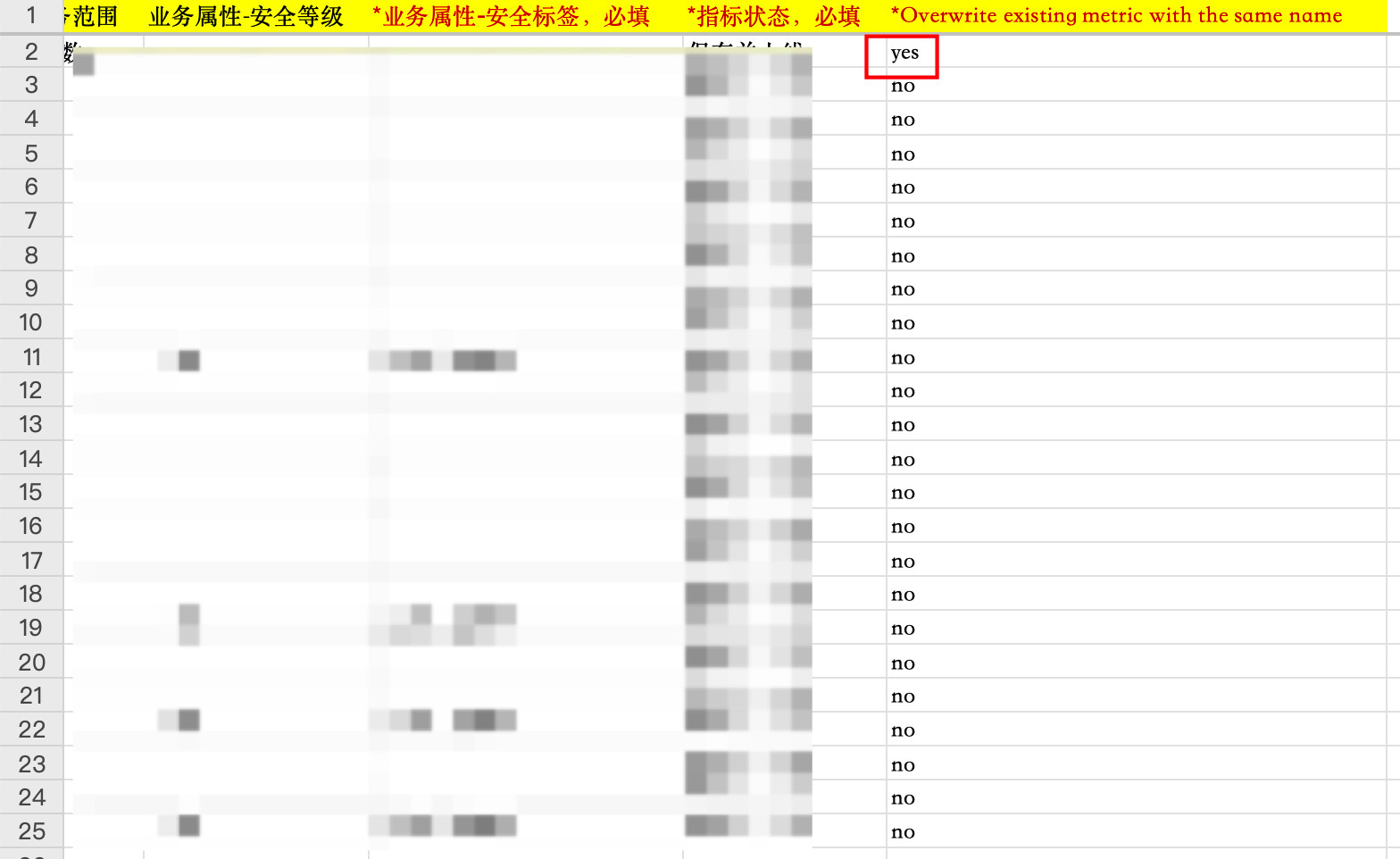
.xlsand.xlsxare supported. The size limit is 500 MB for.xlsxand 5 MB for.xls. - The Overwrite existing metric with the same name column is required. Select Yes to overwrite an existing metric with the same name. Select No to make an import fail when a metric with the same name already exists.
The following images show examples of the import template and results.
Batch Delete
Select the metrics in the list, click Batch Delete, and confirm.
- Only offline metrics can be deleted.
- Metrics referenced by composite metrics, derived metrics, or cards cannot be deleted.

Batch Take Offline
Select the online metrics to take offline and use the batch offline action at the bottom of the list. Follow the prompts to confirm. The rules under Metric Status Description determine whether a metric can be taken offline.
Metric Online/Offline and Version Management
Online/offline status controls whether a metric can be used by dashboards or other metrics. Each time a metric goes online, the system creates a new version number and retains the previous version in its history so that definitions can be traced and restored.
Metric Status Description
On the metric details page, open the menu in the upper-right corner to take the metric online or offline, depending on its current status. The following rules apply:
- Metrics can only be used by dashboards after being launched, and only online metrics can be selected in dashboards.
- Metrics can only be used by derived metrics and composite metrics after being launched, and only online metrics can be selected.
- If a metric is referenced by a composite/derived metric/card, it cannot be taken offline.
Metric Version Description
Open the version tab on the metric details page, or select historical versions from the menu in the upper-right corner, to view current and historical versions and restore a historical version.
- A metric can retain multiple historical versions but can have at most one draft.
- Each time a metric goes online, the system assigns a new version number to the current version and automatically moves the previous version to its history.
Metric Permission Management
Metric permissions are jointly determined by topic roles, metric roles, and Metric Center role operation permissions. When users access or operate metrics, they need to simultaneously meet the corresponding topic role, metric role, and Metric Center role operation permissions. For complete permission rules, see Final Permission Judgment Rules.