Business Dictionary
Overview
The Business Dictionary is a statistical item defined from a business perspective, containing only business attributes without associating specific data. Through the Business Dictionary function, you can first record metric business information when the technical caliber is not yet clear, and publish it as a formal metric after unified maintenance online, solving the problem of scattered offline metrics and lack of management carriers.
Prerequisites
-
The administrator has enabled the Business Dictionary toggle in the "Management Backend". For how to enter the management backend, please refer to System O&M Page Overview.
-
Users have view and edit permissions for the Metric Center, and the Business Dictionary permission inherits the Metric Center permission.

Operation Steps
Create Business Dictionary
-
Log in to Guandata BI and enter the Metric Center > Business Dictionary page.
-
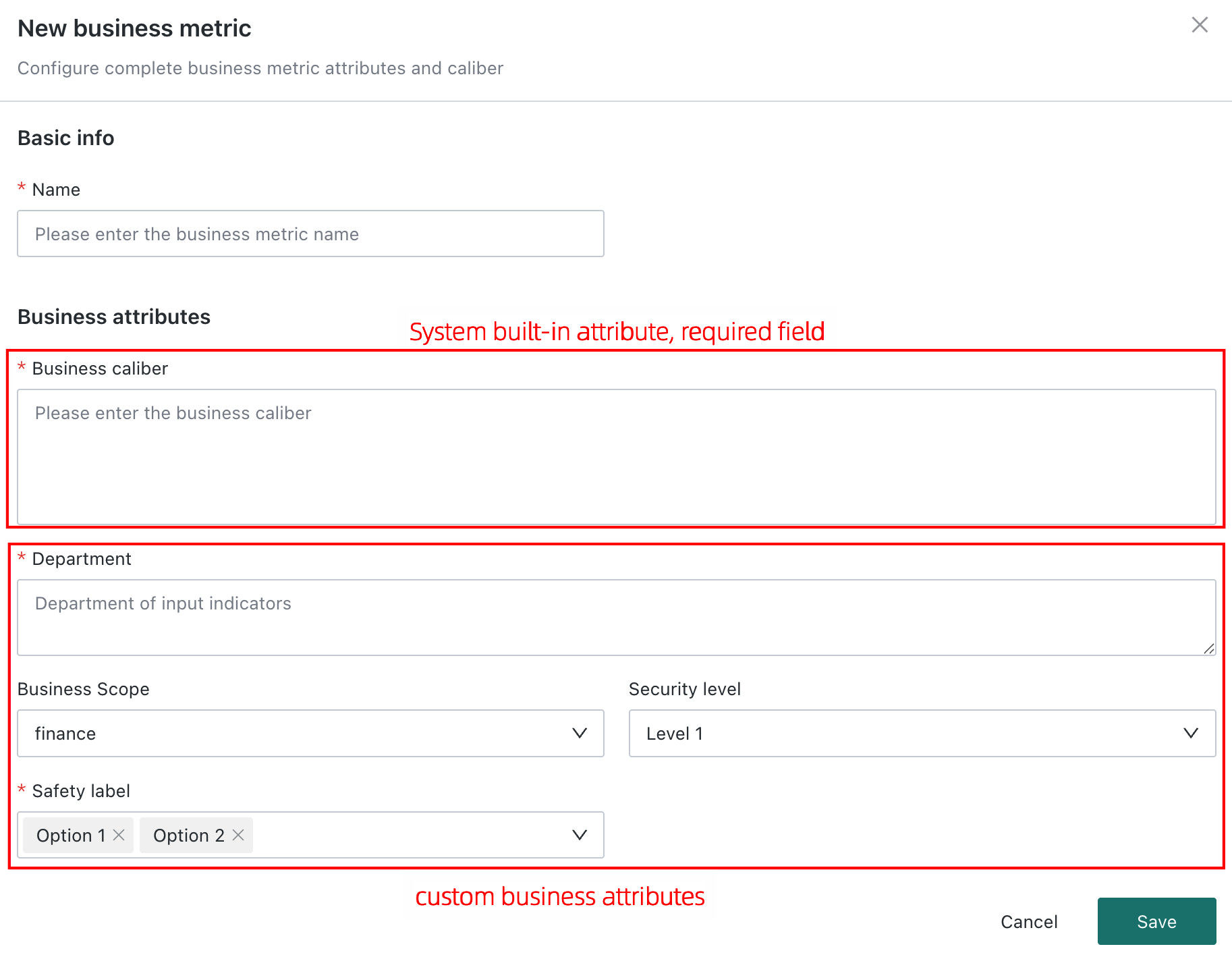
Click the New Business Dictionary button to pop up the new page.

-
In the "Basic Properties" area, fill in the name (required); in the "Business Properties" area, fill in the business caliber (required) and other custom business attributes. For how to configure custom business attributes, see Metric Attribute Management.
-
Click the Save button. After creation, it will automatically return to the Business Dictionary list page, and the newly created dictionary will be displayed in the list.
Edit Business Dictionary
- On the Business Dictionary list page, find the target dictionary and click the Edit button in the operation column.
- Modify the fields that need updating on the edit page, and click Save after modification. After saving, it will automatically return to the list page and the field updates will take effect.

Delete Business Dictionary
- On the Business Dictionary list page, find the target dictionary and click the Delete button in the operation column.
- If the dictionary has been associated with a metric, a prompt will pop up: "This business dictionary has been associated with metric xx, confirm deletion?", click the Delete button to confirm deletion.
- After deletion, the list page will automatically refresh and the dictionary will no longer be displayed. The associated metric will automatically release the association, and the business attributes will remain on the metric for independent modification.
View Business Dictionary Details
- On the Business Dictionary list page, click the dictionary name to enter the detail page.
- The detail page is divided into three categories: "Basic Properties", "Business Properties", and "Management Properties".
- Basic Properties: View the dictionary name and associated metrics. In the "Associated Metrics" area, click the metric name to open the metric detail page in a new tab.
- Business Properties: View the business caliber and related custom attributes
- Management Properties: View the creator, creation time, last modification time, etc.
Batch Import Business Dictionary
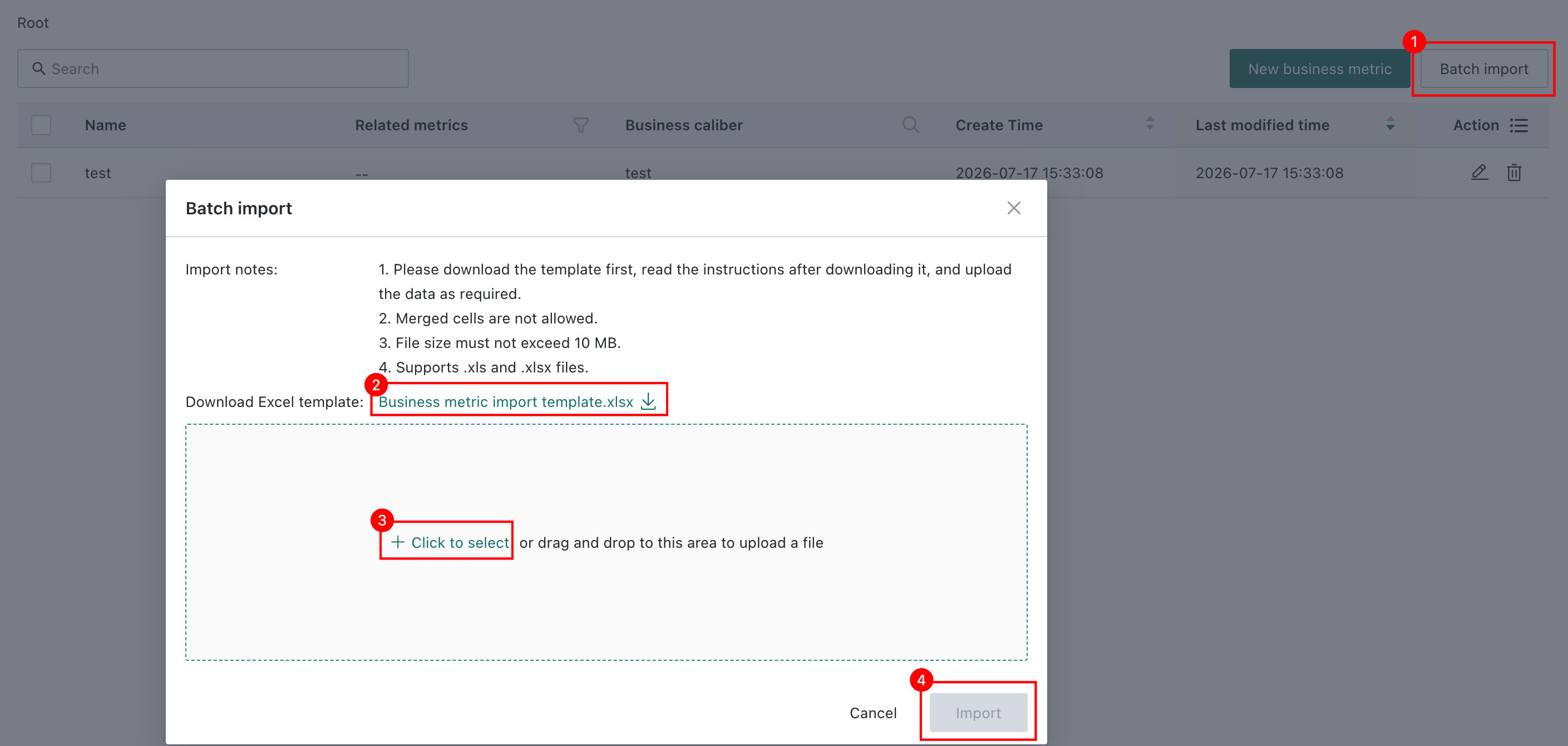
- On the Business Dictionary list page, click the Batch Import button to pop up the import window.
- Click Download Business Dictionary Import Template to download the standard Excel template (the template is dynamically generated according to the custom business attribute configuration).
- Fill in the Business Dictionary information according to the template format, ensuring required fields are complete and names are not repeated; upload the template after filling.
- Click Import to start batch import. After the import is completed, the page will display the number of successful and failed items. If there are failures, click to download the error reason file to view the specific errors.
Batch Move and Batch Delete
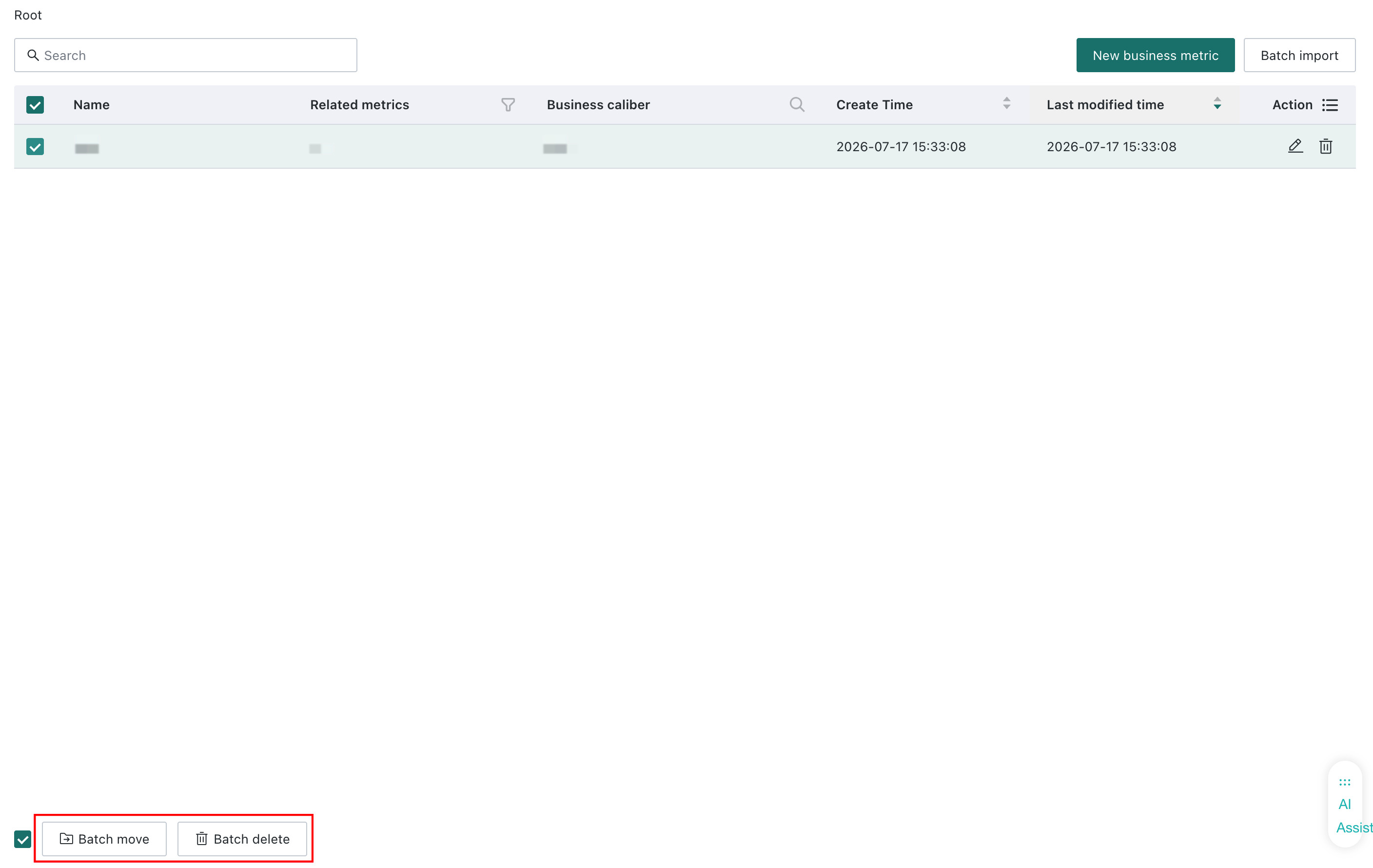
The Business Dictionary list page supports selecting multiple dictionaries for batch movement or batch deletion.
- Batch Move: Select the dictionaries that need to be moved, click Batch Move, select the target folder in the pop-up and click OK. After the move is successful, the list page will automatically refresh and the selected dictionaries will be included in the target folder.
- Batch Delete: Select the dictionaries that need to be deleted, click Batch Delete. If the selected dictionaries include items that have been associated with metrics, the pop-up will prompt the association information. Click the Delete button to confirm deletion. After deletion, the list page will automatically refresh and the selected dictionaries will no longer be displayed. The associated metrics will automatically release the association, and the business attributes will remain on the metrics for independent modification.
Associate Business Dictionary to Metric
- Enter the Metric Center > Metric Management page.
- Click the New Metric button (or select an existing metric and click Edit).
- If you need to associate a Business Dictionary, in the "Business Properties" area, turn off "Custom Business Properties", and then click the dropdown to select a Business Dictionary.
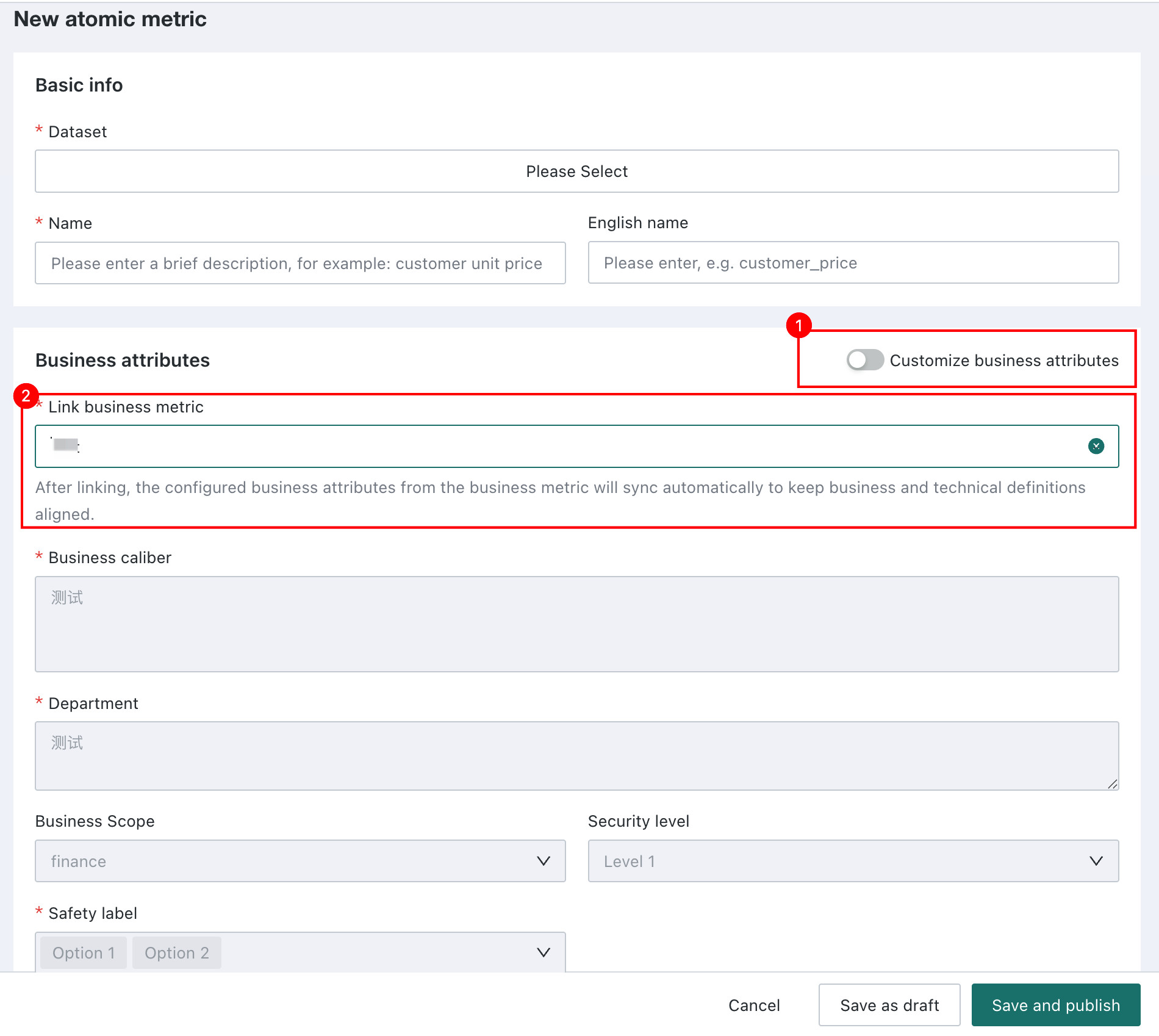
- After selection, the system will automatically fill in the business attributes in the Business Dictionary. If you need to replace, reselect another Business Dictionary to refresh and overwrite.
- Fill in other metric configurations and click the Save and Go Live button. After saving, the metric and Business Dictionary will establish an association. If you need to release the association, turn on the Custom Business Properties button. After release, the business attributes on the Business Dictionary will be written to the current metric.
Notes
- One Business Dictionary can only be referenced by one metric.
- After the Business Dictionary is referenced, the dictionary itself can still be modified, but the business attributes related to the metric that references it will be locked and cannot be modified (the metric name can be modified).
- The view and edit permissions of the Business Dictionary are inherited from the Metric Center permissions.
- Custom business attributes are shared by the Business Dictionary and metrics. Administrators can configure the display, filtering, and other options of attributes in Management Center > Enterprise Configuration > Metric Attribute Management.