Integrate Form Entry on Mobile
Background
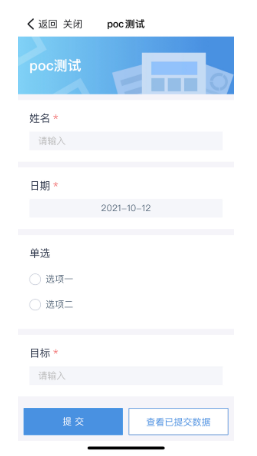
Guandata BI, mobile light apps, and similar applications can be integrated into third-party mobile apps with password-free login, such as DingTalk, WeCom, and Feishu. How can the Form Entry feature in Guandata BI Data Preparation also be integrated into mobile, so users can log in without a password and enter data directly on mobile?
Prerequisites
-
Integration between the third-party mobile app and Guandata BI has been completed, and users can log in without a password to the embedded H5 mini app.
-
The form entry page uses a trusted external domain name. Internal IP addresses cannot be used for mobile integration. In general, use the trusted domain name used by BI.
-
Currently, only password-free integration for a single form is supported. Support for integrating the mobile form entry list page with password-free login will be developed later.
Implementation: Creating a DingTalk Mini App as an Example
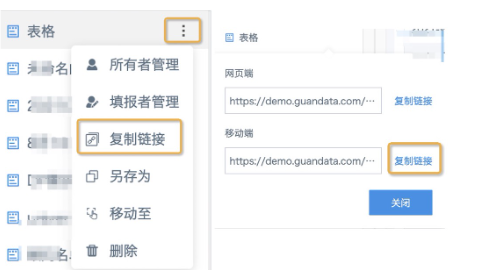
- On the form list page, click the menu after the form name, select Copy Link, and click to copy the mobile link.
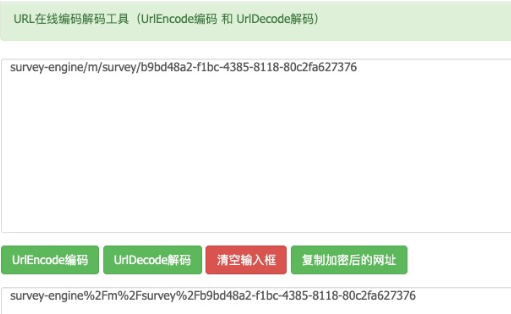
- Use an online encoding tool or another development tool to encode the part after the first slash
/following the form entry home URL, starting fromsurvey-engine. This can convert special characters and Chinese characters to encoded format.
For example, in https\://demo.guandata.com/<strong>survey-engine/m/survey/b9bd48a2-f1bc-4385-8118-80c2fa627376</strong>, the highlighted part becomes survey-engine%2Fm%2Fsurvey%2Fb9bd48a2-f1bc-4385-8118-80c2fa627376 after encoding.
- Split the mobile link obtained in step 1, and replace the part after the first slash
/following the home URL with ?path_url= plus the encoded URL string from the previous step.
Before replacement: https://demo.guandata.com/survey-engine/m/survey/b9bd48a2-f1bc-4385-8118-80c2fa627376
After replacement: https://demo.guandata.com/?path_url=survey-engine%2Fm%2Fsurvey%2Fb9bd48a2-f1bc-4385-8118-80c2fa627376
Note: If the PC mini app also needs to be integrated, encode the part of the form's PC link starting from survey-engine.
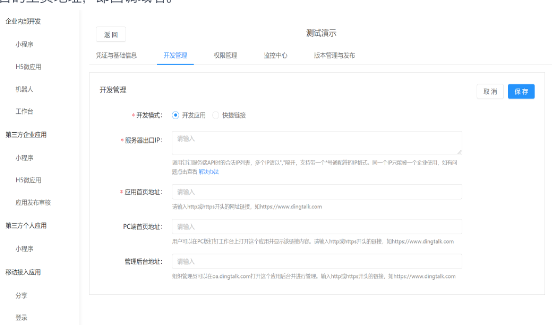
- The DingTalk administrator enters the DingTalk admin console, creates a new H5 mini app, clicks the Development Management tab, and configures related information.
Note 1: For development mode, select Develop App.
Note 2: Add the public IP of the Guandata platform to Server Export IP.
Note 3: Enter the mobile URL assembled in the previous step as the app homepage address. Set the PC homepage address as needed or leave it empty.
Note 4: For the admin backend address, generally enter the homepage address of the corresponding Guandata platform, namely the callback domain.
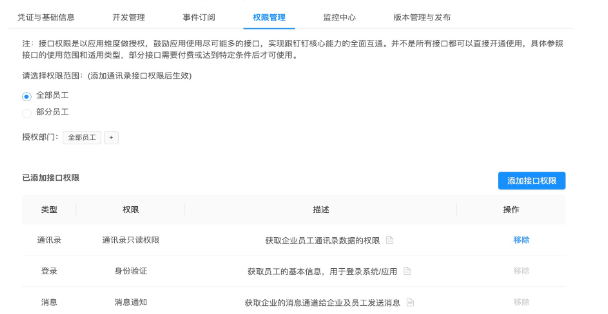
- On the Permission Management tab, set the app's API permissions. In API Permission configuration, make sure the mini app has Identity Authentication, Message Notification, and Contacts Read-only permissions. The following screenshot is from the old DingTalk Open Platform view. The new view may differ.
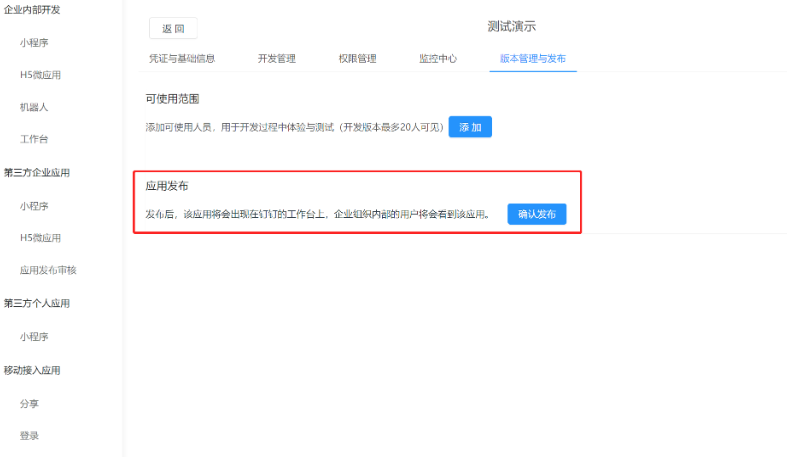
- Publish the app and set the visible scope. After confirming that the information above is correct, publish the app on the Version Management and Release tab. After publishing, set which users can see the app. Then you can try accessing form entry from DingTalk mobile.