Security Settings
Overview
Security Settings is a core security control module for system administrators. It uses technologies such as Data Masking and watermarks to protect sensitive data and track its usage, ensuring secure and compliant internal use of enterprise data.
Data Masking
When using Data Masking, inconsistent data management can lead to low-quality data, such as the same field appearing under multiple field names. In that case, you can tag sensitive fields so that detection rules are associated with masking rules in masking templates, reducing the complexity of configuring masking templates in these scenarios.
For example, if the field ID Card Number has different names across multiple Datasets, such as ID Card, identity card, ID card num, or Certificate Number, you can create a tag for ID Card Number.
-
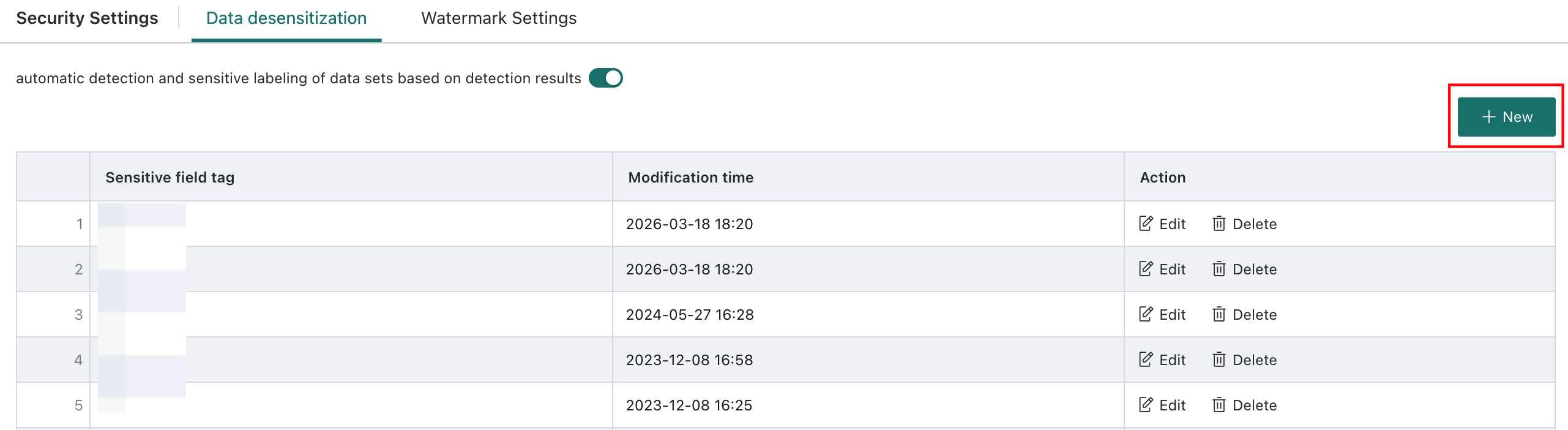
Go to Admin Center > System Settings > Security Settings > Data Masking, then click Create.
-
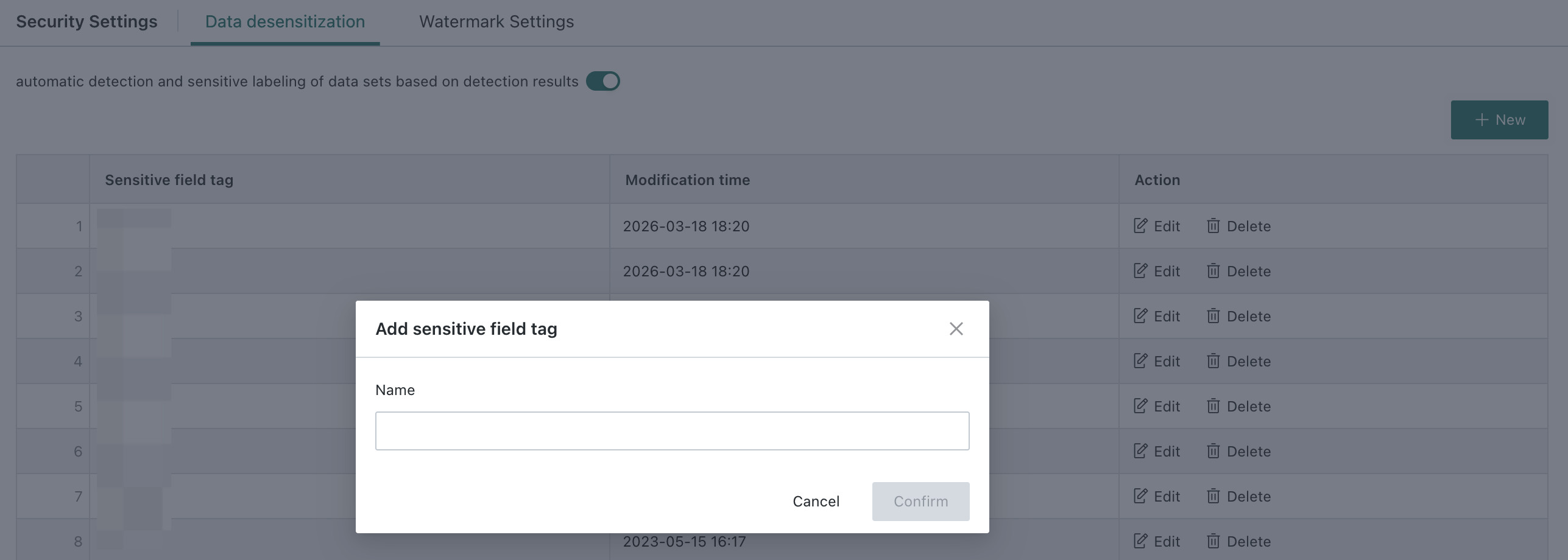
Enter the sensitive field tag and click OK. When Data Masking is used, the system automatically detects sensitive fields in the Dataset and marks them based on the detection result.
Watermark Settings
Entry: Admin Center > System Settings > Security Settings > Watermark
Watermark Information
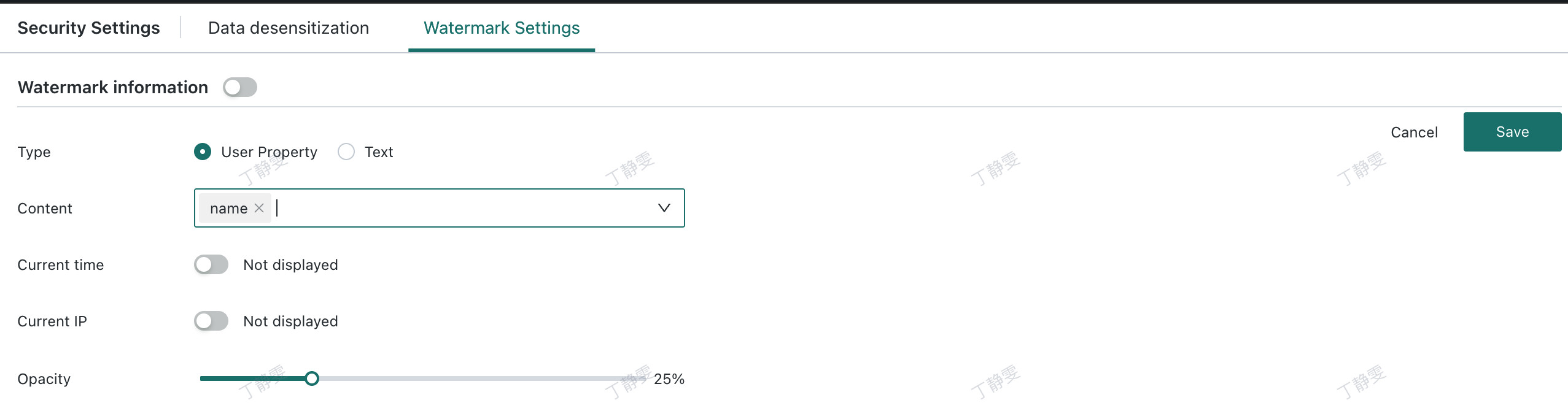
After watermarks are enabled, the system adds watermarks when viewing pages and exporting Excel files.
-
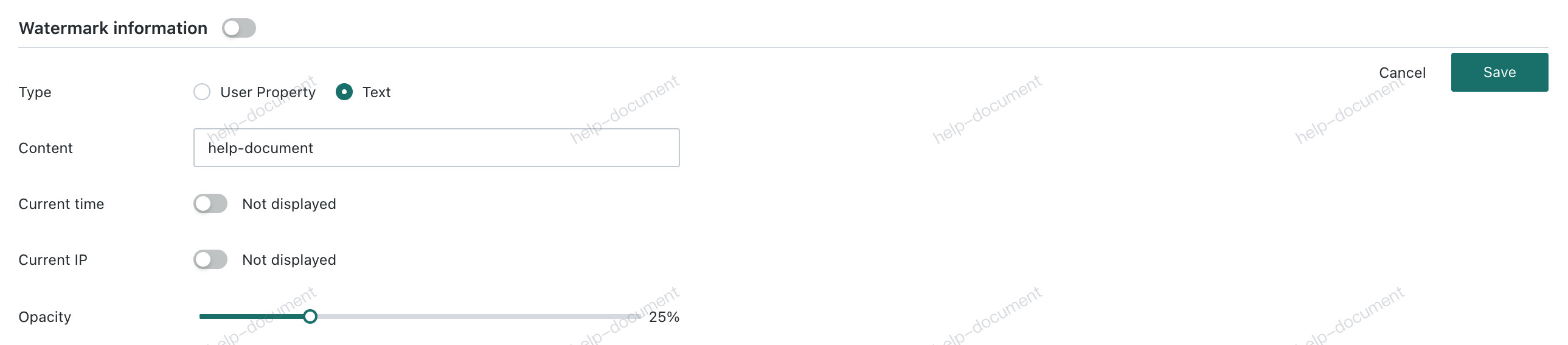
Watermark Type
-
If User Property is selected, you can use user basic attributes such as the user's IP address. This makes the watermark different for each user terminal, which helps prevent information leakage and makes tracing easier.
-
If Text is selected, you can enter any text in Content to mark ownership and trace distribution sources, providing a low-cost and efficient safeguard for intellectual property and content anti-misuse.
-
-
Current Time: when enabled, the watermark displays the current access time; when disabled, the current time is not displayed.
-
Current IP: when enabled, the watermark displays the current access IP; when disabled, the current IP is not displayed.
-
Opacity: drag the slider to adjust the watermark display opacity.
Whitelist
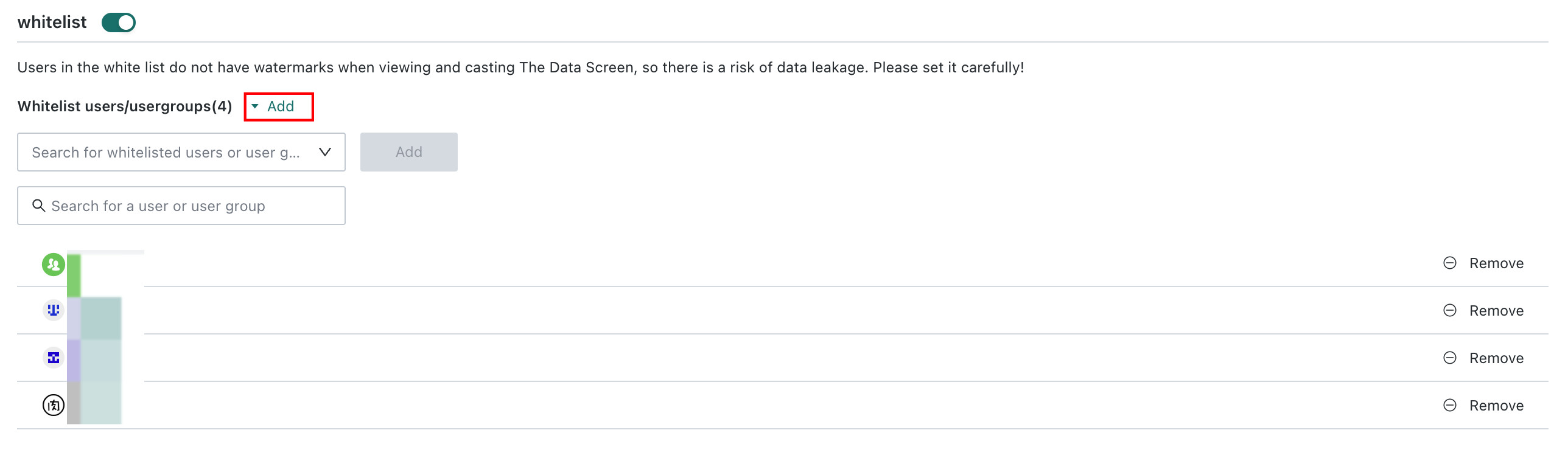
After enabling, you can add users or user groups. Users in the whitelist will not see watermarks when viewing and casting the Data Screen.
- After the whitelist feature is enabled, it supports adding users and user groups;
- Users and user groups in the whitelist will have no watermarks when viewing or casting the Data Screen.