Dataset Subscription
Overview
Dataset subscription exports datasets from the BI platform to a specified FTP/SFTP server on a schedule or as needed. It supports scheduled automatic execution and URL triggering, can split exports by field, and applies to scenarios such as data backup, cross-system data synchronization, and periodic data distribution, improving data circulation efficiency and system integration capabilities.
Prerequisites
Dataset subscriptions are exported to the FTP/SFTP server specified by the user. The related FTP/SFTP data account must be configured.
-
On the
Data Preparation > Data Accountpage, clickCreate Data Account.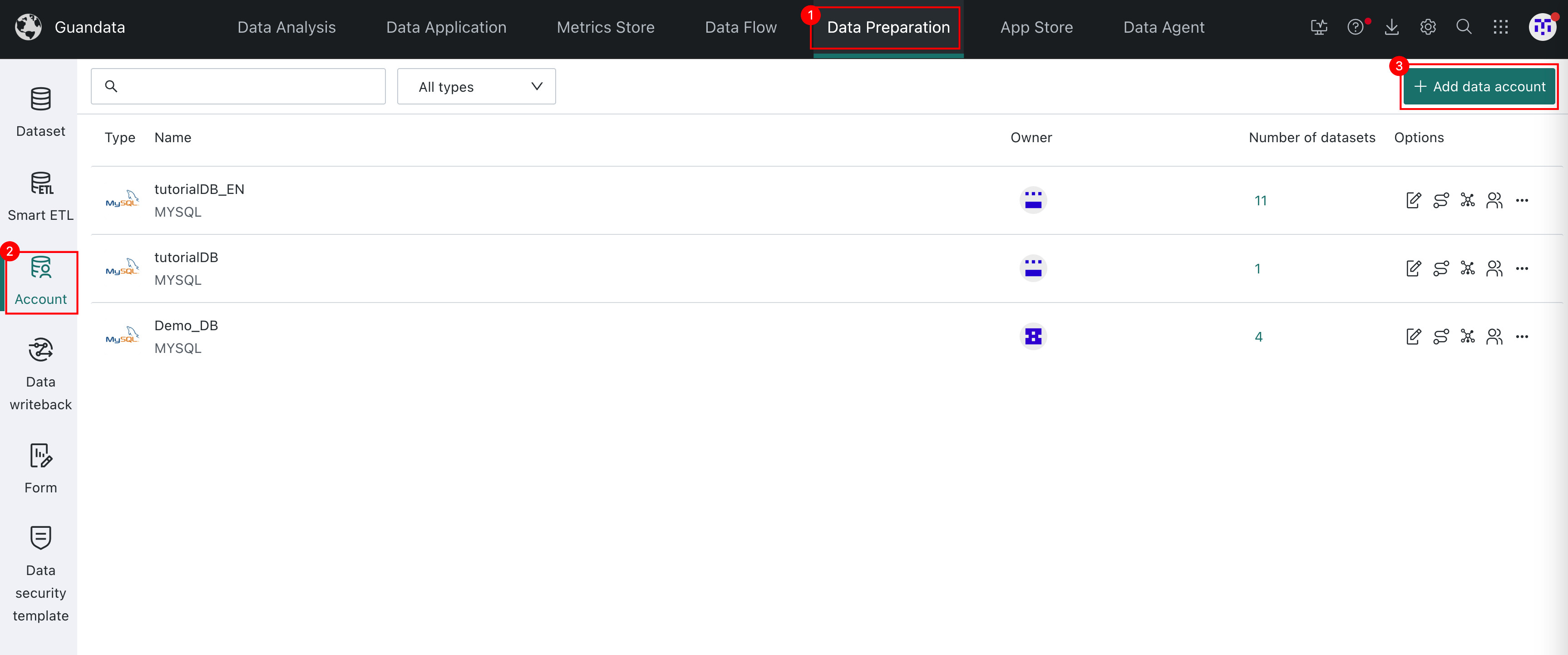
-
Select
FTP/SFTPas the connector and clickNext.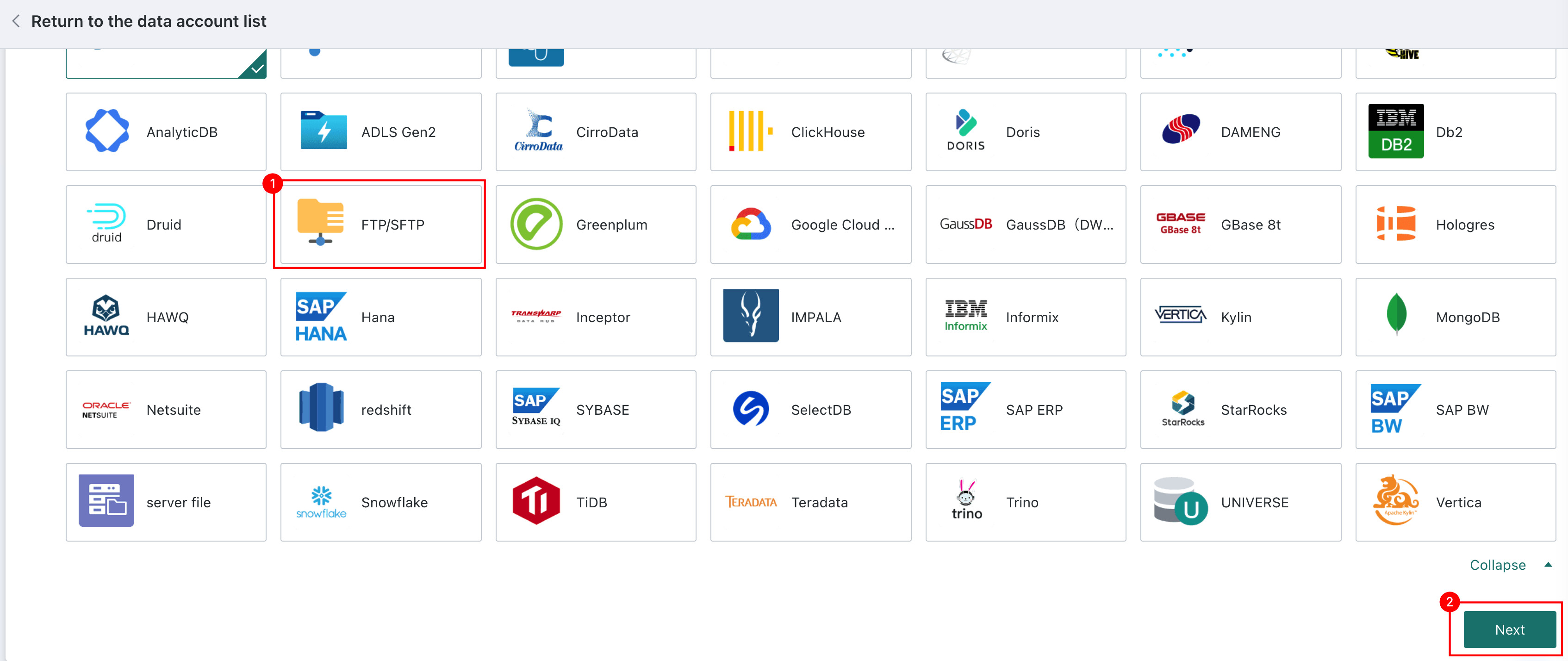
-
Configure the data account. For subsequent operations, see Data Account.
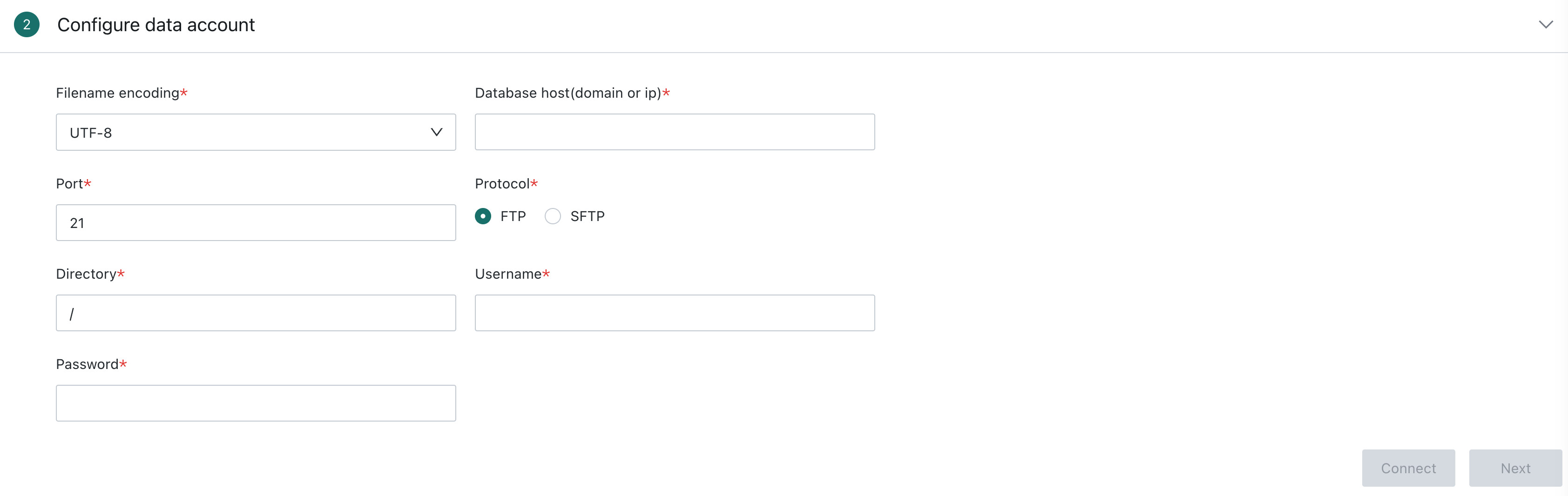
- File name encoding: Supports
UTF-8andGBK. - Database address (domain or IP): Enter the target server domain, such as
xxx.com, or IP address, such as192.168.xxx.xxx. - Port: The default FTP port is 21, and the default SFTP port is 22.
- Protocol: Select FTP or SFTP.
- Directory: Enter the root path for file storage. The default
/represents the server root directory. - Username/password: Enter the account and password.
- File name encoding: Supports
Create a Subscription
-
Click
Subscription Planin the app launcher in the upper-right corner to enter theSubscription Planpage.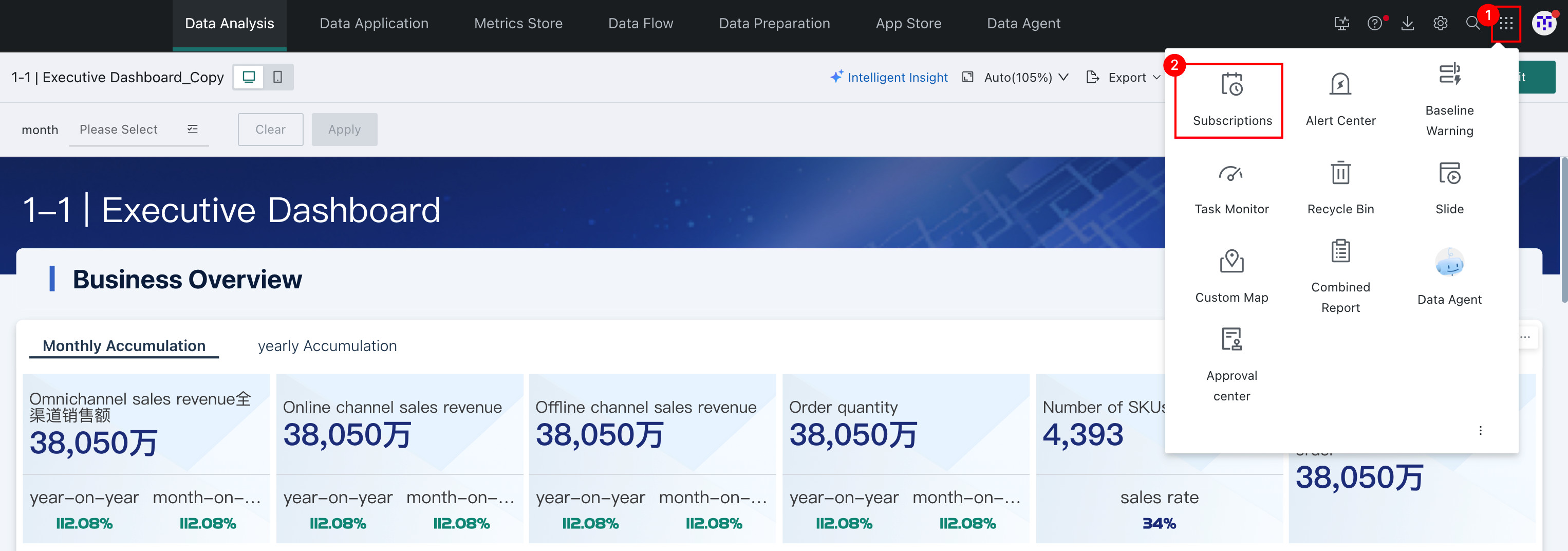
-
Select
Dataset Subscriptionand clickAdd Dataset Subscriptionon the right to enter theDataset Subscriptionconfiguration page.
Configure a Subscription
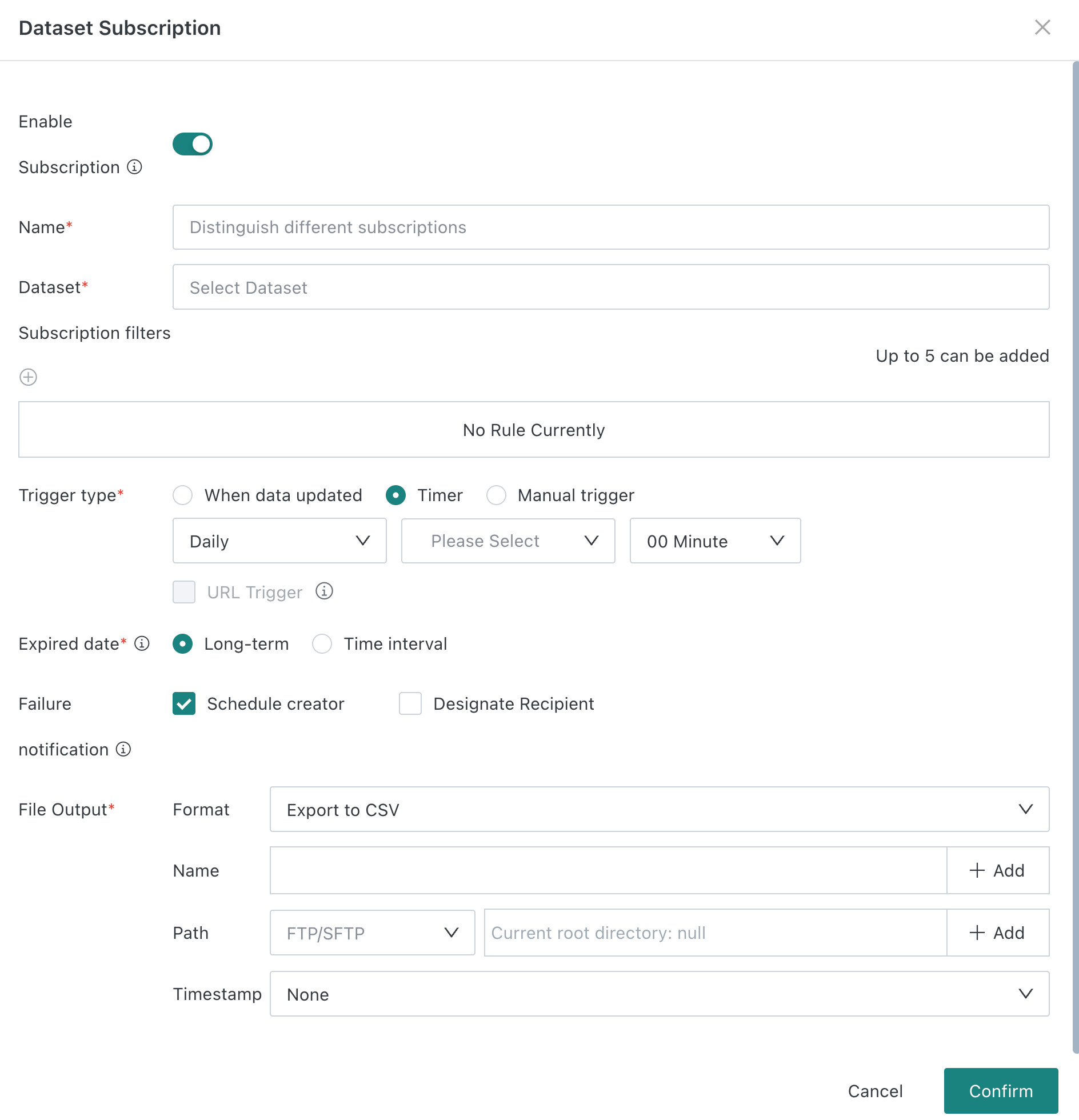
Enable Subscription
Select Enable or Disable for the subscription. The enabled status does not restrict manual triggering or URL triggering.
Subscription Name
Create a name for the subscription so it can be quickly found in subscription management.
Dataset
Select the dataset to subscribe to.
Direct datasets cannot be selected.
Split Subscription
Split the subscription by dataset fields and export the dataset into different files on the FTP server.
Trigger Method
Four trigger methods are available: After Data Update, Scheduled Execution, Manual Trigger, and URL Trigger.
-
After Data Update: When the card source data is updated, the card data is updated and the subscription is triggered.
-
Scheduled Execution: Set a fixed time to send every day, week, or month.
-
Manual Trigger: Manually send from the Subscription Plan page.
-
URL Trigger: After selected, the current subscription can be triggered directly from an external system through a URL.
NoteURL Triggercan be selected only after the subscription has been created.
Validity Period
You can select Long-term Valid or Valid within Time Range. If Valid within Time Range is selected:
- You can set the start and end dates. If no dates are set, the subscription is long-term valid by default.
- After the subscription period ends, clicking
Send Manuallyor calling the API can still send the subscription. - Period and enable/disable status: When enabled, sending stops after the period ends. When disabled, sending does not occur even if the period has not ended.
Failure Notification
When the subscription fails, related users are notified by email.
File Output
- Format: The exported file format. Excel and CSV are supported.
- Name: The exported file name. Split fields, parameters (time macros), or fixed text can be used.
- When only fixed text is used and multiple values are selected for a single split field, only the first value is used by default.
- To make multiple values take effect at the same time, set the split field in the name.
- Path: Select an FTP/SFTP address and enter a file output path that does not include the root directory. Split fields, time macros, or fixed text can be used.
- Include timestamp: Select
Noto overwrite the file. SelectYesto include related timestamp information in the file.
FAQs
For subscription-related FAQs, see FAQs.