Card Subscription
Overview
Card subscriptions send card data to recipients by email, so they can receive the latest data changes without logging in.
Prerequisites
To send subscriptions by email, complete Email Configuration in Management Center > System Integration.
Create a Subscription
There are two entries for creating a card subscription:
-
Click
...in the upper-right corner of a card and selectCreate Subscriptionto enter theCard Subscriptionconfiguration page.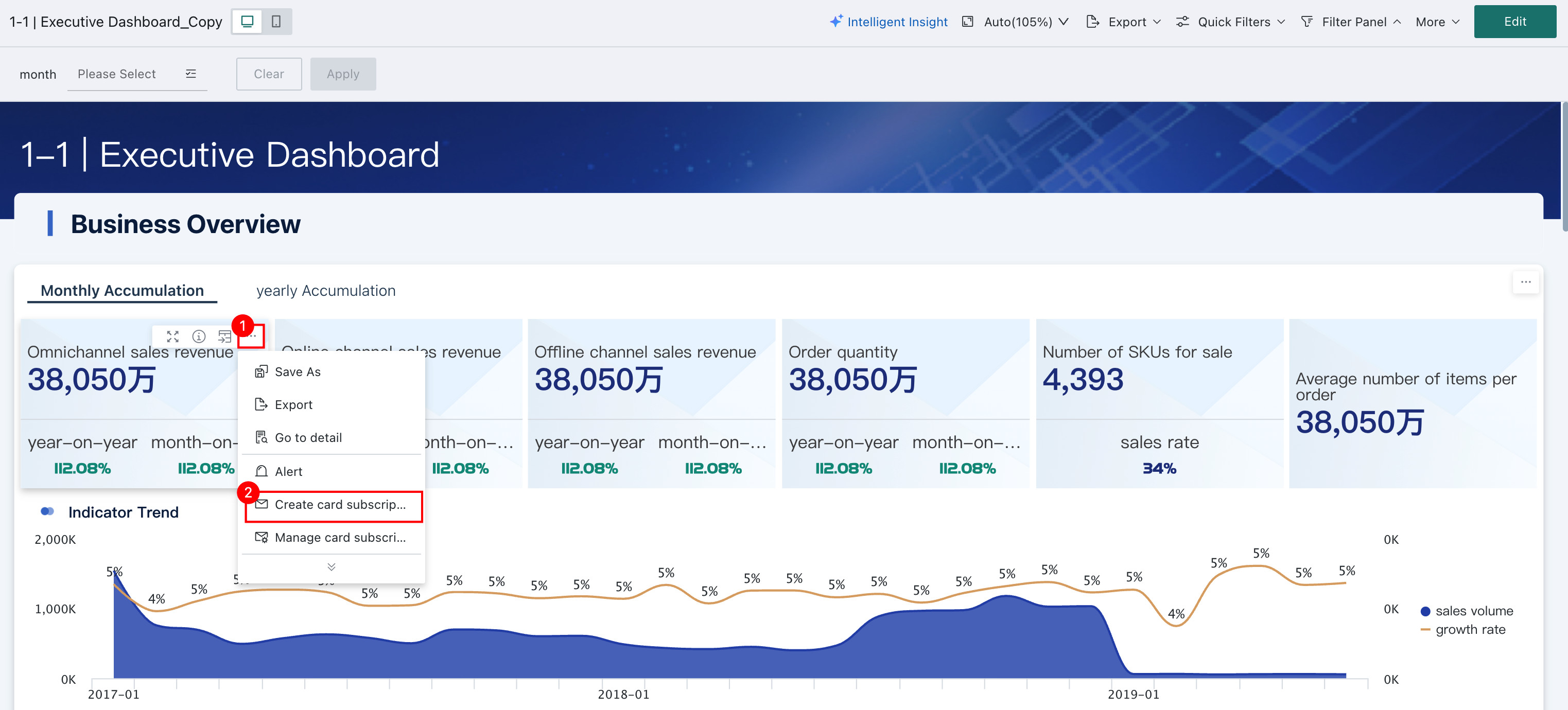
-
Click the app launcher in the upper-right corner and select
Subscription Plan.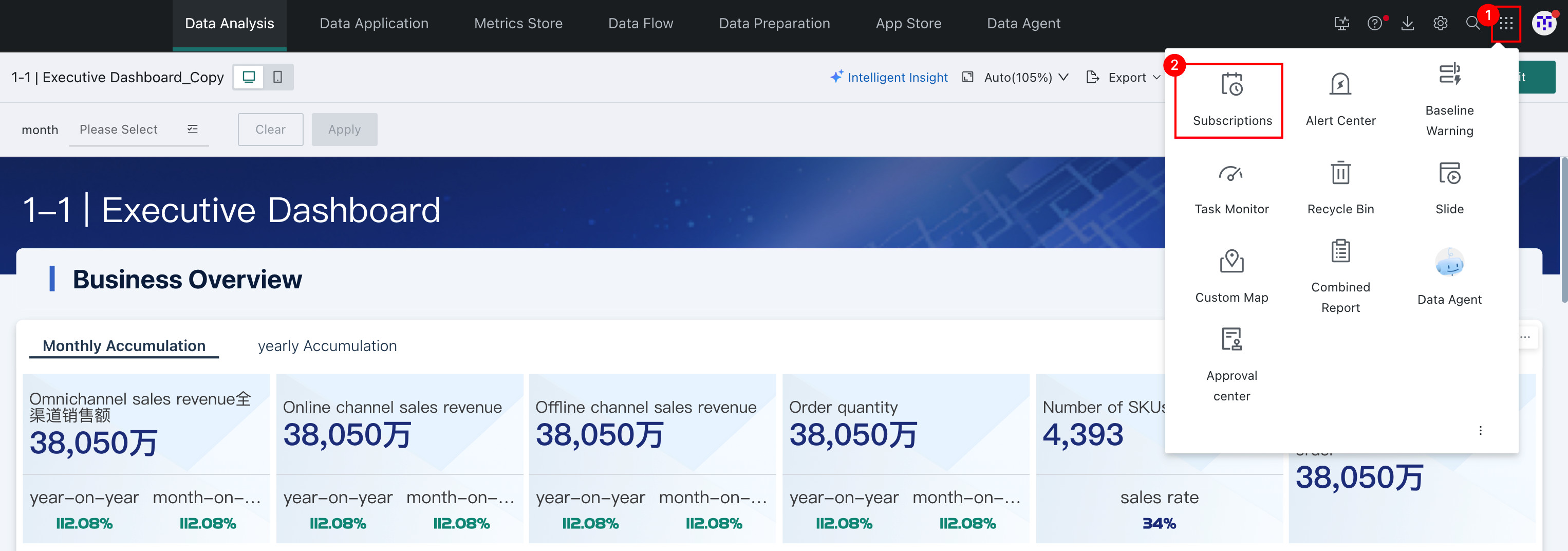
On the
Subscription Planpage, clickAdd Card Subscriptionon the right to enter theCard Subscriptionconfiguration page.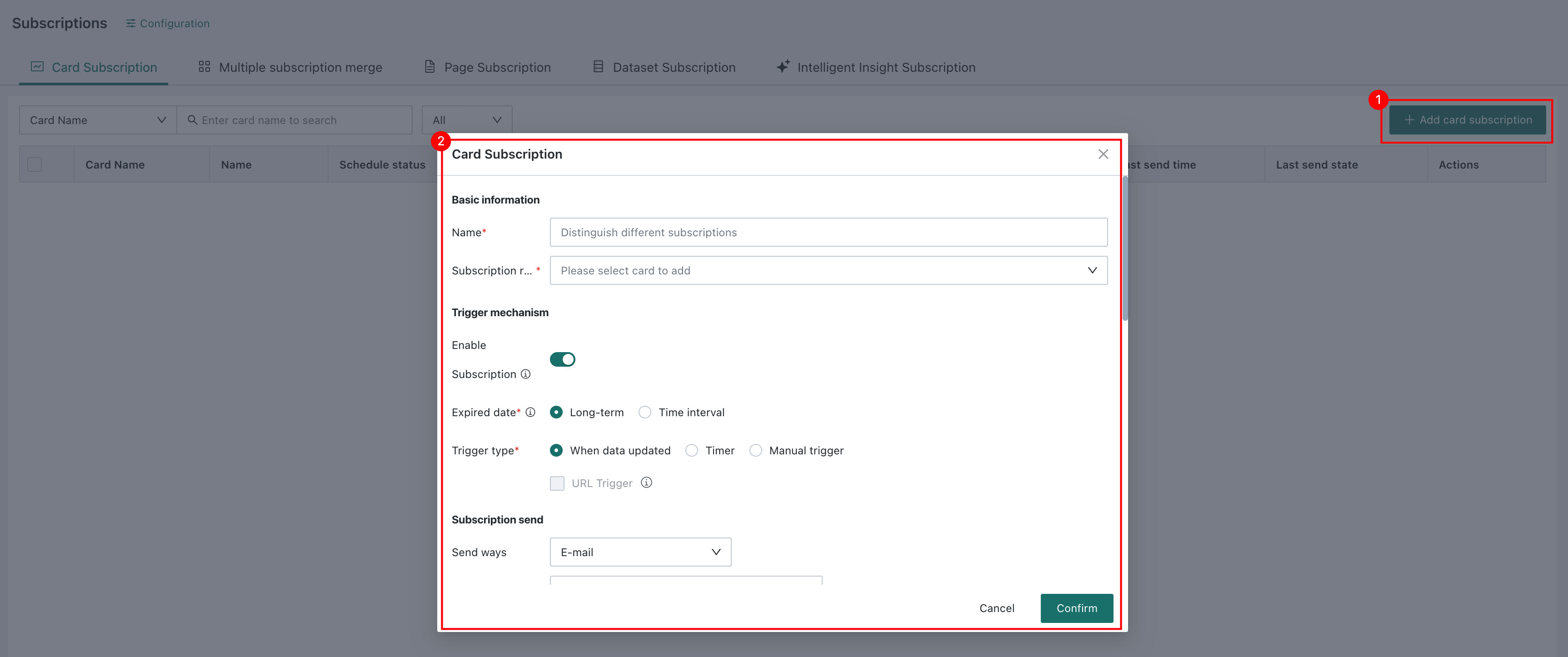
Configure a Subscription
The Card Subscription configuration page contains six sections: Basic Information, Trigger Mechanism, Subscription Sending, Subscription Content, Failure Notification, and Priority.
Basic Information

Subscription Name
Create a name for the subscription so it can be quickly found in subscription management.
Subscription Object
Enter the name of the card to subscribe to and select the card from the search results.
Trigger Mechanism
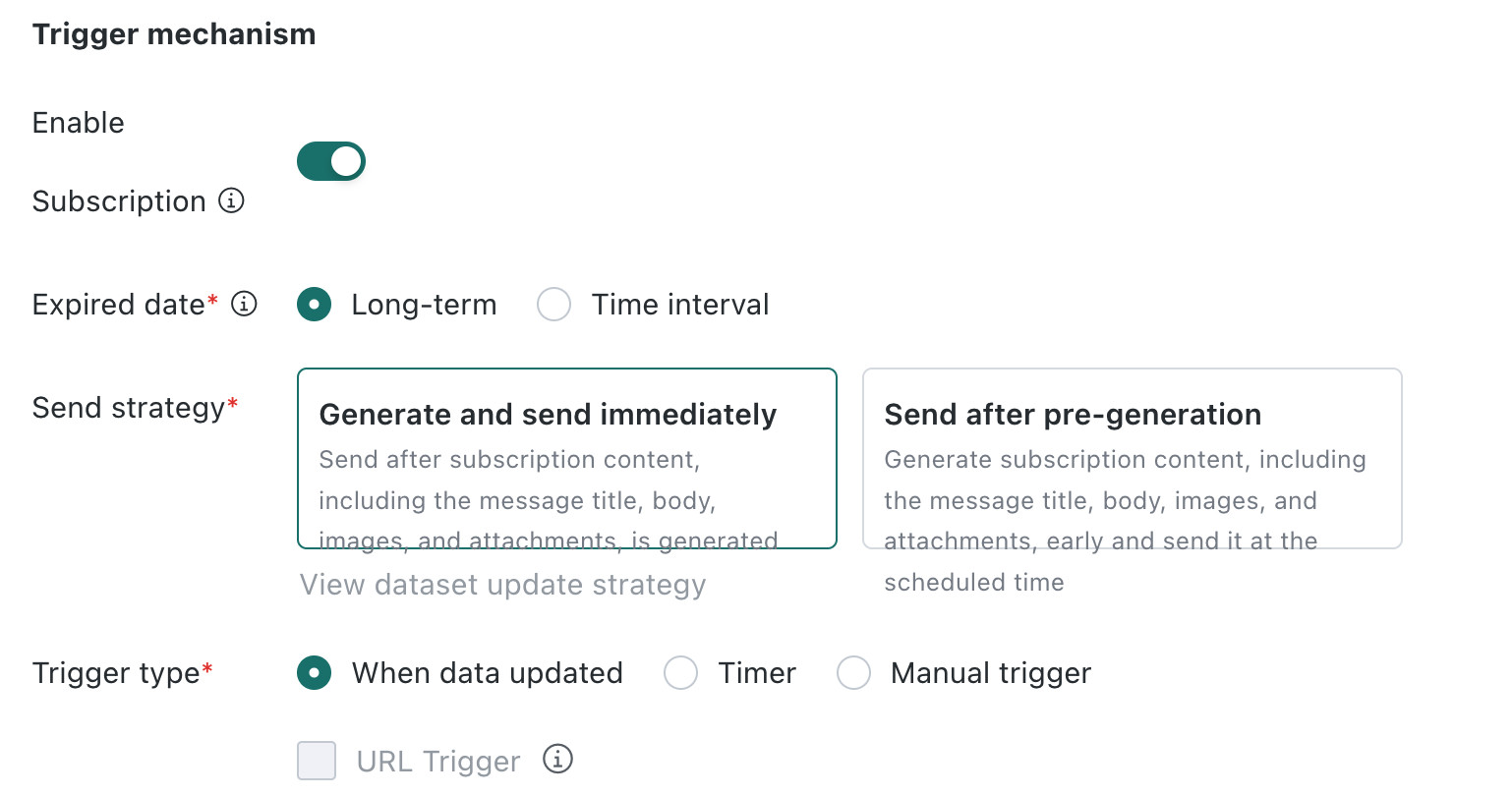
Enable Subscription
Select Enable or Disable for the subscription. The enabled status does not restrict manual triggering or URL triggering.
Validity Period
You can select Long-term Valid or Valid within Time Range.
Valid within time range:
- You can set specific start and end dates. If no dates are set, the subscription is long-term valid by default.
- After the period ends, manual sending and API calls can still trigger the subscription.
Relationship between period and enabled status:
| Status | Period Status | Sending Behavior |
|---|---|---|
| Enabled | Period not ended | Automatically sends normally |
| Enabled | Period ended | Stops automatic sending |
| Disabled | Period not ended | Still does not send |
Send Strategy
Two strategies are supported: Generate and send immediately and Send after pre-generation.
-
Generate and send immediately: the subscription content is sent immediately after generation is complete.
-
Send after pre-generation: the subscription content is generated in advance and sent at the specified time.
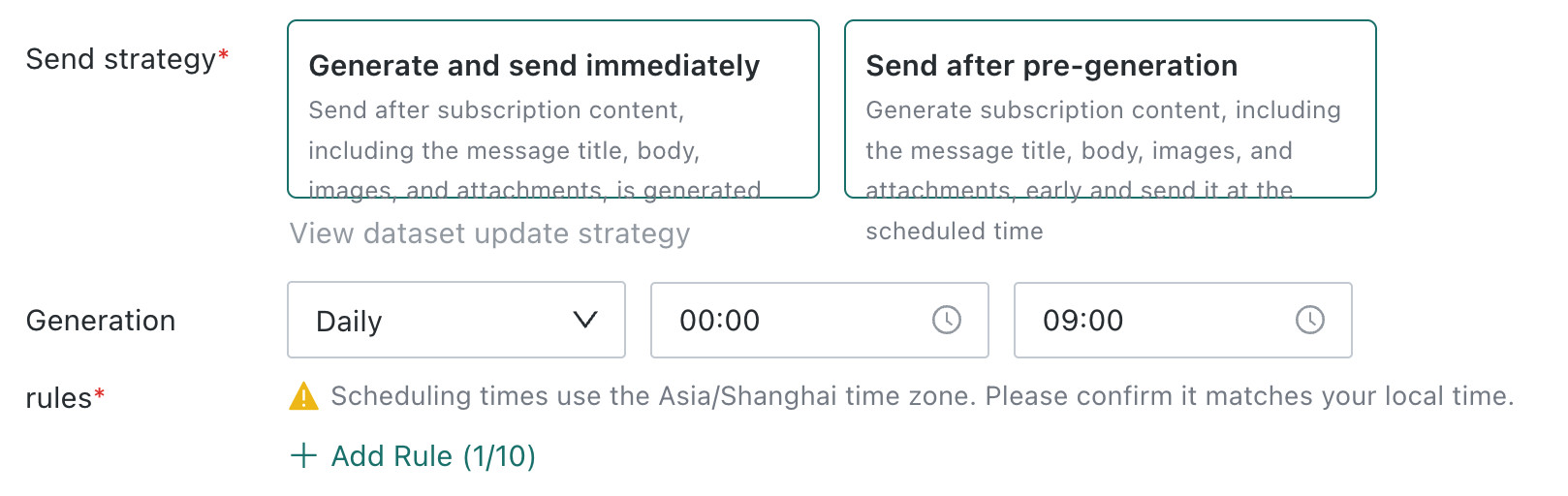
When
Send after pre-generationis selected, the originalTrigger Methodis no longer configured, and pre-generation rules need to be configured. At least one rule needs to be configured, and up to 10 rules are supported.Click
Add Ruleto add a rule. Each rule needs to configure the generation time and send time, and the send time must be later than the generation time.
Trigger Method
Four trigger methods are available: After Data Update, Scheduled Execution, Manual Trigger, and URL Trigger.
-
After Data Update: When the card source data is updated, the card data is updated and the subscription is triggered.
-
Scheduled Execution: Set a fixed time to send every day, week, or month.
-
Manual Trigger: Manually send from the
Subscription Planpage. -
URL Trigger: After selected, the current subscription can be triggered directly from an external system through a URL.
NoteURL Triggercan be selected only after the subscription has been created.
Subscription Sending
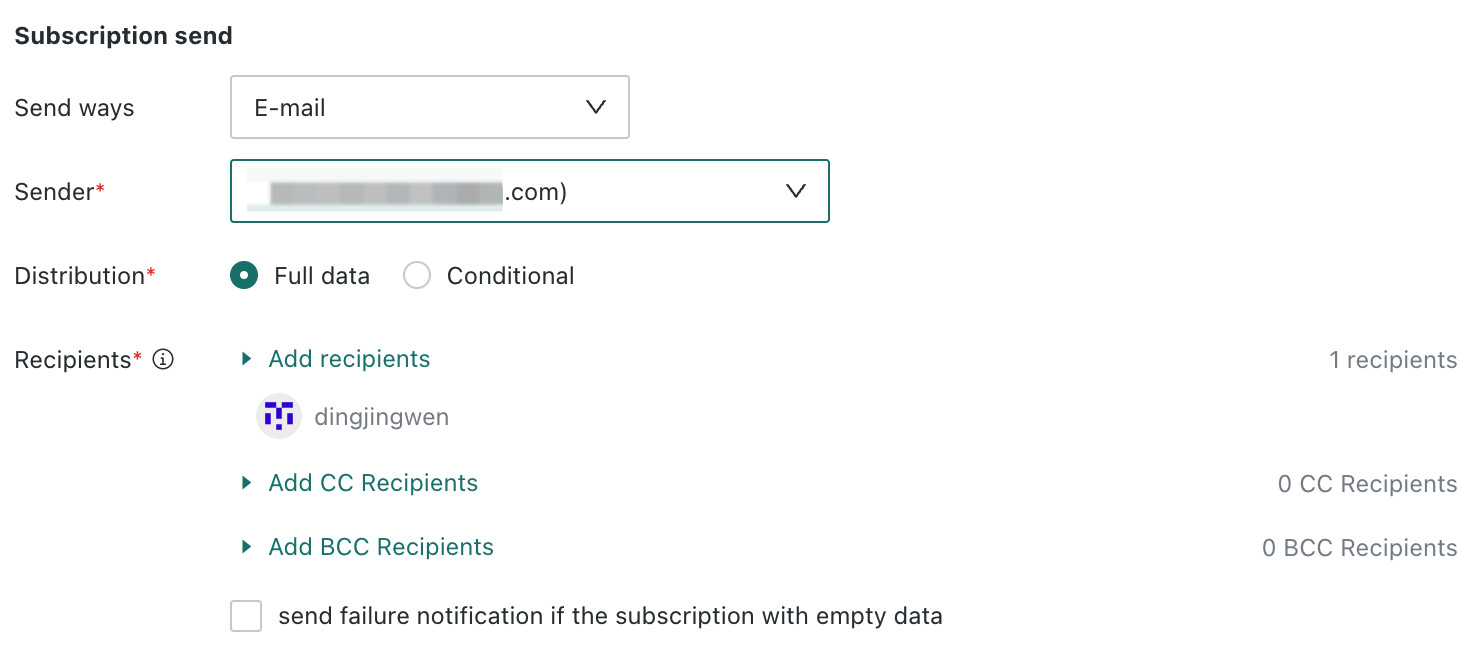
Send ways
The notification channel is fixed as Email. Configure the Sender,Distribution Method, and Recipients.
Sender
This needs to be configured only when Notification Channel is Email. You can select multiple configured sender email addresses.
For email configuration, see Email Service.
Distribution Method
Two methods are supported: Full Distribution and Conditional Distribution.
Full Distribution
Distribute all card data to specified recipients. Configure the recipients.
When Notification Channel is Email, configure Recipient Users. You can also add CC Users and BCC Users. BCC users cannot see one another's recipient information.
When adding users, two methods are supported: User/User Group and External Email. For details, see Recipients.
Conditional Distribution
This allows you to define subscription content and data visibility scopes for different users as needed. Card data can be filtered by Dataset Field and distributed to different recipients, creating personalized subscription cards to improve data privacy or reduce data noise.
For example, for nationwide sales data, you can send only South China data to the South China sales owner. This setting also affects the subscription URL, images, and attachments.
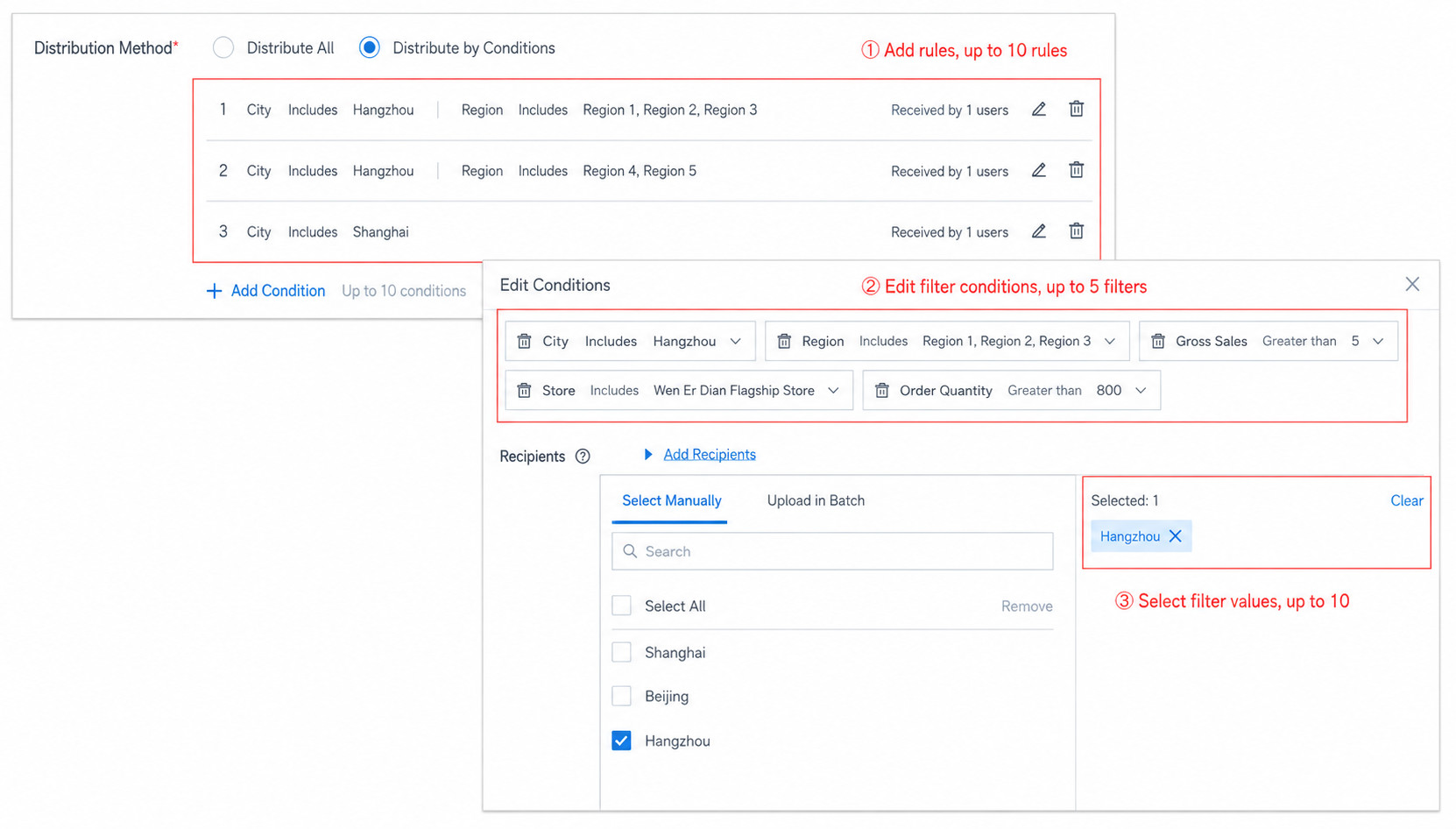
- Applies only to visualization charts, not to complex cards such as DuPont analysis charts.
- Each subscription supports up to 10 rules.
- Each rule supports up to 5 filters.
- Each filter supports up to 10 values.
:::
Recipients
When Notification Channel is Email, recipients can be selected through User/User Group or External Email.
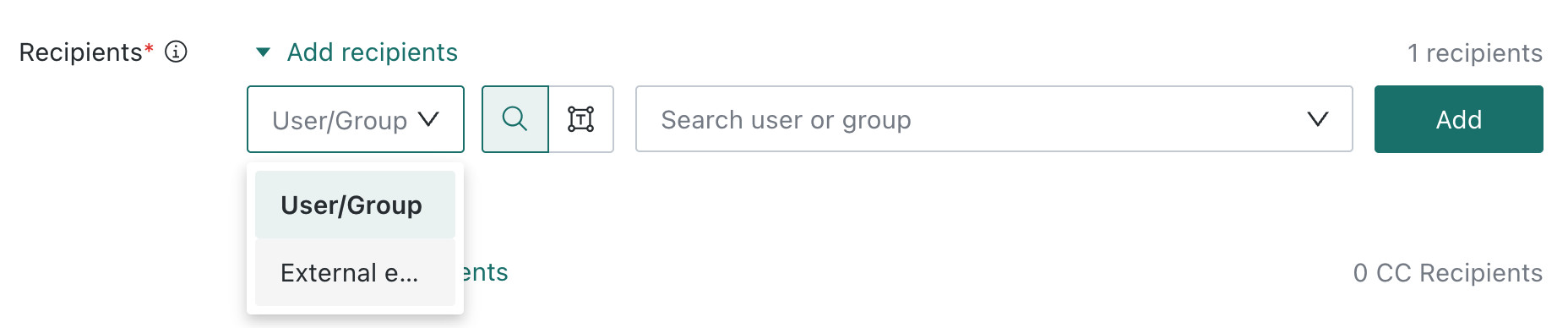
-
User/User Group: Supports sending to internal Guandata BI users or user groups. In addition to recipient users, BCC users and CC users can also be configured. BCC users cannot see one another's recipient information.
-
External Email: When
Allow Sending to Users Outside the Systemis configured in the admin backend, sending to external email addresses is supported and the addresses must be entered manually. First go toManagement Center > System Settings > General Settings, and in theSubscription and Alert Parameter Settingsarea on theSystem Rulespage, enableAllow Sending to Users Outside the Systemand configure allowed email suffixes.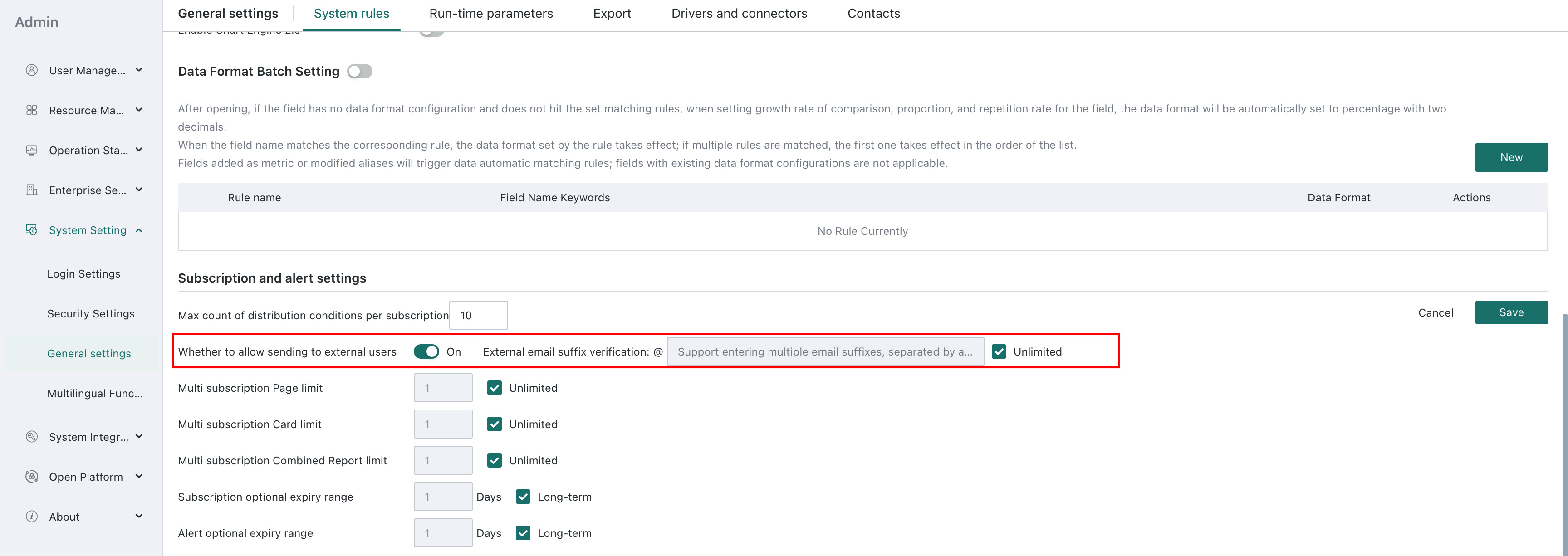
Whether recipients are selected as User/User Group or External Email, batch pasting users and adjusting the order of added users are both supported.
-
Batch paste users: Click the
Batch Pasteicon, paste email addresses, user accounts, and other information in batches into the box, set the delimiter, and clickOK.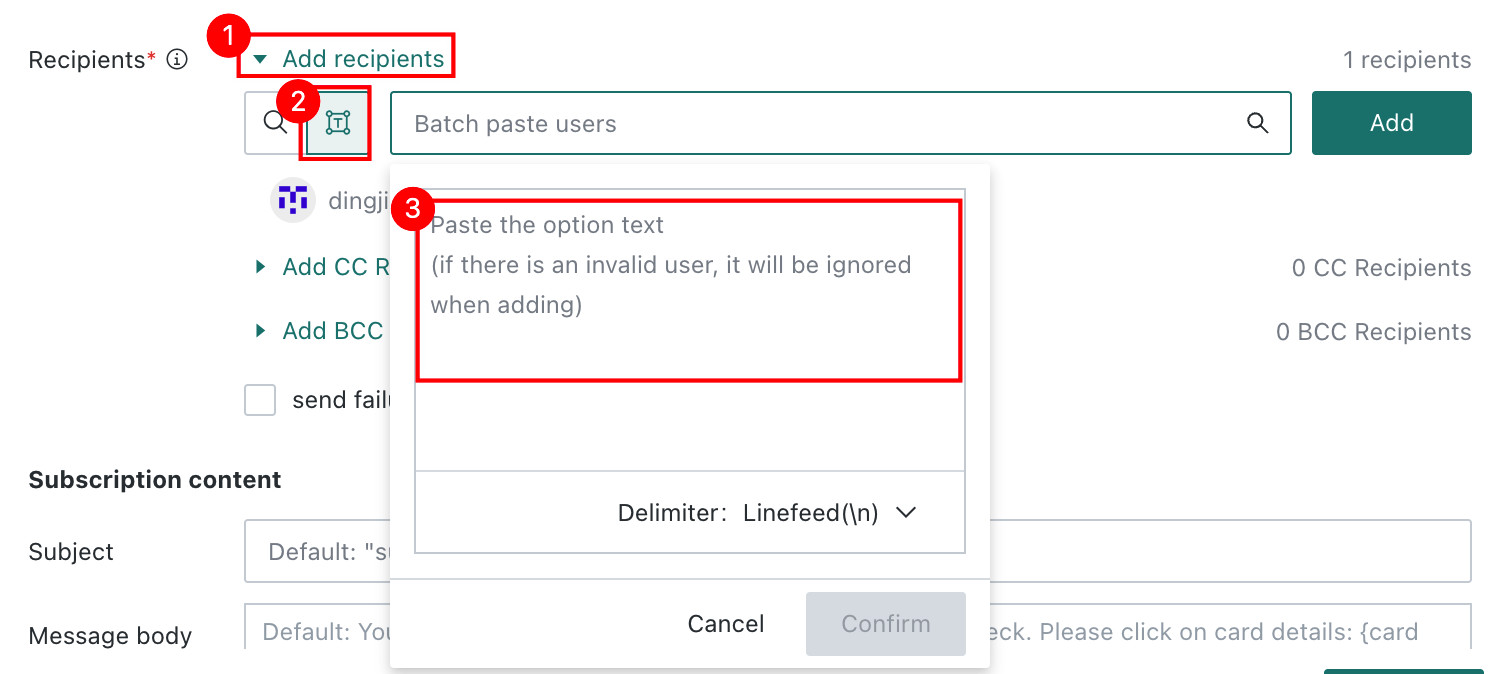
-
Adjust the order of added users: Move the mouse over the corresponding user. When the six-dot icon appears before the avatar, click the six-dot icon and drag it to the desired position to adjust the order of recipients or CC users.
Subscription Content
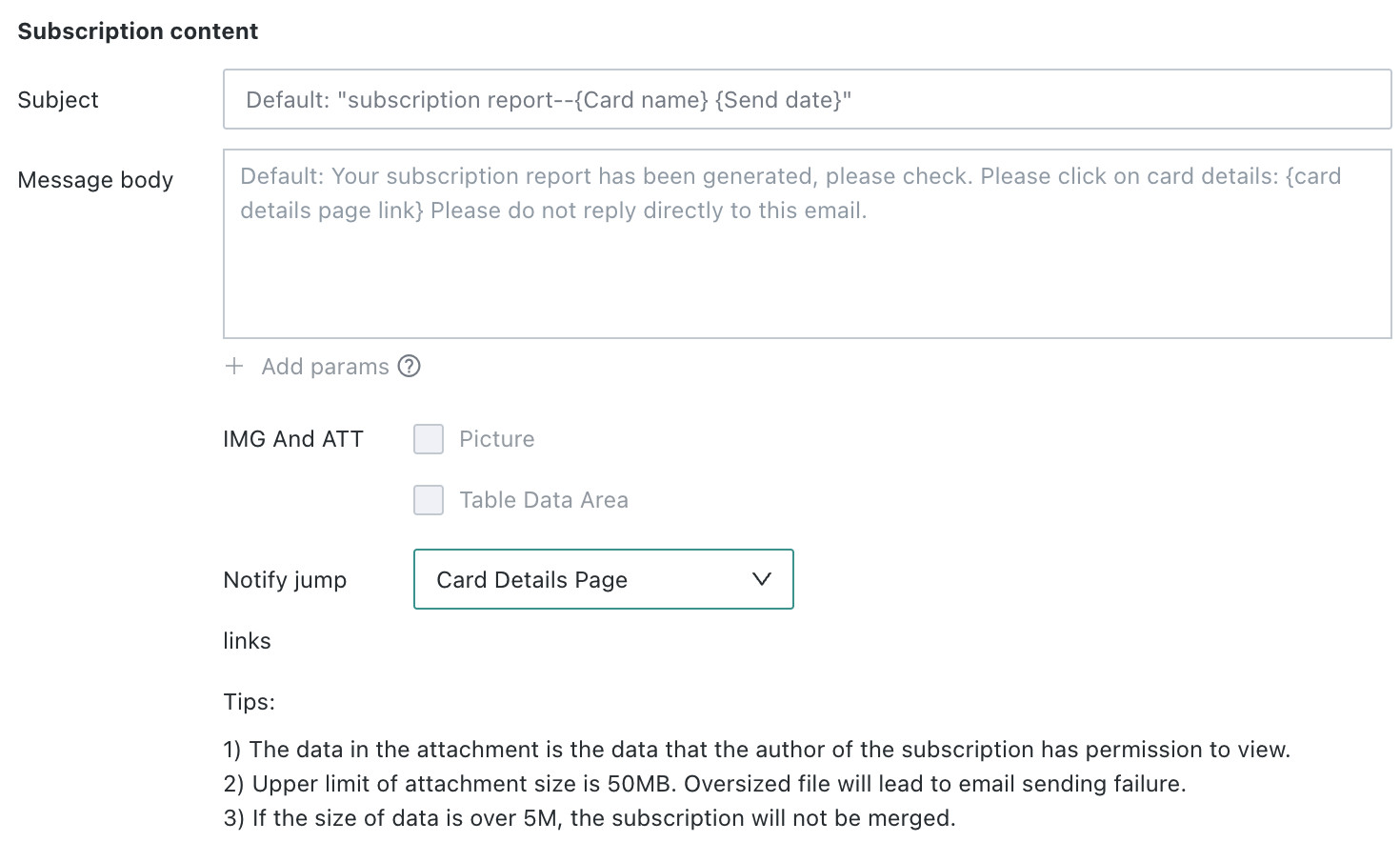
Email/Notification Title
Create a notification title for the subscription. If left blank, the default title is Subscription Report - {Card Name}{Send Date}.
Email Body/Notification Content
Enter the notification body. If left blank, the default body is Your subscription report has been generated. Please view it. Click for card details: {Card Details Page Link}. Please do not reply directly to this email.
Add Parameters
Click the title or body text box. When Add Parameters becomes active, it can be configured. Add Parameters includes Time Macro and Card Field.
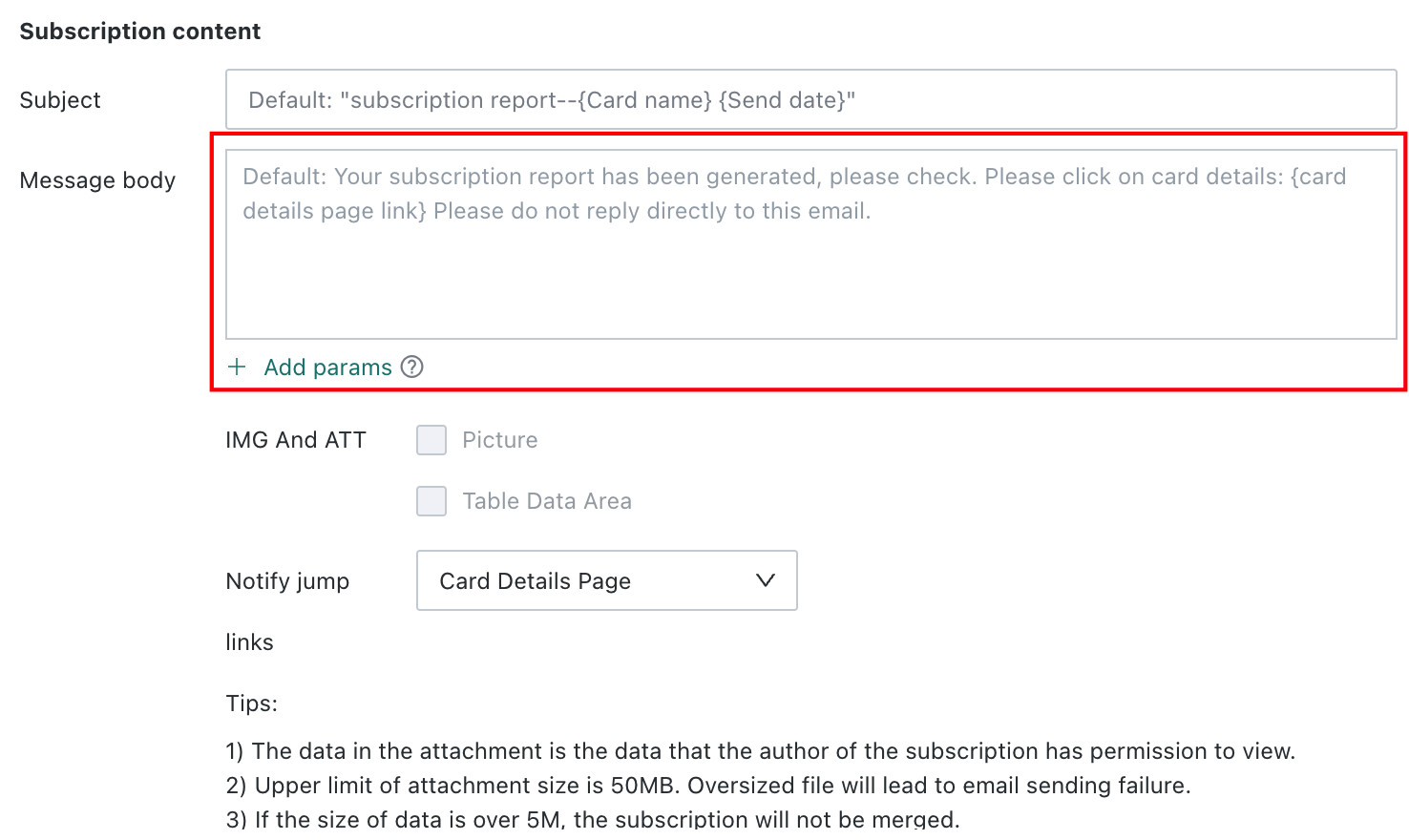
-
Time Macro: In the title or body, click directly to add a time macro. For how to configure time macros, see Dynamic Time Macro.
-
Card Field: In the body, add card fields as dynamic parameters. The sent result separates statements by line breaks.
- If a statement contains only one multi-value dynamic parameter, the values are displayed side by side with separators, as in the first line of the configuration example.
- If a statement contains multiple multi-value card fields, the content is displayed repeatedly, as in the second line of the configuration example.
- If there are more than 20 rows of data, only the first 20 rows are retained and the rest is omitted.
NoteWhen using this feature, it is recommended to send it to yourself first to confirm the effect.
When editing the email body, adding fields is supported.
Images and Attachments
If Image or Table Data is selected, the email includes the corresponding card image and data table. After selecting image export, you can continue to configure the image size. For supported content, see Supplementary Notes on Images and Attachments.
-
Select
Custommode to configure the aspect ratio.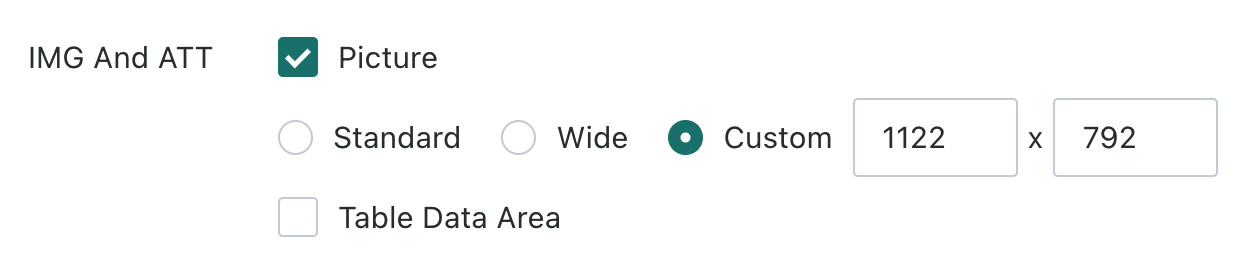 Note
NoteIf the administrator has configured the export image resolution, the actual exported image resolution may be enlarged, but the aspect ratio does not change.
-
When the selected card is
China-style Report ProorVisualization Chart/Metric Card - Table Category, anAdaptivemode is available. The image is captured and sent after adapting to the data volume. For Visualization Chart/Metric Card - Table Category, the upper limit is 10,000 cells. If exceeded, columns are truncated first. For China-style Report Pro, the upper limit is200 rows * 200 columns; rows and columns beyond the limit are truncated.
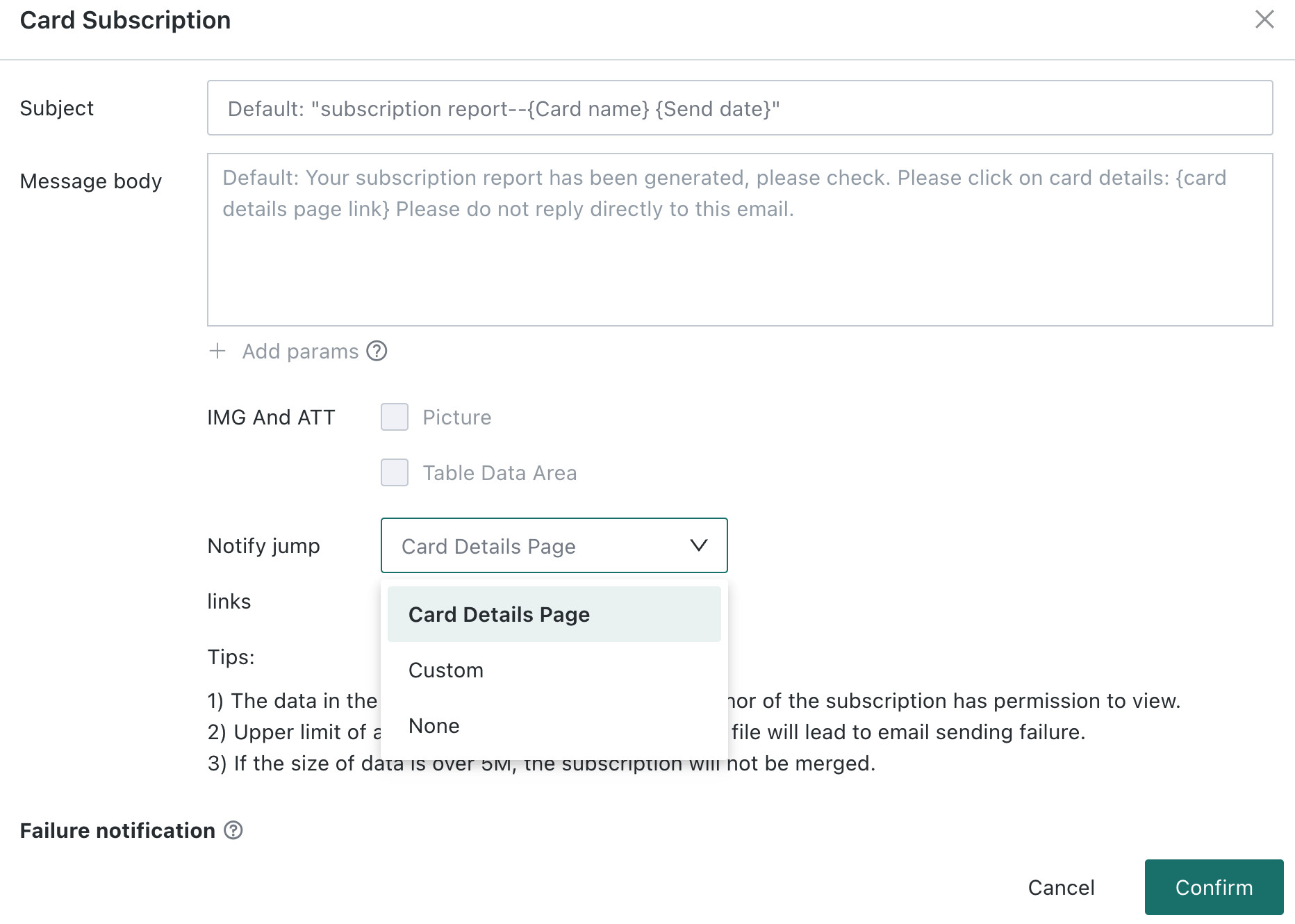
Jump Link
You can set the jump link in the subscription message, supporting selection of Card Details Page, Custom, or None.
-
Card Details Page: The card details page link is displayed in the subscription message;
-
Custom: You can fill in a custom jump link;
-
None: No jump link is displayed.
Failure Notification
When Subscription Sending Fails or Card Loading Fails When Subscription Is Triggered, the system sends a failure notification to specified recipients. Recipients include Subscription Creator, Resource Owner, and Specified Recipients (multiple selections supported). The notification uses the same sending channel as the subscription.

Priority
Used to define the priority of card subscriptions. Five levels are available: highest, high, medium, low, and lowest.

Supplementary Notes on Images and Attachments
| Notification Channel | Images and Attachments |
|---|---|
| Supports images and table data. The data displayed in attachments is the data visible to the subscription creator. Data attachments can be up to 50 MB. Sending fails if this limit is exceeded. When the subscription object is a complex report, adding complex report HTML and Excel HTML is supported. HTML rendering is greatly affected by the email client. Outlook and Alibaba Mail clients are recommended, and this is recommended for complex reports with smaller file sizes (within 1 MB). Some complex report styles are not supported, including freezing the first row, theme styles, and pagination (only the first page is supported). |
FAQs
For subscription-related FAQs, see FAQs.