Combined Reports
Combined Reports Overview
Combined Reports is a Guandata feature that makes it easier to present Excel table data in the BI platform. For China-style or complex reports, use Complex Report.
Combined Reports Use Cases
Combined Reports mainly cover the following two scenarios:
- Export and reconcile data across dashboards.
- Subscribe directly to a combined report when using merged subscriptions.
Combined Reports Features
Create a Combined Report
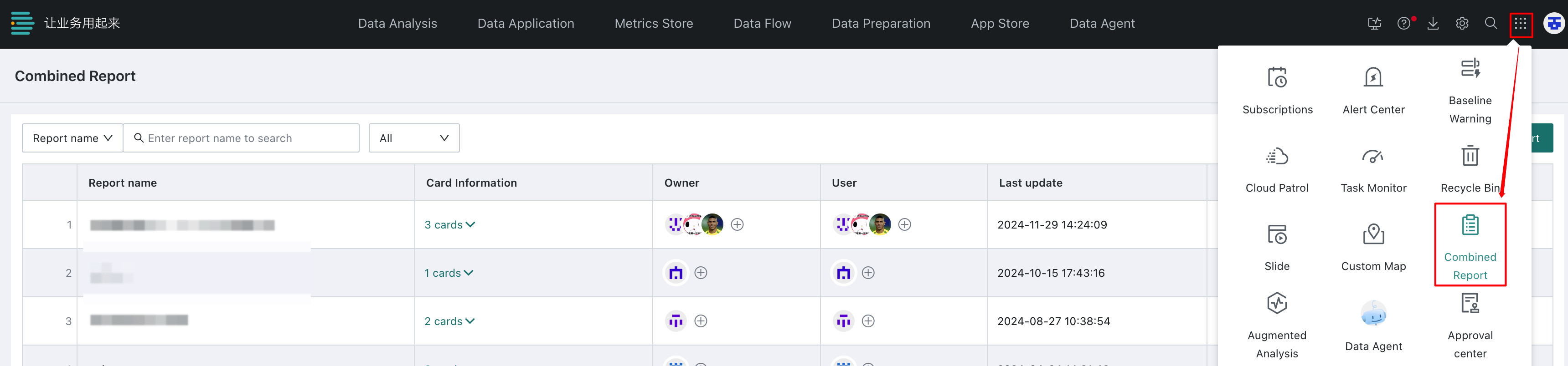
Open the app launcher in the upper-right corner of the platform and go to the Combined Reports page.
Click Create Combined Report on the right to open the editing panel for the combined report.
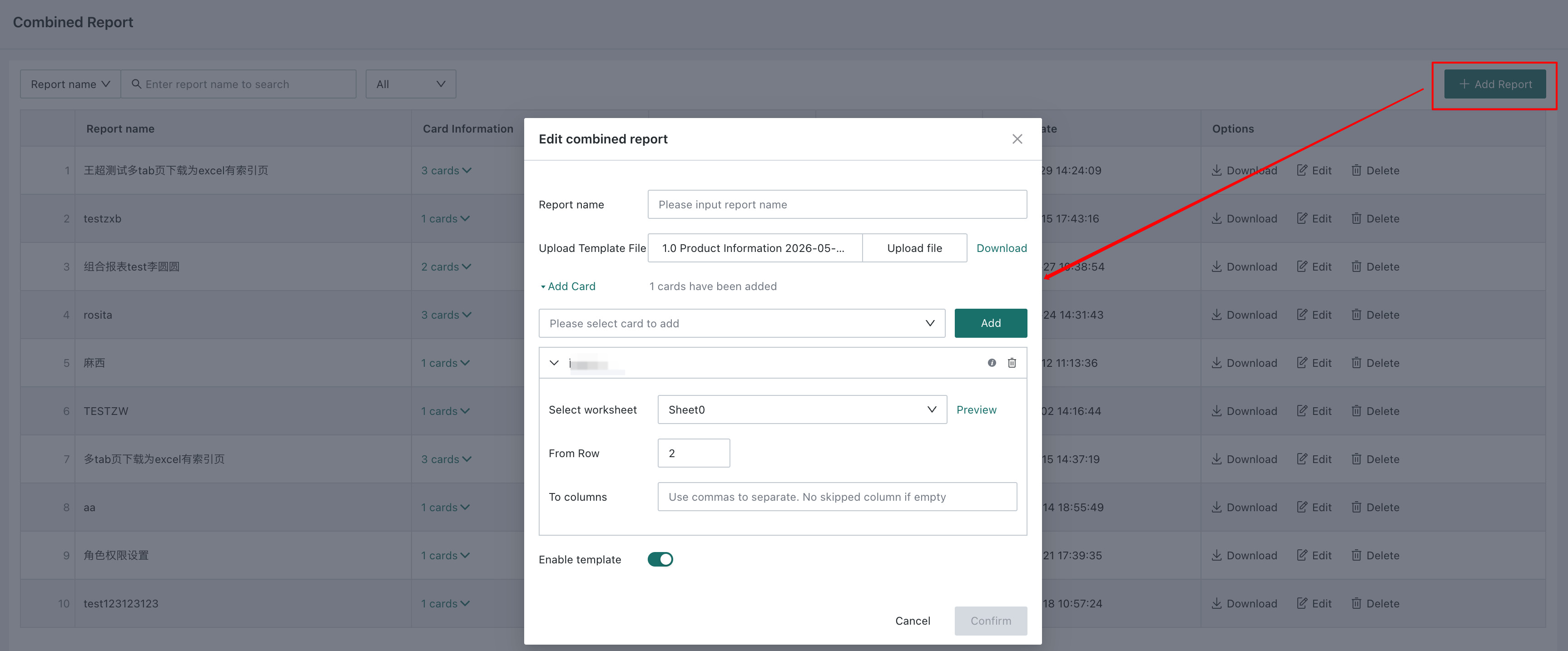
- Set the report name
- Upload a combined report template
- If no template is available, you can select cards and export them directly.
- If you upload and enable a template, the selected card data is matched according to that template.
- Search for and add cards
- You can search pages you have permission to access and add cards across dashboards.
- You can add multiple cards at the same time. Each card must be configured individually.
- After adding a card, match the corresponding card with the sheet, row count, and column count in the template. Only table card data can be filled into specified positions in the template.
- Enable template
- After the template is enabled, the uploaded template takes effect for the selected card data.
Manage Combined Reports
-
Search: You can perform fuzzy searches by report or card name, and locate reports based on your permission role.

-
View: For a created combined report, you can browse and view its details.

-
Download: Created combined reports can be downloaded locally for data reconciliation.

-
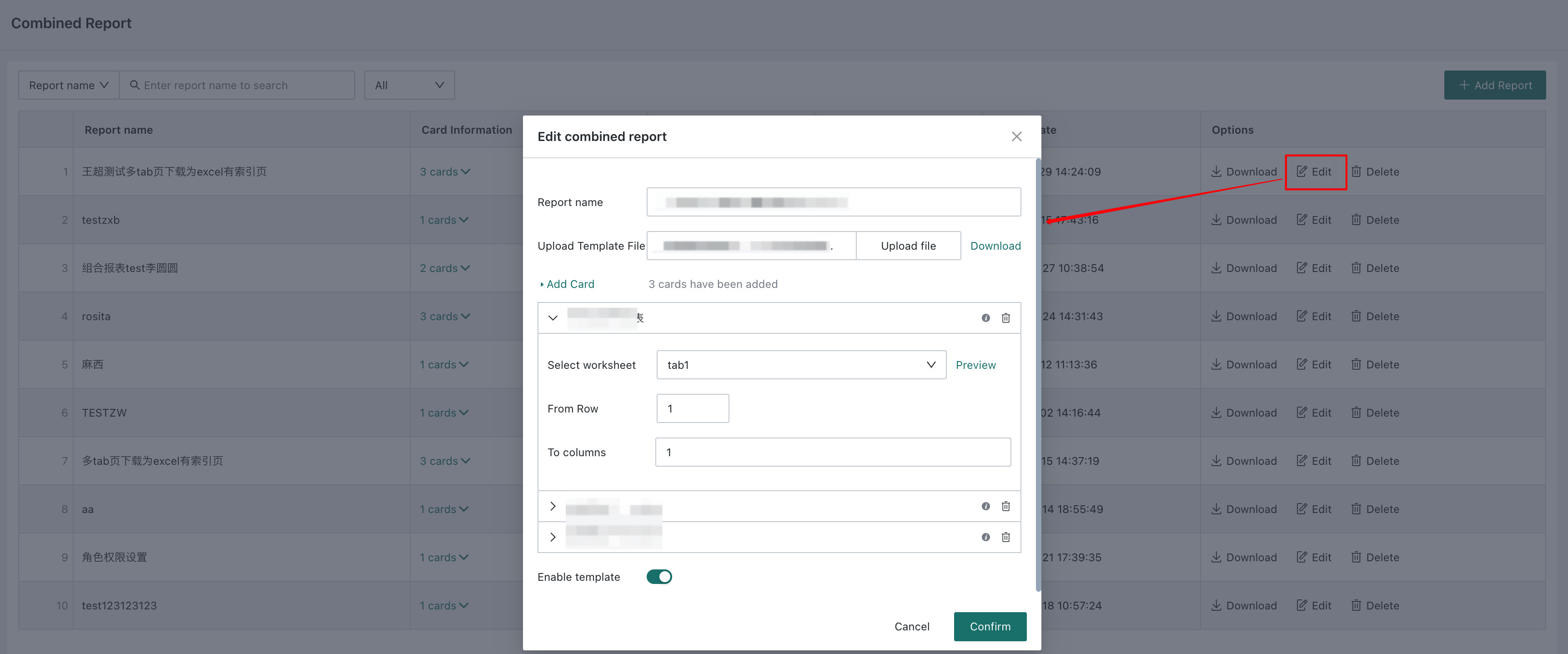
Edit: If the content in a combined report is updated, you can modify it through the edit feature. The available actions are the same as those used during creation.
-
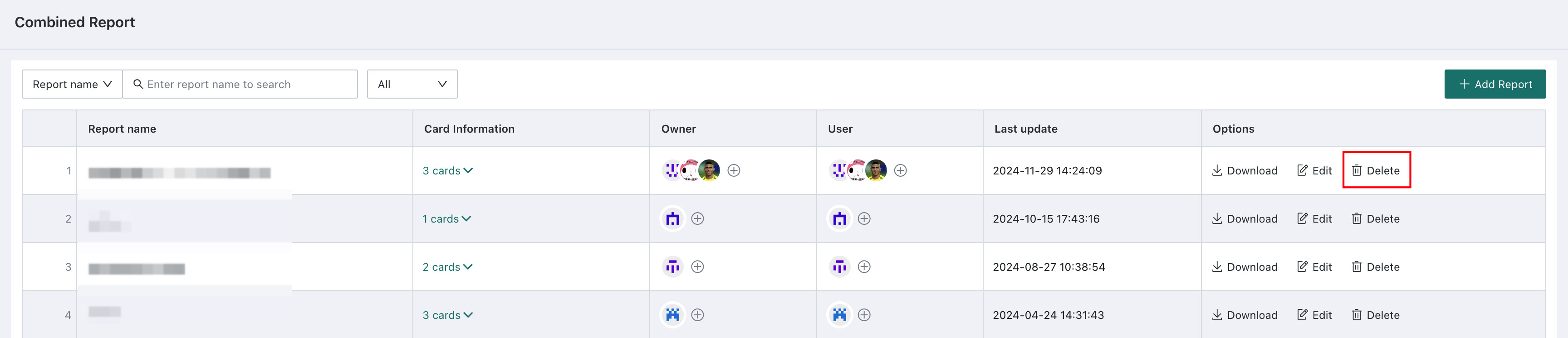
Delete: If a combined report is no longer needed, you can delete it directly.
For China-style or complex reports, use Complex Report.