Data Account
Overview
A Data Account is the credential used to connect to a database or service. With a Data Account, users can quickly establish a database connection, retrieve table metadata, and create datasets. By separating owner and user permissions, Guandata BI can meet enterprise data account management needs for different users.
User Guide
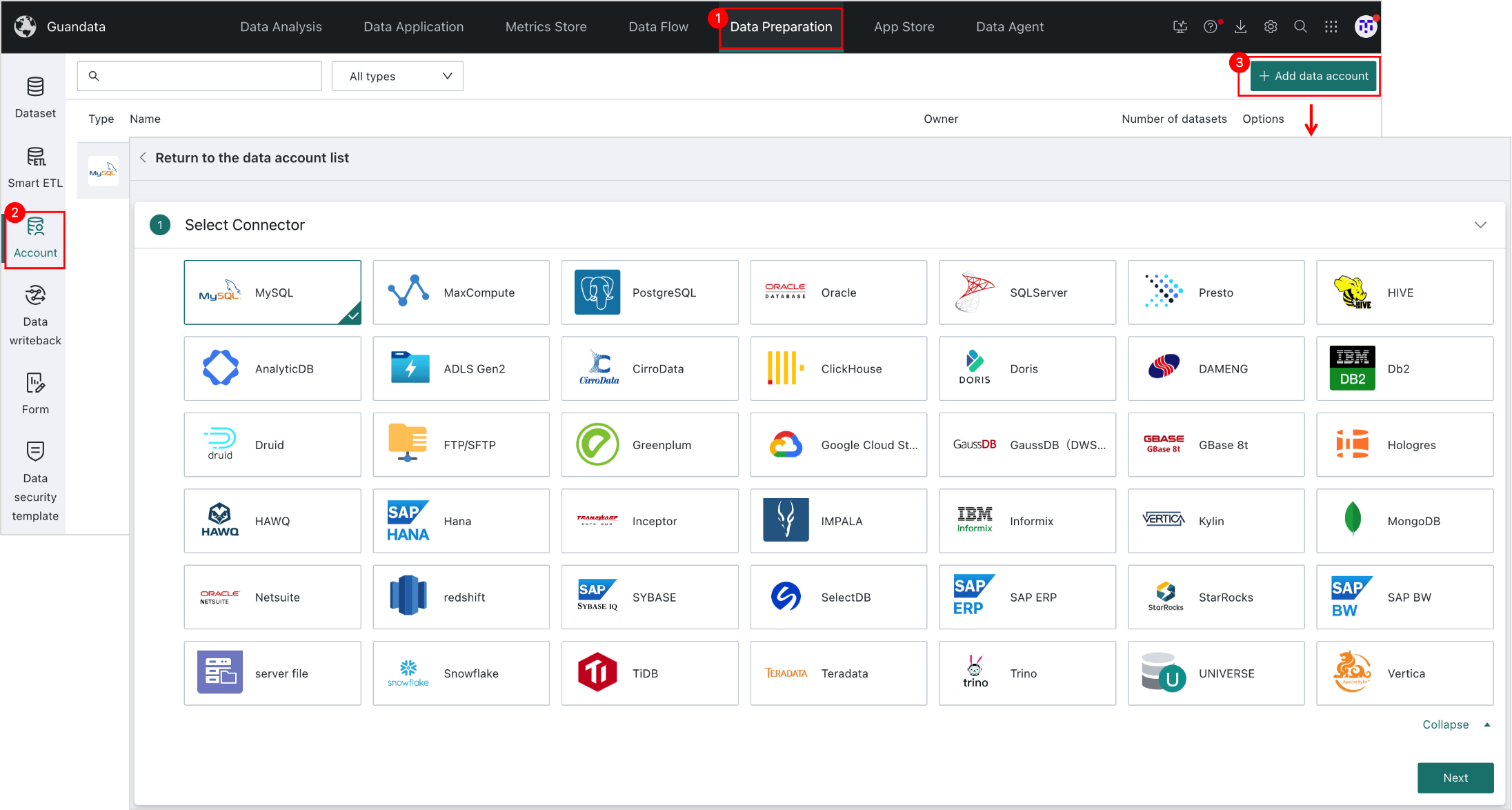
Entry Point: Data Preparation > Data Account > Create / Manage

Select Connector
On the Data Account page, click Create Data Account in the upper-right corner. After entering the configuration page, select the appropriate database connector as needed.
- If you cannot find a suitable database connector, Guandata BI supports self-service integration with external databases. See Self-Service Integration with External Databases.
- If a connector is available but returns parsing or related errors, see Error Reference.
Configure the Data Account
Basic Configuration
Configure parameters such as connection mode, database address, username/password, database name, port, and SSL settings on the current page.
- When the Data Account type is MaxCompute, you can enable the Schema switch. After enabling it and specifying a schema in the Data Account, queries written as
select * from tablewill only query tables under the default schema. To query tables under a specific schema, include the schema explicitly in the SQL, for example:select * from schema.table. - The examples below use the MySQL connector. Other connectors may differ slightly depending on the actual page.
-
When Specified Database is selected as the connection mode, configure:
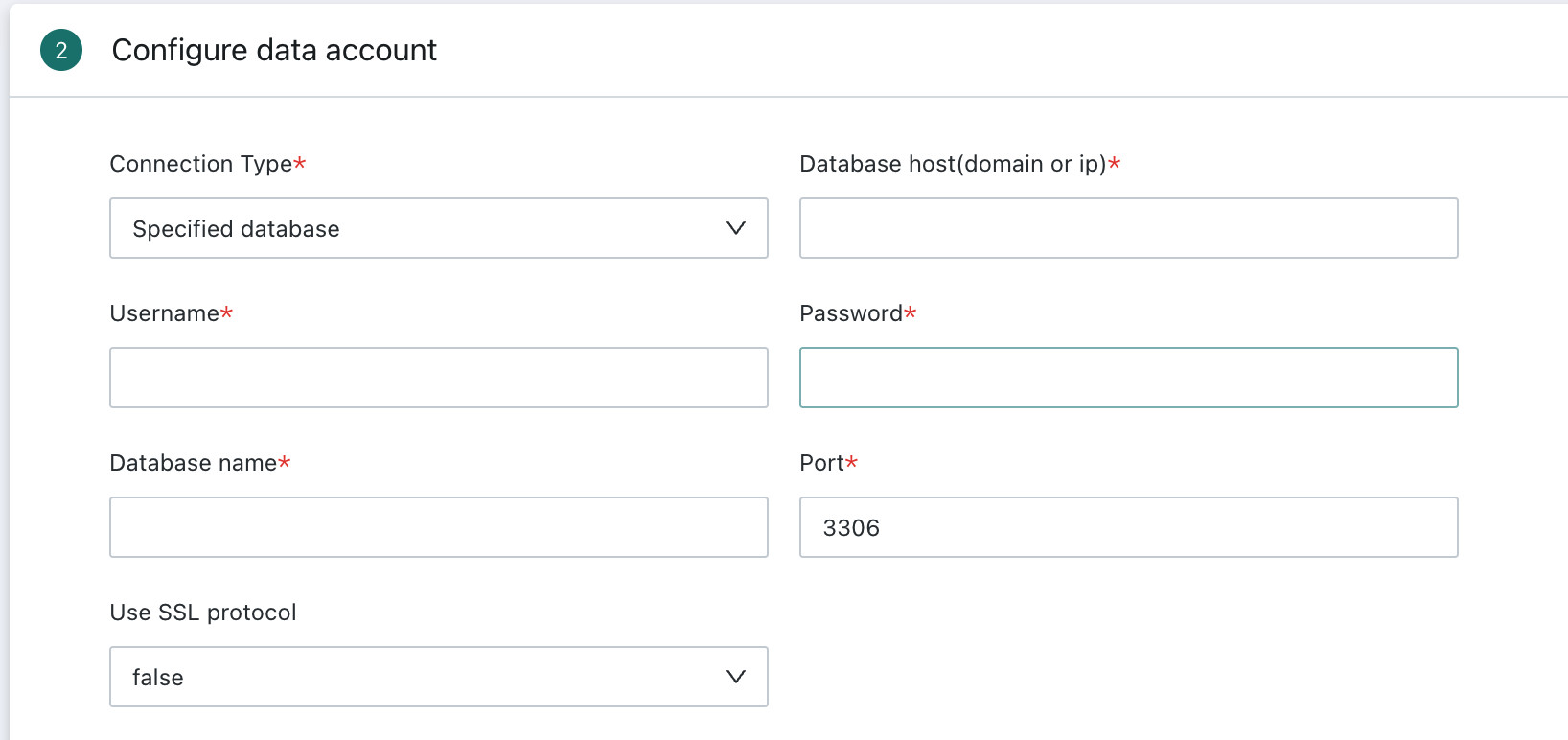
- Database Address (Domain or IP): The network address of the server hosting the database.
- Username: The database login identity used to verify the connecting user.
- Password: The credential paired with the username to confirm the user’s identity.
- Database Name: The specific database to connect to on the database server.
- Port: The listening network port used by the database service, for example
3306for MySQL by default. - Use SSL: Determines whether the database connection uses SSL encryption.
trueenables it andfalsedisables it.
-
When JDBC URL is selected as the connection mode, configure:
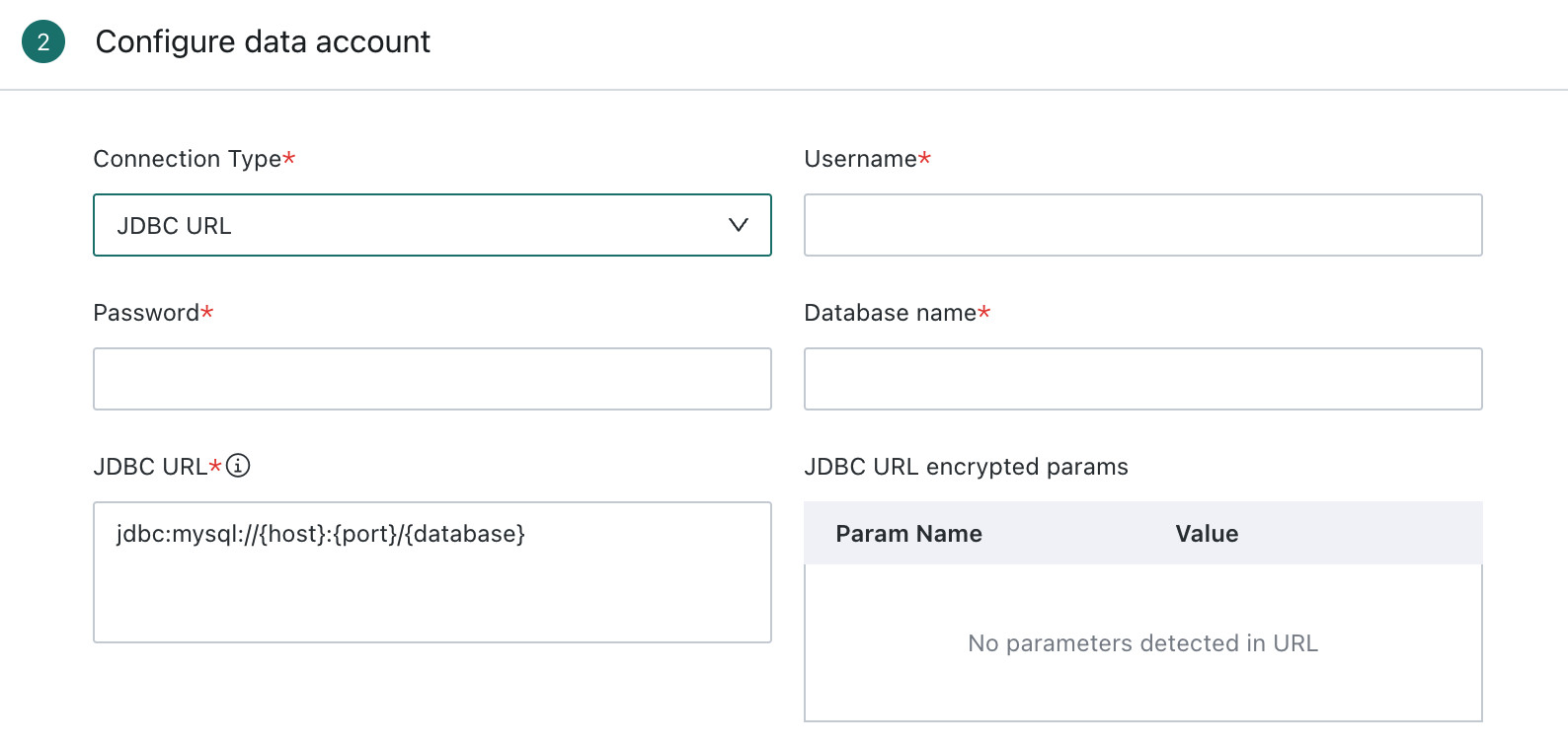
- Username: The database login identity used to verify the connecting user.
- Password: The credential paired with the username to confirm the user’s identity.
- Database Name: The specific database to connect to.
- JDBC URL: Contains the core connection information such as the database type, server host, port, and target database name. Applications parse this URL to construct the database connection automatically.
- JDBC Encrypted Parameters: If the JDBC URL contains placeholders in the format
${xxxx}, the system automatically parses the parameter names and displays them in this section. You must fill in values for each parsed parameter. These values are stored and displayed in encrypted form, similar to passwords, to protect sensitive information.
(Optional) Advanced Settings
Some databases support additional advanced settings when configuring a Data Account:
- maxConnections: Sets the upper limit of the connection pool for a single Data Account. If the number of active connections exceeds this value, additional requests will be queued.
- Driver: Allows users to choose an already configured custom driver when creating a new Data Account.

Test Connection
After completing the configuration, click Test Connection to verify the configuration and network availability.
- If the test succeeds, the configuration is valid and the database is reachable.
- If the test fails, an error message with the failure reason will be returned, and the parameters should be adjusted accordingly.
Confirm Data Account Information
Name the Data Account for the current database to complete creation.

Manage Data Accounts
After creation, Data Accounts are listed on the Data Account list page. Users can filter and search the list, and for individual Data Accounts they can edit, configure permissions, view resource lineage, or migrate them.

For permission configuration, users can assign owners and users to a Data Account. The owner has full management permissions, while users can use the Data Account to create related datasets.
In addition, a Data Account can also be migrated as a BI resource. For details, see Resource One-Click Migration.

When you need to reconnect the connection pool, click Refresh Connection Pool to manually refresh the Data Account connection pool.
