Subscriptions and Alerts Overview
Overview
Subscriptions allow users to subscribe to cards, pages, datasets, and other content in Guandata BI. Subscribed content is sent to recipients by email, so users can learn about the latest card or dataset data changes without logging in.
Alerts notify users immediately by email when a dimension or measure in a card reaches a configured condition, signaling a data anomaly. This feature helps users make decisions and respond in time. Resource owners can configure alerts, which can run on a schedule or after data updates.
Usage Introduction
With subscriptions, users can learn about the latest card or dataset data changes without logging in. Guandata currently supports five subscription types:
| Subscription Type | Description | Link |
|---|---|---|
| Card Subscription | One subscription corresponds to one card | Card Subscription |
| Merged Subscription | One subscription corresponds to multiple cards | Merged Subscription |
| Page Subscription | One subscription corresponds to one page | Page Subscription |
| Dataset Subscription | One subscription corresponds to one dataset | Dataset Subscription |
| Insight Subscription | One subscription corresponds to one dashboard insight or card insight | Insight Subscription |
With alerts, users can receive anomaly signals for cards or datasets without logging in. Guandata currently supports three alert types:
| Alert Type | Description | Link |
|---|---|---|
| Card Alert | One alert corresponds to one card | Card Alert |
| Dataset Alert | One alert corresponds to one dataset | Dataset Alert |
| Insight Alert | One alert corresponds to one dashboard insight or card insight | Insight Alert |
Subscription and Alert Management
Subscription Management
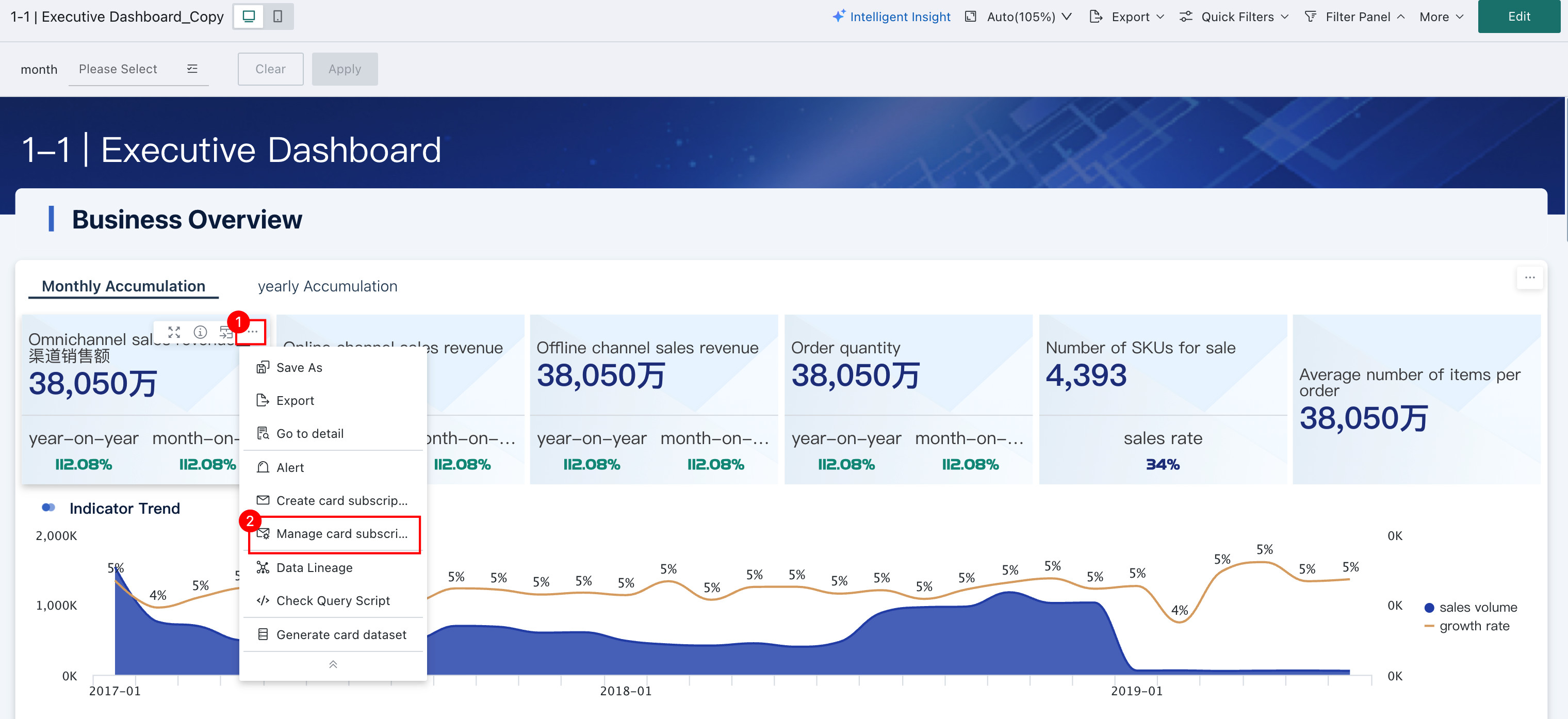
Entry 1: Click ... in the upper-right corner of a card and select Manage Card Subscriptions to enter the Subscription Plan page.
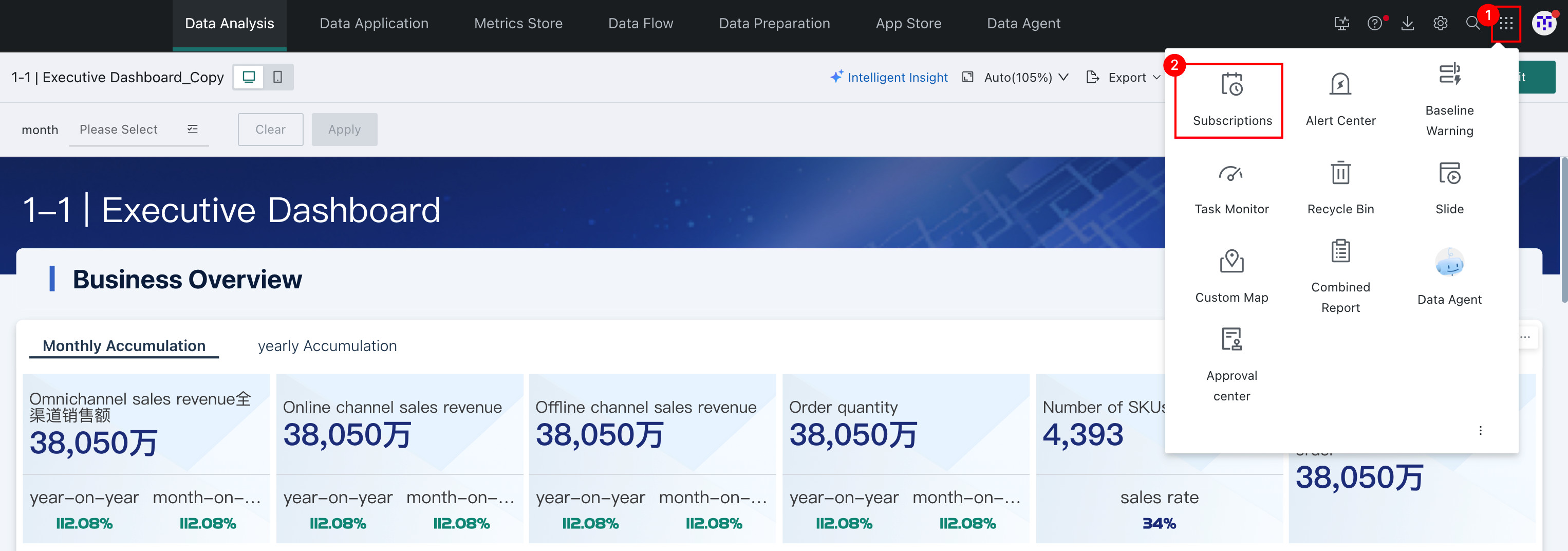
Entry 2: Open the app launcher in the upper-right corner and select Subscription Plan to enter the Subscription Plan page.
In Subscription Plan, you can manage and configure card subscriptions, merged subscriptions, page subscriptions, dataset subscriptions, and insight subscriptions. The settings are as follows:
-
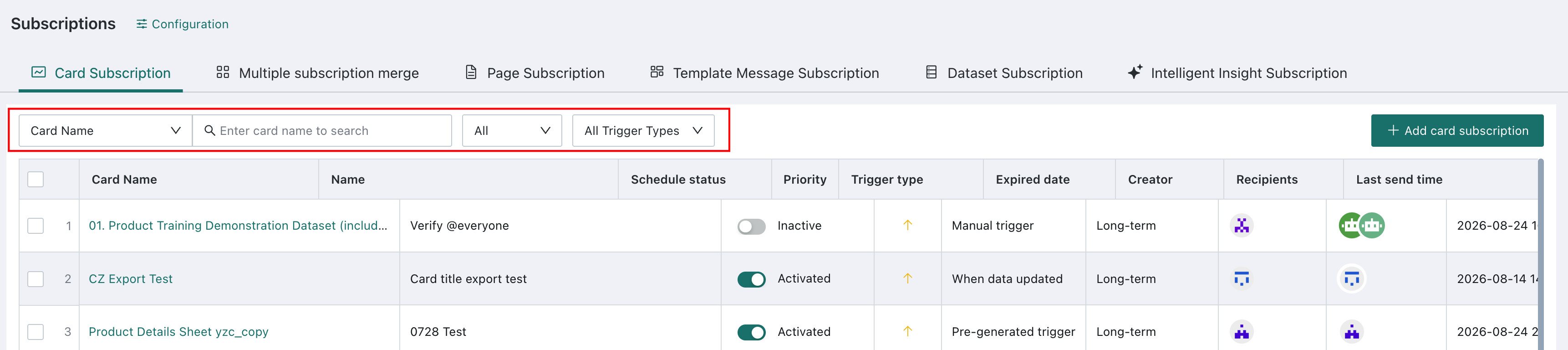
Filter subscriptions: Filter subscriptions by card name, subscription name, recipient, creator, validity period, subscription status, and trigger method.
-
Add subscription: In the upper-right corner of
Subscription Plan, clickAdd Subscriptionto create a subscription.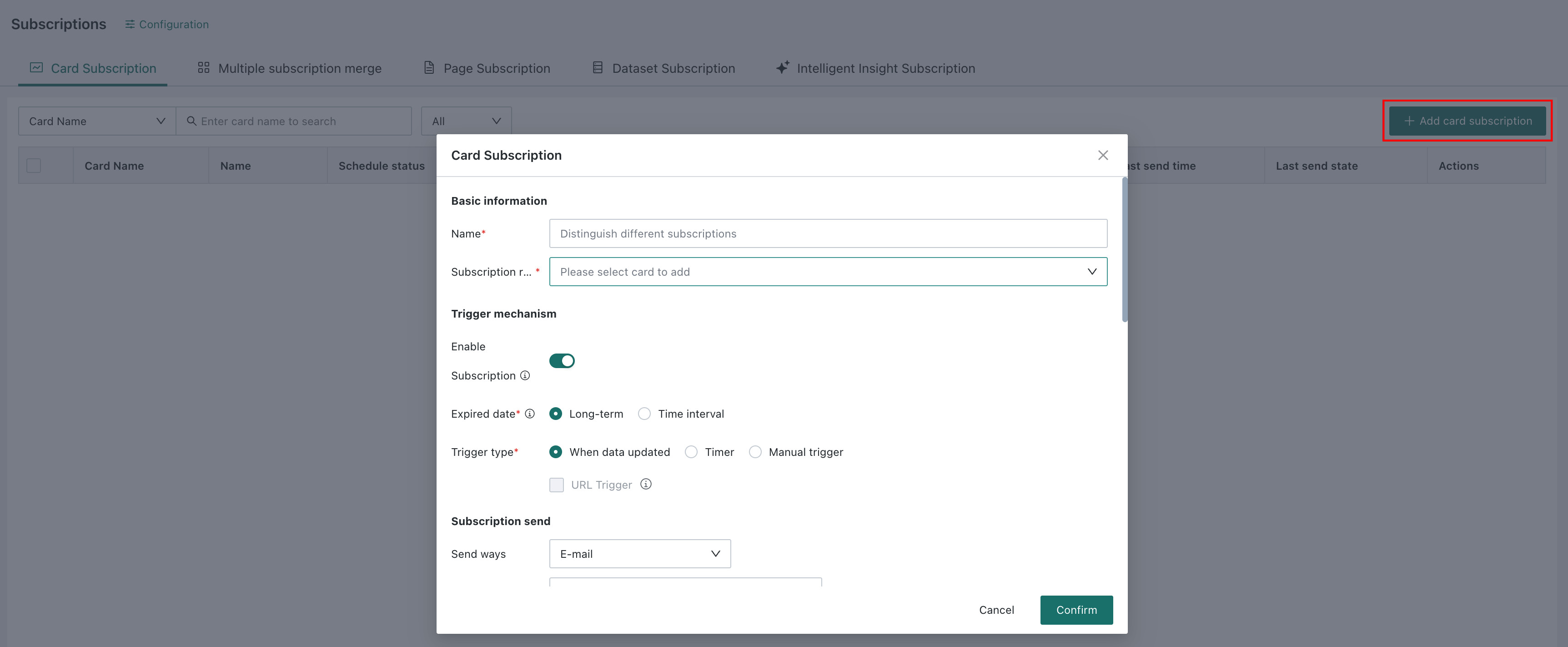
-
View Page: Click
Page Nameto view specific page data. Filtering and other data operations are supported.
-
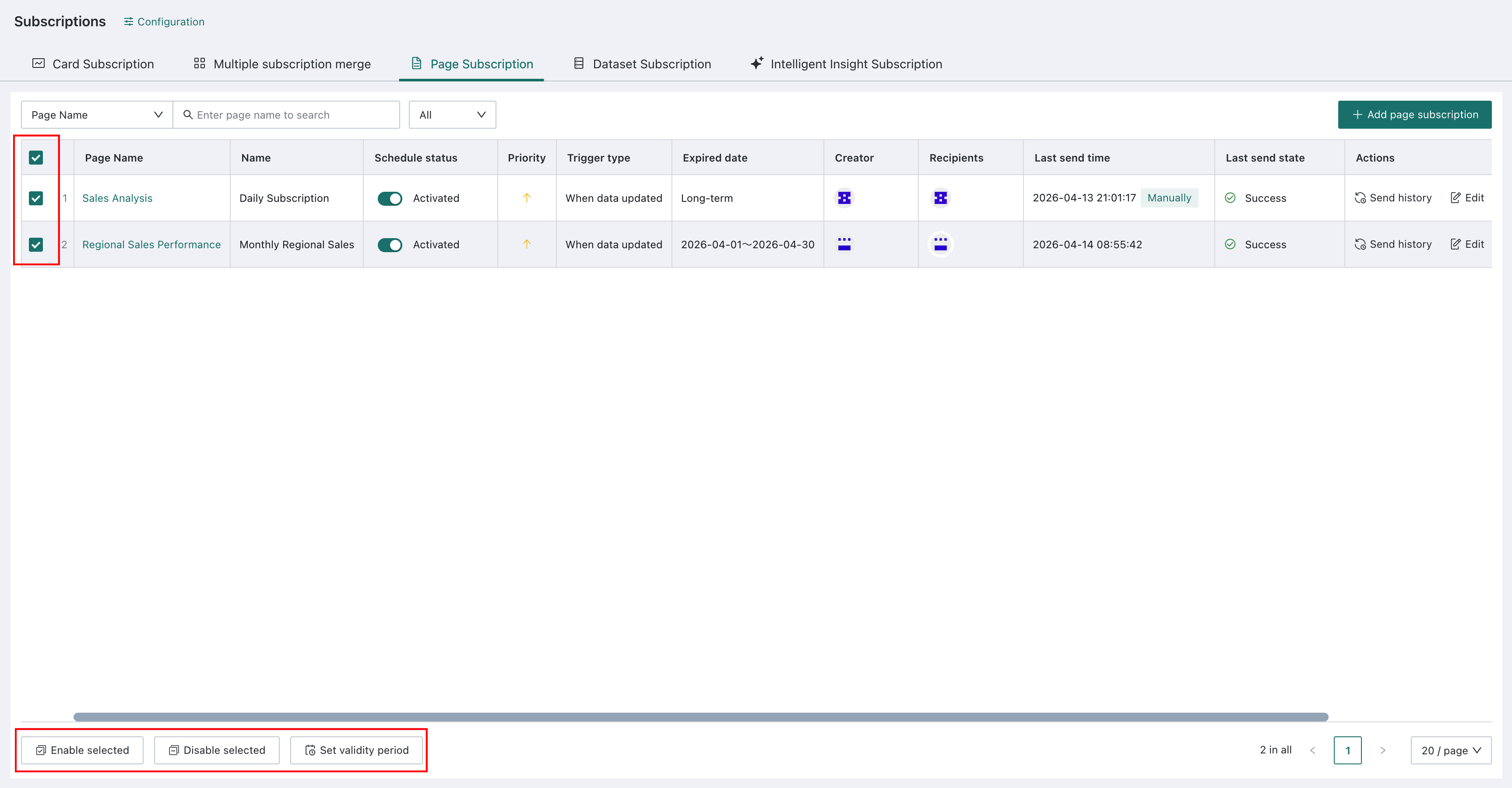
Batch settings: Select multiple subscriptions to trigger batch settings. You can enable, disable, or set validity periods in batches.
-
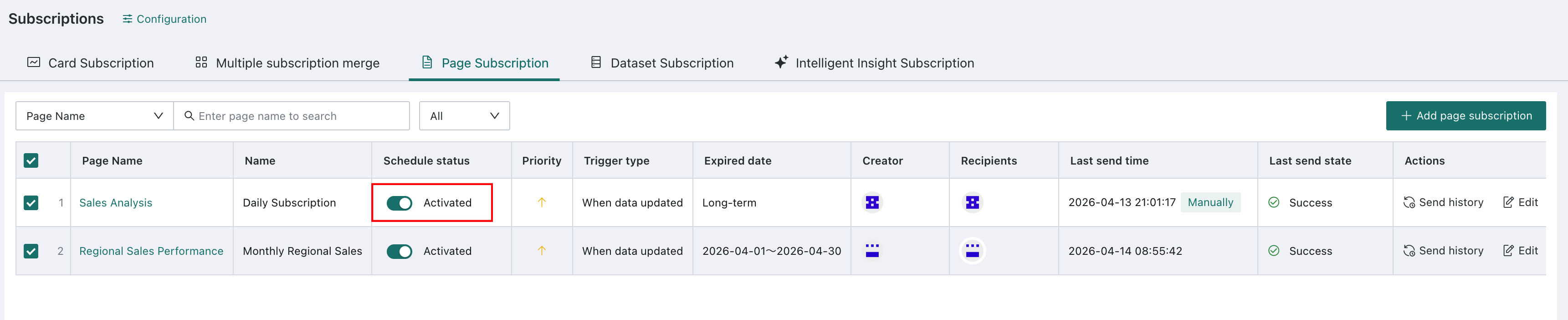
Enable subscription: After enabled, the subscription is sent according to the configured content.
-
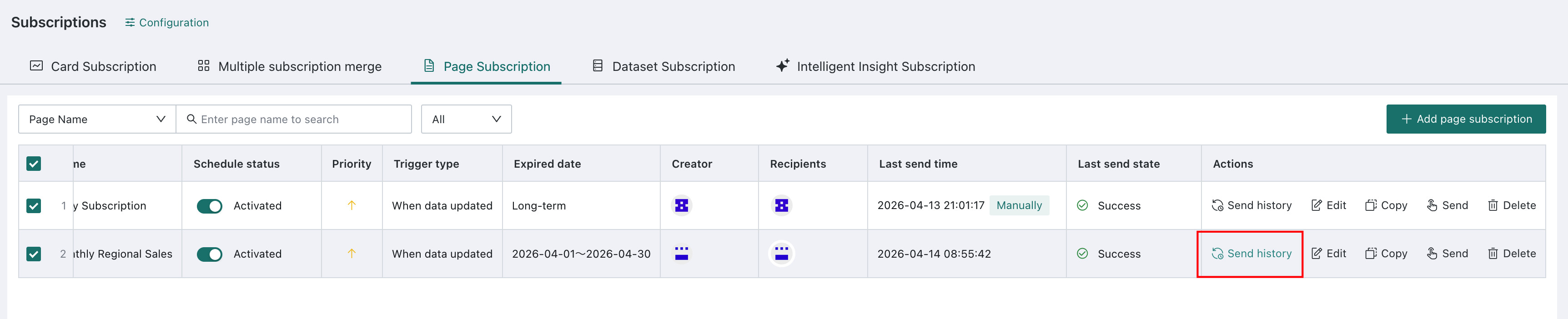
View sending history: View subscription sending history and card sending history.
-
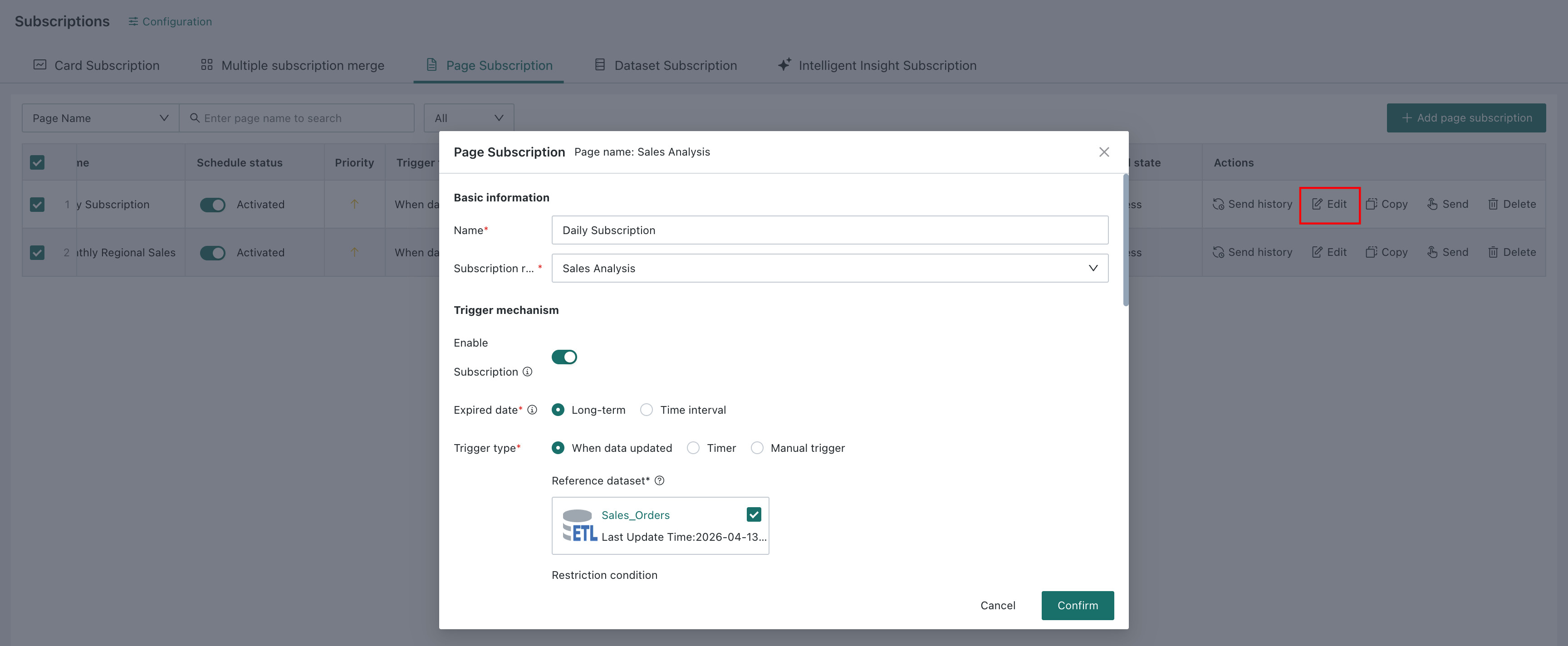
Edit subscription: Edit previously configured subscription content.
-
Send subscription: Click
Send Manuallyto resend the subscription.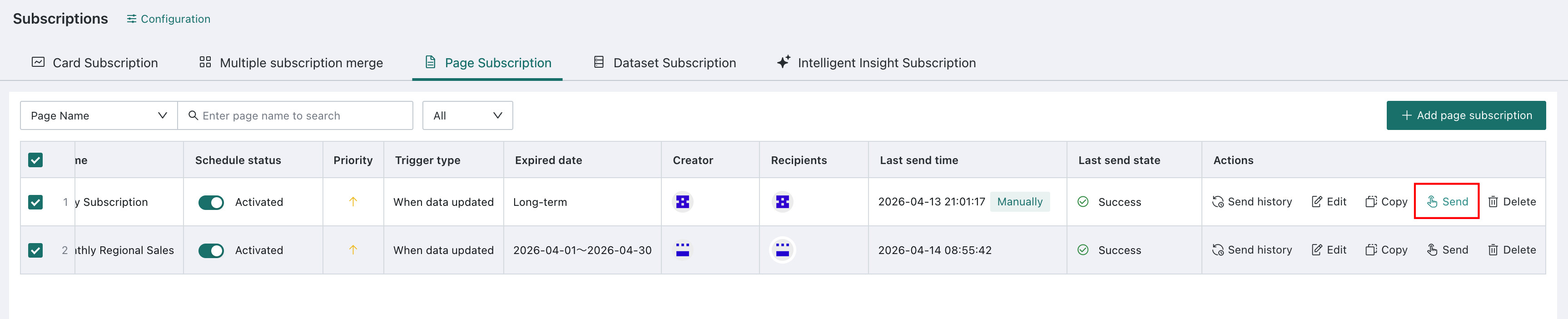
-
Delete subscription

Alert Management
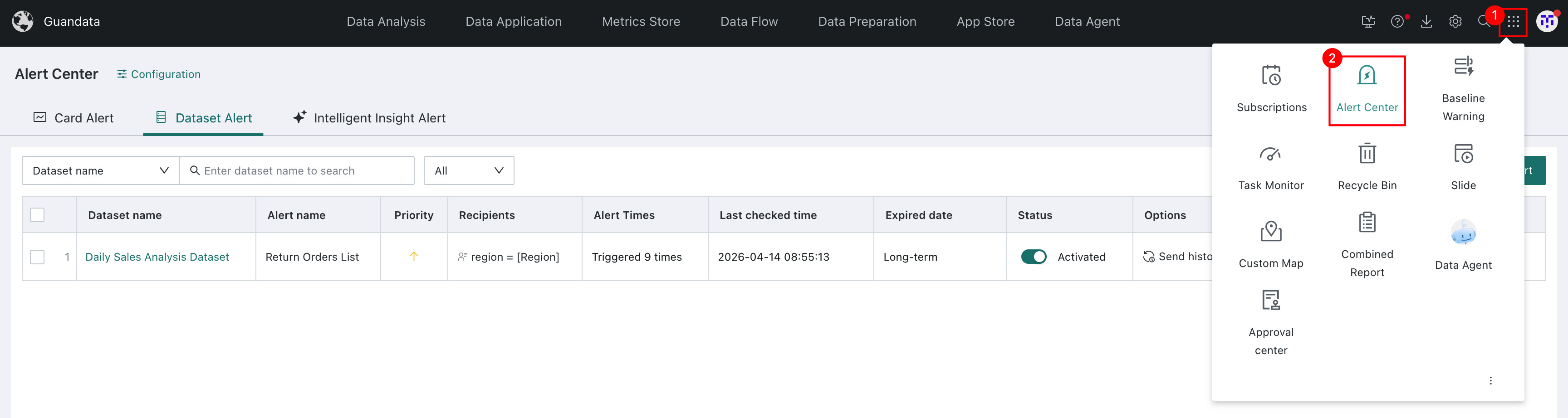
- Click the app launcher on the right side of the navigation bar to enter
Alert Center.
-
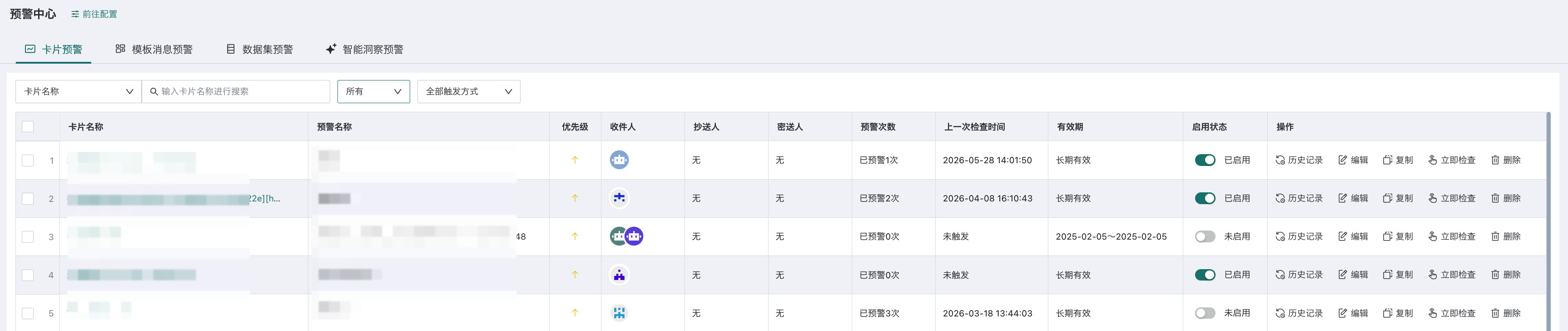
Enter the management page for all alerts related to the current user. Normal users can manage alerts related to all pages they own. Administrators can manage all alerts in the domain. Alert management is basically the same as subscription management and supports:
- Filter alerts: Filter alerts by card name, subscription name, recipient, creator, validity period, subscription status, and trigger method.
- Batch settings: Select multiple alerts to trigger batch settings. You can enable, disable, or set validity periods in batches.
- View sending history: View historical sends for the alert, with custom time range and alert status filters.
- Edit: Click
Editto enter the alert editing page and modify the alert configuration. - Copy: Click
Copyto quickly create a new alert based on this alert, reducing repeated configuration. - Check now: Click
Check Nowto manually execute the alert and confirm whether it can be triggered normally. After execution is complete, the alert sending record is visible inSending History. - Delete: Delete the alert.
Permission Restrictions
Subscription Permission Restrictions
When configuring a subscription, if images or attachments are inserted, Export Permission must be configured.
If Export Permission is enabled, when images or attachments are inserted into a subscription, the creator's RBAC export permission and whether the resource allows export must be verified.
The permission and behavior mapping is as follows:
| Feature | Delivery Method | Permission Restriction | If Export Permission Is Not Available |
|---|---|---|---|
| Card Subscription | RBAC dashboard export permission and export permission for the dashboard | Cannot export card images or table attachments in XLSX format | |
| Page Subscription | RBAC dashboard export permission and export permission for the dashboard | Cannot export page images or page PDFs | |
| Merged Subscription | RBAC dashboard export permission and export permission for the dashboard | Cannot export page images, card images, or attachments | |
| Dataset Subscription | - | RBAC dashboard export permission and export permission for the dashboard | Cannot create a subscription |
- If the creator of an existing subscription does not have export permission, subscription sending fails with an error.
- If the creator of a new subscription later loses export permission, the subscription reports an error.
Alert Permission Restrictions
If Export Permission is enabled, when images or attachments are inserted into an alert, the creator's RBAC export permission and whether the resource allows export must be verified.
The permission and behavior mapping is as follows:
| Feature | Delivery Method | Permission Restriction | If Export Permission Is Not Available |
|---|---|---|---|
| Card Alert | RBAC dashboard export permission and export permission for the dashboard | Cannot export card images | |
| Dataset Alert | - | - | No restriction |
If the creator of a new alert later loses export permission, the alert reports an error.
Timestamp Management
Currently, subscription and alert message bodies do not include timestamps by default. If the message body needs to include a timestamp, contact an administrator to enable Subscription and Alert Timestamp in Super Admin Backend > Advanced Settings.