Card Alert
Overview
Card alert is a real-time monitoring feature based on card data. It sends email notifications when configured conditions are met. Flexible trigger time and validity period settings help users discover data anomalies, monitor key business metrics, and track target achievement.
Prerequisites
To send alerts by email, complete Email Configuration in Management Center > System Integration.
Create an Alert
-
Click ... in the upper-right corner of a card and select Alert to enter the card Alert Settings page.
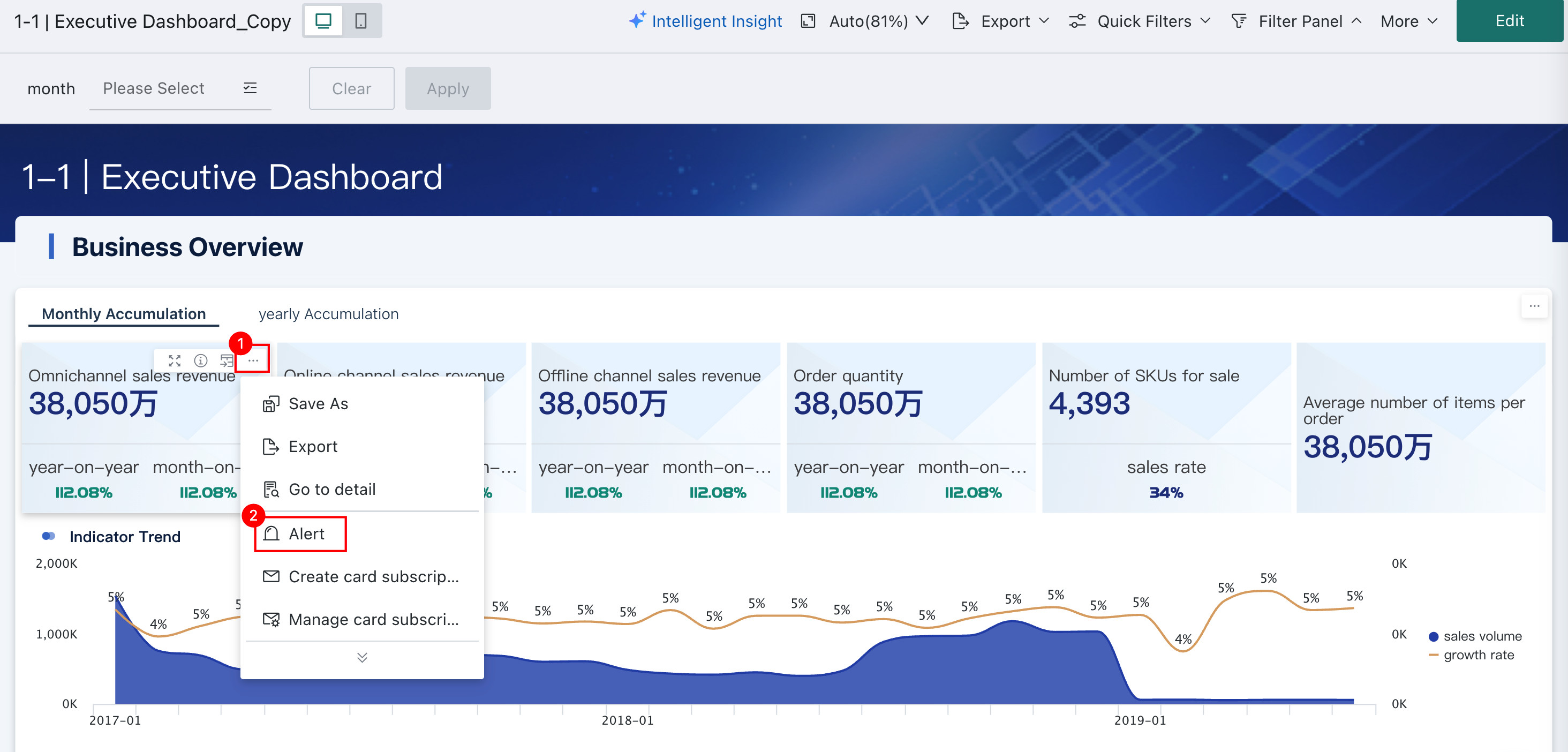
-
Configure the alert. A single card can have up to 20 alerts. By default, a card has no alerts.
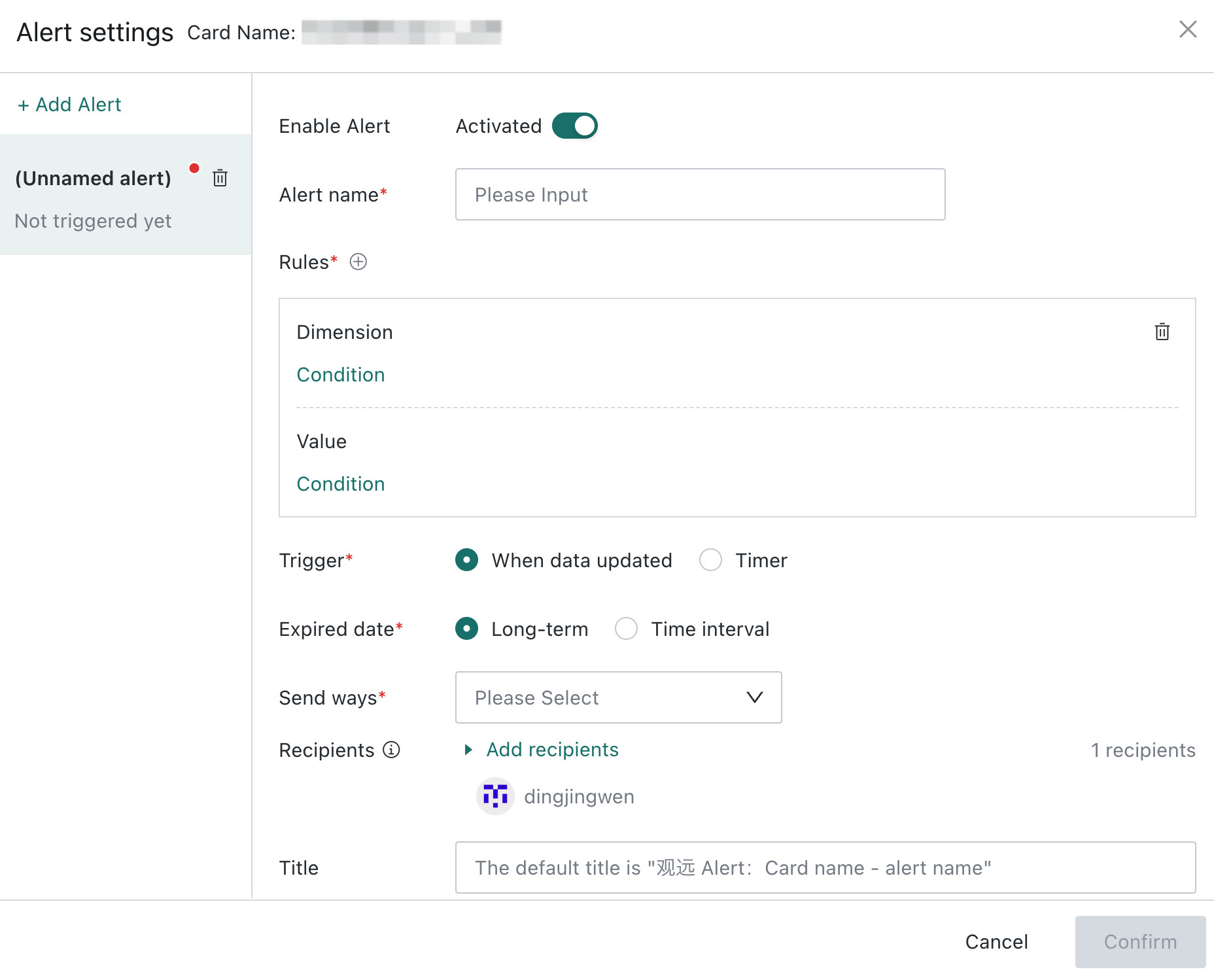
Configure an Alert
Enable Alert
Select Enable or Disable for the alert.
Alert Name
Create a name for the alert so it can be quickly found in Alert Center. A proper name also helps you quickly understand the issue when receiving an alert email, such as East China store sales did not meet expectations.
Rules
Alert rules determine the conditions for triggering an alert. Guandata supports alert rules in various forms, from simple to complex and from single-condition to compound-condition rules.
- One alert can contain one or more alert rules.
- One alert rule contains conditions for both Dimension and Measure.
- For multiple alert rules, you can select Meet All Rules or Meet Any Rule as the trigger condition.
Trigger Time
Select After Data Update or Scheduled Execution.
- After Data Update: Each time card data is updated, alert checking is triggered. Once alert conditions are met, related users are notified by email.
- Scheduled Execution: Select daily, weekly, or monthly scheduled alert checking. When alert conditions are met, related users are notified by email.
Validity Period
This is the same as Card Subscription - Validity Period.
Notification Channel
Card alerts are sent by email.
Sender
This is the same as Card Subscription - Sender.
Recipients
This is the same as Card Subscription - Recipients.
Email/Notification Title
This is the same as Card Subscription - Email/Notification Title.
Email Body/Notification Content
This is the same as Card Subscription - Email Body/Notification Content.
Image Content
Card images can be inserted. If the card type is China-style Report Pro or Visualization Chart/Metric Card - Table Category, an Adaptive option is available. The image is captured and sent after adapting its width and height to the data volume. For Visualization Chart/Metric Card - Table Category, the upper limit is 10,000 cells. If exceeded, columns are truncated first. For China-style Report Pro, the upper limit is 200 rows * 200 columns; rows and columns beyond the limit are truncated.
Notification Jump Link
You can Show or Hide the card details page link. For the email channel, users can customize the email body and set the jump link separately.
| Notification Channel | Image Content | Notification Jump Link |
|---|---|---|
| Supports card images | Jumping is not supported |
Priority
This is the same as Card Subscription - Priority.
FAQs
For alert-related FAQs, see FAQs.