Template Message Alert
Overview
Template message alert associates data from Guandata BI with structured message card templates in Feishu and DingTalk through variable matching when alert conditions are met, enabling alert messages to be pushed as structured cards.
Feishu Template Message Alert
Prerequisites
-
In the Guandata and Feishu admin backends, complete the preparation for Guandata-Feishu integration. For details, see Complete Feishu Integration Solution)).
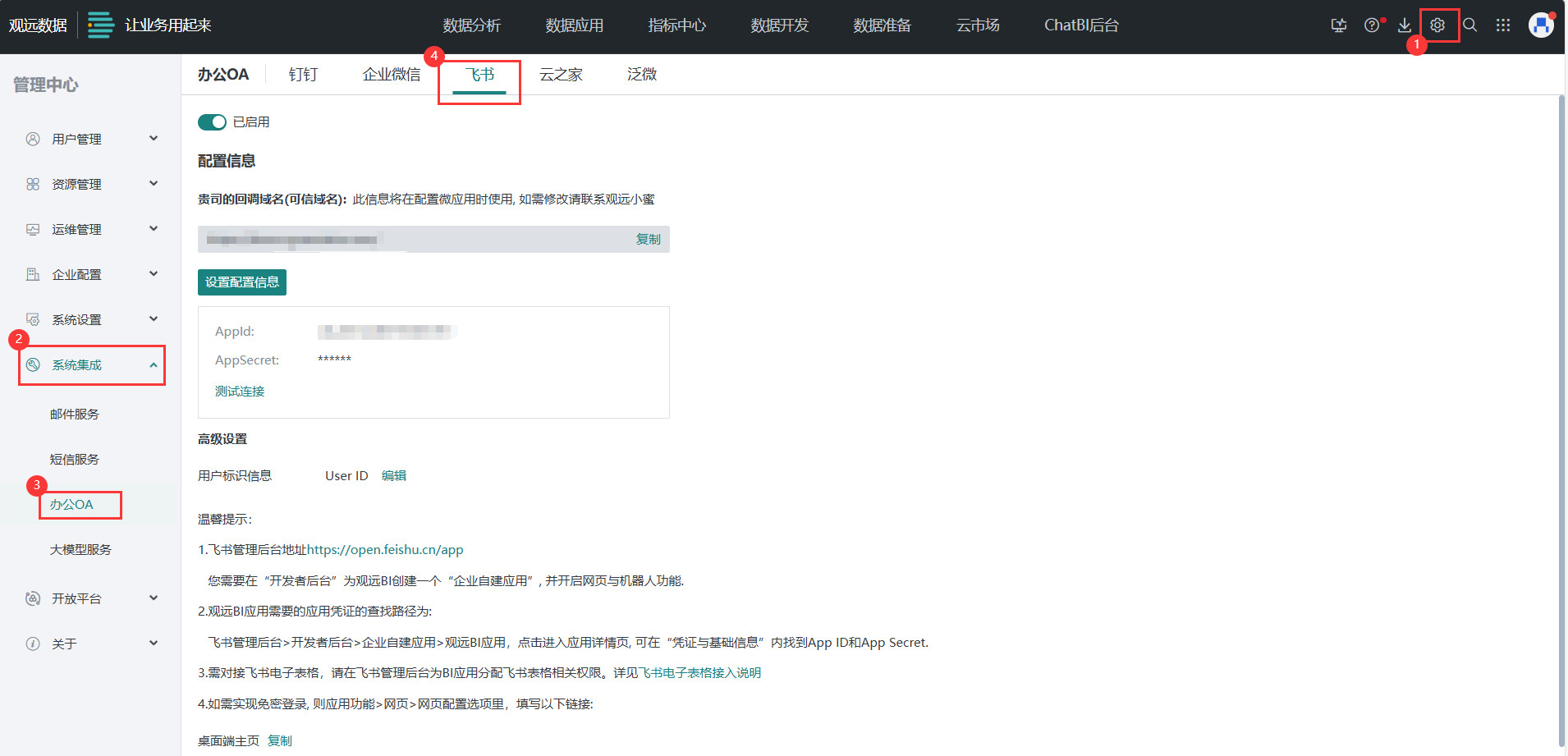
-
In Feishu Card Builder, create and publish the message card template to send. For usage details, see Feishu Card Builder Overview.
-
For dynamic data that needs to be obtained from Guandata BI in the card template, configure card variables in advance.
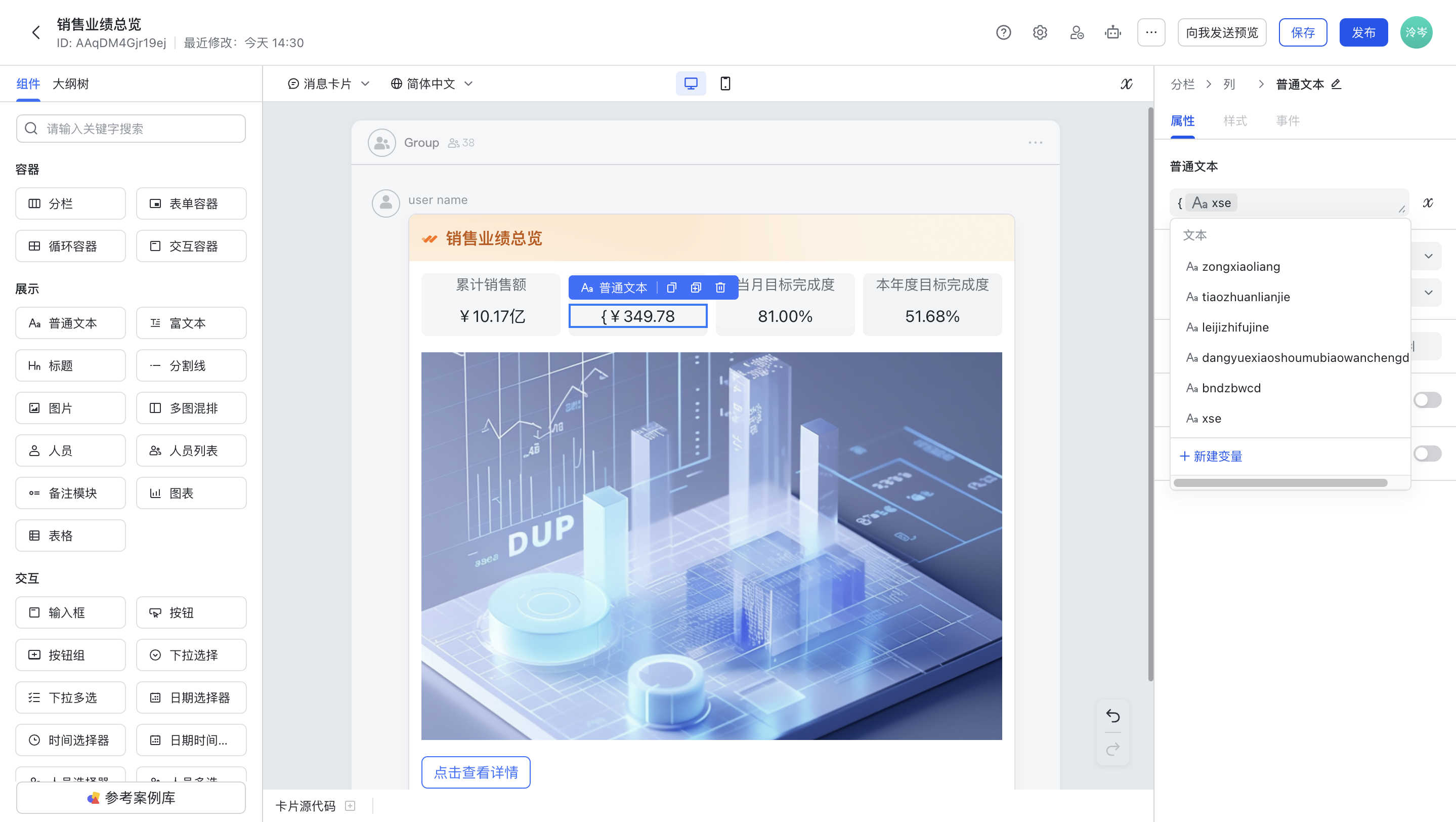
-
Add a custom bot/application to the card template and ensure that the specified application and
All Custom Botshave permission to send the card template.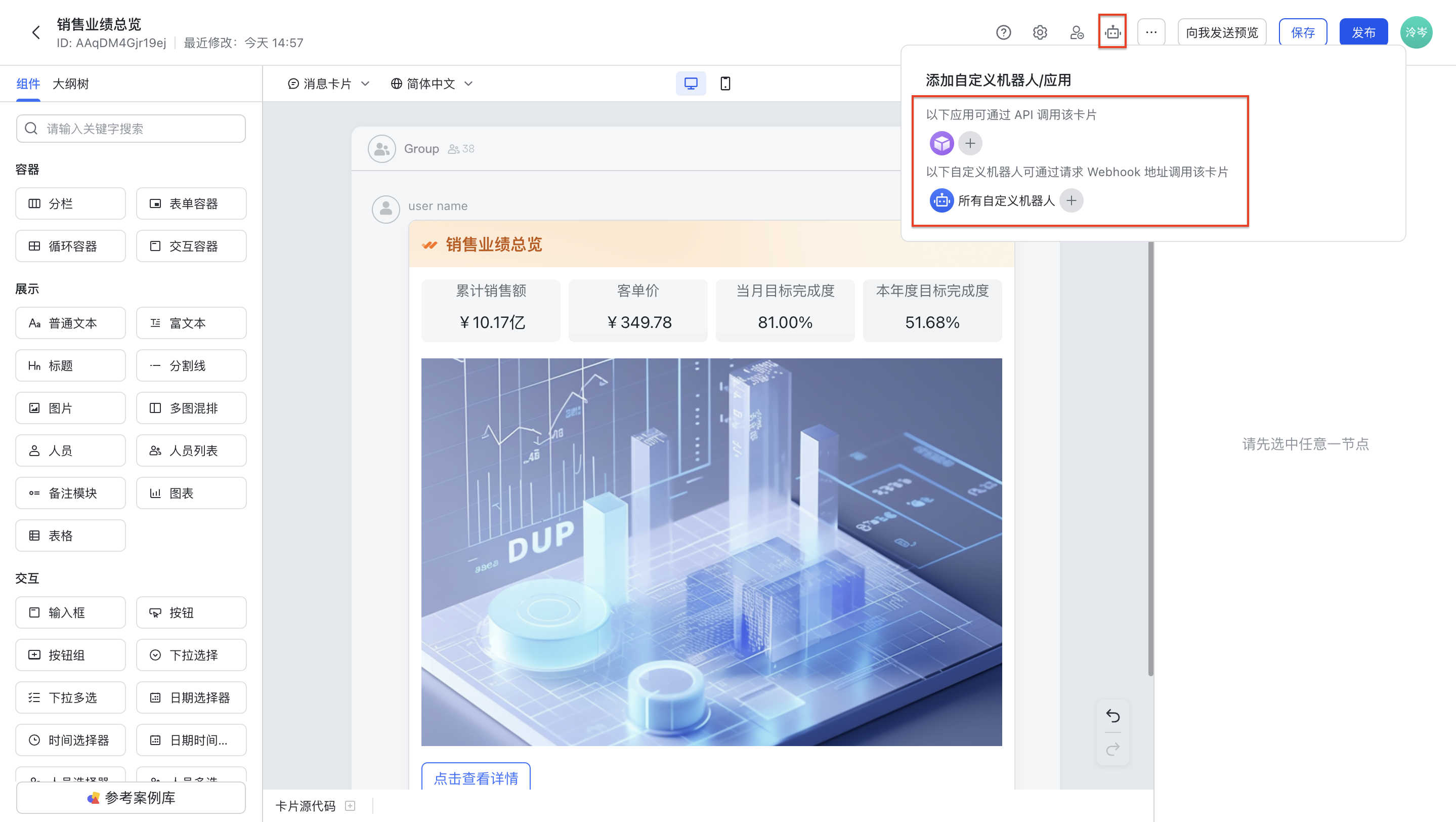
-
Create and Configure a Template Message Alert
-
In Guandata BI, click
Alert Centerin the app launcher in the upper-right corner, then clickTemplate Message Alert > Add Template Message Alert.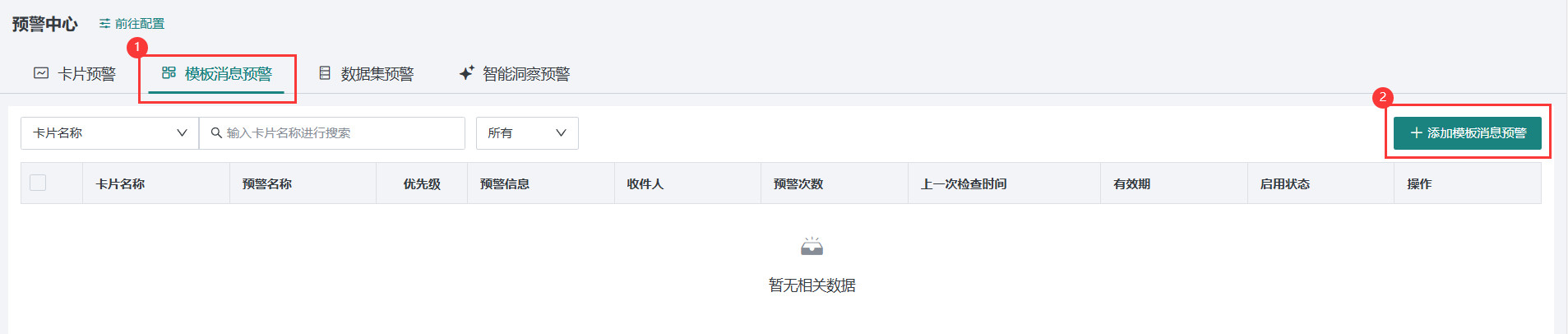
-
For detailed configuration of basic information and trigger mechanism, see Card Alert.
-
Configure
Alert Sendingand selectFeishuas the notification channel. Two notification methods are supported:Message NotificationandGroup Bot.-
Message Notification: Add users or user groups in Guandata BI as recipients. Alert messages are sent separately to individuals.
-
Group Bot: Send alert messages to a Feishu group through a group bot. For usage details, see Use Group Bots to Push Notifications.
-
-
Configure
Alert Content.- Template ID: Click the drop-down list to obtain all template IDs under the application corresponding to the current BI. Fuzzy search by template ID and name is supported. The card template must be specified for the application corresponding to the current BI. If the card template is set to all applications, the BI platform cannot automatically obtain the card template.
- Version number: Click the drop-down list to select the template version number. The latest version is selected by default. Historical versions can also be selected. If a historical version is selected, the message card is matched and sent according to the template of that historical version.
- Variable matching: For card variables configured in the Feishu card template, match them to dynamic data, cards, and other BI elements from visualization cards in the BI platform. The BI elements to match vary by variable type. For detailed configuration, see Template Message Subscription.
Currently supported Feishu variable types include text, integer, image, image array, object array, table row data, and device-specific differentiated links.
-
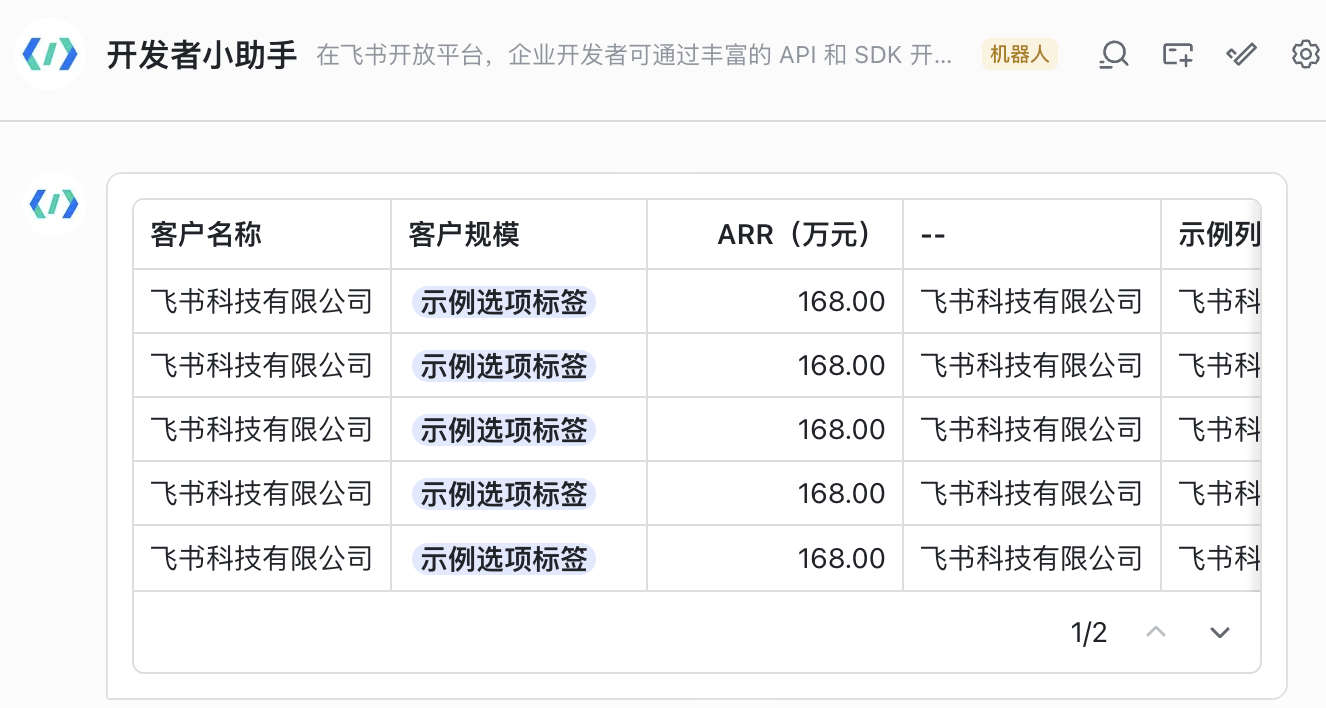
To send a table directly through a Feishu message card, as shown below, configure the
Table Row Datavariable.
-
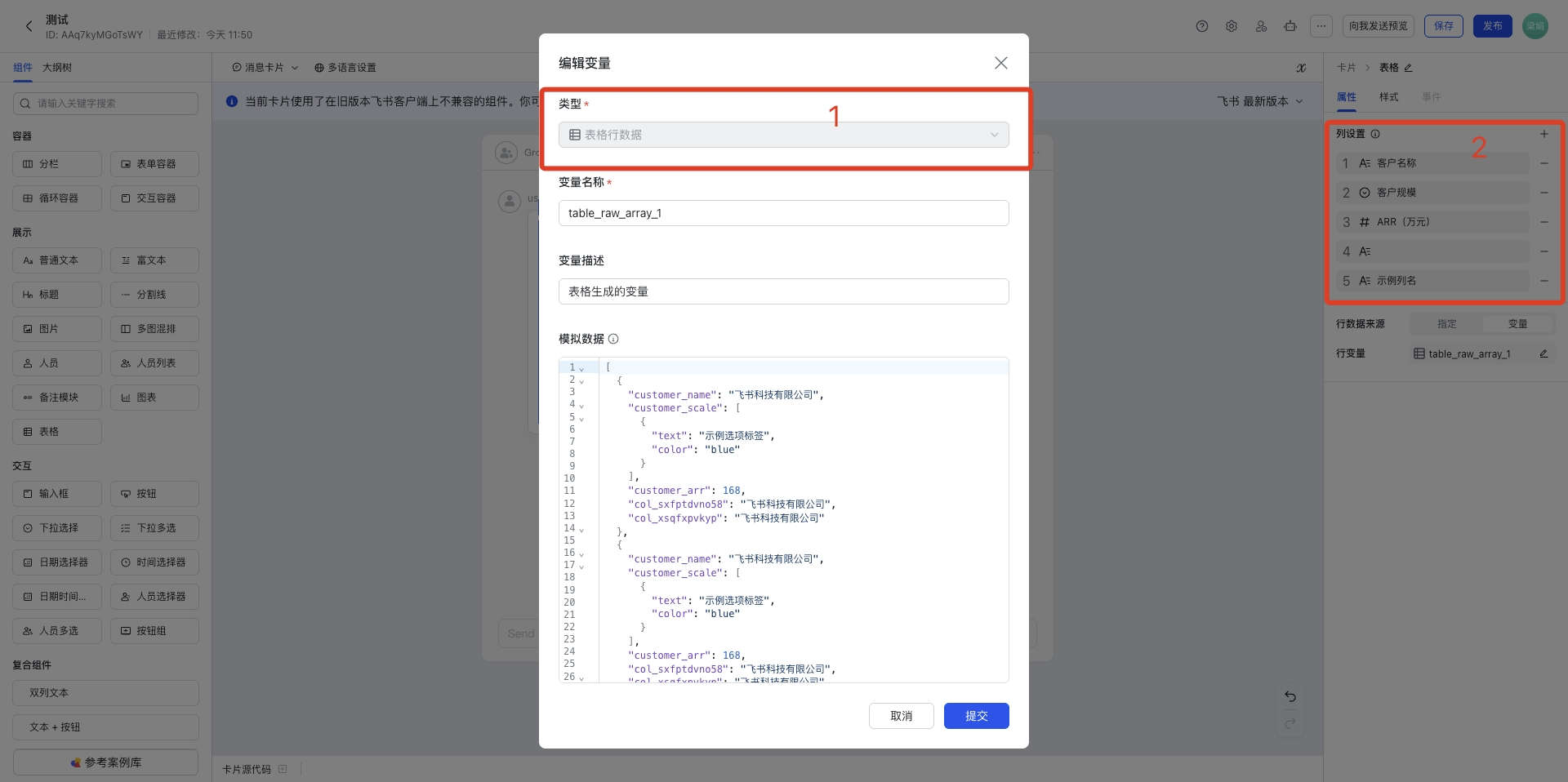
In the Feishu message card, the
Tablecomponent corresponds to theTable Row Datavariable. Add field columns to the variable and set each field's key and type.
-
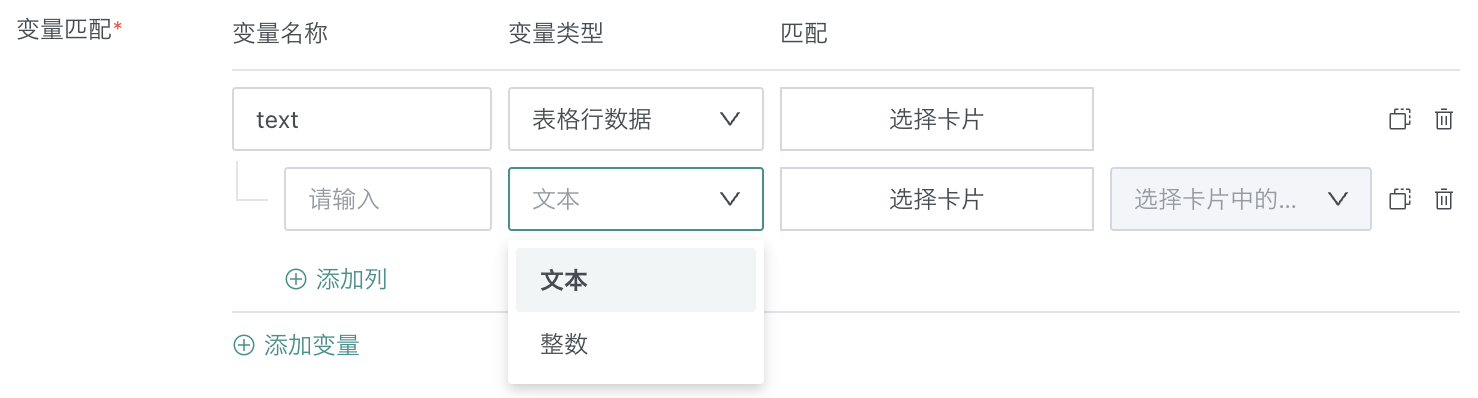
In Guandata BI, add a variable of type
Table Row Data, add columns to the variable, enter the field key from the Feishu message card as the column name, and keep the field type consistent with Feishu.
-
-
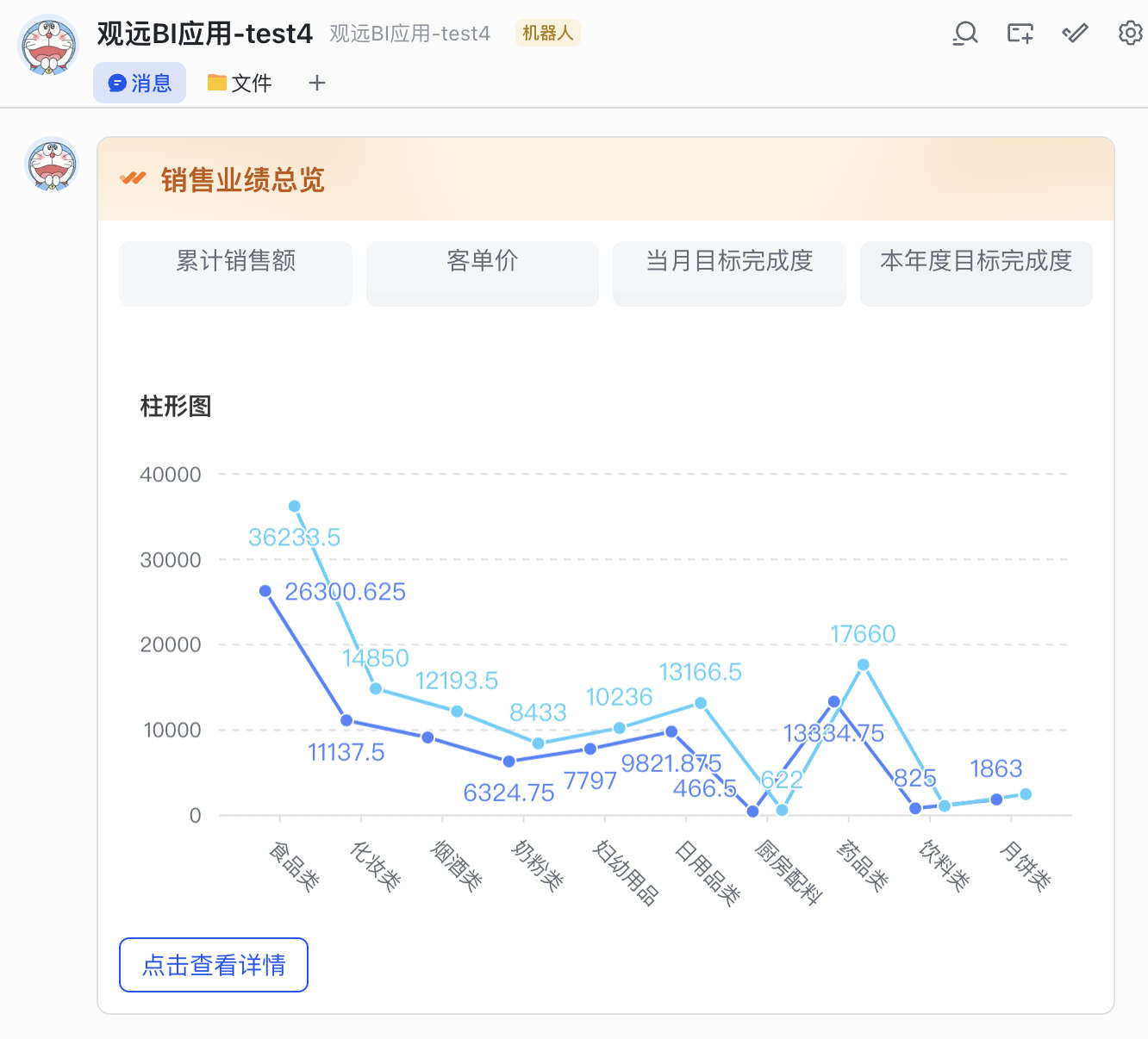
To send a visualization chart directly through a Feishu message card, as shown below, configure the
Image Arrayvariable.
-
In the Feishu message card, the
Chartcomponent corresponds to theObjectvariable.
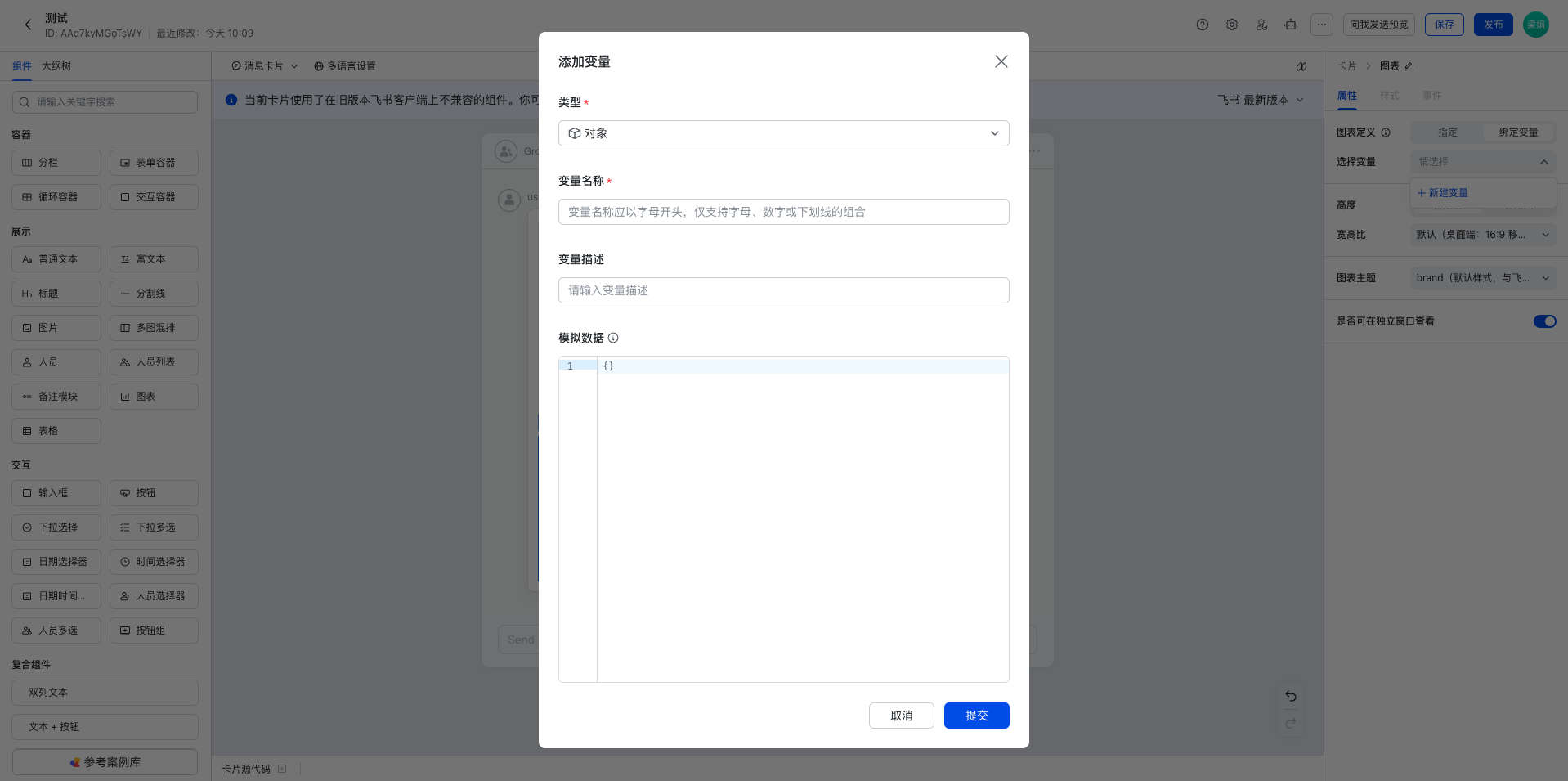
-
In Guandata BI, set
Variable TypetoImage Arrayand select a matching visualization card.
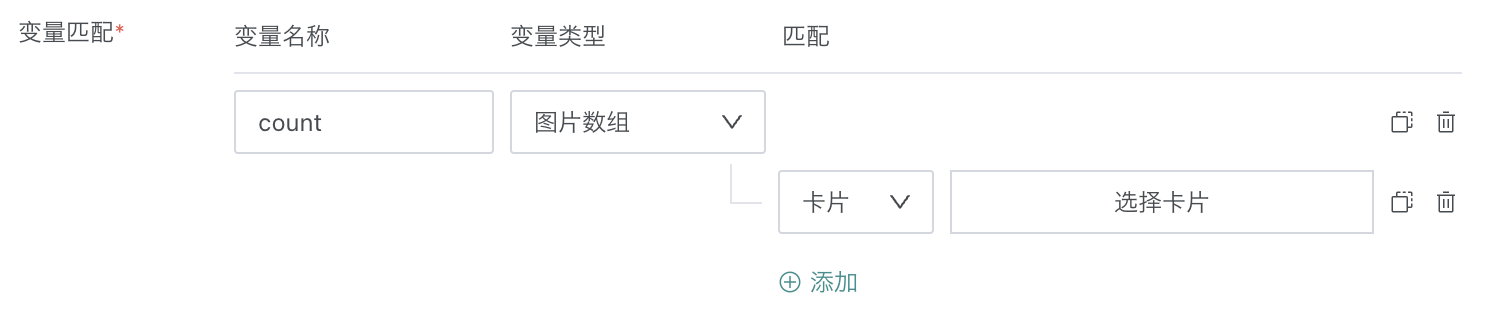
-
-
After alert content is configured, click
Send Preview to Meto view the final received message card effect in Feishu. After confirming that the style and data are correct, clickOKto complete the template message alert configuration.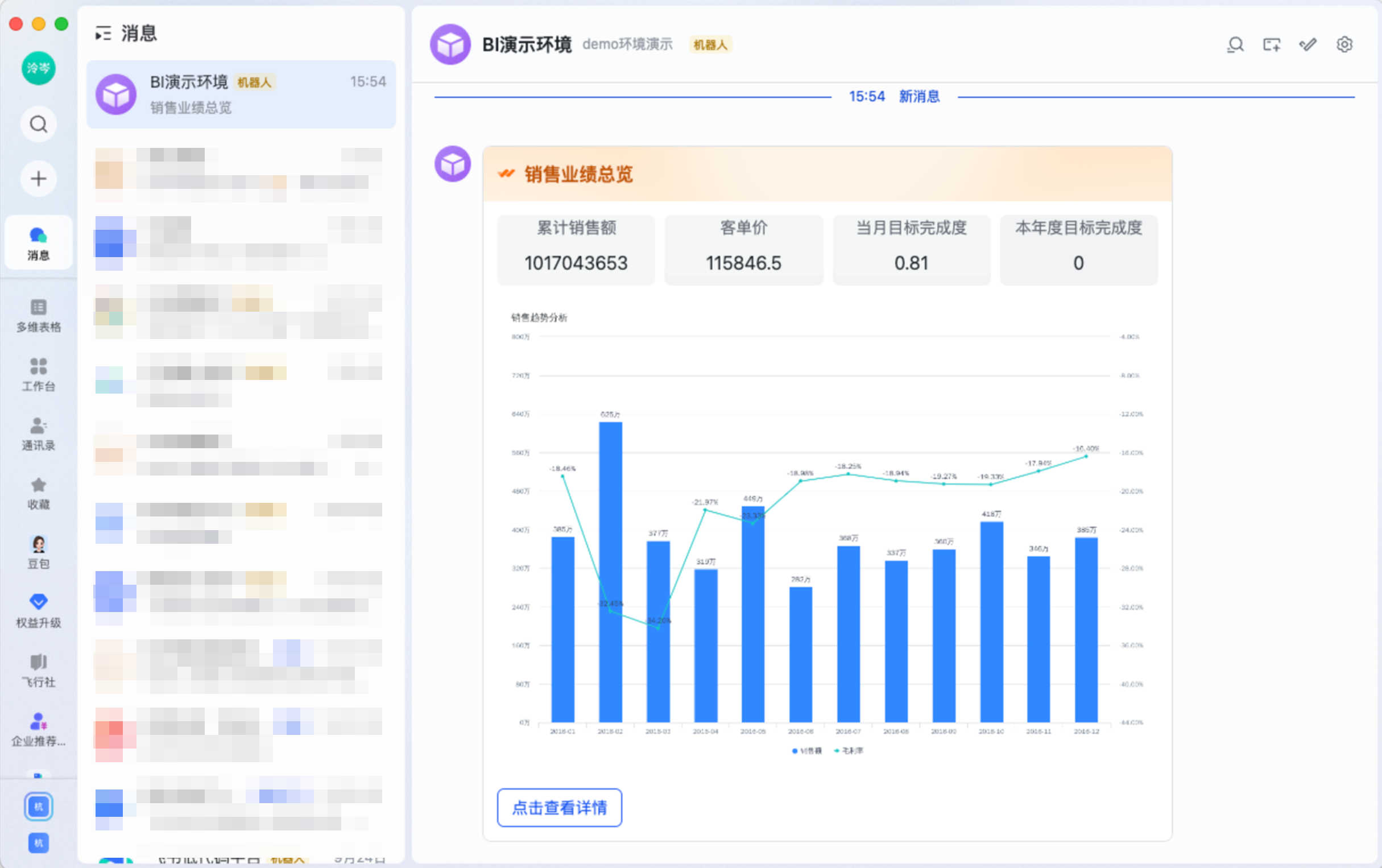
DingTalk Template Message Alert
Prerequisites
-
In the Guandata and DingTalk admin backends, complete the preparation for Guandata-DingTalk integration. For details, see Complete DingTalk Integration Solution)).
-
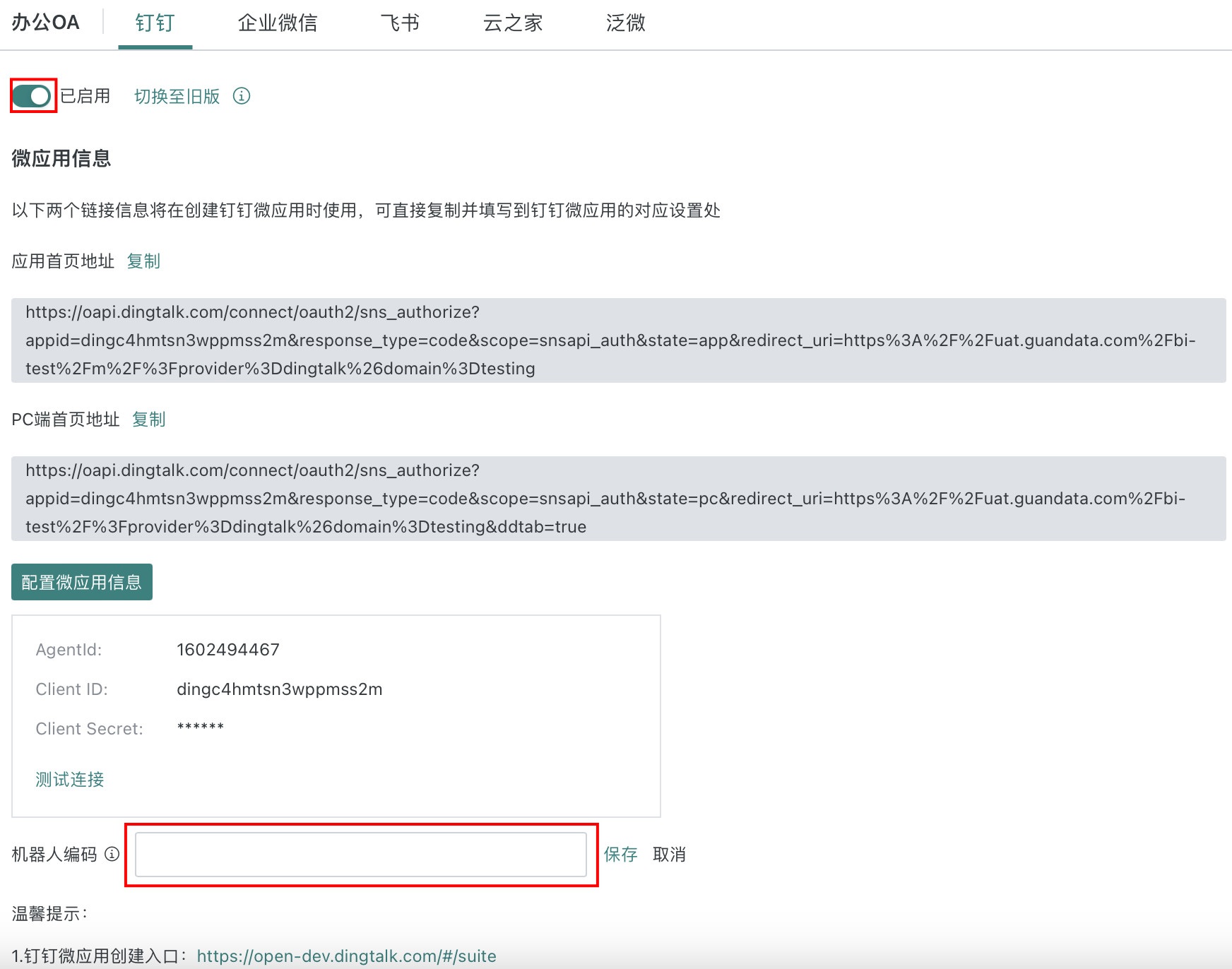
Fill in the bot code.
- Create a group bot in DingTalk Open Platform. For creating a DingTalk group bot, see Use Group Bots to Push Notifications.
- In DingTalk Open Platform, open
Bot Configurationand clickCopy RobotCode.
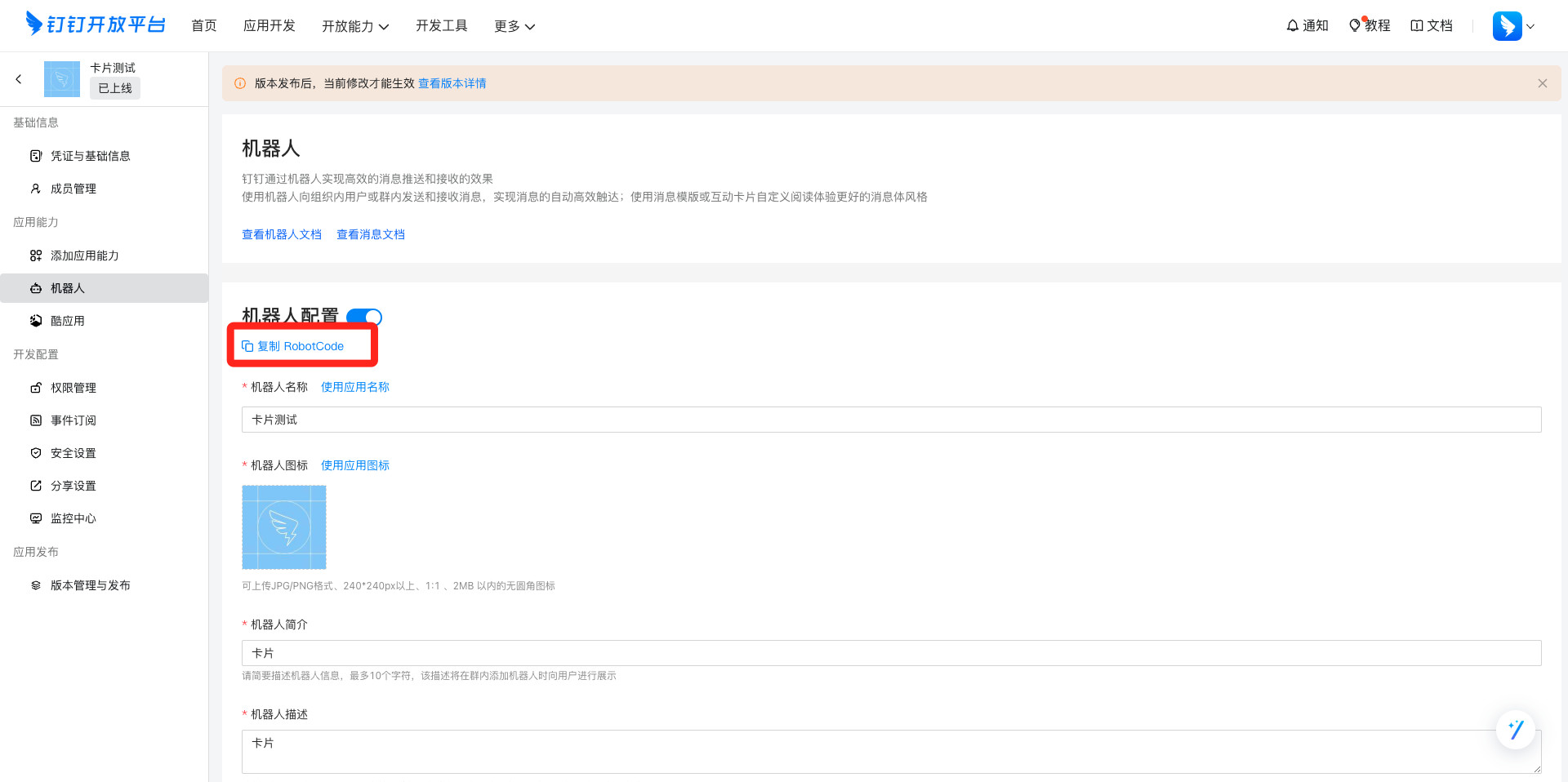
- In Guandata BI, go to
Management Center > System Integration > Office OA > DingTalk, enable the application, enter the RobotCode copied in the previous step intoBot Code, and clickSave.
-
In DingTalk Card Builder, create and publish the message card template to send. For details, see Card Template.
Create and Configure a Template Message Alert
-
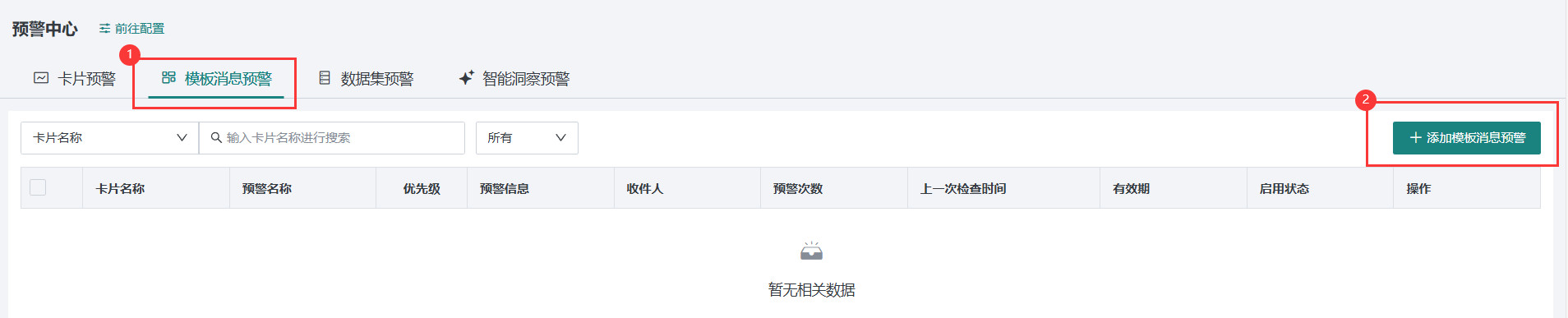
In Guandata BI, click the app launcher in the upper-right corner, go to
Alert Center > Template Message Alert, and clickAdd Template Message Alertin the upper-right corner.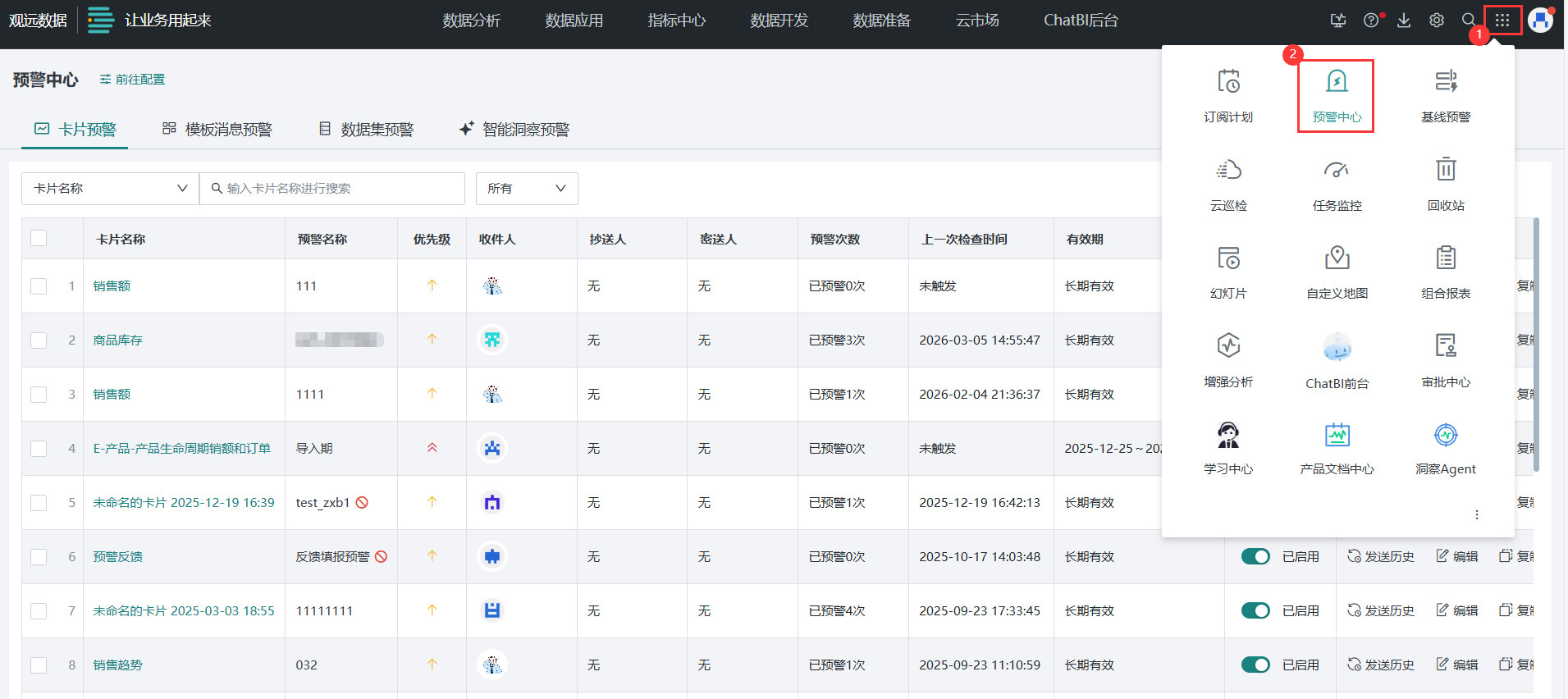
-
For detailed configuration of basic information and trigger mechanism, see Card Alert.
-
Configure
Alert Sendingand selectDingTalkas the notification channel. Two notification methods are supported:Message NotificationandGroup Bot.-
Message Notification: Add users or user groups in Guandata BI as recipients. Alert messages are sent separately to individuals.
-
Group Bot: The bot used by DingTalk template message alerts is different from ordinary alerts. DingTalk sends alert messages through an
Internal Enterprise Applicationbot. One internal enterprise application corresponds to one bot. For detailed operations, see Use Group Bots to Push Notifications.
-
-
Configure
Alert Content.-
Template ID: Enter the created card template ID, which can be obtained from the template list.
-
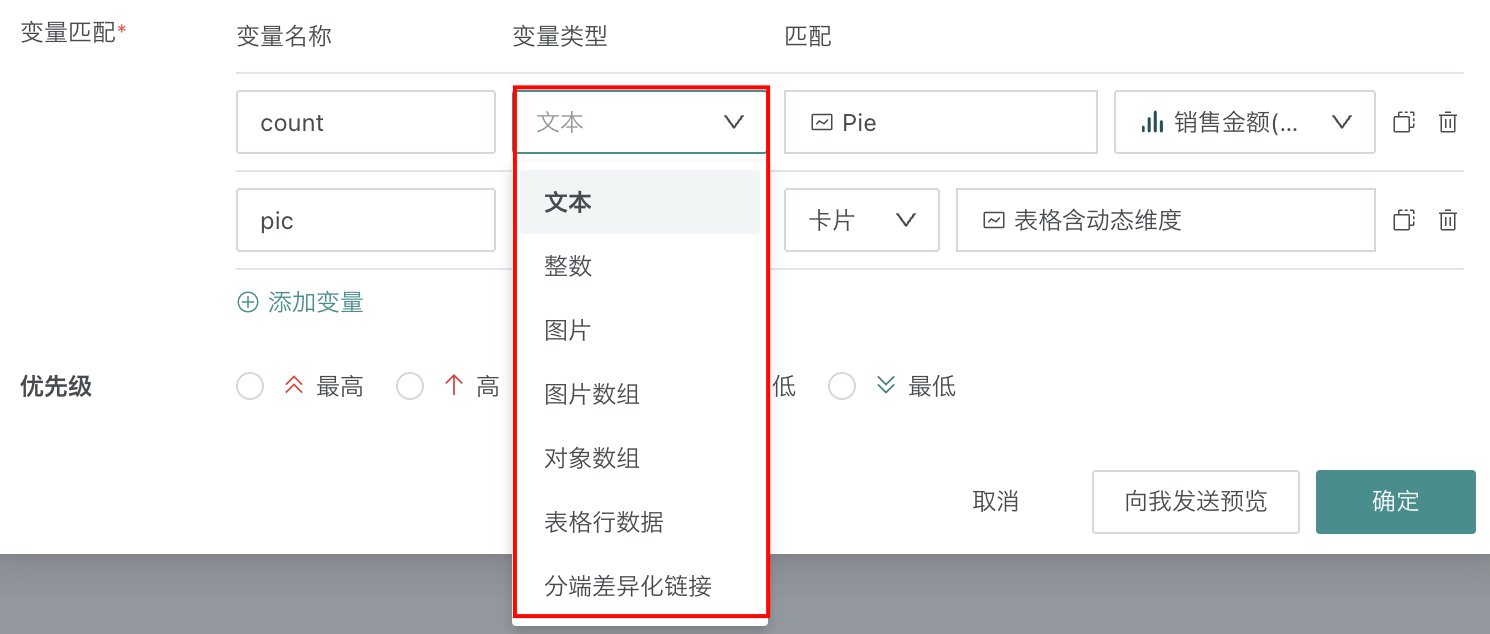
Variable matching: For card variables configured in the DingTalk template, match them to dynamic data, cards, and other BI elements from visualization cards in the BI platform. The BI elements to match vary by variable type.
Currently supported DingTalk variable types include text, integer, image, image array, object array, table row array, and device-specific differentiated links.
-
-
After
Alert Contentis configured, clickSend Preview to Meto view the final received message card effect in DingTalk. After confirming that the style and data are correct, clickOKto complete the template message alert configuration.
FAQs
For alert-related FAQs, see FAQs)).