Baseline Warning
Overview
Baseline alert monitors the completion time of data tasks. By setting an update completion deadline (baseline) for datasets, ETL tasks, offline development tasks, and other resources, the system automatically triggers an alert notification when a task is not completed before the specified time. This feature helps users discover delayed data updates in time, ensure data timeliness, and improve data operations efficiency.
Prerequisites
- Only users with the Administrator role can create and manage baseline alert tasks.
- The channels required for sending alerts have been configured. To send alerts by email, complete Email Configuration in Management Center > System Integration.
Create a Baseline Alert Task
-
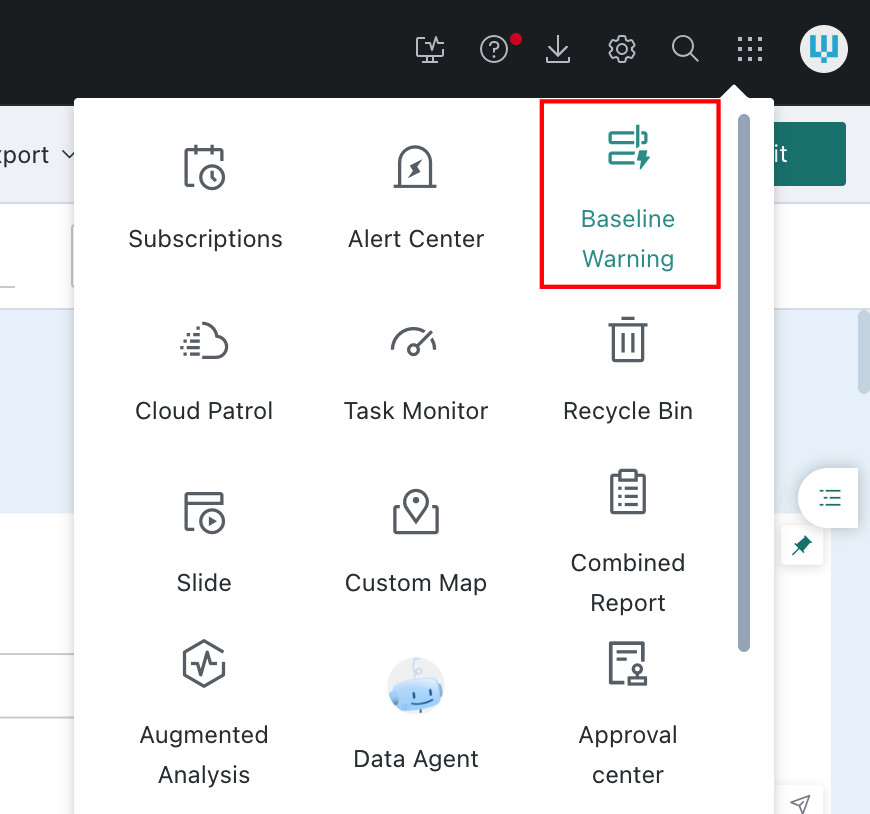
Click the app launcher icon in the upper-right corner of the page and select Baseline Alert from the pop-up menu to enter the Baseline Alert Task page.
-
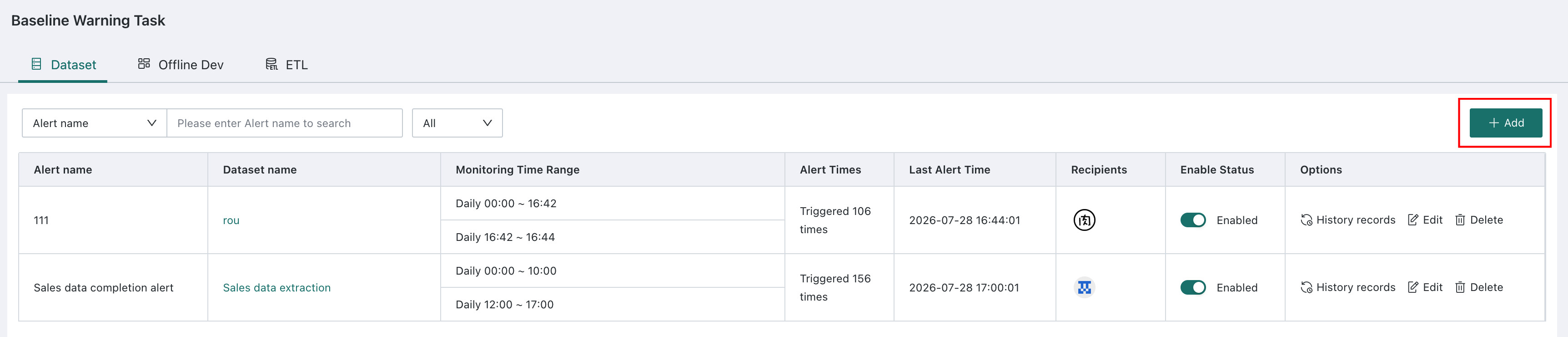
At the top of the Baseline Alert Task page, select the Dataset, Offline Dev, or ETL tab.
-
Click Add in the upper-right corner to enter the baseline alert configuration page.
Configure Baseline Alert Rules
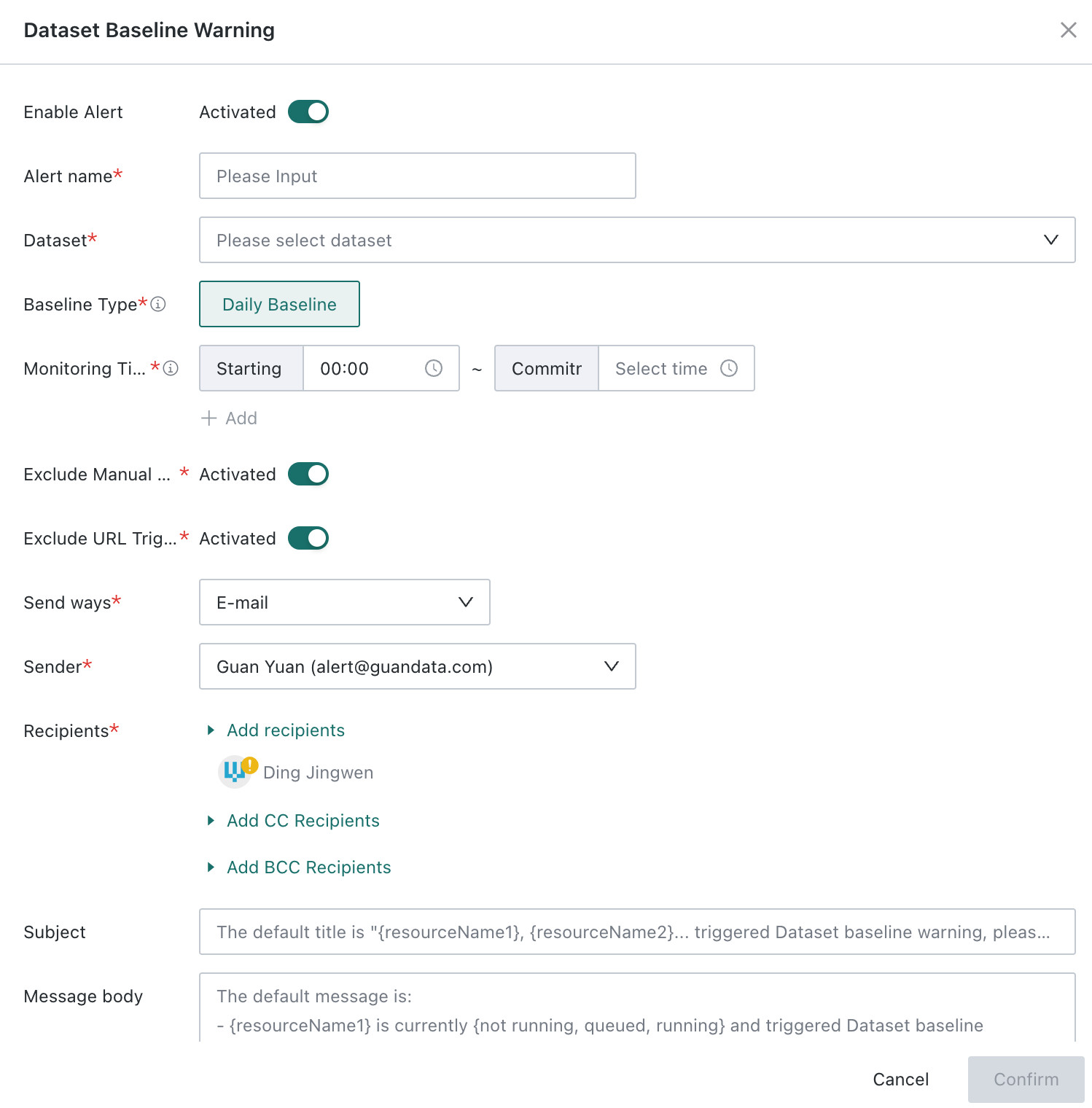
The following uses dataset baseline alert configuration as an example. The configuration process for Offline Development and ETL is basically the same.
Enable Alert
In the Enable Alert area, click the switch to set it to Enabled. If monitoring is not needed temporarily, select Disabled.
Enter Alert Name
In the Alert Name input box, enter a business-meaningful name so it can be quickly identified and managed in Alert Center. Example: Core Sales Data Daily Update Monitoring.
Select Monitored Resource
In the Select Resource drop-down list, select a specific dataset, ETL task, or offline development task. You can enter a resource name in the search box to quickly locate it.
Configure Baseline Type
In the Baseline Type area, select the monitoring time cycle. Daily Baseline is selected by default, meaning the task is monitored by day to determine whether it is completed before the specified time.
Daily Baseline Monitoring Time Period Configuration
Multiple monitoring time periods can be configured. Click Add Time Period and fill in the following fields in the pop-up configuration items:
| Configuration Item | Description |
|---|---|
| Monitoring start time | Sets the start time for monitoring. The system starts monitoring task status from this time point. |
| Baseline promised time | Sets the deadline by which the task must be completed. If the task is not completed after this time, an alert is triggered. |
Configuration example:
- First: Monitoring start time 06:00, baseline promised time 08:00 (morning data update)
- Second: Monitoring start time 12:00, baseline promised time 14:00 (noon data update)
- Third: Monitoring start time 18:00, baseline promised time 20:00 (evening data update)
- Monitoring time periods cannot overlap.
- If a task is not completed within a monitoring cycle, the system triggers an alert when the baseline promised time arrives.
Exclude Manual Run Records
In the Exclude Manual Run Records area, click the switch to set it to Enabled. After enabled, the system monitors only run records triggered by automatic task scheduling. Records generated by manual execution are not included in baseline judgment, preventing false alert triggers.
Exclude URL-Triggered Instances
In the Exclude URL-Triggered Instances area, click the switch to set it to Enabled. After enabled, task instances triggered by external URL calls are not included in baseline judgment. Only instances triggered by regular methods such as scheduled dispatch participate in baseline monitoring.
Configure Alert Notifications
In the Alert Notification Configuration area, complete the following settings:
- Notification channel: Select the channel used to send alerts. Currently, only Email is supported.
- Recipients: Click Select Recipients and choose alert notification recipients by user, user group, or role.
- Notification content: Enter the alert message content in the Notification Title and Notification Body input boxes.
Baseline alert notification configuration is basically the same as other subscription and alert configurations. For reference, see Subscription Sending.
Save Configuration
After confirming that all configurations are correct, click OK at the bottom of the page to create the baseline alert task.
Manage Baseline Alert Tasks
Filter and Search Baseline Alert Tasks
At the top of the Baseline Alert Task page, filter records by Alert Name/Resource Name and Enabled Status, or enter keywords in the search box to quickly locate specific records.
View Task List
On the Baseline Alert page, the system displays baseline alert tasks of different resource types as tabs:
- Dataset: Displays all dataset baseline alert tasks.
- ETL Task: Displays all ETL task baseline alert tasks.
- Offline Development Task: Displays all offline development task baseline alert tasks.

Each task card displays the following information:
| Information Item | Description |
|---|---|
| Alert name | Name of the baseline alert task |
| Resource name | Name of the monitored dataset/task |
| Monitoring time period | Displays the monitoring time period configured for the task, such as 06:00 - 08:00 |
| Alert count | Total number of alerts triggered by the task |
| Last alert time | Time when the most recent alert was triggered |
| Recipients | Users/user groups/roles receiving alert notifications for the task |
| Enabled status | Current task status, displayed as Enabled or Disabled |
| Operations | Edit, delete, view history, and other operations can be performed on the task |
Edit Task
- In the baseline alert task list, find the task to edit.
- Click Edit on the right side of the task to enter the editing page.
- Modify the required configuration information.
- Click OK at the bottom of the page to complete editing.
Delete Task
- In the baseline alert task list, find the task to delete.
- Click Delete on the right side of the task.
- Click OK in the confirmation dialog to complete deletion.
After deletion, the baseline alert task immediately stops monitoring and cannot be restored. Proceed with caution.
View Alert Sending History
- In the baseline alert task list, find the task whose history you want to view.
- Click Sending History on the right side of the task to enter the alert sending history page.
Best Practices
Set a Reasonable Baseline Promised Time
- The baseline promised time should consider normal task execution time, data dependencies, and business usage needs.
- Avoid setting an overly tight time that causes frequent alert triggers.
- It is recommended to reserve some buffer time for occasional resource contention or network delays.
Regularly Review Alert History
- Regularly view alert sending history and analyze patterns and causes of task delays.
- Optimize baseline settings based on historical data to improve alert accuracy and effectiveness.
FAQs
Q: What is the difference between baseline alert and task completion notification in notification alerts?
A: Baseline alert focuses on monitoring whether a task is completed before the specified time and emphasizes timeliness. Task completion notification focuses on notifying users of the task execution result, success or failure, and emphasizes status changes.
Q: If a task is completed before the baseline promised time, will an alert still be triggered?
A: No. An alert is triggered only when the task is completed after the baseline promised time or is not completed within the monitoring cycle.
Q: How do I temporarily pause a baseline alert task?
A: Enter the task editing page, set Enable Baseline Alert to Disabled, and save to pause monitoring. To resume, enable it again.