Template Message Subscription
Overview
Template message subscription associates data from Guandata BI with structured message card templates in Feishu and DingTalk through variable matching, enabling data to be pushed as structured cards.
Feishu Template Message Subscription
Prerequisites
-
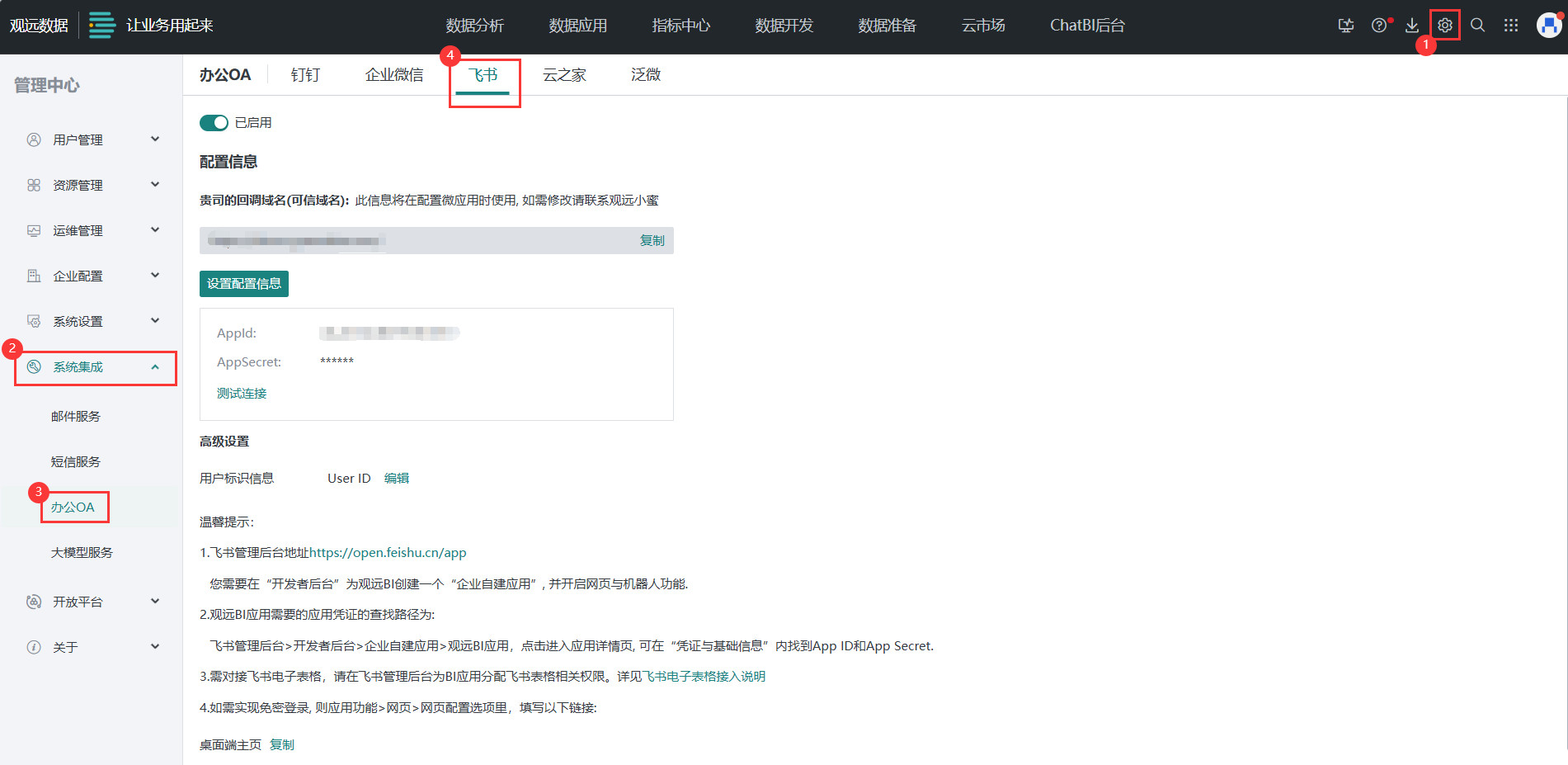
In the Guandata and Feishu admin backends, complete the preparation for Guandata-Feishu integration. For details, see Complete Feishu Integration Solution.
-
In Feishu Card Builder, create and publish the message card template to send. For usage details, see Feishu Card Builder Overview.
-
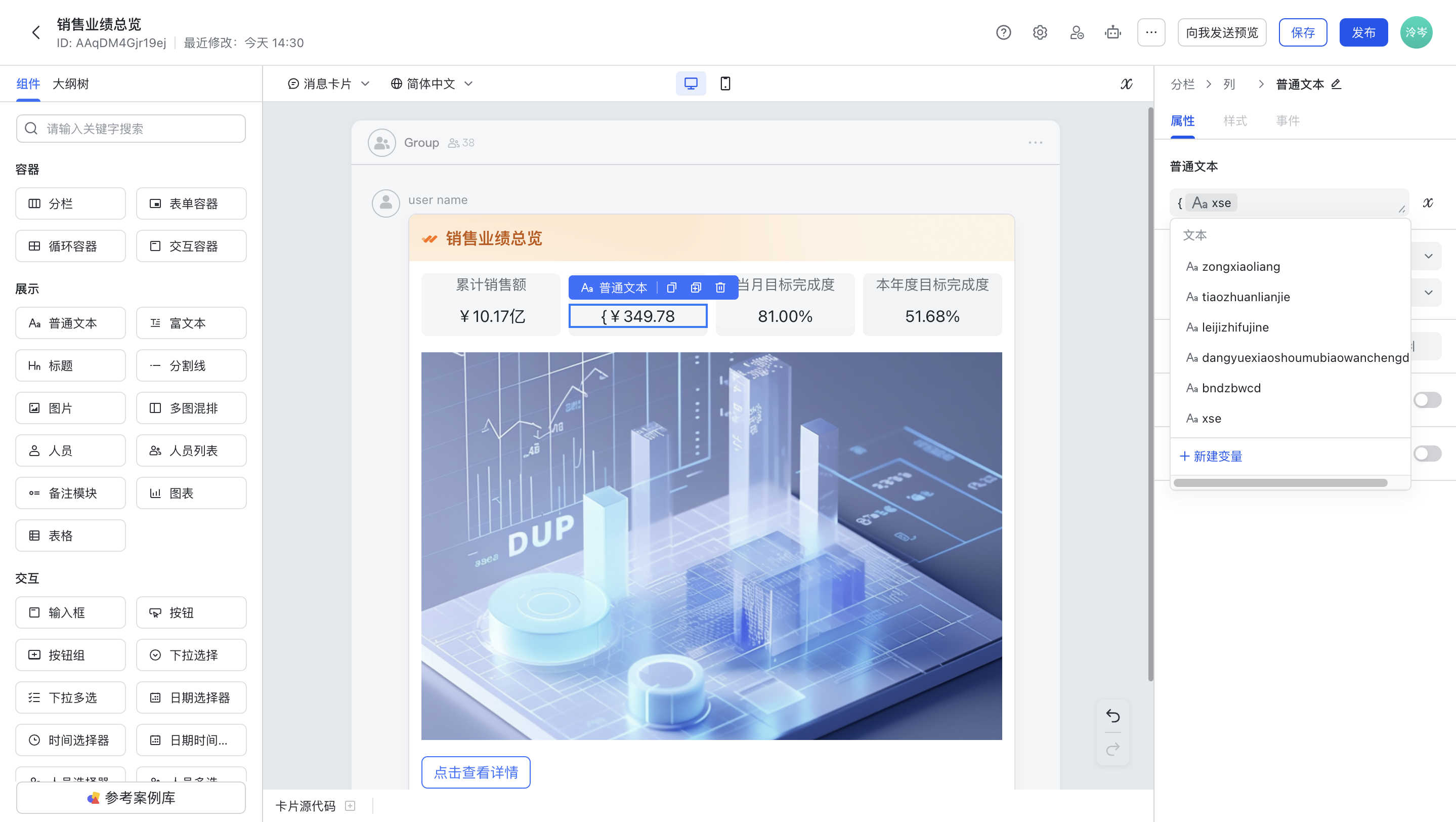
For dynamic data that needs to be obtained from Guandata BI in the card template, configure card variables in advance.
-
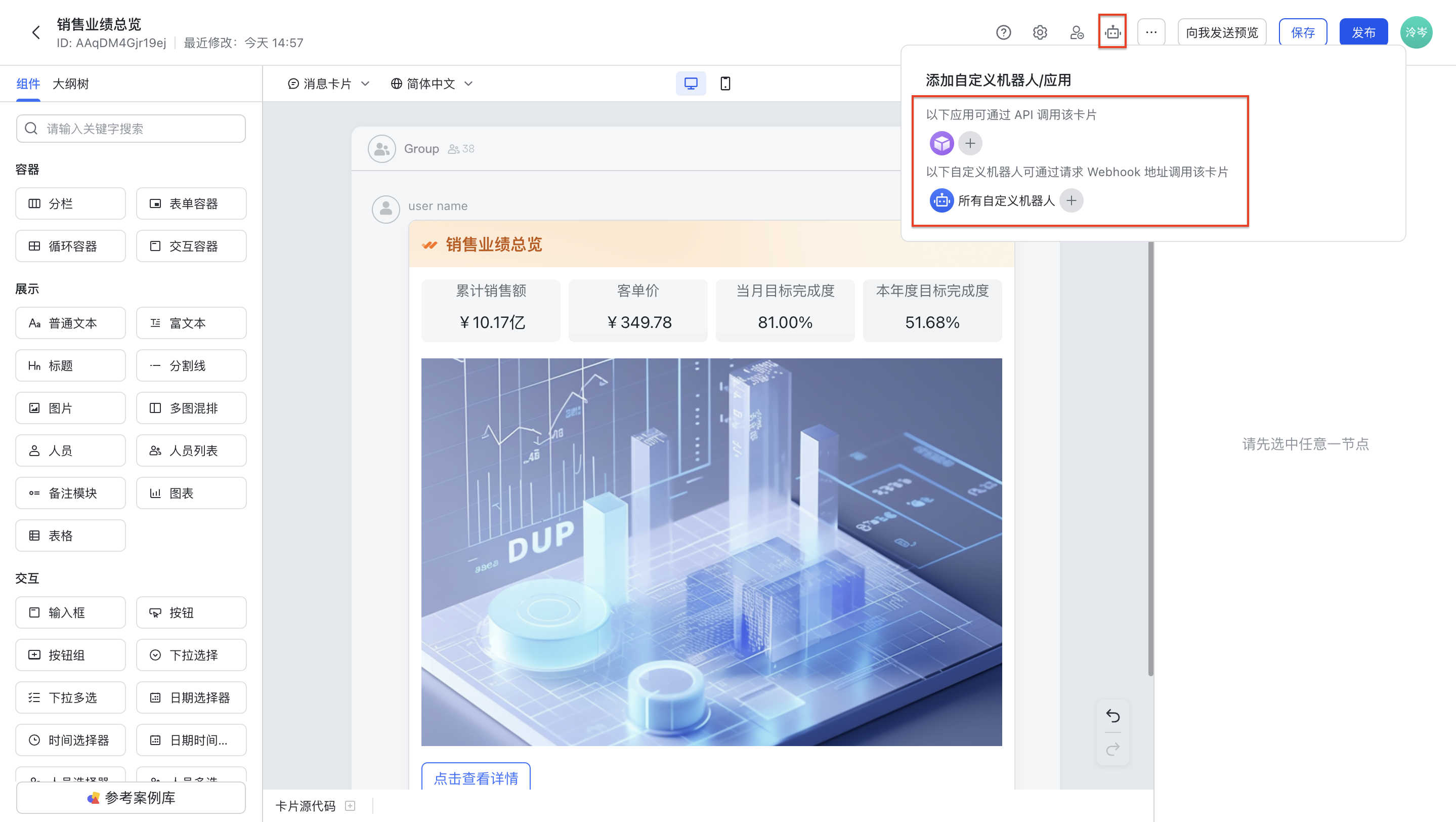
Add a custom bot/application to the card template and ensure that the specified application and
All Custom Botshave permission to send the card template.
-
Create and Configure a Template Message Subscription
-
In Guandata BI, go to
Subscription Plan > Template Message Subscriptionand clickAdd Template Message Subscription.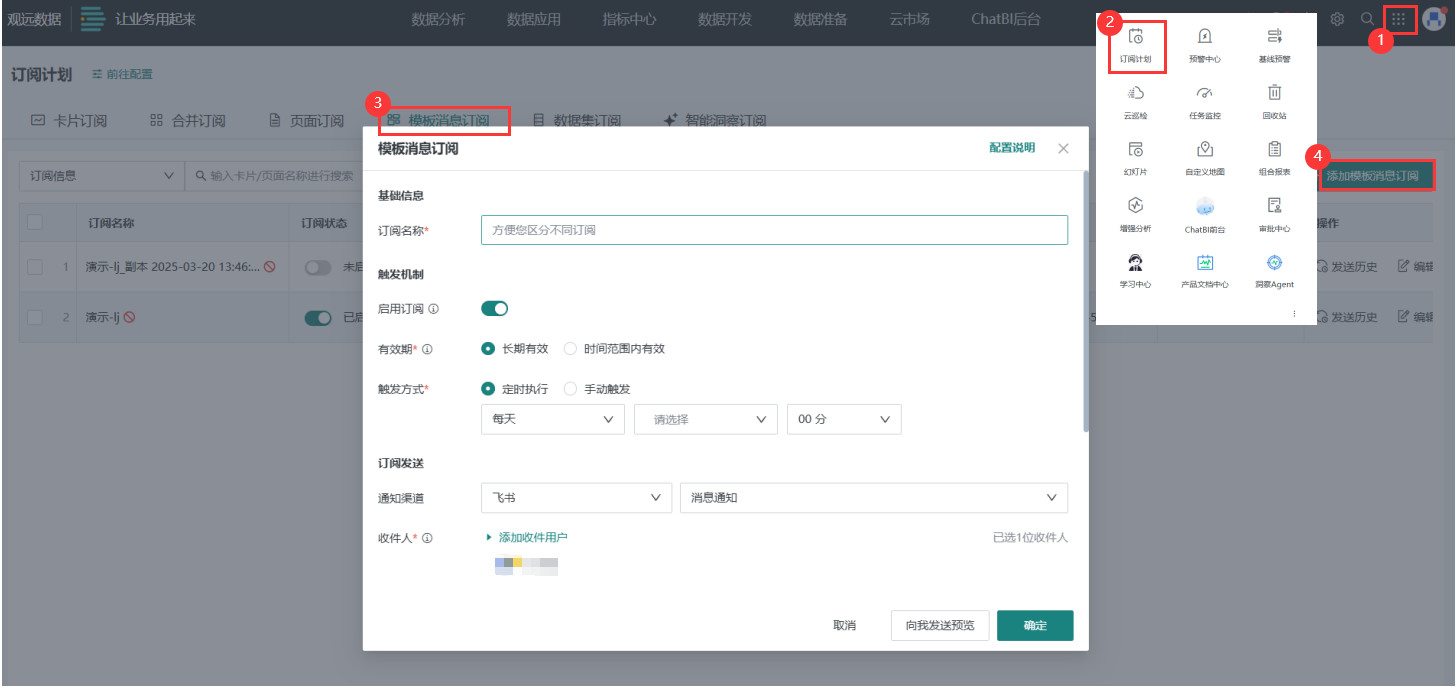
-
Configure
Subscription Nameso the subscription can be quickly found in subscription management. -
Configure the subscription
Trigger Mechanism.- Enable subscription (required): Select
EnableorDisablefor the subscription. The enabled status does not restrict manual triggering or URL triggering. - Validity period (required): Select
Long-term ValidorValid within Time Range. IfValid within Time Rangeis selected:-
You can set the start and end dates. If no dates are set, the subscription is long-term valid by default.
-
After the subscription period ends, clicking
Send Manuallyor calling the API can still send the subscription. -
Period and enable/disable status: When enabled, sending stops after the period ends. When disabled, sending does not occur even if the period has not ended.
-
- Trigger method: Select
Scheduled ExecutionorManual Trigger.-
Scheduled Execution: Set a fixed time to send every day, week, or month.
-
Manual Trigger: Manually send from the Subscription Plan page.
-
- Enable subscription (required): Select
-
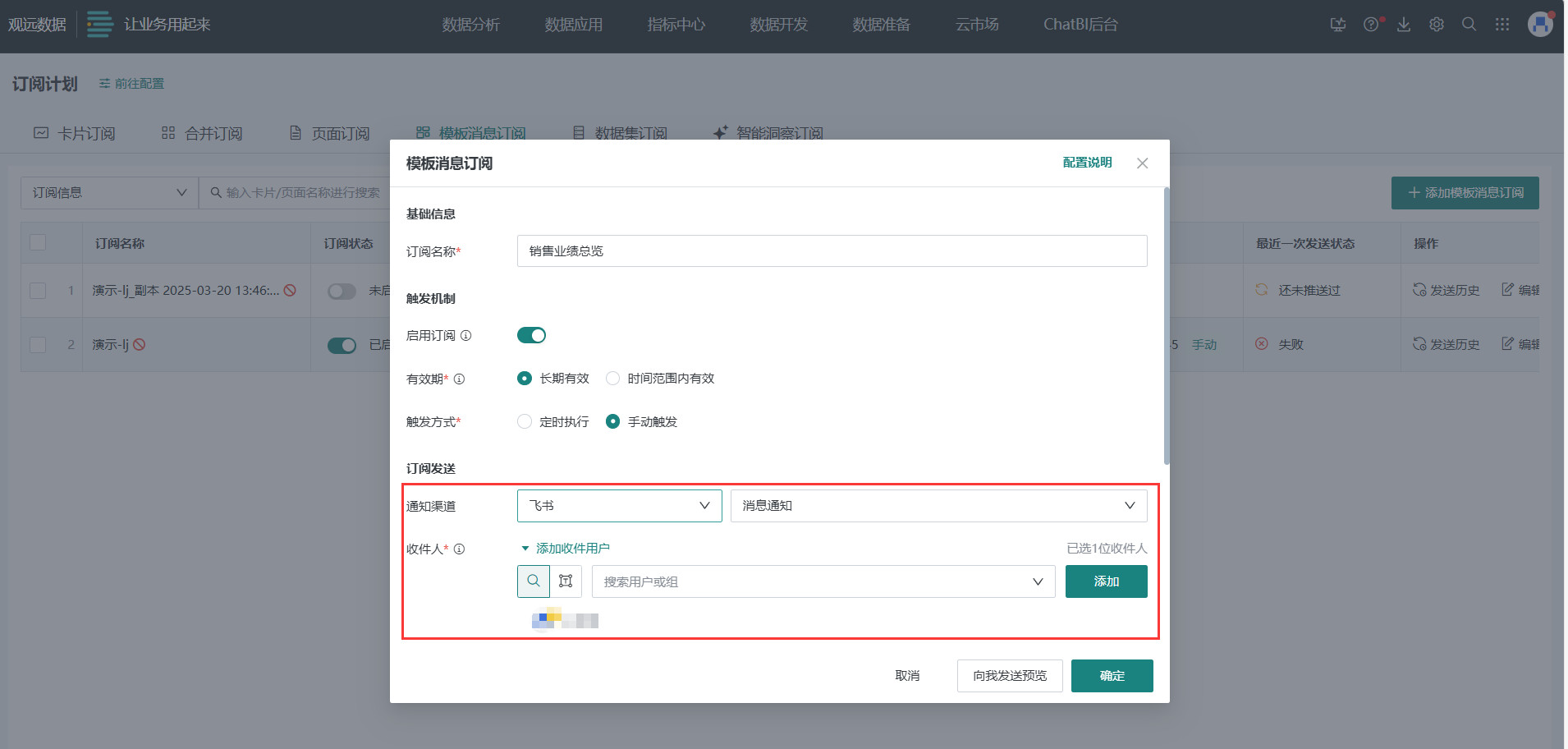
Select
Feishuas the notification channel. Two notification methods are supported:Message NotificationandGroup Bot.-
Message Notification: Add users or user groups in Guandata BI as recipients. Subscription messages are sent separately to individuals.
-
Group Bot: Send subscription messages to a Feishu group through a group bot. For usage details, see Use Group Bots to Push Notifications.
-
-
In the template message subscription configuration page, configure subscription content.
-
Template ID: Click the drop-down list to obtain all template IDs under the application corresponding to the current BI. Fuzzy search by template ID and name is supported.
NoteThe card template must be specified for the application corresponding to the current BI. If the card template is set to all applications, the BI platform cannot automatically obtain the card template.
-
Version number: Click the drop-down list to select the card template version number. The latest version is selected by default. All historical versions can be selected. If a historical version is selected, the message card is matched and sent according to the template of that historical version.
-
Variable matching: For card variables configured in the Feishu card template, match them to dynamic data, cards, and other BI elements from visualization cards in the BI platform. The BI elements to match vary by variable type.
-
The variable list obtained from the template, including variable names and variable types, cannot be modified.
-
OKcan be clicked only after all variables are matched.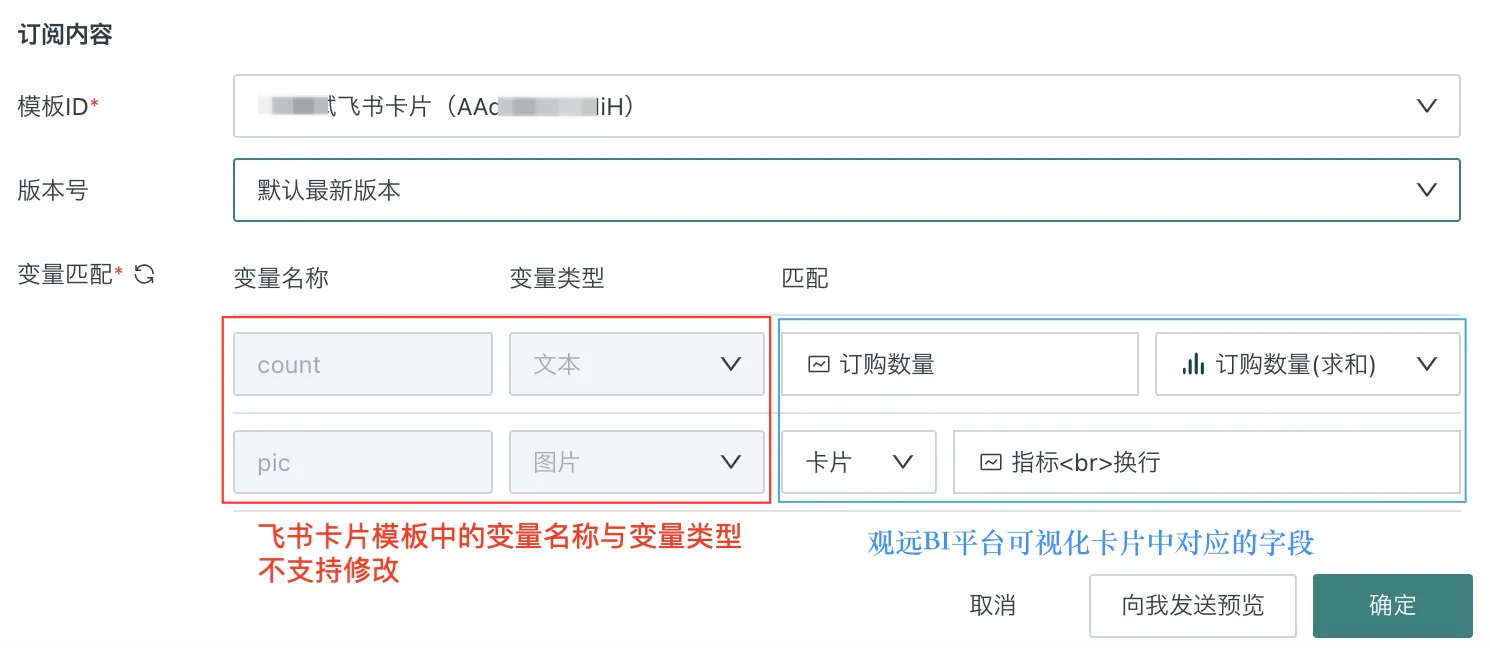
Currently supported Feishu variable types include text, integer, image, image array, object array, table row data, and device-specific differentiated links.
-
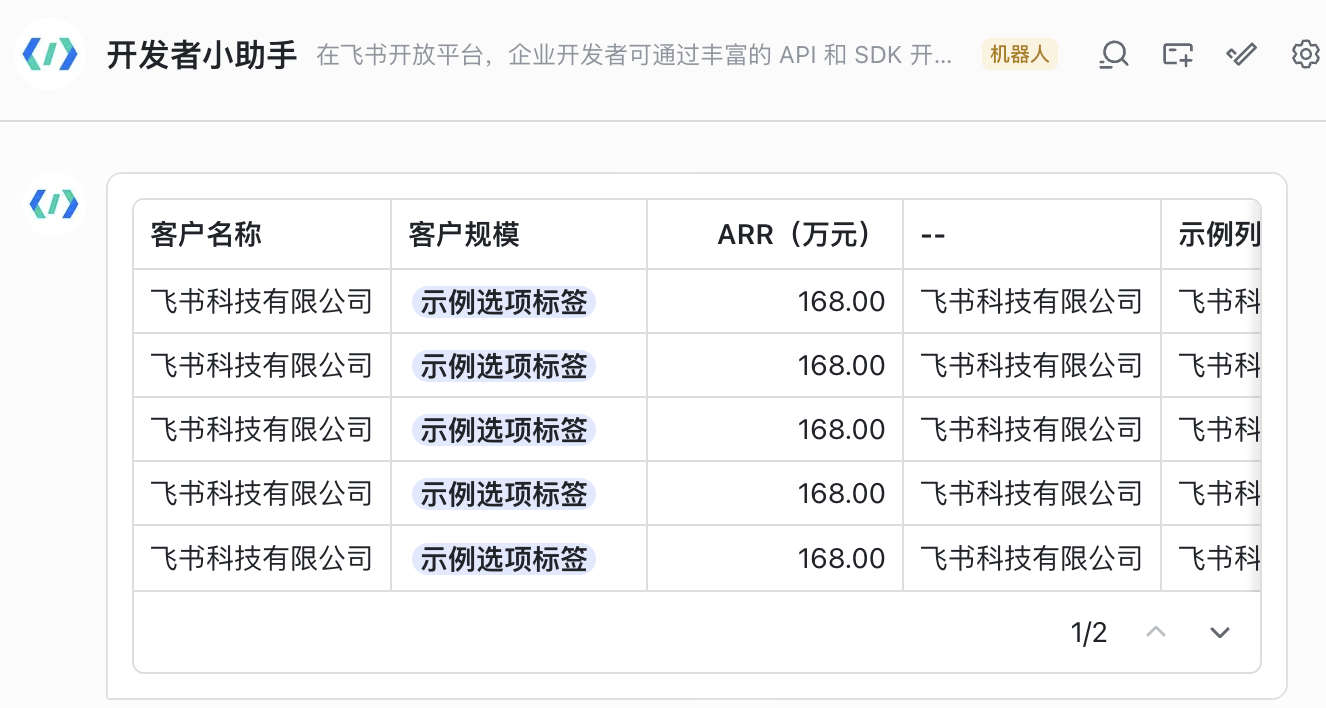
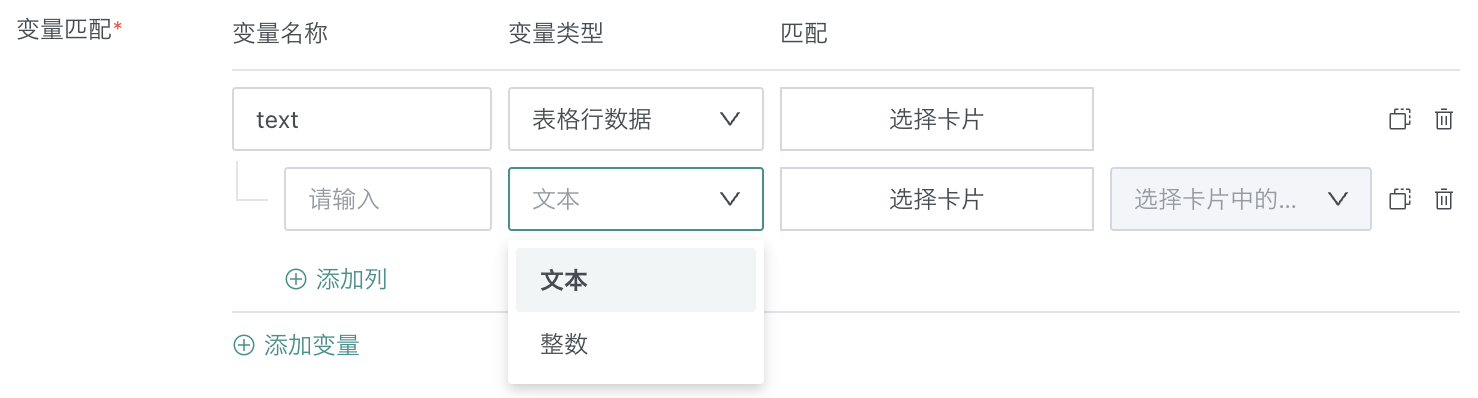
To send a table directly through a Feishu message card, as shown below, configure the
Table Row Datavariable.
-
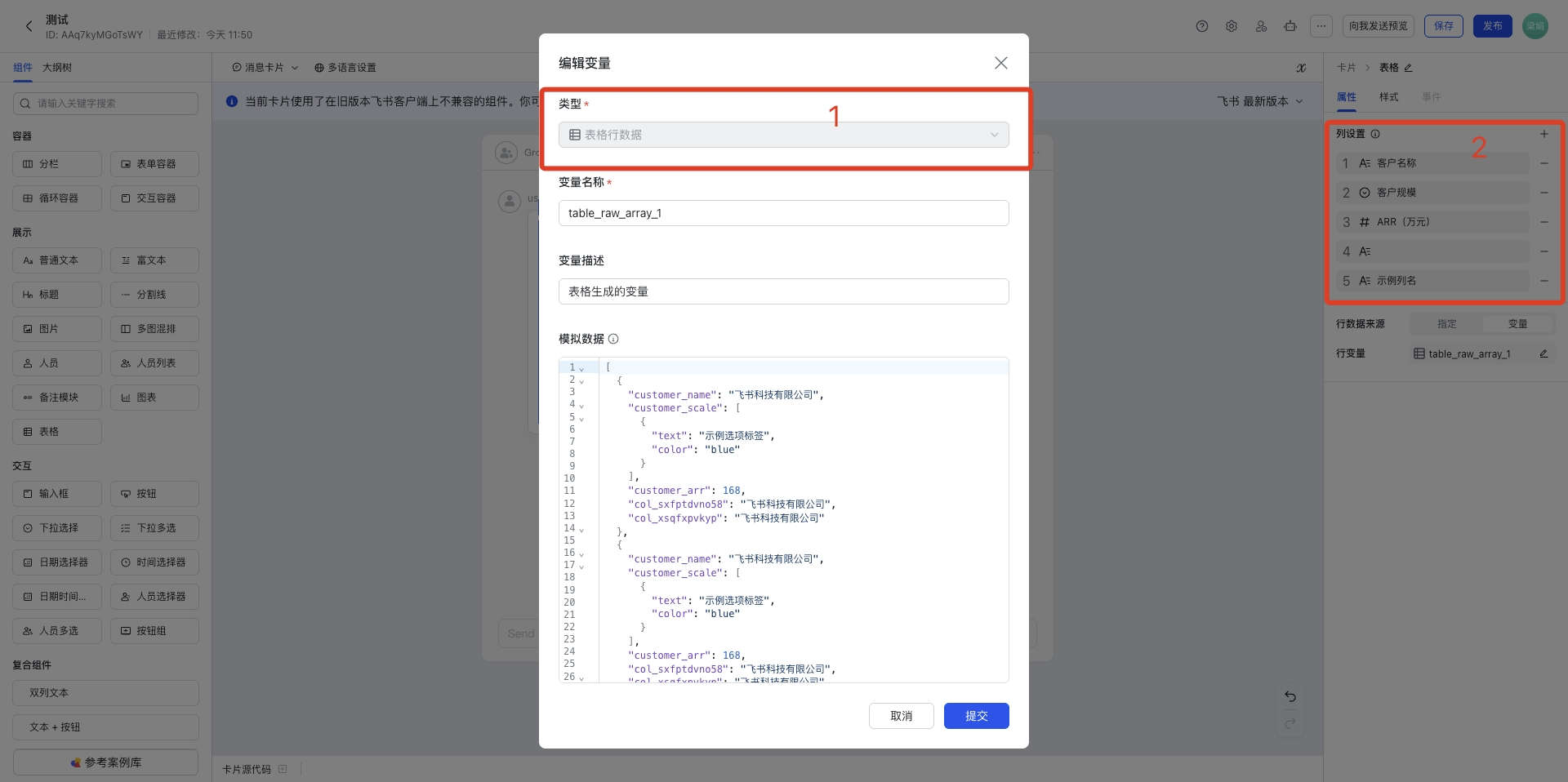
In the Feishu message card, the
Tablecomponent corresponds to theTable Row Datavariable. Add field columns to the variable and set each field's key and type.
-
In Guandata BI, add a variable of type
Table Row Data, add columns to the variable, enter the field key from the Feishu message card as the column name, and keep the field type consistent with Feishu.
-
-
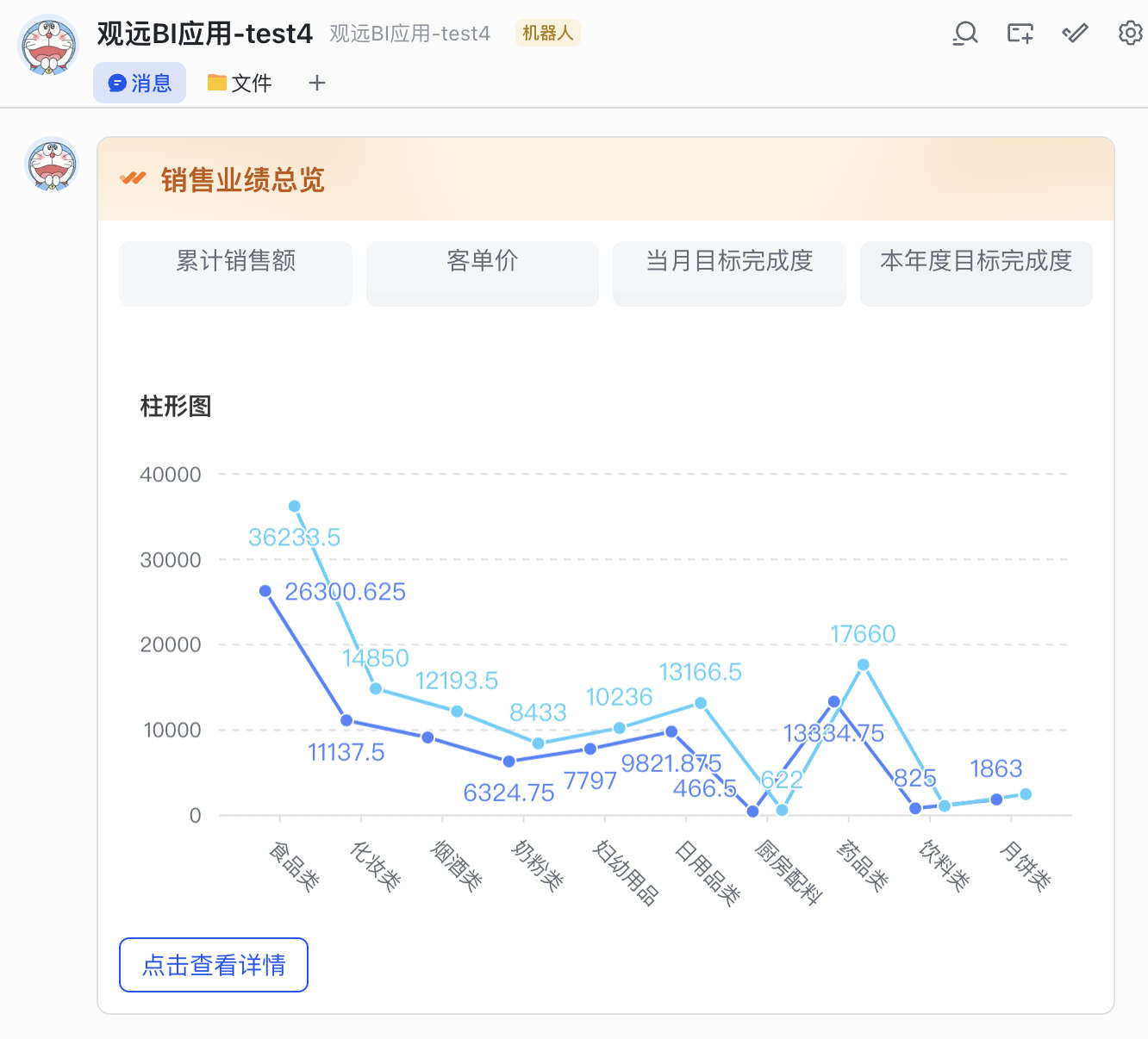
To send a visualization chart directly through a Feishu message card, as shown below, configure the
Image Arrayvariable.
-
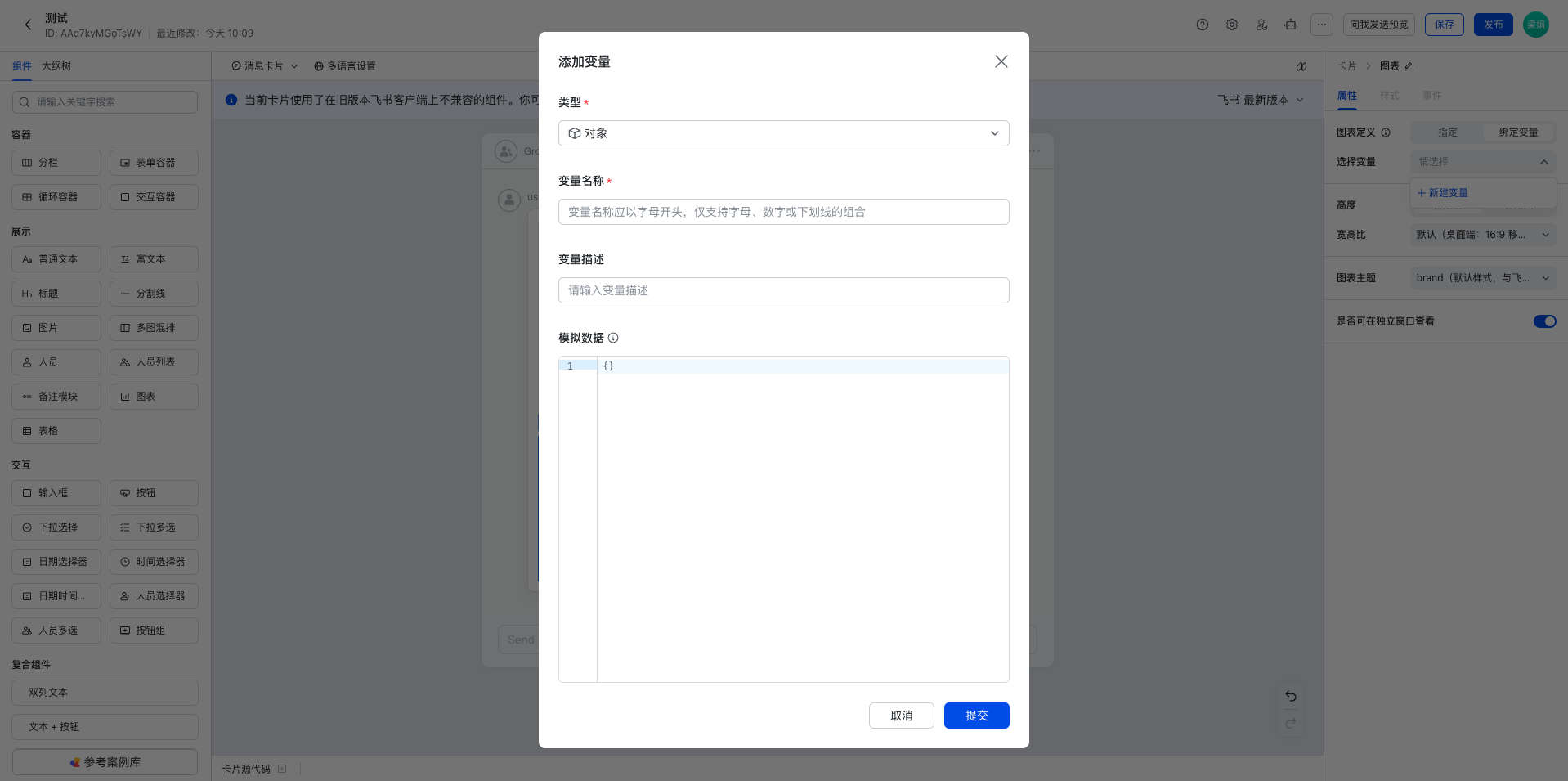
In the Feishu message card, the
Chartcomponent corresponds to theObjectvariable.
-
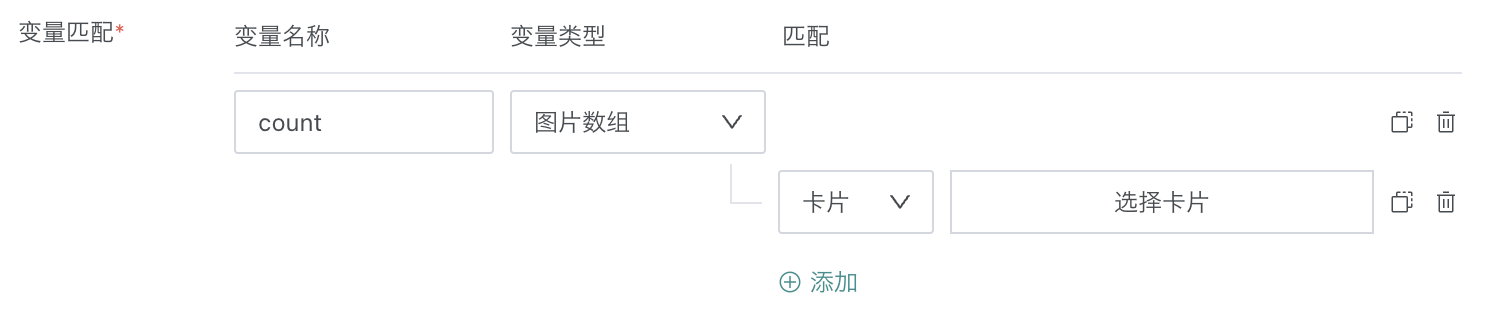
In Guandata BI, set
Variable TypetoImage Arrayand select a matching visualization card.
-
-
-
-
After subscription content is configured, click
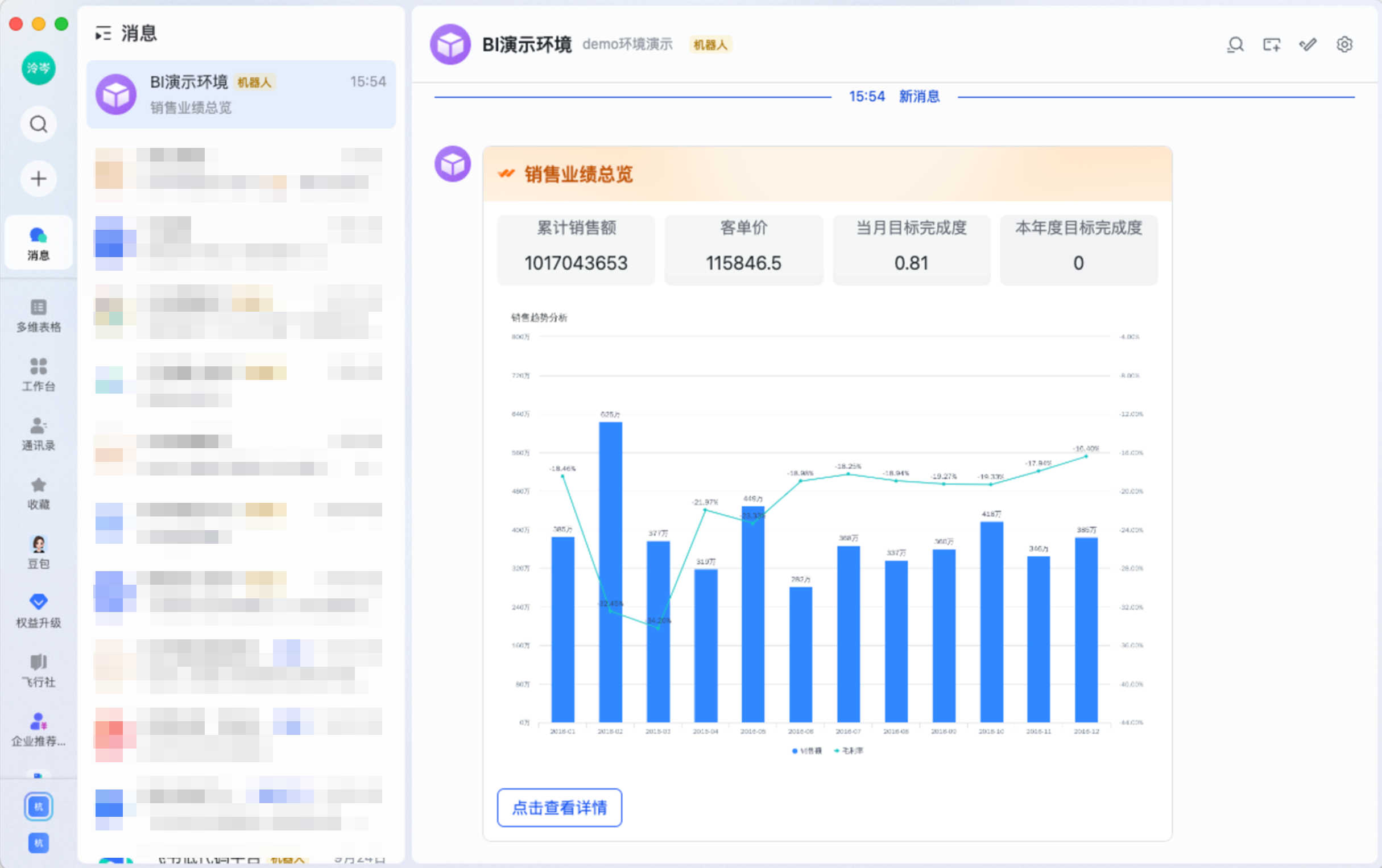
Send Preview to Meto view the final received message card effect in Feishu. After confirming that the style and data are correct, clickOKto complete the template message subscription configuration.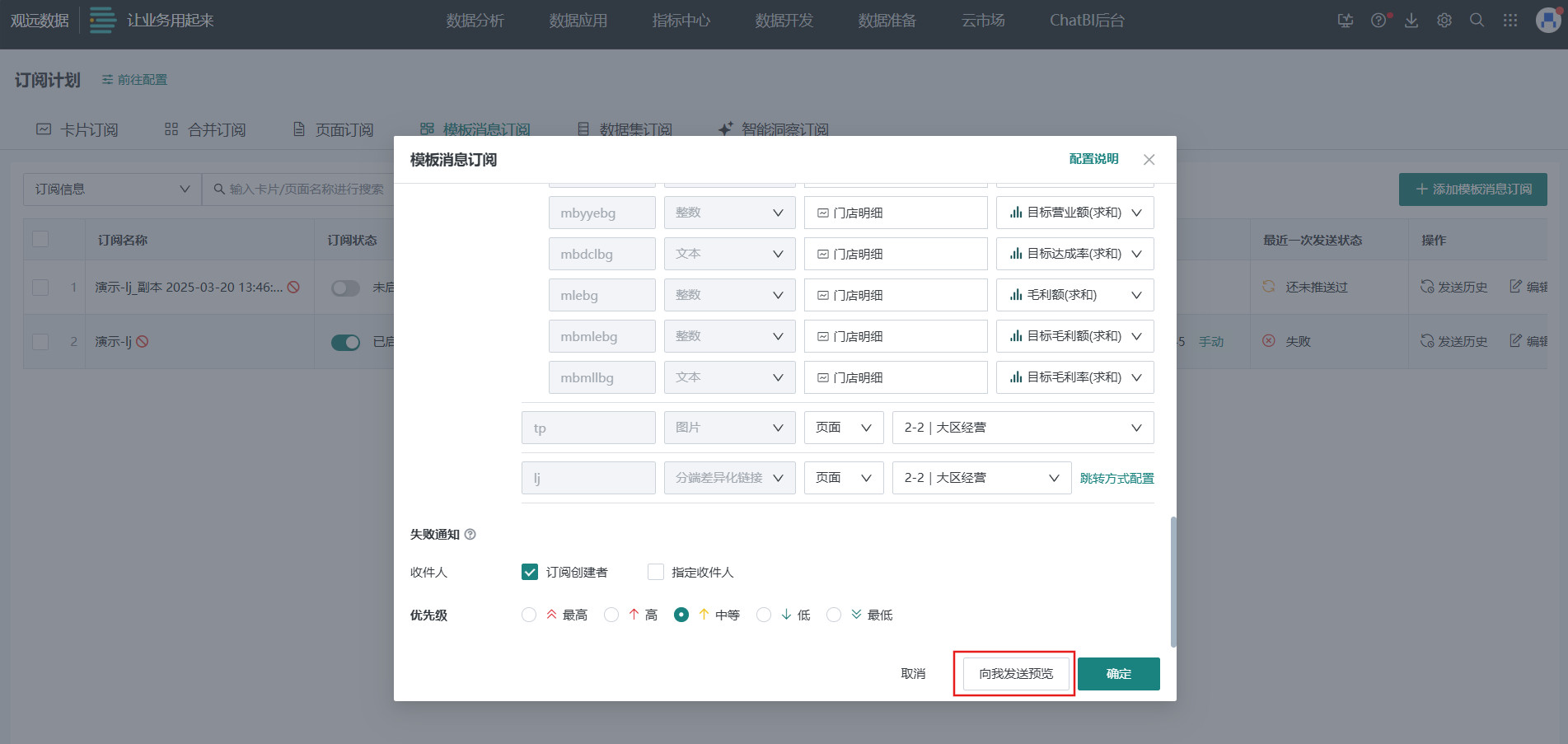
DingTalk Template Message Subscription
Prerequisites
-
In the Guandata and DingTalk admin backends, complete the preparation for Guandata-DingTalk integration. For details, see Complete DingTalk Integration Solution.
-
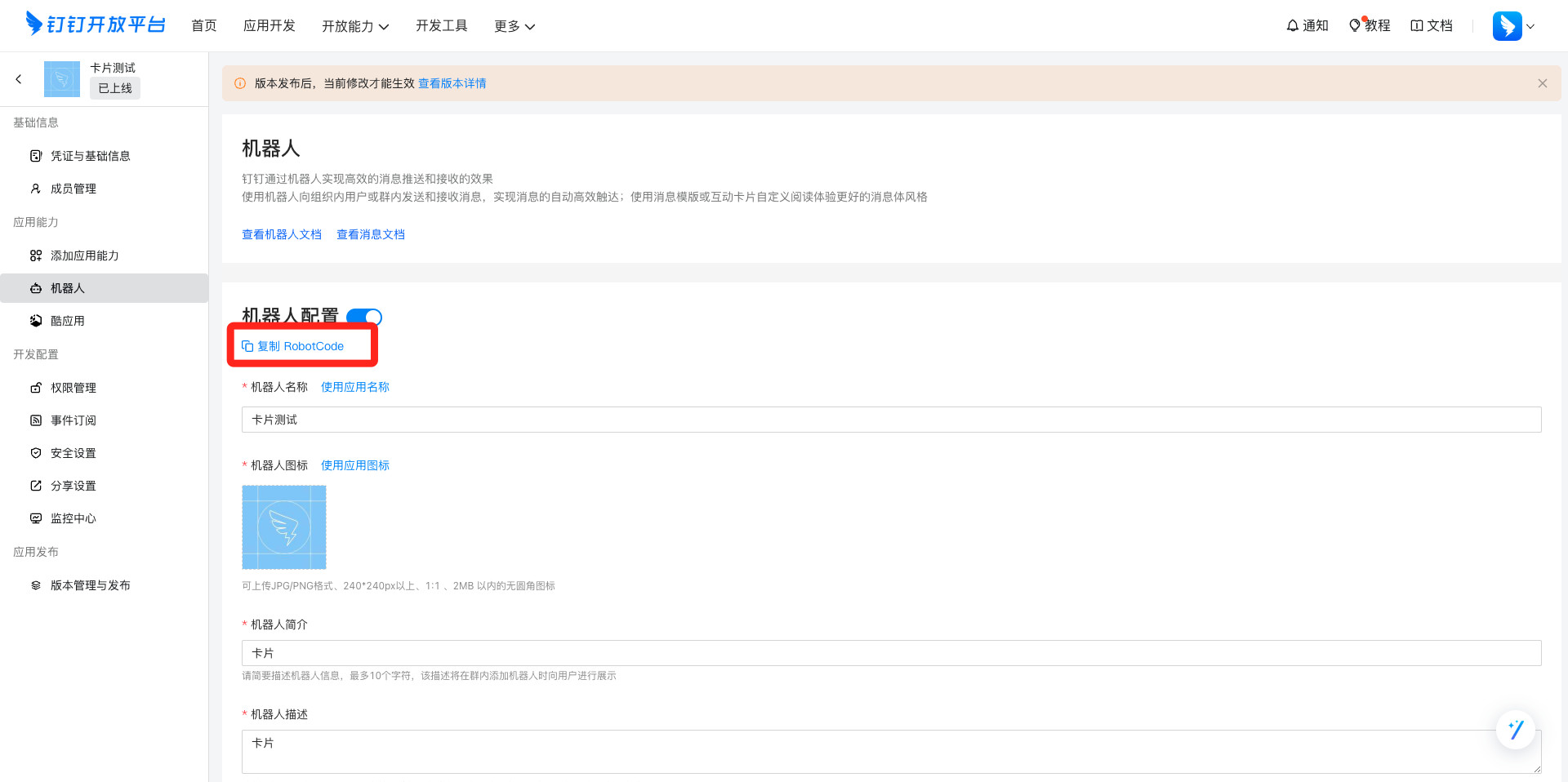
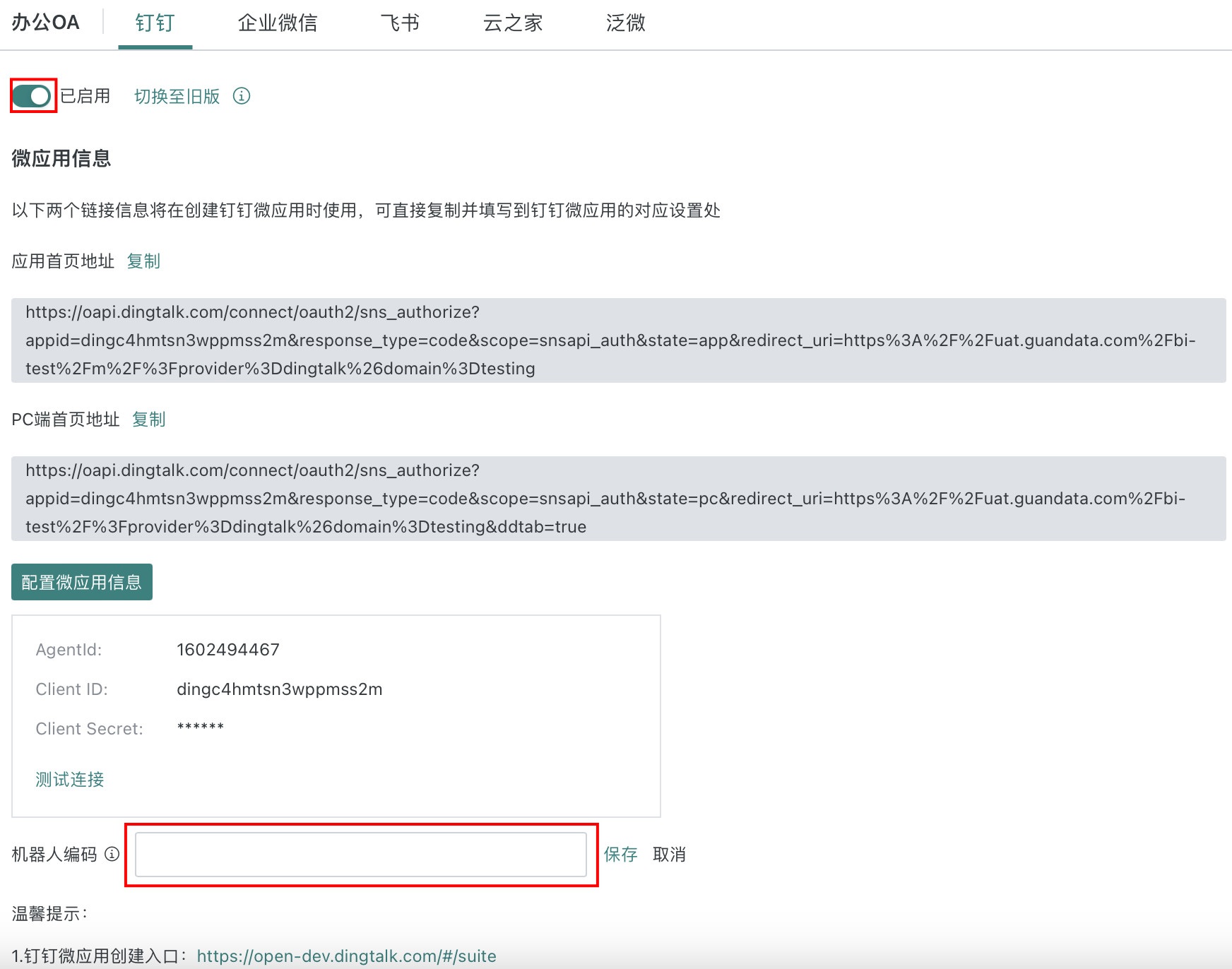
Fill in the bot code.
- Create a group bot in DingTalk Open Platform. For creating a DingTalk group bot, see Use Group Bots to Push Notifications.
- In DingTalk Open Platform, open
Bot Configurationand clickCopy RobotCode.
- In Guandata BI, go to
Management Center > System Integration > Office OA > DingTalk, enable the application, enter the RobotCode copied in the previous step intoBot Code, and clickSave.
-
In DingTalk Card Builder, create and publish the message card template to send. For details, see Card Template.
Create and Configure a Template Message Subscription
-
In Guandata BI, go to
Subscription Plan > Template Message Subscriptionand clickAdd Template Message Subscriptionin the upper-right corner.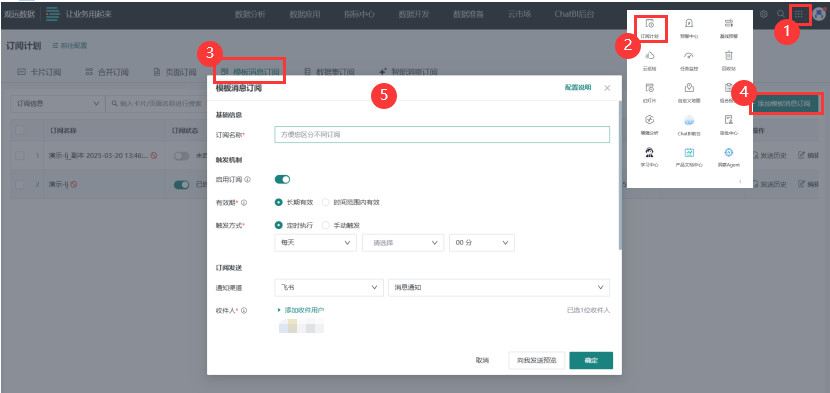
-
In the template message subscription dialog, select
DingTalkas the notification channel. Two notification methods are supported:Message NotificationandGroup Bot.- Message Notification: Add users or user groups in Guandata BI as recipients. Subscription messages are sent separately to individuals.
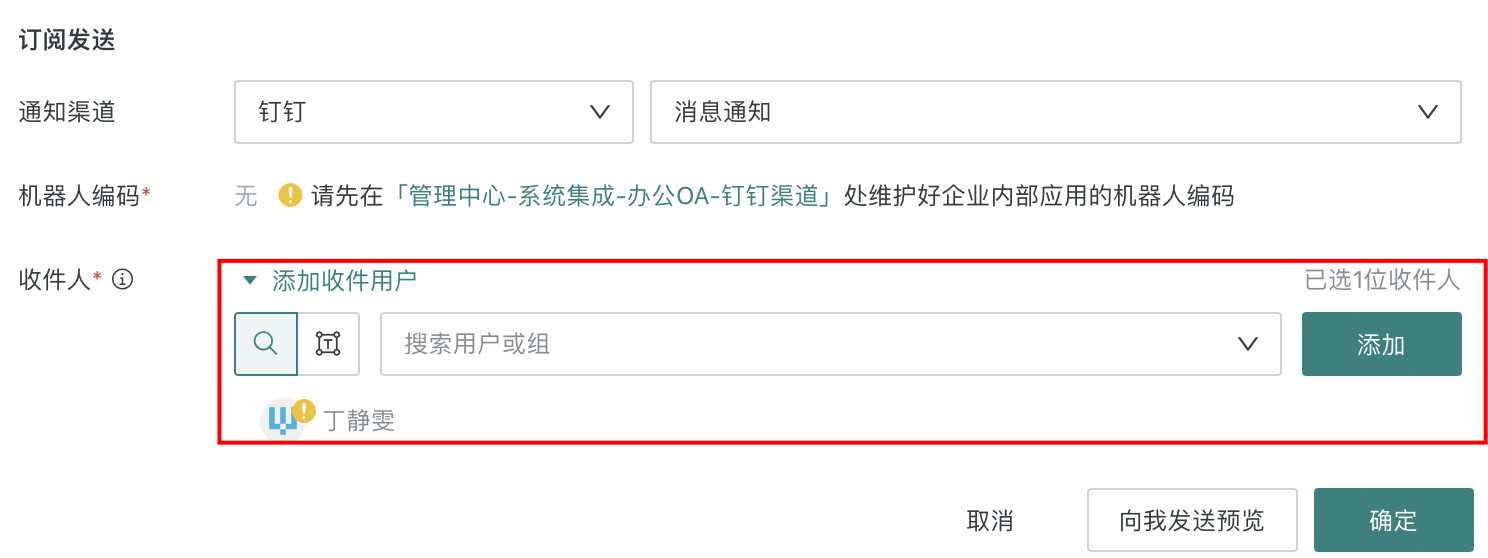
- Group Bot: The bot used by DingTalk template message subscriptions is different from ordinary subscriptions. DingTalk sends subscription messages through an
Internal Enterprise Applicationbot. One internal enterprise application corresponds to one bot. For detailed operations, see Use Group Bots to Push Notifications.
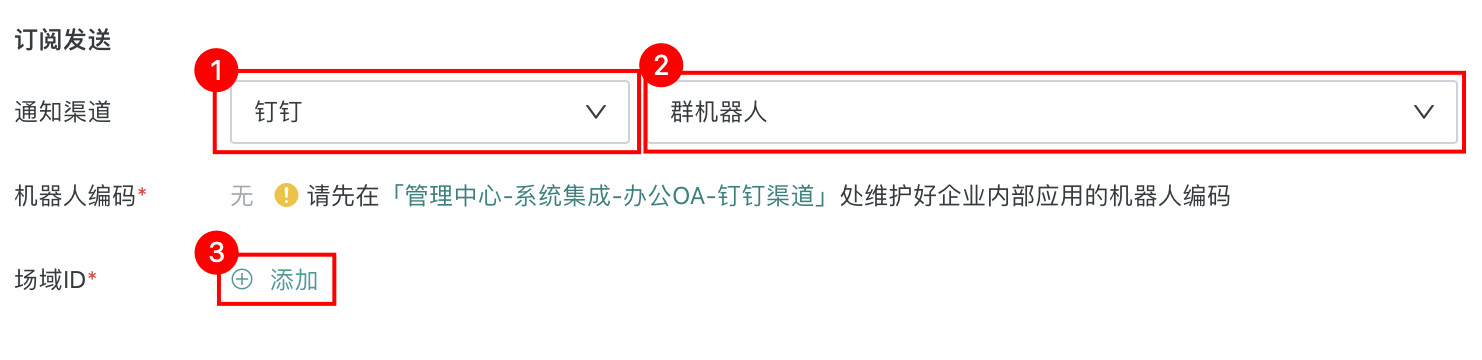
- Message Notification: Add users or user groups in Guandata BI as recipients. Subscription messages are sent separately to individuals.
-
When configuring a template message subscription, add
Open Conversation ID. There are two ways to obtain the Open Conversation ID of the group where the enterprise application bot is located.-
Method 1: Send a message mentioning the group bot in the group to obtain it.
- When configuring the subscription, click
Addon the right side ofOpen Conversation IDto open theObtain Open Conversation IDdialog. - Click
Get Code. The system generates a random code. Manually send a message in the group: @Group Bot + the random code generated by BI. After the message is sent successfully, the Open Conversation ID is automatically filled in by the bot. - Click
OKto finish adding the Open Conversation ID.
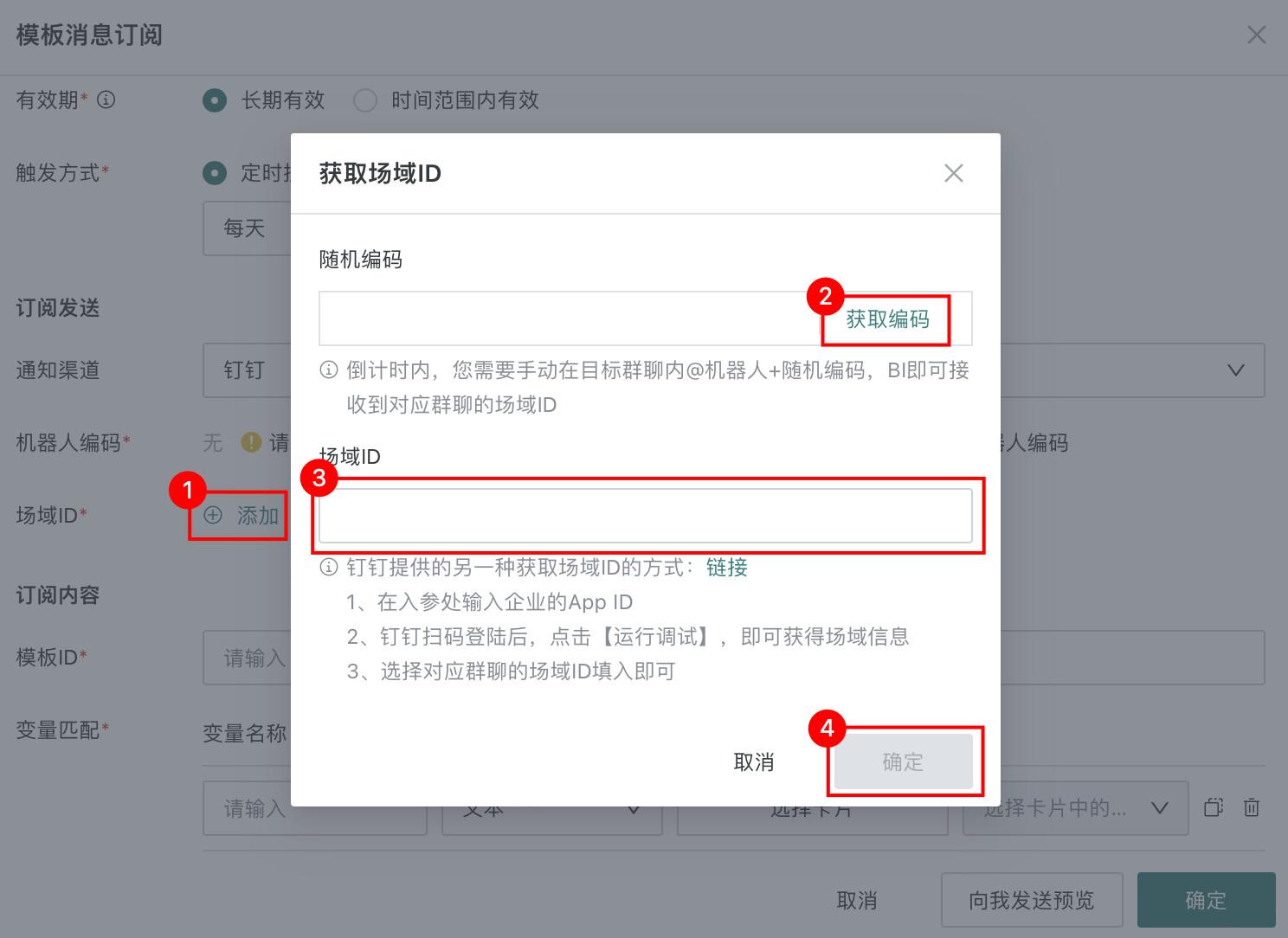
- When configuring the subscription, click
-
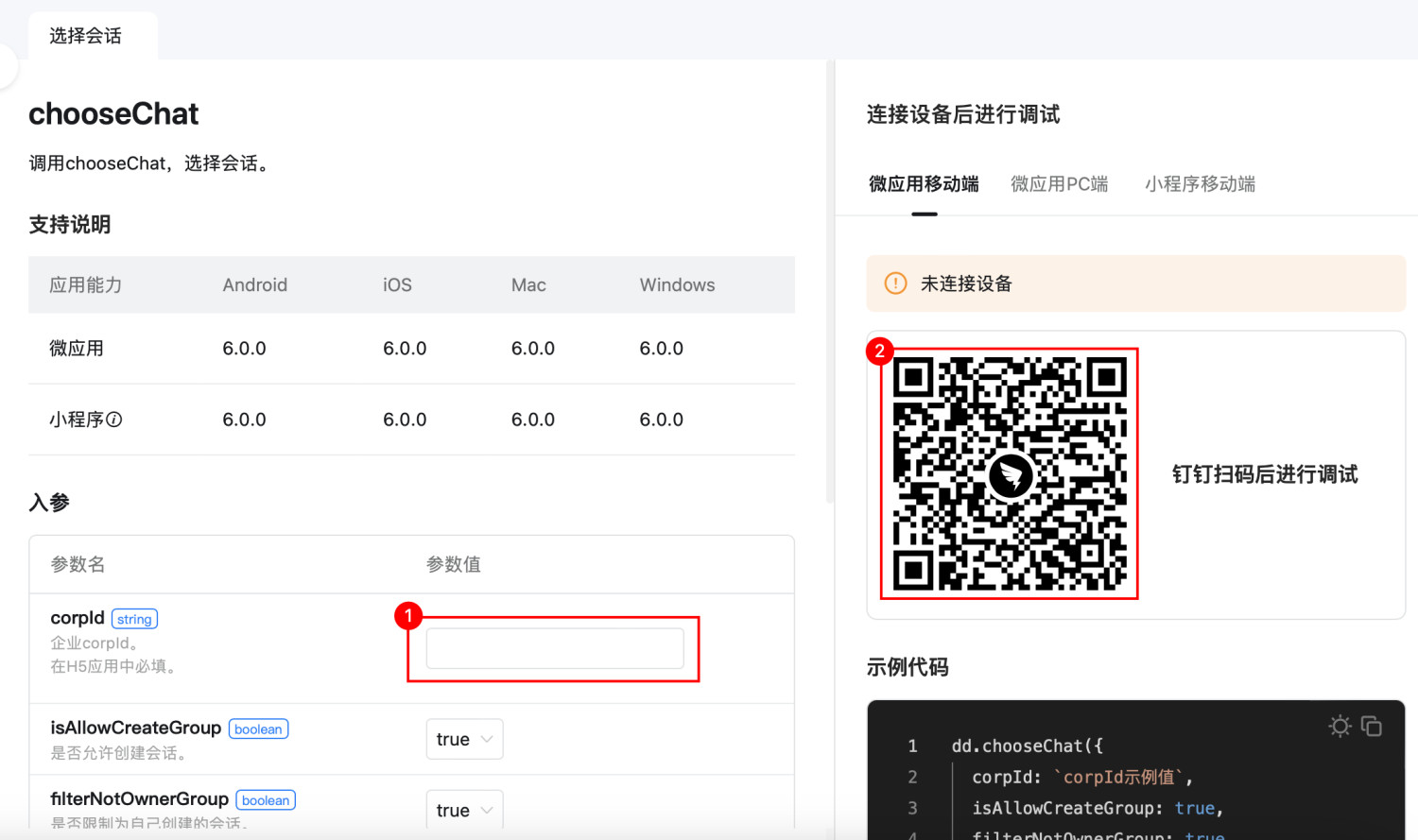
Method 2: Scan a code with the enterprise ID to obtain it.
- Enter the enterprise ID (App ID) in the input parameters here.
- After the administrator scans the code and logs in, click
Run Debug. - Obtain all Open Conversation IDs and names for the bot application, select the Open Conversation ID corresponding to the subscription target, and manually enter it.
-
-
In the template message subscription configuration page, configure
Subscription Content.-
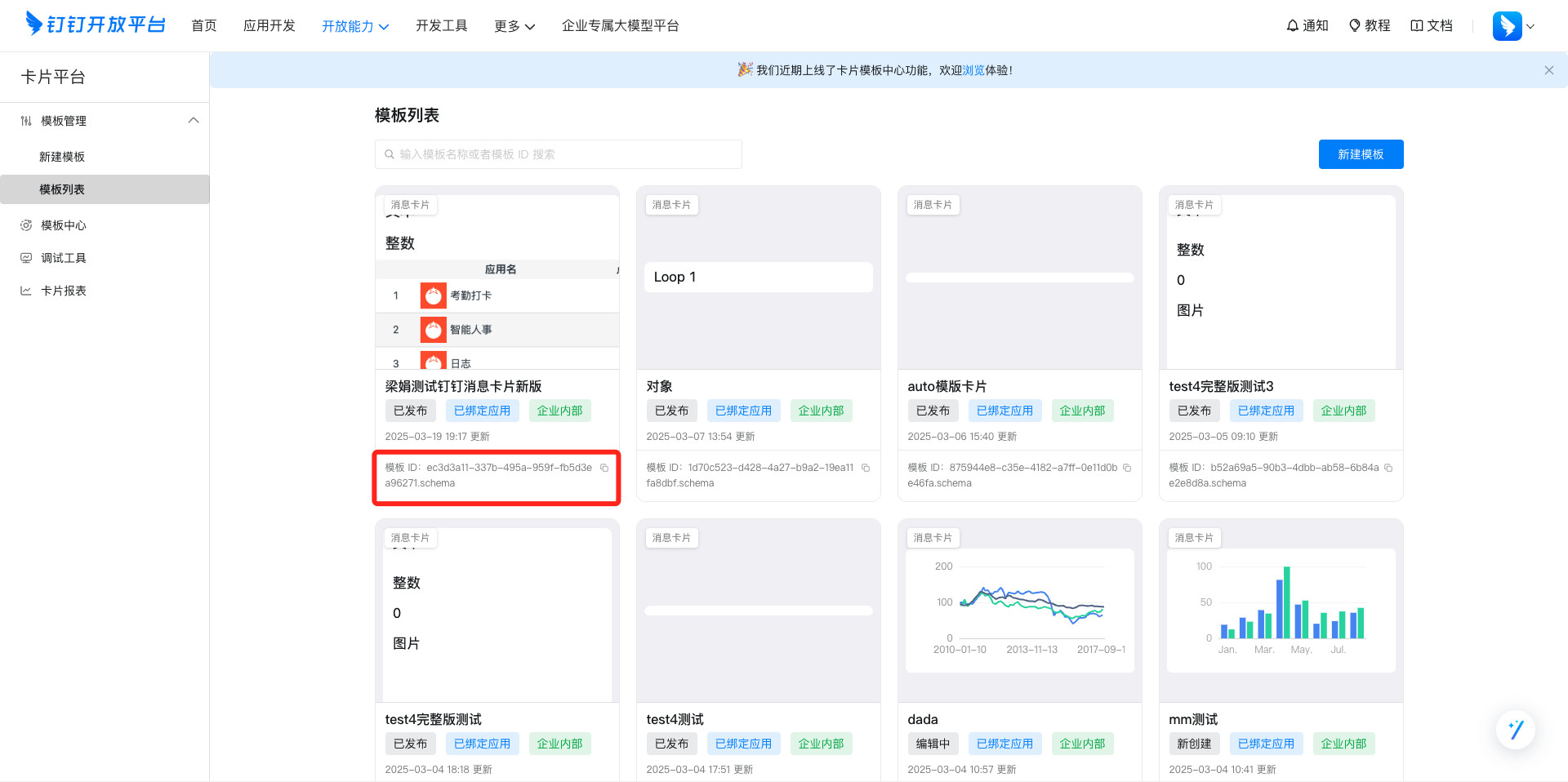
Template ID: Enter the created card template ID, which can be obtained from the template list.
-
Variable matching: For card variables configured in the DingTalk template, match them to dynamic data, cards, and other BI elements from visualization cards in the BI platform. The BI elements to match vary by variable type.
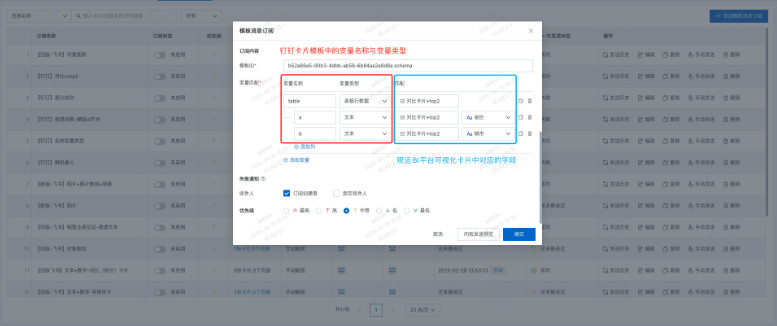
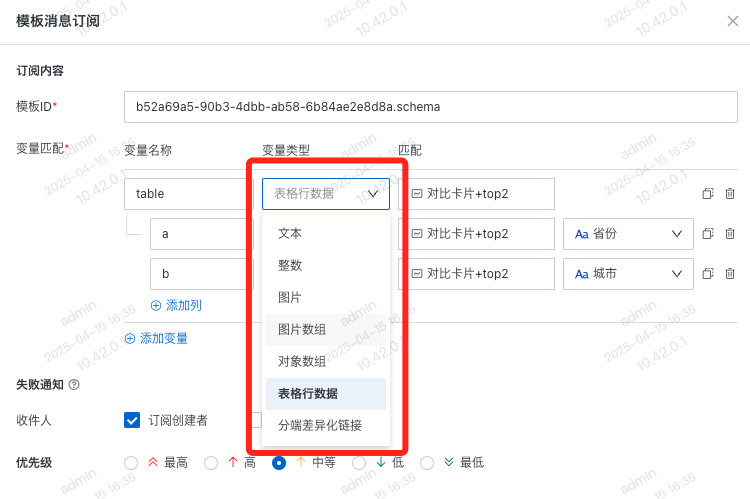
Currently supported DingTalk variable types include text, integer, image, image array, object array, table row array, and device-specific differentiated links.
-
-
After subscription content is configured, click
Send Preview to Meto view the final received message card effect in DingTalk. After confirming that the style and data are correct, clickOKto complete the template message subscription configuration.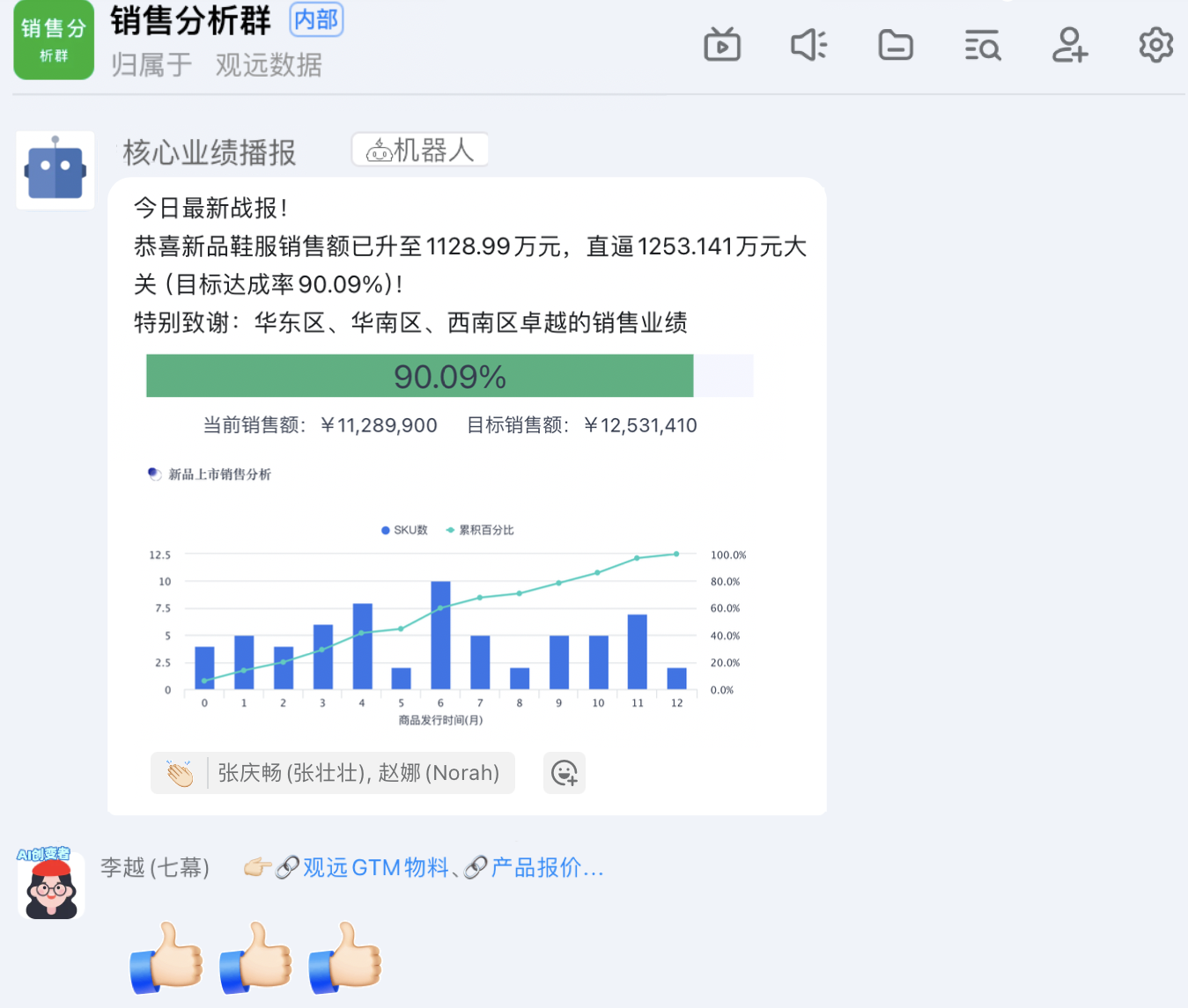
FAQs
For subscription-related FAQs, see FAQs.