Usage Tracking
Overview
Usage Tracking displays the operational metrics of the current dataset agent and provides query and management capabilities for dialog history, helping administrators understand how the agent is being used and how users interact with it.
Usage Guide
View Operational Metrics
The operational metrics module presents the core usage status of the current agent in a data-driven way, helping administrators fully understand its operational performance.
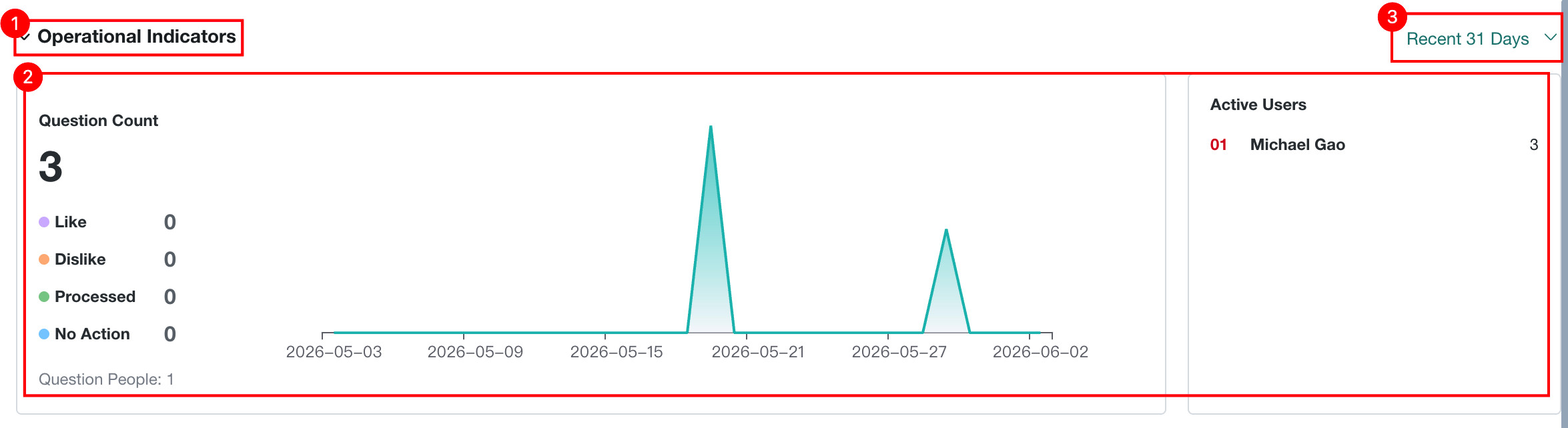
| No. | Description |
|---|---|
| 1 | Toggle whether operational metrics are shown in expanded detail. |
| 2 | Switch the time range used to view operational metrics. This filter also applies to Dialog History.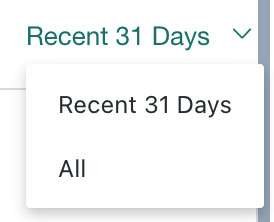 |
| 3 | View the number of questions asked to the current dataset agent, evaluations of answer quality, active users, and the number of users who asked questions.Question Count: reflects overall usage frequency and usage level.Active Users: reflects user stickiness and helps identify core user groups.Answer Feedback: comes from Answer Feedback and directly reflects answer accuracy and user satisfaction, making it an important basis for Q&A optimization.Asking Users: shows how many users participated in asking questions, reflecting the coverage of the agent. |
View Dialog History
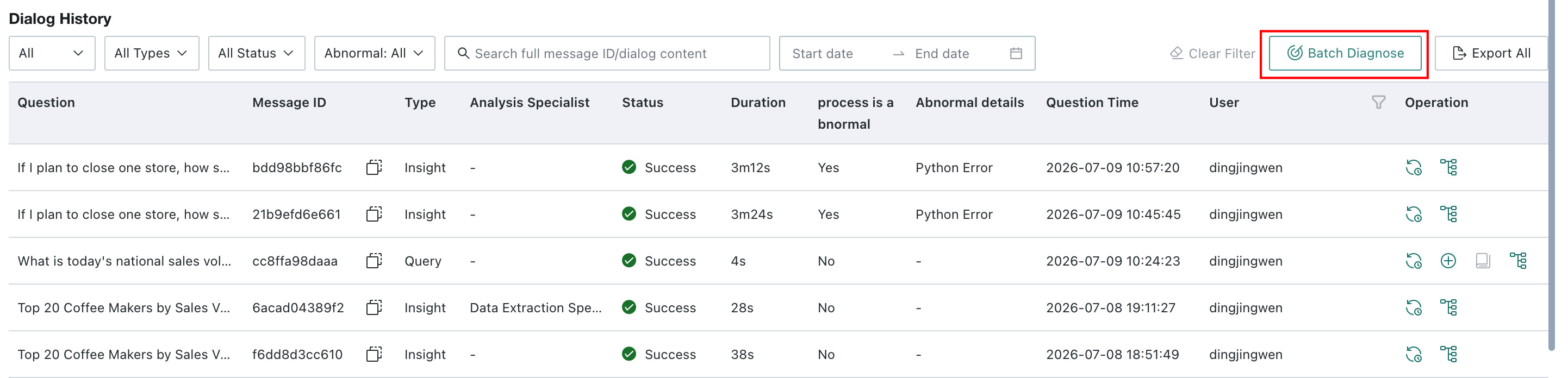
Each frontend question generates a backend dialog history record. You can filter dialog history by answer feedback result, dialog type, dialog status, exception status, full message ID or dialog content, time range, and user name.
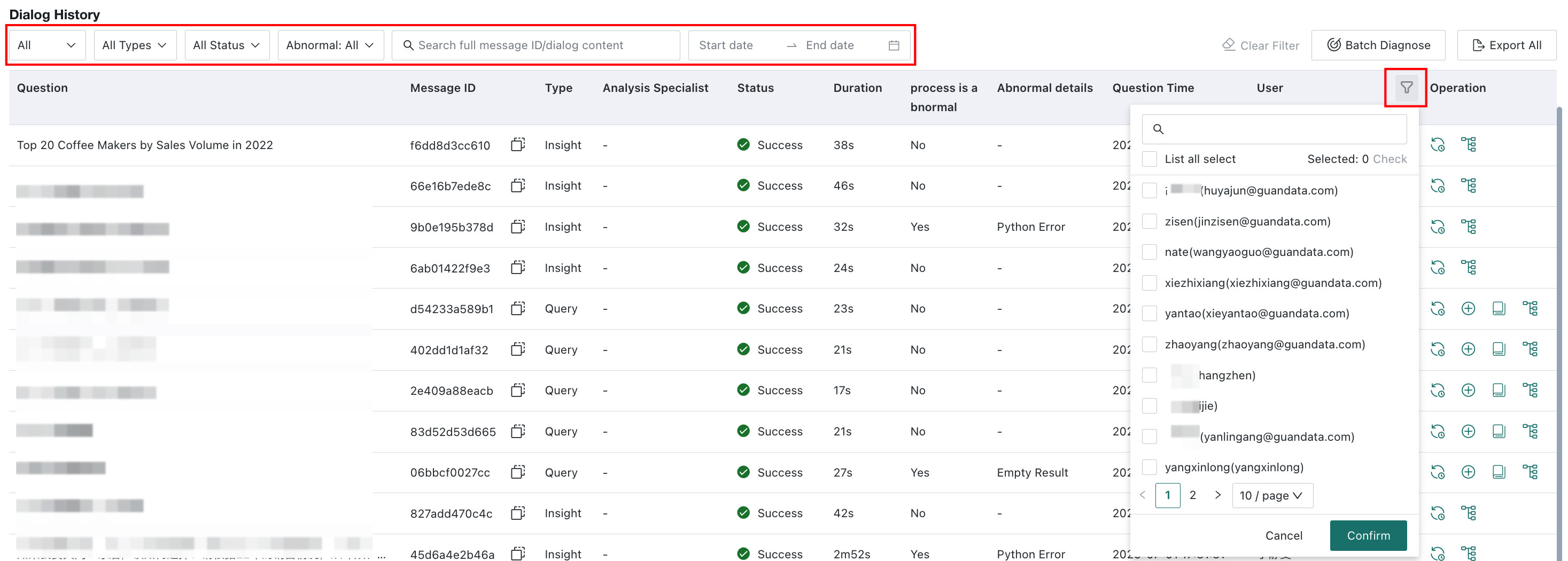
In the dialog history list, the system automatically marks abnormal records that encountered issues during execution, helping operations staff quickly identify records that need attention.

View Called Analysis Expert
The Analysis Expert column in the dialog history list shows which analysis expert was actually invoked for each Q&A, helping operators understand how different types of questions are distributed across experts.

View Time Consumption
The Time Consumption column shows how long each Q&A took from question submission to result return. Use it to quickly identify slow records and assist with performance troubleshooting.

Export Dialog History
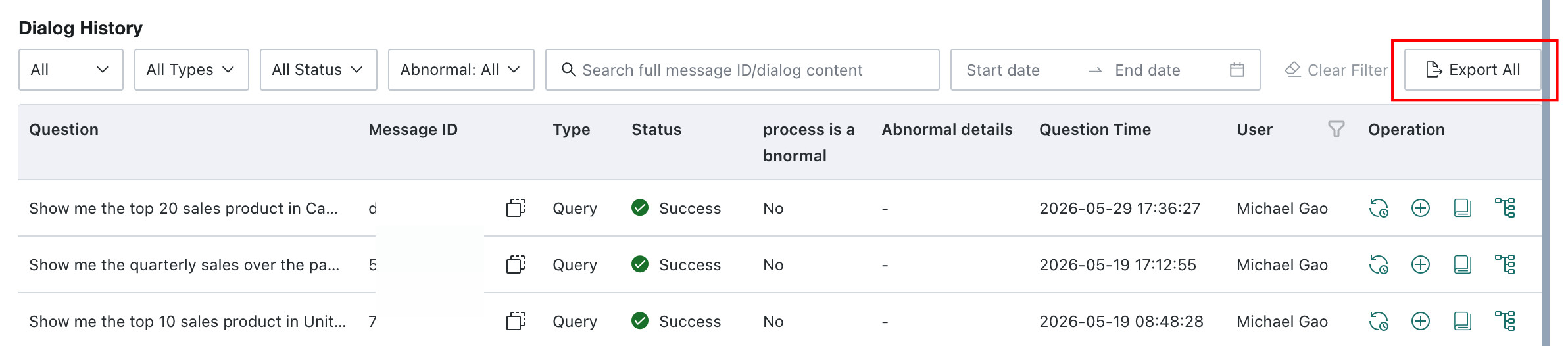
Dialog history records support one-click export, including Q&A status, whether the process was abnormal, and exception descriptions, making it easier for operations staff to perform offline analysis and troubleshooting.
Copy Message ID
Click the button to copy the message ID. The copied message ID can be provided to Guandata for troubleshooting.

View Langfuse Trace Records
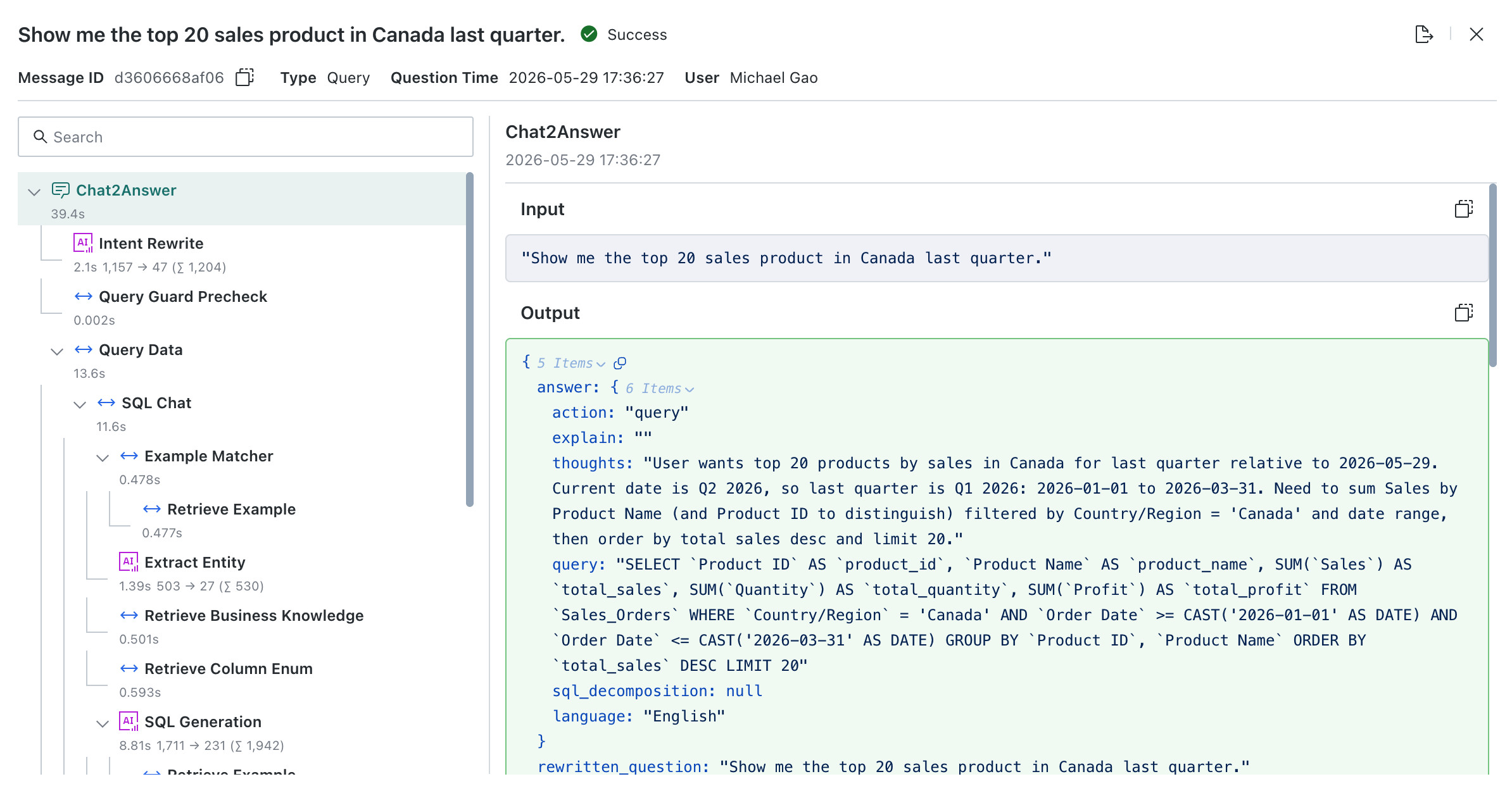
Click Trace to jump to the Langfuse platform and view detailed call chain information for troubleshooting.

Bad Case Diagnosis
For abnormal cases in Q&A records, the system supports one-click diagnosis based on trace information from one or more Q&A records. It outputs the root cause, conclusion, and handling suggestions to help operations teams quickly locate query issues.
Single Diagnosis
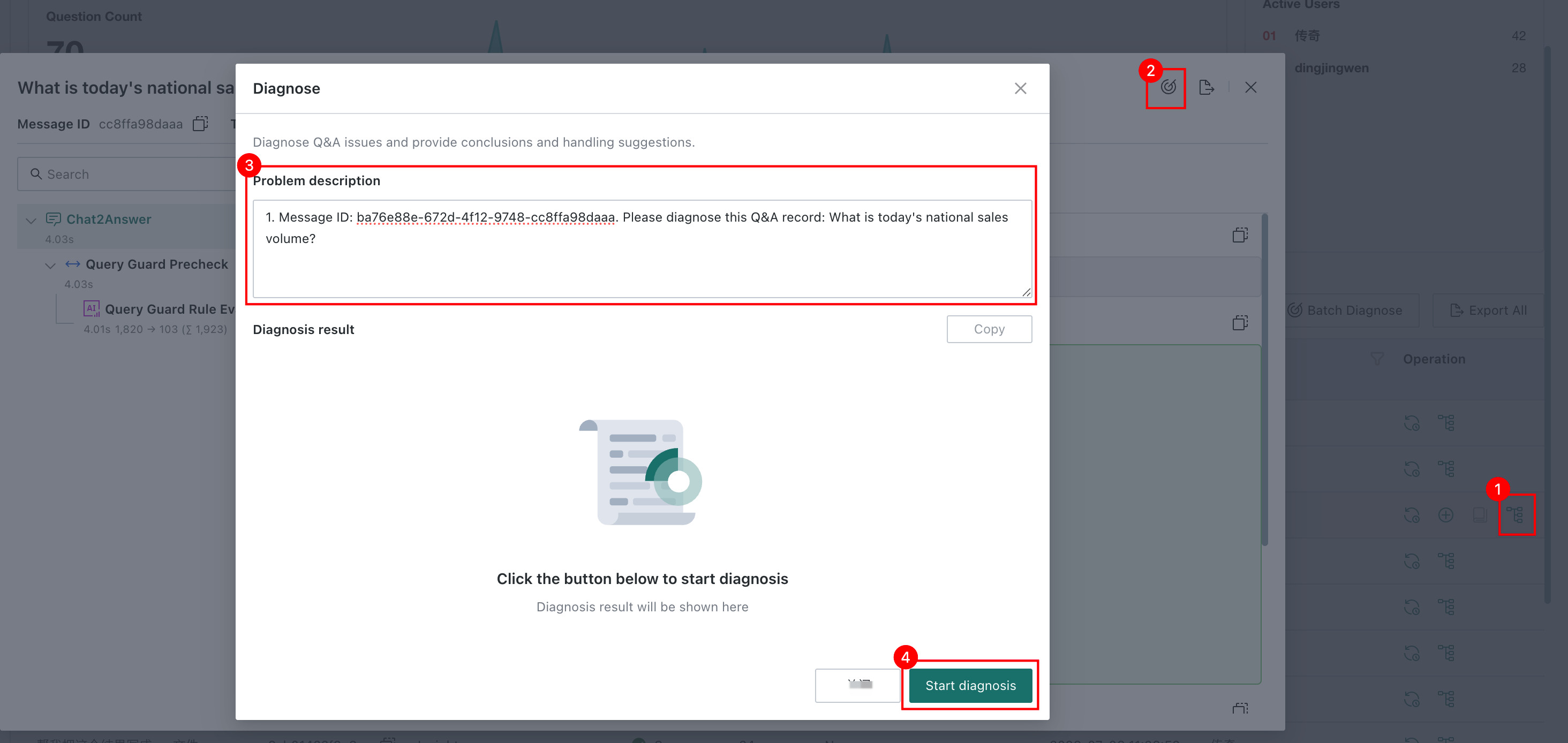
Use single diagnosis to locate execution exceptions or data issues in one Q&A record.
- Go to
Usage Tracking > Dialog History, find the Q&A record to diagnose, and clickTracein the action column. - On the trace page, click
One-Click Diagnosis. - Describe the issue to diagnose, such as incorrect data, mismatch with actual values, calculation deviation, or incorrect row count. This helps the model analyze the root cause together with trace information.
- Click
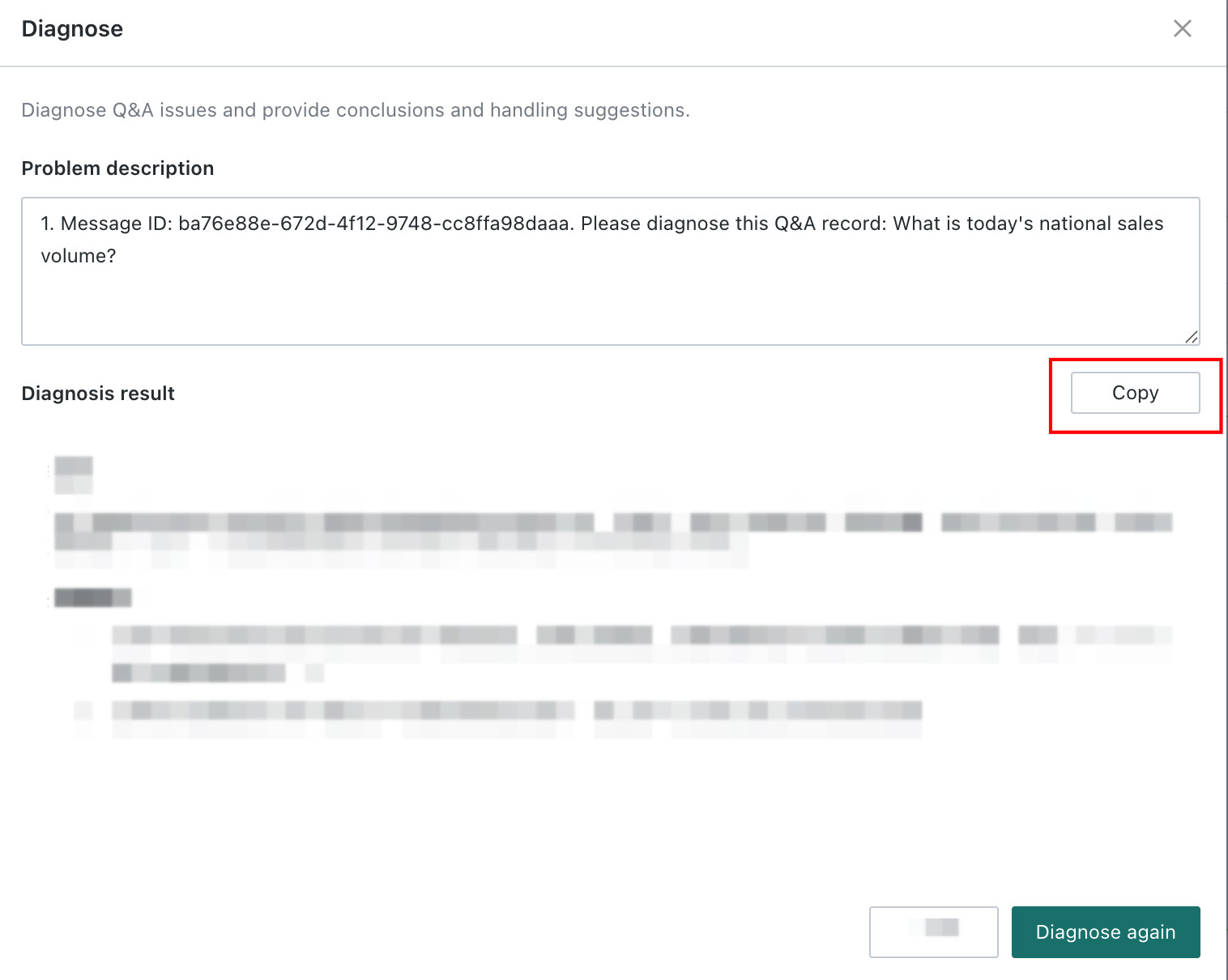
Start Diagnosis. The system analyzes the trace information of the current Q&A and outputs conclusions and handling suggestions inDiagnosis Result. - Copy the diagnosis result and provide it to Guandata for further troubleshooting. If the result is unsatisfactory, click
Regenerate Diagnosis.
Batch Diagnosis
Use batch diagnosis when multiple similar or related issues need to be investigated together.
-
On
Usage Tracking > Dialog History, clickBatch Diagnosisin the upper-right corner. -
On the batch diagnosis page, select the target Q&A records.
NoteA single batch diagnosis supports up to 10 records. Cross-page cumulative selection is supported.
-
After selection, click
Next. -
For each Q&A record, describe the issue to diagnose, such as incorrect data, mismatch with actual values, calculation deviation, or incorrect row count. This helps the model analyze the root cause together with trace information.
-
Click
Start Diagnosis. The system analyzes trace information for the selected Q&A records and outputs conclusions and handling suggestions inDiagnosis Result. -
Copy the diagnosis result and provide it to Guandata for further troubleshooting. If the result is unsatisfactory, click
Regenerate Diagnosis.
Manage Dialog History
Click Dialog History to display conversation records. The visualization shown in backend dialog history stays consistent with the frontend experience, and you can manage records from the detail page.
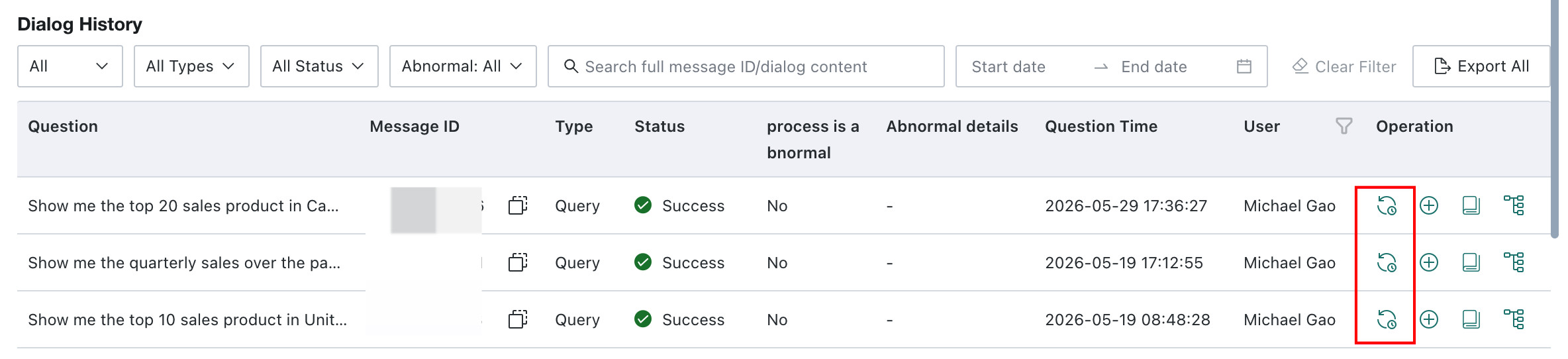
Q&A Dialog History
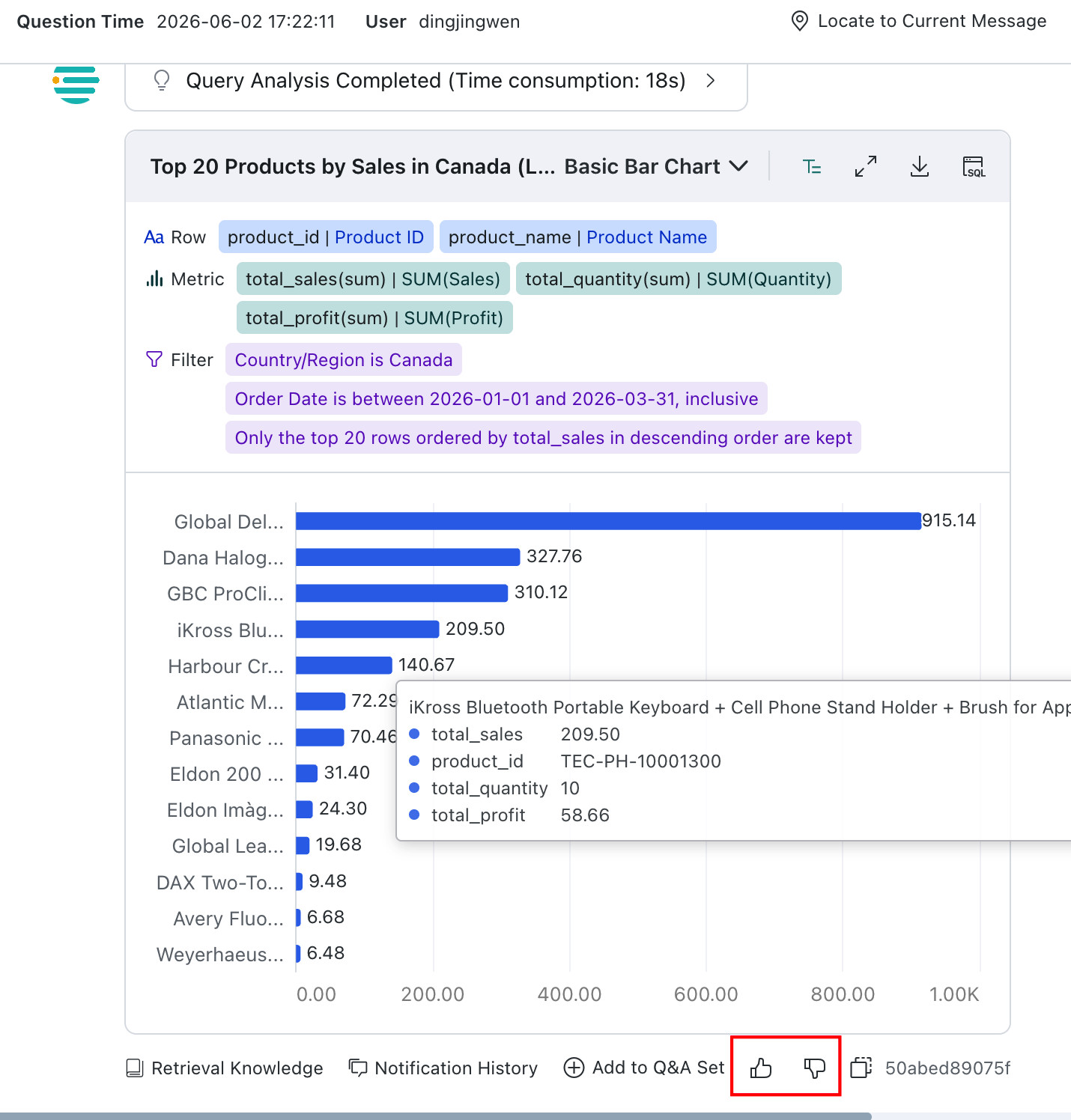
When the dialog type is Q&A, the Dialog History page supports operations such as viewing retrieved knowledge, viewing notification history, adding to Q&A Sample, viewing SQL, copying the message ID, and managing likes/dislikes.
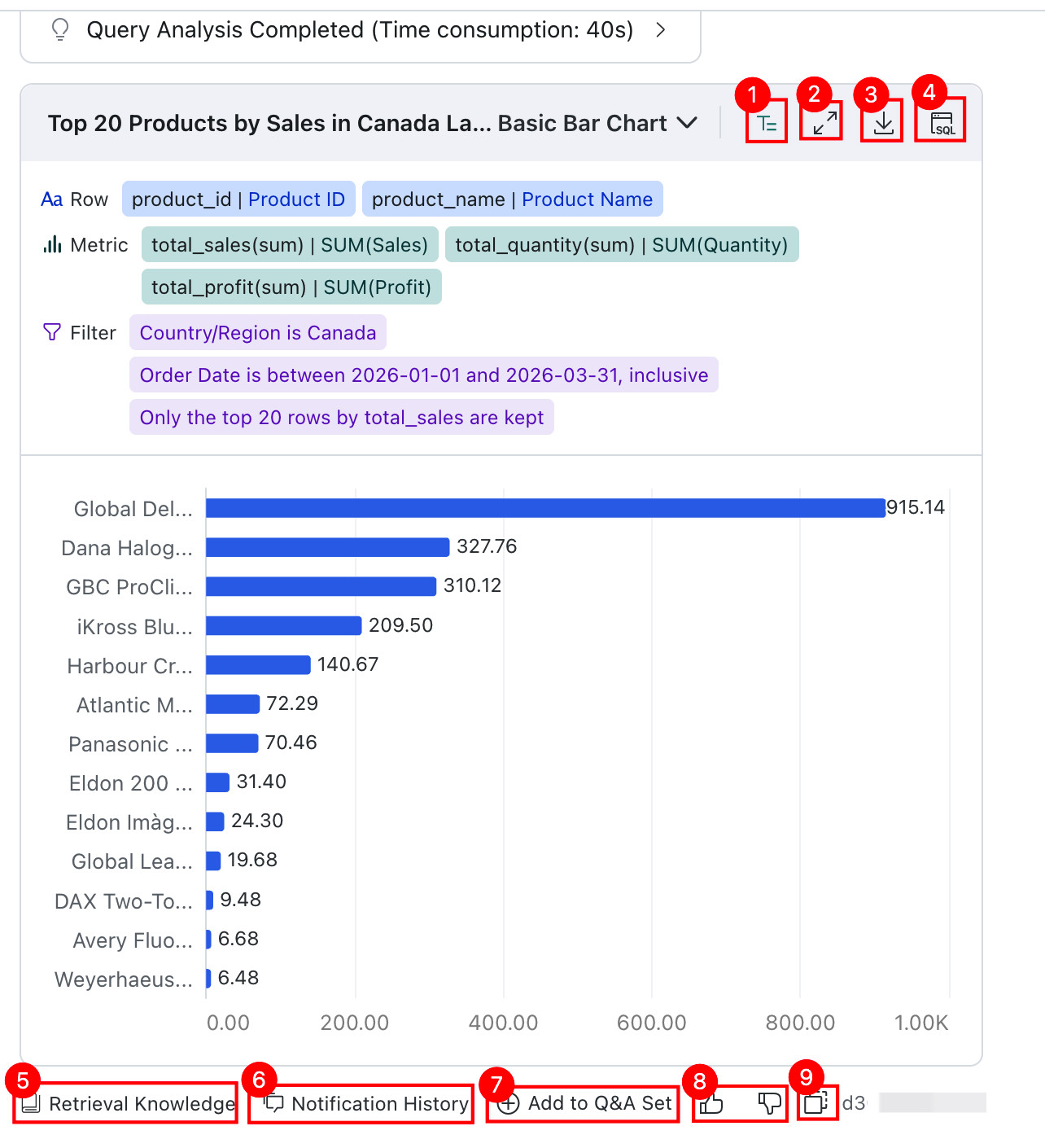
| No. | Feature | Description |
|---|---|---|
| 1 | Show / Hide Analysis Parameters | The query result area supports showing or hiding analysis parameters to help users understand the data query logic.For details, see Show / Hide Analysis Parameters. |
| 2 | Enlarge | If the current page cannot display all chart content, click the enlarge button to view the chart more clearly. |
| 3 | Export | Export the data result. Both Export Excel and Export Table Data are supported. For details, see Export Data. |
| 4 | View SQL | Click SQL to view the SQL used for the current Q&A. Click SQL Explanation to view the execution logic, filter conditions, and data relationships, or click the copy button to copy the current SQL.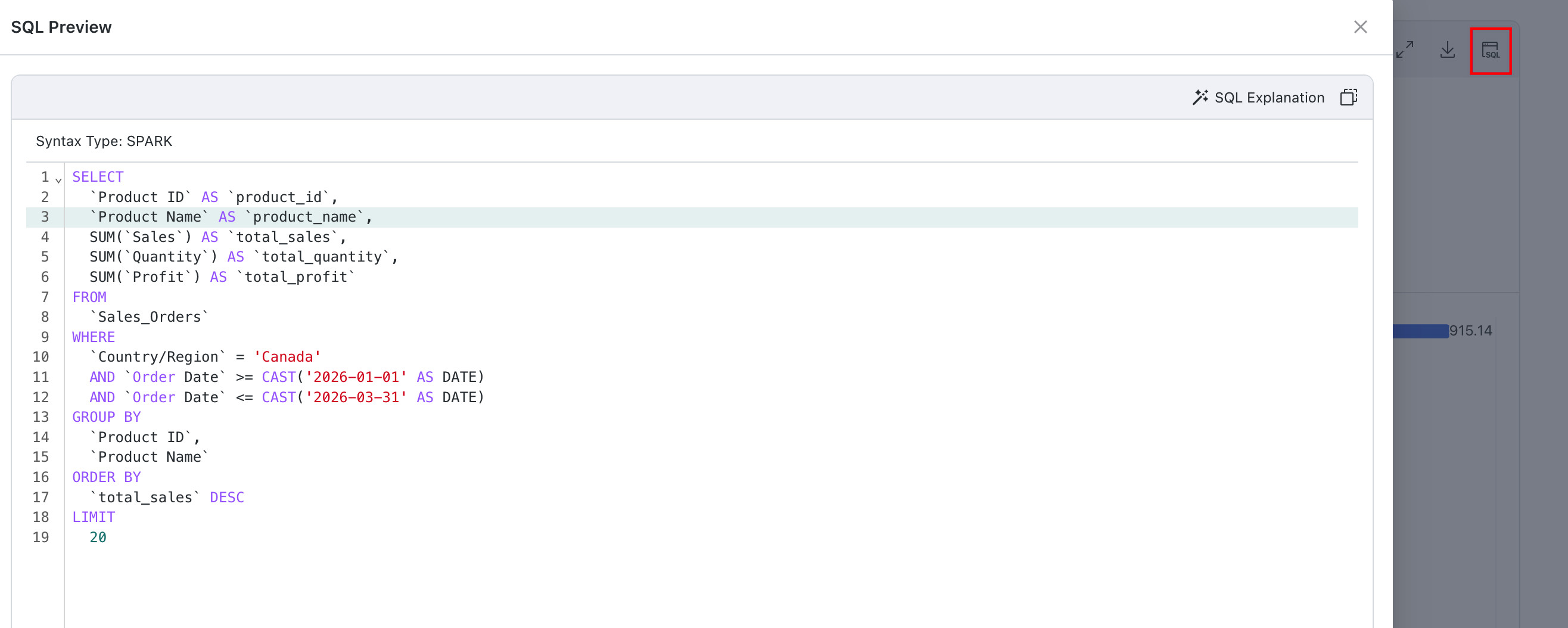 |
| 5 | View Retrieved Knowledge | Displays the Table Knowledge, Business Knowledge, and Q&A Sample sent to the model during Query.There are two entry points for this feature in Q&A dialog history: one in the upper-right corner of the dialog detail page after clicking Dialog History, and another in the right-side action list under Usage Tracking > Dialog History. For details, see View Retrieved KnowledgeThe new Retrieved Knowledge feature is not compatible with the old Operational Logs view. When upgrading, note the following:datamind, if historical issues need to be investigated after the upgrade, copy the dialog ID and search it in Langfuse. |
| 6 | View Notification History | If Email Push was used in frontend Q&A, you can view notification records in Notification History. |
| 7 | Add to Q&A Sample | Automatically fills the current question into the description and the current SQL into the query SQL field. After correcting the SQL, users can click Add to Q&A Sample to quickly add the Q&A pair to Q&A Sample knowledge.There are two entry points for this action: one in the upper-right corner of the dialog detail page after clicking Dialog History, and another in the right-side action list under Usage Tracking > Dialog History. For details, see Add to Q&A Sample. |
| 8 | Like/Dislike Management | For Q&A entries that users did not evaluate in the frontend, administrators can mark them with Like or Dislike when reviewing dialog history. Dislike entries can include feedback text. For details, see Manage Like/Dislike Records. |
| 9 | Copy Message ID | Click the button to the left of the message ID to copy it for troubleshooting. |
Attribution Dialog History
When the dialog type is Attribution, the Dialog History page supports viewing notification history, copying SQL, adding to Q&A Sample, viewing retrieved knowledge, and like/dislike operations.
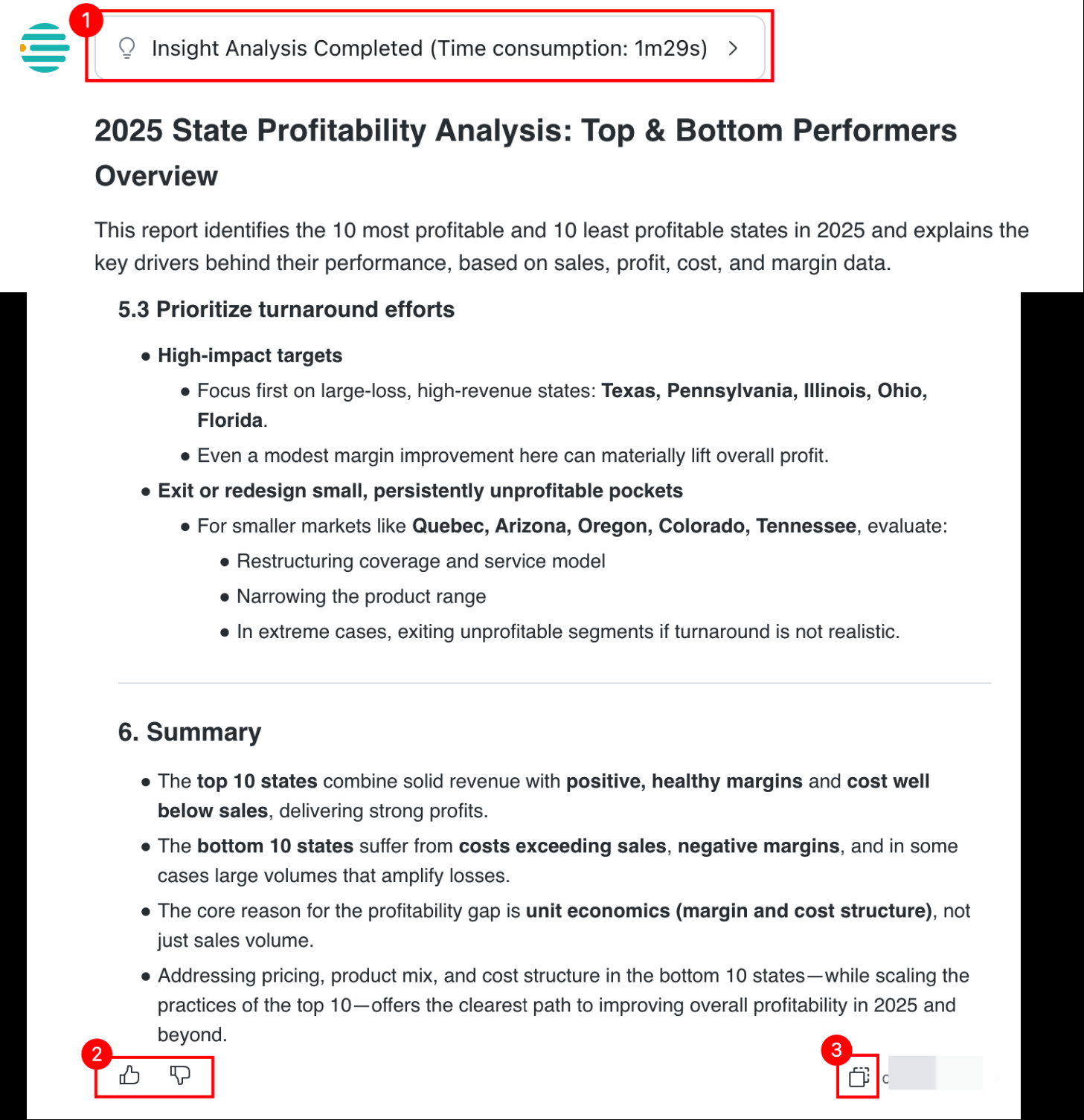
| No. | Feature | Description |
|---|---|---|
| 1 | Insight Analysis Process | Click Completed Insight Analysis to expand Analysis Process. In the Analysis Process, find Data Query and click it to open the View Calculation Details page, where you can copy SQL, add to Q&A Sample, and view retrieved knowledge.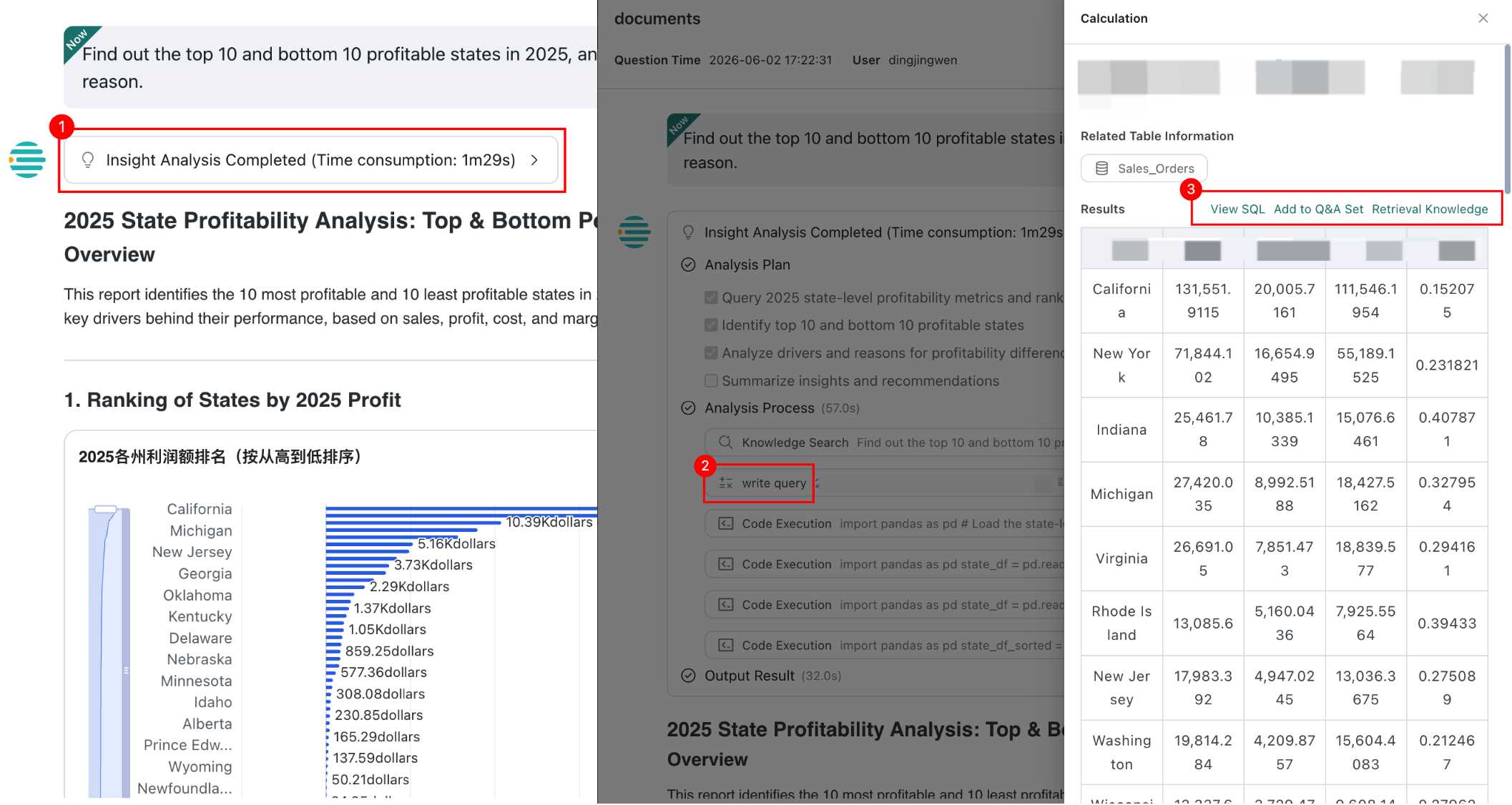 Copy SQL: copies the SQL directly for data warehouse queries.Add to Q&A Sample: fills in the current question and current SQL automatically. After correction, click Add to Q&A Sample to store it in Q&A Sample. For details, see Add to Q&A Sample.Retrieved Knowledge: shows the Table Knowledge, Business Knowledge, and Q&A Sample sent to the model during the query. For details, see View Retrieved Knowledge. |
| 2 | Like/Dislike Management | For records not evaluated in the frontend, administrators can add Like or Dislike tags and provide feedback when needed. For details, see Manage Like/Dislike Records. |
| 3 | Copy Message ID | Click the button to the left of the message ID to copy it for troubleshooting. |
Manage Like/Dislike Records
For records that users did not evaluate in the frontend, administrators can review dialog history and mark problematic answers with Like or Dislike. When marking a Dislike, feedback text can be entered.
Dislike Workflow
-
Click
Dislike, enter the issue description, and clickSubmit. Quick-fill inputs are supported to help define unclear or problematic answers.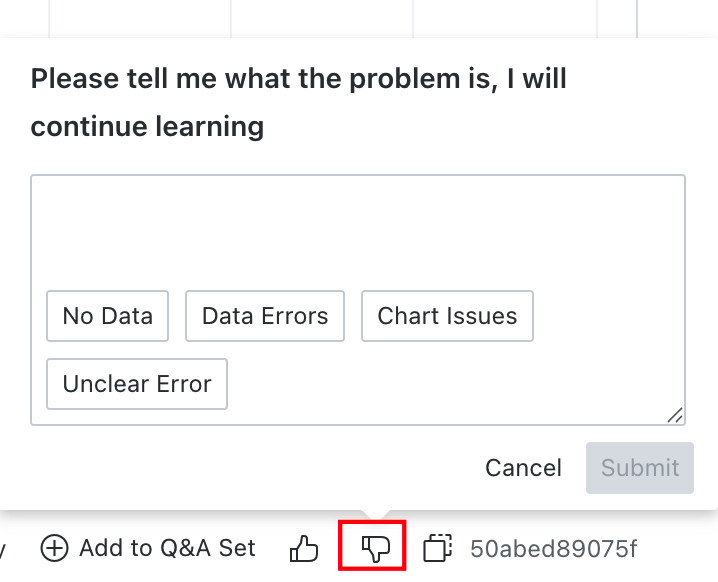
-
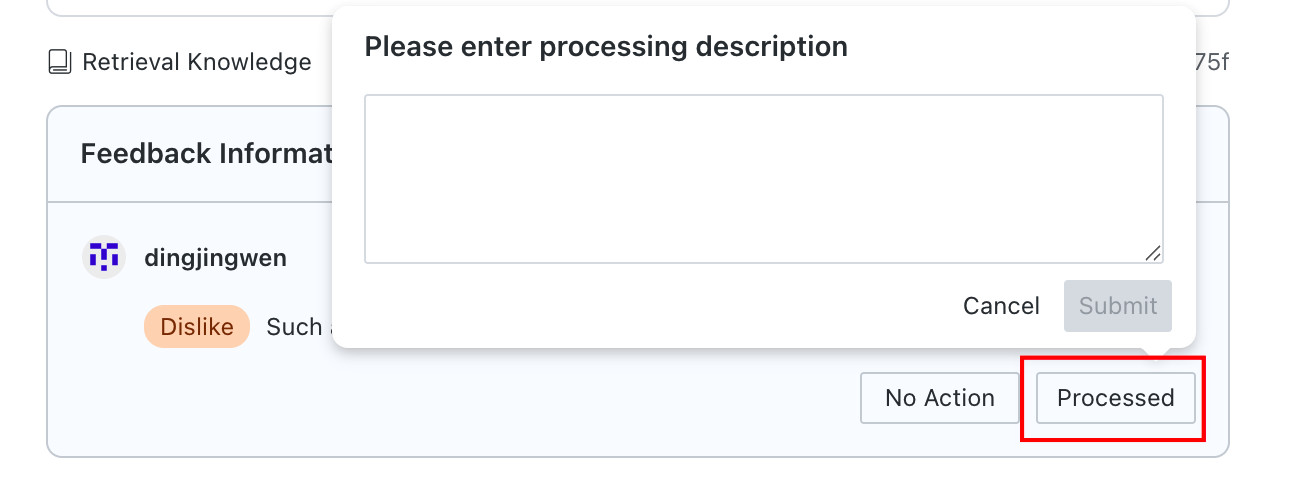
After a user submits a dislike, the current issue is marked as
To Be Optimized. After the knowledge base administrator finishes the optimization, the result can be labeled.No Action Needed: the actual behavior matches expectations, so no knowledge base optimization is required.Processed: optimization has been completed, and frontend users can try again.
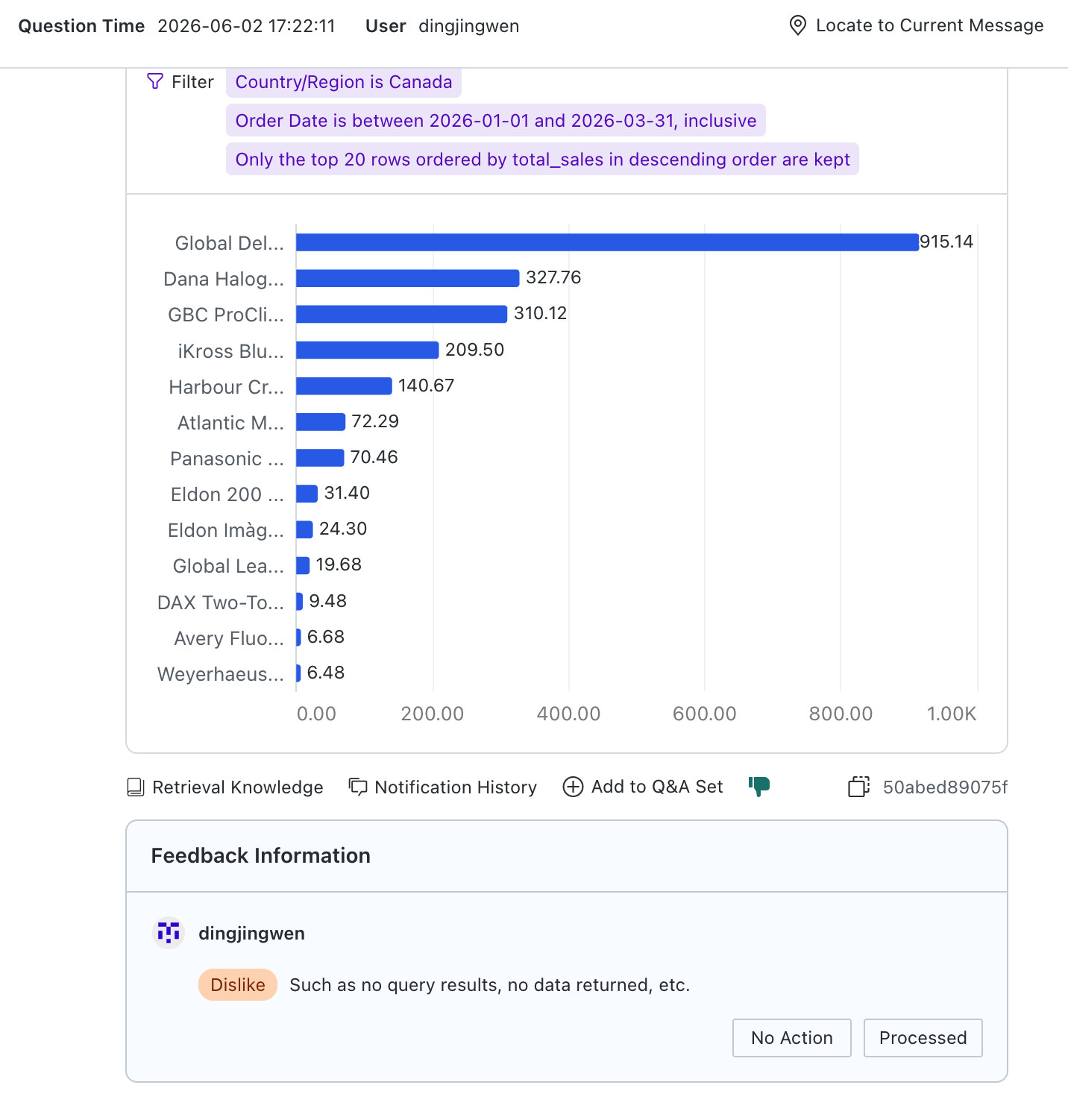
-
After processing is complete, the knowledge base administrator fills in the processing notes and submits them. The system records the result.
-
(Optional) If the recorded result is incorrect after changes, click
Edit Processingto modify it.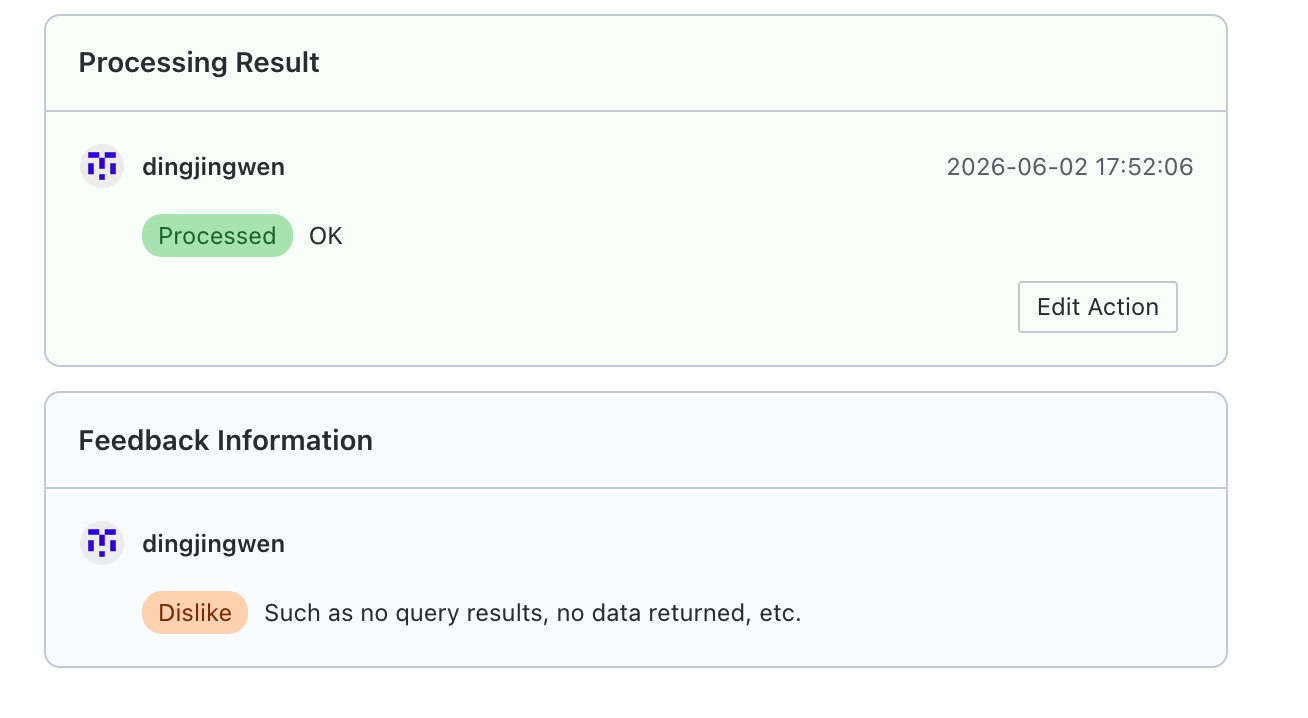
Add to Q&A Sample
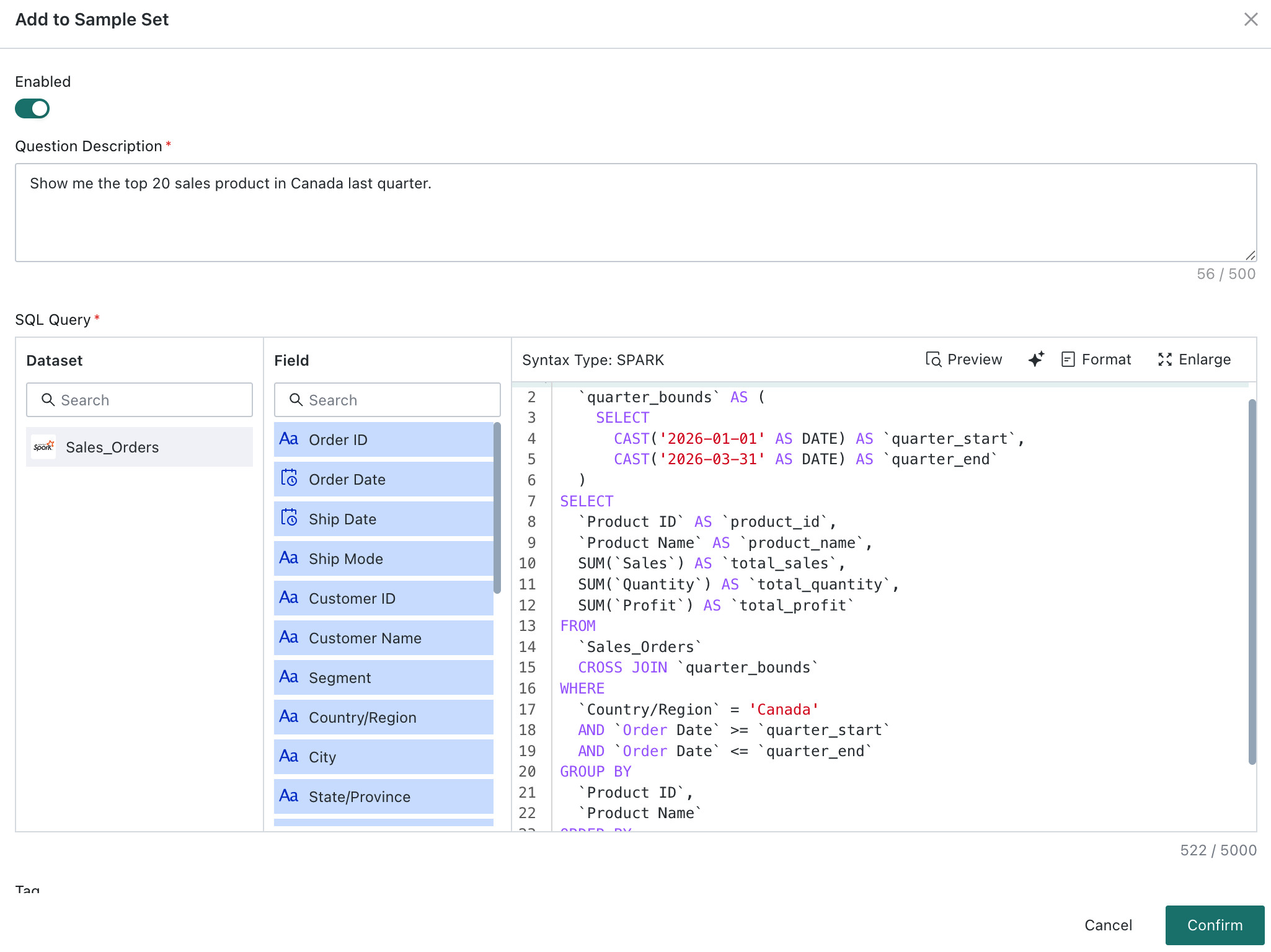
After clicking this action, the current question is automatically filled into the description field, and the current SQL is filled into the query SQL field. After the SQL is corrected and passes validation, click Add to Q&A Sample to quickly add the Q&A pair into Q&A Sample knowledge.

The system checks and prompts for the current SQL syntax type. For extracted datasets, the syntax type is displayed as Spark. If mixed SQL across different direct-connect datasets is detected, the system reports that cross-database queries are not supported.
View Retrieved Knowledge
Retrieved Knowledge displays the Table Knowledge, Business Knowledge, and Q&A Sample that were sent to the model during the query.
-
Dataset Knowledge: lists the table information and corresponding enumerated fields recalled in this calculation.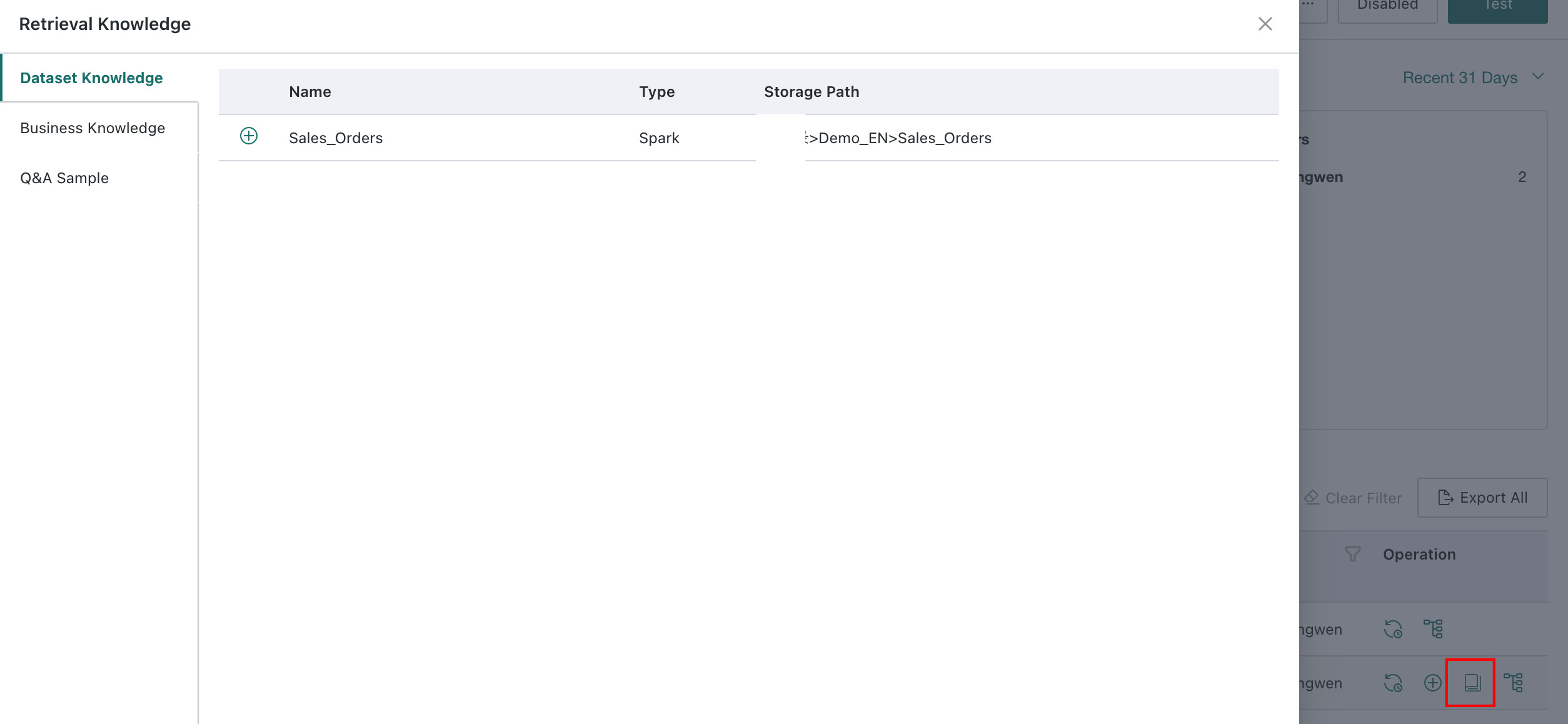
-
Business Knowledge: shows the business rules or knowledge items associated with the current calculation. Users can edit the knowledge or add newBusiness Knowledge.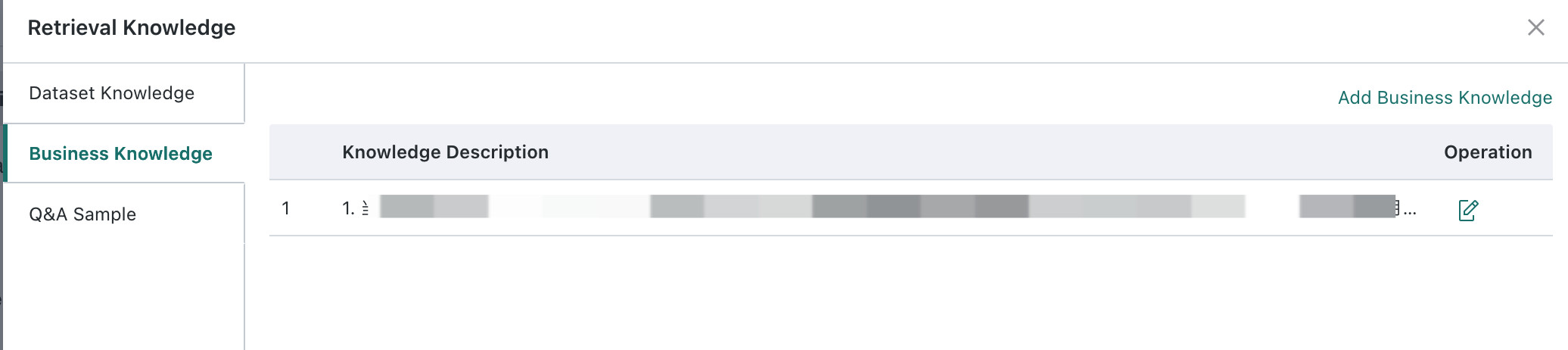
-
Q&A Sample: shows the historically corrected SQL recalled by the system during the current calculation.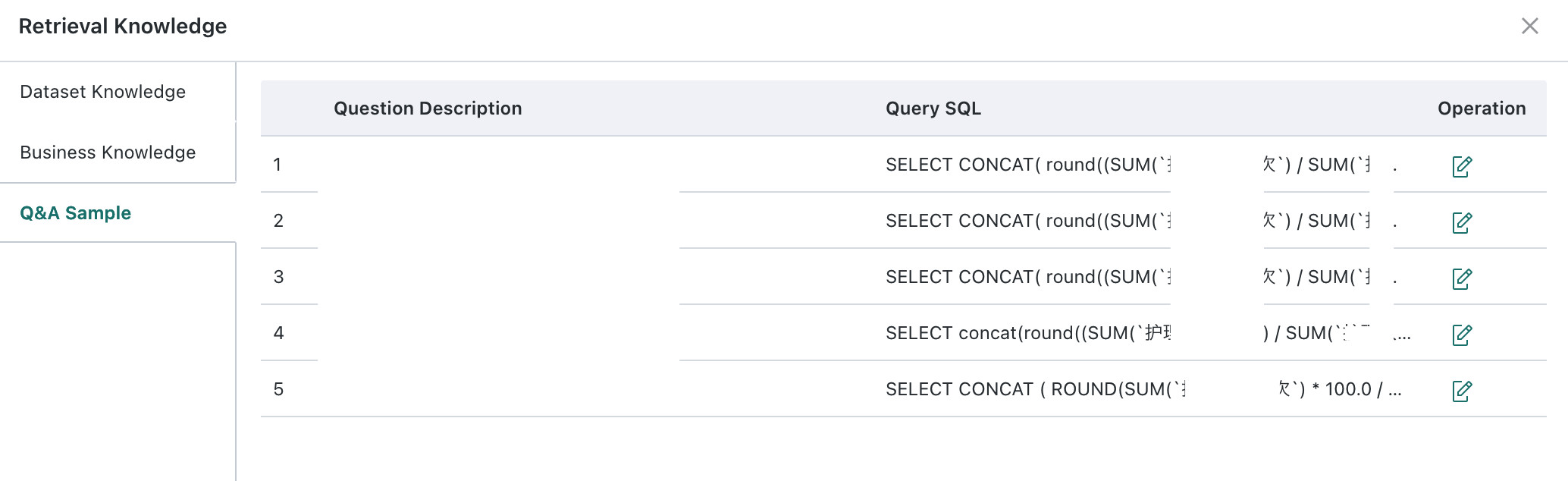
- The knowledge shown here is the content recalled for this specific Q&A run. If the knowledge was updated later by you or your colleagues, clicking
Editwill show the latest version from the knowledge base rather than the old content shown in the list. - If a piece of
Business KnowledgeorQ&A Samplehas already been deleted from the knowledge base, theEditentry becomes disabled to preserve knowledge accuracy.