Management Center
Overview
Management Center provides two main modules: Quota Management and Function Switch Configuration. Administrators can configure query volume rules, control feature switches, and set LLM-related parameters to ensure the proper operation of Data Agent.
Quota Management
The Quota Management module is used to view the current query package usage and configure frontend query limits for different users or user groups.
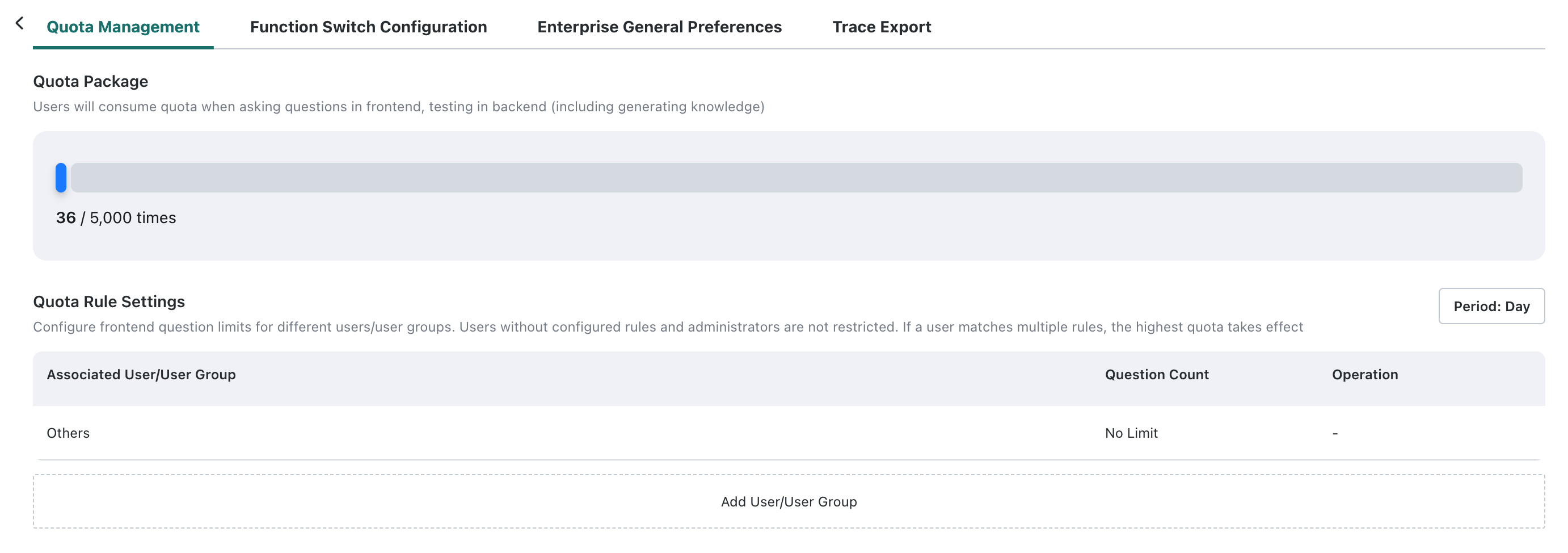
Query Package
Query Package is ChatBI's Q&A usage quota. Frontend Q&A and backend testing, including knowledge generation, both consume queries. Administrators can view overall package usage here, monitor the remaining quota, and plan or allocate Q&A resources accordingly.
Used / Total: shows the number of queries already used and the total package amount, such as4859/10000Consumption Description: frontend Q&A and backend testing, including knowledge generation, both consume usage
- Users without configured rules and administrators are not restricted by query limits. For details about query rules, see Query Rule Settings.
- Customers billed by Token do not see Query Package. Query packages apply only to query-count billing.
Query Rule Settings
You can configure different query usage rules for multiple users or user groups to achieve refined control of Q&A quotas.
Add Rules
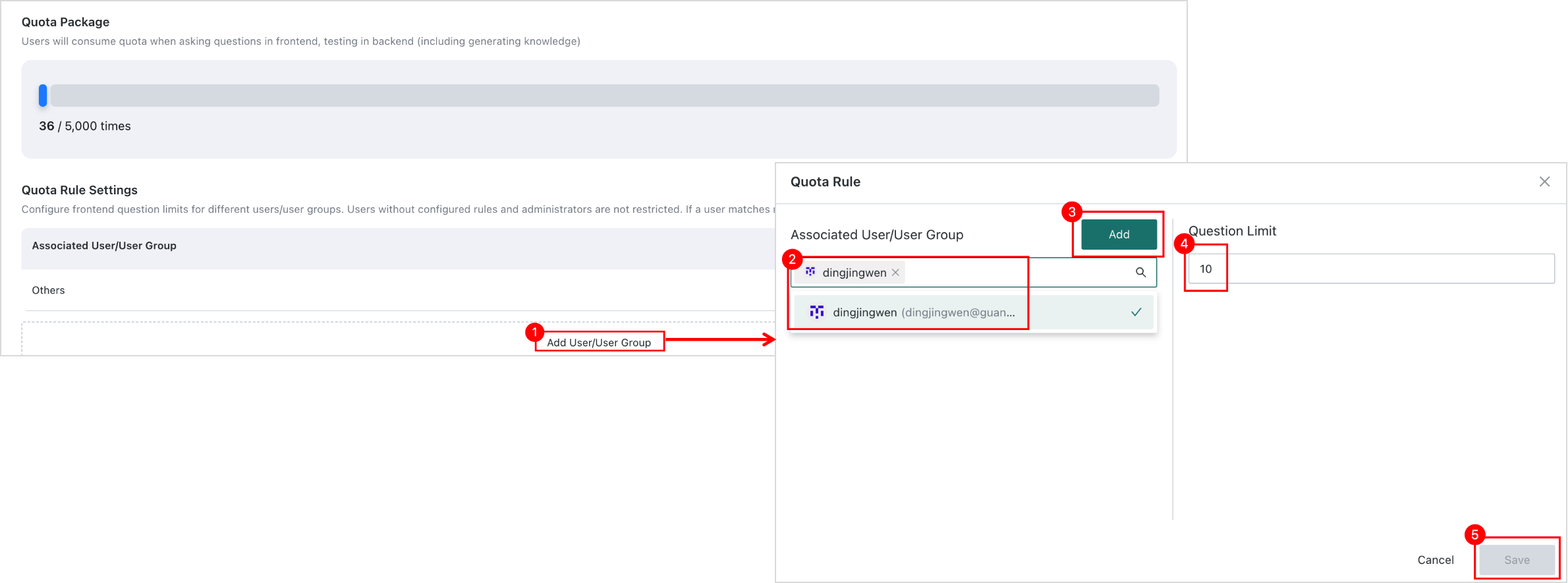
Click Add User / User Group, select the Related User / User Group to restrict, set the number of allowed queries, and click Save. Multiple rules can be added to assign different quotas to different user groups.
Rule priority logic:
- Users without configured rules and administrators are not restricted by query limits.
- If the same user matches multiple rules, the rule with the highest quota takes effect.
Default rule: all others are unlimited.
Switch Cycle
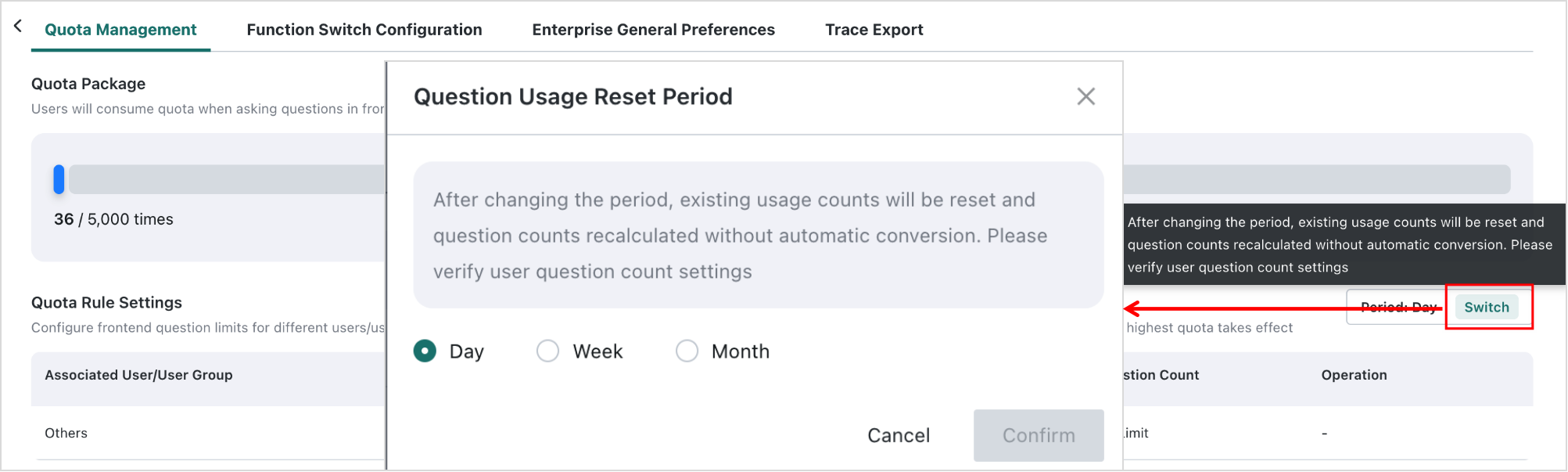
Click Switch in the upper-right corner to change the statistical period of the query rules (Daily, Weekly, or Monthly). After switching the period, previously used counts are reset and recalculated. Values are not converted automatically, so review the configured user query quotas after switching.
Function Switch Configuration
The Function Switch Configuration module provides multiple feature switches that administrators can enable or disable according to business needs.
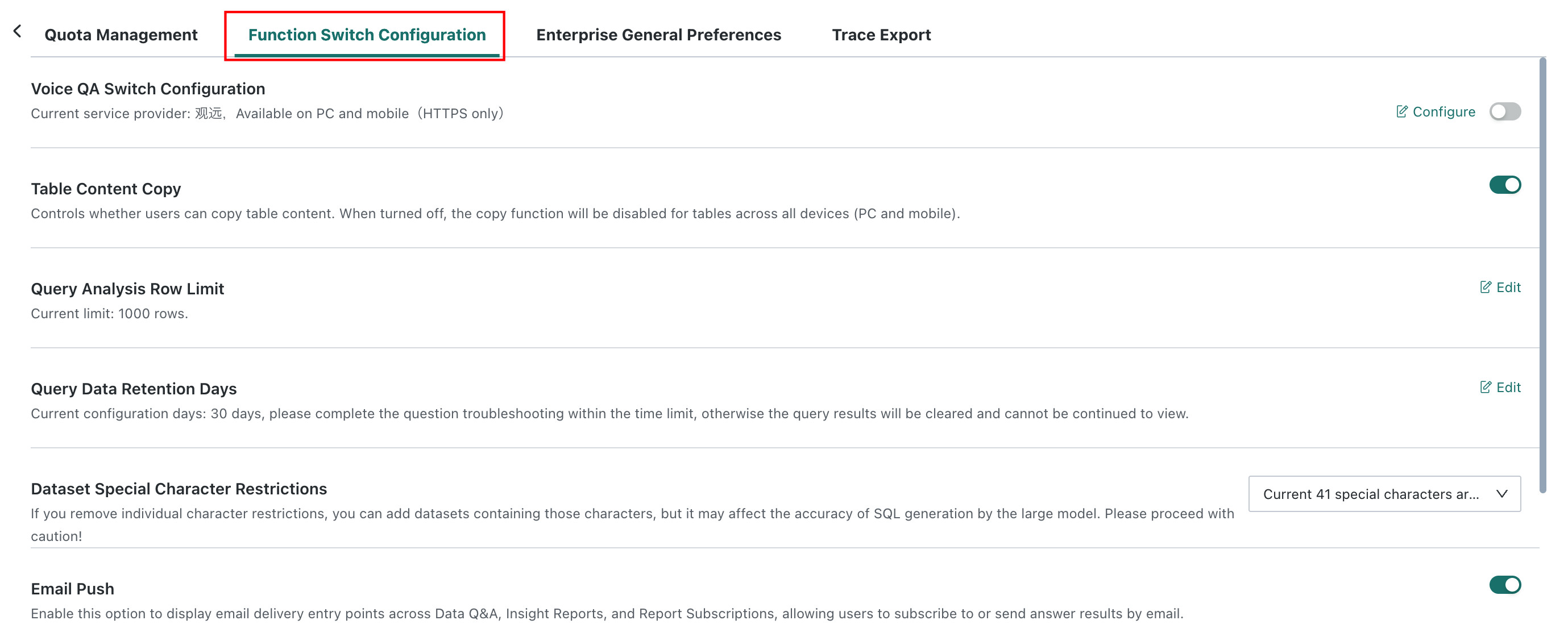
Voice QA Switch Configuration
This switch controls whether voice-based Q&A is available on mobile.
After it is enabled, users can ask questions by voice on mobile. Voice Query is supported on both PC and mobile.
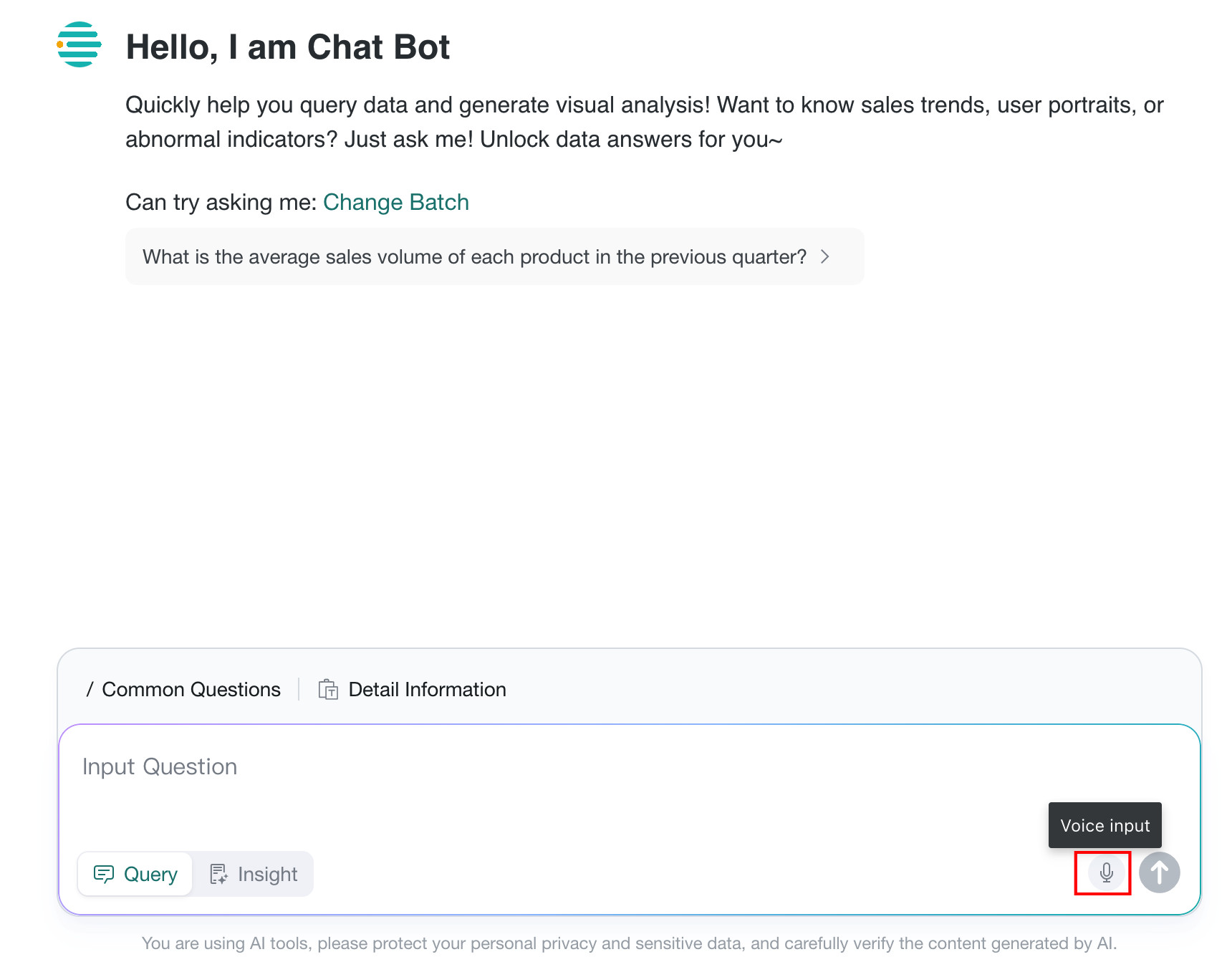
If you do not want to use the default voice service provider, click Configure to switch providers.

Table Content Copy
This setting controls whether users can copy table content.
Enabled: users can copy table contentDisabled: copying is disabled in tables on all devices, including PC and mobile
Query Analysis Row Limit
This setting limits the number of rows returned and displayed in Query. The default is 1000 rows, and the maximum supported value is 100,000 rows.
Click Edit on the right, change the row limit, and click Confirm.

Query Data Retention Days
This setting controls how many days query results are retained. The default is 30 days. After that period, the query results are cleared and can no longer be viewed.
Click Edit on the right, change the number of days, and click Confirm.

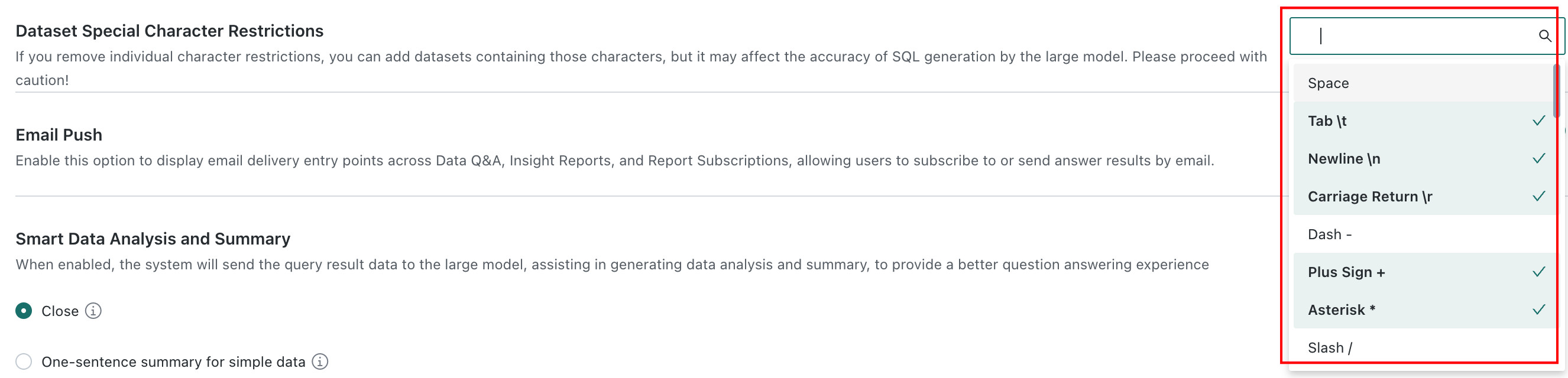
Dataset Special Character Restrictions
This setting controls the use of special characters in datasets. Click the dropdown list to view and modify the restricted characters.
If you remove a specific restriction, datasets containing that character can be added, but SQL generation accuracy may be affected. Use this option with caution.
Email Push
This switch controls whether the Email Push feature is enabled.
After it is enabled, the Q&A page displays the email entry, and users can send Q&A results by email.
Smart Data Analysis and Summary
This setting controls whether the system sends query result data to the LLM to help generate interpretations and summaries, improving the overall Q&A experience.

| Mode | Description | Example |
|---|---|---|
Disabled | Smart interpretation and summary are disabled | Results are displayed only as visualized charts.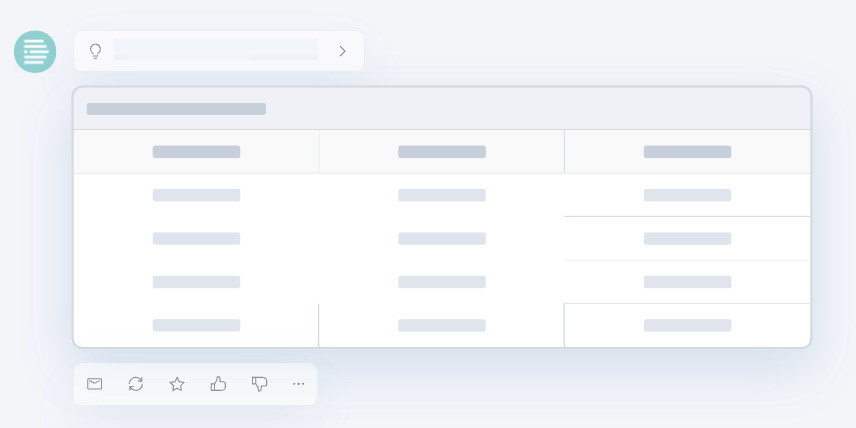 |
One-sentence Summary for Simple Data | Provides a one-sentence summary for simple data | When the result is a single row or a single column with no more than 10 rows, the system automatically summarizes the data and responds in text. |
Comprehensive Interpretation of Data Results | Provides a complete interpretation of the data result | Automatically generates an intelligent summary below the result data.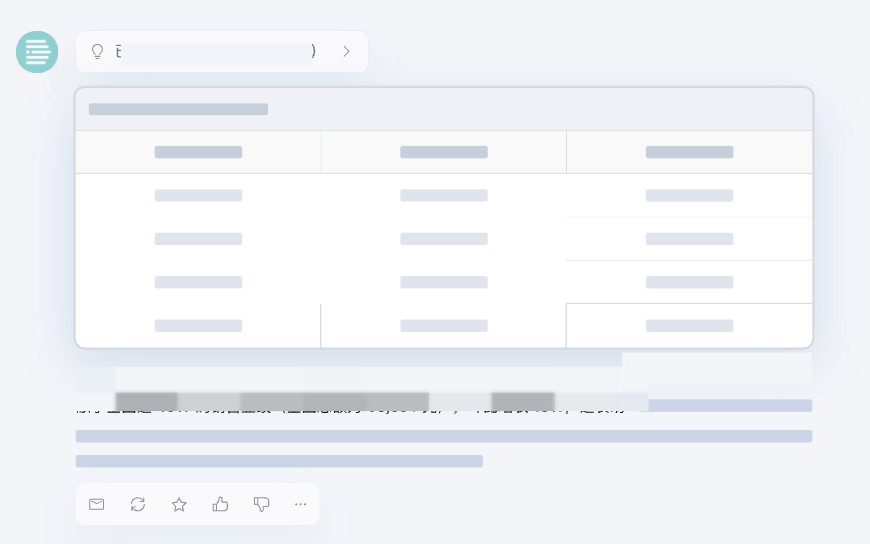 |
Fast mode visualization
This switch controls whether data is visualized in Fast Mode.
After it is enabled, data in Fast Mode is visualized according to charting rules, improving usability while preserving response speed.
Analysis Parameter Display
This switch controls whether analysis parameters are displayed in the query result.
After it is enabled, the system displays dimensional and filter parameter information together with the query result. For details, see Show / Hide Analysis Parameters.
Automatic SQL Correction When Query Results Are Empty
After this switch is enabled, when a data query returns no results, the system automatically checks the SQL. If errors are found, the system corrects the SQL and executes the query again.
Insert Query Results into Dashboard
After this switch is enabled, users who have dashboard-related permissions can add query results to dashboards and create personal dashboards.
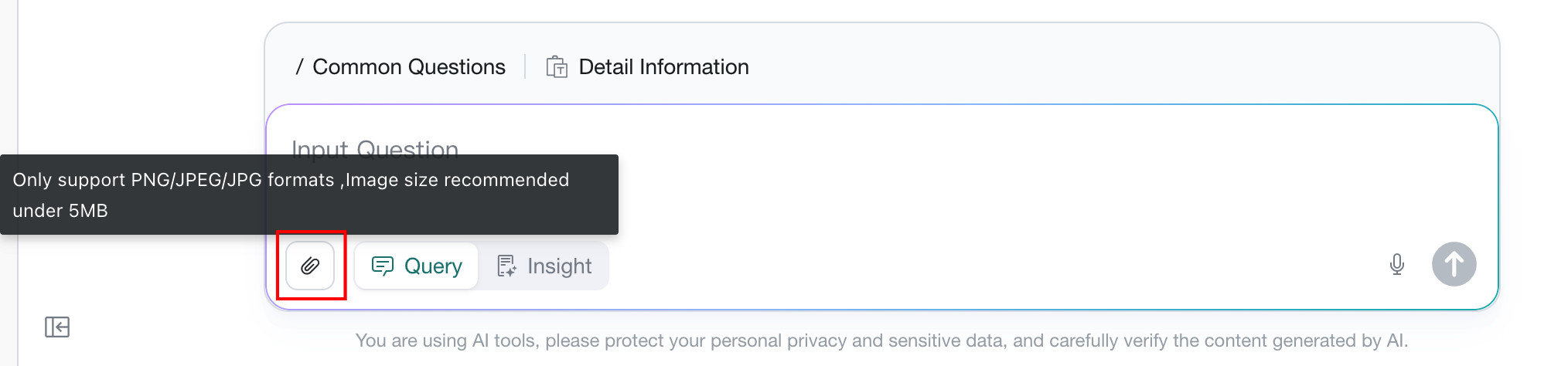
Support for uploading image when asking questions
After it is enabled, users can ask questions by uploading images.
It is suitable for scenarios such as store inspection and operations, where users can quickly photograph product names, shelf numbers, or codes and analyze related data.
Trace Export
Trace Export allows domain-level administrators to query and export user question records and complete processing chain information within the current domain for troubleshooting, performance analysis, and audit traceability.
This feature is available only in private deployments.
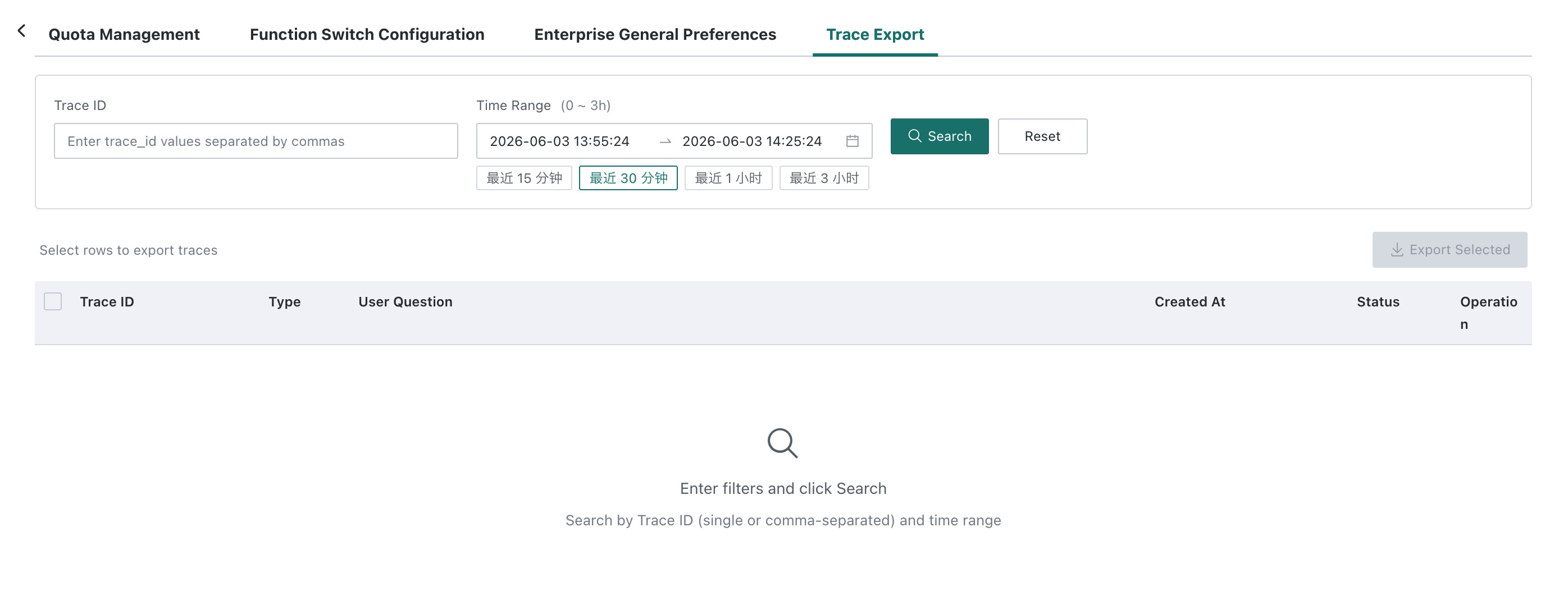
Query Conditions
You can retrieve records using the following two types of conditions:
| Query Condition | Description |
|---|---|
Trace ID | Enter one or more Trace ID values for exact retrieval. Separate multiple IDs with commas. |
Time Range | Select a query window. The supported range is 0 to 3 hours.The page also provides common quick-select options: |
Click Query to run the search, or click Reset to clear the current filters.
Result List
After the query is completed, the list displays matching question records with the following fields:
| Field | Description |
|---|---|
Trace ID | Unique identifier of a single question request |
Type | Category of the question |
User Question | Original question asked by the user |
Created Time | Time when the question record was created |
Status | Processing status of the record |
Actions | Entry points for viewing processing chain details and other operations |
Batch Export
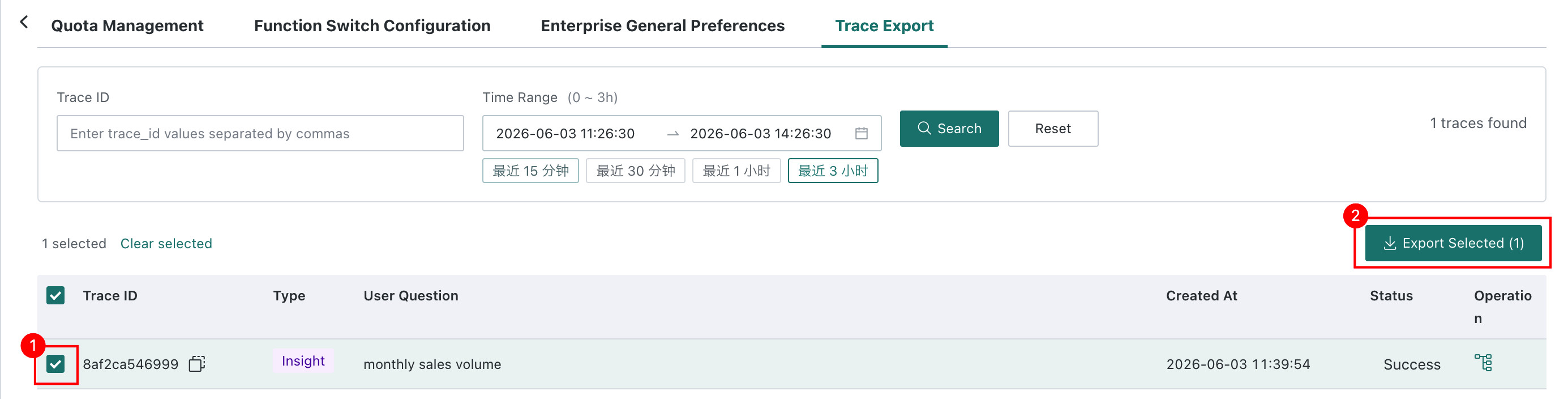
You can select multiple records and export them in batch:
- Select the records to export from the left side of the list.
Select Allis supported. - Click
Export Selectedin the upper-right corner. The system exports the selected question details and the full processing chain information.
Enterprise General Preference
Enterprise General Preference provides domain-level shared knowledge preference management. Platform admins can centrally maintain reusable preferences across agents, and agent admins can reference those preferences in their agents. This reduces repeated configuration of the same knowledge across agents and improves consistency.
Log in to the Data Agent admin backend and go to Agent Management > Management Center > Enterprise General Preference to view and maintain general preferences in the current domain.
Preference List
The page lists all general preferences created in the current domain. You can filter by preference type or search by preference content.
| Field | Description |
|---|---|
| Preference Description | Describes the content, purpose, and applicable scenario of the preference. |
| Preference Type | The type of knowledge preference, such as SQL generation preference, calculation logic, or synonym preference. |
| Scope | The agents to which the preference applies. Both all agents and specified agents are supported. |
| Enabled by Default | When enabled, agents in the selected scope apply this preference by default. |
| Updated Time | The most recent update time of the preference. |
| Last Operator | The user who last edited the preference. |
| Actions | Edit or delete the preference. |
Create an Enterprise Preference
-
Click
Create Preferencein the upper-right corner to open theCreate Enterprise Preferencepage. -
Configure the enterprise preference.
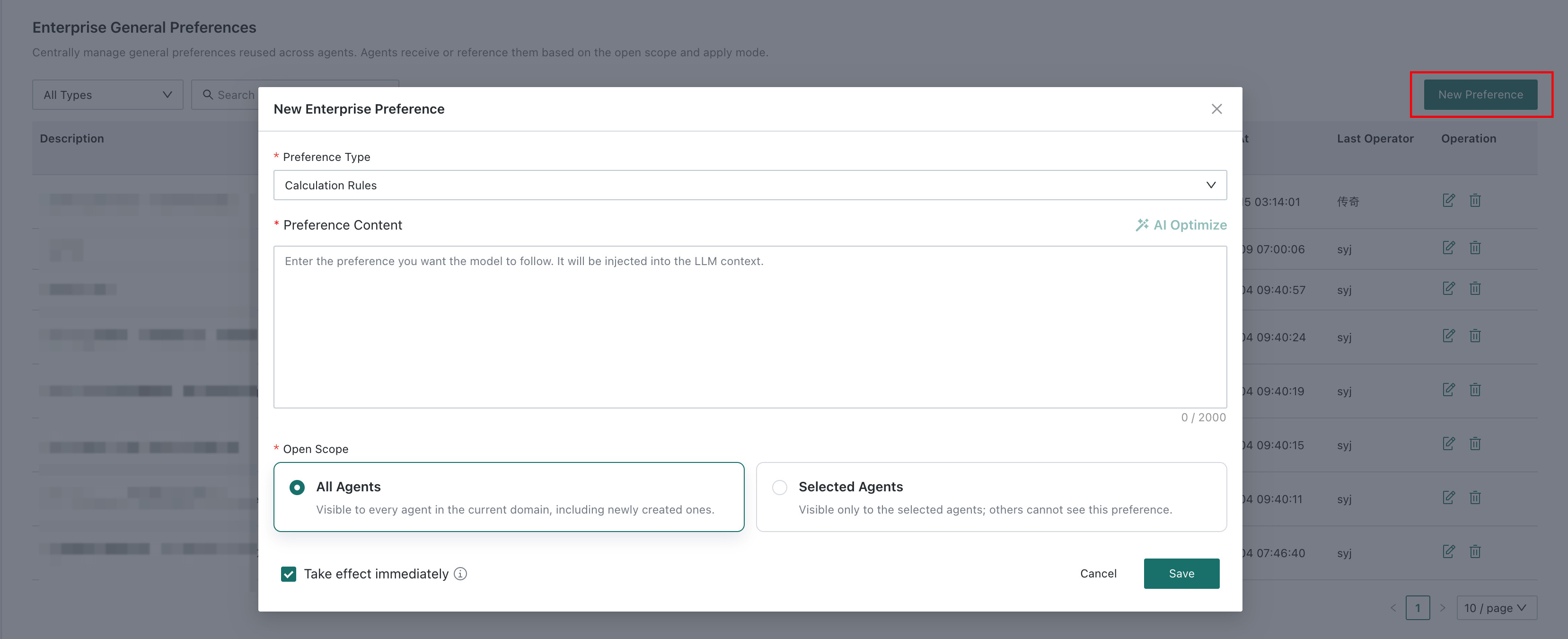
- Preference Type: Select a preference type. Seven types are supported.

- Preference Content: Enter the preference that the model should follow.
- Scope: Apply the preference to all agents or specified agents.
- Take Effect Immediately:
- Selected: The knowledge takes effect immediately in the selected agents. Agent admins can still disable it manually in an agent.
- Not selected: The knowledge is visible to agents in the selected scope, but agent admins must enable it manually in the agent. For details, see Reference from an Agent.
-
Click
Saveto create the preference.After creation, the preference takes effect in the corresponding agents based on the configured scope and enabled status.
Manage Enterprise Preferences

Edit an Enterprise Preference
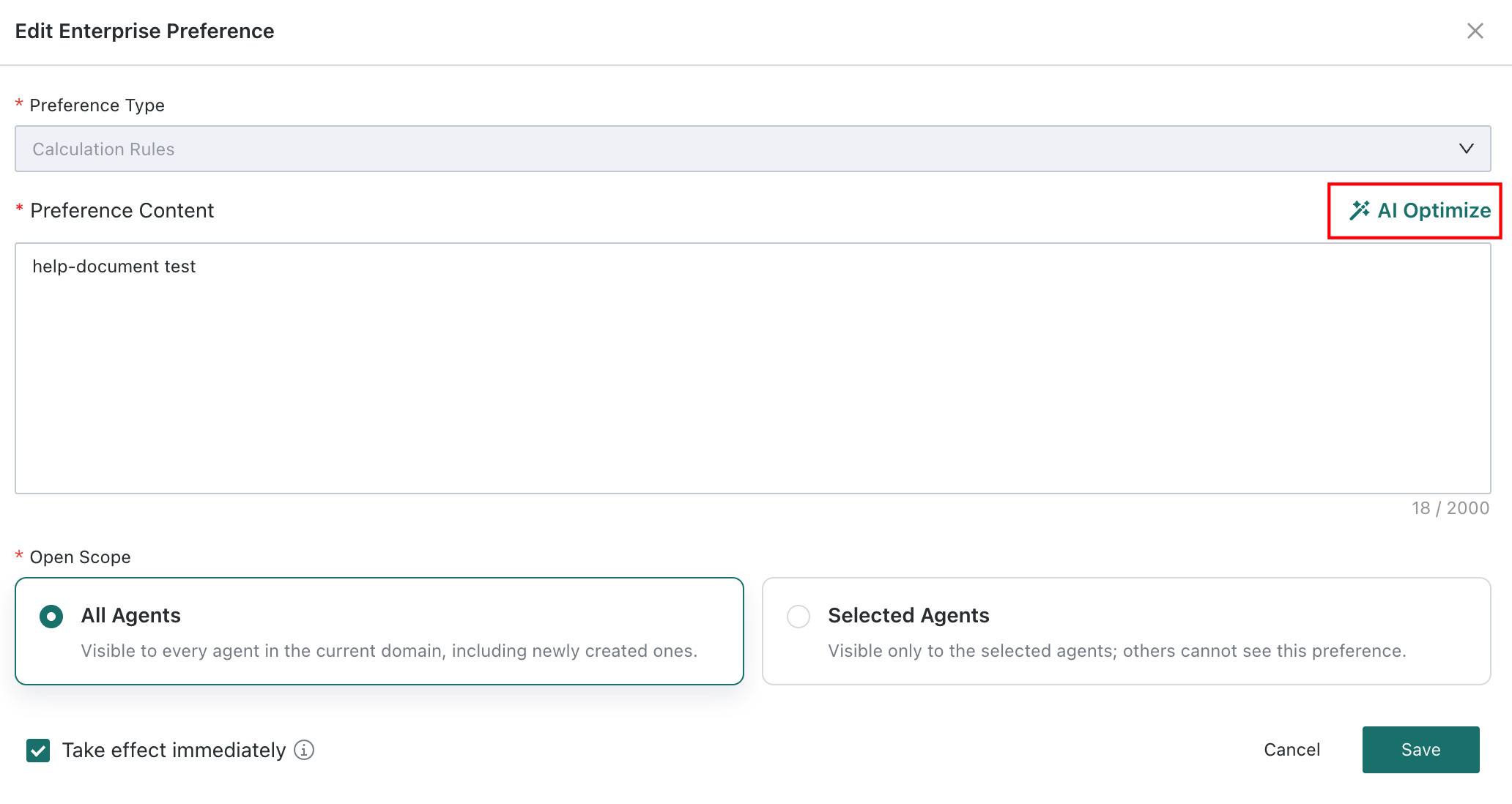
Click Edit for the target preference to modify its description, type, scope, and default enabled status. After saving, related agents are updated according to the latest configuration.
When editing an enterprise preference, AI optimization is supported. For details, see AI Optimize
.
Delete a General Preference
Click Delete for the target preference and confirm the action. After deletion, agents that have applied this preference are no longer affected by it.
Enable or Disable a General Preference
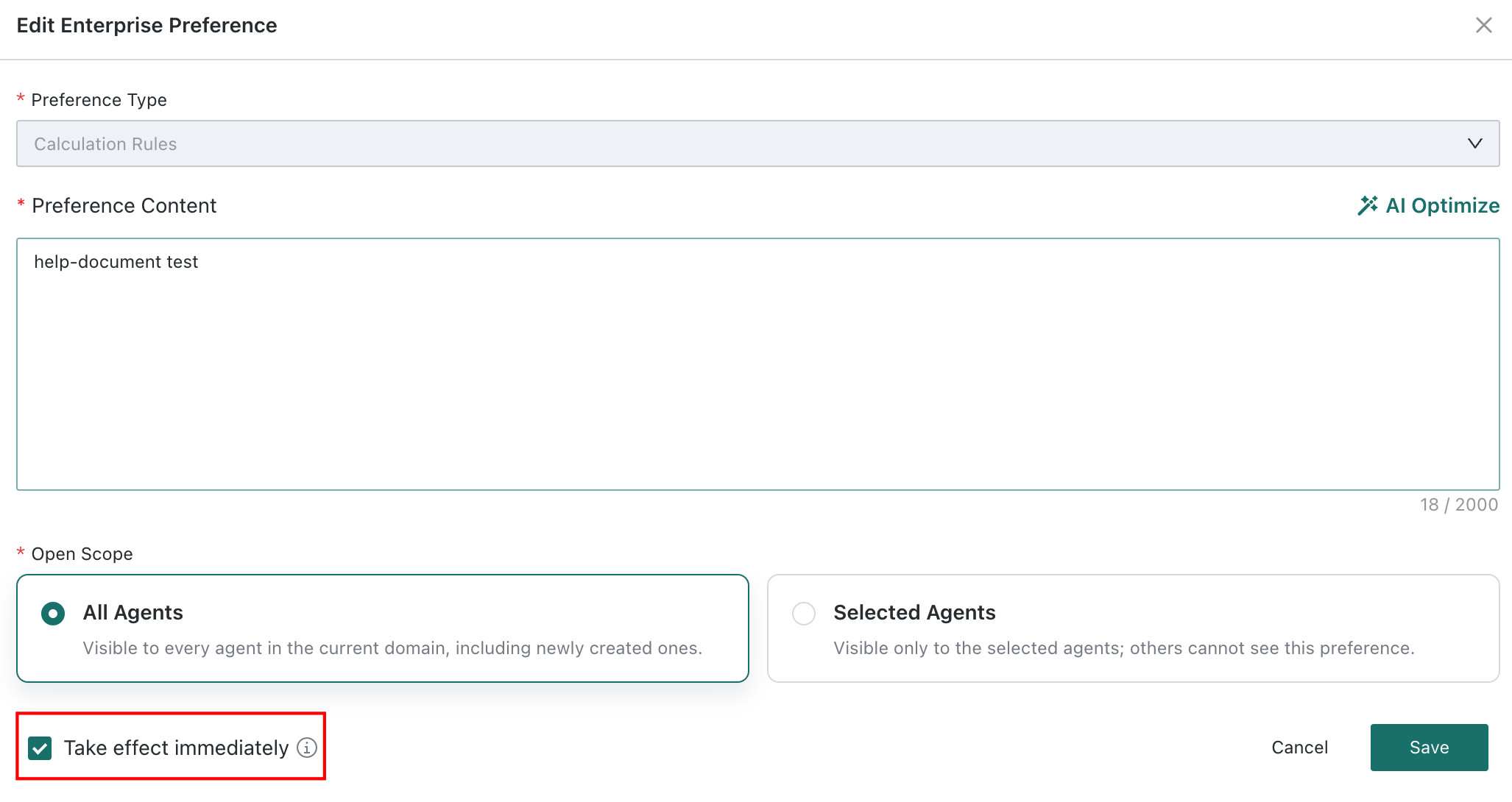
The Enabled by Default column shows whether the preference is enabled. To enable or disable it, click Edit and change the Take Effect Immediately status.
Reference from an Agent
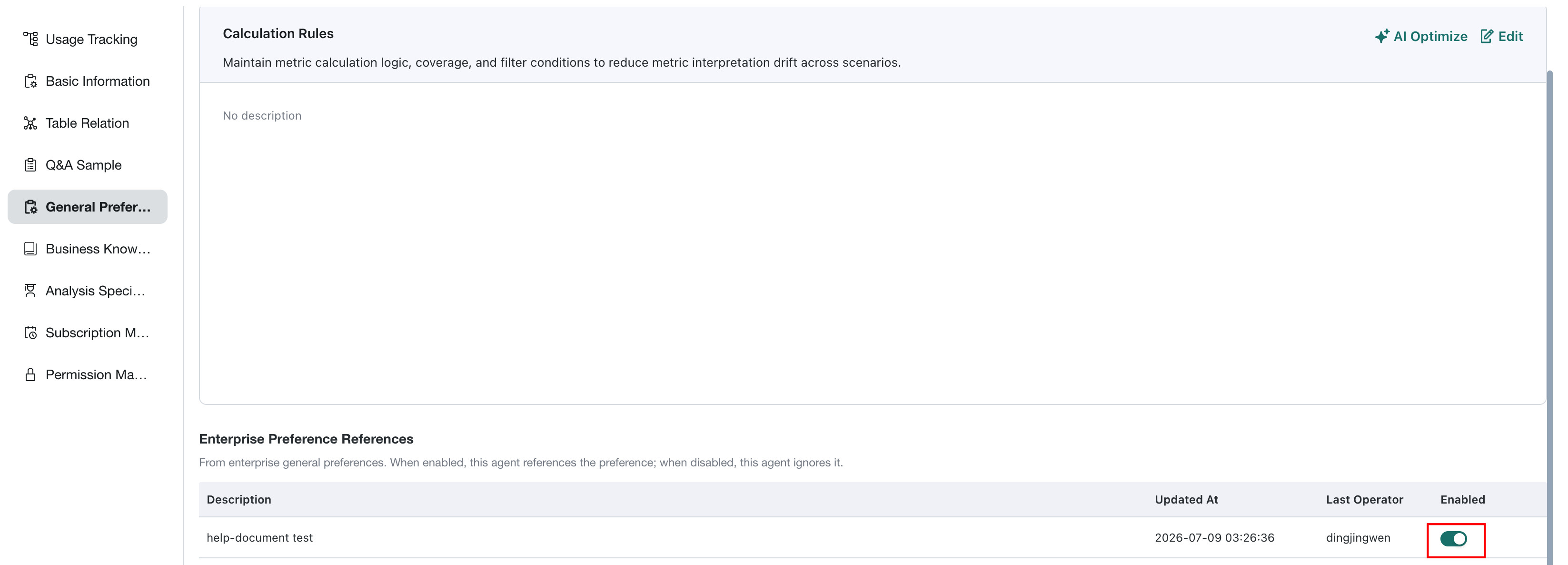
After a platform admin maintains a general preference at the domain level, if Take Effect Immediately is not selected, the agent admin must manually enable the preference in Agent Detail Settings > General Preference > Enterprise Preference Reference.