Mobile User Guide
Prerequisites
- Data Agent has been deployed, and you have the mobile access URL.
- The mobile browser supports microphone permission if voice input is needed.
- An admin has configured and enabled at least one agent in the backend, and the access user has permission to use that agent. For permission configuration, see Data Agent Permission Configuration
Open the Mobile Q&A Page
- Enter the mobile access URL in the mobile browser address bar:
https://<your domain>/m/chatbi. For privately deployed environments, replace<your domain>with the actual environment address. - Wait for the page to adapt to the device and open the Data Agent mobile page.
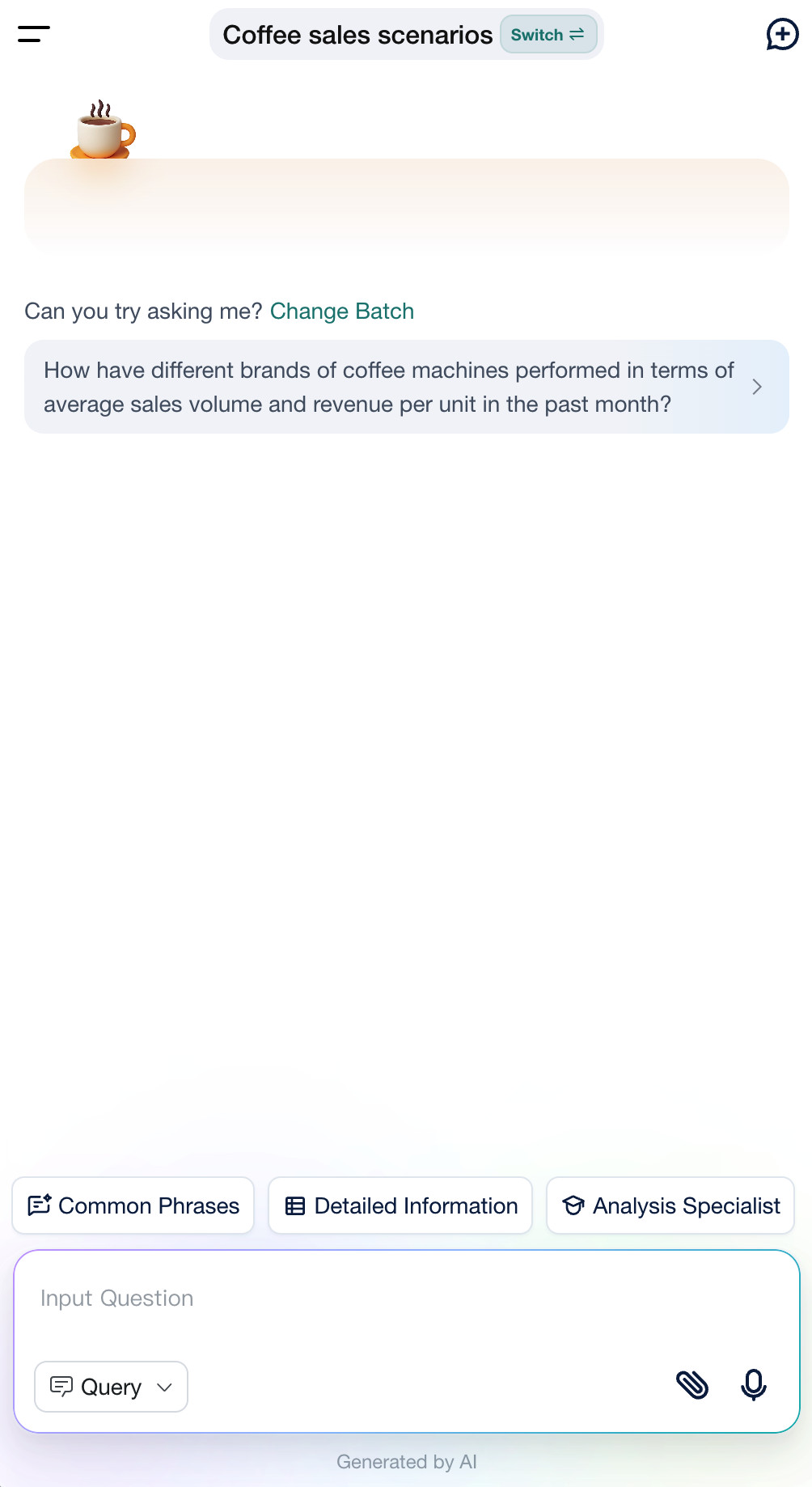
Switch Agents
If you can use multiple agents, select Switch beside the current agent name, then select the agent to use. Switching starts a new conversation and loads the selected agent's welcome message and recommended questions.
The original conversation remains available in the conversation history.
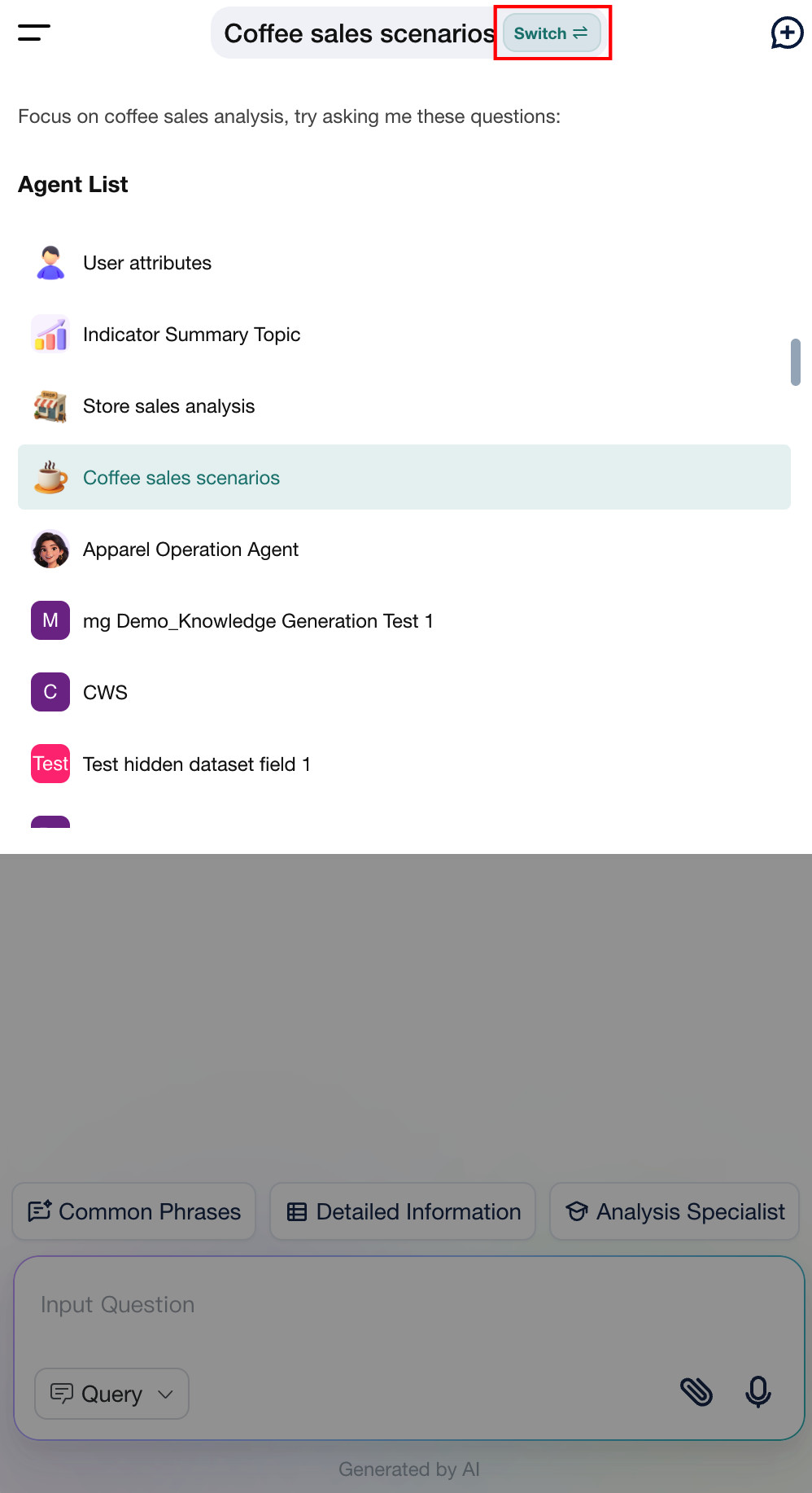
Switch Query and Insight Modes
Use the Query menu next to the input box to switch to Insight mode.
- Query mode focuses on data queries and charts.
- Insight mode focuses on in-depth analysis and reports.
Subsequent questions use the selected mode. See Query Agent and Insight Agent for full details.
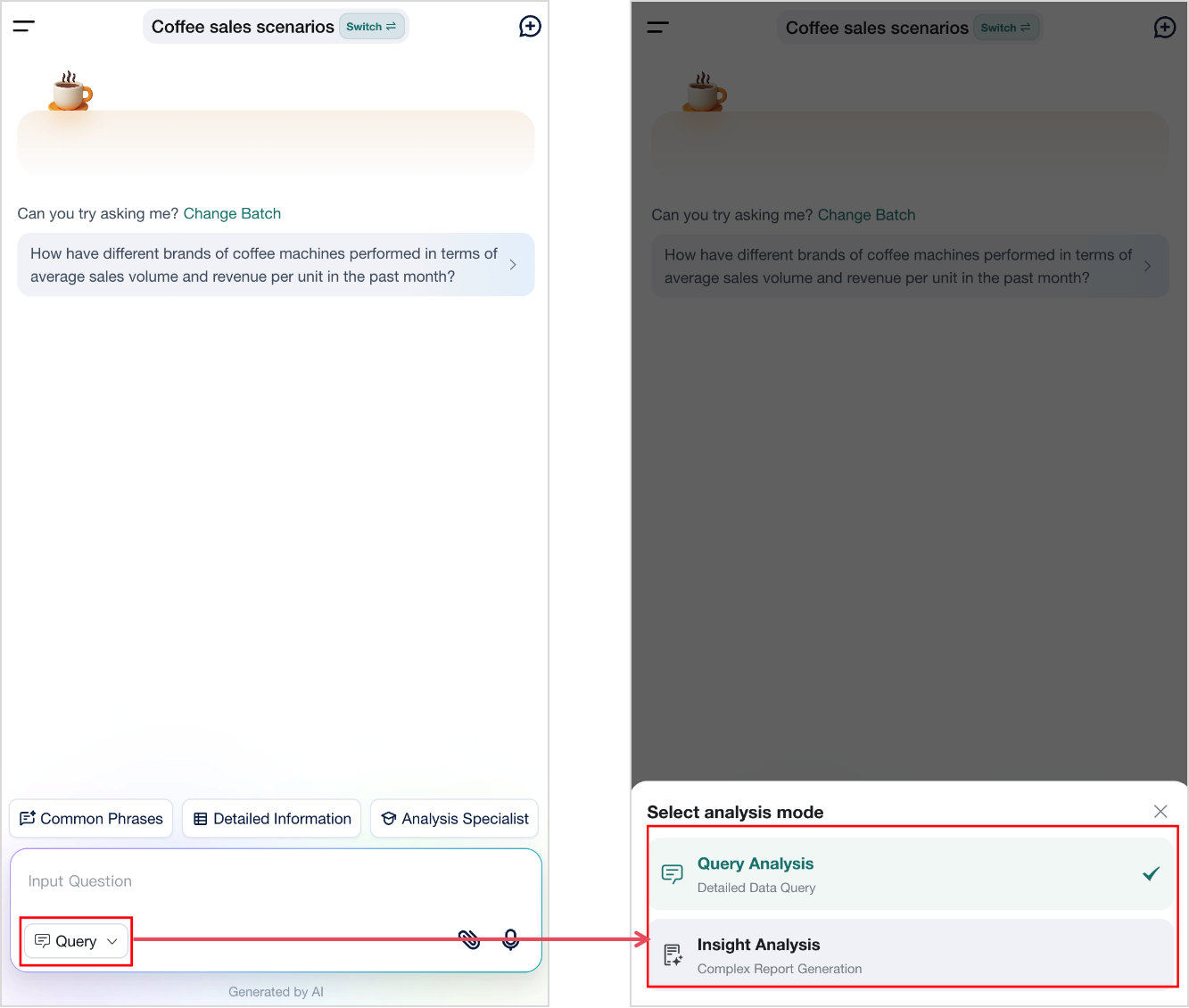
Recommended Questions
Prerequisites
Configure Opening Recommendations in Feature Switch Settings.
Usage
When you start a new conversation, the page displays recommended questions.
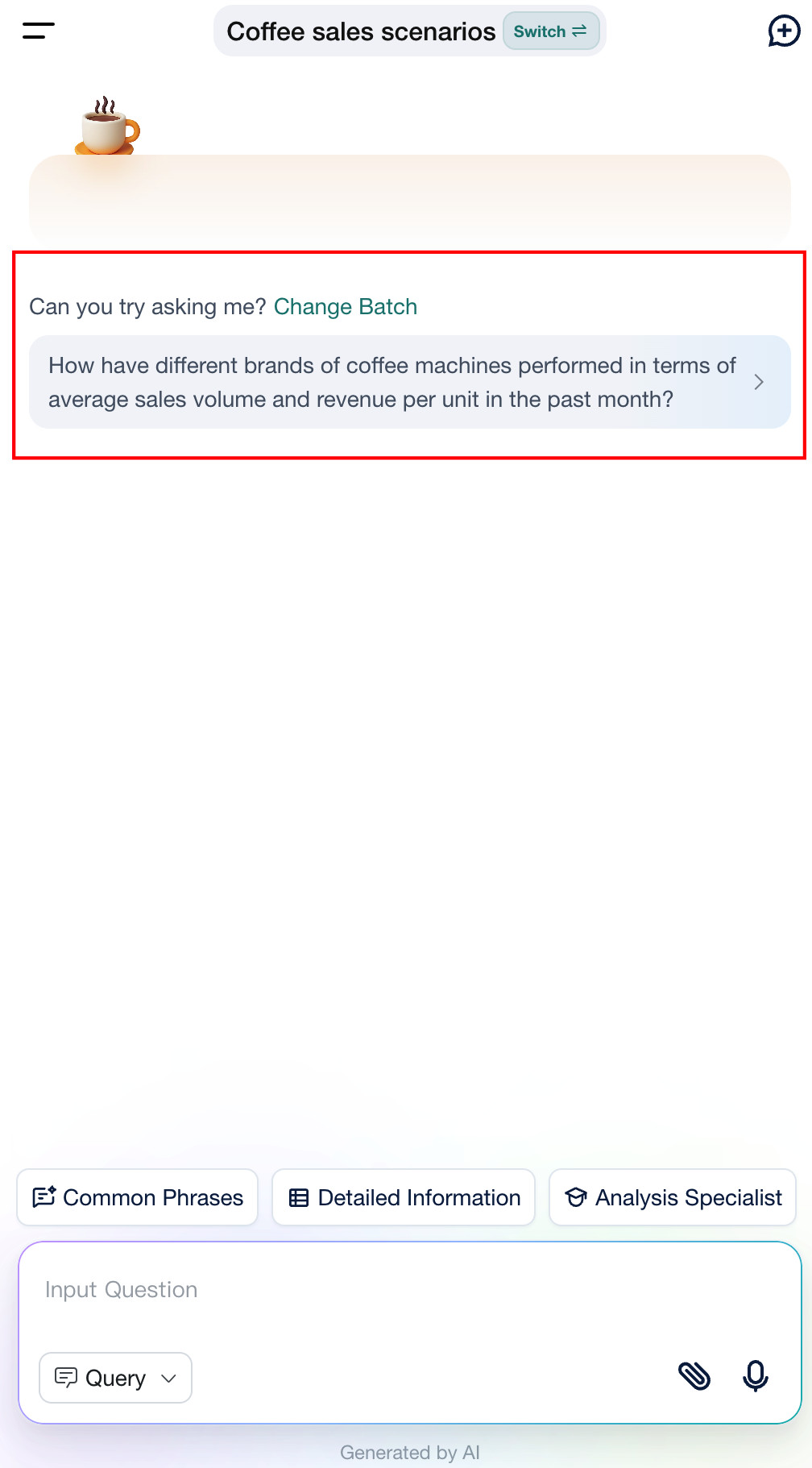
Common Phrases
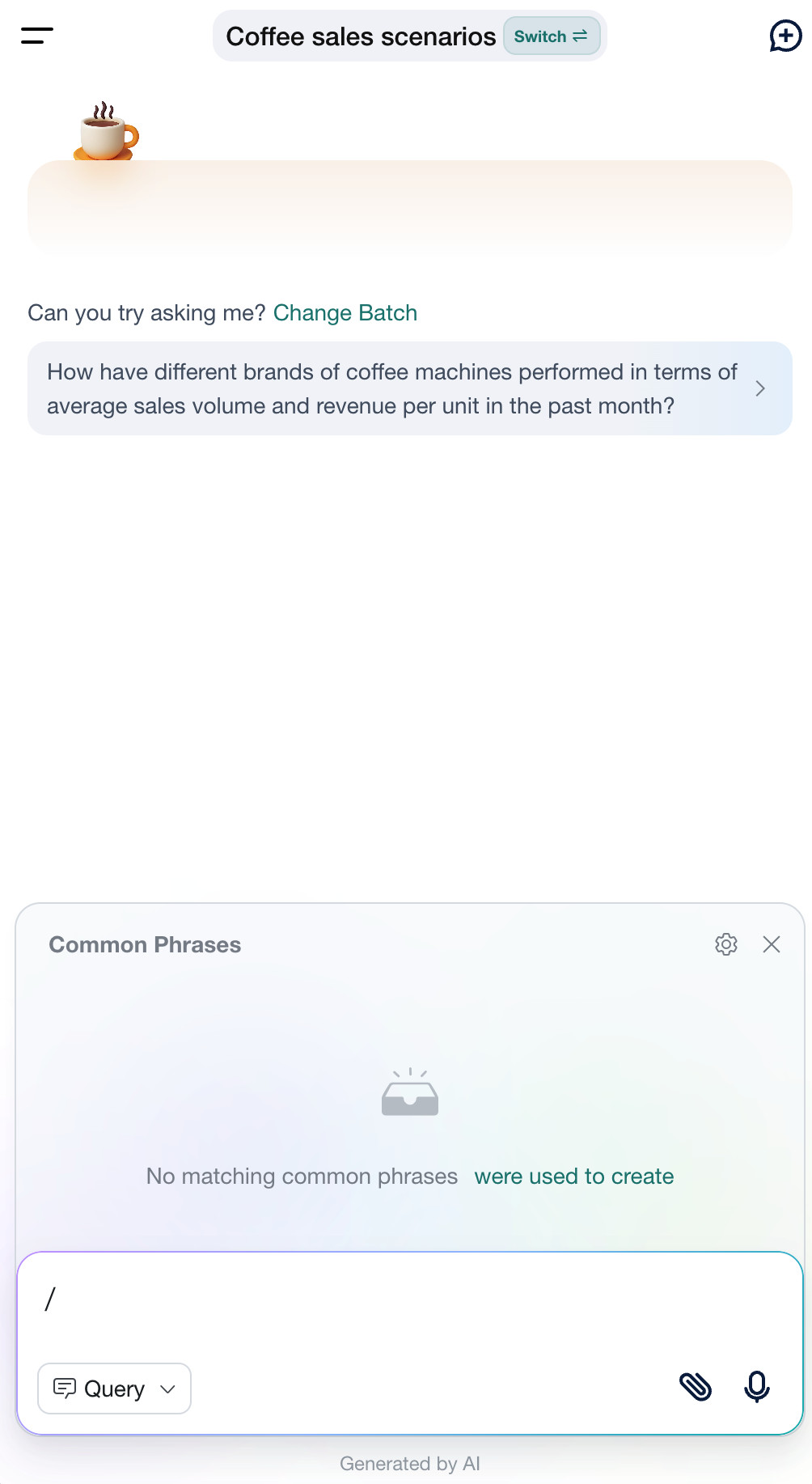
Use Common Phrases to select preset questions quickly.
Prerequisites
Configure Common Phrases as described in Add Common Phrases.
Steps
- Enter
/in the mobile input box. - Select a phrase to ask it. The system returns an answer and chart through the standard query flow.
Detailed Information
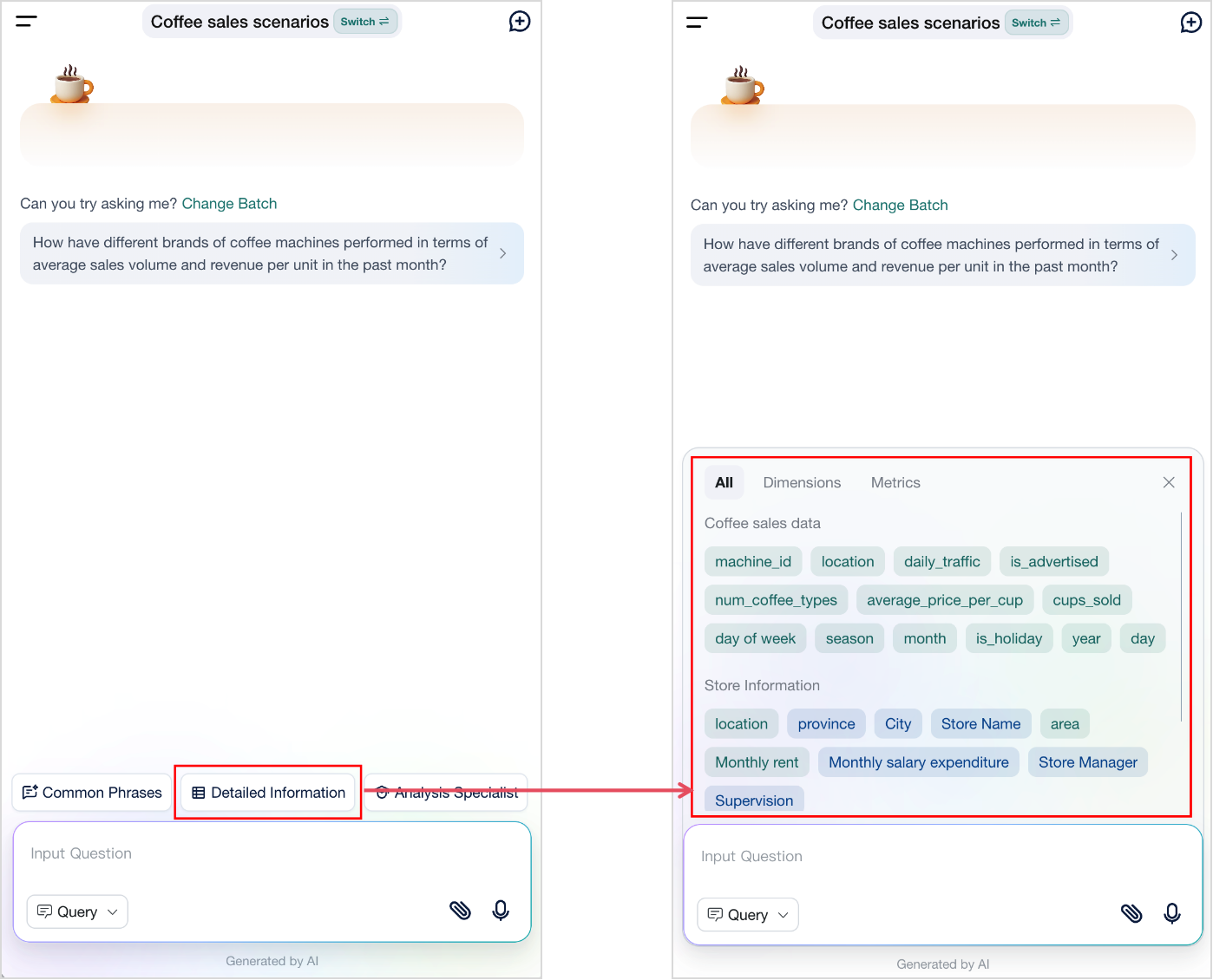
Select Detailed Information at the bottom of the conversation page to view fields in datasets associated with the current agent.
Voice Input
Ask questions by voice.
Prerequisites
Enable the Voice QA Switch Configuration.
Steps
-
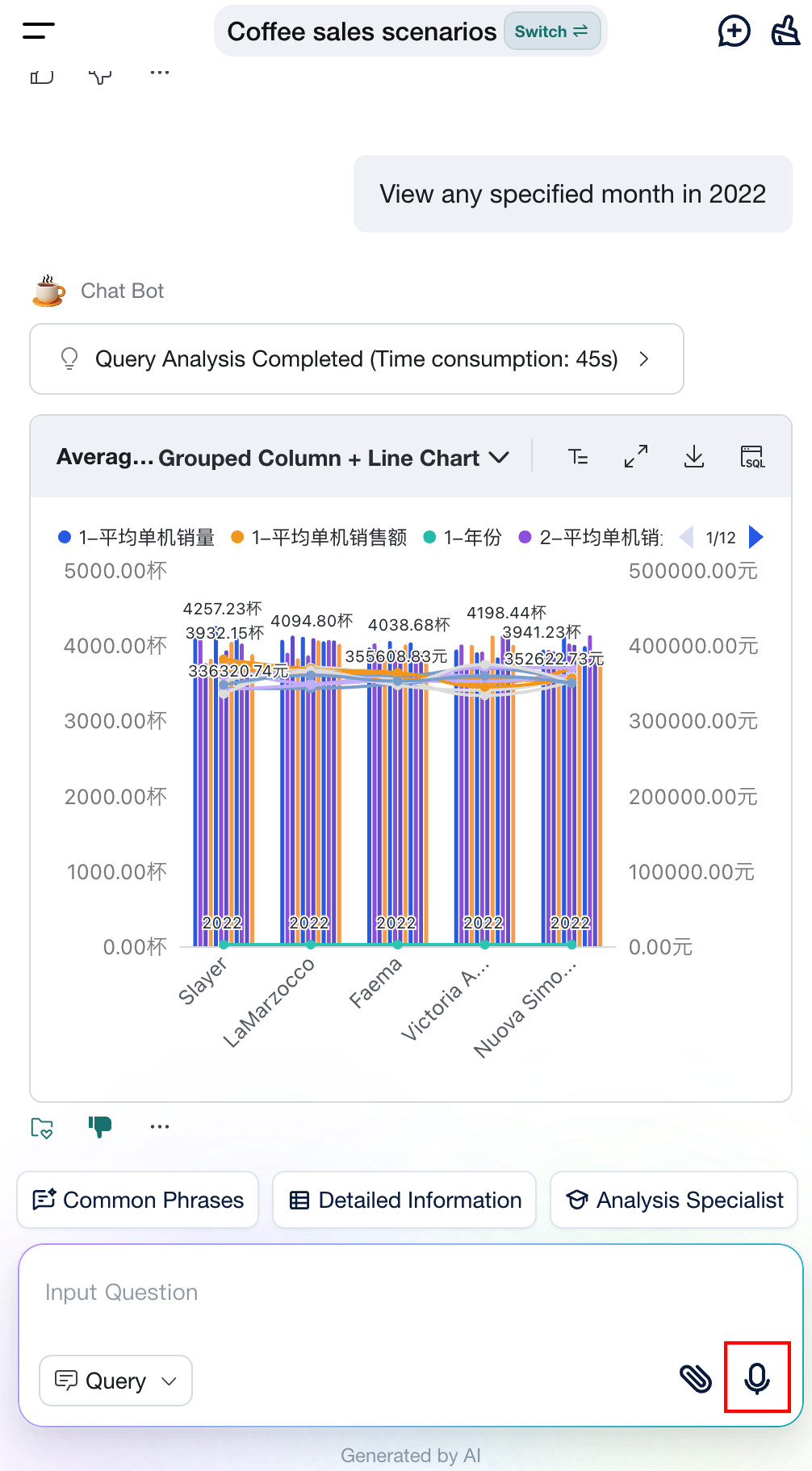
Open Data Agent on mobile and tap the microphone icon in the lower-right corner of the input box.
NoteThe browser requests microphone permission the first time you switch in a conversation. Grant permission to use voice input.
-
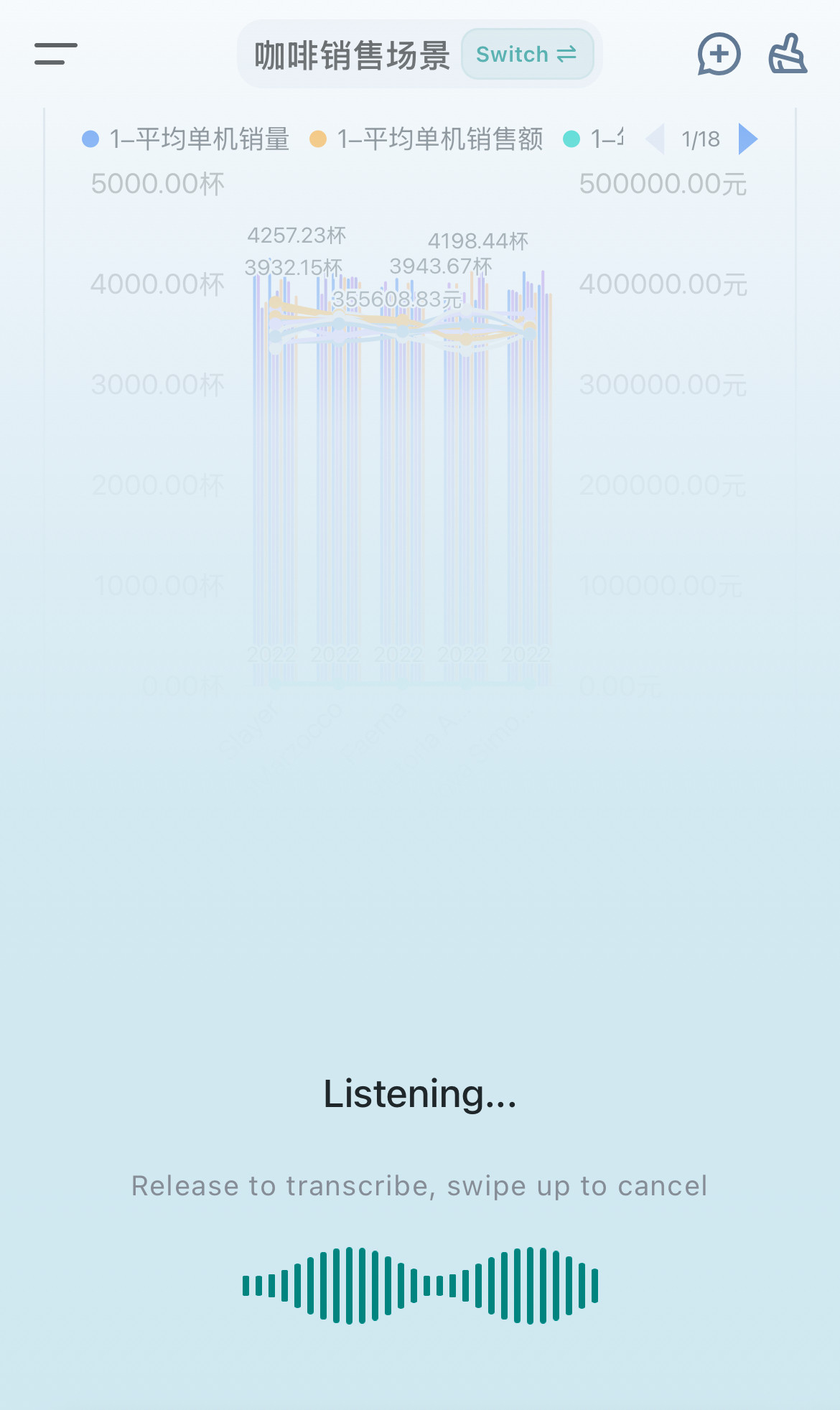
Press and hold the bottom button to record. Swipe up to cancel.
-
Release the button to send the recognized text. The standard query flow then generates the answer.
Result
- Recognized voice content appears as text in the input box.
- If recognition fails, the input remains empty; press and hold again to retry.
Upload Attachments
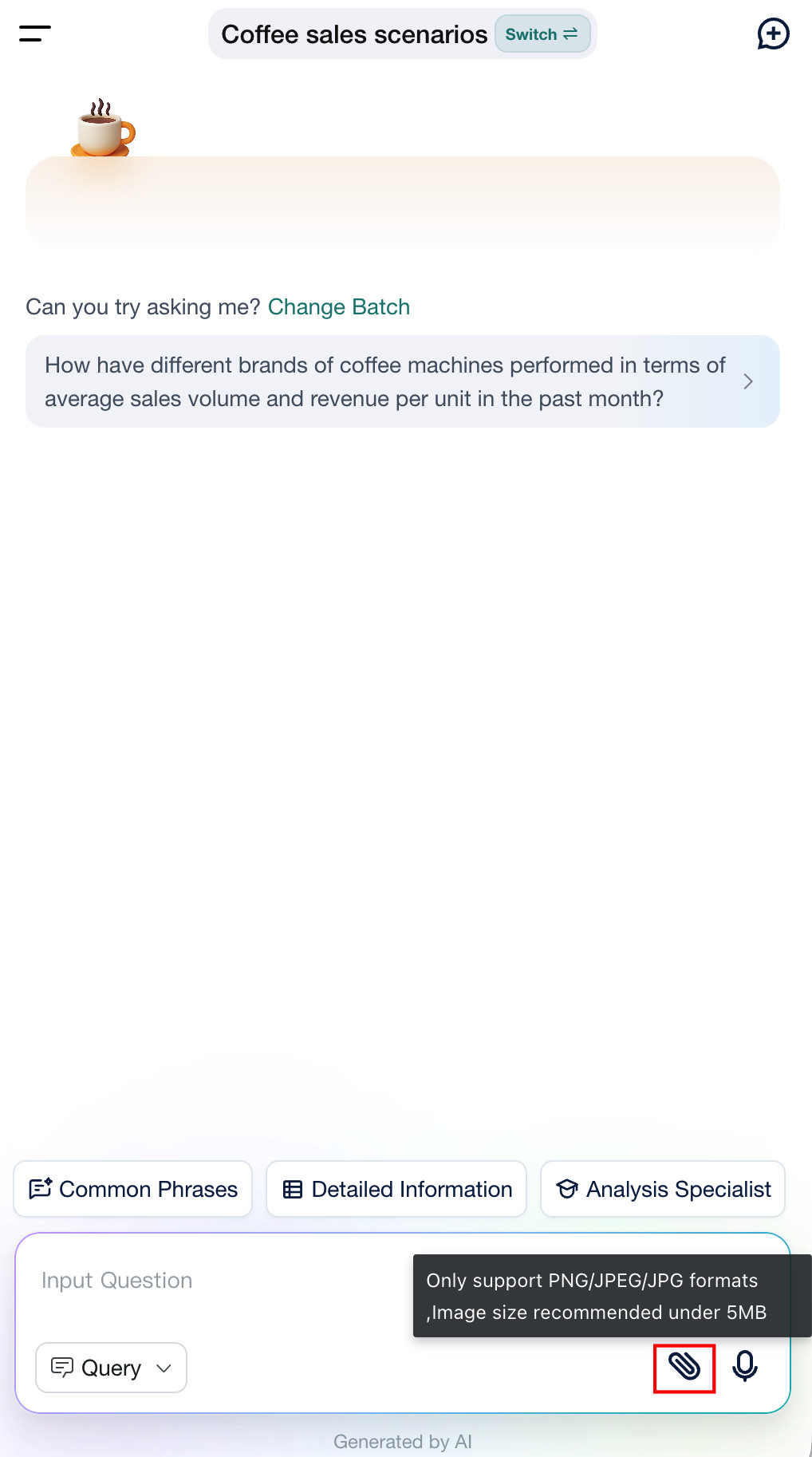
Use the paperclip icon beside the input box to upload an image or file as question context:
- Take a photo: open the device camera.
- Choose from gallery: select an existing image.
- Upload file: select a local file.
The system sends the attachment with the current question and uses it when generating the answer.
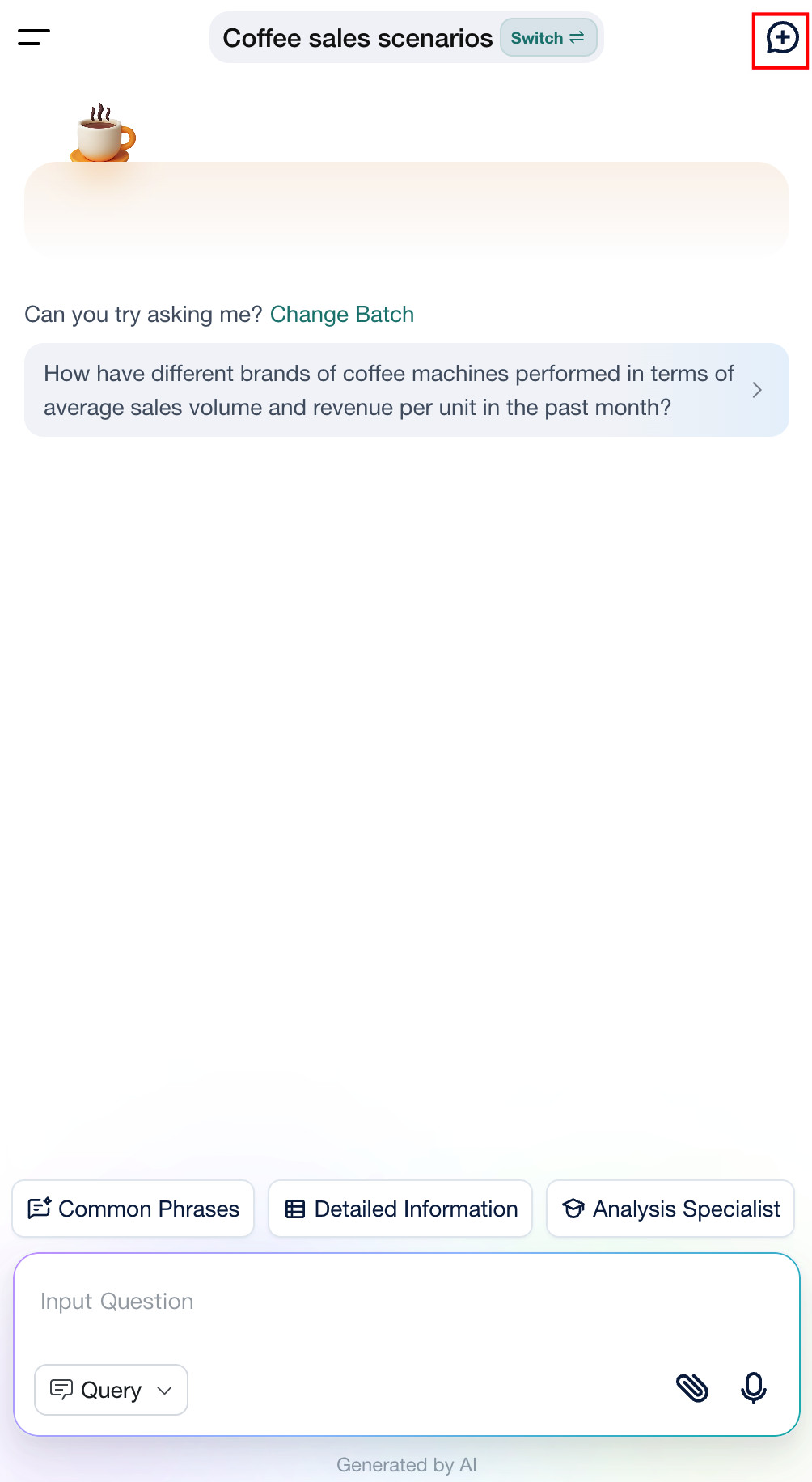
New Conversation
Select + in the upper-right corner to start a new conversation without previous context.
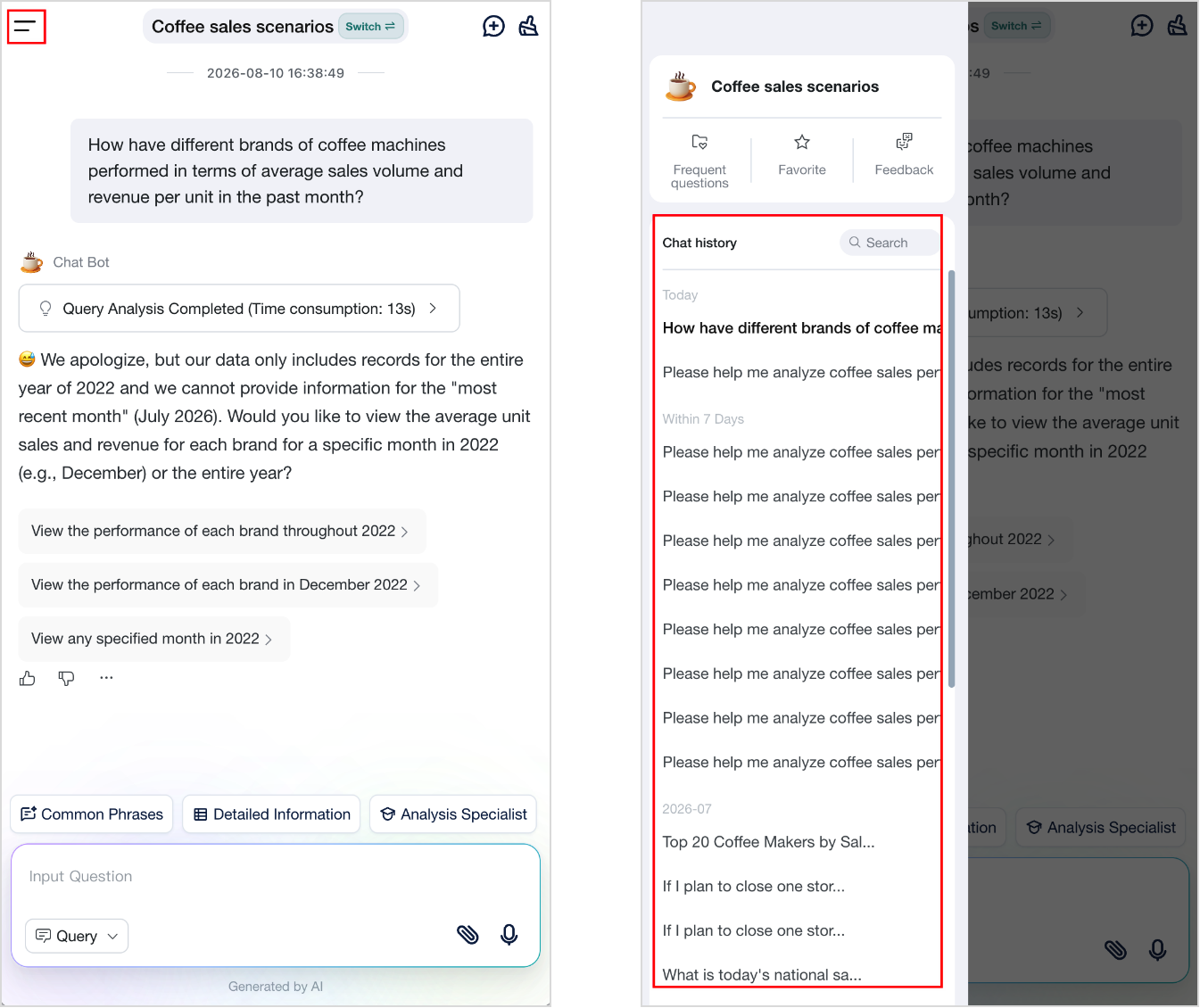
View Conversation History
The agent entry page groups conversation history by time. Select a record to continue its context. Use the search box to find a question or conversation by keyword.
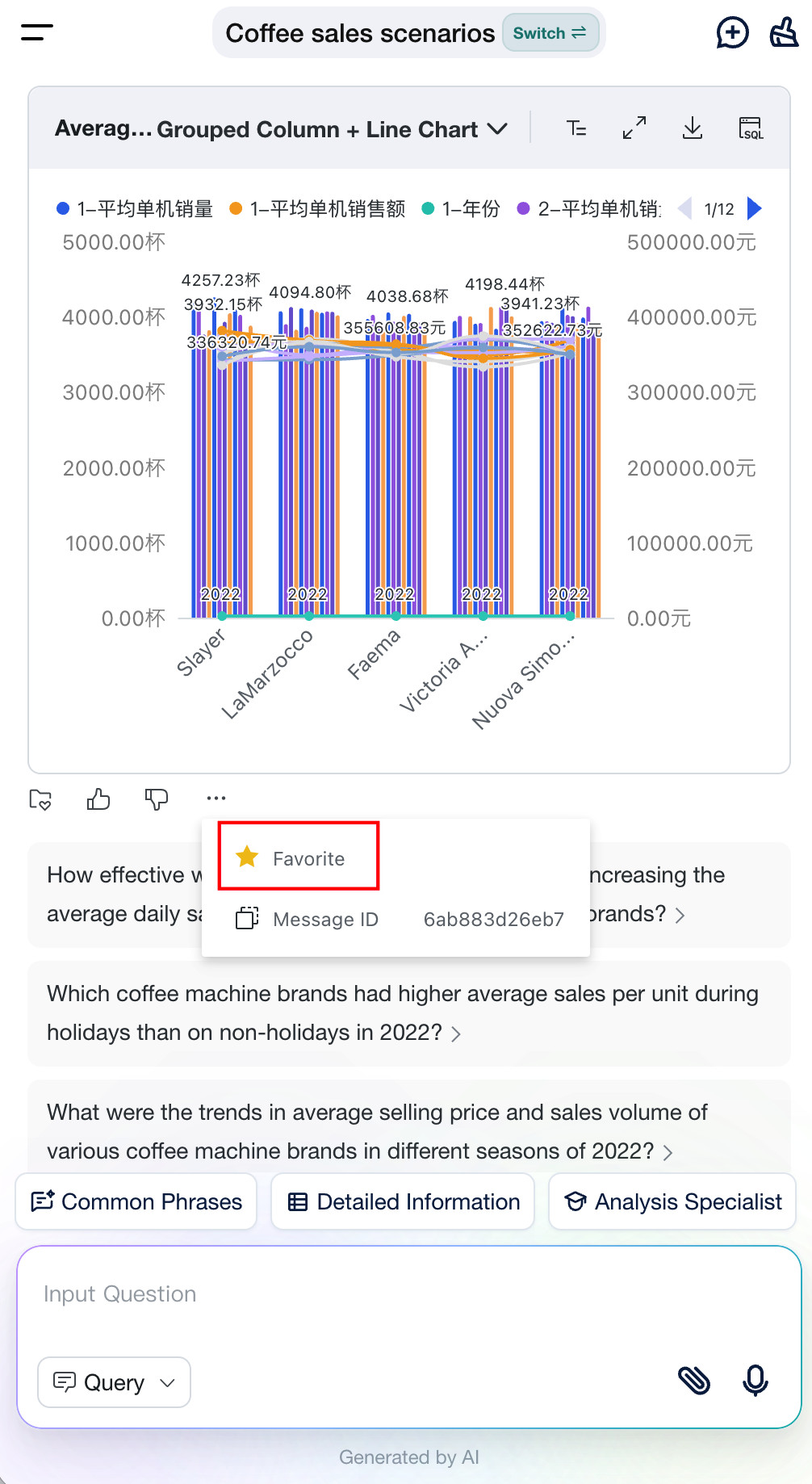
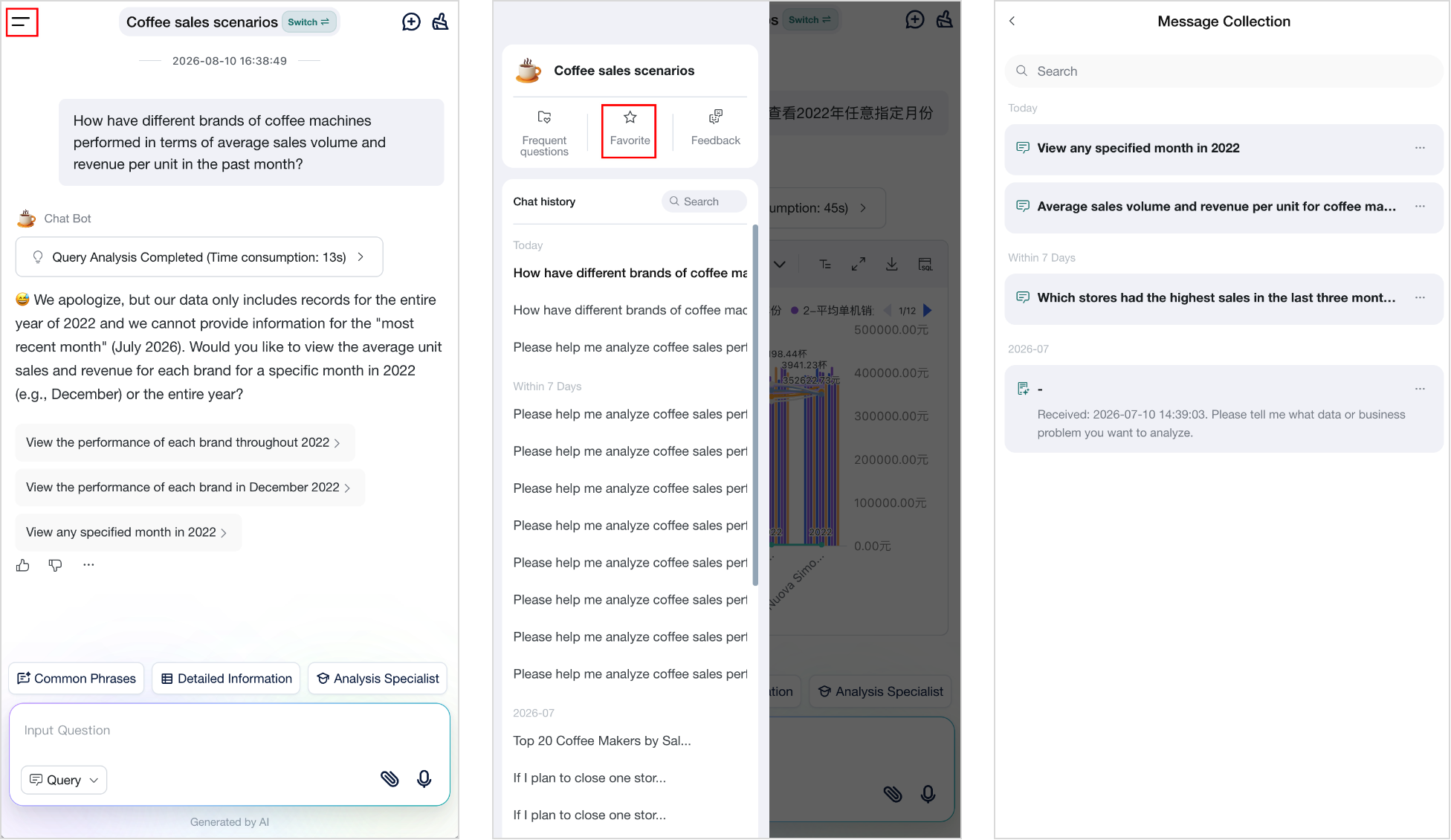
Favorites
Message cards can save the current question and answer data as a favorite.
Favorite results remain as snapshots and do not update when the dataset changes.
-
Select More > Favorite in the lower-right corner of a message card. The icon is highlighted after saving.
-
Open the upper-left menu and select Favorites to view saved items.
Frequently Viewed Questions
Prerequisites
Enable Frequently Viewed Questions in Agent Detail Settings > Management Center.
Usage
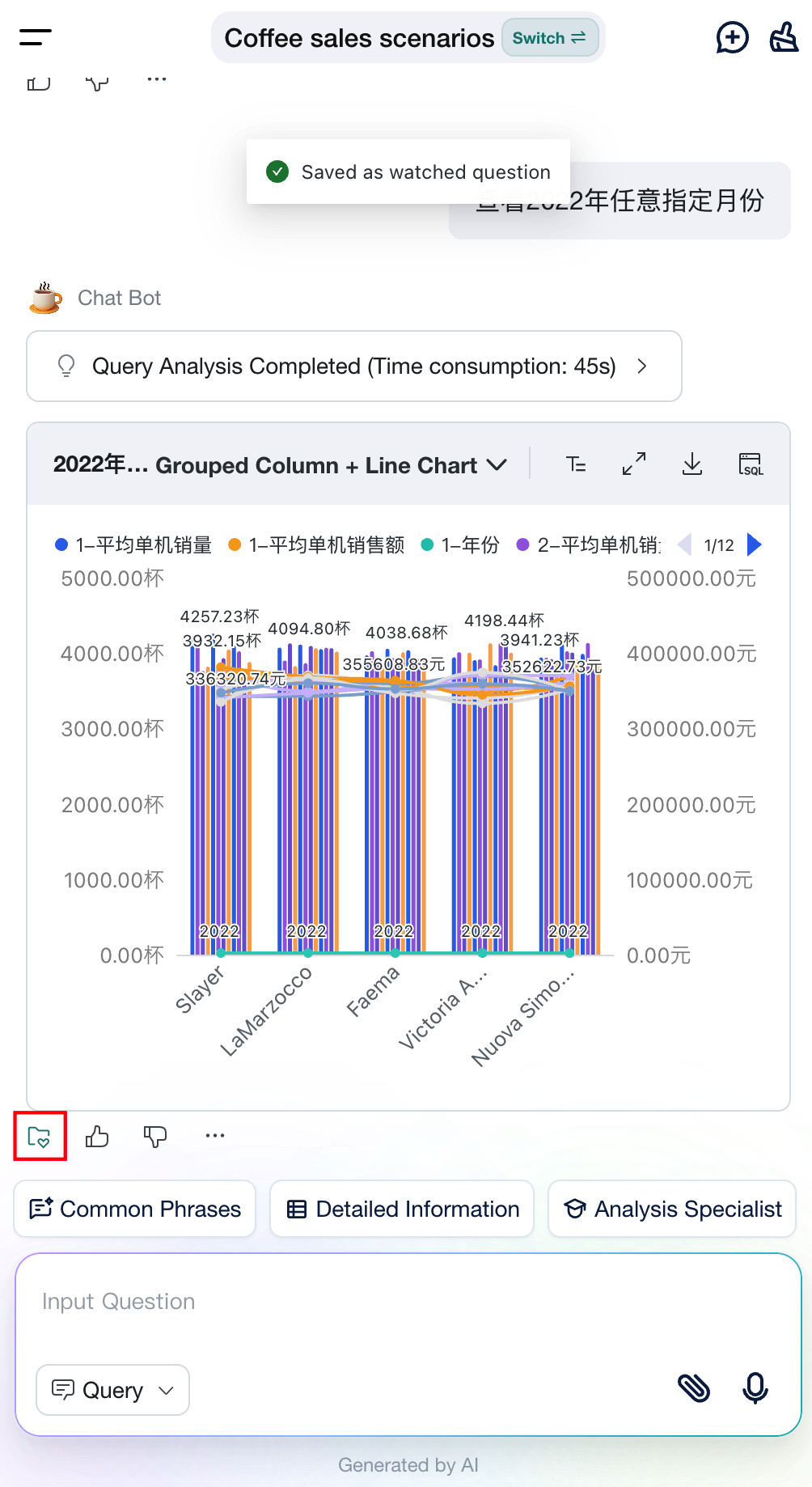
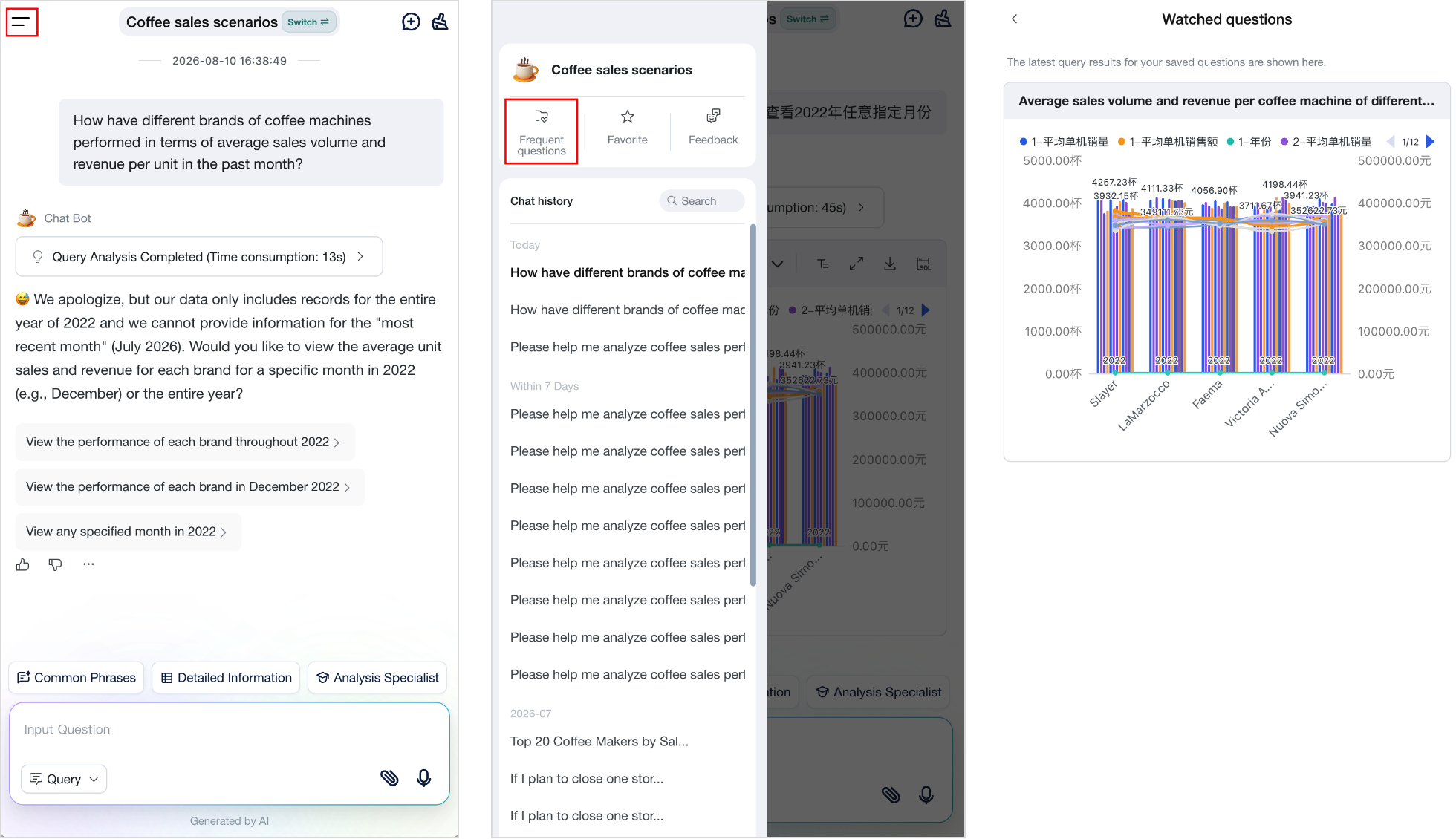
Message cards can save the current question and answer data as a frequently viewed question.
Frequently viewed question results update when the dataset changes.
-
Select the Frequently Viewed Question icon in the lower-right corner of a message card. The icon is highlighted after saving.
-
Open the upper-left menu and select Frequently Viewed Questions to view the list.
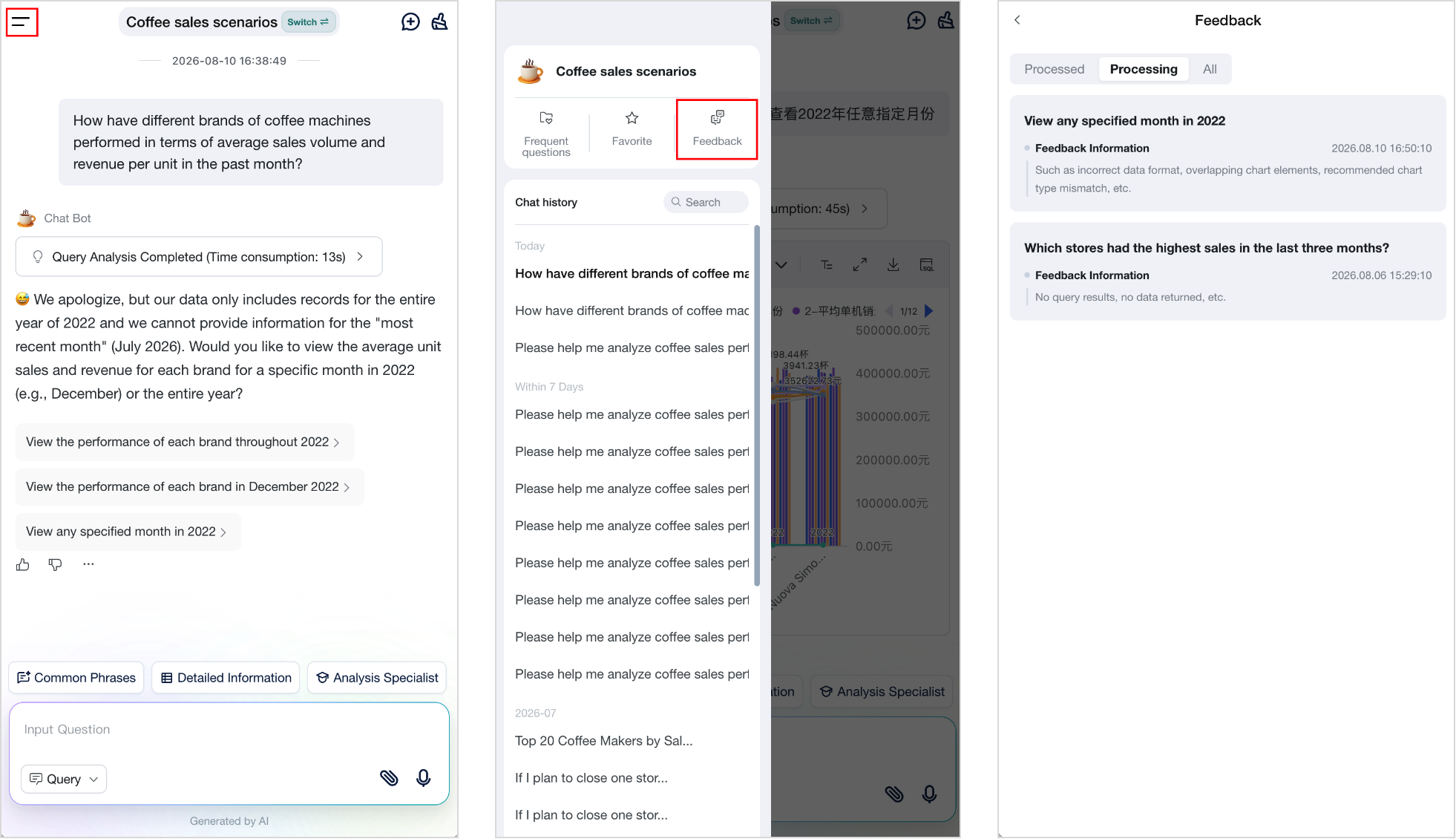
Feedback
Submit suggestions or usage feedback from an agent conversation. The system sends feedback to administrators or operators for follow-up.
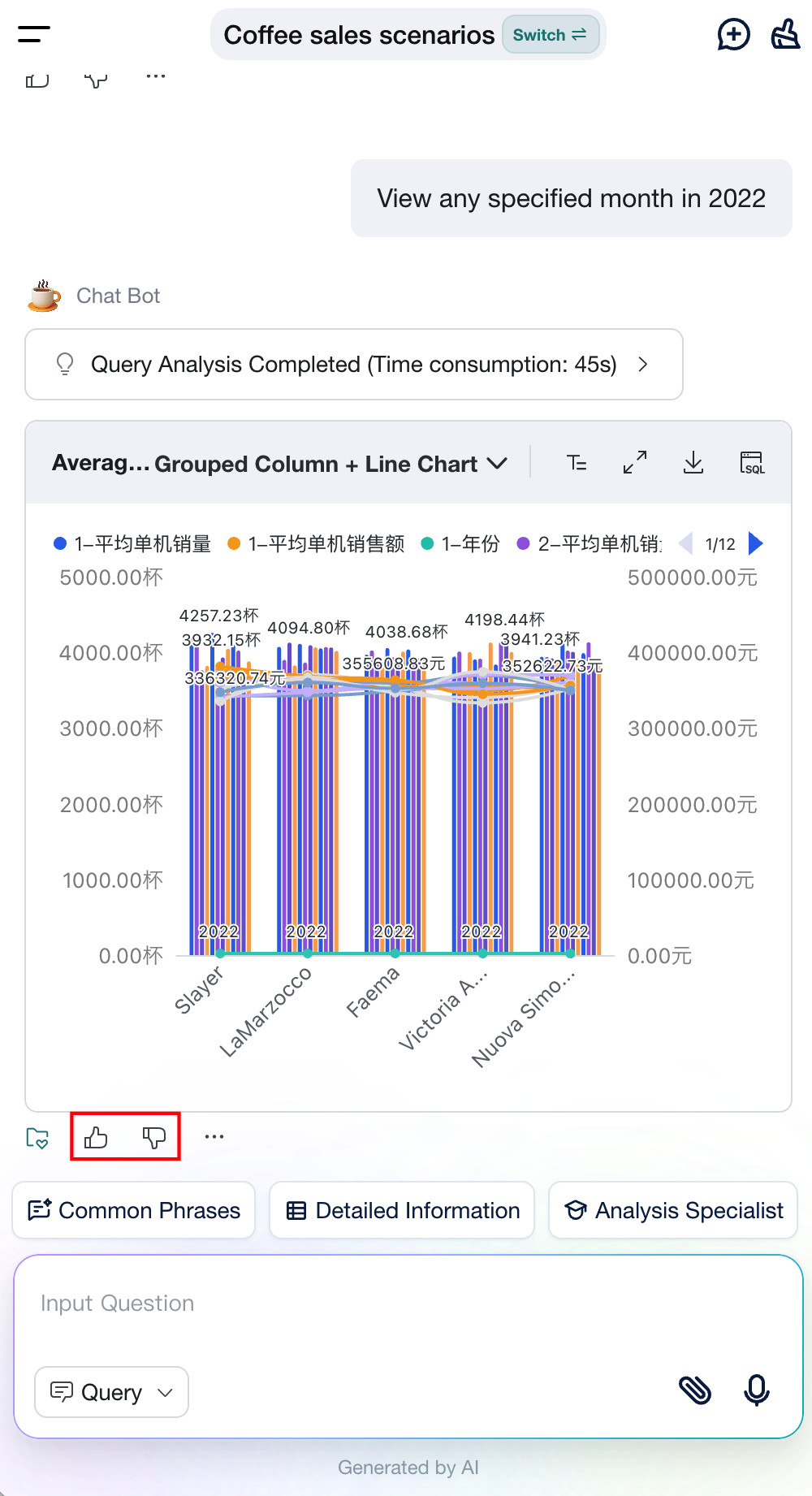
After giving an unsatisfactory answer a thumbs-down, view the feedback record and handling progress on the Feedback page.
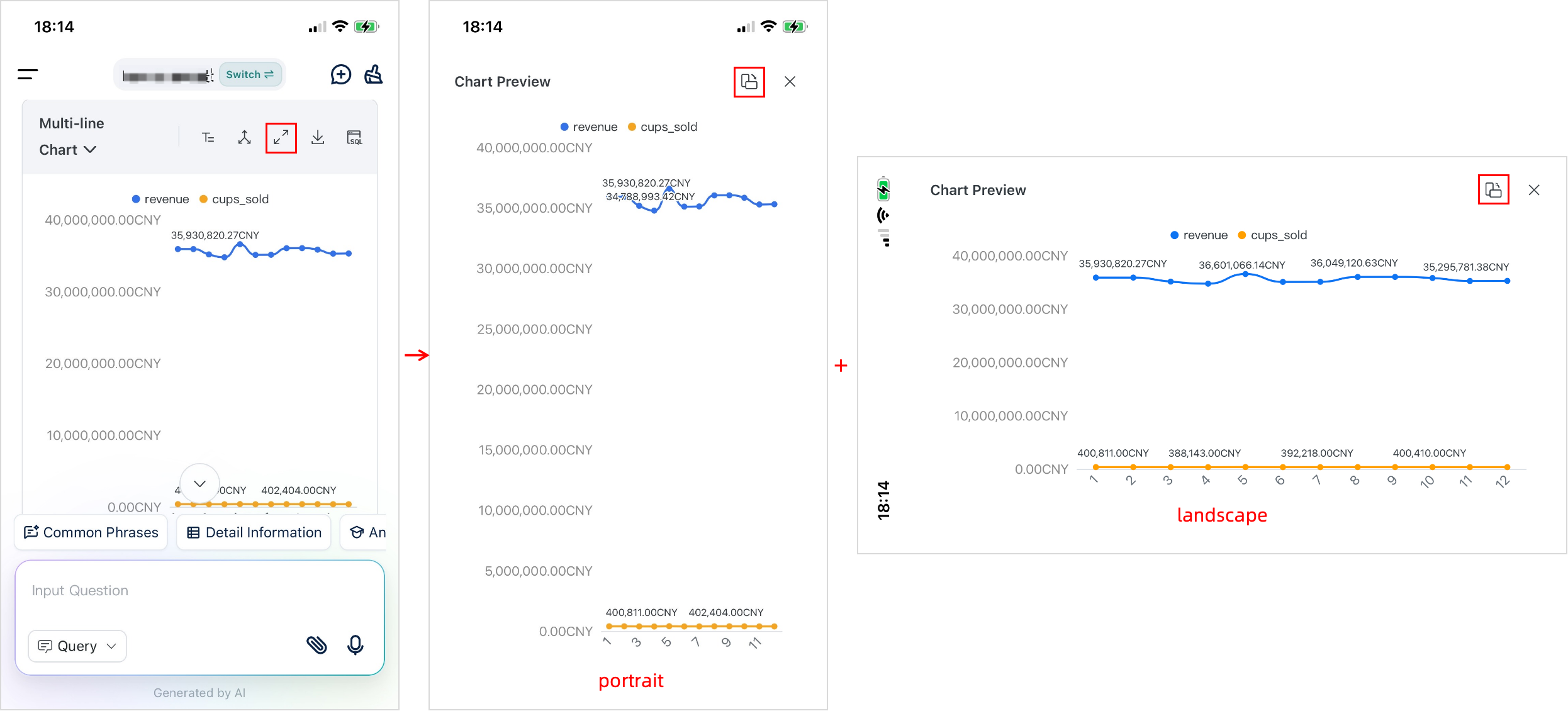
Switch Between Landscape and Portrait
When viewing a chart in full screen, use the orientation switch to change between landscape and portrait views for easier reading of tables and charts.
- On a Q&A result card, select View Full Screen to open the Chart Preview page.
- Select the orientation switch in the upper-right corner to display the chart in landscape or portrait mode.
Other Operations
This article covers common mobile operations. Query and Insight modes also support additional data-viewing, result-processing, and interaction features. For details, see:
- Query Agent: query workflows, result interactions, data export, visualization switching, and other features.
- Insight Agent: insight analysis, report display, export, delivery, and other features.
Available operations may vary by device. Refer to the actual mobile interface for supported features and entry points.