LLM Configuration
Overview
LLM Configuration manages the model services used by ChatBI in query and insight scenarios. Admins can choose Guandata built-in model services or connect their own third-party model services based on business needs and cost considerations. Different models can also be configured for different task types.
LLM configuration supports two levels:
| Configuration Level | Entry | Scope |
|---|---|---|
| Domain level | Agent Management > Management Center > LLM Configuration | Configures the model service policy for the entire domain and maintains the available model service pool. |
| Agent level | Agent Detail Settings > Basic Information > LLM Configuration | Configures models for specific scenarios in a single agent. This takes priority over the domain-level default policy. |
Prerequisites
-
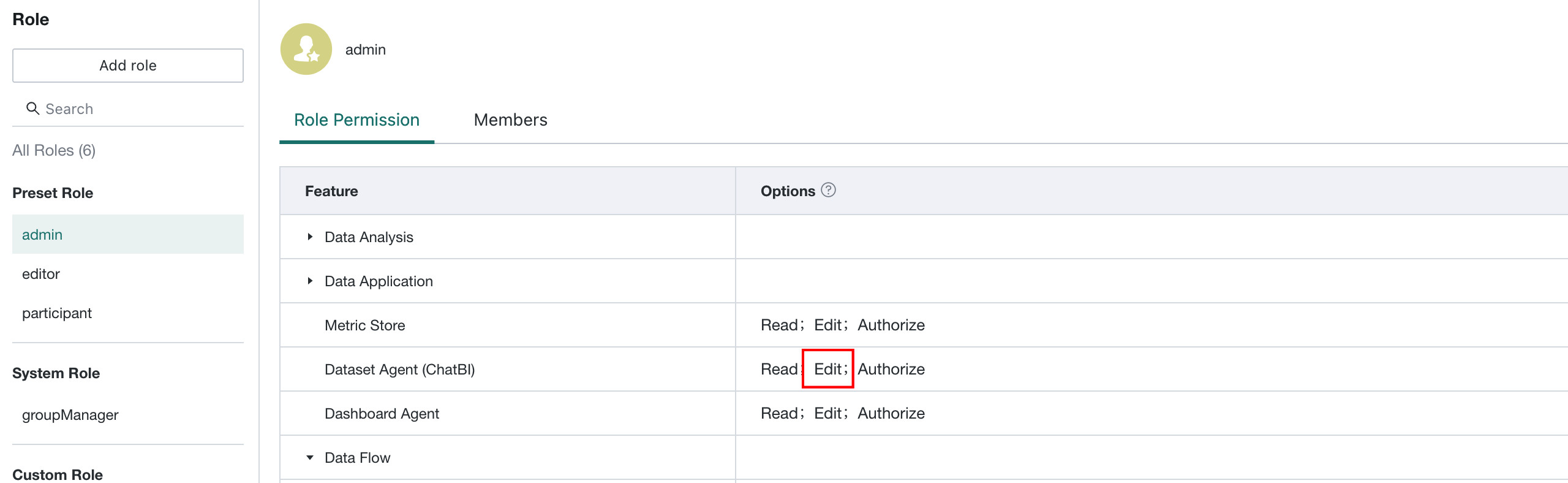
To configure the domain-level LLM policy, you must have the Edit permission for Dataset Agent (ChatBI).
-
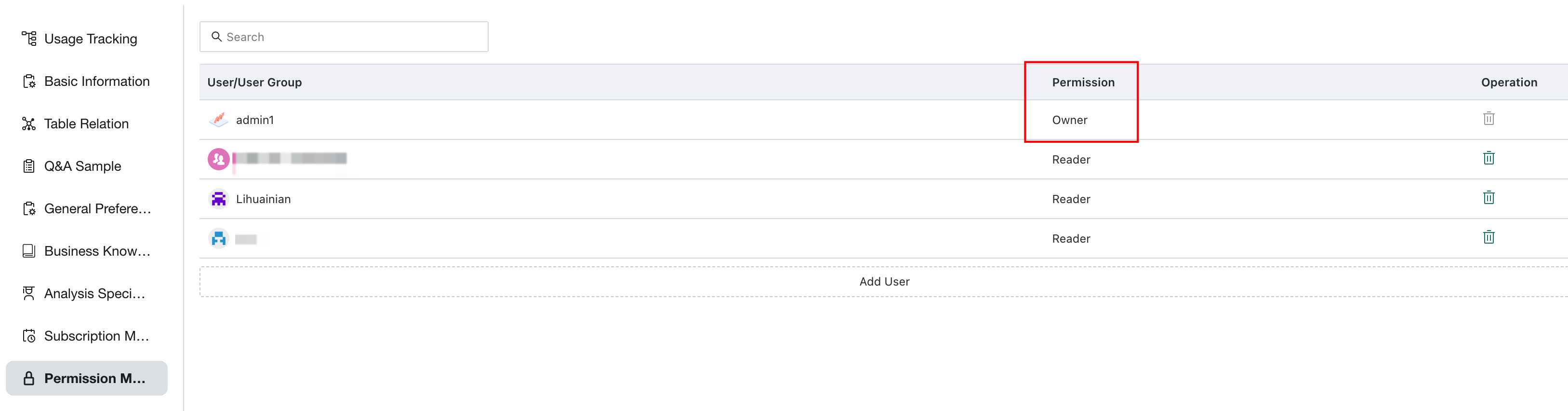
To configure agent-level LLM settings, you must have Owner permission for the corresponding agent.
-
Before adding a third-party model, obtain the model service endpoint and API key.
Domain-Level LLM Configuration
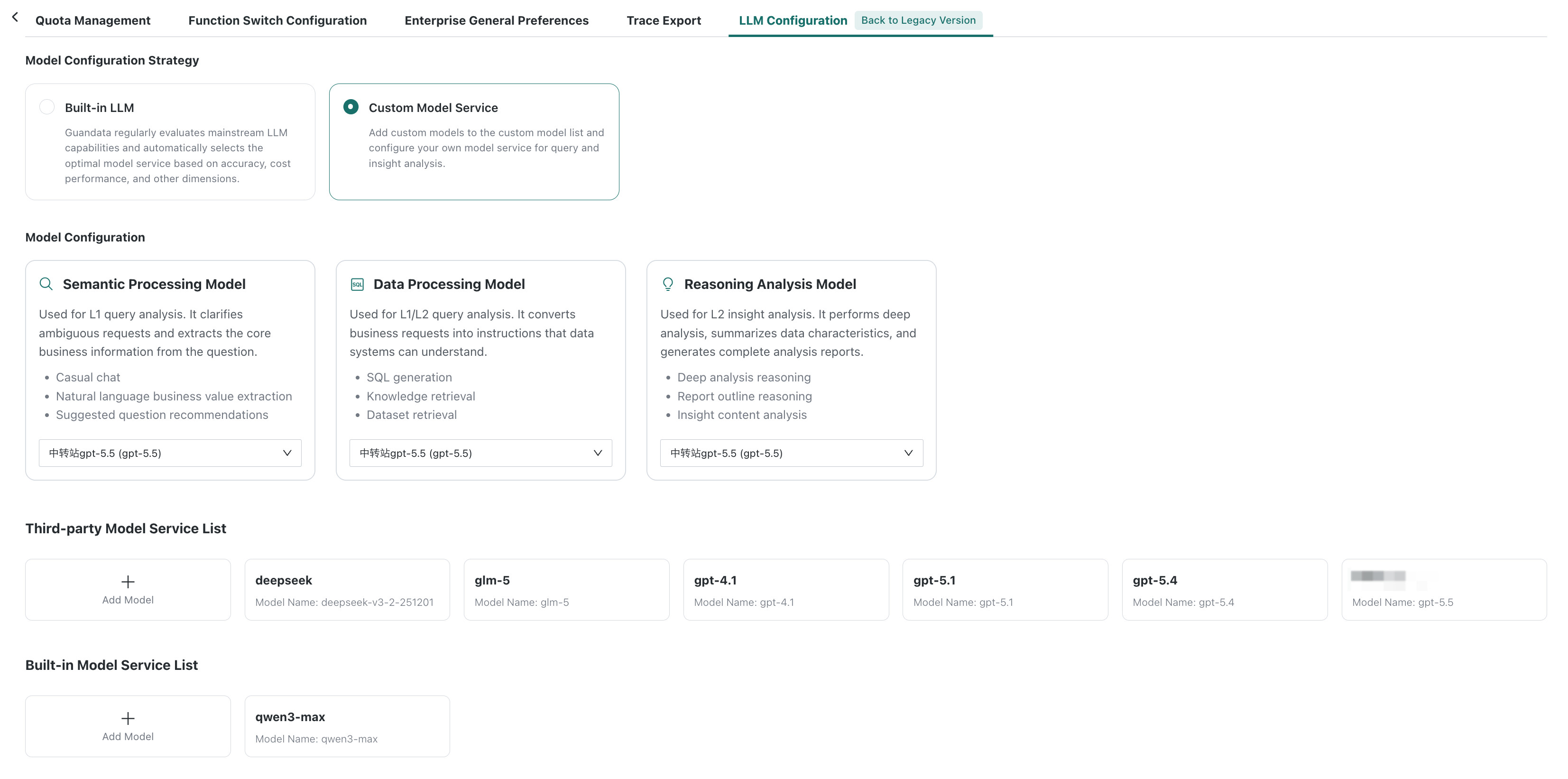
Platform admins can maintain model services available in the current domain and configure the model policy on the LLM Configuration page in Management Center.
Entry
Log in to the Data Agent admin backend and go to Agent Management > Management Center > LLM Configuration.
Add a Model
You can add Guandata built-in models or third-party models.
Add a Guandata LLM
If you have purchased Guandata LLM services, configure access in this area.
-
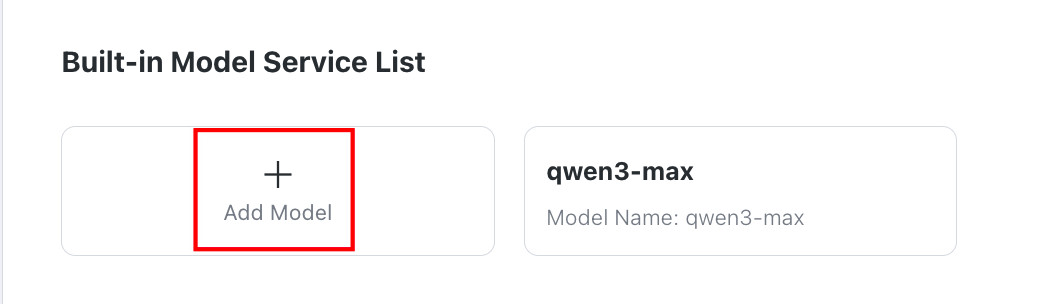
In Built-in Model Service List, click Add Model.
-
In the Add Guandata LLM dialog, fill in the configuration items.
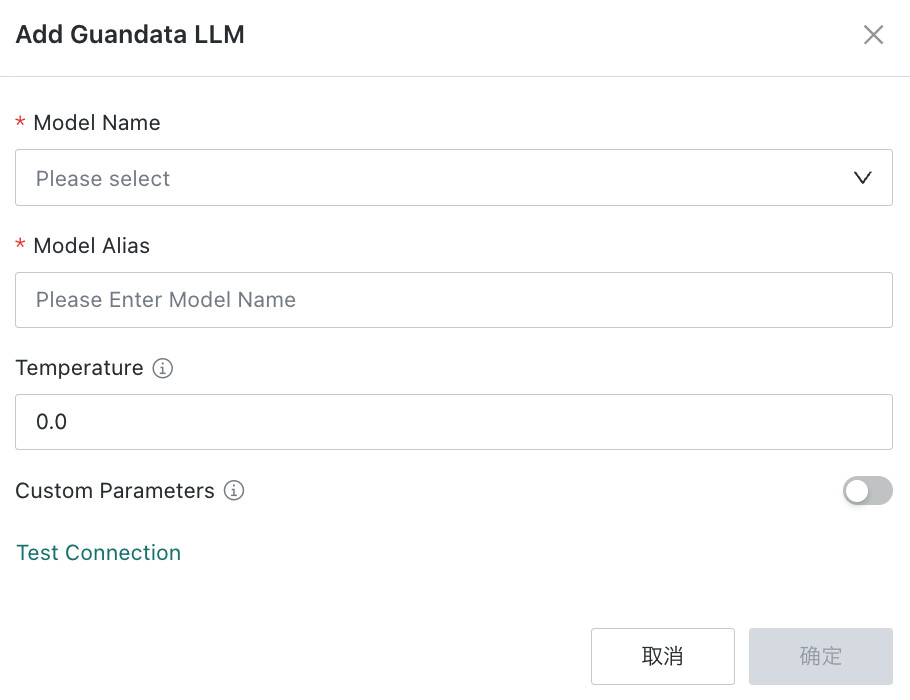
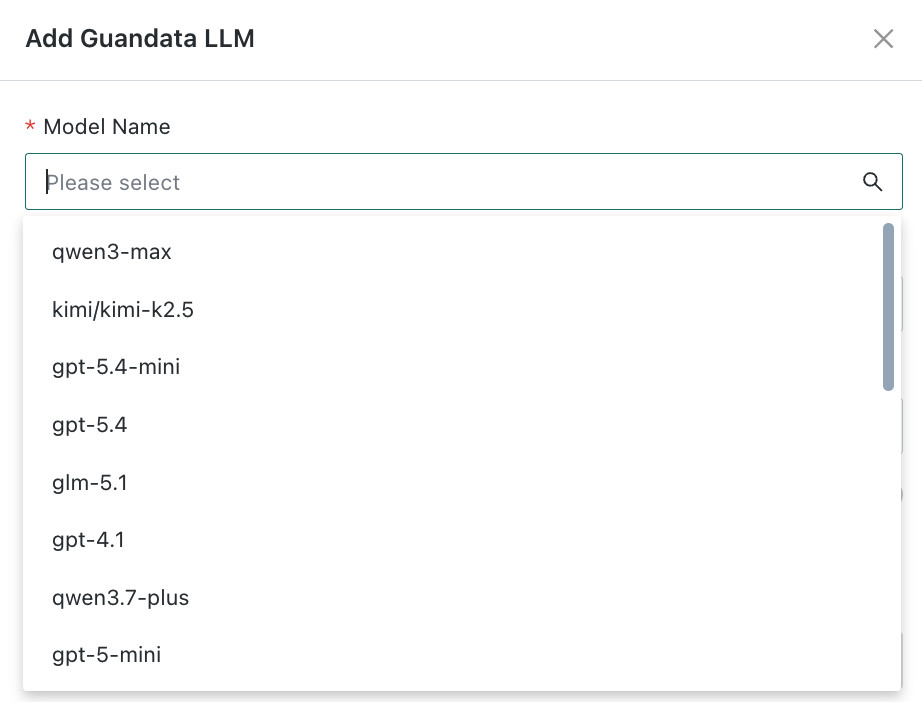
- Model Name (required): Select the model to add from the drop-down list. Search is supported. Models in the list have already been configured by Guandata and can be connected directly.
- Model Alias (required): Enter the display name used to distinguish this model from other models.
- Temperature: Controls output randomness. The value range is 0 to 1. The default is 0.0.
- Lower temperature: When the value approaches 0, the model tends to choose the highest-probability output, making results more stable and deterministic.
- Higher temperature: When the value approaches 1, the model samples from the probability distribution, making results more diverse and creative.
- Custom Parameters: Model invocation parameters in JSON format. This is disabled by default and can be enabled when needed.
-
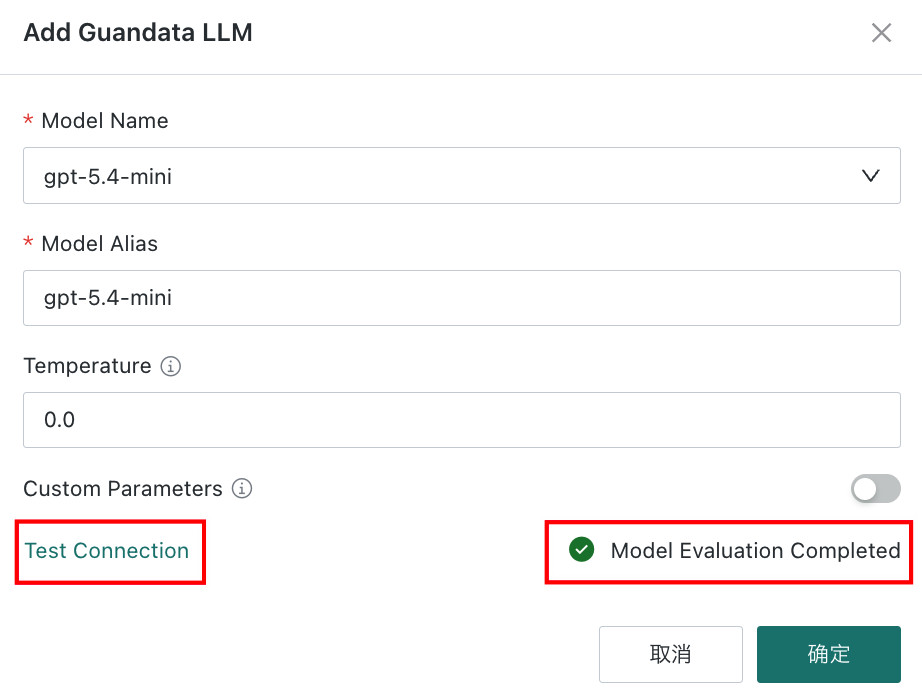
Click Test Connection. After the system verifies that the model service is available, the page displays Model Evaluation Completed; then you can click OK to finish the configuration.
Add a Third-Party Model
To use your own third-party LLM service, click Add Model in Third-Party Model Service List.
-
In Third-Party Model Service List, click Add Model.

-
In the Add Model dialog, fill in the configuration items.
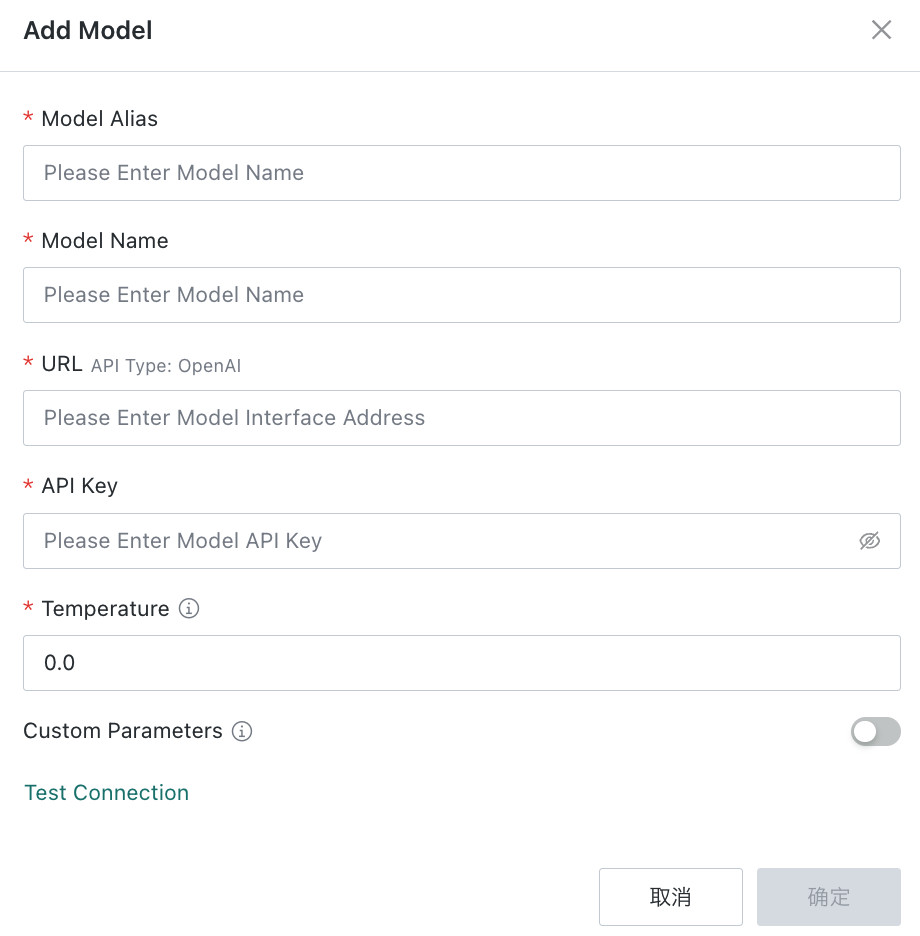
Configuration Item Required Description Model Alias Yes The display name used to distinguish this model from other models. Model Name Yes The standard name or invocation identifier of the third-party model. Endpoint Yes The invocation address of the model service. API Key Yes The access key for the third-party model service. Temperature Yes Controls output randomness. The value range is 0 to 1. The default is 0.0. Custom Parameters No Model invocation parameters in JSON format. This is disabled by default and can be enabled when needed. -
Click Test Connection. After the system verifies that the model service is available, the page displays Model Evaluation Completed; then you can click OK to finish the configuration.
Configure Models
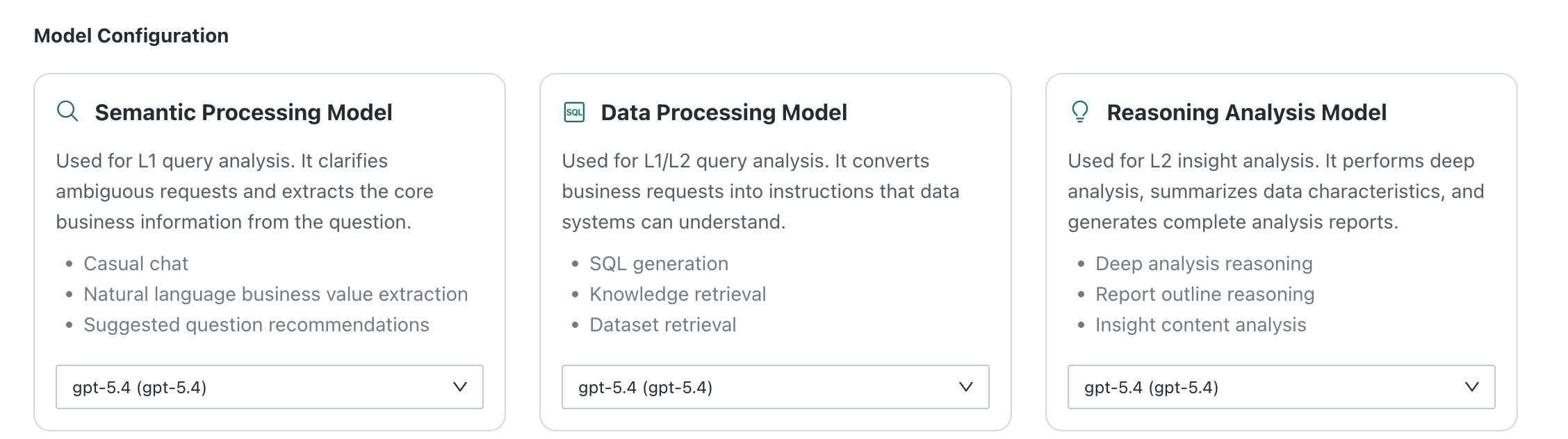
In the Model Configuration area, select model services for three task types:
| Model Type | Applicable Scenario | Core Purpose | Typical Tasks |
|---|---|---|---|
| Semantic Processing Model | L1 query analysis | Clarifies ambiguous requirements and extracts key business information from questions. | Casual conversation, natural-language business value extraction, recommended question generation |
| Data Processing Model | L1/L2 query analysis | Converts business requirements into instructions that data systems can recognize. | SQL generation, knowledge recall and retrieval, dataset retrieval |
| Reasoning and Analysis Model | L2 insight analysis | Handles deeper analysis, summarizes overall data characteristics, and generates complete analysis reports. | Deep analysis reasoning, report outline reasoning, insight content analysis |
Agent-Level LLM Configuration
Domain-level configuration provides a unified default model policy that works for most agents. If agents differ in the following ways, use agent-level configuration to specify model services separately:
- High-frequency query agents: Use more cost-effective models to reduce invocation costs.
- Key analysis agents: Use more capable models to improve output quality.
- Agents involving sensitive data: Specify privately deployed models or models from a designated provider.
Entry
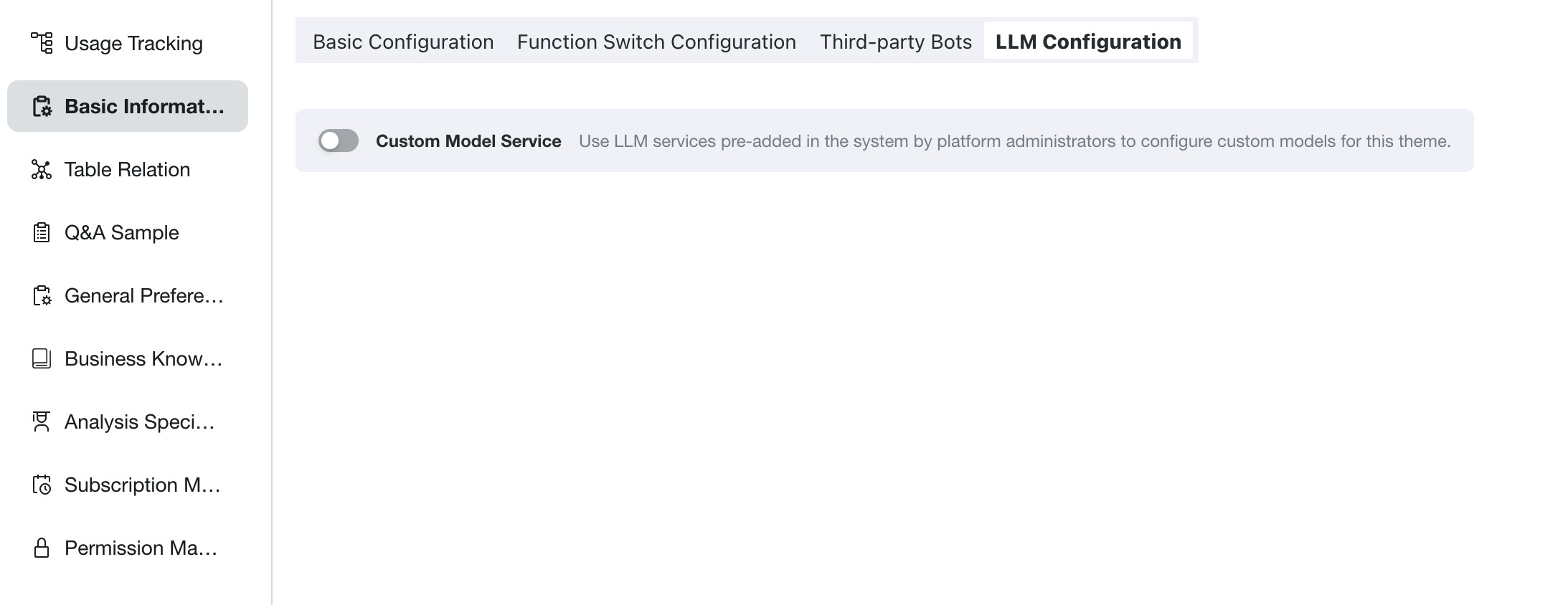
Log in to the Data Agent admin backend and go to Agent Detail Settings > Basic Information > LLM Configuration to specify model services for the current agent.
Configure Agent Models
Custom Model Service is disabled by default. After it is enabled, you can configure model services for the current agent. For model type descriptions, see Configure Models.
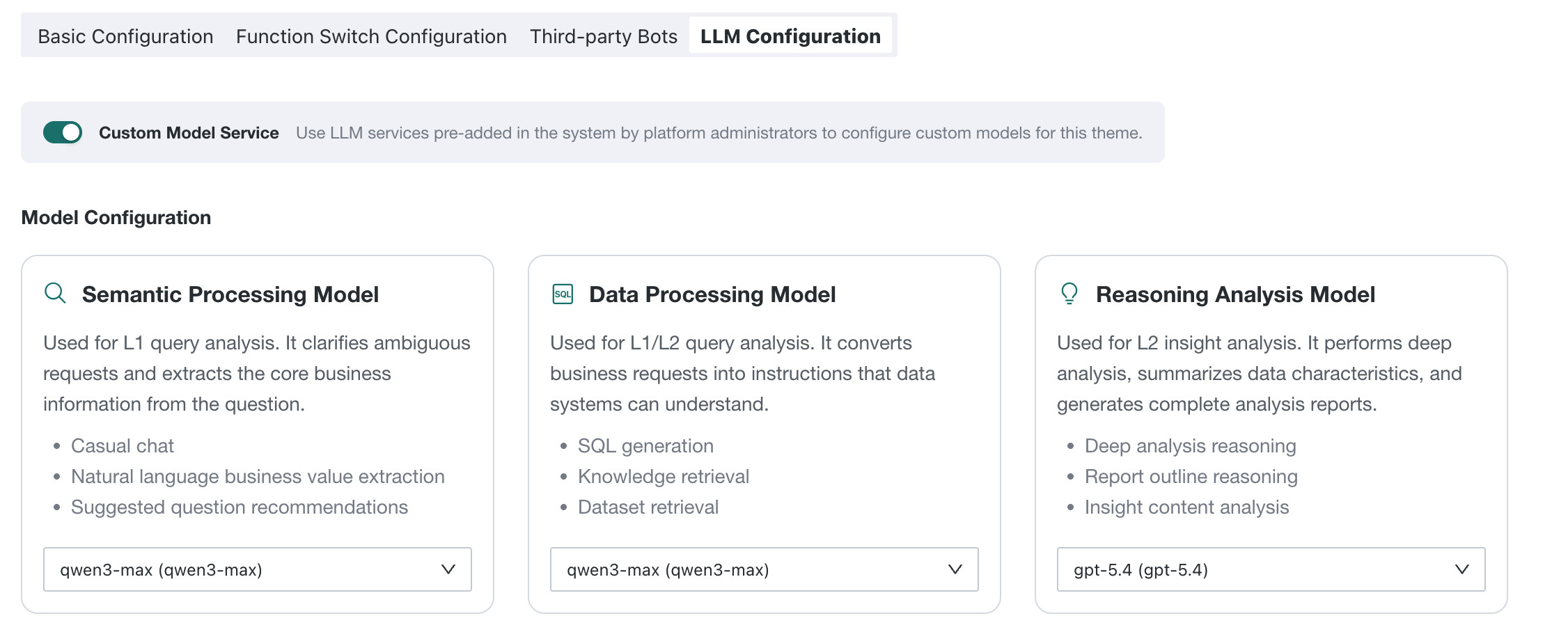
- If custom model service is not enabled at the agent level, or if a model type is not specified separately, the domain-level model policy is used by default.
- The selectable models here are models that have already been added in domain-level LLM configuration.
- After switching models, verify the effect through actual frontend query or insight analysis.