Query Agent
Overview
Query Agent is designed for users who need to query data. When a user has a data query request, they can ask the system directly and receive a fast response with intuitive visualized charts. This helps users quickly understand the data they need, such as checking "What was yesterday's sales revenue?".
Prerequisites
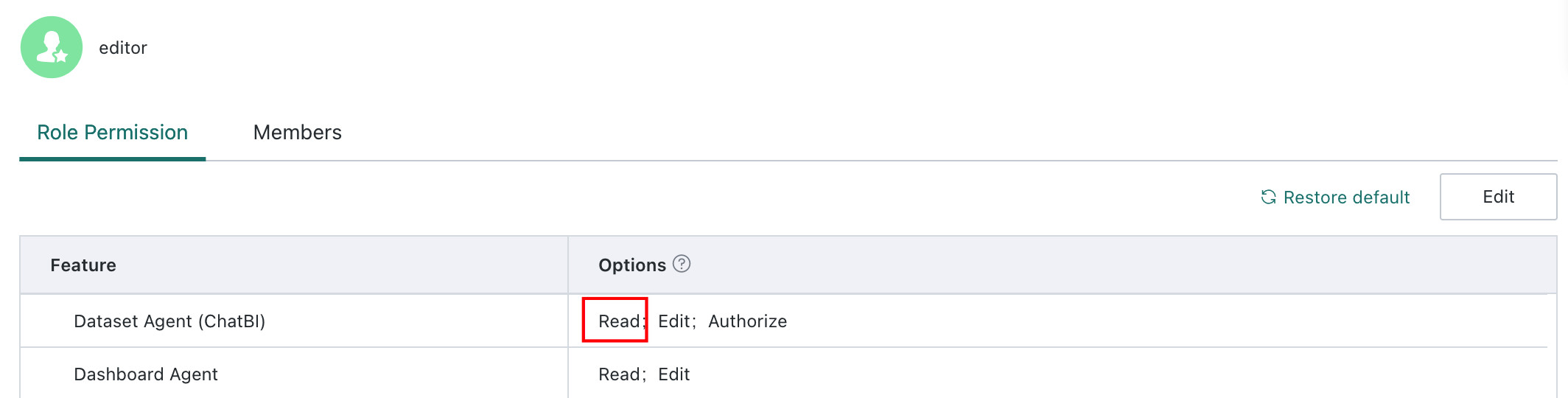
Only users with Dataset(ChatBI) Read permission can access the Query Agent page and ask questions.
Steps
-
Click
Query Agentin the left navigation bar to enter the query analysis page. -
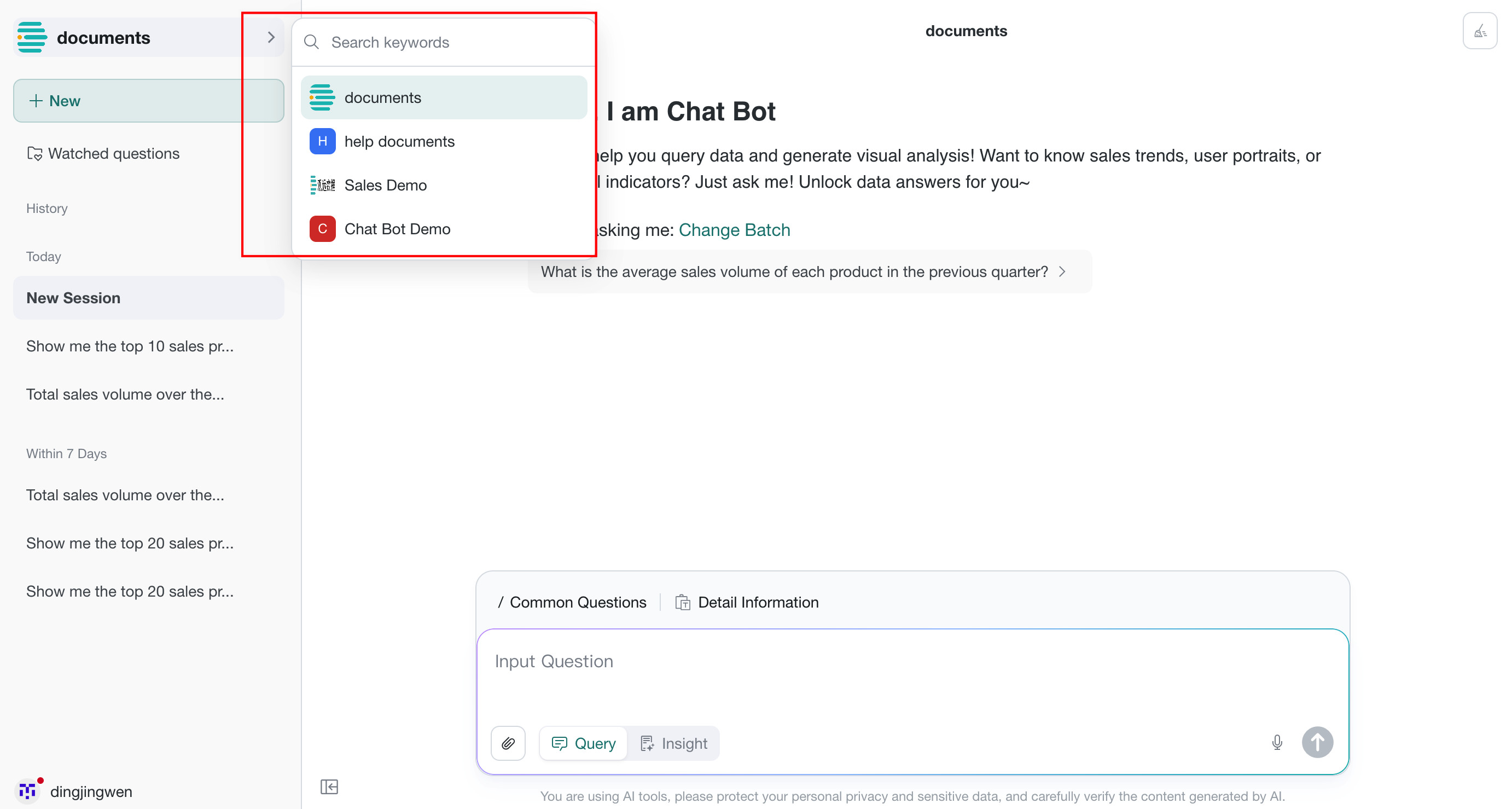
After entering the page, click the dropdown list on the right to view all enabled query agents that you have permission to use.
-
Select the agent you want to use, or enter keywords in the search box to search.
-
Click a recommended question or type your own query. Users can ask questions such as:
| Question Type | Example |
|---|---|
| Numeric Value | What is the order quantity of Rubvermaid Photo Frame, Premium in China in Q3 2022? |
| Trend | Which cities have seen profit increase month over month over the past six months? |
| Details | Does the sales amount contain any Null values? |
| TopN | Which orders generated the highest profit last year? |
| Comparison | Compare annual profit across regions over the past year. Which three regions had the highest profit? |
| Period-over-period | Compare quarter-over-quarter sales growth by province in 2023. Which provinces had the fastest profit margin growth? |
-
Click the
Sendbutton to submit the question. During generation, the system displays the question understanding process, retrieved knowledge, selected tables, and reasoning process, then produces a visualized chart.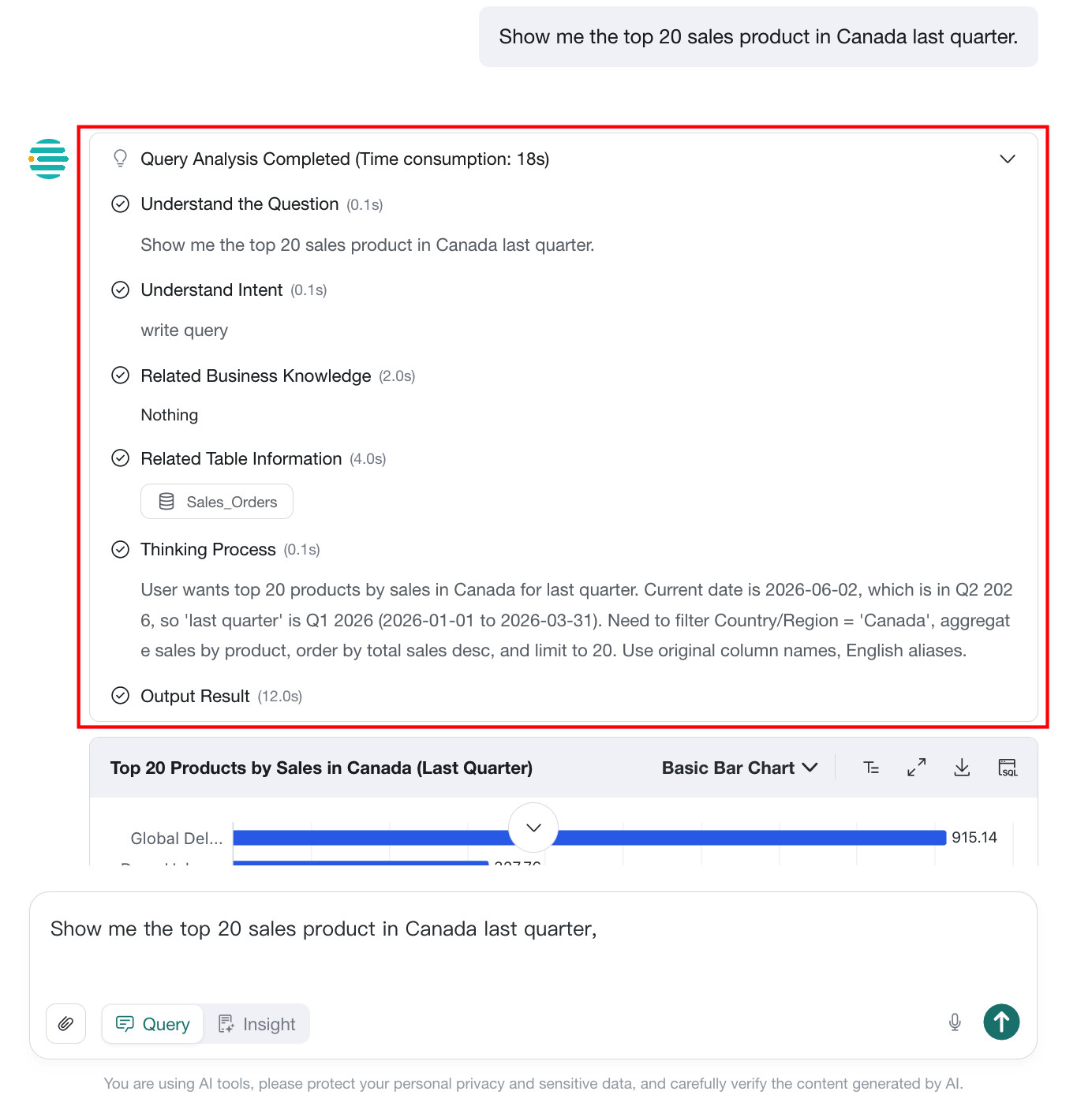
If the query returns no data, the system automatically shows an explanation for the
0-rowresult instead of displaying an empty chart, so users can understand why the result is empty.
Features
View Dataset Details in the Current Conversation
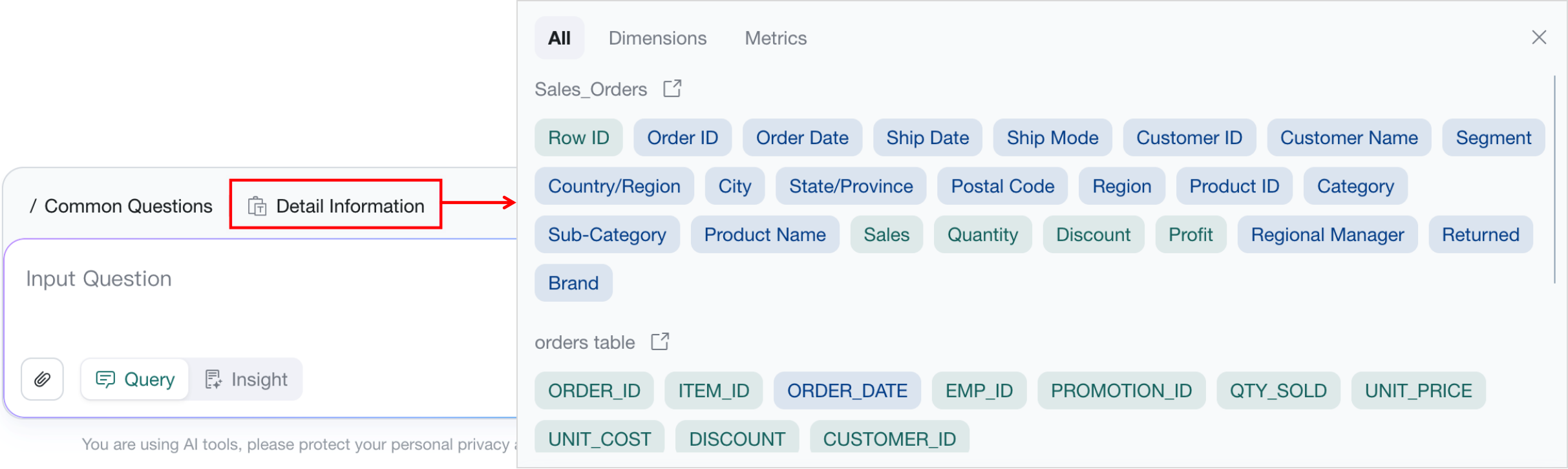
Click Detailed Information to view the dataset field information of the current agent.
Recommended Questions
Prerequisites
Opening Recommendations has been enabled and configured in Agent Detail Settings > Basic Information > Feature Switch Settings. See Opening Recommendations.
Usage
When a user starts a new conversation, the system provides recommended questions by default.
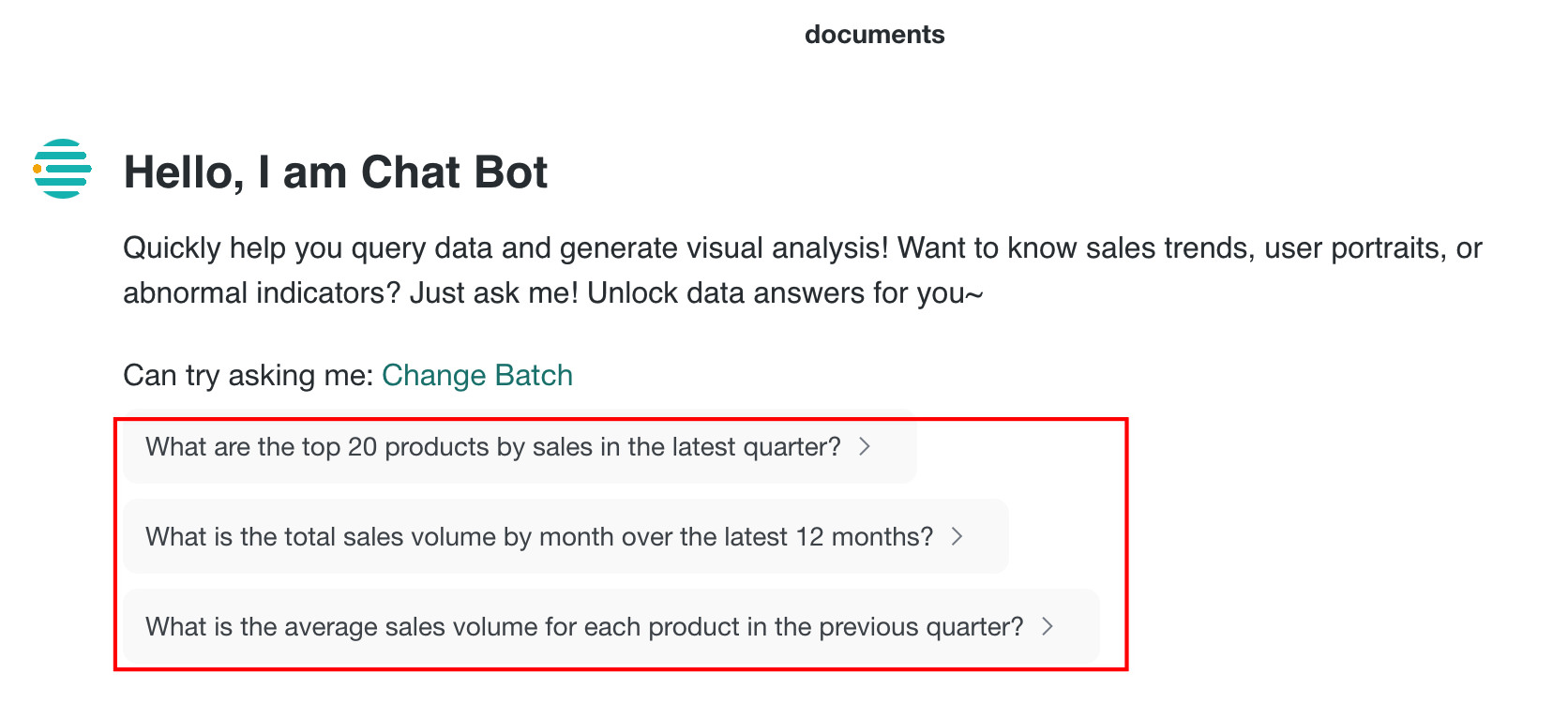
Related Question Recommendations
Prerequisites
The Guess You May Ask feature has been enabled and configured in Agent Detail Settings > Basic Information > Feature Switch Settings. See Guess You May Ask.
Usage
After the user asks a question, the system recommends other questions that may also be relevant.
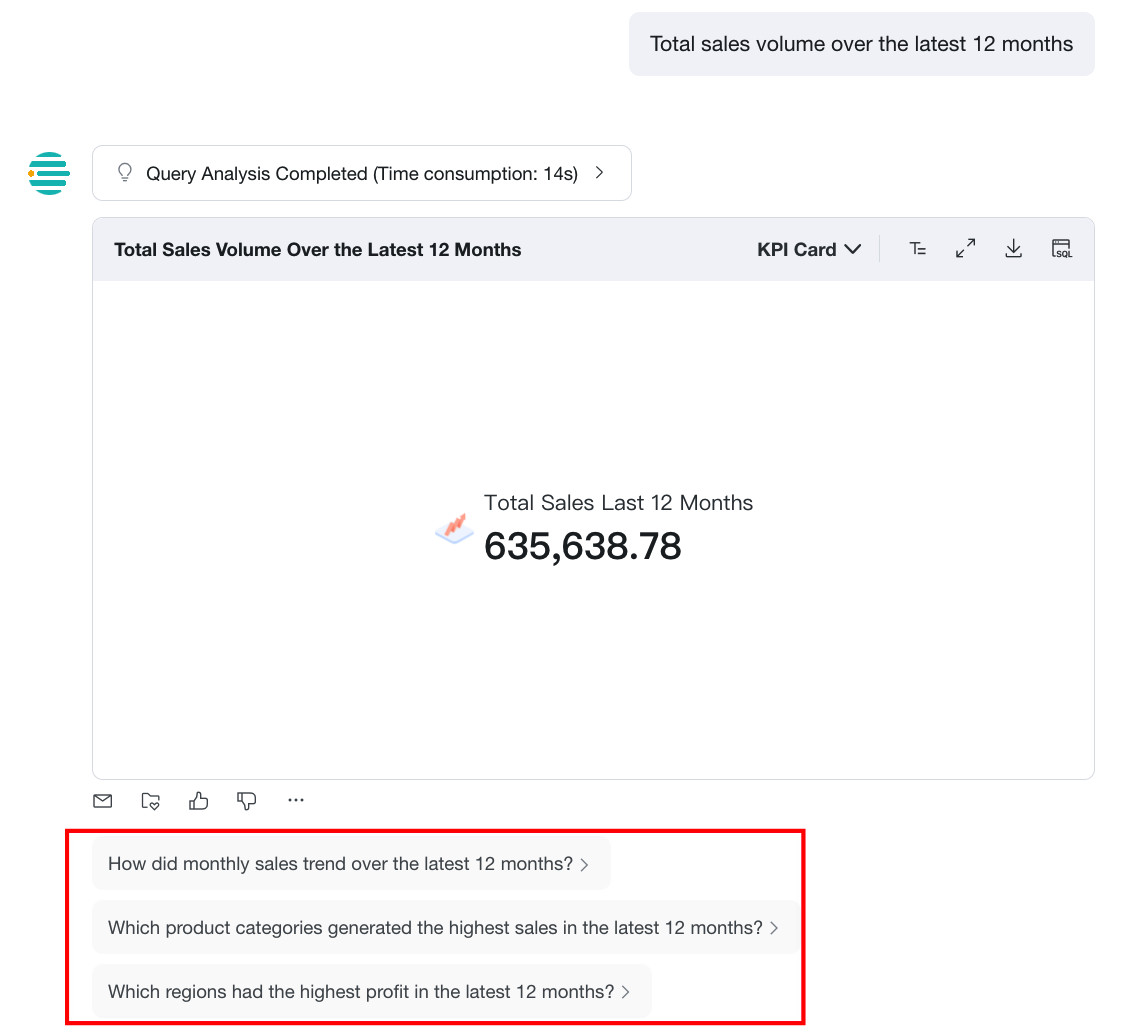
Save as a Frequently Viewed Question
Users can save the current question and answer as a frequently viewed question.
Saved result data changes when the underlying dataset changes.
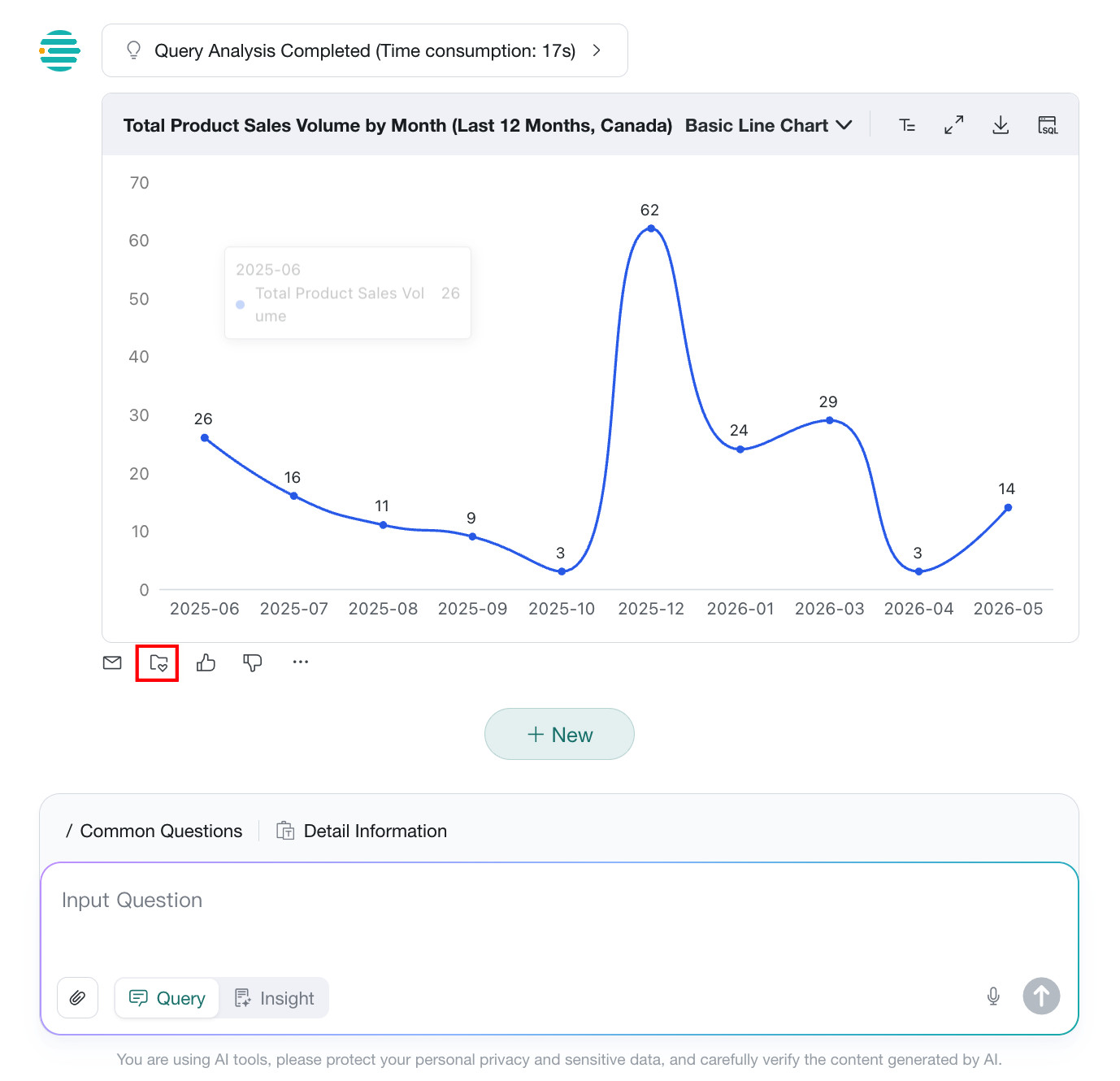
After saving, you can view the saved question on the frequently viewed questions page.
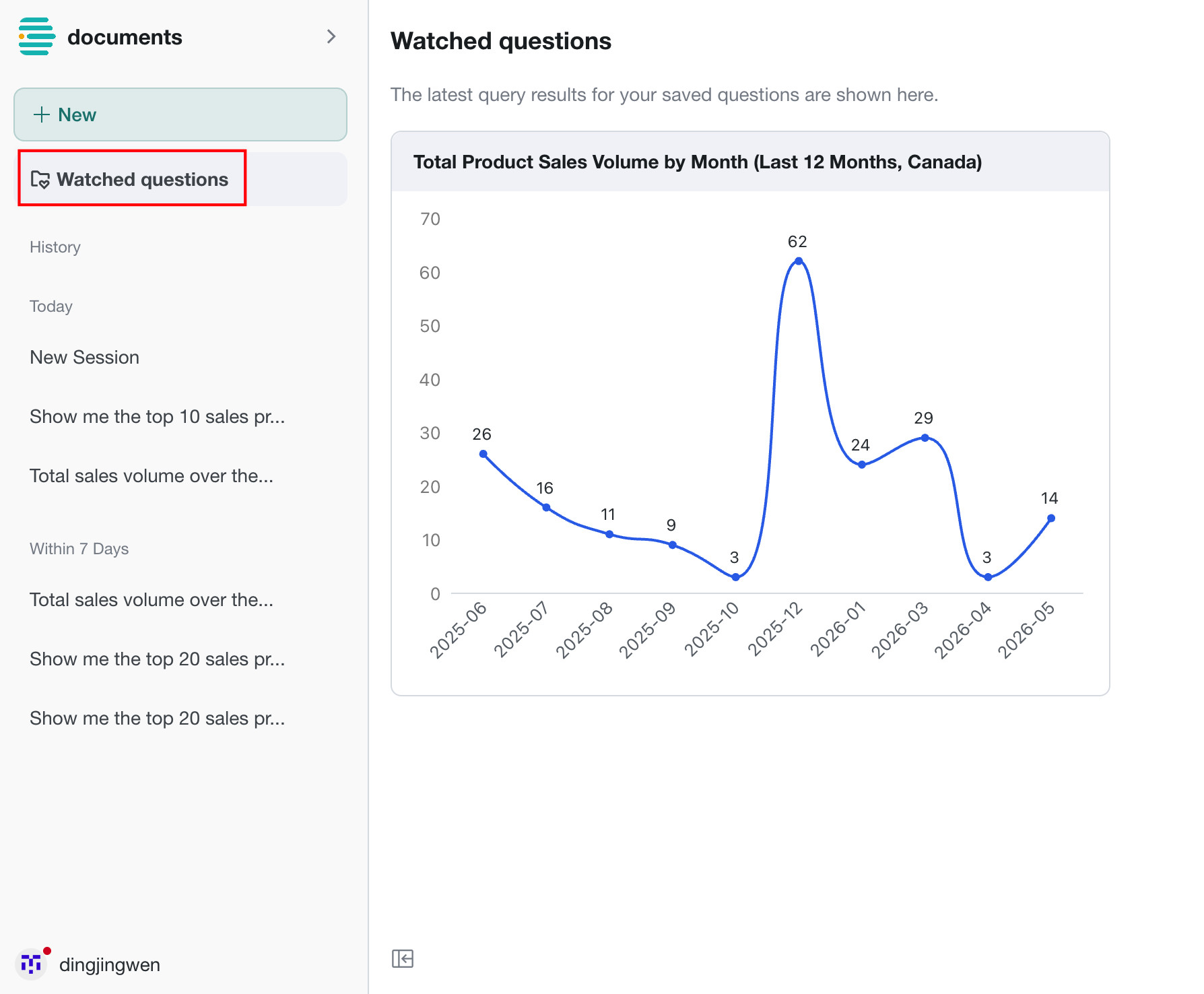
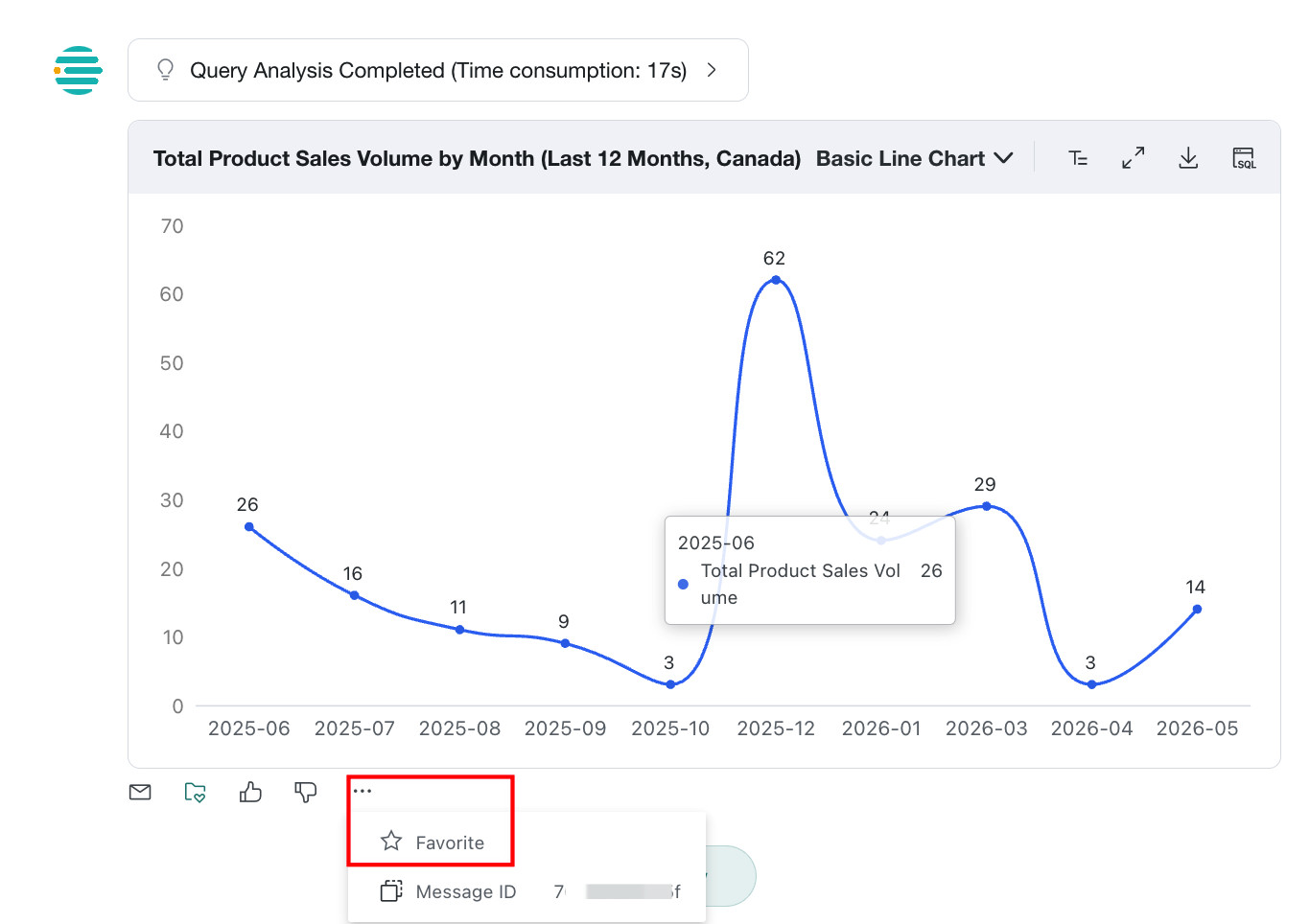
Favorite
Users can favorite each question and answer pair.
Favorited result data does not change when the underlying dataset changes.
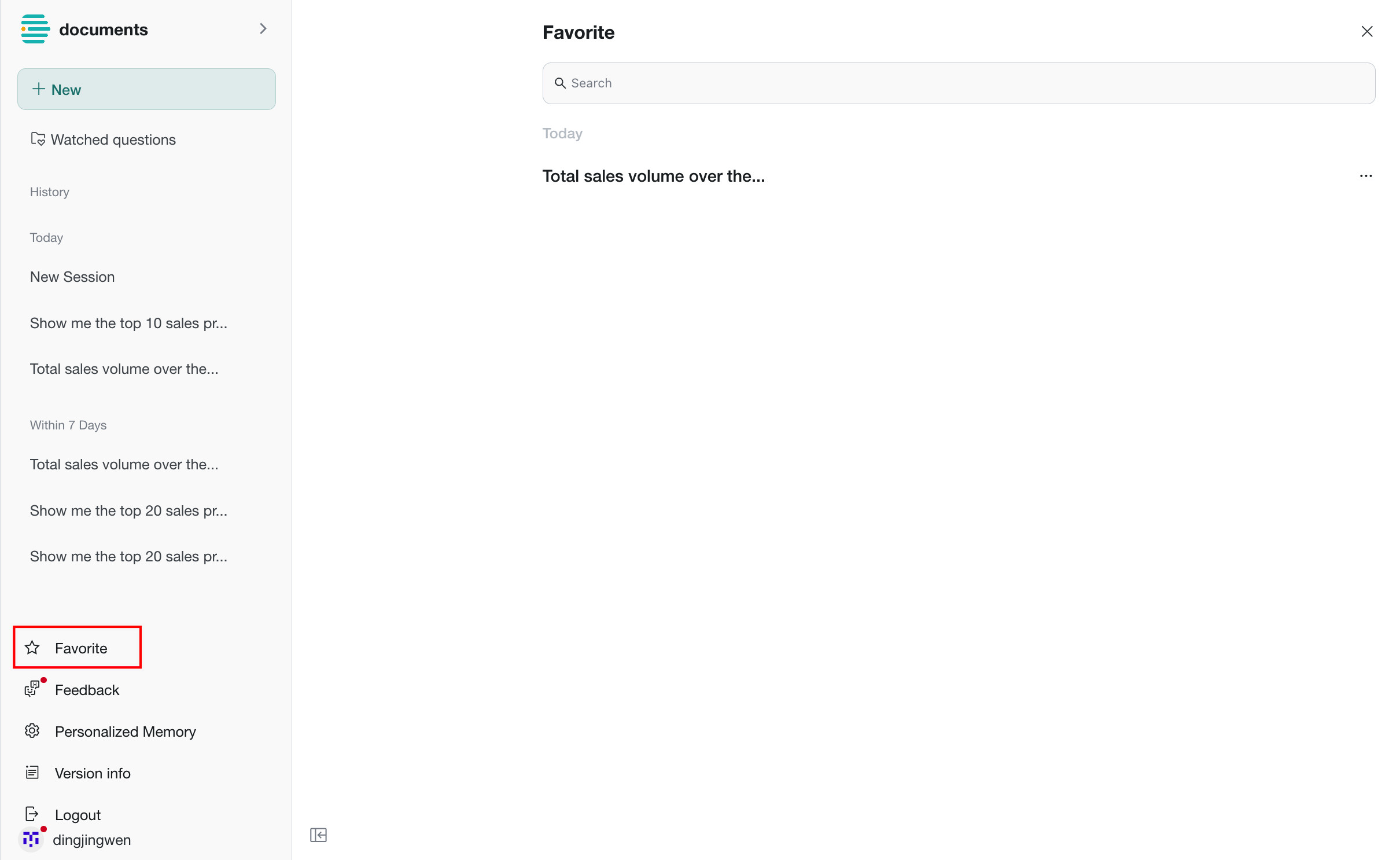
After saving to favorites, you can review historical favorited questions and answer data in the favorites list.
Feedback
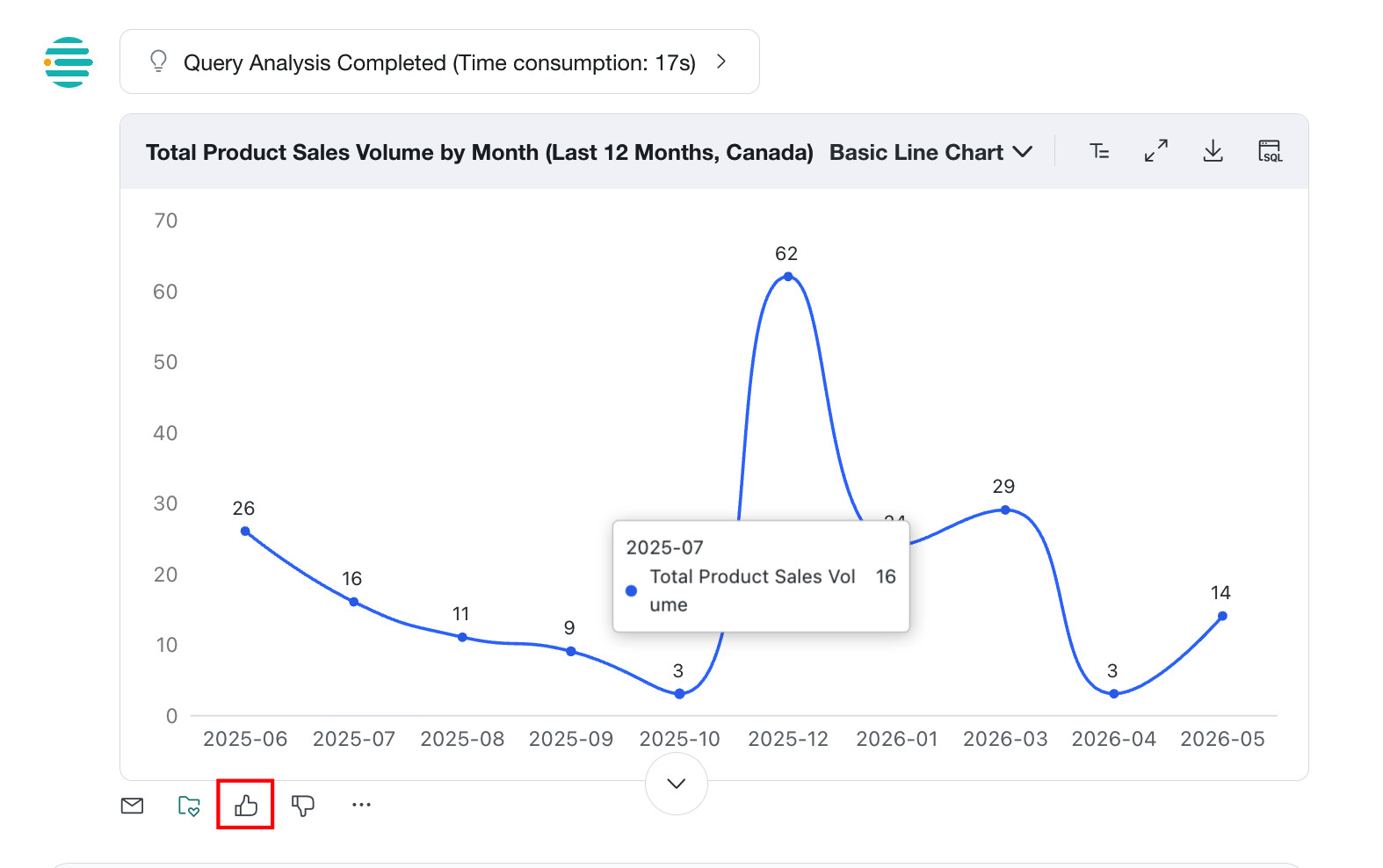
Like
When the user is satisfied with the generated result, they can click Like in the frontend.
Like, Favorite, and Export are all treated as positive feedback.
Dislike
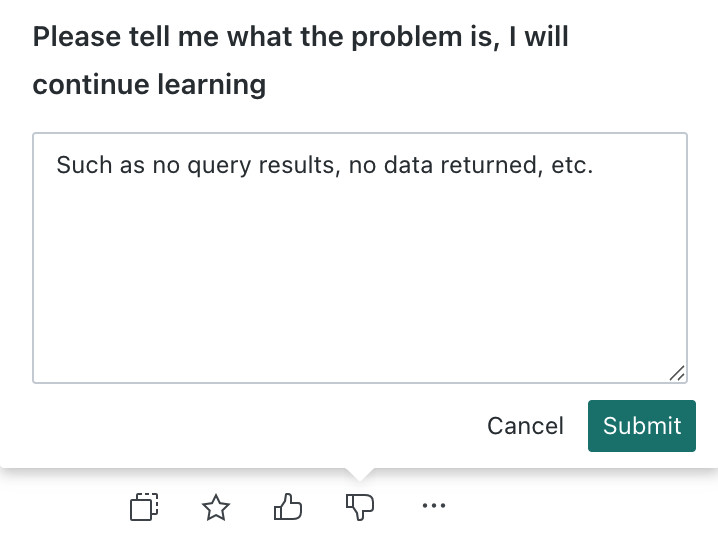
When the user is not satisfied with the generated result, they can click Dislike on the Q&A page, and the page will display a feedback entry.
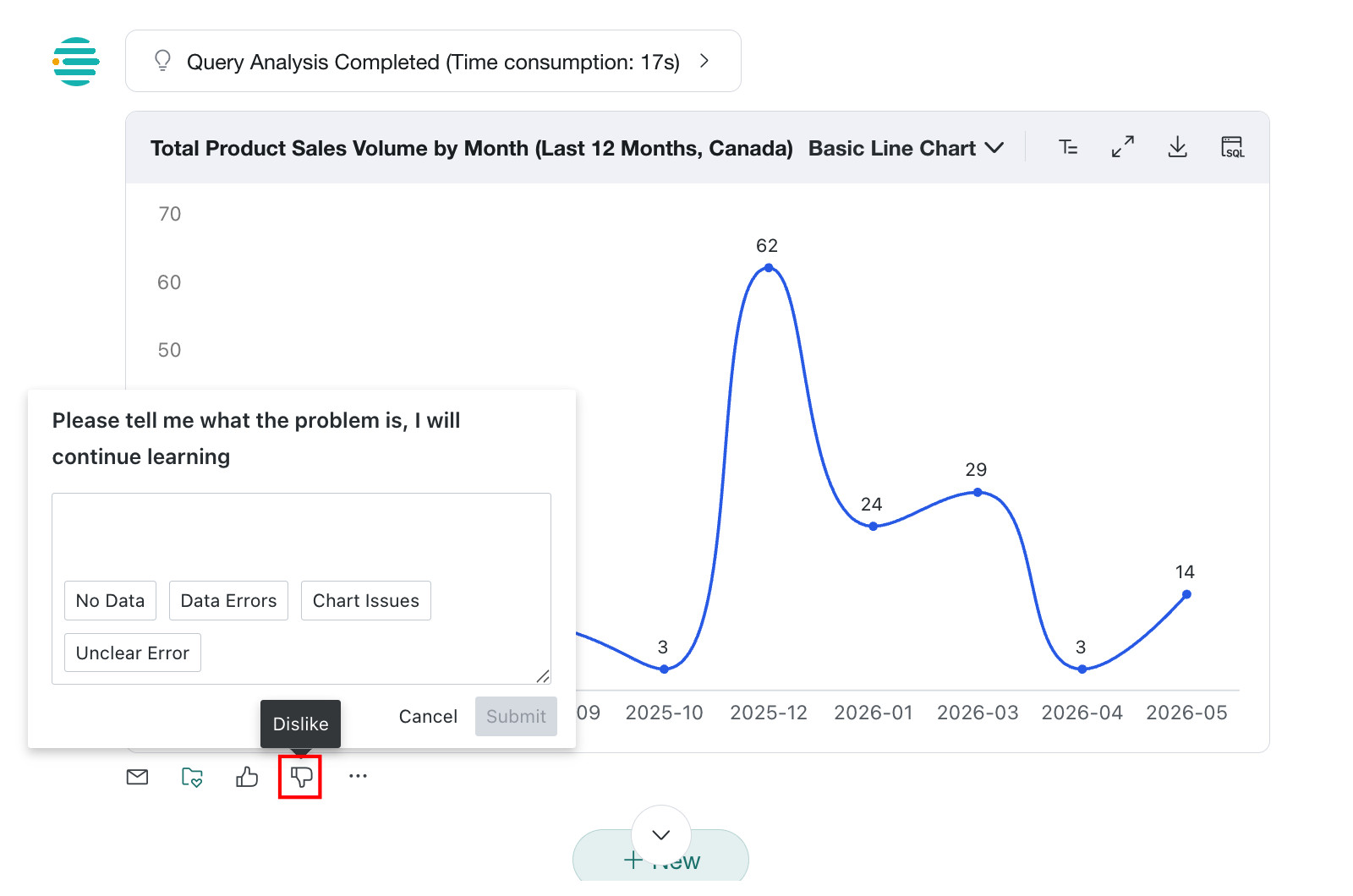
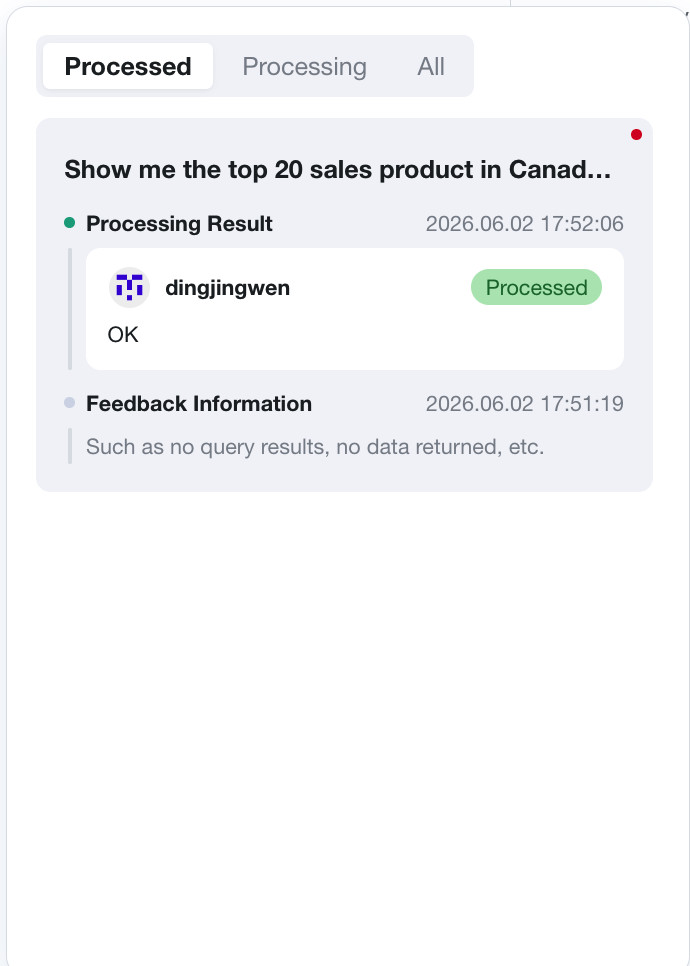
Example: After clicking No Data, the system will automatically populate sample copy based on the selected quick tag (Such as no query results, no data returned, etc.). Users can edit or supplement the description on this basis, then click Submit to complete the feedback after confirmation.
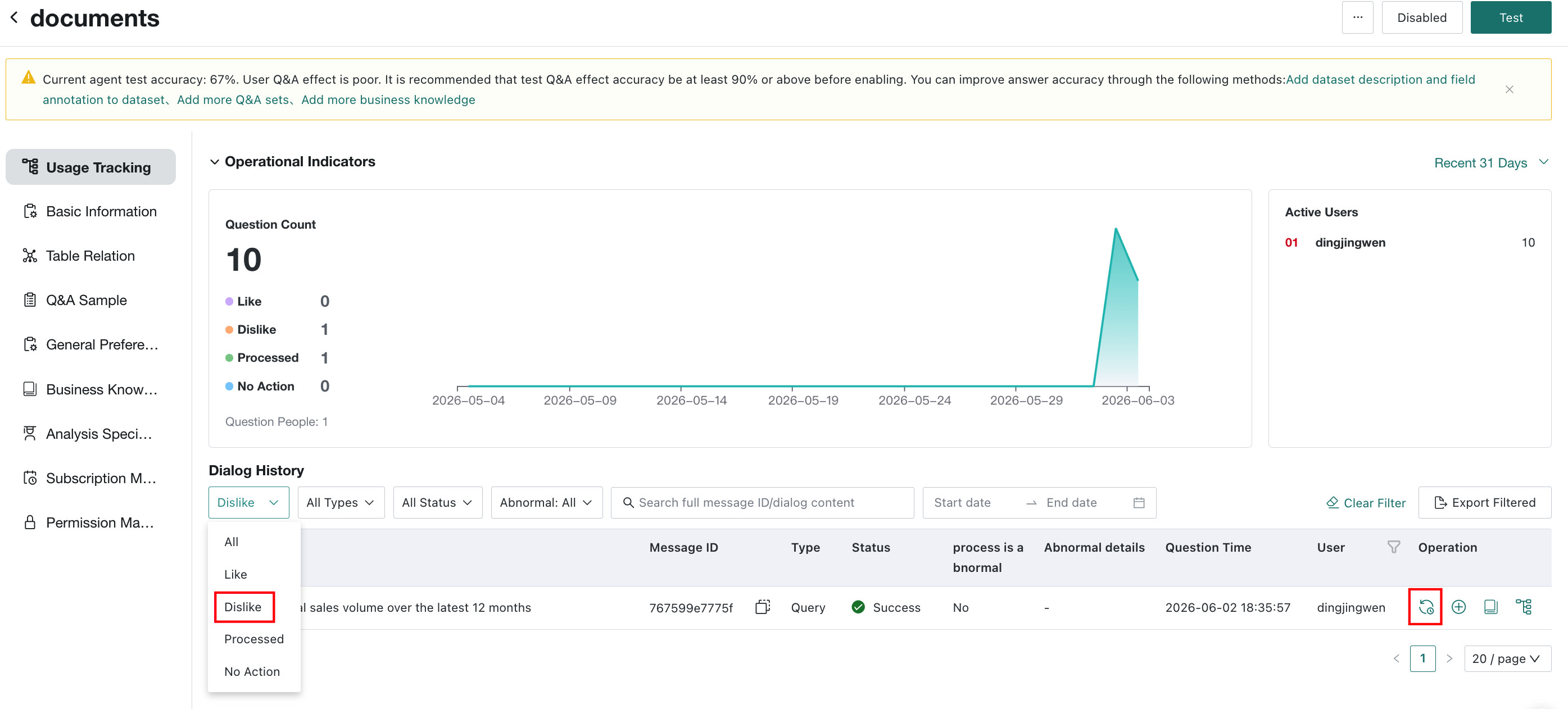
After the user submits feedback, analysts can locate the issue in the backend, review the feedback details, and optimize accordingly.
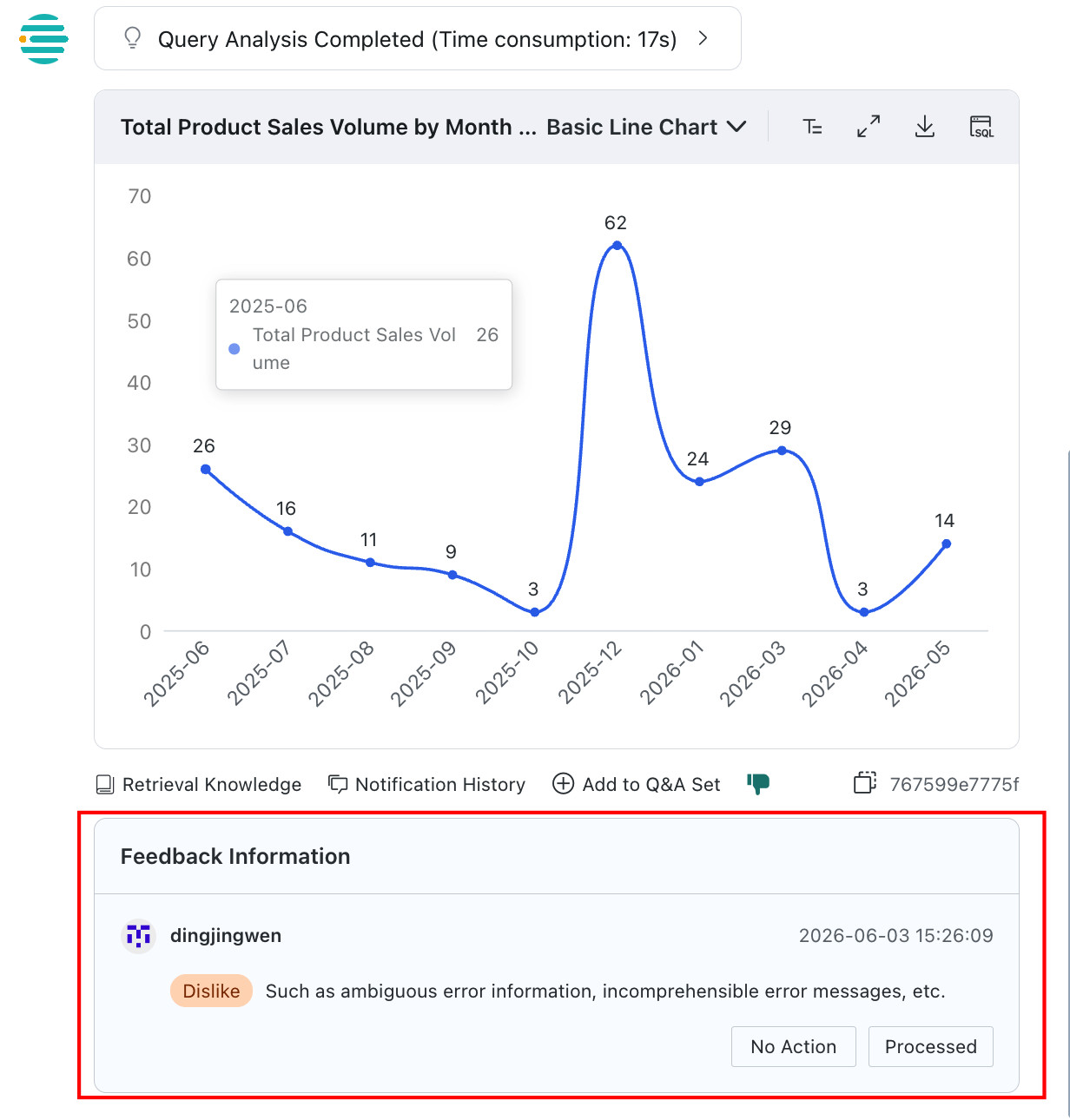
View Feedback
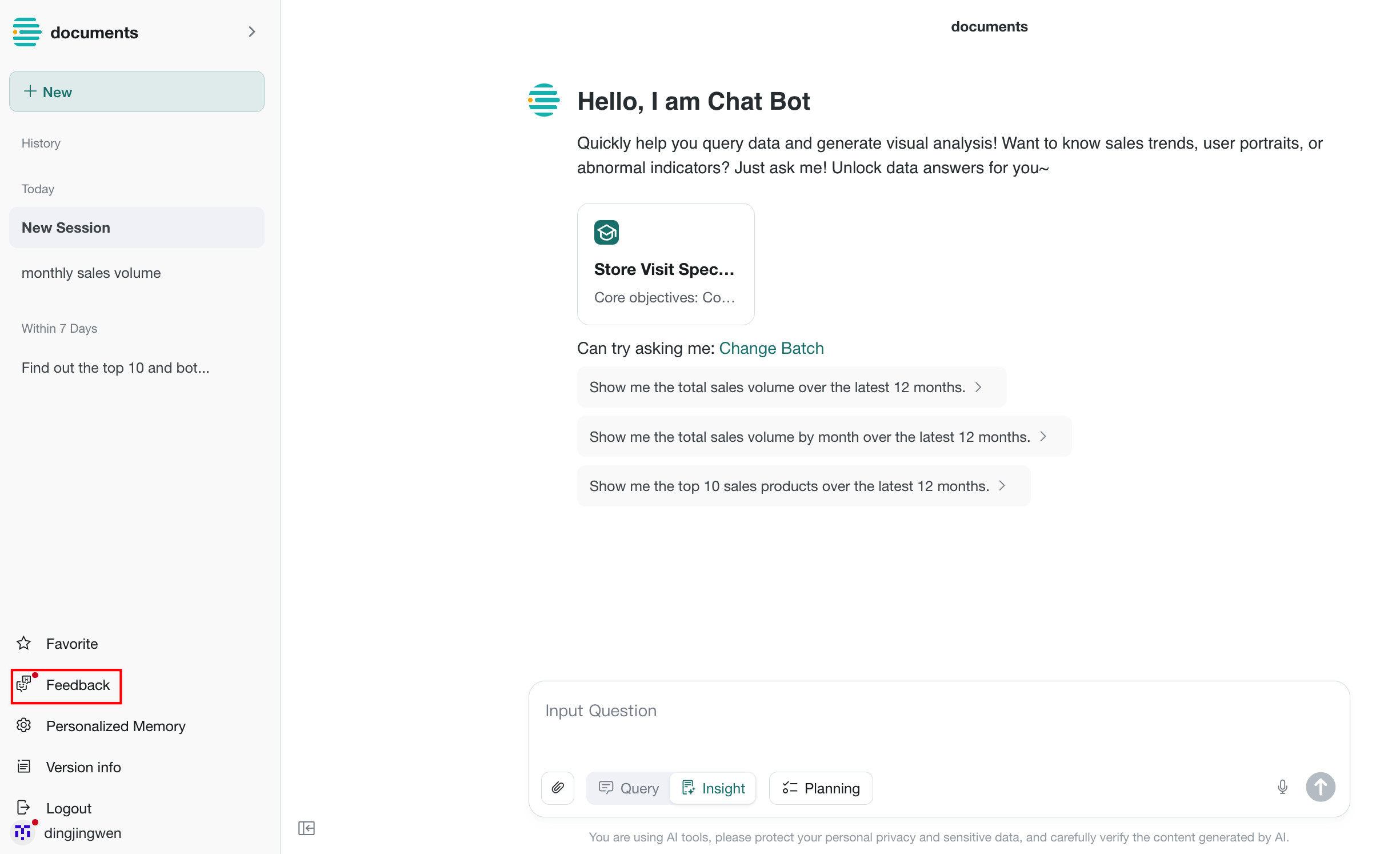
After clicking Dislike for an unsatisfactory answer, you can review feedback records and processing progress on the Feedback page.
Clear Context
During a Data Agent conversation, the system determines whether the current question is independent.
- If the question is considered independent, the answer is generated without context.
- If the question is considered dependent, the system includes up to the previous five turns as context. Content beyond five turns is not included.
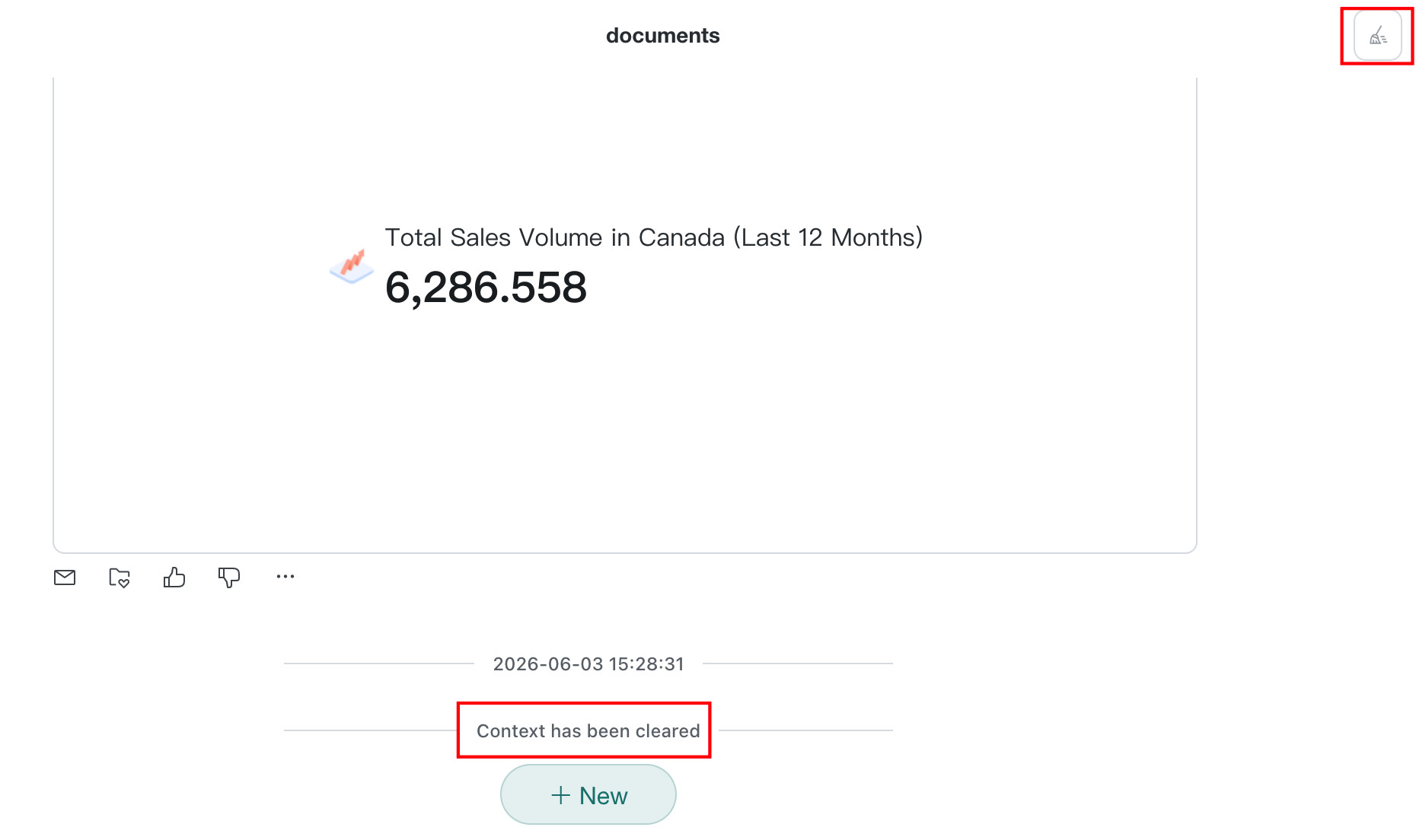
If you do not want to use conversation context, click New Session or Clear Context to remove previous context.
Add Common Phrases
If users often ask similar questions, they can type / in the input box to open the Common Phrases shortcut panel.
- The
Common Phrasespanel is triggered only when/is entered while the input box is empty. After the panel opens, query suggestion behavior is disabled. - If
/is entered within continuous text, such asthis year/last yearorYoY/QoQ, theCommon Phrasespanel is not triggered, and the system continues normal natural language input and suggestion behavior.
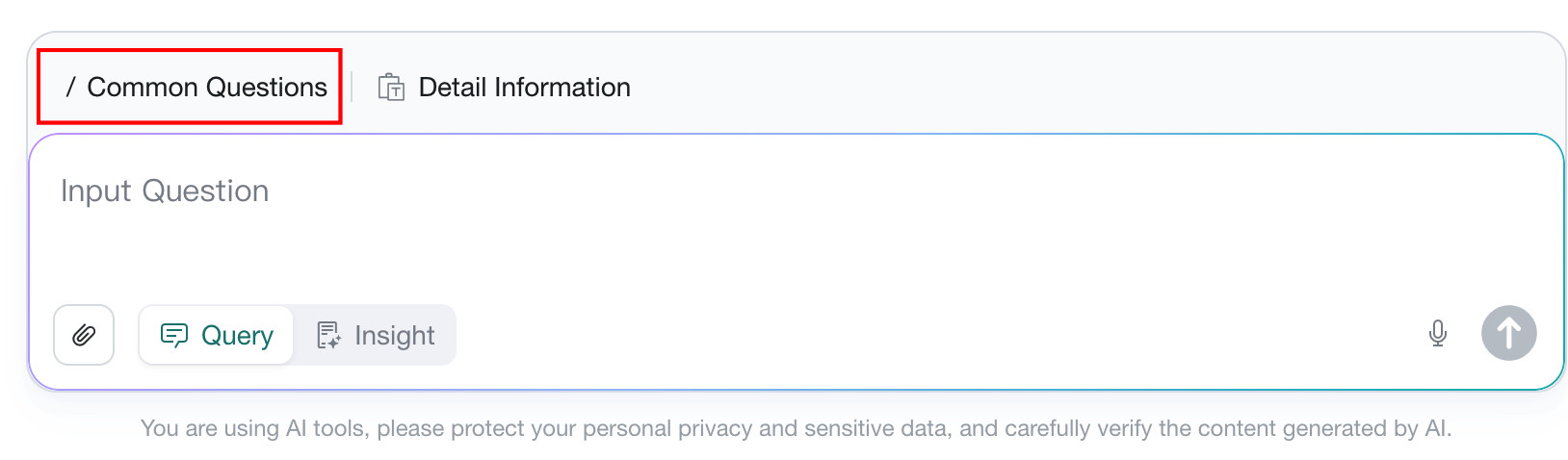
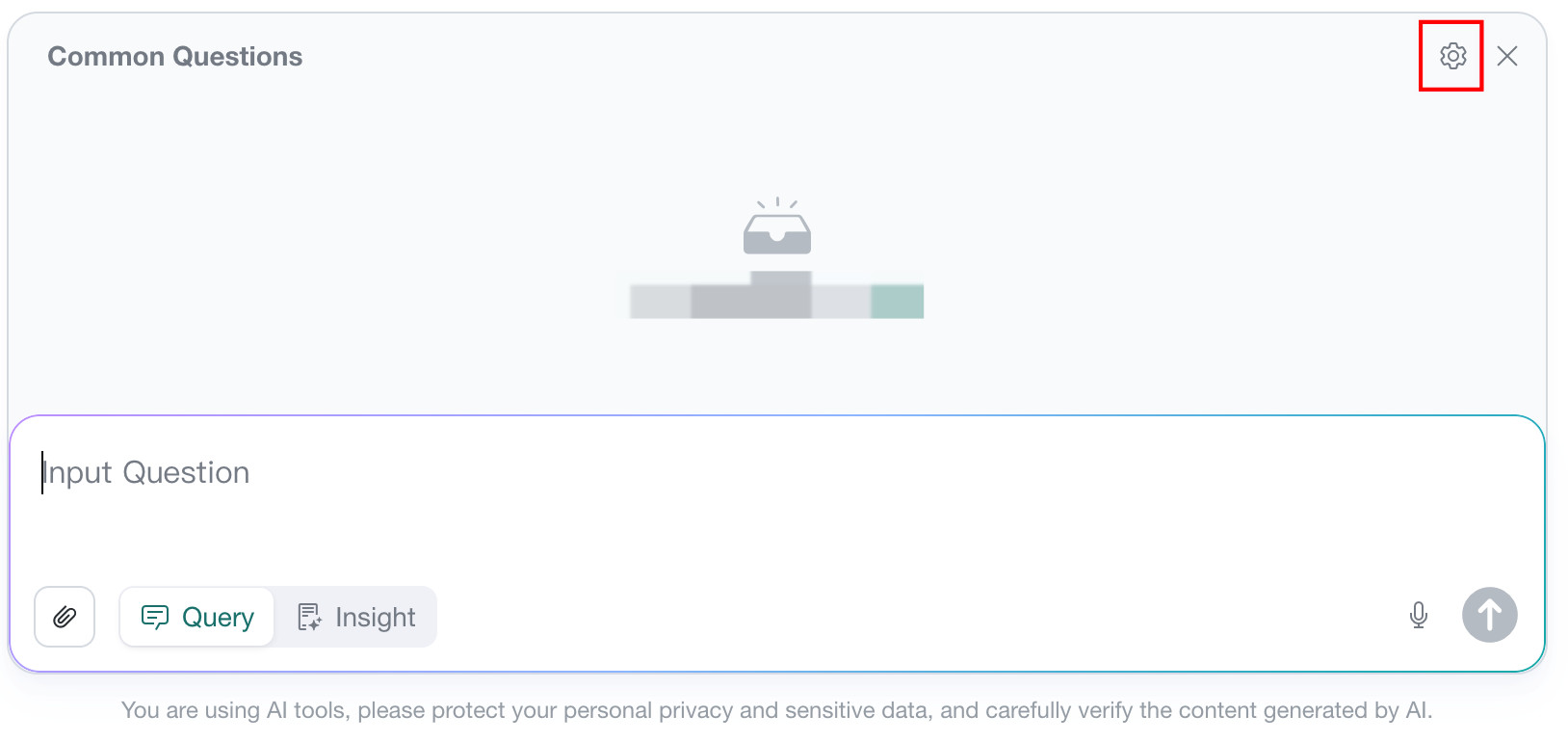
There are two ways to add Common Phrases:
-
On the
Common Phrasespage, clickCreateto enter theCommon Phrases Settingspage, then clickAdd Common Phrasesto add questions for future quick selection.If you need to modify existing phrases later, click the
Settingsbutton in the upper-right corner to return to theCommon Phrases Settingspage and edit them. -
Click the plus icon below a question to add the current question to
Common Phraseswith one click.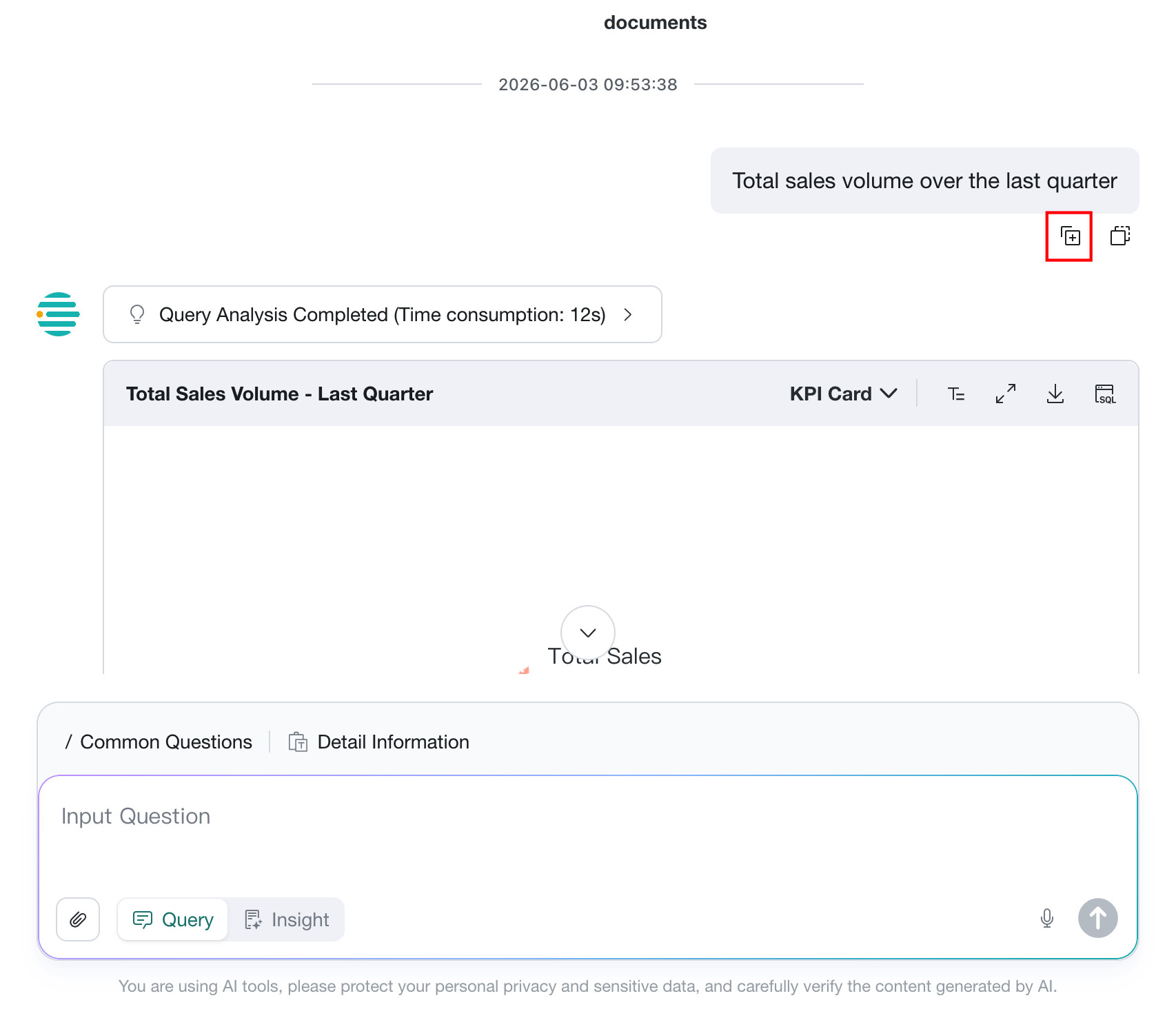
Input Suggestions
Prerequisites
Enable Input Suggestions in Agent Management > Agent Detail Settings > Basic Information > Feature Switch Settings.
Usage
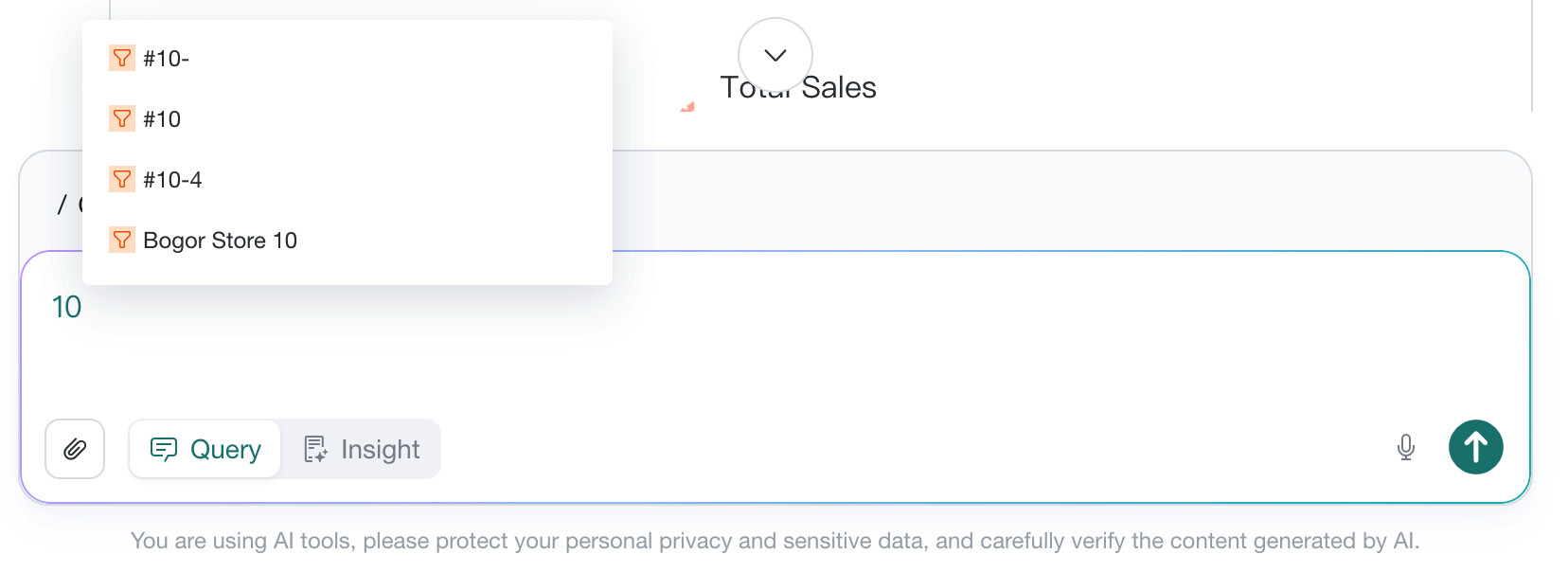
When a user enters text, the system automatically performs keyword matching and displays related information, including dialog history, table names, field names, and field enumeration values.
After entering Common Phrases mode, the input suggestion feature is disabled.
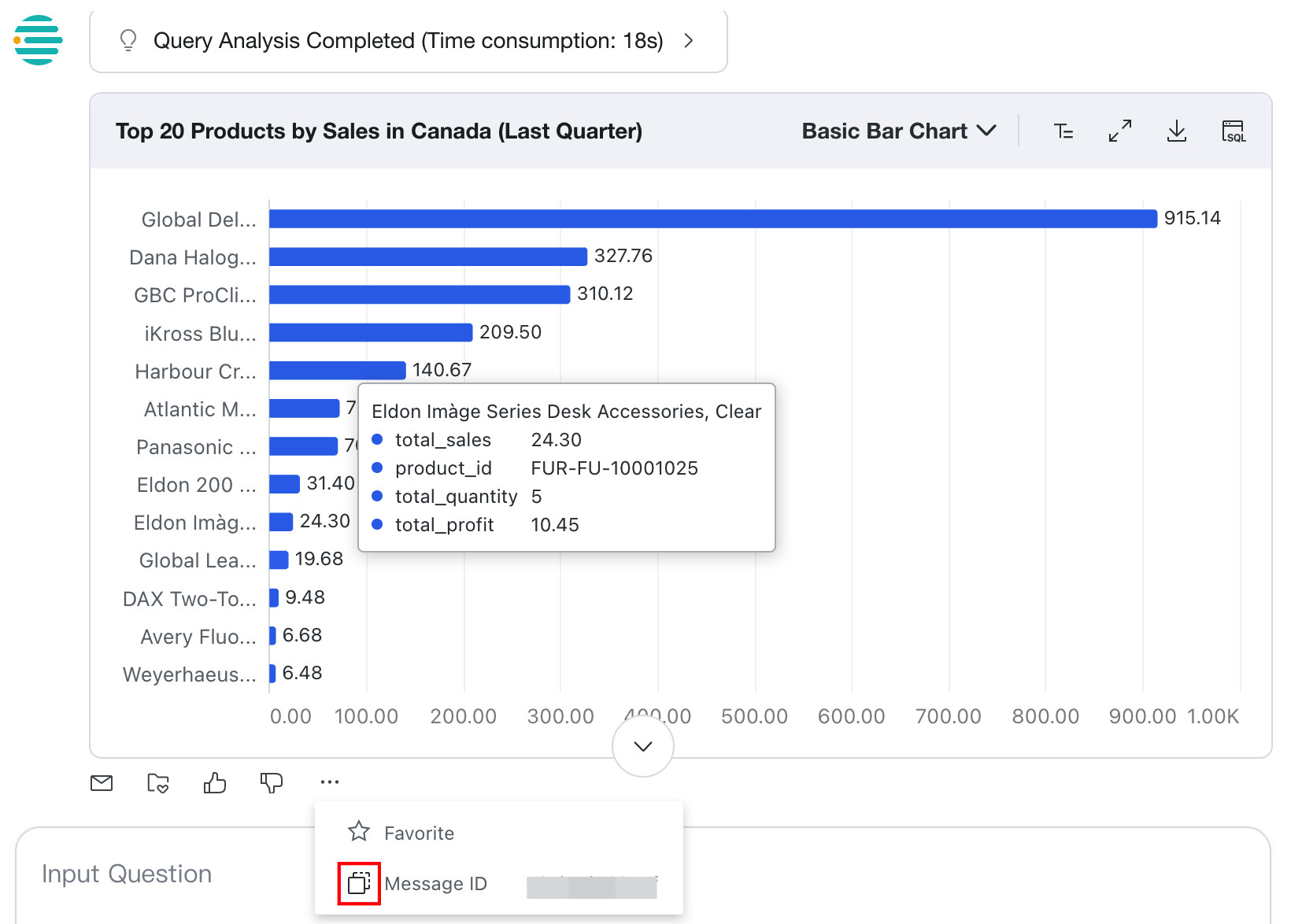
Message ID
The message ID is displayed in the query interface. Click the copy button on the right to copy it to the clipboard.
The message ID can be used to search conversations in the backend or provide reference information to Guandata for troubleshooting.
New Session Interaction Rules
| Scenario | Session Handling Rule |
|---|---|
| First time opening Data Agent | Create a new session |
| Leave the Q&A page and return | Create a new session |
| Refresh the page | Keep the agent Q&A page the user last used |
Directly access the PC /agent route | Create a new session |
Directly access the mobile /m/chatbi route | Create a new session |
Personalized Memory
Personalized Memory refers to content automatically extracted from user input. The system can learn and remember specific analysis logic, calculation rules, or common context, and automatically apply this memory in later conversations to provide more accurate and personalized insights without requiring users to repeat complex background information. This feature is disabled by default.
Regardless of whether the user or administrator enables memory during conversations, the system still proactively extracts user memory.
Prerequisites
The Personalized Memory feature has been enabled on the Agent Management > Agent Detail Settings > Basic Information > Feature Switch Settings page. See Personalized Memory.
Usage
Enable Personalized Memory
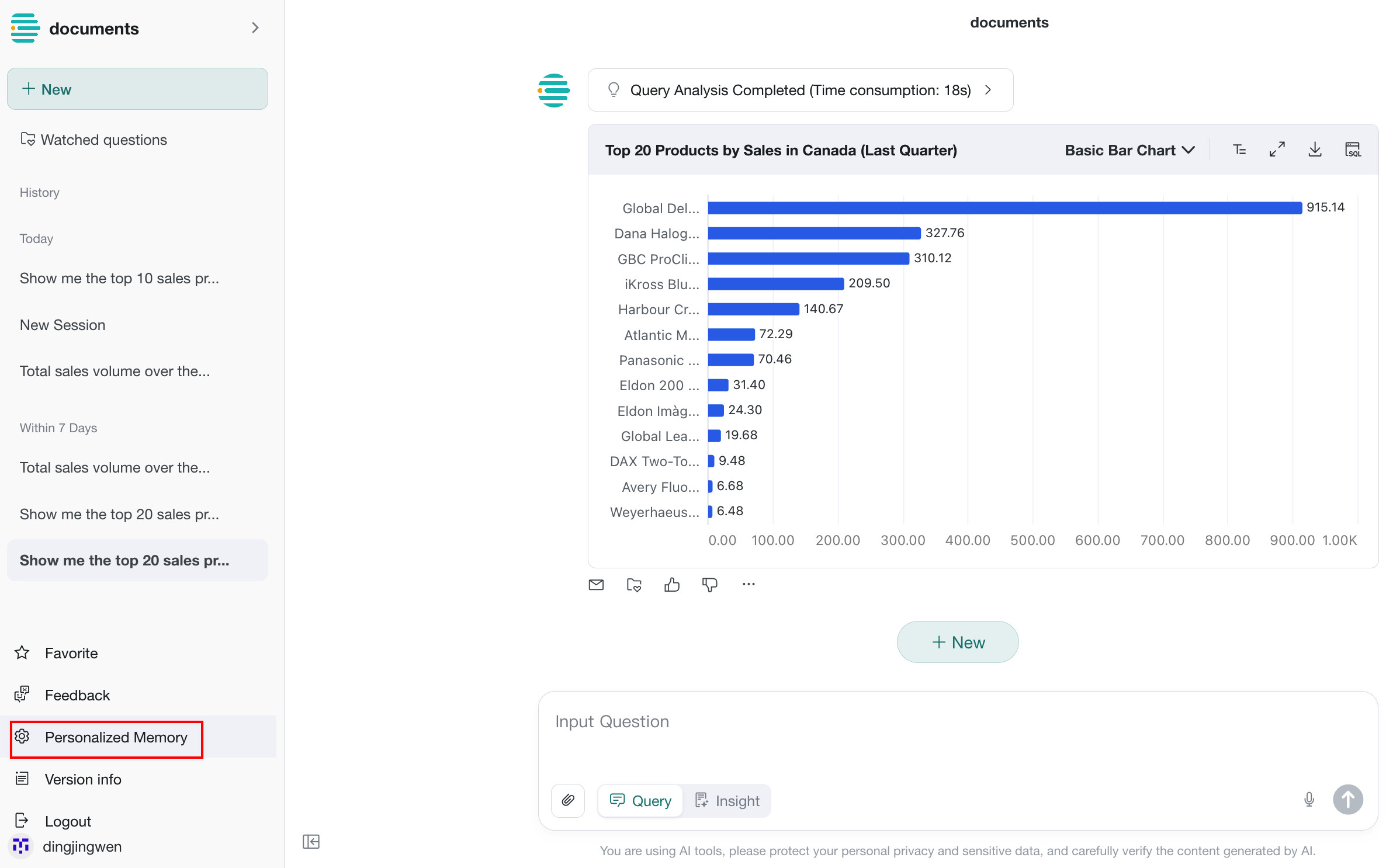
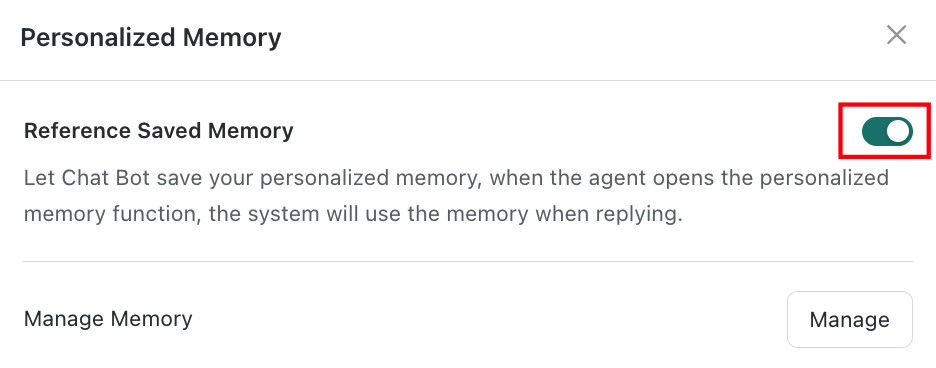
On the Q&A page, click Personalized Memory in the lower-left corner and turn on Reference Saved Memory. After enabling it, the current user allows the system to use saved personalized memory in responses. After disabling it, the system does not reference those memories in future answers.
The use of personalized memory is also controlled by the Personalized Memory. If personalized memory is not enabled for the current agent, that agent cannot reference personalized memory during Q&A.
Manage Saved Memory
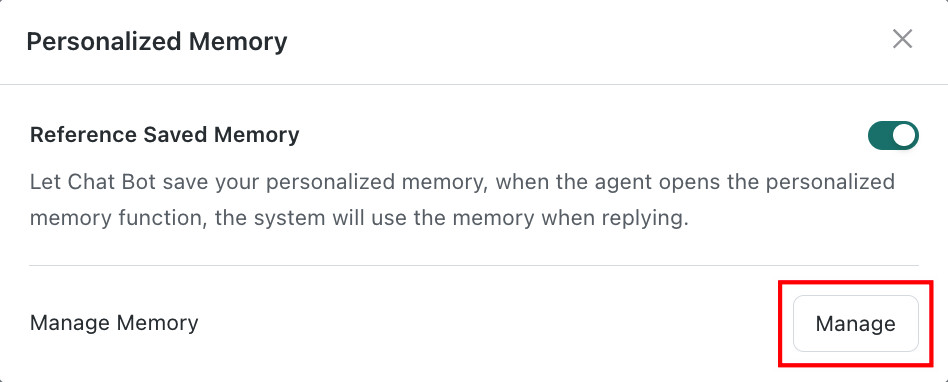
Click the Manage button to the right of Manage Memory to enter the memory list. On this page, you can centrally view and manage all saved personalized memory items.
- Memory content: each memory item is independent and can be recalled separately.
- Operations:
- Delete a single memory: click the delete icon (
🗑️) on the right side of any memory item to remove it permanently. - Clear all memory: click the
Clear Memorybutton in the lower-right corner to delete all saved memory items at once. This action cannot be undone, so use it with caution.
- Delete a single memory: click the delete icon (
Voice Query
Users can ask questions by voice to improve efficiency. Voice Query is supported on both PC and mobile. After the domain-level Voice QA Switch Configuration is enabled, users can ask questions by voice directly from the input box on both PC and mobile.
Prerequisites
The Voice QA Switch has been enabled in the operations backend.
Steps
-
Go to the
Query Agentpage and place the cursor in the input box. -
Click the
Microphonebutton on the right side of the input box to start recording. -
The system automatically recognizes the speech and transcribes it into text. After transcription is complete, you can continue editing or click
Sendto submit the question.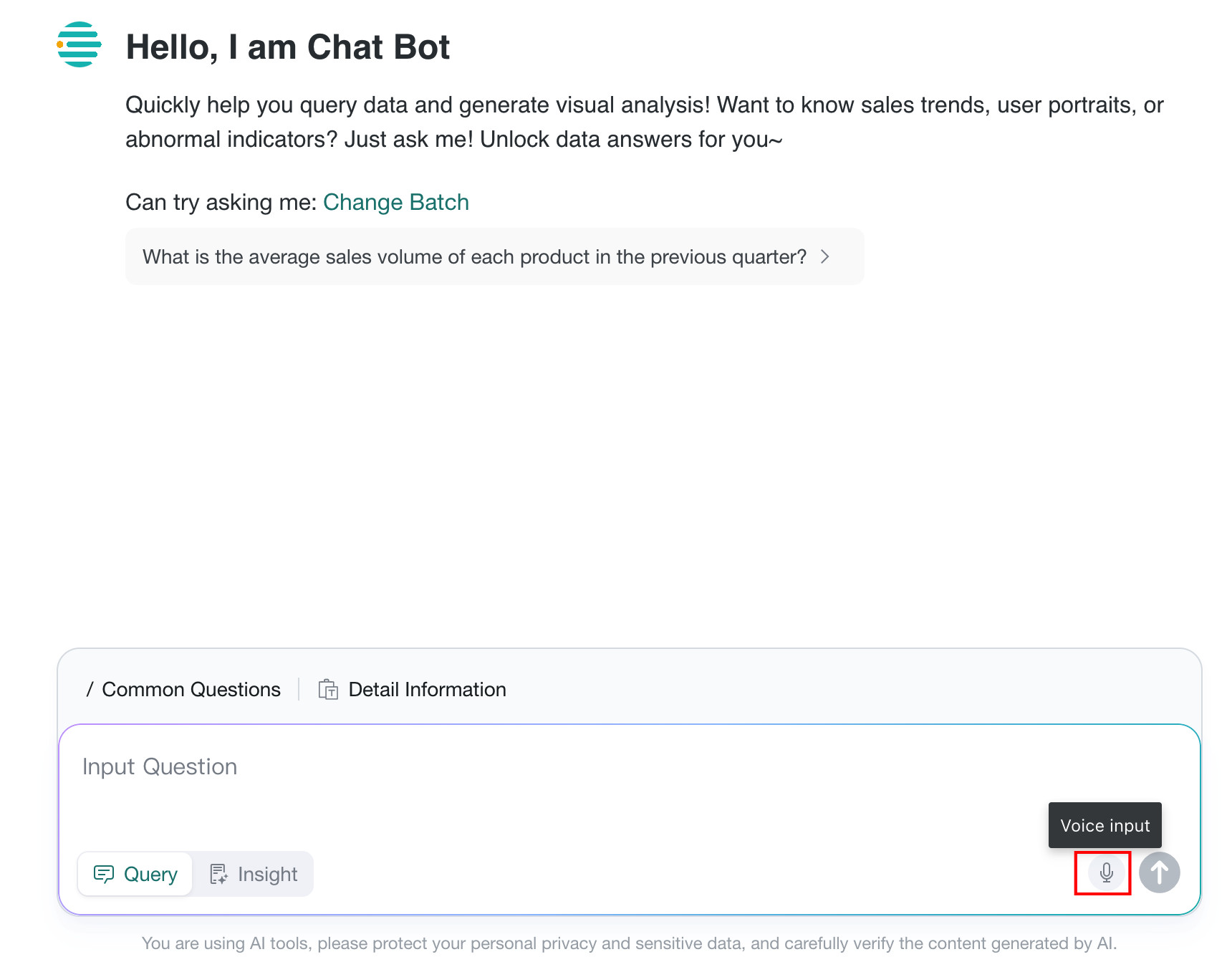
-
Speech recognition quality depends on the network and recording environment. A quiet environment is recommended.
-
If you need to switch the speech recognition provider, go to
Agent Management > Management Center > Feature Switch Settings > Voice QA Switch Configurationand clickConfigure.
Upload an Image to Ask a Question
Prerequisites
The Support for uploading image when asking questions feature has been enabled on the Agent Management > Management Center > Feature Switch Settings page.
Usage
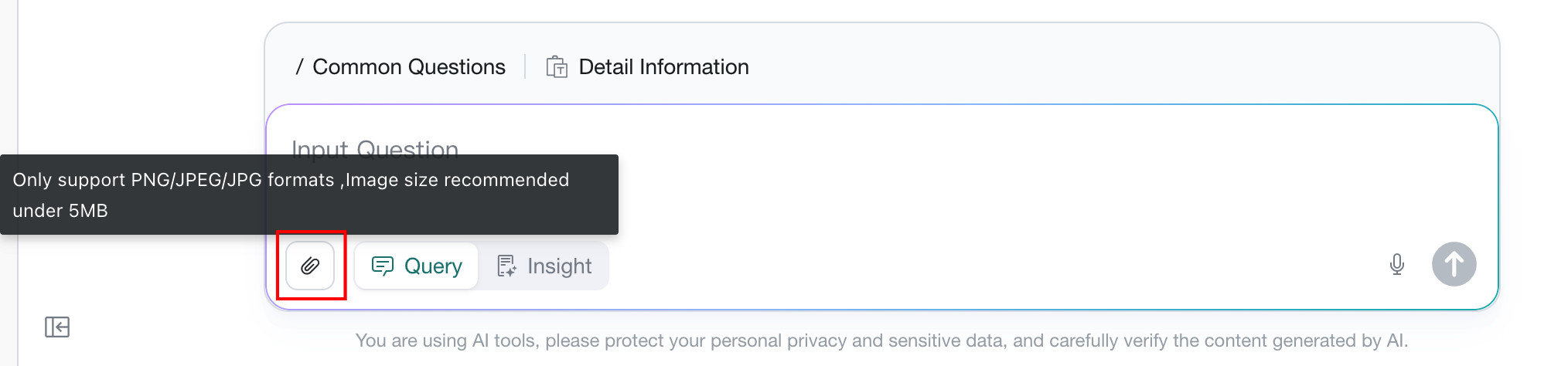
Click the button shown in the image to upload an image for asking a question. Users can upload an image to support their question, and the system will interpret the image content together with the text input.
Applicable Scenarios: store inspection, store operations, and similar scenarios where users can quickly take photos of product names, shelf numbers, or codes and perform data analysis on those items.
View SQL
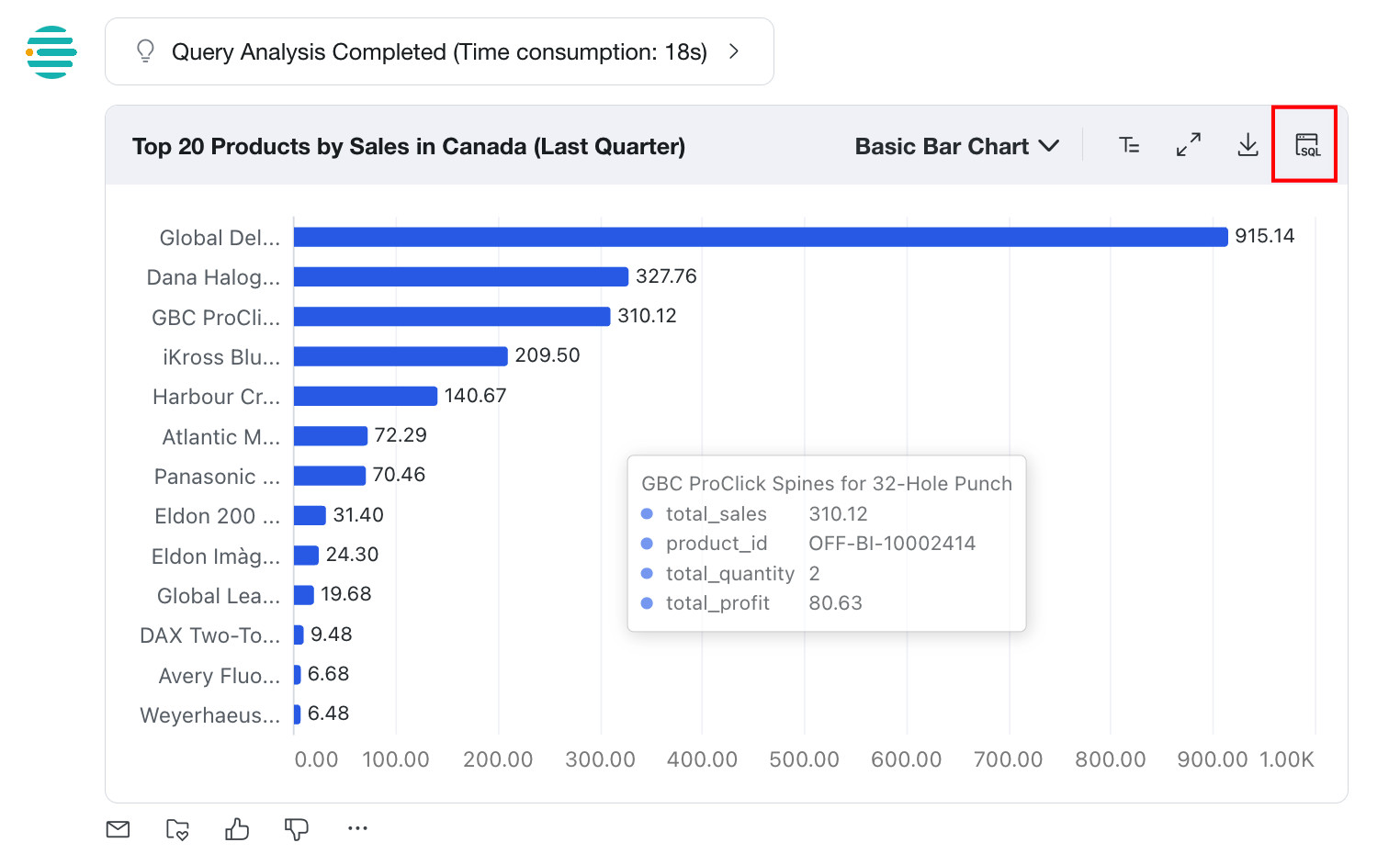
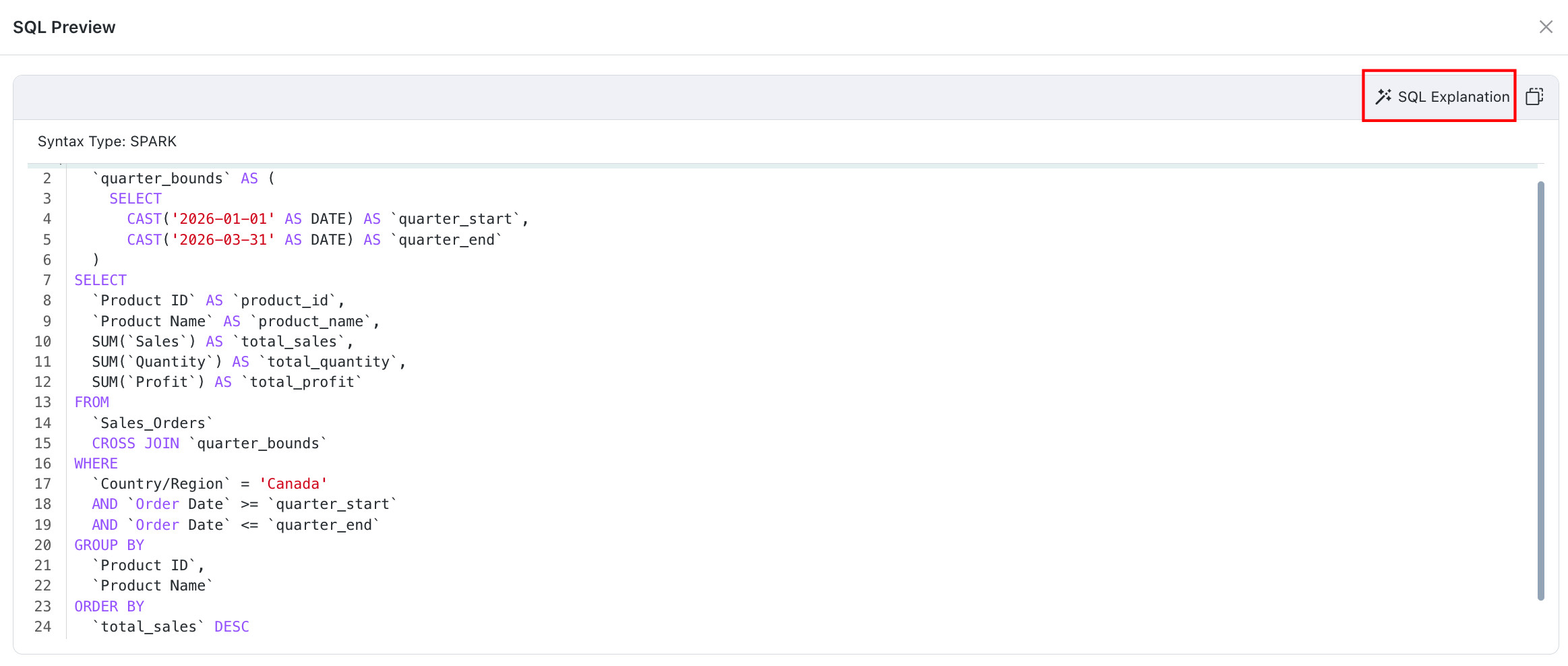
Click SQL to open the SQL Preview page, where you can view SQL explanations and copy the current SQL.
-
SQL explanation: breaks down the execution logic, filter conditions, and data relationships in the SQL statement.
-
Copy SQL: click the copy button in the upper-right corner to copy the current SQL to the clipboard.
Export Data
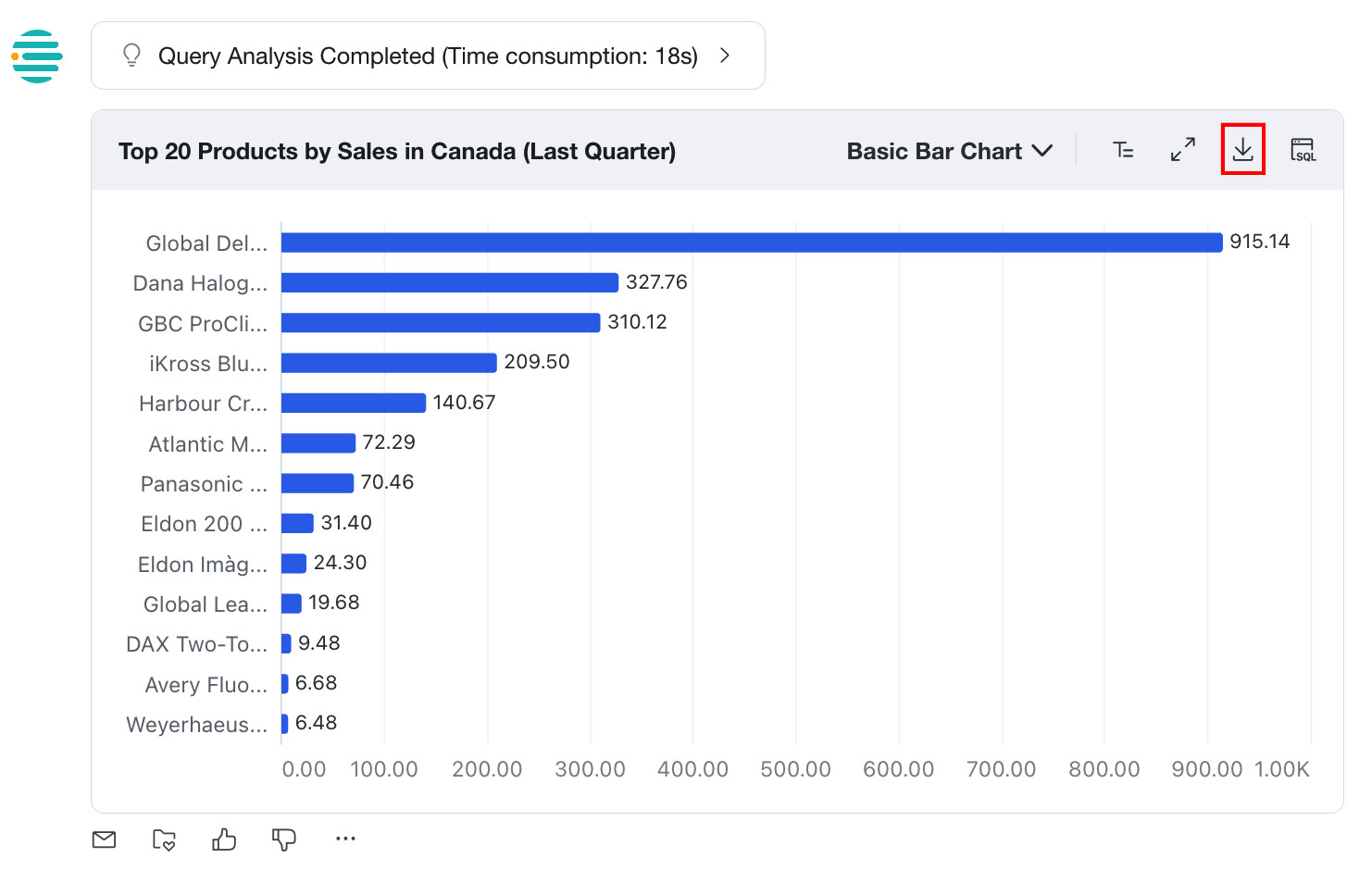
Users can export query results in two ways: Export Table Data and Export Excel.
- Export Table Data: the default option. Exports the results to Excel in a WYSIWYG format, including number formats.
- Export Excel: exports the underlying detailed data to Excel. Number formats and styles are not preserved.
Example: when table values or chart axes contain units:
Export Table Datapreserves the units, and the exported file uses Excel custom number formats.Export Excelpreserves only raw numeric values, and the exported file uses Excel numeric formats.
Show / Hide Analysis Parameters
Prerequisites
The Analysis Parameter Display feature has been enabled on the Agent Management > Management Center > Feature Switch Settings page.
Usage
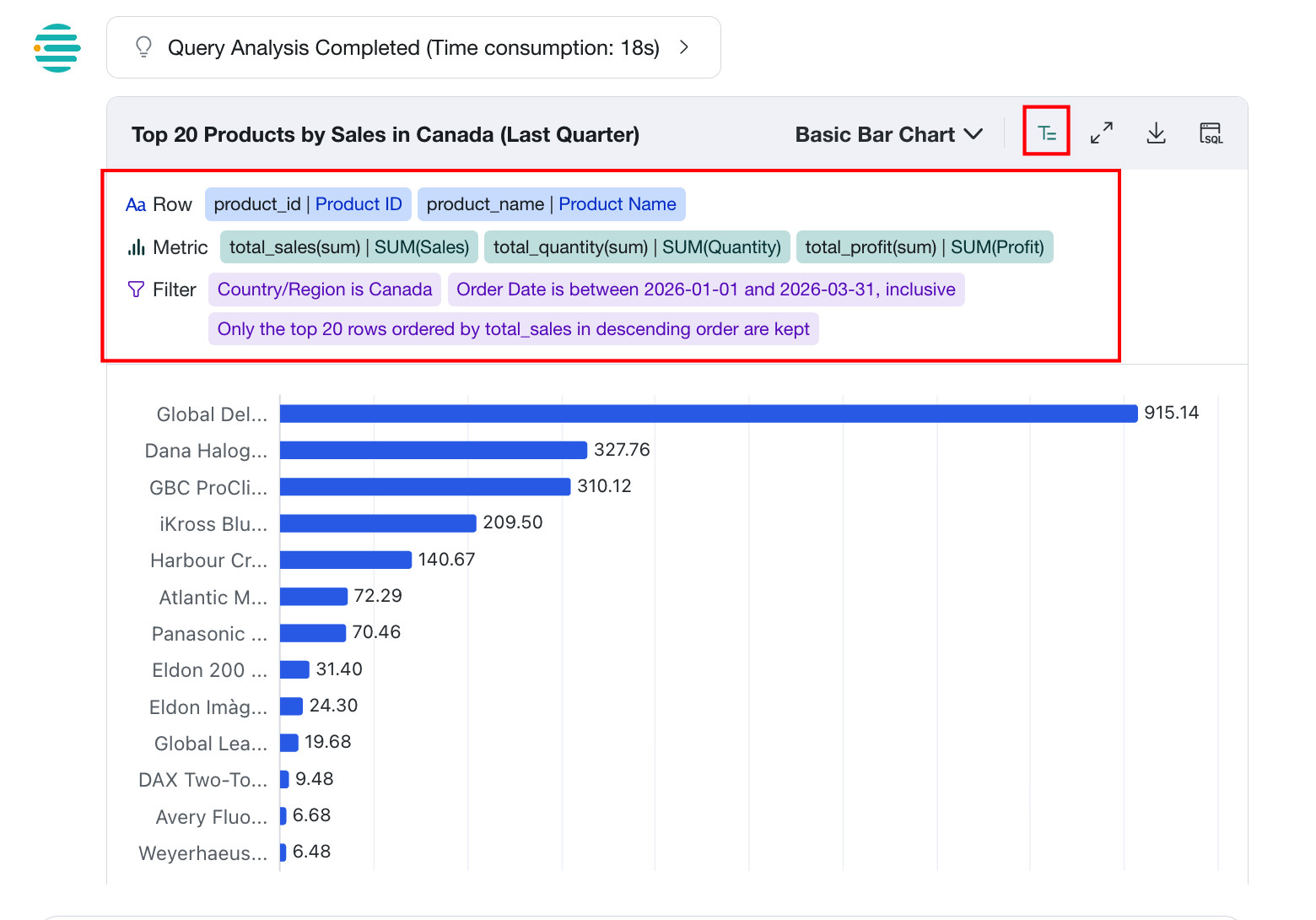
The query result area supports showing or hiding analysis parameters to help users understand the data query logic.
After this feature is enabled, the system displays analysis parameters together with the result data, including SQL filter conditions, dimensions, and metric names. This improves result transparency and helps business users better understand the data source and calculation logic.
Email Push
Prerequisites
- The email service has been configured. For configuration details, see Email Service Configuration.
- The Email Push feature has been enabled on the
Agent Management > Management Center > Feature Switch Settingspage.
Usage
When users detect abnormal data that needs investigation, or want to notify other users to pay attention to the data and take action, they can click the email push button.
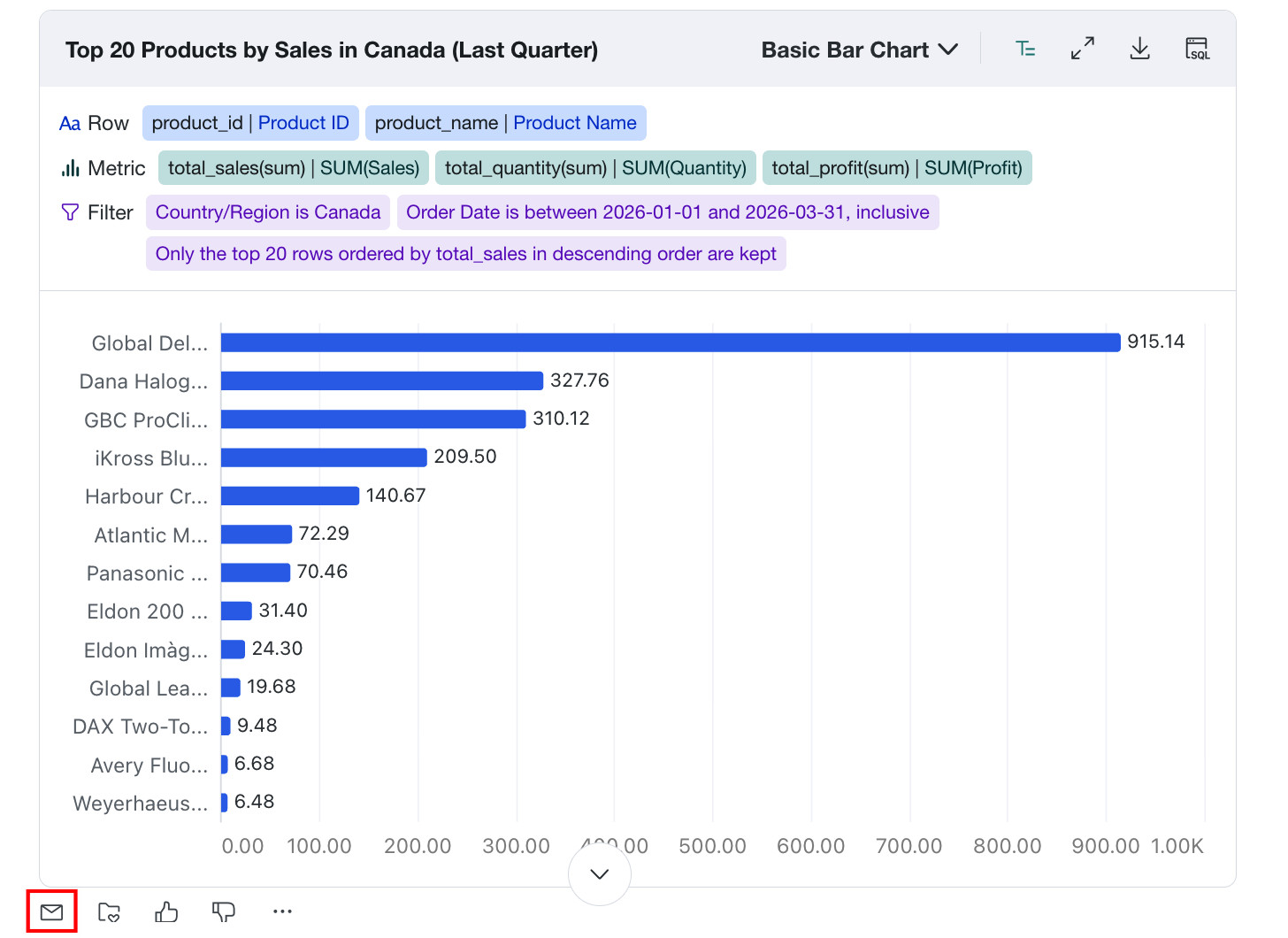
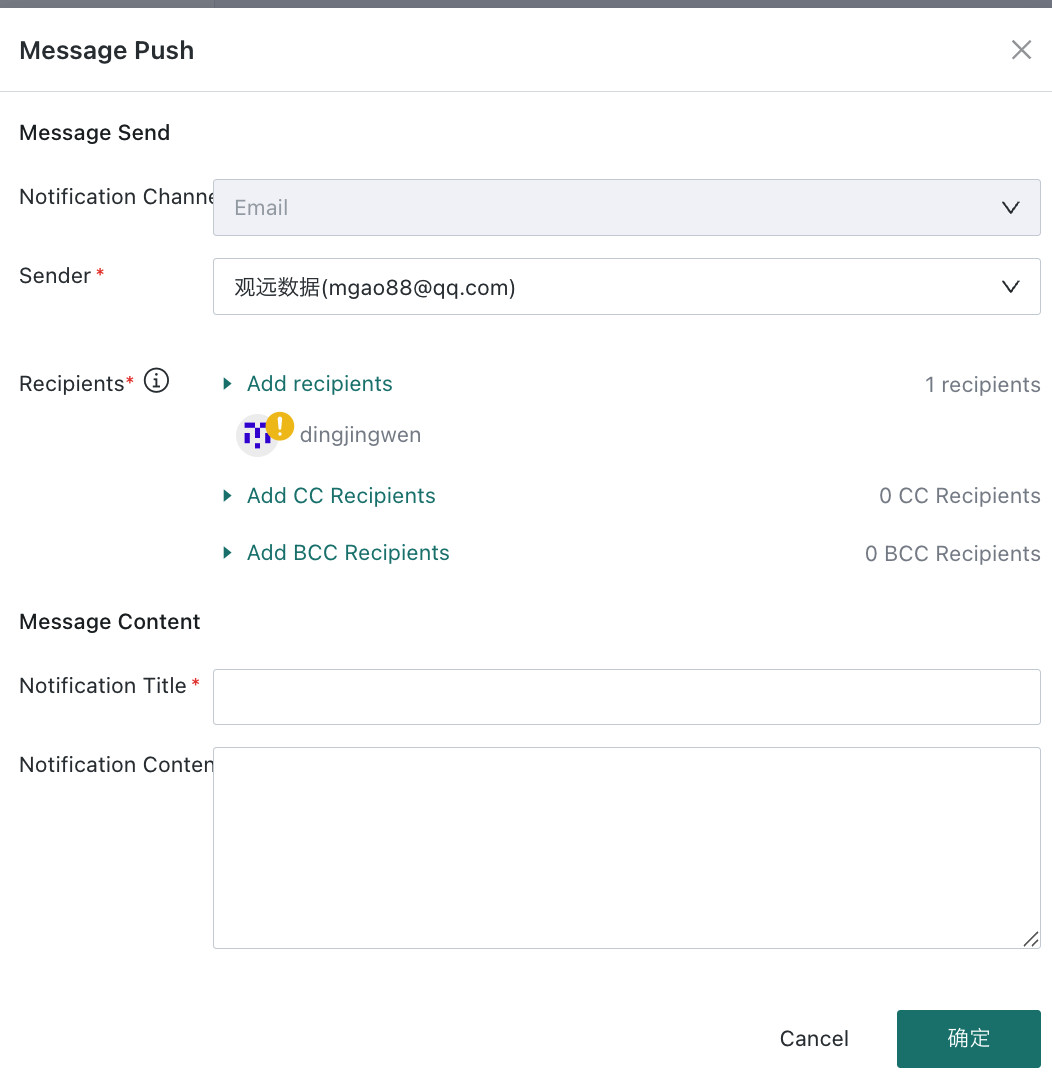
After configuring the following fields and clicking Confirm, the current Q&A result data is sent together as an attachment.
- Notification channel: currently only
Emailis supported. Additional channels such as WeCom, DingTalk, and Feishu may be supported in the future. - Sender: any configured email service.
- Recipients / CC / BCC: you can select BI users or external email addresses.
- Notification title: used as the email subject by default.
- Notification content: used as the email body by default.
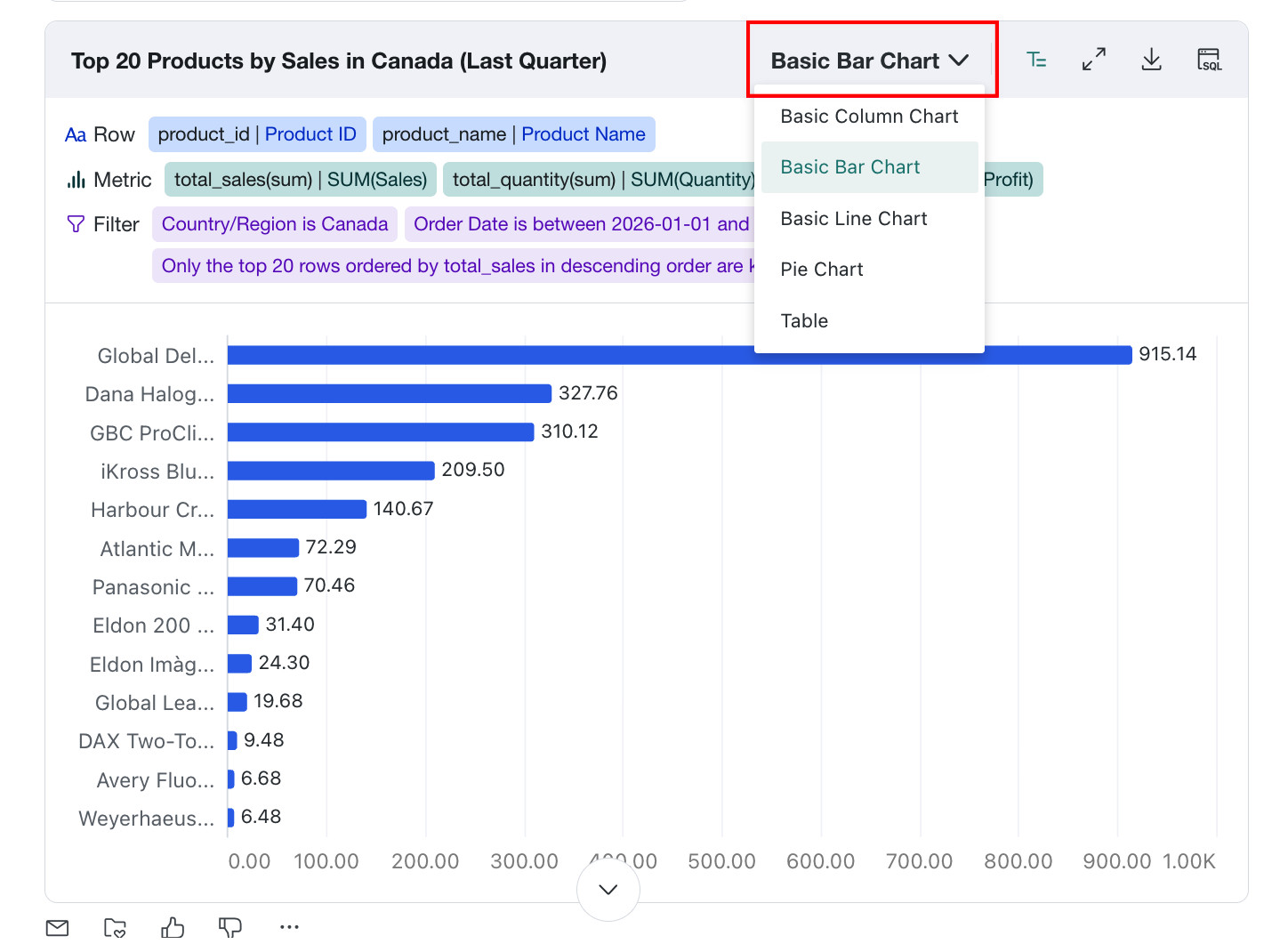
Switch Visualization
If you are not satisfied with the chart type used to display the result, you can switch to another visualization. The chart types available depend on the actual interface.
Axis Scale Settings
After a visualized chart is generated in the Q&A result, if the values in the chart are close to each other, the system can automatically adjust the axis scale to make comparisons easier while reducing the risk of misreading the data. Users can flexibly choose the axis starting behavior based on display needs.
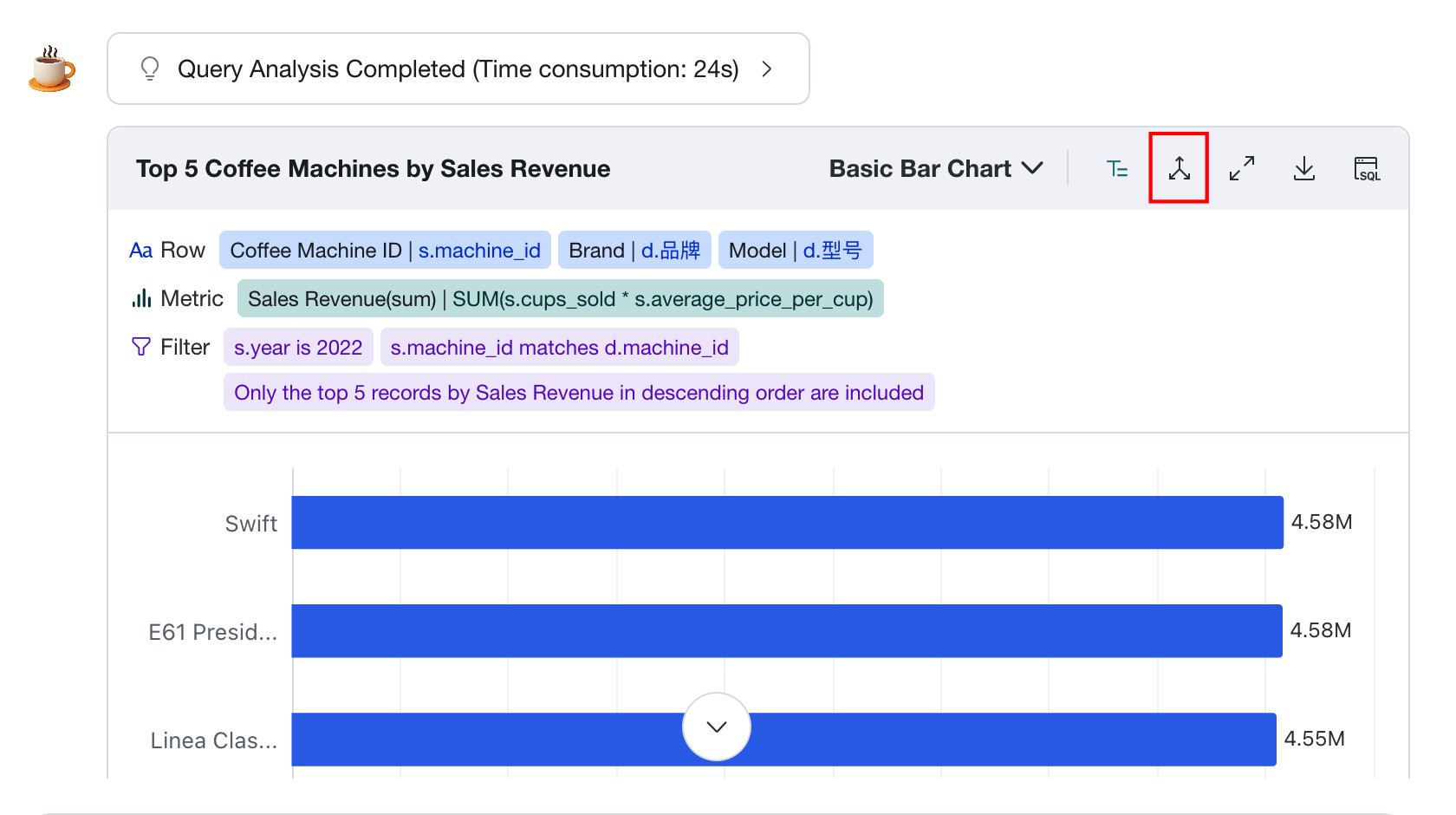
- Default axis scale: preserves the absolute proportional relationship of the data and is suitable for scenarios where numeric magnitude must be reflected accurately.
- Auto-scaled axis: automatically adjusts the axis scale based on the data range so that differences are easier to see. It is suitable for scenarios where values are close and trend differences need to be highlighted.
Sample Set Rewrite
After a user asks a question, the system automatically retrieves and matches examples in the sample set. If the match score is high, the system rewrites SQL directly based on the correct SQL in the sample set. During rewriting, it can also recall and apply general knowledge and business knowledge to improve Q&A accuracy.
Save to Dashboard
Prerequisites
The Insert Query Results into Dashboard switch has been enabled in Agent Management > Management Center > Feature Switch Settings.
Usage
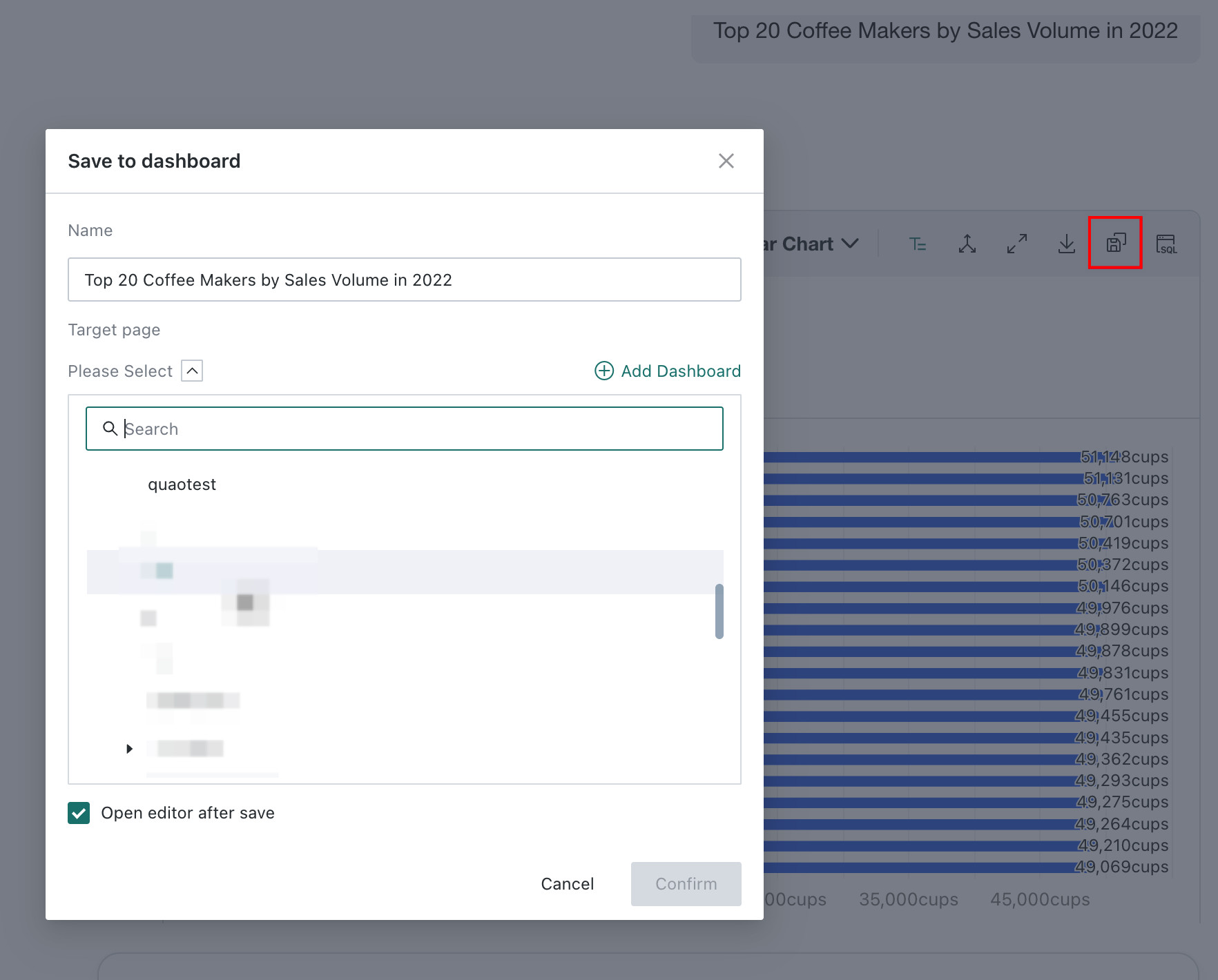
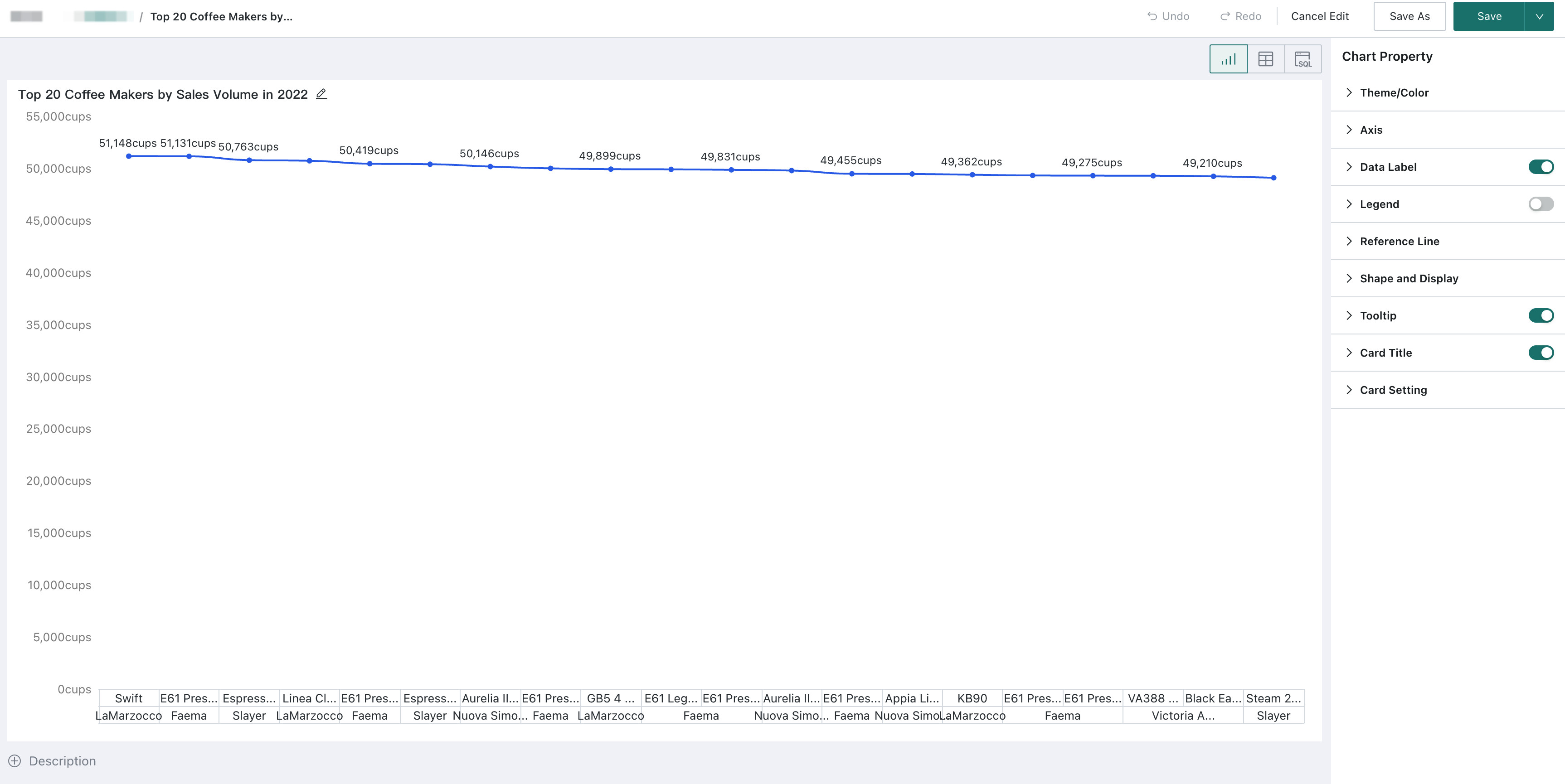
Click Save to Dashboard, select the dashboard path to save to, and save the Q&A result chart to the selected dashboard with one click. This helps frontline users turn query results into personal dashboards with minimal effort.
This feature requires BI 8.2 or later.
Input Suggestions: Prerequisites
Enable the Input Association switch in Agent Management > Agent Detail Settings > Basic Information > Feature Switch Settings. The feature then matches entered keywords and suggests related dialog history, table names, field names, and field enumeration values.