Knowledge Management
Overview
Knowledge Management is a core module of Data Agent. It is used to centrally store, classify, and maintain the multidimensional knowledge required by Data Agent. Based on functionality, the knowledge base contains the following three categories:
Data Knowledge (Related Datasets):supports the ingestion and integration of structured data to provide the underlying data foundation for Data Agent.Q&A Knowledge (Q&A Sample):records and optimizes incorrect or inefficient Q&A cases to continuously improve answer accuracy.Business Knowledge (Business Knowledge Library):stores business-specific rules, processes, and terminology to ensure conversations stay aligned with real business scenarios.
Related Datasets
Related datasets are a core capability used to configure and manage topic data sources in Data Agent. They allow users to intelligently associate structured data tables with topics. Through strict naming validation rules, including blocking 32 types of special characters such as spaces and operators, the system helps maintain accurate model recognition. After datasets are added, field feature learning is automatically triggered, such as string enumeration extraction.
Users can perform complete dataset lifecycle management, including viewing details, switching field mappings with automatic synchronization to Q&A Sample and answer sets, and deleting relationships. All changes are updated in real time to the knowledge base so that data and the conversation model remain in sync.
For detailed configuration, see Dataset Configuration.
Q&A Sample
Prioritize maintaining the Business Knowledge Library. For questions that are difficult to capture clearly through business knowledge alone, add them to Q&A Sample.
Do not add questions that are too simple or not valid over the long term to Q&A Sample.
Create Q&A Sample
Both batch import and single creation are supported.
-
Single creation: click
Createto go to theNew Q&A Samplepage. Enter the question description and the corresponding SQL statement. After validation throughPreview, clickConfirmto add the item toQ&A Sample. The system checks and prompts the SQL syntax type. For extracted datasets, the syntax type is displayed asSpark. If SQL from different direct-connect datasets is mixed, the system reports that cross-database queries are not supported.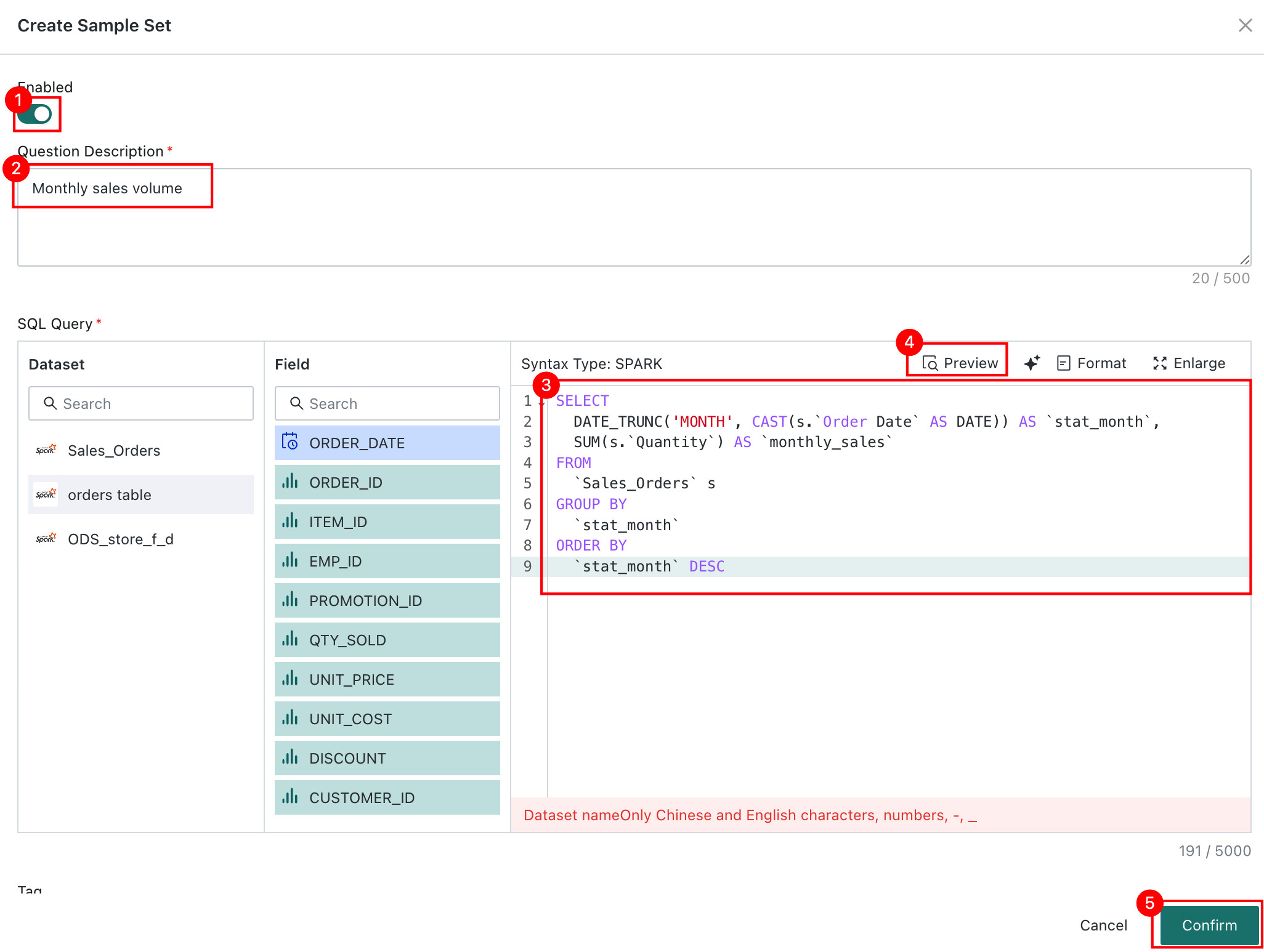
-
Batch import: click
Importto go to theBatch Import Q&A Samplepage. ClickDownload Sample Question Listto download the template, fill it in locally, then click+to upload it. SQL validation starts automatically after upload.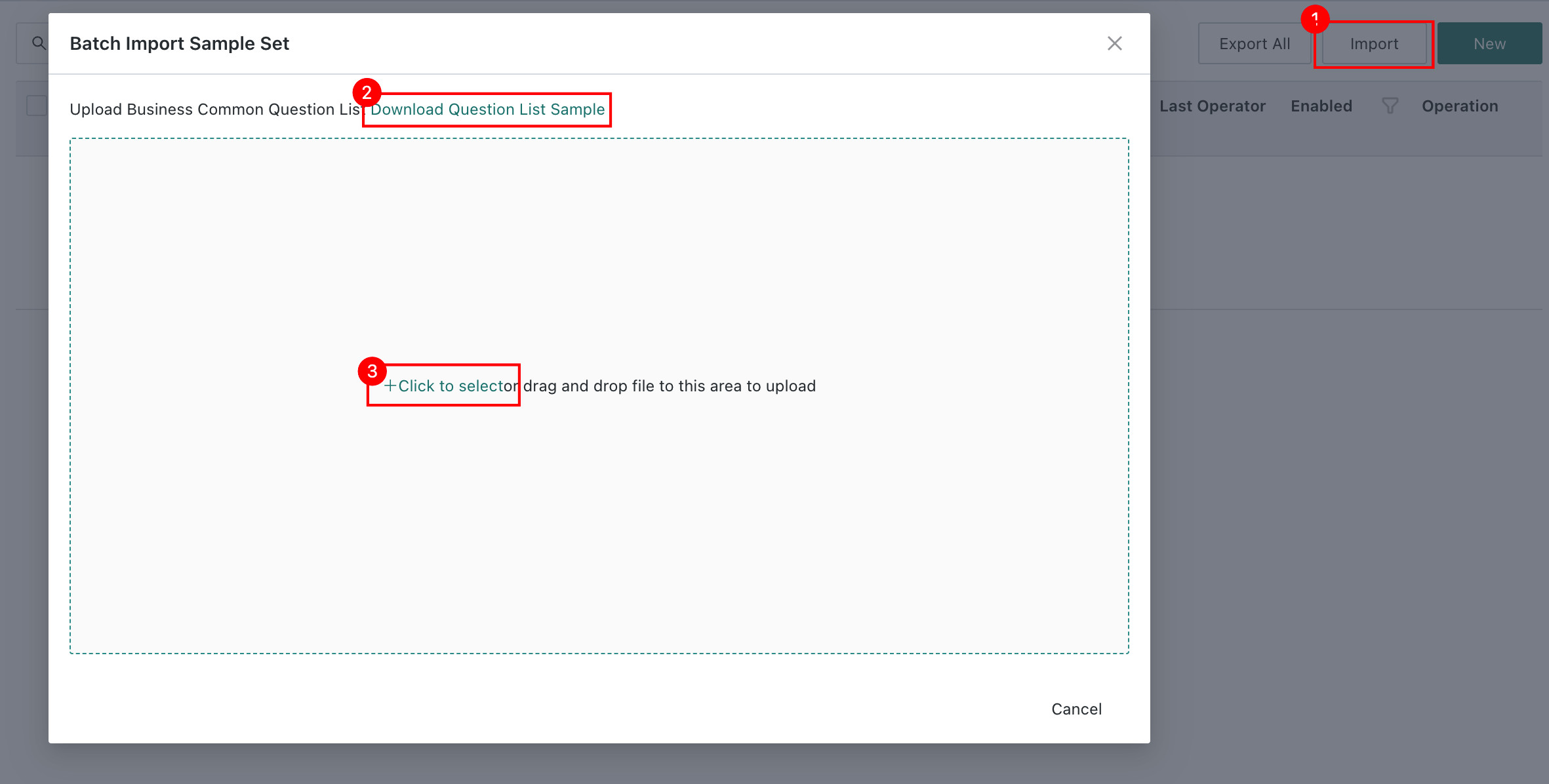
Manage Tags
Use tags to organize and search Q&A Sample content more efficiently. For details, see Knowledge Tag Management.
View Learning Status
The learning status column clearly displays the learning progress of Q&A Sample. For details, see Learning Status
Enable / Disable Q&A Sample
You can enable or disable knowledge entries to flexibly control whether they are visible and usable in Data Agent Q&A while preserving their integrity and maintainability. For details, see Enable / Disable Knowledge.
Recall Count
This field shows how many times the knowledge item has been recalled so that users can easily identify frequently used knowledge. For details, see Recall Count.
Other Operations
-
Edit Q&A Sample
Click the edit button on the right to modify an existing
Q&A Sample.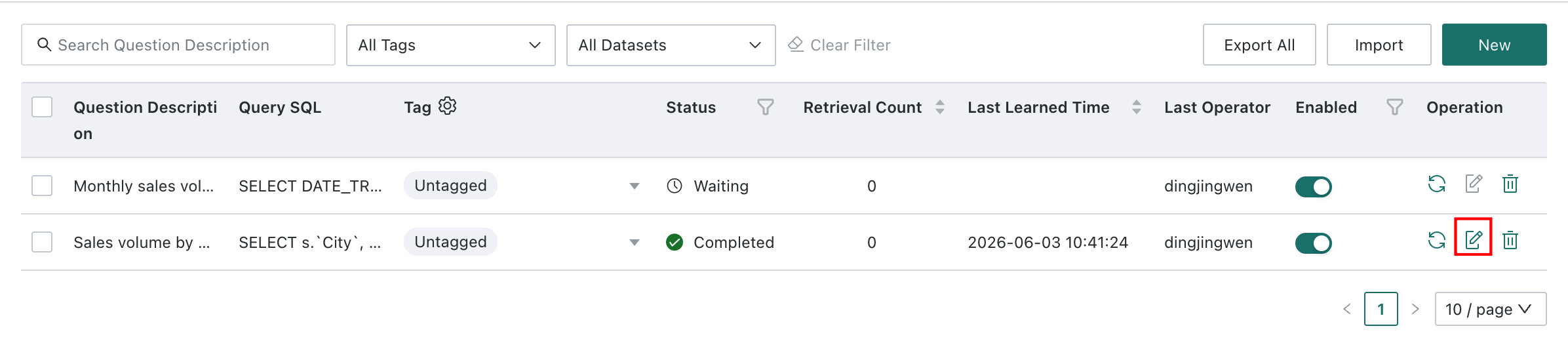
The system checks and prompts the SQL syntax type. For extracted datasets, the syntax type is displayed as
Spark. If SQL from different direct-connect datasets is mixed, the system reports that cross-database queries are not supported.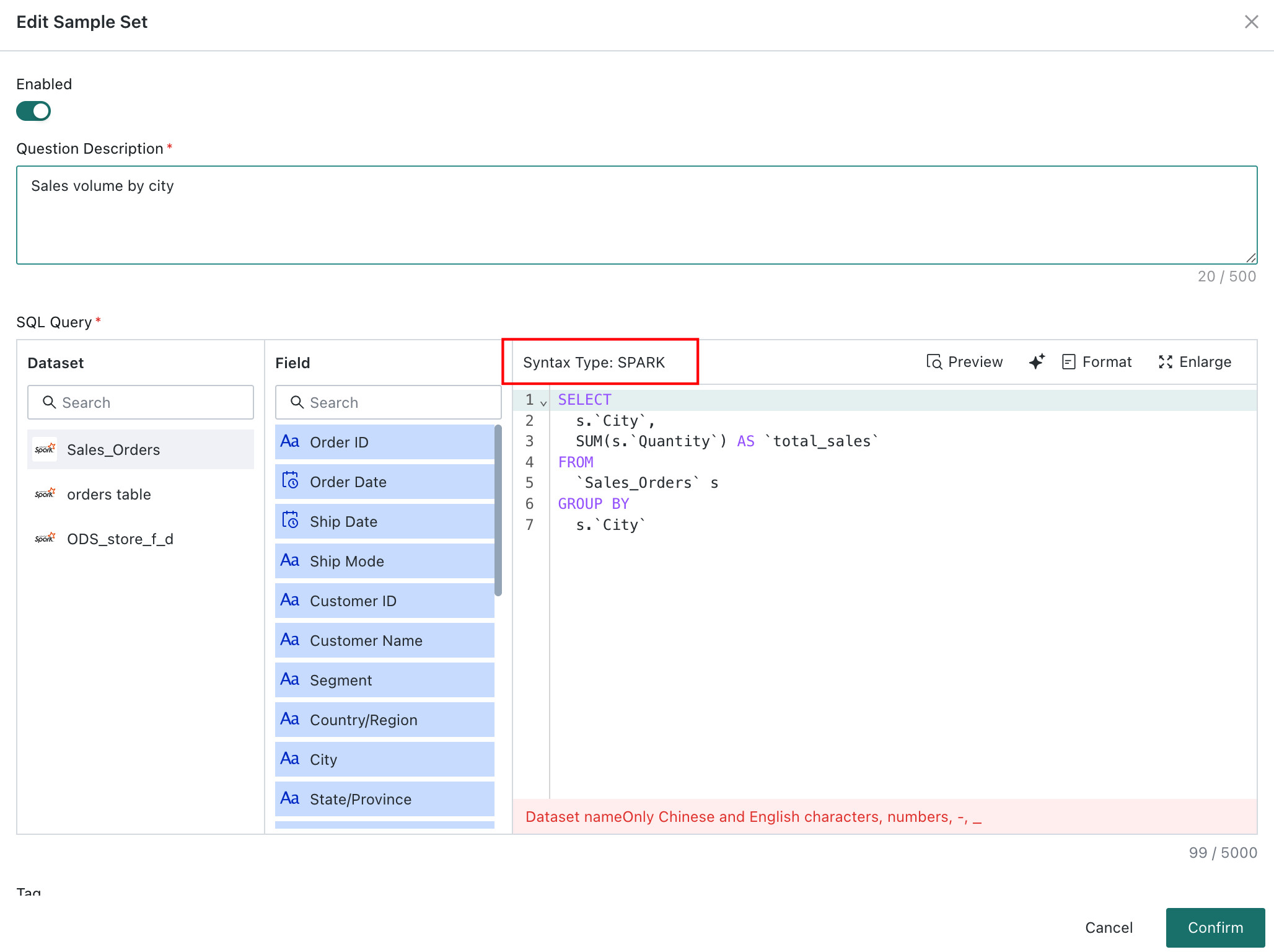
-
Delete Q&A Sample
Click this button to delete the current
Q&A Sample. A second confirmation is required to prevent accidental deletion.
-
Batch Import and Export
When existing
Q&A Sampleentries need to be modified or added in batch, clickExport Allto export them to Excel, make changes in Excel, and then clickImportto upload the file again.During upload, the system validates
ID. If theIDis the same, the existing entry is overwritten. If theIDis different, a new entry is created.
General Preference
General Preference stores knowledge that should be applied to every conversation. Use it for rules that must always be referenced, such as global SQL generation preferences, calculation conventions, or business rules that apply across questions.
Preference Type
General preferences can be maintained by type, such as SQL generation preferences, calculation logic, synonym preferences, and other reusable knowledge rules.
Edit General Preference
Click Edit on the right to input parameters and enable settings. These preferences are automatically referenced in subsequent queries.


AI Optimize
AI Optimize helps refine preference content into clearer, more structured wording so that the model can understand and apply the preference more consistently.

Enterprise Preference Reference
Agent admins can reference enterprise general preferences maintained at the domain level. This allows common knowledge preferences to be reused across agents without repeated manual configuration.
Business Knowledge Library
Create Knowledge
You can create business knowledge individually, import it in batch, or generate it from dashboards.
-
Create Business Knowledge: click
Createand enter the knowledge description. -
Batch Import: click
Importto go to theBatch Import Q&A Samplepage. ClickDownload Knowledge List Sampleto download the template, fill it locally, then click+to upload it.IDvalidation starts automatically after upload. If theIDis the same, the original knowledge is overwritten. If theIDis different, a new knowledge item is created.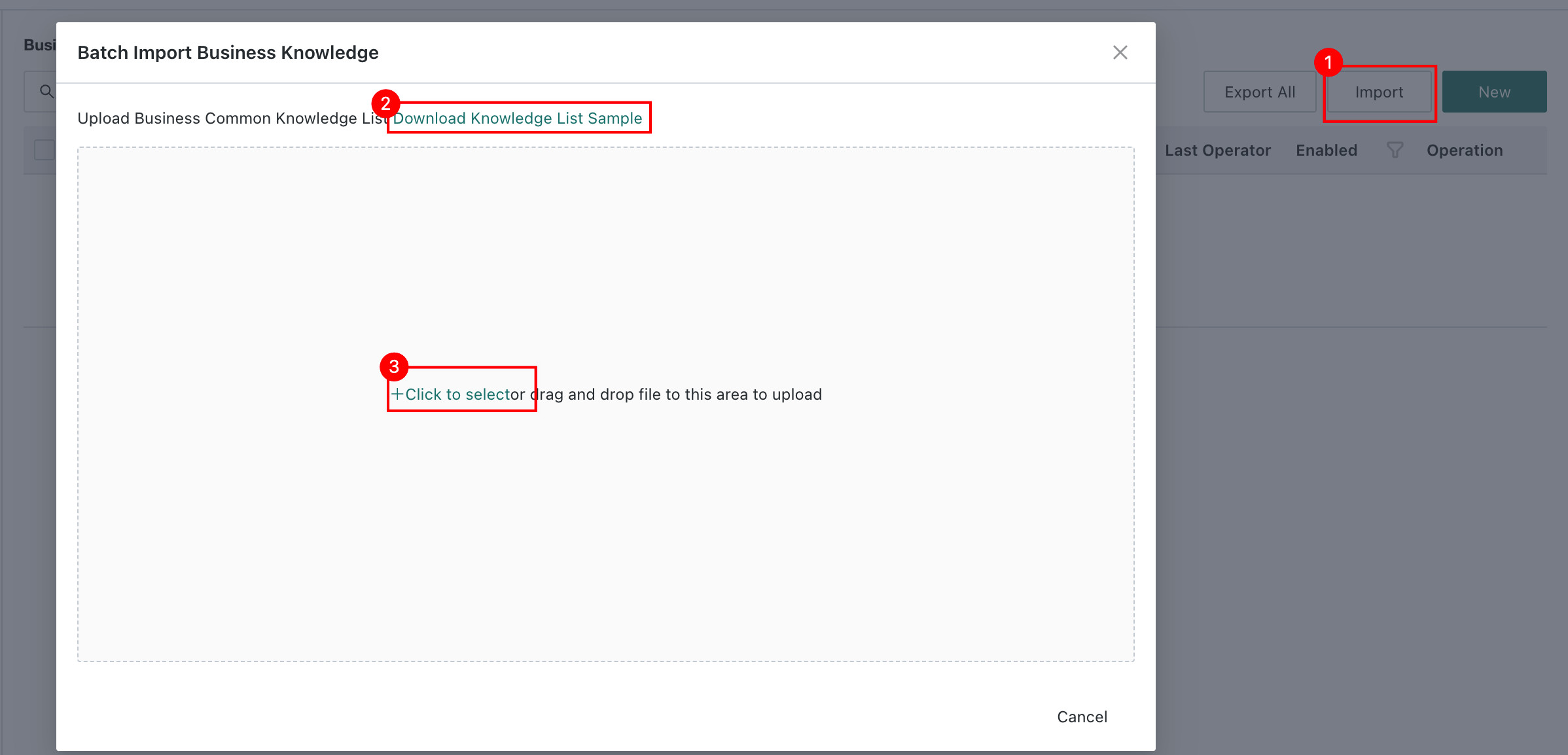
Manage Tags
Use tags to organize and search knowledge content more efficiently. For details, see Knowledge Tag Management.
View Learning Status
The learning status column clearly shows the learning progress of business knowledge. For details, see Learning Status.
Enable / Disable Business Knowledge
You can enable or disable knowledge entries to flexibly control whether they are visible and usable in Data Agent Q&A while keeping them complete and maintainable. For details, see Enable / Disable Knowledge.
Recall Count
This field shows how many times the knowledge item has been recalled so users can identify frequently used knowledge more easily. For details, see Recall Count.
Other Operations
-
Edit Knowledge
Click the edit button on the right to modify existing business knowledge.

-
Delete Knowledge
Click this button to delete a business knowledge item. A second confirmation is required to prevent accidental deletion.

-
Batch Import and Export
When existing business knowledge needs to be modified or added in batch, click
Export Allto export it to Excel, make changes in Excel, and then upload it again withImport.NoteOnly knowledge with the learning status
CompletedorLearning Failedcan be exported in batch.During upload, the system validates
ID. If theIDis the same, the corresponding knowledge entry is overwritten. If theIDis different, a new knowledge entry is created.
Knowledge Tag Management
Overview
The knowledge tag feature is a tool for classified management of knowledge content. It supports tag management, single-item tagging, and batch filtering. With tags, you can organize and search the knowledge base more efficiently.
Applicable Scope
Tag management applies to both Q&A Sample and Business Knowledge Library.
Notes
- Tags are used within a topic. Tags from different topics do not affect each other.
- Within the same topic, tags for
Q&A SampleandBusiness Knowledgeare not shared. - Each knowledge item can have up to 3 tags. Any tags beyond that are ignored.
- When
Save Asis used for a topic, the tag information is also copied to the new topic.
Usage Guide
Manage Tags
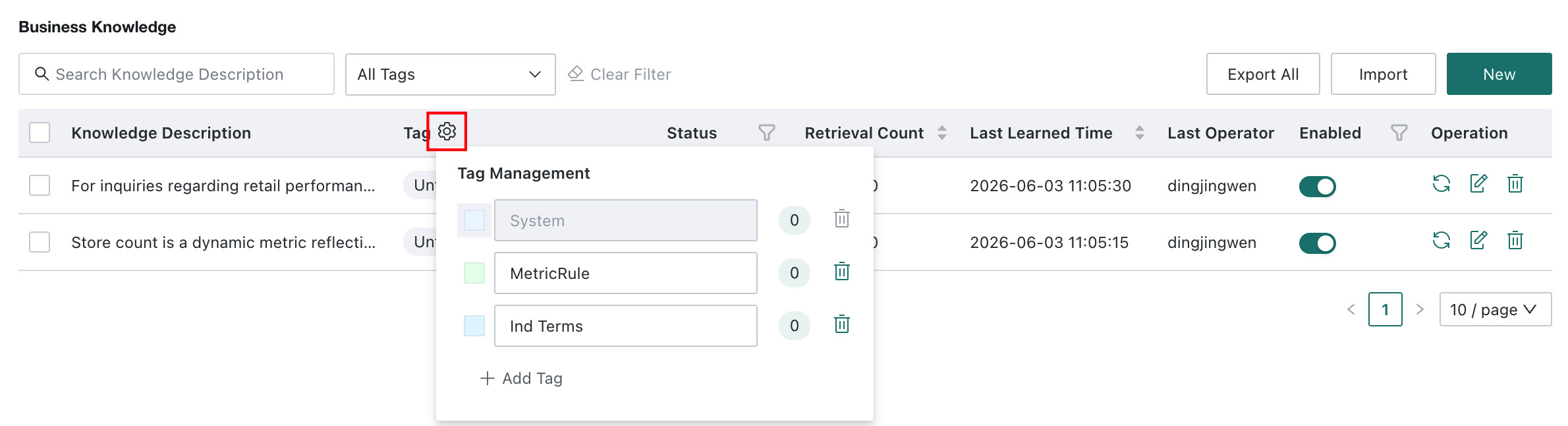
In the Business Knowledge Library or Q&A Sample list, click the tag settings button in the tag column header to enter Tag Management. You can add and manage tags there.
- The system creates the following recommended tags by default:
Metric DefinitionandIndustry Jargon. These can be edited. - Knowledge items generated during system cold start are automatically tagged as
System Generated. - The number of knowledge items using each tag is displayed on the right side of the tag, helping you understand tag usage.
Add Tags to Knowledge
You can add tags to a single knowledge item or multiple items in batch.
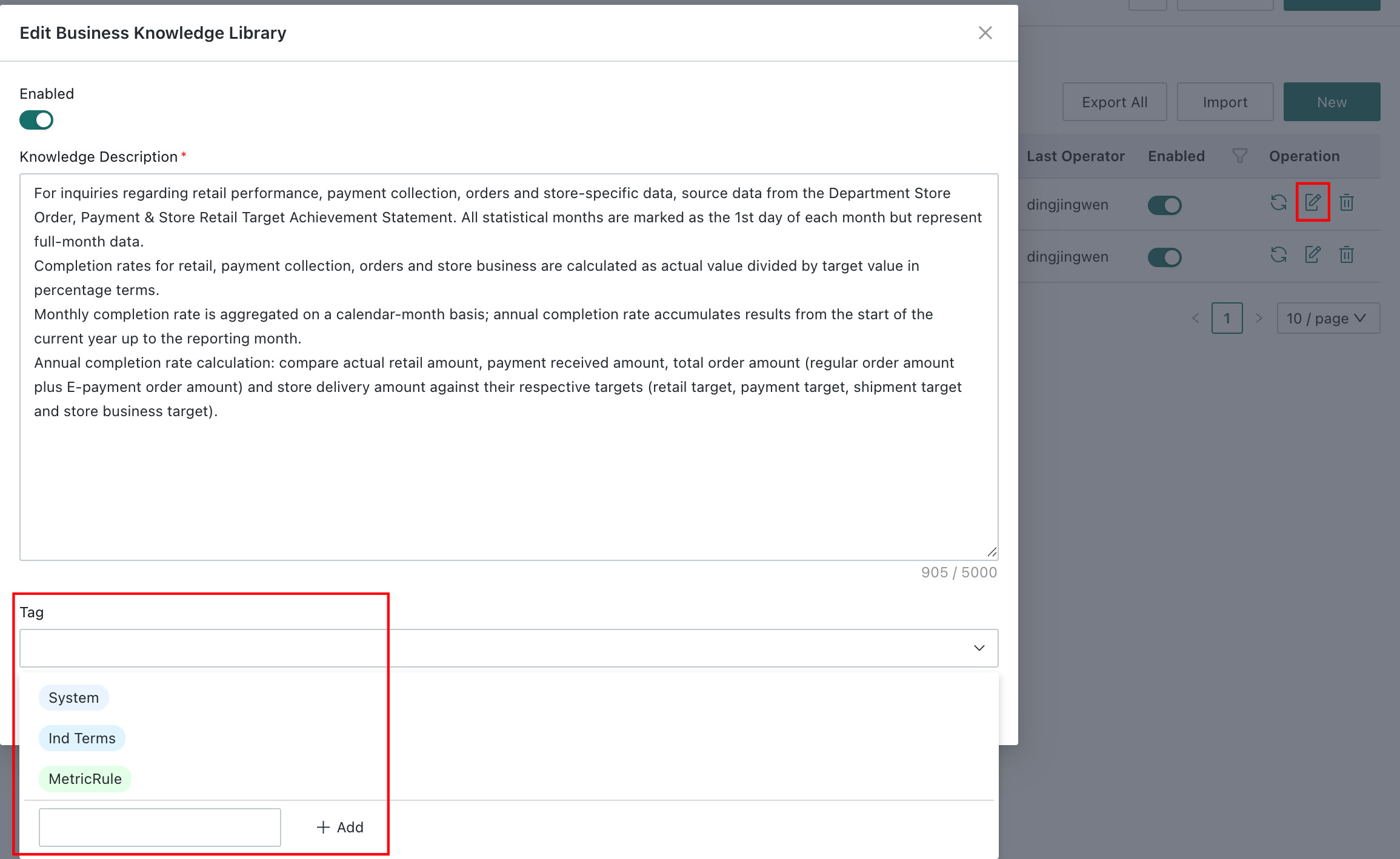
Method 1: find the knowledge item in the list, click Edit, then select tags in the Tags option in the edit dialog. Multiple tags are supported, up to a maximum of 3. Click Confirm to save.
If the existing tags are not suitable, click Add below to create a new tag.
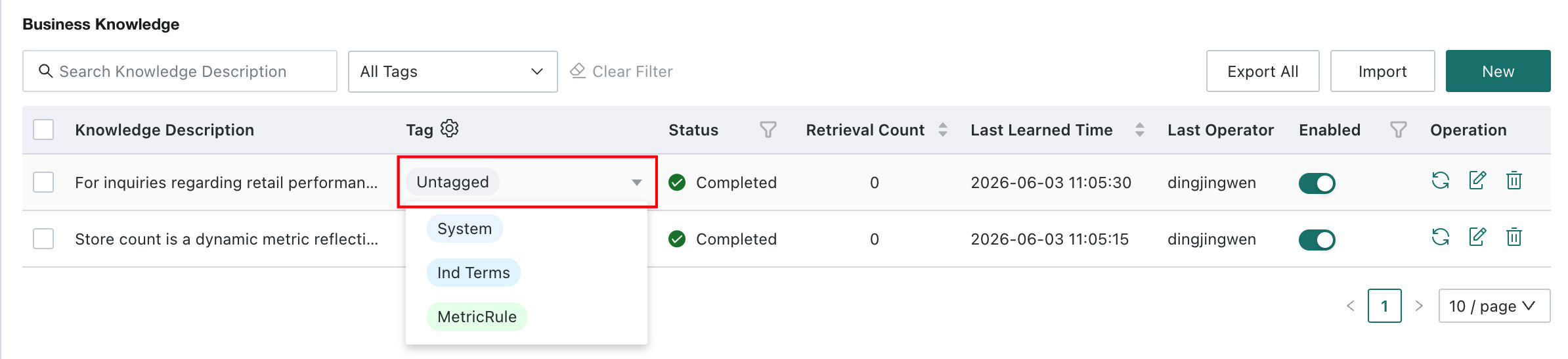
Method 2: in the knowledge list, click the tag field directly and choose tags from the dropdown list.
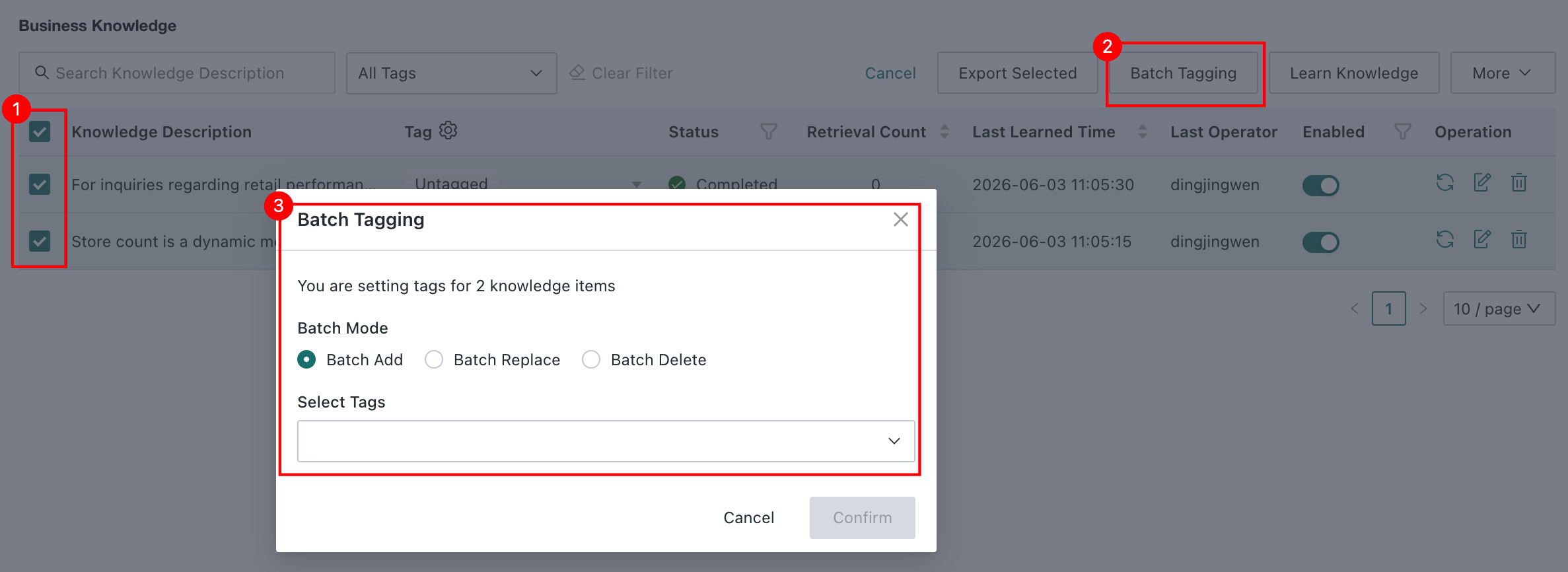
Method 3: batch tagging. Select multiple knowledge entries in the list, click Batch Set Tags, and the system opens the batch tag page, which supports Batch Add, Batch Replace, and Batch Delete.
- Batch Add: adds specified tags to the selected knowledge entries without affecting existing tags.
- Batch Replace: replaces all tags of the selected entries with the specified tags.
- Batch Delete: removes specified tags from the selected entries.
Learning Status
Overview
The learning status column clearly displays the learning status of business knowledge so users can easily understand the progress.
Applicable Scope
Applies to both Q&A Sample and Business Knowledge Library.
Usage Guide
View Last Learned Time
The Last Learned Time is shown to the right of the learning status column and indicates the latest time the knowledge item completed learning successfully. If learning has never succeeded, the field remains empty.

Filter by Learning Status
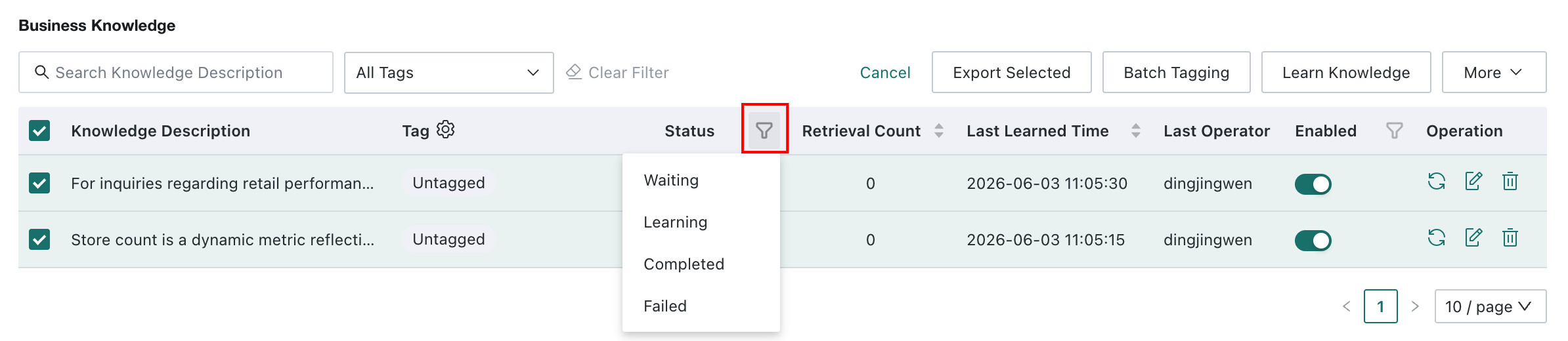
You can filter knowledge items by learning status to quickly locate items in a particular state.
Note: if the learning status stays at Queued or Learning for a long time, refresh the page to get the latest status first.
Relearn
If knowledge content has been updated, click Relearn on the right. The system relearns the item automatically. After learning is completed, Learning Status becomes Completed, and Latest Learning Completion Time shows the latest successful time.

Enable / Disable Knowledge
Overview
Enable or disable knowledge entries in the operations backend to flexibly control their visibility and availability in Data Agent Q&A while preserving their completeness and maintainability.
- Enabled: the knowledge can be used during Q&A, and enabling it automatically triggers the learning workflow.
- Disabled: the knowledge is not used during Q&A, but it remains stored in the knowledge base or
Q&A Sample.
Applicable Scope
Applies to both Q&A Sample and Business Knowledge Library.
Usage Guide
Single Item Setting
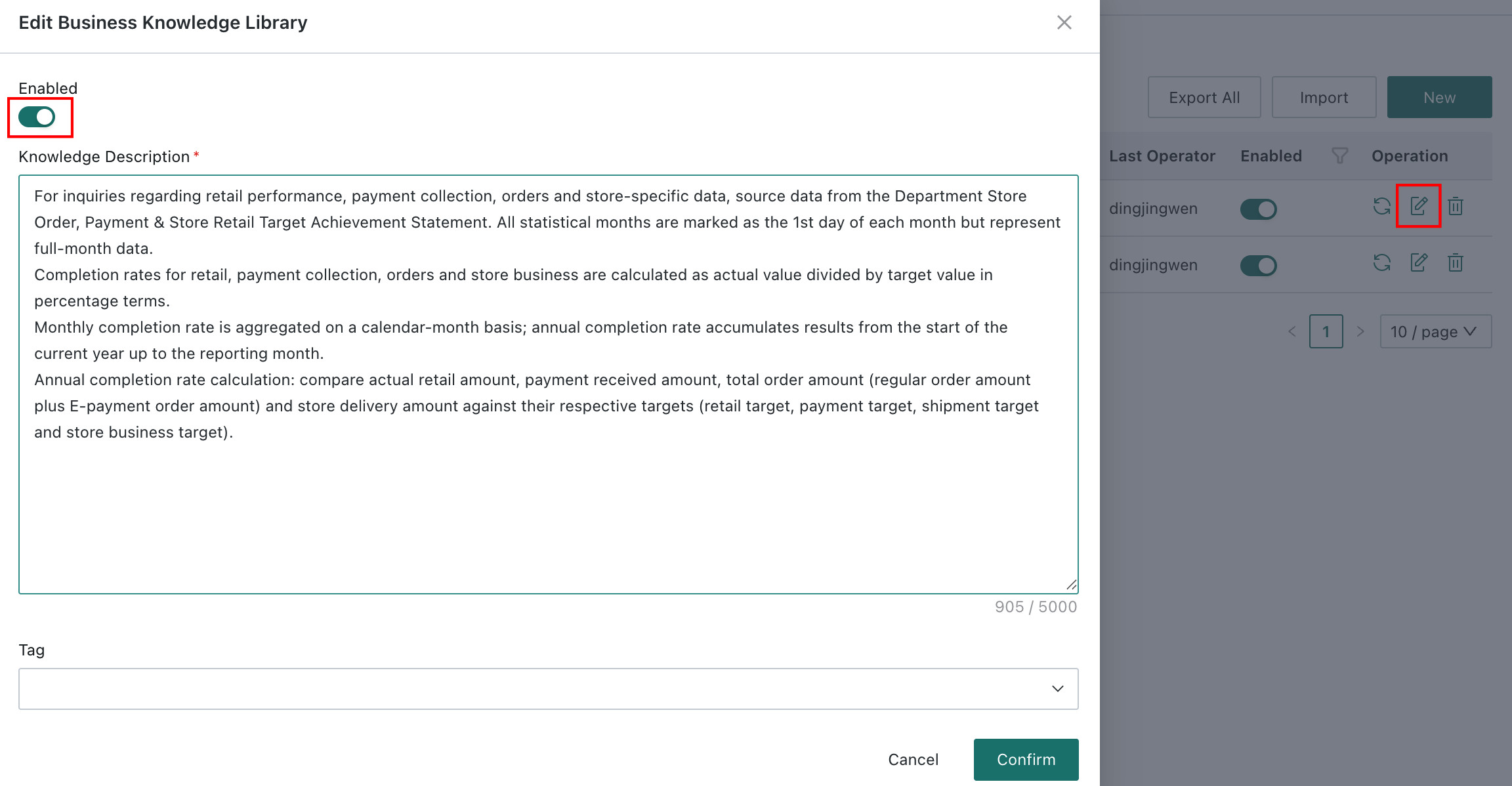
Method 1: on the Q&A Sample or Business Knowledge Library page, click the switch under Enabled Status.

Method 2: on the Q&A Sample or Business Knowledge Library page, click Edit, then enable or disable the item on the edit page.
Batch Setting
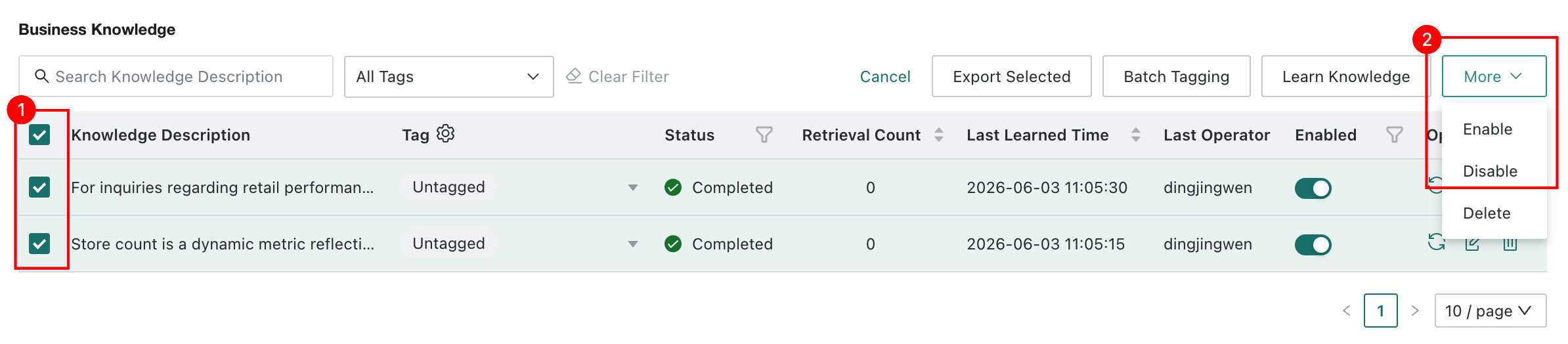
Select multiple knowledge entries in the list, click More, and then enable or disable the selected items.
Recall Count
Overview
This field shows how many times a knowledge item has been recalled, allowing users to identify frequently used business knowledge at a glance.

Applicable Scope
Applies to both Q&A Sample and Business Knowledge Library.