Permission Management
Overview
The core goal of permission management is to apply fine-grained control to users of Smart Insights. Through a Role > Permission mapping mechanism, different business roles such as data analysts, store managers, and store clerks receive only the permissions that match their responsibilities, avoiding accidental operations caused by redundant access.
Dashboard Insights
Permission configuration entry: Admin Center > User Management > Roles
Role Types
Roles are permission groups assigned by administrators to user accounts. Each role contains a corresponding set of feature permissions. For more details, see Roles.
Default Roles
- Administrator: has
View + Editpermission by default. - Standard User: has
View + Editpermission by default. TheView + Editpermission can be removed. - Read-Only User: has
Viewpermission by default. TheViewpermission can be removed.
Custom Roles
Administrators can create custom roles as needed and configure permissions flexibly according to business requirements.
Custom roles have no Dashboard Insights permissions by default.
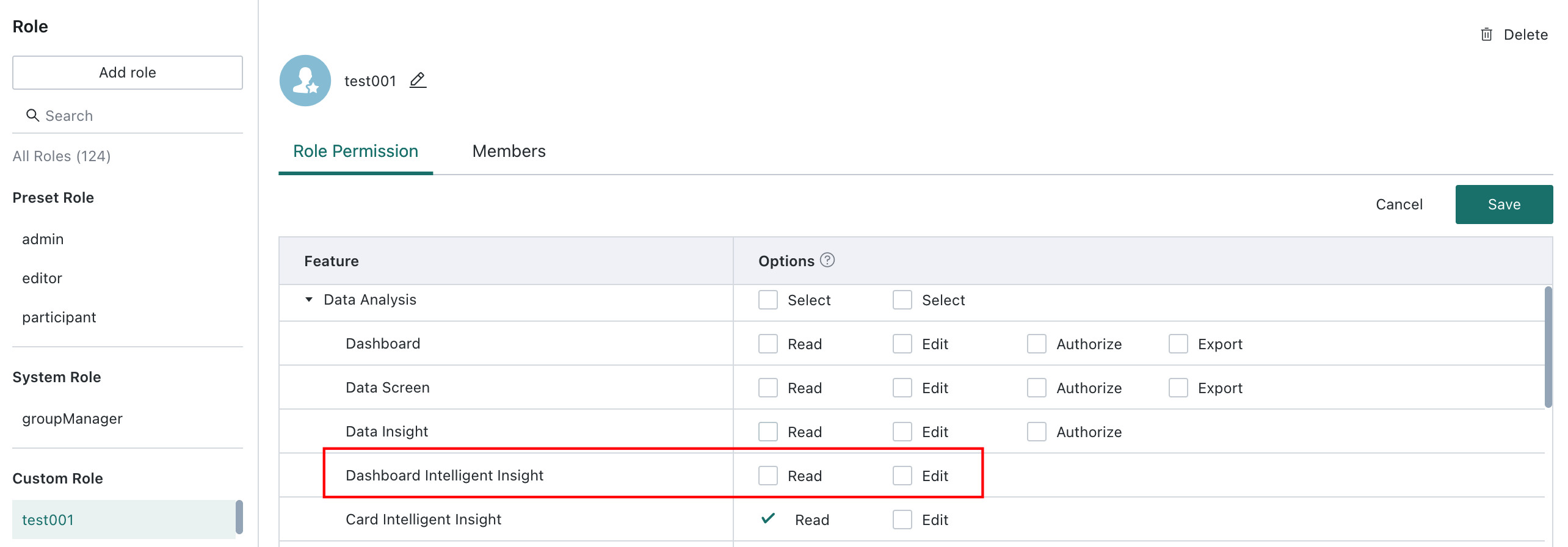
Role Permission Details
View
Purpose
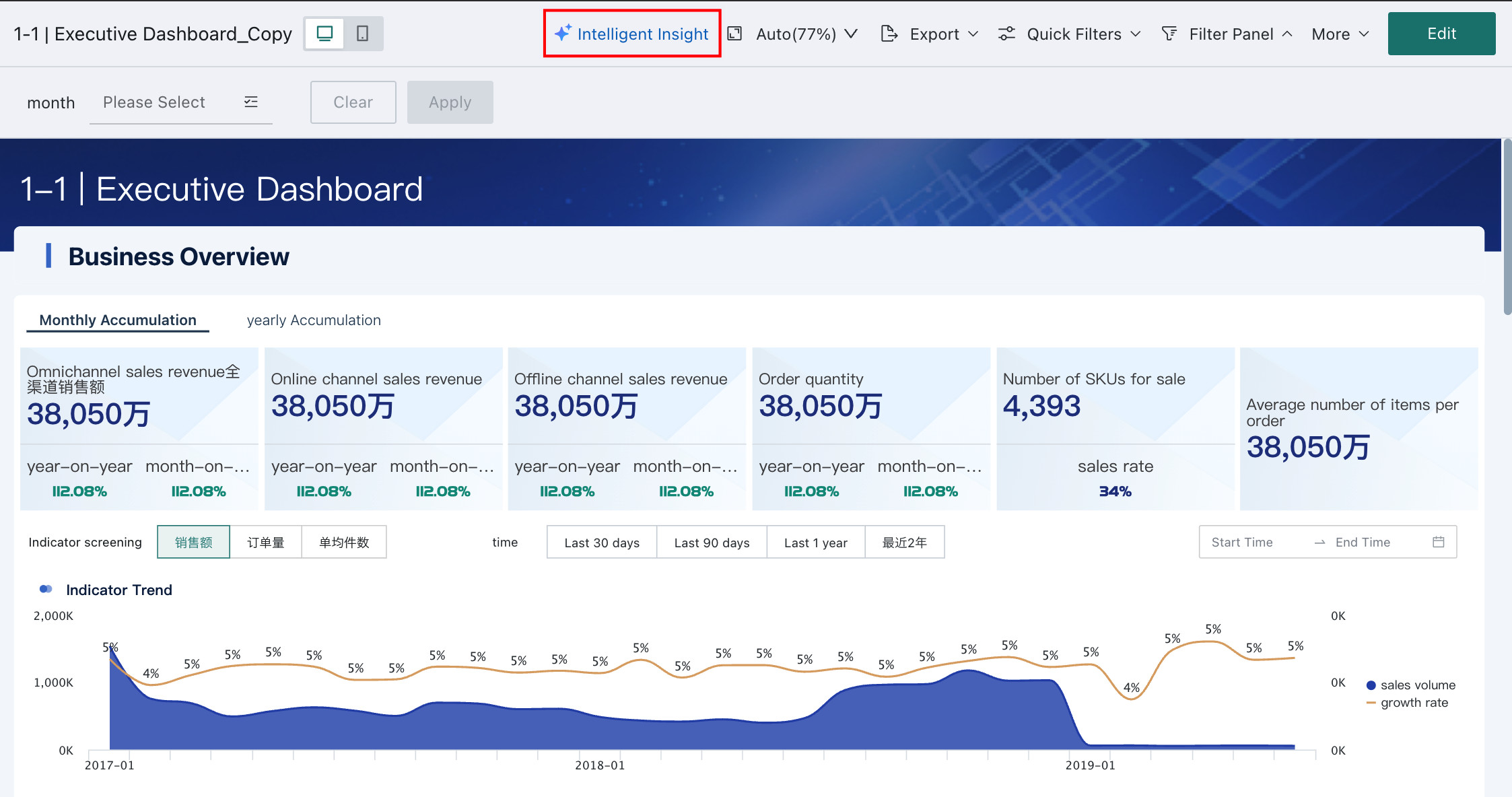
Controls whether the Smart Insights entry is visible on the dashboard home page and the dashboard editing page. Users with only View permission can see published insight reports and use actions such as Follow Up and Copy Report, but cannot modify the configuration.
Prerequisite
The dashboard must already have Dashboard Insights published. If Dashboard Insights is not enabled on the dashboard, users will not see the Smart Insights entry even if they have View permission.
Edit
Purpose
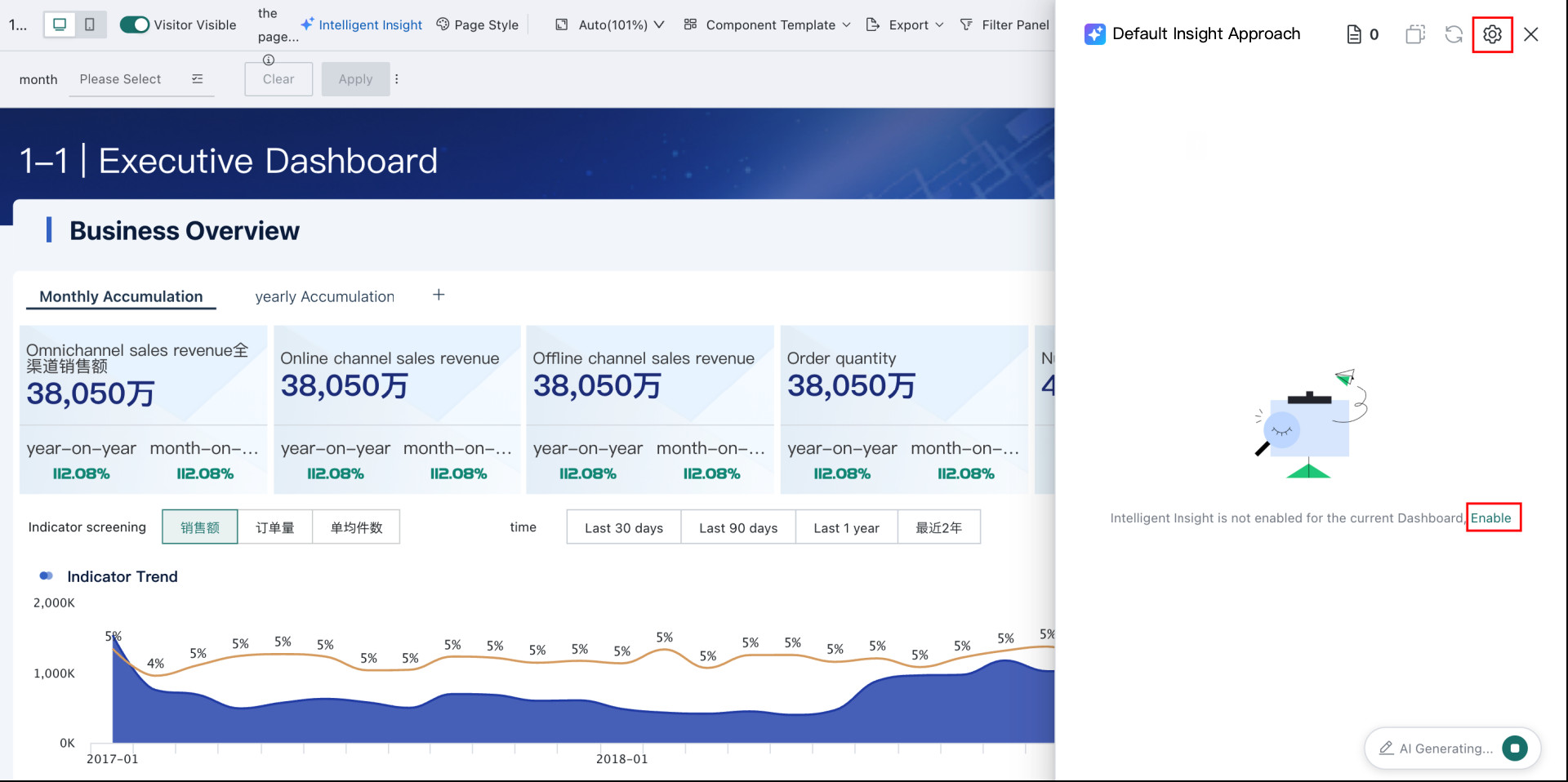
Controls whether a user can enable and configure Dashboard Insights. Users with Edit permission can complete the full workflow, including enabling the feature, configuring prompts, selecting an LLM service, and publishing Dashboard Insights.
Scope
This permission only takes effect on dashboards the user can already edit. If a user does not have dashboard editing permission, they still cannot enter the editing page to configure insights even if they have the Dashboard Insights Edit permission.
Recommendation
It is recommended that this permission be granted only to core business roles, such as AI-oriented data analysts, to avoid low-quality reports caused by regular users accidentally changing prompts or LLM configuration.
Card Insights
Permission configuration entry: Admin Center > User Management > Roles
Role Types
Roles are permission groups assigned by administrators to user accounts. Each role contains a corresponding set of feature permissions. For more details, see Roles.
Default Roles
- Administrator: has
View + Editpermission by default. - Standard User: has
View + Editpermission by default. TheEditpermission can be removed. - Read-Only User: has
Viewpermission by default and does not haveEditpermission.
Custom Roles
Administrators can create custom roles as needed and configure permissions flexibly according to business requirements.
Custom roles have Card Insights View permission by default.
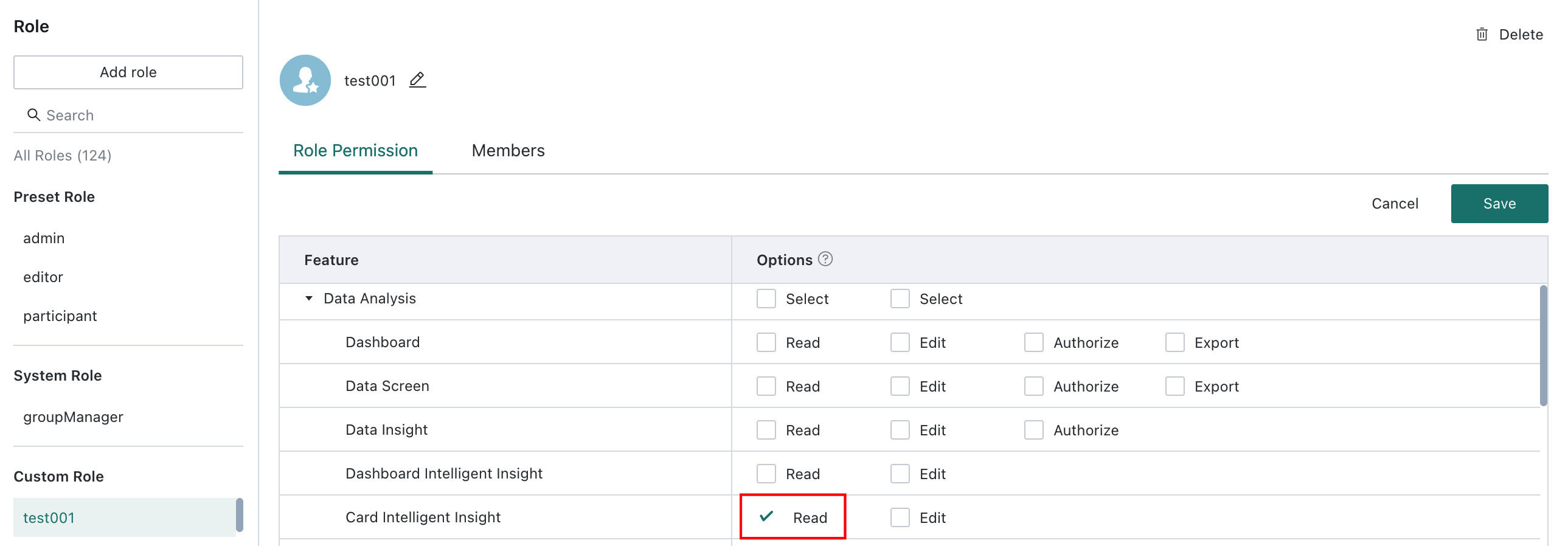
Role Permission Details
View
The View permission for Card Insights is not controlled separately. Any user who has dashboard viewing permission can see Card Insights cards.
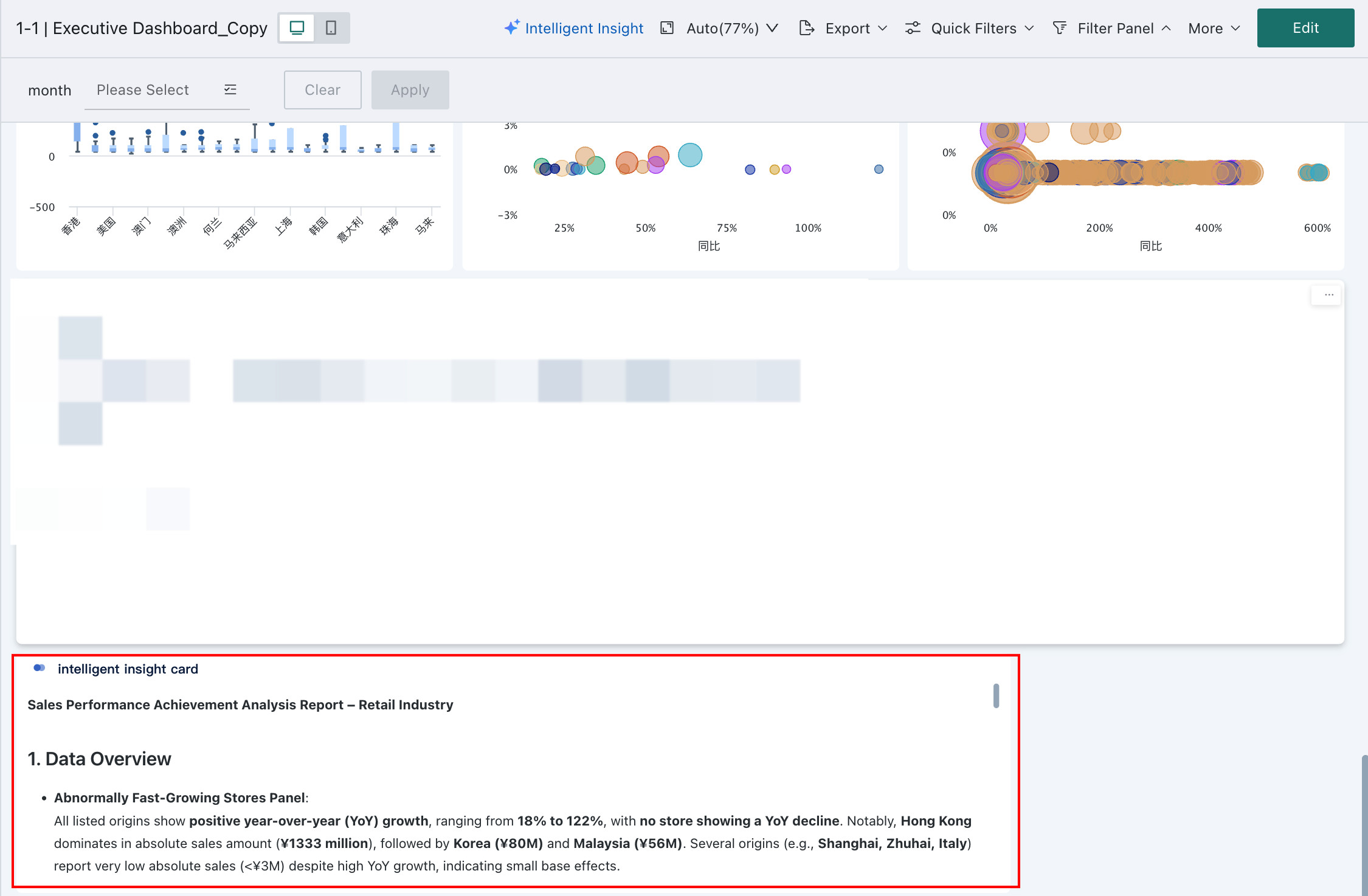
Edit
-
Controls whether the
Smart Insightsoption appears in theCreate Carddialog.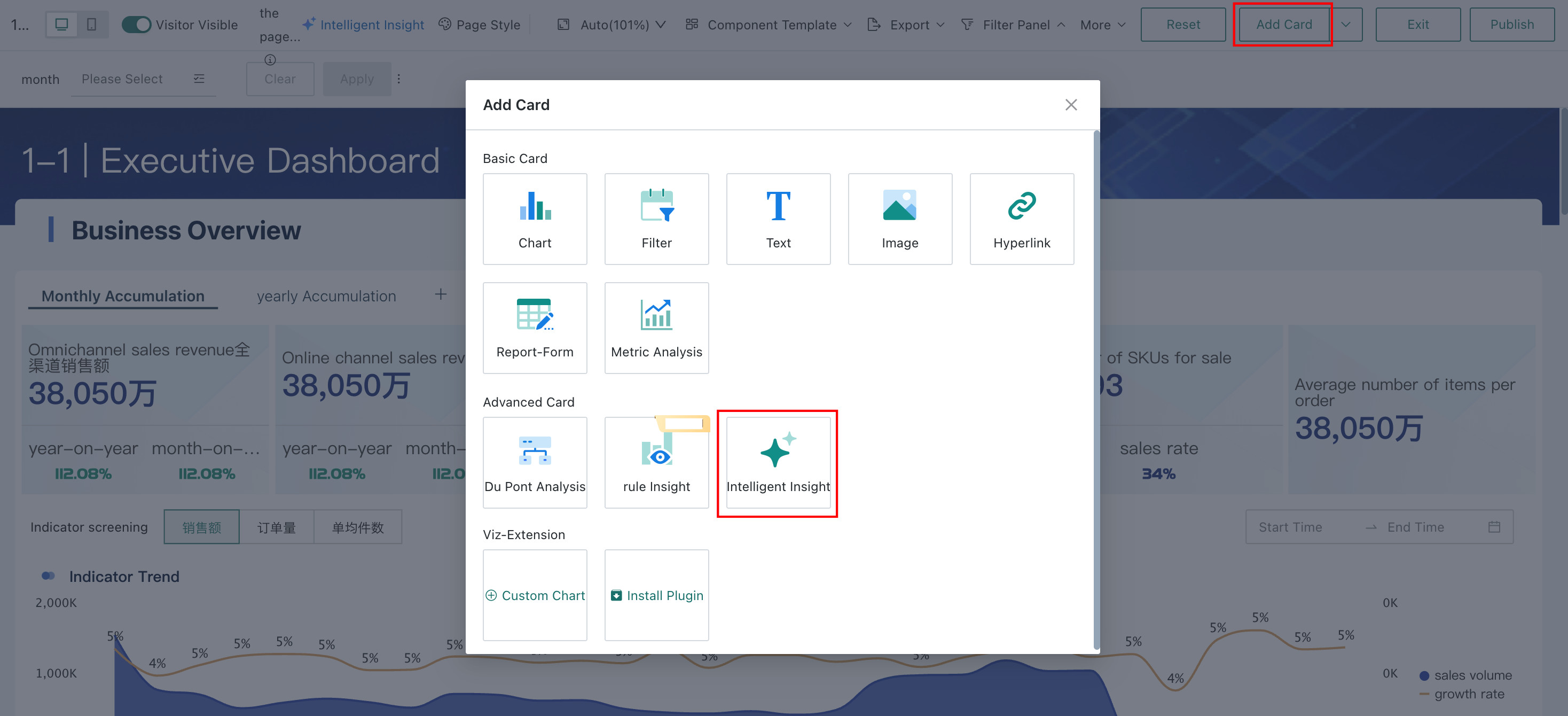
-
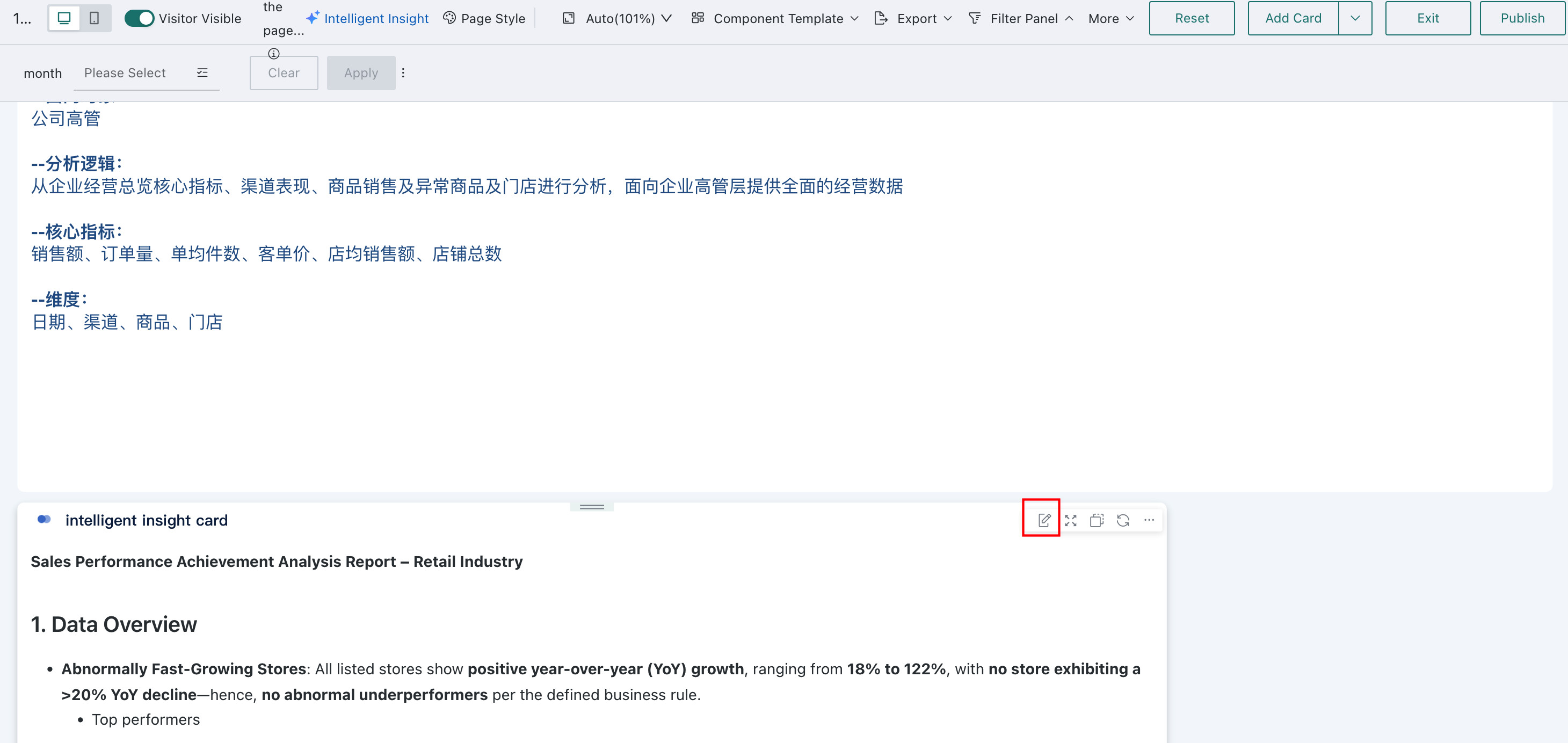
Controls whether the user can edit Smart Insights cards on the dashboard editing page.