Insight Subscription
Overview
Insight Subscription allows users to deliver page-level Dashboard Insights reports and the content of insight cards from a dashboard to recipients through email, making it easier for business users to receive data conclusions proactively.
Prerequisites
- License activation and LLM service configuration have been completed.
- The system has been upgraded to version
7.3or later. - Have visitor or owner‑level permissions for the page where the subscription object resides, as well as functional permissions related to subscription plans.
Dashboard Insights Subscription
Create a Subscription
For pages with Dashboard Insights enabled, there are two entry points for creating a subscription:
-
Click
Morein the upper-right corner of the page and selectCreate intelligent insight subscriptionto enter the configuration page.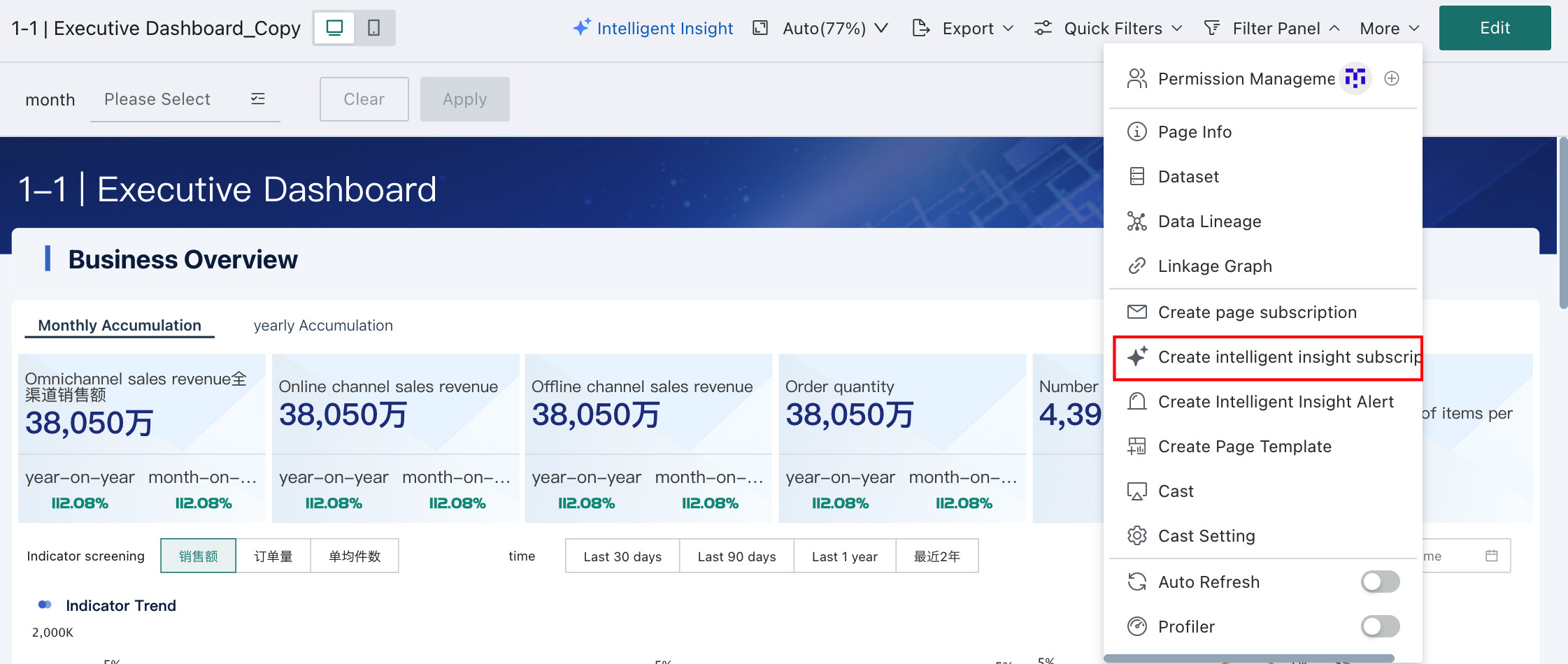
-
Click the launcher icon in the upper-right corner, choose
Subscription Plan > Insight Subscription, then clickAdd Insight Subscriptionto enter the configuration page.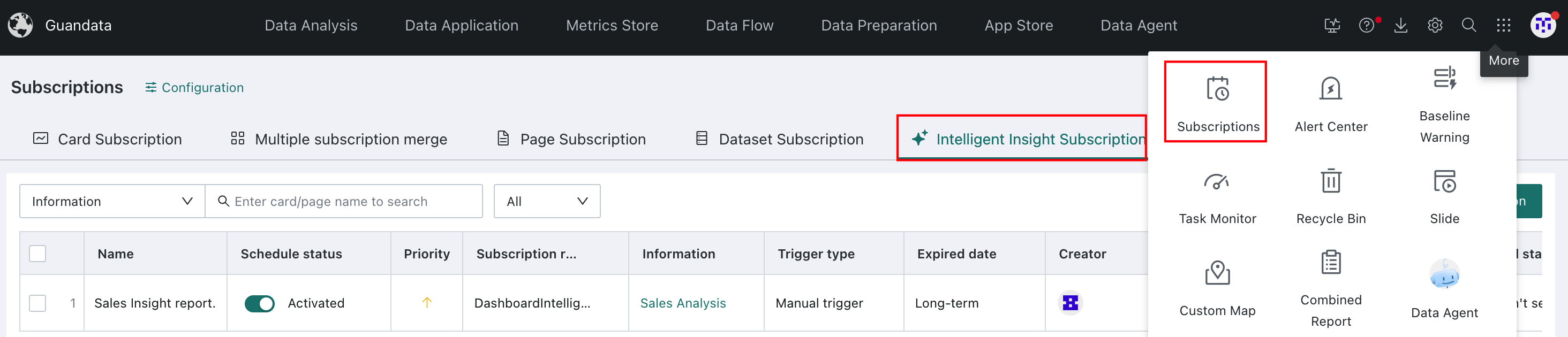

Configure the Subscription
Basic Information
Subscription name
Create a name for the subscription so it can be easily found later in subscription management.
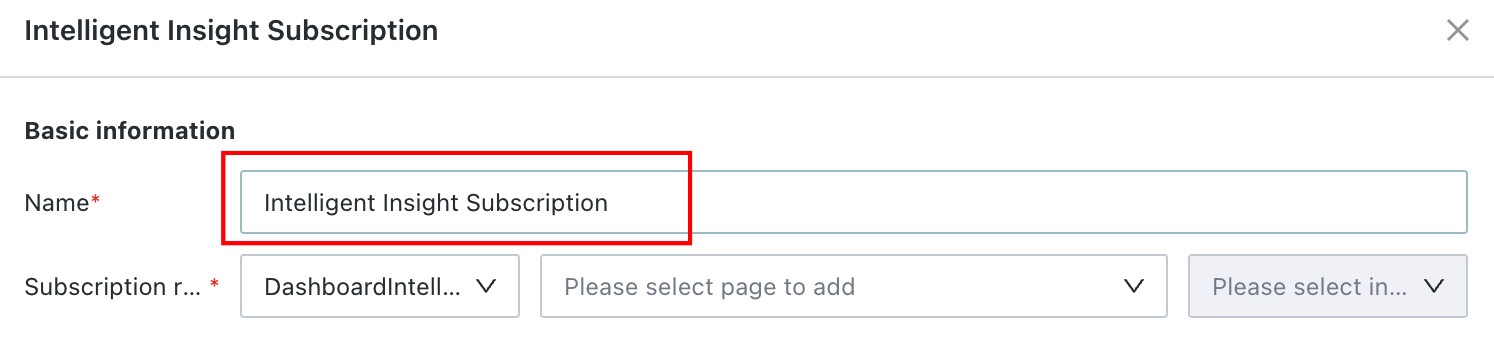
Subscription target
-
Set
Subscription TargettoDashboard Insights.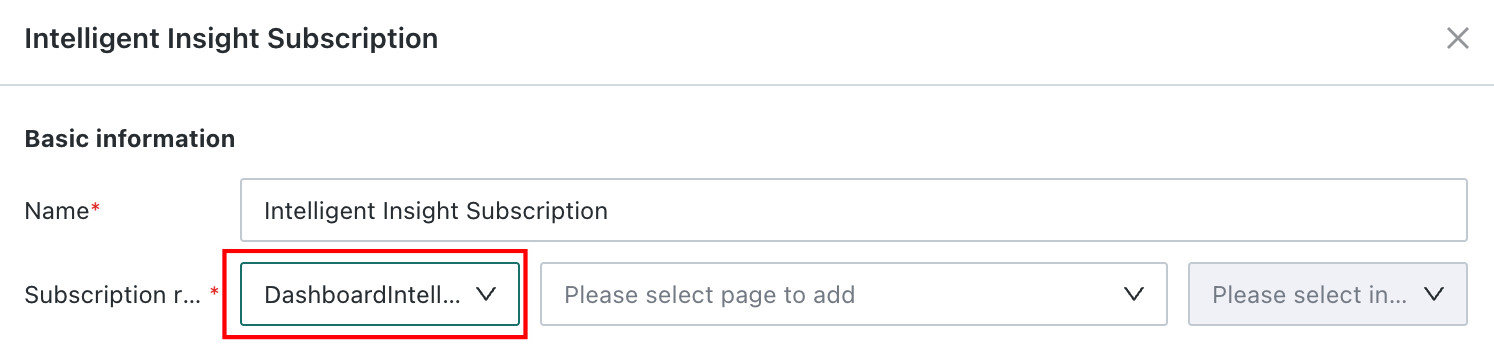
-
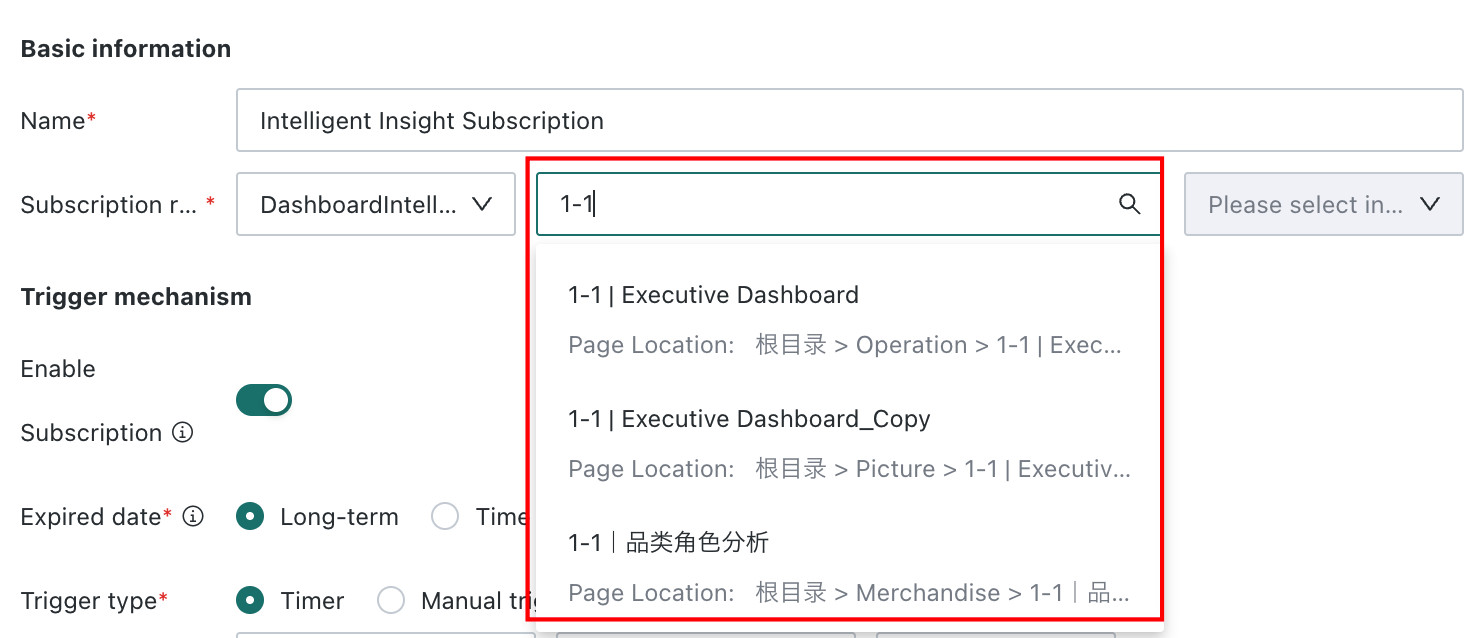
Search for and select a page. Only pages you have access to and that already have Dashboard Insights enabled are displayed.
-
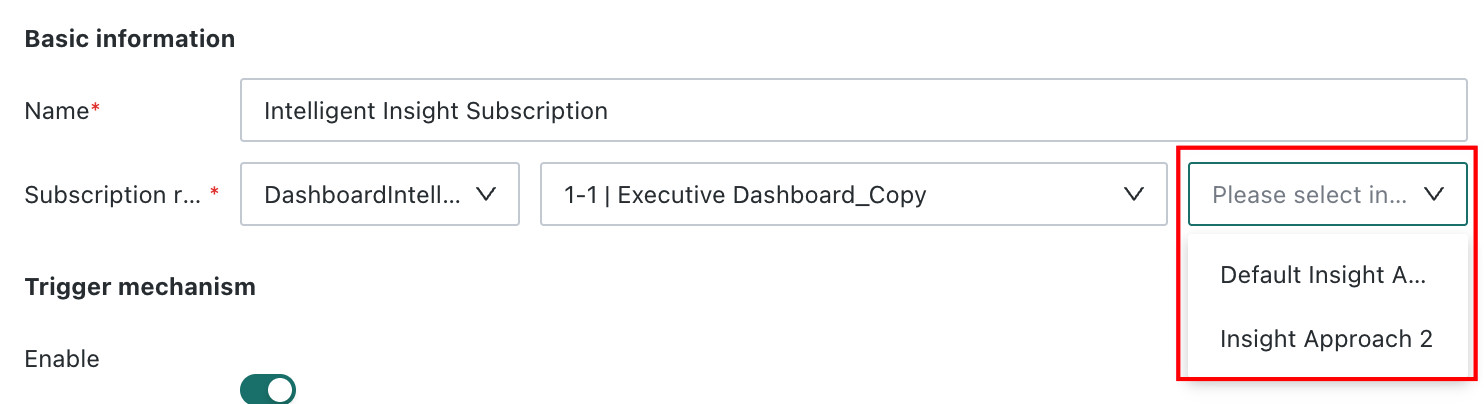
Select an insight logic.
-
If the selected page has multiple configured insight prompts, you need to choose which insight logic to send in the subscription.
-
If the selected page has only one insight logic, no extra selection is required and the default insight logic will be used.
-
Trigger Mechanism
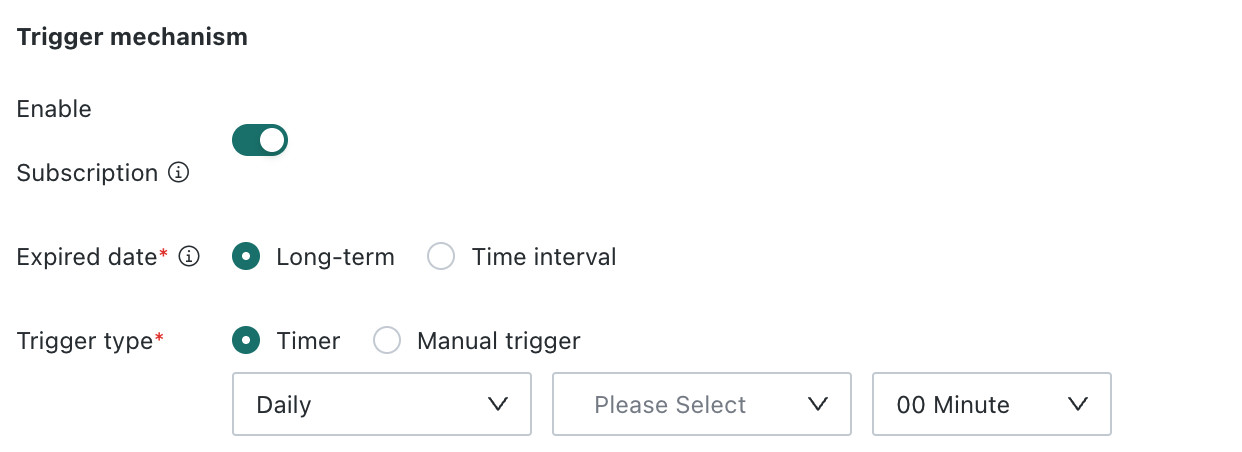
Enable subscription
Choose whether to enable or disable the subscription.
Validity period
You can choose Always Valid or Valid Within a Time Range. If you choose Valid Within a Time Range:
- You can configure a start date and end date. If neither is set, the subscription is treated as long-term.
- After the subscription period ends, you can still send it manually or invoke it through the API.
- Period and enable/disable status interact as follows: if the subscription is enabled, scheduled sending stops after the period ends; if the subscription is disabled, it does not send even if the period is still active.
Trigger mode
Scheduled Execution: send at a fixed time every day, week, or month.Manual Trigger: send manually from theSubscription Planpage.
Subscription Sent
Only email is supported. Configure Sender and Recipients.
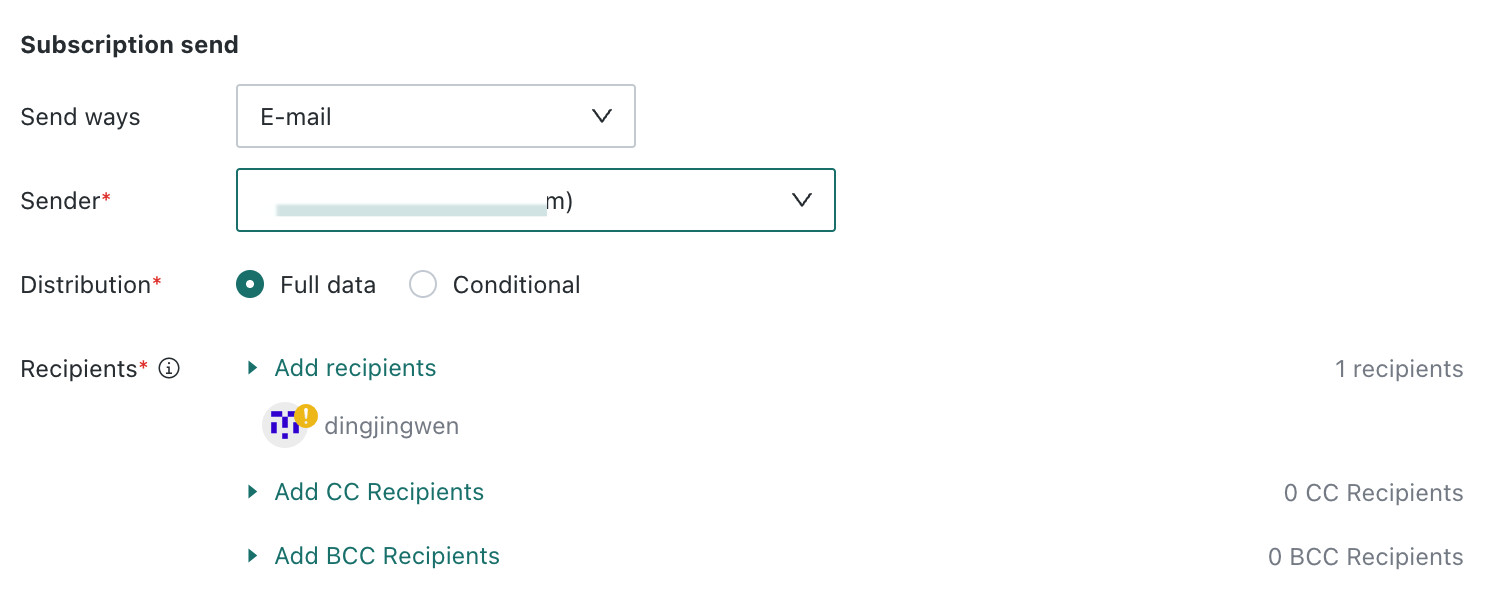
Distribution mode
The system supports Full Distribution and Conditional Distribution.
Full Distribution: deliver the full insight report to the target audience.Conditional Distribution: use page filters to define different visible ranges for different users or webhooks, so filtered insight reports can be delivered to different recipients and achieve personalized subscriptions.
Recipients
Add the users who should receive the subscription. You can also add CC and BCC recipients.
Subscription Content
Notification title
Create a title for the notification. The title is required for email subscriptions.
Notification content
The body content defaults to the Dashboard Insights content and cannot be edited.
Content source
Because page configurations differ between desktop and mobile, the generated insight conclusions may also differ. During subscription configuration, you can choose whether to send the desktop or mobile insight result.
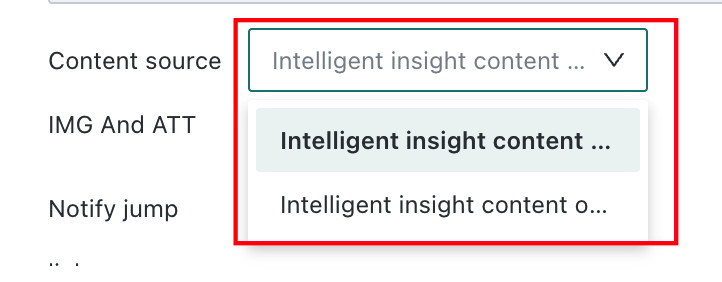
Images and attachments
Select Image if you want the subscription to include an image of the corresponding dashboard page after delivery.
Jump link
Configure whether the subscription notification includes a clickable link.
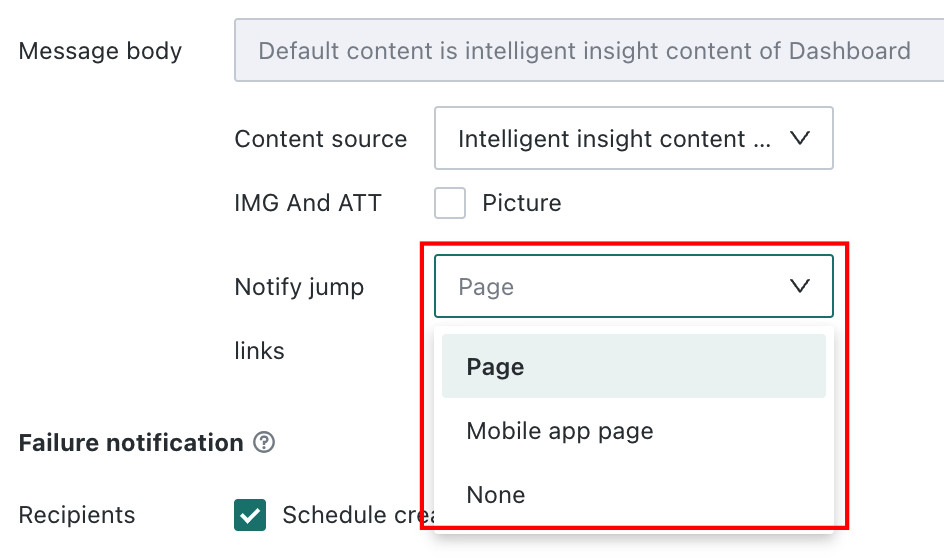
Page: clickingView Detailsat the bottom of the notification opens the subscribed dashboard page.Mobile Light App Page: clickingView Detailsopens the configured mobile light app page.None: the notification does not display aView Detailsbutton.
Failure Notification
If subscription delivery fails, the system sends a failure notification to designated recipients. Recipients can include the subscription creator and additional specified users. The notification uses the same delivery channel as the subscription.

Priority
Priority defines how card subscriptions are ordered. Five levels are available: Highest, High, Medium, Low, and Lowest.

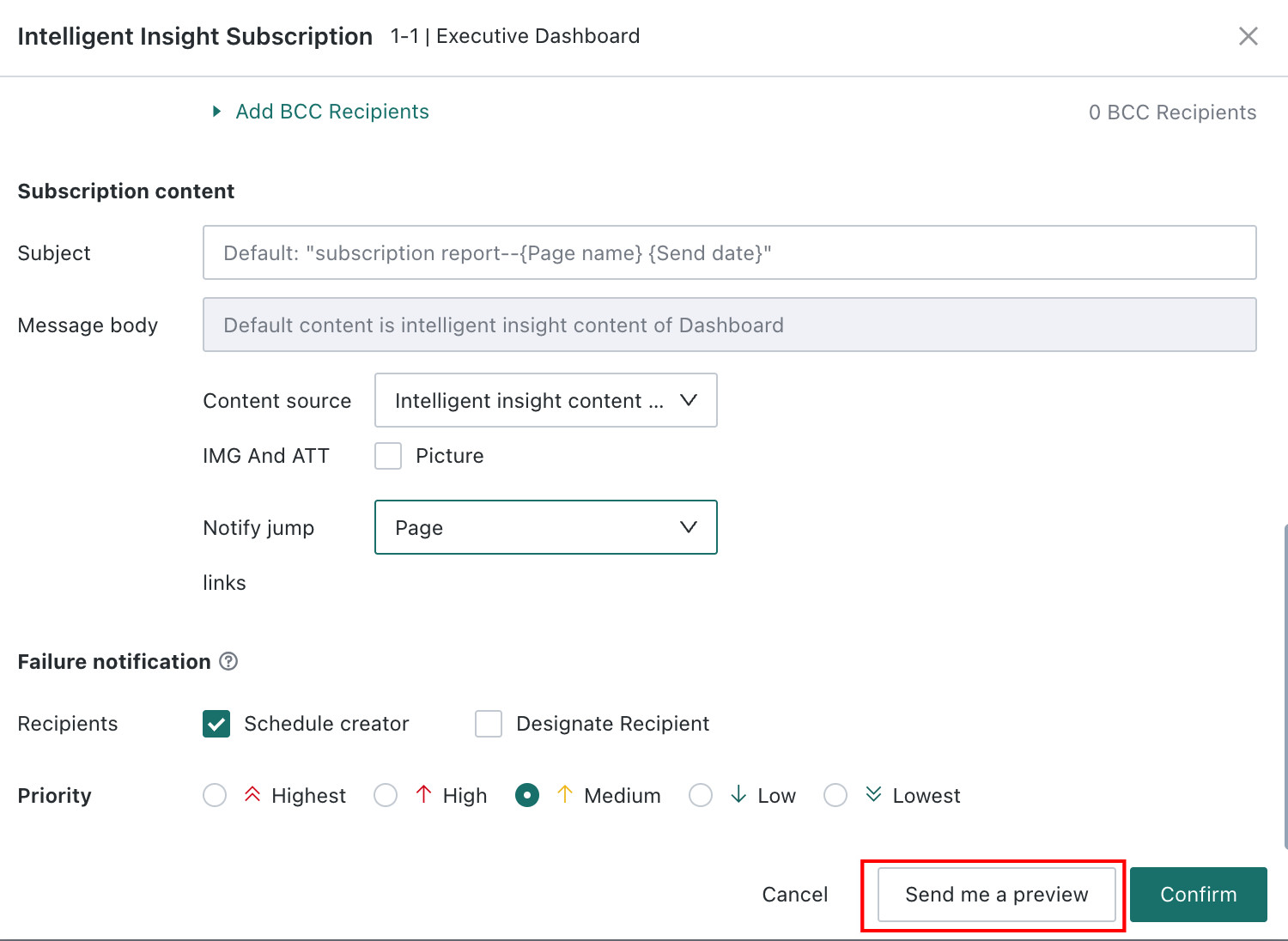
Send me a Preview
Click Send Preview to Me to generate an insight report using the full dataset and send it to your configured receiving channel.
Card Insights Subscription
Create a Subscription
For an insight card, there are two entry points for creating a subscription:
-
Click the
...button in the upper-right corner of the insight card and selectCreate Insight Subscription.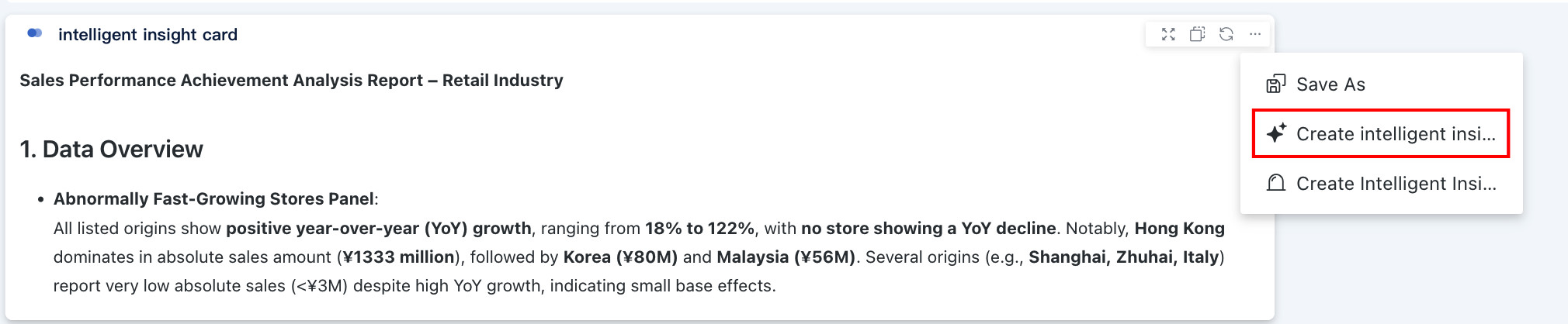
-
Click the launcher icon in the upper-right corner, choose
Subscription Plan > Insight Subscription, and then clickAdd Insight Subscription.
Configure the Subscription
The configuration process for Card Insights subscriptions is similar to Dashboard Insights subscription configuration, with the main difference being the Subscription Target.
-
Set
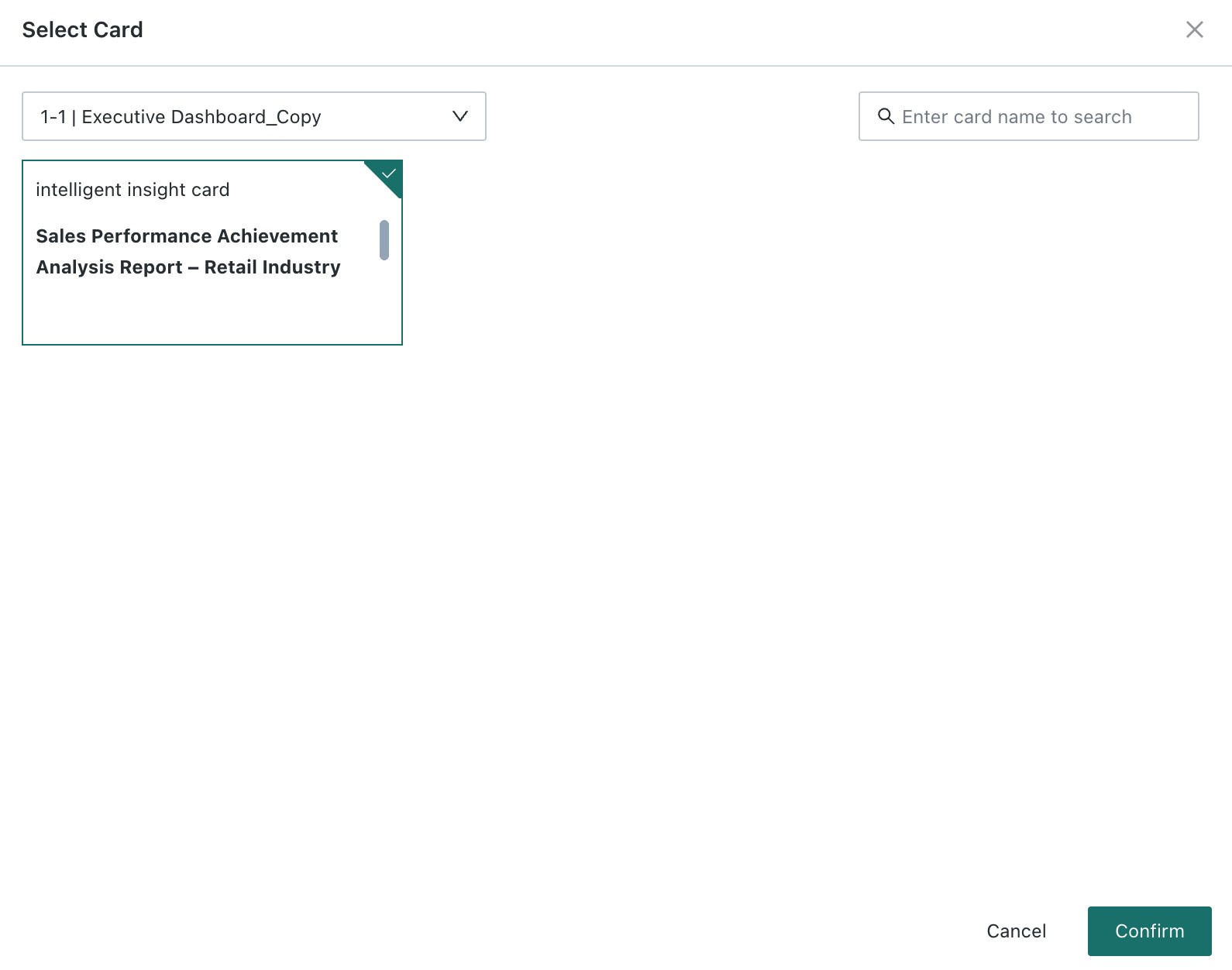
Subscription TargettoCard Insightsand clickSelect Card. The system opens the card selection page.
-
Search for the page that contains the target insight card, and then select the specific card to subscribe to.