Dashboard Insights
Overview
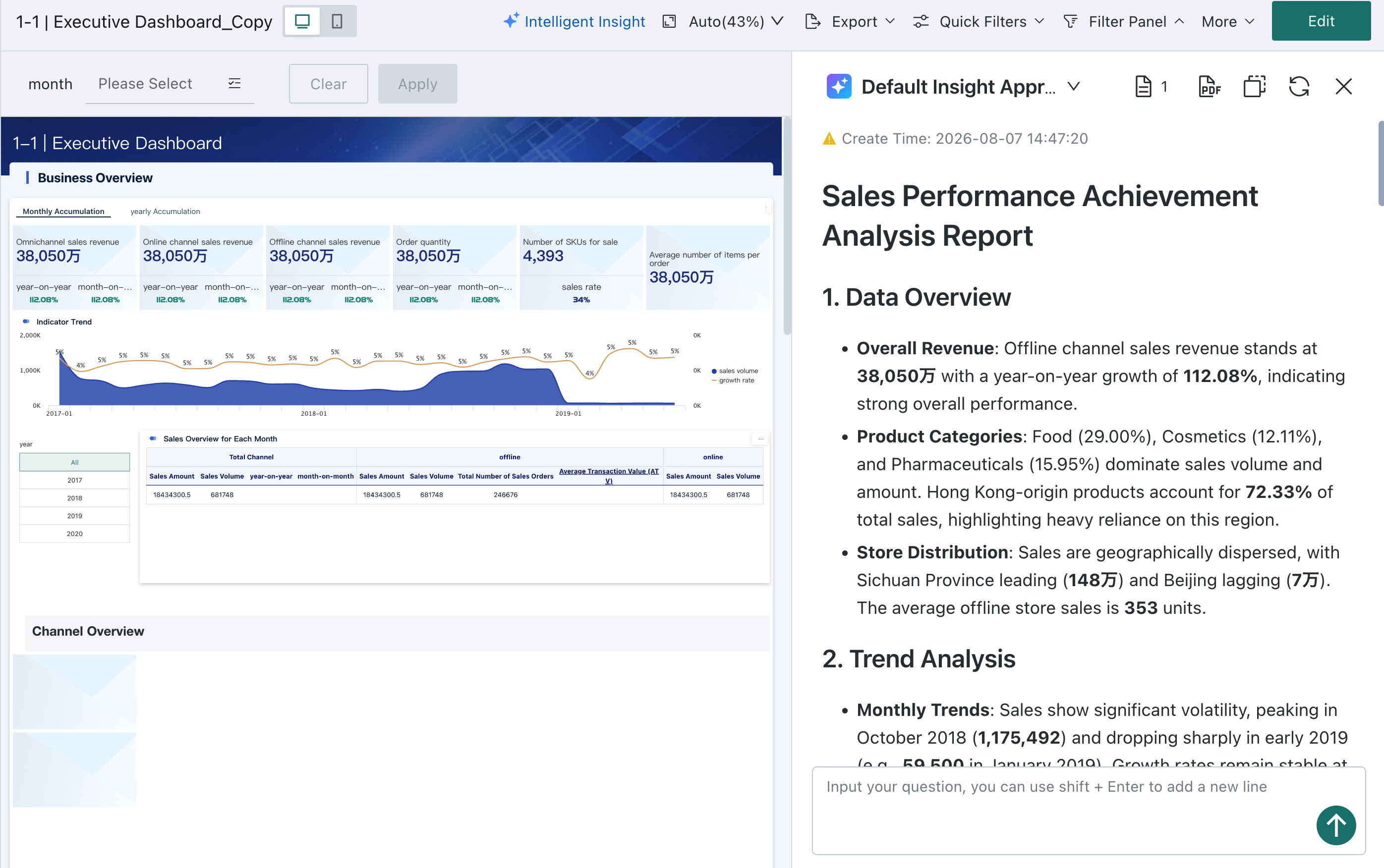
Dashboard Insights uses AI to automatically analyze dashboard data, identify abnormal fluctuations, hidden relationships, and business opportunities with one click, and provide deep, actionable insights beyond visualization alone. In addition to standard visualizations, it supports China-Style Reports and can analyze the data currently displayed through an Excel template.
Applicable Scenarios
In enterprise analytics scenarios, Dashboard Insights uses AI to uncover and present data value more deeply, overcoming the static limitations of traditional visual dashboards and providing automated, actionable decision support. Typical use cases include the following:
| Scenario | Business Pain Point | How Dashboard Insights Helps | Business Value |
|---|---|---|---|
| More efficient operations analysis |
|
|
|
| Frontline business enablement |
|
|
|
| Intelligent system enhancement |
| Outputs Smart Insights through APIs and embeds them into business systems or applications |
|
Prerequisites
-
Upgrade to version
7.0or later to use Dashboard Insights, to version7.3or later to configure multiple insight logics, and to version8.2or later to analyze China-Style Reports.NoteA matching hotfix version is also required for Dashboard Insights to work properly. If you are unsure whether your current version supports it, contact your Guandata sales representative or customer success manager.
-
License activation and LLM service configuration have been completed.
Dashboard Editors
Enable Dashboard Insights
-
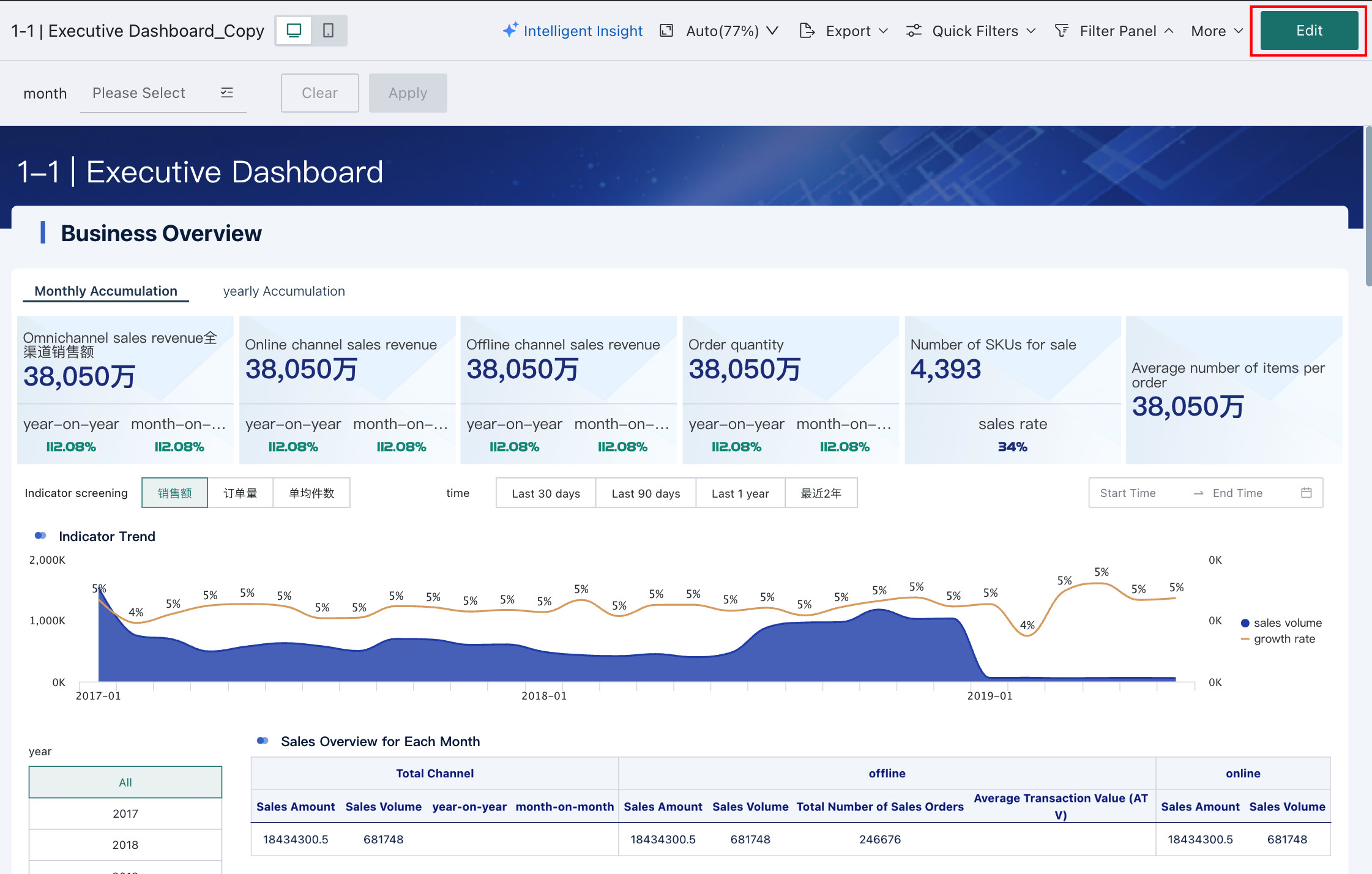
On the dashboard home page, click
Editto enter the dashboard editing page.
-
Click the
Smart Insightsentry. The Smart Insights panel opens on the right.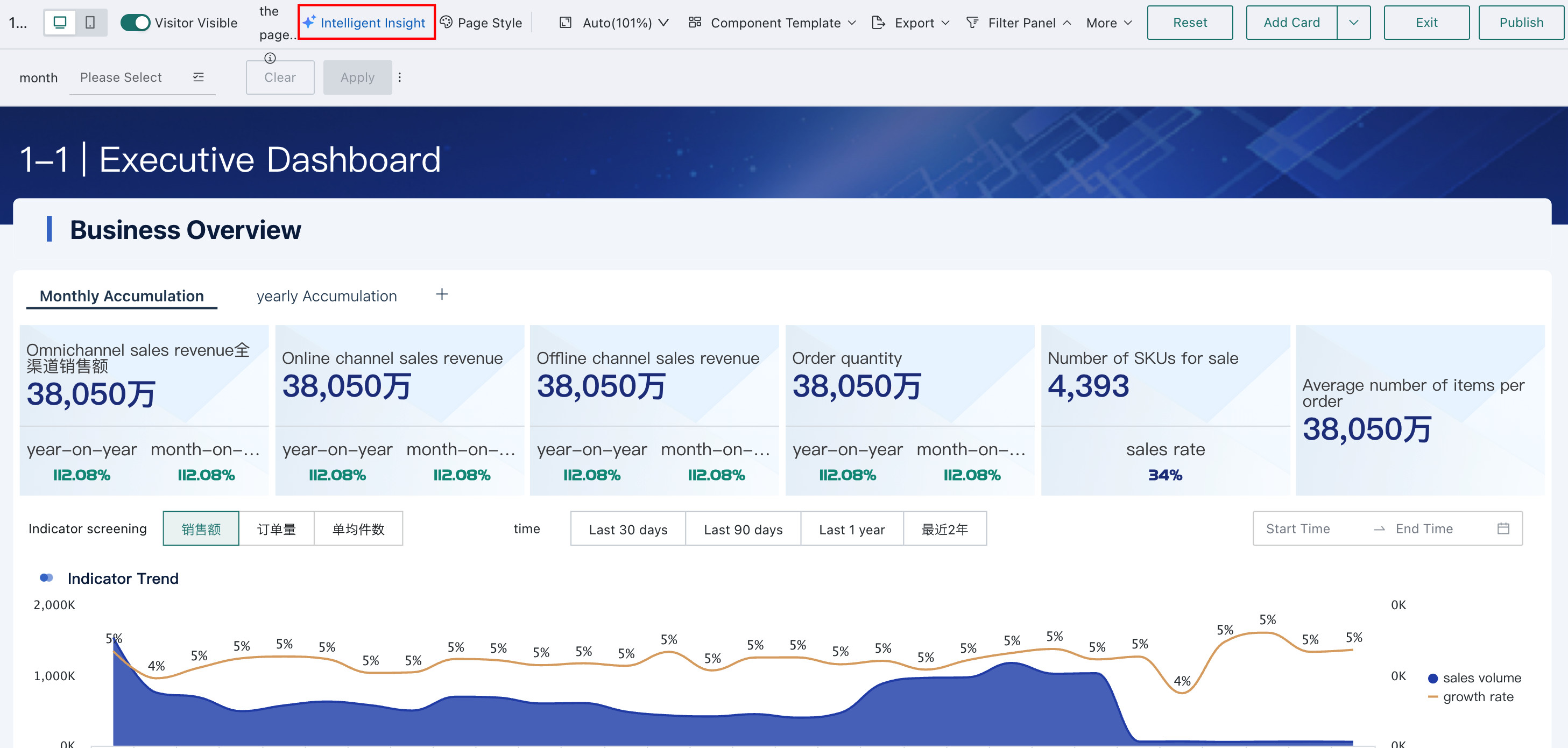
-
Click
SettingsorEnableto enter the Smart Insights configuration page.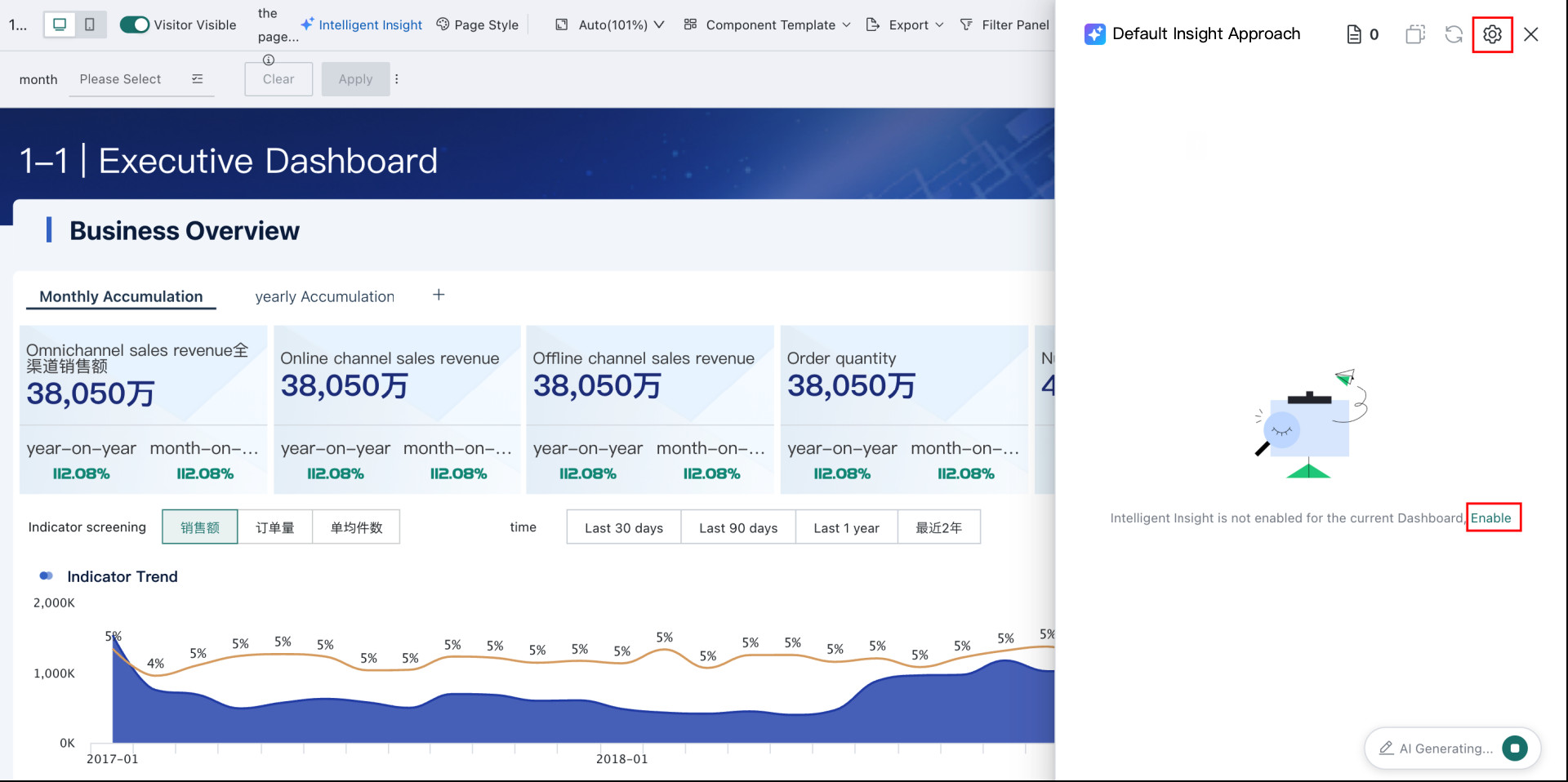
-
Configure items such as Insight Prompts and LLM Service Selection, then turn on the
Smart Insightsswitch.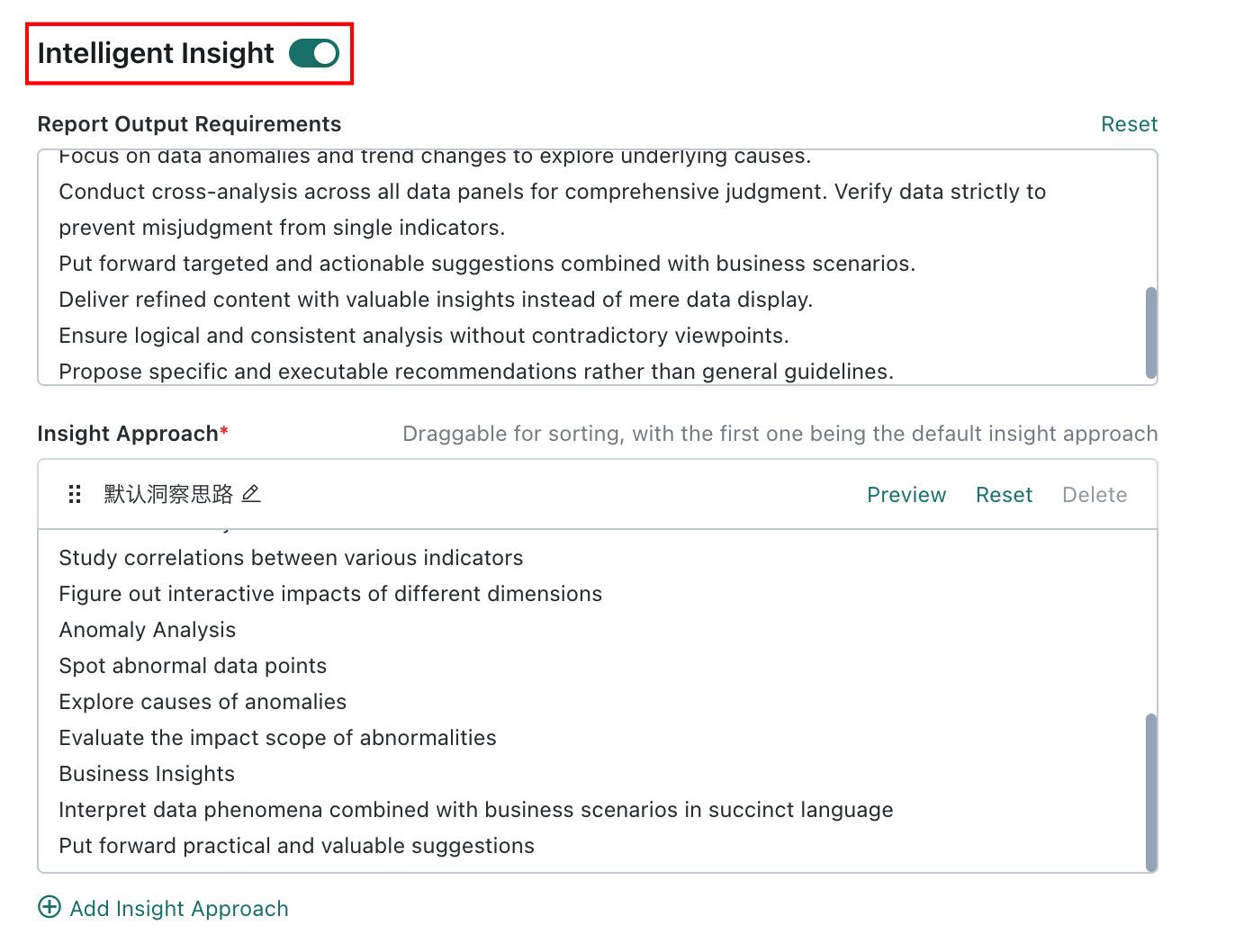
Configure Insight Prompts
Dashboard editors can provide background knowledge for the LLM to generate insights. The quality of the prompt description directly affects the accuracy and usefulness of the generated insights.
For guidance on writing better prompts, see Prompt Writing Best Practices.
Option 1: AI-Generated Prompts
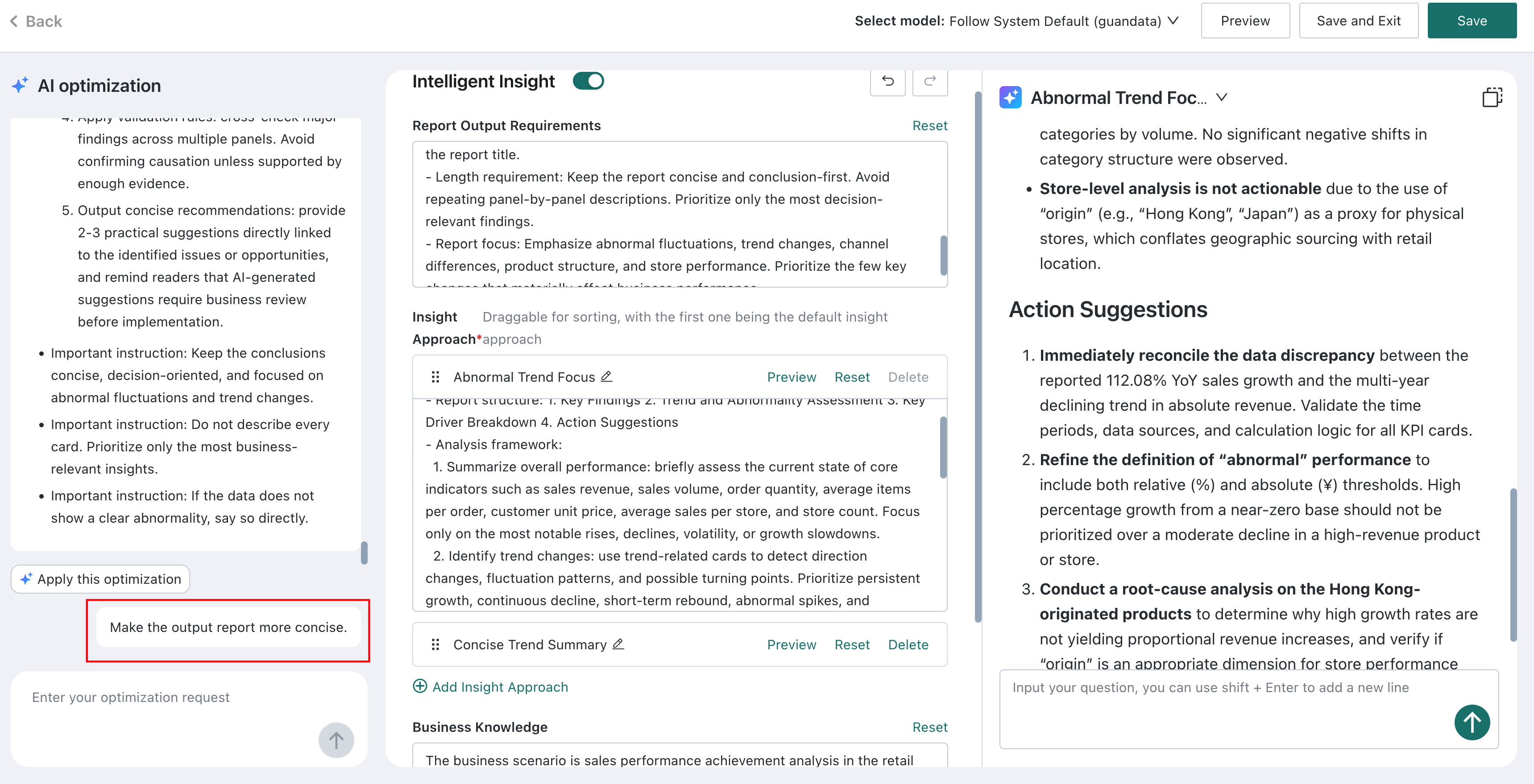
The system supports AI-assisted prompt generation. In the input box at the bottom left of the configuration page, enter an optimization direction or business requirement (for example: "Focus on abnormal fluctuations and trend changes for concise output"), and the AI will automatically generate a complete prompt configuration including Report Output Requirements, Insight Approach, and Business Knowledge.
- AI generation intelligently analyzes the data characteristics of the current dashboard and automatically generates configuration content tailored to the business scenario.
- After generation, you can still manually adjust each item for the best insight results.
-
In the dialog box at the bottom left, enter the prompt optimization direction.
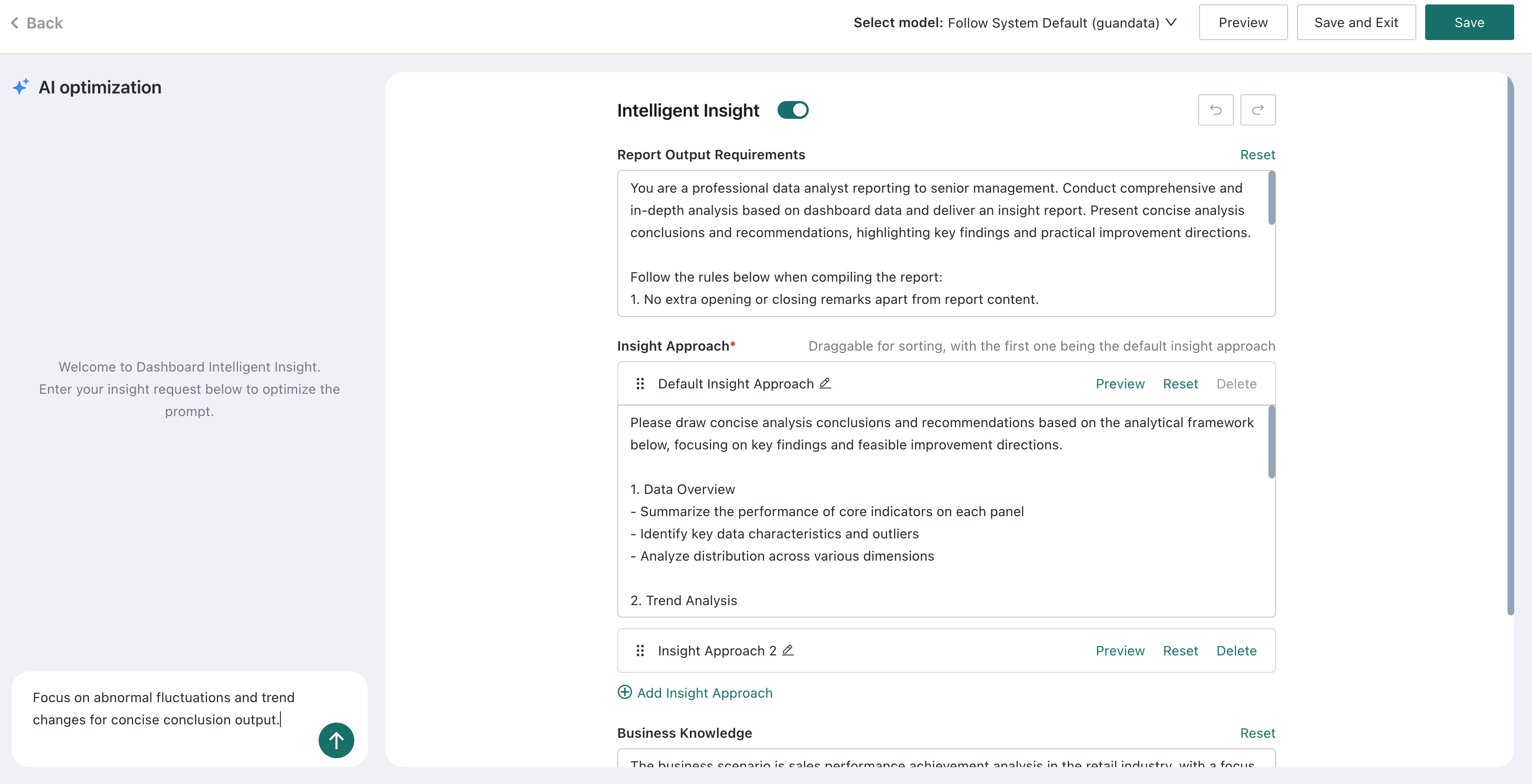
-
Click
Apply this optimizationto apply the optimized prompts to the configuration area on the right.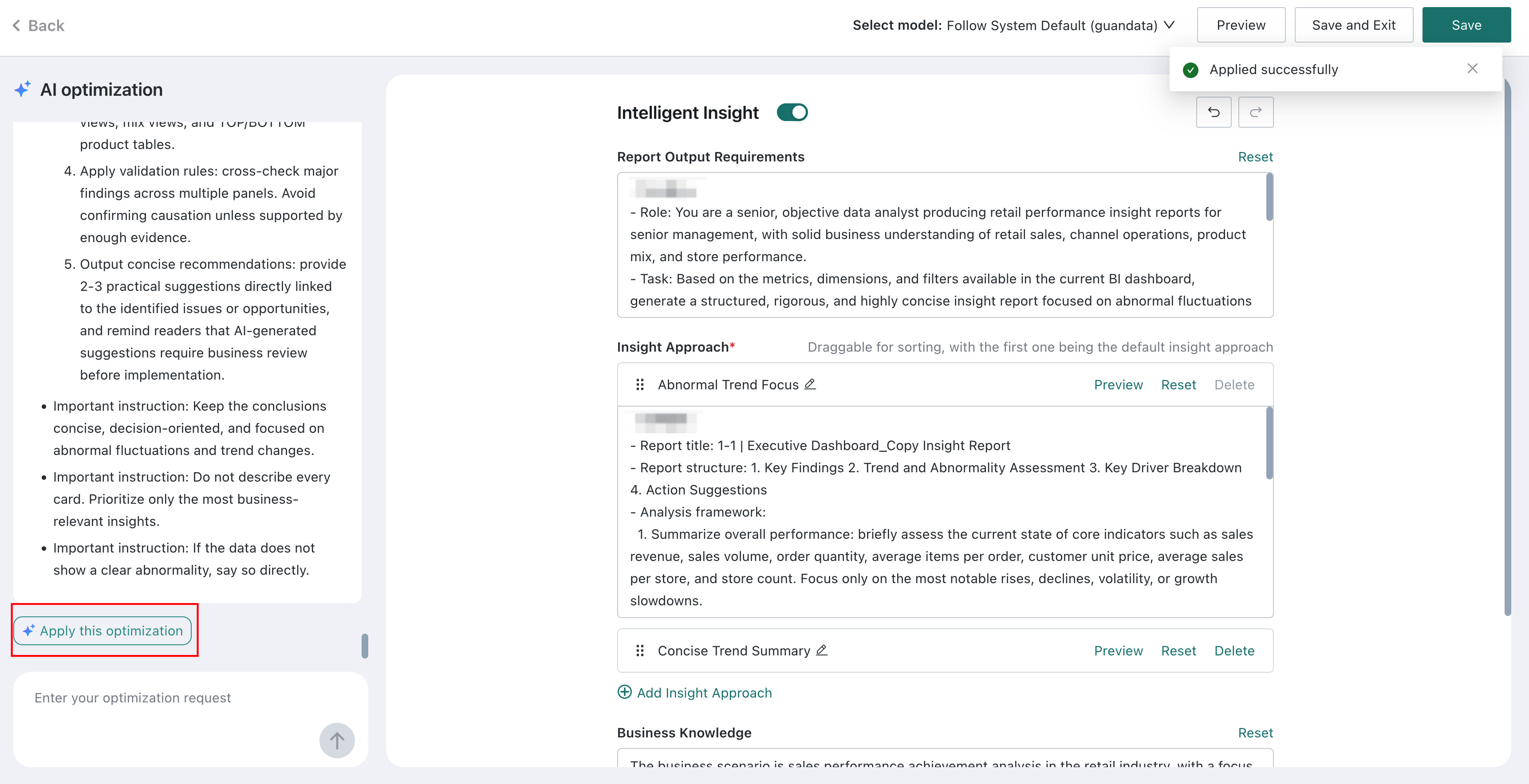
-
Click
Previewto view the insight results.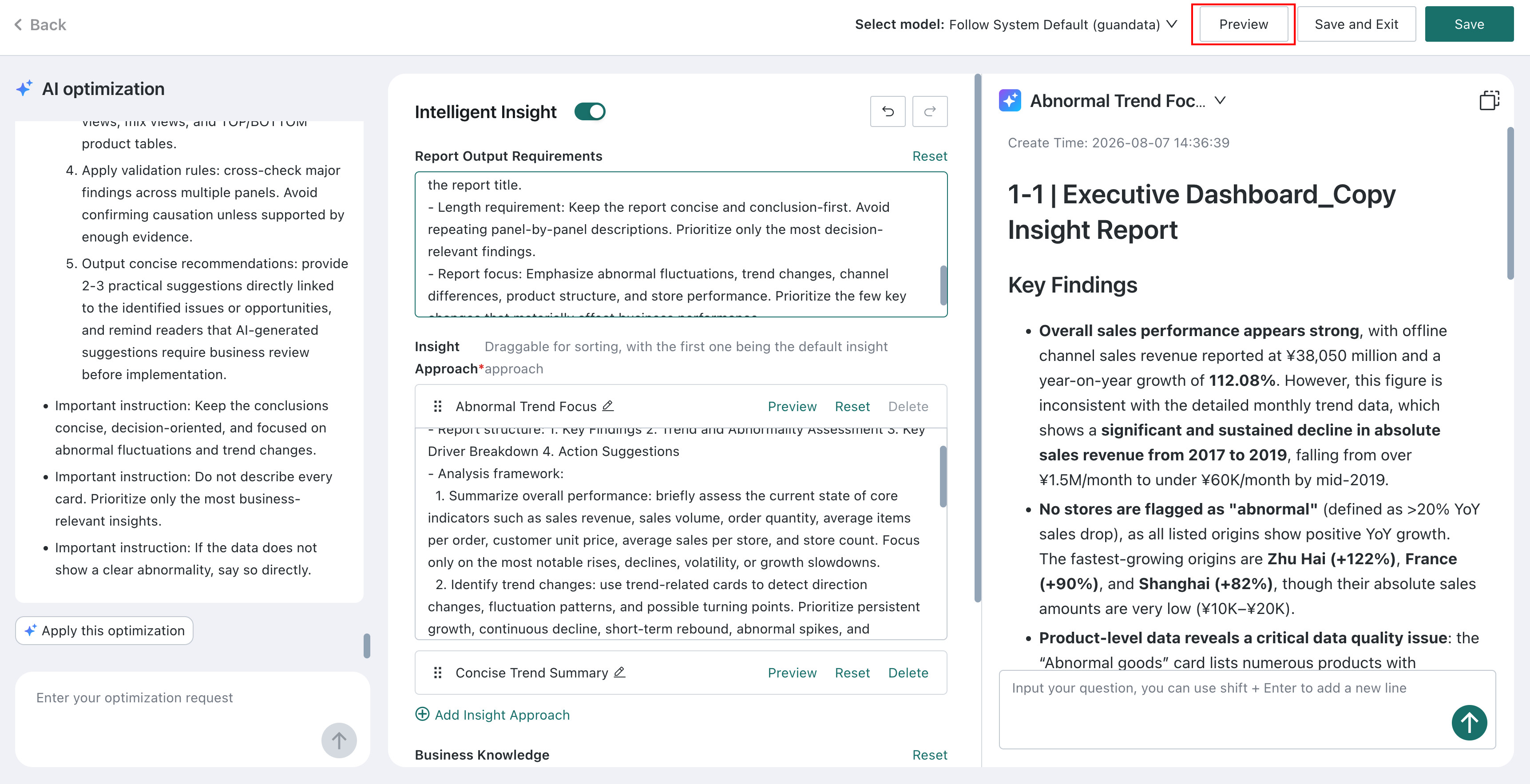
-
Based on the preview results, adjust the prompts through multiple rounds of follow-up queries.
Prompt adjustments support
UndoandRedo.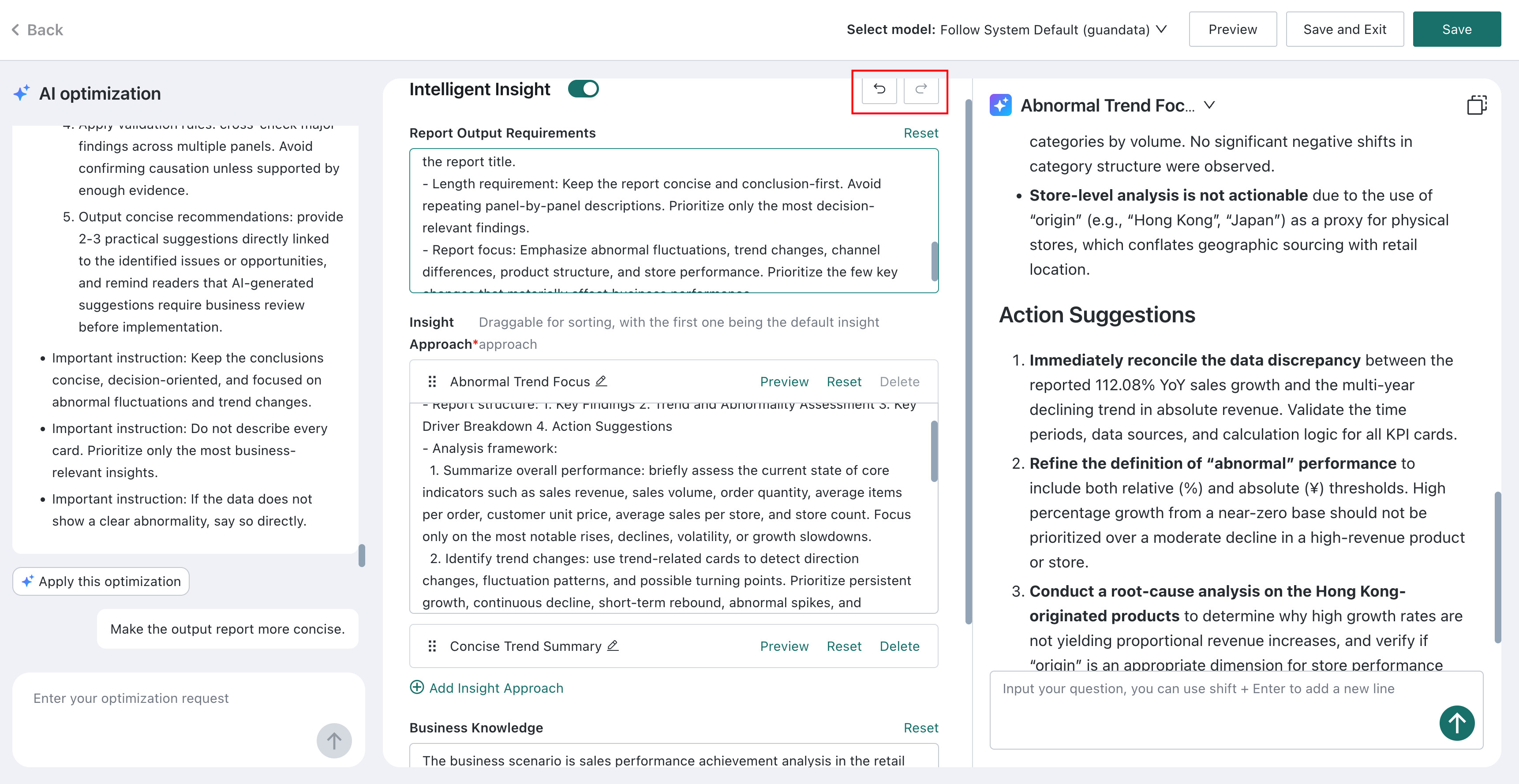
Option 2: Manual Prompt Configuration
If you choose to configure manually, adjust the following configuration items one by one:
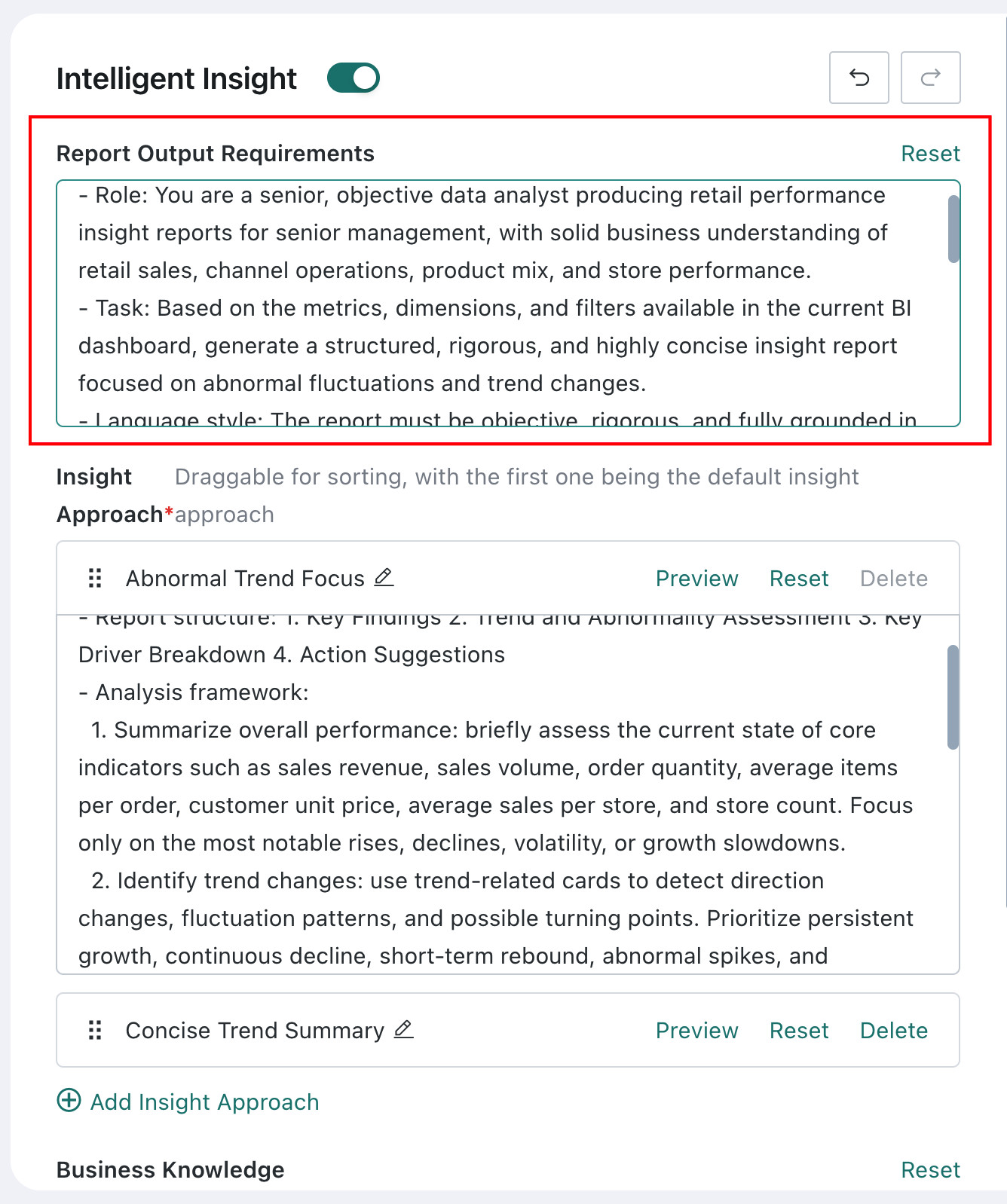
Configure Output Requirements
Define the writing rules for the insight report. The system provides a general default configuration, which can be used as-is or fine-tuned slightly.
Configure Insight Logic
Feature description
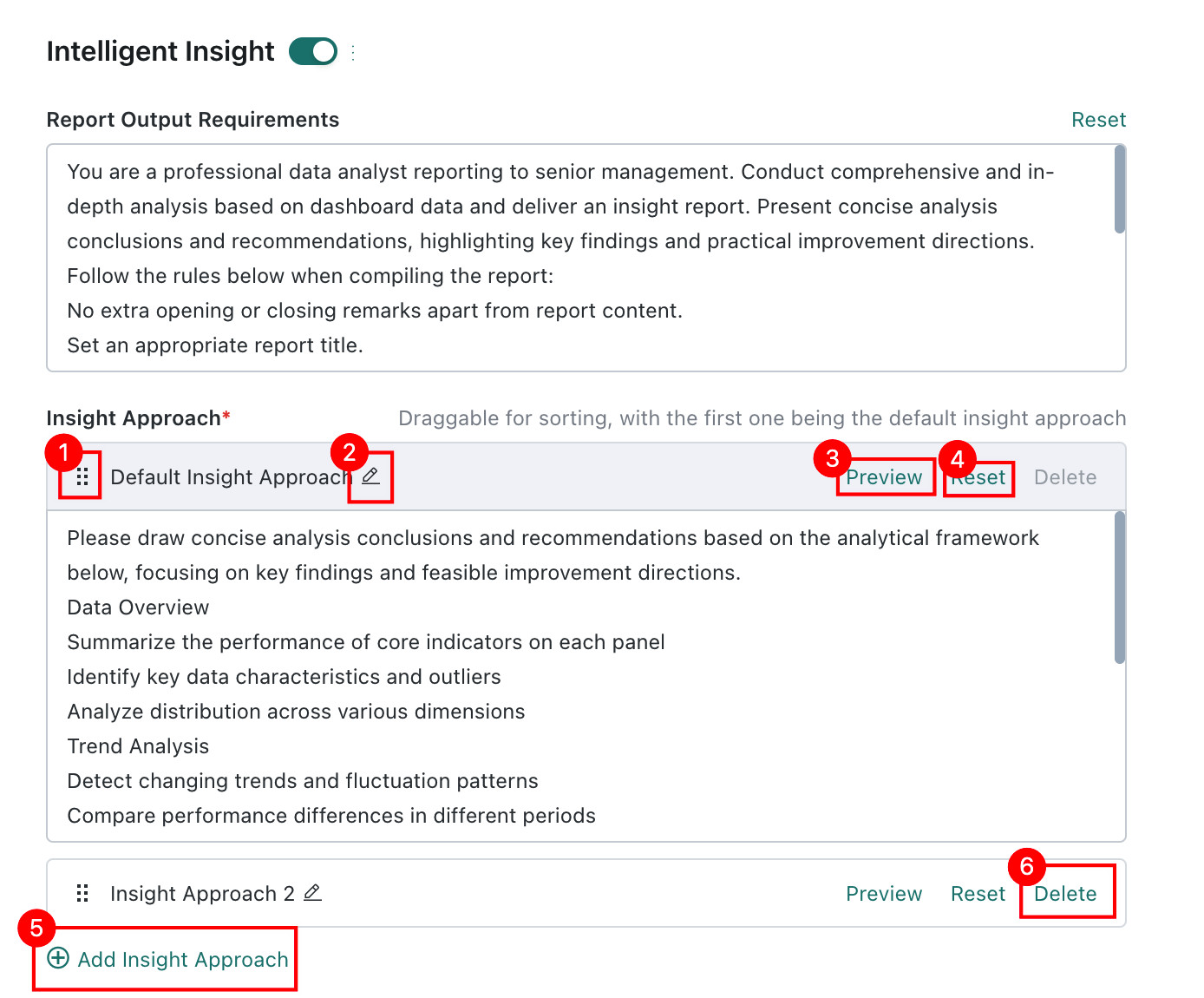
Insight logic defines the analytical framework used by Smart Insights. It is recommended that you fine-tune it for your business needs. The system provides a default insight logic that you can edit directly.
| No. | Configuration Item | Description |
|---|---|---|
| 1 | Drag / Expand Handle |
|
| 2 | Edit Button | Click to rename the insight logic so different analytical frameworks for different scenarios or roles can be distinguished, for example Frontline Insight Logic or Executive Insight Logic |
| 3 | Preview | Click to preview the result generated by the current insight logic. Each insight logic supports its own preview |
| 4 | Reset | Restores the current insight logic to the system default analytical framework |
| 5 | Add Insight Logic | If different roles or scenarios require dedicated analytical frameworks, click to add a new insight logic. Up to 5 insight logics are supported |
| 6 | Delete | Removes the currently selected insight logic. The default insight logic cannot be deleted |
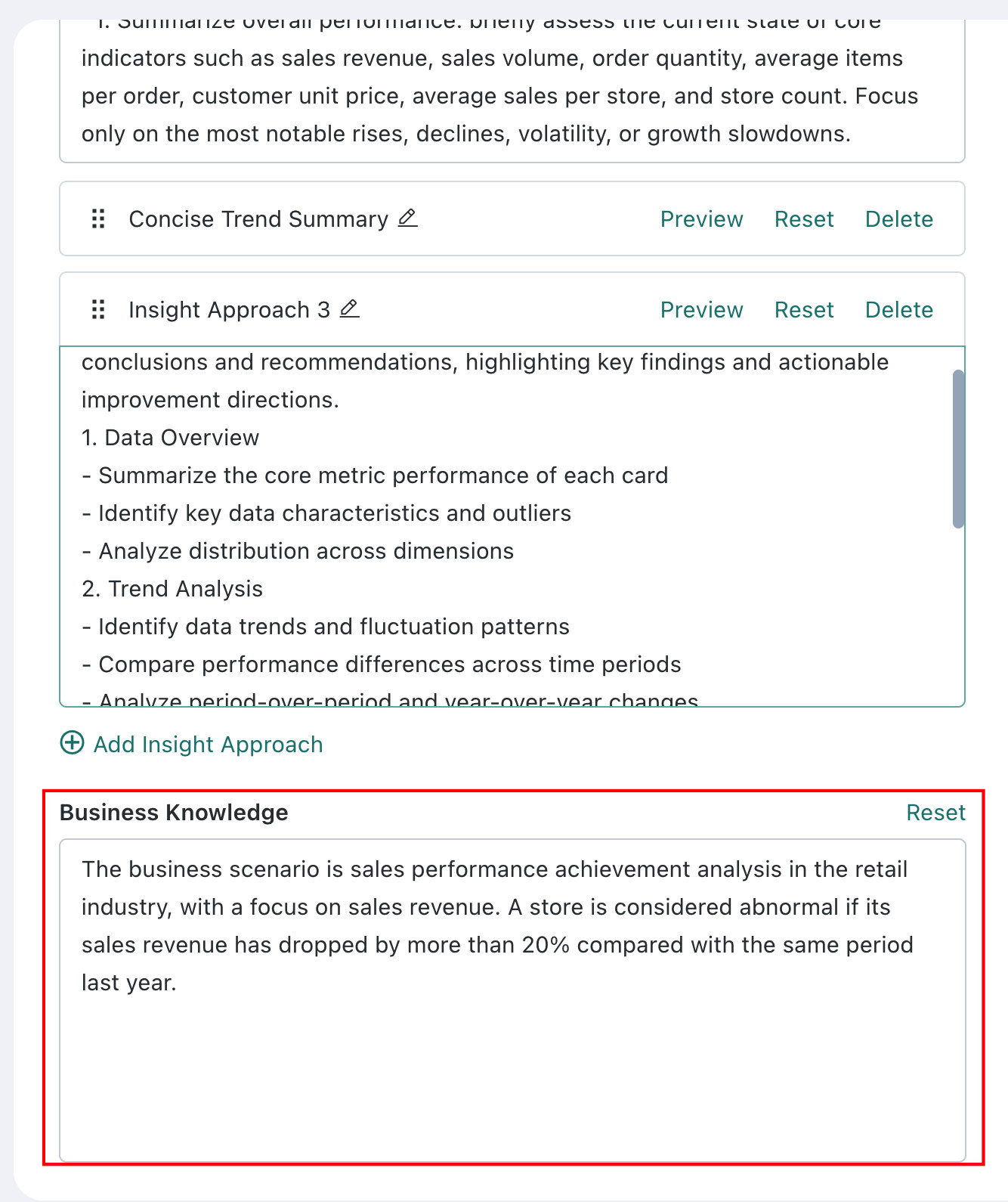
Configure Business Knowledge
Add business knowledge to make Smart Insights fit the real scenario more closely. It is recommended that you customize this carefully and enter dashboard-specific business knowledge. The more precise the background knowledge, the more aligned the generated insight result will be with the actual scenario.
Preview Insight Results
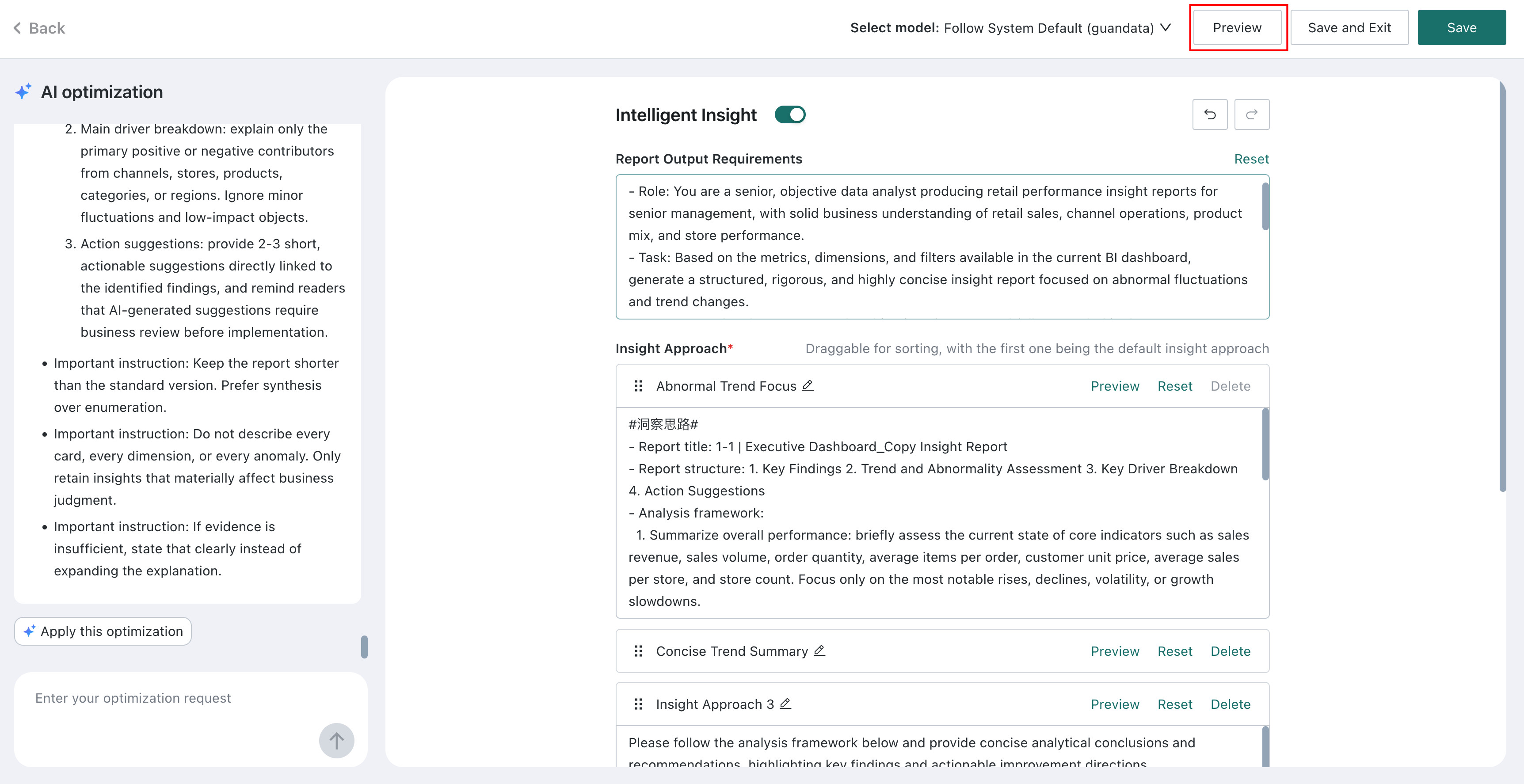
While configuring prompts, you can click Preview at any time to see the generated result.
The preview uses the default insight logic, which is the logic currently ranked first.
Select an LLM Service
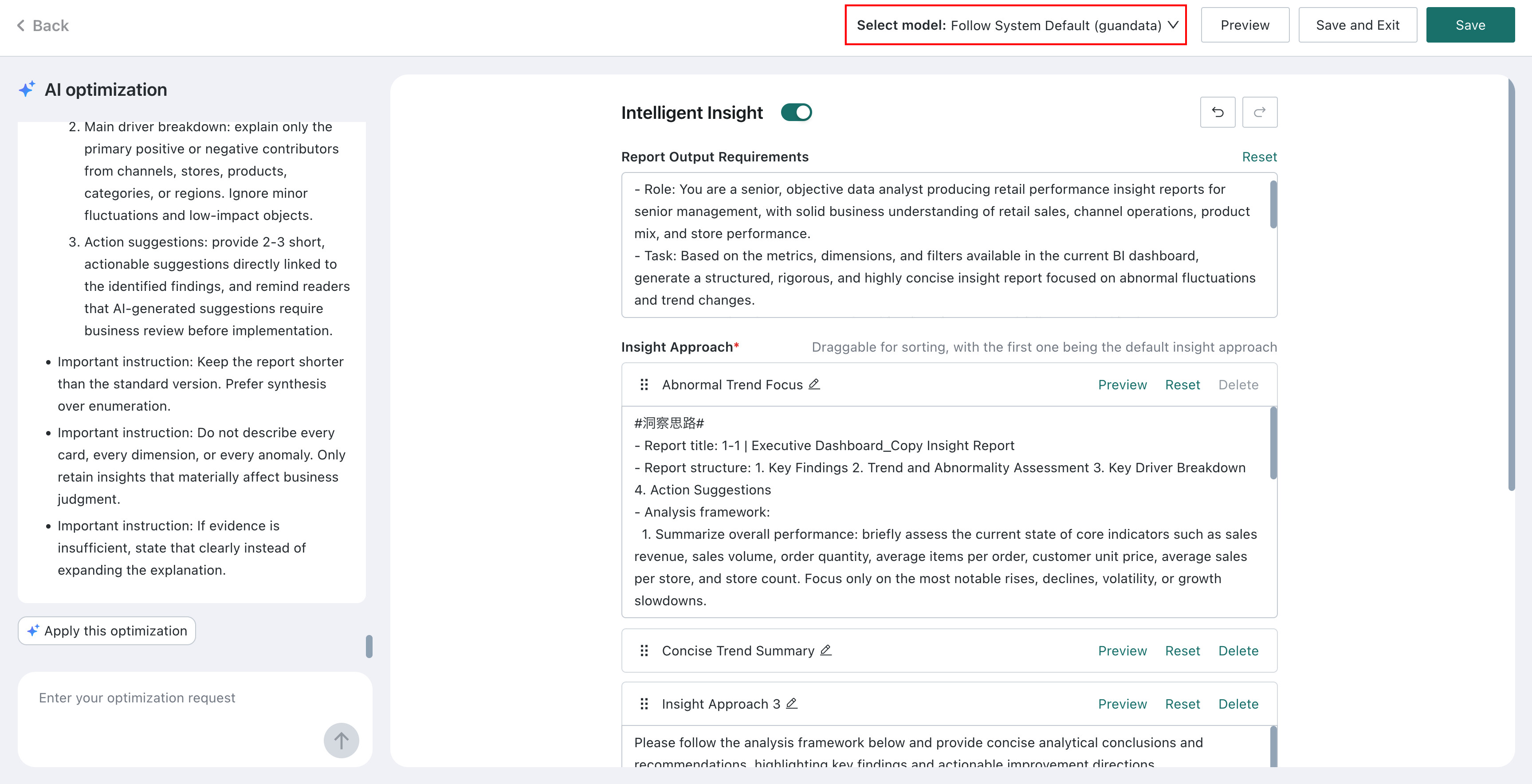
Make sure LLM Service has already been configured in Admin Center > System Integration > LLM Service.
Select the appropriate LLM as needed. If you do not switch it manually, the system uses the default LLM.
Publish Dashboard Insights
-
After finishing prompt and LLM service configuration, turn on the Smart Insights switch and click
Save.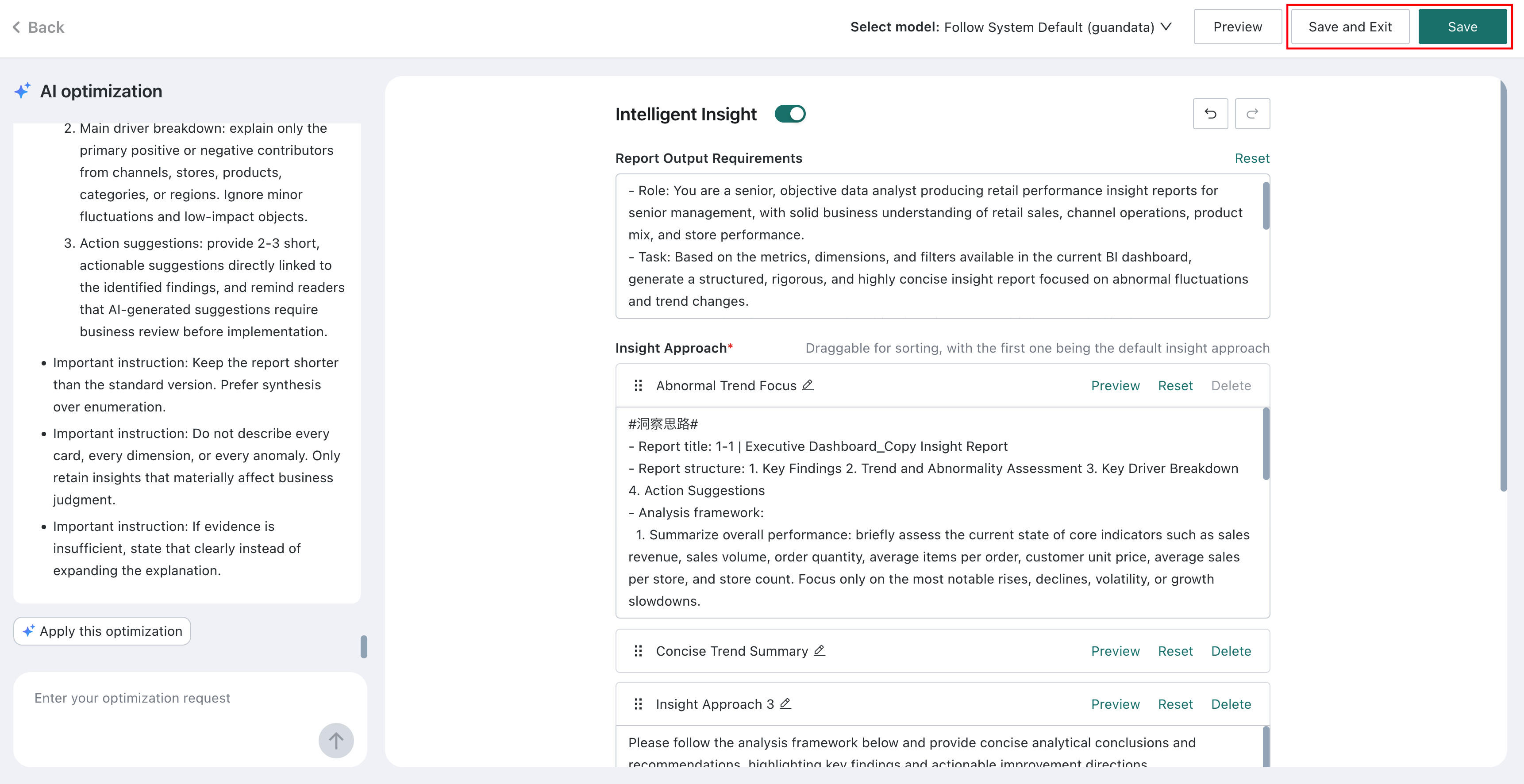
-
Click the dashboard
Publishbutton to publish the current Smart Insights configuration online for dashboard viewers.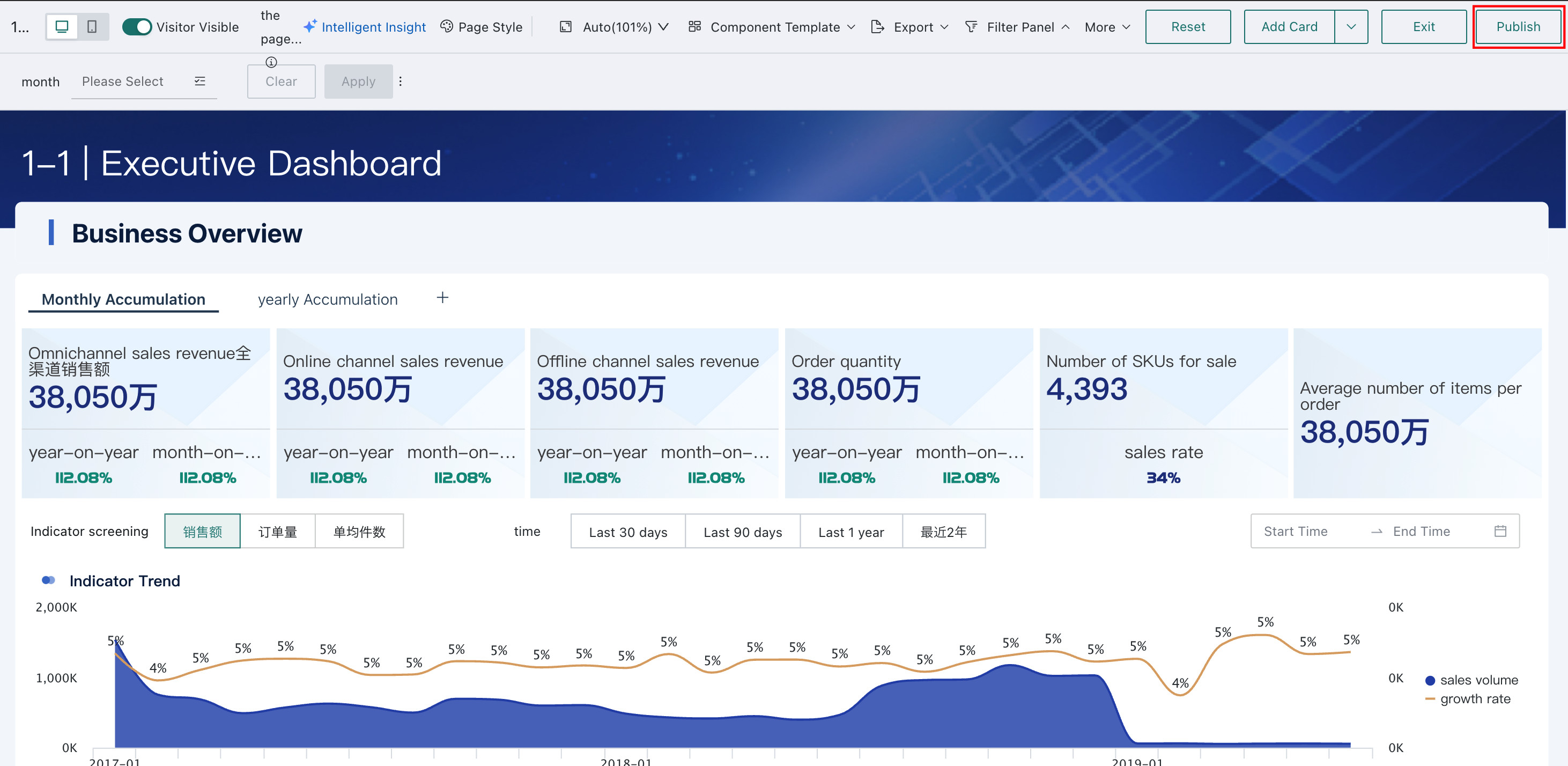
Configure the Default Display Mode for Insight Reports
By default, the system regenerates an insight report each time a user opens Intelligent Insight. To reduce token consumption from repeated report generation, you can set the default to display the previous insight record.
Go to Admin Center > System Settings > General Settings > System Rules and turn off the Generate new dashboard intelligent insight by default switch.
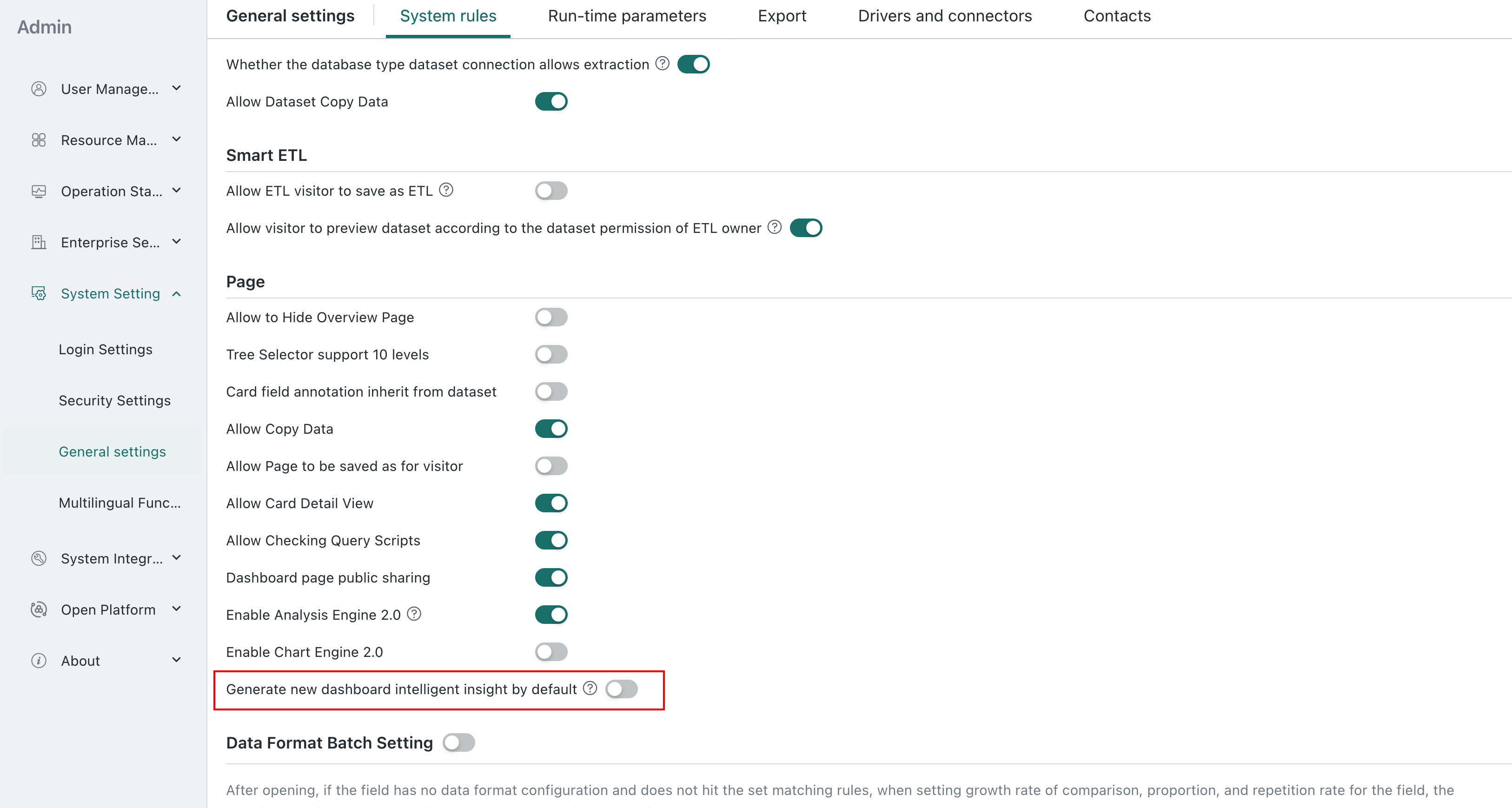
After turning it off, when users open Intelligent Insight, the system will display the previously generated insight report by default and will not automatically generate a new one.
When this switch is enabled, the system regenerates an insight report each time a user opens Intelligent Insight.
- After turning off the switch, users can still manually regenerate a report on the Intelligent Insight page.
- If no historical insight has been generated for the current page, a new insight will be generated on the first open.
Subscribe to Dashboard Insights
For subscription details, see Dashboard Insights Subscription.
Dashboard Viewers
View Insight Conclusions
Generate and View Insight Conclusions
For dashboards with Intelligent Insight enabled, clicking Intelligent Insight generates a new insight report based on the administrator's configuration, or displays the previously generated insight report. When generating a new report, the LLM comprehensively analyzes the entire dashboard's data and, combined with the background knowledge provided by the dashboard editor, delivers insight conclusions and recommendations.
On PC, you can drag the Intelligent Insight sidebar to adjust its width for full visibility of insight conclusions without obstructing the dashboard data.
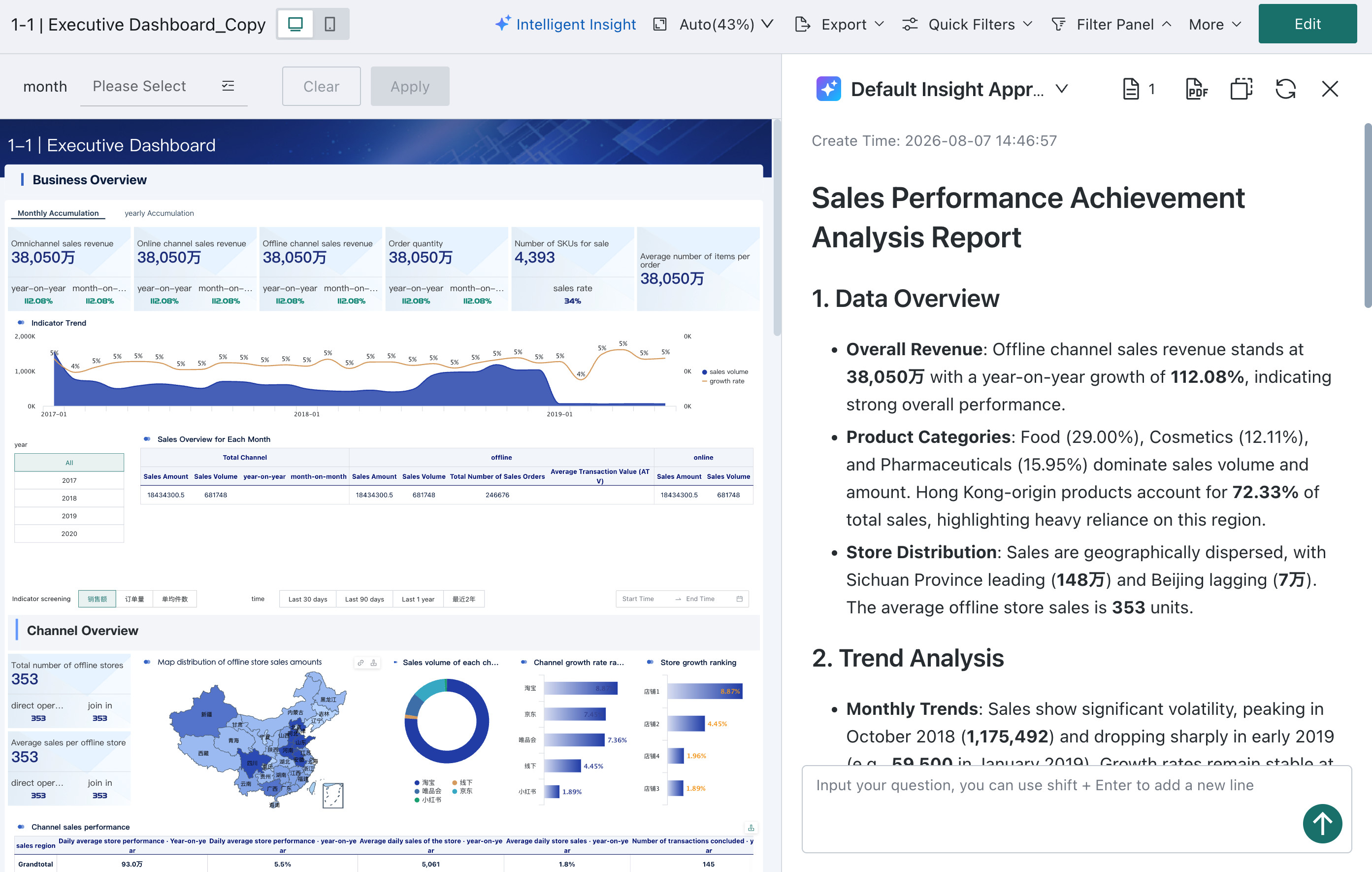
You can stop the insight generation at any time during the process.
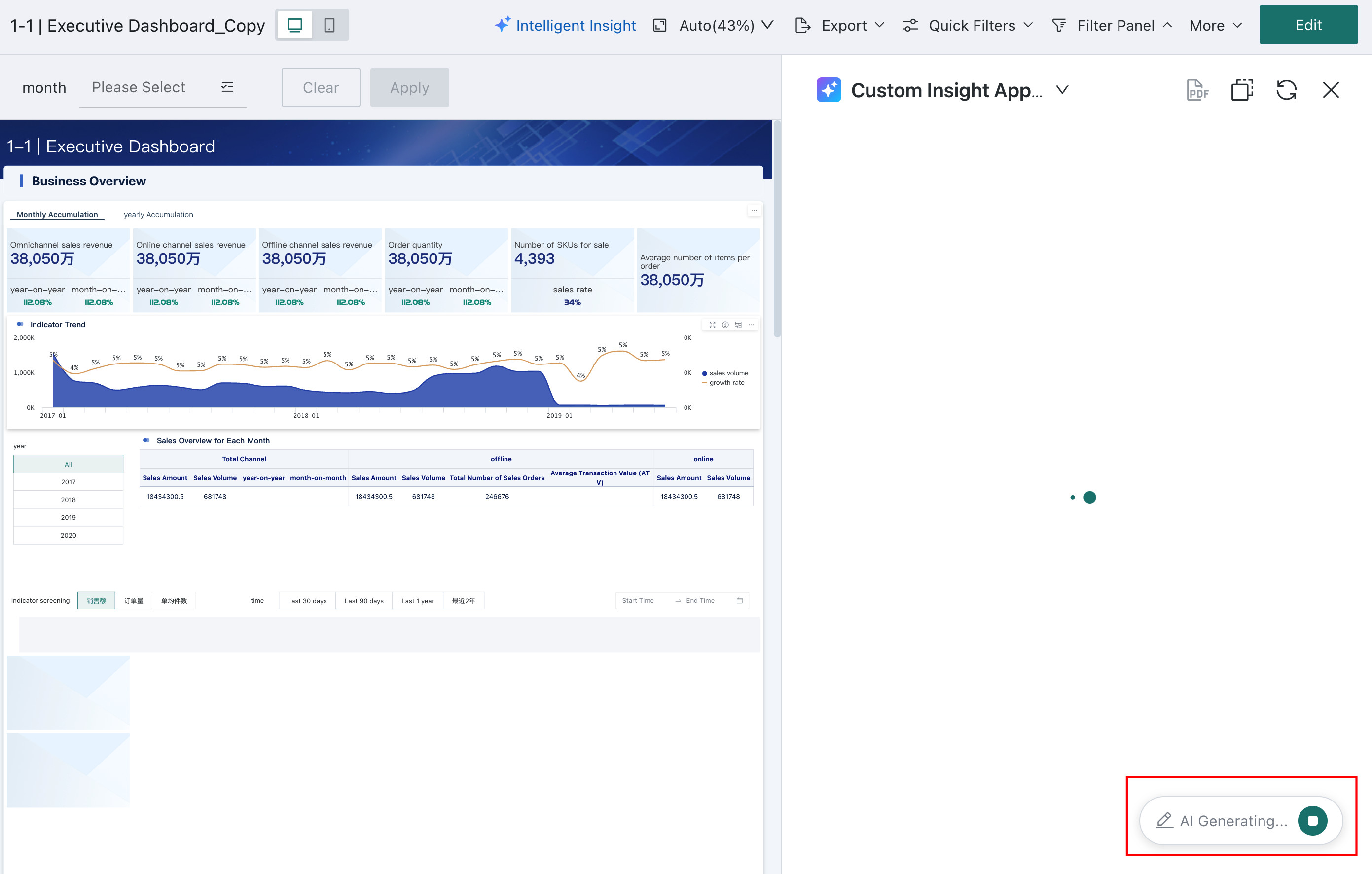
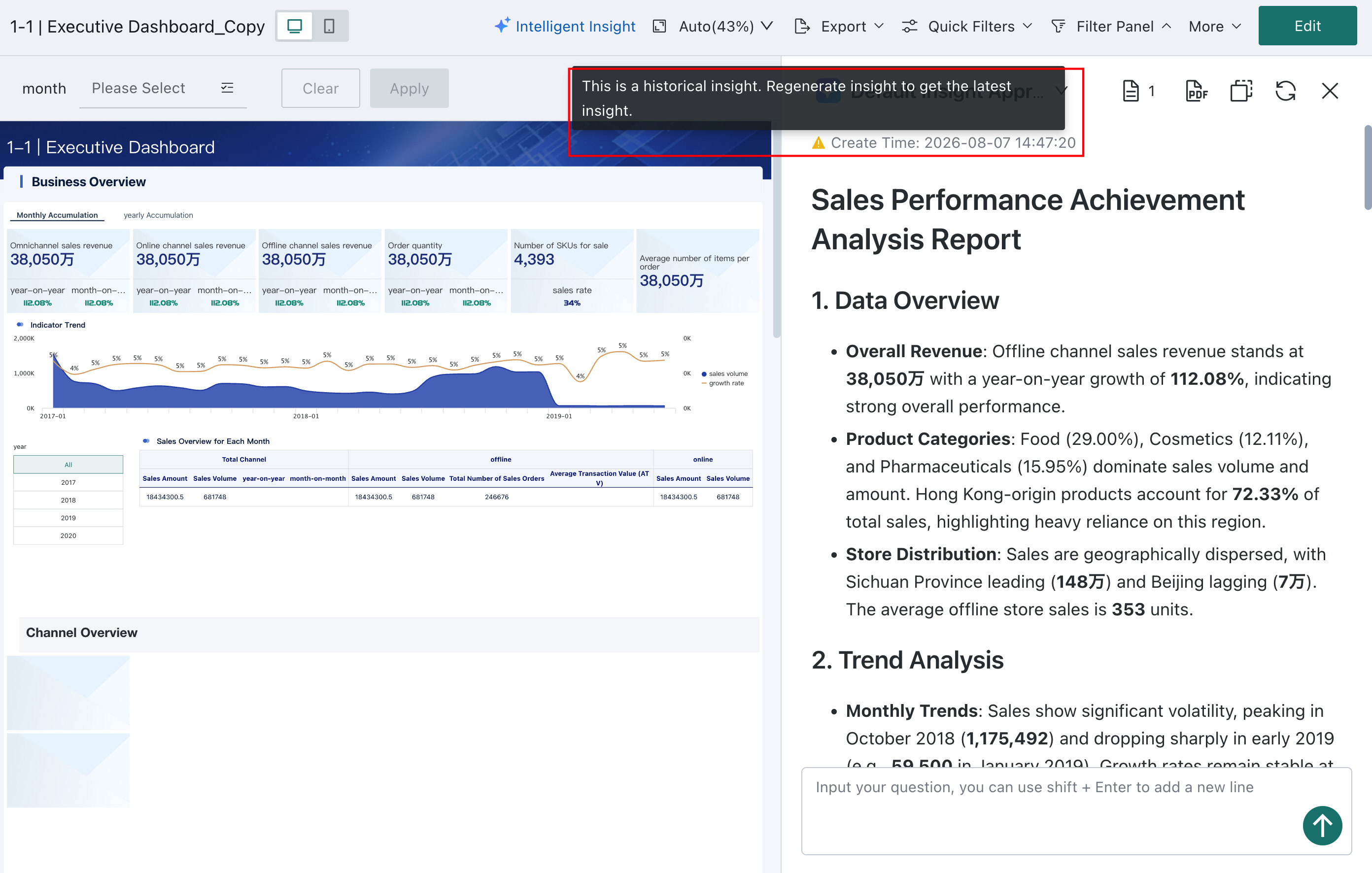
Display the Latest Insight Result
If the administrator has turned off the Generate new dashboard intelligent insight by default switch in the Admin Center, when users open Intelligent Insight, the system will directly display the most recently generated insight result and its generation time without waiting for regeneration.
To generate insights based on the latest dashboard data, click Regenerate.
View Historical Insight Conclusions
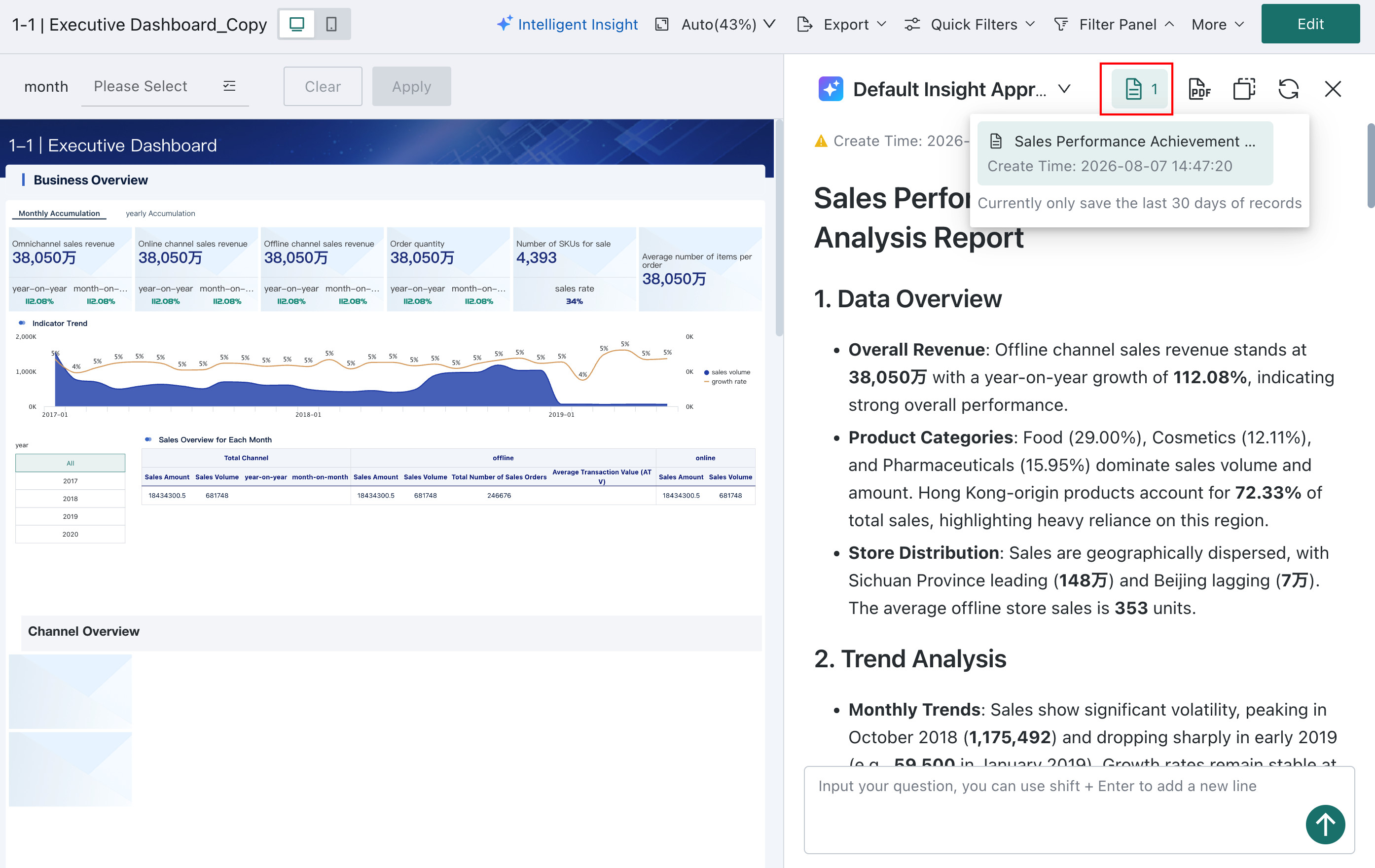
The system records every generated insight conclusion. Click the button shown below to view the history.
- Historical conclusions are recorded separately for each insight logic.
- Follow-up questions are also included in the history for traceability.
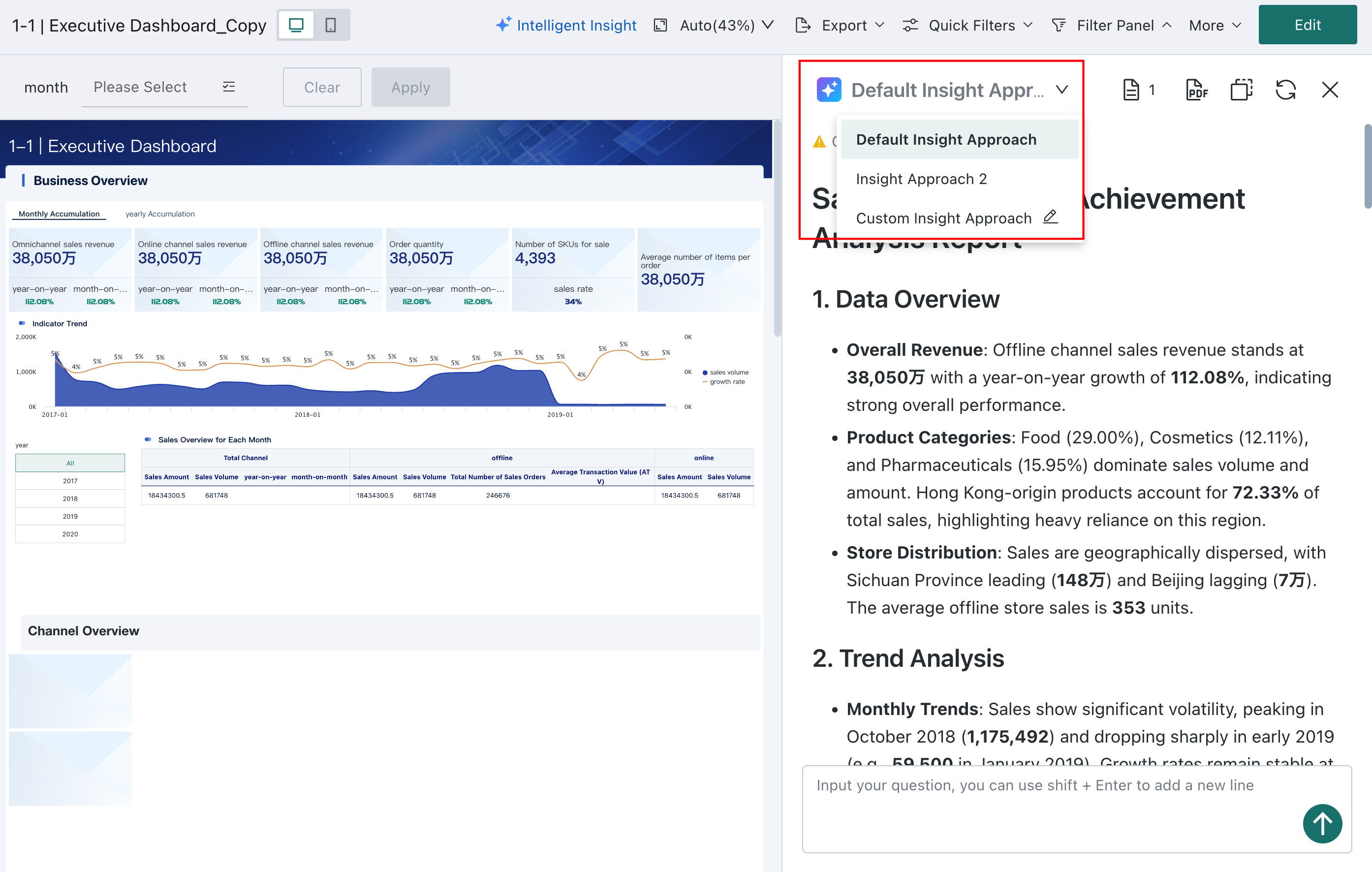
Switch Insight Logic
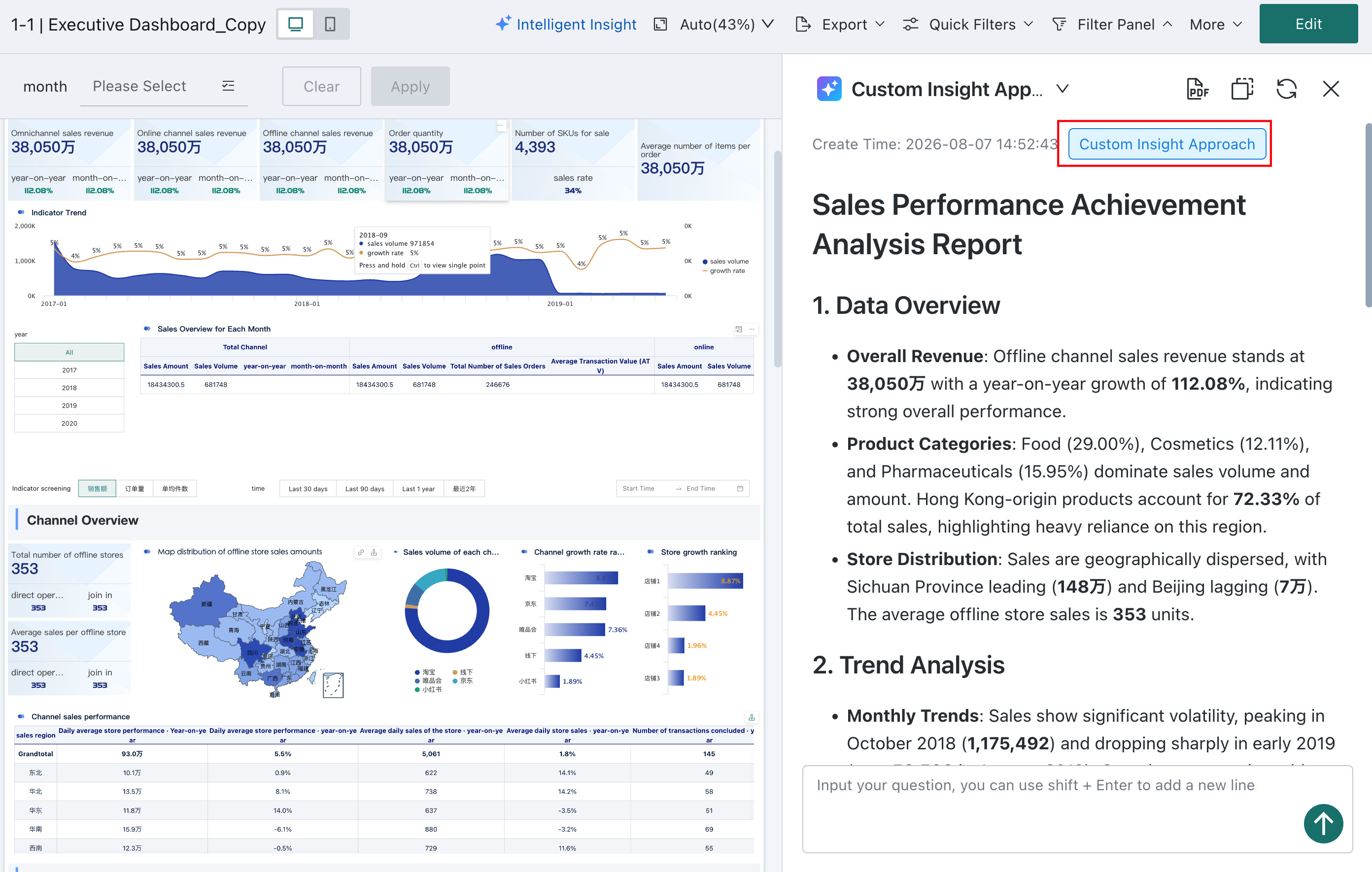
For dashboards with multiple configured insight prompts, users can manually select which insight logic to use when viewing insight results.
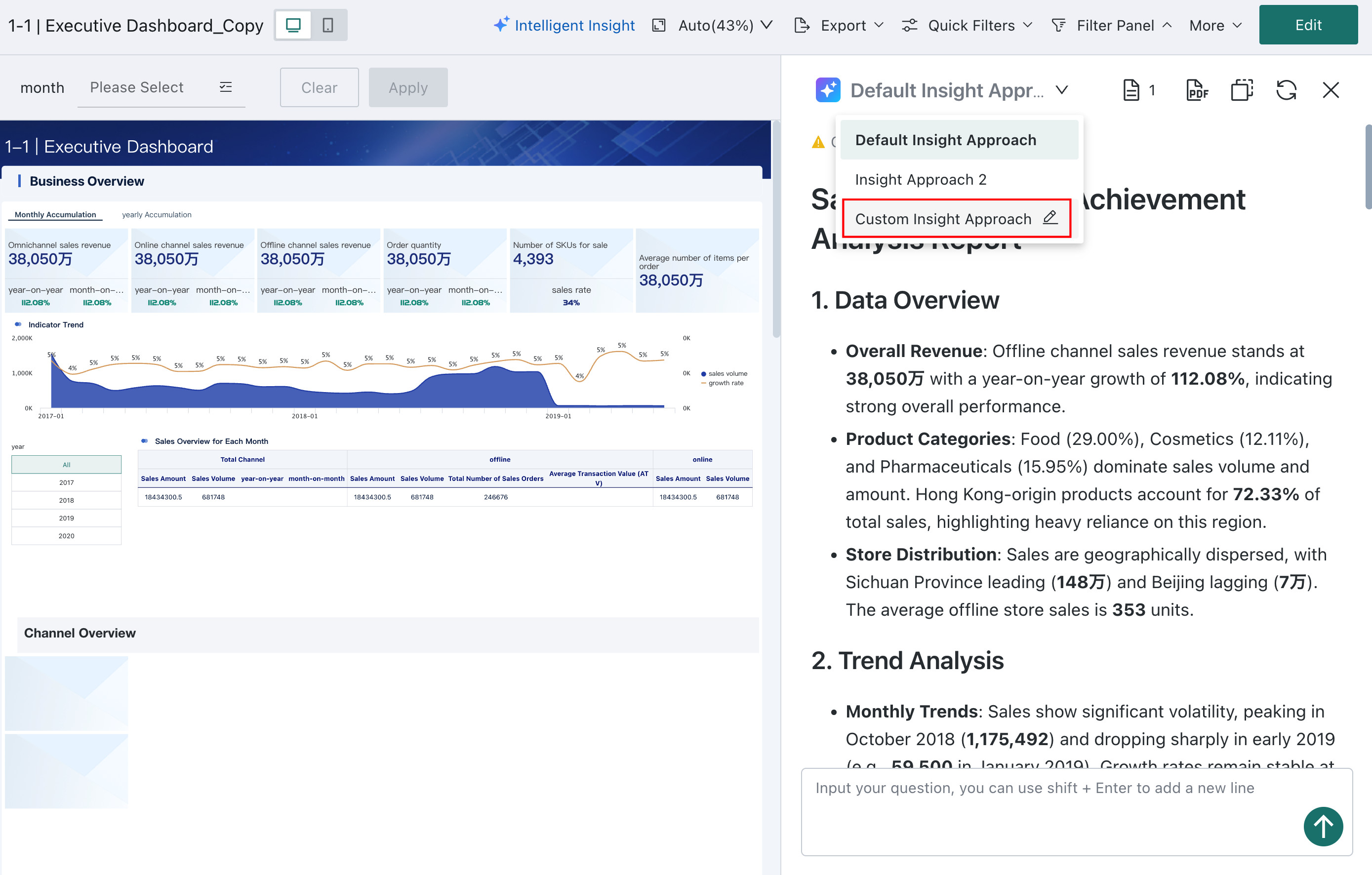
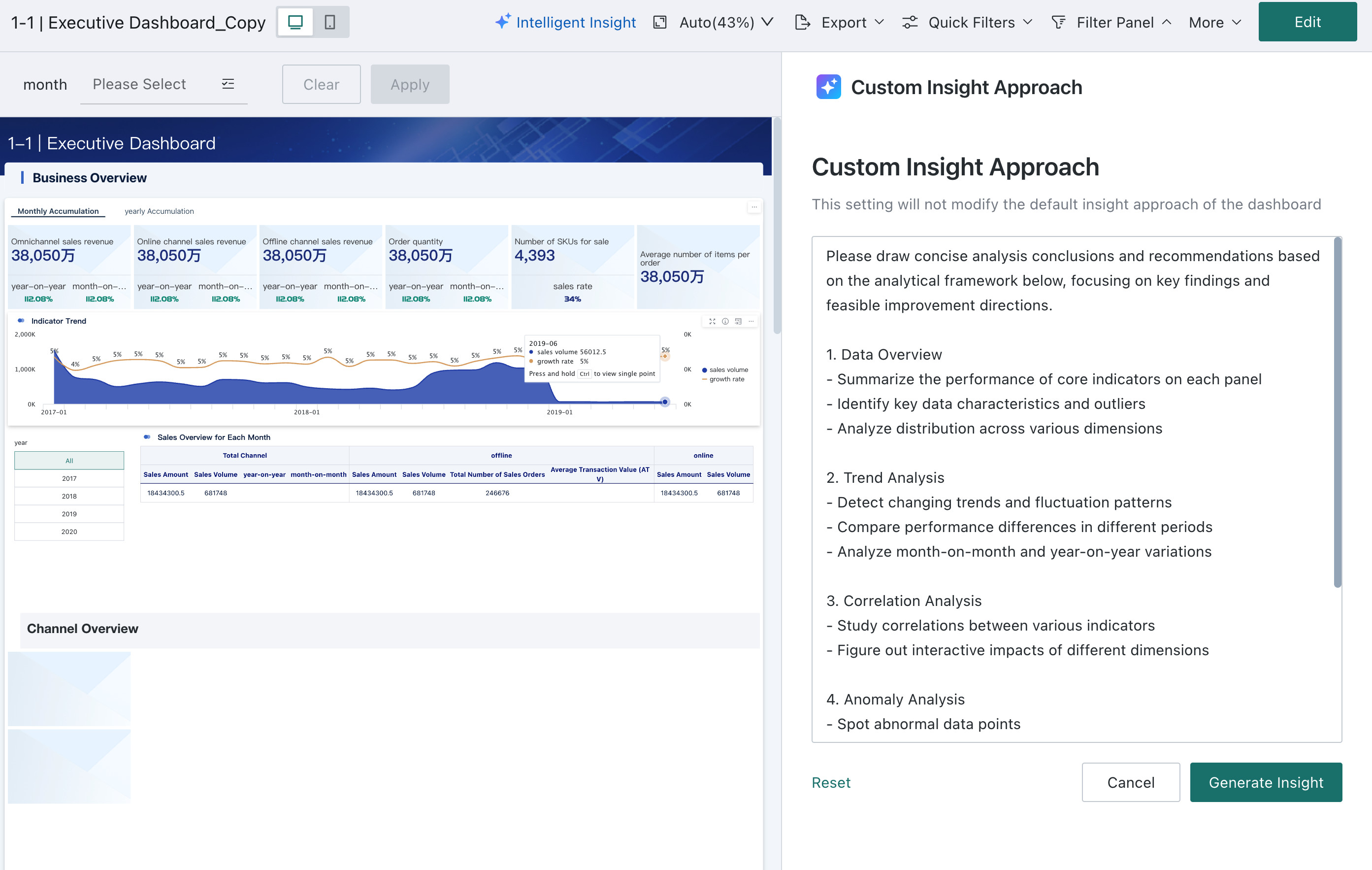
Users can also temporarily define a custom analytical framework through Custom Insight Logic to generate highly personalized reports.
Interactive Analysis
Follow-Up Questions
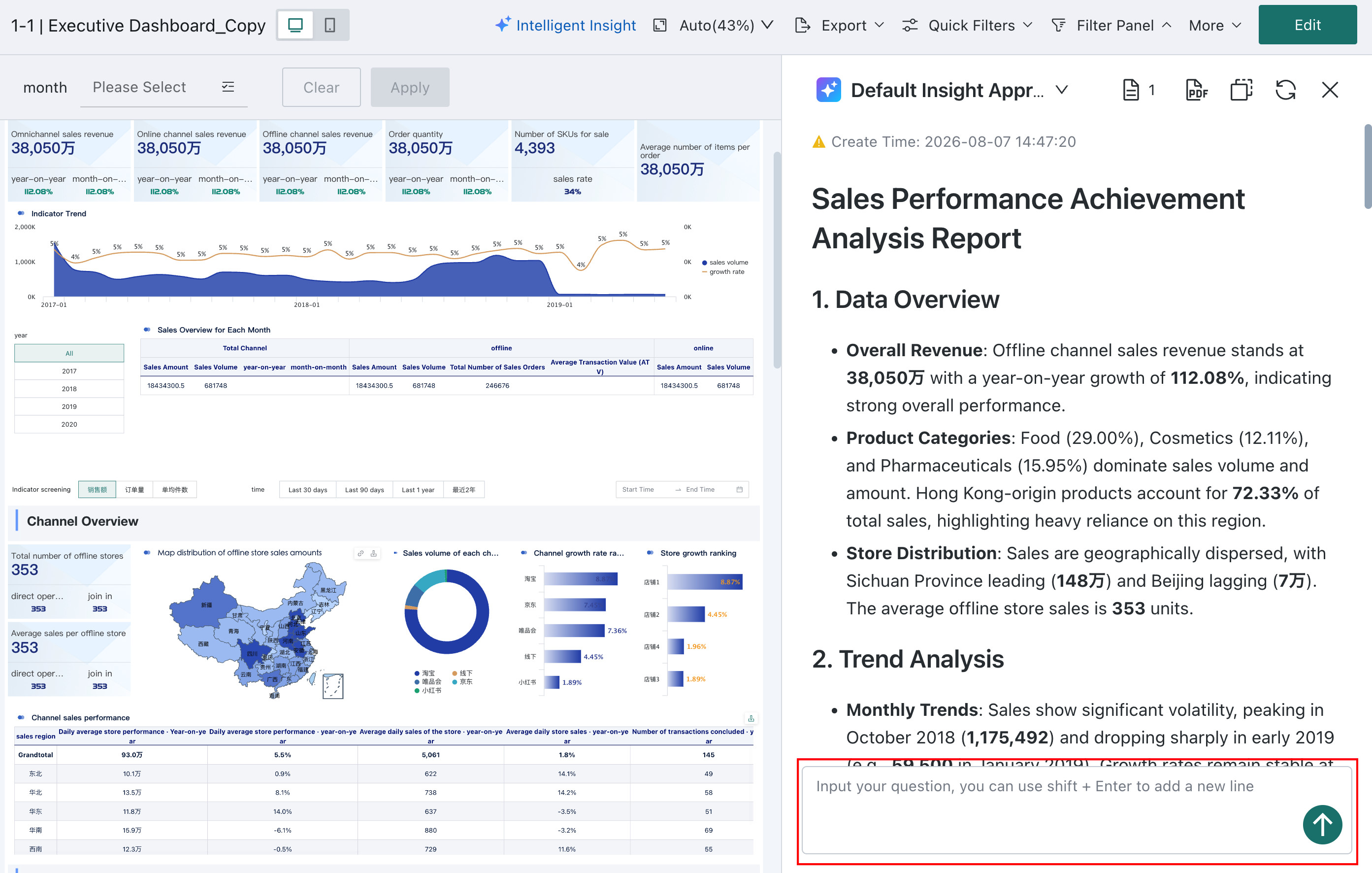
Enter a question in the dialog box and click Send to ask flexible follow-up questions about the current insight result. Multi-turn conversations are supported to explore the reasons behind the data more deeply.
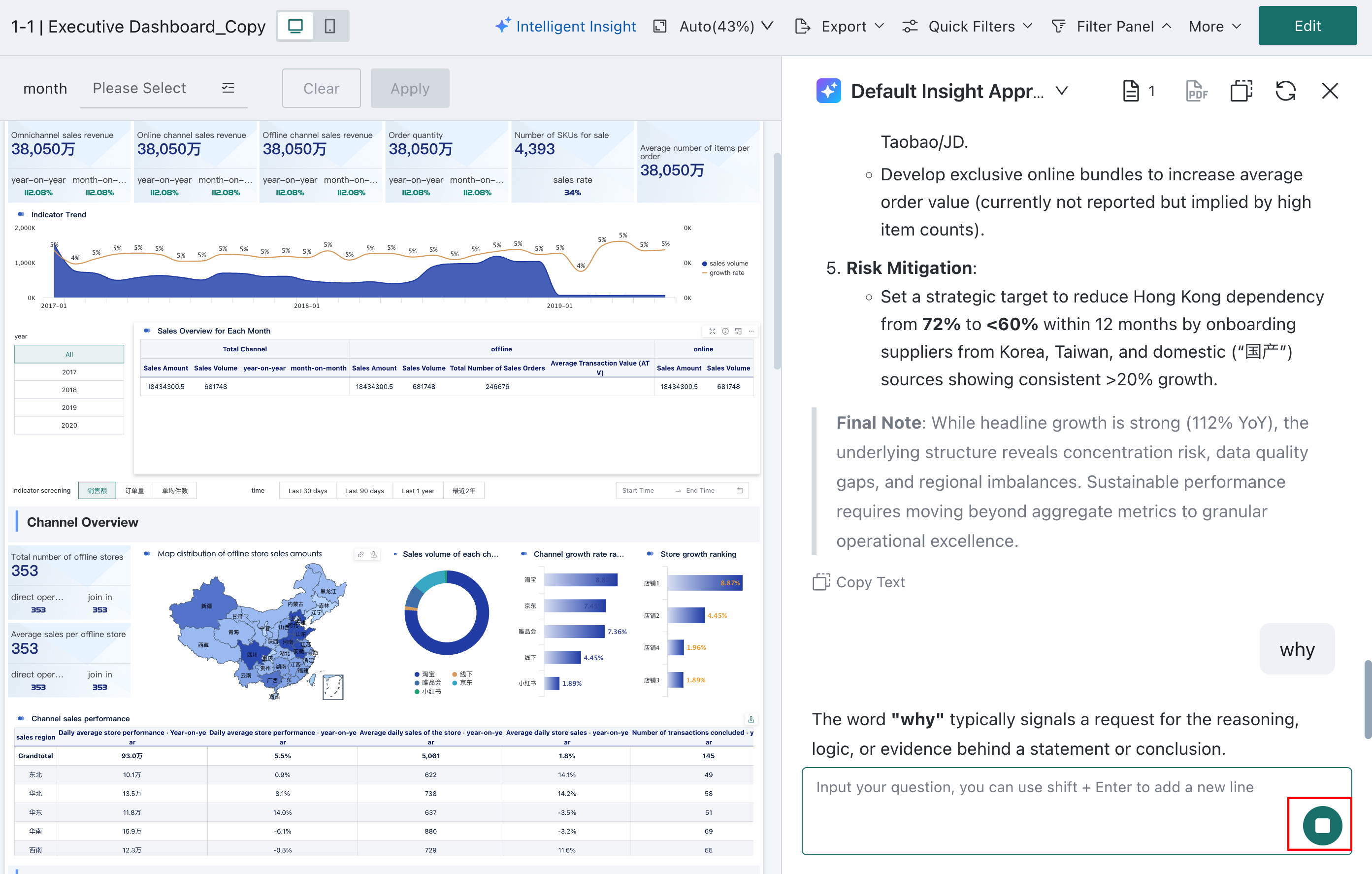
Users can stop generation at any time during follow-up analysis.
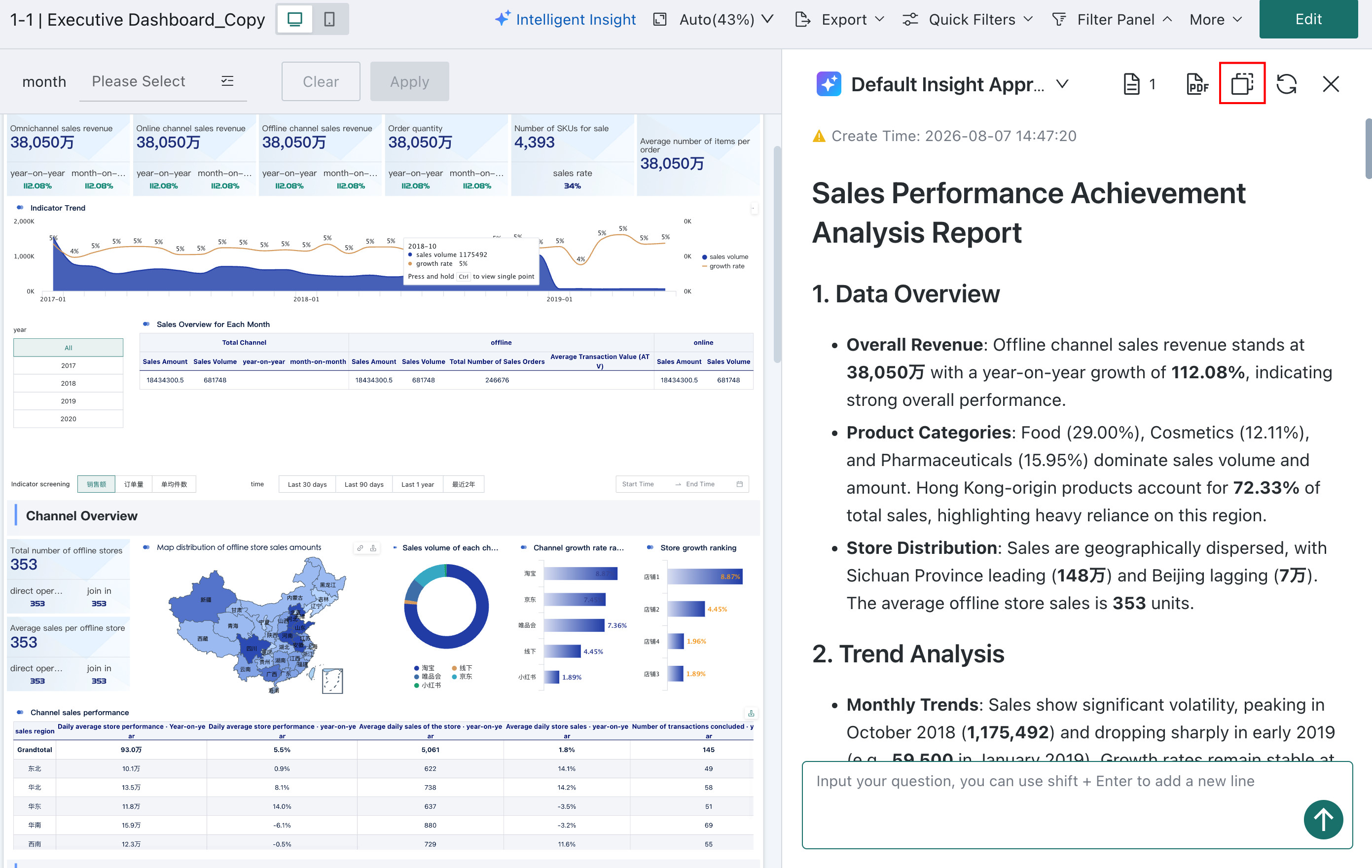
Copy
The output of Smart Insights supports Copy and preserves text formatting such as bold, indentation, and numbered lists.
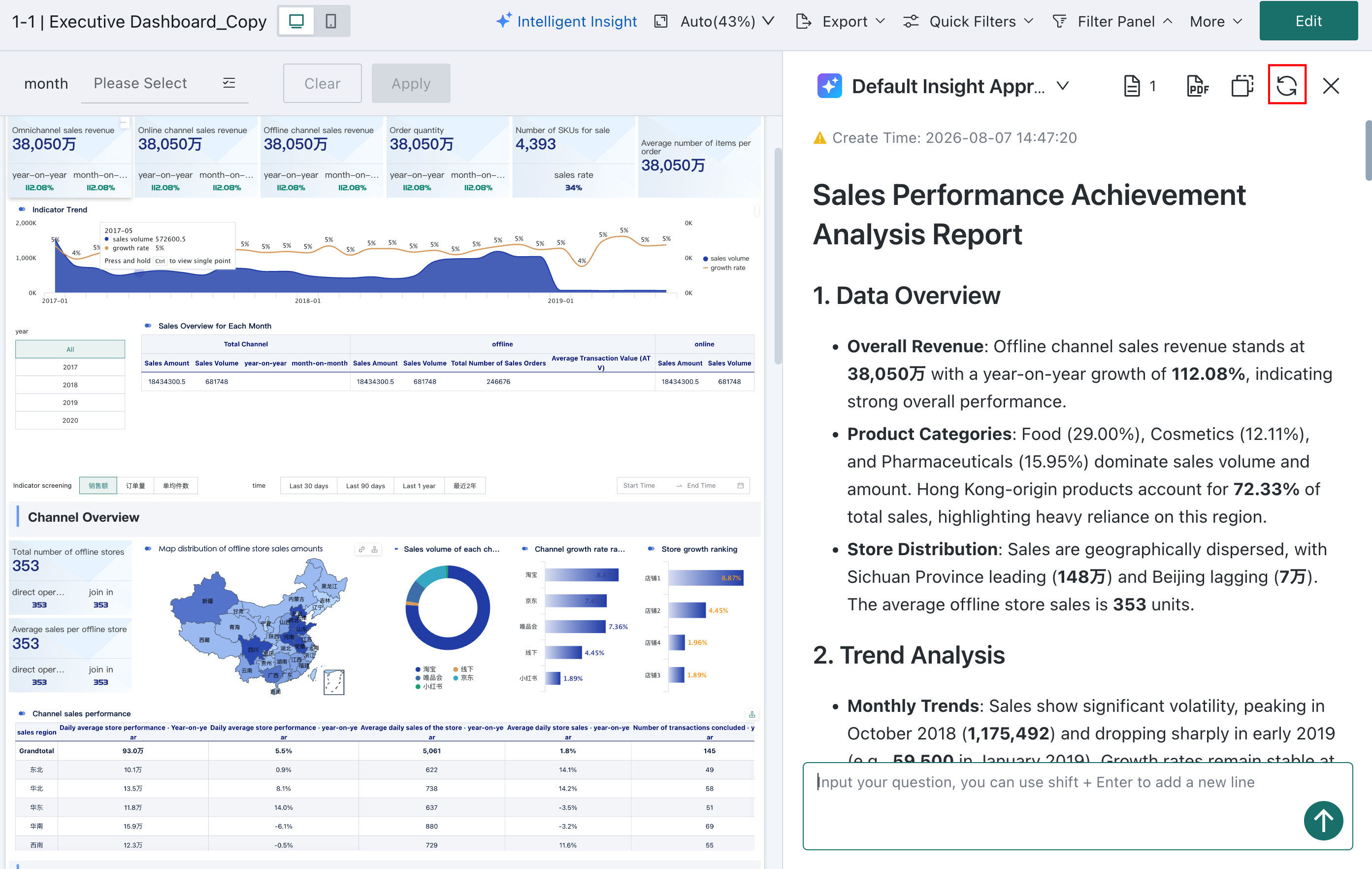
Regenerate
If the generated conclusion is unsatisfactory, click this button to generate it again.
Export as PDF
Dashboard Insights can export the current insight report as a PDF for download, archiving, or offline sharing.
-
Click the
Export as PDFicon at the top of the insight report. The system creates a PDF export task.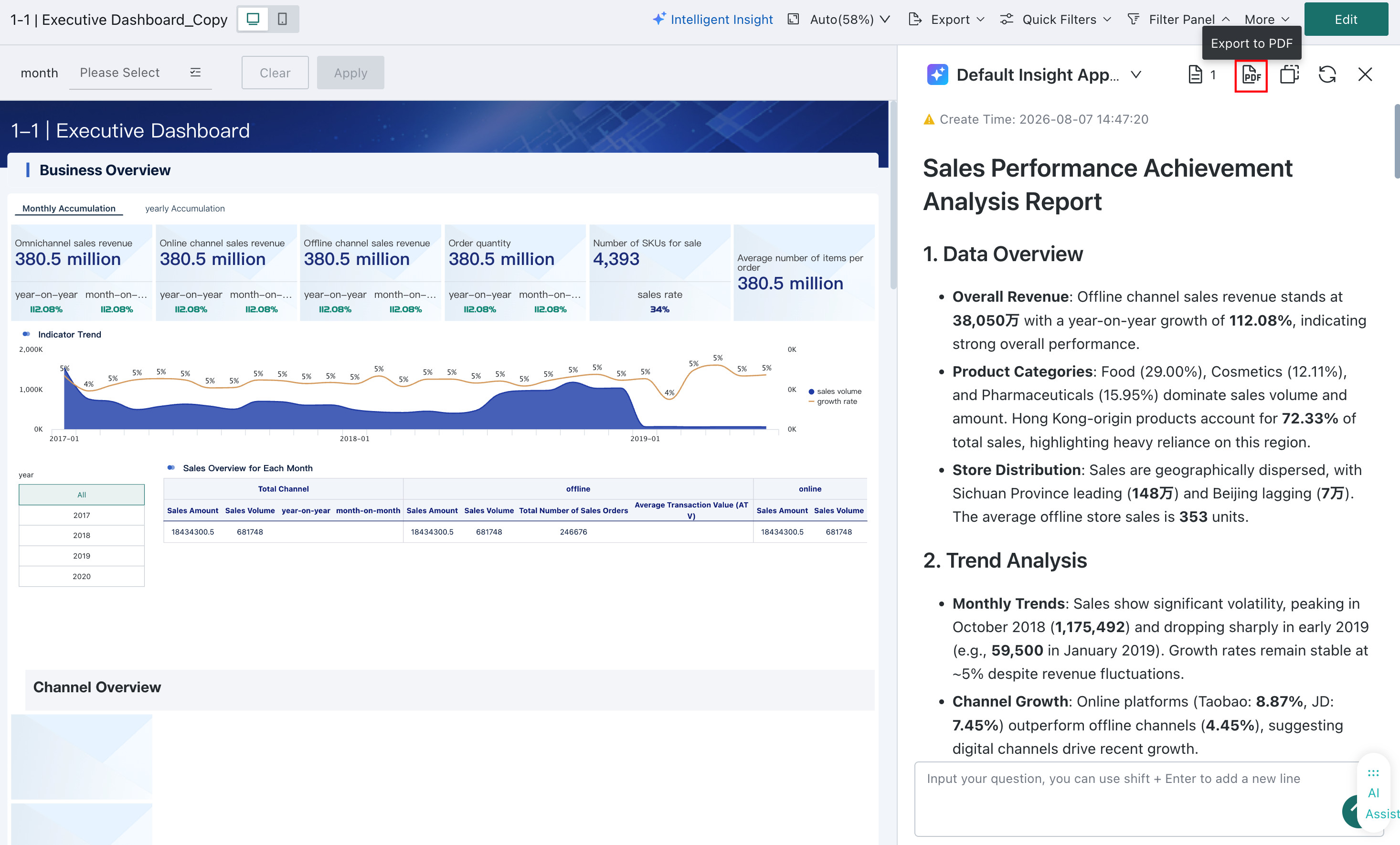
-
After the task is complete, click
Export Centerin the upper-right corner, then clickDownloadto get the PDF file.
View Insight Subscriptions
When a subscription is triggered, recipients receive the message in the configured channel and can directly view the insight conclusion there. For details, see View Dashboard Insights Subscription Results.
Data Processing Mechanism
Data Scope
Dashboard data is extracted for Smart Insights on a what-you-see-is-what-you-get basis, including:
- visible data under the current filter conditions
- card data under different tabs
- data displayed through Excel templates in China-Style Reports
Dynamic Update Logic
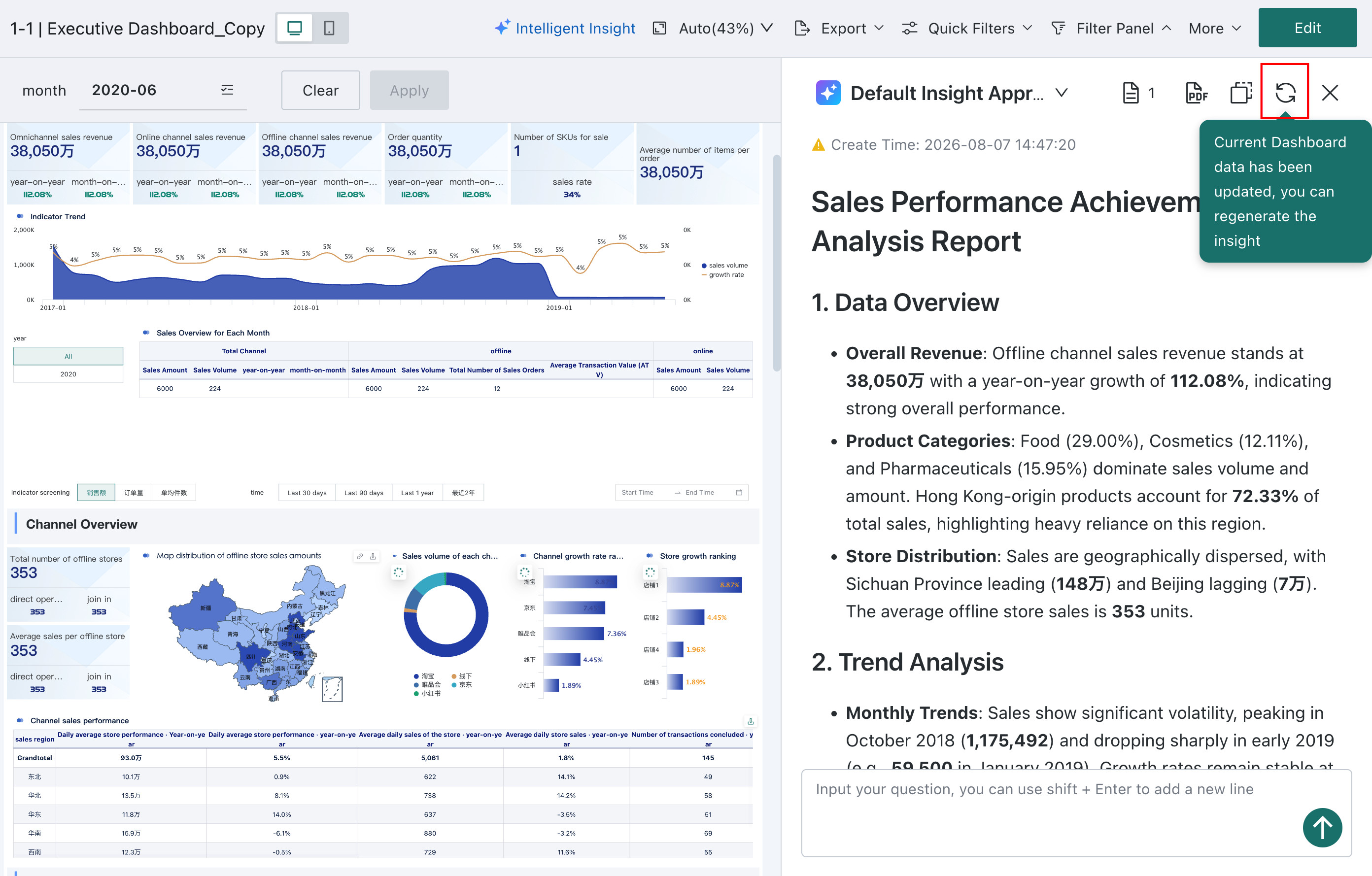
When filter conditions change or a card is drilled into, the data displayed in the current dashboard changes as well. Click Regenerate to update the insight report.
Limitations
-
Image cards and external-link cards are not currently supported.
-
Table-type cards provide the first 200 rows of data for analysis.
If you need to change the number of table rows available for analysis, go to
Admin Center > Open Platform > Plugin Managementand modify the configuration by creating a plugin. For plugin management operations, see Plugin Management.NoteThis configuration takes effect globally and applies to both Dashboard Insights and Card Insights.
Example: change
200in the code below to the required number of rows.
GD.dispatch('config-dashboard-insight-settings', {
    cardDataLimit: 200, // Modify the table row limit here
})