Dimension Management
Overview
Dimensions describe ways of analyzing a metric, such as date, region, store or product type. In Metric Center you can give fields with the same business meaning a common name across datasets. For example, bind the Region field in sales details and the region field in store master data to the same Region dimension. Both metrics can then use Region. You can also specify a dimension table to supplement the values available for selection.
Dimension management replaces public dimensions. Existing dimension IDs, field bindings and metric references remain valid. You do not need to reconfigure existing metrics or add a source of values to an existing dimension.
Create a Dimension
Set Basic Properties
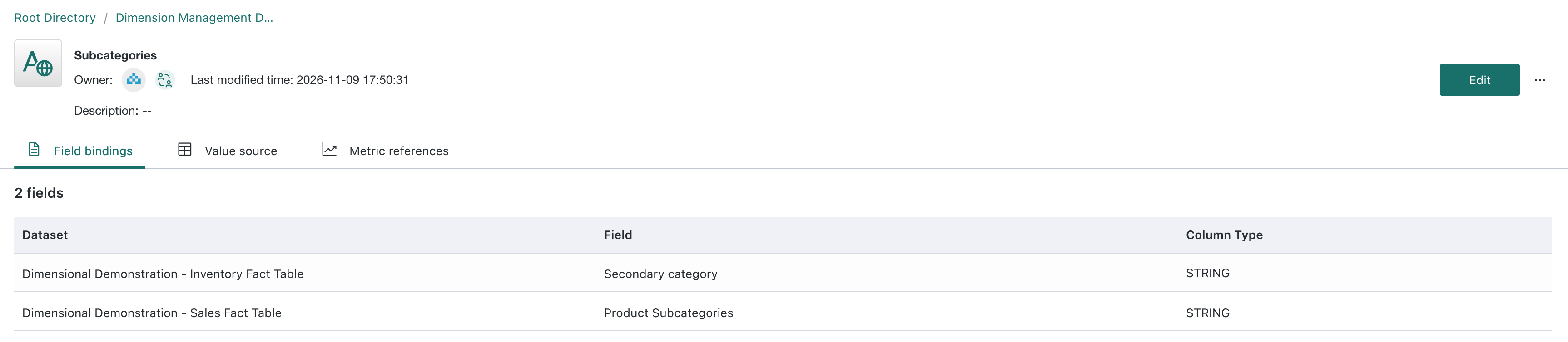
Open dimension management in Metric Center and create a dimension. If needed, create a folder first.
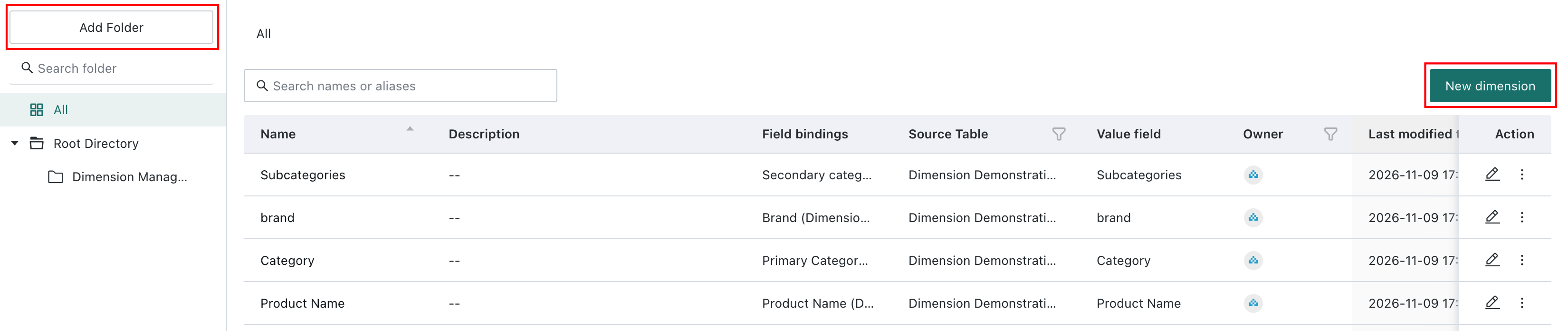
| Property | What to enter |
|---|---|
| Name | A business name such as Region. Required; must be unique within the tenant. |
| Aliases | Optional alternative names, such as Sales Region. Separate multiple aliases with commas. Aliases help users find the dimension; they do not rename it or its values. |
| Description | An optional definition and scope. |
| Folder | The folder in which to store the dimension. |
| Owner | The person responsible for maintaining it. |
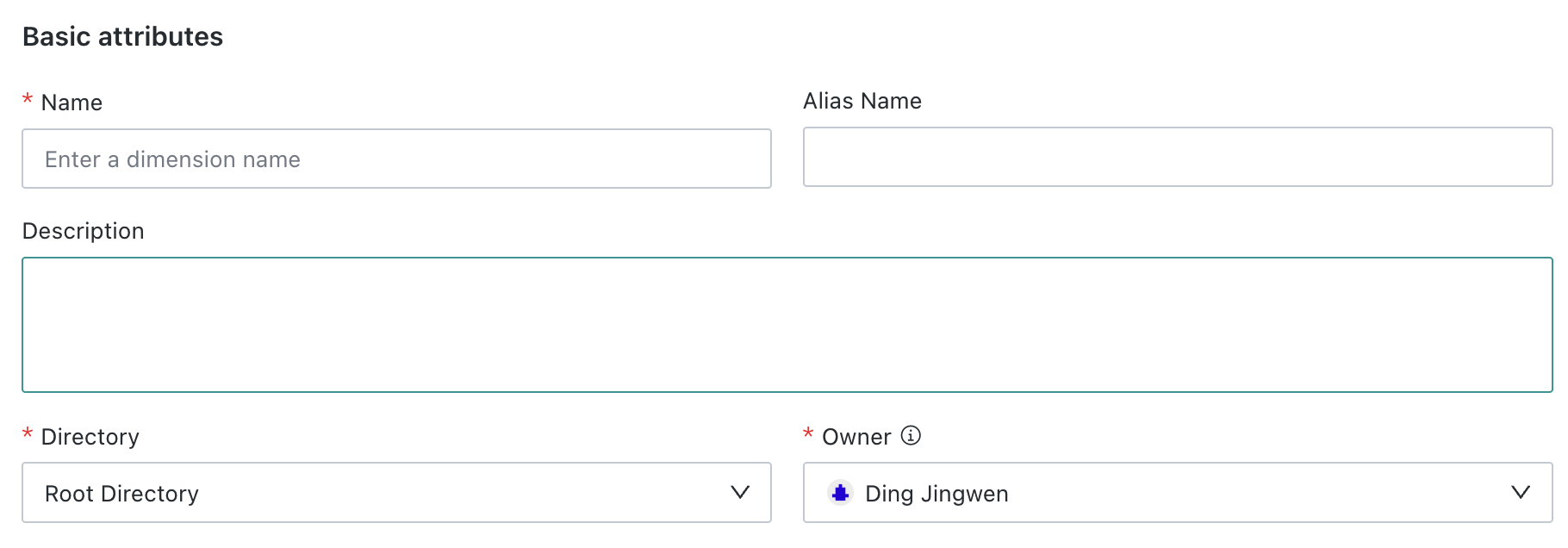
Bind Dataset Fields
- In the field bindings, select a dataset. Search for the dataset, select it and confirm.
- Select the corresponding field, for example Region in sales details.
- Add another binding for each equivalent field, such as
regionin store master data.
All fields bound to a dimension must have the same data type. A field can belong to multiple dimensions, but a single metric can use only one of those dimensions for that field. See Use Dimensions in Metrics. Binding does not change the underlying fields or join the datasets.
Configure a Source of Values and Save
To supplement the values from bound fields, select a dimension table first, then select one field in that table in the source-of-values area. Each dimension supports at most one source table and one value field. This setting is optional: you can save and use a dimension without it. You do not have to bind the selected source field. The list of selectable values is the distinct union of:
- All bound field values, if you do not specify a source.
- All bound field values and values from the selected source field, if you specify a source.
For example, consider a Province dimension with the following inputs:
| Source | Province values |
|---|---|
| Bound sales order field | Zhejiang, Jiangsu |
| Bound budget field | Jiangsu, Anhui |
| Optional province table | Zhejiang, Jiangsu, Fujian |
Without the optional source, the options are Zhejiang, Jiangsu and Anhui. With it, the options also include Fujian. Its inclusion does not create sales records for Fujian or generate a zero result for it.
Review the properties, bindings and optional source, then save. The dimension takes effect immediately. Selecting a source supplements the values; it neither binds the source field nor establishes a relationship between datasets.

View Dimension Details
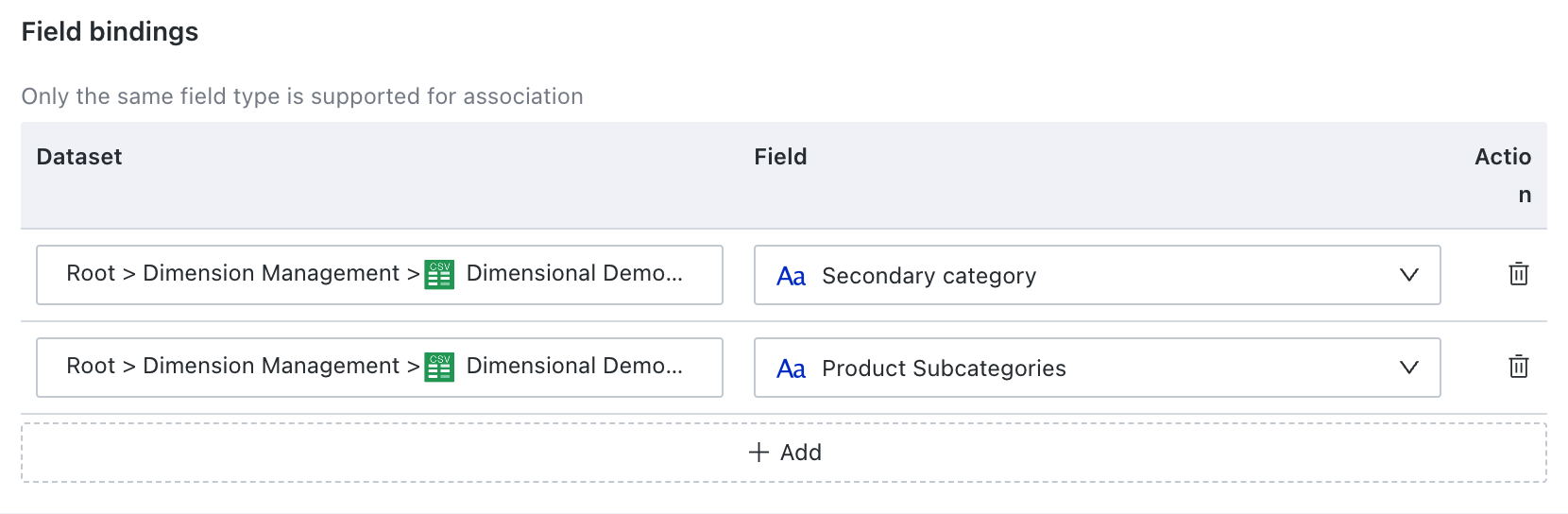
Open a dimension from the list. Its details show its owner, last modification time and description. Check the following before changing the dimension:
| Area | What to check |
|---|---|
| Field bindings | Bound datasets, fields and data types. |
| Source of values | The source and current values. With no explicit source, values come from the bound fields. Refresh to query the values again. |
| Metric references | The count and list of metrics that reference the dimension directly. Open a metric to view its details. |
Dimension values are read-only here. Edit the source data to change them. Refreshing this view reruns the query; it does not refresh the dataset. Update the dataset first if you need its latest values.
Find and Maintain Dimensions
Find and Organize Dimensions
Browse folders, search by name or alias, or filter by source table or owner. The source table is the optional dataset that supplies dimension values. The list shows each dimension's name, description, field bindings, source table and value field, owner and last modification time.

Edit, Move or Transfer Ownership
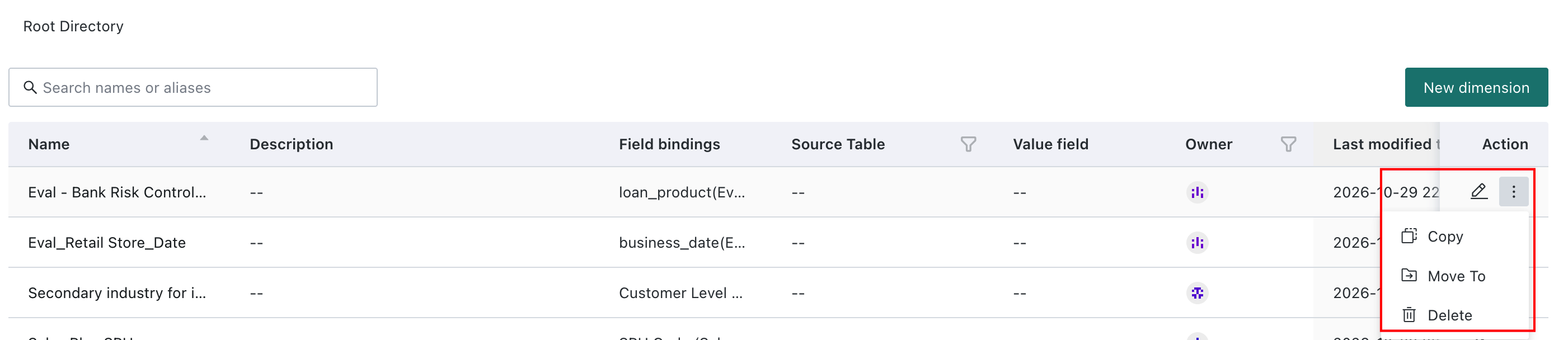
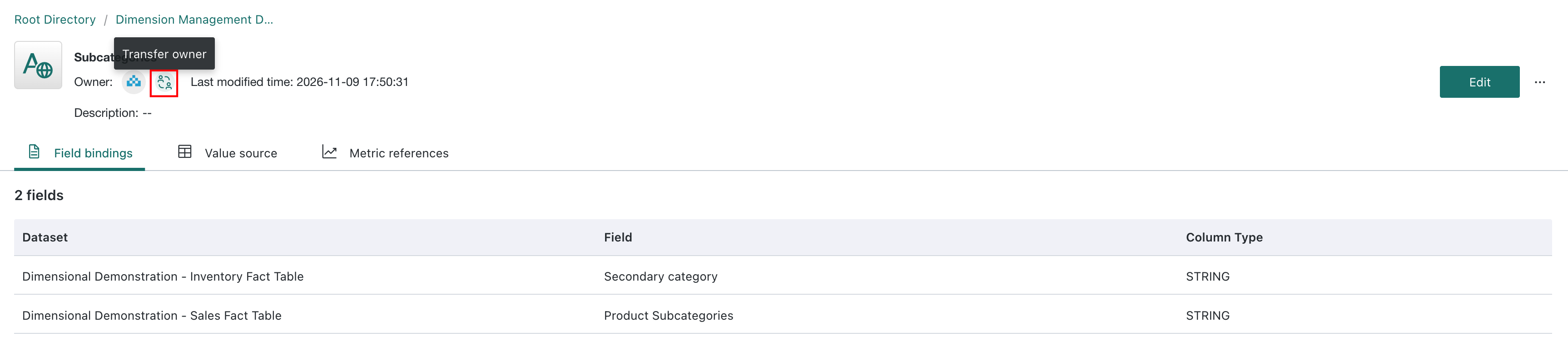
Edit a dimension from the list or its details to change its name, aliases, description, bindings or value source. Save and review the impact on referenced metrics when prompted. From the menu, you can copy a dimension or move it to a different folder without changing its ID, bindings or metric references. To transfer ownership, open the details, use the transfer icon beside the owner, select a user and confirm.
Remove a Binding or Delete a Dimension
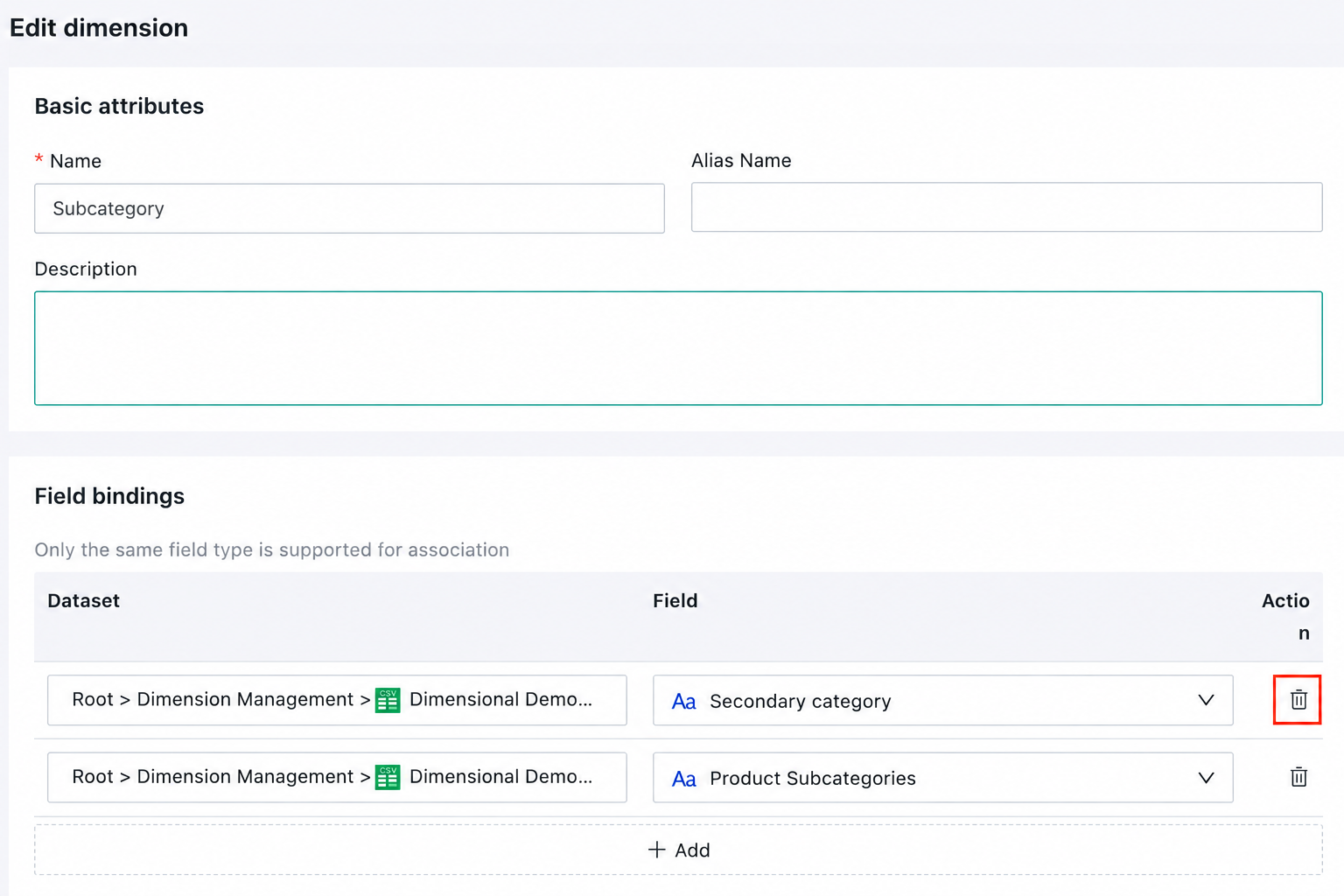
To remove one binding, edit the dimension, remove the relevant field and save. To delete the entire dimension, use its menu. If the dimension is in use, the confirmation lists the directly affected metrics and their count. Confirm to remove the affected references from the metrics' applicable dimensions at the same time, or cancel to leave them unchanged.
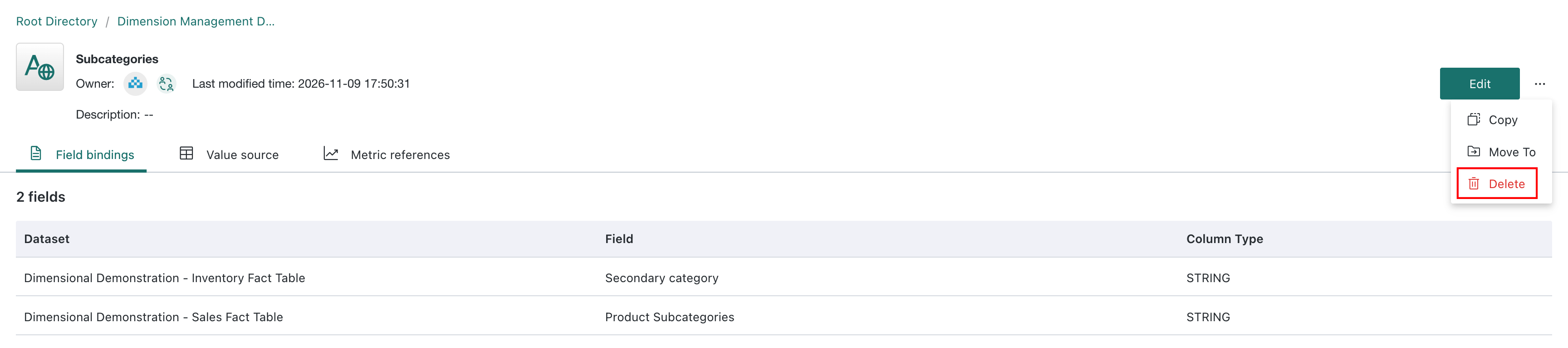
Deleting a dimension removes it from every metric that references it directly. Removing a binding affects only metrics that rely on that binding. Check dependent cards and reports separately: the confirmation does not list indirect references.
Use Dimensions in Metrics
When creating or editing a metric, select saved, bound dimensions in the applicable dimensions selector. See Configure Calculation Properties.
A system setting controls which dimensions you can select:
- Registration required: Only saved dimensions with field bindings that meet the query conditions are available. If a field is missing, bind it to a dimension, save and reopen the metric configuration.
- Registration not required: You can also select eligible ordinary dataset fields.
The requirement defaults to off for upgrades and on for new deployments. Existing explicit settings remain unchanged. Contact your system administrator to change the setting; it is managed in the system backend, not in Metric Center. See Applicable Dimension Scope for the upgrade rules.
Cross-dataset analysis still requires a valid relationship path and compatible data granularity. Neither bindings nor value sources establish cross-table relationships.