PC User Guide
Overview
This article introduces common Dashboard Agent operations on PC, including viewing and switching agents, asking questions with recommended questions or Analysis Experts, viewing the analysis process and conclusions, and emailing, exporting, or editing reports.
View an Agent
Select an agent to open its details page. The page shows the agent profile and conversation history. The profile includes its name, description, and data scope.
| No. | Item | Description |
|---|---|---|
| 1 | Agent list | Shows the Dashboard Agent currently in use. Hover over it to open the agent switcher, where you can search by keyword. 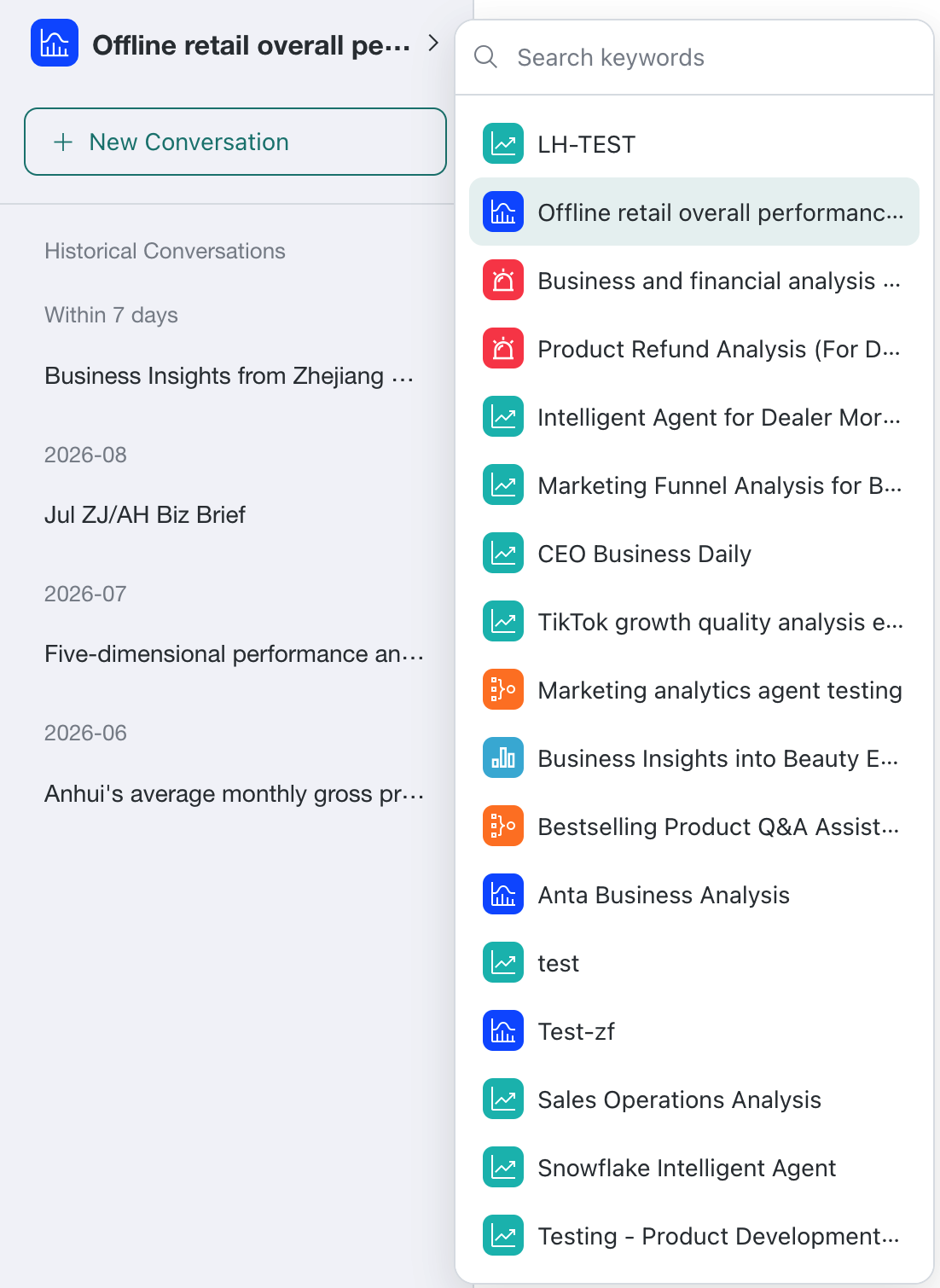 |
| 2 | New Conversation | Creates a new conversation. |
| 3 | Historical Conversations | Shows the current agent's conversations grouped by time. Select a conversation to review it. |
| 4 | Agent name | Shows the selected agent's name. Select it to view the name, description, and data scope. 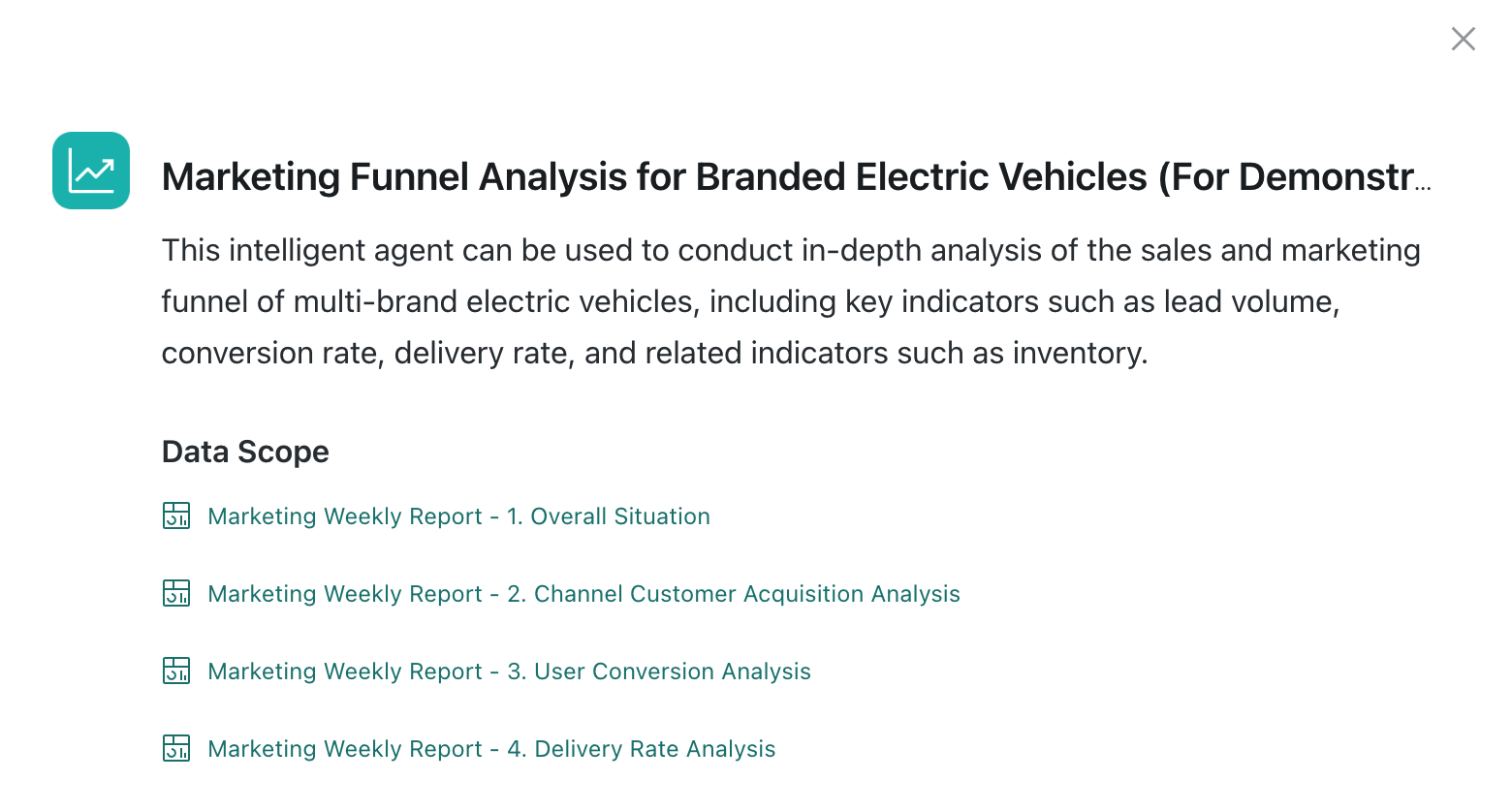 |
| 5 | Agent description | Shows the current agent's description. |
| 6 | Dialog box | Enter a question here. Press Shift + Enter to insert a line break, then click the send arrow. If the agent's data scope includes pages that you cannot access, a warning appears for both initial and follow-up questions. The dialog box remains available, and you can continue asking questions. 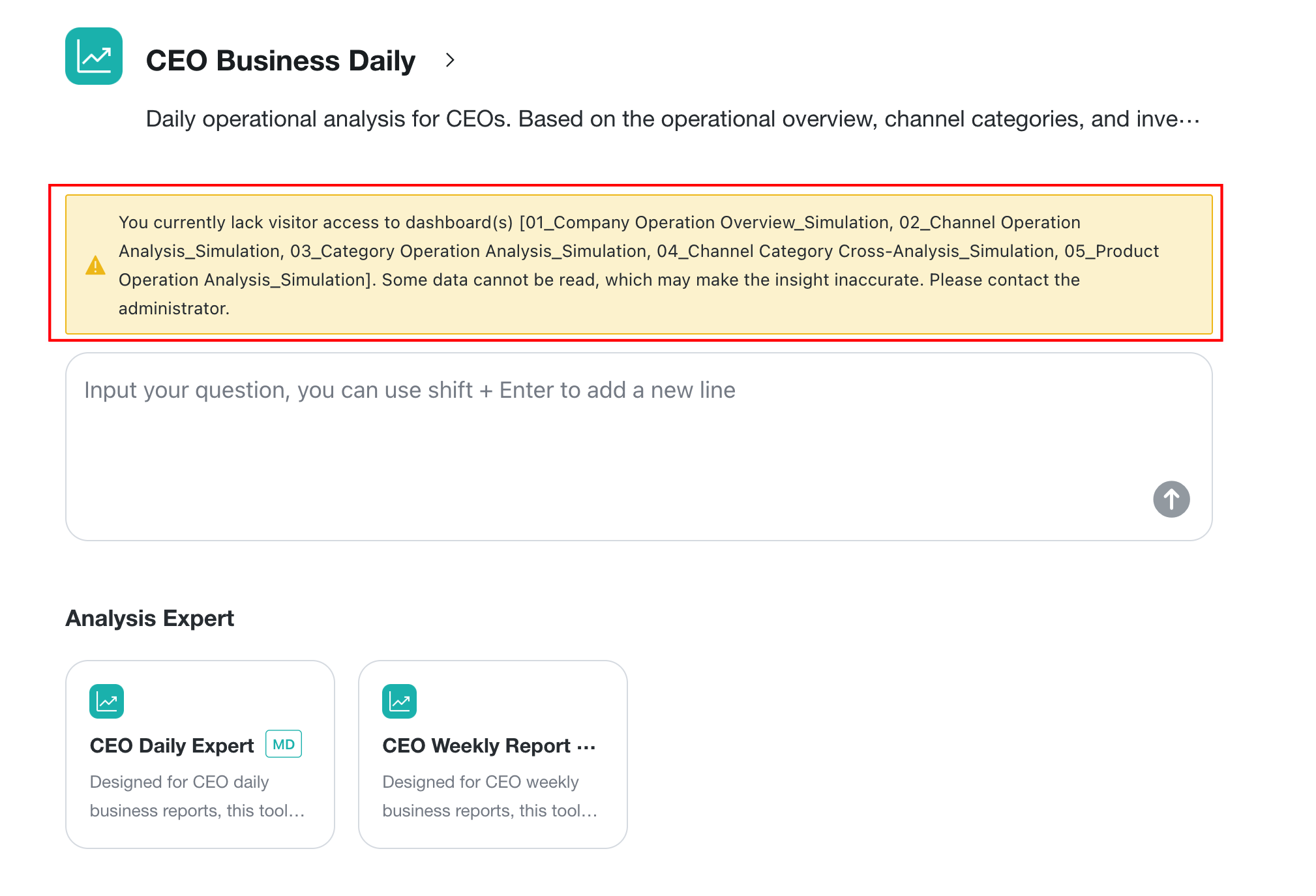 If the agent discovers during analysis that a page required to answer the current question is inaccessible, it stops the analysis and displays an insufficient-permission message. 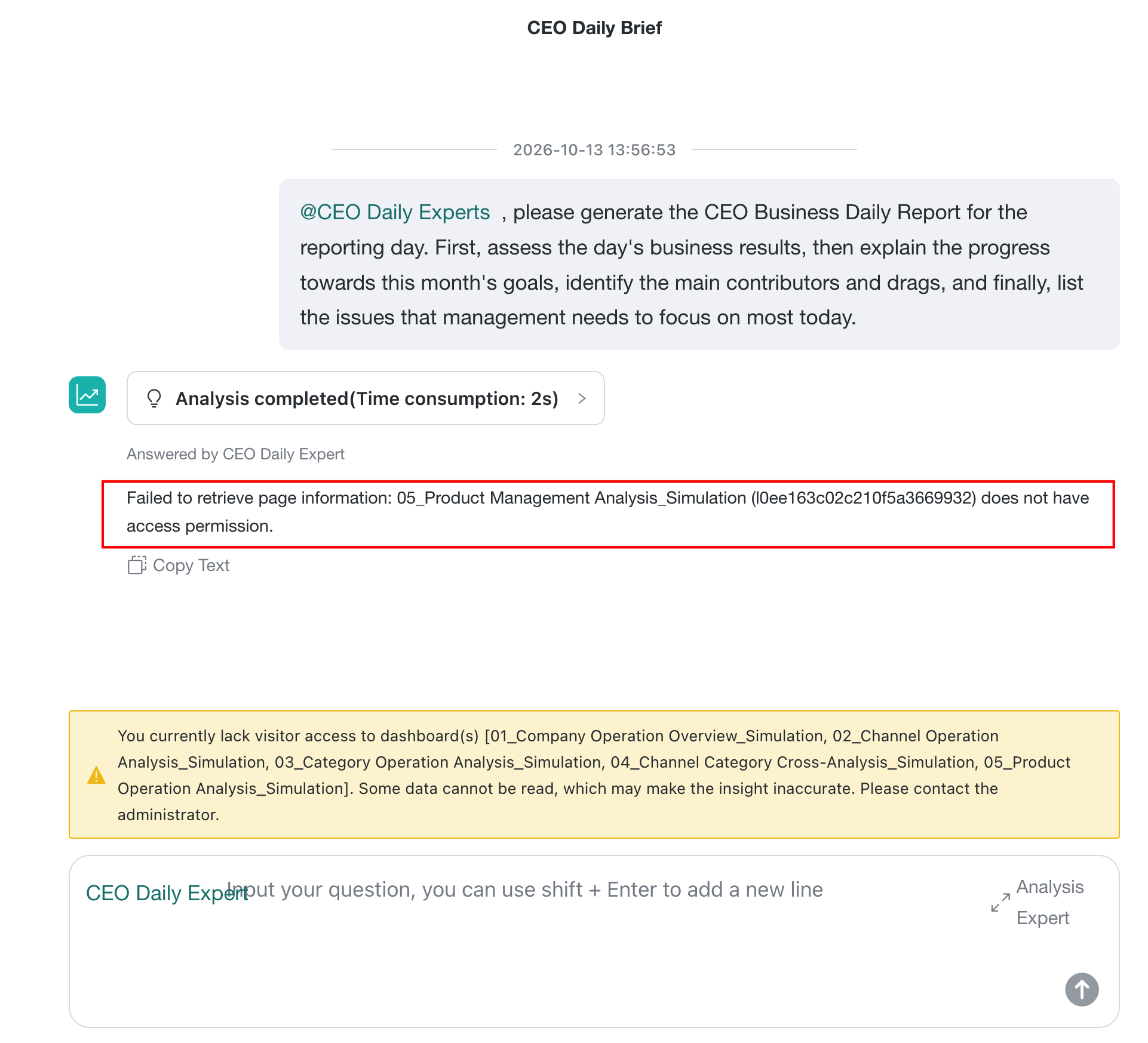 |
| 7 | Analysis Experts | Shows the Analysis Experts configured for the current agent. The system can match one automatically, or you can select one manually. |
View Recommended Questions
Prerequisites
Configure Recommended Questions in Agent Detail Settings > Basic Information.
Usage
Recommended questions are displayed by default when a user starts a new conversation.
Automatically Match or Manually Invoke an Analysis Expert
An agent can invoke an Analysis Expert either automatically or through manual selection. For configuration details, see Analysis Experts.
Automatic Matching
Enter a question without selecting a specialist. The agent recognizes the intent and automatically matches an appropriate specialist based on each specialist's business scope. It then generates results using the matched specialist's configured analysis approach and output requirements.
After execution, expand Analysis completed to view the Analysis Expert selected and invoked by the system.
Manual Selection
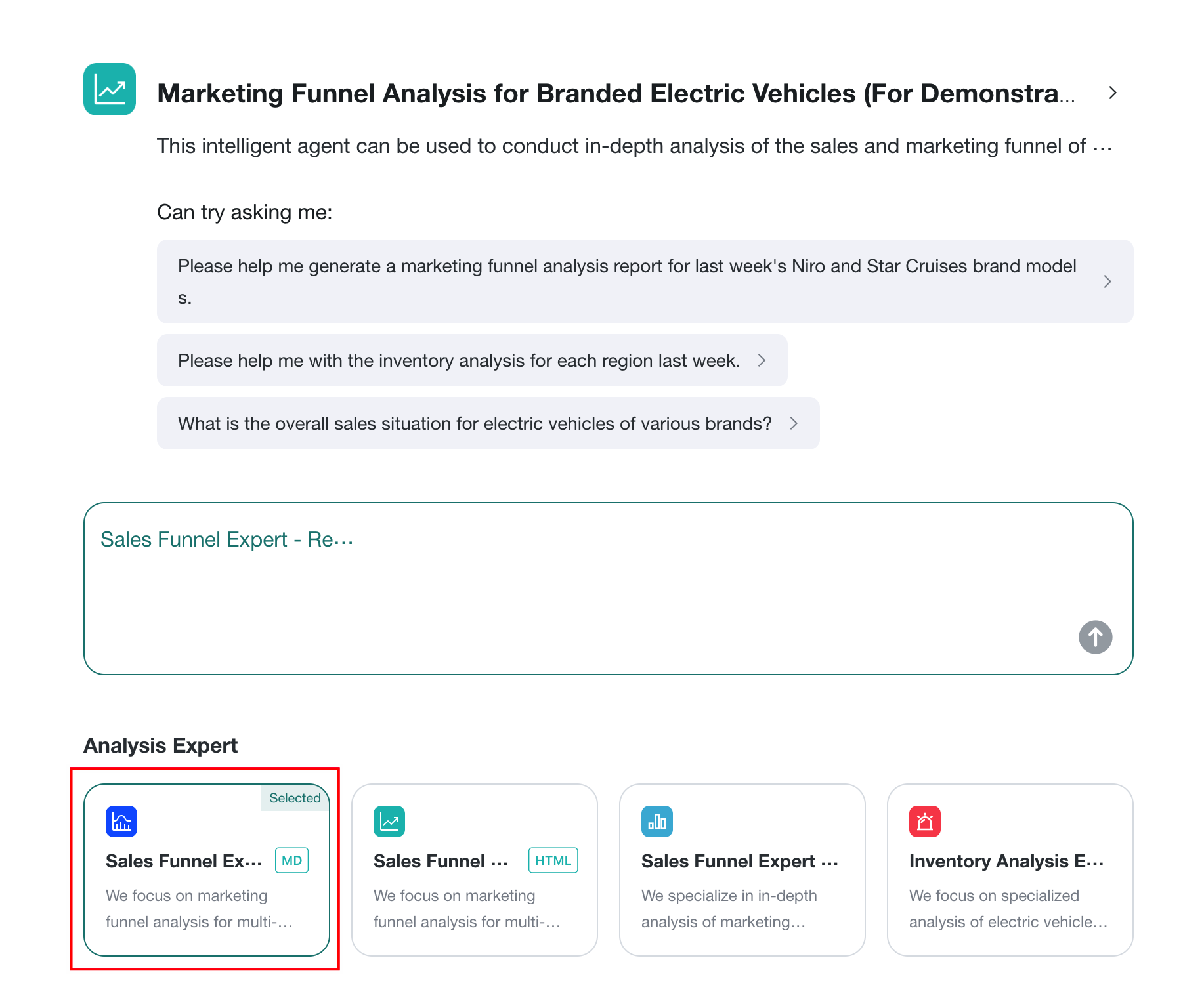
To use a specific Analysis Expert, select it on the insight page before entering your question. The system generates the result using that specialist's predefined analysis approach.
View the Analysis Process
View Real-Time Analysis Progress
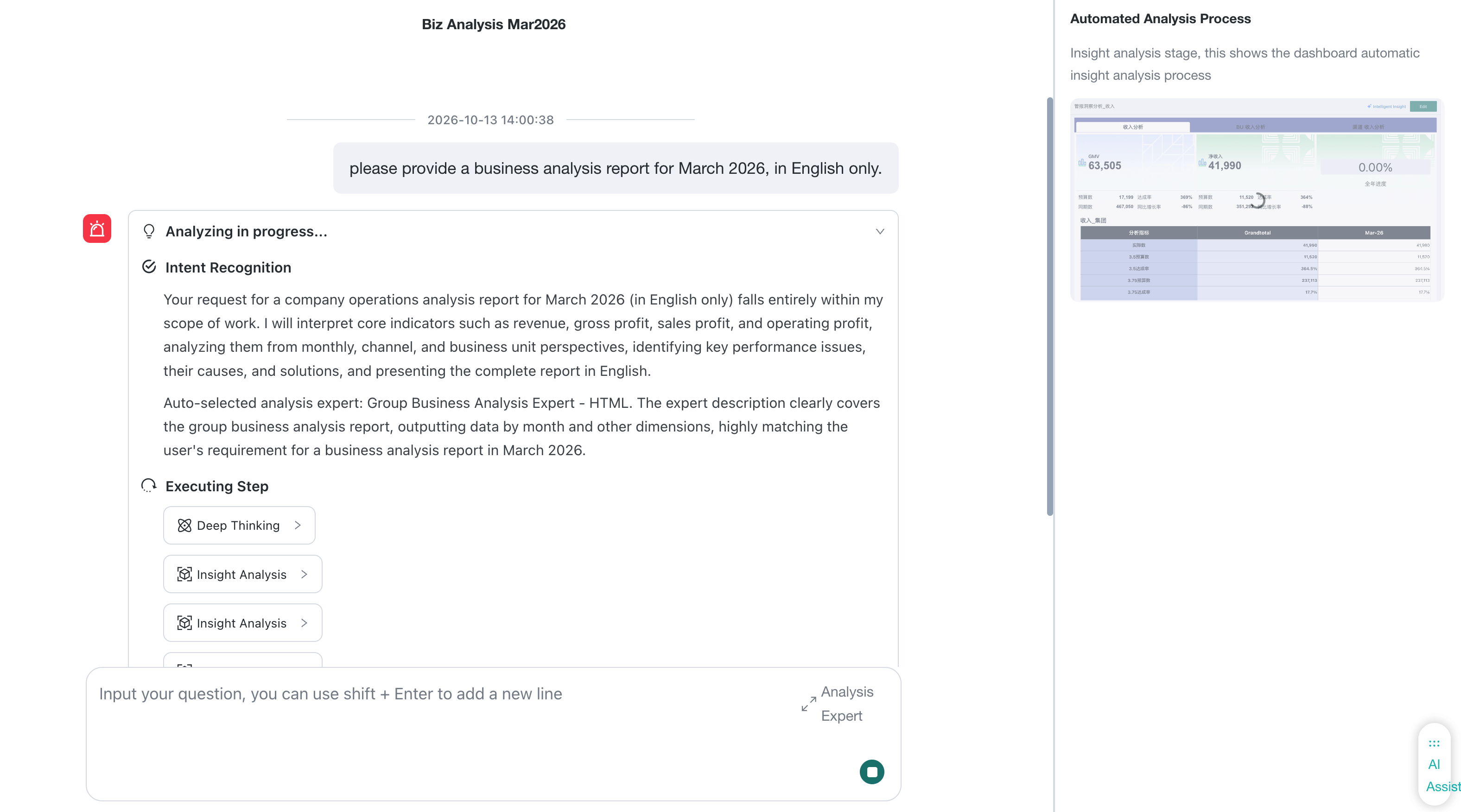
After you send a question, the dialog box displays the automated analysis process in real time, including the progress of key stages such as intent recognition and execution steps. The Automated Analysis Process panel also opens on the right and shows detailed progress until the complete analysis conclusion and report are generated.
If the system automatically matches an Analysis Expert, the process identifies the specialist that was invoked.
View Question Time and Response Duration
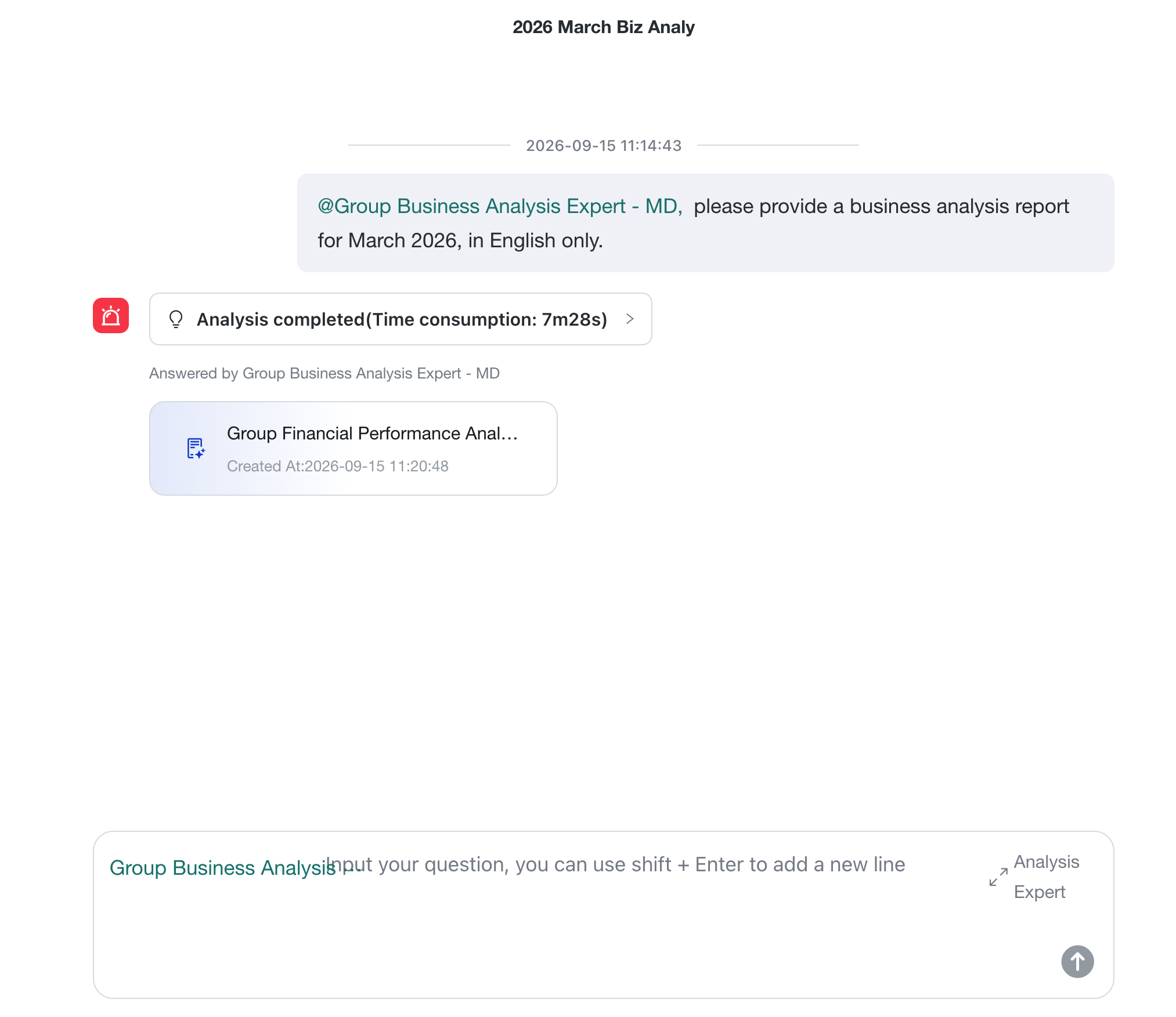
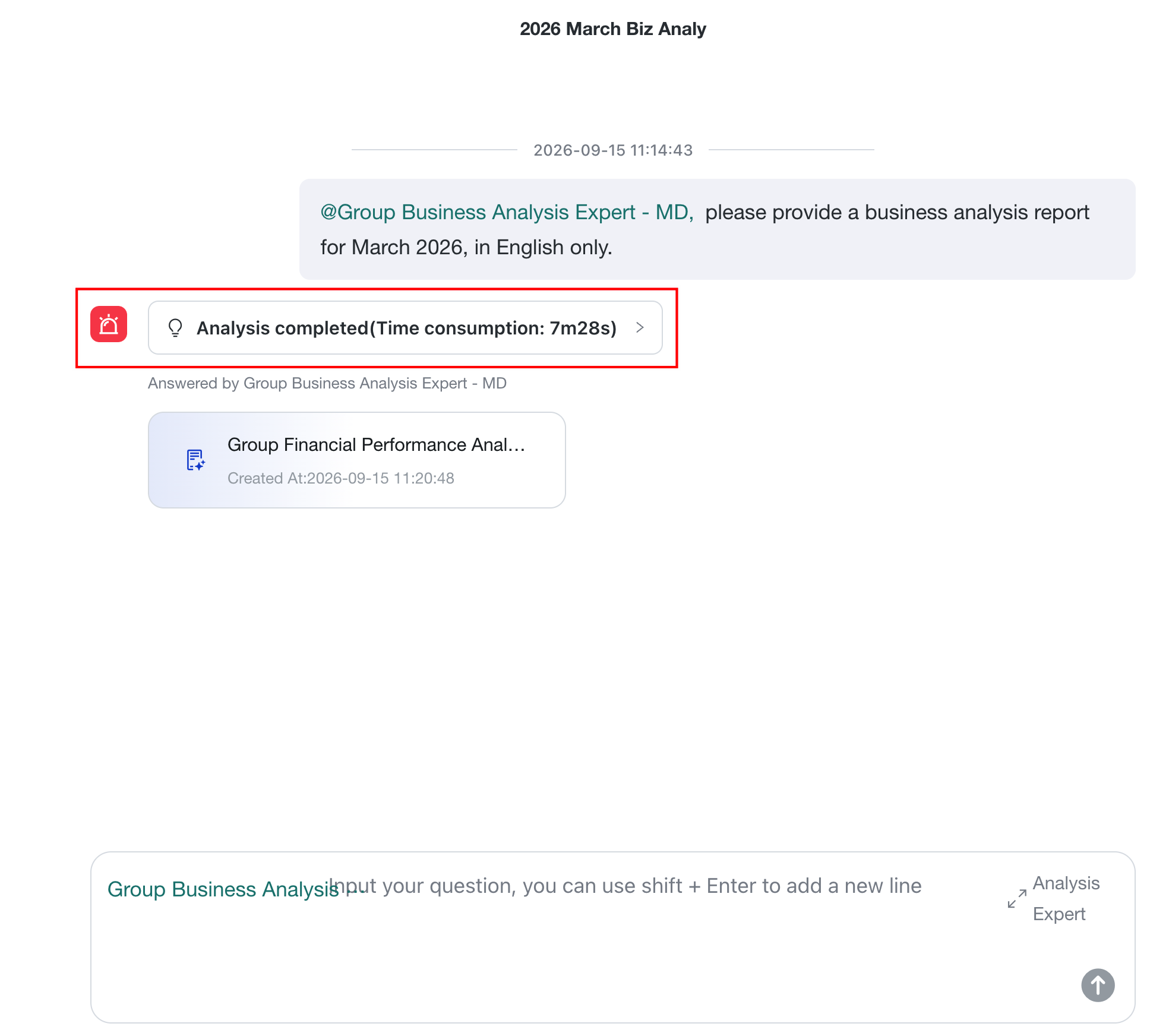
After you send a question, its submission time appears above it. When analysis finishes, Time consumption appears after Analysis completed, so you can see when the question was submitted and how long the analysis took.
Stop Generating Insight Conclusions
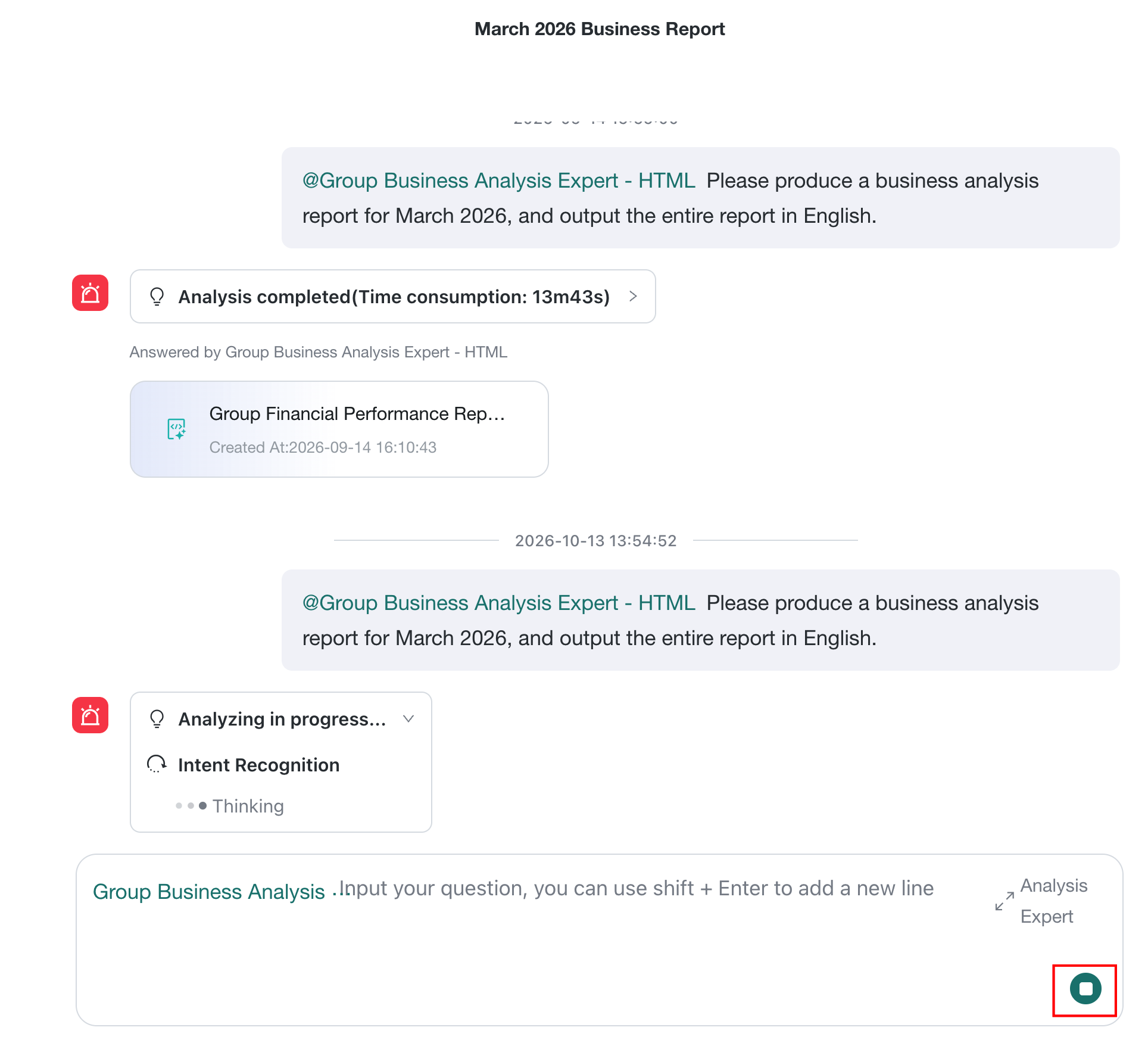
You can stop insight generation at any time while a conclusion is being generated. Click the square stop icon in the lower-right corner of the dialog box.
View the Complete Analysis Process
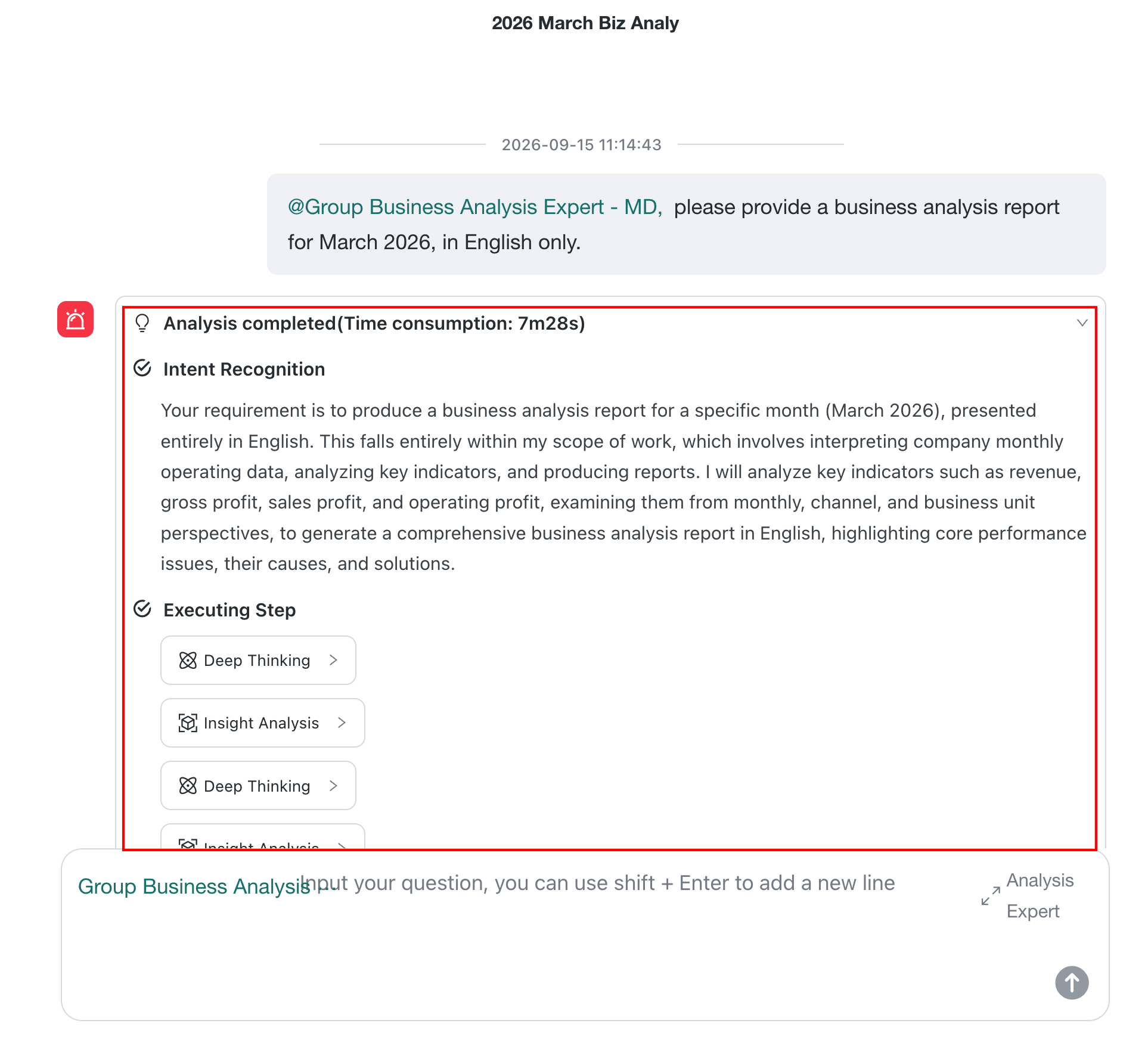
After analysis finishes, the dialog box displays a collapsed Analysis completed panel. Expand it to review the full process, including intent recognition, execution steps such as deep thinking and insight analysis, and output results.
View Conclusion Output
The agent uses streaming output, so you can read generated content before the entire analysis is complete.
Text Response
Text conclusions appear progressively in the conversation area.
Report Response
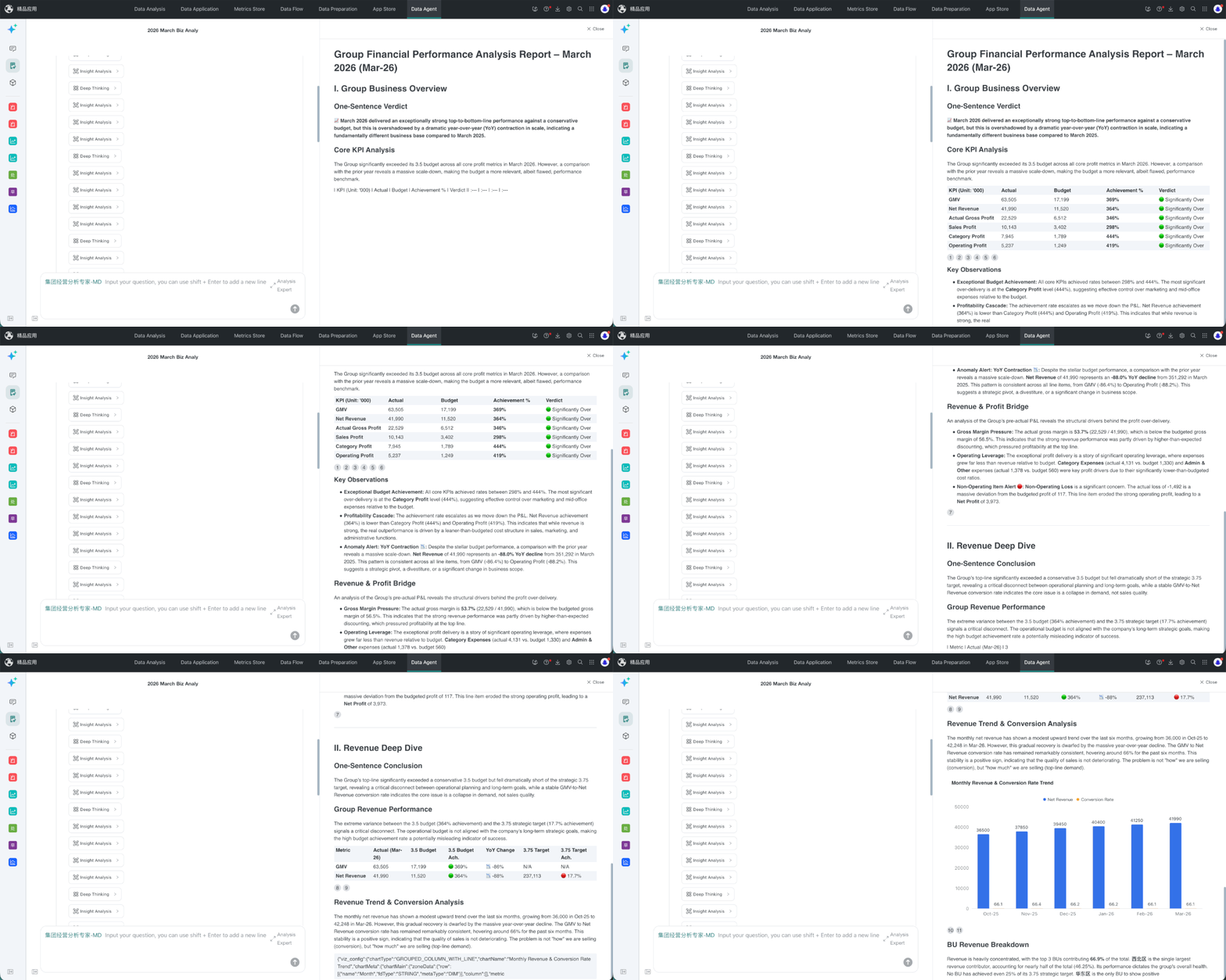
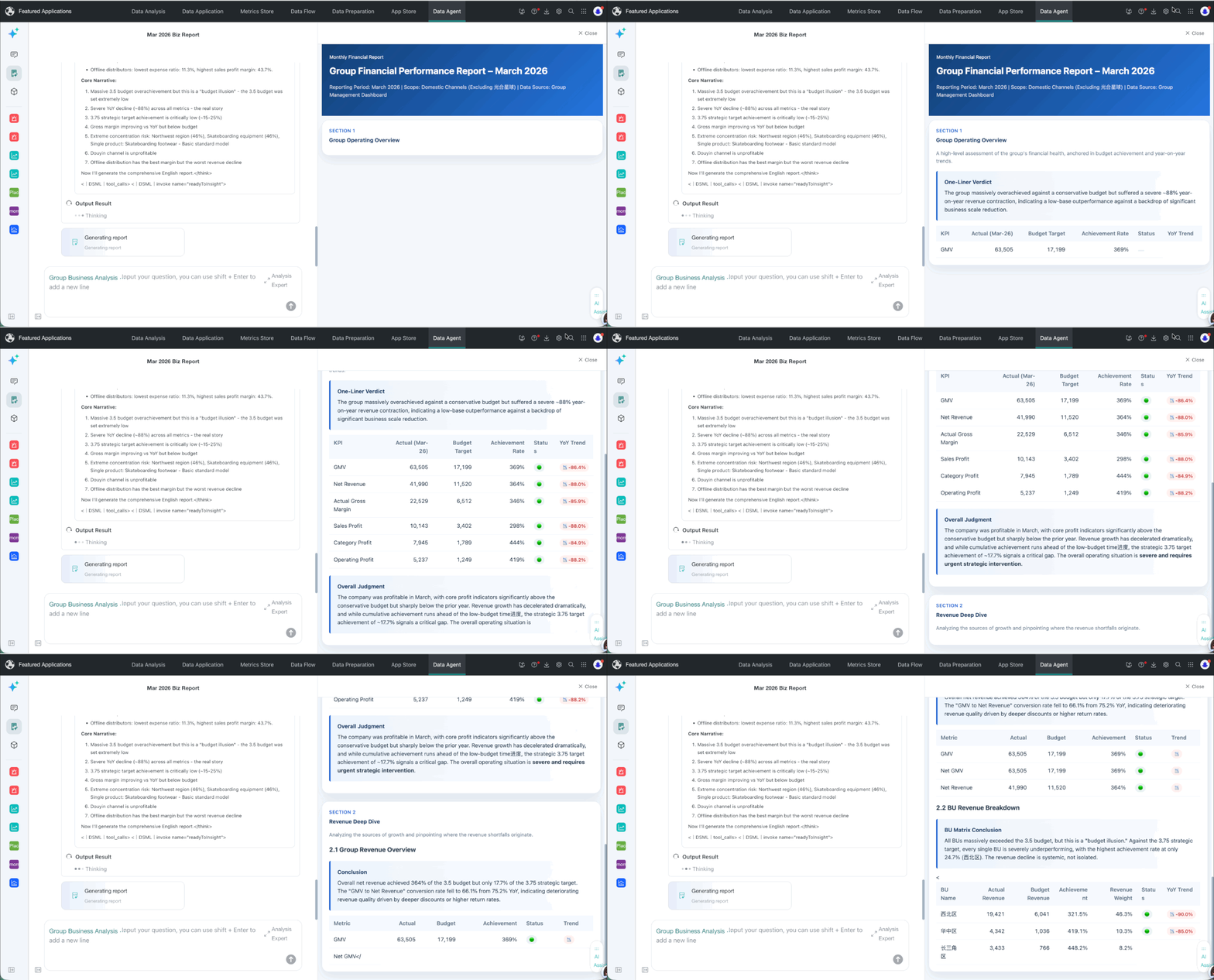
Report responses can be Markdown or HTML, depending on the Analysis Expert's Report Mode settings. Both formats support streaming output in the report area on the right. HTML reports also use the colors and layout defined in the producer's HTML template.
| Markdown report | HTML report |
|---|---|
 |  |
Work with Text Conclusions
View Referenced Visualization Cards
Visualization Cards referenced during analysis appear as superscripts. Hover over a superscript to view the Card details.
Copy Text
Select Copy Text below the response to copy the answer to the clipboard while retaining formatting such as bold text, indentation, and list numbering.
Work with Report Conclusions
If the system invokes an Analysis Expert with Report Mode enabled, the agent generates a Markdown or HTML report. The report opens on the right when generation is complete.
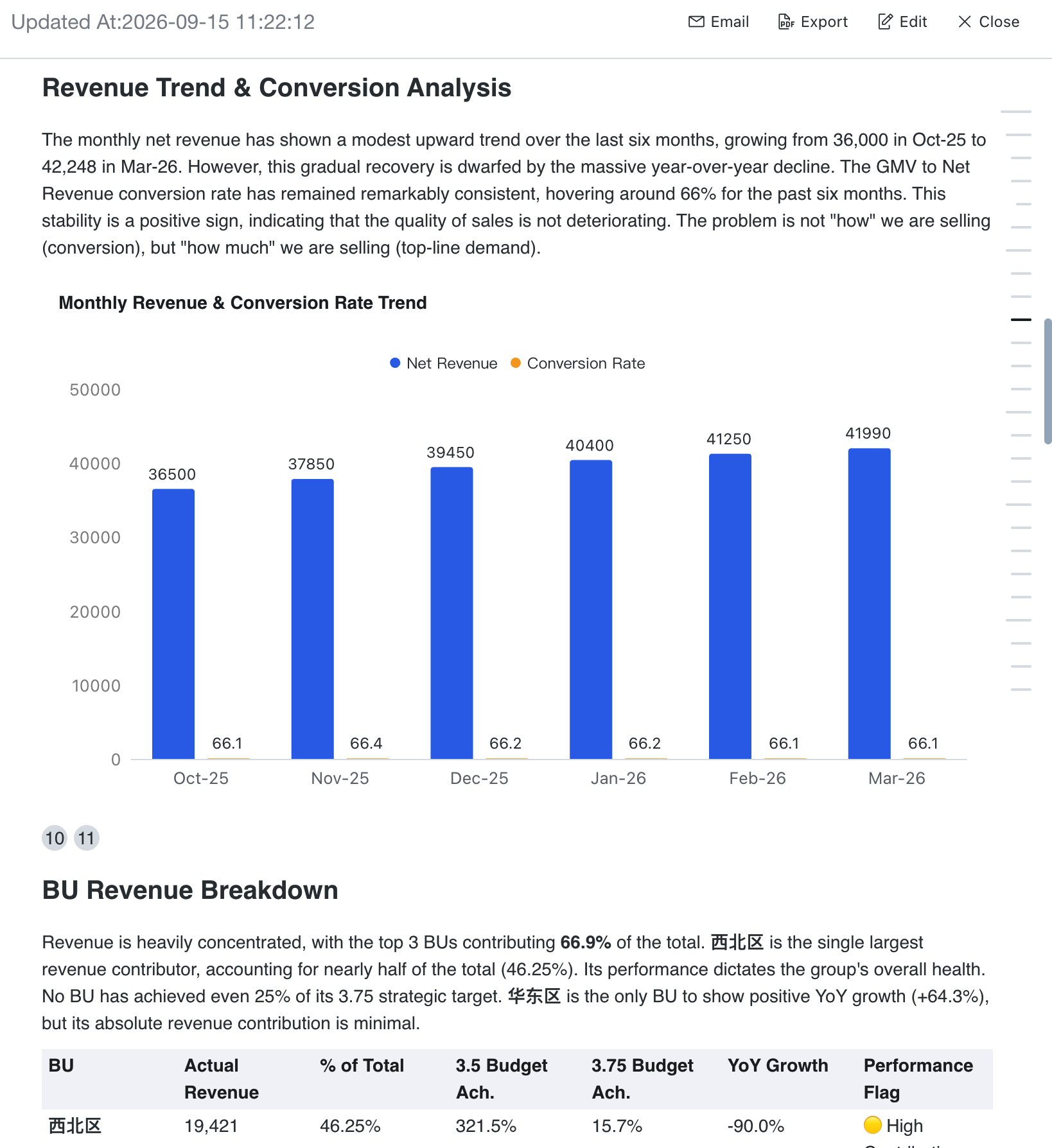
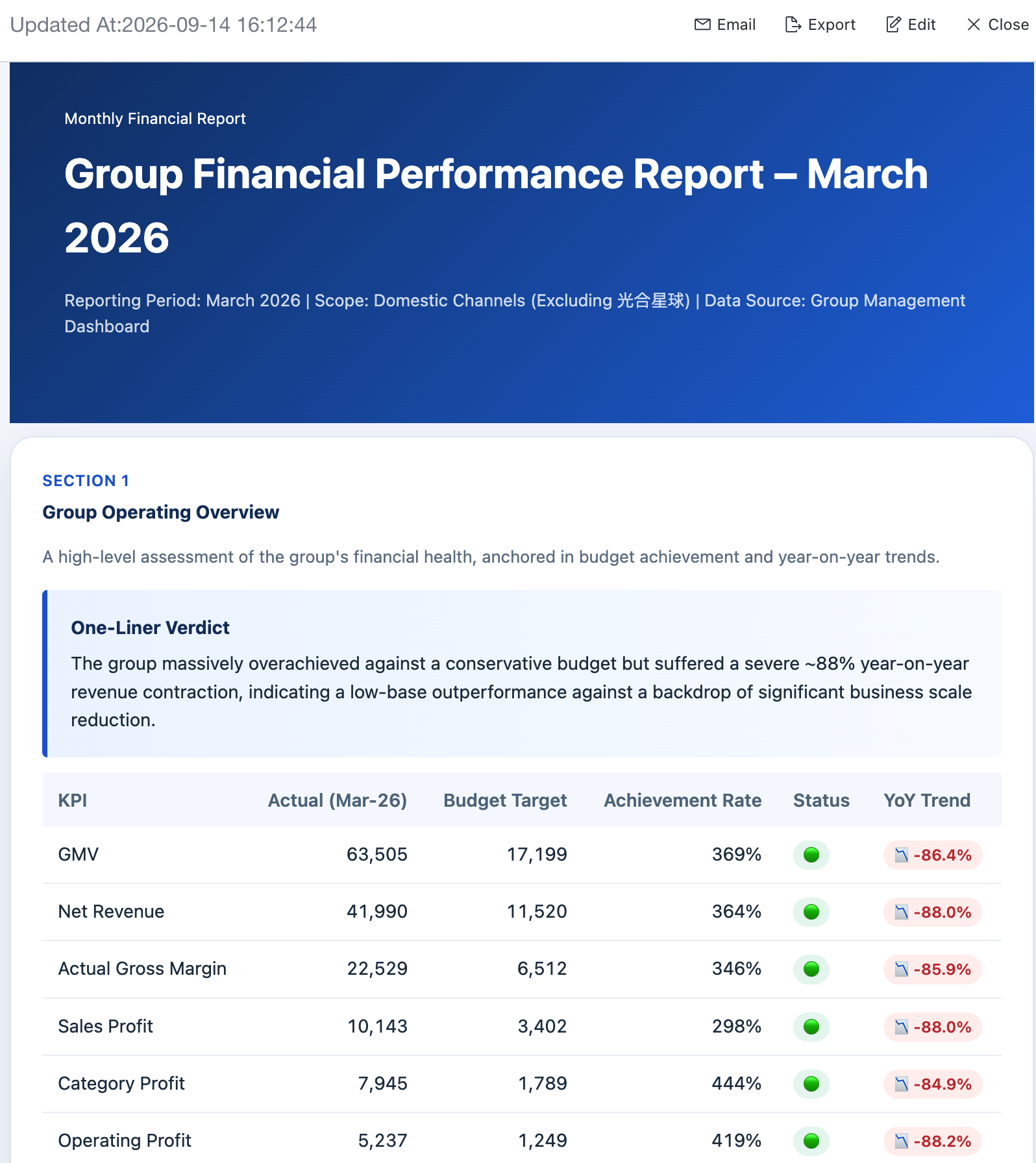
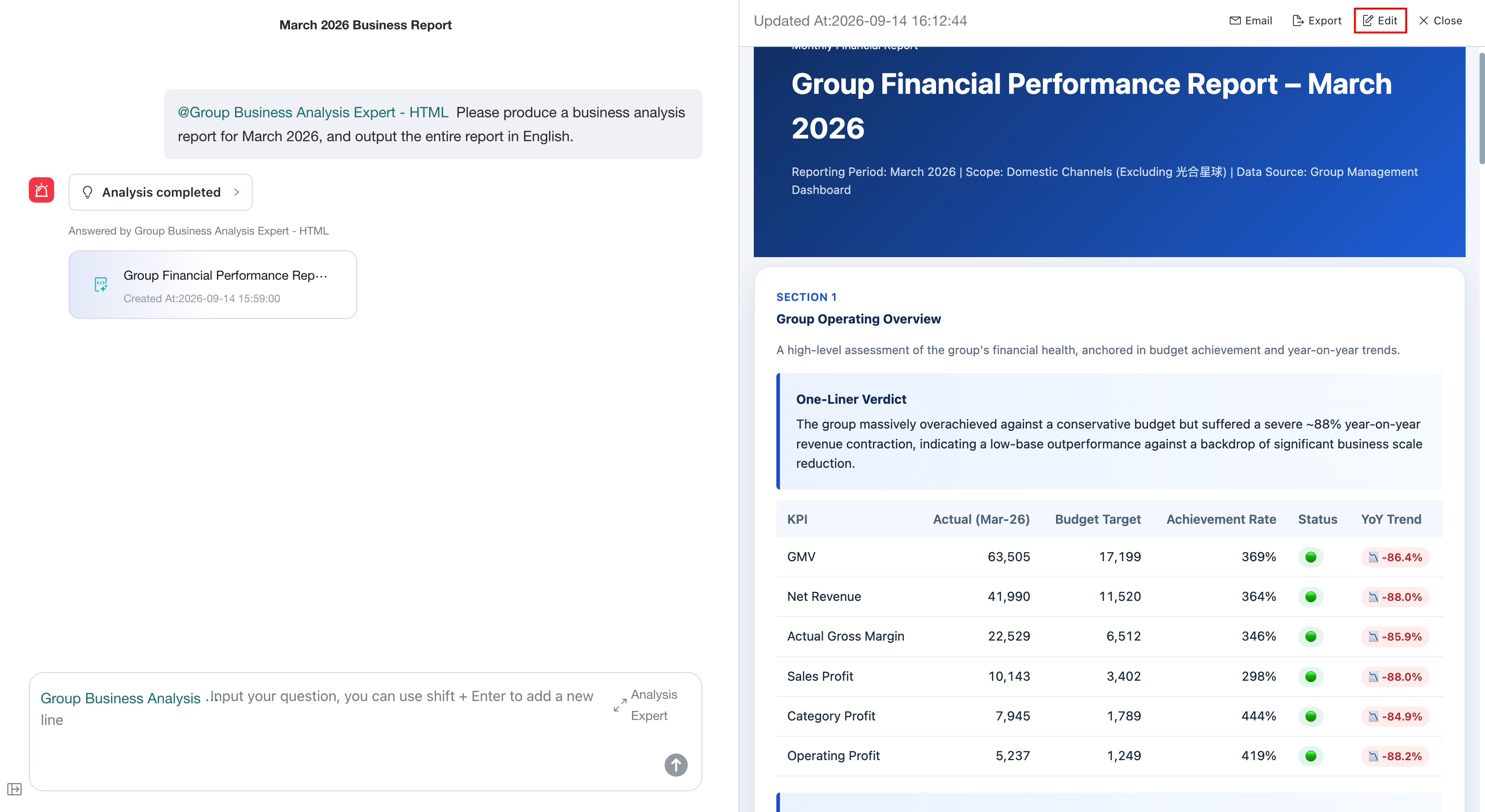
The top of the report shows the latest update time and provides Email, Export, and Edit actions. HTML reports retain the colors and layout used when they were generated.
| Markdown report | HTML report |
|---|---|
 |  |
Markdown Report
Use Report Navigation
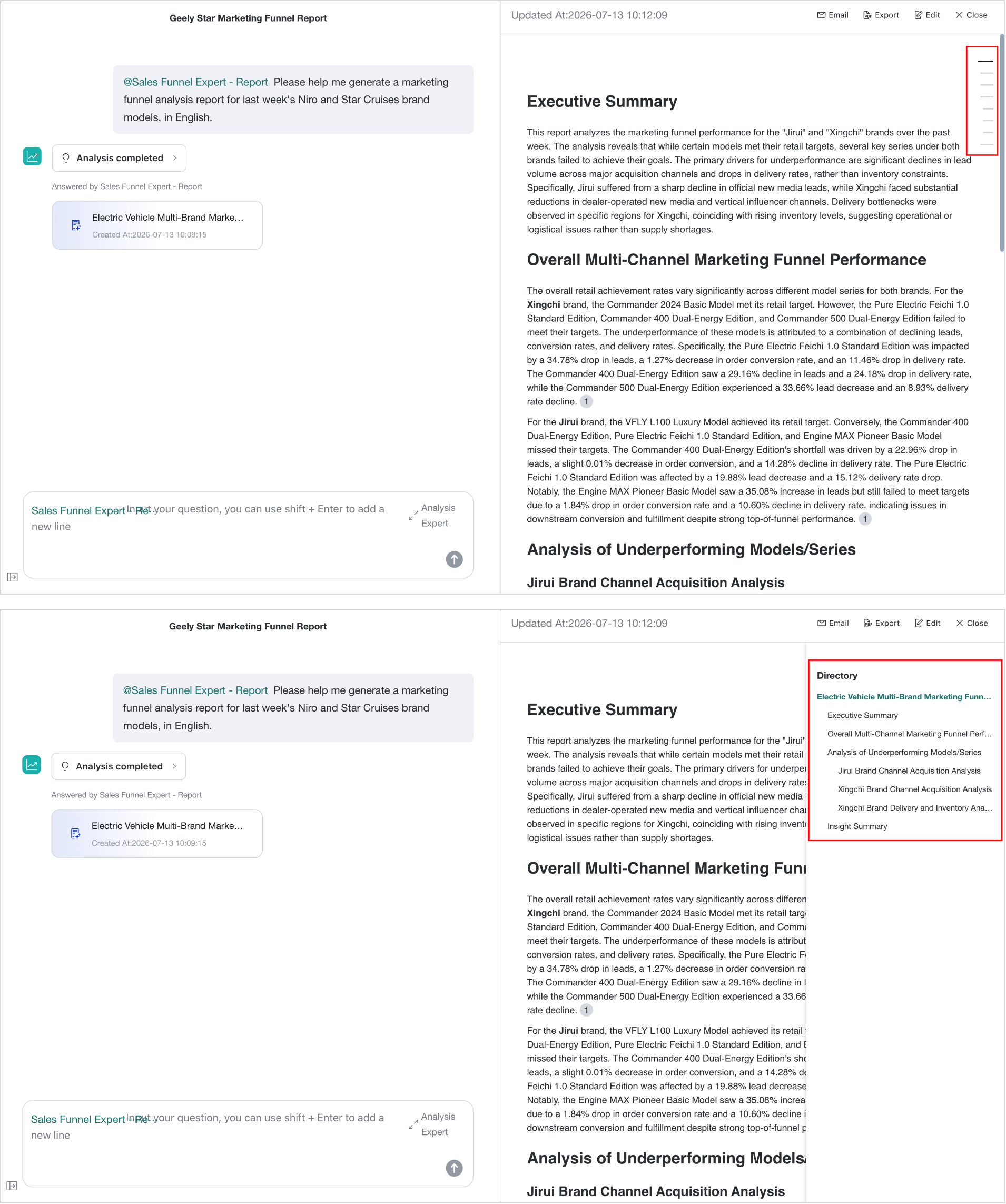
For a long Markdown report, use the navigation bar on the right to jump to a section. Hover over the bar to expand the table of contents, then select a heading. Move the pointer away to collapse the table of contents and avoid covering the report.
View a Mixed Text-and-Chart Report
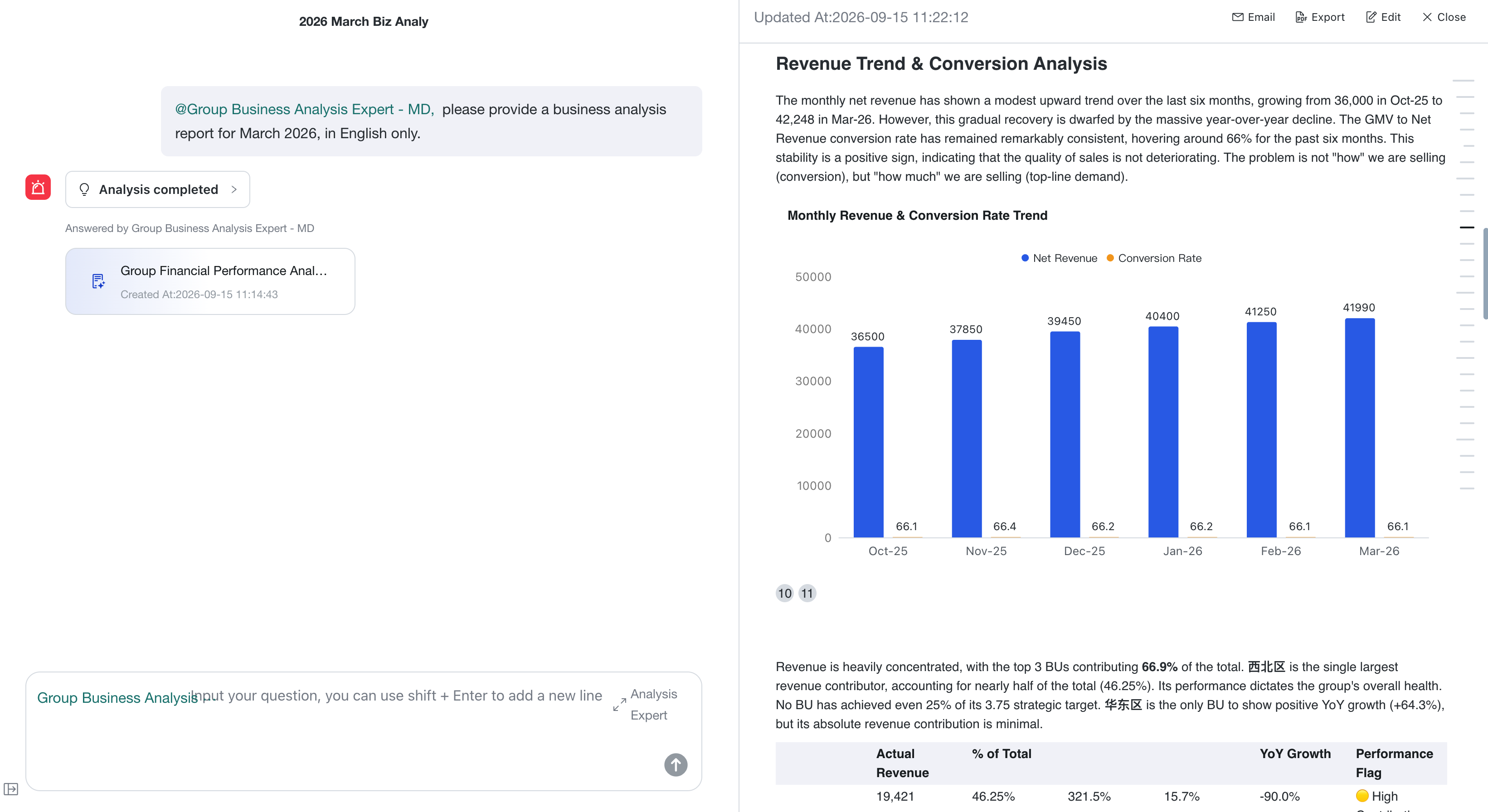
If chart types are configured in the Analysis Expert's Report Mode sections, the report generates the corresponding charts from the analysis results and displays them alongside the written conclusions.
View Key Data Changes
The report highlights important content based on the business meaning of data changes. For example, decreases or risks appear in red, while increases or improvements appear in green.
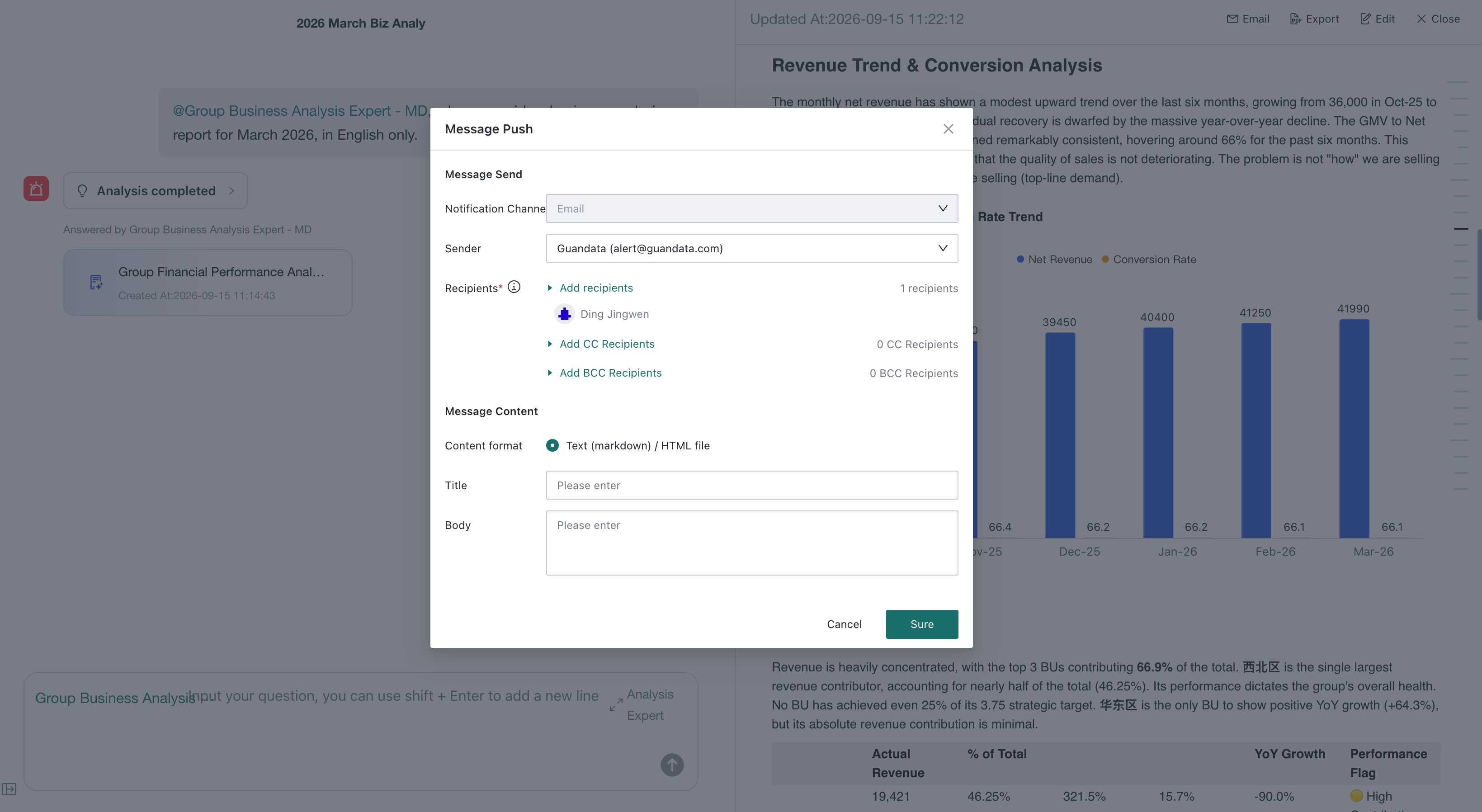
Email a Report
-
Select Email in the upper-right corner of the report to open Message Push.
-
Select the sender and recipients. Add CC or BCC recipients if needed.
-
Complete Title and Body, then select Sure.
Export a PDF Report
-
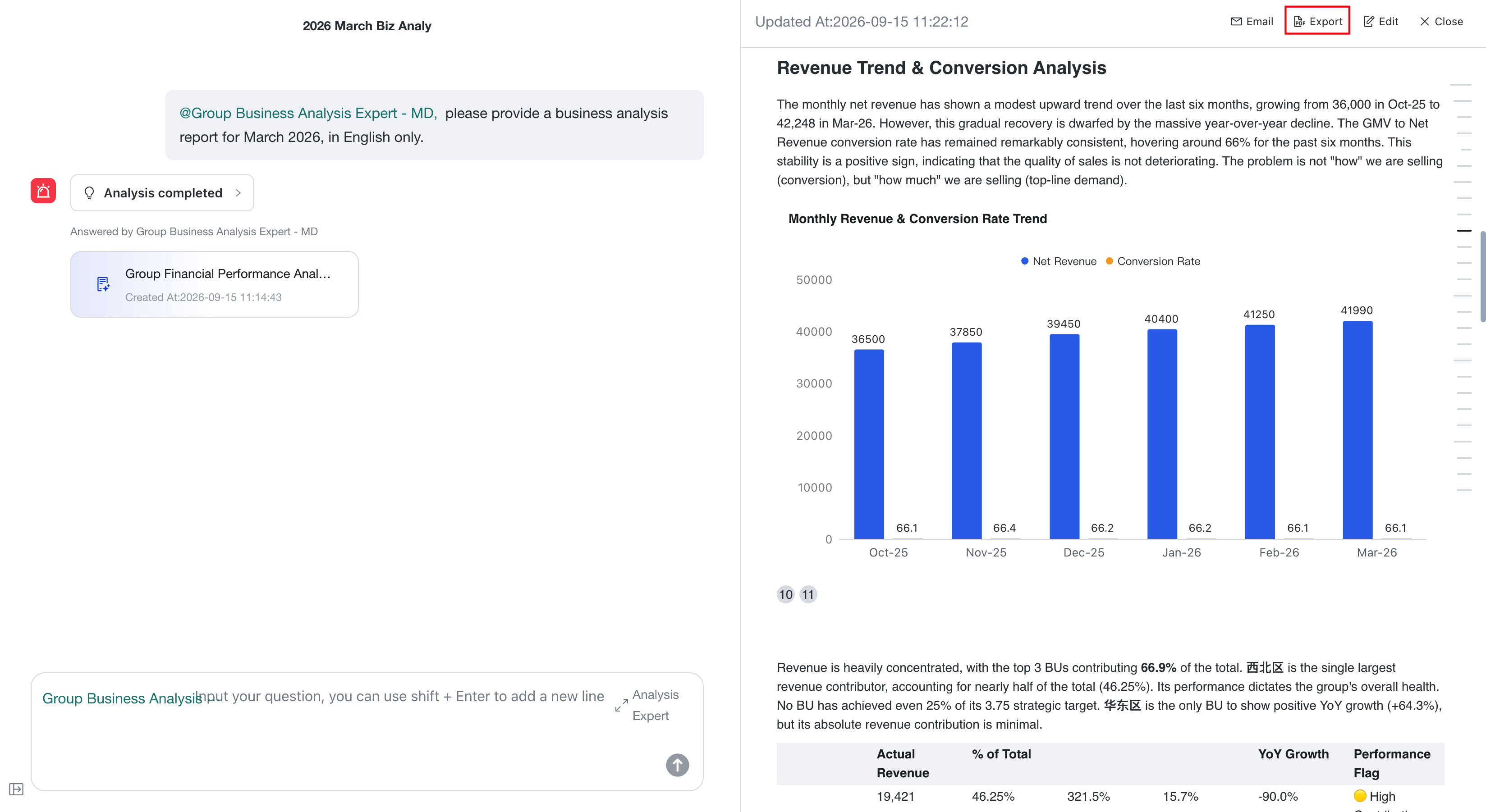
Select Export in the upper-right corner. The system creates a PDF export task.
-
Open Export Center at the top of the page to view the task. When complete, download or delete the report. You can filter tasks by resource name, resource type, and submission date.
Edit a Report
- Select Edit in the upper-right corner to open the report editor.
- Use the toolbar to edit content and formatting, including undo and redo, text styles, colors, alignment, lists, indentation, links, quotations, and code.
- Select Save to apply the changes, or Exit to return to the report.
HTML Report
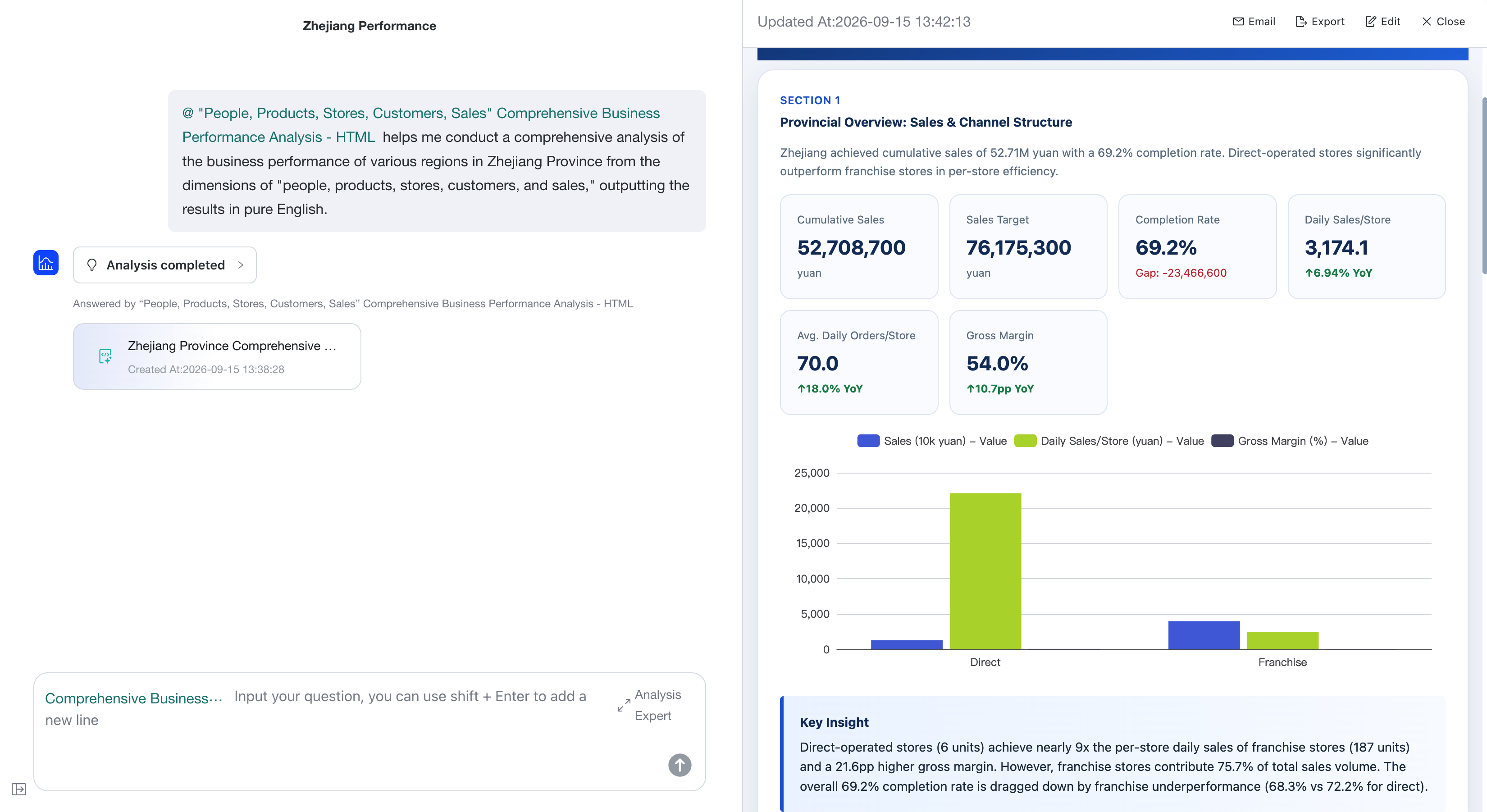
View a Mixed Text-and-Chart Report
If chart types are configured in the Analysis Expert's Report Mode sections, the report generates the corresponding charts and displays them alongside the written conclusions.
View Key Data Changes
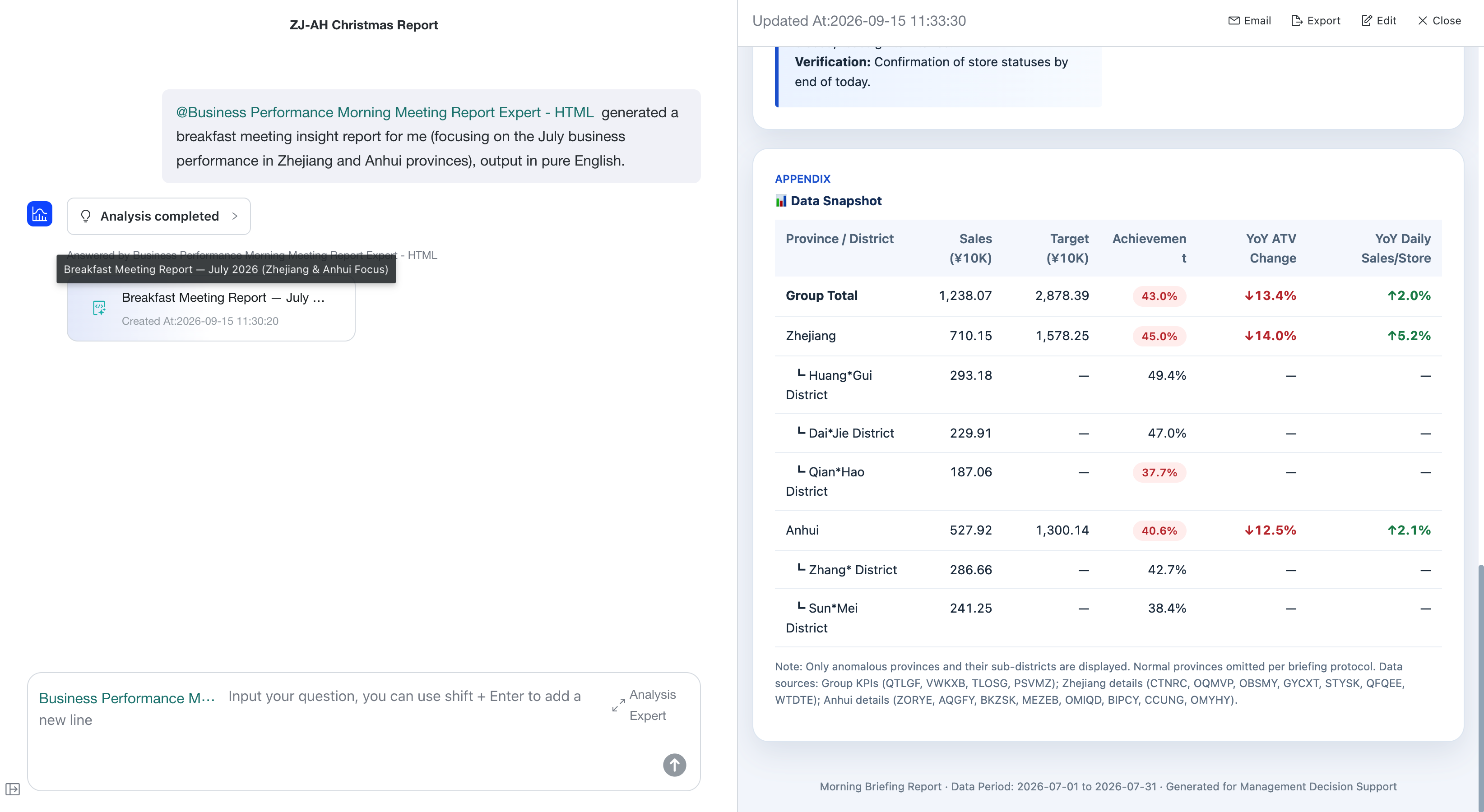
The report highlights important content based on the business meaning of data changes. For example, decreases or risks appear in red, while increases or improvements appear in green.
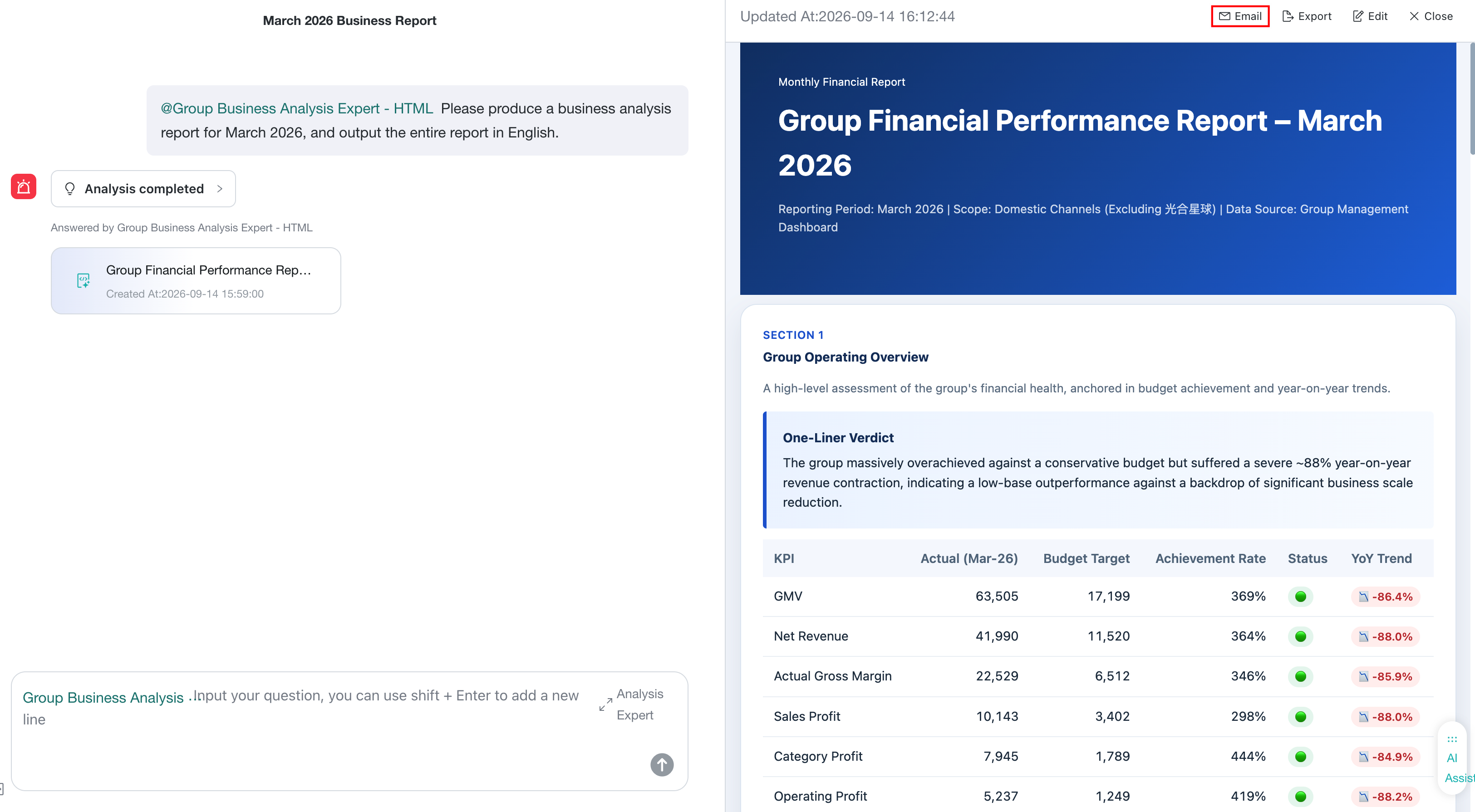
Email a Report
-
Select Email in the upper-right corner of the report to open Message Push.
-
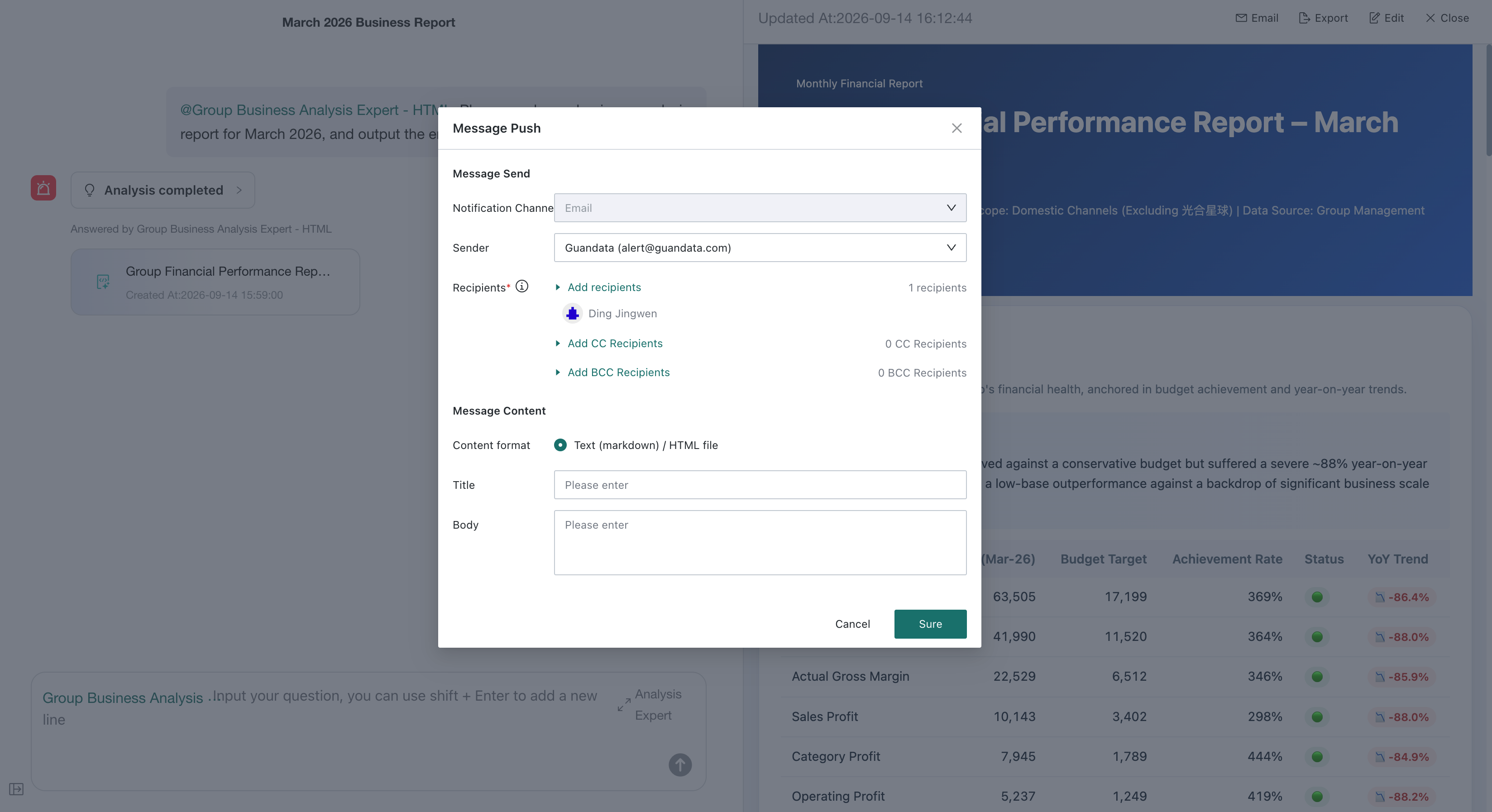
Select the sender and recipients. Add CC or BCC recipients if needed.
-
Complete Title and Body, then select Sure.
Export
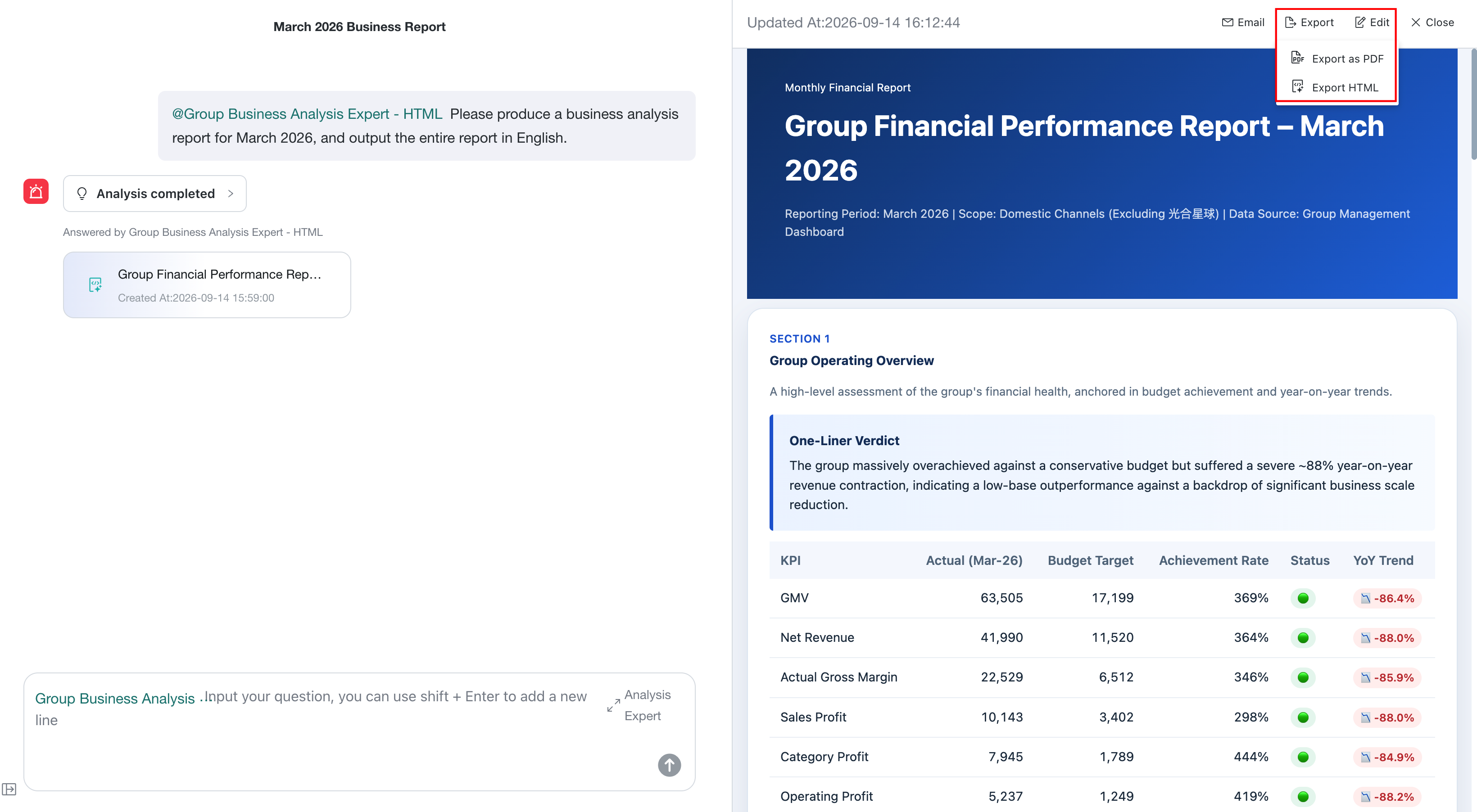
Select Export in the upper-right corner and choose PDF or HTML.
-
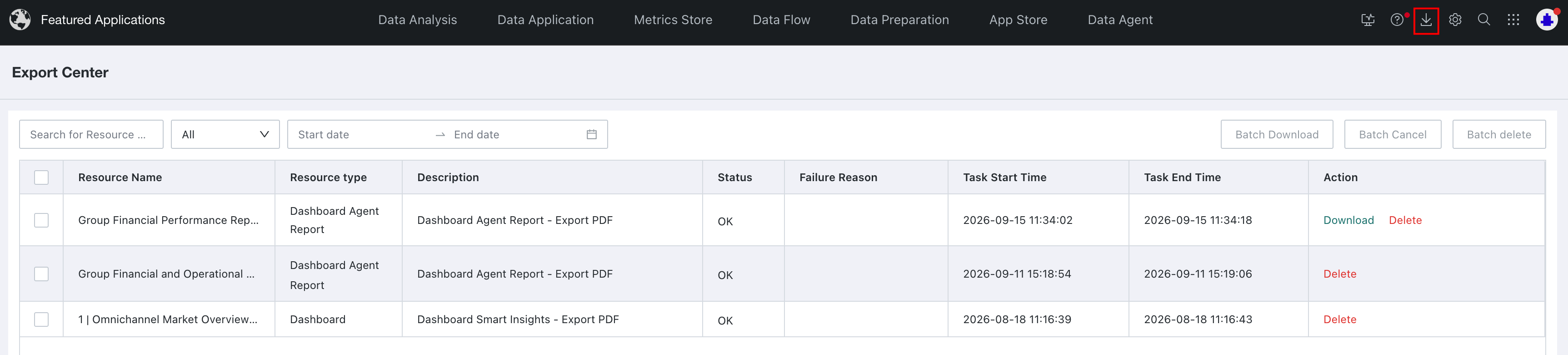
Export as PDF: After export, open Export Center to view the task. When complete, download or delete the report. You can filter tasks by resource name, resource type, and submission date.
-
Export HTML: The report is downloaded as an
.htmlfile that you can open directly in a browser.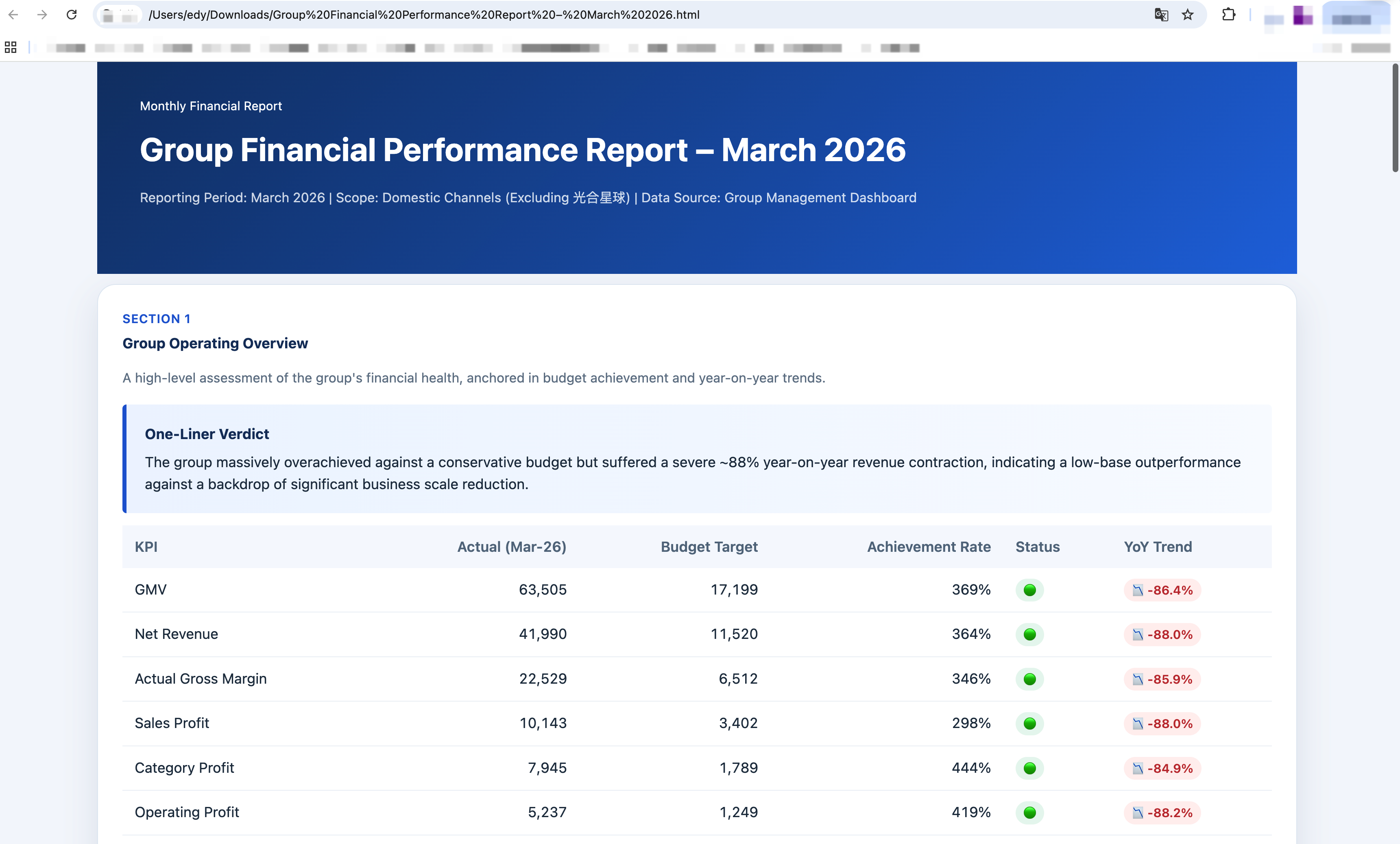
Edit a Report
-
Select Edit in the upper-right corner to open the report editor.
-
Select Save to apply your changes, or Exit to return to the report.
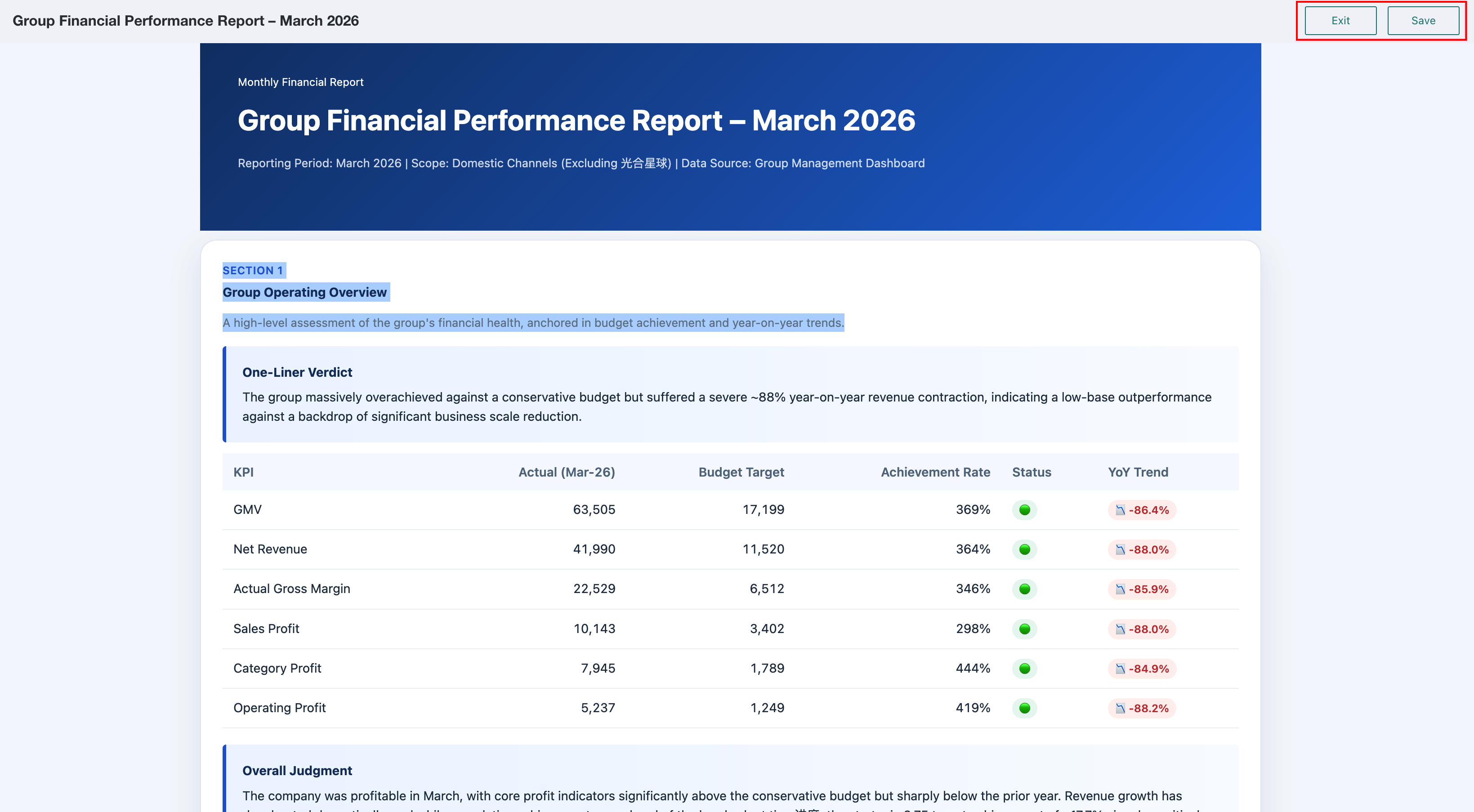
For HTML reports, you can edit text only. Page colors and layout cannot be changed.
Ask Multi-turn Follow-up Questions
Continue entering questions in the dialog box and select Send to explore the current conclusion in greater depth.
For every follow-up question, the system automatically matches an Analysis Expert. You can also manually select or switch specialists.