Mobile User Guide
Overview
This article introduces common Dashboard Agent operations on mobile, including switching agents, asking questions with recommended questions or Analysis Experts, viewing conclusions and reports, starting conversations, and viewing conversation history.
View an Agent
After opening Dashboard Agent, you can view the current agent and enter a question in the dialog box.
If the agent's data scope includes pages that you cannot access, a warning appears for both initial and follow-up questions, but you can still ask questions. This warning applies whether or not you use an Analysis Expert.
The agent can analyze only pages that you can access. If it discovers during analysis that a page required to answer the current question is inaccessible, it stops the analysis and displays an insufficient-permission message.
Switch Agents
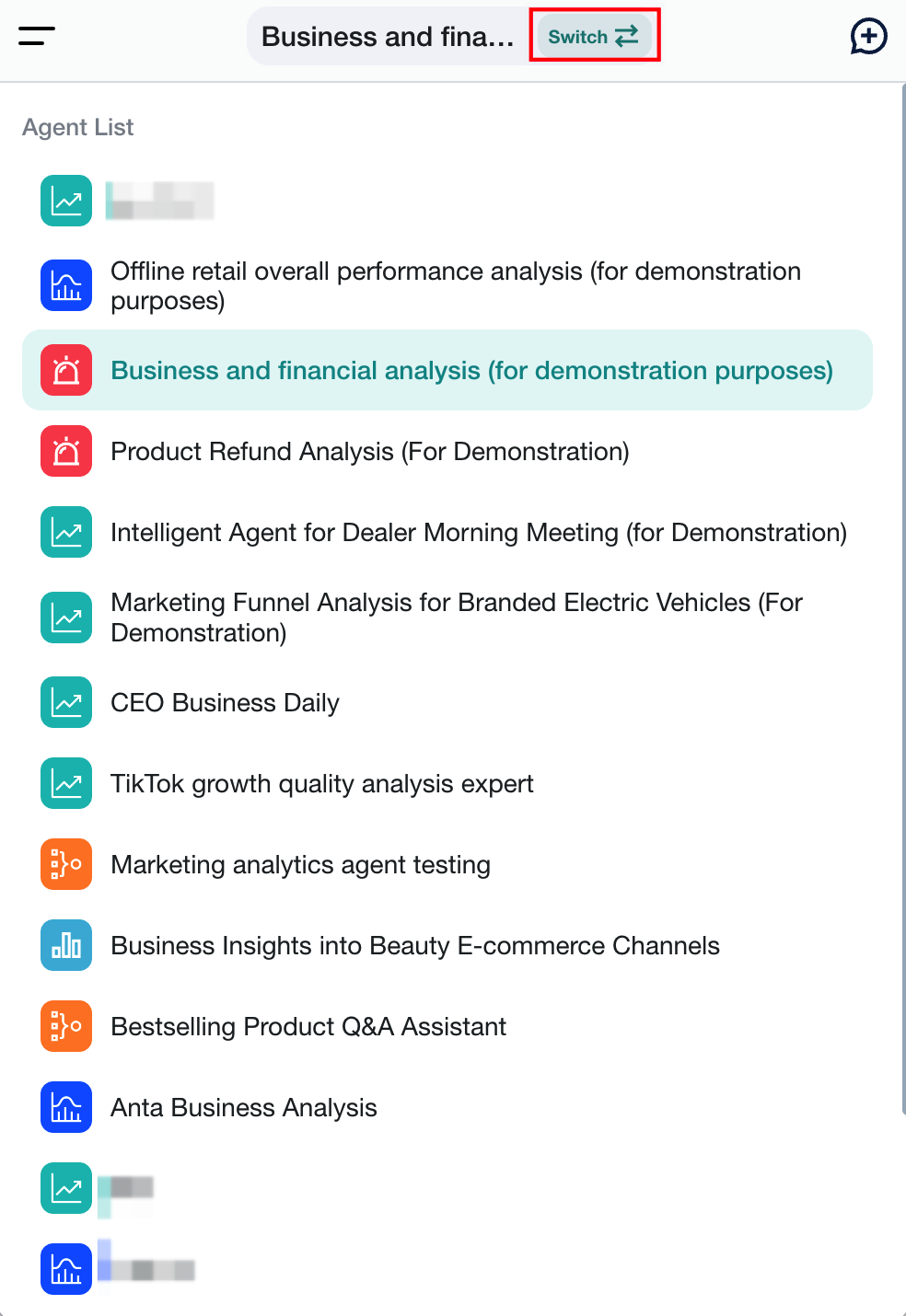
If your account can use multiple agents, you can switch agents at the top of the conversation page.
-
Select Switch next to the current agent name.
-
Select the agent to use.
-
The page starts a new conversation and loads the selected agent's welcome message and recommended questions.
The original conversation remains in the conversation history after you switch agents.
Recommended Questions
Prerequisites
Enable and configure Recommended Questions in Agent Detail Settings > Basic Information.
Usage
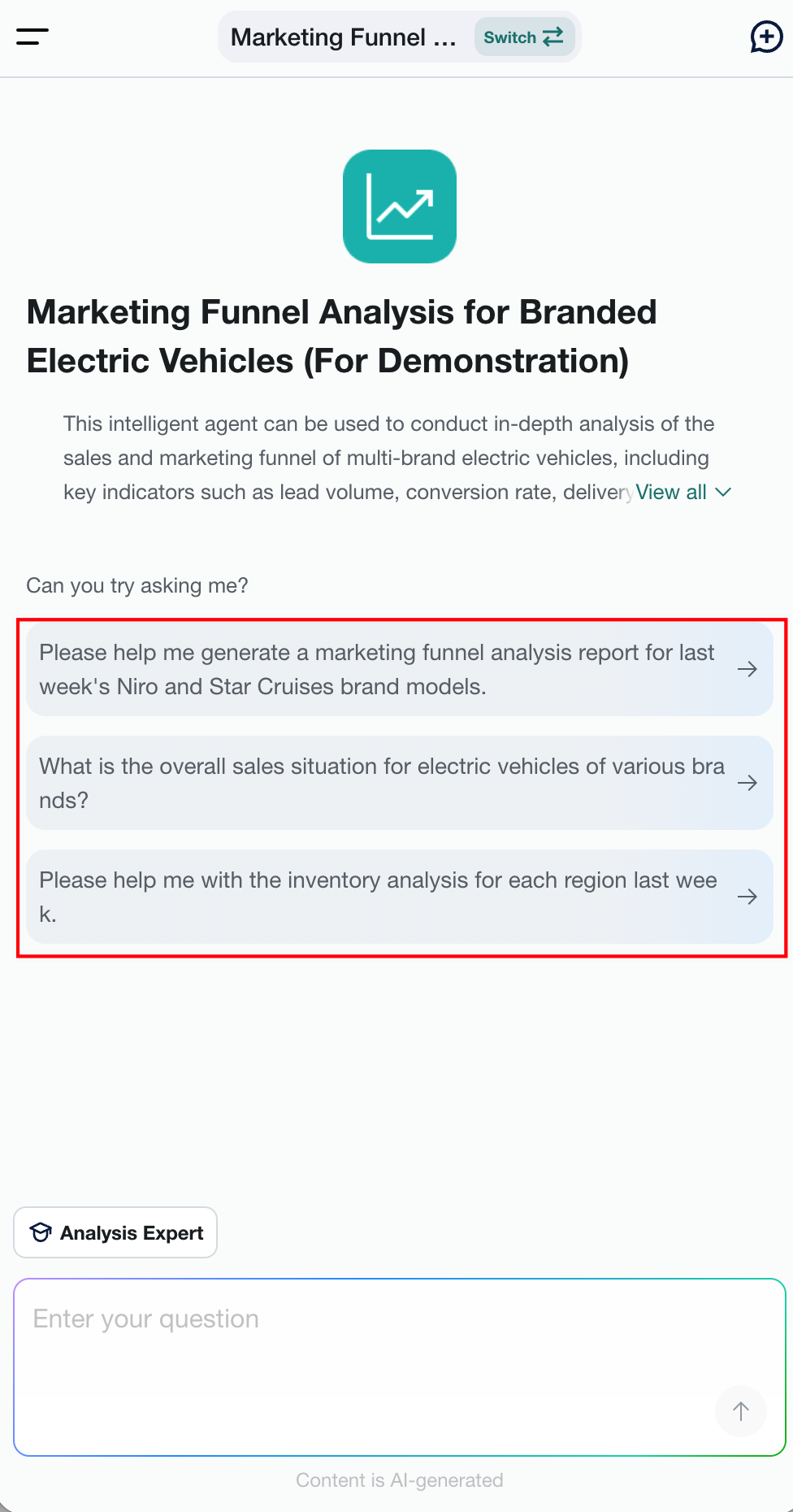
When you start a new conversation, the Can you try asking me? area displays recommended questions by default.
Ask with an Analysis Expert
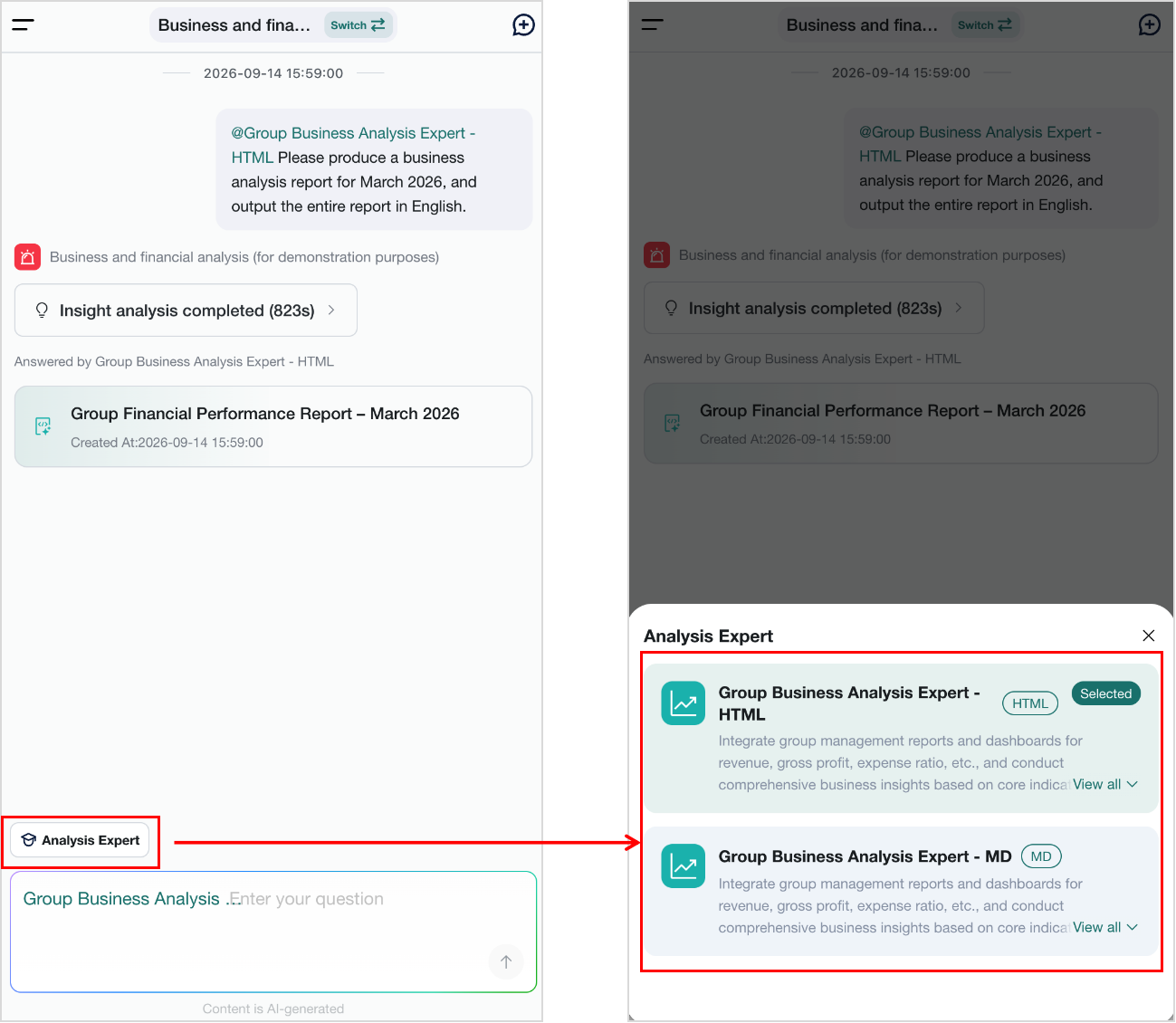
Select the target Analysis Expert on the insight page, then enter a question. The system generates a result using the specialist's predefined analysis approach.
View the Analysis Process
While analysis is in progress, the page displays the current analysis steps and progress.
View Question Time and Response Duration
After you send a question, its submission time appears above it. When analysis finishes, the response duration appears next to the completion status.
Stop Generating Insight Conclusions
To stop the current response, use the stop button in the lower-right corner of the dialog box. The page retains the content already generated and indicates that generation has stopped.
View Insight Conclusions
Text Response
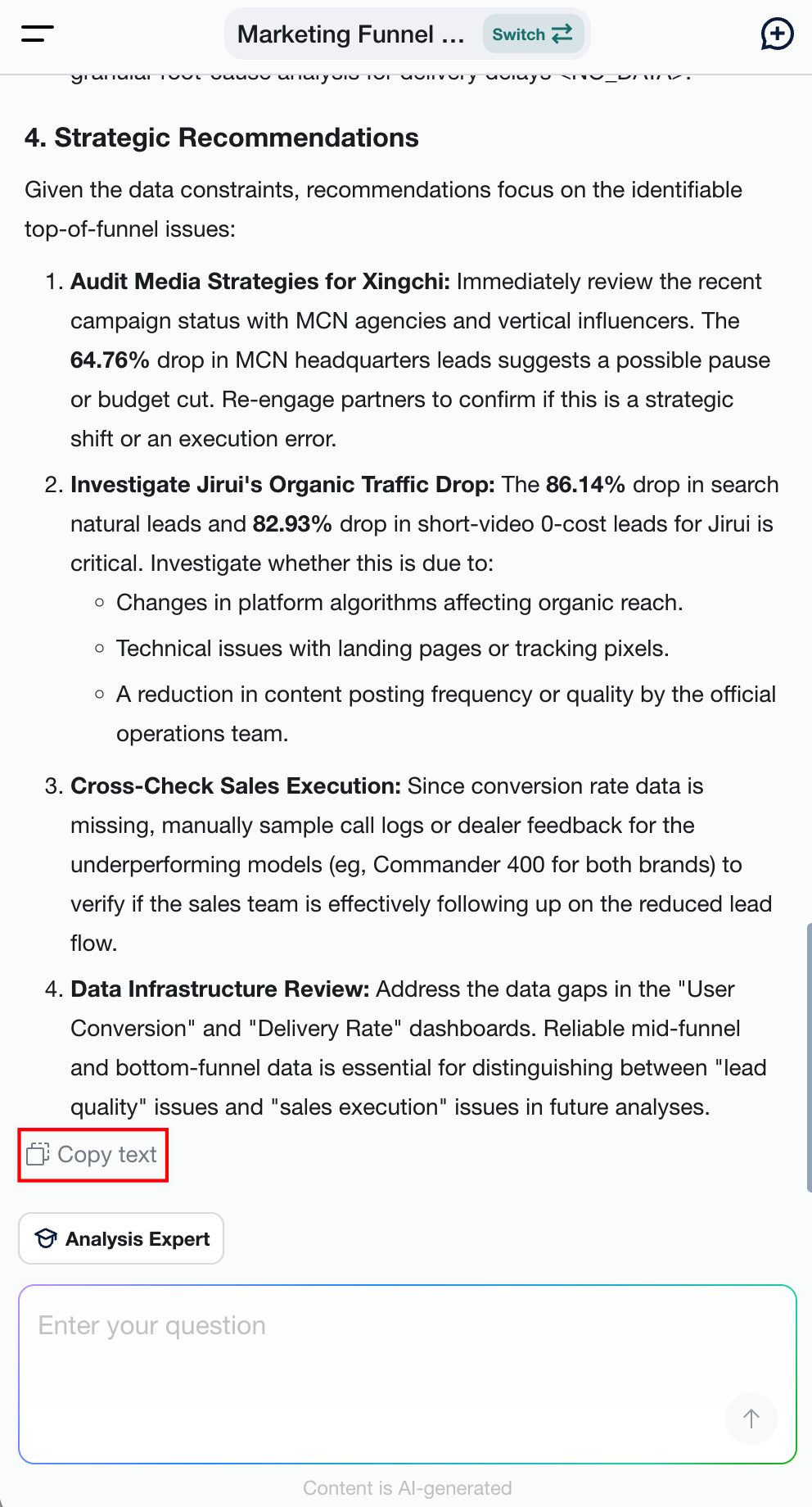
Select Copy Text below the answer to copy the current response while retaining formatting such as bold text, indentation, and list numbering.
Report Response
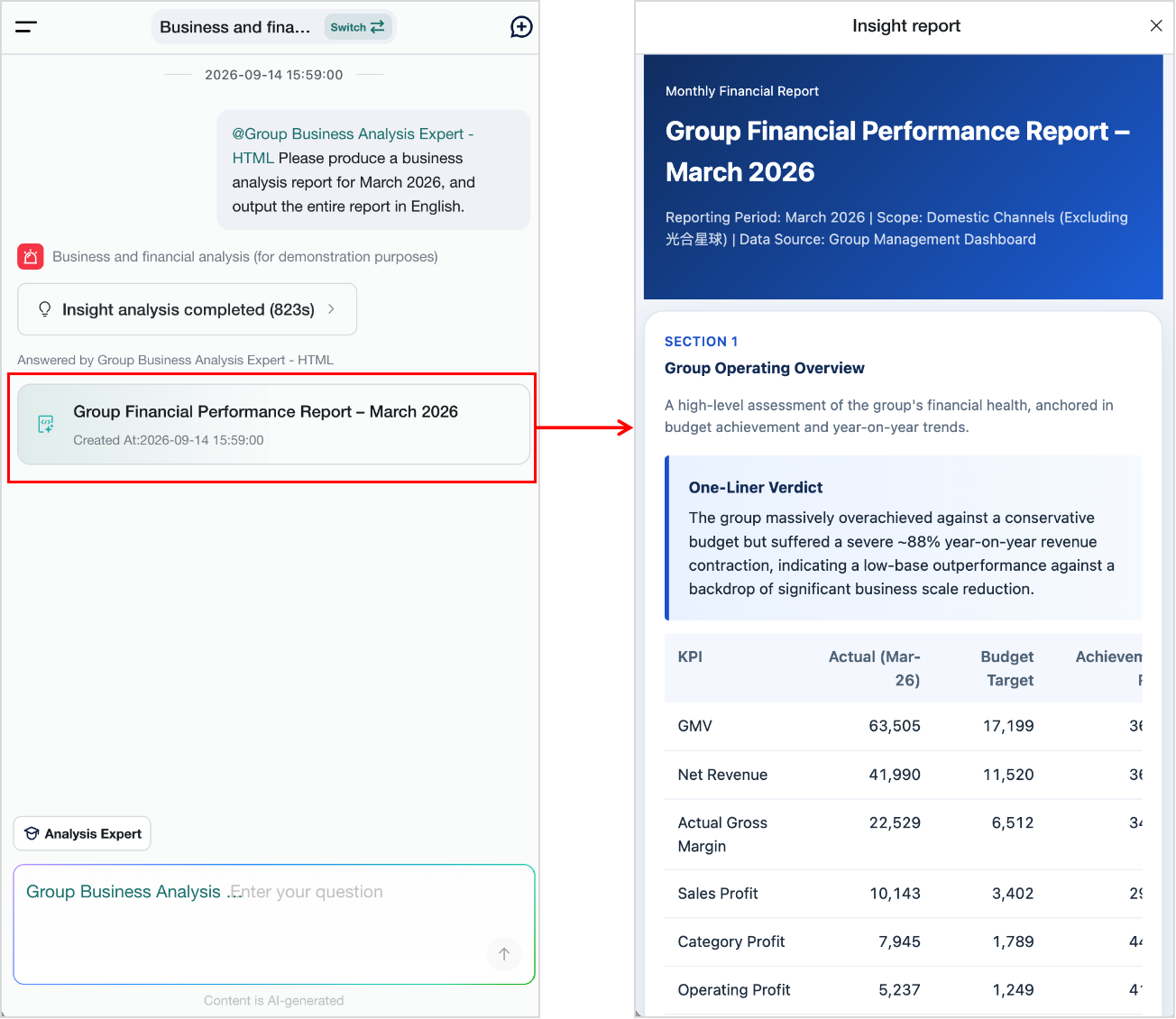
If the system invokes an Analysis Expert with Report Mode enabled, the agent generates a Markdown or HTML report. Select the report to expand it.
Start a New Conversation
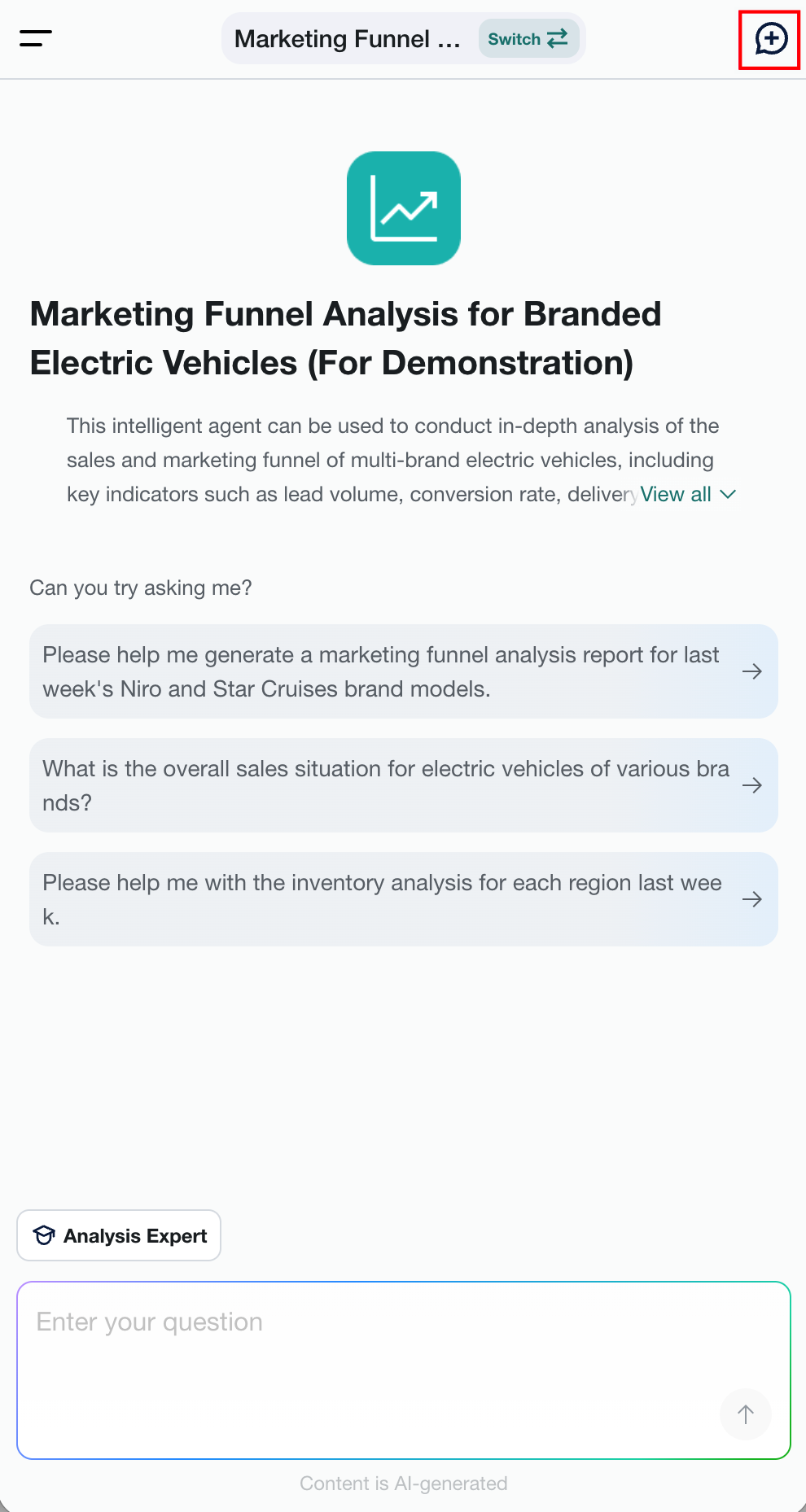
Select + in the upper-right corner to create a new conversation without previous context. Use this when starting an independent question.
View Conversation History
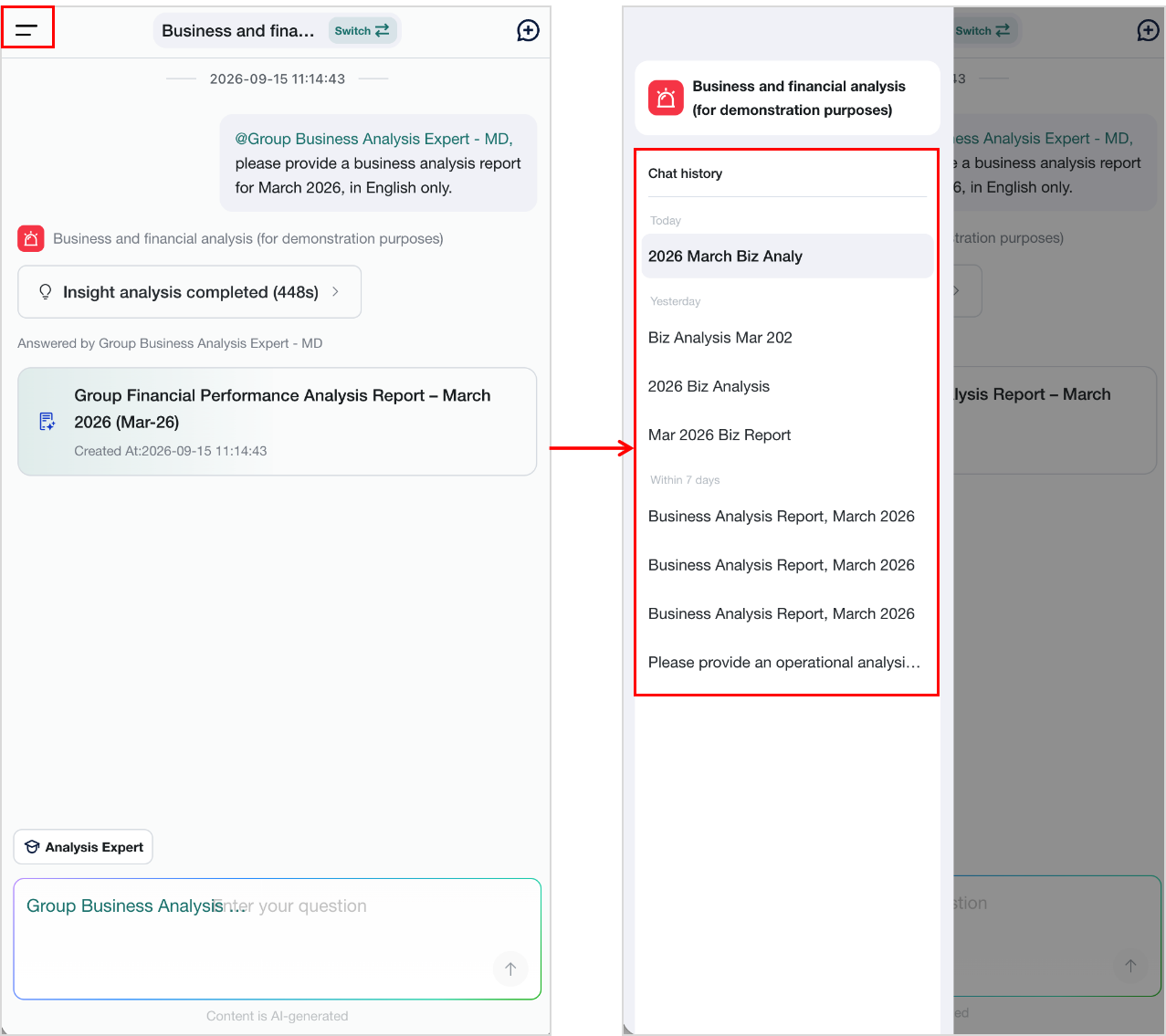
Select the menu icon in the upper-left corner to open Chat history, where previous conversations are grouped by time. Select a record to continue asking questions in its existing context.