Subscription Management
Overview
Subscription Management supports automatically pushing insight reports generated by the agent to specified recipients on a schedule, suitable for scenarios requiring regular analysis and distribution such as daily or weekly business reports.
Prerequisites
Expert creation must be completed.
Create Subscription
Click the Create Subscription button in the upper-right corner of the page to open the Create Subscription dialog.
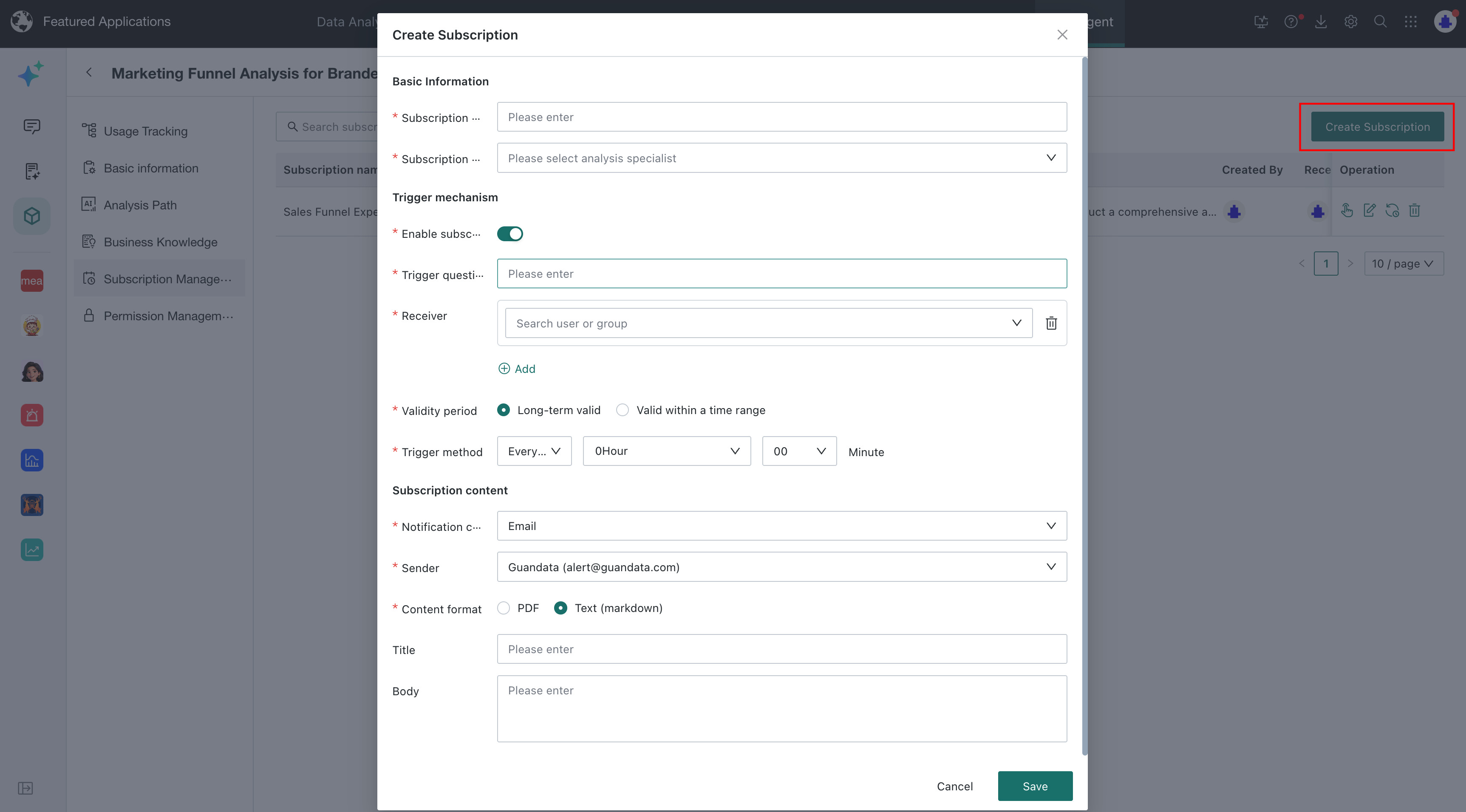
Configure Subscription
Basic Information

| Configuration Item | Description |
|---|---|
| Subscription Name | Enter an easily identifiable subscription name. After creation, you can search by name. |
| Subscription Target | Select the corresponding Expert from the drop-down list, supports searching. |
Trigger Mechanism
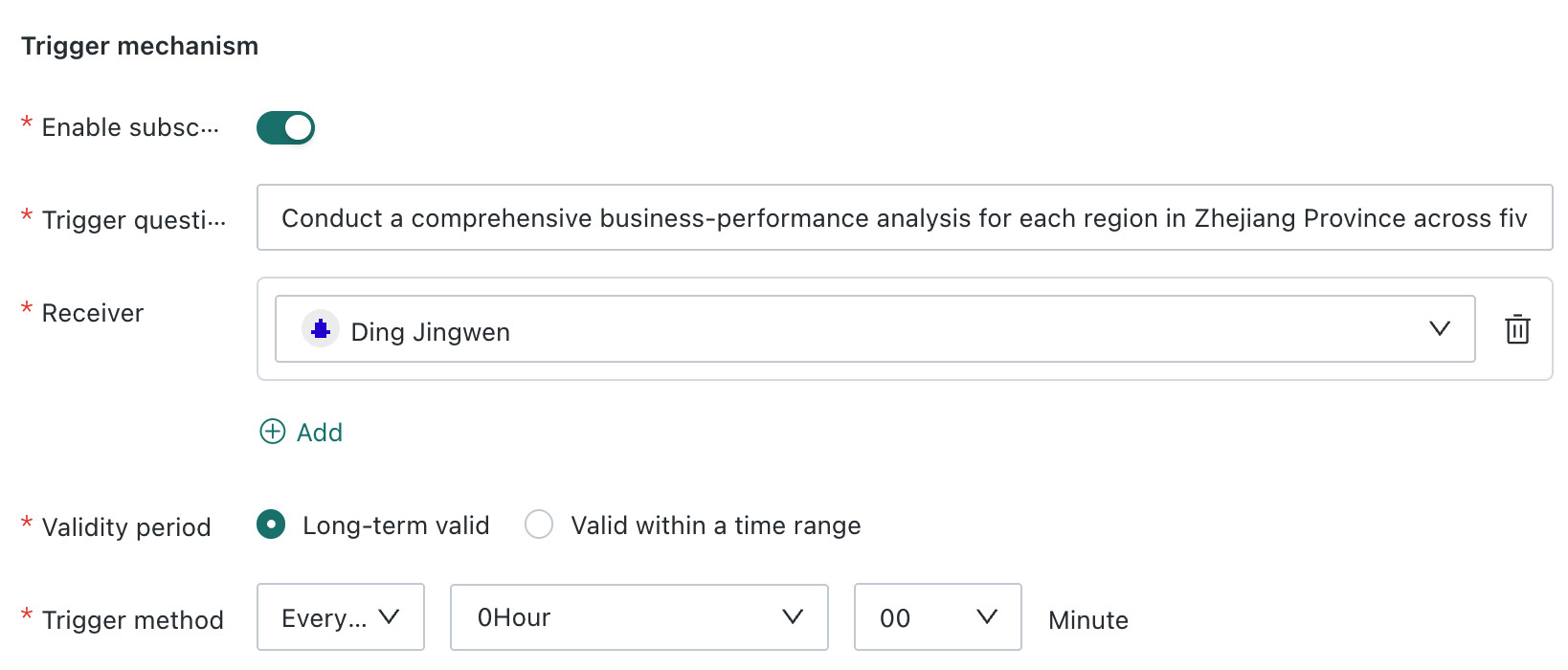
Enable Subscription
Set the enable status of the subscription task:
- On: The subscription task executes according to configured trigger conditions
- Off: The subscription task is paused and will not trigger push notifications
Trigger Question
Enter the question that you want the agent to analyze regularly. After the subscription is triggered, the agent generates an insight report based on this question.
The question should clearly define the analysis scope, dimensions, and business objectives. For example:
Please conduct a comprehensive analysis of the business performance of each region in Zhejiang Province from the dimensions of "people, product, store, customer, and sales".
Recipients
Select the recipients of the subscription report. Click Add to configure multiple recipients; click the delete button on the right side of a recipient to remove them.
The recipients here are users with permissions for the current agent. For permission configuration, see Permission Management.
The system generates subscription content separately based on each recipient's data permissions. When different recipients have different data permissions, the content of the received insight reports may also differ.
Validity Period
Set the validity period of the subscription task:
- Long-term valid: The subscription remains active until manually disabled or deleted.
- Valid within time range: Only automatically executes within the set start date to end date.
Trigger Method
Set the generation and push cycle for subscription reports. The system supports triggering subscriptions automatically at specified times by day, week, or month.
Subscription Content
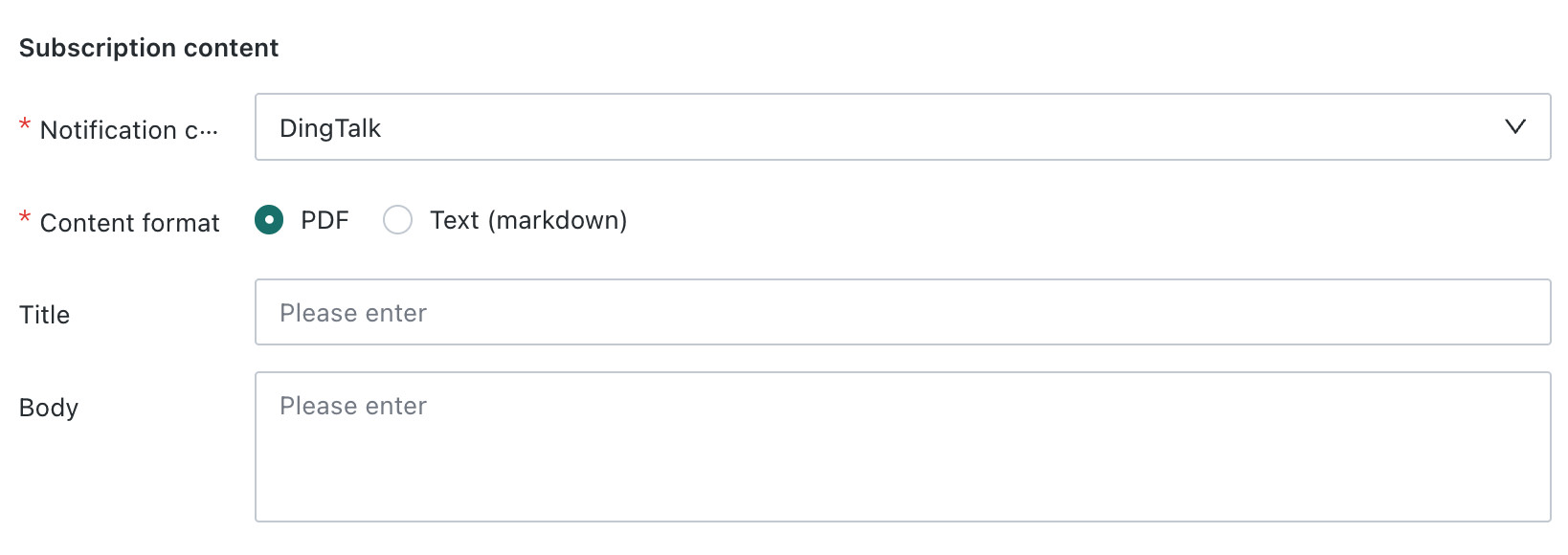
Notification Channels
Select the push channel for the subscription report, supporting Email.
When Email is selected as the notification channel, you need to configure the Sender.
Content Push Format
Select the report format received by recipients:
- PDF: Push insight reports in PDF file format.
- Text (Markdown): Push report content in Markdown text format.
Title (Optional)
Set the title of the subscription push message, which recipients will see as the subject or title of the message.
Body (Optional)
Edit the detailed content description of the subscription push message, supports custom text descriptions, helping recipients quickly understand the background and purpose of the pushed data.
Manage Subscriptions
After subscriptions are created, you can view and manage subscription tasks on the Subscription Management page.

| No. | Operation | Description |
|---|---|---|
| 1 | Search Subscriptions | Search subscriptions by subscription name and status |
| 2 | Create Subscription | Create a new subscription plan, for configuration details see Configure Subscription |
| 3 | Enable/Disable | Toggle the enable status of the subscription task |
| 4 | Manual Trigger | Manually trigger a subscription push immediately |
| 5 | Edit | Modify the configuration information of the subscription task |
| 6 | View Send History | View the send history of the subscription, including send time, send status, generator, recipient, and trigger method |
| 7 | Delete | Delete the subscription task, deletion cannot be recovered |
Configuration Recommendations
- Use "business scenario + report content + push cycle" to name subscriptions, for example Regional Business Analysis Weekly Report.
- Clearly define the time range, analysis object, and analysis dimensions in the trigger question to reduce ambiguity.
- Set the trigger time based on report timeliness to ensure recipients receive the latest data in a timely manner.
- Regularly check subscription status, validity period, and recipients, and promptly disable tasks that are no longer in use.