Quick Start
Overview
This document describes the full Insight Agent workflow, from environment preparation and agent configuration to frontend use. For first-time use, choose a scenario with a clear Business Scope and stable dashboard data.
Usage Guide
Insight Agent includes an administration side and a frontend usage side.
| Role | Entry Point | Main Tasks | Page |
|---|---|---|---|
| Data Producer | Data Agent > Agent Management > Dashboard Agent | Create and edit agents, and configure Basic Information, Analysis Path, Business Knowledge, and permissions. | 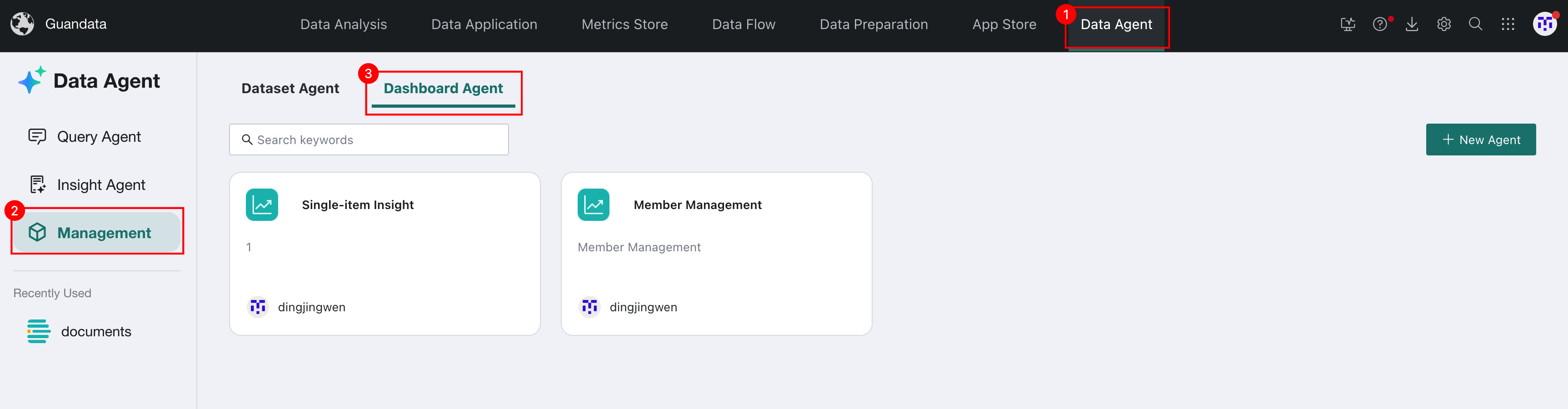 |
| Data Consumer | Data Agent > Insight Agent > Dashboard Agent | Select an agent, send questions, view Comprehensive Answers, ask multi-turn follow-up questions, and edit and save reports. | 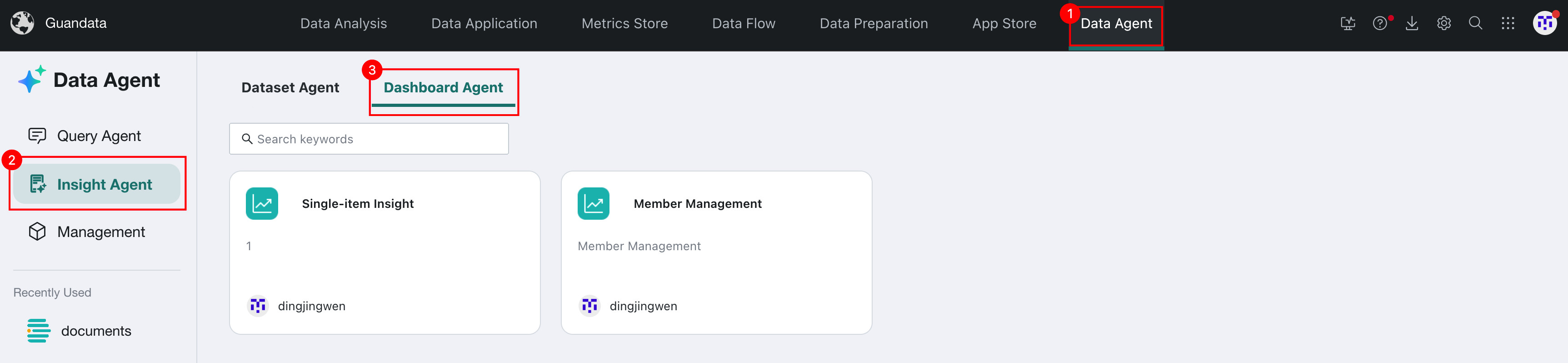 |
Data Producer Workflow
- Confirm that the environment version, License, system configuration, and model service meet the requirements. For details, see Version Requirements and Prerequisites.
- Go to Data Agent > Agent Management > Dashboard Agent and click Create Agent. For details, see Create Agent.
- After creating the agent, open the agent edit page and configure Experts and Permission Management as needed. For details, see Expert and Dashboard Agent Permission Configuration.
Data Consumer Workflow
- Go to Data Agent > Insight Agent > Dashboard Agent, then click an agent to open the Q&A page.
- Enter a question. You can also
@a specific Expert as needed. Click Send and wait for the agent to generate a Comprehensive Answer. - Continue entering questions to ask multi-turn, in-depth follow-up questions about the current Insight Conclusion.
- Copy the answer text, or edit and save a professional report in Report Mode.
For details, see Data Consumer Quick Start.
Configuration Checklist
- Dashboard Insights works properly.
- The Insight Agent License has been enabled.
- Each dashboard in the Data Scope has a Linked Filter selected.
- The model service meets deep insight requirements.
- Target users have obtained Role Permissions and Resource Permissions.