Basic Information
Overview
Basic Information configuration determines the analysis boundary of Insight Agent. Properly setting the Business Scope and Data Scope can improve the accuracy and efficiency of agent answers.
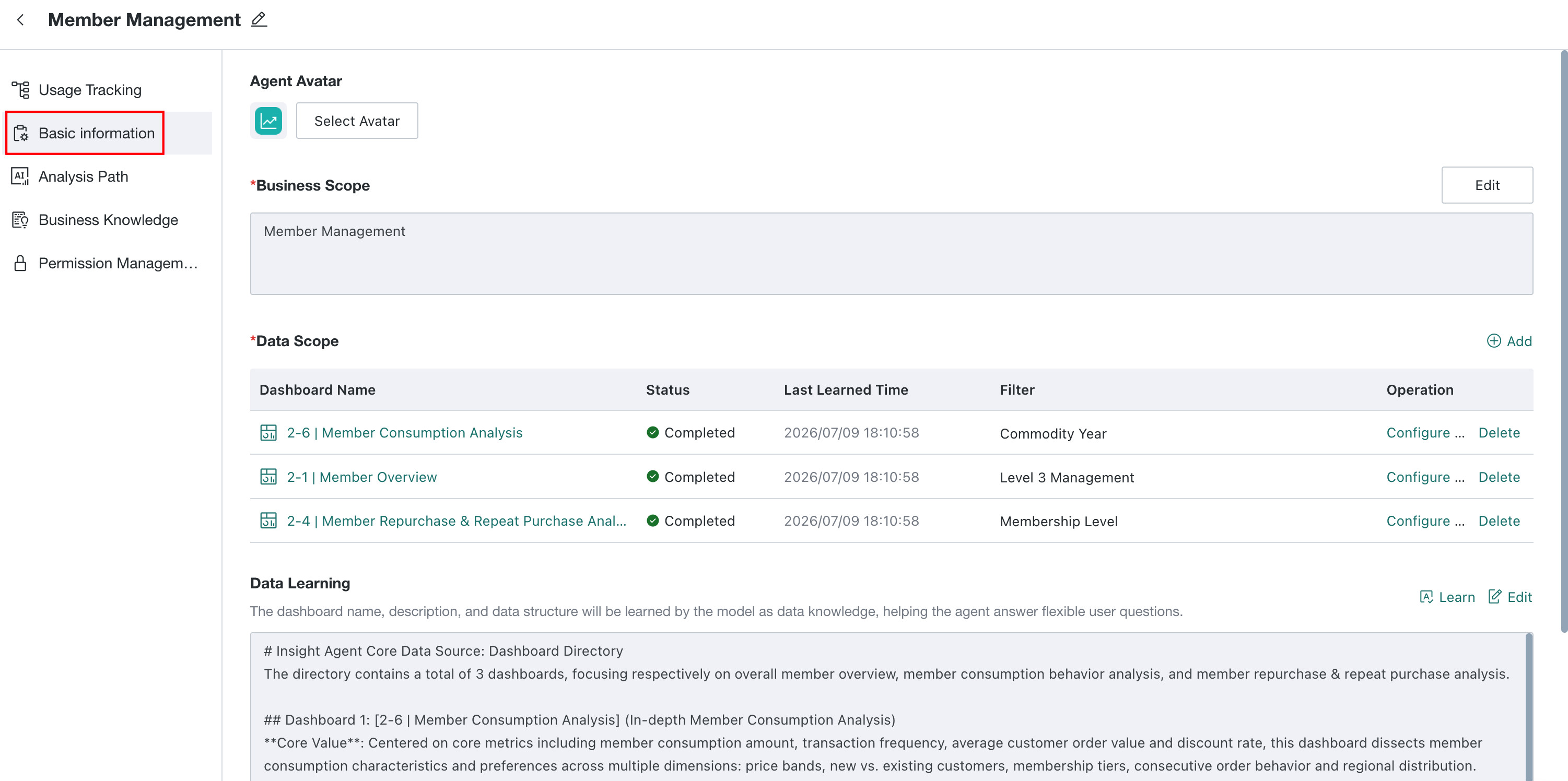
Go to the Insight Agent details page and click the Basic Information tab to view and edit the following configuration items.
Agent Avatar
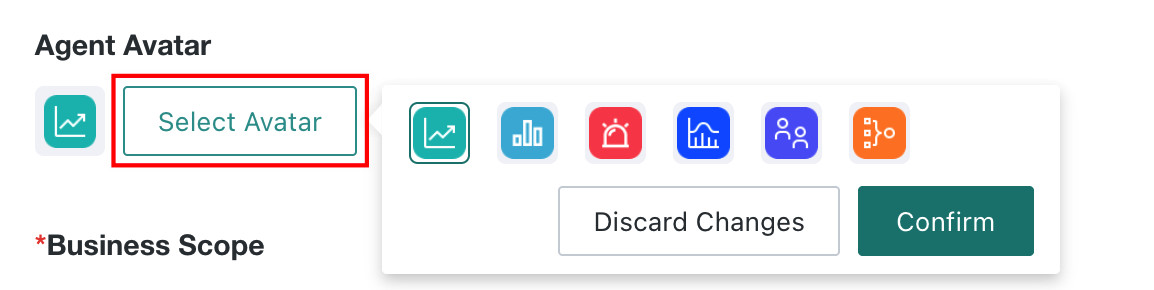
In the Agent Avatar area, click Select Avatar on the right to quickly switch the frontend Agent Avatar.
Business Scope
Click Edit on the right, then enter a description of the business scenario supported by the agent in the Business Scope text box, such as marketing funnel analysis for a brand's products. After configuration, questions outside the scenario scope are intercepted during Intent Recognition, guiding users to ask relevant questions.

Data Scope
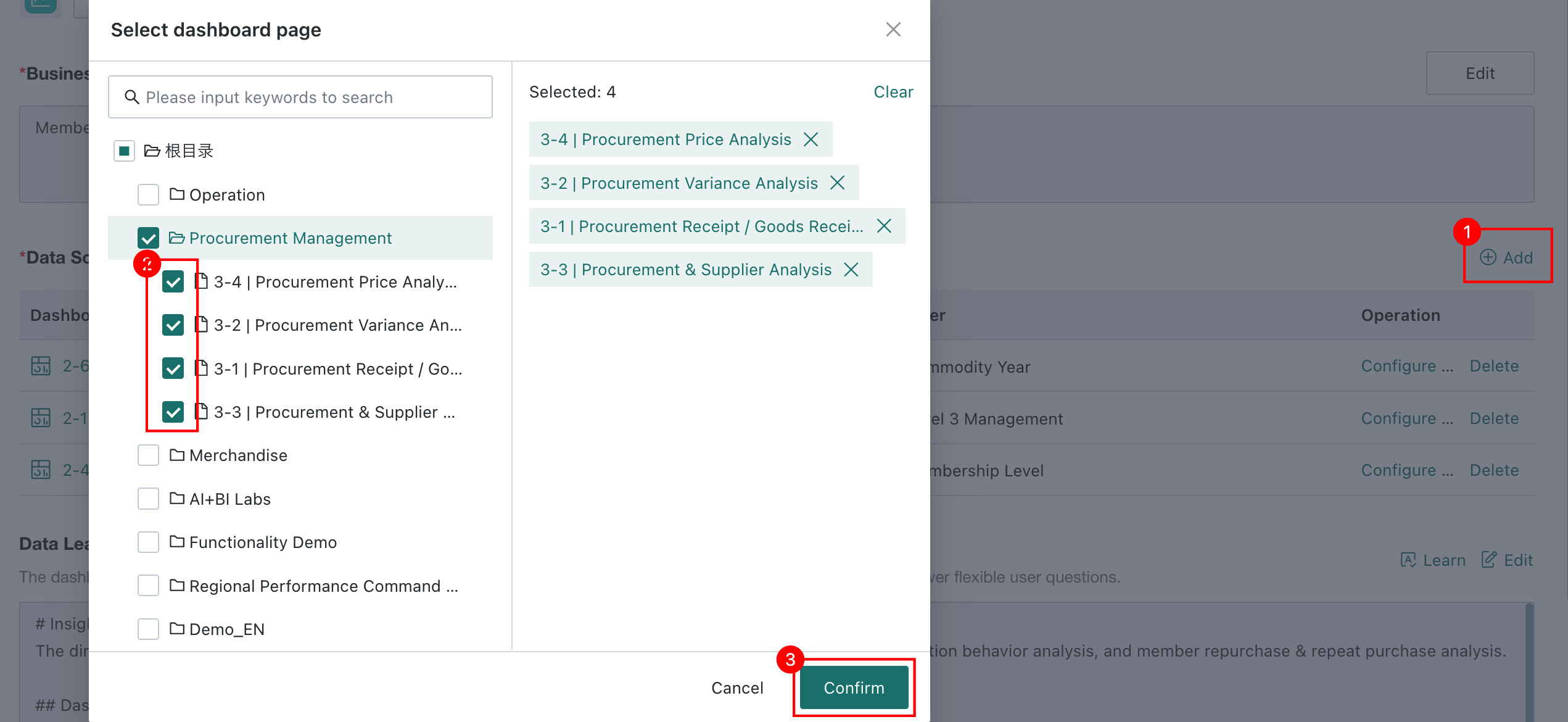
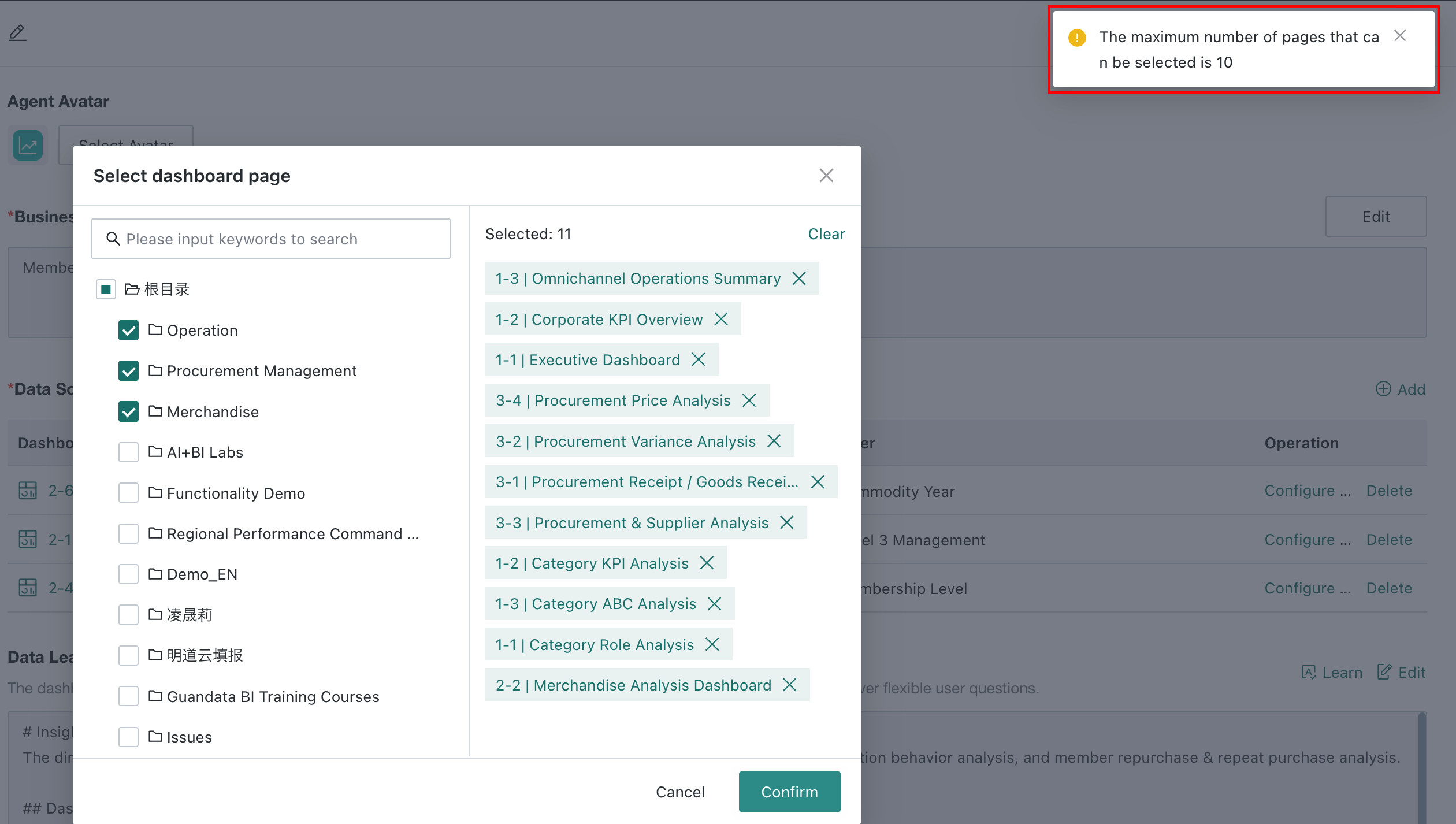
Data Scope limits the Pages (Dashboards) that the agent can analyze and call. You can select up to 10 Pages. If a Page contains a China-Style Report, the agent can analyze the data currently displayed through its Excel template.
China-Style Report insights require BI 8.2 or later.
Click Add on the right of Data Scope, then select the Pages to include in insight analysis.
After adding Dashboards, configure Filters for each Dashboard Page so the agent can dynamically pass parameter values based on context during cross-page linked analysis and perform cross-page Data Integration and linked analysis.

Data Scope supports adding up to 10 Pages, and each Page supports selecting up to 10 Filters.
Data Learning
Before formally using the agent for Q&A, perform Data Learning on the Dashboards in the Data Scope. The system automatically learns the names, descriptions, and data structures of selected Dashboards and stores the information as data knowledge for the model, improving the agent's understanding and answer quality for consumers' flexible, open-ended questions.
-
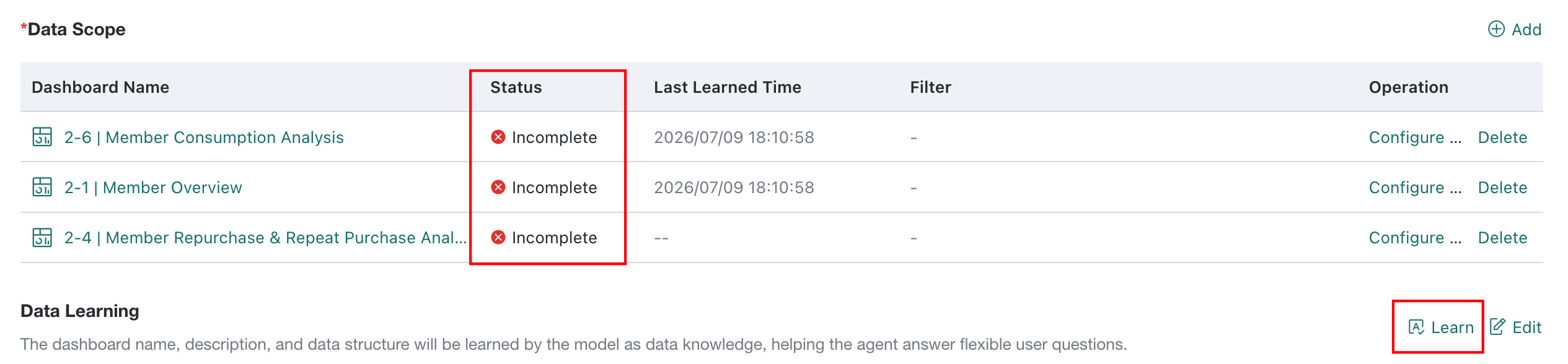
Click Learn in the upper-right corner of Data Learning. The system starts learning the added Dashboards. Before learning is complete, the Status in the list is Incomplete.
-
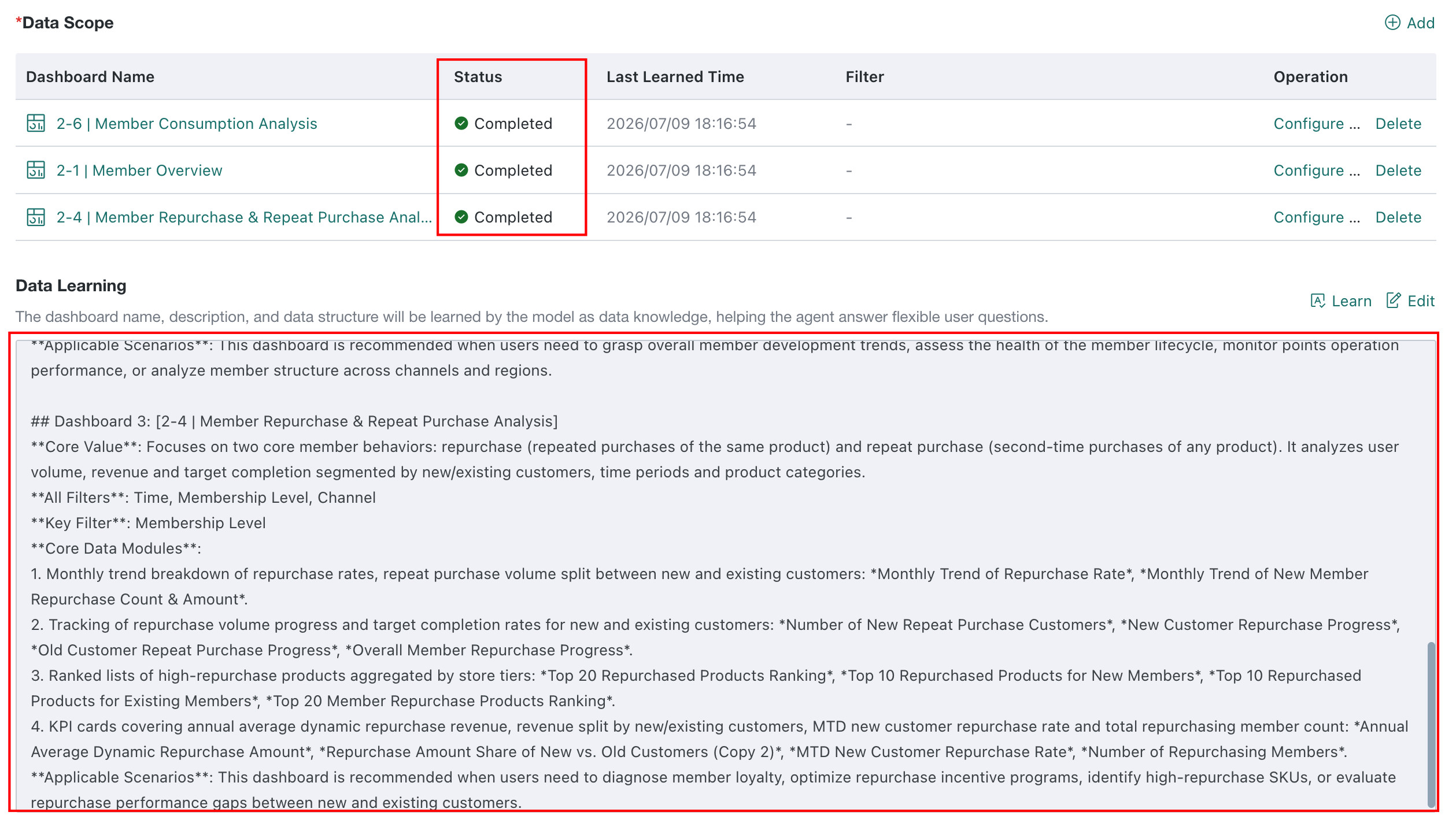
After learning is complete, Learning Status changes to Completed, and a learning result summary is displayed for reference during later Analysis Path configuration and Q&A.
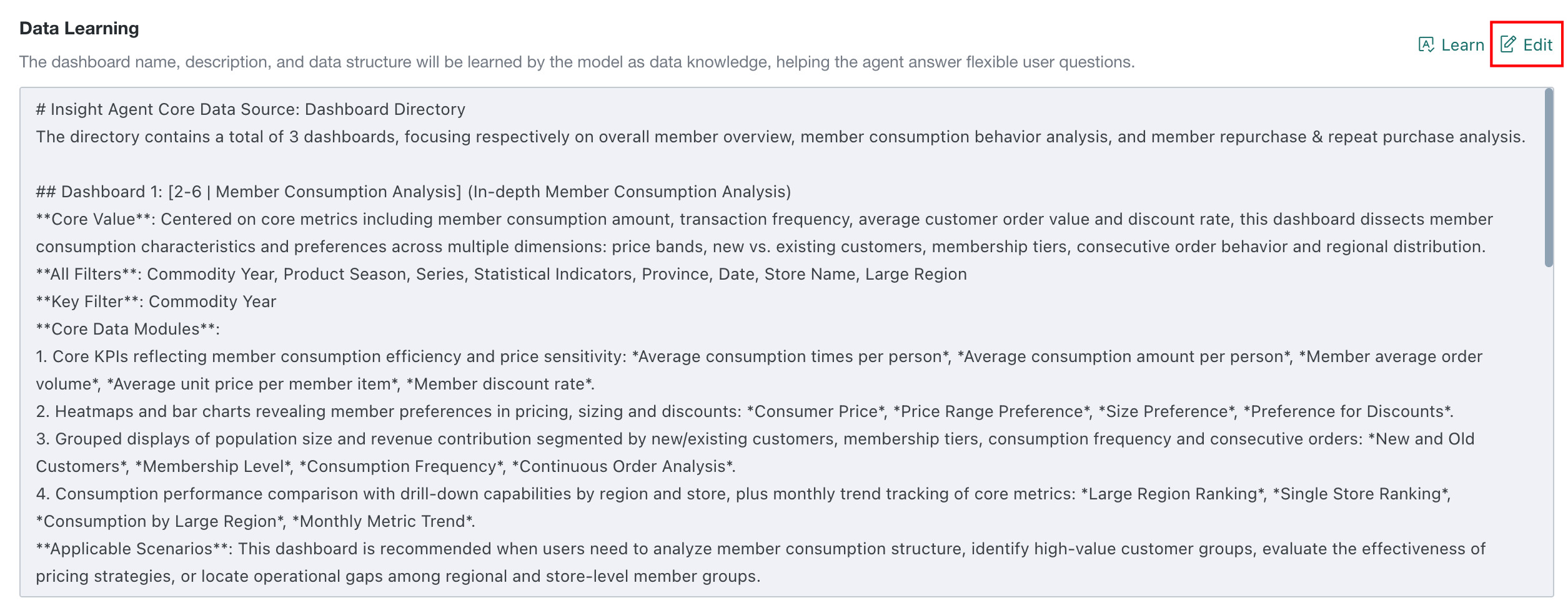
If the automatically generated learning result needs additional business context or correction, click Edit in the upper-right corner of the Data Learning area to enter edit mode and modify the learning result directly.
Recommended Questions
Recommended questions are used to display common analysis questions to Data Consumers, helping users quickly understand the agent's analysis scope and initiate questions. After enabling Recommended Questions, the system displays configured questions when users start a new conversation.
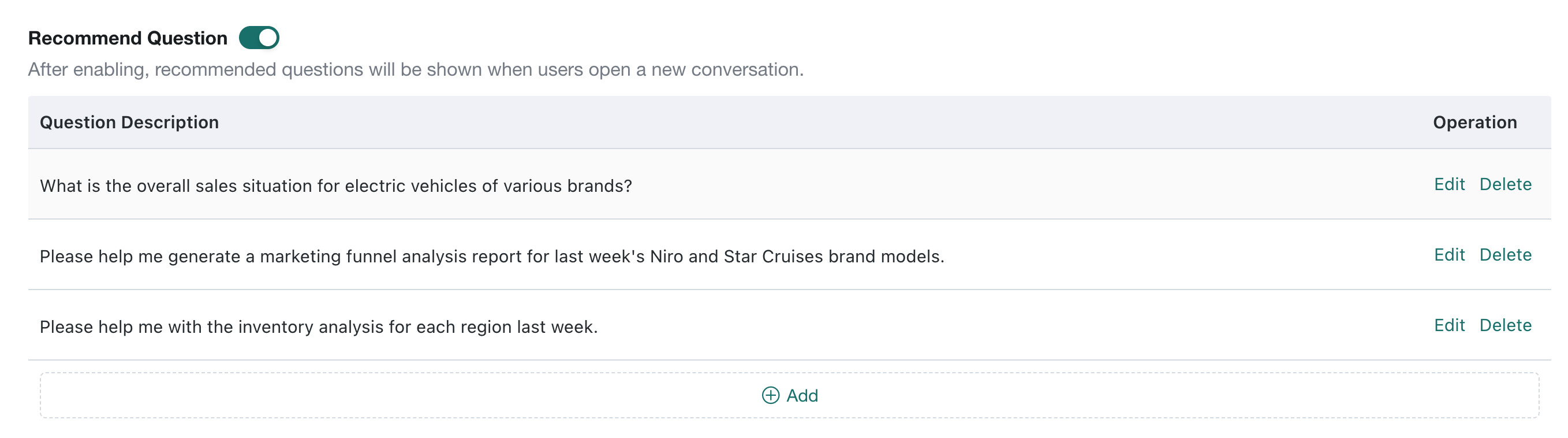
Supports the following operations:
| Operation | Description |
|---|---|
| Enable or Disable | After enabling, recommended questions are displayed in new conversations; after disabling, they are no longer displayed. |
| Add | Click Add at the bottom of the list to input a new recommended question. |
| Edit | Click Edit on the right side of the question to modify the question content. |
| Delete | Click Delete on the right side of the question to remove the recommended question. |
Model
In the Model drop-down list, select the LLM service that the agent uses for deep insights. Dify-type LLM services are not supported.
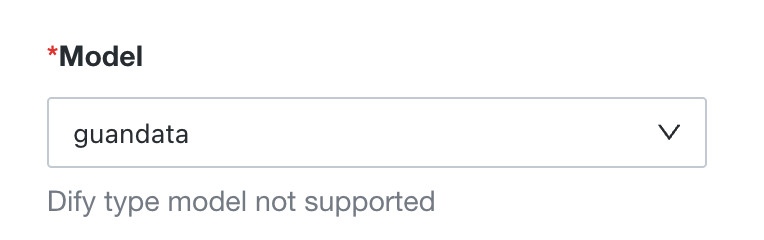
Before selecting a model, make sure its service has been configured in Management Center > System Integration > LLM Service. Available models are controlled by the model permissions configured in Management Center. See LLM Service.
Insight Agent has higher LLM capability requirements than Dashboard Insights. For current recommendations, see Model Recommendations.