Analysis Path
Overview
Analysis Path configuration provides the agent with a deep insight analysis framework, output specifications, and Expert roles, helping improve the accuracy and business fit of analysis results. This section covers three core configuration items: Default Insight, Output Requirement, and Expert. It guides you through customizing the agent's analysis logic and answer style based on business scenarios.
Go to the Insight Agent details page and click the Analysis Path tab to view and edit the Analysis Path.
- When a Data Consumer does not select a specific Expert, the agent answers according to Default Insight and Output Requirement.
- When a Data Consumer selects a specific Expert, the agent calls that Expert's configuration and outputs more targeted deep analysis.
Default Insight
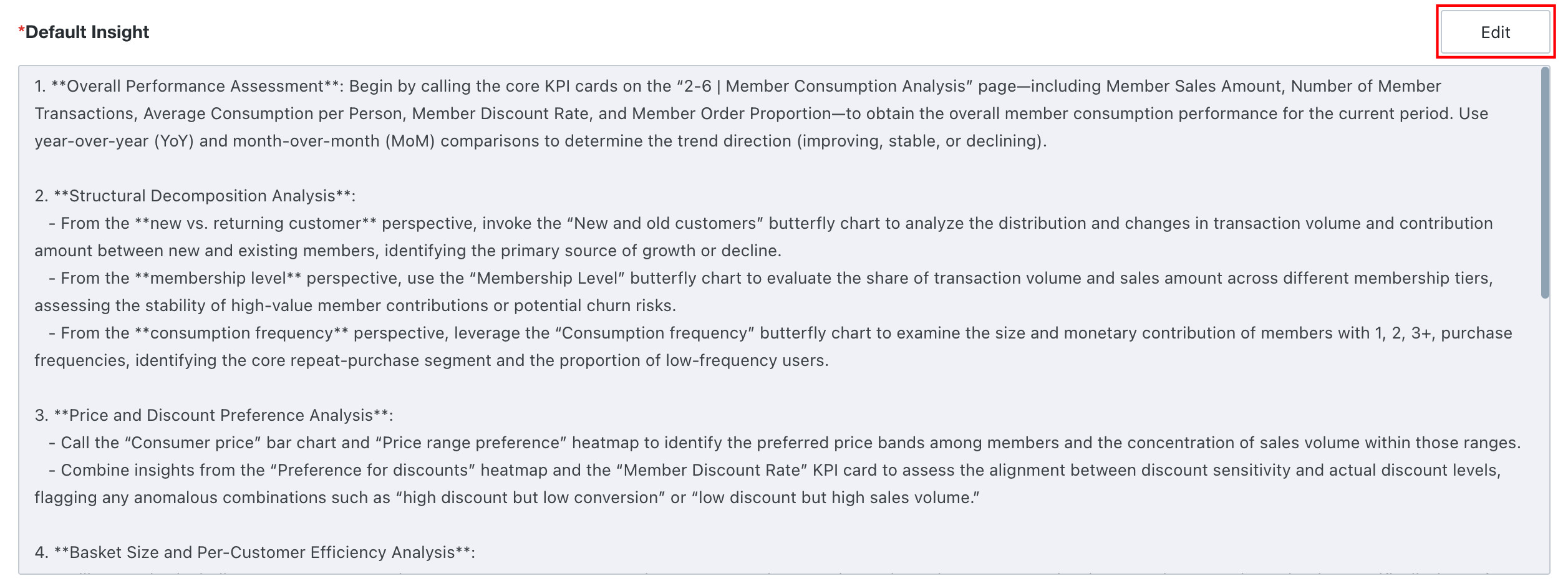
In the Default Insight area, enter the analysis framework that the agent should use for deep insights to ensure the final answer fits the scenario.
Click Edit on the right of the Default Insight area, then enter or modify the analysis framework in the text box, such as analysis dimensions, analysis levels, and focus areas.
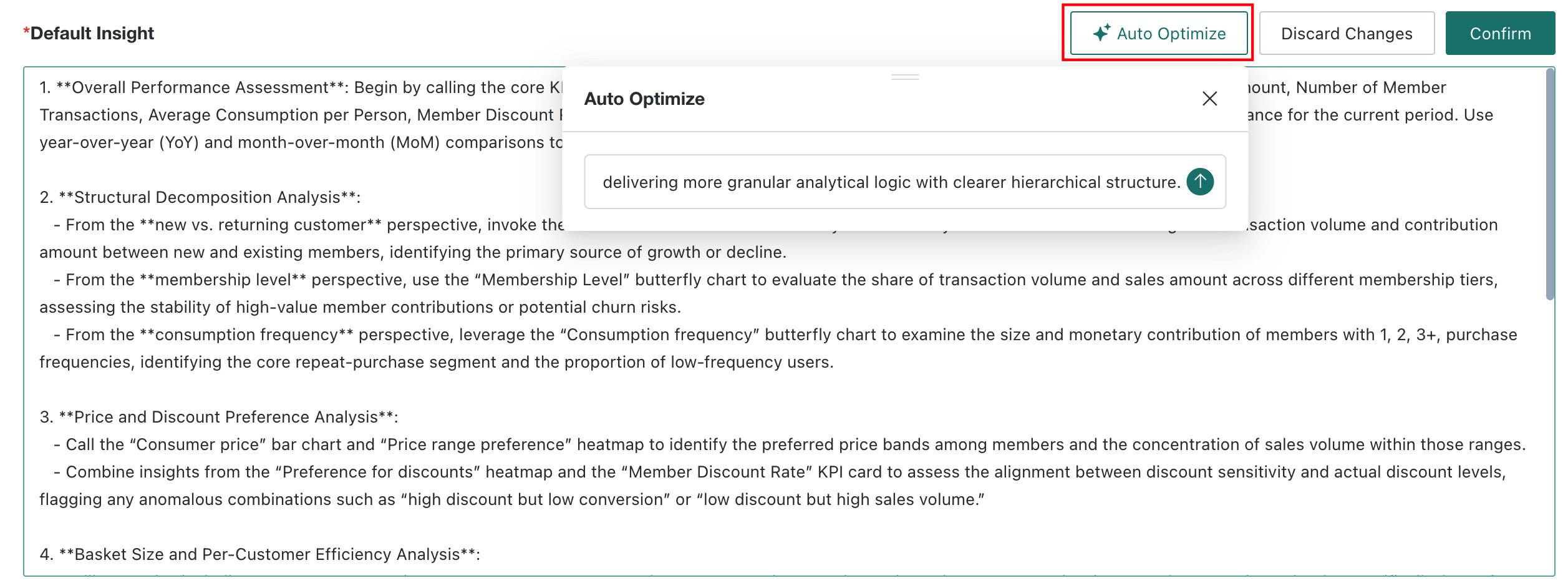
When editing, you can automatically optimize the current path based on LLM capabilities. Click Auto Optimize, and the agent optimizes the Default Insight based on the user's input requirements and Dashboard information in the current agent's Data Scope.
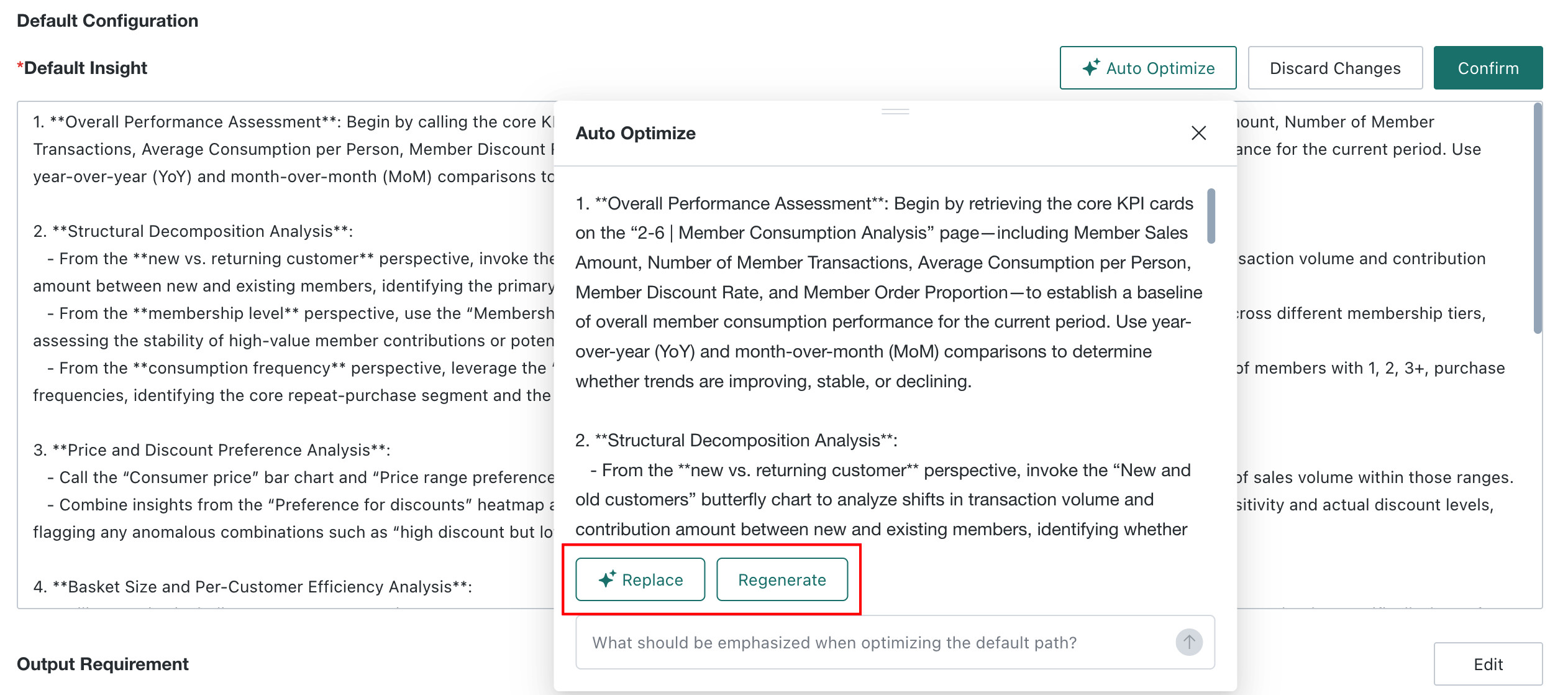
After optimization is complete, click Regenerate to optimize again if you are not satisfied with the result. If you are satisfied, click Replace to apply the optimized result. You can still manually adjust the content after replacement. Click OK to save after confirmation.
Output Requirement
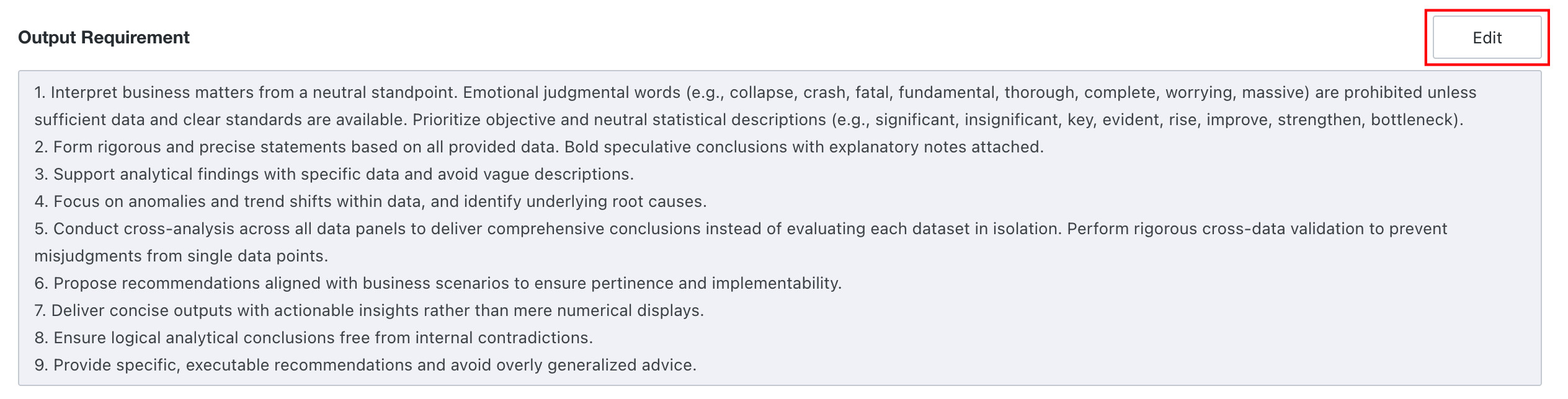
In the Output Requirement area, define the writing rules for the agent's insight output. The system provides relatively general default settings. You can use the default value directly or fine-tune it.
- Click Edit on the right of the Output Requirement area to enter edit mode.
- Modify the output specifications in the text box, such as format requirements, language style, and required elements.
- Click OK to complete the modification.
Expert
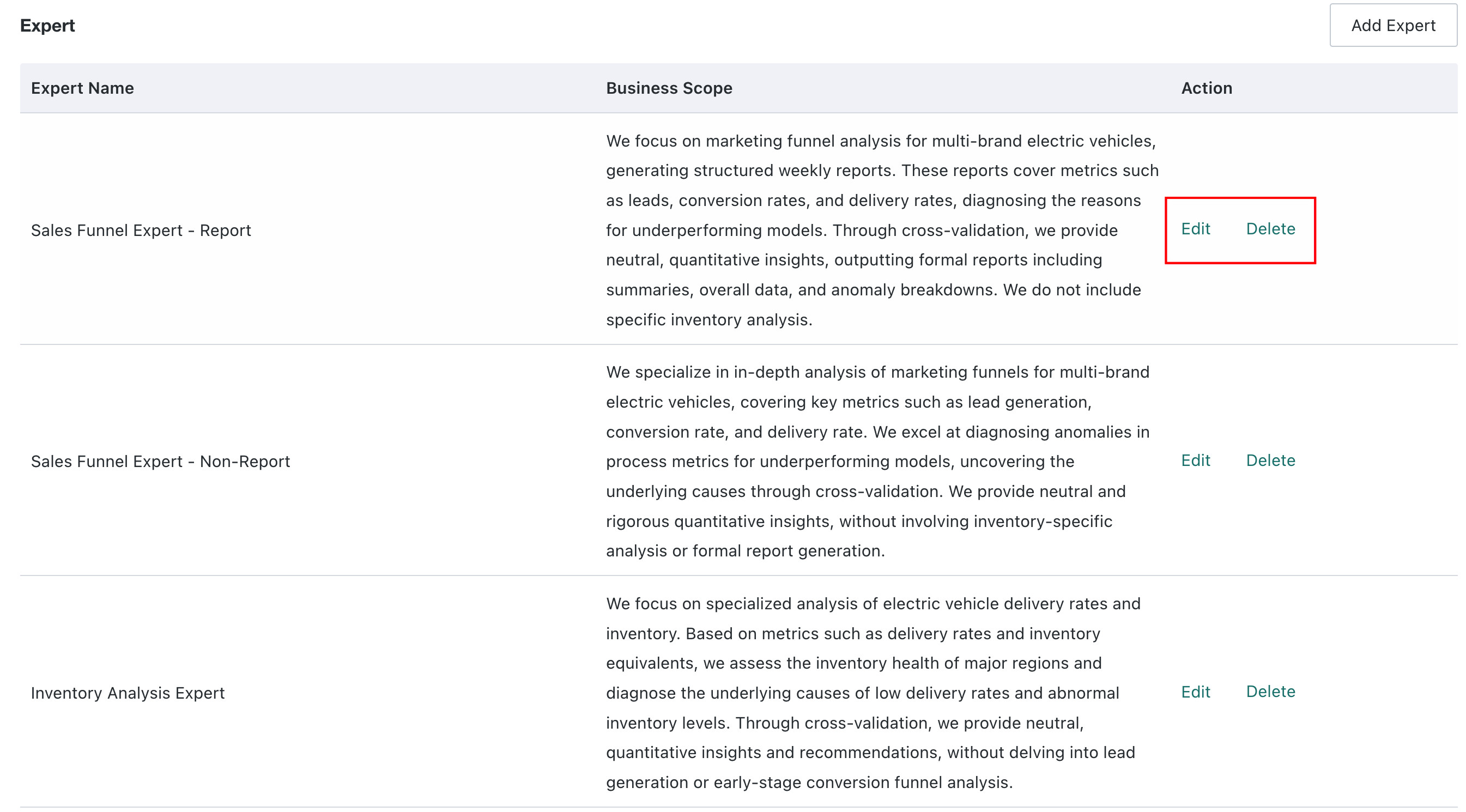
Expert is used to configure expert roles for specific analysis domains. Data Consumers can select an Expert during Q&A to obtain more targeted deep analysis.
Add Expert
-
Click Add Expert on the right of the Expert area to enter the Expert configuration page.

-
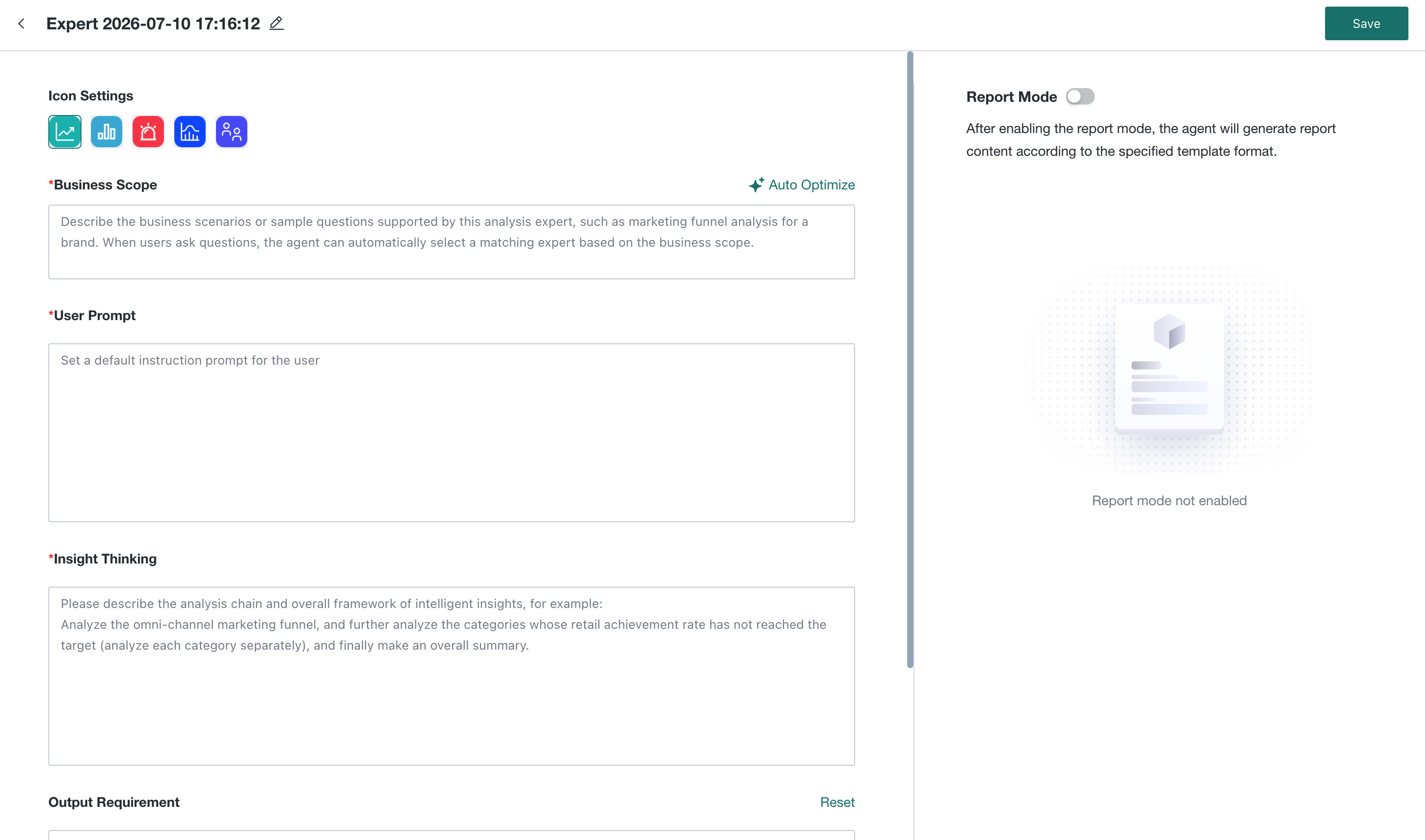
Fill in each configuration item. See the configuration item descriptions below.
| Configuration Item | Description |
|---|---|
| Expert Name | The name identifier of the Expert, used for display in the list and recognition when Data Consumers select it. |
| Icon Settings | Select an icon for the Expert to visually distinguish different Experts in the list. |
| Business Scope | Describe the business scenarios, analysis objects, and task types that the Expert specializes in. The agent automatically matches the Expert to invoke based on Data Consumers' questions and each Expert's business scope. Therefore, a clear and accurate business scope helps improve matching accuracy. When filling in, click Auto Optimize. The agent supplements and optimizes the business scope based on input requirements and Dashboard information in the current agent's data scope, making the Expert's capability boundaries clearer. 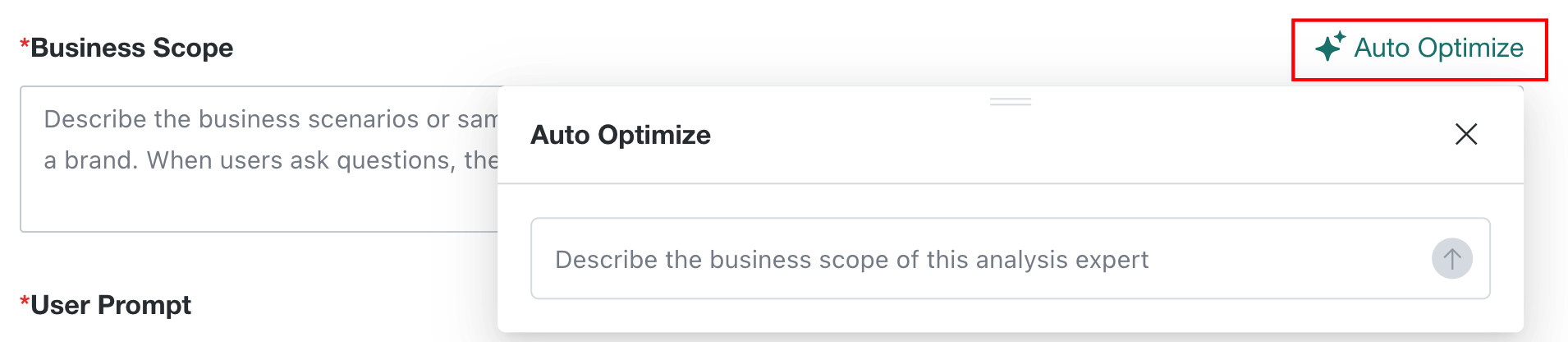 |
| User Prompt | Enter typical user question examples applicable to the Expert to guide Data Consumers in using it correctly. |
| Insight Thinking | Configure the Expert's exclusive analysis framework and chain of thought, guiding the agent to execute deep insights according to a specific logic. |
| Output Requirement | Define the writing rules for the Expert's insight output, such as format requirements, language style, and required elements. |
| Report Mode | Controls whether this specialist generates a report and which output format it uses. Disable Report Mode or select Markdown or HTML. See Configure Report Mode. |
- Click Save in the upper-right corner. After the configuration is saved successfully, the Expert appears in the list for Data Consumers to invoke.
When a Data Consumer asks a question, the agent automatically matches the Analysis Expert with the relevant business scope, without requiring manual selection. See Automatically Match or Manually Invoke an Analysis Expert.
Configure Report Mode
Report Mode controls whether an Analysis Expert generates a report and which format it uses.
| Output | Configuration | Result |
|---|---|---|
| No report | Disable Report Mode.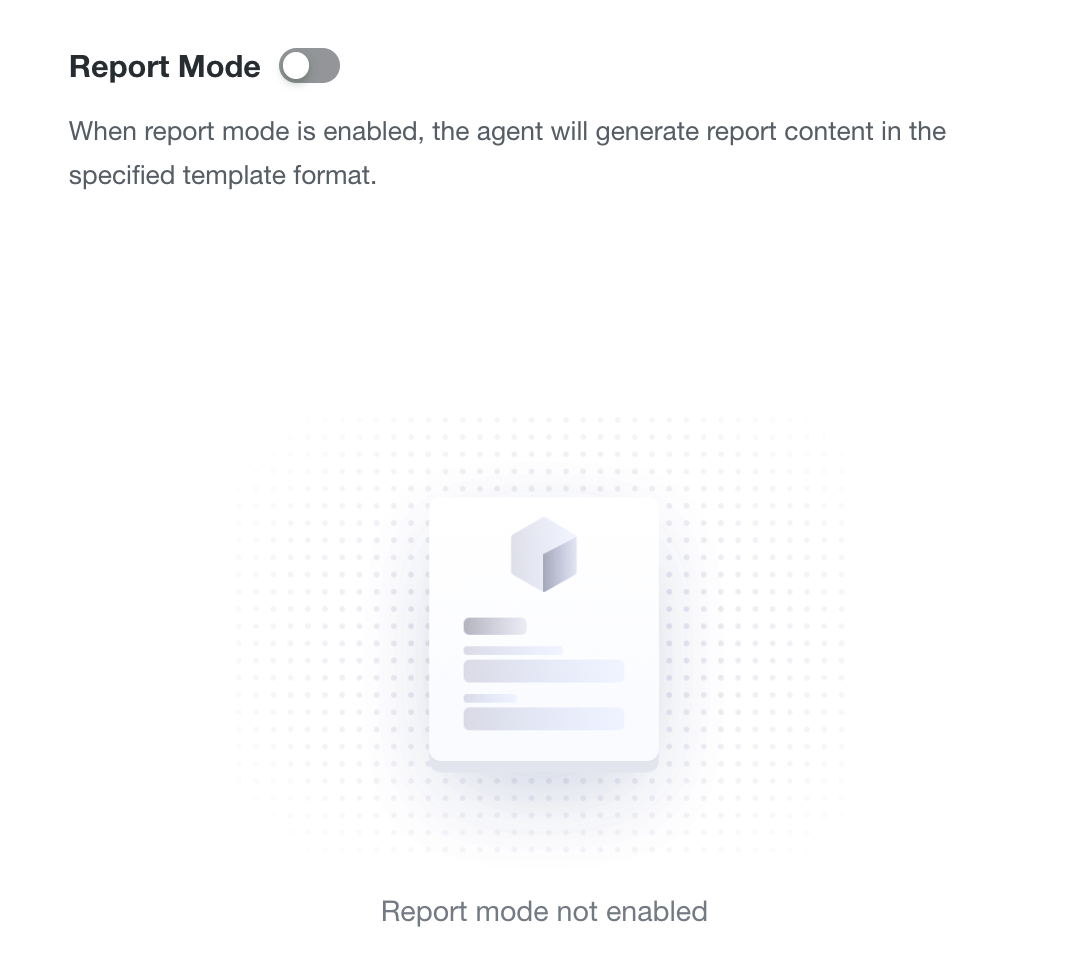 | The agent outputs the conclusion as a standard Q&A response. |
| Markdown report | Enable Report Mode, select Markdown, and enter the report title, section headings, and content requirements. Specify chart types in section descriptions when charts are required.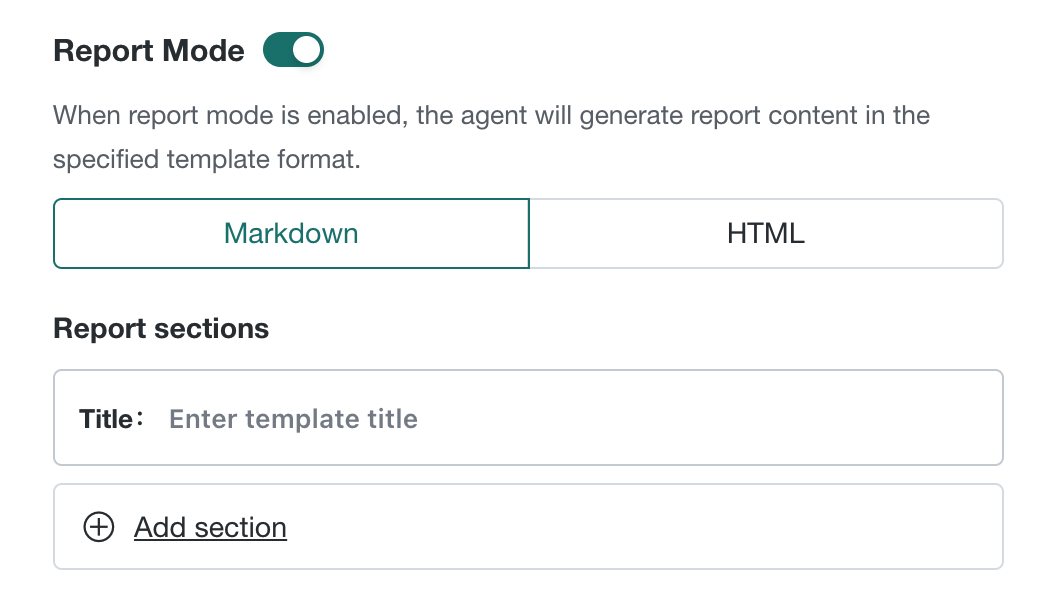 | The agent generates a mixed text-and-chart Markdown report from the configured sections. |
| HTML report | Enable Report Mode, select HTML, and enter the report sections. You can optionally upload a sample HTML file as a color and layout reference.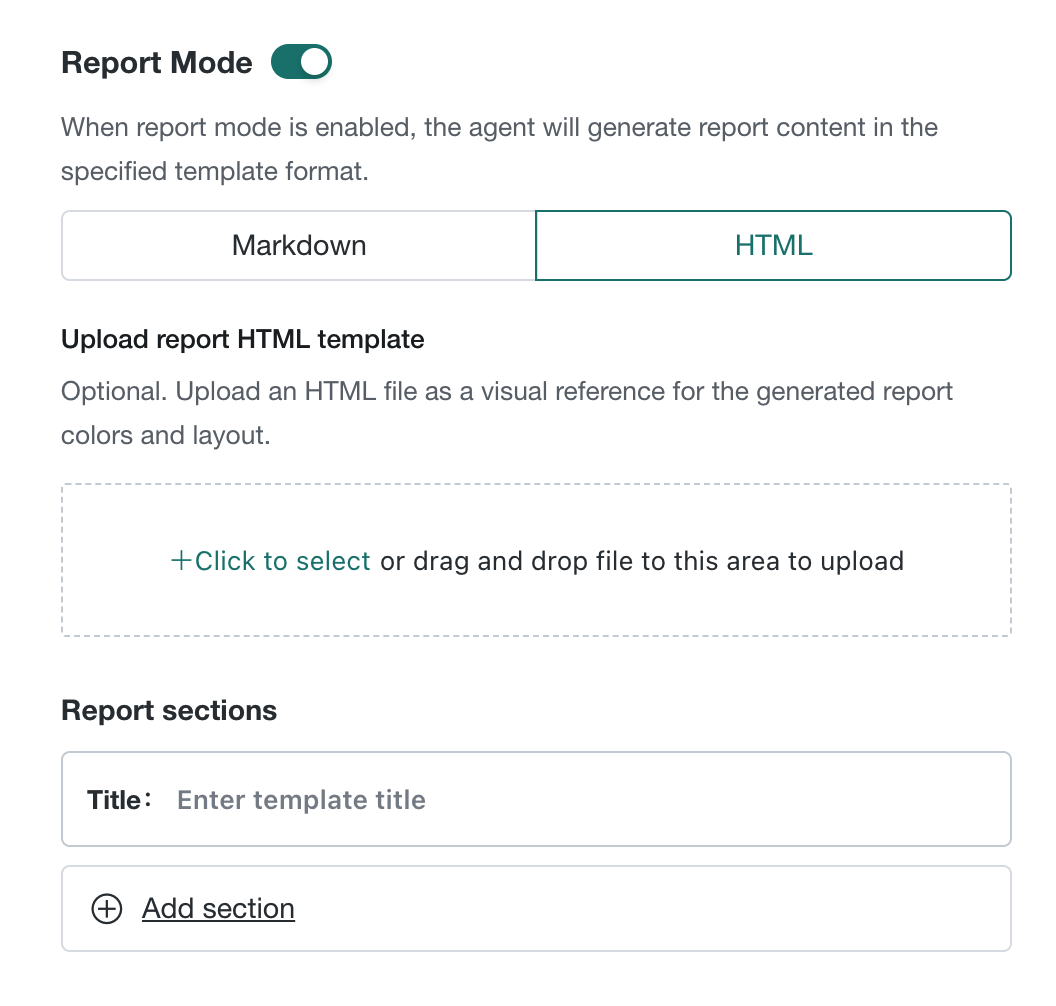 | The agent generates an HTML report and, when a template is uploaded, uses its colors and layout as a reference. |
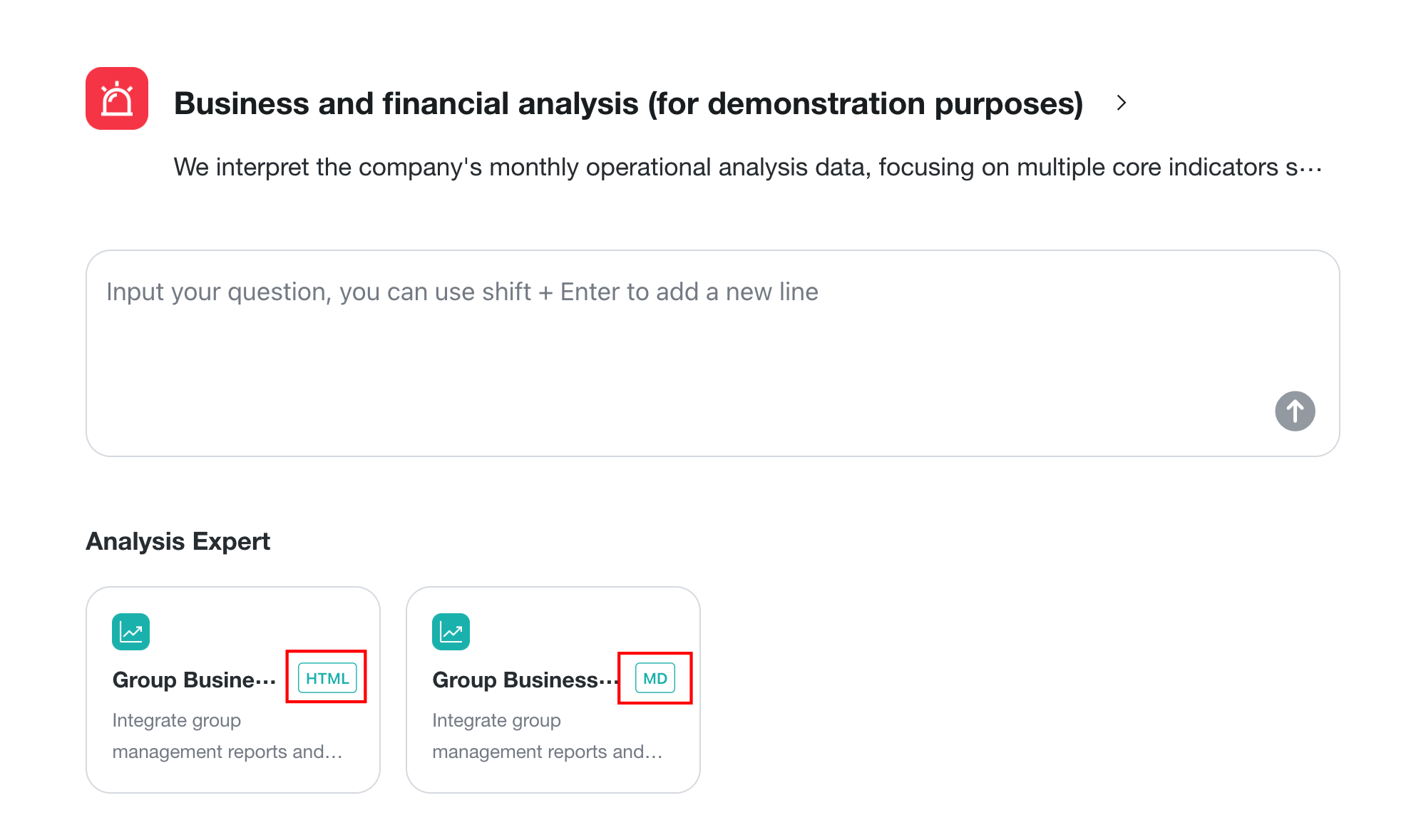
After saving, the Analysis Expert card displays an MD or HTML badge. Specialists without Report Mode do not display a format badge.
Manage Expert
On the Expert list page, you can perform the following operations:
- Edit: Modify the Expert configuration.
- Delete: Remove an Expert that is no longer used.