Analysis Expert
Overview
An Analysis Expert defines the business scope, analysis approach, and output requirements for a particular type of question. When a consumer asks a question, the agent matches it to the most suitable expert.
Add an Analysis Expert
On the Analysis Expert page, click Add Expert. Enter the expert's basic information, configure its analysis approach, and save it.
Configure Basic Information
| Setting | What to enter |
|---|---|
| Icon | Choose an icon that distinguishes the expert in the list. |
| Expert name | Enter a name consumers will recognize when selecting an expert. |
| Business scope | Describe the business scenarios, subjects, and tasks the expert handles. The agent uses this description to match a question to an expert. To refine it, use Auto Optimize and describe the changes you want. The agent uses those instructions and information from dashboards in its data scope. |
| User prompts | Provide examples of questions this expert can answer. |
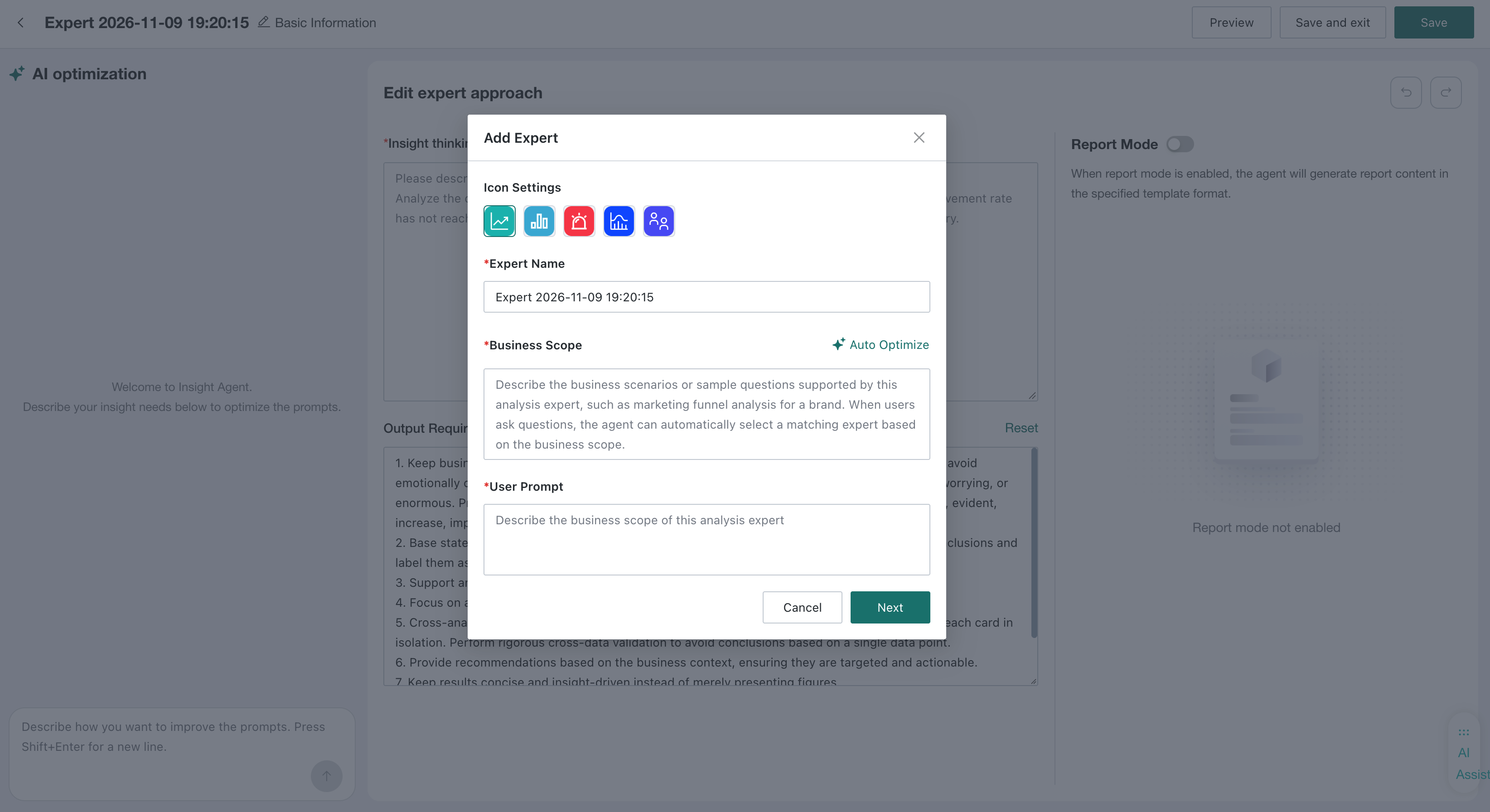
When the basic information is complete, continue to the expert's analysis settings.
Configure the Expert's Analysis Path
- Insight approach: Define the framework and steps the expert follows during analysis.
- Output requirements: Specify the format, writing style, and elements each answer must include.
- Report mode: Choose whether to generate a report and, if so, in which format. See Configure Report Mode.
In the AI optimization panel on the left, enter your requirements or describe what you want to improve. The AI uses the agent's data scope and existing settings to suggest changes. You can also upload Markdown, text, HTML, or images as reference materials. See Upload Reference Files to Optimize Prompts for the steps and limits. Review the suggestion, apply it to the settings on the right, and preview the result. You can make further edits before saving.
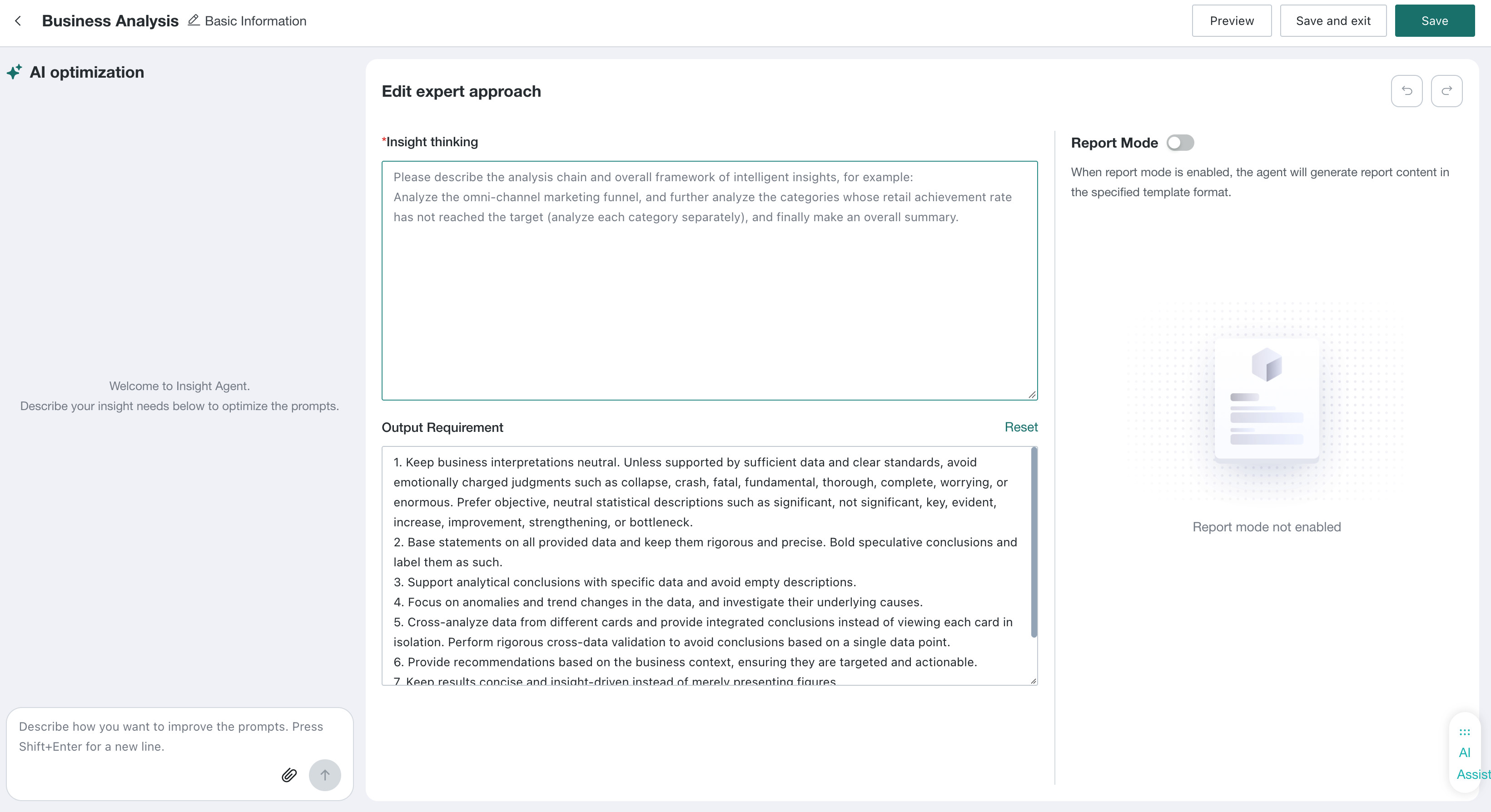
Save your changes, or save and exit. The expert then appears in the list. Consumers do not need to select it explicitly: the agent automatically matches questions to its business scope. See Automatically Match or Manually Invoke an Analysis Expert.
Configure Report Mode
Report Mode controls whether an Analysis Expert generates a report and which format it uses.
| Output | Configuration | Result |
|---|---|---|
| No report | Disable Report Mode.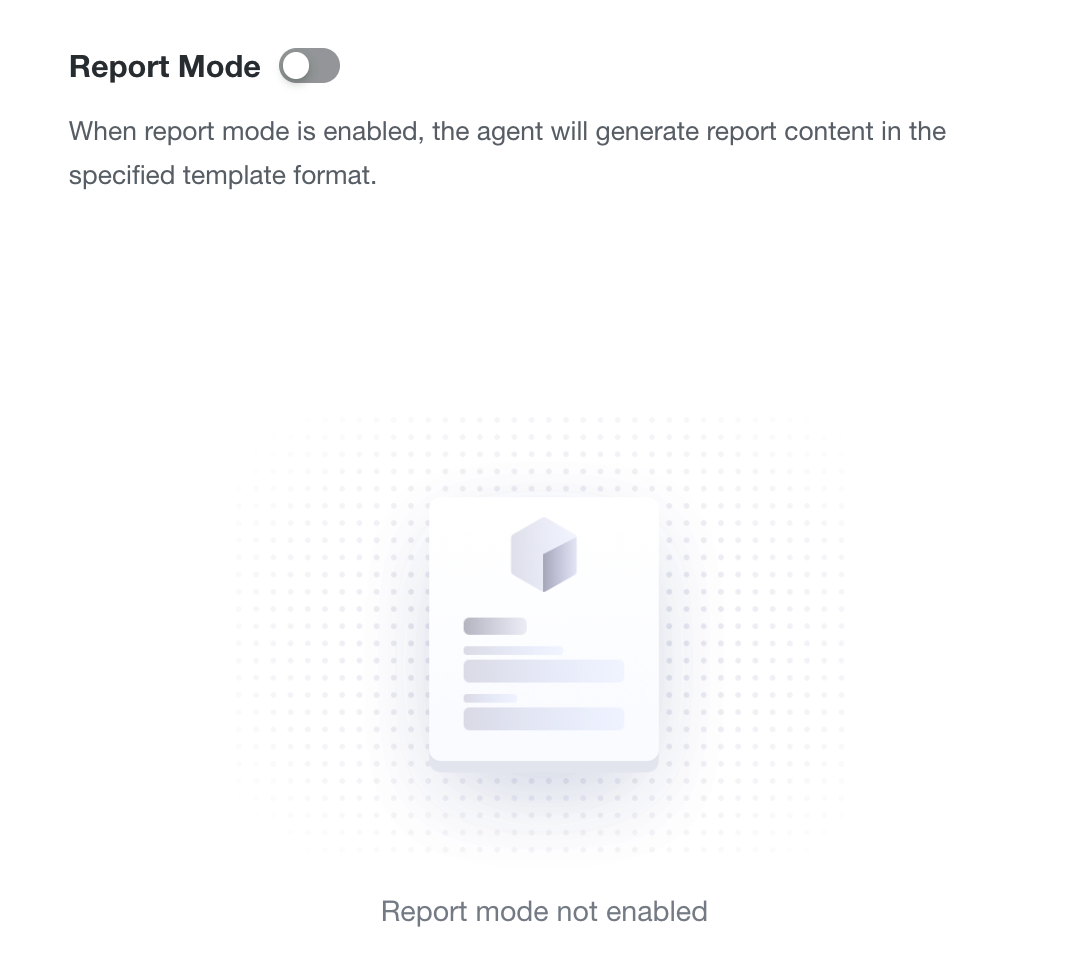 | The agent outputs the conclusion as a standard Q&A response. |
| Markdown report | Enable Report Mode, select Markdown, and enter the report title, section headings, and content requirements. Specify chart types in section descriptions when charts are required.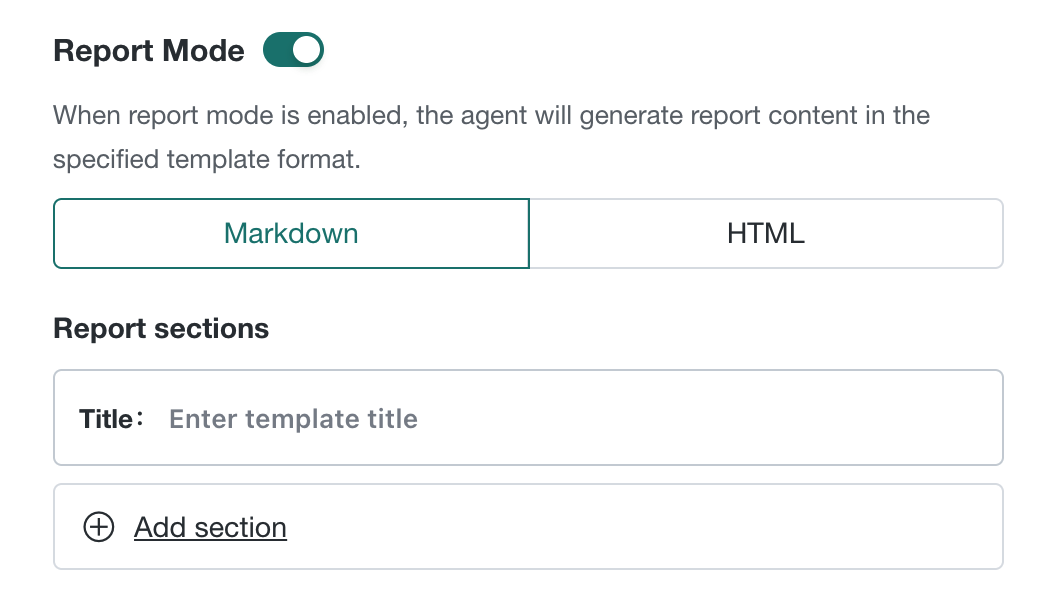 | The agent generates a mixed text-and-chart Markdown report from the configured sections. |
| HTML report | Enable Report Mode, select HTML, and enter the report sections. You can optionally upload a sample HTML file as a color and layout reference.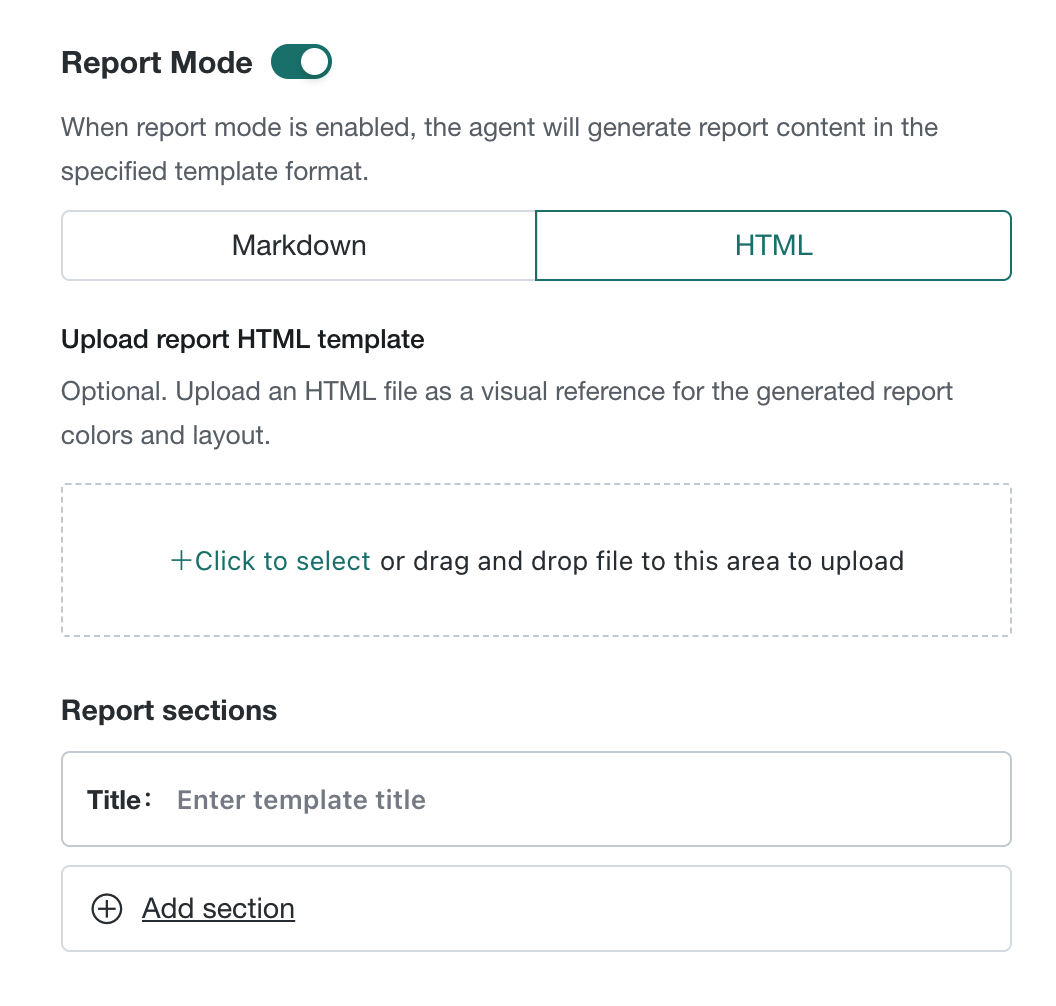 | The agent generates an HTML report and, when a template is uploaded, uses its colors and layout as a reference. |
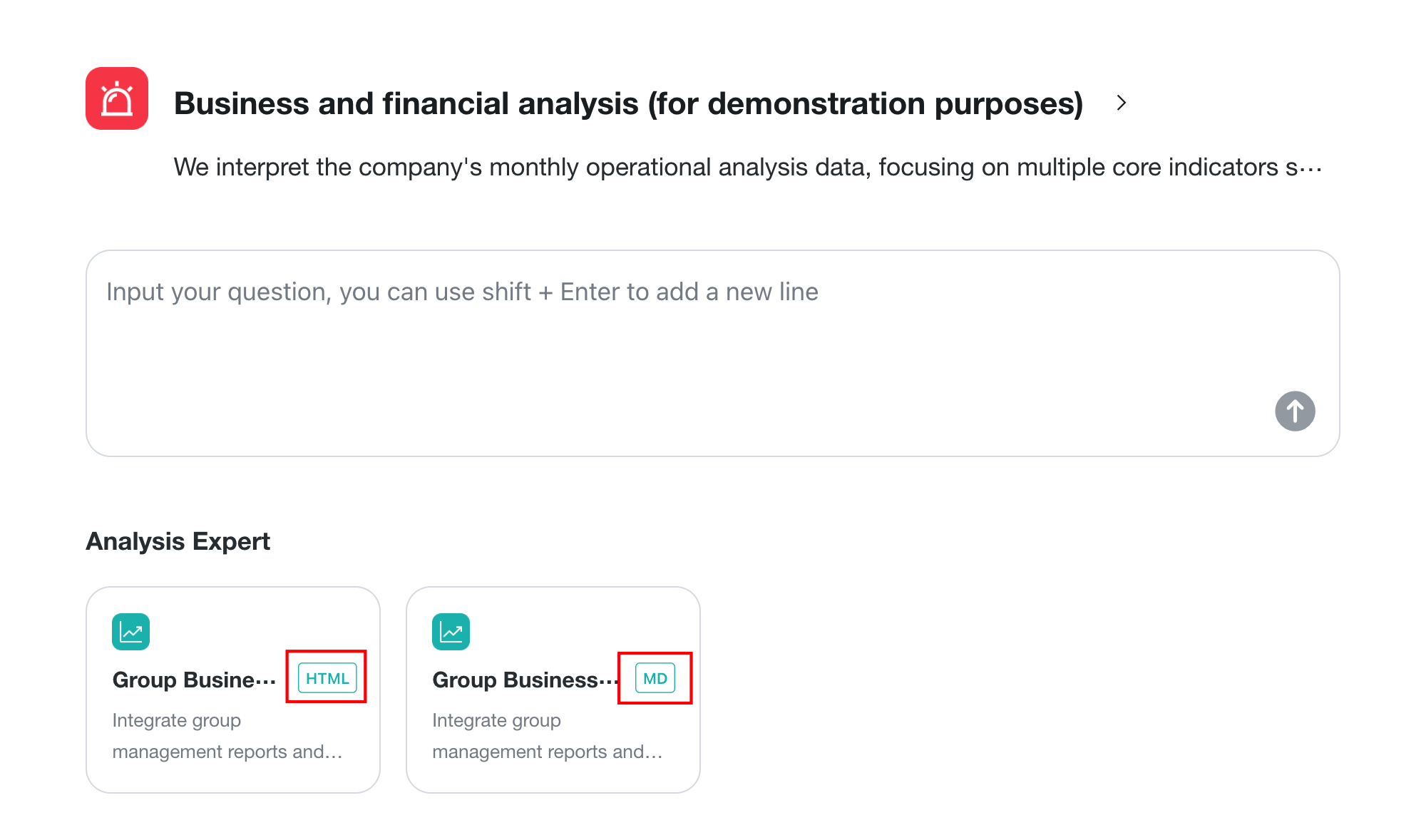
After saving, the Analysis Expert card displays an MD or HTML badge. Specialists without Report Mode do not display a format badge.
Manage Analysis Experts
The expert list shows each expert's name, business scope, and example prompts. A badge beside the name identifies the format for experts with report mode enabled.
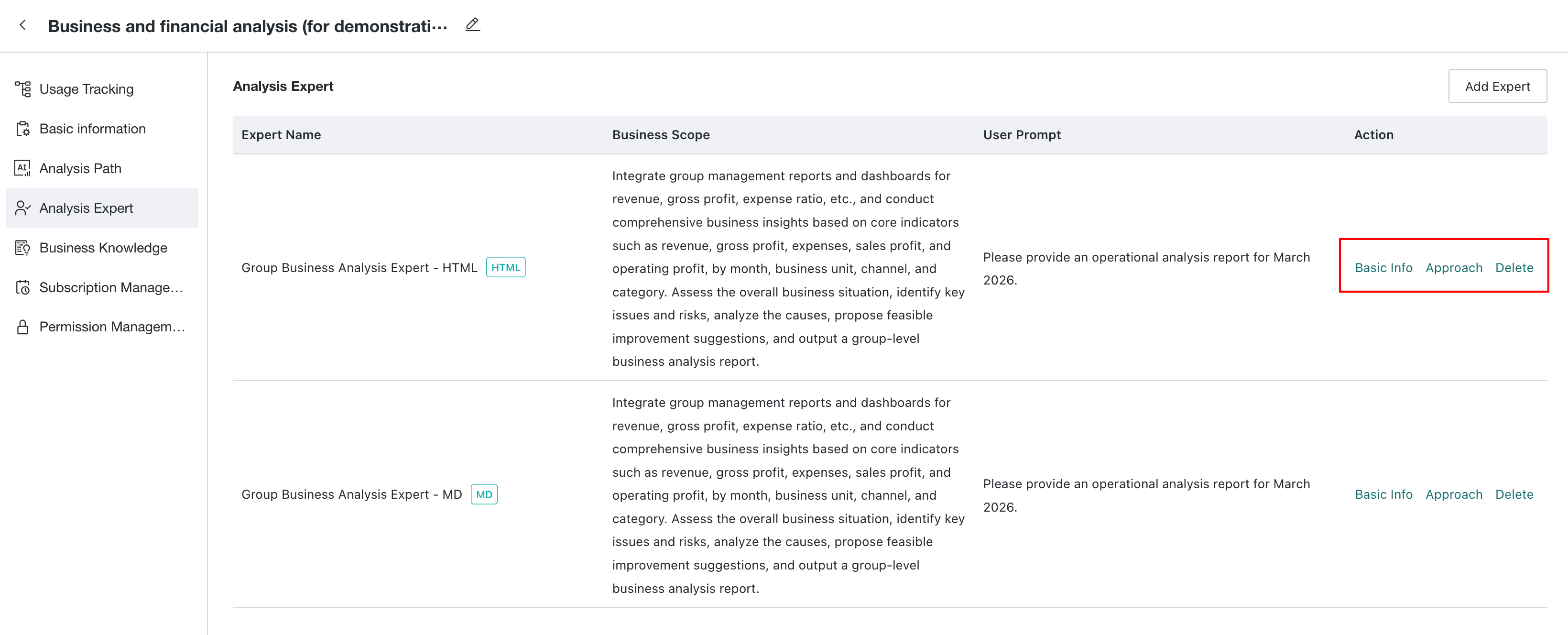
- Edit the basic information to change the icon, name, business scope, or example prompts.
- Edit the expert's analysis settings to change its approach, output requirements, or report mode.
- Delete an expert you no longer use.