Create Agent
Overview
This document describes how Data Producers create a Dashboard Agent from scratch. By configuring Basic Information, Analysis Path, and Business Knowledge, the agent can perform automated deep insight analysis based on multiple Dashboards and improve business decision-making efficiency.
Prerequisites
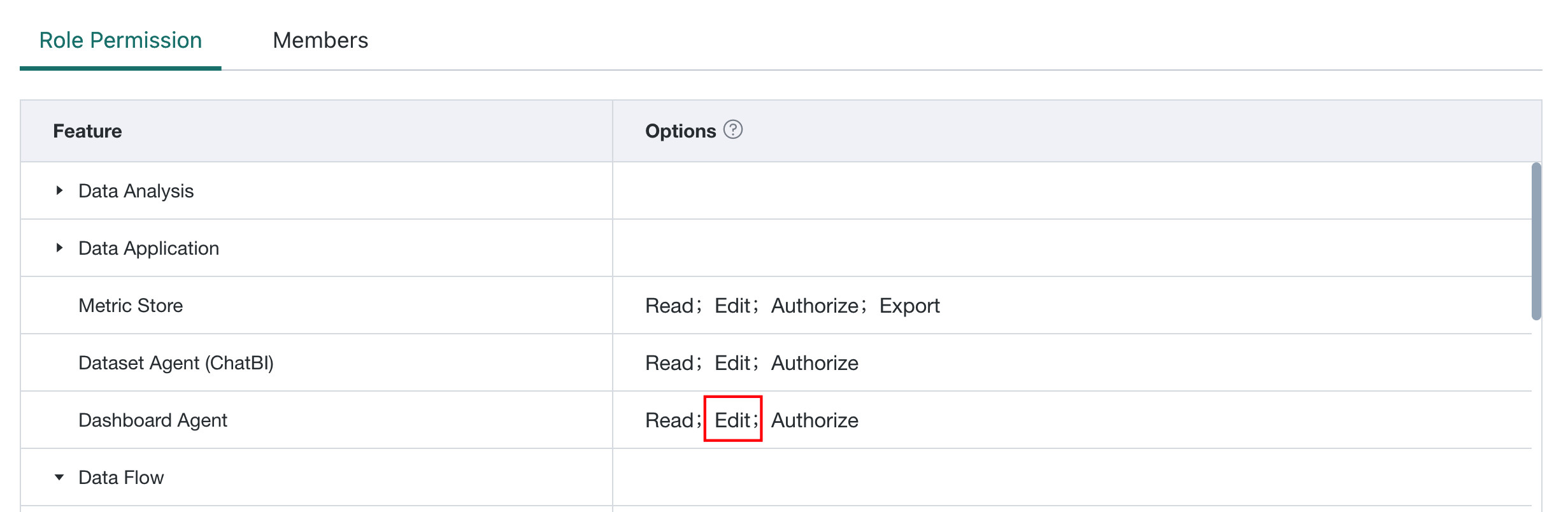
Only users with Edit permission for Dashboard Agent can enter the Agent Management page and perform agent configuration operations.
Create Agent
-
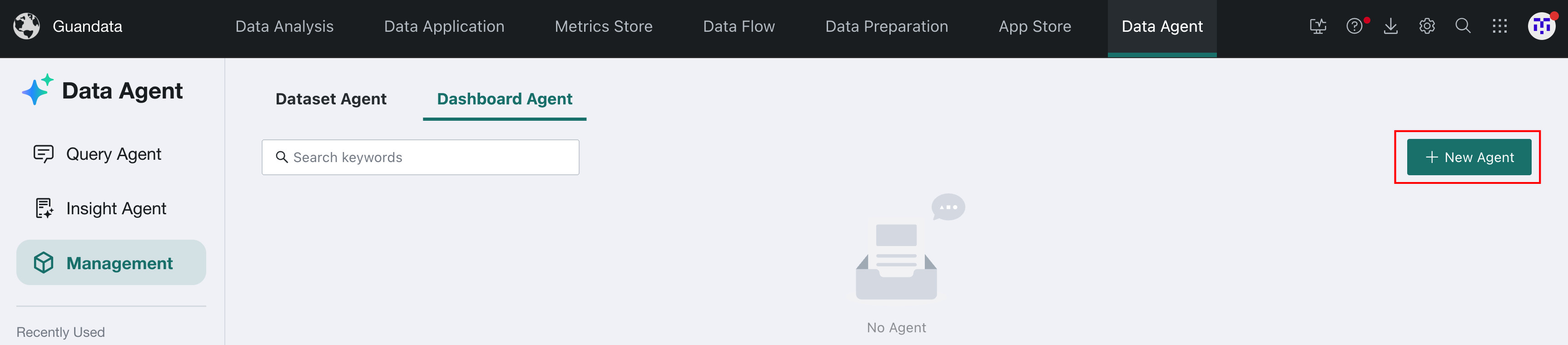
On the Data Agent > Agent Management > Dashboard Agent page, click Create Agent.
-
Fill in Basic Information. To modify Basic Information later, see Basic Information.
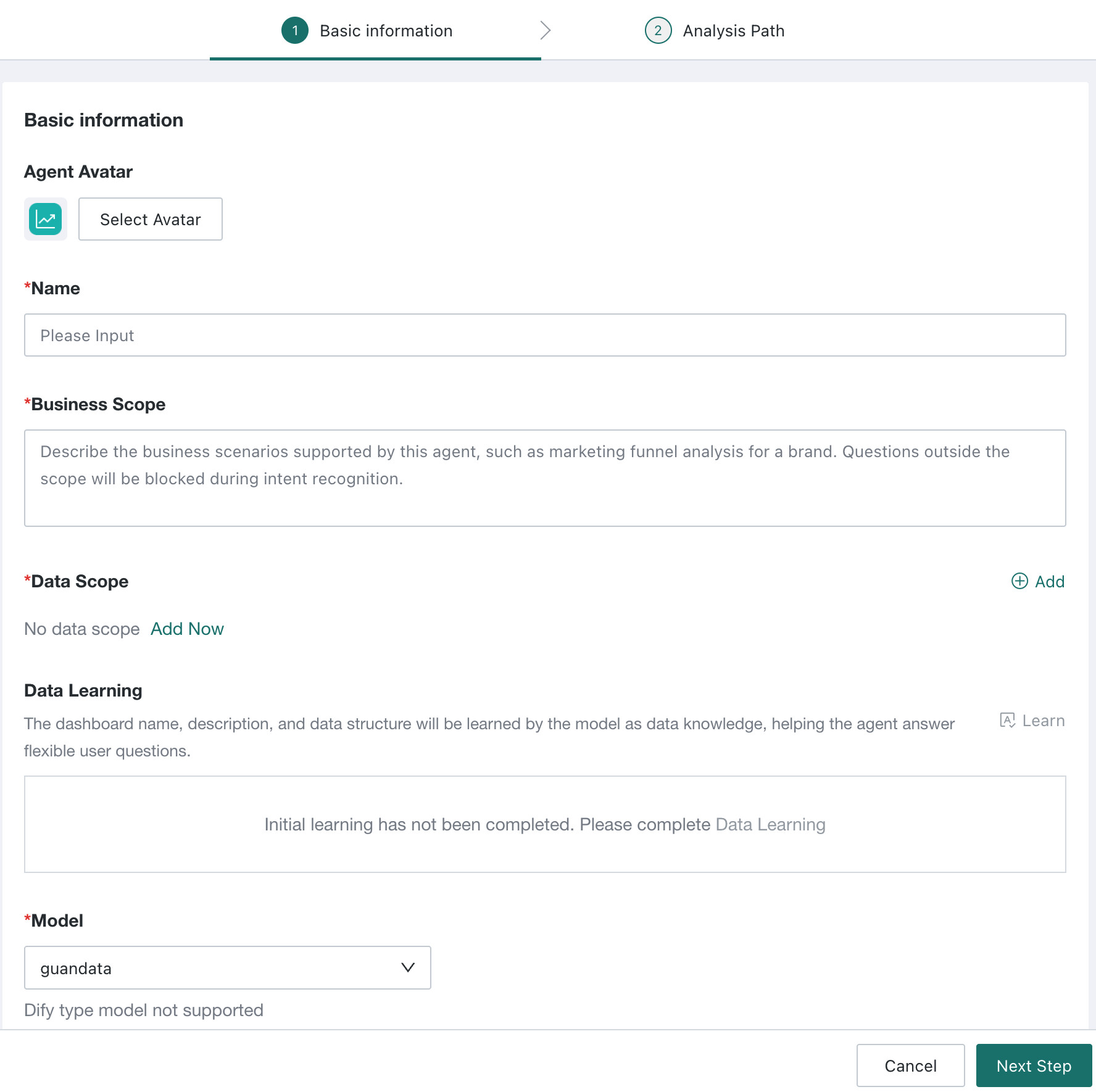
- Agent Avatar: Click Select Avatar to quickly switch the Agent Avatar.
- Name (required): Briefly summarize the current agent from a business perspective. A maximum of 30 characters is supported.
- Business Scope (required): Describe the business scenarios supported by the agent, such as marketing funnel analysis for a brand's products. Questions outside the scenario scope are intercepted during Intent Recognition.
- Data Scope (required): Select all Dashboards for insight. The agent automatically plans the Analysis Path and performs cross-dashboard Data Integration and linked analysis.
Note
- For each Dashboard, manually select a Filter so the agent can dynamically pass parameters during cross-dashboard linked analysis.
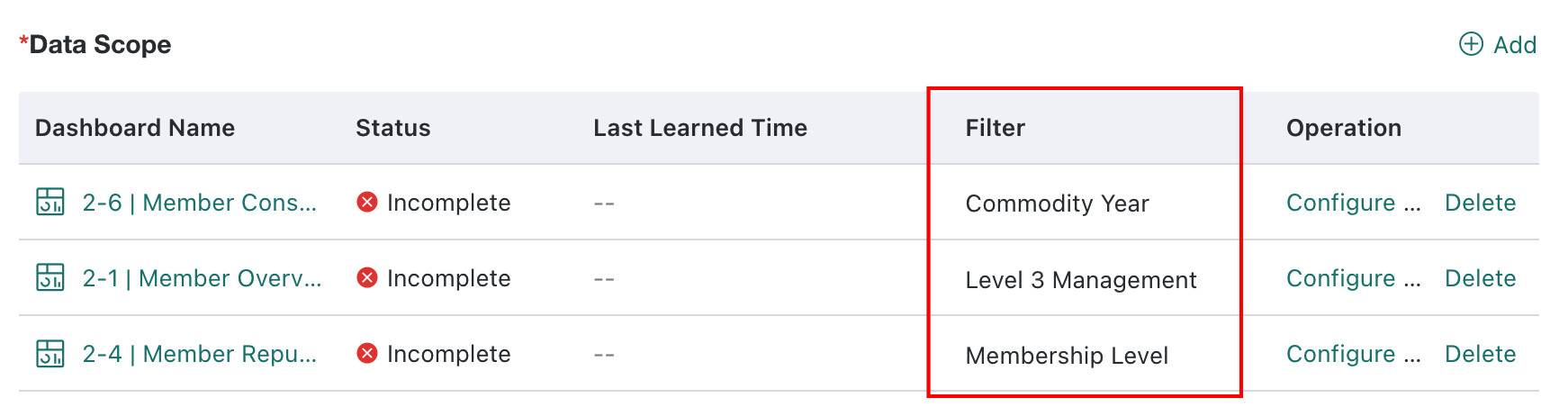
- You can select up to 10 Pages, and up to 10 Filters for each Page.
- Dashboards containing China-Style Reports are supported for insight analysis.
- For each Dashboard, manually select a Filter so the agent can dynamically pass parameters during cross-dashboard linked analysis.
- Data Learning: Click Learn on the right. The system automatically learns the names, descriptions, and data structures of selected Dashboards and stores them as data knowledge for the model to reference during later Analysis Path configuration and Q&A. For details, see Data Learning.
- Model (required): Select the LLM service that the agent uses for deep insights. Dify-type LLM services are not supported. To configure LLM services, see LLM Service.
Note
Insight Agent has higher LLM capability requirements than Dashboard Insights. For current recommendations, see Model Recommendations.
-
After configuring Basic Information, click Next. The system automatically generates the Default Analysis Path based on the selected Dashboards.
-
Configure Analysis Path. When a Data Consumer does not select a specific Expert, the agent answers questions according to the Default Insight and Output Requirement in this configuration item. For Expert configuration and usage, see Expert.
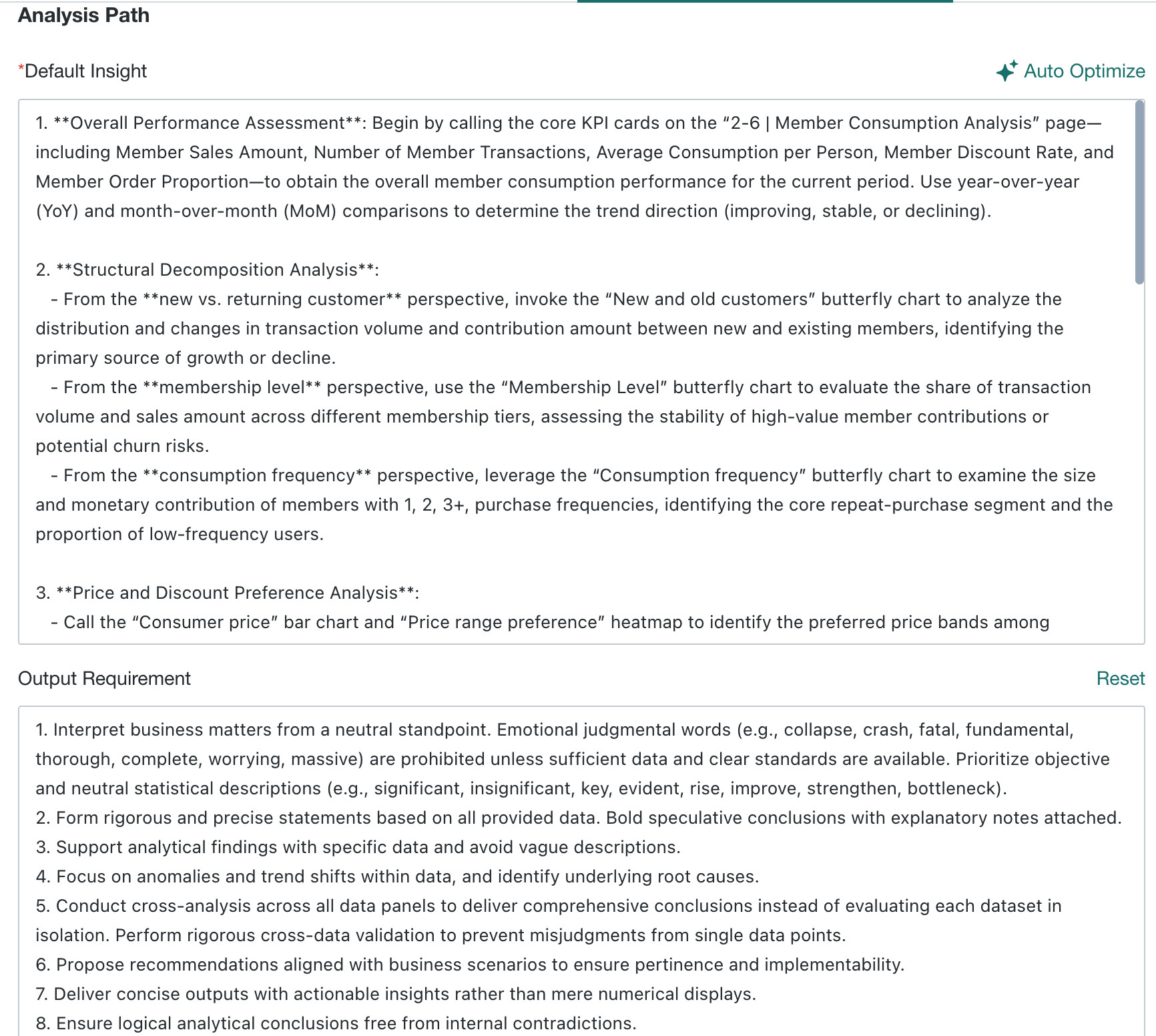
- Default Insight (required): The system automatically generates the Default Analysis Path based on the selected Dashboards. You can optimize it according to business needs. Click Auto Optimize, and the agent optimizes the Default Analysis Path based on all Dashboard information in the Data Scope and the user's input requirements. For details, see Default Insight.
- Output Requirement: Defines writing rules for the agent's insight output. A relatively general default setting is provided. You can use the default value directly or fine-tune it.
-
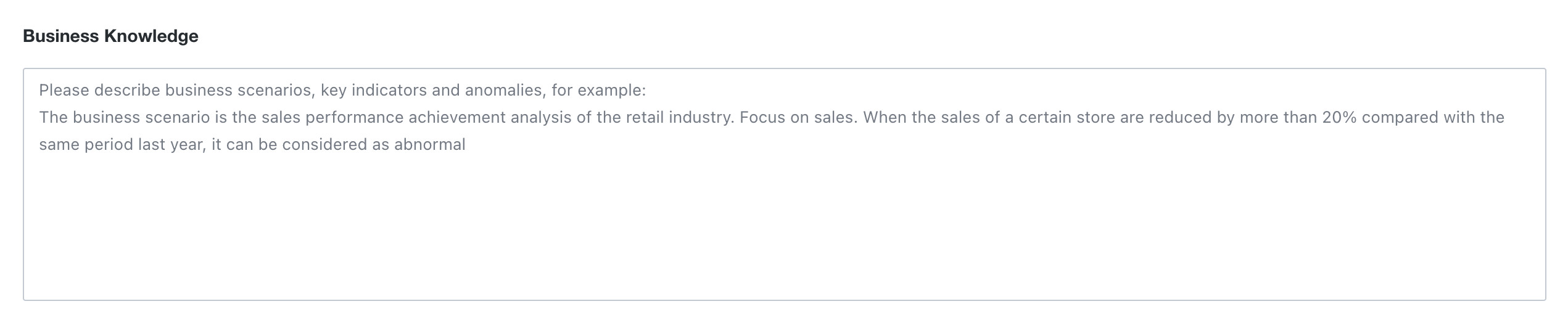
Configure Business Knowledge. Add business context related to the current agent, such as core Metric Definitions, common business terms, analysis dimensions, or calculation rules. The more accurate the background knowledge, the better the agent's insights fit actual business scenarios.
-
After filling in all content, click Finish to complete agent creation. After the agent is created, it appears on the agent list page. Click it to enter the Agent Details Configuration page. For configuration details, see Agent Details Configuration
Delete Agent
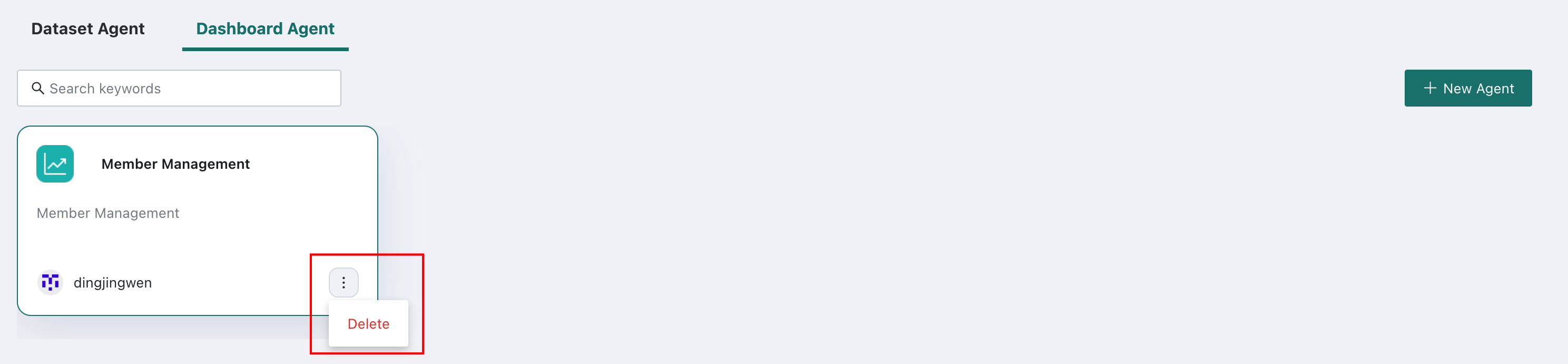
Click Delete to delete the current agent. A second confirmation is required to prevent accidental deletion.