Conversation and Analysis
Overview
Agents use natural language to answer questions, query data, analyze files, and generate reports. Use the general assistant, select a published agent you can access, or create an agent for your needs. Capabilities depend on the agent, connected services, and account permissions.
This guide covers conversations. Select the build mode on the home page to create or modify agents, skills, and other resources through conversation.
See Home Workspace for page areas. Start with Conversation Basics, or jump to Responses, Materials and Capabilities, or Feedback and Troubleshooting.
Start and Continue Conversations
Select an agent, add materials if needed, send a question, and follow up. Adjust models and skills as the task requires; not every setting needs configuration before your first question.
Select an Agent
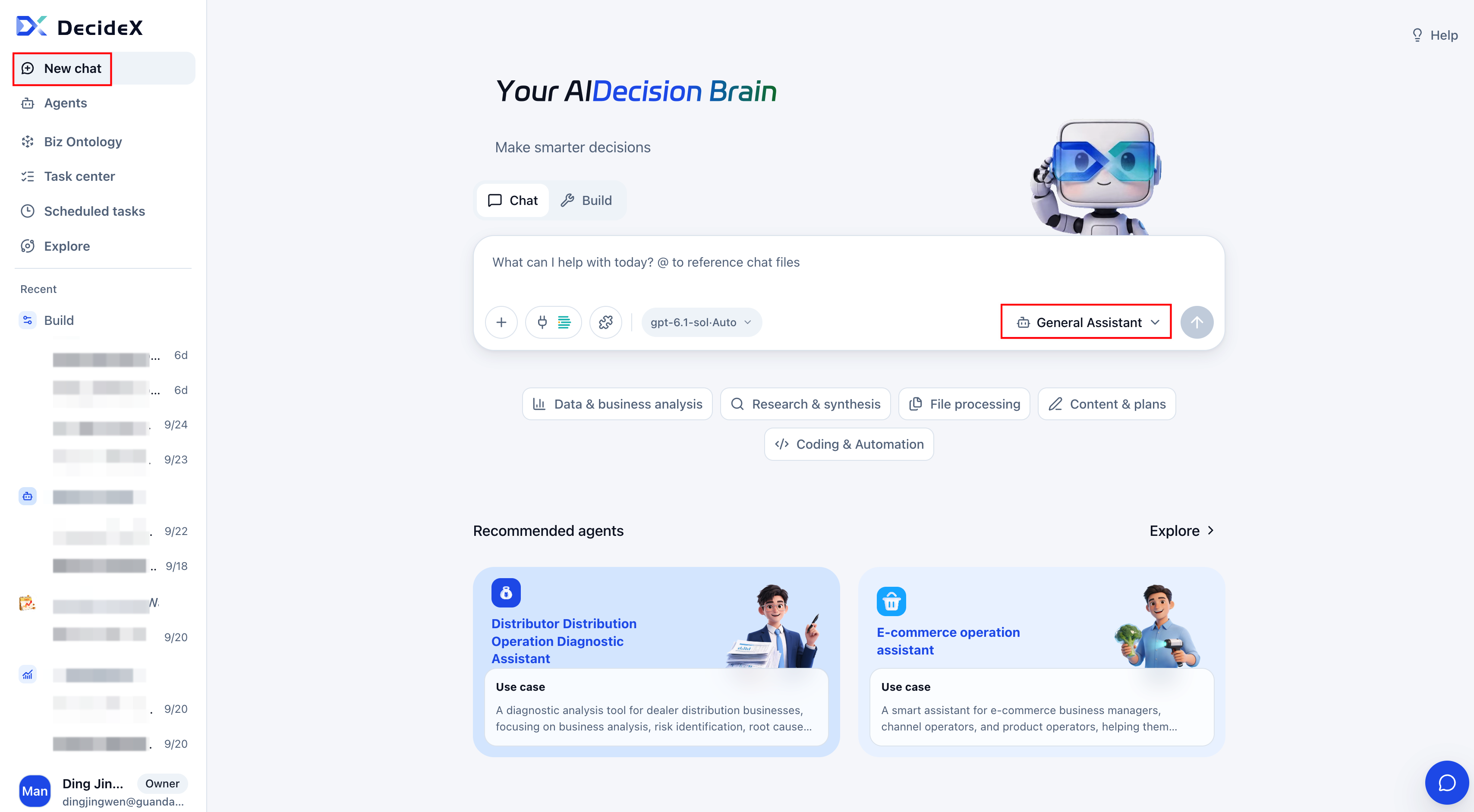
- General assistant: Open New Chat and select chat mode. Without a business agent selected, the general assistant handles everyday questions, files, and content organization.
- Business agent: Open Agents, find an authorized agent, and open it. Alternatively, use the agent selector in the home input box or a recommended-agent card. Check the name and purpose, for example a sales agent for sales analysis.
If none fits, create one from the agent page. See Create an Agent.
Prepare Materials
Ask ordinary questions directly. For business analysis, establish the data basis:
| Situation | Preparation |
|---|---|
| The agent already has relevant materials or BI assets | Ask within its scope. Review Conversation Configuration if needed. |
| Local spreadsheet or document | Use the plus menu to add local files or drag files into the input box. |
| Guandata BI data | Prefer the administrator-configured organization environment without a separate connection. Select authorized assets through the plus menu's BI option. See Connections and Plugins. |
For regional sales analysis, provide sales, region, and relevant dates, or use an agent with those BI assets configured.
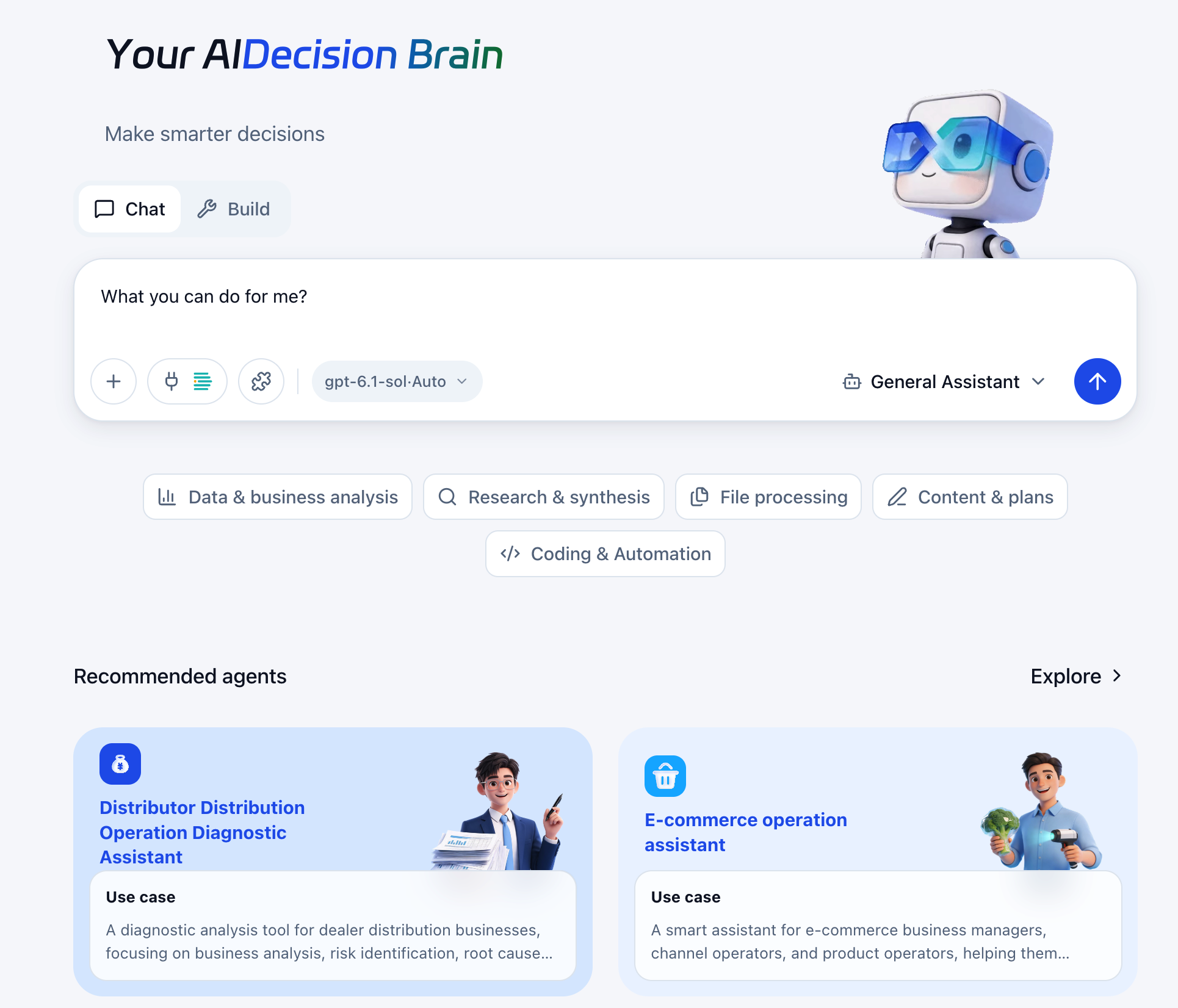
Enter and Send a Question
- State the analysis target, time range, output format, and any specific calculation definitions.
- Check the selected agent and materials. Click Send or press Enter. Use Shift+Enter for a line break.
Example: “Analyze this month's regional sales and year-over-year changes using the selected data. List the three regions with the largest declines and the supporting evidence.”
Use suggested questions or Task Examples for a starting point and adapt them before sending.
Review and Follow Up
Verify the analysis target, dates, definitions, and sources. Supply more materials or explanations when requested.
Continue in the same input box for the same task, for example “What drove the largest regional decline? Show the evidence,” or “Turn this into a management report with conclusions, causes, and actions.”
See Responses for sources and execution, and Conversation Materials for generated files in the upper-right resources panel.
Create a New Conversation
Use New Chat for an independent task or different agent. New conversations have separate context and do not delete existing history.
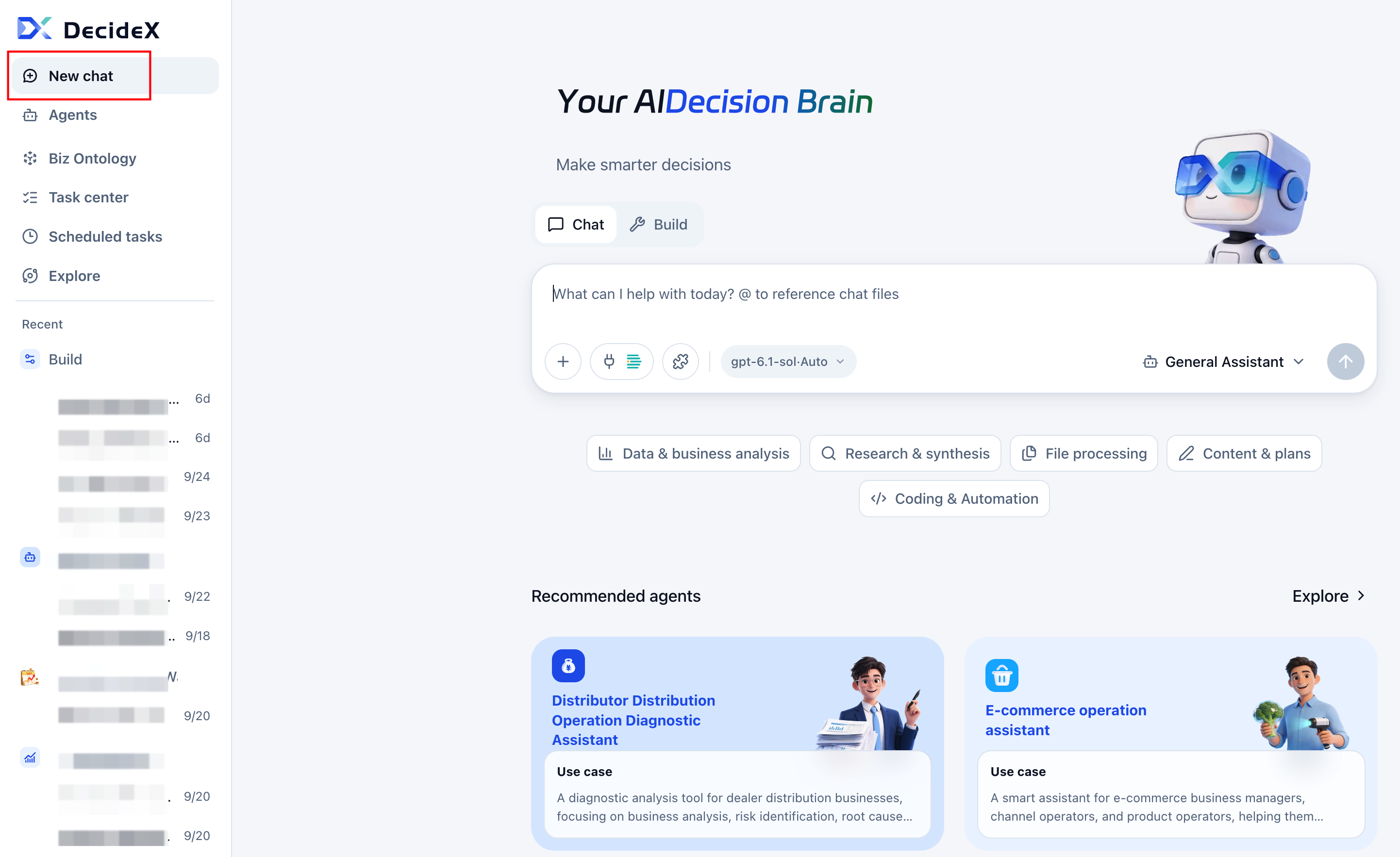
To start a new task with the current agent, use the new-conversation action at the upper right or beside that agent in recent conversations.
Use Task Examples
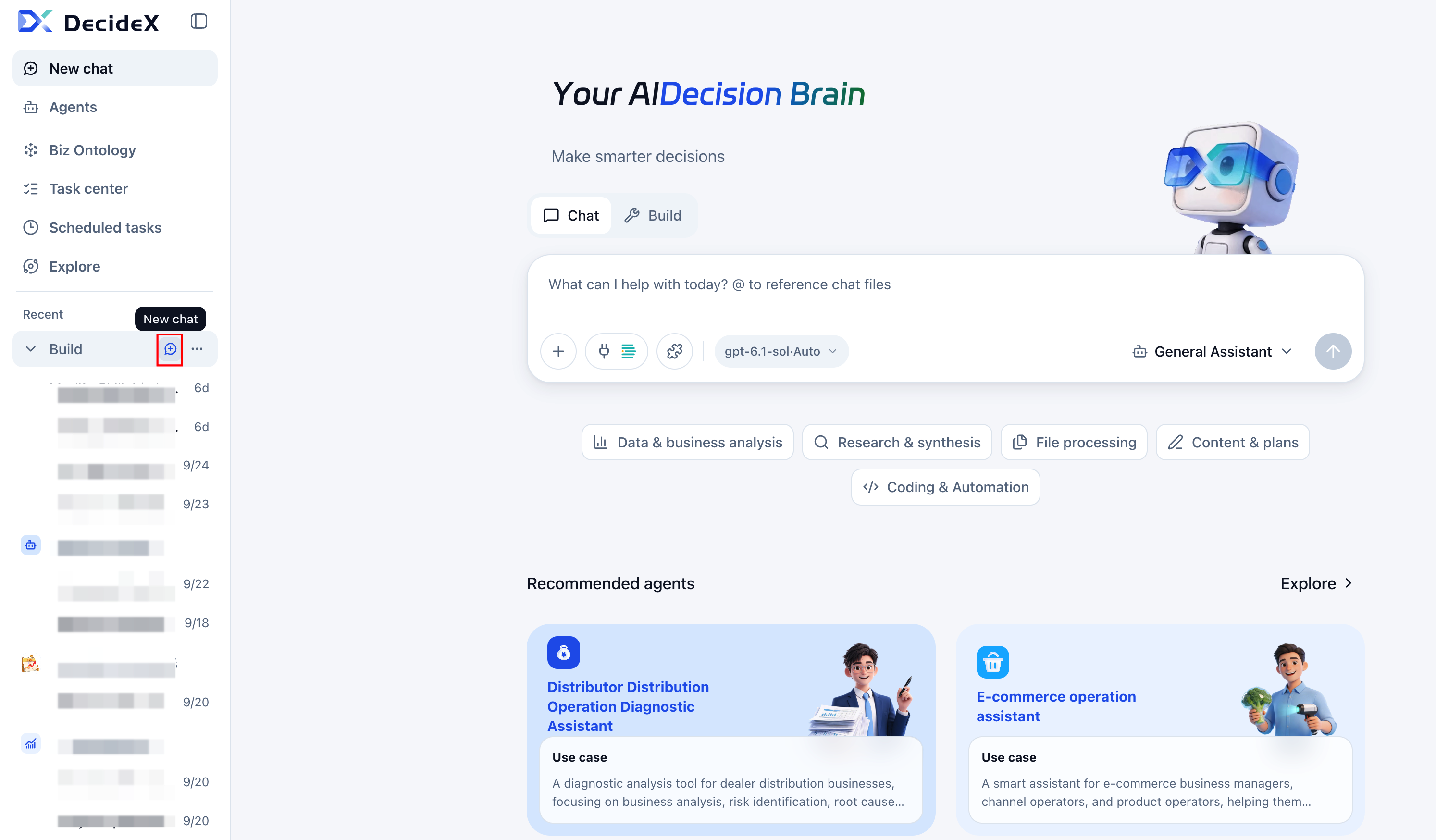
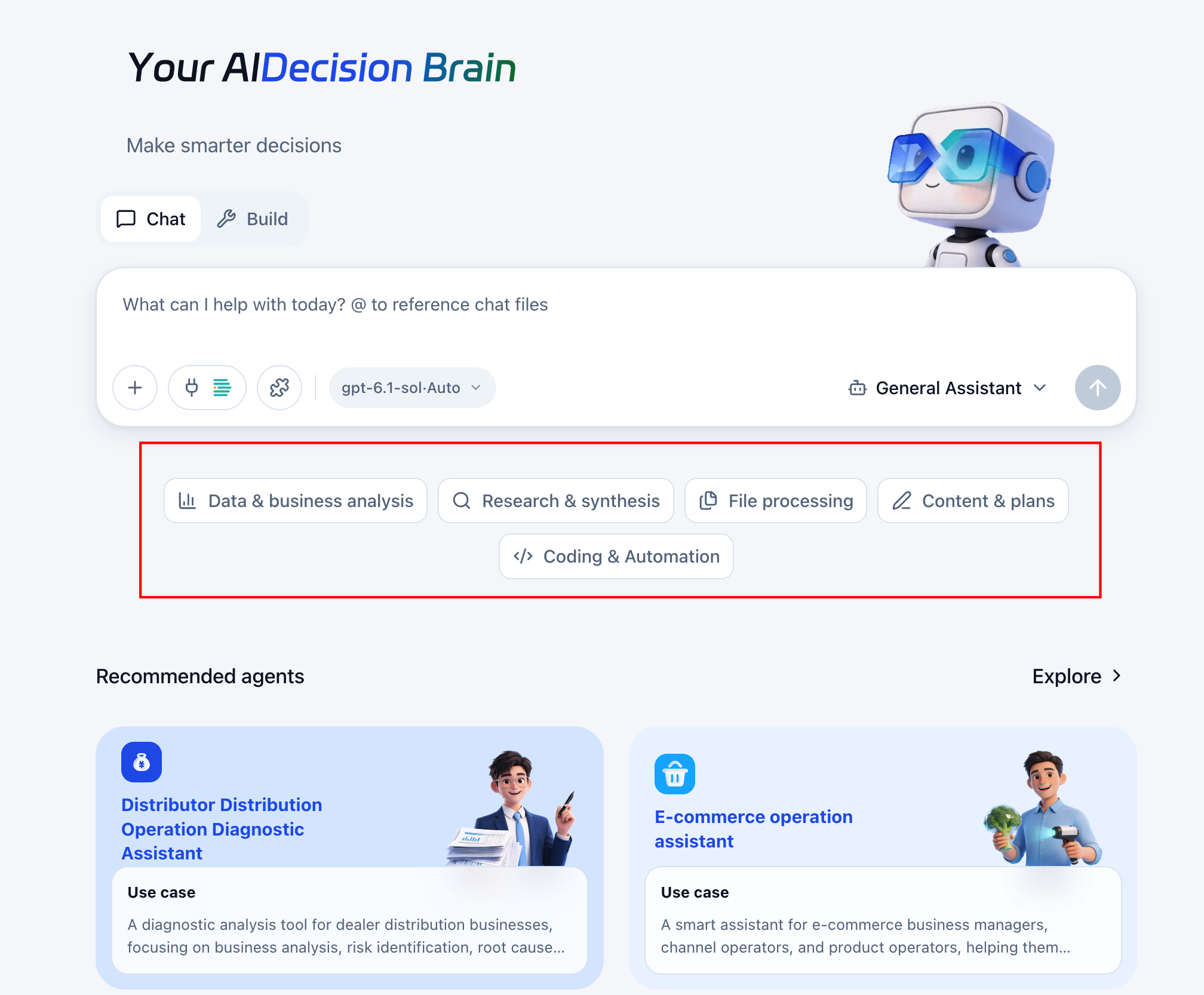
With the general assistant on the home page:
- Choose a task category: data/business analysis, research/organization, file processing, content/solution creation, or coding/automation.
- Select an example to fill the input. It appends after existing text.
- Adjust the target, dates, and output, add necessary materials, and send.
Selecting a category or example neither executes a task nor switches agents. Other agents may show their own suggested questions below the input.
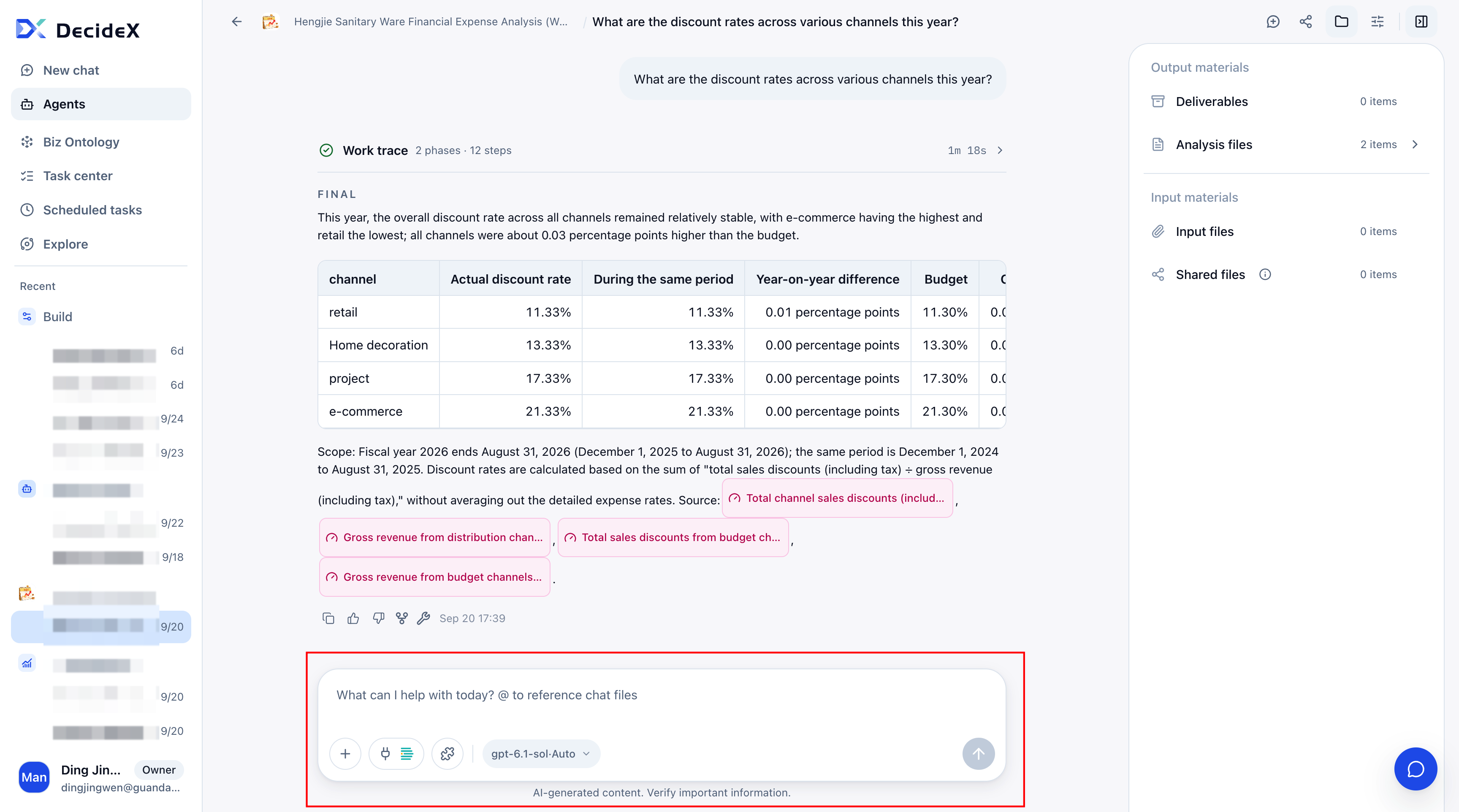
Resume a Conversation
Select a historical conversation on the left to review it and continue with its context. Continue the same task there; start a new conversation for other work.
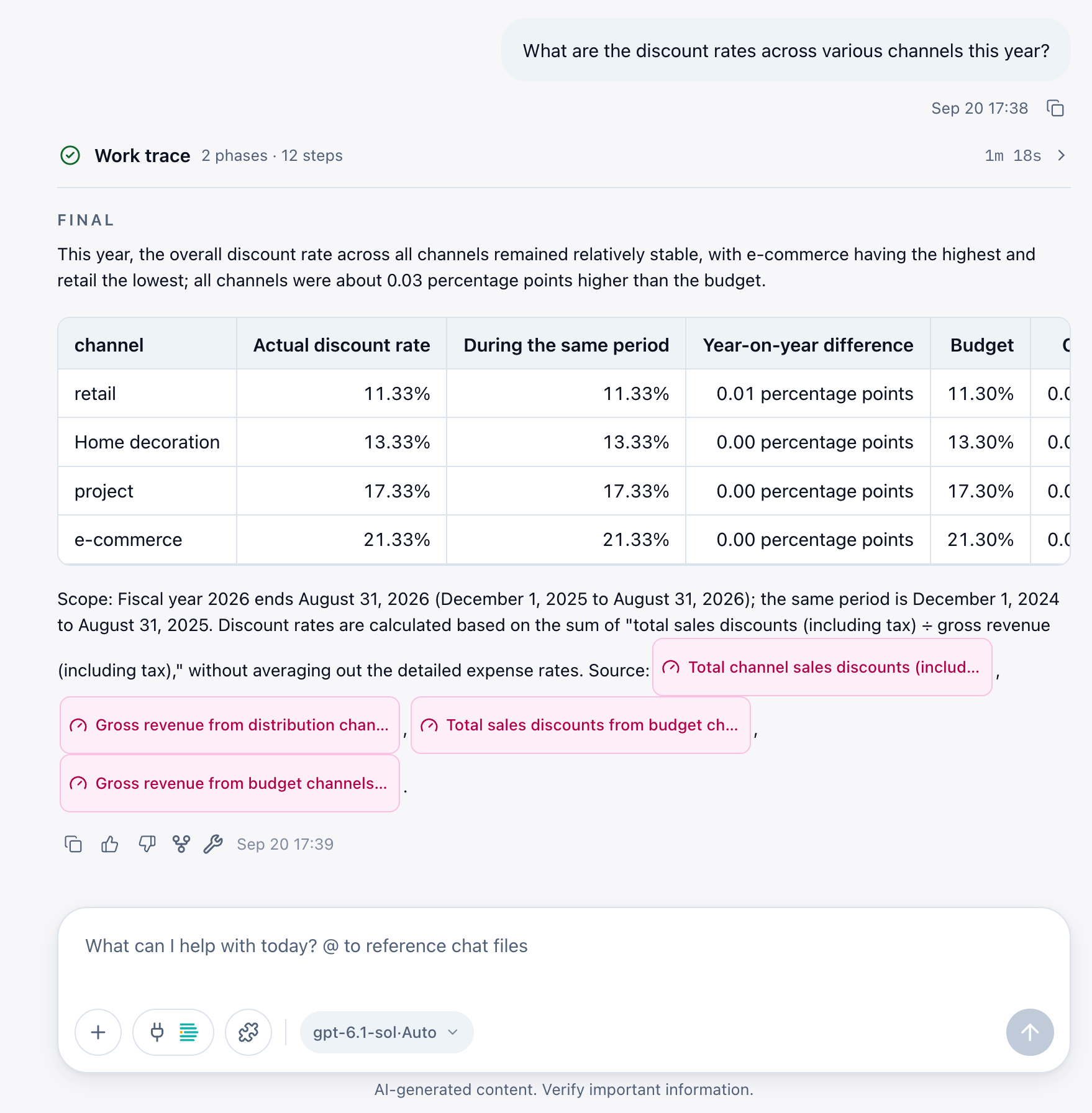
View Responses
Agents interpret the request and combine configured data, ontologies, reference files, skills, and tools. Results may include text, tables, charts, reports, or other deliverables.
Check conclusions, calculation definitions, and citations against the target, dates, and requested scope.
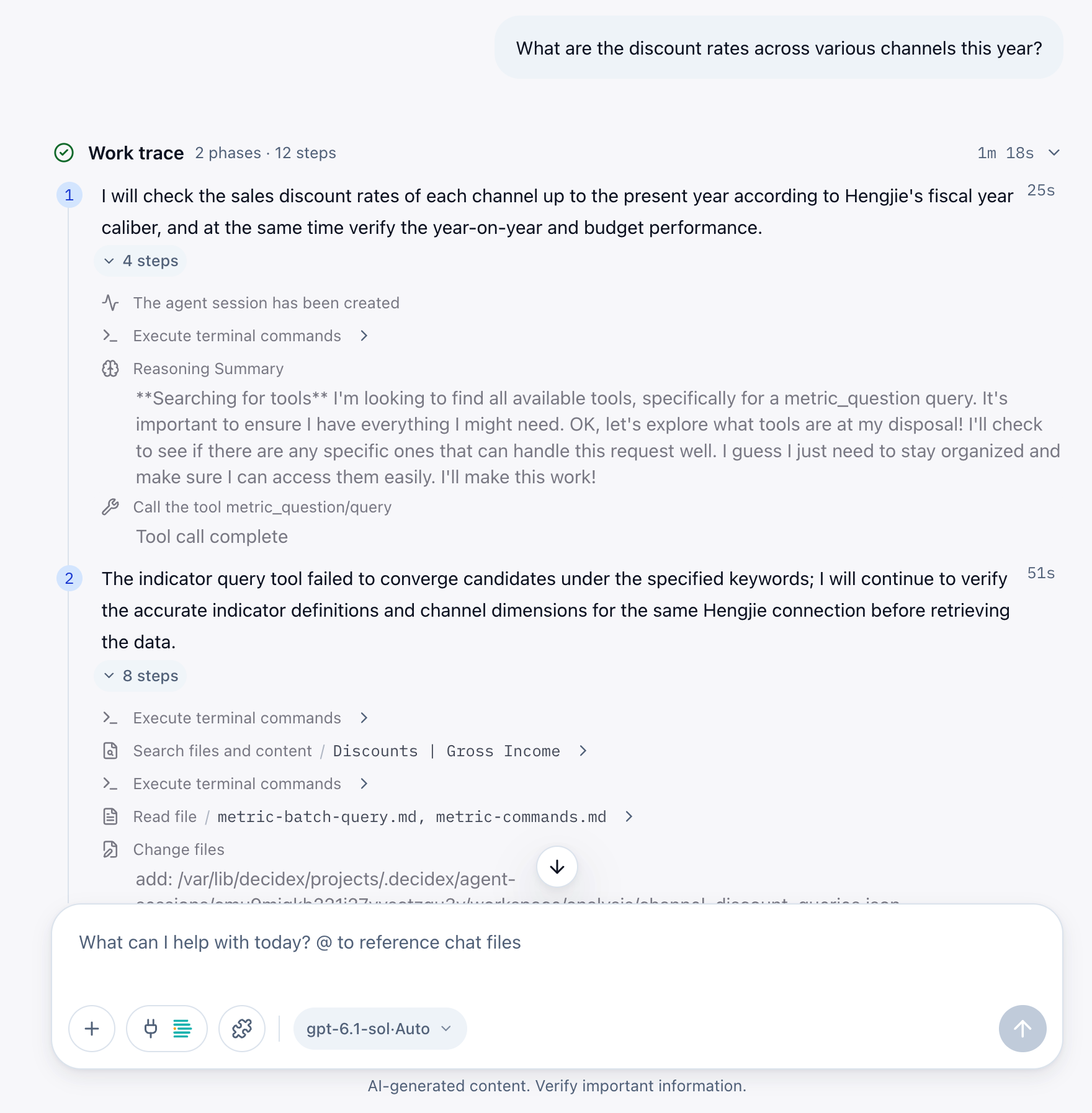
View the Work Trace
Expand the work trace above a response to inspect execution. The collapsed view summarizes status, stages, steps, and total duration. Expanded stages show explanations, timing, and steps.
Click a stage's step count to expand or collapse records such as tool calls, file searches, and file reads. Steps with arrows offer additional details.
Generated files are in Conversation Materials.
View Evidence
Some responses include an ontology-evidence or evidence-chain entry. Open it to inspect the ontology, objects/scenarios, queried metrics and datasets, and analysis steps used in that turn.
Evidence helps verify definitions, sources, and process. Ordinary Q&A or questions that do not trigger auditable ontology analysis may not have this entry.
Continue Analysis
Follow up in the same conversation or branch into an independent conversation to explore a different direction.
Ask Follow-Up Questions
Focus on what the agent found, possible causes, and recommended next actions. Check the dates, definitions, and evidence rather than only the conclusion.
Example sequence:
- “What was year-over-year sales growth by province in 2025?”
- “Which were the top three provinces in the eastern region?”
- “What drove growth or decline in those provinces?”
Follow-ups narrow scope, add dimensions, adjust definitions, or change output, turning broad questions into verifiable and actionable analysis.
Fork from a Turn
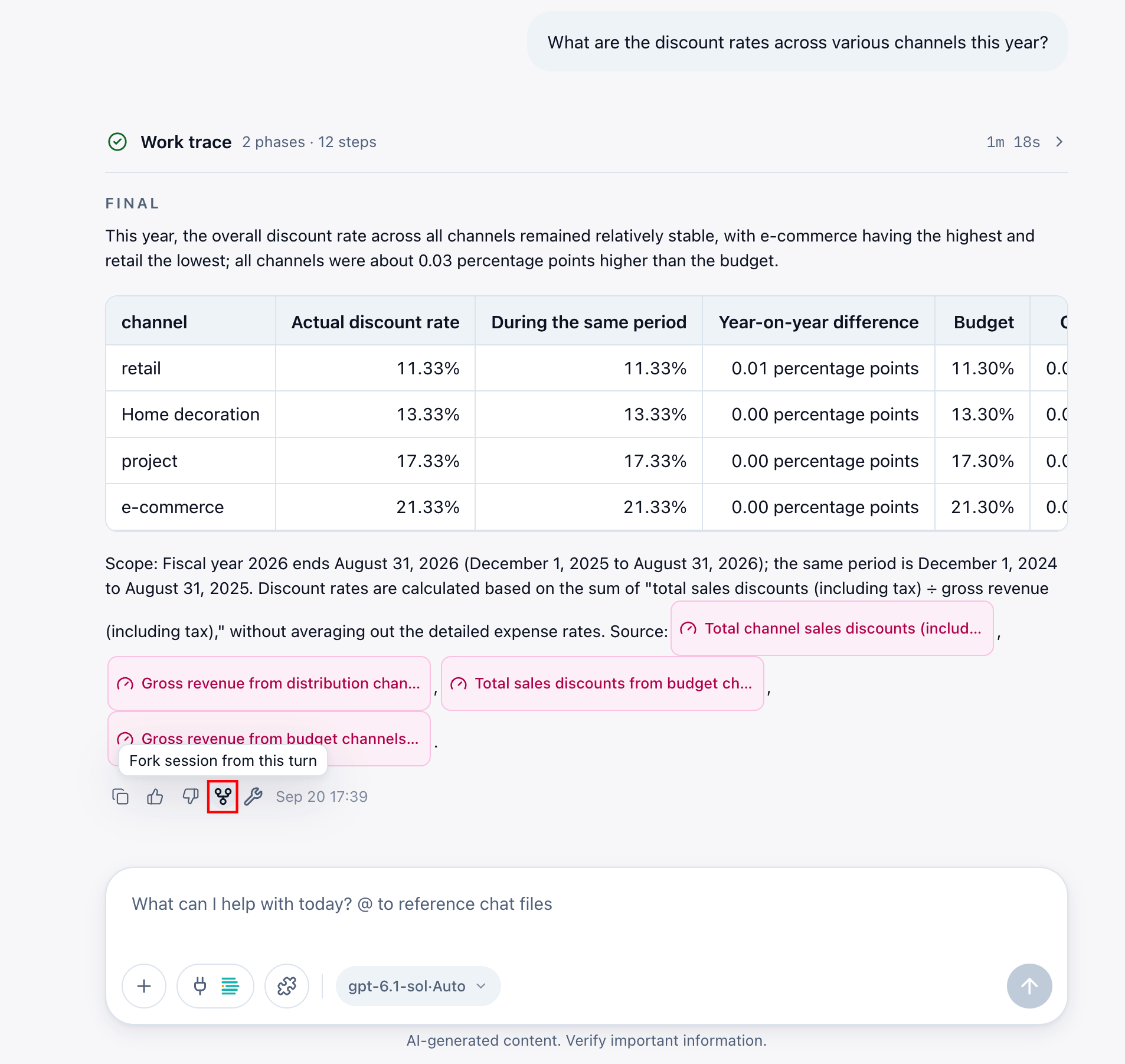
Use the fork icon below a response to explore another direction. The new branch retains context through the selected turn. Later questions are not appended to the original conversation.
Add Materials and Configure Capabilities
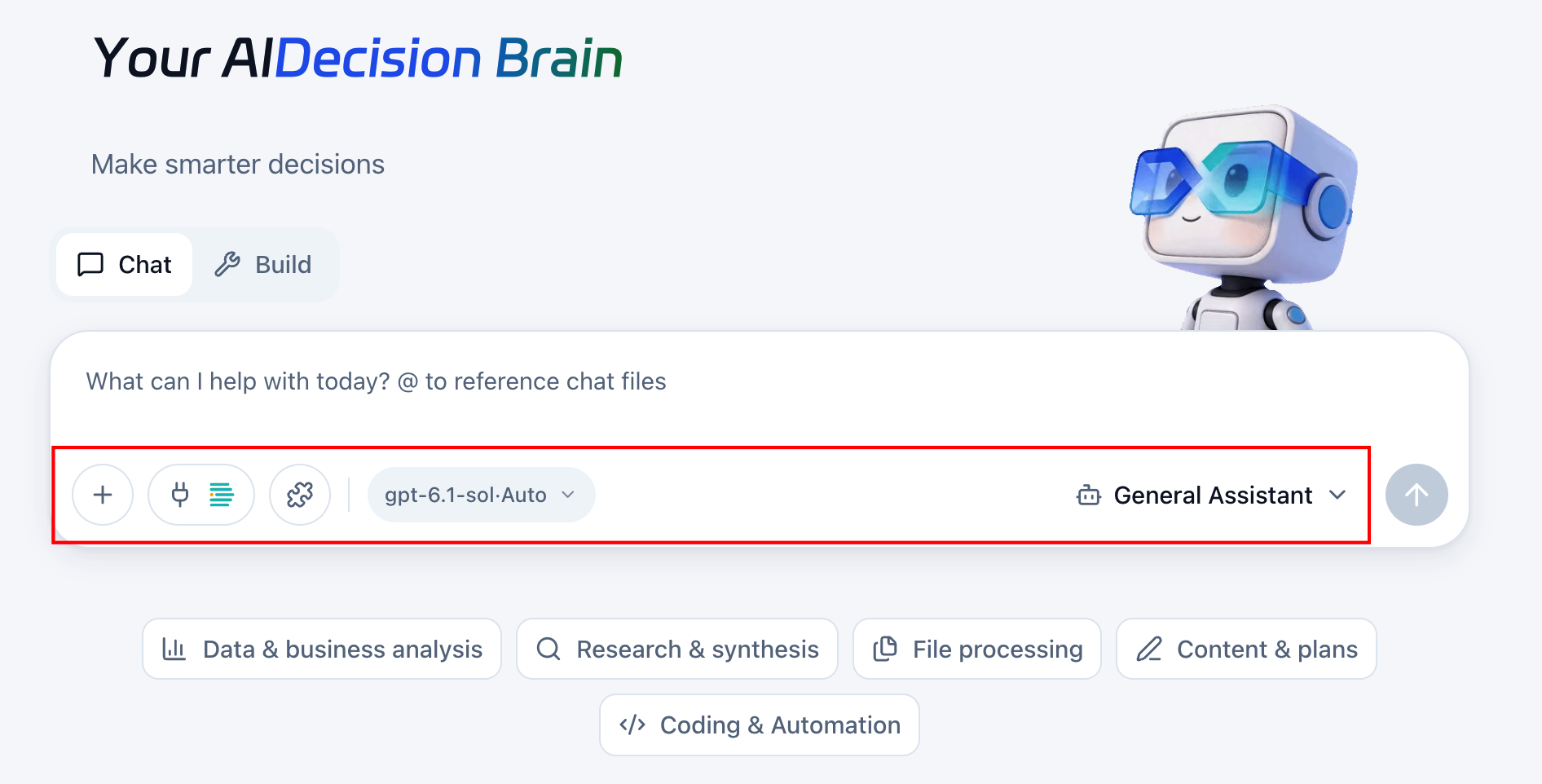
Add materials and capabilities as needed for either the general assistant or a business agent. Available choices follow the current page.
Add Materials
| Method | Purpose |
|---|---|
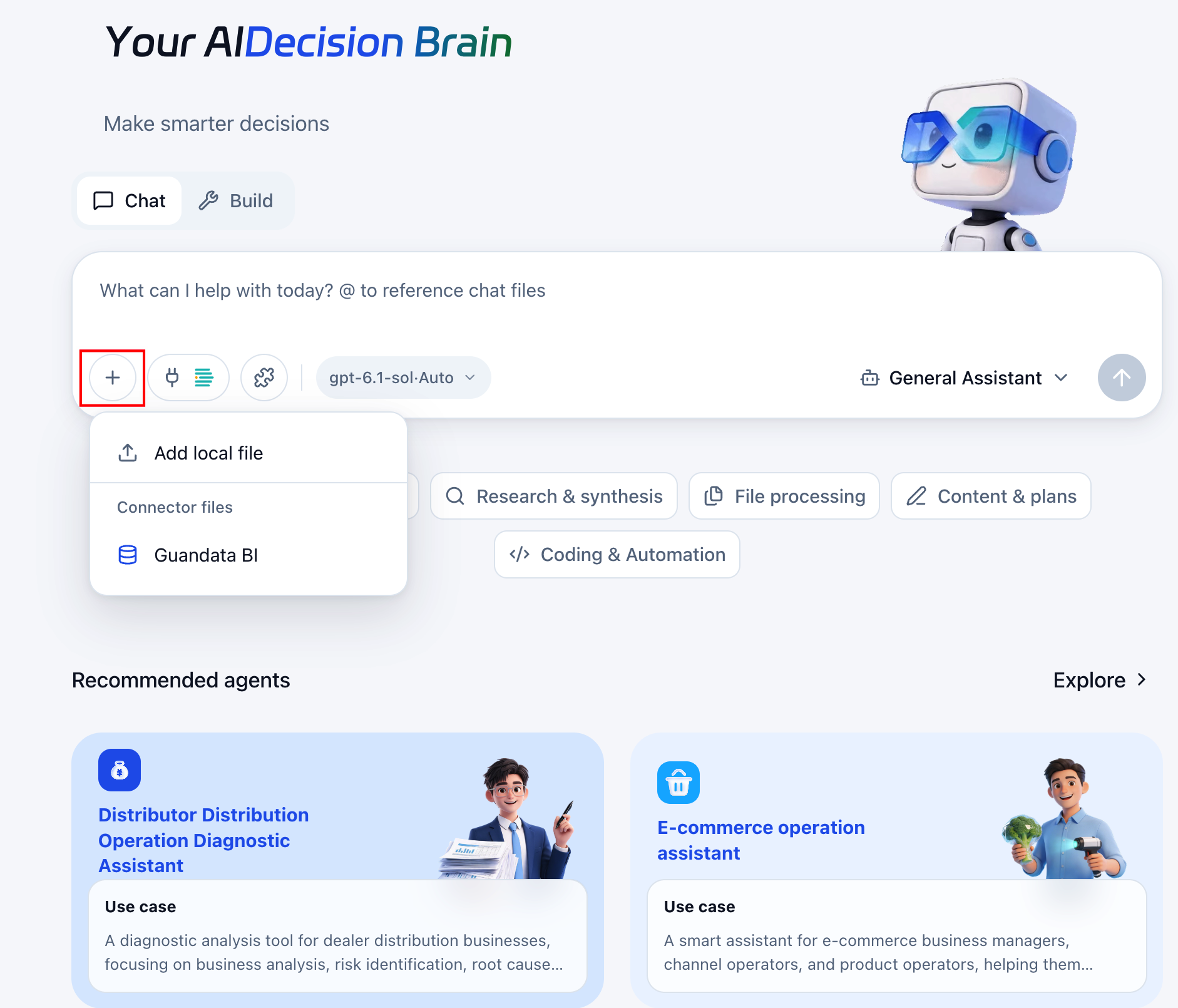
| Upload local files | Use the plus menu or drag documents, spreadsheets, or other files into the input. |
| Reference BI assets | Use the BI option in the plus menu to select authorized assets. Prefer the organization environment without a separate connection. |
Use @ References for previous Q&A and Shared Files to reuse generated reports.
Check attachments/references and specify fields, scope, and output. For example: “Summarize sales by region from this table and highlight the three largest declines.”
Select References with @
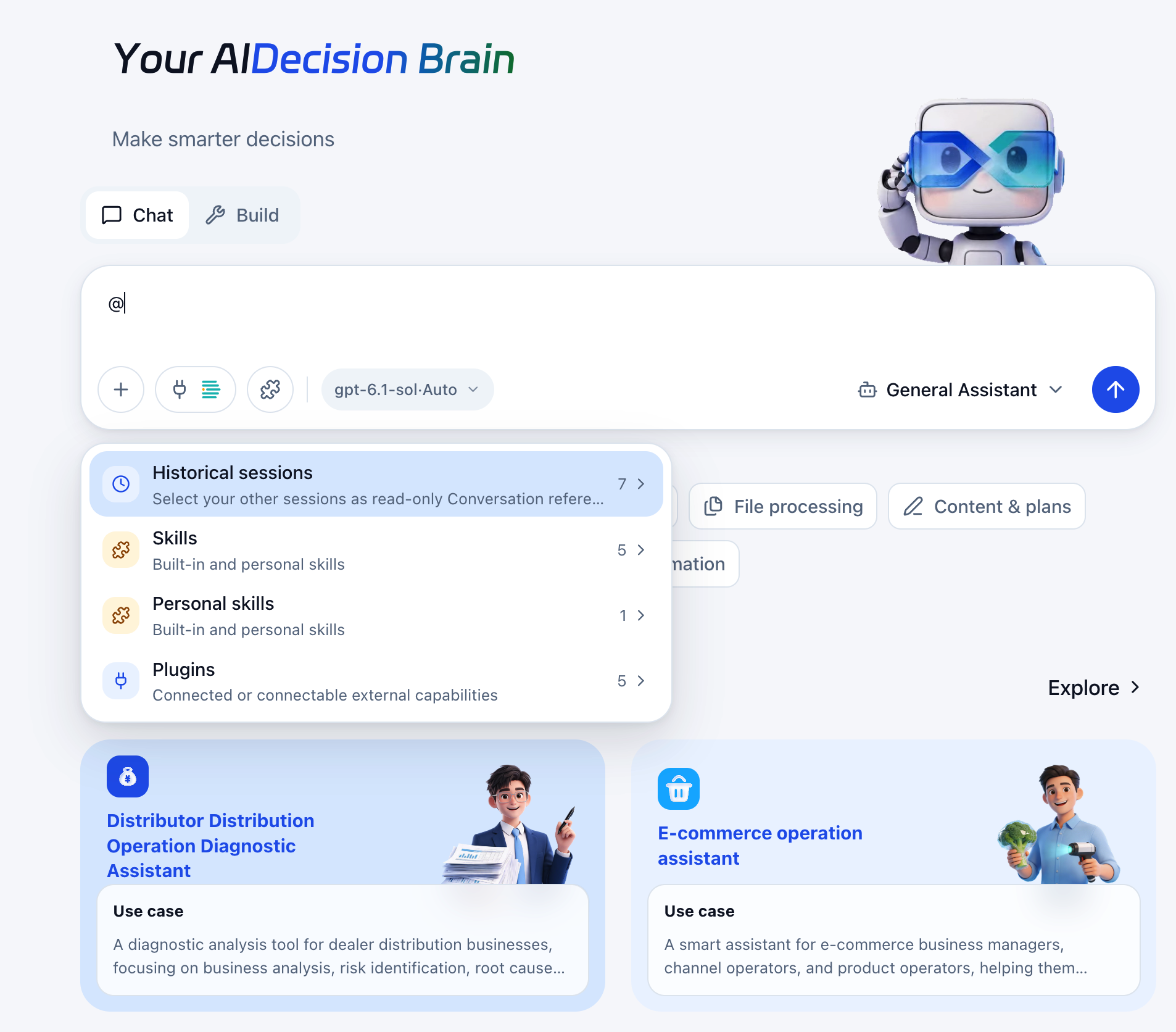
Type @ to select previous conversations, built-in skills, personal skills, or plugins. Available categories and items depend on the current page.
| Type | Purpose |
|---|---|
| Previous conversations | Reference your own prior Q&A read-only to continue analysis, summarize conclusions, or compare tasks. |
| Skills | Apply an available built-in method and its requirements. |
| Personal skills | Reuse available custom workflows or output standards. |
| Plugins | Select connected or connectable external capabilities. Organization BI is ready to use; authorize other services as needed. See Connections and Plugins. |
- Type
@to open the menu. - Choose a category and item, or type keywords after
@. - Check added references, describe the task, and send. Selecting a reference alone does not start work.
For example, reference an earlier sales analysis and ask for next week's actions and metrics to monitor. When selecting a skill, also specify the input and output, such as reviewing a help document and listing proposed changes.
Conversation references supply Q&A only and do not let the current task modify the original conversation. Reuse files through Shared Files. Selecting a plugin does not replace authorization. Capabilities still depend on connection status, agent configuration, and account permissions.
Use BI Connections and Other Plugins
Prefer the organization BI connection. You do not need your own PAT or separate setup. Your BI permissions govern resource access.
Select organization BI assets
- Use the plus menu's BI entry to select the configured environment and authorized assets.
- Check the assets and describe the target, dates, definitions, and output. For example, request this month's regional sales and year-over-year changes, with the three largest declines.
- Send and verify the returned scope, definitions, and sources.
For business agents, inspect existing assets in Conversation Configuration before adding more. Organization connections do not expand permissions. Ask an administrator to check System Integrations if the environment is missing or unavailable.
Test or personal environments
Use the plug icon or connector indicator to add a personal BI connection. See Personal BI Connections. Confirm the environment and repair or reauthorize failed connections as prompted. Configure other external services through their plugin connections as needed.
Select Skills
Use the puzzle icon to search and select an available skill. Its reference fills the input. Add task requirements and send.
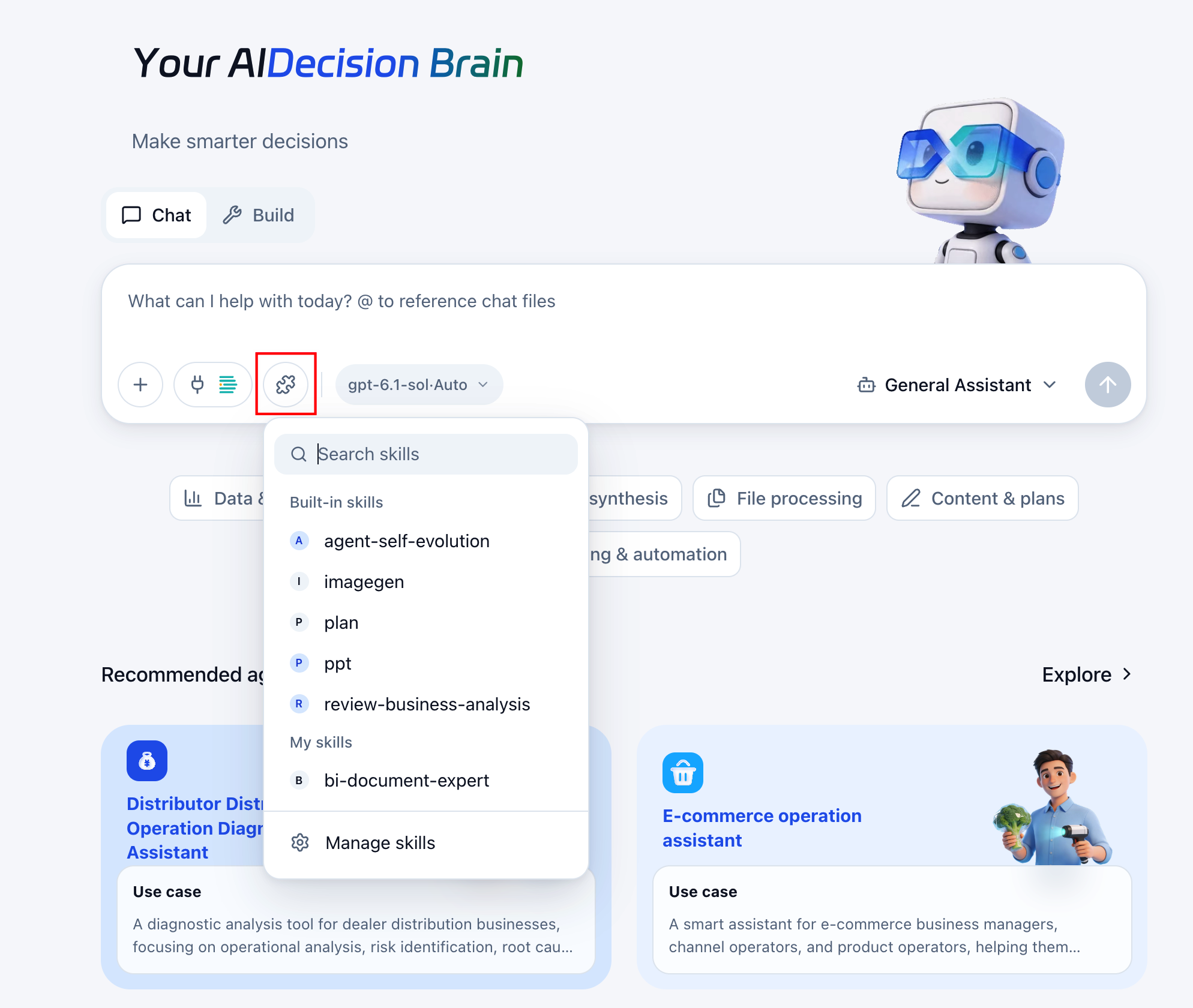
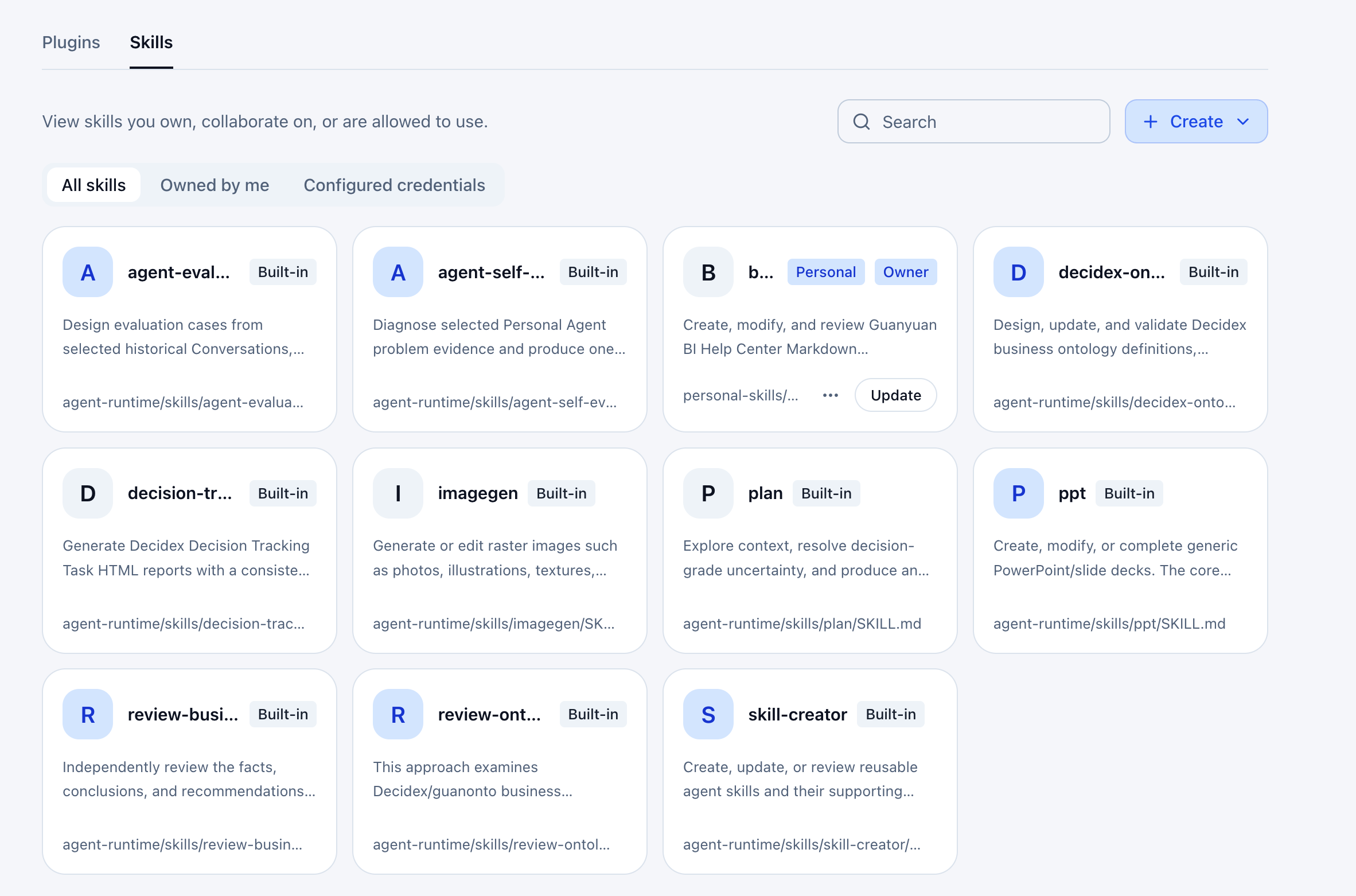
Open skill management to create or upload skills. See Personal Skills.
Select a Model and Reasoning Level
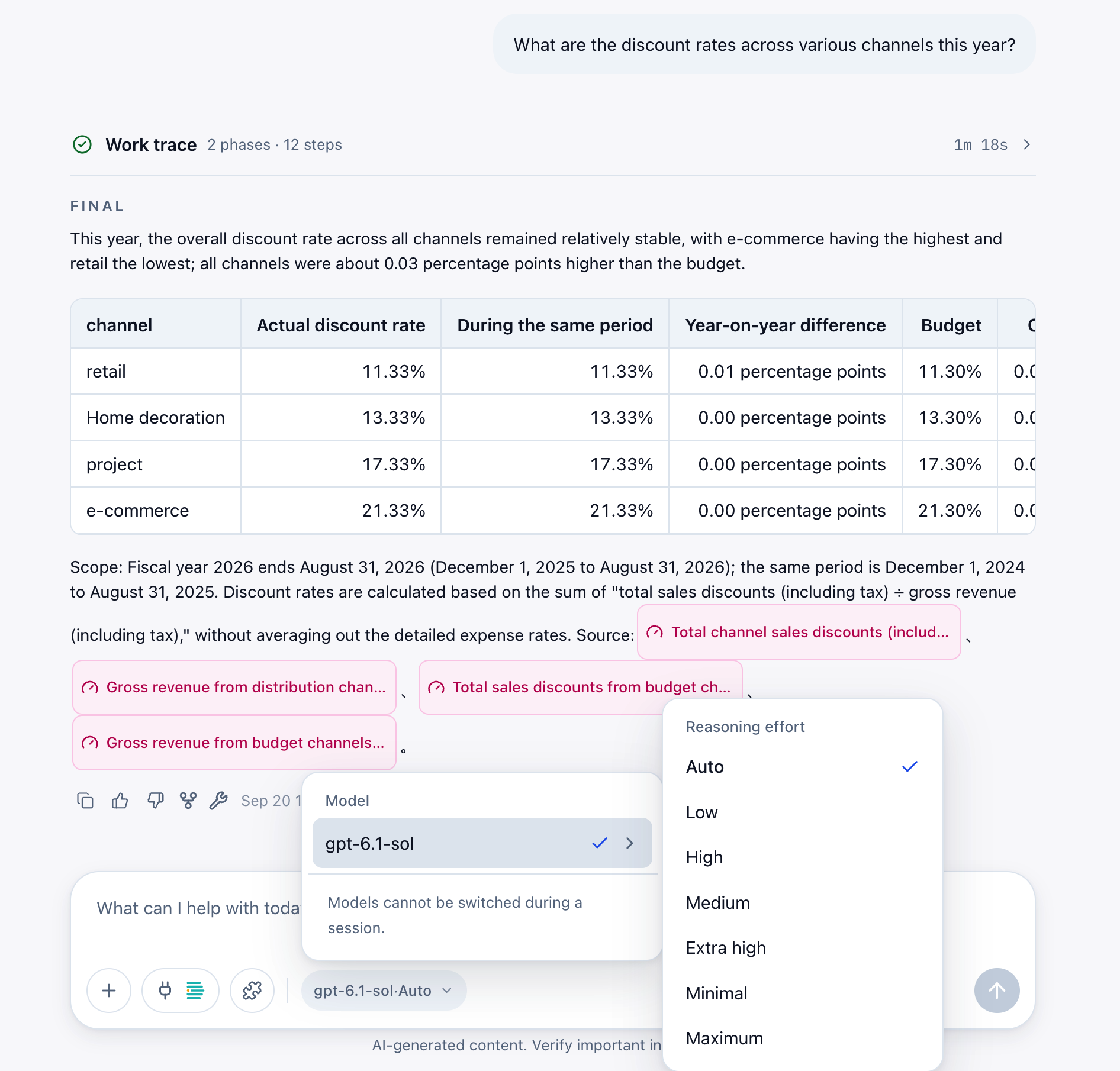
Before the first message, click the model name to choose an available model and supported reasoning level. The model determines the AI used for the conversation. The level determines reasoning effort; automatic uses the automatic setting.
After the first message, the model is fixed. Start a new conversation to change it. You can still adjust the reasoning level from the model menu before another question, using levels supported by that model.
View Conversation Configuration
Open configuration at the upper right to view the agent name, description, and key settings.
| Setting | Purpose |
|---|---|
| BI assets | Assets available as references. |
| Reference materials | Read-only files attached when the conversation was created. |
| Business ontology | Business definitions, terminology, and binding. |
| Skills | Specialized capabilities available to the agent. |
| Connector | Available connectors. |
| MCP server | External services and enabled status. |
Expand items with arrows for details. Counts and binding/enabled states reflect the current conversation.
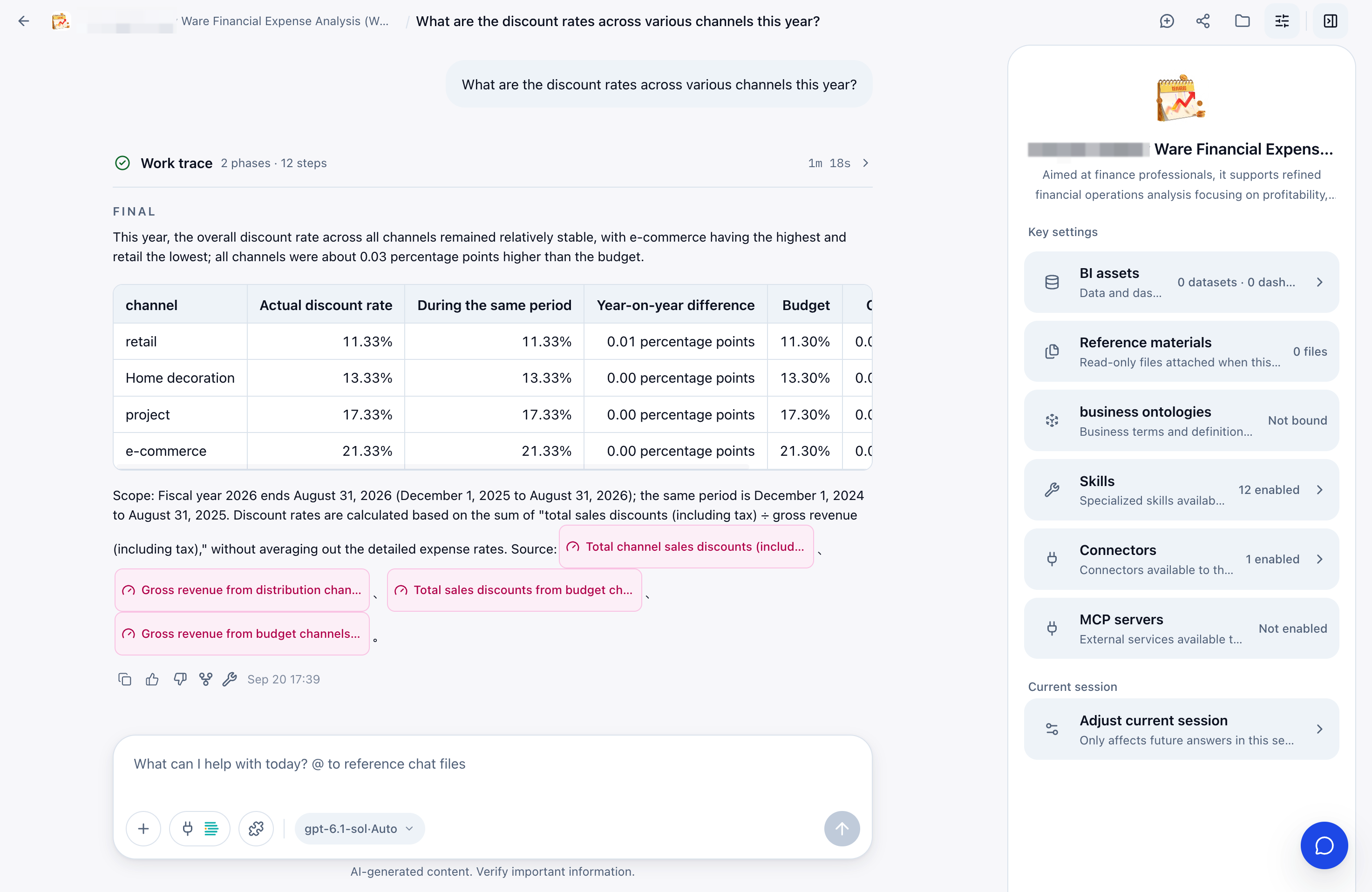
Use the adjustment action at the panel bottom to change subsequent responses in this conversation only. It does not change the agent itself.
Feedback and Troubleshooting
Submit ratings or suggestions to improve responses, or investigate a turn's execution.
Copy and Rate Responses
Copy icons beside questions and responses copy their respective content. Use the positive/negative rating actions below a response. Hover over older responses to show their action bars.
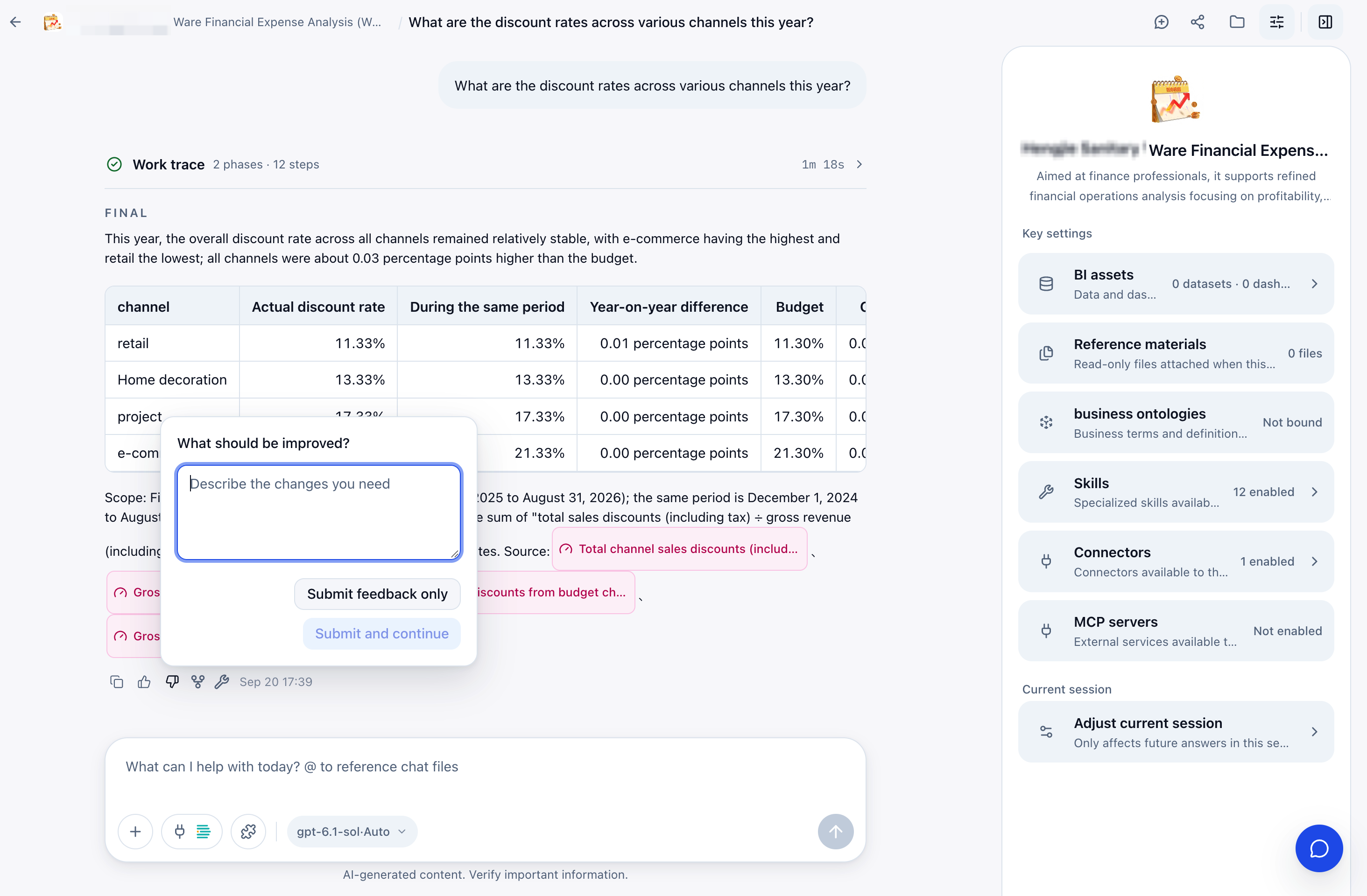
-
Choose the negative rating to open the improvement form.
-
Specify corrections to definitions, missing evidence, or format changes.
-
Choose how to submit:
Method Effect Feedback only Save the rating and suggestions without starting a new revision. Submit and continue revising Save feedback and send the suggestions as a follow-up request. Suggestions must be entered first.
Investigate a Turn
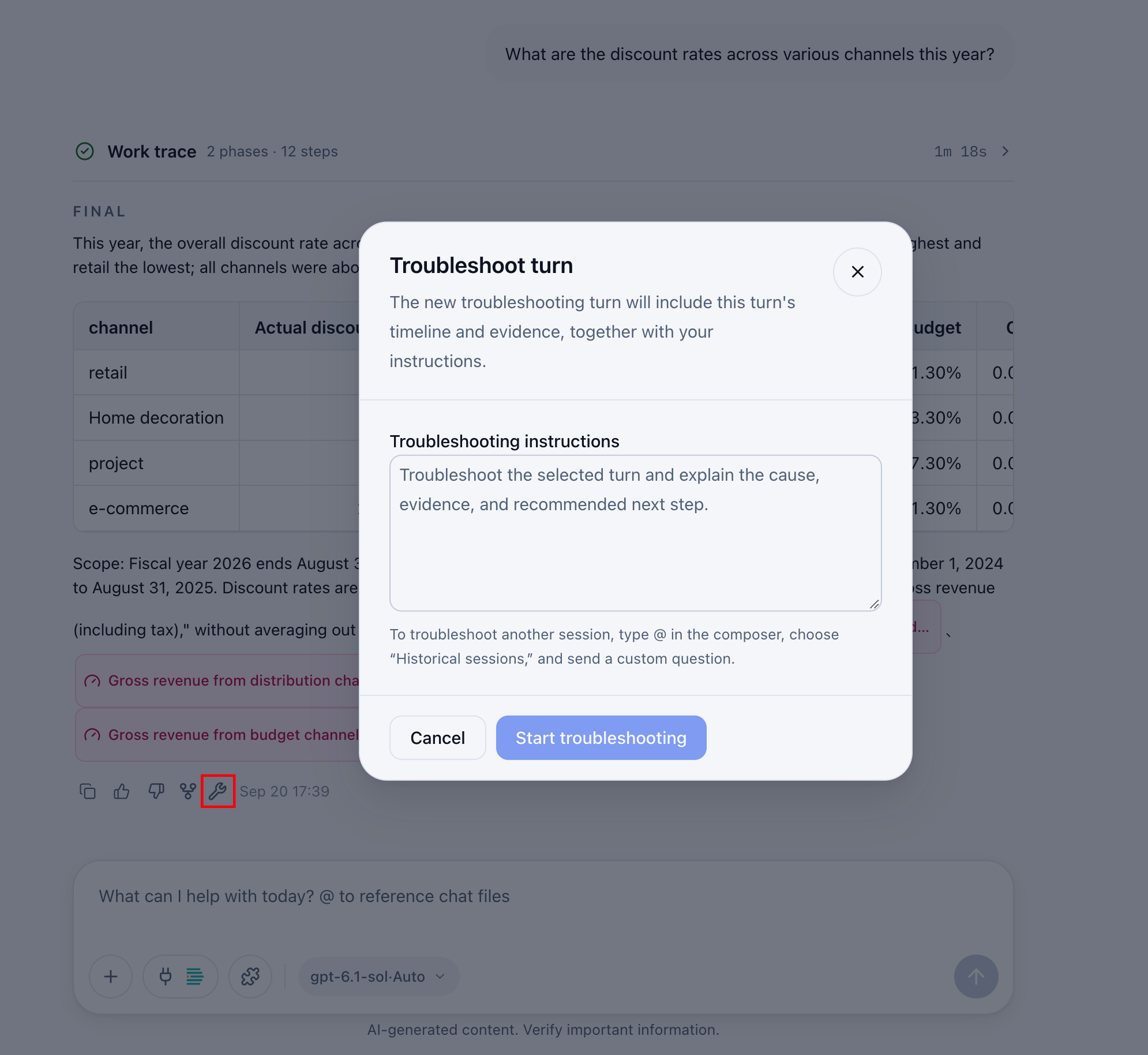
Use the wrench icon below a response when the result or execution needs investigation.
- Open the troubleshooting dialog.
- Explain what to check, for example “Check the year-over-year difference calculation, explain the evidence, and recommend a correction.”
- Start the investigation. A new turn receives the original work trace and evidence along with your instructions.
To investigate another conversation, reference it with @, describe the issue, and send. See @ References.
Manage Conversation Files and Sharing
Use resources at the upper right to find and reuse files, and sharing to provide an agent entry or conversation result. Toggle the sidebar to show/hide files and configuration. Reopening restores the last viewed panel.
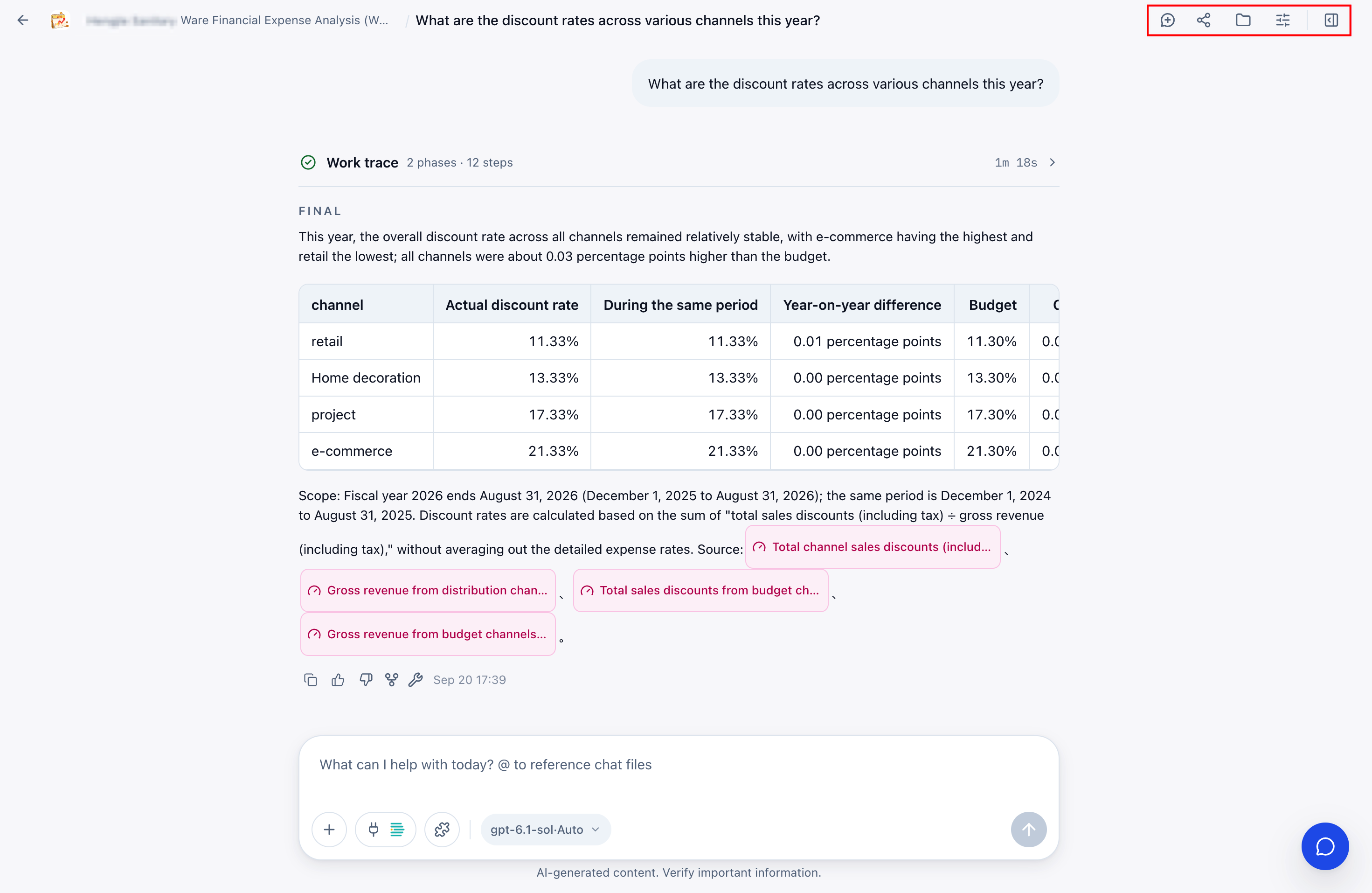
View Conversation Materials
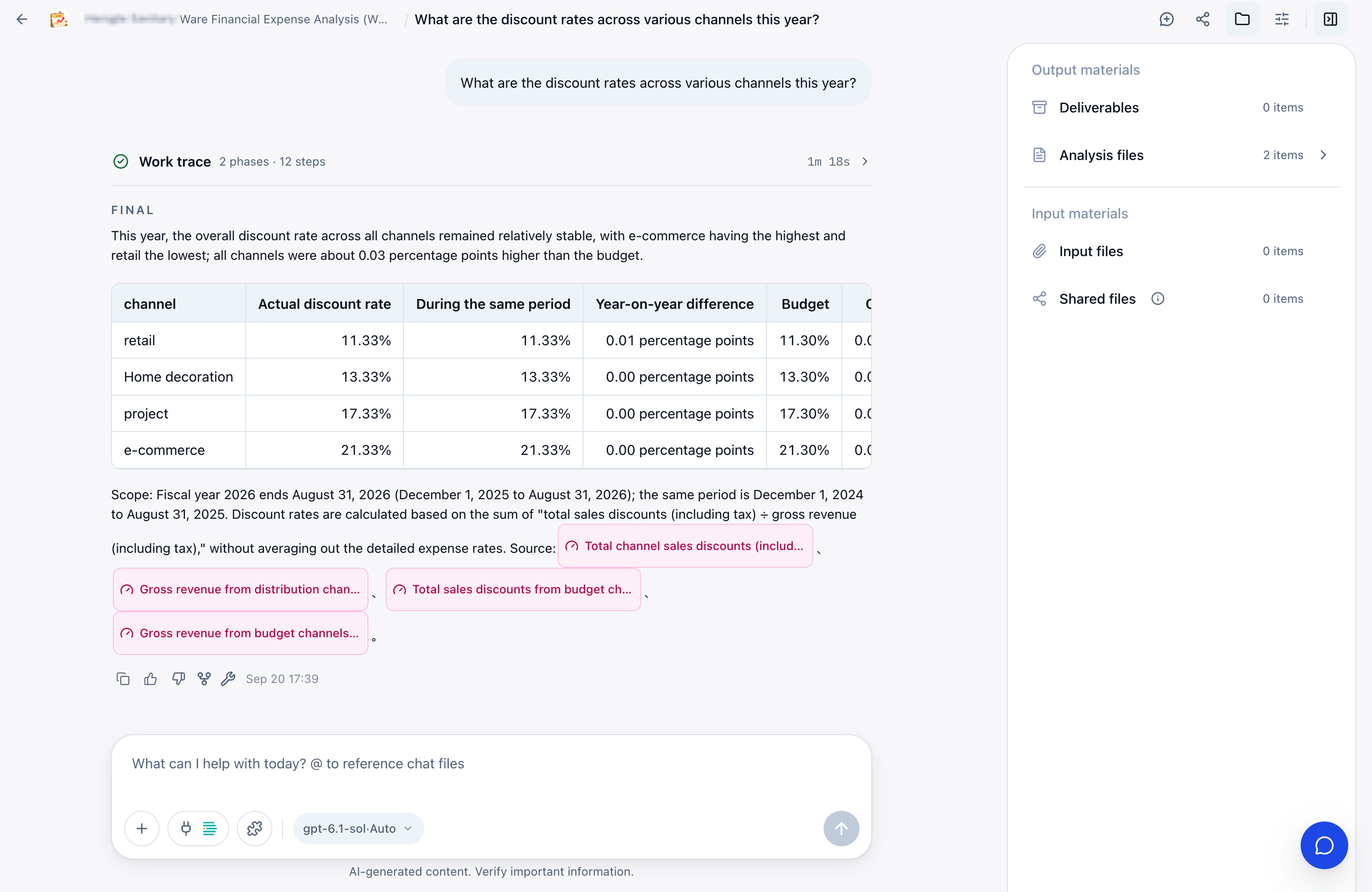
Open resources to inspect files in the right panel.
| Category | Content |
|---|---|
| Deliverables | Reports, slides, HTML pages, and other agent outputs. View or download them. |
| Analysis files | Intermediate data and processing results. |
| Input files | Uploaded or added references. |
| Shared files | Reusable materials that can be added to conversations. |
The panel groups output and input materials and shows category counts. Open categories containing files.
Share and Reuse Files
Share suitable files, then add them from the shared-files area in later conversations. The conversation receives a copy; edits do not change the original shared file. Use permission management to give organization members read-only access.
Revoking access prevents further discovery, download, or addition of the shared file, but existing copies and history remain.
Shared files reuse actual files. To reference Q&A only, use Conversation References.
Share Agents and Conversations
The sharing menu has two purposes:
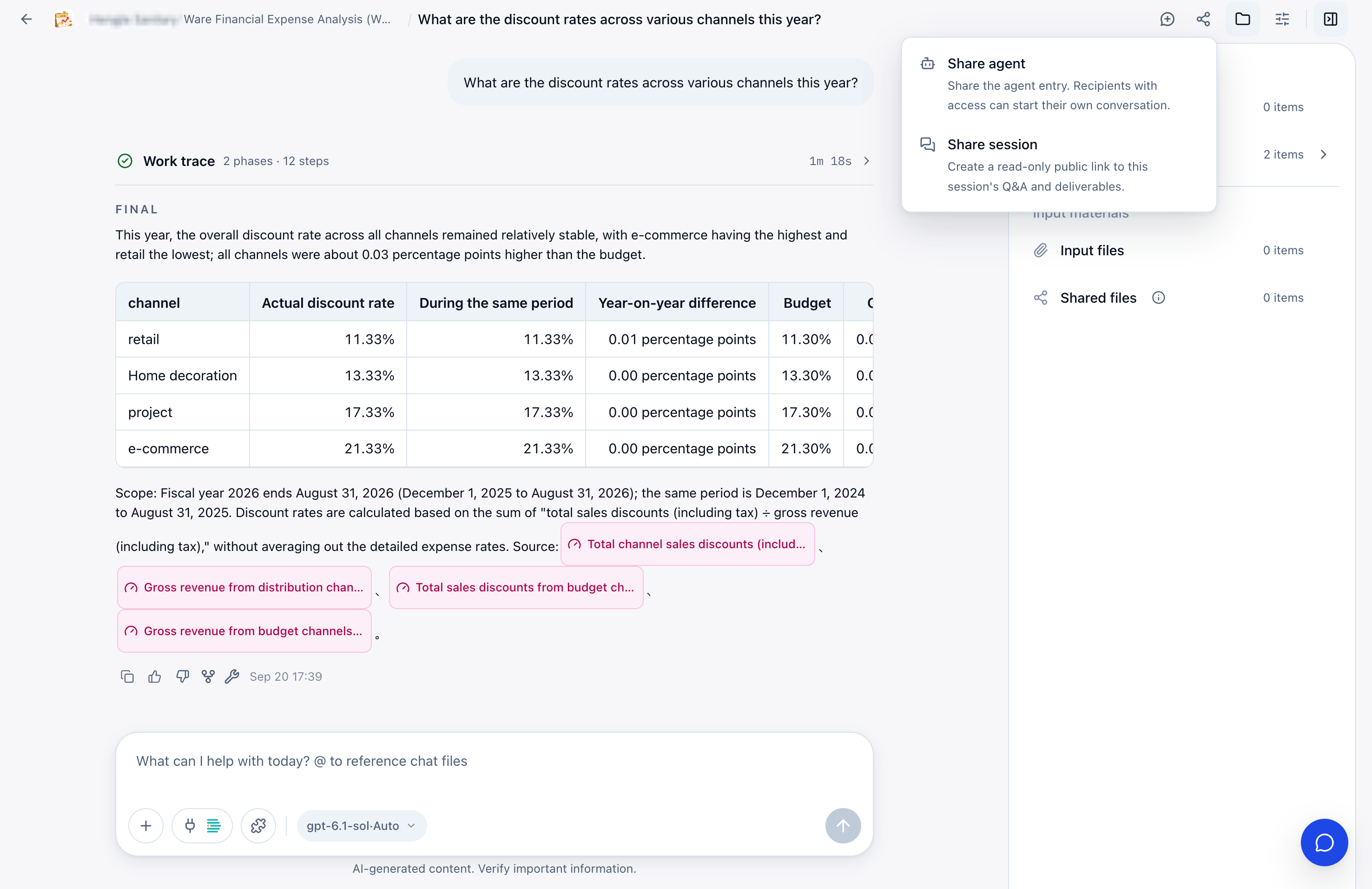
| Action | Recipient capability |
|---|---|
| Share agent | Open its entry and start a personal conversation if already authorized. Sharing the entry does not grant permission. |
| Share conversation | View Q&A and deliverables through a public read-only link, including preview and download. |
Review questions, responses, and deliverables for public suitability first. Enable and copy the conversation share link. Revoke it from the same dialog when no longer needed; the original link immediately stops working.
Anyone holding the conversation link can view its Q&A and deliverables. Do not share credentials, private personal information, or sensitive business data. Revocation cannot retrieve files recipients already downloaded.