Configure System Integrations
Overview
System integrations manage external services and application credentials for the current organization, including BI environments and email. After the owner configures them, members access BI data according to their own BI permissions, and agents can send analysis results through the organization email service.
For production use, prefer the organization BI environment without individual connections. Use Personal BI Connections for test or personal environments as needed.
Configure Organization BI
After centralized configuration, organization members can use the organization connector without connecting individually. Each user's BI resource permissions determine access.
The organization must already have a built-in BI environment running Guandata BI 8.2 or later. This page configures credentials for that environment. If it is not listed, contact the platform administrator. The DecideX steps below require the organization owner.
-
Obtain BI application credentials: In BI, the administrator opens the Management Center's token and API application management, creates a Standard API application, and obtains its Client ID and Client Secret. See Token Management.
-
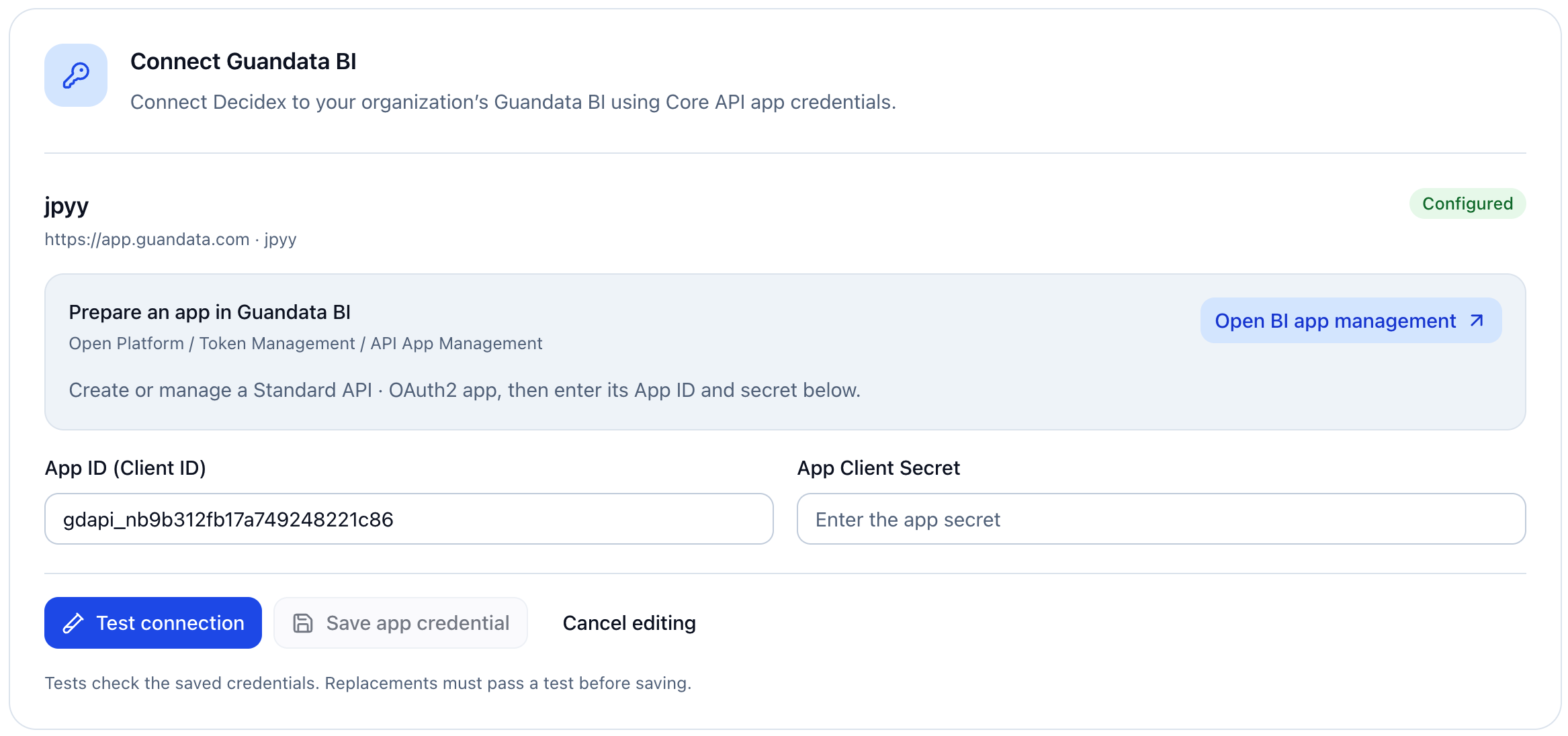
Configure the organization connection: The DecideX owner opens Settings > System Integrations from the profile menu. Find the BI environment in the Core API application credentials area. Confirm that its address and Domain match the BI application environment.
Setting Description App ID (Client ID) The BI application's Client ID. Application Client Secret The corresponding Client Secret. -
Test and save: Test the connection, save the application credentials after success, and confirm the configured status. On failure, check the environment and credentials, then retry.
-
Member use: Members analyze the environment's resources within their own BI permissions.
Producers can now select BI assets for agents, and consumers can analyze with the agents or select assets without duplicate personal connections. Credentials do not automatically bind assets to agents; see BI Assets. Central configuration does not expand BI permissions.
Maintain Credentials
| Action | Description |
|---|---|
| Check | Test whether saved credentials remain valid. |
| Replace | Enter the new App ID and secret, test, and save after success. |
| Delete | Remove credentials as prompted only after checking for dependent business workflows. |
Configure Email
The email service provides a shared SMTP sender identity for agents to send analysis results to organization members' email addresses.
-
Open email service configuration.
-
Enter the provider's settings:
Setting Description SMTP server SMTP hostname. Port Port matching the server and encryption method. Encryption SSL, TLS, or STARTTLS as required. Authentication Username/password or no authentication, as required. Username and password SMTP credentials when using password authentication. Sender address Address used to send messages. Sender name Display name for messages. -
Test the connection. On failure, check the server, port, encryption, and authentication.
-
Save and check the sender identity and enabled status.
-
Enable agent email sending when required.
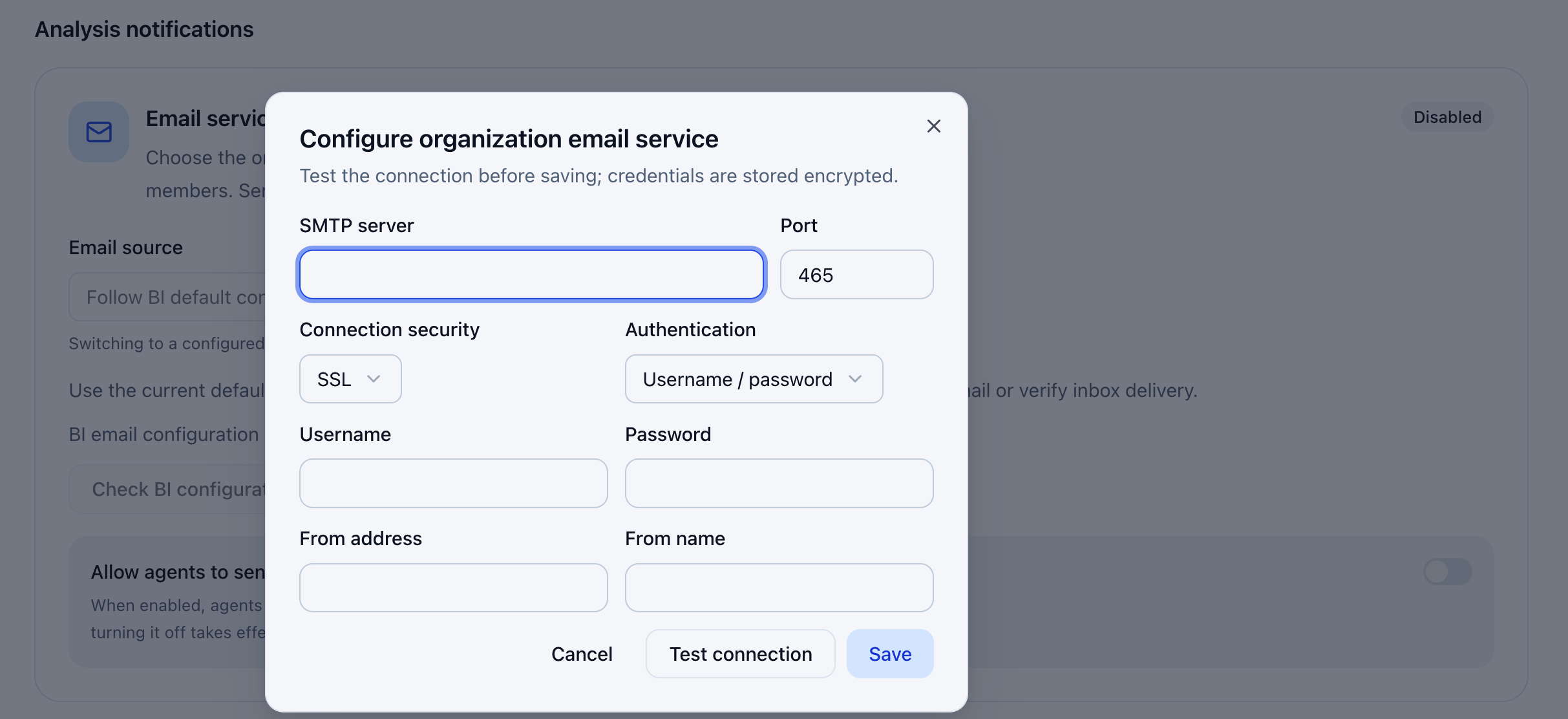
Edit the configuration later as needed and review recent test results. Disabling agent email sending takes effect immediately.