Create and Manage Personal Skills
Overview
Skills package business analysis methods, task workflows, and content-generation capabilities for reuse by agents. For example, package a performance-analysis method or report-generation workflow to handle similar tasks consistently.
Open Explore to find skills under Recommended or Plugins. Use Plugins > Skills to manage personal skills.
Upload a skill package or folder, edit and update its content, and authorize other members to use or maintain it.
Access Skills
Open Explore > Plugins > Skills.
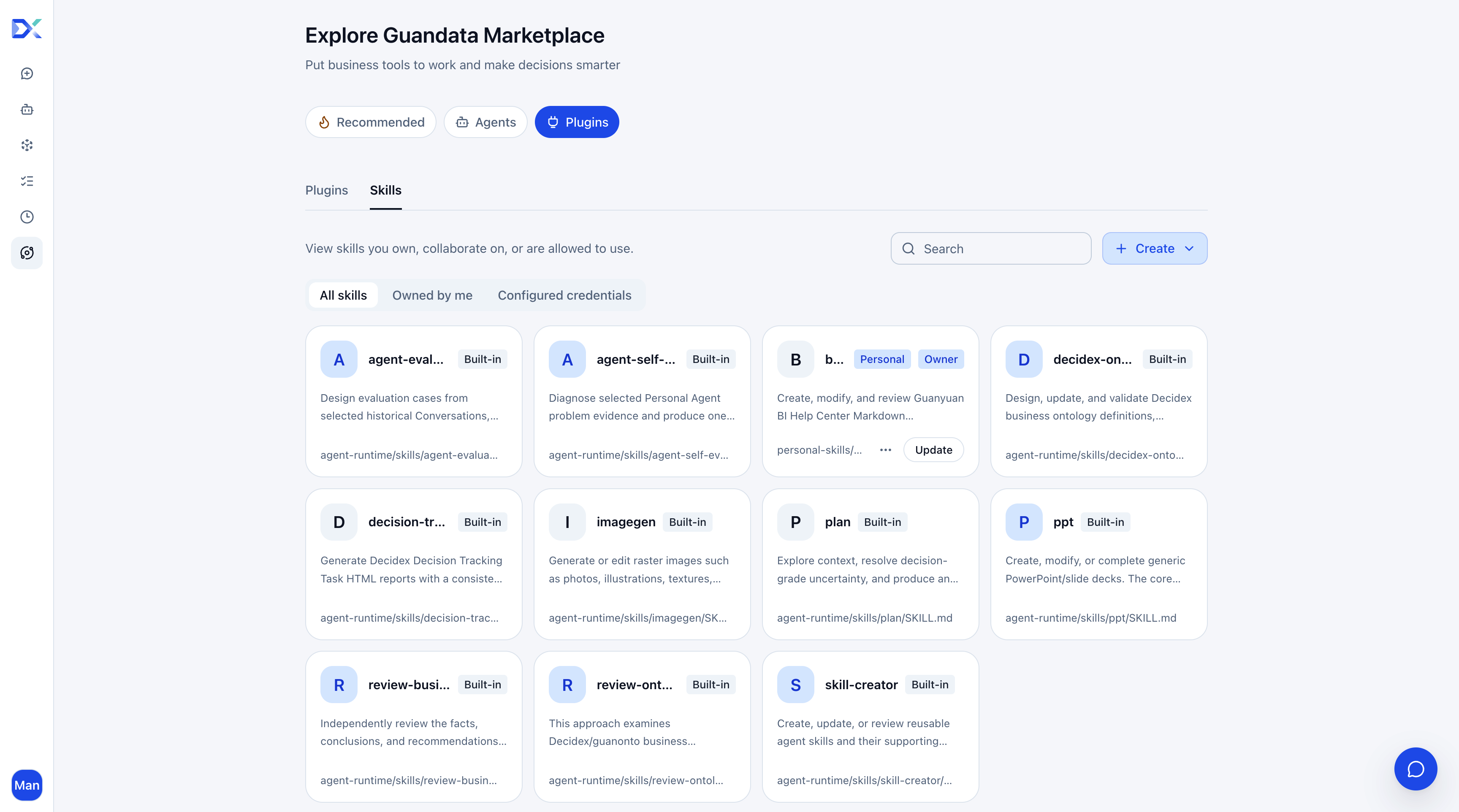
| Entry | Description |
|---|---|
| All Skills | Skills currently accessible to you. |
| Owned by Me | Filter skills you own. |
| Search | Find a skill. |
| Skill card | Name, description, source, and permission badges. Click for details. |
| Create | Upload a .zip, .skill, or folder through the skill upload option. |
Common skill types include business modeling, report generation, content generation, and planning. They can generate or validate ontologies; create tracking reports, business reports, or slides; produce images and documents; or break complex tasks into executable plans.
To configure a skill for an agent, select an authorized capability under Skills and Tools, test, and publish. See Permissions and Collaboration.
Create a Personal Skill
Prepare a .zip or .skill file with SKILL.md at its root. Its YAML header must contain name and description. Describe the purpose, procedure, and output requirements in the body. Include required scripts and references in the package.
Example:
---
name: sales-analysis
description: Analyze sales performance and provide conclusions, supporting data, and recommended actions.
---

Confirm the analysis scope, time range, and calculation definitions first.
Read data supplied by the user or accessible with their permissions.
Compare sales across regions, explain anomalies with supporting data,
and recommend actions. Identify missing data instead of inventing conclusions.
- Open Explore > Plugins > Skills and choose Create > Upload Skill.
- Drag a
.zipor.skillfile into the upload area or select a file. For folder upload, select the folder containingSKILL.mdand its dependencies. - Find the uploaded skill under Owned by Me. Review its name, description, and files. If upload fails, correct the structure or metadata according to the message and retry.
- Select the skill in a conversation and test a real task. See Skills and Tools to bind it to an agent.
View Personal Skills
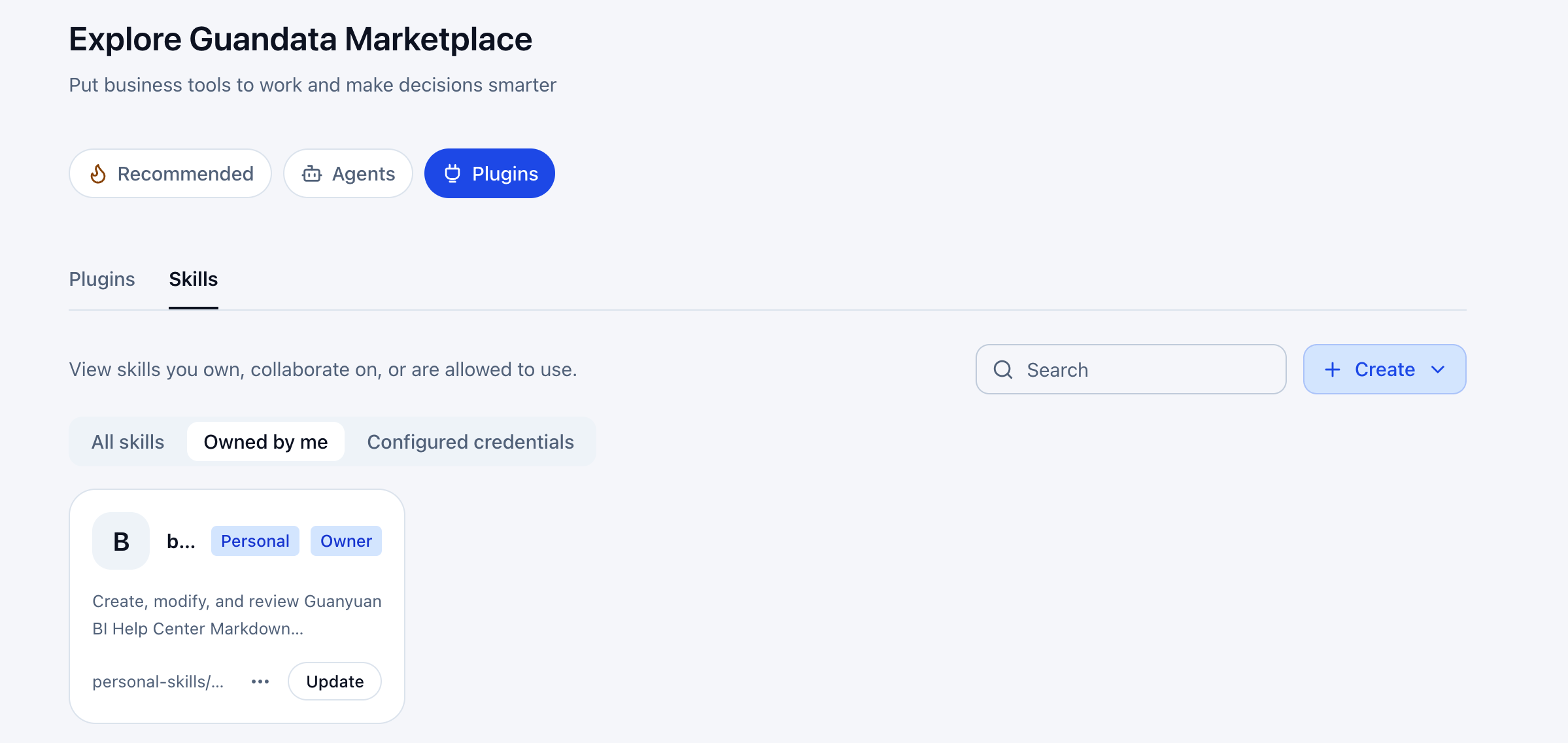
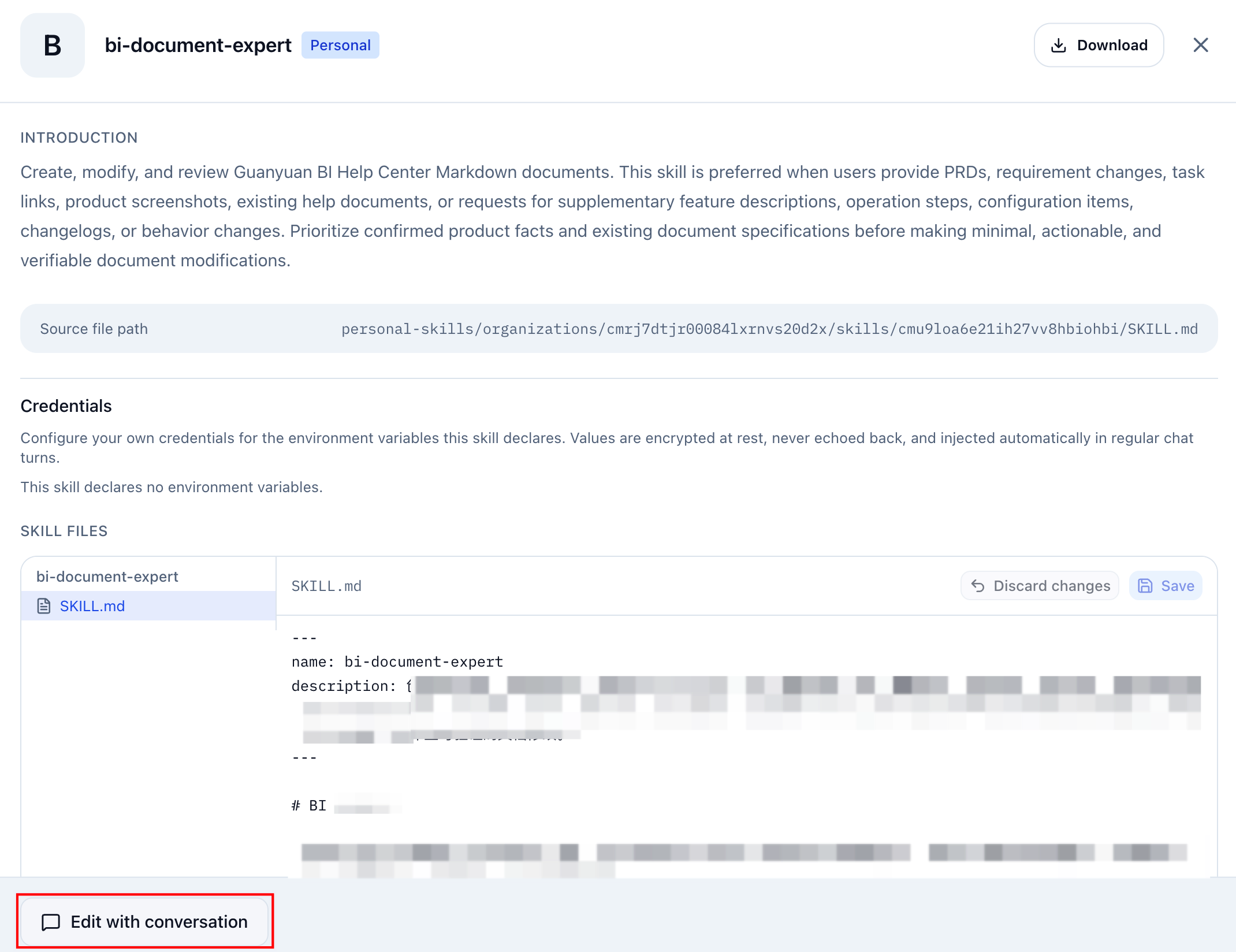
Uploaded skills have a personal badge. Filter by ownership or search, then open a card to view the introduction, file list, and contents. Select a file in the skill files area to read it. Use Download to obtain a copy.
| Permission badge | Meaning |
|---|---|
| Owner | Maintain the skill, manage permissions, and delete it. |
| Collaborator | Edit the skill and manage permissions. |
| Can use | Usage access, without editing or permission management. |
Edit and Update
With edit permission, modify files directly, request changes through conversation, or replace the package.
Edit files
- Open the personal skill card.
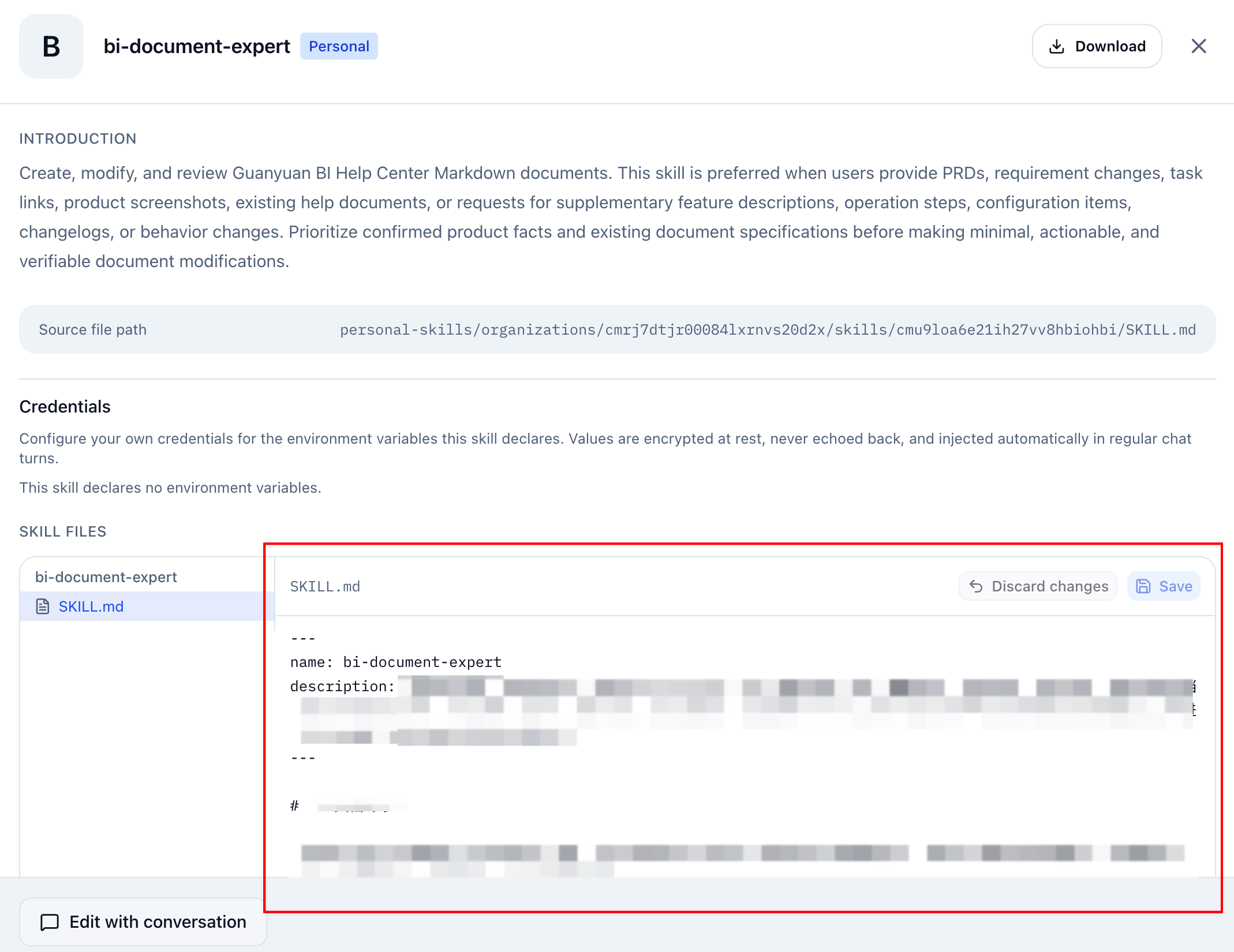
- Select a file. Editable text files show an editor.
- Edit and click Save, or discard the changes.
After saving, conversations referencing the skill use the updated content on the next turn.
Edit through conversation
Use the conversational editing action on the details page and describe the changes. Save or discard unsaved file edits first.
Update the package
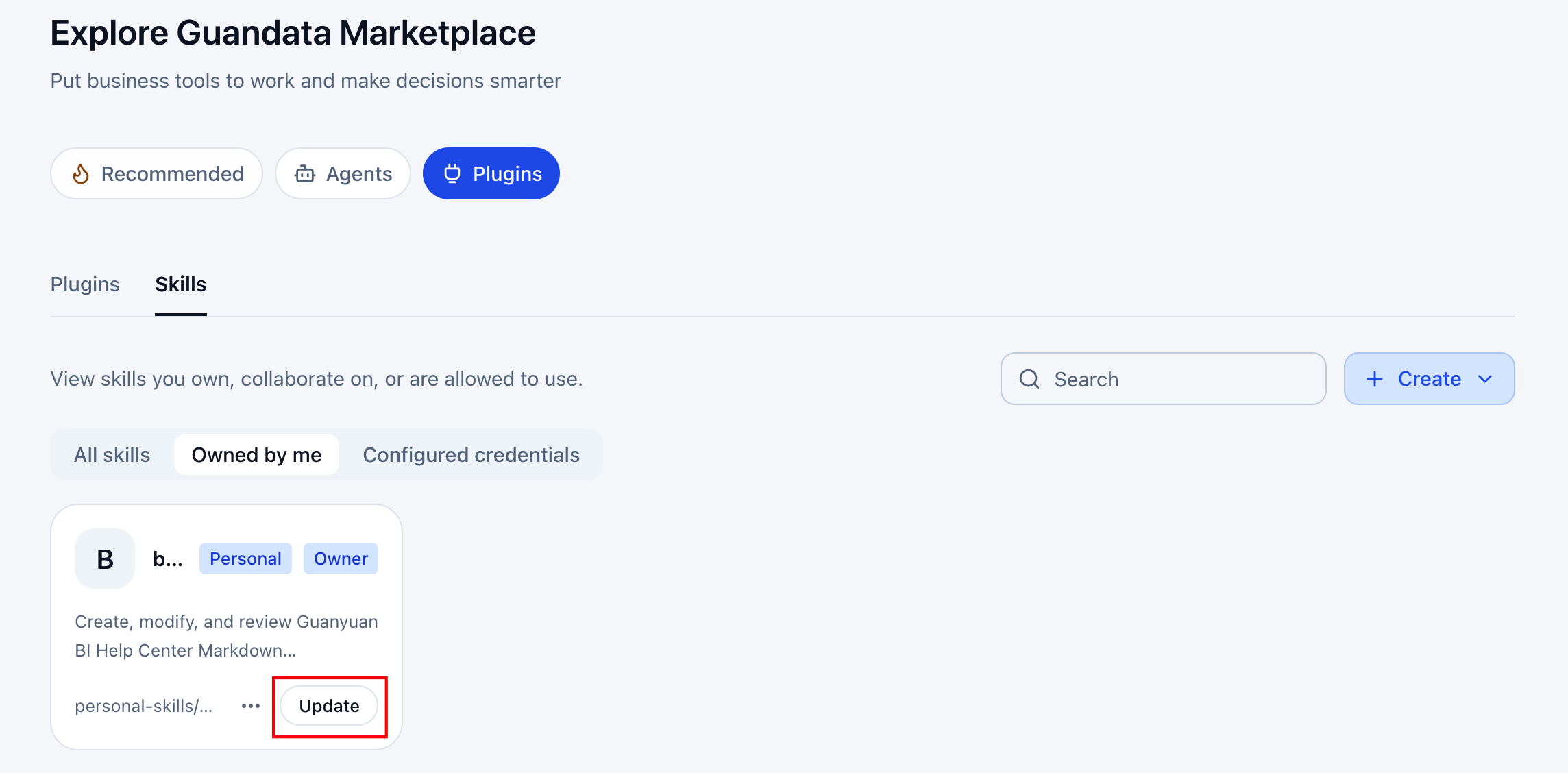
- Click Update on the card.
- Upload the new
.zipor.skillfile. - After completion, reopen the details and inspect the files.
Updating replaces file contents while preserving the same skill reference for subsequent runs. Download a backup first if you need the current content.
Permissions and Collaboration
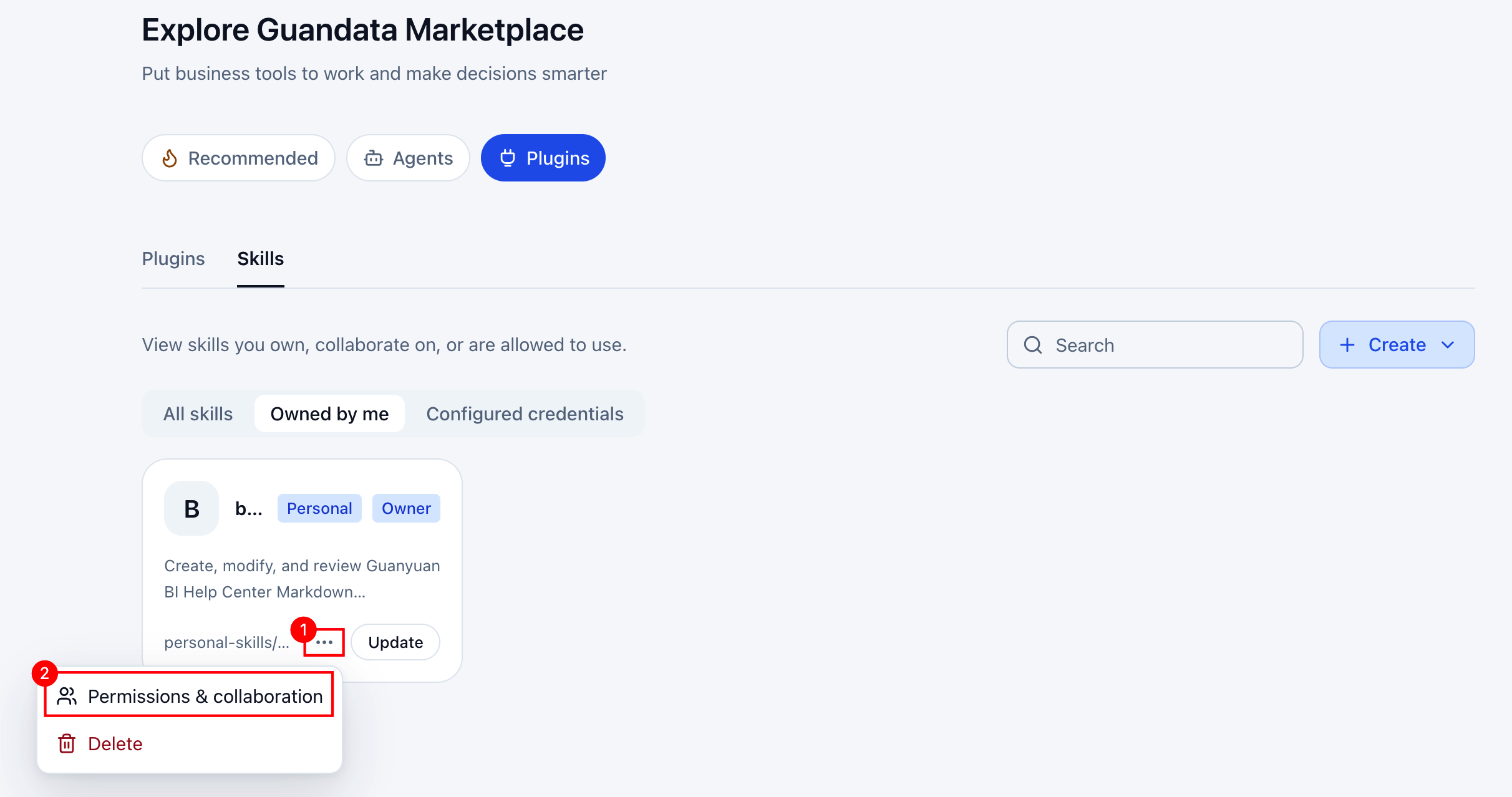
Open More Actions > Permissions and Collaboration on the card.
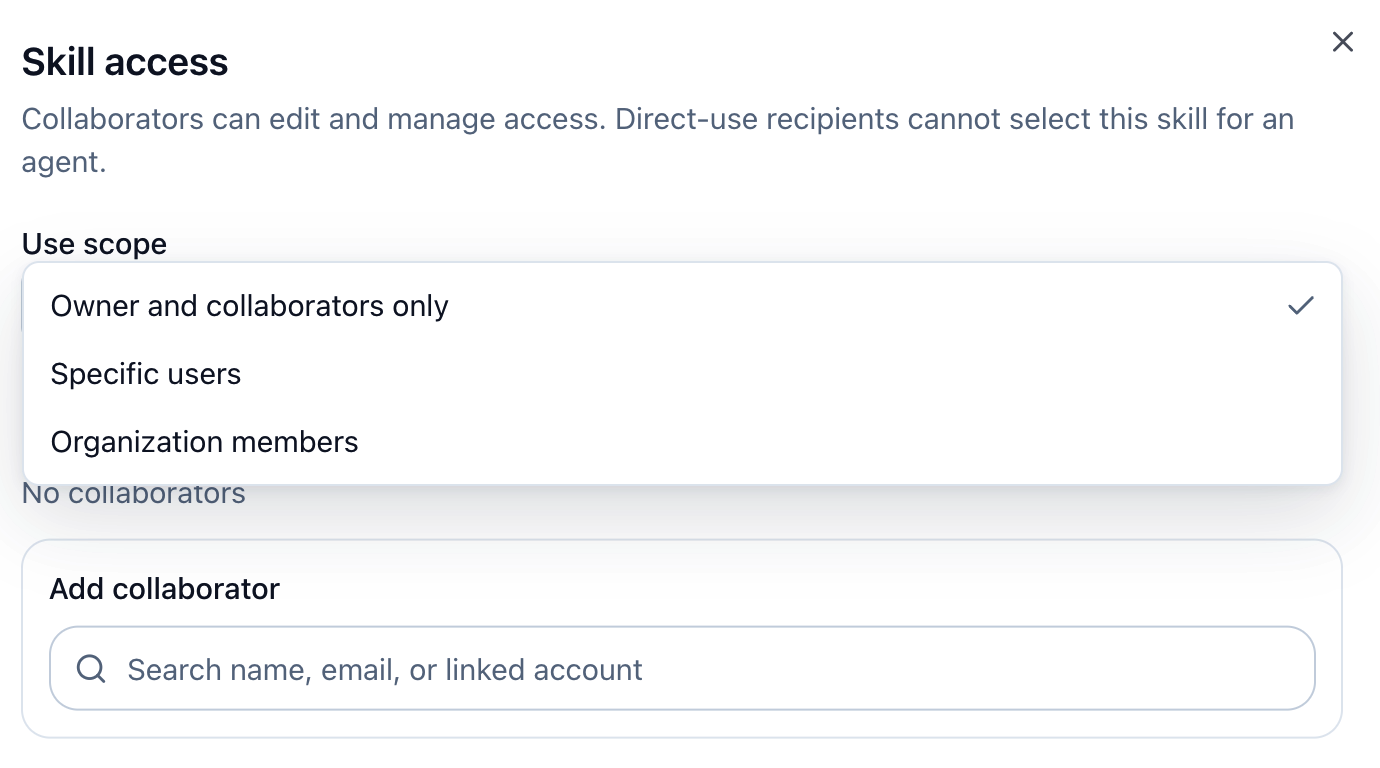
| Usage scope | Description |
|---|---|
| Owner and collaborators only | Use and maintenance are limited to these users. |
| Specified members | Grant usage access to selected members in the usage-members list. |
| Organization members | Grant usage access to the current organization's members. |
To maintain a skill together, search for collaborators by name, email, or linked account and add them. Remove members when authorization is no longer needed.
Permission changes save immediately, without a separate save action. Check the scope and member lists afterward.
Collaborators can edit and manage permissions. Members granted usage access directly cannot select the skill for an agent. Permission to use a skill is not permission to configure it in an agent.
Delete a Personal Skill
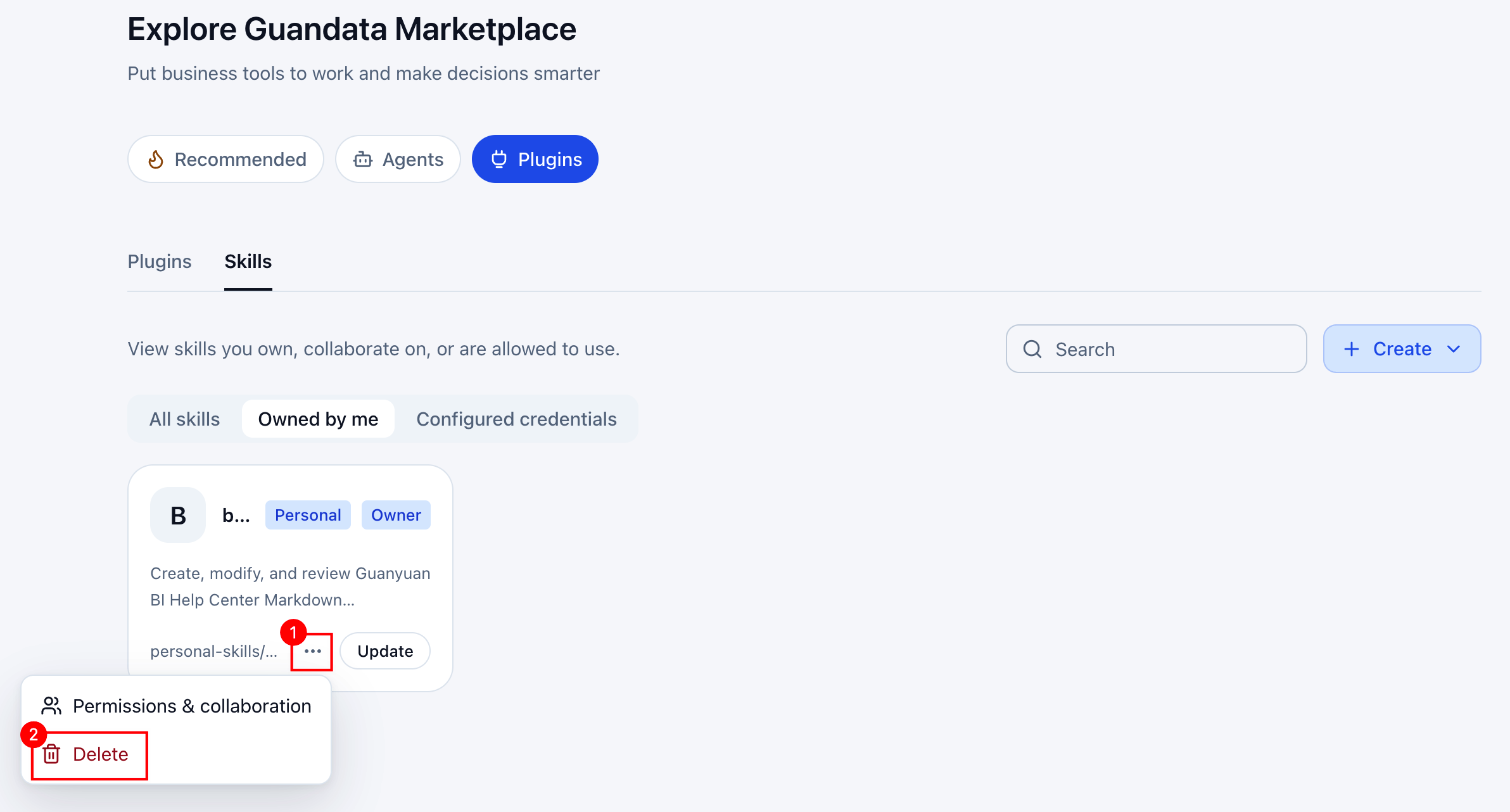
Owners can select More Actions > Delete, review the prompt, and confirm. Download any content to retain first.
If an agent still references the skill, remove that association before deleting it. Existing saved conversations are not rewritten by deletion.