Scheduled Tasks
Overview
Scheduled tasks send a default message to a selected agent at configured intervals for recurring work such as business summaries and progress checks. The list shows the schedule, agent, next run, and message.
They differ from Decision Tracking: scheduled tasks send planned requests, while decision tracking reviews confirmed business baselines and improvement rules. Use either as needed; creating a scheduled task does not require a tracking task.
Prerequisites
- You are in the target organization and have an available agent.
- For analysis, the agent has the required data, tools, and permissions.
- Create and manage tasks on desktop. Mobile provides read-only summaries; copy the link to continue on desktop.
Create a Task
- Open Scheduled Tasks and create a task.
- Select an agent capable of completing it.
- Enter the task name and default message. Specify the analysis target, time range, and output rather than relying on context from a previous conversation.
- Configure the schedule.
- Create the task. It appears as active with its next-run time.
| Setting | Description |
|---|---|
| Target agent | Executes the message. Select an available replacement if the target becomes unavailable. |
| Task name | Identify the business object and purpose. |
| Default message | Request sent on every trigger. |
| Frequency | Hourly, daily, or weekly. |
| Time | Execution time for daily/weekly tasks. Verify the next-run time after creation. |
| Day of week | Applies to weekly schedules. |
Example: “Summarize yesterday's sales, orders, and refunds against the preceding day. List key changes first and explain the data scope. State explicitly if data has not refreshed.” Configure the relevant data permissions first.
You can start from a task template at the bottom of the page. It prefills the form, but you must still confirm the agent, message, and schedule and create the task.
Run Manually and View Results
- Run the task immediately and open its conversation for the response. The schedule must be active and the target agent available.
- Review execution status and time in the history below the card. Successful records show completion.
- Read the response summary or error. Open the conversation for full context.
- Load earlier records as needed.
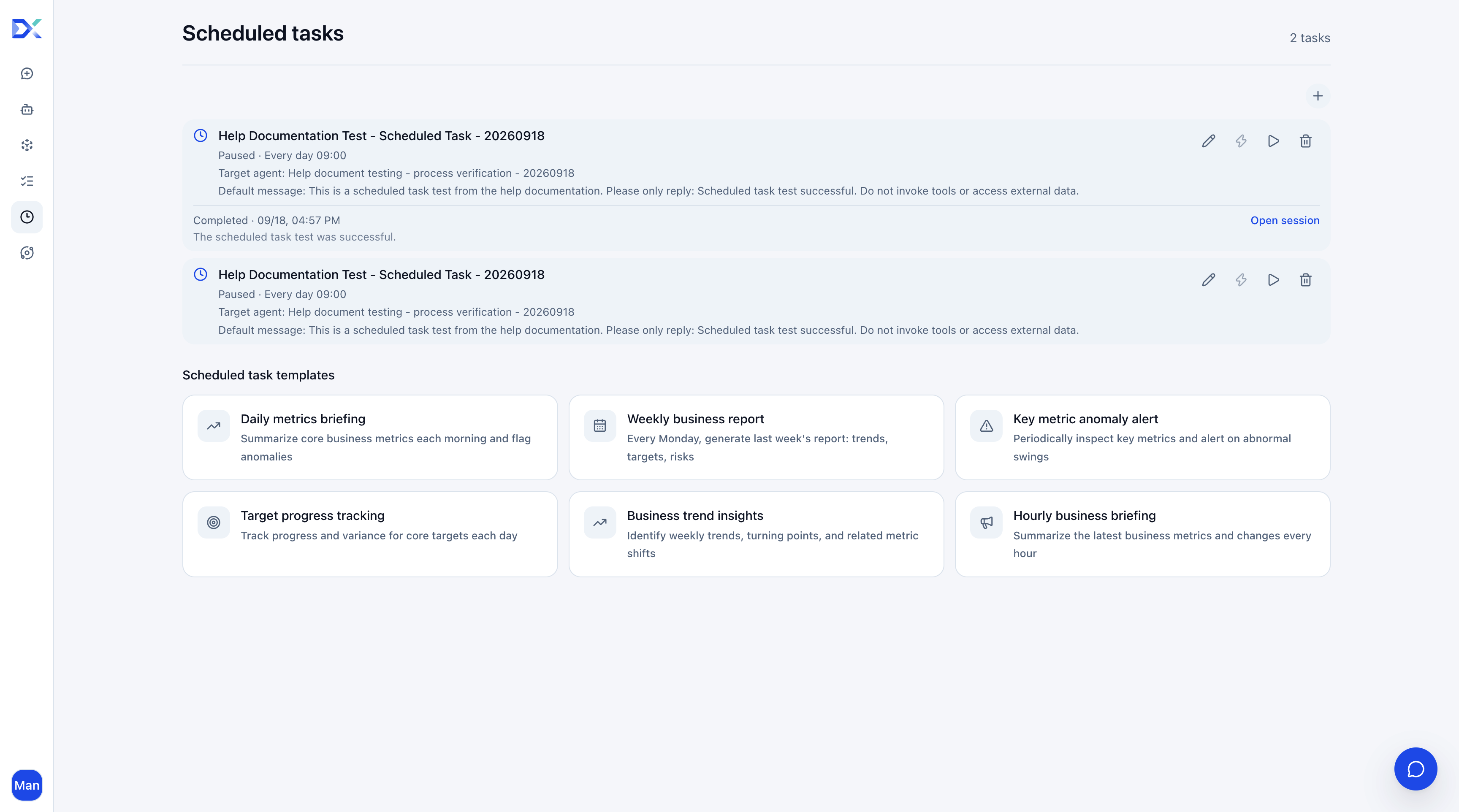
An active task card means the schedule is enabled, not that an execution is currently running. Check execution history for individual results.
On failure, check the error, agent availability, data access, and connector permissions before retrying.
Edit, Pause, and Resume
- Edit the agent, name, message, or schedule. Changing the agent affects future triggers only; queued and running executions retain the original agent.
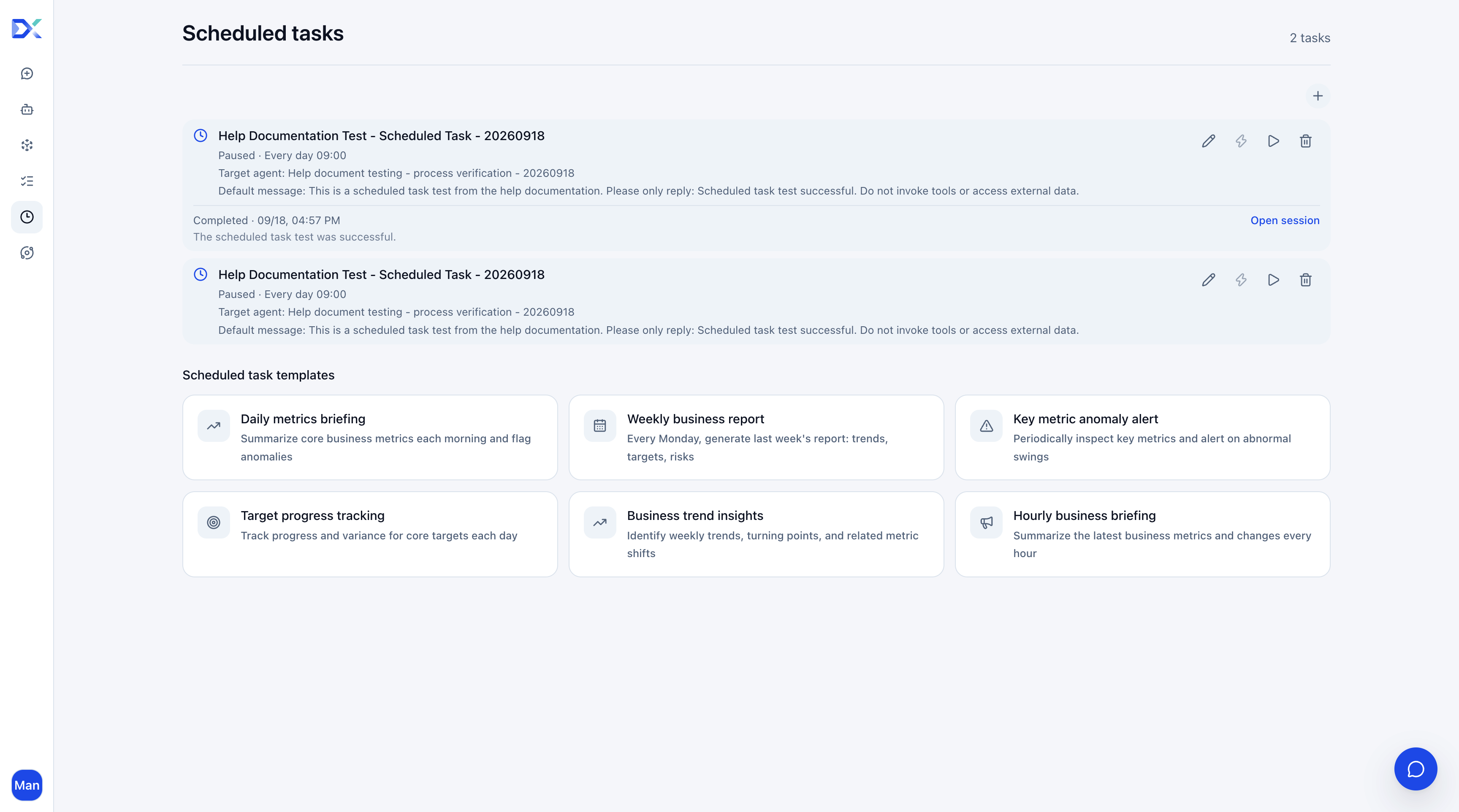
- Pause to stop future scheduled triggers. Immediate execution is unavailable while paused.
- Resume to re-enable the schedule and check the next-run time.
Pausing does not terminate an execution already started. Check both task status and execution history.
Delete a Task
Delete from the task, review the prompt, and confirm. Future triggers stop, but existing historical conversations remain.
Deletion cannot be undone. Use pause when the interruption is temporary.
Limits
A user can retain up to 20 undeleted scheduled tasks for the same agent in the current organization. Paused tasks count toward the limit. Review obsolete tasks when reaching it.